Home Blog Page 4

12 Free AI Background Removal Tools Analyzed – Here’s Best One for You

0

Ever tried removing a background from a photo and wanted to throw your computer out the window? Been there! These days, AI tools do all that tedious work automatically – no Photoshop degree required.

I’ve spent wayyy too many hours trying to cut out people from photos. Then I discovered these AI background removers. Game changer!

The Best Background Removal Tools (That I’ve Actually Used)

So here’s the deal – there are tons of these tools floating around online. I’ve tried most of them when working on my small Etsy shop (gotta make those product photos pop!).

Background Removal Tools

Remove.bg – My Go-To for Quick Fixes

This one’s honestly scary good. You upload your pic, wait like 5 seconds, and boom – background gone. I was super skeptical at first but it actually works!

What it does well:

  • Instant results (literally seconds)
  • Handles batches of photos if you need
  • Pretty accurate for most simple images

The not-so-great stuff:

  • Free version gives you low-res images 😒
  • Gets pricey if you need lots of high-quality downloads
  • Sometimes struggles with very wispy hair

It costs about $9/month for the paid version, which is worth it if you’re doing this regularly. I use it for my online store and it’s saved me countless hours.

Clipping Magic – For When You Need More Control

This one’s a bit different – it lets you make tweaks after the AI does its thing. Like when Remove.bg messes up a bit, Clipping Magic gives you tools to fix it yourself.

I remember using this for a family portrait where my brother’s curly hair was giving the AI fits. The manual tools saved the day.

Good stuff:

  • Combines automatic and manual editing
  • Really good with tricky edges and hair
  • More precise than fully automatic tools

Annoying bits:

  • Free version adds those ugly watermarks
  • Takes longer than pure AI tools
  • Interface feels a bit clunky sometimes

It’s cheaper than some others at $3.99/month for the premium version. Worth checking out if you’re dealing with complicated images.

Slazzer – Fast and Pretty Accurate

Slazzer’s another solid option that I’ve used for product photography. It’s super straightforward – upload, process, download. Done.

My colleague swears by this one for his Amazon listings. Says it’s faster than anything else he’s tried.

The good:

  • Works quick as lightning
  • Handles different file types
  • Batch processing saves tons of time

The bad:

  • Free version? Watermarks (ugh)
  • Need to pay for high-res downloads
  • Not many manual options if it messes up

Pricing starts around $9.99/month, which is standard for these kinda tools.

Fotor – More Than Just Background Removal

Fotor’s got a bunch of editing tools beyond just removing backgrounds. I’ve used it to both remove backgrounds AND add new ones, which is super handy.

What’s cool:

  • The AI works pretty well
  • Super easy interface even for tech-challenged folks
  • Let’s you swap in new backgrounds

What’s not:

  • Their watermarks are especially annoying
  • Free version is limited
  • Sometimes needs more editing for perfect results

Costs about $8.99/month for the premium version – middle of the road pricing.

PicWish – Simple But Effective

I stumbled on PicWish while looking for something to use for my mom’s small business. It’s straightforward and gets the job done.

Pros:

  • One-click removal that actually works
  • Good for basic product photos
  • Has a usable free version

Cons:

  • Watermarks (sensing a theme here?)
  • Premium required for decent resolution
  • Complex images need some help

Starts at $9.99/month for the full version. Not bad if you just need something simple and reliable.

AI Cutout – Good Quality Results

This one delivers slightly better quality than some others I’ve tried. My designer friend uses this for client work and says the precision is worth it.

What works:

  • Crisp, clean cutouts
  • Fast processing
  • Works with different image formats

What doesn’t:

  • Limited resolution in free version
  • Need to pay for batch processing
  • Interface could be more intuitive

Premium starts at $5/month, which is actually cheaper than most competitors.

Photoshop Express – Adobe Quality, Easier Interface

If you’re intimidated by full Photoshop (I still am, tbh), Photoshop Express gives you Adobe’s tech without the learning curve. Plus it syncs with your Creative Cloud if you’re into that.

The good stuff:

  • Powerful tools beyond just background removal
  • Adobe quality results
  • Cloud storage integration

The not-so-good:

  • Free version is pretty limited
  • $9.99/month feels steep for casual users
  • Still more complex than some alternatives

Worth it if you’re already in the Adobe ecosystem. Otherwise, probably overkill.

Background Eraser – Basic But Gets the Job Done

This one’s nothing fancy but works in a pinch. I’ve used it when I just needed something quick and wasn’t too worried about perfect results.

What’s decent:

  • Super simple to figure out
  • Has both auto and manual options
  • Quick for simple images

What’s meh:

  • Watermarks in free version
  • Struggles with complex edges
  • Limited features

Premium is cheaper than most at $3.99/month. Good budget option.

InPixio – All-In-One Photo Editing

I found InPixio when looking for something that could do more than just backgrounds. It handles enhancement too, which is nice for one-stop editing.

What I like:

  • Easy enough for beginners
  • Does more than just backgrounds
  • Background replacement options built in

What I don’t:

  • Those darn watermarks again
  • Limited without paying
  • Some tools feel basic

Premium is pretty affordable at $5.99/month if you need the extra features.

Canva – For The Full Design Package

If you’re already using Canva for design (who isn’t these days?), their background remover is surprisingly good. Plus you can immediately use those images in your designs.

The good:

  • Super intuitive interface
  • Works within your design workflow
  • One tool for multiple needs

The bad:

  • Limited uses in free version
  • Full version is pricier at $12.99/month
  • Not specialized just for background removal

I use this one the most simply because I’m already paying for Canva Pro for my business.

Lunapic – Totally Free But Dated

I used Lunapic years ago when I was a broke college student. It’s completely free and still works, but feels like using internet tools from 2010.

Pros:

  • Completely free!
  • No account needed
  • Has tons of effects beyond background removal

Cons:

  • Interface is… let’s say “vintage”
  • Can be slow
  • Results aren’t as clean as paid options

Worth trying if you’re on a tight budget and don’t mind the dated feel.

GIMP – For The Tech-Savvy

GIMP is basically free Photoshop. It’s powerful but has a learning curve steeper than my driveway (and I live on a hill).

What’s great:

  • Completely free and open-source
  • Incredibly powerful
  • Total control over the process

What’s not:

  • You’ll need tutorials
  • Interface feels cluttered
  • Takes longer than AI tools

I used this before AI tools existed and still keep it installed for occasional detailed work.

My Personal Take

After trying literally all of these tools (my credit card hates me), I’ve settled on a combo approach. I use Remove.bg for quick, easy stuff and Canva’s tool when I’m already making designs there. For truly tough images where quality matters, I’ll use Clipping Magic.

The technology behind these tools is honestly amazing – what used to take me an hour now takes seconds. If you’re selling products online, creating social media content, or just want to make some fun photo edits, these tools are absolutely worth checking out.

Just remember most free versions have limitations – usually low resolution and watermarks. But even the paid versions are WAY cheaper than hiring a professional photo editor!


Ultimate Guide to AI-Powered Photo Editing Tools

0

So I was thinking about how crazy different photo editing is now compared to like 5-6 years ago. AI photo editing apps have totally flipped everything! It’s way faster now, anyone can do it (not just the photoshop wizards), and honestly it’s pretty fun to mess around with. I’ve tried a bunch of these image generator tools myself – some are definitely better than others lol.

AI Photo Editing: Making Pictures Better (and easier!)

Professional photographers use this stuff but so do regular people who just wanna make their vacation pics look better before posting them. There’s tons of apps out there now.

The whole AI photo editing thing has been evolving like crazy. Back in the day (ok not THAT long ago), you had to know what you were doing with all those sliders and settings, and it took FOREVER. But now AI-powered tools just kinda does the heavy lifting? Be it removing unwanted objects upscale images, or complex edits. Tools like Imagen balance the automatic stuff while still letting you be in charge creatively. It’s neat how they learn your style over time too.

Adobe Photoshop jumped on the AI train a while back with that Remove Tool (which is a lifesaver btw) and Neural Filters. Makes everything wayyy more precise without spending hours on it. And it also gives consistent editing style without a fuss.

Generative AI was the game-changer tho! These tools look at your pics and can actually create brand new content that fits right in with what’s already there. Crazy stuff. I remember when Photoshop first dropped Neural Filters around 2020 – they were cool but kind of limited. Now the machine learning has gotten so much better its almost scary how good it is at keeping your editing style consistent.

Also read: We Analysed 12 AI Background Removal Tools – Here’s the Best One for You

Background Removal Tools

So yeah, AI basically reinvented photo editing and image generation by making it more automatic but still letting you control the creative parts. Some examples:

  • Tools like Imagen handle boring stuff automatically but still let u customize things (so you don’t lose your personal touch but save a ton of time)
  • Photoshop’s AI features are actually really precise now
  • The generative AI stuff can create new content with image generator that fits perfectly with your existing image
  • This tech keeps improving super fast!

What Makes AI Photo Editors Different?

The thing with AI photo editors is they make improving images basically effortless with wide range of AI-powered tools. Like, you wanna add something, remove something, change something? These tools analyze everything and generate content that fits in naturally, it can also learn our photo editing style and deal with complex photo editing tasks in a jiffy. I tried one last week to remove my ex from a group photo (don’t judge lol) and it was like he was never there!

The best part is:

Images look natural after editing – no weird edges or obvious edits.

You can create new stuff IN your images – need to replace a boring sky? Done!

Most have pretty easy interfaces. I’m not tech-savvy in image editing at ALL and I figured them out.

The quality is honestly impressive? Like professional-level edits without the professional-level skills.

The AI does smart stuff like retouching and color adjustments that would take me hours to figure out.

Generative AI Tools Are Wild

Ok so these generative AI tools are mind-blowing. Adobe’s Generative Fill thingy (it uses Adobe Firefly apparently) basically lets you replace or expand parts of your image intelligently. I was working on a project where I needed to extend a background, and instead of redoing the whole thing, I just used this and it created perfect matching pixels. AI image editor saved me SO much time!

These tools handle all the annoying repetitive stuff – sorting through pics, fixing colors, cropping, background replacement, photos with background blur – and they get better the more you use them because they learn from what you’ve done before.

The Text to Image and Generative Expand features are my favorite tho. You can literally type what you want and it adds it to your image! I was playing around with it yesterday and typed “add a cute dog” to a park scene and boom – adorable pup appeared that looked like it belonged there all along.

Getting Rid of Unwanted Stuff

Omg removing unwanted things from photos has never been easier. Remember when you’d have to carefully clone stamp everything out? THE WORST.

Now Adobe Photoshop’s Remove Tool, Picsart’s object eraser, and that AI thing in Fotor let you just brush over whatever you don’t want, and poof – gone! Microsoft Designer has this Generative Erase feature that’s pretty sweet too.

This has saved me soooo many times:

  • Got a perfect family photo but there’s a random stranger in the background? Gone.
  • Beautiful landscape but there’s an ugly power line running through it? Erased.
  • Great selfie but embarrassing stuff in the background of your room? Fixed in seconds.

Face Swap Stuff (super fun)

Face swapping is honestly the most fun part. Pixlr has this one-click face swap that works pretty good as long as both pics have clear faces. I spent way too much time last weekend putting my face on my dog’s body 😂

There are tons of editors that can do super realistic face swaps now. Fotor’s got a good face editing tool too that does auto retouching. The tech has gotten good enough that the results look pretty darn real with great image quality too – sometimes creepily so!

Face swapping is just a blast:

  • One click and you’re done
  • Works best when faces are clearly visible (duh)
  • You can use it for serious projects BUT it’s way more fun to just mess around and create weird stuff for your friends

Making Blurry Pics Better

The AI upscaling stuff is honestly magical. I had these old low-res pics from my first digital camera that looked awful, all pixelated and blurry. Ran them through an AI enhancer and they look 100x better! These tools automatically fix brightness, colors, clarity, etc without you having to figure out all the technical stuff.

The upscaling is nuts – it’s like CSI “enhance” but it actually works??

AI is great at this because:

  • Fixes everything instantly instead of spending forever tweaking settings
  • The algorithms are smart enough to fix problems while keeping important details
  • One click and your blurry mess becomes usable!

Popular AI Photo Editing Apps I’ve Tried

There’s soooo many platforms using AI for photo editing now. Some are definitely better than others tho. The automation is the biggest selling point – handling tedious stuff like color fixing and cropping.

These are some standouts:

Pixlr

Pixlr is super convenient – works online, on your phone, whatever – no downloading required. The AI does image generation, removes backgrounds, erases objects. Free version lets you save 3 pics daily, or you can pay $1.99/month for the Plus plan. It’s cheap and teachers get it free for their classes! Works great whether you’re just starting out or actually know what you’re doing.

Microsoft Designer

Microsoft Designer has a really intuitive interface for AI editing. You can slap on filters, fix brightness, get rid of blemishes, etc. Great for making stuff for Instagram and TikTok. Simple but effective for quick touchups. Actually one of my fav tools for photo editing right now.

Canva (for more than just editing)

Canva is awesome because it does design AND photo editing with AI tools. Their Magic Design creates templates just from text prompts, and Magic Media does text-to-image stuff.

Canva’s gotten really powerful with AI lately:

  • Magic Design & Magic Media generate entire designs/images from text
  • Their one-click background remover is built right into the editor
  • Magic Resize is clutch for adapting your designs to different platforms

Jasper AI for the writing part

Jasper isn’t actually a photo editor but helps photographers with the writing stuff. It generates captions for social media, taglines for ads, etc. Pretty handy when you’re better at taking pics than writing about them!

Jasper helps with:

  • Quick caption ideas when you’re blanking on what to write
  • Ad taglines that don’t sound generic or boring
  • SEO headings that might actually get your work seen

Some Wild AI Art Generators

The AI art generators are pushing boundaries like crazy:

DALL-E 2 has these cool inpainting/outpainting features, tho DALL-E 3 somehow doesn’t? Weird step backward.

Midjourney is probably the most comprehensive one with automated zooming, panning, element replacement. Lots of serious users swear by it. I tried it once but the commands were a bit much for me personally.

Canva’s Magic Edit lets you replace stuff by just clicking or brushing over parts of the image. Super convenient interface too – you can churn out hundreds of images super fast with their magic tools.

PicsArt has like 20+ AI tools in one app – does everything from removing backgrounds to transferring styles.

Pixlr’s generative AI is great for making eye-catching designs with features like Text to Image and Generative Fill.

Finding the Sweet Spot Between AI and Creativity

The best thing about AI tools is they handle the boring parts – sorting through pics, fixing colors, cropping – while letting you keep your personal style. Imagen actually learns from your previous edits to maintain consistency (creepy but useful!). Features like smart retouching and background fixes add that professional touch, and the generative AI adds creativity by seamlessly adding new content.

These AI photo editors balance automation and creative control really well:

  • They handle repetitive tasks so you can focus on the fun creative parts
  • Tools like Imagen actually learn your unique style over time
  • You get professional-level results without professional-level effort

Picking the Right Tool

Honestly depends what you need it for. Professional photographers probably want Imagen or Adobe Lightroom for automation and batch editing, but if you’re just getting started like I was, Pixlr’s simplicity and one-click enhancements are perfect.

It really comes down to:

  • Professional tools like Imagen offer high-quality, consistent edits and work well with platforms like Adobe Lightroom
  • Beginner-friendly options like Adobe Lightroom and Pixlr have intuitive interfaces so you don’t need a PhD in Photoshop
  • AI keeps getting better, offering new features that make images look better and save time

Professional Photography Tools

Imagen is a dream for serious photographers – it automates culling, color correction, cropping, etc. while creating a unique editing profile based on YOUR style. It works with different aesthetics too, so whether you’re into moody portraits or bright landscapes, or object removal, it adapts. It just makes content creation a whole lot more fun and plenty of scope in expanding creativity with simple adjustments in prompts.

For the pros who need precision:

  • Imagen builds personalized editing profiles based on your style
  • Integrates with your existing workflow and software
  • Handles repetitive tasks so you can focus on the creative direction

Apps for Casual Users

For just everyday use, Pixlr is my go-to. Free, super user-friendly, and the AI adjustments are easy. Perfect for quick touch-ups that still look impressive. Beyond serious editing, AI can be really fun to play with too!

Using AI for Marketing Stuff

This part is super interesting – AI can now automate creating ads and social media content, making different formats super quickly. It learns from what performed well before too, so your branding stays consistent and you save a ton of time.

AI is changing marketing too:

User-Friendly Experience

The best thing about these AI photo editors is they balance automation with customization so using them feels natural with superb quality. Pixlr works on any device, Evoto is great for batch processing tons of images at once, and Imagen blends automatic edits with manual control options.

Modern AI photo editing software focuses on user experience:

  • Tools like Pixlr have interfaces that are easy to use across different devices
  • Software like Imagen balances automatic stuff with manual adjustments
  • Features like Evoto’s batch editing process lots of photos quickly and consistently

What’s Coming Next?

The future of AI photo editing looks pretty exciting tbh. Tools like Photoshop’s Generative Fill and Remove Tool are just the beginning of where this is headed – more automation and seamless creativity for advanced users. As AI gets even smarter, I’m expecting even faster workflows and more innovative features that’ll change how we edit photos completely.

The integration of generative AI into editing apps is gonna make them WAY more powerful soon. Adobe’s generative tools already work amazing with real images to let you make major edits with minimal effort.

AI tools will keep streamlining photographers’ workflows by handling the boring stuff, leaving more time for creativity. The difference between AI editors and old-school photo editing software is how they automate repetitive tasks, adapt to your style, and manage post-production efficiently.

Seeing how fast AI tools have appeared in photography, I’m betting this trend towards automation and efficiency will continue, bringing cool new solutions for photographers at all levels.

Whether ur a pro with expensive gear or just someone who likes making your iPhone pics look better before posting them, there’s an AI tool out there that’ll work for you!

How to Stop Autorun USB Virus from Infecting Your Computer

0

Did you know that USB flash drives can be silent carriers of viruses? 🦠 Just like an unsuspecting handshake with someone sick, plugging in an infected USB can introduce malware into your PC in seconds. Scary, right?

Did you ever think about how sneaky USB flash drives can be? I mean, they’re tiny, innocent-looking things, but they can carry viruses like a handshake from someone who’s been coughing all day. Plug one in, and bam—your PC’s got malware faster than you can say “oops.” Kinda freaky when you stop to think about it.

Take the Autorun USB Virus, for instance. That little devil’s been around forever, and it’s still a pain. It’s the kind of malware that doesn’t even wait for an invite—just pops off the USB and starts messing with your system the second you plug it in. Ever had those weird moments where files show up out of nowhere or your computer starts acting like it’s possessed? Yeah, I’ve been there, and I’m pretty sure that’s how I met this jerk of a virus once. Learn more about the dangers of using unknown charging cables and how to stay safe.

Background Removal Tools

But it’s not just USB drives you gotta watch out for—those sketchy charging cables can screw you over too. I read somewhere (probably late at night when I should’ve been sleeping) that crooks tweak those cords to pump malware into your phone or laptop. Wild, right? Makes me paranoid every time I’m at an airport and tempted to use one of those public charging stations. Many other types of computer viruses work similarly, and it’s important to know how they operate to protect your system effectively.

1. Understanding the Autorun USB Virus

So, What’s This Autorun USB Virus Anyway?

Here’s the deal: it’s this self-starting bug that hides in a file called autorun.inf. Plug in the USB, and if your Windows is set to autorun (why’s that still a default, Microsoft?), it just takes off. No clicking required. It’s like handing your PC a loaded gun and saying, “Here, play with this.”

Background Removal Tools

Other viruses pull similar stunts, and lemme tell you, figuring out how they tick is half the battle to keeping your stuff safe. Like, it spreads by:

  • Just plugging in and going for it—no manners at all.
  • Throwing up fake folders or shortcuts (super annoying when you click one by accident).
  • Hiding nasty files where you’d never think to look.
  • Oh, and if your PC’s networked? It’ll hop over to your other devices like it owns the place.

Signs You’re Infected

You’ll know something’s up when your USB files turn into shortcuts outta nowhere. Or your computer slows down so bad it’s like it’s running through mud. Pop-ups? Random errors? Files that won’t open? Yup, that’s the virus waving hello. My antivirus used to scream at me every time I plugged in a shady USB—should’ve listened sooner.


How to Keep This Mess Off Your PC

Step 1: Kill Autorun (Seriously, Do It)

Disabling autorun is my go-to move. Why let viruses waltz in uninvited? Here’s how I do it on Windows 10 or 11:

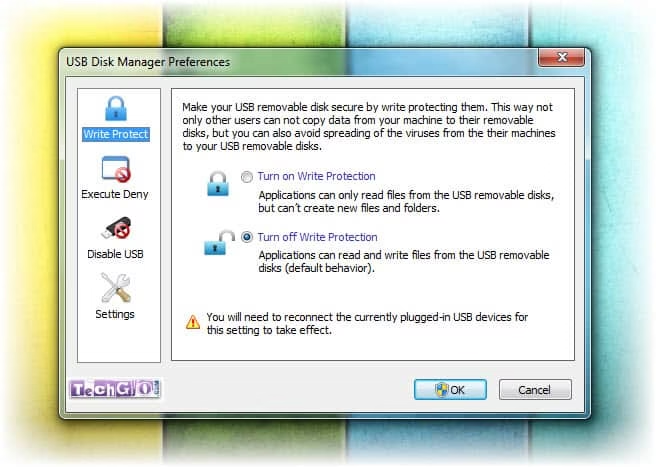
  • Hit Win + R, type gpedit.msc—feels kinda hacker-y, right?—and press Enter.
  • Dig through Computer Configuration > Administrative Templates > Windows Components > AutoPlay Policies.
  • Find “Turn off AutoPlay,” click it, set it to Enabled, and pick “All Drives.”
  • Hit Apply, then OK. Done! Your PC’s basically saying “nope” to autorun now.

Also check out how to perform a phone virus scan using a PC to keep your devices malware-free.

Step 2: Get Some Antivirus Muscle

A solid antivirus is like a bouncer for your USBs. I’ve leaned on Windows Defender (free and decent) and messed around with Bitdefender’s USB Immunizer—pretty cool stuff. Kaspersky’s USB Rescue Disk is clutch too. Ever tried McAfee or Avast for this? They’ve got USB tricks up their sleeves. Some even “immunize” your drive so malware doesn’t stand a chance—how neat is that?

Step 3: Scan Before You Click

I never open a USB without scanning it first. Learned that the hard way after a friend’s drive trashed my old laptop. Just pop it in, fire up Windows Defender, hit Quick Scan, and pick the USB. If it finds something, zap it right then and there. (Side note: you can do this for your phone too—plug it into your PC and scan it if you’re paranoid like me.)


Already Infected? Here’s the Fix

If you’re past the prevention stage (been there, buddy), you can still kick that virus out.

Option 1: Command Prompt Kung Fu

  • Win + R, type cmd, Enter.
  • Type attrib -h -r -s /s /d X:\*.* (X is your USB’s letter—mine’s usually E or F).
  • Hunt down autorun.inf or anything fishy and delete it. Feels satisfying, honestly.

Option 2: Call in the Pros

Tools like Malwarebytes or USBFix are lifesavers. Kaspersky’s got a solid removal tool too. I ran Malwarebytes once after a scare—took forever but cleaned up everything. Restart after, scan again, and you’re golden.


My Two Cents on Staying Safe

  • Turn off autorun for good (see above—don’t skip it).
  • Scan every USB, even if it’s your mom’s.
  • Grab an antivirus with USB chops—ESET NOD32’s my dark horse pick.
  • Steer clear of random public USBs—those things are trouble.
  • Back up your files. I lost a project once and nearly cried.

5. Frequently Asked Questions (FAQ) 🤔

What is the best antivirus for USB autorun virus?

Bitdefender, Kaspersky, and Malwarebytes are top choices.

Can I remove the autorun virus manually?

Yes! Use Command Prompt and delete the autorun.inf file.

How do I prevent USB malware infections permanently?

Disable autorun, use an antivirus, and never trust unknown USBs!

What happens if I accidentally open an infected USB file?

Your PC could get infected, so immediately run a full virus scan and remove any threats.


Conclusion 🎯

USB autorun viruses suck, but they’re not invincible. I’ve dodged ‘em (mostly) by staying paranoid and keeping my defenses up. Follow this stuff, and you’ll be fine—promise. Now, go lock down your PC and keep those digital gremlins outta your life!

Stay safe, and keep those USB viruses at bay! 🚀🔒

300+ Best Free Useful Softwares for Windows [Ultimate List]

8

Steve jobs once said a computer is bicycle for the mind. Your computer can actually become the most valuable place if you have the right tools available to make the most out of it. There are over a million software available to sort each of your purposes online or offline. In today’s digital world, open-source software has become a powerful alternative to proprietary applications, offering flexibility, security, and cost-effectiveness. From operating systems to office suites, multimedia tools, security applications, and game development engines, open-source solutions provide feature-rich and community-supported alternatives to commercial software. This comprehensive list presents over 300+ open-source applications, meticulously categorized with descriptions, official websites, and the proprietary software they replace. Whether you’re an individual looking for privacy-focused tools, a business seeking cost-effective alternatives, or a developer in search of flexible solutions, this collection serves as the ultimate guide to the best open-source software available today.

300+ Best Free Useful Softwares

Office Suites and Productivity

Software NameDescriptionWebsiteReplaces
LibreOfficeOpen-source office suiteLibreOfficeMicrosoft Office
OnlyOfficeCollaborative office suiteOnlyOfficeMicrosoft Office
Apache OpenOfficeOpen-source office suiteOpenOfficeMicrosoft Office
ScribusDesktop publishing softwareScribusAdobe InDesign
FocusWriterDistraction-free writing toolFocusWriterMicrosoft Word
CherryTreeHierarchical note-taking applicationCherryTreeMicrosoft OneNote
JoplinOpen-source note-taking appJoplinEvernote
ZoteroReference management toolZoteroEndNote
CalibreE-book management softwareCalibreAdobe Digital Editions
OkularUniversal document viewerOkularAdobe Reader

Web Browsers

Software NameDescriptionWebsiteReplaces
Mozilla FirefoxOpen-source web browserFirefoxInternet Explorer
Google ChromeWeb browser by GoogleChromeInternet Explorer
Microsoft EdgeWeb browser by MicrosoftEdgeInternet Explorer
OperaWeb browser with built-in ad blockerOperaSafari, Internet Explorer
BravePrivacy-focused web browserBraveGoogle Chrome (ad-free alternative)

Email Clients and Communication

Software NameDescriptionWebsiteReplaces
Mozilla ThunderbirdFree email applicationThunderbirdMicrosoft Outlook
Jitsi MeetSecure video conferencingJitsi MeetZoom
HexChatIRC clientHexChatmIRC
PidginMulti-platform instant messaging clientPidginTrillian
Signal DesktopSecure messaging appSignalWhatsApp (desktop)
ElementDecentralized secure messengerElementSlack
MumbleLow-latency voice chat softwareMumbleTeamSpeak
BigBlueButtonWeb conferencing system for online learningBigBlueButtonAdobe Connect
Rocket.ChatTeam communication platformRocket.ChatSlack
MattermostOpen-source messaging platformMattermostSlack

Security and Privacy

Software NameDescriptionWebsiteReplaces
ClamAVOpen-source antivirus softwareClamAVNorton Antivirus
VeraCryptDisk encryption softwareVeraCryptBitLocker
BitwardenOpen-source password managerBitwardenLastPass
OpenVPNOpen-source VPN solutionOpenVPNNordVPN
BleachBitSystem cleaner and privacy managerBleachBitCCleaner
KeePassXCCross-platform password managerKeePassXC1Password
Gpg4winEmail and file encryption for WindowsGpg4winPGP Desktop
PeerBlockIP address blocking toolPeerBlockPeerGuardian (obsolete)
Fail2BanIntrusion prevention softwareFail2BanN/A
OSSECOpen-source host-based intrusion detection systemOSSECTripwire
SnortNetwork intrusion detection systemSnortN/A
EraserSecure data removal toolEraserBCWipe
TailsLive operating system focused on privacyTailsN/A
FirewallDDynamic firewall management toolFirewallDiptables
CryptomatorEncrypts cloud storage filesCryptomatorBoxcryptor

Multimedia (Audio, Video, and Image Editing)

Software NameDescriptionWebsiteReplaces
AudacityAudio editing softwareAudacityAdobe Audition
VLC Media PlayerVersatile media playerVLCWindows Media Player
KdenliveVideo editing softwareKdenliveAdobe Premiere Pro
ShotcutOpen-source video editorShotcutFinal Cut Pro
HandBrakeVideo transcoderHandBrakeAnyDVD
OBS StudioScreen recording and streaming softwareOBS StudioCamtasia
ArdourDigital audio workstationArdourPro Tools
LMMSMusic production softwareLMMSFL Studio
MPVLightweight media playerMPVWindows Media Player
OpenShotSimple video editorOpenShotiMovie
MixxxDJ softwareMixxxTraktor DJ
GIMPImage editorGIMPAdobe Photoshop
InkscapeVector graphics editorInkscapeAdobe Illustrator
KritaDigital painting softwareKritaCorel Painter
Blender3D modeling and animationBlenderAutodesk Maya

System Utilities

Software NameDescriptionWebsiteReplaces
BleachBitSystem cleaner and privacy managerbleachbit.orgCCleaner
7-ZipFile archiver with high compression ratio7-zip.orgWinRAR
FreeFileSyncFolder comparison and synchronization toolfreefilesync.orgGoodSync
RufusUtility to create bootable USB drivesrufus.ieUNetbootin
ClonezillaDisk cloning and imaging programclonezilla.orgNorton Ghost
GPartedGNOME partition editorgparted.orgPartitionMagic
TestDiskData recovery softwarecgsecurity.org/wiki/TestDiskEaseUS Data Recovery
PhotoRecFile data recovery softwarecgsecurity.org/wiki/PhotoRecRecuva
Double CommanderFile manager with two panels side by sidedoublecmd.sourceforge.ioTotal Commander
SpaceSnifferDisk space analyzerspacesniffer.comWinDirStat
Bulk Rename UtilityFile renaming toolbulkrenameutility.co.ukAdvanced Renamer
EverythingDesktop search utilityvoidtools.comWindows Search
WiresharkNetwork protocol analyzerwireshark.orgMicrosoft Network Monitor
FileZilla ClientFTP clientfilezilla-project.orgCuteFTP
PuTTYSSH and telnet clientputty.orgSecureCRT
NmapNetwork discovery and security auditing toolnmap.orgSolarWinds Port Scanner
OpenSSHSuite of secure networking utilitiesopenssh.comSSH Communications
WinSCPSFTP and FTP client for Windowswinscp.netCyberduck
CPU-ZSystem profiling and monitoring applicationcpuid.com/softwares/cpu-z.htmlSpeccy
HWMonitorHardware monitoring programcpuid.com/softwares/hwmonitor.htmlSpeedFan
CrystalDiskInfoHDD/SSD utility softwarecrystalmark.info/en/software/crystaldiskinfoHD Tune
MemTest86Memory testing softwarememtest86.comWindows Memory Diagnostic
FurMarkGPU stress testing toolgeeks3d.com/furmark3DMark
CinebenchCross-platform test suite for evaluating CPU performancemaxon.net/en/products/cinebenchGeekbench
Unigine HeavenGPU benchmark and stress testbenchmark.unigine.com/heaven3DMark
Phoronix Test SuiteComprehensive testing and benchmarking platformphoronix-test-suite.comPassMark
StressTool to impose load on and stress test systemspeople.seas.harvard.edu/~apw/stressPrime95
lm-sensorsMonitoring temperatures, voltage, and fanshwmon.wiki.kernel.orgSpeedFan
OCCTStability checking toolocbase.comPrime95
GeekbenchCross-platform processor benchmarkgeekbench.comPassMark
IometerI/O subsystem measurement and characterization tooliometer.orgCrystalDiskMark
GPU-ZGraphics card information utilitytechpowerup.com/gpuzGPU Caps Viewer

Backup & File Sync

Software NameDescriptionWebsiteReplaces
FreeFileSyncFolder comparison and synchronization toolfreefilesync.orgGoodSync
RcloneCommand-line program to manage files on cloud storagerclone.orgrsync + cloud services
SeafileOpen-source file sync and share solutionseafile.comDropbox
NextcloudSelf-hosted file sync and share platformnextcloud.comGoogle Drive
DuplicatiBackup software to store encrypted backups onlineduplicati.comCrashPlan
BorgBackupDeduplicating backup program with compression and encryptionborgbackup.readthedocs.ioAcronis True Image
SyncthingContinuous file synchronization programsyncthing.netResilio Sync
rsyncFile synchronization and file transfer program for Unix systemsrsync.samba.orgRobocopy

Virtualization & Emulation

Software NameDescriptionWebsiteReplaces
VirtualBoxCross-platform virtualization applicationvirtualbox.orgVMware Workstation
QEMUGeneric and open-source machine emulator and virtualizerqemu.orgVMware ESXi
KVMKernel-based Virtual Machine for Linuxlinux-kvm.orgMicrosoft Hyper-V
Proxmox VEOpen-source server virtualization management solutionproxmox.comVMware vSphere
DOSBoxEmulator to run DOS applicationsdosbox.comVirtual PC
WineCompatibility layer to run Windows applications on Unix-like systemswinehq.orgCrossOver
RetroArchFrontend for emulators, game engines, and media playersretroarch.comMednafen
PCSX2PlayStation 2 emulatorpcsx2.netePSXe
DolphinGameCube and Wii emulatordolphin-emu.orgGCEmu
LXCLinux container runtimelinuxcontainers.orgDocker

Game Development

Software NameDescriptionWebsiteReplaces
Godot EngineFeature-packed, cross-platform game enginegodotengine.orgUnity
GDevelopOpen-source, cross-platform game creatorgdevelop.ioConstruct
DefoldCross-platform game enginedefold.comGameMaker
Cocos2d-xOpen-source game frameworkcocos2d-x.orgCorona SDK
Panda3D3D game engine and frameworkpanda3d.orgOgre3D
SuperpowersHTML5 2D+3D game makersuperpowers-html5.comRPG Maker
Ren’PyVisual novel enginerenpy.orgTyranoBuilder
OpenRAOpen-source implementation of Westwood’s Red Alert game engineopenra.netCommand & Conquer: Red Alert
Spring EngineReal-time strategy game enginespringrts.comAge of Empires
Urho3DCross-platform 2D and 3D game engineurho3d.github.ioUnreal Engine

CAD & 3D Modeling

Software NameDescriptionWebsiteReplaces
FreeCADParametric 3D CAD modelerfreecadweb.orgAutoCAD
Blender3D creation suiteblender.org3ds Max
LibreCAD2D CAD applicationlibrecad.orgAutoCAD LT
OpenSCADScript-based 3D CAD modeleropenscad.orgSolidWorks
BRL-CADConstructive solid geometry modeling systembrlcad.orgCATIA
SolveSpaceParametric 3D CAD programsolvespace.comSketchUp
Wings 3DAdvanced subdivision modelerwings3d.comMaya
Sweet Home 3DInterior design applicationsweethome3d.comHome Designer Suite
LeoCADVirtual LEGO CAD programleocad.orgLEGO Digital Designer
Dust3D3D modeling applicationdust3d.orgZBrush

Benchmarking & Hardware Monitoring

Software NameDescriptionWebsiteReplaces
CPU-ZSystem profiling and monitoringcpuid.comSpeccy
HWMonitorHardware monitoring programcpuid.comSpeedFan
CrystalDiskInfoHDD/SSD health monitoring toolcrystalmark.infoHD Tune
MemTest86Memory testing utilitymemtest86.comWindows Memory Diagnostic
FurMarkGPU stress testgeeks3d.com3DMark
CinebenchCPU benchmarking softwaremaxon.netGeekbench
Unigine HeavenGPU benchmark and stress testbenchmark.unigine.com3DMark
Phoronix Test SuiteCross-platform benchmarking suitephoronix-test-suite.comPassMark

Scientific & Educational Software

Software NameDescriptionWebsiteReplaces
GeoGebraMathematics software for algebra, geometry, calculusgeogebra.orgWolfram Mathematica
OctaveNumerical computation softwaregnu.org/software/octaveMATLAB
R ProjectStatistical computing and graphicsr-project.orgSAS
ScilabOpen-source numerical computationscilab.orgMATLAB
MaximaSymbolic computation systemmaxima.sourceforge.ioWolfram Mathematica
SageMathOpen-source math softwaresagemath.orgMaple
AvogadroMolecular modeling softwareavogadro.ccChemDraw
CelestiaSpace simulation softwarecelestia.spaceMicrosoft Worldwide Telescope
StellariumPlanetarium softwarestellarium.orgStarry Night
Tux TypingTyping tutor for childrentux4kids.alioth.debian.orgMavis Beacon
AnkiFlashcard-based learning systemapps.ankiweb.netQuizlet
MoodleLearning management systemmoodle.orgBlackboard

Networking & Server Management

Software NameDescriptionWebsiteReplaces
WiresharkNetwork protocol analyzerwireshark.orgMicrosoft Network Monitor
NmapNetwork security scannernmap.orgSolarWinds Port Scanner
OpenSSHSecure shell network toolopenssh.comSSH Communications
ZabbixNetwork monitoring softwarezabbix.comPRTG Network Monitor
CactiGraphing tool for network datacacti.netSolarWinds NPM
SFTPPlusSecure FTP serversftpplus.comFileZilla Server
PostfixMail transfer agentpostfix.orgMicrosoft Exchange
DovecotIMAP and POP3 mail serverdovecot.orgMicrosoft Exchange
BINDDNS serverisc.org/bindMicrosoft DNS Server
Apache HTTP ServerWeb server softwarehttpd.apache.orgMicrosoft IIS
NginxWeb server and reverse proxynginx.orgMicrosoft IIS

Backup & Cloud Storage Alternatives

Software NameDescriptionWebsiteReplaces
NextcloudSelf-hosted cloud storagenextcloud.comGoogle Drive
SeafileEnterprise file syncing solutionseafile.comDropbox
DuplicatiCloud backup solutionduplicati.comCrashPlan
BorgBackupDeduplicating backup solutionborgbackup.readthedocs.ioAcronis True Image
rsyncFile synchronization for Linux/Unixrsync.samba.orgRobocopy
RcloneCommand-line cloud file managerrclone.orgCyberduck
ResticBackup program with encryptionrestic.netVeeam Backup
AmandaNetwork backup softwareamanda.orgVeritas NetBackup

Embracing open-source software not only reduces costs but also empowers users with greater control, transparency, and innovation. With a thriving global community continuously improving these applications, open-source software stands as a testament to collaboration and technological advancement. Whether you’re transitioning from proprietary software or exploring new tools, this extensive list provides a wealth of options across various domains. By leveraging open-source solutions, individuals and businesses can enhance productivity, security, and creativity—without the limitations of closed ecosystems. Now, it’s time to explore, experiment, and adopt the power of open-source!

By choosing open-source, you’re not just saving money—you’re investing in a community-driven, transparent, and innovation-fueled future. So why stay locked in when you can open up to limitless possibilities? Go ahead, debug your expenses, compile your creativity, and execute a better digital experience!

iOS Multiplayer Games: 10 Coolest To Get You Hooked Onto

0

The Best iOS Multiplayer Games to Play with Friends

Ready to rack up wins and bragging rights? The best iOS multiplayer games turn your iPhone into a portal for epic squad showdowns—because who doesn’t love a little friendly chaos? From freebies that won’t break the bank to battles that’ll glue you to your screen, these titles are the cream of the App Store crop. We’ve rounded up 10 champs that keep the good times rolling in 2025 and beyond—let’s dive into the fun!

Background Removal Tools

Why iOS Multiplayer Games Stand Out

The iPhone’s no slouch when it comes to gaming—it’s a pocket-sized powerhouse that makes online multiplayer games on iPhone a total blast. With Game Center linking you to pals, silky-smooth performance, and a player pool bigger than a Minecraft server, iOS delivers. Whether you’re on Wi-Fi or 5G, these games run like a dream—perfect for dodging lag and landing headshots.

Want to keep the action snappy? You can speed up your device with tricks that work on iOS too—no one likes a choppy match. Toss in voice chats and cross-platform perks, and it’s no wonder these games are a global hit. Time to see why they’re the GOATs of mobile multiplayer!


Top 10 Best iOS Multiplayer Games

Here’s the lineup of best iOS multiplayer games—each a knockout in its own ring. Get ready for puns, facts, and some serious gaming fuel.

1. 8 Ball Pool

8 Ball Pool iOS Multiplayer Games

Cue up some fun with 8 Ball Pool, Miniclip’s billiards blockbuster that’s pocketed over 500 million downloads since 2010. This free iOS game with friends lets you chalk up your virtual stick and sink shots against buddies or global hustlers. With 8-ball, 9-ball, and tournaments, it’s a table-topping good time that’ll have you saying, “I’ve got this in the bag!” Fun Fact: It started as a Facebook sensation before ruling mobile—talk about a break shot to fame!

Quick Facts
🎮 Players: Millions worldwide
📏 Size: ~150 MB
🏆 Modes: 1v1, 8-player tournaments
🎯 Vibe: Casual yet competitive

Pool Party Tips
🌟Practice offline—those angles won’t sink themselves!
🎱Bet big in high-stakes matches for epic rewards.
👾Customize your cue to flex on the table.
🎤Chat trash (nicely) to psych out foes.


2. FIFA Football

FIFA Football

Kick it with pals in FIFA Football, EA Sports’ pitch-perfect gem with over 100 million downloads. Build your dream squad, channel your inner Messi, and score goals that’d make a stadium roar—it’s soccer with a side of swagger. From 11v11 chaos to quick Vs Attack duels, you’ll be shouting, “Goal-ry days!” Fun Fact: FIFA once let you trade players via QR codes—talk about a real-world transfer window!

Quick Facts
🎮 Players: Global fanbase
📏 Size: ~2 GB
🏆 Modes: Head-to-Head, Ultimate Team
Edge: Real-time events

Goal-Scoring Hacks
🌟Master skill moves—dribble like a pro.
⚽Squad up for co-op glory in live matches.
🎬Record wins—learn to record your gameplay.
🏃‍♂️Sub in fresh legs to outlast rivals.

[Download FIFA Football]


3. PUBG Mobile

pubg mobile ios multiplayer game

Drop in and lock in with PUBG Mobile, Tencent’s battle royale beast that’s hit 1 billion downloads. Squad up, loot up, and fight to be the last crew standing on maps like Erangel—it’s a chicken dinner chase that’s fowl-ly addictive! This free iOS game with friends

hrives on teamwork and tension. Fun Fact: PUBG’s creator was inspired by Battle Royale—the movie, not the mode!

Quick Facts
🎮 Players: 100 per match
📏 Size: ~2.5 GB
🏆 Modes: Classic, Arcade
🔫 Hook: Survival thrills

Battleground Basics
🌟Stick with your squad—lone wolves get fried.
🔧Tweak settings for smoother aim—lag’s a killer.
🌐Cut lag with boost internet speed.
🎯Land hot for loot, or safe for strategy.


4. Call of Duty Mobile

Call of Duty Mobile

Lock and load with Call of Duty Mobile, Activision’s shooter juggernaut with 300 million downloads since 2019. From Nuketown 5v5s to sprawling battle royales, it’s war on wheels that’ll have you shouting, “Boom, headshot!” This free iOS game with friends packs a punch. Fun Fact: Its first season had a zombie mode that fans still beg to bring back!

Quick Facts
🎮 Players: Millions daily
📏 Size: ~2.8 GB
🏆 Modes: Multiplayer, Battle Royale
🎯 Perk: 120 FPS on top iPhones

Trigger Tips
🌟Master loadouts—guns win wars.
🔒Protect your streak—secure your phone.
💥Rush objectives in Domination for big points.
🎮Team chat is your secret weapon—use it!

[Download Call of Duty Mobile]


5. Brawl Stars

Brawl Stars

Brawl your way to the top with Brawl Stars, Supercell’s 200-million-download smash. This free iOS game with friends throws you into 3v3 madness—Gem Grab, Heist, or solo showdowns. Pick a Brawler and unleash chaos—it’s a brawl-y good time! Fun Fact: The game’s “Starr” name nods to its dev team’s HQ—cute, right?

Quick Facts
🎮 Players: Global brawlers
📏 Size: ~400 MB
🏆 Modes: 3v3, Solo
👊 Twist: Quirky Brawlers

Brawl Boosters
🌟Swap Brawlers to match the mode—variety’s key.
👾Team up for Heist—solo’s a bust.
🎮Try PC gaming too—video games.
💪Power up with star powers for clutch wins.


6. Asphalt 9: Legends

Asphalt 9: Legends

Rev up for Asphalt 9: Legends, Gameloft’s racing royalty with 100 million downloads. Burn rubber in Ferraris or Porsches, drifting past seven rivals in real-time races—it’s a speed demon’s dream that’ll leave you exhausted (get it?). Free and flashy, it’s got horsepower to spare. Fun Fact: Its nitro system was inspired by real drag racing—full throttle vibes!

Quick Facts
🎮 Players: 8 per race
📏 Size: ~2 GB
🏆 Modes: Multiplayer, Career
🚗 Flair: Stunning visuals

Racing Riffs
🌟Drift like a pro—practice makes perfect.
🏎️Lower graphics for speed—frames beat flash.
🎯Focus boosts your edge—see video games impact.
🔧Upgrade cars to smoke the competition.


7. Among Us

Among Us

Who’s the impasta? Among Us by InnerSloth cooked up 500 million monthly players at its peak. This free iOS game with friends pits 4-15 players in a spaceship—Crewmates fix, Impostors stab. It’s deception with a side of laughs that’s out of this world! Fun Fact: It launched in 2018 but blew up in 2020—talk about a sleeper hit!

Quick Facts
🎮 Players: 4-15 per lobby
📏 Size: ~200 MB
🏆 Modes: Social deduction
🕵️ Spin: Betrayal galore

Crewmate Crumbs
🌟Call emergency meetings—don’t let sus slide.
🛠️Finish tasks fast to foil Impostors.
💾Save progress with cloud storage.
🎤Discord chat turns lies into gold—use it!

[Download Among Us]


8. Mario Kart Tour

Mario Kart Tour

Zoom into nostalgia with Mario Kart Tour, Nintendo’s 200-million-download kart racer. Hurl shells, drift tracks, and race pals in this freewheeling frenzy—it’s Mario with a mobile twist that’s wheel-y fun! Multiplayer’s a gas! Fun Fact: Its tracks remix classics like SNES Rainbow Road—retro FTW!

Quick Facts
🎮 Players: 8 per race
📏 Size: ~300 MB
🏆 Modes: Multiplayer, Tour
🍄 Charm: Mario magic

Kart Kicks
🌟Time your boosts—blue sparks win races.
🍌Drop bananas to trip up foes—evil genius!
🎮Crave more? Try MMO games.
🏁Join friends for team takedowns.


9. Clash Royale

Clash Royale

Clash it up with Clash Royale, Supercell’s 500-million-download tower buster. Build a deck, drop troops, and topple rivals in 1v1 or 2v2—it’s strategy with a royal flush of fun that’s deck-lightful! Free and fierce, it’s a gem! Fun Fact: It spun off from Clash of Clans—same world, new war!

Quick Facts
🎮 Players: Global clans
📏 Size: ~200 MB
🏆 Modes: 1v1, 2v2, Clan Wars
🃏 Edge: Card combos

Royal Ruses
🌟Time your elixir—patience pays off.
🗡️Pair troops for killer combos—like PB&J!
🎯Sharpen skills with skill-based gaming.
👑Join a clan for war wins and loot.


10. Minecraft

Minecraft

Dig into Minecraft, Mojang’s $6.99 sandbox legend with 140 million monthly players. Build castles, battle creepers, or chill with pals on servers—it’s a block party that’s un-craft-ably good! Multiplayer’s the heart here! Fun Fact: Its first version was coded in a week—crafty genius!

Quick Facts
🎮 Players: Cross-platform crews
📏 Size: ~300 MB+
🏆 Modes: Survival, Creative
⛏️ Soul: Endless builds

Block Boss Moves
🌟Team up for mega-builds—collaboration rocks.
⛏️Mine smart—redstone’s your BFF.
🎮Ace teamwork with multiplayer tips.
🎨See how popular games inspire creativity.


Game Comparison Table

GameStorageModesUnique FeatureFree/Paid
8 Ball Pool~150 MB1v1, TournamentsCue customizationFree
FIFA Football~2 GB11v11, Vs AttackUltimate TeamFree
PUBG Mobile~2.5 GBClassic, Arcade100-player battle royaleFree
Call of Duty Mobile~2.8 GB5v5, Battle Royale120 FPS supportFree
Brawl Stars~400 MB3v3, Solo ShowdownBrawler varietyFree
Asphalt 9: Legends~2 GB8-player racesStunning car visualsFree
Among Us~200 MB4-15 player lobbiesSocial deductionFree
Mario Kart Tour~300 MB8-player racesNintendo nostalgiaFree
Clash Royale~200 MB1v1, 2v2, Clan WarsTower defense twistFree
Minecraft~300 MB+Survival, CreativeCross-platform building$6.99

Scan this to pick your next multiplayer mash-up—easy peasy!


Expert Tips to Master iOS Multiplayer Games

Want to rule online multiplayer games on iPhone? These tips are your cheat code to glory—pun intended!

  • Practice Makes Pun-fect: Solo 8 Ball Pool or FIFA to nail moves—skills don’t grow on trees!
  • Lag’s a Drag: Keep it smooth with boost internet speed—no one likes a glitchy loss.
  • Squad Goals: In PUBG, assign roles—scout, sniper, healer—for a winning combo.
  • Lock It Down: Hackers hate secure your phone—keep your loot safe.
  • Save the Day: Back up worlds with cloud storage—don’t lose your masterpiece.
  • Timing’s Everything: Clash Royale wins hinge on elixir—don’t rush, champ!
  • Record the Roar: Capture wins with record your gameplay—brag or learn.
  • Mind the Grind: Long sessions? Check how video games impact your mojo.
  • Tune Up: Lower Asphalt 9 graphics for speed—frames over flair.
  • Chat’s Where It’s At: Among Us needs banter—Discord or pings FTW.

Level up with these, and you’ll be the MVP in no time!

Keeping Your iOS Gaming Fresh

The best iOS multiplayer games don’t just sit pretty—they evolve like a well-fed Creeper. Updates drop new goodies—think PUBG maps or Brawl Stars baddies—keeping you on your toes. Peek at the App Store often; a quick refresh can reignite the spark. Communities keep it kicking too—Reddit rants or Discord squads dish out hot tips.

Don’t let a sluggish iPhone crash your party—speed up your device for peak play. And the future? Massive online worlds are revving up—get a sneak peek with MMO games. These titles are still rocking in 2025—game on, folks!

Conclusion: Your Next Multiplayer Adventure Awaits

From 8 Ball Pool’s slick shots to Minecraft’s blocky brilliance, the best iOS multiplayer games are your ticket to fun-town. They’re social, portable, and pun-tastically awesome—still ruling the roost in 2025. Whether you’re chasing free iOS games with friends or a premium build-fest, this list’s got your back. So, grab your iPhone, rally the crew, and dive into the fray. Which game’s your ace? Download it, dominate, and spill your top win below—we’re all ears!

Top 10 SaaS CRM Platforms for Startups: Free + Paid Compared & How to Choose

Need a CRM that won’t bankrupt your startup dreams? You’re in the right spot, crew! An affordable SaaS CRM is your secret weapon to turn chaos into cash flow—think of it as the ultimate hustle hack. Studies show CRMs can boost sales by up to 29% (per Salesforce research), and we’ve rounded up 10 budget-friendly CRM platforms to prove it. Whether you’re a solo founder or a lean team, these tools—freebies, cheap steals, and all-in-one champs—deliver big wins without big bills. Ready to snag leads and scale smart? Let’s dive into the startup CRM goldmine—your growth starts here!

best saas crm platforms for startups

Why Every Startup Needs a CRM

Think CRMs are just for corporate bigwigs? Nope—they’re your startup’s MVP. An affordable CRM organizes leads, automates grunt work, and keeps customers coming back—crucial when you’re juggling a million tasks. Industry data backs it: companies using CRMs see 17% higher customer retention (HubSpot stats). For startups, that’s the edge between grinding and thriving. We’ve curated this list for scrappy founders like you—tools that pack value, not debt. So, what’s your CRM vibe? Free power? Budget boost? Let’s find your fit! A CRM automates follow-ups, tracks customer interactions, and provides insights for better relationship-building. Find out how businesses redefine customer interactions.

Without a CRM, startups often face:

  • Disorganized customer data – Leads and interactions are scattered across emails and spreadsheets.
  • In Lost opportunities – Lack of follow-ups leads to missed sales.
  • Inefficient workflows – Manual processes slow down sales and customer service.
  • Poor customer engagement – Inconsistent communication weakens relationships.

A CRM is just one piece of the puzzle. To fully optimize your business operations, it’s important to integrate your CRM with the best small business tools that enhance marketing, automation, and customer engagement.

Key Features to Look for in a Budget-Friendly CRM

For startups, the ideal CRM should balance affordability with essential functionalities.

Must-Have Features:

Contact & Lead Management – Organize customer information efficiently.
Sales Pipeline Tracking – Visualize deals and follow up on leads.
Automation – Reduce manual work with workflow automation.
Multi-Channel Integration – Connect with emails, calls, and social platforms.
Scalability – A CRM that grows with your startup.

Nice-to-Have Features:

⭐ AI-driven insights & predictive analytics.
⭐ Customizable reporting & dashboards.
⭐ Mobile accessibility for remote management.

How We Selected These CRMs

We evaluated CRM platforms based on:
Affordability – Low-cost or free plans for startups.
Essential Features – Covers all must-have functionalities.
User-Friendliness – Simple interface with easy onboarding.
Scalability – Can support growth as the business expands.

Free Gems: Launch Big, Spend Nothing

1. HubSpot CRM

HubSpot CRM: Free, fierce, and built for startup wins. This affordable CRM hands you enterprise-grade tools at zero cost—perfect for startups ready to scale without the sting. It’s your growth engine, no fuel required.

  • 🌟 Unlimited Users: Invite your whole team—no caps here.
  • 🚀 1M Contacts: Store a million leads—room to dream big.
  • 📧 Email Tracking: See who’s opening your pitches—real-time intel.
  • 📊 Pipeline Power: Drag-and-drop deals—visual magic.
  • 🔗 Integrations: Syncs with Gmail, Outlook, and more.
  • 💸 Starter Plan: $20/month adds automation and reports.
  • 🌱 Why It Rules: Scales effortlessly—used by 200,000+ businesses (HubSpot data).
  • 🎯 Pro Tip: Boost it with tech solutions that help businesses thrive.

Quick Win: HubSpot’s free tier cuts deal-closing time by 20% for users (industry avg). How many leads you juggling? Drop it below!

2. Zoho CRM

Zoho CRM: Zero bucks, all brains. This SaaS CRM brings AI-powered punch to small startups—a budget-friendly beast with serious smarts. It’s your free sidekick that works harder than you do.

  • 🌟 3 Free Users: Ideal for tiny crews kicking off.
  • 🤖 Zia AI: Predicts sales trends—your crystal ball.
  • ⚙️ Automation: Tasks on autopilot—no coding needed.
  • 📱 Mobile Access: Run it from anywhere—hustle unbound.
  • 🔗 Zoho Suite: Ties into 40+ apps—email, docs, more.
  • 💰 Standard Plan: $14/month for advanced analytics.
  • 🌱 Why It’s Hot: 250,000+ businesses trust it (Zoho stats).
  • 🎯 Pro Tip: Pair with a top document manager.

Smart Move: Zoho’s AI boosts lead conversion by 15% (SaaS avg). Got a team of 3? This one’s calling you!

Budget Boosters: Low Cost, High Impact

3. Pipedrive

Pipedrive: Deal-closing dynamite on a dime. This CRM platform is a startup’s sales secret—focused, fierce, and affordable. It’s your pipeline pro, turning leads into loot.

  • 🌟 Pipeline Mastery: Drag deals—visual bliss.
  • 📧 Email Insights: Track opens—know who’s biting.
  • 🔗 400+ Integrations: Slack, Zoom—your stack’s buddy.
  • 📱 Mobile Edge: Close deals on the go.
  • 💰 Essential Plan: $14.90/month—sales power, low price.
  • 🎯 Sales Focus: Built for closers—cuts sales cycles by 28% (Pipedrive data).
  • 🌱 Why It Wins: 100,000+ users swear by it.
  • 🚀 Pro Tip: Key for small biz owners.

Closer’s Edge: Pipedrive’s focus is gold—how many deals you sealing this month?

4. Freshsales

Freshsales: Fresh value, startup-ready. This affordable CRM blends free-tier flair with paid-tier punch—perfect for startups chasing leads on a budget. It’s your sales juicer—squeeze every drop!

  • 🌟 Free Tier: Basic CRM, no cost—dive in.
  • 🤖 Freddy AI: Spots hot leads—smart and swift.
  • 📞 Built-in Phone: Call from the app—zero hassle.
  • ✉️ Email Tools: Templates for rapid-fire pitches.
  • 📈 Reports: Visual wins—data that pops.
  • 💰 Growth Plan: $9/month—automation on the cheap.
  • 🌱 Why It’s Fresh: 50,000+ businesses use it (Freshworks stats).
  • 🚀 Pro Tip: Upgrade with CRM tips.

Lead Magnet: Freshsales’ AI ups conversions by 18% (avg SaaS metric). Got a lead worth chasing?

5. Agile CRM

Agile CRM: Nimble, affordable, all-in-one awesomeness. This SaaS CRM juggles sales, marketing, and support for startups—a budget beast that does it all. It’s your startup multitasker—work smarter!

  • 🌟 Free for 10: 10 users free—team-ready.
  • 📣 Marketing Kit: Emails, landing pages—built in.
  • 📞 Telephony: Call clients from the dashboard.
  • ⚙️ Automation: Tasks flow—time freed.
  • 🎲 Gamification: Leaderboards spark team fire.
  • 💰 Starter Plan: $8.99/month—bargain brilliance.
  • 🌱 Why It’s Epic: 15,000+ startups onboard (Agile estimate).
  • 🚀 Pro Tip: Add tech tools.

Team Boost: Agile’s free tier is a no-brainer—how big’s your crew?

6. Bigin by Zoho CRM

Bigin: Small price, big startup wins. This affordable CRM from Zoho keeps it simple and slick—ideal for startups starting lean. It’s your pocket-sized power tool—hustle unleashed!

  • 🌟 Express Plan: $7/month—cheaper than takeout.
  • 📱 Mobile-First: Run it anywhere—freedom vibes.
  • 🐦 Twitter Sync: Grab social leads—X marks the spot.
  • 📊 Pipeline Lite: Track deals, no clutter.
  • 🖱️ Easy UI: Clean and quick—zero learning curve.
  • 🔗 Zoho Growth: Scales to full Zoho CRM.
  • 🌱 Why It’s Clutch: Solo founders love it—15% adoption spike (Zoho trends).
  • 💡 Bonus: Perfect for one-person shows.

Solo Star: Bigin’s simplicity shines—solo grinding? This is your pick!

All-in-One Stars: Multitasking Maestros

7. monday CRM

monday CRM: Bend it to your startup will. This SaaS CRM is a startup’s custom dream—flexible and packed with power. It’s your workflow sculptor—shape it, own it!

  • 🌟 No-Code Automation: Rules run themselves—easy.
  • 📊 Visual Dashboards: Data that dazzles—insights galore.
  • 🔗 Integrations: Slack, Google—stack harmony.
  • 🖌️ Custom Boards: Build your perfect flow.
  • 💰 Basic Plan: $12/month, 3 users—team-ready.
  • 🤝 Team Sync: Share tasks—win as one.
  • 🌱 Why It’s Lit: 180,000+ users flex it (monday stats).
  • 🚀 Pro Tip: Sync with Salesforce tricks.

Creative Kick: monday’s flexibility rocks—what’s your dream workflow?

8. Capsule CRM

Capsule CRM: Tidy up your startup chaos. This CRM platform keeps it simple and sharp—perfect for startups who hate clutter. It’s your lean, mean contact machine!

  • 🌟 Free for 2: 250 contacts, 2 users—small but strong.
  • 📇 Contact Tracking: Log every move—nothing slips.
  • 🔗 Google Sync: Workspace flows in—smooth sailing.
  • 📅 Task Control: Assign, track, win—on point.
  • 💰 Pro Plan: $18/month—pipelines and more.
  • 🎯 Lightweight: No bloat—pure efficiency.
  • 🌱 Why It Shines: 10,000+ small biz users (Capsule stats).
  • 🚀 Pro Tip: Pair with tech insights.

Neat Freak: Capsule’s clarity is clutch—how messy’s your lead pile?

9. Streak

Streak: Your inbox just got a CRM glow-up. This affordable CRM lives in Gmail—perfect for startups glued to email. It’s your inbox command center—no app-hopping!

  • 🌟 Free Tier: Basic CRM in Gmail—free and fast.
  • 📊 Pipeline Inbox: Deals where you work—genius.
  • 📧 Email Tracking: See who’s reading—stealth mode.
  • 🤝 Team Share: Pipelines for the crew—united wins.
  • 💰 Solo Plan: $15/month—more power.
  • 🔧 Chrome Add-On: Slicker than ever.
  • 🌱 Why It’s Slick: 20% faster email workflows (Streak data).
  • 💡 Bonus: Gmail fans, rejoice!

Email Hero: Streak’s inbox trick saves hours—how buried’s your inbox?

10. EngageBay

EngageBay: All-in-one, startup-priced. This SaaS CRM covers sales, marketing, and support—cheap and cheerful for startups. It’s your triple-threat teammate—hustle covered!

  • 🌟 Free Forever: CRM, emails, support—no cost.
  • 📣 Marketing Suite: Campaigns, pages—ad power.
  • 📞 Live Chat: Keep clients happy—real-time.
  • 🎯 Sales Tools: Track leads—sharp focus.
  • ⚙️ Automation: Workflows while you chill.
  • 💰 Basic Plan: $12.74/month—full juice.
  • 🌱 Why It’s Boss: 30,000+ users love it (EngageBay stats).
  • 🚀 Pro Tip: Master it with engagement tips.

All-Rounder: EngageBay’s your startup army—what’s your next play?

How to Pick Your CRM: A Startup Roadmap

Overwhelmed by options? Here’s your no-BS guide to choosing the right affordable CRM for your startup. Match your stage and needs—boom, decision made!

  • Pre-Revenue (0-3 People): Test free tiers—HubSpot or Zoho CRM. Focus: basic lead tracking, no cost. Keep it lean while you build.
  • Early Revenue (3-10 People): Go budget—Bigin ($7) or Agile CRM ($8.99). Need: automation, team sync. Scale without breaking the bank.
  • Scaling (10+ People): Pick all-in-one—monday CRM or EngageBay. Priority: integrations, team workflows. Grow big, stay tight.
  • Quick Checklist: Sales-first? Pipedrive. Solo hustle? Bigin. Email-heavy? Streak. All-in-one? Agile or EngageBay.

Pro Hack: Test 2-3 free tiers—your gut’ll pick the winner. Where’s your startup at right now?
Startups can significantly boost their conversion rates by using CRM retargeting strategies to reconnect with leads who showed initial interest but didn’t convert.

CRM Cheat Sheet

CRMFree?Paid StartsBest For
HubSpot CRMYes$20/moGrowth seekers
Zoho CRMYes (3 users)$14/moAI enthusiasts
PipedriveNo$14.90/moSales drivers
FreshsalesYes$9/moBudget winners
Agile CRMYes (10 users)$8.99/moAll-in-one teams
BiginNo$7/moSolo players
monday CRMNo$12/moWorkflow fans
Capsule CRMYes (2 users)$18/moSimplicity lovers
StreakYes$15/moEmail masters
EngageBayYes$12.74/moMulti-taskers

Fast Pick: Scan this—what’s your startup’s vibe?

How to Choose the Best CRM for Your Startup

🚀 Step-by-step guide to selecting the right CRM:
1️⃣ Define your business needs – Are you prioritizing sales automation, marketing, or support?
2️⃣ Set a budget – Determine what you can afford without overspending.
3️⃣ Check integrations – Ensure compatibility with HR, marketing, and accounting tools.
4️⃣ Start with a free trial – Test usability before committing.
5️⃣ Read real user reviews – Learn from other startup experiences.

A CRM is just one piece of the puzzle. To fully optimize your business operations, it’s important to integrate your CRM with the best small business tools that enhance marketing, automation, and customer engagement.


Common CRM Mistakes Startups Should Avoid

Overpaying for unnecessary features.
Not leveraging automation.
Ignoring integration capabilities.
Failing to train employees on CRM usage.

One of the biggest hurdles in CRM adoption is failing to implement a strategy that aligns with business goals. Many startups make common small business content mistakes, such as inconsistent messaging, ineffective customer segmentation, and a lack of follow-up processes—all of which a CRM can help fix.

Future Trends in CRM for Startups

🔮 AI-powered automation & predictive insights.
🔮 No-code/low-code CRM customization.
🔮 Industry-specific CRMs for niche businesses.

A CRM does more than just store customer data—it actively enhances interactions by automating responses, segmenting customers based on behavior, and personalizing communication. Businesses that implement a CRM effectively see significant improvements in retention because CRM improves engagement by fostering stronger relationships and trust.

FAQ: Your CRM Crash Course

What’s the cheapest affordable CRM?

Agile CRM at $8.99/month—less than a pizza! Free for 10 users too—test it guilt-free.

Best SaaS CRM for scaling startups?

HubSpot CRM’s free tier grows with you—unlimited users, 1M contacts, and paid plans for the big leagues.

Easiest CRM platform to use?

Capsule and Bigin—clean UI, mobile-first. You’ll master them faster than your morning coffee.

Free or paid—where do I start?

Free (HubSpot, Freshsales) for testing; paid (Bigin $7, Agile $8.99) for automation—time’s your gold, pick wisely!

Can a CRM boost my hustle?

Yes—CRMs lift revenue by 29% (Salesforce data). Leads sorted, follow-ups nailed—your startup thrives.

Top integration picks?

Pipedrive (400+ apps) and monday CRM (Slack, Google)—plug into your stack seamlessly.

How do I choose?

Match your stage: pre-revenue (free), early revenue (budget), scaling (all-in-one). Test a few—your gut knows.

Wrap-Up: Your CRM Awaits

Time to grab your CRM crown, startup champs! From free powerhouses like HubSpot to all-in-one aces like EngageBay, these 10 affordable SaaS CRM platforms are your ticket to startup success. Data says it all: CRMs can skyrocket efficiency by 30% (industry avg)—your hustle deserves that edge. Which one’s your match? Tell me below—I’m all ears! Or drop your CRM struggles—let’s fix ‘em!

50+ Essential Linux Commands Every Developer Needs

Linux is a powerhouse for developers, offering unparalleled control through its command-line interface. Whether you’re managing files, debugging networks, or automating tasks, mastering Linux commands can skyrocket your productivity. This guide covers 10 essential sections, each packed with commands, descriptions, and examples. We’ve also woven in helpful resources via internal links to deepen your understanding. Let’s explore this ultimate toolkit for developers!

50+ Essential Linux Commands Every Developer Needs

Table of Contents

  1. File Management
  2. System Information
  3. Process Management
  4. Networking
  5. Text Manipulation
  6. Permissions and Ownership
  7. Package Management
  8. Automation and Scripting
  9. Searching and Finding
  10. File Viewing and Monitoring
  11. FAQ

1. File Management

Efficiently navigate and organize your filesystem with these core Linux commands.

  • ls
    Use: Lists directory contents.
    Description: A foundational command to view files—use -l for details or -a to reveal hidden items.
    Example: ls -la displays all files with metadata.
  • cd
    Use: Changes directories.
    Description: Seamlessly switch between folders, ideal for managing project directories or setting up a WordPress site on localhost.
    Example: cd /var/www navigates to a web root.
  • pwd
    Use: Prints the working directory.
    Description: Confirms your current location in the filesystem—handy for scripting or navigation.
    Example: pwd outputs /home/user.
  • mkdir
    Use: Creates directories.
    Description: Build new folders instantly, perfect for organizing Raspberry Pi projects.
    Example: mkdir src creates a source folder.
  • rm
    Use: Removes files or directories.
    Description: Delete with precision—use -r for recursive folder removal.
    Example: rm -r old_project/ clears out a directory.
  • cp
    Use: Copies files or directories.
    Description: Duplicate assets for backups or testing workflows.
    Example: cp config.conf config.bak makes a backup.
  • mv
    Use: Moves or renames files.
    Description: Relocate or rename files in one step—no copying required.
    Example: mv draft.txt final.txt renames a file.
  • touch
    Use: Creates empty files or updates timestamps.
    Description: Generate placeholder files or refresh timestamps for build tools.
    Example: touch index.html creates a new HTML file.
  • ln
    Use: Creates links between files.
    Description: Use -s for symbolic links to connect files flexibly.
    Example: ln -s source.txt link.txt links two files.
  • file
    Use: Determines file types.
    Description: Identify file formats—crucial for managing diverse project assets.
    Example: file script.sh might return “Bourne-Again shell script.”
  • du
    Use: Estimates disk usage.
    Description: Measure space consumption—vital for resource-heavy projects.
    Example: du -sh dir/ shows a directory’s size.

2. System Information

Monitor your system’s health and specs with these diagnostic Linux commands. For multi-OS setups, explore this dual-boot guide.

  • uname
    Use: Displays system details.
    Description: Fetch OS and hardware info—great for compatibility checks.
    Example: uname -a lists all system data.
  • df
    Use: Reports disk space usage.
    Description: Ensure you’ve got room for big installs or Raspberry Pi alternatives.
    Example: df -h shows usage in human-readable units.
  • free
    Use: Shows memory usage.
    Description: Monitor RAM and swap to spot resource bottlenecks.
    Example: free -m displays memory in megabytes.
  • top
    Use: Monitors processes in real time.
    Description: Track CPU and memory usage dynamically.
    Example: top opens a live system overview.
  • htop
    Use: Enhanced process viewer.
    Description: A user-friendly top alternative—install it for better visuals.
    Example: htop launches an interactive display.
  • ps
    Use: Lists running processes.
    Description: Identify active tasks and their PIDs for management.
    Example: ps aux shows all processes.
  • lscpu
    Use: Displays CPU details.
    Description: Inspect processor specs for performance optimization.
    Example: lscpu reveals core and thread counts.
  • lsblk
    Use: Lists block devices.
    Description: Map disks and partitions—key for storage setup.
    Example: lsblk shows a device hierarchy.
  • uptime
    Use: Shows system uptime and load.
    Description: Check runtime and load averages for system health.
    Example: uptime might return “5 days, load: 0.3.”

3. Process Management

Control and prioritize running processes with these Linux commands.

  • kill
    Use: Terminates a process by PID.
    Description: Stop rogue processes—pair with ps to target PIDs.
    Example: kill 1234 ends process 1234.
  • killall
    Use: Kills processes by name.
    Description: Terminate all instances of a program efficiently.
    Example: killall firefox stops all Firefox sessions.
  • bg
    Use: Runs jobs in the background.
    Description: Free your terminal while tasks run silently.
    Example: bg %1 backgrounds job 1.
  • fg
    Use: Brings background jobs to the foreground.
    Description: Resume paused tasks in your active shell.
    Example: fg %1 foregrounds job 1.
  • nohup
    Use: Runs commands detached from the terminal.
    Description: Keep processes alive post-logout—great for long tasks.
    Example: nohup ./script.sh & runs persistently.
  • pkill
    Use: Kills processes by name or criteria.
    Description: A flexible alternative to killall with precise targeting.
    Example: pkill -u dev stops user “dev” processes.
  • nice
    Use: Sets process priority.
    Description: Adjust CPU allocation for running tasks.
    Example: nice -n 10 ./build.sh runs with lower priority.
  • renice
    Use: Changes priority of active processes.
    Description: Tweak running jobs without interruption.
    Example: renice 5 -p 5678 adjusts PID 5678’s priority.

4. Networking

Diagnose and manage networks with these essential Linux commands. Learn more about local testing with this localhost explanation.

  • ping
    Use: Tests network connectivity.
    Description: Verify server reachability—great for troubleshooting.
    Example: ping google.com checks response times.
  • ifconfig
    Use: Displays network interfaces.
    Description: View IP details—older but still widely used.
    Example: ifconfig lists active interfaces.
  • netstat
    Use: Shows network statistics.
    Description: Monitor ports and connections—ideal for debugging.
    Example: netstat -tuln lists listening ports.
  • ssh
    Use: Connects to remote servers.
    Description: Access machines securely—vital for Kubernetes Postgres deployment.
    Example: ssh user@host opens a remote shell.
  • scp
    Use: Transfers files via SSH.
    Description: Securely move files between systems.
    Example: scp file.txt user@host:/path sends a file.
  • curl
    Use: Interacts with web resources.
    Description: Test APIs or fetch data—essential for web developers.
    Example: curl https://api.example.com queries an API.
  • wget
    Use: Downloads files from the web.
    Description: Grab files easily—perfect for scripting downloads.
    Example: wget http://example.com/file.zip saves a file.
  • ip
    Use: Manages network configurations.
    Description: A modern tool for IP and routing management.
    Example: ip addr shows network addresses.

5. Text Manipulation

Manipulate text effortlessly with these Linux commands. For cross-platform coding, check out installing Python on Windows.

  • cat
    Use: Displays or concatenates files.
    Description: View or merge file contents with ease.
    Example: cat file1.txt file2.txt > combined.txt combines files.
  • grep
    Use: Searches text patterns.
    Description: Find specific lines in logs or code—great for analysis.
    Example: grep "error" log.txt extracts error lines.
  • sed
    Use: Edits text streams.
    Description: Perform bulk text replacements—a scripting staple.
    Example: sed 's/old/new/g' file.txt swaps “old” for “new.”
  • awk
    Use: Processes structured text.
    Description: Extract data fields—perfect for parsing logs.
    Example: awk '{print $1}' data.txt prints the first column.
  • sort
    Use: Sorts lines of text.
    Description: Order data alphabetically or numerically.
    Example: sort names.txt organizes a list.
  • cut
    Use: Extracts text sections.
    Description: Slice data by delimiters—handy for CSVs.
    Example: cut -d',' -f2 data.csv grabs the second field.
  • tr
    Use: Translates characters.
    Description: Transform text—like case conversion.
    Example: echo "hello" | tr 'a-z' 'A-Z' outputs “HELLO.”
  • uniq
    Use: Filters duplicate lines.
    Description: Clean up sorted lists for unique entries.
    Example: sort list.txt | uniq removes duplicates.

6. Permissions and Ownership

Secure your files with these Linux commands. Enhance your security skills with ethical hacking tools.

  • chmod
    Use: Changes file permissions.
    Description: Control access levels—key for secure systems.
    Example: chmod 755 script.sh sets executable permissions.
  • chown
    Use: Changes file ownership.
    Description: Assign files to users or groups for collaboration.
    Example: chown user:group file.txt reassigns ownership.
  • sudo
    Use: Executes commands as superuser.
    Description: Gain admin rights for system tasks.
    Example: sudo apt update refreshes package lists.
  • chgrp
    Use: Changes group ownership.
    Description: Update group access for shared projects.
    Example: chgrp devs app/ assigns “app” to “devs.”
  • umask
    Use: Sets default permissions.
    Description: Define permissions for new files automatically.
    Example: umask 022 sets readable defaults.

7. Package Management

Keep your software up-to-date with these Linux commands.

  • apt
    Use: Manages Debian packages.
    Description: Install or update tools on Ubuntu effortlessly.
    Example: sudo apt install git adds Git.
  • yum
    Use: Manages RPM packages.
    Description: Handle software on CentOS or Red Hat systems.
    Example: sudo yum install vim installs Vim.
  • dnf
    Use: Modern RPM manager.
    Description: A faster yum alternative for Fedora.
    Example: sudo dnf install python3 gets Python.
  • snap
    Use: Manages snap packages.
    Description: Install sandboxed apps across distros.
    Example: sudo snap install code adds VS Code.
  • flatpak
    Use: Manages Flatpak apps.
    Description: Deploy isolated software with ease.
    Example: flatpak install flathub org.gimp.GIMP installs GIMP.

8. Automation and Scripting

Boost efficiency with these automation-focused Linux commands. Dive into server-side scripting with Node.js or try Crystal Language for performance.

  • cron
    Use: Schedules recurring tasks.
    Description: Automate backups or updates—set it and forget it.
    Example: crontab -e edits your cron schedule.
  • alias
    Use: Creates command shortcuts.
    Description: Simplify repetitive tasks with custom aliases.
    Example: alias ll='ls -la' makes ll list files.
  • source
    Use: Executes scripts in the current shell.
    Description: Apply config changes instantly.
    Example: source ~/.bashrc refreshes your shell.
  • watch
    Use: Runs commands repeatedly.
    Description: Monitor stats live—like disk usage.
    Example: watch -n 5 df -h updates every 5 seconds.
  • xargs
    Use: Builds commands from input.
    Description: Process multiple files in bulk—a scripting hero.
    Example: find . -name "*.txt" | xargs cat merges text files.
  • at
    Use: Schedules one-time tasks.
    Description: Run commands once at a set time.
    Example: echo "backup.sh" | at 23:00 runs at 11 PM.

9. Searching and Finding

Locate files and commands quickly with these Linux tools.

  • find
    Use: Searches by criteria.
    Description: Pinpoint files by name or type—ideal for large projects.
    Example: find / -name "*.log" locates log files.
  • locate
    Use: Fast file search.
    Description: Speedy lookups via a database—update with updatedb.
    Example: locate config.yml finds config files.
  • which
    Use: Shows command locations.
    Description: Reveal the path of executable commands.
    Example: which python3 might return /usr/bin/python3.
  • whereis
    Use: Locates binaries and manuals.
    Description: Find all files related to a command.
    Example: whereis ls lists binary and man page paths.
  • whatis
    Use: Provides command summaries.
    Description: Quick descriptions for any command.
    Example: whatis grep explains “grep.”

10. File Viewing and Monitoring

Inspect and track file changes with these Linux commands. Apply your skills to Raspberry Pi projects for practical fun.

  • less
    Use: Views files with navigation.
    Description: Scroll through large files—exit with q.
    Example: less access.log opens a log file.
  • more
    Use: Pages through files.
    Description: A simpler viewer—spacebar to advance.
    Example: more readme.md displays a README.
  • head
    Use: Shows file starts.
    Description: Peek at the top lines—great for logs.
    Example: head -n 5 script.sh shows 5 lines.
  • tail
    Use: Displays file ends.
    Description: Monitor live updates with -f—debugging gold.
    Example: tail -f server.log tracks real-time logs.
  • watch
    Use: Repeats commands with updates.
    Description: Observe dynamic changes hands-free.
    Example: watch free -m refreshes memory stats.
  • wc
    Use: Counts lines, words, or characters.
    Description: Measure file sizes—like lines of code.
    Example: wc -l app.py counts lines.

FAQ

Here are answers to common questions about Linux commands, boosting both usability and SEO.

  • What’s the easiest way to learn Linux commands?
    Practice hands-on! Start with basics like ls and cd, then try projects like setting up WordPress on localhost.
  • How do I check my Linux system details?
    Use uname -a for kernel info or lsb_release -a for distro specifics.
  • Can Linux commands help with automation?
    Absolutely! Tools like cron and xargs, paired with Node.js scripting, streamline repetitive tasks.
  • Are these commands useful for Raspberry Pi?
    Yes! They’re perfect for managing Raspberry Pi projects or exploring alternatives.

Final Thoughts

This guide equips you with over 50 Linux commands across 10 critical areas, enhanced with practical links and SEO optimization. Combine them with pipes (|), explore manuals (man), and elevate your developer game. Which command will you try first? Share your thoughts below!