Home Blog Page 177

Best call recorder applications for iPhone that you can use

With so many amazing features, sophisticated appearances and smooth functioning, having an iPhone are really awesome! But a lot of iPhone users do not know how to make use of all the functions that are provided in iOS.  All these users do not know how to make use of the best applications that support their work on a daily basis! Call recording is such an application that is needed by everyone! You can have the need to record a very important call with your client or boss or there might be a chance that you need to record it for examination purposes! But there are no native call recorder applications in iPhone in order to record calls. That is why users who do need to record calls have to take the help of a third party application! Here are some of the best call recorder applications for iPhone.

  1. TapeACall Pro

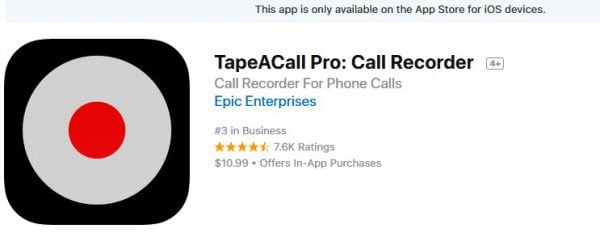
One of the best call recorders for iOS is undoubtedly TapeACall, where you can record both outgoing as well as incoming calls! Also, there is no limit or restriction on the recording time. You can easily record more than one call for a 1-time fee.  This recorder saves the voice calls to the server of the TapeACall. In order to start recording, you have to make a 3-way call and after you have hung up, you can find the recordings there. You can even download the call recordings in your computer or transfer them to your new device. You can also share these recording via Facebook, Twitter or SMS.
Best call recorder applications for iPhone

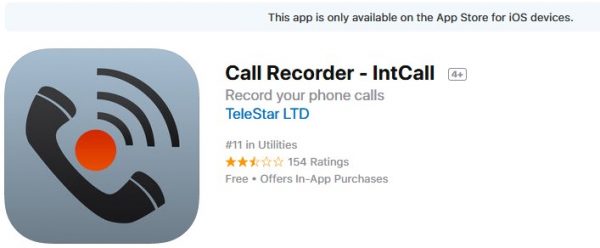
  1. Recorder

This is one of the best call recorder applications for iPhone that requires iOS 7.0 or later and you can record outgoing calls very easily. You can record calls here for hours or even seconds also. There are options present that if you want to sync your recordings when your device is connected to the WIFI. The recording quality is as high a 44.1k and you can pause while you record a call. In order to transfer the recordings to other devices, you do have to create an account first. The best feature of this application is that it has an automatic call recording feature.
Best call recorder applications for iPhone

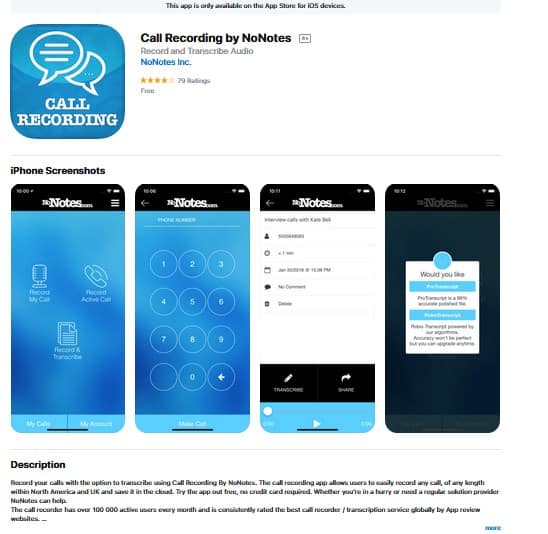
  1. NoNotes

You can record calls within North America and the UK with this NoNotes call recorder application and they can be saved in your cloud also. Before you start using this app, you need to sign up first. And after it is done you can record any outgoing or incoming calls. Even you can send the files for transcription. You are allowed 20 minutes of free call recording every month and then you to go for the premium version. Recorded calls can be shared by Email or Facebook also!
Best call recorder applications for iPhone

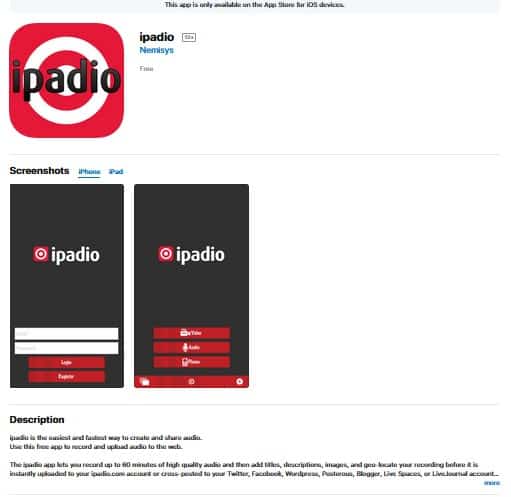
  1. Ipadio

When you need to record a call from your iPhone, ipadio is another application that you can opt for! The recording time is limited to 1 hour or 60 minutes. In order to record calls with this application, you have to call local ipadio numbers. After that, you have to enter the unique pin. Then merge the two calls and start recording! This call recorder records the calls from both sides of the conversation and after the call has been done, you can find the file in your online account. You can even add descriptions, titles, images to your recorded files.
Best call recorder applications for iPhone

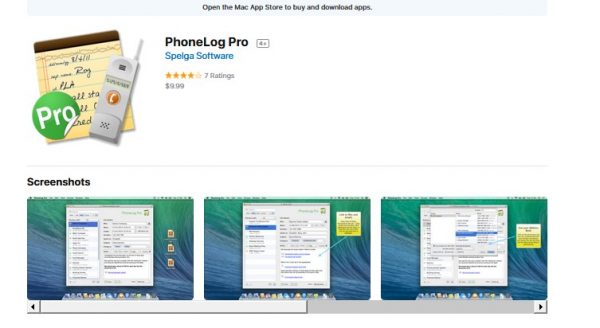
  1. Call Log Pro

This is one of the best call recorder applications for iPhone that helps to record both outgoing as well as incoming calls from your iPhone. But it may not work efficiently with 3g networks as it is designed to work with Wi-Fi network. In order to use the app and start recording voice calls, first you need to register an account with an email and password. The recorded call gets directly saved in your phone only in the call log section of the application. In that log, you can manage the recorded calls by length, date or time and you can also rename them. Since it is a pro version, for each minute of recording you will be charged.
Best call recorder applications for iPhone

  1. Google Voice

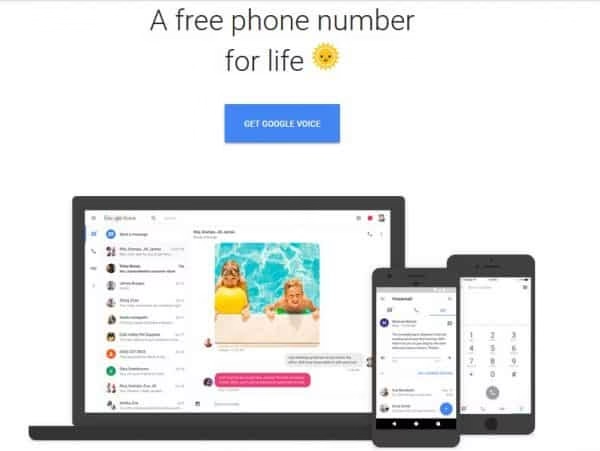
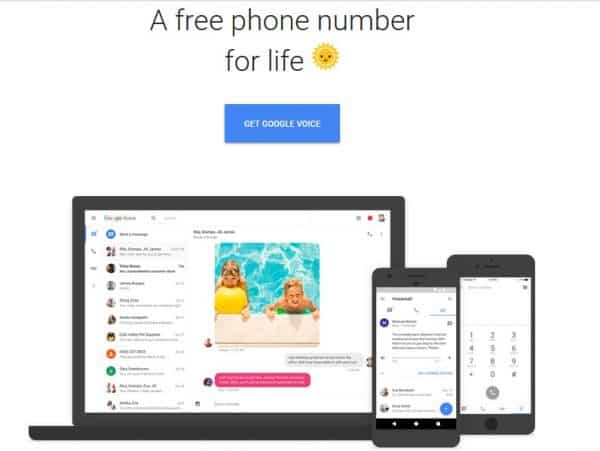
This is actually a fully free service that is provided by Google for all the users who wants to have some fun by recording calls for a short period of time. But since this service is free, it does have some pros and cons. You can only record incoming calls but you can’t record outgoing calls with this service. The maximum limit up to which you can record a call with this service is 180 minutes or 3 hours. As it is free, there is no need to download any kind of application. Before you use this feature, you just have to set up a Google account. You won’t find too many features in Google Voice, but you can listen to your recorded calls on your PC or iPhone. The files are also completely free for downloading purposes.
Best call recorder applications for iPhone


These are the best call recording apps for iPhone. You can choose the one which you will find the most suitable.
9 Easy steps on How to set up a router as a repeater

Do you know how to set up a router as a repeater? There is a very good chance that you can turn your old router into a repeater all by yourself!  You can have a WIFI black spot or a very big house for which you can use a spare wireless router and set it up as a repeater. It is not sudden news that in your house, there is a room where the coverage of WIFI is less.That’s when you should take a step back and think about buying a new device.

Nowadays, effective wireless access points can boost and improve your signal within minutes. No need to keep walking with your devices searching for WiFi. For this reason, you can easily use a router which is spare and use it as a repeater in order to boost the signal of WIFI so that it can cover area beyond the limit of your current router.

There are a lot of ways by which you can achieve this and if you are fortunate enough you won’t need to do any wiring between two routers. Almost all routers will let you set it up and it is not mandatory that two routers have to be of the same kind. So here is the step by step method on how to set up a router as a repeater. Read this if you want to Know more about Wifi Extender.

  1. Finding your IP address of the repeater

At first, find some details about the router which is being used currently. These details include the type of channel that is used in order to broadcast and also the type of security that it is using. So at first go to the control panel from your Windows pc and double click on Network and Internet or Network option. If you are using Windows XP, you need to right click on the network connection. Go to Status and after that choose to support. The window will show you all details about the setup of the network. But if you are using any other platform of Windows you need to choose to change the settings of the adapter and then right click on the connection and then click on status in order to know all details. Note down the IP address of the computer along with the gateway. This is the first step which you have to perform to set up a router as a repeater.

Network and Internet Tab

  1. Connecting to the specific router

After you have been done with this, open any web browser and type the gateway IP in the address bar. A setup screen will come in front of you and it will ask you the username along with the password for your primary router. Enter the username and password.

Login page for router

  1. Checking the settings of your WIFI

In the display screen, you will notice there are lots and lots of settings that you can play around with but don’t reconfigure the settings of your main router. Check the wireless settings and see the details that contain the security type, the name of the router and the channel.

The SSID of the router works on channel and it also uses WEP for the purpose of security. You need to set this to WPA2 or WPA. Log out from here after everything is checked and noted.

set up a router as a repeater

  1. Resetting the router

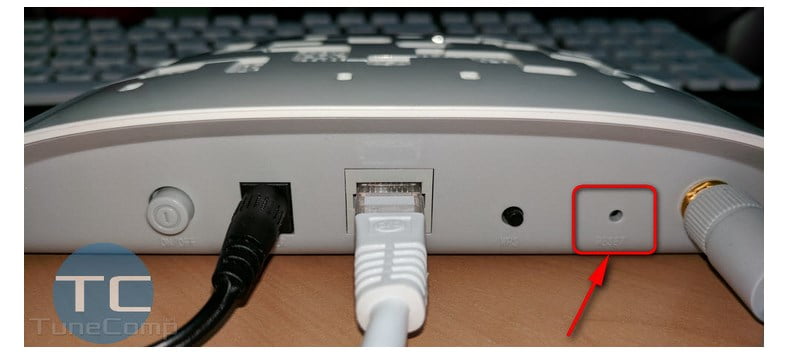
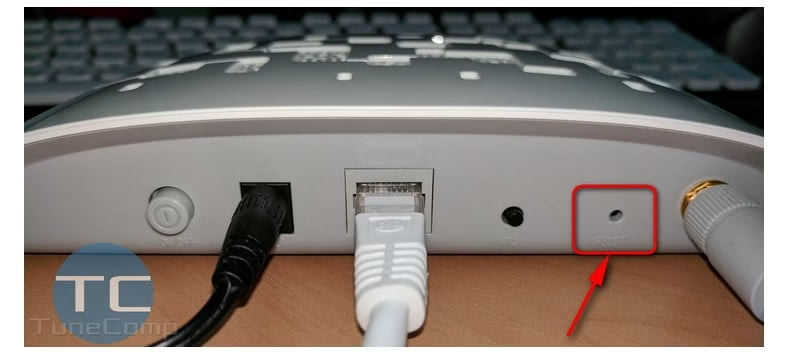
The first thing you need to do with the old router is to reset it to factory settings as you most probably have forgotten ISPs and all other things! There is a reset hole in your router. So power it on and insert any clip or something in the hole. Press and hold for some seconds.

A router

  1.  Configuring your secondary router to set up a router as a repeater

Now you have to connect your secondary router.  So turn off the primary one while you are working with the secondary one. Now you again have to follow the first step again for this router.

secondary router

  1. Copy the settings:

Do not go for any setup wizards. Visit the settings page of the WIFI and allow the wireless and change the name of the network and select a channel other than channel 6.  This is because you have already set channel 6 for your primary router before. Now you have to exactly match the security type and enter the password which the same as that you have used in case of the primary router of yours.

WIFI page

  1. Giving it a fixed IP address

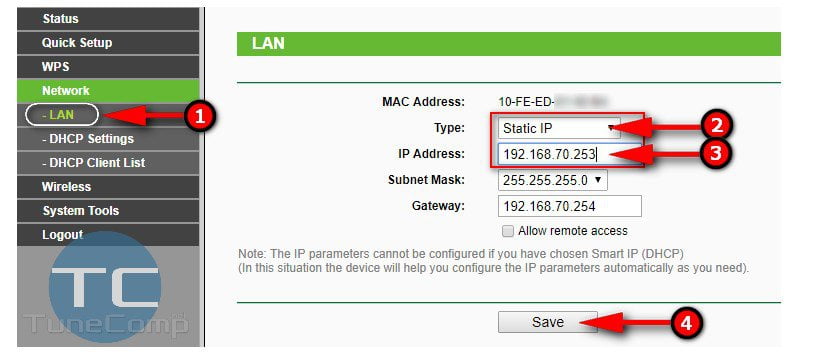
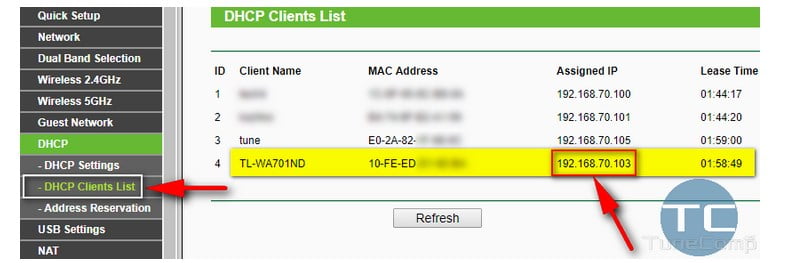
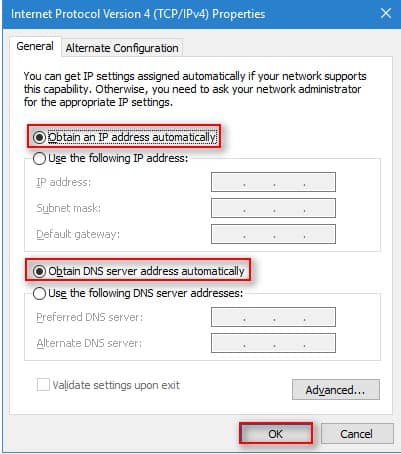
The primary router has to recognize the second one in order to work. So go to the LAN page and enter the IP address which is same as the primary one. But the range should be outside which is assigned automatically by Dynamic Host Communications Protocol (DHCP).  It is actually a process by which the router gives IP addresses. So you have to disable this option and assign the fixed one and remember this one.

On each page do click on the ‘save settings’ option so that you confirm all your choices. Don’t forget to restart it after you have changed the IP address. After that, you can access it by tying the new IP address in the URL of any browser.

WIFI page

  1. Connecting

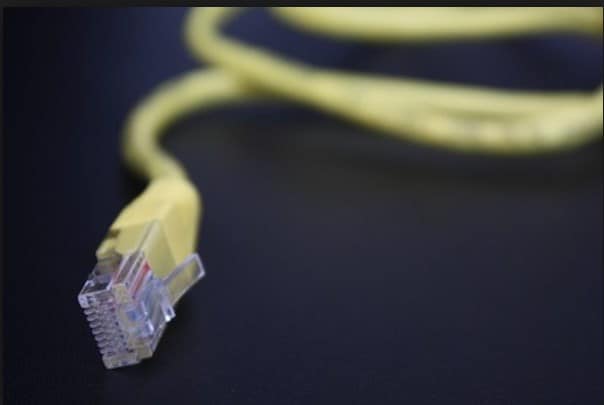
So you are ready in order to connect all the routers! You can do it by using a very long cable. It is the impractical; but also a cheap way to do so. Now turn on both of your routers and check it!
Long cable

  1. Going wireless

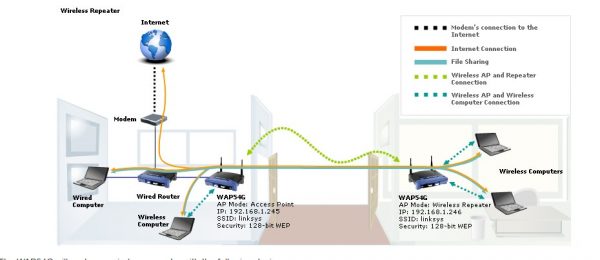
If you are lucky enough your secondary router may have some features included in it that will help you to set up the repeater without any wire. This is the last step which you have to perform to set up a router as a repeater.

setting up a router as a repeater

  • Custom firmware

There are some routers that don’t have any WDS or other similar feature built in. so, for this reason, you need to install any kind of custom firmware. It is easy to install and remember that it has to be compatible with OpenWRT or Tomato or DD-WRT.

Custom Fireware

So why are you waiting?  Follow these simple steps on how can you set up a router as a repeater so that you do not face any problem with a shortage of WIFI tower in your home!  It does not eat up your precious time and is also long-lasting. Though these repeaters do not offer the same bandwidth that is promised by a good router, it is still very useful!

First Impressions of Asus Zenfone 5: A Potential Winner

0

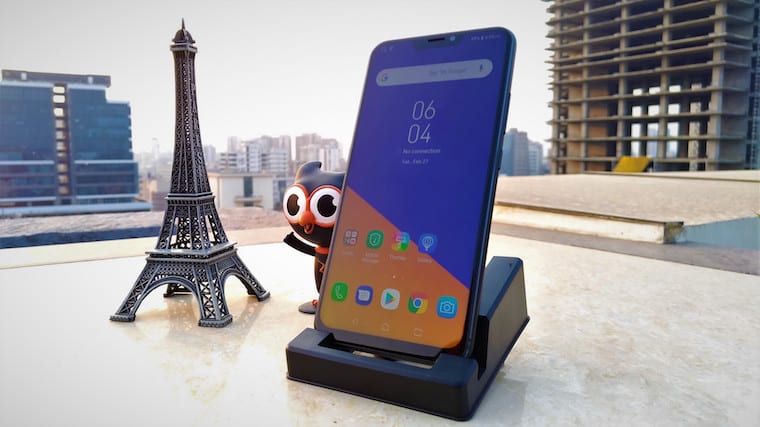
Asus has gained some popularity recently, though it is a surprise that they came up pretty interesting tricks anyone can ever imagine! Lately, with iPhone X the bezel-less phones have become really popular, but the wait for androids Bezel-less phones is real.

Asus surely took the idea of their product from the ‘Fruit Phone X’ but it did not hide the fact from the world. We were given an opportunity to preview the Asus Zenfone 5’s pre-production unit for which we had our first impressions listed down here:

  1. Compact Look and High Definition:

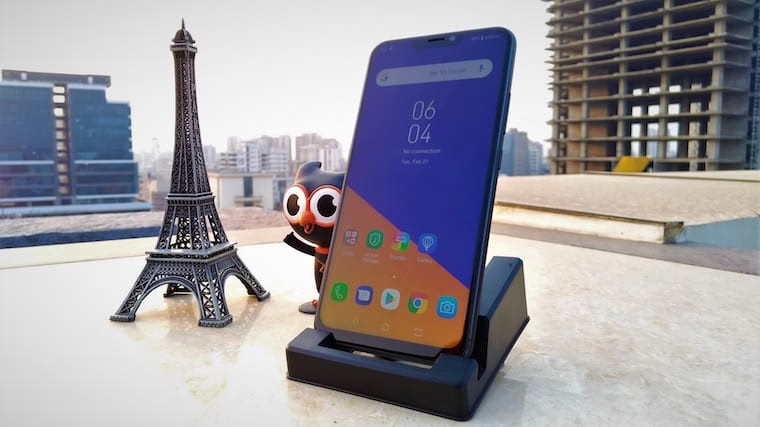
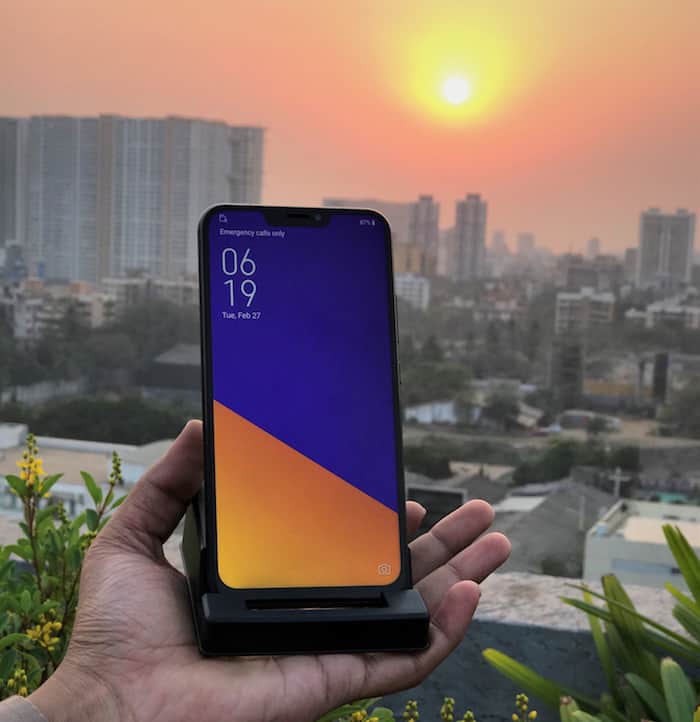
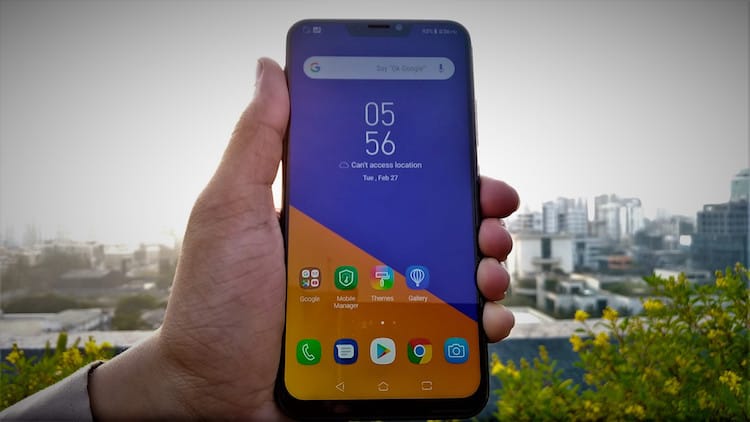
Zenfone 5 is very compact and has a very seamless finish. The screen size is 6.2 inches with Super IPS display. It has high definition resolution 2246*1080p. The Zenfone 5 is much alike to iPhoneX unlike the chin at the bottom of the phone.

Zenfone 5 first impressions

Moreover, the camera setup of the Zenfone 5 on the spine of the phone is positioned smartly. The placement of the dual-camera is vertical giving it a sleek look. The panel on the backside is given with a glass finish making it distinctive. Also the fingerprint sensor is provided on the Zenfone 5 like any other Asus handsets.

The phone functions on a USB Type-C port for charging and data transfers, provided with a3.5mm jack at the bottom. The aspect ratio of the screen is 19:9 and 18:9 tall aspect ratio.

  1. Under the hood:

Asus Zenfone 5 works pretty much like any other Android. However, this phone runs on a Qualcomm Snapdragon 636 SoC. It consists of 6GB RAM and 64GB of internal storage. Battery power of this Asus phone is 3,300mAh. The dual-camera has a wide angle mode which is not very common in the current smartphones. This pre-production device was running on Android Oreo with the latest ZenUI interface. This type of interface is known to be much lighter on phones and functions smoothly as compared to any other interface.

Zenfone 5 stock android user interface first impression

There are two types of unlocking features provided in the phone: Face unlocking and Fingerprint unlocking which saves more time. However, this pre-production model was not given for testing. But as far as I know, Asus will give its best considering competition with Xiaomi Mi Mix.Zenfone 5 audio and design - 3

  1. Display and Audio:

Asus has also concentrated on its device’s audio system using the new five-magnet stereo speaker system. The speakers of the phone are positioned at the bottom and also at the earpiece. The phone offers stereo sound with both the speakers working at the same time when not using you headphones. Audio quality of this handset can be summoned as loud and impressive. This feature will surely impress the first time users for watching their favorite videos.


Conclusion:

To sum up on its features, since this was a pre-production handset which was presented to us it has pretty good features. Overall, it’s a a total take away with the range of phones Asus has brought this is definitely the best one! They have surely put in a lot of efforts to please the customers.

6 Best Teamviewer Alternatives That Are Faster and Better

Wondering!! What is the best alternative to TeamViewer that will resolve all your Problems? We are here to help you out in that with our 6 best Teamviewer alternative recommendations. The best way by which you can keep in touch with all your files and folders on your computer and then manage them from anywhere you want is undoubtedly Remote Desktop Access. With the help of it, you can even help your friends by remotely troubleshooting their problems. In the case of developers, this is also a very good way to speed up deployments! One of the most popular Remote Desktop Access is Teamviewer.  No doubt that it is a very handy tool but Teamviewer is very complicated. Another issue is security when users don’t properly configure it and this makes user against Teamviewer! 

Tip! Use Teamviewer without installing.

Here are some of the Best TeamViewer Alternative for you!

  1. Windows Remote Desktop Connection 

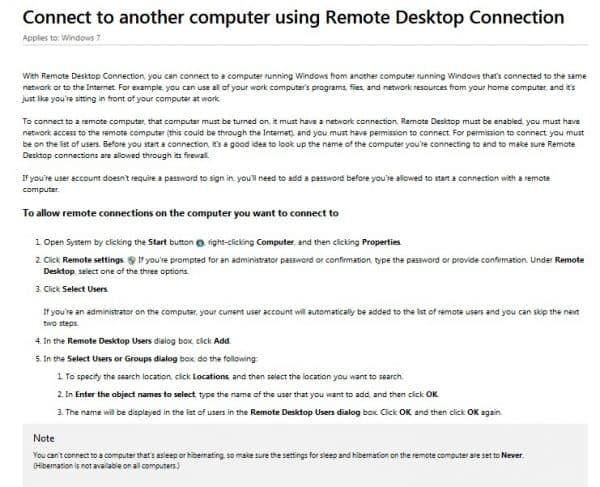
One of the best Teamviewer alternatives is the Windows Remote Desktop Connection. All the settings are obtained in the system settings of the computer only.  You have to route the router of the PC in order to guide the Windows Remote Desktop Connection. The instrument is not capable of PC controlling at sometimes.  Also, this software does not install any kind of extra software in order to do the job that is needed to be done and thus it is very helpful for the users. This software is free of cost and it supports both Windows and MAC OS. The key feature includes very quick as well as full control on a computer anywhere. The set up is very easy and it is already an inbuilt application in Windows.

Windows Remote Desktop Connection
best Teamviewer alternative
PIC: Best TeamViewer Alternative
  1. CloudBerry Remote Assistant

Another best Teamviewer alternative is CloudBerry Remote Assistant. This software is one of the best Teamviewer alternatives which is very light and no issues are found when it is running. Constant updates are present and they have announced about their recent RSA algorithm based encryptions sessions. This software has taken all the bits of features and has assembled in a single structure. It is absolutely free of cost. With features such as voice and text chat, easy use as well as set up, there is no doubt that it is going to be the next best thing. Also, you can use it in every type of internet connection where the remote connection gets established in a matter of seconds.

CloudBerry Remote Assistant
  1. Real VNC

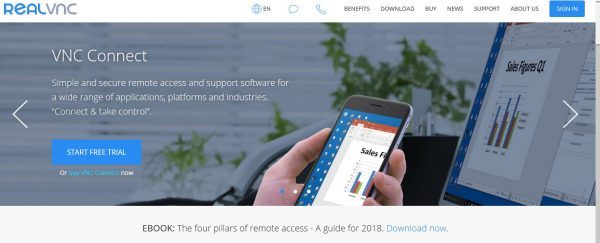
You will get Real VNC in both paid as well as non paid versions. The Virtual Networking Computing or the VNC technology is actually an open-source technology over which this tool is built upon. Though the setup process of Real VNC is a bit more complicated than Teamviewer, this software provides you secure as well as reliable connection and the cross-platform feature helps you to connect individual connections or multiple connections behind an IP address. The best feature includes this cross-platform technology and also includes VNC authentication, chats, encryption and file transfers and many more. It is supported in Linux, Windows, Ubuntu, UNIX, Mac OS X and Raspberry Pi and makes it one of the best Teamviewer alternative.

Real VNC
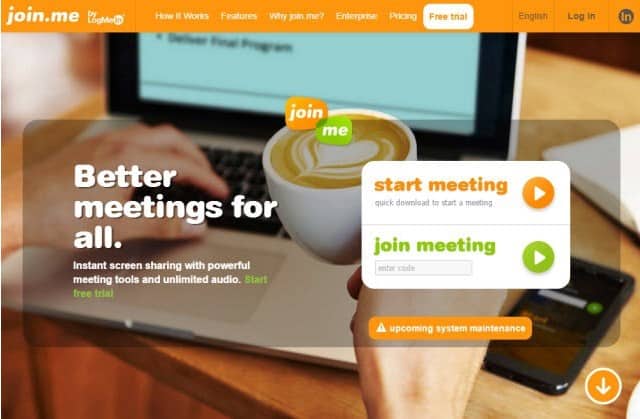
  1. Join. me

Join. me is a paid Remote Desktop Access which helps in running remote meetings of any business where employees are located anywhere in the world. It offers its user with instant screen sharing tool which helps in meetings. The paid version also allows over 205 participants to connect in a meeting. The presenter of the meeting lets his/her viewpoints across all the participants. Thus, this software is the best collaboration tool that is used by a number of companies and universities. The main feature includes mobile apps, one-click meeting schedule, and unlimited audio and swapping presenter. This software is supported on both Mac OS X and Windows. It is free for basic VoIP and for other features you will require a paid version. For its amazing features, it falls under the category of the best Teamviewer alternatives in the present times.

 Join. me teamviewer alternative
  1. Splashtop

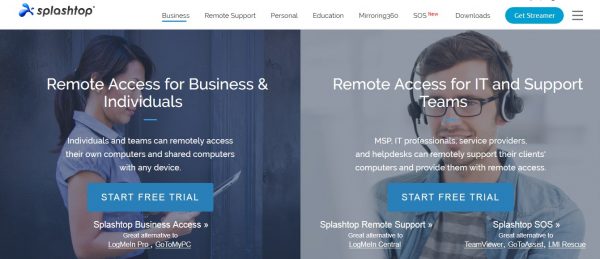
Another alternative to Teamviewer is undoubtedly Splashtop which is also in both paid and unpaid versions.  Setting up of this tool is very easy and you can also access your iOS or Android-based mobile phone with this software effortlessly.  Minimum latency is present in both the streaming of audio and video which makes it easier for you to enjoy all the media remotely. Managing and transferring files are also one of the best benefits of it. It is supported in platforms like Linux, Windows, iOS, Android and Mac OS x.

Splashtop
  1. LogMeIn Pro

Another best alternative for Teamviewer for remote desktop solutions is LogMeIn Pro for business as well as individual purposes. The free version of this software was discarded recently and it does not let it go away from this list!  It includes a lot of features of which access to a local printer and transferring file are the best ones!  Other features include complete remote access to transfer files, video and audio streaming and sharing documents with collaborators. This software offers you such unique features that are absent in much other similar software. LogMeIn Pro is supported on platforms of Mac and Windows.

LogMeIn Pro

These are the top 6 alternatives to Teamviewer which you can use both in your home as well as your office. Try out any one of these best Teamviewer alternatives according to your convenience and work.

MSP Solution

MSP Solution

Take Control is a strong alternative to TeamViewer. It features an extra tool that is designed specifically to support MSP companies, which may be ideal if you are looking for industry-specific resources. This remote assistance software can be personalized and automated to support your team’s evolving demands; customize its features that include no caps on simultaneous support sessions and automatic screen scaling to support multiple bandwidths. Take Control helps you provide a better digital environment for employees while ensuring customers always receive the most personalized level of care. Take Control will help you change the way customers connect with your team and offer greater accessibility and convenience for both clients and your company’s employees

HPE and Tech Mahindra Launches Centre of Excellence for IOT Ecosystem in Bangalore

Tech Mahindra in association with Hewlett Packard Enterprises has launched its Centre of Excellence in Tech mahindra campus in Bangalore to focus on IOT solutions for their joint customers. The COE will focus on connected ecosystem for Smart Cities solution, Connected Cars, Fleet Management, Smart Tracking and Cross Industry solutions using Aruba –

These two conglomerates have invested in building this facility in line with the Prime Minister’s digital India project  to offer digitized solutions for the smart cities of the future.

Best call recorder applications for iPhone
Paul Hunter Worldwide Partner Sales from HPE inaugurated the Centre of Excellence in the Bangalore campus of Tech Mahindra.

The facility aims to showcase and provide several solutions to the problems faced in various sectors most importantly Healthcare sector, manufacturing sector, educational sector and BFSI. The centre of Excellence will be serving as a platform to present solutions by means of IoT connectivity which is significant to multiple business sectors as well as government.

The centre of excellence promises the power of collective expertise of HPE and Tech Mahindra. Apart from HPE and Tech Mahindra, Aruba which is a Hewlett Packard enterprise company is also integrating its expertise in this project. They not only increase the level of efficiency but also engage their are customers and offer them new and developed business opportunities by means of in-depth research and insights.

The universal internet of things platform by HP is used to provide industries client oriented vertical solutions that can be scalable versatile as well as modular in nature. This Universal platform of IoT will assist people to manage the solutions offered by IoT as well as well make sure that the enormous amount of data which is generated and transferred by means of connected devices is easily available to applications which are industry specific.

Best call recorder applications for iPhone

HPE along with Tech Mahindra has made sure that the systems are secured and offers stable connectivity along with high-speed time and has a control over the internet of things data used by individuals. These Enterprises have used Aruba Beacons which offers Bluetooth low energy or BLE Technology. This technology powers the indoor locations along with wayfinding. It also facilitates push notifications for proximity awareness at public venues including hospitals stadiums as well as Enterprises. The placement of the Aruba beacons is customized which ensures fantastically engaging experiences for the customers.


Several brilliant experts in the IT industry is working along with HPE and Tech Mahindra so as to offer not only unique solutions but also maximum supports to the customers and clients in regard with IoT connectivity in Smart cities. The services offered are managed on a global basis.

Best call recorder applications for iPhone


HP has worked in various National projects in India such as Unique Identification Authority of India as well as on the Life Insurance Corporation digitalized projects along with various projects of Indian Railways, HP has also been awarded the smart cities project in Ahmedabad and Bhopal. According to the managing director of HP India – Rajiv Srivastava, it is now time to make the vision of digital India into a reality. This is all the more reason that the Centre of Excellence platform is there to demonstrate the best of technological solutions so as to satisfy the growing digital demands of the enterprises as well as the government alike.

6 Simple Steps to Guide on How to use Dubsmash

So, do you know how to use dubsmash? Don’t you? Don’t worry because you have come to the right place! Undoubtedly one of the best running video sharing platform is dubsmash. A number of celebrities are also known to use this particular platform in order to entertain their lovable fans. But like you, a number of people do face problem while they use dubsmash!

It is just like an app for video selfie and it took the world by storm since November in the year 2014. Over 10 million people on Google Play downloaded the application in just 6 months after its launch and when all platforms are accumulated; over 20 million people use dubsmash! So here is step by step guide to know how to create a dubsmash video.

Best call recorder applications for iPhone

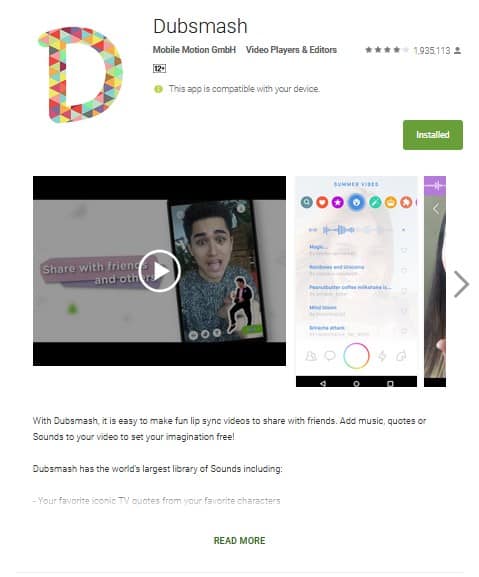
First step: Downloading and installing the application

Dubsmash is available for both iPhone and Android and it is not yet available on Windows platform. The first step of how to use Dubsmash is to download it. So go to Google Play Store if you are an android user or go to apple store if you are an iPhone user. Simply download the application from there and install it.

Best call recorder applications for iPhone

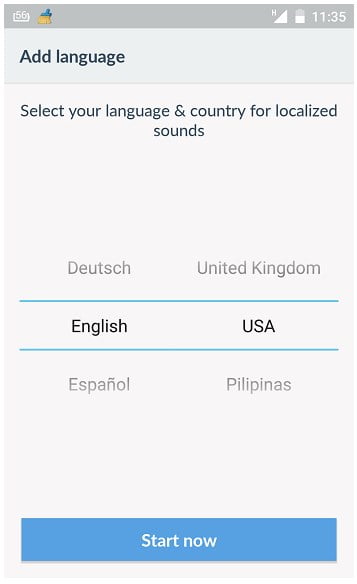
Second step: Preferences of language

The dubsmash application will ask you about your own preferences of language just after you have installed and opened the app.  So after you have selected the location or language, dubsmash will give some suggestions to you about some sounds that will be needed by you in order to create dubs.

Best call recorder applications for iPhone

Third step: Time to select sounds

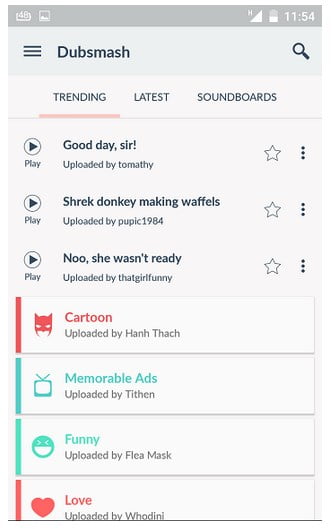
The first and foremost thing that you will require in order to create any video on dubsmash is sound. And you should know that the library of dubsmash does contain a huge amount of it! There are lots of sections in which these sounds are divided, for example, latest sounds or trending. Dubsmash also provides you a search bar so that you can easily search for a sound which is related to any particular song lyrics, actor, movie, commercial or anything!  If these sections are not good enough for you, you can even search for sounds of cartoon characters, different kind of animals or also sounds that are based on ambiance such as romantic, funny and others too!

Best call recorder applications for iPhone

Another good thing about dubsmash is that the library of sounds in the application is updated continuously by users also. So it is obvious that you will find a variety of sounds here in this app that is updated by 20 million users.

Tip:

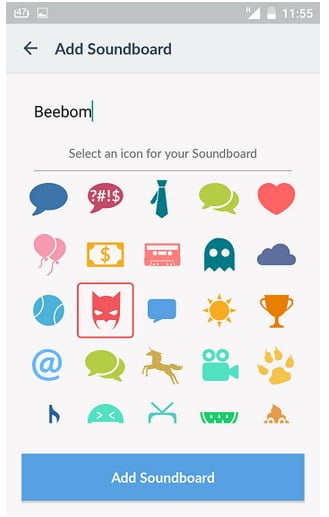
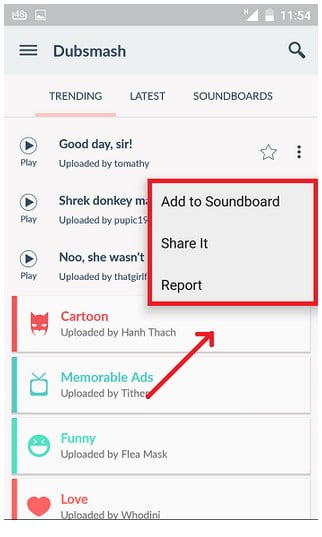
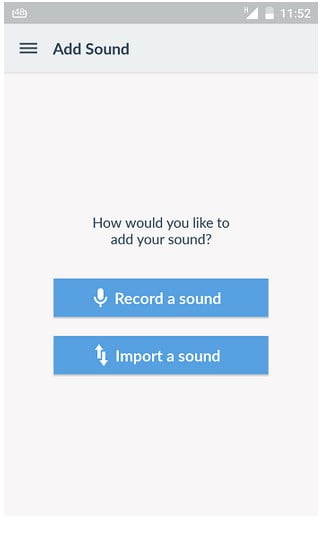
A good feature in dubsmash is that it provides you with a soundboard which helps you to categorize and save your top favourite sounds that can get lost when so millions and millions of sounds are in front of you. You can add any sound in soundboard that you like. You can also upload or record any sound from your media library on your Smartphone also.

Best call recorder applications for iPhoneBest call recorder applications for iPhoneBest call recorder applications for iPhone

Fourth step: Creating the dub

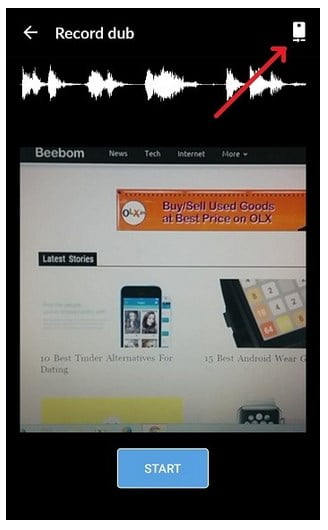
It is time for you to create the dub after you have chosen your desired sound. But you should know that the first dub will not be a good or perfect one because your lips won’t sync or match properly according to the sound that you have chosen. But there is no reason to worry about it! Just keep on practicing and you will get there soon enough! The default camera of the application is always the front camera but you can also change it to the back camera according to your need by just tapping on the mobile sign that is placed on the top right-hand corner of the dubbing screen.

Best call recorder applications for iPhone

So after in order to get to the recording screen, you need to click on the sound and you will be directed to the respective place.

Fifth step: Editing a particular dub video

  • Adding text to dub:

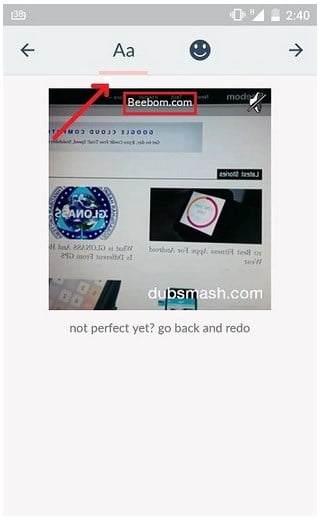
    Adding text in your dub video is another cool feature that is present in dubsmash. After you are done recording your video write any text that you want to add.

Best call recorder applications for iPhone

  • Adding symbols:

    If you want to have more fun with your video, you can also add emoticons or any symbols or smileys in your video in dubsmash like the way you added text.

Best call recorder applications for iPhone

Sixth step: Downloading or sharing your dubsmash video

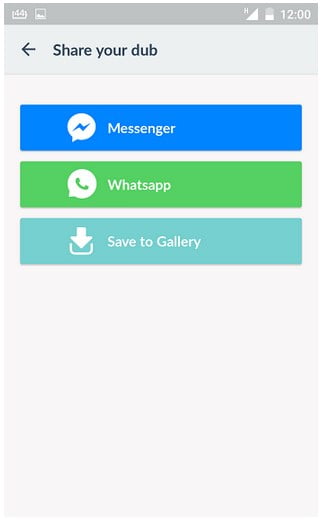
After your dub video is completed you can either share the video with any of your friends who are present on WhatsApp or Facebook or you can download the video on your phone also for future use. You do need to create an account in dubsmash in order to export your video in any kind of aforementioned format.

Best call recorder applications for iPhone

Dubsmash is such an application that lets you have unlimited fun with your friends! Who does not like to do dub with the most popular movie quotes or songs right? And dubsmash lets you do it and that too at no cost! So this is the step by step guide on how to use dubsmash. Follow it and have fun!

How to change the default search engine in Chrome

Google Chrome is one of the best web browsers that will make your browsing life on net very much pleasing because of unlimited features! Google Chrome strolls through all kind of web pages in a very fast manner that other web browsers do in a slow fashion. Even the elegant, as well as the simple interface of Chrome, does not get in the way of smooth surfing! At the time when Google Chrome launched for the first time, it was very much innovative and it did not provide with so many plugins and extensions that other web browsers did. So do you know how to change the default search engine in Chrome? Before you go through the process here are some of the best features of Google Chrome.

Best call recorder applications for iPhone

Best features of Google Chrome

  1. Simplicity

No one is a fan of cluttered looking web browsers and this is why Google Chrome comes on the top! The functionality of Google Chrome is so simple that you never get distracted from the current web page that you have opened. But users who are used to other web browsers such as Internet Explorer can take some time to adjust with all the icons and menus of Google Chrome. It also supports HTML 5 as well as thumbnails of web pages that are visited recently.

Best call recorder applications for iPhone

  1. Speed

One of the primary reasons that everyone loves to use Google Chrome is because of its speed. Some actual tests performed on it, resulted in it to overcome all the competition and thus it made to the top. The loading time between Google Chrome and other web browsers may be little but some popular and common websites do load faster in case of Google Chrome. Also because of the multi-thread processing, it makes the web pages to load more quickly.

Best call recorder applications for iPhone

  1. Extensions and Add-ons

During the time when Google Chrome was first launched, it lacked very much because of all the cool extensions and Add-ons. Thus it did not provide any kind of flexibility to users. But in the year 2010, over 1,500 extensions were introduced by Google. And now there are about 11,500 extensions left.  These extensions also include marvellous themes that permit the user to change the get up of the particular browser.
Best call recorder applications for iPhone

  1. Tab browsing

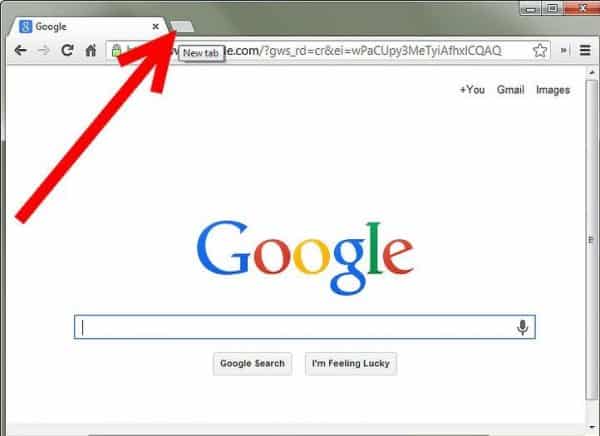
Though this feature is not unique at all, the tab browsing of Google Chrome is very flexible in nature. You can, without giving any kind of extra effort, open new tabs, open them in a totally new window or you can move them around. Also, the feature of new tab helps you to check all the tabs that you have opened recently. This particular feature is of great help as you can open a certain tab that you have closed by mistake. Another good thing about this feature is that, if one tab crashes it does not affect or crashes the other tabs that are opened because of the tabs run independently. But you should know that this does consume a little more memory of your computer.

Best call recorder applications for iPhone

  1. Incognito mode

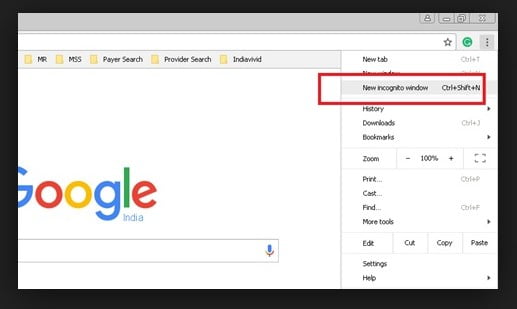
There are times of needs when you need to bypass all the cookies and search history and that is why Google Chrome provides you with an incognito mode. These tabs open in a trench coat in order to make you understand that they are opened privately. There are chances that while browsing in incognito mode you can still download any kind of malicious software.

Best call recorder applications for iPhone

So reading all the cool features, you want to know that how to change the default search engine in Chrome? Here is the step by step method in order to do so.

First way:

Setting your default search engine

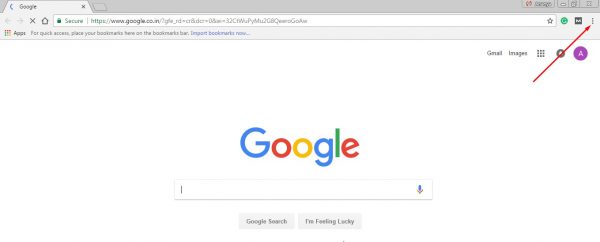
  1. After you have turned on your computer, go to Google Chrome
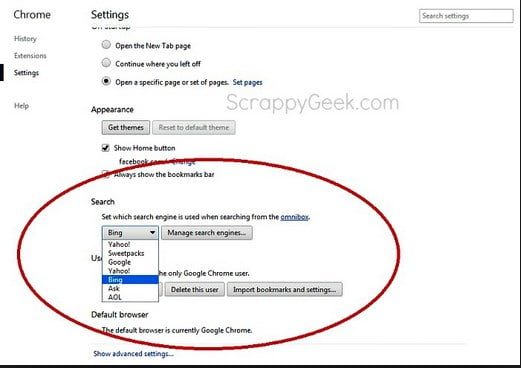
  2. In the top, you will find three dots on the right-hand Click on it and choose settings from the drop-down menu.

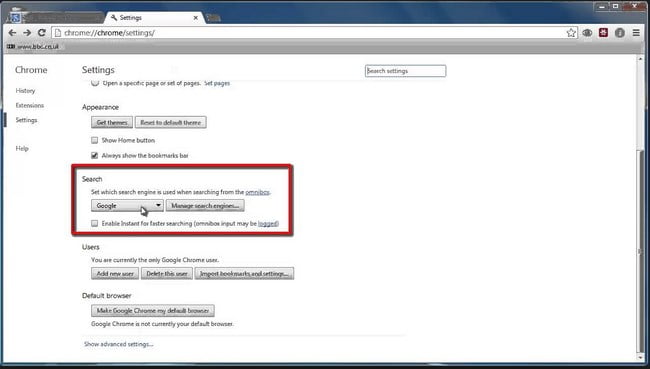
Best call recorder applications for iPhone3. Go under the category which says “Search engine” and you will find another tab which says “Search engine used in the address bar”. You will find a down arrow beside it. Click on it.
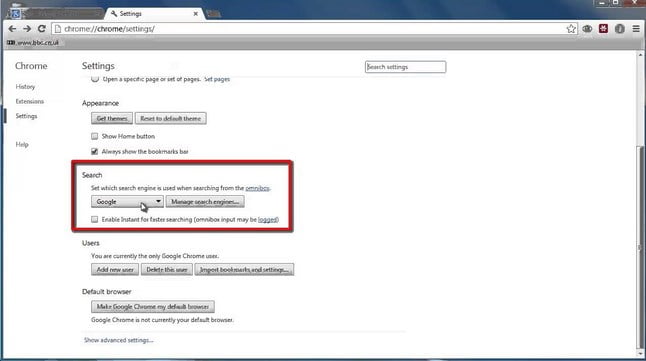
4. Choose a new default search engine of your choice.

Best call recorder applications for iPhone

Note: If this method does not work there is a chance that you do have some malware. To restore your settings of Google Chrome first and then try again.


Adding, editing or removing other search engines

  1. Open Google Chrome.
  2. Go to settings
  3. Under “Search engine” tab, click on “Manage search engines
  4. You will find Add, Set as default, Edit and delete

Best call recorder applications for iPhone


Second way:

There is another simple way by which you change the default search engine from Google Chrome according to your choice. Here is the simplest way on how to change the default search engine in Chrome.

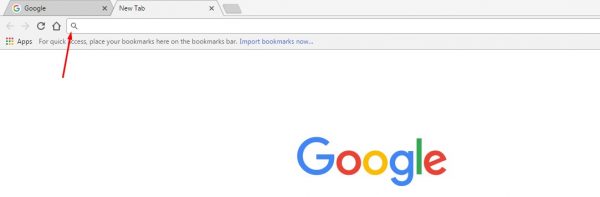
  1. You will find a magnifying glass on the top right-hand side that says search.

Best call recorder applications for iPhone

  1. Click on it and select “change search settings”
  2. Choose any search engine from the drop-down

Best call recorder applications for iPhone


Internet browsers are like a necessity now and over the years a number of them have come up along with it, they have improved their performance as well as functionality. But along with a good web browser, users do need a good search engine too, where they can search for anything without any problem. Everyone has their own different choices and so follow these two ways to set your own default search engine in Google Chrome.