Home Blog Page 60

4 Incredibly Simple Ways To Disable Xbox Game Bar!

XBOX Game Bar is widely used by gamers, all around the globe. But, there are quite a few others who are striving to disable XBOX Game Bar, for several reasons. Lets learn how to disable XBOX Game Bar and understand the reasons for the same.

Xbox Game Bar is a tool in Windows 10 which is built for Gamers. It allows a user to do several activities without leaving the game like accessing their Xbox friends list, screenshot a game and make memes, capture and broadcast videos, listen to music using Spotify, and much more. All you have to do is to press the Windows Key+G and you will be able to access it.
disable xbox game bar

Why do I disable Xbox Game Bar? 

Not every gamer is a fan of Game Bar. Many don’t want constant notifications, friends requests, or any interruptions while they are playing games on their PC. Also, there are several other platforms where gamers can stream their gaming sessions and earn profits rather than doing so on the Game Bar for free. In such cases, they would like to disable the Xbox game bar for uninterrupted gaming sessions. It is not an easy task to completely disable the Game Bar. But we are going to tell you how to disable Windows Game Bar in a few simple steps.

How to disable Xbox Game Bar?

There are multiple ways by which you can disable Xbox Game Bar on your Windows 10 PC. We have mentioned the best ones for you so, follow these methods one by one to receive the perfect results!

Method 1 -Disabling only Game DVR

If your major cause of the trouble is not the app, but the resources it is consuming while playing games, you can just disable the Game DVR. It is a tool that allows us to record our gaming videos in the background while we are busy playing our games. So, you can just choose to disable it by following these steps:

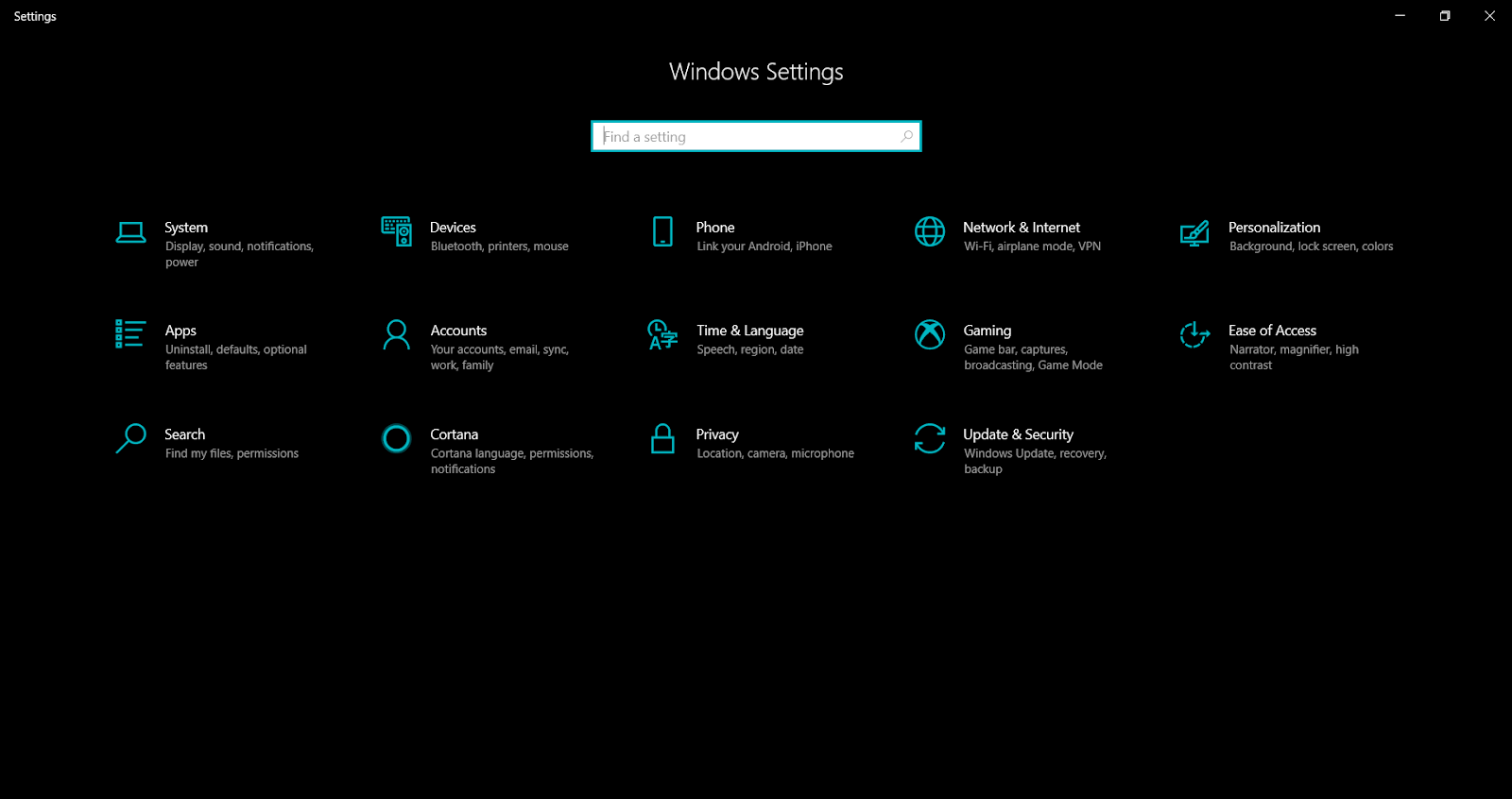
Step 1: Press and Hold Windows Key and then, press the “I” key.
Window settings

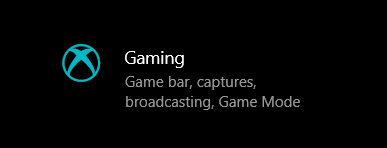
Step 2: You’ll be taken to the Settings screen. Once you reach there, click on Gaming as shown in the below picture.
Gaming

Step 3: Choose the Captures options from the panel.
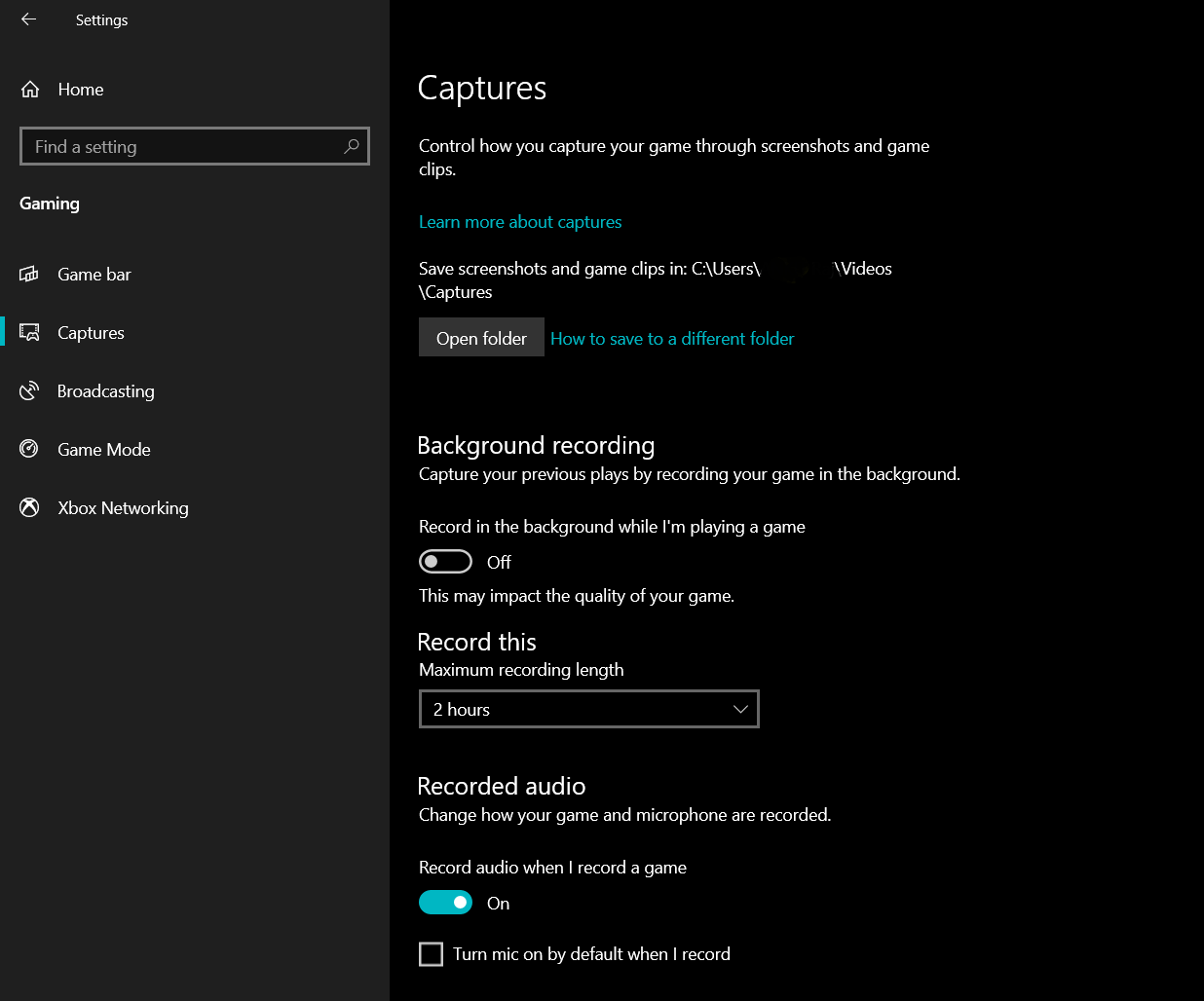
Captures

Step 4: Turn off the option Record in the background while I’m playing a game and then proceed with the next options.

Step 5: If you want, you can also turn off Record audio when I record a game.

This will stop Game Bar from consuming resources but at the same time, it will not be disabled completely. If you want to totally disable Xbox Game Bar, there are other methods too. You can read them below.

Method 2 – Disable the Game Bar features in Settings

Step 1: Press and hold Windows Key and then press I.
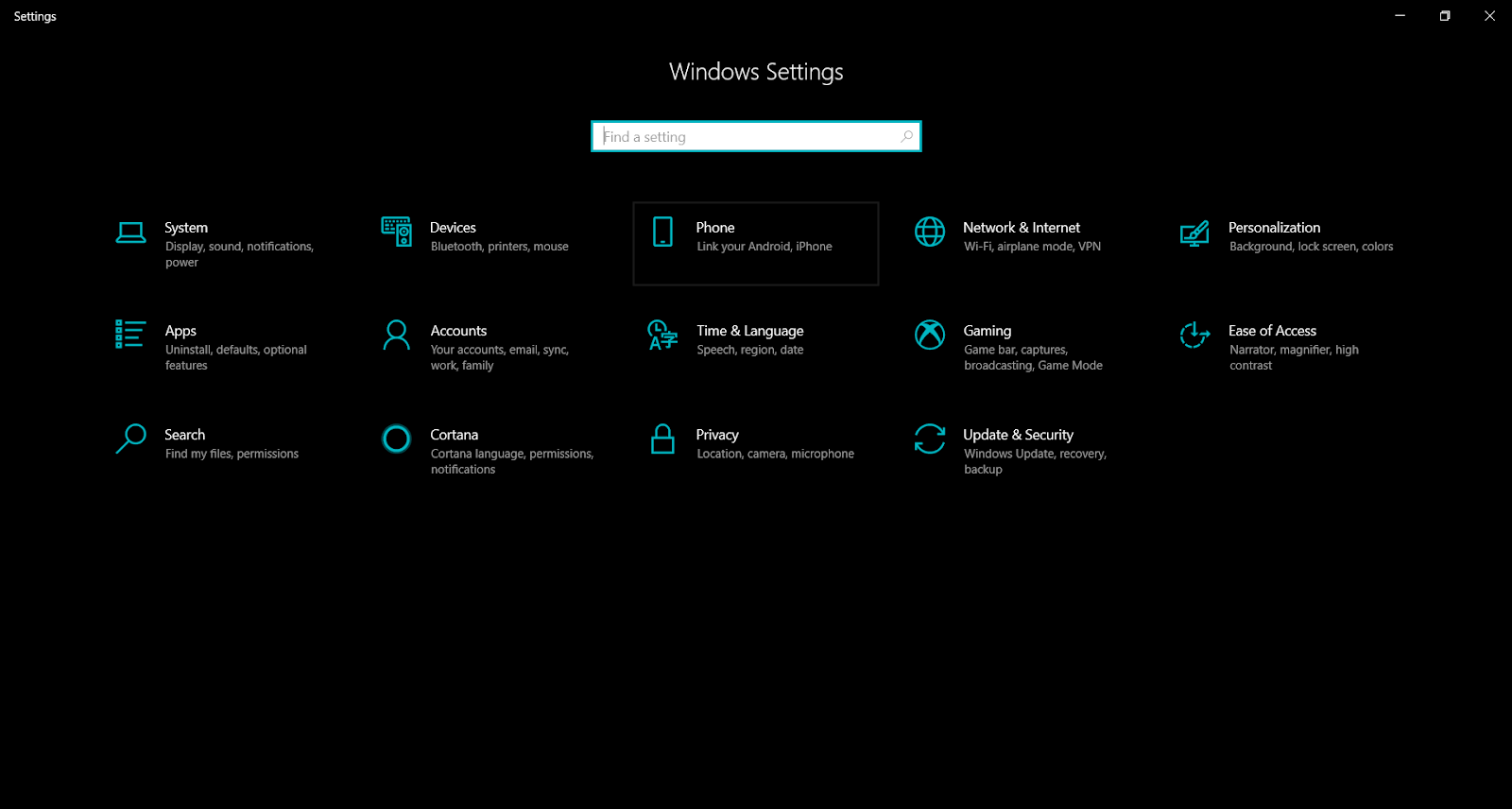
Game bar features in settings

Step 2: Find and click on the Gaming option.

Step 3: In the panel on the left side, select the Game Bar.

Step 4: Turn Off ‘Record game clips, screenshots, and broadcast using Game bar’.
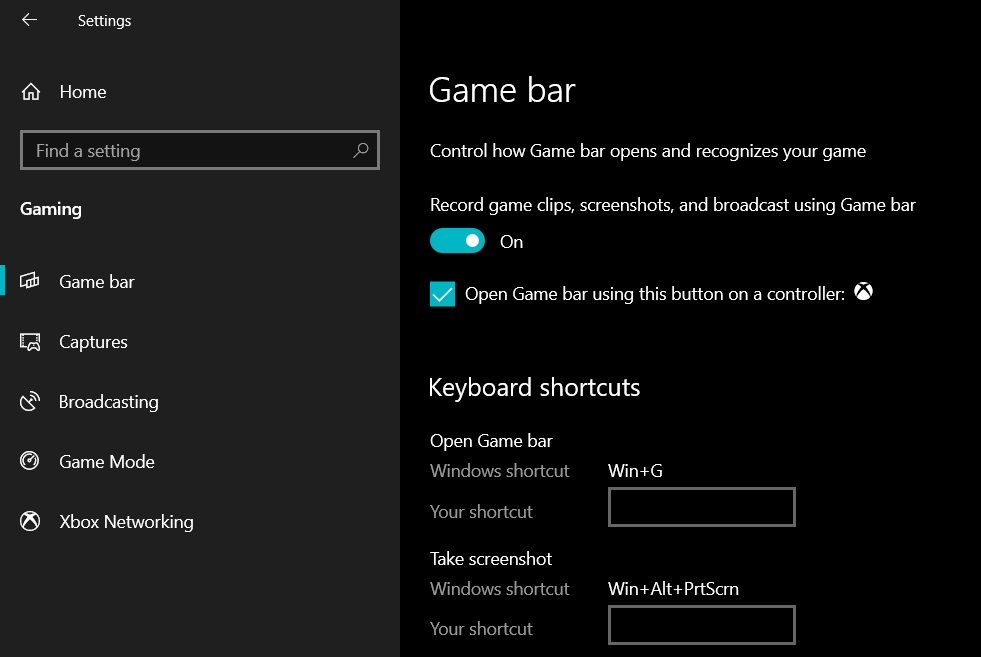
Game Bar

All the mentioned features will be disabled including the Win+G function. Hence, it is the easiest way to disable all the features of the Game bar.

To turn off the game bar using the Registry Editor you can use the solution mentioned below.

Method 3 – Disable the Game Bar using Registry Editor

This is a little more complicated method. So, carefully follow the given steps:

Step 1: Press Windows Key+R. A search box will appear.

Step 2: Type regedit in the search bar and press Enter.
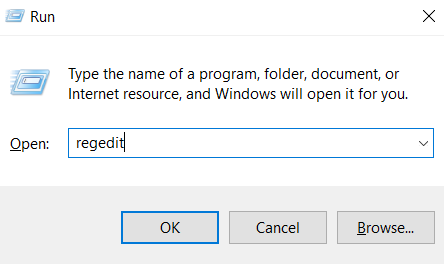
run cmd

Step 3: A pop-up window will appear. In that window, you have to Click Yes.

Step 4: A new window titled Registry Editor will open. Expand Microsoft, Windows, GameDVR, HKEY_CURRENT_USER, GameDVR, and CurrentVersion.

Step 5: Right-click AppCaptureEnabled option from the panel.

Step 6: Switch the value data from 1 to 0.

By following the above steps, Xbox Game Bar will be disabled using the option of Registry Editor.

Although these steps will disable your Xbox Game Bar, some users may want to remove the entire application from their PCs. You don’t have to go and read a separate article on that, you can find the solution here only. Let’s see how to do it.

Method 4 – Uninstalling the Game Bar

In order to uninstall the entire Xbox Game Bar app, follow these steps:

Step 1: Click on the Start Menu and search Xbox Game Bar.

Step 2: Right-click on the app once the search result appears.

Step 3: Choose Uninstall.

Step 4: Confirm by clicking Yes on the prompt and wait until the process gets completed.

This will remove the app from your system and it will no longer bother you. 

Conclusion

Xbox Game Bar is a useful tool if you like to keep multitasking between your games. Tasks like viewing your friend list, listening to music on Spotify, and controlling your entire Xbox account while still playing the game are made easy. But some hardcore gamers don’t want anything to bother them while playing games. For them, several ways to easily disable the Game Bar have been provided above.

Here’s A Quick Guide On How To Delete Multiple Bookmarks In Chrome

Wondering how to delete multiple bookmarks in chrome? Sometimes we do get stuck with multiple bookmarks that we no longer wish to have. These bookmarks just start making a mess on the page. So, here is how to delete multiple bookmarks in Chrome.
Delete Bookmarks in Chrome

Chrome, like all the other web browsers, gives an option to bookmark your favorite websites or most visited web pages in a separate Bookmarks bar. You can systemize the Bookmark bar with separate folders or maintain separate web pages.

multiple Bookmark

Maintaining this bookmark bar is way too easy. We can bookmark as many pages as required. Visit the pages whenever we wish through these bookmarks. 

I witnessed a recent query in Quora asking how to delete multiple bookmarks in chrome. This is too simple as well. 

You can use either of the 2 approaches to remove bookmarks from chrome.

Approach 1: How to delete multiple bookmarks in chrome from the Bookmark bar

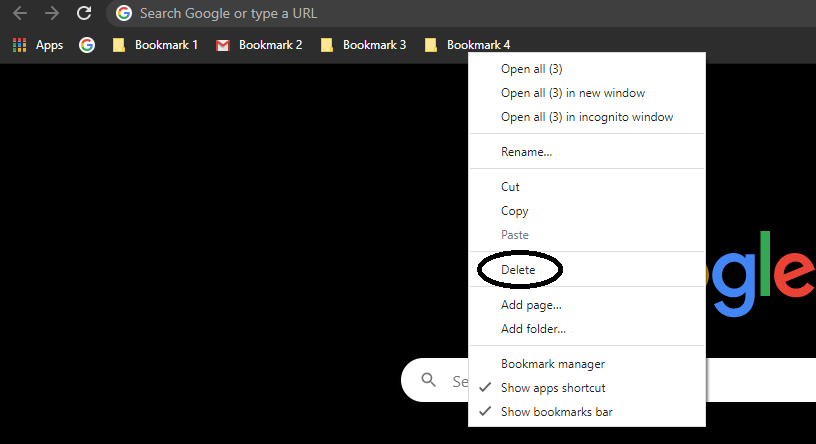
The Bookmark bar can be maintained without any additional tool in place. We can add or delete the bookmarks from the bookmark bar itself. Be it a folder or a separate web page, you can right-click on the bookmark on the bar to find the drop-down list like this.

delete from bookmarks tab

Delete option is very prominently available in the drop-down list. Click it and boom goes your bookmark.

Approach 2: How to delete multiple bookmarks in chrome by using the settings tab.

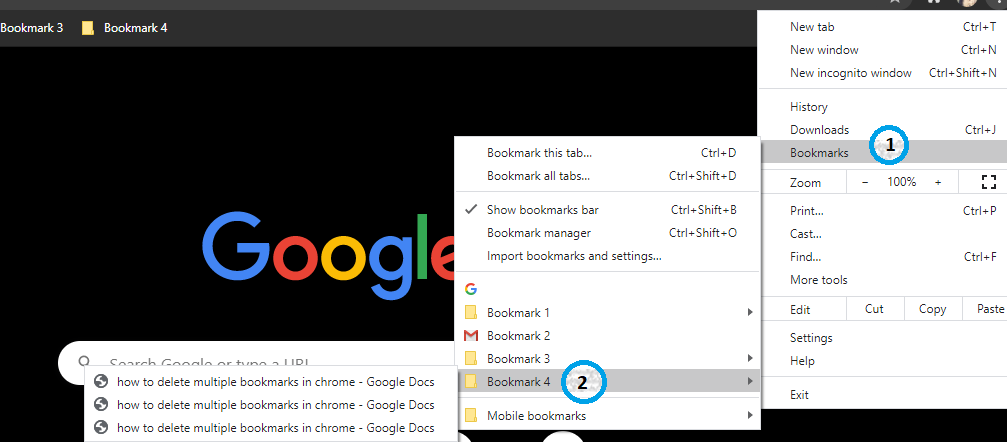
You might all be very familiar with using the three dots on the top right corner of your chrome browser. All the settings related to your chrome is available in the drop-down that you receive by clicking these three dots.

When you click to open the drop-down list you would find a separate tab in the list that reads as Bookmark

This Bookmark tab is all that you need to manage your bookmarks. So click on the Bookmark and you will find another list as follows.

delete bookmarks

When you right-click on the folder of bookmarks that you wish to delete or the bookmark that you wish to delete then you will find another list like that.

delete bookmarks from setting

This list has a delete tab too. Just click to delete the bookmarks that you no longer need. 

So, deleting bookmarks is as simple as that. 

That said, I came across another Quora question by a young student on How to add Bookmarks on Chrome. How to delete bookmarks on chrome is the next step that is explained before. But one needs to know how to add one. The below explanation is for the people who are looking to add bookmarks(this is for the beginner users of Chrome).

How to add Bookmarks on Chrome? 

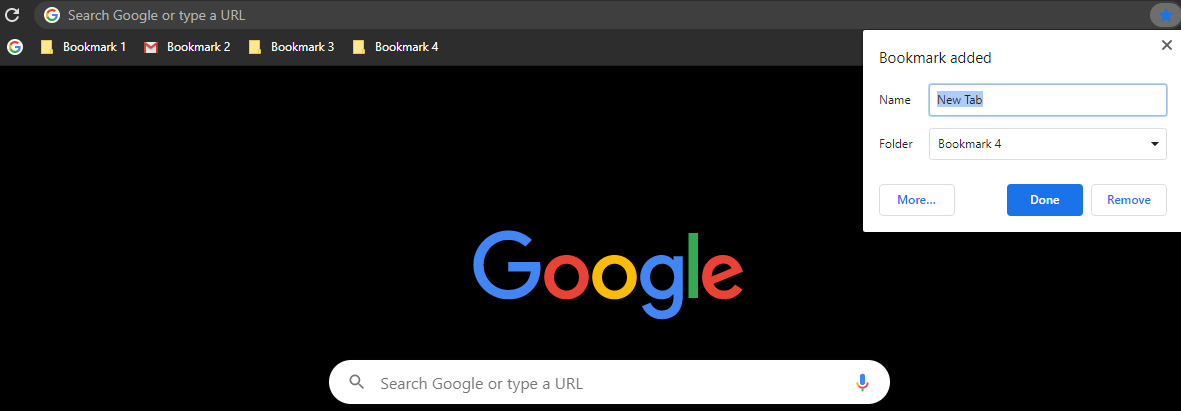
When you open any web page, you find a star at the end of the link tab. Just click it and it will turn its color. Here blue. This opens a small additional page asking for the name you wish to give and the place you want it to be saved, as below.

add bookmarks

Just enter the details and click Done. You will see the Bookmark added to the Bookmark bar.

As of today, everyone is well-versed with creating, viewing, and editing a bookmark. Now you know the deleting single and multiple bookmarks process, too.  But what if you have lost a bookmark and don’t know where to find it? Then please read along.

 Find a lost Bookmark

NOTE: A deleted bookmark cannot be recovered. Creating one is easier than solving the riddle! But we can very well find a bookmark which you feel missing, you can try these steps.

delete multiple bookmarks on chrome

Approach 1: Sign in to our Chrome 

If you had synced your e-mail id to your Chrome while bookmarking the web pages, then the bookmarks will appear only after you are signed in to your email account. Or else bookmark bars will not show the bookmarks that you have saved.

  1. Open the Chrome browser and check the name on the People icon that you see on the top right corner.
  2. You can right-click on the above people icon to find the details of the person whose account is sync with chrome.
  3. Just login to your account and sync to find the bookmarks.

Approach 2: Make sure that the Bookmark bar is not hidden

As discussed earlier, bookmarks can be very well managed with the Bookmark tab in the top right corner three-dot menu.

Click More –> Goto Bookmarks–> Show Bookmarks Bar.

Approach 3: Check-in all the Bookmark folders

Newly created bookmarks are saved by default in the last bookmark, in which you saved a bookmark. So do check in that bookmark in particular.

If how to delete all bookmarks section was interesting and you are curious about these bookmarks, then you can even read the import bookmark section below.

Import bookmarks & settings

If you wish to open your bookmarks on another System or another browser, for instance, you can switch without compromising on your settings, and get back all the bookmarks for your favorite websites. 

Almost all the browsers including Chrome, maintain your settings that include a range of information like:

  • 1. History
  • 2.default search engines
  • 3. default homepage
  • 4. bookmarks
  • 5. saved passwords

Conclusion:

All that said, working with bookmarks on your browser is like a luxury. You have all the important and usually used web pages alongside, making your work easier!

Here Are Some Cool New WhatsApp Features, You Haven’t Explored

0

World’s most popular messaging app, WhatsApp has since its launch in 2000, always seen skies. With over 100 billion messages being sent over a day, WhatsApp is constantly offering varied additional WhatsApp features to its valued customers. With advancements in security & privacy options, there is always something new that the Facebook-owned giant has on the table for the customers. 

Chatting style will change on Whatsapp, 138 new emojis coming - whatsapp to  rolls out 138 new emojis for android testing in beta now - Kultejas News

A plethora of new features that have recently being put live include these which you may not have discovered yet! Let’s dive into some of those new hidden features which will have stories attached. 

1. Multidevice support for chatting:

WhatsApp has a wonderful feature of multi-device support, which allows multiple devices logged into WhatsApp, with the same account, to stay on the same page. All the devices, 4 devices to start with, that are so connected, will receive new messages and showcase the same archived messages. To cut the crab short, all the devices would be in sync with the same account as they are logged into.

multidevice support

While multidevice support is beautifully supported by WhatsApp, what is really seen missing in the app is multi number support. Like, the native support for multiple accounts in Telegram, WhatsApp should now target for this multi number support, soon. 

Anyhow, WhatsApp was already supporting multiple devices through WhatsApp Web, which connects back to a phone account. But, WhatsApp Web requires a phone to be connected to the web. The new feature enables WhatsApp on multiple devices simultaneously, with no need to constantly connecting back to a phone.

Along with the messages, this feature also supports chat history sync on multiple associated devices.

2. WhatsApp’s Permanent mute switch:

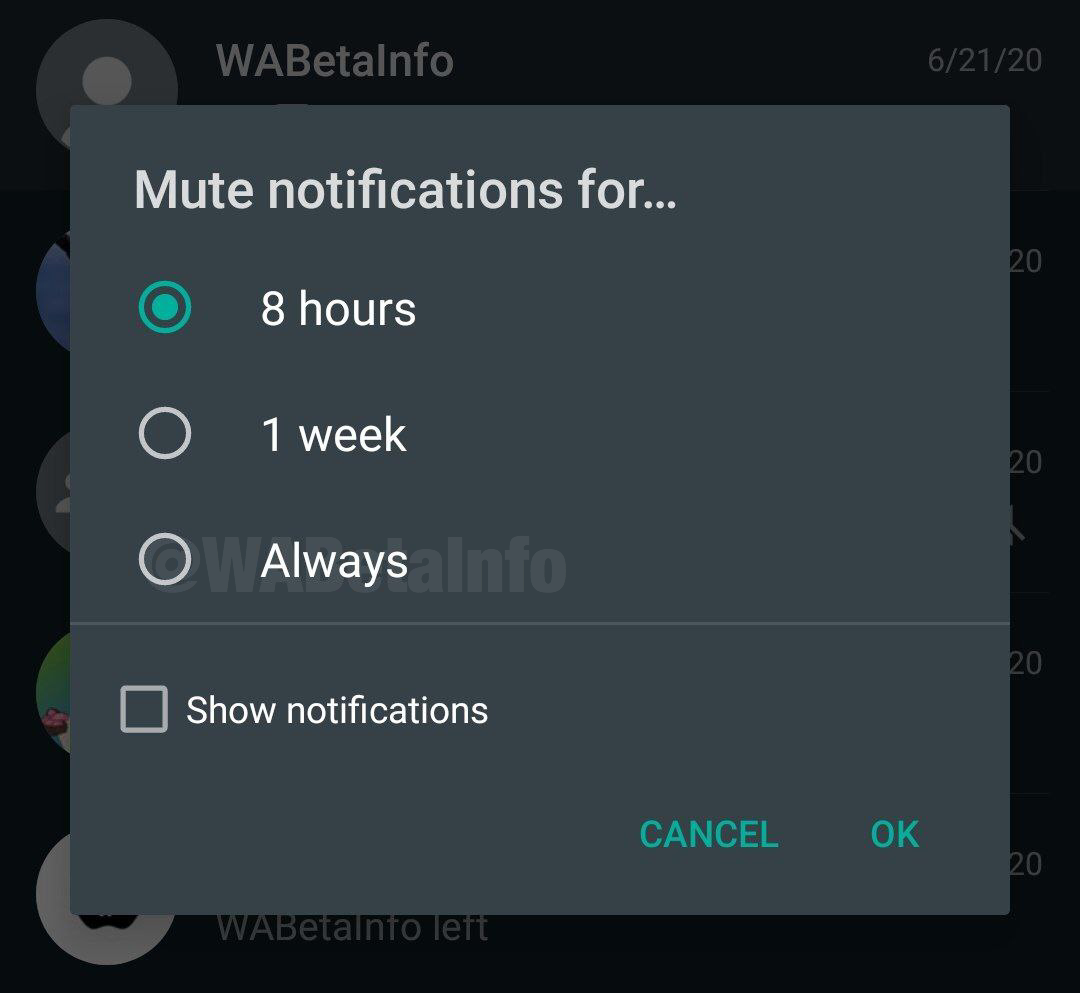
With growing social contacts and group activities, people tend to join multiple groups for several associated activities. With all the active groups constantly posting a plethora of messages every minute, it may become chaos. With this option available in your WhatsApp, you can permanently must the notifications in those groups. Though the messages would constantly peep in, you can choose to view the same at your convenience. 

permanent mute

The permanent mute feature replaces the earlier feature that enabled muting for a year. In the above image, the ‘Always’ option is the one that replaces the mute for a year feature. With this feature, you can mute any unwanted group chats permanently.

To use this feature of permanent mute:

  1. Tap on the Chat
  2. Tap on the name of the group
  3. You will see a screen like the above-shown, select the mute –> always option

 3. Whatsapp Payments- one of the best WhatsApp features:

whatsapp payments

This long-awaited feature would now be available to a larger crowd, finally. However, out of the 400 million Indian users, only 20 million would have the WhatsApp Payment option in their app. Now, if you are one of those members having WhatsApp payment option, then setting up your payment account and paying and receiving money via WhatsApp is way more convenient.  

WhatsApp Payment
screenshot of WhatsApp payment

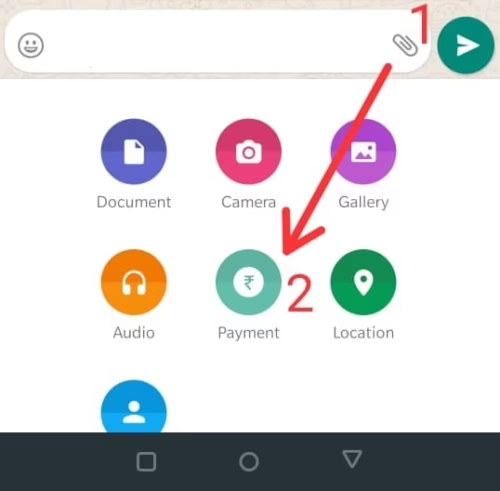
The in-app payment option enables users to make transactions via WhatsApp to their contact list. It was developed by the National Payments Corporation of India(NPCI). WhatsApp users can make the transactions, both send and receive money via chat as follows:

  1. Select the Share File option
  2. Select Payment

Users can even check their transaction history & account details in there. The payment system works on the Unified Payments Interface (UPI) method, thereby, the fund transactions can be conveniently done without inserting that long and fuzzy bank account numbers and IFSC codes of recipients.

4. WhatsApp Web receives dark mode: 

Whatsapp web

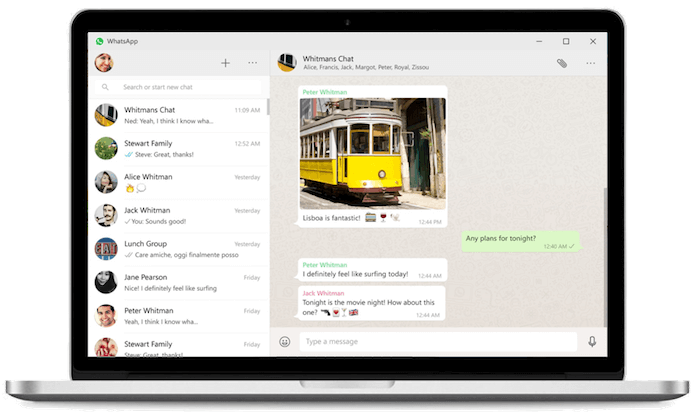
Now, with this WhatsApp Web feature, Whatsapp account can seamlessly sync all your chats to desktop, and make provision for users to conveniently chat on whatever device is handy. Users can take and make WhatsApp calls directly from Desktop. Like the phone screen showing the accept or decline calls option, a popup window showing caller details and contact information will ease the user. Alongside, another floating window, showing the current connection status, mic options, and end call button, etc will appear.

whatsApp web

With the web provision rolled out, WhatsApp is now all set to introduce the dark mode feature for the same, which was already available for android and iOS users. 

This new feature will let the users change the color theme of WhatsApp from white to black. 

Find the steps to set the dark mode to your WhatsApp Web here:

Step 1: Open WhatsApp

        2: Find Settings and click Open

        3: In the Theme option, search for Dark theme, and click to apply

 5. Whatsapp Animated Stickers:

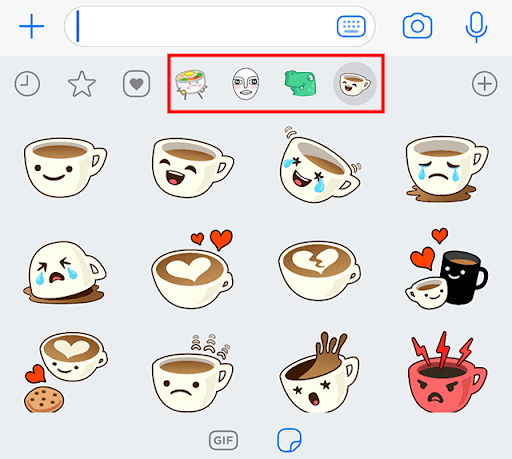
WhatsApp stickers are the new lively way of communication.

Whatsapp Animated Stickers

These stickers make the conversation easier and imbibe fewer efforts of typing. A picture speaks more than words, you see. 

6. Chat up to 50 people in the messenger room:

WhatsApp now features new chat rooms, wherein up to 50 people are allowed to chat together in a single video call. This WhatsApp messenger room supports WhatsApp web, too.

Chat up to 50 people in the messenger room

To enable the chat room

1. Open WhatsApp

2. Now, at the bottom-right side of the screen, tap on People

3. Tap on Create a Room. To add people who are not on Facebook, you just have to share the invitation link with them. You can add up to 50 people in a single room.

7. 138 new emoji’s:

New emoji’s of the chef, farmer, painter, among other profession depicting emoji’s, ‘racial’ emoji’s are a few of the 138 emoji’s, that are now introduced by WhatsApp in the Android beta version of the app. Now, you would find an emoji for every word and expression!

138 new emoji’s

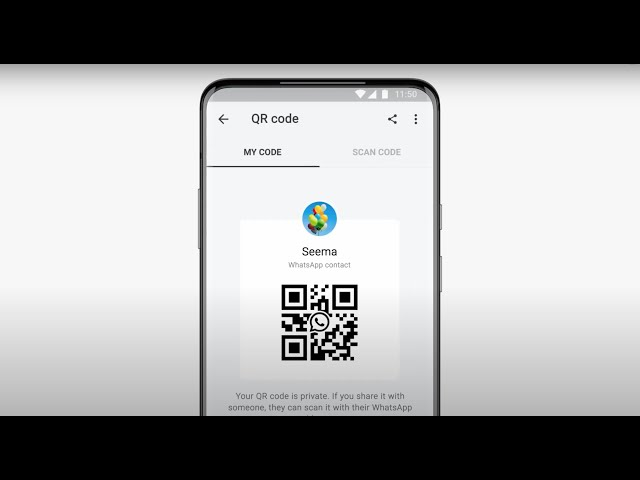
8. Scan QR code to instantly add friends

Now, with this new feature, WhatsApp enables any user to scan a QR code and quickly add the associated mobile number to the contact list. That sounds really fast, isn’t it?

Scan QR

Along with these new introductions, WhatsApp is rolling out multiple more features, like featured phones can add WhatsApp status now, a new color chat bubble, one tap group-video calling icon, etc.

Easiest Way To Check Which Motherboard You’re Using On Your Windows!

While working on your system, you might have many times pondered on ‘how to find out what motherboard I have?” Well here is an answer to the most popularly dwelled question.

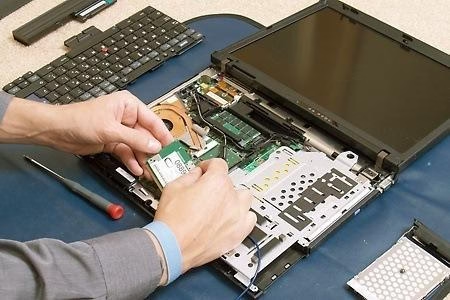
A computer system is an encapsulation of numerous hardware devices; RAM, CPU, and a mouse are a few of those peripherals. A computer’s hardware is indeed its most essential component, in the absence of which it just can’t function. 

Imagine a team having 10 people from different parts of a country working on a project, but there’s nil communication among them. That’s when we require a team leader or a coordinator to establish a healthy communication environment for the team members and execute the tasks successfully. Likewise, a MOTHERBOARD is an indispensable component of a computer, which holds together many of the essential components of a system, including the CPU, memory, and connectors for input and output devices. 

how to find out what motherboard i have

 A motherboard is a printed circuit board which allows various computer peripherals to communicate with each other. Moreover, it regulates the power received by the hard drives, graphic card, CPU, and system memory from the power supply.

Therefore it becomes important to identify the motherboard in our system, say for system configuration or other reasons. However, things aren’t as simple as recognizing other hardware like your RAM or the graphics cards when it comes to your system’s motherboard.

This article gives a step by step approach for all the beginners to find out what motherboard your system has.

So, how to find out what motherboard I have?

1. How to figure out what motherboard do I have with WINDOWS SYSTEM INFORMATION

It’s a hit or miss method to identify your motherboard and is incompatible with motherboards from Asus, Dell, and Razer. 

However it’s definitely the easiest method to figure out what motherboard do I have, with a compatible system.

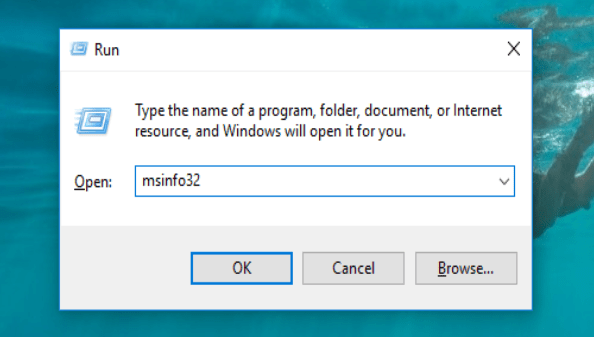
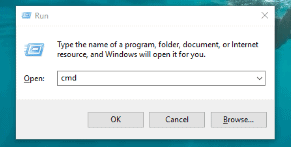
  • Startup Windows’ Run function using Windows + R.
  • Type in msinfo32 and press OK in the Run Window.
how to find out what motherboard i have
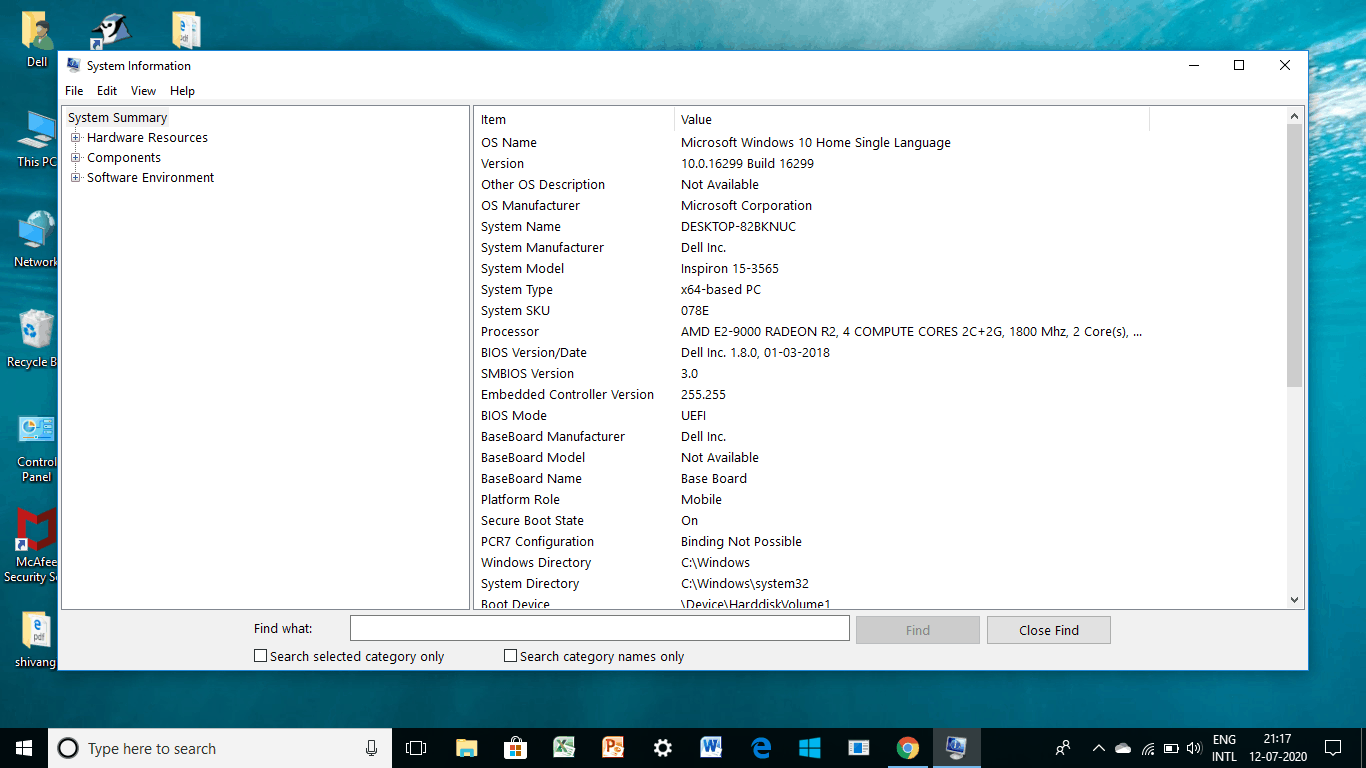
  • Your motherboard information should be specified next to the BaseBoard Product, Baseboard Manufacturer, and BaseBoard Version.
how to find out what motherboard i have

NOTE– The motherboard information is not provided in the above picture because the system is not compatible, therefore you can switch to other methods that are discussed further in this article.

2. How to find out what motherboard do I have with COMMAND PROMPT

how to find out what motherboard i have
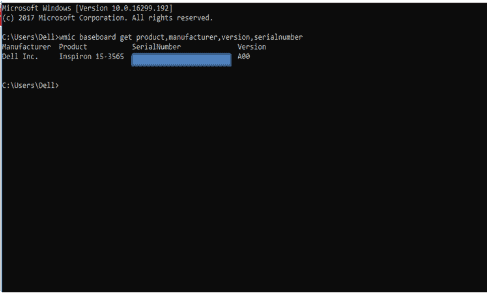
  • Prompt Windows Management Interface Command (WMIC) to check the manufacturer, model, name, and other features of your motherboard in the command window as shown.

For this simply enter- wmic baseboard get product, manufacturer, version, serialnumber

how to find out what motherboard i have

3. How to find out what motherboard I have with CPU-Z

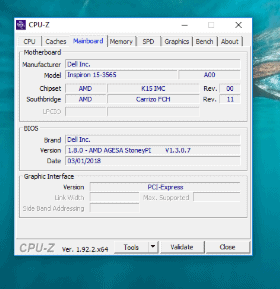
  • The CPU-Z gives a more thorough overview of your motherboard’s specifications.
  • Download the program on the CPU-Z website. Once the program is installed and started, your system’s components will be analyzed for identification.
  • Tap the Mainboard Tab to get a detailed answer to What motherboard do I have.
how to find out what motherboard i have

There you go! The window shows you various specifications of your motherboard including the manufacturer’s name, model, and chipset.

4. How to find out what motherboard I have with BELARC ADVISOR

  • Belarc Advisor is yet another free program that enables you to get an outline of your PC’s hardware.
  • To download the software click HERE.
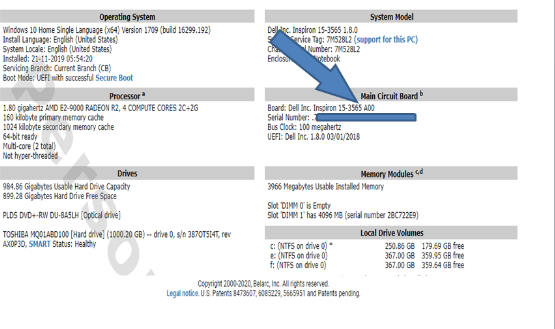
  • Once the installation process is completed, the software displays the results in the browser tab.
  • To view the motherboard summary and understand what motherboard do I have, I looked for the heading on the right that said Main Circuit Board.
how to find out what motherboard i have

NOTE: The advantage of using Belarc Software is that it will not send your data to any web servers. The summary of your system is viewed in the web browser once the system analysis is complete.

5. How to check what motherboard do I have on LINUX?

  • The process to check your motherboard’s details on LINUX is as simple as that for WINDOWS.
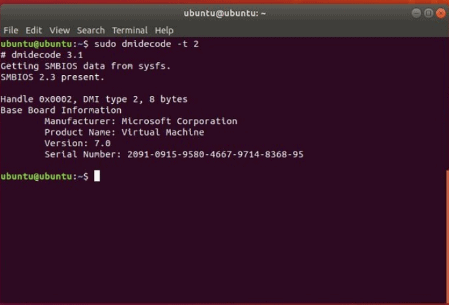
  • Press Ctrl+Alt+T to open your terminal in LINUX. Next, type in the following command in the terminal :

sudo dmidecode -t 2

  • This will display the summary of your motherboard.
how to find out what motherboard i have

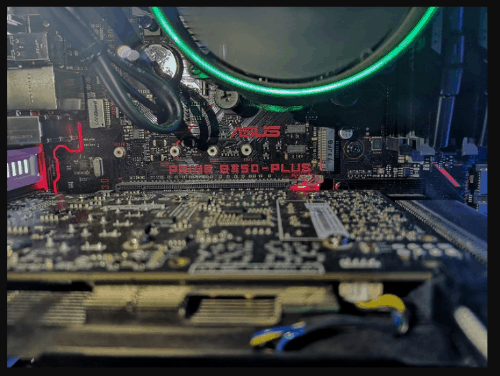
6. CHECK YOUR MOTHERBOARD MANUALLY

  • In case you’re unable to check your motherboard with the help of the above-stated software, checking it physically is always an option.
  • The option is suitable either when the PC won’t switch on or the system is not yet having the motherboard installed in it.
  • However, the exact location of a motherboard depends on the system’s layout and brand.
how to find out what motherboard i have
  • Generally, the model of your motherboard is found where there’s enough room for the large text to be printed. This could be below your RAM slots, below your GPU, or between your GPU and CPU.
  • Click HERE to get detailed information on how to find out what motherboard do I have, using the manual.

So, I guess that should serve you with pretty clear answer to your how to find out what motherboard I have, question. Its always better to know the system completely in and out. After all half our lives are spent with those super brain machines. Enjoy Learning!

What Is Microsoft AU Daemon? Here’s Everything You Should Know

Wondering what is Microsoft AU Daemon? What does it do? and What are the pros and cons of having it? And all such related queries, about the Microsoft AU Daemon, are going to be answered here!

Free Photo | Charming woman thinking and using laptop
what is microsoft au daemon

Most of us have used Microsoft Office’s apps at some point. Some famous and widely used apps are Microsoft Word, Excel, PowerPoint, SharePoint, OneDrive, OneNote, Access, Publisher, etc. The best thing about this app is that you can easily update them to enjoy new features.

There are various ways to manage updates of Microsoft Office apps like automatically updating apps through the internet, using Microsoft Endpoint Configuration Manager, or reinstalling updated versions of the app on your system. The simplest way to update these apps is by automatically updating it using Microsoft’s in-built program, and here comes in the picture Microsoft AU Daemon (AU – Automatic update) to accomplish this task.

What is Microsoft AU Daemon?

If you are using a licensed copy of Microsoft Office apps, then Microsoft AU Daemon is the dedicated update program that comes installed with all Microsoft Office apps and connects the client with the Microsoft Office server,

 The primary function of this program is to 

  1. Periodically check for the updates for any Microsoft Office apps available on Office’s server.
  2. Download files for the update.
  3. Replace old files with the updated files in the app.

Each Office app, like Word, Excel PowerPoint, has separate Microsoft AU Daemon instances to ensure that the user enjoys all updated features of the specific app irrespective of whether he is using all apps of Microsoft Office. Along with updating apps, this program plays a crucial role in downloading and installing security patches for Microsoft’s specific app.

Pros:

  1. Updating apps using Microsoft AU Daemon requires very less administrative efforts.
  2. It hardly uses any space in the memory.
  3. It automatically gets initiated and runs as the background process, and there is no need to start this program.
  4. You don’t have to separately install it on your system as it comes integrated with the Office apps.

Cons:

  1. You have very little control over the update process.
  2. Some users have reported that whenever the user opens the Microsoft Office app message box to ask whether to launch Microsoft AU Daemon repeatedly appears on the screen which is a bit annoying.
  3. You don’t have control over installing or uninstalling it.
  4. It slows down the performance of the system sometimes.

What to do if Microsoft AU Daemon is not working?

If you notice that your application is not getting updated regularly, then there is a possibility that Microsoft AU Daemon is not working appropriately. You can troubleshoot it to resume its functionality. Follow the below-given steps to fix any issues with it.

  1. Type Control Panel in the Cortana search bar and open it.
  2. Go to Program -> Uninstall a program.
  3. Select the Microsoft Office app in which you are facing difficulty.
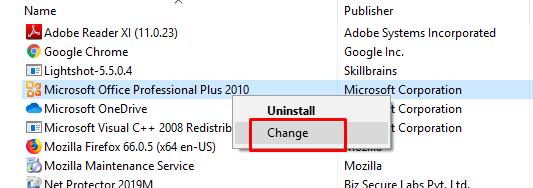
  4. Right-click on the app and choose the change option.
microsoft au daemon
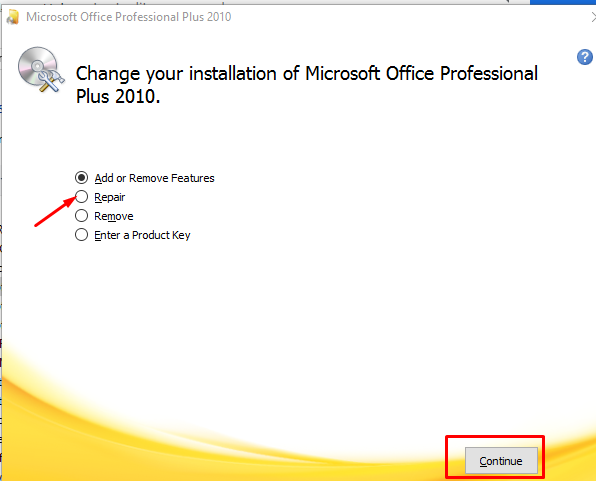
  1. A new window will open, click on the Repair option and follow the wizard to finish it.
what is microsoft au daemon
  1. Reboot your system and now check if Microsoft AU Daemon is working fine.

The following article will discuss switching from automatic updates to manually checking updates, which is necessary if it leads to some problems in your system.

How to uninstall Microsoft AU Daemon?

As you don’t have control over installing this program in the same way, you cannot uninstall it, but the option closer to this is disabling it. It is not recommended to permanently disable this program as you might miss necessary security patches for your apps. Check how with few clicks, you can disable it.

Disable Microsoft AU Daemon In Windows.

Log in as an administrator in your system to make changes in the settings.

Steps:

  1. Open the app for which you want to disable Microsoft AU Daemon. Suppose it is Microsoft Word.
  2. Click on File and press on the New option. Choose a blank document.
  3. Click on the create button.
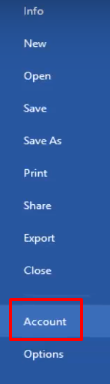
  4. Go to File -> Account.
what is microsoft au daemon
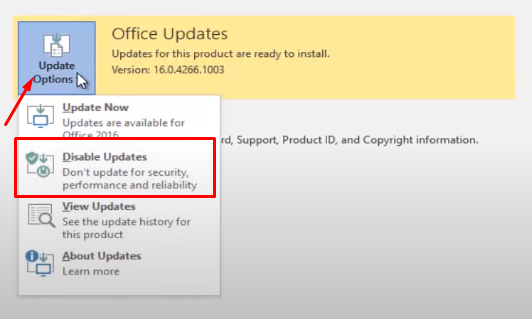
  1. A new window opens, click on Update Options and select Disable updates.
what is microsoft au daemon
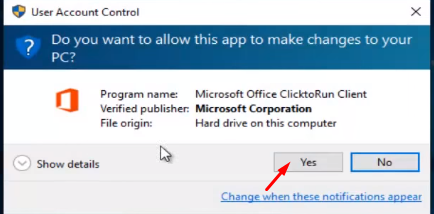
  1. Click on Yes when prompted to confirm.
what is microsoft au daemon
  1. Reboot your device and now again open Microsoft Word 
  2. Open Task Manager by pressing Control + Shift + Delete key.
  3. Check if there is any process of Microsoft AU Daemon running in the background process section.

Disable Microsoft AU Daemon In Mac

Mac OS is well known for ensuring its client’s security by offering a highly protected system, due to the same reason it prompts whenever Microsoft AU Daemon tries to install updates on your PC. It asks for user permission before allowing this process to modify your device. Prompting to get user’s consent before any modification is the safe practice but, at the same time, very frustrating due to repeated interruption messages. So many users opt to delete this update process. Steps to remove this process from your MAC machine are as follows:

  1. Open Macintosh HD. You can find out detailed steps to open it on this website.
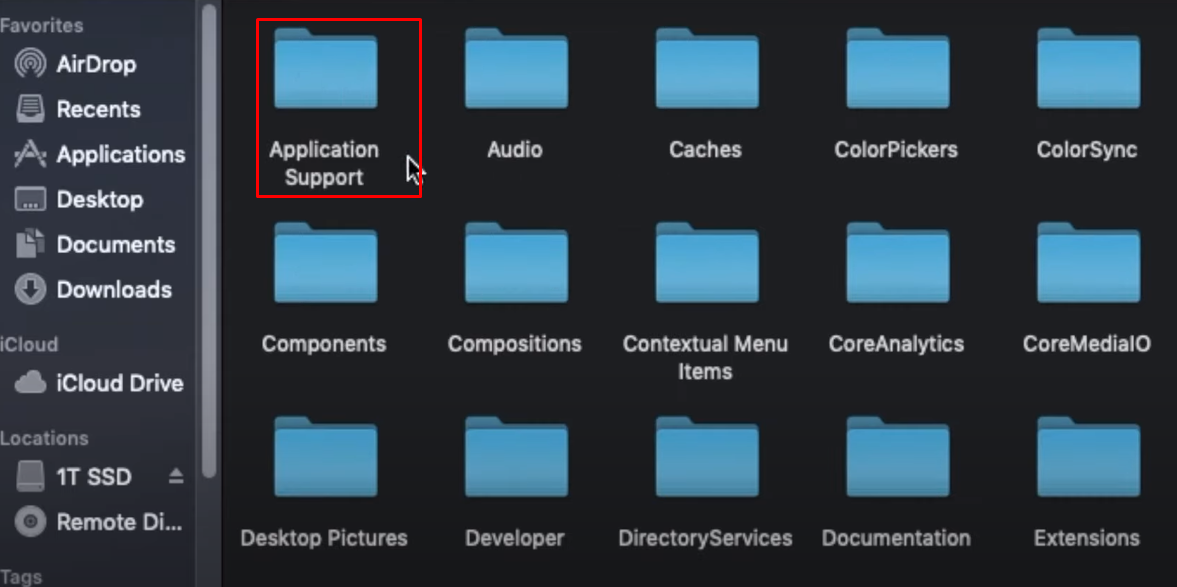
  2. Goto Library -> Application Support -> Microsoft -> MAU 2.0 -> Microsoft Auto update.
what is microsoft au daemon
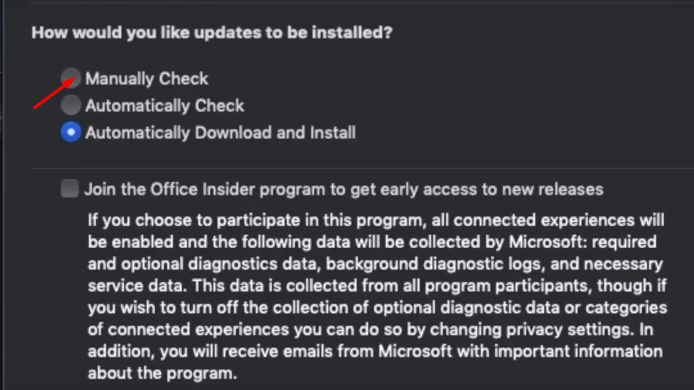
  1. A new window will open, and you can choose the update option. In this case, we will select a Manually Check option for updates.
what is microsoft au daemon
  1. Restart your system and check if the automatic process still appears in the activity monitor window.

Bottom Line:

You can allow it to run as a background process and keep your Microsoft Office’s apps up to date, or you can disable it and manually check for the updates. In this article, we have described steps to disable this process on Windows and MAC. While you figure out, we see that you would also like to check the best download managers for Windows OS, macOS, and Android. Let us know if this article helped you to understand the details of Microsoft AU Daemon.

4 Ways Virtual Assistants Help Make Running a Business Easier

Despite all the personal and professional benefits and rewards that can come with running your own company, business owners know that having a hectic schedule and juggling multiple balls at once can become exhausting, especially if you’re attempting to directly handle all operations yourself. Being at the helm of your own business is already a full-time job, and there’s no reason to make it harder on yourself by trying to go it alone without assistance or by sticking solely to outdated practices. Instead, implementing modern technology like virtual assistants or using tried-and-true management methods like delegating smaller tasks can help save you time and give you back the energy you need to focus on other aspects of running the business. If you’re a tired business owner looking for ways to make running your company a little easier each day, give these easy ideas a try.

Virtual assistant for business

1. Try Using a Virtual Assistant App

Even with a well-organized calendar and the best of intentions, it can be exceedingly difficult to keep track of every detail and deadline involved in a business, especially if you run a medium-sized company or larger. Instead, consider giving a Virtual Assistant Business App a try. This simple change alone could help you stay on track, remind you of important due dates, coordinate employee schedules and much more. Additionally, it’s more cost-effective than hiring an in-person assistant or secretary, so you can stay on top of everything without having to splash out extra money, too. It could benefit your budget, bottom line and mental health all at once.

2. Delegate Specific Tasks When You Need To

One recurring problem many business leaders run into is taking on too much work all at once and attempting to handle every single detail of the business personally. Even if this is initially possible during the start-up phase, as your business expands and becomes more successful, it becomes less and less feasible to personally oversee or manage every little detail. Rather than overburden yourself with this unrealistic expectation, realize that it’s ok to delegate certain tasks when you need to. A strong leader knows when the right time to delegate is, and which tasks can more feasibly be delegated. By letting other employees help with some of the more minor tasks, you’ll have more mental energy to dedicate to truly pressing items.

3. Contract Out Tasks You Can’t Do In-House

A common mistake many new business owners make is trying to handle every aspect of the business strictly in-house. While this might seem like a good idea, and could potentially allow for quicker communication, it can easily become very expensive. After all, when you hire a full-time employee, you’ll be responsible not only for their salary, but for additional payroll taxes as well as other hiring costs, not to mention additional office space, equipment, supplies and so on. Contracting out specific tasks can save you time by hiring fewer employees, and could also benefit your budget. The same applies for using a virtual assistant app instead of a secretary, for instance.

4. Dedicate an Allotted Time for Checking Emails

One final tip that you might not have thought of is to restrict the amount of time you spend every day checking your emails. While it’s an important and necessary task, you can easily get sucked down the email rabbit hole for hours at a time, potentially wasting precious minutes that could have gone towards another pressing task. To remedy this and prevent yourself from going overboard on email time, try dedicating a specific amount of time each day for checking emails. Get as much done in this timeframe as you can, but then put the emails aside for the rest of the day. If you’re worried about missing important messages in the downtime, it may help to inform clients and colleagues about your email checking timeframe to give them a heads-up.

If you’re at the helm of your own company and are finding yourself worn thin and being pulled in many different directions by the never-ending demands of the business world, you may be thinking you could use all the help you can get. The trick is to know where to focus that help, so you can have the time and energy to devote to other operations. By delegating, using virtual assistants and implementing these other quick and easy changes, you can make sure your business runs smoothly without running you ragged.

Wondering How To Make Money On Steam? Try This!

Find out how to make money on Steam and build that extra income on Steam you can be proud of.

Who doesn’t think of an extra source of income? An income that comes with more playing is like icing on the cake. Yes! You get to play games on Steam and get the income that you never actually think off while already having fun!

how to add friends on steam

So are you ready to know how to make money on Steam?

I would like to mention here that several Steam games provide you extra money. This cash that you deserve could come in the form of some steam trading cards, valuable products, cash, or some Steam products. The cash-out option is your call, you just need to know how to make money on Steam. So, find out 5, not much-revealed secrets of making money on Steam.

1. Develop a game or get it developed?

Are you a game developer? Or do you have a super game idea in your mind? Then nothing can stop you from making a bonanza! 

How to make money on Steam cannot be simplified further for a developer. Yes! It is the best way of making huge money. A gaming platform so big as Steam has an ever-growing need for new and trendy games that create a vogue. If you know the Steam platform and its users well, then you can double your income in a short time.

That said, Steam turns out to be the ultimate destination for creating games, playing, and discussions related to games. Such an exclusive platform of games that is exploding with millions of gamers everyday needs to have rules that will make the platform legitimate and worth the visit. 

So, Steam has made stricter policies for the deployment of games on its platform.

Major concerns to check are

  1. The games call for fun and engage the gamers in active cultivate ways.
  2. The screenshot and the game trailers are captive and make the gamers click for a shot.
  3. Above all, don’t forget that 30% of the total income that you earn from the game needs to be submitted to Steam. After all your games are reaching such a plethora of users out there, all thanks to Steam!

The success or failure rate of your game could be analyzed within the initial days of release. Good reviews, in the beginning, grab the audience’s attention and make the game popular. 

            For all those who are in the quest to understand – How to make money on Steam, they should know that developing games or outsourcing someone to develop games for you,  turns out to be the most secure and sure means of monetizing on Steam. But it is the most difficult one of all the options. 

So, if you are looking for some simple solutions, please read the next one on the list.

2. How to make money on Steam with Item drops in games? 

Feel free to visit the Steam Market and keep exploring the various games that drop items within the games. Most of the games just drop cards, but you can enlist a few challenging games that care to drop items for their users. Now, that is some source of income that you can never think of and it comes with no extra efforts, you just need to have fun playing the games!

steam trading cards
How to make money on steam

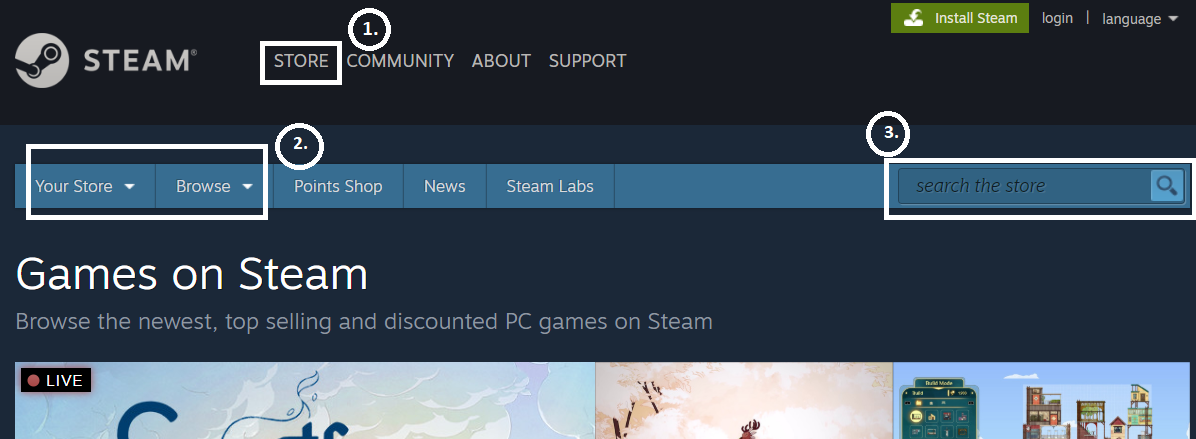
Locate the Browse by a game option on the right-hand corner of the Steam Store, that will provide valuable suggestions for your query, and that about it.

You just download the games that source item in your games, you play them and earn the items.  It is easy to make money on Steam. Very popular games on Steam like Counter-Strike: Global Offensive, Rust, Killing Floor 2, etc. are believed to be using this strategy of dropping marketable items that you can monetize on.

So, do try this easy method of making money on Steam. 

3.  How to make money on Steam with the Press-release items

Developers, unlike gamers, are in a never-ending race to grab the audience to their new games. So, alongside the releases, they sponsor some gift items or tend to drop wonderful prizes as pre-orders rewards. Stay alert and tune into the new press-release games that might guarantee some gifts that would be eligible for a good price in the Steam market. 

How to make money on steam

 I can hardly find any youngster who stands alien to PUBG. PUBG since the times of release has quadrupled the number of active players and is one of the most visited games on Steam. It is said that all the players who had pre-ordered PUBG were gifted with the cosmetic set, which at that time was worth $30, but today they stand out at the cost of $1,400. Now, that is a deal, right?  

If this source of income solves your- How to make money on Steam query then you will be surprised with the next.

4.  Trading cards help money on Steam

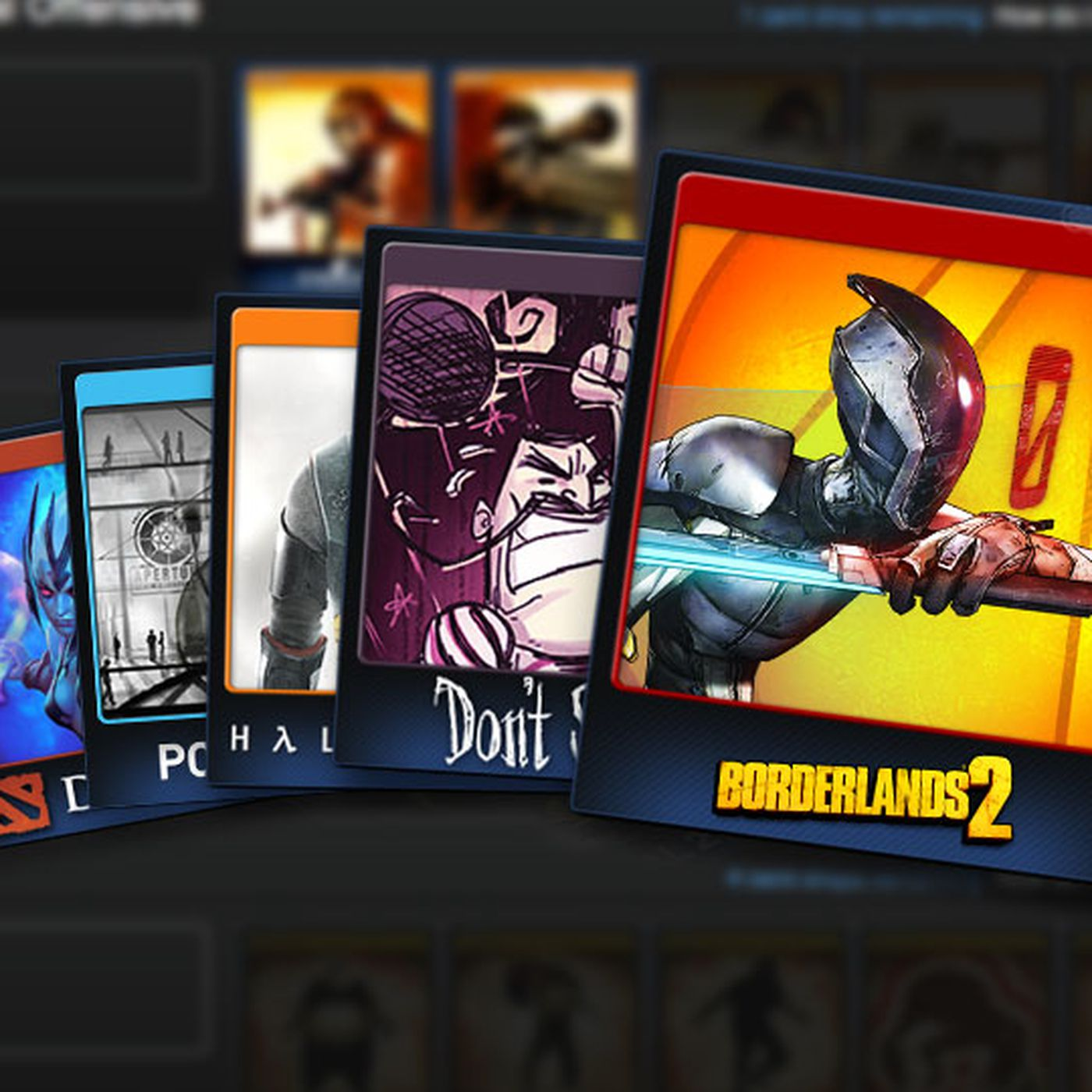
Most of the games on Steam keep providing you steam trading cards. These steam trading cards, though not a huge source of income, is a steady means of accumulating money. You can enjoy playing the games and earn trading cards, alongside, just like that, without any other invention. Hence, this is another pretty good source of monetization. 

How to make money on steam

Now, these steam trading cards are not big money as I said. They are a deal of as small as a few pennies every game. But depending on your luck, you might receive cards worth a couple of dollars. Anyhow that is an extra source of income, for sure.

In addition to the amount that you receive, this source of income is a patience-testing method, abided by the rules of the game, the players are allowed to receive their first trading card, only after a stipulated play of 15 minutes. And the next card comes only after the other 2 hours. Now that is something ridiculous to wait for, right.

Therefore, the only way to hold patience and collect trading cards is to forget about it altogether and just enjoy playing. And the steam trading cards naturally drop into your account.

Well, let us check out what the final source deals with your query – how to make money on Steam? 

5.  Collect items and sell them wisely

How to make money on steam

This source of income, like the previous one, deals with patience. Yes! You need to patiently stay playing the game at the core of your interest and alongside, keep collecting items that are dropped. The cost and demand for these items vary at different points in time.

So, at the right time, when you find a high demand and cost of the items in your cart, you can exchange the items with other players and monetize or trade for some other valuable products instead. So, you need to stay alert and play strategically. Understanding the Steam platform and reading the minds of the co-players are the keys to your fortune.

Concluding Note:

How to make money on steam

These 5 incredibly easy ways are something treasured by the Steam players. The active players know the strategy and play to win stupendous gifts! I hope that answers your question of how to make money on Steam. So keep playing on Steam and keep earning.