Home Blog Page 61

An Ultimate Guide To Audible App!

0

Have you recently found this Audible app and wonder how does audible work? Then please read through, to find out!

Audible is an audiobooks and podcasts library application, available for free download on android and apple platforms. Find the books that speak to you! Have a sneak-peak at this wonderfully crafted library of audiobooks by Amazon!

how does audible work

With our digitally stylized busy lifestyles today, audiobooks are creeping up to be more vogue! These days, people usually prefer to listen to their books, rather than indulging in those heavy books, demanding another hour of concentration. While, reading is always a recreation, listening to books is also a differently blessed relaxation, overall. 

It is a great way of saving your hands and sight to plenty of other things, while you focus on listening to your favorite book!

What is Audible?

Audible is an Amazon company with books, stories, talk shows, life lessons, and more.

how does audible work

As the app web page goes, the ‘happy listening’ mantra is enchanted, marvelously. With a planet of genres of books and shows, this is a one-stop destination to listen to.  You may download the audible app for your android or apple system or phone here

Audible is one of the biggest audiobook services available! With daily deals and exclusive packages, audible presents the best book-length audible exclusive material, with unlimited access to a plethora of titles. 

How does Audible work?

Audible has two models – a subscription model and a free normal app model. The free for use audible account has 30 days of free access. And for amazon prime members, this free account can bring free books for 90 days. 

What do you need to use Audible?

To cut the crab, to use audible, you need to have an amazon account. Once, you sign in with your Amazon account, your available credits will be listed in the top right-hand corner.  

What are Audible credits?

Here one credit refers to one book of any cost! Yes, you read it right. Immaterial of the cost of the book, one credit will give you one book.

how does audible work

How does Audible cost you?

There is an array of plans for Audible subscribers. The charges will be based on the plan that you choose. The plans are as follows:

how does audible work
  • Monthly Gold: 1 credit per month at $14.95 per credit
  • Monthly Platinum: 2 credits per month at $22.95 per month
  • Gold Annual Special: 12 credits per year at $9.96 per credit in year one and $12.46 per credit thereafter or $119.50 for the first year and $149.50 for every year after
  • Platinum Annual: 24 credits per year at $229.50 per year 

In addition to all these, every member gets to enjoy an additional 30% off on any titles purchased without credits, two free Audible Originals every month, & an opportunity to exchange any audiobooks you don’t love within a year of purchase.

While, Audible is not free with Amazon Prime, but get free access to some Audible Originals and a limited number of Prime audiobooks through Prime Reading.

An obvious question that you have in your mind now is – Is audible worth it?

How to buy books on Audible? 

Audible is a user-friendly app with books, books, and books of all genres, including kids, spiritual, self-help, biography, fiction, non-fiction, mystery, horror, thriller, and you just name it. The books are neatly labeled and presented with summary & audible reviews for you. 

Browsing is pretty easy in Audible. There’s an option that says “Browse”, on the top menu,  with an arrow next to it. Hovering your cursor over that option will help you with a dropdown menu that has several categories, which you can click on. 

It’s a great place to get started. You get to choose from two options to purchase the books. Audible either allows you to purchase the titles with cash or via already paid for credits. You can manage the credits and money accordingly, with the daily deals, other festive offers, and seasonal sales. 

Once purchased, with the help of WhisperSync, the title, thus purchased will be available to you across all the synched devices, without ever losing your place. This feature keeps a track of your recent read page and maintains your audible book on the same page across all the connected devices.

Is Audible user-friendly?

Audible is one of the most convenient apps to linger around even for beginner users. The wonderfully simple look and feel, make the app deal easy! 

All the processes, right from downloading the app, getting a subscription, buying a book, reading, returning the book, etc. are single-clicked easy operations.

How do you cancel audible membership?

To cancel audible membership, just go to your account details, click to drop down the listed menu with your name. Select “Cancel Membership”

cancel Audible membership
  • And done! Even canceling the audible membership is as easy as that. 

In case if you have purchased a yearly membership, the same cancellation procedure follows. But then you won’t get refunded for your purchase and can still use all credit purchased. Well, your subscription won’t then be renewed next year.

how does audible work

What benefits do you exercise as an audible subscription member? 

Along with monthly and weekly credits, the audible members receive access to Audible originals, two free originals a month, and an additional 30% discount on any title that you decided to buy without the credit. In addition to these, there are special packages available for various genres like News, Meditation & Fitness, Audible Latino, and Audible Escape. 

So, here you go. Almost every query that could occur to you like How does Audible work? Is Audible worth it? How to get an Audible App subscription and cancel it? How to get books from the Audible App? etc are addressed above. So, go ahead and get your Audible App get-set-go today!
8 Quick Ways To Resolve ‘Windows Taskbar Not Hiding’!

0

How to Fix Taskbar Not Hiding in Windows?

To fix a taskbar not hiding, right-click it, select Taskbar Settings, and enable “Automatically hide the taskbar in desktop mode.” If it persists, check for pinned apps needing attention (flashing icons), restart Windows Explorer via Task Manager (Ctrl+Shift+Esc > Processes > Restart), or update Windows to resolve glitches

Get rid of the ‘Windows taskbar not hiding’ issue once and for all! 

windows taskbar not hiding

Windows taskbar not hiding or Windows taskbar overlapping is a common issue found among the Windows user. Though not that common in the advanced Windows 10 operating systems,  the issue was very predominant in most of the systems, quite often found in the Windows 7 operating system. The issue looks most annoying when you try to view the full screen and end up seeing the taskbar at the bottom. Some important information on the full-screen mode could be missed with an overlapping taskbar, or this taskbar could turn out to be a hindrance in the visuals. 

This thin bar that dormant across the bottom of the screen by default is a hanger that holds important features like the Windows menu, the current applications, and software, Network settings, Audio manager, Clock, etc.  

Ideally, this taskbar should exit whenever the fullscreen mode is on, particularly when you are watching some video, playing games, browsing, etc. But the taskbar not hiding issue is raised a lot by the users, particularly on the older operating systems. 

Why is the Windows taskbar not hiding?

Typically, when a program or any application needs your attention in the middle of the full-screen mode, then the taskbar shoots up. 

The taskbar with the program or application icon would flash and demand your interaction. And when you confirm that the task is noted it should just fade away naturally. 

The notifications in the background applications flash often to inform the new notification status.  All these are normal functionalities of a taskbar and acceptable as long as the taskbar doesn’t stay on the full-screen page for too long. 

But if the taskbar won’t hide, even after the notification is being addressed, then there is a call for a way out of this ‘taskbar won’t go away in full-screen’.

How to fix the Windows taskbar not hiding problem?

Disclaimer: Please try these approaches, one at the time, and traverse slowly checking every step and making restarts to reflect the changes. After every step check for validation. I think the initial solutions should be enough for most of the Systems.

1. Try Autohide

We all are by now familiar with working with the taskbar pinned to the bottom of the screen. But Windows 10 comes with a lot of personalizations and additional features. And unlocking the taskbar is an augmented feature in Windows that hides the taskbar altogether. When you need to view the taskbar, you could just hover around on the bottom to bring it back. This is the easiest way you can get rid of the windows taskbar, not hiding problems.

So how do you unlock or autohide the taskbar from the screen?

There are two possible ways to do this. Try only one approach of the two. Both lead to the same page ultimately. 

Approach 1: 

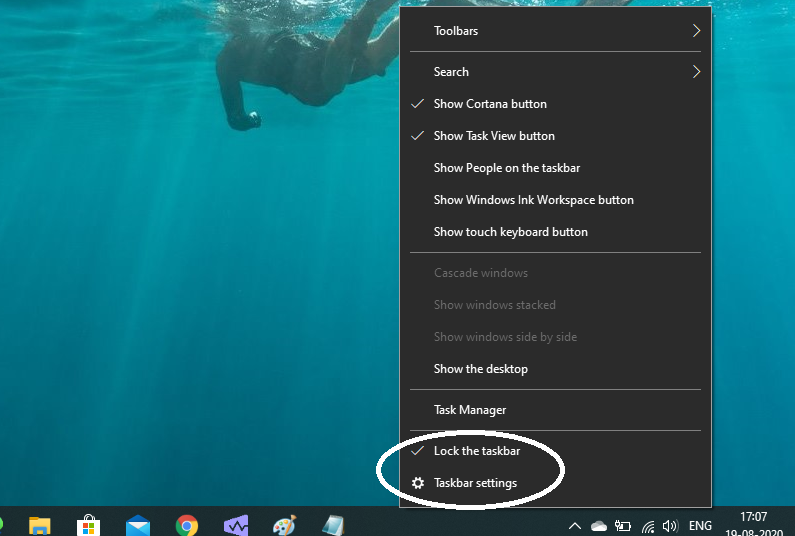
  1. Right-click on the Taskbar and tap the Taskbar settings or simply click the Lock the taskbar tab.
windows taskbar not hiding
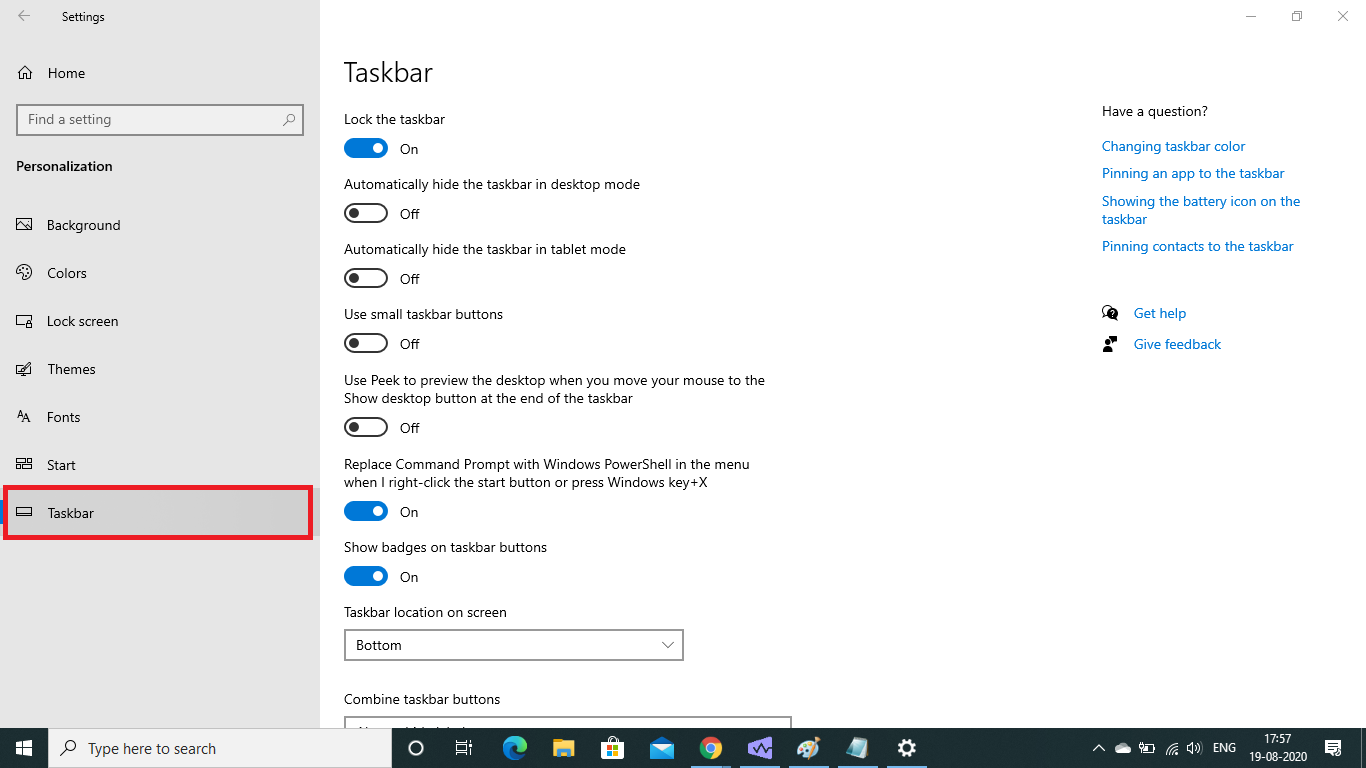
  1. In the Taskbar settings, find the various options to manage your taskbar. They are clear and precise.
windows taskbar not hiding

          You can also perform the same operation with the Settings.

Approach 2: 

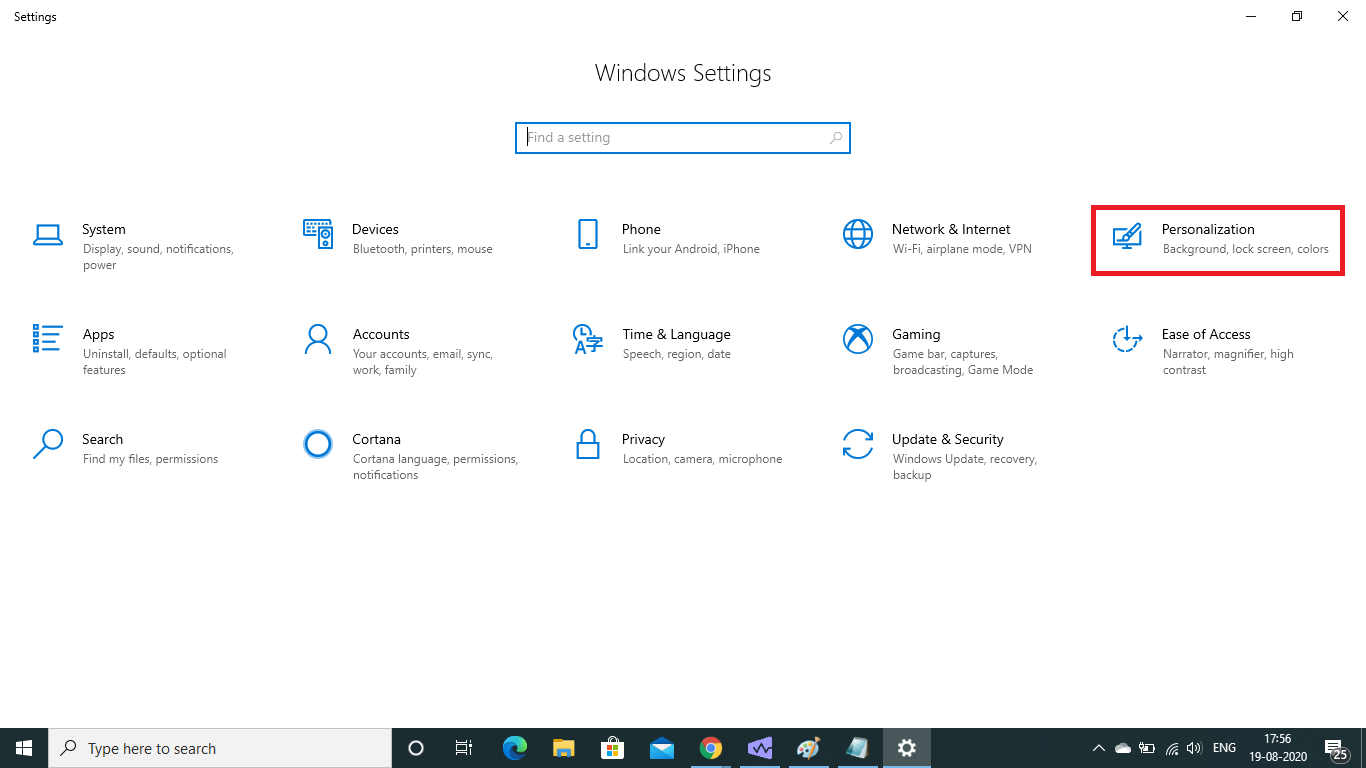
  1. Press Windows + I to open Settings.    
windows taskbar not hiding
  1. Select Personalization.
windows taskbar not hiding
  1. On the left panel, opt for Taskbar and the same Taskbar screen as before appears with the same options. 
windows taskbar not hiding

  This is the easiest solution that can resolve your taskbar won’t go away in the full-screen issue. If the issue persists then please try the solution 2

2. Use the F11 keyboard shortcut to resolve the Windows taskbar not hiding!

 This is a pretty abstract and most commonly used approach, and above all the quickest way. Press 

                              Fn + F11 

And you receive the full screen on any page. 

This works on almost all the pages and is the easiest way out of the taskbar won’t hide issues. But you need to press the function F11 every time you need a full-screen. That doesn’t seem to be a permanent solution. So, you can look out for some permanent options from the below options.

3. Restart Windows Explorer 

Doesn’t sound like a solution? Believe me, it works like magic.

Approach1: 

  1. Open Task Manager. (Ctrl +Shift + ESC)
  2. Find the Windows Explorer and
  3. Right-click on it and press Restart.
windows taskbar not hiding

Approach 2: 

You may also kill the Windows Explorer to resolve the taskbar not hiding issue.

  1. Run the cmd command. 
windows taskbar not hiding
  1. Type taskkill /im explorer.exe /f ? explorer ? exit

This should end the Windows explorer and unlock the Taskbar from the screen and resolve the taskbar not hiding windows 10.

4. Hardware Acceleration uncheck

If you are a Chrome user then you can try this option to resolve the windows taskbar not hiding issue very conveniently. Simply follow these easy steps.

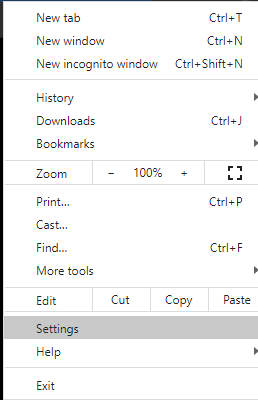
  1. Open the three-dot menu on the top right corner of your chrome browser. 
  2. Find Setting in the drop-down list and click to open.
windows taskbar not hiding
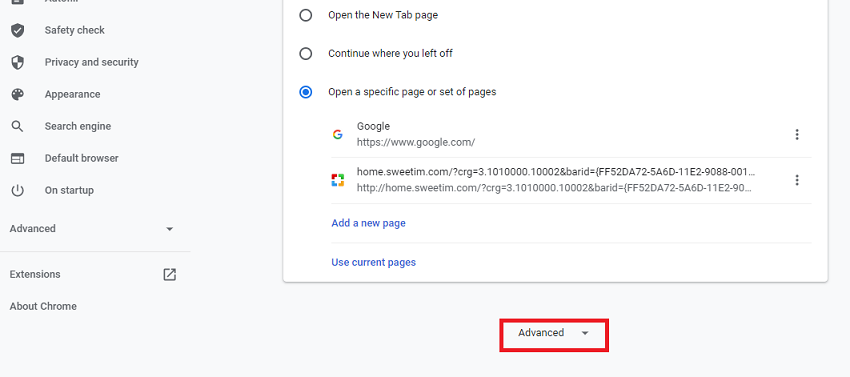
  1. In the window that opens, search Advanced and click it.
windows taskbar not hiding
  1. Scroll down to find the tab labeled ‘Use hardware acceleration when available.’ and Relaunch it. 
taskbar not hiding

Try this hardware acceleration option in chrome to avoid the taskbar won’t hide issues. If the issue persists then try the next solution.

5. Try other browsers

 Chrome is undoubtedly a marvelous browser but it comes with its piece of issues. If the taskbar won’t go away in a full-screen issue and you troubleshoot it down to be Chrome, then maybe it’s time to check some alternative browsers. There are few other good web browsers like Safari, Firefox, etc. Try to use one of them as an option.

If the idea of quitting Chrome is not convincing enough then please try to use the remaining options to solve the taskbar won’t quit issue.

6. Notifications creating  the Windows taskbar not hiding

As discussed earlier, when notifications arrive, the Taskbar flashes in the middle of the screen and intimates about it. So, if you altogether stop these notifications, then the Taskbar will not pop-up in the first place.

 But this approach is highly not recommended. Though the issue gets resolved, you will fail to receive the notification pop-ups altogether and that opens up another window of issues. So it is better to avoid this step.

Still, if you wish to remove the taskbar won’t hide in a fullscreen issue that badly, then I would suggest the following

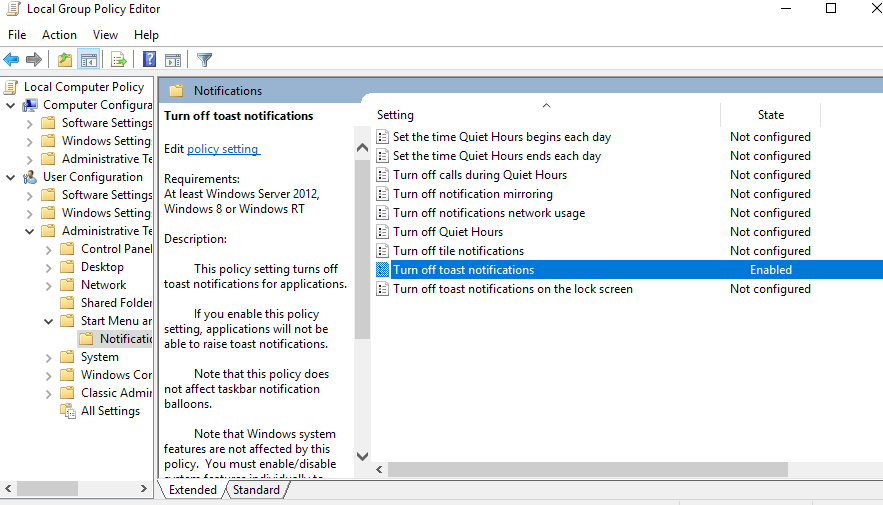
  1. (Note that it is only available on Pro or Enterprise editions of Windows 10.
  1. Press the Windows-key, 
  2. Type gpedit.msc and click Enter. 
  3. Group Policy Editor 
  4. Open the User Configuration and then follow these approaches.
windows taskbar not hiding

Approach 1:

  1. Start Menu and Taskbar.
  2. Turn off all balloon notifications.
  3. Notifications balloons are not shown if you enable the policy.

Approach 2: 

  1.  Start Menu and Taskbar.
  2. Turn off the automatic promotion of notification icons to the taskbar.

Approach 3:

  1. Start Menu and Taskbar.
  2. Turn off feature advertisement balloon notifications.

Approach 4:

  1. Start Menu and Taskbar 
  2. Notifications 
  3. Turn off calls during Quiet Hours

Approach 5:

  1. Start Menu and Taskbar 
  2.  Notifications
  3. Turn off toast notifications

These options will shut the notifications altogether and solve the pop-up issue that constantly brings back the taskbar on the main window.

If all the above solutions fail to fix the issue then restoring chrome could be a solution to the taskbar not hiding. Windows 10 restart could be the ultimate fix. Let’s try resetting chrome first.

7. Reset Chrome

Letting go of the excellent features of the Chrome browser is a tough choice. If you still feel inclined to use the Chrome browser and not want to switch to any other browser for that matter, then choose this option for the issue- the taskbar won’t hide!

Resetting Chrome is a wonderful feature in the browser. 

  1. Go to the three-dot menu on the top right corner of the Chrome browser.  
  2. In Settings, choose the advanced option as shown in the 4th solution.  
  3. In the new window choose the Restore settings to the original default tab.
windows taskbar not hiding

 Let’s check the final handy solution that might solve our Windows taskbar won’t hide in the full-screen issue.

8. Update and Restart Windows to solve the taskbar not hiding problem.

  1. Press Windows key + l to open the Setting page.
  2. Find the Update and Security tab on the Settings page.

Install the updates immediately and restart the system to fix the taskbar not hiding issue.

Concluding Note: 

So, that’s a huge list of solutions for you out there. The taskbar is a very essential bar on the desktop and equally annoying in the missile of your movie or the very exciting game. The wonderful experience of the full screen without disturbance is appealing and is most welcomed by one and all. So, please try the aforementioned solutions. I hope you will successfully resolve the taskbar not hiding on Windows 10.

10 Best NES Games, The Most Popular Of All!

0

Hi to all vogue gamers out there! Here is a list of best NES games for you!

When you imagine a hardcore gamer in modern times, you visualize a person sitting on his Gaming chair, controller in hand, playing a game with stunning graphics on a wide monitor. But before all of these, there was a time when games were simple, evergreen and so impactful that they broke several barriers and Nintendo was perhaps the flag bearer of what we now call the Retro Games.

More than 700 games were produced under the license of the Nintendo Entertainment System. Some of them became iconic, some of them legendary. We have tried to rank the 10 top NES games out of the hundreds of gems that made our childhood awesome. Let’s have a look:

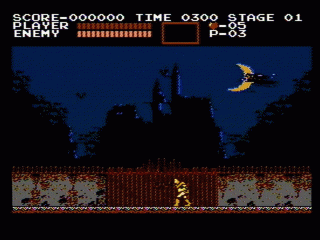
10. Castlevania– one of the top nes games

best nes games

A simple, yet entertaining adventure game, Castlevania is one of the finest games in the NES library. It uses platform gameplay and the protagonist, Simon, has to overcome obstacles before finally reaching the 18th and final stage where he must defeat Dracula. If he does so, the castle dismantles and you can restart the game with a higher difficulty.

There are a lot of interesting weapons and bonuses in the way and like most other retro games, you start with multiple lives. Once you run out of them, Game Over!

Castlevania is an intriguing game. The element of horror and the 8-bit spooky music adds to the appeal. The game was way ahead of its time and set a path that was followed by many others in the future.

9. Duck Hunt

The controversial entry. Duck Hunt was the most peculiar, mindless, repetitive, and boring. But let’s be honest- All of us have played it at least once. And frankly, one of my most played, best NES games.

The objective is simple. You have to hunt the ducks. You get three attempts to hit them. If you successfully hunt the minimum required number of ducks, you go to the next round, otherwise, Game Over. As you move on, the difficulty increases. If you miss, a dog will appear and taunt you.

best nes games

The game got more popular once it was packaged with the Super Mario Bros. But even without them, they had a lot of people playing it. It was also the first game in which you could use the NES Zapper light gun, which made this game way cooler than it should have been.

8. Kung Fu

Kung Fu was one of the first hand to hand combat games and the number 6 in our list of top NES games. The story was simple. The main hero, Thomas, has to fight his way against Mr.X, the evil guy who kidnapped his girlfriend, Sylvia. There are 5 stages with various difficulties and you had to punch and kick the bad guys to complete them. There are many ways by which one can get extra lives and several bonuses allowed you to increase your high score. As a result, this was a favorite among gamers who loved to chase high scores.

This was one of the most successful games of its time. Simple gameplay, third-person view, and the ‘beat ‘em up’ genre helped Kung Fu to become a sensation.

7. Mega Man– one of the top NES games

best nes games

It was difficult to choose which one of the many Mega Man games is the best. Many consider Mega Man 3 to be the best. But it all started with this classic.

Mega Man is a humanoid robot and he has to complete various stages. Each boss battle gives him a unique weapon that he can finally use to combat the ‘Robot Master’ boss at the end. A player can choose whichever level he fancies and you must plan your strategy accordingly.

The game didn’t do well in the market but it was praised by the critics for its unique gameplay and innovative storyline. The subsequent sequels were quite a hit, establishing this as one of the most successful franchises.

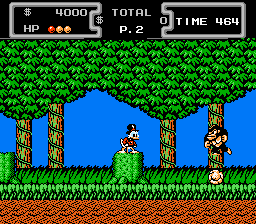
6. DuckTales– the best NES games!

best nes games

Ever heard the term- ‘Nailed It!’? Because that’s exactly what the developers did with this game. It’s never easy to create a game based on an already established franchise,(watch the best cartoons for free, here), and this one was an original NES game. Uncle Scrooge was a familiar face and they had to ensure that he retained his characteristics and still blend well in an adventure game.

Scrooge McDuck must complete certain levels by traveling around the globe and in space to collect money and increase his fortune. You can collect various gems and other valuable items, meet some old friends on the way and even fight the Dracula Duck in the end.

DuckTales was commercially successful and critically acclaimed. The music is one of the finest and this always gets a mention whenever we talk about the best games based on Disney Characters.

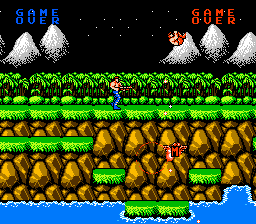
5. Contra

best nes games

One of the best NES games that allowed two-player gameplay, Contra was a massive hit. The game has multiple perspectives, the main side view and in the second stage, a 3D view where it seems you are running into the screen. You can shoot in multiple directions and you can also claim upgraded rifles in the path. These elements increased the popularity of this game.

Contra was also positively received by the critics and in many ways, this became the benchmark of success for years to come.

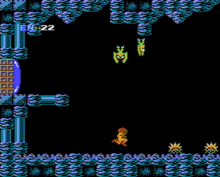
4. Metroid

best nes games

Metroid is an adventure game that occurs in outer space on a planet named Zebes. The game was revolutionary in many ways. You could go left and right and search for valuable items in areas you have already explored.

The main character of this game is Samus and she fights off some scary Space Pirates. As the game progresses, the difficulty increases, but Samus gets some enhanced powers as well.

The reviews were extremely positive for this game. The fact that it had a female protagonist in an adventure game was also quite a progressive and bold decision. The gameplay was superb and it is one of the best NES games.

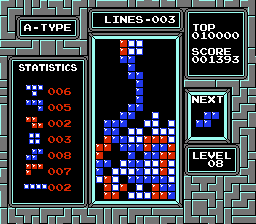
3. Tetris

best nes games

The beloved puzzle video game, Tetris, can be regarded as an evergreen and one of the most popular games ever made. The marketing strategies of NES made it a smash hit and one of the top NES games in its library.

Tetris is simple. You have to place the bricks falling from above to complete a row. Once completed, the row disappears, and the game continues as long as there is no space for a new brick to fall.

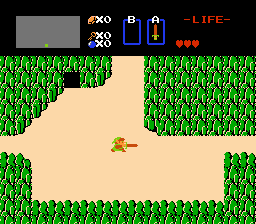
2. The Legend of Zelda

best nes games

This one is a classic. An action-adventure game that was loved by both critics as well as the gaming community. This is widely regarded as the best adventure game ever made and can be considered as one of the best NES games!

The main objective of our hero, Link is to overcome obstacles like trees, waterfalls, some scary monsters, and collect items on the way to rescue Princess Zelda.

The concept wasn’t very unique but the gameplay was. This one is simply one of the top NES games ever made.

Special Mentions

Before we announce the Number 1 best NES game, here are a few original top NES games that were also equally amazing and ruled the gaming industry in the 80s and 90s.

  • Kirby’s Adventure
  • Mike Tyson’s Punch-Out!!
  • River City Ransom
  • Dragon Warrior

1. Super Mario Bros– the best NES games ever made!

best nes games

Was there ever any doubt? The game that started the phenomena, set up an iconic franchise, and gave us endless moments of joy, ‘Super Mario Bros.’ is perhaps the best video game ever made. No other game made such a huge impact on pop culture as this did.

In the game, Mario must overcome several hurdles, collect power-ups and rescue Princess Toadstool from Bowser.

Everything about this game is perfect. The music, the controls, the enemies, everything. The game was, undoubtedly, a smash hit and at the same time, critically acclaimed.

SUMMARY

We have tried to rank the top NES games in the NES Library. These are the games that made a lot of childhood really amazing, spread happiness around the world, and became a part of many people’s lives. In a way, NES saved the console industry. They revived it and then took it to unprecedented heights.

How To Fix Windows 10 Critical Process Died Error?[SOLVED]

0

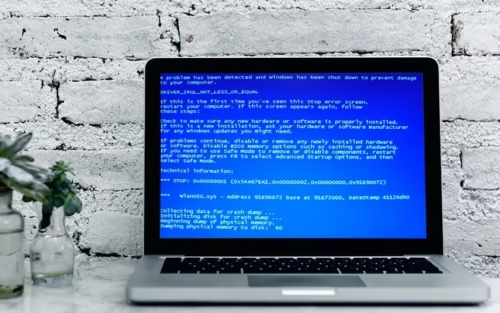
Critical_Process_Died or 0x000000ef error

Windows 10 critical process died

Is an error page like that bothering you! And are you wondering how to resolve this Windows 10, critical process died issue? Then you are in the right place.

Encountering an error like that is devastating in itself.  

Why do ‘critical process died Windows 10’ issues occur in the first place?

Microsoft Windows from its earliest versions have BSOD( Blue Screen of Death). These screens that indicate some system crashes are typical alerts that the Windows Operating system provides. If some hardware failure occurs in your system or rather some crucial process terminates unexpectedly, then you are informed with these blue screens.  Windows Operating System ensures a strict privacy policy and allows only certain privileged applications to access critical data. As against the system definitions, if any unauthorized modification is detected by Windows, then it stands wary and addresses the word of caution with its BSOD. 

windows 10 critical process died

You might encounter this ‘stop code critical process died windows 10’ when you upgrade your system or while installation. This error might pause slow startup speed or partition disappearance issues. The 0x000000ef error which we are talking about since the start can also cause RAM issues, bad sectors, or corrupted files in the system.

Of all the BSOD, the Windows 10 critical process died is the most critical as it states. It grabs the most attention because the minimum loss you encounter then is losing the files you were working on. Leave apart the system and storage files.

That said, Windows 10 is a polished version of Operating Systems and BSOD are much less common.

How do I fix ‘Windows 10’s critical process died’ error?

The aforementioned issues are critical, one and all. They demand an in stern repair or fix. So, you need to address them very vigilantly and carefully. 

DISCLAIMER: Before making any changes to your Operating system or its critical processes, I would address you to circumspect, understand the issue, and fix it and move slowly, one step at a time. 

Approach 1: Restart your system in Safe Mode

The Windows 10 Critical Process Died makes your system hang at the blue screen with our at possible moves. The system gets dangerously slow and you are left with not many options to operate safely. So, restarting your system in Safe mode is but the best solution that you can initiate with.

How do you restart the system in Safe mode?

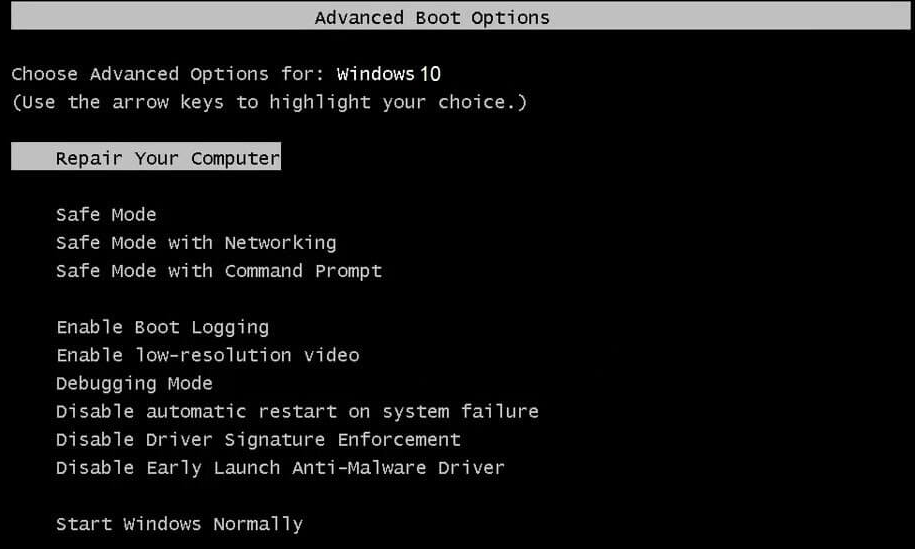
windows 10 critical process died

You might be accustomed to a screen like that where you have the option to restart your system in safe mode.

To get the above screen, proceed with these steps.

  1. Restart your system.
  2. Before Windows 10 starts loading, press Shift + F8. This will trigger the above screen and ensure booting in Safe Mode.
  3. Select the safe mode option to restart your system in safe mode. This will avoid the blue screen at the very beginning of the loading and you will have time to troubleshoot the possible causes of the Windows 10 Critical Process Died error.

You may also restart your system by booting to WinRE. The simplest way to do that is restarting your system several times. You may also do it with a disc installation.

  1. Once you boot to WinRE, click to Troubleshoot. 
  2. Press Advanced options.
  3. Enter Startup Settings and you can restart your system as below.                                  
windows 10 critical process died

Approach 2: Ensure System Drivers to resolve the ‘stop code critical process died Windows 10

After the restarting process, the first thing you can do is check all the drivers in your system. Assuming that the system has recently upgraded itself or possibly you have made some Operating System changes, then the installation or up-gradation process might have missed updating some system drivers. So it’s best to troubleshoot this area, as the initial step.

So, how do you check the system drivers? 

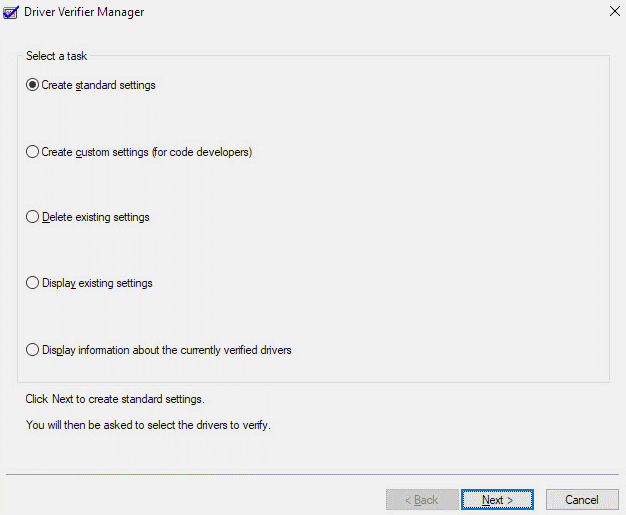
You may run through these steps or use Microsoft’s Driver Verifier instead. Both are assured ways of clearing any driver issues in place.

  1. Press Win + X and enter into Device Manager.
  2. Ensure that all the drivers in there are properly installed and serving the system requirements. If you find any driver with a yellow exclamation mark, it means the driver is faulty or needs your attention.

As I referred already below, the image shows the Driver Verifier Manager. This is the best automated tool that takes care of your drivers without much intervention.

windows 10 critical process died

Approach 3: Scan for Malware

Well, the growing market trends are introducing numerous malware alongside. 

If everyone is healthy, then who will consume all the newly produced medicines, you see? 

Similarly, new malware and viruses are cropping up into our lives unknowingly and creating all the menaces. 

This malware has the capability of posing the failure of some drivers or missing files and folders or even corrupting the system processed. Ensure the total safety and security of the system with a good anti-malware, some powerful one. Before anything, run a thorough scan and check for some nuisance like that. 

Approach 4: Make a thorough hardware check to resolve Critical Process Died in Windows 10

Perform a thorough hardware test as a part of this troubleshoot, targeting all the hardware parts. Any faulty hardware could also induce an error so critical.

It is always recommended to put your system to heavy load to ensure stable working conditions in any amount of load. There are several hardware testing tools out there, select the one apt for your machine.  Hardware Monitor, HeavyLoad Utility, CrystalDiskInfo are a few examples of hardware testing tools that might ensure your hardware well-being. This should give a fix to the windows 10 critical process died error.

Approach 5: System File Checker (SFC) for your rescue

Several corruption issues on Windows find their solution with a System File Checker. Use SFC and trace the corrupt files that might be causing the ‘stop code Critical Process Died Windows 10’, BSOD.

This is a very essential tool that is not usually approached, but this type of issue addresses the heavy need for this tool.

How do you initiate the System File Checker tool? 

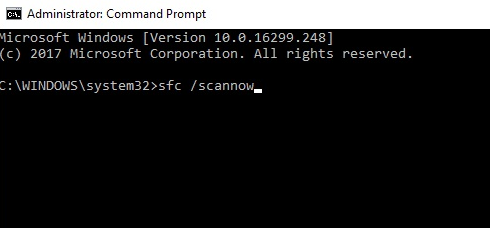
  1. Run the command prompt in administrator mode. Search cmd and right-click on the result. Select the Run as administrator.
windows 10 critical process died
  1. On the command prompt type sfc /scannow and hit Enter.
  2. This is the best way of troubleshooting. At the end of this scanning process, you will have a list of issues(if any) to be addressed asap.
  3. Don’t forget to Restart the System after the process. Check if your ‘stop code critical process died windows 10’ error got a fix.

Approach 6: Repair Corrupted System Image by running DISM

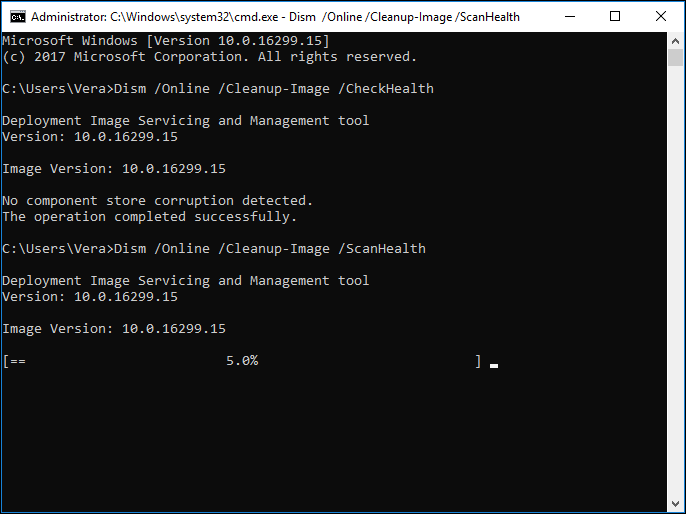
Sometimes the sfc /scan now command fails to fix the blue screen ‘stop code critical process died windows 10’, in that case, run DISM and repair the Windows system image.

 Deployment Image Servicing and Management DISM is a command-line utility in Windows 10. Many users do recommend this method.

How do you run DISM?

  1. Follow the above method and run the command prompt in administrator mode.
  2. Enter the  following commands:

2.1 Dism /Online /Cleanup-Image /CheckHealth

            2.2 Dism /Online /Cleanup-Image /ScanHealth

            2.3 Dism /Online /Cleanup-Image /RestoreHealth

DISM tool

This should repair the corrupted system image and solve your problem of ‘stop code critical process died windows 10’. If the issue persists, please jump on the next approach.

Approach 7: Uninstall any latest software that might be opposing the ‘critical process died windows 10

If you are unable to troubleshoot the issue so far, then enlist the software that you have recently downloaded and installed. There is a thin possibility of any one of that software carrying some malware that is causing all this hassle. Figure it out and uninstall the software.

Find the source of the software in possibly C drive and uninstall it. Or uninstall the applications from Applications in the Control Panel.

Approach 8: Update the BIOS

Every device has its format of entering and altering the BIOS, typically all on similar grounds. But it is highly recommended that you follow the steps specified for your systems and perform a BIOS update as a troubleshooting step. Very unlikely, there can be something wrong with your BIOS and you can strike out this possibility by updating BIOS. This should provide a fix to your ‘stop code critical process died windows 10’ error, if not jump to the next approach.

Approach 9: Perform a Clean Boot

You can troubleshoot your system best with the bare minimum number of drivers, processes, and applications to understand the root cause of Critical Process Died BSOD. A clean boot is the simplest booting option for the same.  You can approach in a step-by-step process by isolating one process from others and underline the cause of this error.

So, how do you clean boot your system?

  1. In the Windows search bar type System Configuration.
  2. Press Enter to find the Services tab.
  3. Uncheck the tab that says- Hide all Microsoft Services.
windows 10 critical process died
  1. And Click the Disable All button
  2. Open Task Manager
  3. This is a critical step here. Perform with utmost caution.   

 Disable the complete list

  1. Don’t forget to Restart your system.

The clean boot option can ensure locating the exact driver, application, or process that is causing this ‘stop code critical process died windows 10’ error.

Approach 10: Restore the previous version of the working Operating System and resolve the ‘critical process died windows 10’ error

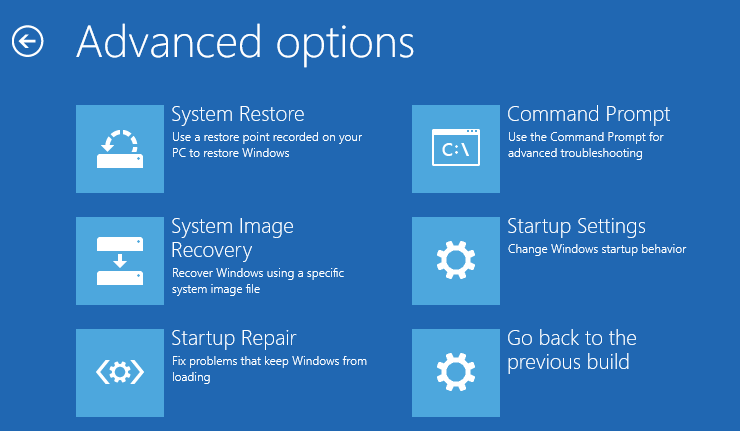
If your system doesn’t still act normal then another approach could be restored to the default Operating system. If you are quite sure that the problem arose only after the new Operating System installation, then probably you could take a backup (highly recommended) and restore your system to the previous defaults.

This might very well solve the issue. 

Windows 10 has a ridiculously simple way of doing a restore like that. Just open the Advanced options Window as follows and do it with a click.

windows 10 critical process died

Conclusion:

One of these 10 fixes should solve your ‘critical process died windows 10’. Try them!

How Do You Unlock A Disabled iPhone? 3 Simple Tricks!

Wondering how do you unlock a disabled iPhone? Did your iPhone just had an irreversible accident and broke its screen?

Is your iPhone touch screen not working? Try these tips to unlock your phone.

How do you unlock a disabled iPhone
How do you unlock a disabled iPhone?

Is your iPhone completely shattered due to a cracked screen? Don’t worry; this article will guide you through the steps to be taken to unlock your phone and get a backup of your data before replacing it. There might be multiple reasons for your iPhone screen to turn unresponsive. The very first problem you have to face is how to unlock your phone as you cannot enter the passcode on the broken screen. In this article, we have compiled a few solutions to unlock your phone. Each method needs a specific requirement to be fulfilled to work completely.

How do you unlock a disabled iPhone?

It is easier to recover an iPhone having backup than a non-backed up iPhone. To avoid major losses taking backup of necessary data is preferable before replacing your phone’s screen or phone itself. Depending on your scenario you can choose solutions among the two approaches given below.

  1. Your iPhone has backup.
  2. Your iPhone is not backed up.

Follow these methods to unlock your iPhone if it has a backup.

You can use iTunes or iCloud to unlock your disabled iPhone by restoring it to previous settings. The restoring process erases all data from your iPhone, including passcode, data, and other settings. Find out detailed steps given below to unlock the iPhone if its touch screen is not working, but data is backed up.

1. Unlock disabled iPhone using iTunes

If you are really worried about, how do you unlock a disabled iPhone? Then try and relax because iTunes makes the work half done!

  1. Before connecting your iPhone to the computer, start recovery mode on your iPhone.

Note: A detailed step to start recovery mode is given on this link.

  1. Search your iPhone on your computer. You can search by methods given on this link.
  2. An alert dialogue box will pop up, notifying that your iPhone is not working correctly. In that dialogue box, choose the “restore” option.
  3. iTunes will search for the software for your phone and download them.
How do you unlock a disabled iPhone
  1. It will take a couple of minutes to finish the procedure. Then you can change your screen and set up your iPhone.

2. Unlock disabled iPhone using iCloud.

iCloud service can back up, restore, erase all the data, and find the iPhone remotely. It can help you to unlock the iPhone having a broken screen by completely deleting the passcode. Follow the below-given steps and discover how do you unlock a disabled iPhone easily using iCloud service.

Requirements:

  1. “Find my iPhone” feature is enabled on your iPhone.
  2. Your iPhone data has back up on iCloud.

Steps:

  1. Type  https://www.icloud.com/ in the browser of your computer to open iCloud.
  2. Enter credentials to log in to your iCloud account. (You might have done this earlier while taking your iPhone data backup on iCloud).
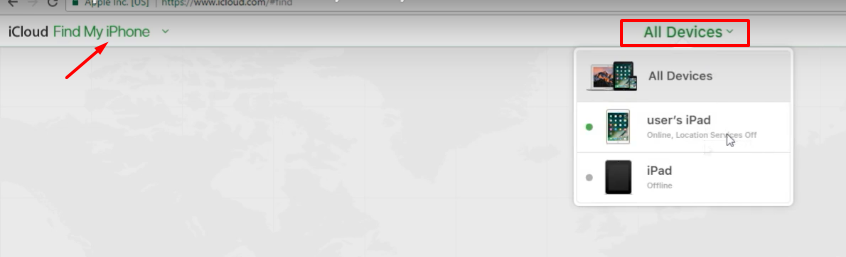
  3. Tap on the Find iPhone button and select your iPhone device from the list of devices available.
How do you unlock a disabled iPhone
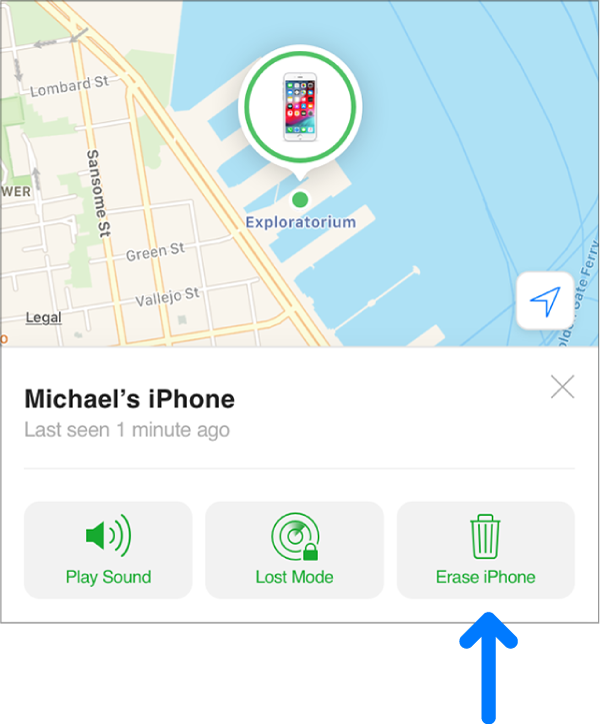
  1. Choose the Erase iPhone option to erase the passcode from your iPhone and unlock it. 
How do you unlock a disabled iPhone

If you want to unlock your phone to take a backup of essential data, you can try the below-given possible three solutions.

Follow these methods to unlock your iPhone if it does not have a backup.

While retrieving data with a backup appears easier, a damaged iPhone without backup can still be unlocked.

How do you unlock a disabled iPhone without backup? You can use Voiceover, USB keyboard, or third-party tools to unlock your disabled iPhone without losing any data. Find out detailed steps for each method in the following article.

1. Use VoiceOver to unlock the iPhone.

Voice over is a unique built-in feature on Apple devices. It reads aloud whatever is displayed on the screen when enabled on your iPhone. When your screen cracks and you cannot view anything on the screen, then a voiceover screen-reader can help you. In the following method, we have given detailed steps about unlocking the iPhone using a voiceover and Siri functionality.

Requirements:

  1. Allow Siri when locked is enabled.
  2. Press Home for Siri is enabled.
  3. Press Top Button for Siri is enabled.
  4. Some part of your broken screen is functioning.
  5. The home button of your phone is working.

Steps

  1. Press the Home button to activate Siri.
  2. Speak, “Turn on, VoiceOver.”
  3. Press down the home button two times to open the passcode screen or swipe up and keep your finger there till Siri notifies “Lift for Home.”
  4. Swipe left and right in the screen area, which is responsive to the touch to select the passcode digits. Voiceover will read aloud the chosen number, which can help if you cannot see your screen.
How do you unlock a disabled iPhone
  1. To select the particular digit, you have to double-tap on the screen.
  2. Your iPhone is now unlocked, and you can connect it to your computer using a lightning cable.
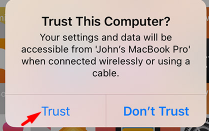
  3. ‘Trust this computer’ alert opens as a part of the authentication process when your iPhone connects to your computer. Voiceover will notify you about this.
  4. Double-tap on trust to connect your phone to PC, and now you can backup your iPhone.
How do you unlock a disabled iPhone
  1. Turn off voiceover by requesting Siri to “Turn off VoiceOver.” You can also go to settings->general->Accessibility->Voiceover->off to turn it off manually.

If your iPhone screen is entirely non-functional, then the above method won’t work for you and you have to go for the next method.

2. Use the keyboard to unlock the iPhone.

In this method, when your iPhone touch screen is not working, you can use an Apple keyboard or non-Apple keyboard to connect it to your iPhone and enter the passcode to unlock it.

Requirements:

  1. Apple or non-Apple USB keyboard.
  2. Lightning cable to USB adapter(you can buy it from Amazon).
  3. The home button of your phone is working.
  4. Allow Siri when locked is enabled.

Keyboard shortcuts used in this method:

  1. Right arrow key and left arrow key to navigate on the screen.
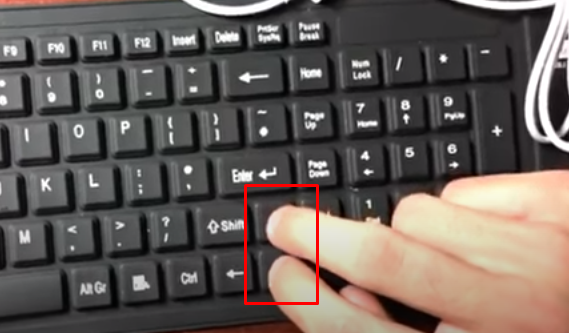
  2. Press the top arrow key + down arrow key to make selections.
  3. Cmd+Spacebar (Mac keyboard) or Windows key + Spacebar(Windows keyboard)  to open Spotlight search.

Steps:

  1. Connect your iPhone and USB keyboard via lightning cable to USB adapter.
How do you unlock a disabled iPhone
  1. Turn on VoiceOver using Siri on your iPhone.
  2. Using the arrow keys on the keyboard, you can now move on the screen of your iPhone.
  3. Press down the right arrow key to move down and enter your password.
  4. Once your phone is unlocked, press Windows key + spacebar to open spotlight search.
  5. Type “Backup” and use arrow keys and listen to Voiceover messages to turn on iCloud.
  6. Now you can backup your phone on iCloud before replacing your phone or screen.

Remember to make any selections using the keyboard, press the Up and Down arrow key simultaneously.

How do you unlock a disabled iPhone

3. Use third-party tools to unlock the iPhone without data loss.

There are a few tools that can be used to unlock the iPhone without losing data when your iPhone touch screen is not working. You have to pay to use additional features of this software. We have listed down the name of a few software by which many users were benefitted. You can check the detailed steps to unlock the iPhone using this software on their respective websites.

Limitations:

  1. Limited features are available in the free version.
  2. Safety is not assured.
  1. iOS Unlock.
  2. UkeySoft Unlocker.
  3. Mobile Unlocked

Wrapping Up

The iPhone screen is delicate, and if it gets accidentally broken, then it disables your iPhone. When your iPhone touch screen is not working, then replacing it with a new one is the only option left. To minimize losses, we have tried to give you five possible solutions to unlock your phone and take backup. Try to implement the above solutions to find out how do you unlock a disabled iPhone? It is best to get it repaired at the Apple store.

Unlocking a phone opens up new possibilities, giving users the freedom to switch carriers or use their device globally with ease. For those looking to maximize their mobile investment, pairing this process with ControlZ and BharatX’s UPI EMI option makes owning an unlocked phone more affordable through flexible payments. Once unlocked, securing your data becomes key—best cloud storage services offer a reliable way to back up and access files across devices. For advanced users, exploring how to root Android phones can further customize the unlocked experience, unlocking even more potential from your device.

Is Avast Using Too Much CPU? Know The Easy Fixes Here!

Avast using too much CPU space is a commonly encountered issue. We are here to help you fix it!

Quick Solve Avast Antivirus Service High CPU Usage Issue

Why Is Avast Using Too Much CPU?

Avast Antivirus performs various operations to prevent viruses and to perform these, it requires resources. Operations like background scanning process, cleanup of computer, removal of viruses, and full scan of new websites or files accessed by the computer are performed by it.

Due to these operations, the problem of Avast service high disk taking up CPU arrives. It can be seen taking up more than 50% usage of CPU when you open the task manager. And because of this reason, the computer starts working slowly and shows various problems or errors. These annoying problems compel the users to disable or uninstall the Avast Antivirus software. 

There are reasons because of which users don’t want to uninstall it because it provides security and safety also. So, Avast 100 disk usage needs to be fixed as uninstalling it is not a solution.

How to Fix Avast Using Too Much CPU Issue?

Solution 1 – Update To The Latest Version To Solve Avast High Disk Usage

When you want to solve Avast high disk usage issue, then the first step that you need to do is check that it is updated to the latest version or not.

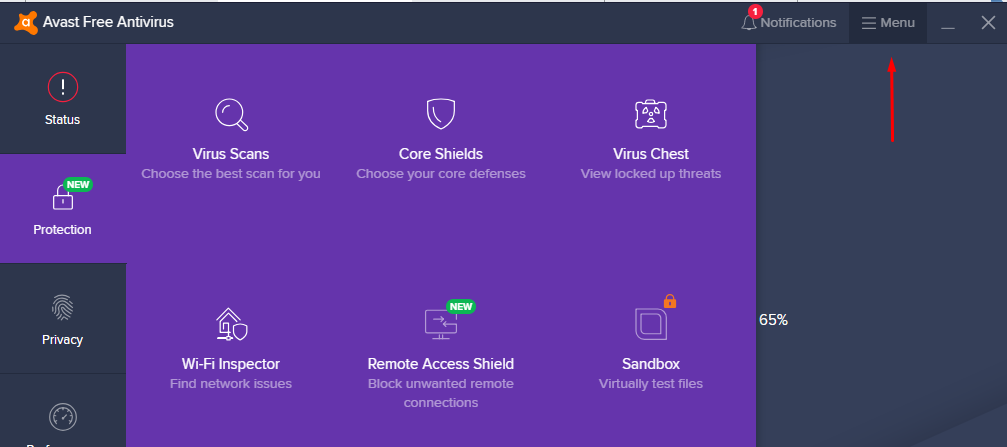
Step1 – Open Avast Antivirus and click on “Menu” in the top-right corner. 

Avast High CPU Usage

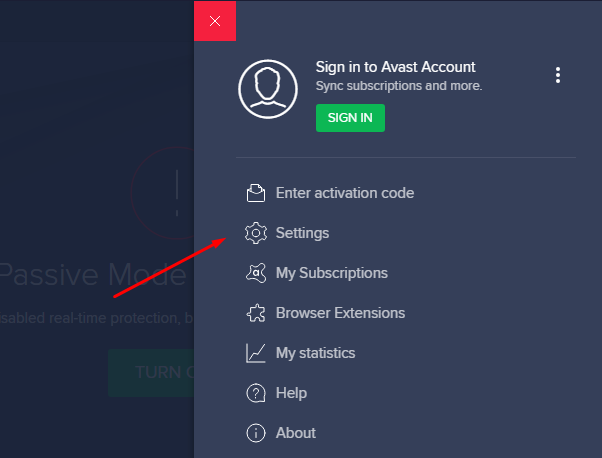
Step 2 – Select “Settings” and then click on the “General” tab.

Avast High CPU Usage

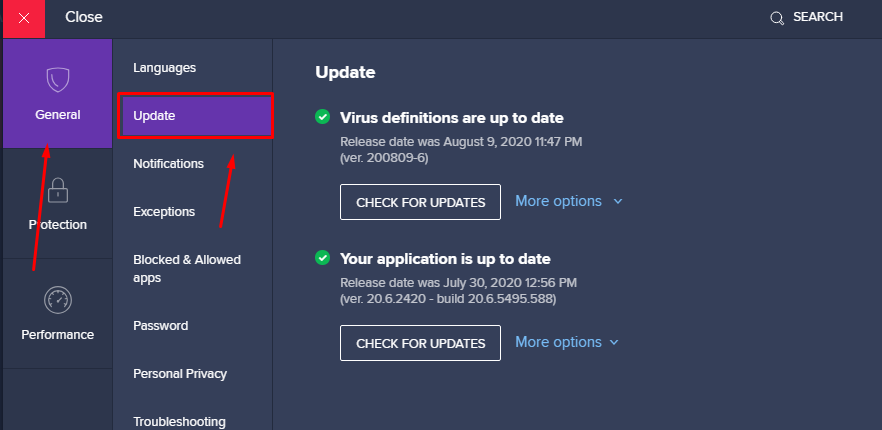
Step 3 – Now, choose the “Update” tab as shown in the image below.

Avast High CPU Usage

Step 4 – Here, you will find the version that you are using for your Virus definitions and Application. Click on “Check for Updates” and see if it is updated to the latest version or not.

If not, update it and then check for Avast service high disk using too much CPU issue in the task manager of your system.

Avast High CPU Usage

Solution 2 – Repair Avast Antivirus Program To Solve Avast High CPU Usage

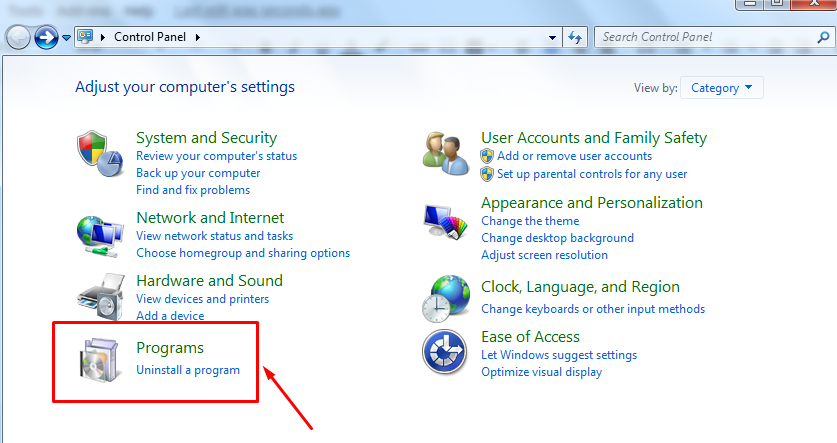
Step 1 – Open Control Panel on WIndows 7/10 and then select ‘Programs’.

Avast High CPU Usage

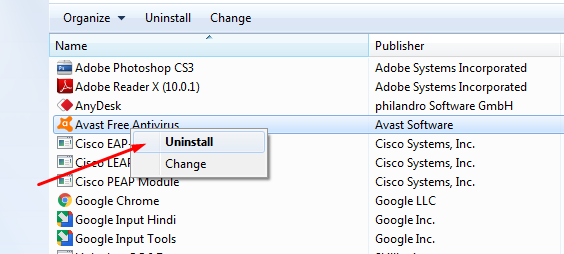
Step 2 – A list of all the programs installed on your PC will be shown. Right-click on ‘Avast free Antivirus” and then select “Uninstall” as shown in the image below.

Avast High CPU Usage

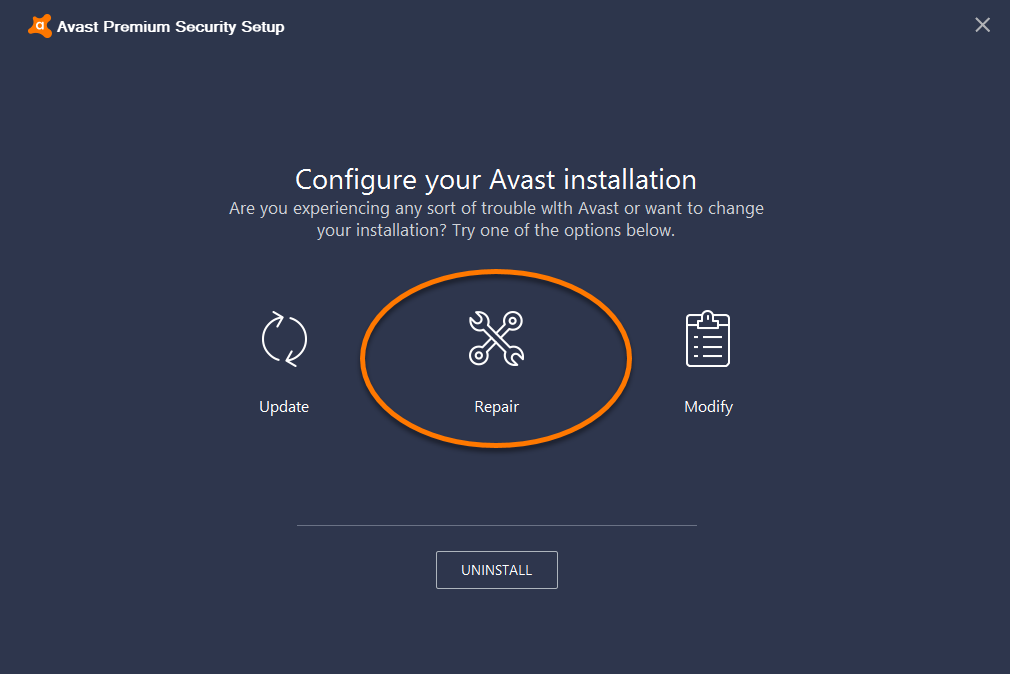
Step 3 – You will be directed to a window which will show you options like Update, Repair, Modify and Uninstall.

Avast High CPU Usage

Step 4 – You have to click on the “Repair” option. This will repair your Avast Antivirus Program and then you can check with your task manager that Avast Service high CPU problem will be resolved or not.

If you are not able to follow up on this method, you can scroll further for more solutions.

Solution 3 – Remove the Cleanup Tool to Fix Avast Service High Disk Problem

After following the above-given solutions, if the issue of Avast using too much CPU continues, then you can try the 3rd one by using the following steps –

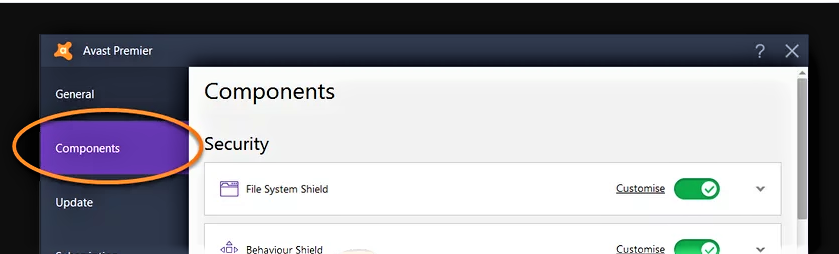
Step 1 – Open Avast Antivirus and click on “Menu” in the top-right corner.  Select “Settings” and then click on the “Components” tab.

Avast High CPU Usage

Step 2 -Click on the arrow given to the right of the tool you want to uninstall. In this case, you have to uninstall the Cleanup tool. Select “Uninstall” and then close the Avast Antivirus program.

Step 3 – Now, restart your computer and check avast service high cpu is back to normal or not. 

Solution 4 – Change The Scan Frequency Using Command Prompt Tweak

Step 1 – Type “Command Prompt” in the search bar of your PC. Right-click on the result and select “Run as administrator”.

Avast High CPU Usage

Step 2 – Enter the command – “C:\Program Files\AVAST Software\Avast” and press Enter.

Step 3 – Here, you have to check if there is a file named “avast5.ini file” present or not. If this file is present, open it. Now, enter the following command inline –  

[GrimeFighter]: ScanFrequency=999

Step 4 – Save the file. Now, you have to restart your computer.

After restarting, you have to check whether the avast taking up CPU issue is solved or not. You can do so by using the task manager on your PC.

Solution 5 – Stop Avast Screensaver Scanning to Fix Avast Using Too Much CPU Issue 

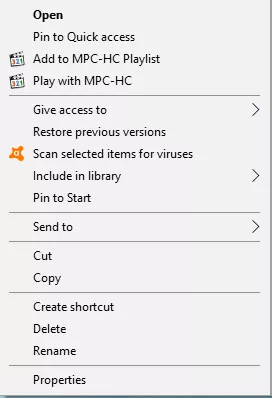
Step 1 – Choose any random file on your computer and right-click on it. Now, choose the option for “Scan selected item for viruses”.

Avast High CPU Usage

Step 2 – A window will pop up that shows the current scans that are going on by Avast. 

Step 3 – If you find “Avast Screensaver Scan” in this list, then click on “Stop” option next to it.

Step 4 – This will stop the Screensaver Scan and after this, you have to check in the task manager for avast high CPU usage problem.

Conclusion

We hope that we have solved avast using 100 disk issues on your PC with the use of the above-mentioned methods. These are some pretty simple solutions through which you can boost up the speed on your PC because the problem of avast taking up CPU is huge and slows down the system.

5 Quick Ways To Extract Audio From Your Favourite Video

Do you wish to extract audio from your preferred video for fixing audio to your game, advertisement, presentation? Then we are here to give you a simple starting-point to extract your exclusive audio from the video. Check how you can do this on different platforms in the following ways:

The 5 Best Laptop Headphones - Best Gear
Extract Audio

Extract audio from video using online tools:

The moment you search for extracting audio from video on search engines, you can get a big list of free online tools, among them you can easily dote on ‘Audio Extractor.’ 

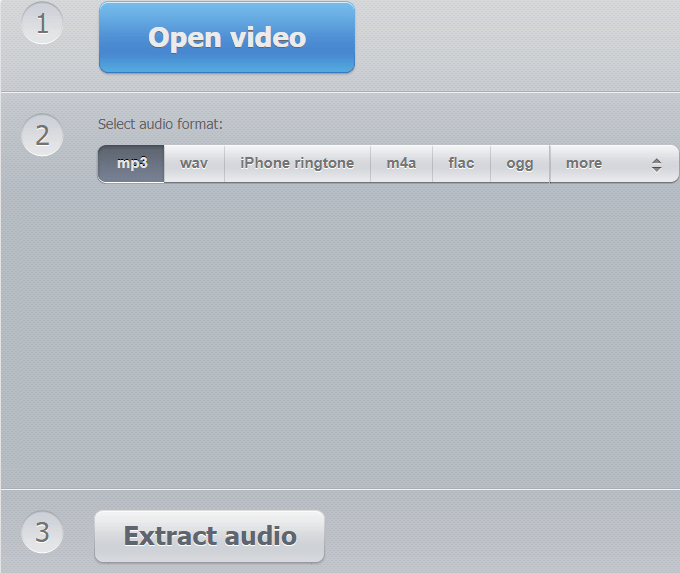
It has a straightforward interface with clearly mentioned steps for extracting audio from the video.

Follow these quick steps on the ‘Audio Extractor’ website for successfully retrieving the audio clip.

  1. You need to browse for the desired video.
  2. Choose a suitable audio file format from the options available like mp3, m4a, wav, etc.
  3. Press on the Extract audio button, and within a few seconds, the audio clip is ready to download. 
audio extractor

Use VLC Media Player to extract audio from video infor Windows users:  

VLC Media Player is the free software used to play video and audio files of almost all formats. Still, it can also efficiently convert any video file to an audio file and serve our purpose.

Follow these easy steps to retrieve audio files:

  1. Click on the Media tab and choose Convert/Save option from the list.
Extract audio
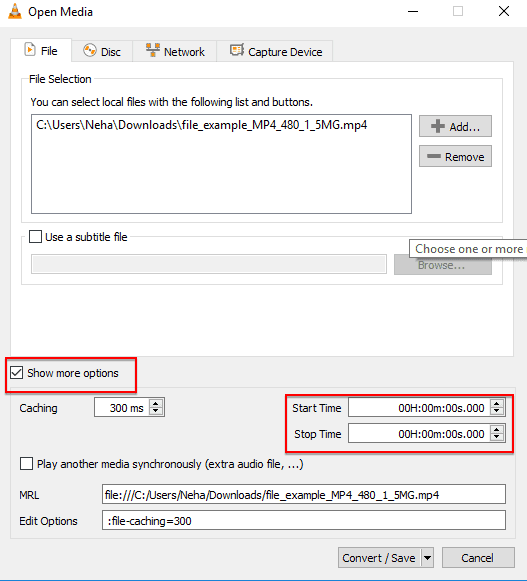
  1. Add the video file, which has to be processed. You can also choose the “show more options” box to get the audio clip within a specific timeframe.
5.png
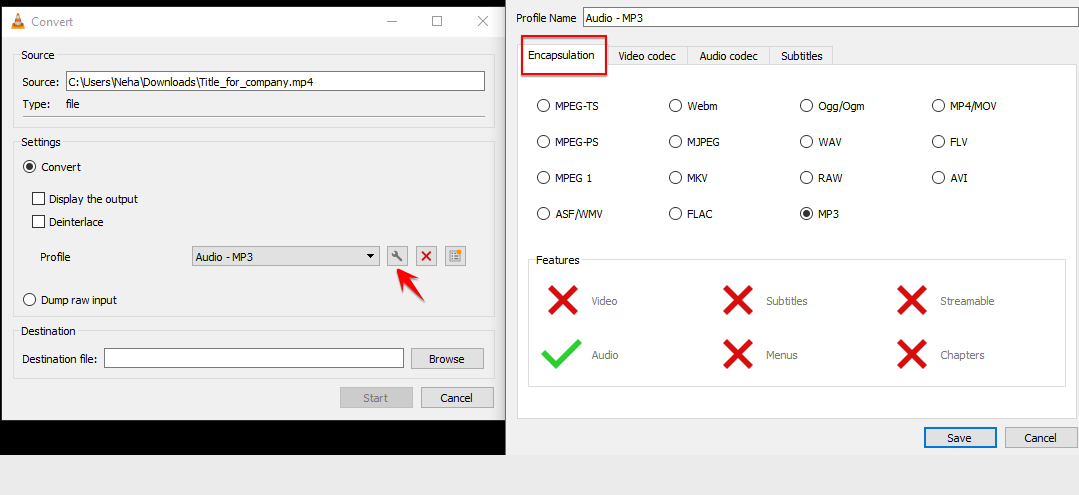
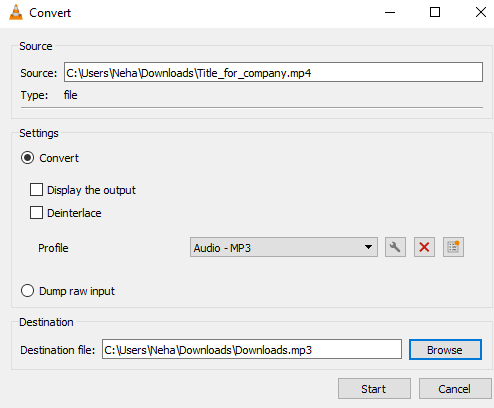
  1. Add the directory path where the audio file should be saved and select the format of the desired audio file.

Note: It is essential to encapsulate the file’s name with the format to ensure the audio file plays appropriately. You can click on the wrench icon to do it.

3.png
  1. Click on the Start button, and it will save the audio clip in the destination folder.
Extract audio

Quicktime for Mac users:

Quicktime Player gives an easy solution to extract an audio file on a Mac. Please take a look at the detailed steps given below :

  1. Open the video in question in QuickTime Player.
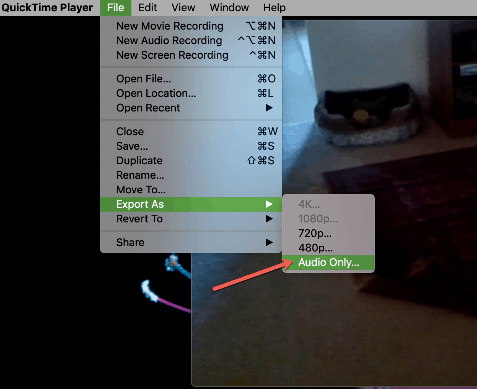
  2. Choose the File option from the menu bar.
  3. Hover on Export As and choose audio only in the pop-up menu.
Extract audio
  1. Name your file, choose the destination folder, and click on the Save button.

Using apps on android, iPhone, iPad:

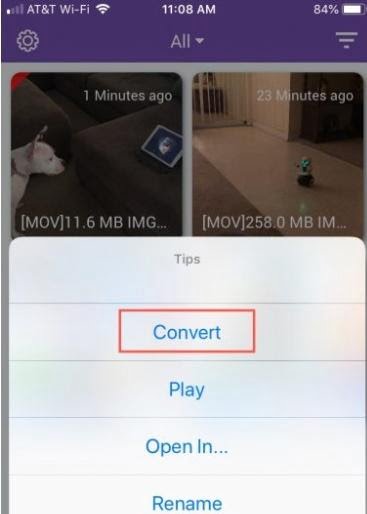
There are tons of options available on the App Store for file conversion. Out of them, most of the users have agreed upon MP3 Converter- Audio Extractor app. It comes with an elegant, user-friendly interface.

Carry-out below given steps to extract your audio file using MP3 Converter-Audio extractor quickly:

  1. Click on the plus sign to import the video file from iCloud, camera roll, or any other source folder.
  2. After adding the video, click on the convert option.
Extract audio
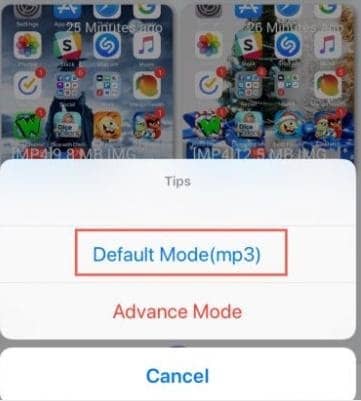
  1. Choose Default Mode(MP3) option. You can choose other audio formats by clicking on the Advance Mode option. Output Range, Audio samples are few settings you can adjust in Advance mode.
Extract audio

4. Tap on Converted Media to access your audio file.

Limitations: Only a few audio file formats are there in the free version of the above app. You have to pay for advanced features, good quality, and all audio file formats.

Extract audio from video in android without any app/software:

You can quickly convert a video file into an audio file by the following steps:

  1. Browse for the video file from which you want to extract.
  2. Copy the video file and paste it into the desired folder.
  3. Rename video file by filename.mp3. E.g., If your file name is abc.mp4, then rename it to abc.mp3.
  4. That’s it! The audio file is ready to use!

Limitations:

  1. If you want only a part of an audio clip from the video, you have to use external software for it, WavePad audio splitter can be the one.
  2. The sound quality will be average.

Summary

Depending on the platform you are working on, you can choose any solution from the above methods to extract the highest quality audio clips quickly.