Home Blog Page 59

How To Quickly Restore Recently Closed Tabs in Chrome?

Forgot the website names of the recently closed tabs in Chrome? Well, you can quickly reopen the recently closed tabs in chrome with few clicks. Google Chrome saves the tabs while you do all the research! So, don’t worry. This article will walk you through different methods to open recently closed tabs in Chrome.
recently closed tabs chrome

1. Use shortcut keys to restore recently closed tabs in chrome

You can effortlessly recover Chrome tabs using this method if your Chrome got crashed or accidentally closed any tab.

You can press Control + Shift + T keys in Windows to reopen closed tabs. 

You can press Command + Shift + T keys in Mac to open closed tabs.

You can keep pressing these keys till all your tabs are restored.

2. Check in the history of your Chrome browser.

There is a Recently closed section in the history of Google Chrome from which you can get the list of websites you visited. To restore tabs in Chrome by this method, follow the below-given steps.

  1. Click on the three dots present at the rightmost upper corner in the Chrome browser.
  2. Hover on History and click on any website you want to restore in the Recently Closed section.

Google Chrome
  1. Use the Chrome icon in the taskbar to recently closed tabs in chrome

Steps to reopen the closed tabs in Chrome using Chrome icon present in the taskbar are as follows:

  1. Locate the Chrome icon in the taskbar.

2. Right-click on it to open the list of recently closed websites.

3. Choose the website you wish to reopen from the Recently closed section.
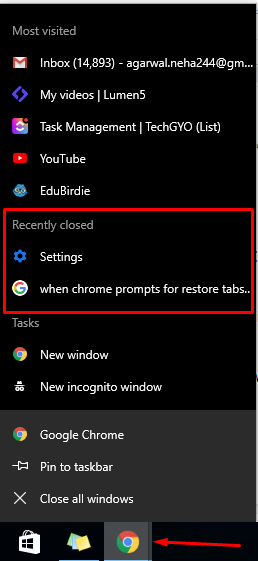
recently closed history

We have seen three simple tricks to restore closed tabs in Chrome. Further, we will check the settings required to open the tabs of the previous session automatically.

  3. Settings to restore tabs in Chrome for all sessions.

By setting the Chrome start-up feature, you can view all the recently used tabs every time you start the new Google Chrome sessions.

Steps:

  1. Click on the vertical three dots present at the rightmost upper corner in the Chrome browser.
  2. Click on Settings from the menu.
  3. In the On startup section, choose the option ‘Continue where you left off.’
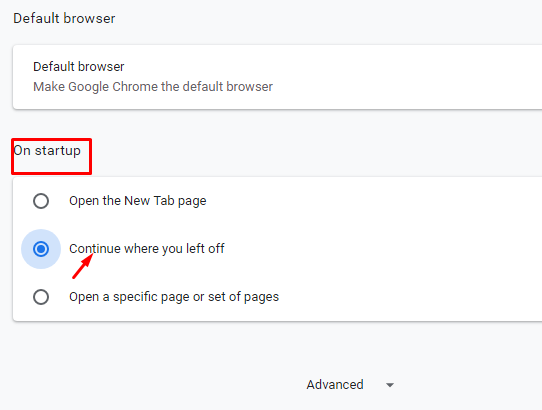
manage goolge chrome

Limitations:

It takes time to open a new window of Google Chrome as all previous tabs get restored.

4. Use Chrome extensions to manage tabs efficiently.

Google Chrome web browser is undeniably trendy among all internet users. It stands out in the list of browsers available in the market, but many users have reported that it sometimes crashes, and the reason is unclear. It is better to keep the backup of all critical data to avoid significant losses. Google Chrome extensions give a trouble-free solution to restore recently closed tabs in chrome.

 5. Chrome extensions that can help to restore tabs in Chrome quickly

Chrome has various extensions freely available to restore lost tabs efficiently. We have listed a few extensions, which you can try to add in your browser to prevent any significant data loss. 

Incognito mode of chrome does not save any history as per its default functionality. But there are chances that your Chrome crashed suddenly, and you might want to reopen tabs in incognito mode. These extensions can help you to solve this problem. You can enable these extensions in the incognito mode. You can choose and reopen a website you visited from the saved list of website names maintained by these extensions.

These extensions are rated on Chrome web store based on user-experience. In the following article, let’s check the best three extensions that can help you reopen the recently closed tabs in chrome of the previous session.

Tab Restore

Rating: 4.3 / 5

Features:

  1. Re-open any tab you closed in the current session or previous one without any hassle as it maintains surfing records.
  2. Open full navigation history.
  3. Open the recently closed tabs in chrome last time.

Session Buddy

Rating: 5 / 5

Features:

  1. Saves the collection of open tabs, that can be recovered quickly even if your browser closes abruptly.
  2. It helps to free some memory space and avoids jumbling between multiple websites opened in one session.
  3. You can type the website’s name in the search bar and open only the required site.
  4. It is useful to manage Bookmarks also.
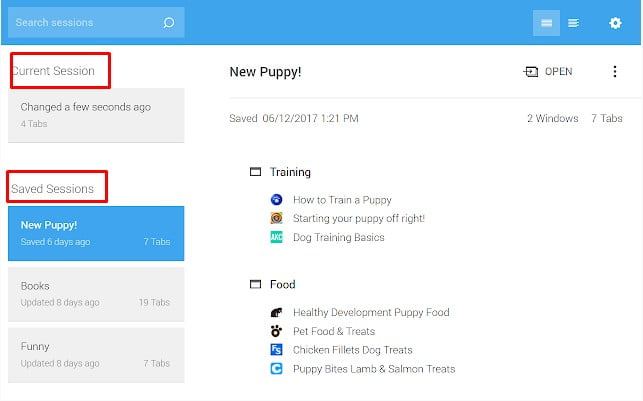
session buddy

OneTab

Rating: 4.6 / 5

Features:

  1. It has a very user-friendly interface.
  2. Just by clicking on its icon, all the tabs are populated in the list maintained by it.
  3. You can choose a single tab or recover all tabs using this extension.
  4. It gives clutter-free management of the opened tabs.
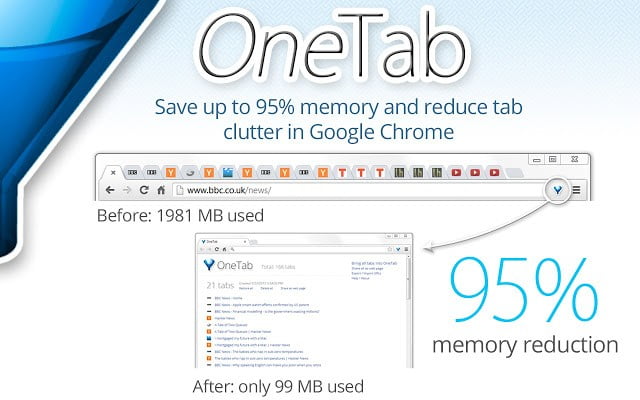
OneTab

Steps to add this extension in your Chrome browsers are as follows:

  1. Type https://Chrome.google.com/webstore/category/extensions in the browser to open the Chrome web store.
  2. Type the extension name in the search bar present in the left panel and press Enter key.
  3. The desired extension will appear in the search result. Click on Add to Chrome button to include the extension on your browser.
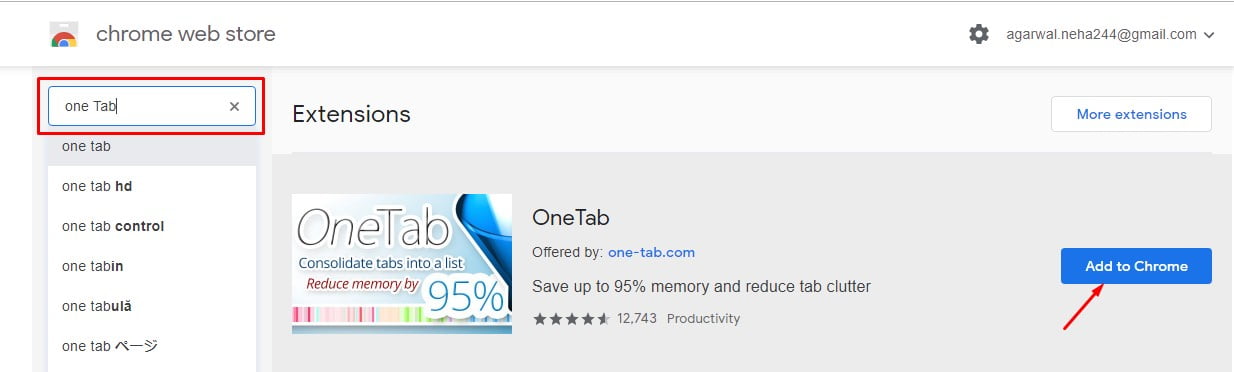
chrome web store

Summary

Using the above five simple techniques, you can quickly restore recently closed tabs in chrome or get some information about it. The methods described above are straightforward to implement and does not require any technical experience to use them. Bookmarking all your essential sites is the best way to circumvent data loss even if closed tabs fail to restore.
Step-By-Step Guide On How To Uninstall Avast On Mac

Wondering, how to uninstall avast on mac? Then we are here with a detailed explanation for the same.

There is no doubt that Avast is one of the most popular and frequently used Antivirus software by Mac and Windows users. It’s free to use and gets the job done in most cases. However, this does not mean that Avast is free of drawbacks. Once you install it, it will prompt you to download additional applications. It sometimes leads to slow performance, particularly in old computers. Sometimes, a user may also want to upgrade to better and secure options available in the market.

Whatever the reason, there may come a time when you want to uninstall Avast, only to find out that it is not that easy to get rid of.

Why is it difficult to uninstall Avast?

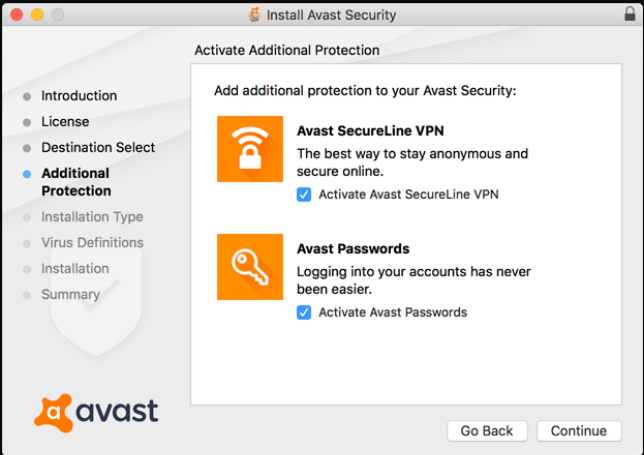
If you try to uninstall Avast, you’d find it more difficult than most other software because of the additional applications installed. Most non-technical users don’t pay attention but upon installation of Avast, you get a notification asking you to install ‘Avast SecureLine VPN’ and ‘Avast Passwords’ for better protection. So, you don’t have one, but three Avast applications on your PC and even if you uninstall one, notifications for updates will keep coming.

Install Avast Security

So, how do we completely uninstall Avast from our PC? Let’s find out.

How to Uninstall Avast Antivirus? – Mac & Windows

Method 1: Easy Steps to Uninstall Avast from Mac

This is the simplest method to uninstall Avast and in no time, it will be deleted from your PC. Just follow the below-given steps:

Step 1: Open Avast on your PC and go to the menu bar

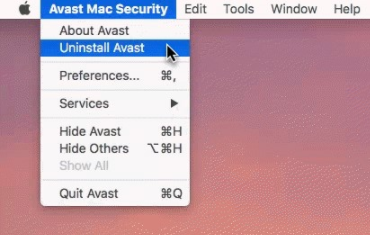
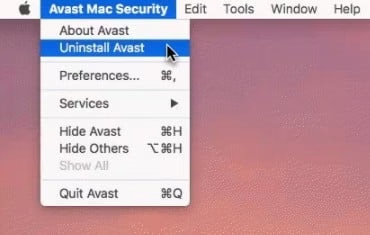
Step 2: In the menu, click on Avast Mac Security. A drop-down menu will appear.

Step 3: Click on Uninstall Avast from the drop-down menu.

how to uninstall avast on mac

Step 4: Select Uninstall.

Step 5: Checkmark all the security products that you have installed.

Step 6: Click Continue and enter the administrator’s name and password.

Step 7:  Click OK and then on the Quit button.

This process is the easiest solution to your query on how to uninstall avast on mac. But it leaves some traces of the software behind in your system. The main Avast software and its other applications will be deleted but some bits and pieces will remain on your PC. To delete Avast completely, you can follow the next method.

Method 2: How to uninstall Avast on Mac?

If you want to make sure that no traces of Avast are left behind in your system, take the manual route by following the given steps:

Step 1: Go to the Utilities folder and launch Activity Monitor.

Step 2: Select all the applications that have Avast in their name.

Step 3: Click on Quit. This will stop all the processes associated with Avast.

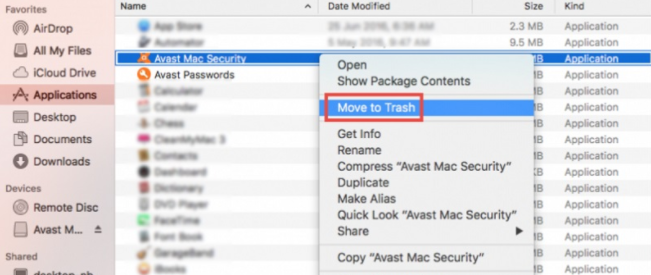
Step 4: Go to the Applications folder and from the list, select Avast.

Step 5: Right Click and then select Move To Trash.

Step 6: Empty the Trash.

Avast mac Security

We are not done yet. The application is gone, but we have to delete some more files for a complete uninstallation. Here are the next steps:

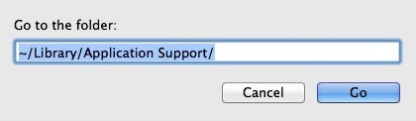
  1. On the Finder, click on the Go tab.
  2. Click on Go to Folder.
  3. A search bar will appear. Type in /Library/
  4. In the library, select each and every file that contains the name ‘Avast’.
  5. Move them to Trash and then, Empty Trash.
  6. Apart from /Library/, repeat the above steps for /Applications/.
go to folder

Once you empty your trash, Avast will be gone for good from your Mac without leaving any traces. With Avast, there comes some extra softwares, along with the product. To remove them from your Mac, proceed for the next methods.

Method 3: How to Uninstall Avast On Mac: SecureLine VPN

When you download and install Avast Antivirus, it is only the software that is downloaded. But after you start using it, there are some add-ons it provides and you also install them. For instance, you may have downloaded the Avast SecureLine VPN also.

VPNs are used to keep your locations anonymous while internet surfing but there are better VPNs available than the Avast SecureLine VPN. Those are even free of cost and easy to use. After removing Avast, you may want to remove it’s other products too.

The process to remove SecureLine VPN is given as follows:

Step 1 – Open the Avast VPN application that is installed on your PC.

Step 2 – From the Menu, select the Avast SecureLine VPN option.

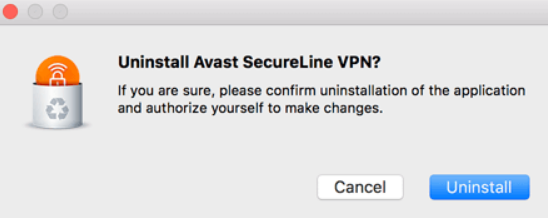
Step 3 – Select the option for “Uninstall” and you will see a screen as follows. Proceed further to remove the VPN application permanently.

Avast secureline VPN

Method 4: How to Uninstall Avast On Mac: Avast Passwords

Avast provides an application named Avast Passwords which is used to save all the login information about various accounts. This is done so that the user doesn’t have to remember all the passwords and he only can access this vault which saves passwords. This vault is locked by a master password.

Disclaimer: Before removing the application, make sure that you remember all of them or save all the passwords somewhere else as a backup.

To remove the application of Avast Passwords, you can go through the below method:

Step 1 – Open the application of Avast Passwords which you have downloaded on your PC.

Step 2 – Open the Menu from the application and select “Help”.

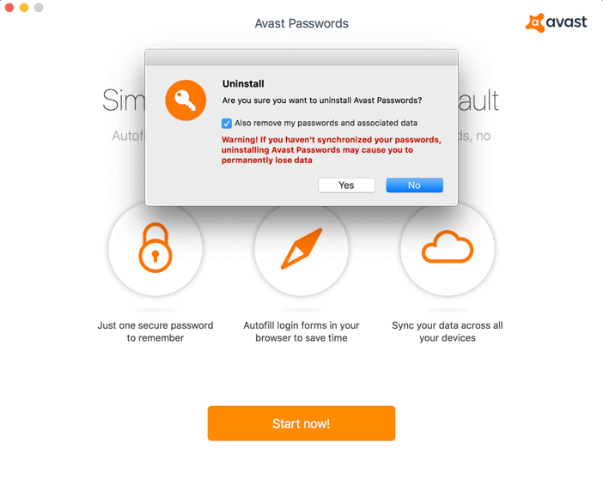
Step 3 – Click the option of “uninstall” and a screen shown as follows will appear. You have to select “Yes” to proceed further.

uninstall window

In this way, you can remove Avast and its products from your Mac completely.

How to Uninstall Avast Windows 10?

If you are a Windows 10 user then we have a wonderful method for you too! Follow the below given solution so that Avast can be uninstalled from your Windows 10 PC:

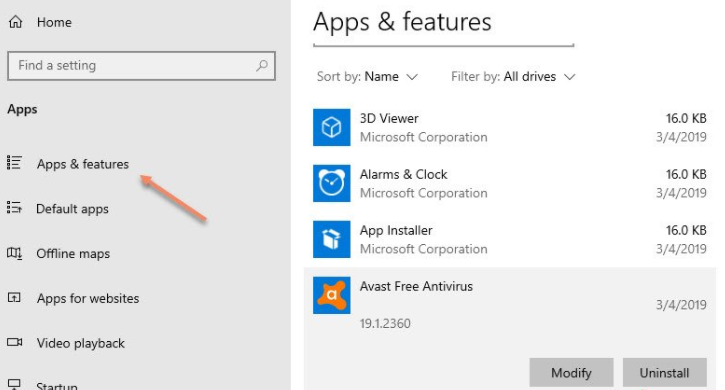
Step 1: Click on the Start Button and select Apps and Features.

Step 2: Go to Avast Free Antivirus click Uninstall.

apps  & features

Step 3: You’ll be asked for confirmation by User Account Control. Click Yes.

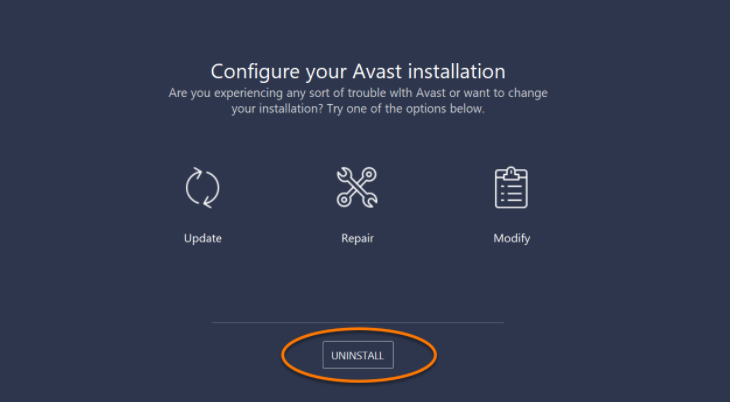
Step 4: After this, Avast Setup Wizard will appear. Click Uninstall.

uninstall

Step 5: Confirm by clicking Yes.

Step 6: The setup will remove the antivirus from your PC.

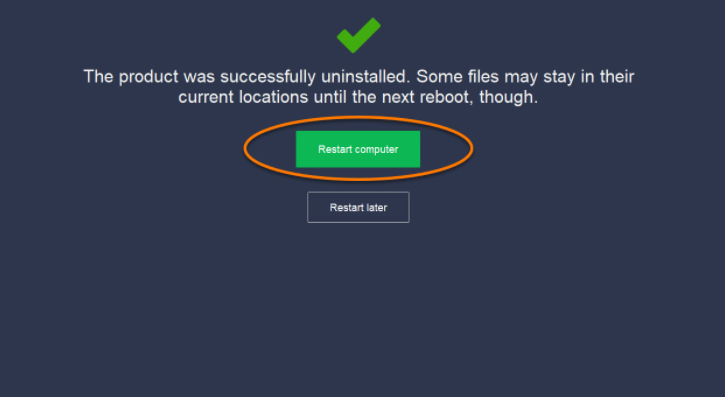
Step 7: Restart your PC to finish the uninstallation process.

restart after uninstalling

Conclusion

Uninstalling Avast completely from your PC can be a difficult task. Avast is a popular software and as it’s free. So, a lot of people use it, including non-technical users. For them, uninstalling Avast can be a bit cumbersome as you have to follow some extra steps. If you follow the methods given in this article, you can easily remove Avast completely without any traces left behind.

We hope we have helped you solve your worry on how to uninstall avast on mac. Stay tuned and connected.

5 Easy Ways To Manage Msmpeng.Exe From Eating Up Memory!

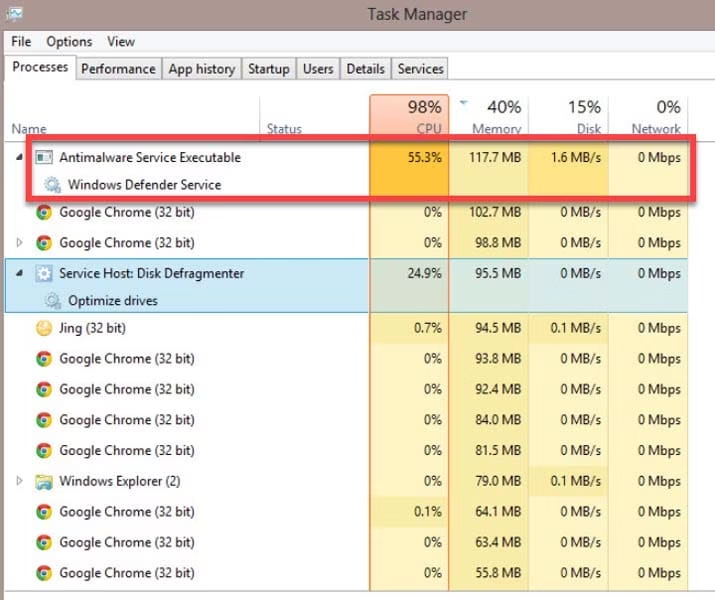
Msmpeng.exe is a Windows Defender core process. Unlike what most users think, this is a useful service that protects your PC from malware and viruses. Whenever new software is installed on your computer, this scans it to find any suspicious files that may harm your device and move it to the ‘Quarantined’ section. You can later check it and decide if you want to keep it or remove it.

Task Manager

Now, is it safe to delete it? Well, it depends whether you already have a third party anti-malware installed on your PC. Otherwise, removing or disabling this will make your computer vulnerable to malware. In any case, it is recommended not to delete this.

Although msmpeng.exe should consume only a small amount of memory, some Windows users often complain about msmpeng.exe consuming too much CPU that slows down their system. This can happen for several reasons. If you are facing the same issue, here are a few tips and tricks that you can try to free up RAM space.

Solved: Antimalware Service Executable (MsMpEng.exe) High CPU usage On  Windows 10

Methods Used

  1. Update Windows
  2. Excluding Windows Defender directory search
  3. Reduce the CPU usage of msmpeng.exe manually
  4. Turn off the Windows Defender
  5. Install a third-party Antivirus

Solution 1 – Update Windows

Check if any updates are pending on your Windows PC. This can be one of the reasons why your PC might be slow and not working properly. And that’s why you are getting msmpeng.exe antimalware service executable process in your task manager.

To update Windows, please follow these steps:

Step 1: Press Windows Key+I and Settings will open up.

Window settings

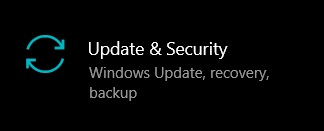
Step 2: From all the options, click on Update & Security.

update & Security

Step 3: Click on Check for Updates (you require to have an internet connection).

Step 4: Once finished, reboot your PC.

This is just a workaround. If the problem of msmpeng.exe high cpu still persists, it’s time to get a little technical.

Solution 2 – Excluding Windows Defender Directory Search

Step 1: In the Windows search box, type Virus & Threat Protection.

Virus & Protection threat

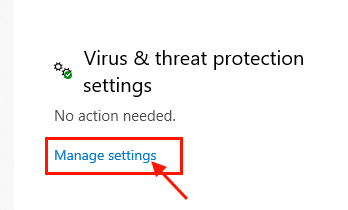
Step 2: Go to ‘Virus & Threat Protection’ and click on Manage Settings.

settings

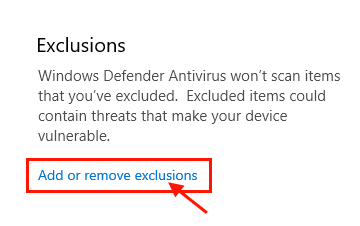
Step 3: Click Add or remove exclusions in ‘Exclusions’.

making an exclusion

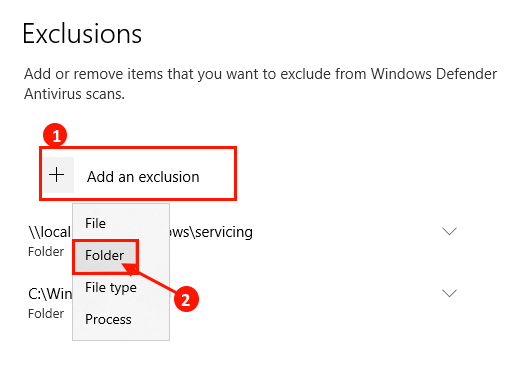
Step 4: Click on Add on Exclusion and click on Folder.

adding an exclusion
add

Step 5: Copy and paste ‘C:\program files\Windows Defender’ beside ‘Folder:’

Step 6: Click on Select Folder.

Step 7: Reboot your device to save the changes.

Solution 3 – Reduce the Cpu Usage of Msmpeng.exe Manually

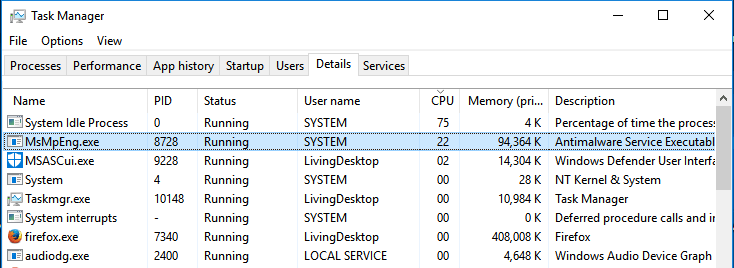
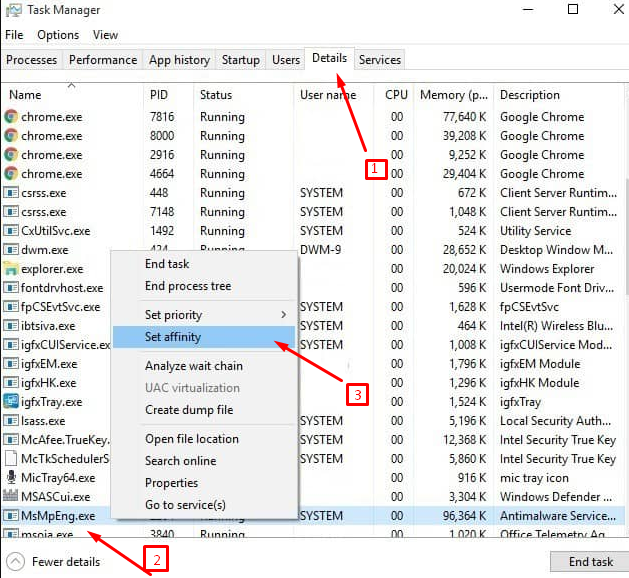
Step 1: Open the task manager by clicking Ctrl+Shift+Esc.

Step 2: Go to Details

Step 3: Right-click on ‘MsMpEng.exe’

Step 4: Click on Set affinity.

Task Manager check

Step 5: Allocate the value you want and then reboot your computer.

This will make sure that msmpeng.exe uses only the allocated amount of memory. It is highly unlikely that it will eat up RAM even after this. But if it does and you are still wondering “can i end antimalware service executable”, try the next method.

Solution 4 – Turn Off the Windows Defender

You can disable msmpeng.exe by turning off the Windows Defender. But unless you have third-party antivirus software installed, this is an extremely risky thing to do. Windows Defender has disabled automatically if you have a third party anti-malware in your system.

However, if you are willing to take the risk, this is how you can temporarily disable the Windows Defender:

Step 1: Press Windows Key+R.

Step 2: Type gpedit.msc and press Enter.

run

Step 3: There will be a window named ‘Local Group Policy Editor’. It is available only on Pro and Enterprise versions of Windows.

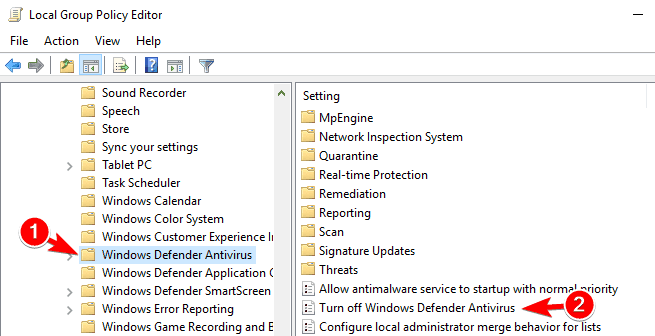
Step 4: In the location found, navigate to Computer Configuration>Administrative Templates>Windows Components>Windows Defender Antivirus.

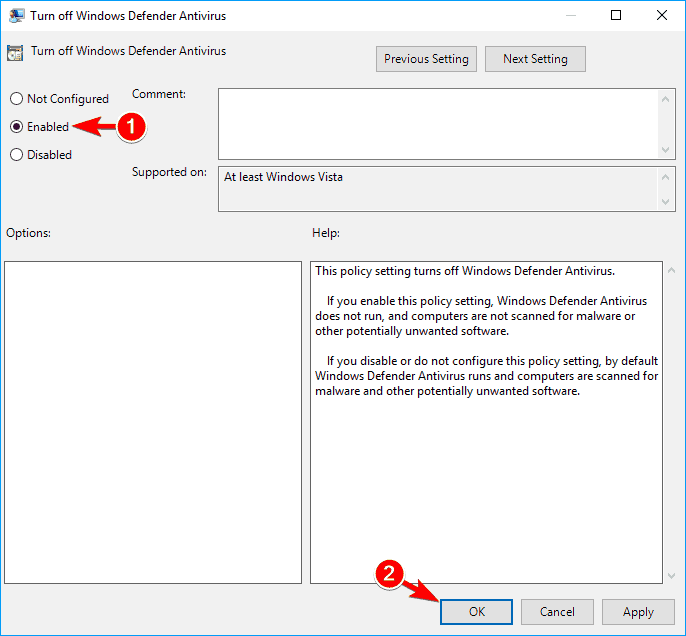
Step 5: Double click on the option Turn off Windows Defender Antivirus.

local group policy editor

Step 6: Click on Enabled.

Step 7: Click Apply and finally OK so that changes can be applied.

turn off windows defender

Step 8: Reboot your device to save the changes.

This will solve the problem of msmpeng.exe antimalware service executable process but at the same time, leaves your computer vulnerable to malware. It’s advisable to consider other options rather than this. More solutions are mentioned below.

Solution 5 – Install a Third-Party Antivirus

If none of the above options work, this remains the best option. Installing a third-party anti-malware will stop the Windows Defender and will become the default antivirus. There are plenty of choices, both paid as well as free. A good third party antivirus can keep your PC safe and you will not need Windows Defender anyway. This will most likely end your problem of msmpeng.exe high CPU usage.

Conclusion

People often ask- ‘Can I end the Antimalware Service Executable?’ Well, you can, but that would mean disabling the Windows Defender from your computer, which is not a smart thing to do. Msmpeng.exe is not a virus or a spyware. It is an important tool. Thus, instead of deleting it, it is better to find ways of reducing its memory consumption and that can be done by following the solutions we have tried to provide here.

How To Add Avast Exceptions? 5 Easy Steps!

0

Do you know, you can stop Avast from blocking a program, by adding avast exceptions? You can exclude items from being scanned by adding Avast exceptions. Let us dive deep and understand everything about Avast exceptions and how to add them.

What Are Avast Exceptions?

avast exceptions

Avast Antivirus is used by people all over the world as it provides privacy and security. It has features like Avast Premium security and Avast Secureline VPN. It provides complete protection for all your devices, protects your privacy, keeps your device safe, and offers digital parenting solutions. With over 400 million users, it prevents 600 million threats per day.

If you are a user of Avast Antivirus and sometimes, you just don’t want to scan some files for reasons like boosting up speed, false detection, etc. then, it provides you a feature where you can exclude some files or websites from being scanned

How to add Avast Exceptions

Avast Antivirus lists some files or websites as false positive detection and blocks them for further use. If you already know that it’s a trusted website and you are not able to access it because of such false detection then it becomes necessary for you to learn how to add Avast Exceptions. By adding to this list, you can access the file or websites easily!

How to Add Avast Exceptions?

Different items can be added on Avast Exceptions such as Files, folders, websites, and programs. The method is given below and before doing so, you must read the following note –

DISCLAIMER: If you are sure that the files or websites that you are going to exclude from being scanned are trusted and not infected, then only you should use Avast Exceptions. Without being sure about them and not scanning them may lead to serious consequences.

The steps for Avast add exception are as follows –

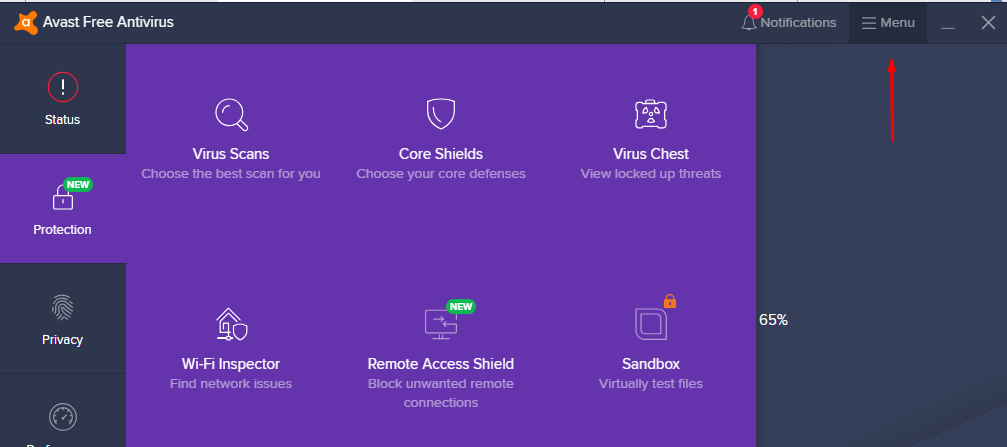
Step 1 – Open the Avast Antivirus application on your PC and then go to ‘Menu’. It is shown in the below image.

avast menu

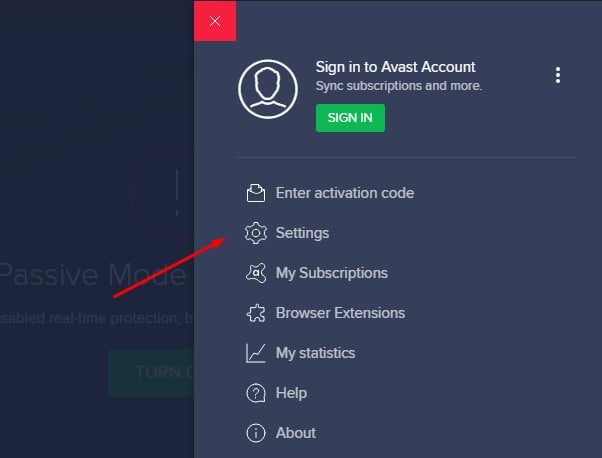
Step 2 –  Select the “Settings” option and then go to the “General” tab.

general tab

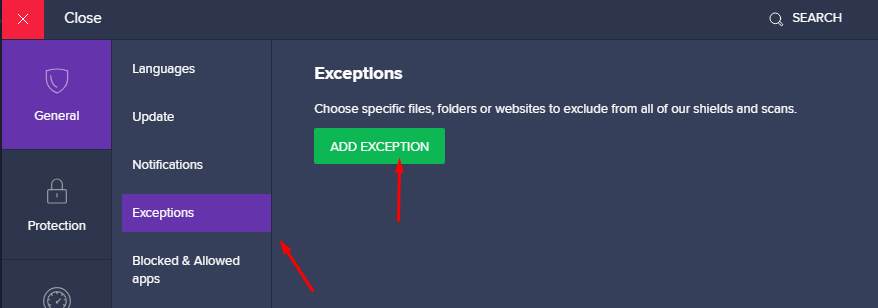
Step 3 – After selecting the general tab, click on “Exceptions” and then select “Add Exception” as shown in the image.

exceptions

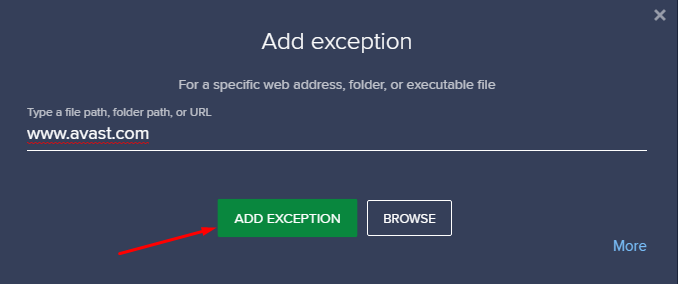
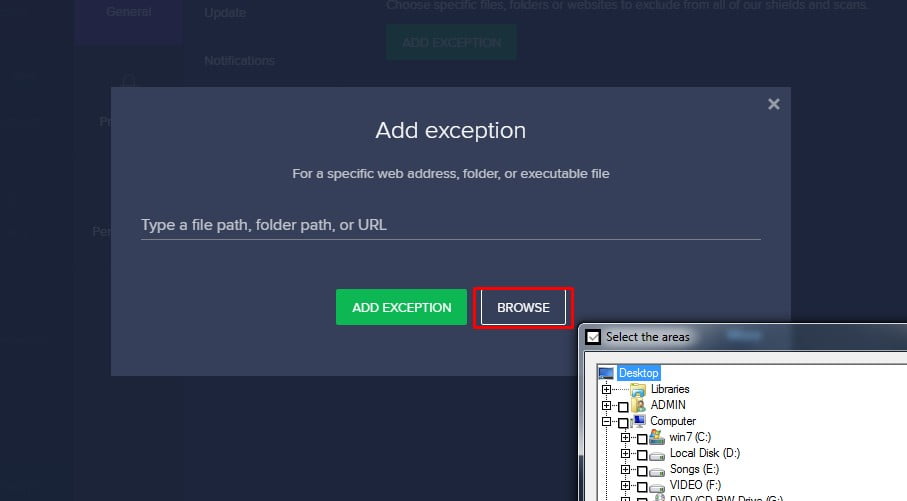
Step 4 – Here, you may type the link of the website you want to add on the list of Exceptions or you can click on the “Browse” option to add any file or folder present on your PC.

  • If you want to type any file path, folder path, or URL of any website, you can do that and then click on “Add Exception”.
add exception
  • If you select the “Browse” option, the files located on your system will be shown. Select the files you don’t want to scan and add them to the Exceptions list. Ensure that the files you are adding don’t contain any sort of malware.
add  by browsing

In this way, your selected folder, file, or website will be added to the list. After adding these items, if you want to see or remove any item from the Avast Exceptions list, then you can do so just by following the below-given method.

How To View Or Remove Any Item From The Avast Exceptions List?

Sometimes, it may happen that you add any item by mistake, and then you want to revert your action. By using this method, you can view or remove any of the items that you have excluded from the scan and added to the Avast Exceptions list. The steps are given as follows:

Step 1 – Open Avast Antivirus on your PC and then go to the ‘Menu’ option. 

Step 2 – Now, select “Settings” for further process.

Step 3 – After selecting the general tab from the Settings, click on “Exceptions”. 

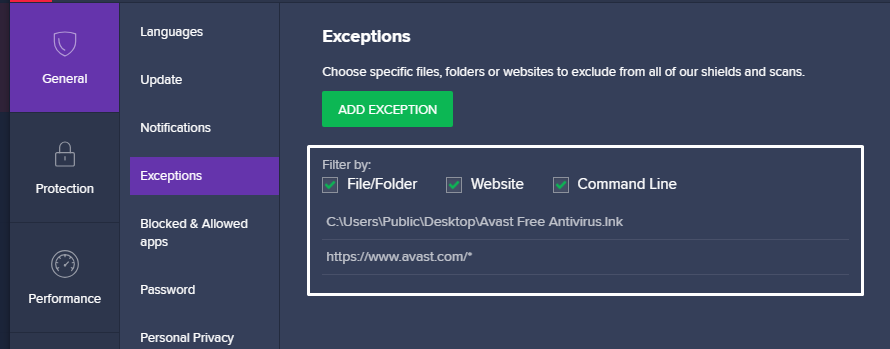
In this way, you can view the list. In viewing the list, there are options for viewing also. Tick the boxes according to your requirements, for example – if you only want to see the name of the websites then the tick mark should be on that box only.

To see the list of all the files and websites, ensure that the tick mark is present on all the options. A detailed description of this step can be seen in the image below.

add exceptions in avast

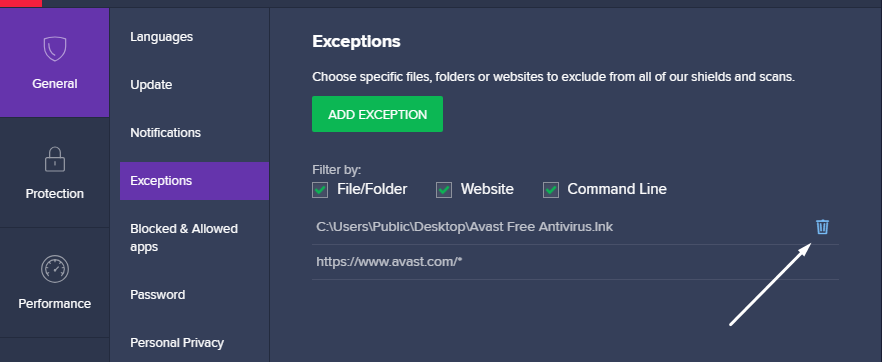
Step 3 – To remove any item from the Avast Exceptions list, hover over the name of the item, and on the right side, you will find an option for “trash icon”.

exceptions

Step 4 – Click on the trash icon and the item will be removed from the Avast Exceptions list. 

By using this simple method step-by-step you can view or remove any item from the list which you created before.
More Products By Avast Antivirus Software

You learned by reading this article that Avast provides a list which is a big advantage as all the Antivirus software doesn’t provide such an option. Other options that it provides are – SecureLine VPN, Password Vault, etc.

VPNs can be used by anyone for hiding his location while surfing the internet. And the password vault it provides is used to save passwords and other login information. After installing it and saving all the passwords, you set a master password to protect these. So, you don’t have to remember all the information except for one master password.

Conclusion

You can use the above mentioned amazing methods to add, remove, and view Avast Exceptions. You can have advantages like no false positive detections, speed improvement, etc. Follow these methods in the given order for the best results!

How To Connect PS4 To Laptop In 3 Different Ways?

Many people wonder how to connect ps4 to laptops because they want to play the games on the go without being stuck to a place. Playing on TV might be tiring and you can not carry your game to any other place.

ps4 controller

To connect PS4 to a laptop can be quite tricky and may require some specifications. We have enlisted the solutions along with the requirements and the steps in detail.

Now, you can play your games on any compatible device and can enjoy them! After reading this article, you will not be worried if the TV at your house is being used by someone else, and you are wondering how to connect ps4 to laptops, then this article is exclusively for you. You can now enjoy ps4 by connecting to the laptop.

Solution 1 – How to Connect Ps4 Controller to Laptop Using Remote Play?

What Is Remote Play PS4 PC?

Remote play is an official service provided by Sony so that the users can connect Ps4 to other compatible devices like laptops, TV, etc. If a device at your home like TV is being used by someone else and if you are wondering how to connect ps4 to laptops, then remote play services is the answer to it.

What Are The Requirements?

To connect to a PS4 remote play PC is very easy and doesn’t require much effort. Also, there are not many wires or devices required to do so. It requires the below-mentioned things –

  • A valid account on Playstation
  • A Laptop
  • PS4 Gaming Console
  • Internet Connection
  • A USB cable or USB Wireless Adaptor

How To Download Remote Play On Windows?

The easiest way to download the official service for remote play ps4 pc is through the official website of Sony. The one thing that you need to do correctly is choosing the OS. If you choose the wrong OS then it might cause problems in installing, launching, and operating it properly.

So, if you are using Windows then choose accordingly because downloading it for Mac may cause issues or errors.

How To Set Up PS4 and Remote Play after downloading it?

Step 1 – After the software gets downloaded through the official website to your PC, then run and install it.

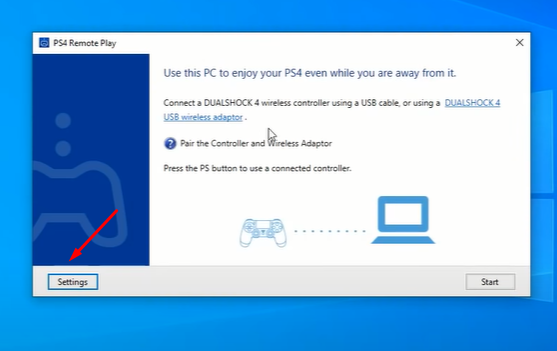
Step 2- When the installation process gets completed, you have to set up the console for PS4 remote play pc. Open the app from your desktop and you will get a screen as follows:

ps4 to pc

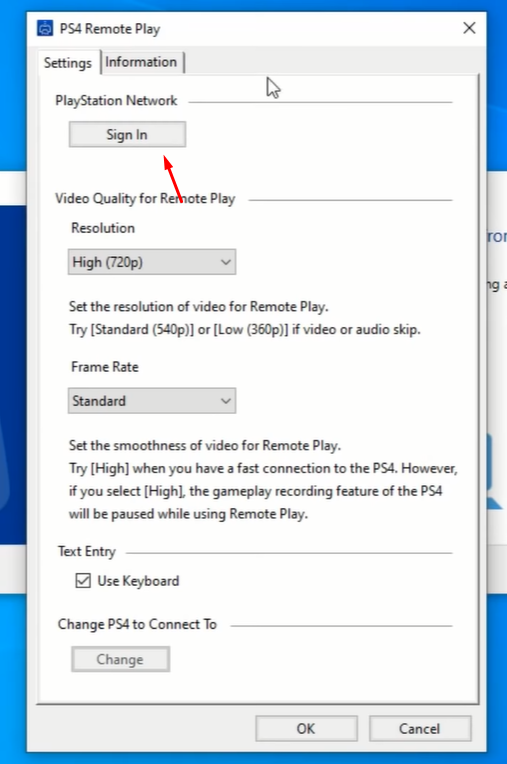
Step 3 – Click on “Settings” and a new window will be opened. Now, click on sign in to enter your login information. 

ps4 remote play

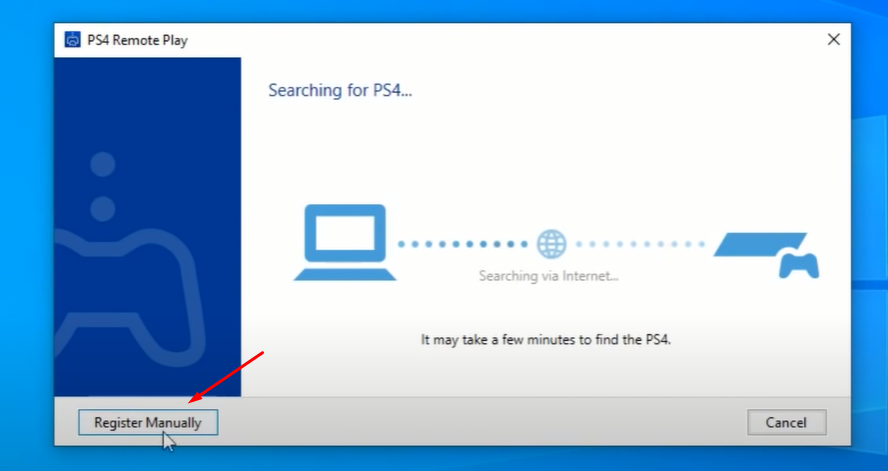
Step 4 – The remote play ps4 pc will start searching for the devices. This may take a long time so we can register manually also. If you don’t want to register manually, just wait for the detection of the controller and the devices will automatically be connected.

ps4 remote plaay searching

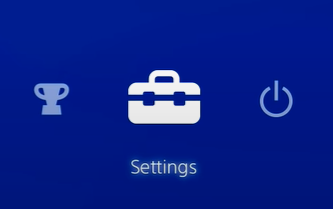
Step 5 – Open the PS4 console and click on Settings.

settings

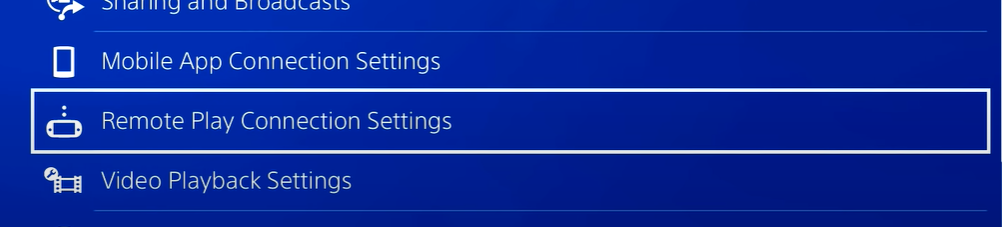
Step 6 – Now, click on “Remote play connection settings”  from all the options. 

remote play connection settings

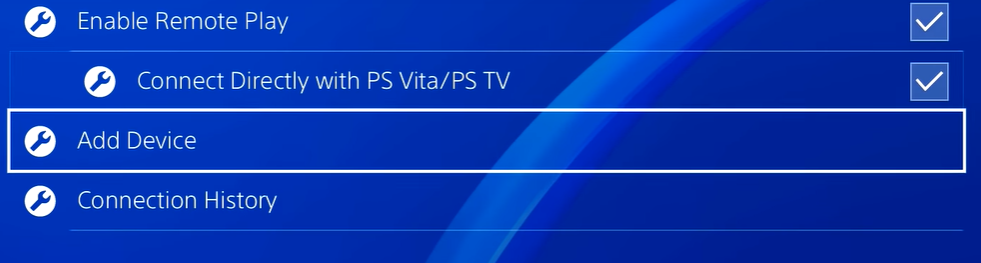
Step 7 – Ensure that you check the “Enable Remote Play” option. Enabling this will help you in the further process of remote play ps4 pc connection. Now, click on “Add Device”.

add device

Step 8 – A code will appear on the screen so that you can register manually through it. Enter this code on the Remote Play screen and your devices will be connected.

Through this solution, the remote play ps4 pc will help you in connecting to your laptop or TV easily. More solutions for how to connect ps4 to laptops are mentioned below.

Solution 2 – How Do I Connect My Ps4 to My Laptop Using HDMI?

If you can not install Remote Play on your PC because of not having proper specifications or any other reason, then you can still connect PS4 to a laptop using HDMI. It is quite easy to connect PS4 to a laptop using HDMI via a video capture card. All you need to do is follow the given steps one by one and it will be done easily!

The requirements before you carry out the process are given as follows:

  • A Laptop
  • PS4
  • Stable Internet connection
  • A Video Capture Card
  • HDMI cable
  • File sharing enabled

After collecting the above-mentioned items, you have to follow the given process:

Step 1 – Enable File sharing – Go to the PS4 menu and then go to the settings.  Open the “Internet Connection Settings” and ensure that the device is connected to your internet connection.

Step 2 – Connect the video capture card – Use the USB port to connect the video capture card to your laptop. The card will function properly only if you install the necessary software and drivers that come along with it.

Step 3 – Connect PS4 & HDMI to Video Capture Card – Use the S-video connection cable to connect PS4 to the video capture card. The next thing you need to do is connect the HDMI-IN and HDMI-OUT on the capture card and the PS4 respectively.

Step 4 – Software – Now, open the video capture software on your laptop. The software will automatically search for PS4 which is connected to your device and then after finding it, it will be shown on your screen. If you want to have the best resolution, ensure that it is running on full screen. And that is how to connect PS4 to laptops.

Solution 3 – How to Connect Ps4 to Laptop Using Playstation Now?

What Is Playstation Now?

Playstation Now is a subscription service provided by Sony which allows its users to play PS4, PS3, and PS2 games. New games are added every month and users can play them without actually buying the PS4 Console. 

It may sound interesting to people who don’t have a console but the cost is around $99.99 per year. And you can access the wonderful games on your laptop very easily.

It doesn’t require many specifications like you don’t need to have a heavy gaming laptop to access these games. Now, after knowing what Playstation is, let’s get to the process.

How to Download and Run Playstation Now?

Step 1 – Go through the official website and download the software.
Step 2 – After it gets downloaded, install it through the installation wizard. Click on “Agree” and proceed further. After setting it up, it may automatically launch or you can open it manually also.

Step 3 – Fill in the essential information like date of birth and proceed further and click Submit.

Step 4 – Now, you may start a free trial of 7 days or you can take a subscription of 12 months or one month according to your requirements.

Step 5 – Select “choose a version” from the left-hand side of the page. Now, you will be asked to enter your credentials. Enter the details of your Sony Account and from now onwards. These are the same credentials for Playstation Account.
Step 6 – Once the payment details are saved, you can go back to the PlayStation Now app and can play any game.

Important: How to Connect Ps4 Controller to Laptop?

Now, after following the above method, you may have created an account on a remote play or PlayStation. But if you are new and you don’t know how to connect ps4 to laptops, we have mentioned the process for that also. These are the steps:

Step 1 – Use the USB cable to plug-in the controller to the laptop.

Step 2 – An icon will be shown in the top right corner of your laptop screen. Click on that icon.

Step 3 – Now, your controller is connected and you can enjoy playing the PS4 games on your laptop. 

Conclusion

We have brought you the best 3 methods on how to connect a PS4 to a laptop and we recommend you follow each step carefully in order to receive the best outcomes. The ps4 remote play pc is highly recommended by us but if you don’t have the mentioned specifications, you may use the other solutions.

The Ultimate Guide To Use Samsung Data Migration Software!

Find the simplest way to use the Samsung Data Migration Software, here!

Solid State Drives(SSD’s) have lately turned into a mass-market, thanks to the steeply reducing prices and the increased storage efficiency. 

Now, if you have got your new SSD and are wondering how to migrate the Windows 10 OS along with all programs and files to the new SSD, then like me, re-installing everything from scratch would be the last thing on your mind! So, let me let you that one best feature of Samsung SSD’s that sets it apart, is Samsung’s Data Migration Software.

Samsung SSD

It implies that you can boot Windows from the Samsung SSD right after the completion of the migration process. Once booted, you can access all installed programs, documents, files, and other data as if you were still running the old drive. So let’s get started and migrate together.

Samsung Data Migration Software is a wonderfully smart tool that can make the migration process from current HDD or SSD to your new one, simple and hasslefree! This software, further allows you to clone the large data into a comparatively smaller Samsung SDD, without losing a single bit of data, in the overall process. 

How to perform the Samsung Data migration on the first go?

Step 1: 

The very first thing you will have to do is to download and run the Samsung Data Migration software from the Samsung SSD website.

download and run the Samsung Data

Available in different language interfaces, Samsung Data Migration Software comes with a  handy user guide that details the procedure neatly. See to it that you update to the latest version of the program and then run the installation process. 

Step 2:

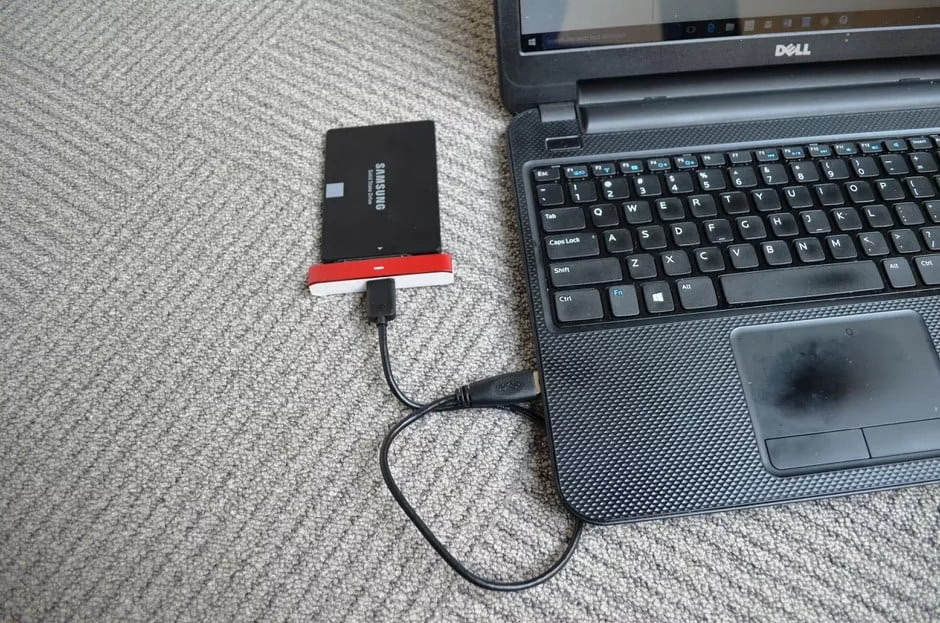
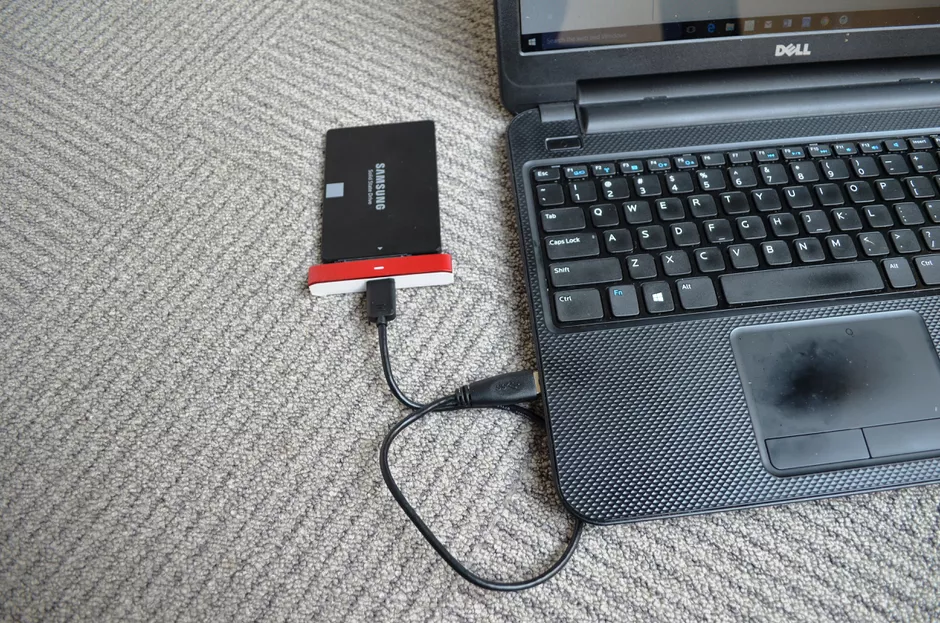
 Put your new SSD drive in a USB hard drive case and then connect it to your PC.

Put your new SSD drive in a USB hard drive case

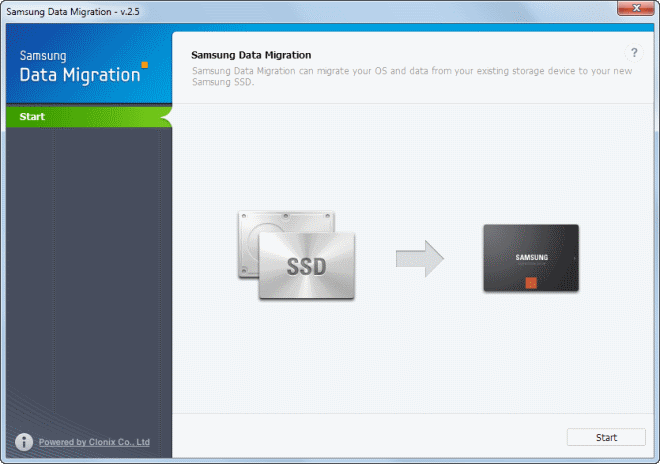
Once you are ready with this arrangement then click on the start button in the interface. Samsung Data Migration Tool automatically selects the current Windows drive as the source disk and the connected new Samsung SSD as the source drive. In case you have multiple SSD’s installed, then make sure the right one is set as the target disk.

Samsung Data Migration

Step 3: 

Now, is the time to verify the system, so as to perform the program on the first go, as I mentioned already. Just do the system check thoroughly. Make sure that the below checklist is all ticked before you proceed. The checklist includes disabling all unnecessary programs running in the background and running the command prompt

3.1 Open a command prompt as administrator and run chkdsk

3.2 Run chkdsk /f if any errors are found

3.3 Close any cloud backup software such as Dropbox

3.4 Close any messenger software such as Skype

3.4 Close all programs other than Samsung Data Migration

3.5 Enter Airplane Mode

3.6 Disable your antivirus software until after the next reboot

3.7 Check the source and target disk are correct in Samsung Data Migration then start the migration.

It will throw you a warning reminding you that all data on the Target Disk will be deleted and the so deleted data cannot be recovered. Also, files on the Source Disk that are open cannot be cloned. 

start clonning

Step 4:

Once, the migration is successfully done, you will see the utility showing you a message with the display suggesting that the data on the Source Disk has been successfully cloned to Samsung SSD, as shown in the below image.  Quit the program. Make sure that you shut down the system, as soon as the migration is completed

cloning completed

Step 5:

Physically replace the old disk with the new one.

Step 6: 

Power on the system. Check all programs, including the temporarily disabled ones like the antivirus is running, as earlier. 

Step 7: 

Take the system out of airplane mode.

And there you go! Ready with the new Samsung SSD for faster and spacious performance. 

A great alternative to the Samsung Data Migration Software is the AOMEI Partition Assistant Professional. If by any chance, you happen to fail using the Samsung Data Migration Software, then using this software to clone hard drive to SSD in Windows 10 is another good approach. This is also a great hard disk partition manager that supports you to manage partition on a hard drive better and can help you fix errors that would cause Samsung Data Migration cloning failed. Get the AOMEI Partition Assistant Server here, just that it is not a free software like the Samsung Data Migration Software!

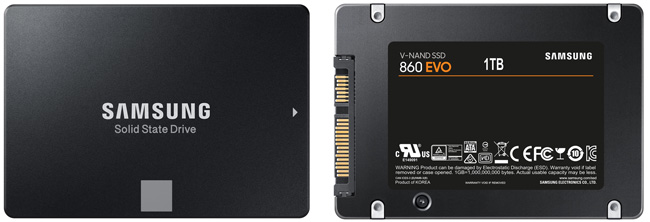
Samsung EVO 860 SSD

Now, replacing your existing hard drive with an SSD is the most easy and cost effective way of making a slow system faster. Making such a swap will, in most cases, dramatically reduce the time taken to boot Windows, thereby turning your old computer to a better new one! It will reduce the time taken in loading programs, and performing activities that involve significant amount of disk access like transferring files, video editing, gaming, etc. An SSD benefits with added advantage of greater ruggedness as SSDs are much less susceptible to damage from drops than hard drives because they have no moving parts. SSD’s also support better battery life and quieter operations.

Hope, this works wonders with your system performance, too!

Is NVIDIA Control Panel Missing In Windows. Now Fix It Easily!

 Is NVIDIA Control Panel missing in Windows? So, a very frequently observed error concerning NVIDIA is bothering you too! Worry not and get it solved with our easy solutions. 

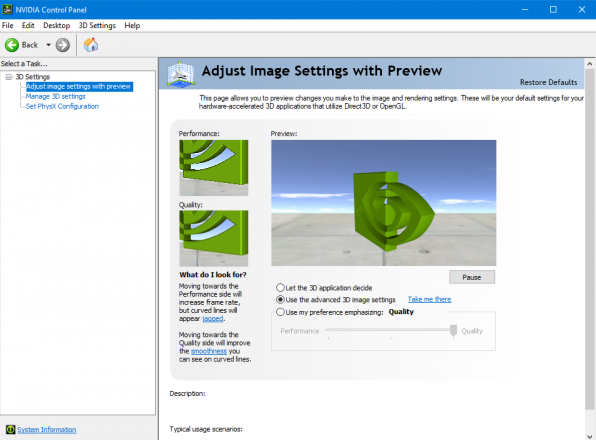
NVIDIA control panel

But before diving right there, let us find out why is the NVIDIA Control Panel Missing In Windows? This would avoid the issue recurring frequently and stop annoying you every time.

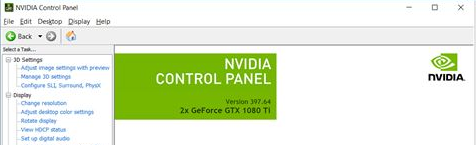
NVIDIA Control Panel

Possible Reasons Why NVIDIA Control Panel Missing In Windows

The NVIDIA control panel lets you check and regulate the properties of the NVIDIA Graphics Card installed on the device. The issue prevailing among many users regarding the NVIDIA control panel missing options could be due to the following reasons:

  1. Latest updates.
  2. Faulty or corrupted graphic card.
  3. Missing registry subkeys or data.
  4. Some random error.

These reasons might bring to your notice some changes that your device has undergone that is bringing up the NVIDIA control panel missing error. If you can link to any error then feel free to jump to the concerning solution. If not, please try the fixes one after another. 

NVIDIA Control Panel missing error

Let’s now quickly find out solutions to fix your NVIDIA control panel not opening issue.

DISCLAIMER: Kindly read thoroughly and understand the procedures before taking any step. Ensure that you follow all the steps in order and stick to one procedure at a time. 

Fix 1: Restart NVIDIA for the NVIDIA control panel missing(the better way to it).

Well, most of you might have already tried this option. But there is something more than just the restart, that you can do. Just read it through.

 The fix is as simple as it sounds. Just restart the NVIDIA and get the panel back functional. There are chances that the desktop context menu and the System Tray have somehow missed the NVIDIA control panel.

You can restart the NVIDIA specific services for your system. How? 

Steps:

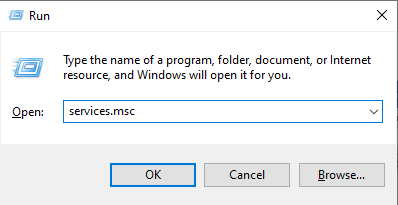
  1. In the Run command prompt( Windows + R), type services.msc and press enter.
run cmd .msc
  1. You will get a Services window. This service window enlists all the services on your device. So, select all the NVIDIA related services that are running. 
  2. Find a Restart tab on the left panel and click it to restart all the NVIDIA related services.
  3. If you see that the NVIDIA services are not running at all, then please click the start tab and let the services run.
services
  1. Don’t forget to restart your System. 

After the system starts, check if you already got back the NVIDIA control panel. Not opening would have got a fix with this. Unfortunately, if not then proceed to the next fix.

Fix 2: View the hidden NVIDIA control panel, manually 

Whenever you update the NVIDIA graphics card, there is a possibility that the NVIDIA control panel is veiled. You can just follow the steps and view your hidden NVIDIA control panel.

Steps:

  1. Start the Run prompt. Type control and open the control menu.
cmd
  1. The Control panel will have a list of control options. Select the NVIDIA Control Panel.
  1. Find Desktop on the top bar. Right-Click to open a dropdown list and select Add Desktop Context Menu and Show Notification Tray Icon.
nvidia control panel desktop

Hopefully, this should provide a solution to your ‘how to open the NVIDIA control panel’ query. Or else proceed to Fix 3.

Fix 3: Update the NVIDIA graphic driver

          There are chances that your NVIDIA graphic driver got corrupted. Just update the NVIDIA and see if your NVIDIA control panel missing issue gets resolved.

How to update NVIDIA?

In Fix 1, we had uninstalled the NVIDIA graphic card via Device Manager. Go through the same steps. But instead of uninstalling, Update NVIDIA this time.

update driver software

Updating the driver can restore the missing controls or correct the corrupted file. So, you might get a fix to your NVIDIA control panel not opening error.

Fix 4: Run the NVIDIA control panel manually

How do you launch the NVIDIA control panel manually? Find it below:

Steps 

  1. Go to My Computer.
  2. Open C drive, where the program files usually get saved.
  3. Find the NVIDIA corporation folder in the program files.
  4. Go to the Control Panel Client.
run as administrator
  1. A file names nvcplui will appear. Right-Click it and check the Run as administrator option. You can create a shortcut to this file on your desktop. 

This should suffice your issue. If not then go for the fix below.

Fix 5: Reinstall the NVIDIA control panel from the Microsoft store to solve the NVIDIA control panel missing. 

If the files for the NVIDIA control panel are missed or corrupted due to reasons unknown, then you must download the NVIDIA control panel from the Microsoft store, as follows.

Steps:

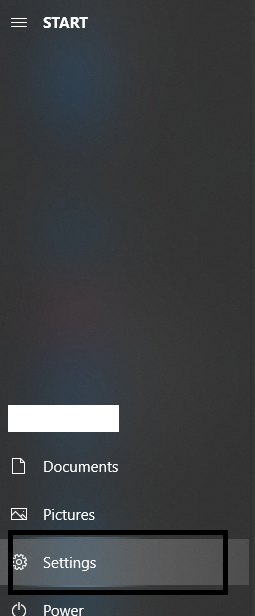
  1. Open the Setting in your system 
start
  1. Select Apps from the Window Settings page
windows settings
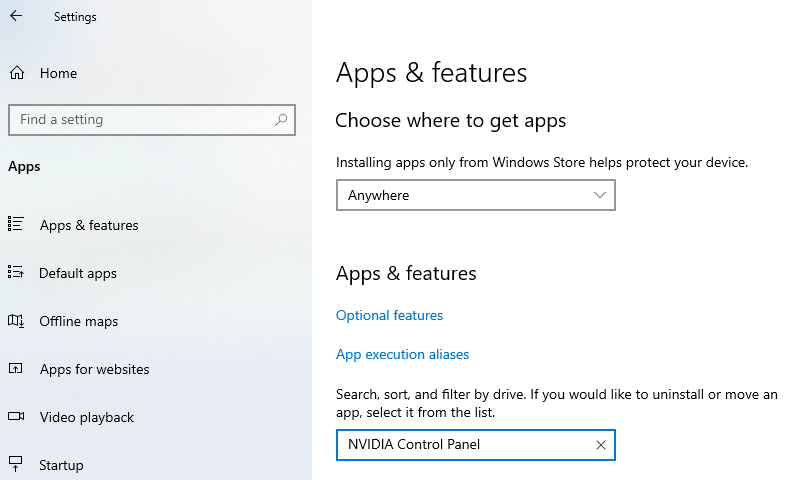
  1. Now search and find NVIDIA control panel from the search tab
Apps & Features
  1. Simply go to the link and install it.
Nvidia

This newly installed NVIDIA control panel should give a fix to your issue. Or else find my final fix.

Fix 6: Reinstall the NVIDIA Graphics Card and fix the NVIDIA control panel missing issue.

If all the above fixes didn’t resolve your issue, then please try this final fix. This should make it happen.

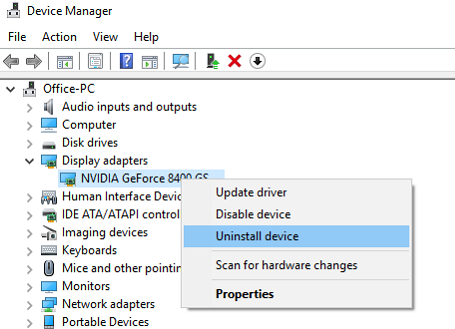
Just Reinstall the NVIDIA Graphics Card. Do it through the Device Manager.

device manager

Conclusion:

So, these are the top solutions that can fix your NVIDIA control panel missing error. Please try them slowly and patiently. You will surely get it resolved. All the best!