Home Blog Page 58

Resolved: Inkscape Not Opening In Windows 10 Or Mac

Fixing Inkscape on Windows
Fixing Inkscape
on Mac

Inkscape not opening is a common problem, that many Inkscape editors have been reporting, lately. We have devised the best solutions for the same. Please keep reading and find the best solution.

Inkscape is a popular vector graphic editing software chosen by many crafters. What makes it stand out in the image editing software list is that it is an entirely free, open-source application. It is compatible with Windows, Mac OS, and GNU/Linux. Once installed properly, you can immediately start editing images using it. You double-click on its icon to open it, but suddenly there is no action for a long time. Is Inkscape not getting opened? Are you getting some error messages? Puzzled about what suddenly went wrong with Inkscape? Stop worrying! This article will walk you through possible reasons and give a simple solution to fix the ‘Inkscape not opening’ issue.
Inkscape

Possible reasons for Inkscape not getting started in your system.

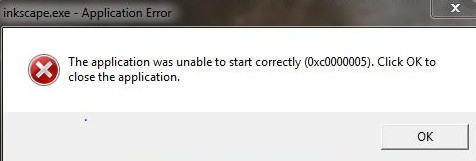
Whenever you click on Inkscape to open it, have you encountered error no. 0xc0000005 with the message box given below?
inkscape.exe

This error usually appears when the application you are trying to open abruptly crashes and fails to start. Let’s check the reason behind Inkscape not starting appropriately.

  1. Some other software running on your system might be interfering with the Inkscape leading to its failure. E.g., Adobe Dreamweaver, Ghostscript, etc.
  2. The Inkscape version on your system requires to be updated.
  3. The operating system running on your system needs to be updated.
  4. Wrong registry modification might be the culprit.
  5. Virus or malware running on your system might be affecting Inkscape. In some cases, the security software itself obstructs the Inkscape app from launching.
  6. Multiple processes of Inkscape running in the background might hamper its functionality.
  7. Your BCD(Boot configuration data) might be corrupted on your PC and needs repair to fix this issue.

The list can go on as there is no single definite reason for Inkscape not starting. There is nothing to worry about because we have a few efficient workarounds to regain Inkscape’s standard functionality.

What to do when Inkscape won’t open in Windows 10.

1. Temporarily uninstall other software that might be affecting Inkscape

Many users have reported on the bug launchpad forum that Inkscape stopped regularly working after installing the following software.

  1. Adobe Dreamweaver
  2. Scribus
  3. Ghostscript

There can be more on this list. Try to check on your PC, which software you have recently downloaded or modified. Try to roll back the settings by recovering your PC or uninstalling the software mentioned above manually(If they are present in your system).

Restart your PC once done and now check if you can start the Inkscape application.

2. Scan your system to clean viruses and malware

A fix for many problems, this tends to be the best fix for Inkscape not opening, too. You should try to run an antivirus on your PC to clean all the viruses and malware in your system, and check if Inkscape’s functionality is resumed. Try the next method if this didn’t work for you.

3. Reboot your PC

Simply restarting your PC might be all that is required to open Inkscape. Rebooting your system might kill the multiple instances of the Inkscape process running in the background. Many a time rebooting the PC gives a fix to the Inkscape not opening, just try!

4. Update Inkscape’s version that is running on your PC

Most users have noticed that updating the Inkscape version on their system helped them overcome all the Inkscape issues. You can also try this method to start Inkscape without any problems. An important thing to keep in mind is that you should remove or uninstall the previous version of Inkscape completely before updating it on your system. You can follow the steps given in the uninstalling guide to ensure that all Inkscape traces are removed from your system. You can check out the detailed steps to update Inkscape on Inkscape’s manual website.

5. Update Windows10

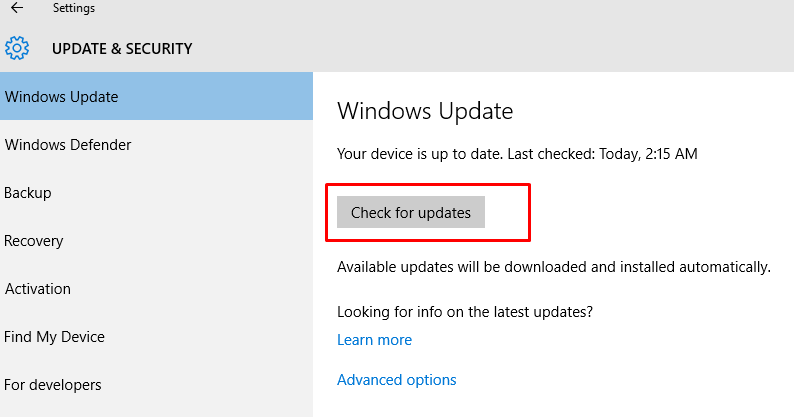
You can try to update Windows 10 and check if it helps you to fix Inkscape’s error. The quick steps to update Windows 10 are as follows.

  1. Click on the Windows icon present at the lower-left corner.
  2. Go to Settings -> Update & Security -> Windows Update.
  3. Click on Check for Updates button in the right panel.
  4. If updates are available, then it will automatically start downloading on your computer.
check for updates
  1. Restart your PC once the update is done and now check if you can open Inkscape. Try the next method if this solution didn’t help you. If you see that the Inkscape is still not working then consider jumping onto the next solution.

6. Close instances of Firefox

Some users have reported that if the Firefox browser is opened before opening Inkscape, it fails to launch. Closing all windows of the Mozilla Firefox browser before starting Inkscape helped them to fix the issue. There is no perfect logic behind this solution, but it helped many users, so you can all give it a shot.

7. Replace DLL for Inkscape

Inkscape uses liblcms-1.dll. If it is not loaded at its default location, then Inkscape might not work appropriately. Some security fixes might have tampered with this dll file. So replacing it can help to resolve the issue. 

Warning: It is not entirely safe to download dll from the given link. It can give way for viruses to enter your PC.

Steps:

  1. Download liblcms-1.dll from the following link.
  2. Copy and paste downloaded dll file in C:\Program Files\Inkscape folder.
  3. Press yes if prompted to replace the file liblcms-1.dll
  4. Restart your PC and now check if you can launch Inkscape without any problem.

I hope you would have fixed your Inkscape not opening issue, by now. Still if by 2% chance, if you fail to do it then please try the last fix as well.

8. Repair Boot Configuration Data(BCD) via command prompt

In Windows, you can solve any start-up related issue of the application by repairing BCD. It will help to fix the corrupted configuration boot files and resolve the application initializing problem. You could try this method if none of the above methods worked for you. Follow the steps given on  Microsoft support to repair boot configuration data accurately.

What to do to resolve Inkscape not opening in Mac OS?

The earlier versions of Inkscape required a helper program like Xquartz to run on Mac. For Mac version 10.11 and above, no such supporter program is required, and you can directly use it.

Many Mac users have reported on a discussion forum that they are unable to run Inkscape on their system. We will discuss two solutions to resolve Inkscape, not working problem in Mac.

1. Enable download from anywhere option

You might have noticed that sometimes when you try to open Inkscape by clicking on its icon, it just bounces up and back but does not open or gives the below error that unidentified developer.
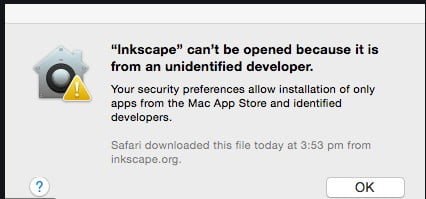
unidentified developer

To solve this, we need to make minor changes in system preference.

Requirement: If you are using Inkscape version 0.92, make sure that you have Xquartz installed on your Machine.

Warning: There might be security issues if you permanently enable the Download from anywhere option.

Steps:

  1. Click on the Apple logo present in the upper left corner.
  2. Choose System preference from the pop-up menu.
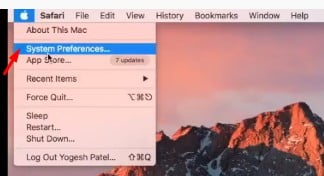
system preferences
  1. A new window will open. Click on Security and Privacy option.
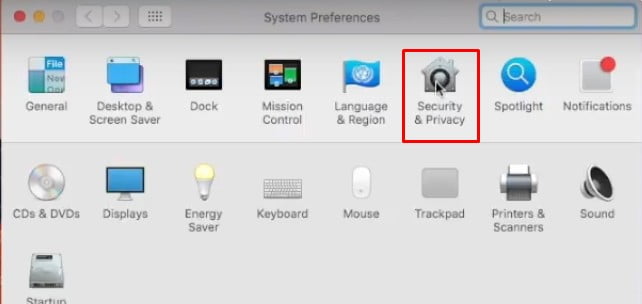
security and privacy
  1. Click on the lock option and enter your Mac password to complete the authentication process.
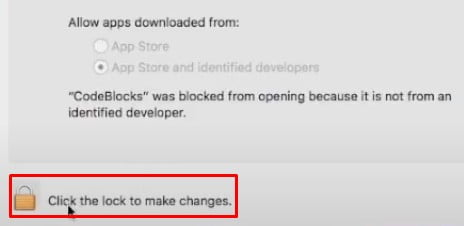
click on lock to make changes
  1. Once authentication is done, you can now make changes. In the ‘Allow apps download from’ section choose the Anywhere option.
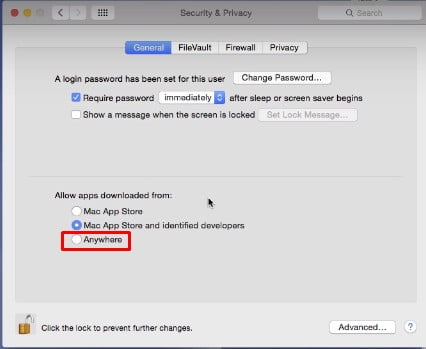
anywhere section
  1. Now try to open Inkscape again and check if the issue persists. Once you can open Inkscape, you can revert changes in system preference. Try the next method if this doesn’t fix your Inkscape not opening issues on Mac.

2. Install an updated version of Inkscape.

If you are using Mac OS 10.11 or newer, you can try to use an updated version of Inkscape, which doesn’t require XQuartz.Follow the detailed steps to install Inkscape on your Mac machine given in the Inkscape manual.

After installin g the updated version of Inkscape again, check if you can open Inkscape.

Wrapping Up

I hope our solutions helped you fix Inkscape not opening issue, successfully!

Inkscape is the fabulous open-source, free software for editing vector graphics but might not open some time. We have tried to sum up all the solutions discussed on forums that helped other Inkscape users to fix the issue. This article has offered you methods to answer your question ‘What to do when Inkscape won’t open’ on both Windows and Mac platforms. If you want to deep clean your storage you can use duplicate file finder windows 10. Let us know which solution worked for you and contact us if you find difficulty implementing any of the methods discussed above.


Why Is FocoDesign The Best Editing App Of 2020?

FocoDesign is the best aesthetic photo and video editing app of 2020 with over 4,000 templates. If you are a big-time Instagram user, then this is a must-have tool for you. 

FocoDesign - Insta Story Editor & Highlight Maker - Apps on Google Play

 With an estimation of 125.5 million users of Instagram by 2023, the probability of you being an Instagram user is much likely possible, and that’s why I recommend this tool to you.  The market is now witnessing a vogue of exclusively edited and alluring photos and videos, all the magic sprinkled by editors like Canva, VSCO, Later, etc.

 FocoDesign is the current best-rated editor with over 4000+ templates and tools that will ease you make exuberant stories that speak. Creating amazing Instagram photos, stories, covers, and even logos is just plain sailing, even for the first-time user, leave alone a FocoDesign expert. 

Focodesign

So, let us find out the features that cook up this profuse tool stand, so vivid in the race of excellence. 

Features of FocoDesign

1. Templates & Assorted Highlights

With the vivacious range of preloaded photo and video templates, FocoDesign gets all your stories covered pretty well. You get to pick from 2000+ Insta stories composing you vaunt with over 100 unique themes. 

Foco template

With FocoDesign you can create magic with your photos and videos at your fingertips!

The colossal Highlight cover maker with sundry highlight covers over 2000+, assists you to beautify your Instagram profile. You can go ahead and edit the whole set at one time!

It is highly customizable with an array of fonts, backgrounds, and editing options.

The augmented features of adopting suitable filters, trending stickers, and creative frames make the application even more versatile.

2. Photos and Video Editing App:

We can split this into three Photo Editor, Collage Maker, and Video Editor.

Foco pE

2.1 Photo Editor:

  • Like any other photo editor, you can very well crop and resize your photos.
  • You can apply story filters and overlays.
  • Brand your images with labels & watermarks.
  • Features magic remover that removes background in just a click.

2.2 Collage Maker:

Exquisitely merge any number of photos and videos into one with styles that vary from templated collages to freestyle collages.

2.3 Video Editor

  • Edit, resize, or trim your video clips with professional editing tools.
  •  Adorn your videos with any music or furbish your voice to the video.
  •  Featured with impressive presets and effects. 

3. FocoDesign For online Seller:

Marketing thoughts on your mind then you can absolutely pro with FocoDesign!

With ready templates housing almost every segment, you can always create Instagram stories and highlight cover for the products that you want to market on Amazon, Wish, Shopify, etc.

Foco online shopping

This is the most fascinating feature of FocoDesign and can gravitate to a bigger audience, these days.

4. Best editing App for Instagram Influencers:

Eye-Catching and spectacular stories that get noticed make an Instagram profile distinct and influential. So, if Instagram is a cup of tea for you then you must try FocoDesign and create attractive stories that speak to your followers. 

Foco image

After all, Instagram is an abode of pictures and videos that make you socially reachable and prominent. FocoDesign is the best professional tool that will make your products and services stand out most graciously. You can adopt FocoDesign as a story editor, collage maker, or highlight maker on Instagram and benefit from its sweeping features.

5. Beautiful stories for events and festivals:

Breathtaking photos and enchanting videos bring life to occasions. Who doesn’t love stories that touch lives and beautify the globe? You can treasure every moment and every occasion like the most cherished one with the vivacious assortment of templates and themes. 

Foco design

Give that spellbinding story to your profile that will make people turn tail a million times.

Pros of FocoDesign:

A platform so effervescent has innumerable salient features as discussed above. One of the most 5 stars rated and highly reviewed editor applications, FocoDesign has grabbed popularity as the best photo editor, collage maker, and video editor. It is the most in-demand application and has ratified several Instagram users. Many Instagram influencers have reviewed FocoDesign as one of the most effective editing apps in cultivating eminent images on Instagram. 

Cons of FocoDesign:

Being the most widely used platform, this application has been reported with some faults as well.

  1. Some users have complained of getting white/black blank screens.
  2. FocoDesign is accused by some users for not loading issues or not working properly.
  3. Certain Login and account related issues have also been prompted lately.
  4. Few users have raised issues related to installation or updating the application.

Well, the FocoDesign team is constantly updating its editing app optimizing it to the best, every time, and is accommodating solutions to all such feedbacks, which is inducing more perfection and surging progression.

Conclusion:

Overall, FocoDesign is one of the most promising photo editors, bridging your stories to Instagram followers in the most affable style. So, create your line of stories and photos with FocoDesign today and forge a social presence!

9 Tips to Fix Middle Mouse Button Not Working On Windows

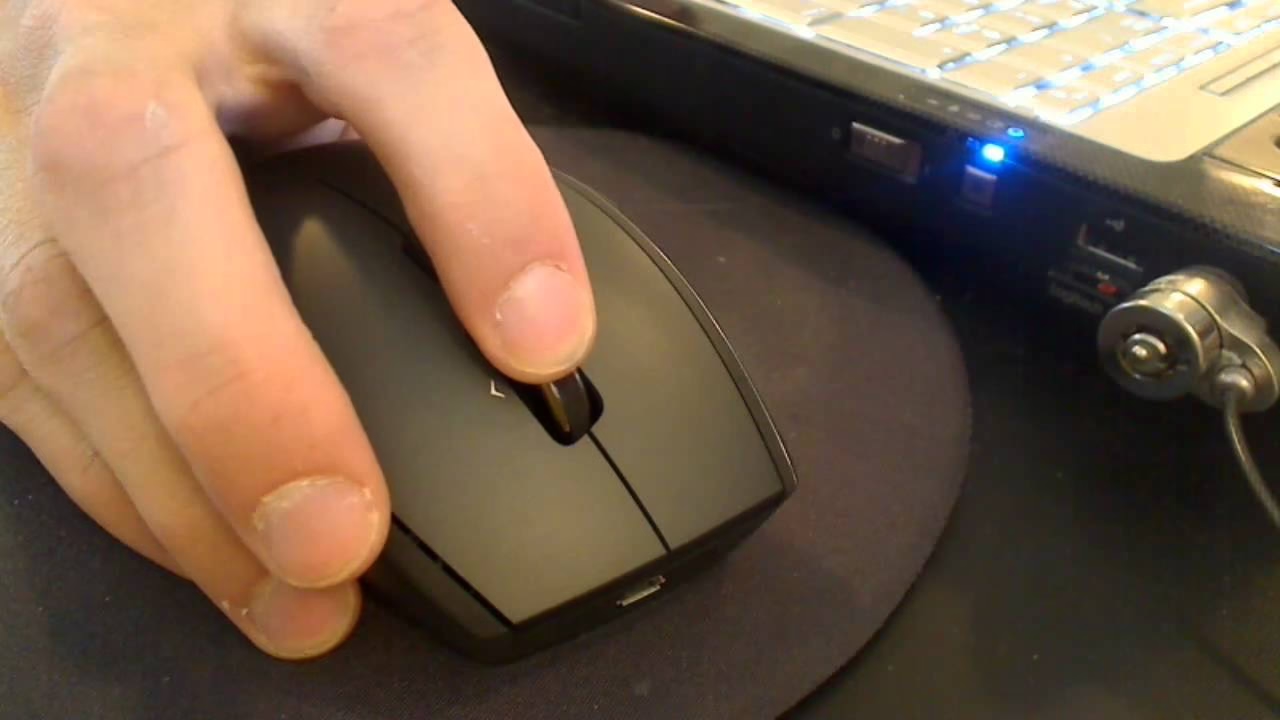
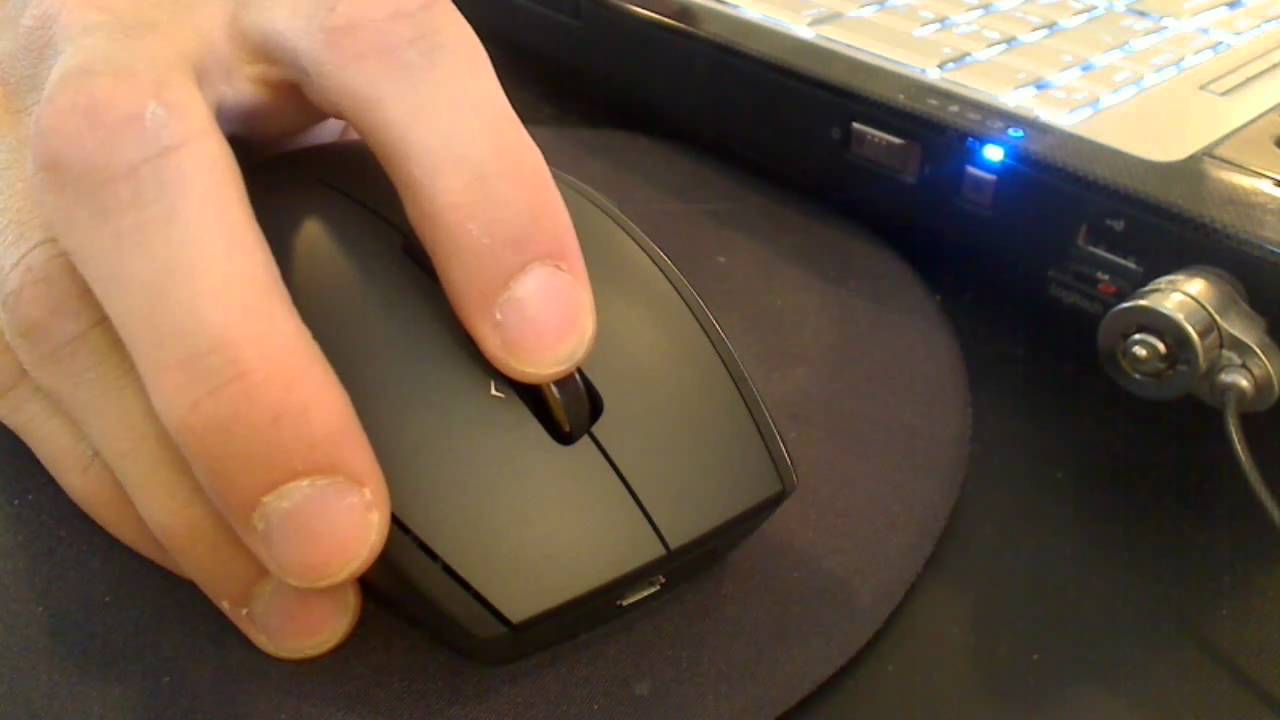
Is your middle mouse button not working lately? You can see the light of the mouse, but still, you cannot scroll the web page up and down using the scrolling wheel of your mouse? Confused? Just read this article to get acquainted with different reasons for the ‘middle mouse button not working’ issue and try some fixes discussed below before thinking of buying a new mouse.

Middle mouse button not working

Possible reasons for middle mouse button not working in Windows 10

The Middle mouse button is not only used for scrolling on the webpage but also used in many shortcuts of Chrome and Firefox, which saves a lot of your time while surfing. It might be quite annoying if it stops working all of a sudden. Although there isn’t any definite reason for its failure, but the abrupt change in your mouse functionality can be due to the following reasons:

  1. Connection issues between your mouse and the computer.
  2. Hardware issues in your PC.
  3. Internal mouse issues.
  4. The mouse driver on your PC might be corrupted and needs to be updated.
  5. Some programs running on your PC might have changed the registry settings of your mouse.

This list can go on, but you can stop worrying as this article will walk you through a few solutions that might help you fix the middle mouse button issues.

Possible solutions to fix the Middle mouse button not working issue in Windows 10

1. Check for the hardware issues on your PC

 There is a possibility that the USB cable connecting your mouse and PC has some problem, or the USB port where your mouse is connected is not working correctly. Carry the following steps to ensure that your hardware is working appropriately.

  1. Unplug the USB cable from your device, which was connecting the mouse and your system.
  2. Wait for a few seconds to allow drivers for the keyboard and mouse to get unloaded from Windows.
usb cable
  1. RePlug the USB cable and check if the middle mouse button is working now.
  2. If the above method didn’t work for you, then try to use another USB port on your system and check if the mouse works. 
  3. If still the middle button of your mouse is not working, then connect your mouse to another PC and check if it works there.
  4. If it doesn’t work on another PC, then there might be an internal issue with your mouse, and you have to replace it, but if your mouse works perfectly fine on another PC, you can try the next method to get more details about the hardware issue on your PC.

2. Reset your wireless mouse

If you are using a wireless mouse, then there might be connection issues between the receiver and your system, or a simple reset is required to fix your mouse’s problem.

Note: You have to read the user manual of your mouse to get the exact steps to reset your mouse.

Steps:

  1. Locate the reset button behind the mouse and press it to reset the connection between your mouse and the system.
  2. Unplug and plug back the USB receiver of the mouse to your system.

Now check if the middle button of your mouse has regained its original functionality. If not, then jump to the next method.

3. Reset the mouse setting

Resetting mouse settings to default may help you to resolve the issue. You can follow the below-given quick steps to change the mouse settings in the Windows 10.

  1. Type mouse settings in the Cortana search bar.
  2. Choose Change your mouse settings from the list of search results and left-click on it to open it.
reset the mouse setting
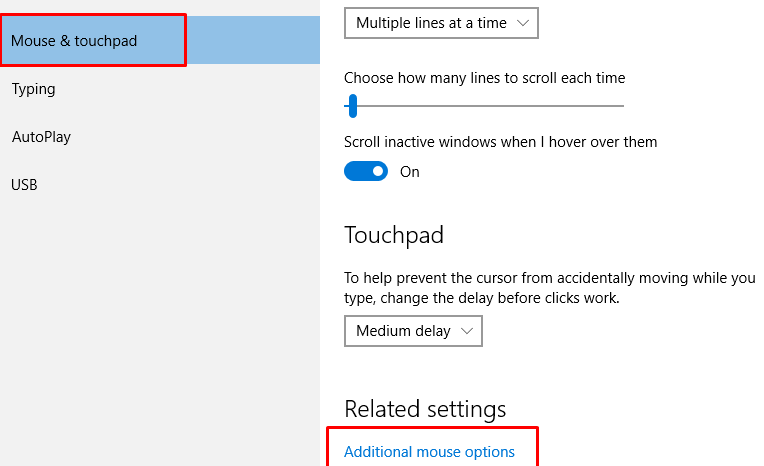
  1. Click on Mouse & touchpad option from the left panel.
  2. Click on the Additional mouse setting in A suitable under the Related settings option.
mouse and touchpad
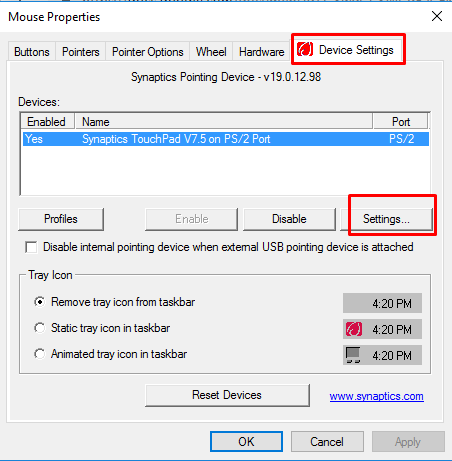
  1.  Click on the Device Settings tab in the mouse properties window. There you can see one device already selected.
  2. Click on the settings button.
mouse properties
  1. Press down the Defaults button to set all the properties of the mouse to default. 
default mouse button
  1. Restart your system and check now if the middle button of the mouse is working without any problem. If there is still an issue with the mouse, then you can try the next method.

4. Update the mouse driver

If there is a defect in your mouse, specifically the middle mouse button not working, in this case, you can try uninstalling a mouse driver and allow your system to install a suitable driver for your mouse on restart automatically. Find out quick steps to implement this method.

  1. Type Device Manager in the Cortana search bar and choose it from the search result.
  2. Left-click on it to open the Device Manager window.
  3. Locate Mice and other pointing devices from the list and expand it.
device manager
  1. Choose your mouse name and right-click on it.
  2. Click on the Uninstall option from the pop-up menu.
uninstall
  1. Wait for a few seconds to complete uninstallation and restart your PC.
  2. A suitable driver for your mouse will get loaded automatically and now check if this solution helps. So any progress to the middle mouse button not working issue. Don’t worry if you are still stuck. There are more fixes coming on the way.

5. Disable the Save power feature for the mouse

In Windows, there is a feature to save power. If that feature is enabled, then it switches off that device when not used to save energy. You can try unchecking it for your mouse to fix the middle mouse button not working issue.

Note: Before making changes, create a Restore Point to ensure backup if anything goes wrong and log in as admin on your system to change the settings.

Steps:

  1. Type Control Panel in the Cortana search bar and open it.
  2. Click on View devices and printer under the Hardware and sound section.
computer settings
  1. Choose your mouse under the device section and right-click on it to select properties.
right-click
  1. Click on the hardware tab and choose your mouse under the Device functions section.
  2. Click on the Properties button.
usb optical mouse setting
  1. Click on the Change settings.
  1. Under the Power Management tab uncheck the option ‘Allow this computer to turn off this device to save power.’
power management tab
  1. Click on Ok to apply changes and restart your PC.
  2. I hope this helps! If not, then try the next method.

6. Troubleshoot your mouse using an in-built tool

Windows offers an in-built tool Hardware troubleshooter to repair hardware devices attached to your system. You can try using it to fix the middle mouse button not working issue and regain its standard functionality. Within a few clicks, you can finish this process.

Steps:

  1. Type Control Panel in the Cortana search bar and open it.
  2. Click on View devices and printer under the Hardware and sound section.
  3. Choose your mouse under the device section and right-click on it. Click on the Troubleshoot option from the pop-up menu.
troubleshoot
  1. Wait for a few seconds and allow the troubleshooter to find the problem and fix it.
completed troubleshooting
  1. Restart your PC once done and then check if the mouse issue is resolved.

7. Modify registry settings

There is the registry value for Wheelscrolllines, which decides how many lines you can scroll using your mouse’s scroll wheel. Due to some reason, this value might have been tampered disabling your mouse middle button. We can set this value to 3 and scroll three lines at a time on the web page. You can check and reset this value by following the below-given steps.

Warnings: Create a Restore Point before implementing this method to take a backup of your system settings. Editing a registry is a critical process, and if anything goes wrong, it would have significant consequences.

Note: Log in as admin to make changes in the registry of your system.

Steps:

  1. Press Windows + R key to open the Run dialogue.
  2. Type regedit and press enter to open the registry editor window.
  3. Expand the HKEY_CURRENT_USER folder from the left panel.
  4. Press on the control panel and click on the desktop to open a few settings in the right-panel.
modify registry settings
  1. These settings are listed alphabetically, locate WheelScrollLines, and check if it is set to 3. If it is not set to 3, then right-click on it and choose modify.
wheelscrolllines
  1. Set WheelScrollLines value to 3 and press the Ok button.
value data 3
  1. Restart your PC and check if his solution worked for you. Don’t lose hope. You can try the next method if you dint get the expected result. If you still find that the middle mouse button not working issue persists then consider moving on to the next solution at the earliest.

8. Install original mouse drivers from the manufacturer’s website

Windows use generic drivers for the mouse, which works perfectly fine most of the time. But you can try device-specific drivers to fix the issue with your device. You can find one for your mouse from the manufacturer’s site, download and install it. Check if this helps!

9. Scan for the virus

If none of the above solutions worked for you, then you can try this method. There might be some malware affecting your mouse functionality. You can run any robust antivirus on your system to check and remove viruses from your PC. Restart your PC and check if it helped to resolve the issue. This ought to be a fix to the middle mouse button not working issue, if not any of the above solutions.

Bottom Line:

This article has offered nine possible solutions to fix the disabled middle mouse button. They are worth trying and don’t require much technical knowledge to implement. You can give it a thought to try them before purchasing the new one. Update us if you come across any new solution to fix the middle mouse button.

Why My Discord Won’t Open? [RESOLVED]

Very often we come across a ‘why does discord not open’ issue. We have come up with multiple quick solutions to this issue.

If you are into gaming, you must have used Discord. Discord is a messaging and VoIP app used primarily by gamers. Sometimes you might encounter an annoying encountered an annoying JavaScript error when trying to install discord you can fix the discord javaScript error In Less Than 5 Minutes. Nowadays, discord has tried to focus on attracting users other than gamers and to make it an all-purpose chat and social media platform. But it is still known for the gaming communities and servers.

Discord Won't open

Discord provides you the option to download its app on PC apart from the website login. It is easy to use and if you are a hardcore PC Gamer, nothing can be better.

But in recent times, users of the desktop application for Windows are seen posting issues saying, “why discord does not open?” or “my discord won’t open” or “why discord does not open”. Let’s try and figure out a solution to this problems.

My Discord Won’t Open- Help!

Discord and Windows 10 is a partnership made in heaven. But this is often ruined when the app fails to open. Sometimes, it will not respond at all. Other times, it will show a completely blank screen. Even the developers of the app are riddled by the fact and are unable to pinpoint the exact reason for this weird behavior of their desktop app. But it can easily ruin your game nights, particularly when you are playing a multiplayer game. So, how to fix if your Discord does not respond or open up?

7 Ways to fix the issue of Discord App not opening

Disclaimer: If you often wonder that “how to fix discord not opening” or “discord desktop app won’t open” error, then we have the perfect solutions for you to fix that. Before starting any of these methods, kindly move slowly and take one step at a time and at your own risk.

1. Uninstall and then, reinstall the discord if discord does not open

If your discord wont run, the classic maneuver that often solves the mightiest of problems. This is not the best, but arguably, the easiest solution. Chances are, your app might start working again. You can also try and reboot your PC or simply update the app or Windows itself. If this doesn’t solve the problem, it’s time to get technical.

There are chances that you are still stuck with the typical, why discord does not open If yes, then please keep reading.

2. Disable your VPN

Do you often play games that are not available in your region over a proxy server? If yes, you must be asking this question to yourself quite frequently- “Why discord does not open”

The answer is- Discord hates VPNs. If you disable the VPN, your app will start running smoothly again.

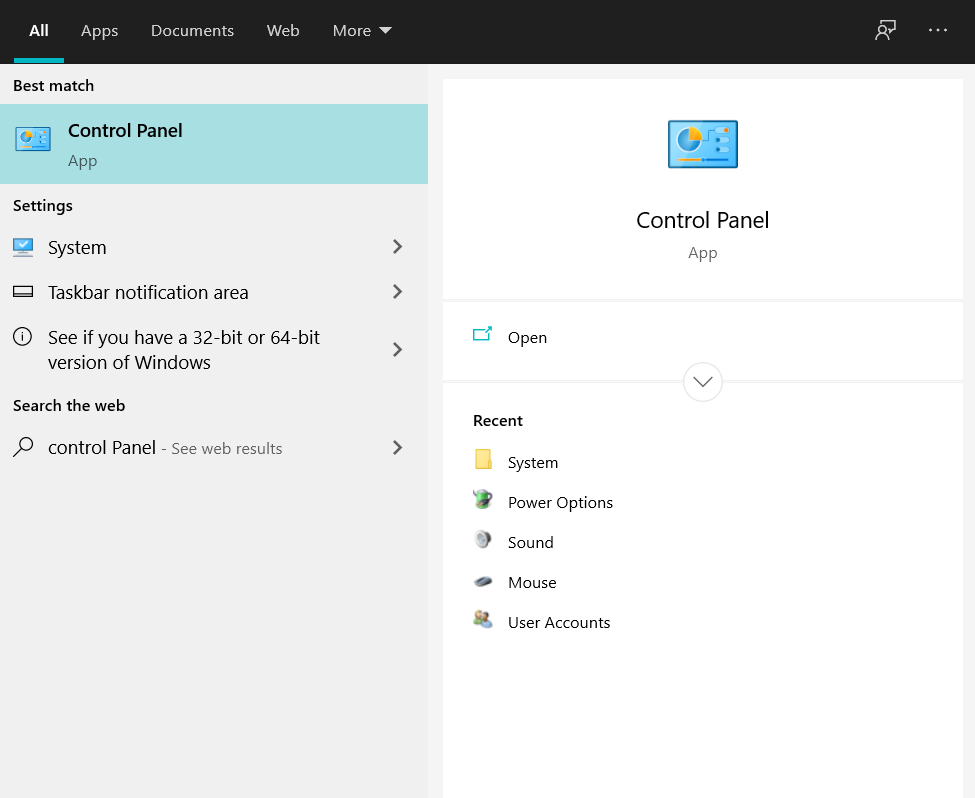
Step 1: Go to the search bar on Windows and type in the Control Panel.

control panel

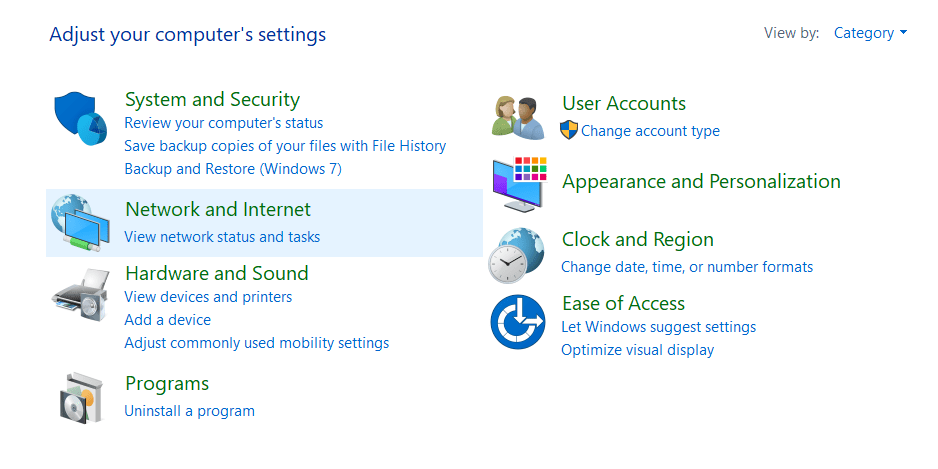
Step 2: Click on the Control Panel result and select Network and Internet.

adjust your computer's settings

Step 3: Select and click on Internet Options.

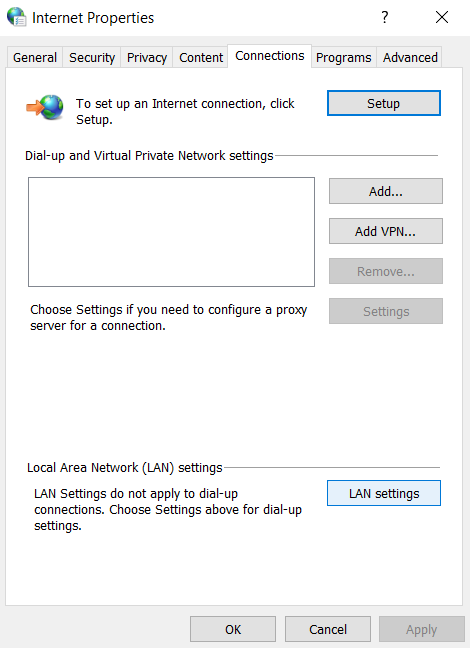
Step 4: From the options that appear in the new tab, select Connections.

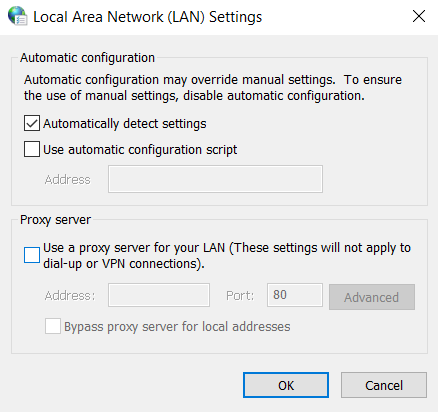
Step 5: Select LAN Settings.

Internet properties

Step 5: Uncheck the option ‘Use a proxy server for your LAN’.

LAN Settings

Step 6: Select OK and Launch the Discord App after that.

This should easily solve the issue. If your Discord app still won’t open, the problem is running deep down. But worry not, there are more ways to fix this.

3. Kill the task to solve ‘why discord does not open’ error

Stopping the app completely and then relaunching it often solves the problem.

How to do it:

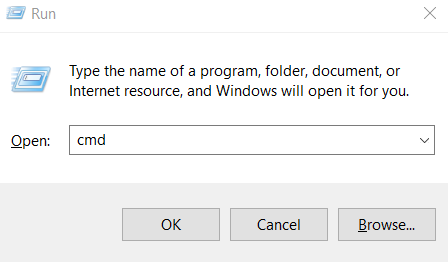
Step 1: Press Windows Key+R. A search bar will appear.

cmd

Step 2: Type in cmd and click OK.

Step 3: You’ll enter the command prompt. Now, type taskkill /F /IM discord.exe (as it is) and hit Enter.
Step 4: Relaunch the Discord app.

If you are still trying to ask questions such as, “why is discord not opening?” or “why won’t discord open?” Then worry not, and jump on to the next fix, it might take you a better position.

4. Reset Time and Date

This is a bizarre trick, but it is often seen that Discord does not open if the date and time are not set accurately.

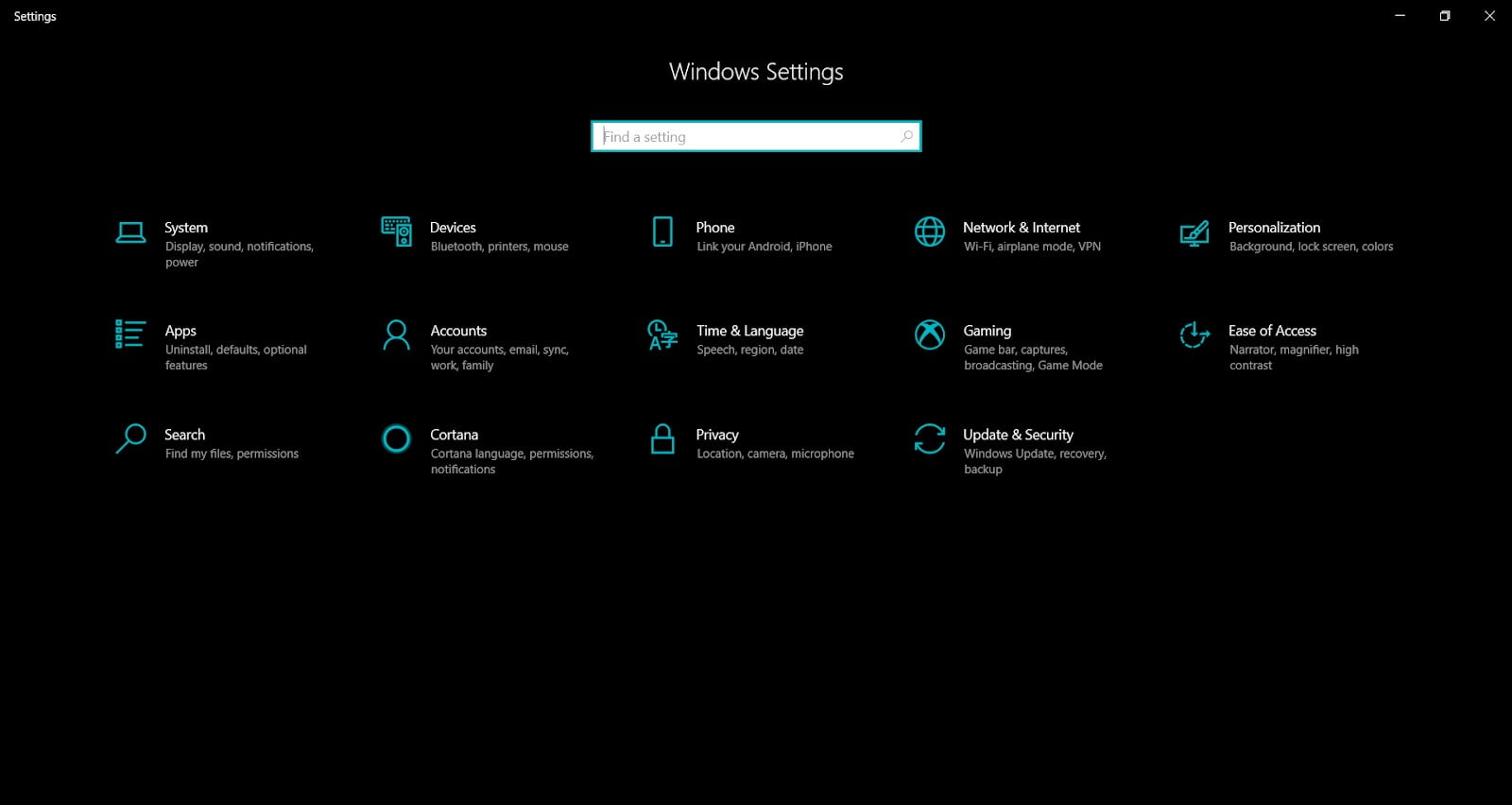
Step 1: Hold the Windows Button and press I.

Windows button

Step 2: Select Time and Language.

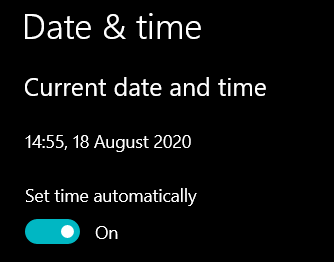
Step 3: Enable Set Time automatically.

sat date and time

5. Resetting the DNS

If you are still stuck with ‘discord app not opening’ issue, then try this!

Resetting the DNS also works as Discord uses the internet to run. Connectivity issues might stop your app from launching. And maybe that’s the reason you are wondering why won’t my discord open! To reset DNS, follow these steps:

Step 1: Hold Windows Key and press R.

Step 2: Type in ipconfig/flushdns (as it is).

Step 3: Hit Enter.

6. Login on the Discord Browser

This is another unorthodox, yet effective way on how to fix Discord not opening error. Follow the below given simple steps-

Step 1: Launch the Discord App on your PC (no matter if it opens or not).

Step 2: In your browser, go to Discord’s Web App and login to your account.

discord web app

Step 3: If this works, you’ll get a popup asking if you want to continue using the browser app or open the desktop app. Choose the desktop app and you’ll get your app running back normally.

7. Deleting Discord’s LocalAppData

Some residual data might be stopping you from accessing the Discord app and this might be one of the reasons because of which you are getting discord app not opening issue. To resolve this, follow the given steps:

Step 1: Press Windows Key+R

Step 2: Type in %localappdata% and hit Enter.

run

Step 3: Select all the files that contain the word ‘Discord’.

Step 4: Delete all the files and empty the Recycle Bin.

Step 5: Relaunch the Discord App.

In this way, you can come up with a solution to ‘my discord won’t open’ and continue playing and discussing the games you love!

Conclusion

Discord is a beloved application used by millions of games around the world. Many users have complained frequently about the Windows app not opening properly. So, if you are a gamer and want your gaming discussions to go on without any hassle, we have provided you with some quick and easy solutions. Hope you are no more worrying about my discord won’t open problem. Let the Games Begin!

If you still aren’t on discord do try and this app as it is super easy and fun!

Youtube Comments Not Showing Up? Try 8 Easy Fixes!

Are you also struggling with the youtube comments not showing errors? This guide will serve you as a permanent fix to this issue.

YouTube is a platform that hardly needs any introduction. Its widespread use is exponentially increasing every day. Thanks to digital marketing, every Jack is a champion in this trade, and is present some or the other way, on this platform. 

Comments on YouTube

No! seriously I mean it. From kids to elderly parents, one and all are YouTube users or even content hosts.

That said, lately, in a platform so huge, there have been a lot of customers complaining about youtube comments not showing issues. Today, I am here with some handy solutions to the ‘YouTube won’t load’ issue that is prevailing among many a user.  

Fix the ‘YouTube comments not loading’ issue with these simple fixes

Here are 8 easy fixes. Please try them one at a time and make sure that you restart your system after the fix, for better results.

1. Internet Connectivity can fix comments not showing on youtube:

Major issues on the computer system are typically the silliest. Trust me! Many times the solution is as simple as just a button press, which triggers all the big issues. So, foremost, check your internet connectivity. 

Try to restart your system. If the problem is with your network, then make sure the internet is all set and stable to proceed. 

Once you ensure that was the factor, try and post your comments on YouTube. If still youtube not showing comments then go to the next fix. 

2. Wait for the official fix for youtube not showing comments

Statistics state that as of February 2017, more than 400 hours of content was uploaded to YouTube every minute. So many video uploads would certainly pose innumerable issues on the go. In addition that more than one billion hours of content is being watched on YouTube every day. The records in May 2019 stated that more than 500 hours of video content are uploaded to YouTube every minute.

That said, the YouTube team is a wonderful group of professionals, who are continuously striving to keep pace with the excellent users and in the process of arranging new improvements and fixing issues. 

So, if you find stuck at some point in posting comments and encounter the error saying ‘YouTube comments not showing’. Then don’t worry. Just wait for the changes to be implemented or at least get reverted to the original. Either way, you are left with no immediate fix. You need to halt the process for a while.

But, if you happen to find the same ‘YouTube won’t load’ issue, even after a day or two, then probably you need to fix it some other way. 

3. Clear browsing data to avoid YouTube won’t load error:

All of you might be very well familiar with cache data. Several websites and applications try to save their data locally on your device. The answer to the typical question “ Why are my YouTube comments not showing?” could be lying in this data. Yes, the next time when you try to access data from such websites, there are chances of encountering some missed data or missed cache files. 

So,  when you may come across, my YouTube comments not loading, Chrome and other websites might be asking for clearing the logs. Just clear the browsing data in chrome and YouTube and try posting your comments.

You can clear all your Google Chrome browsing data with either of the two simple steps:

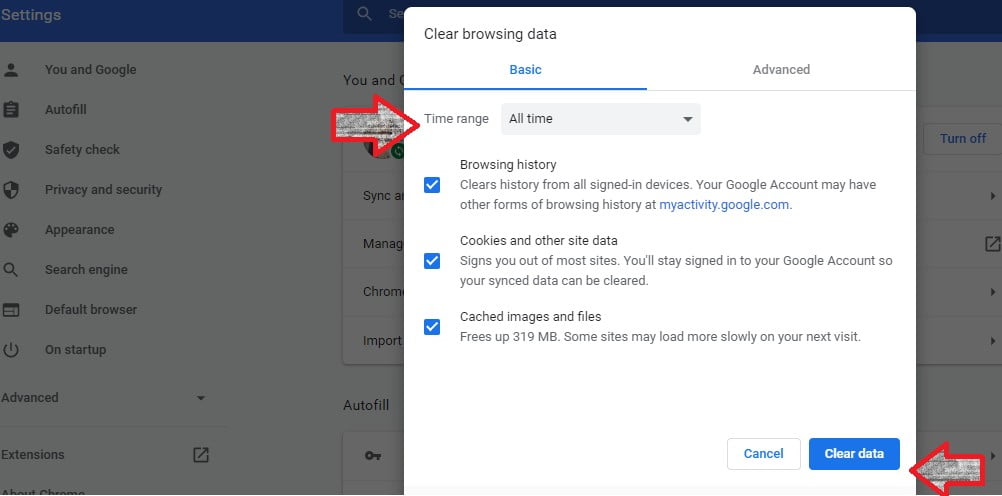
3.1 Clear browsing data using Ctrl + shift + del on a new Browsing Window.

Now this works well on Chrome, Mozilla Firefox, and Microsoft Edge.

Just open a new browsing window and click in the search tab and press  Ctrl + shift + del

clear browsing data

Or 

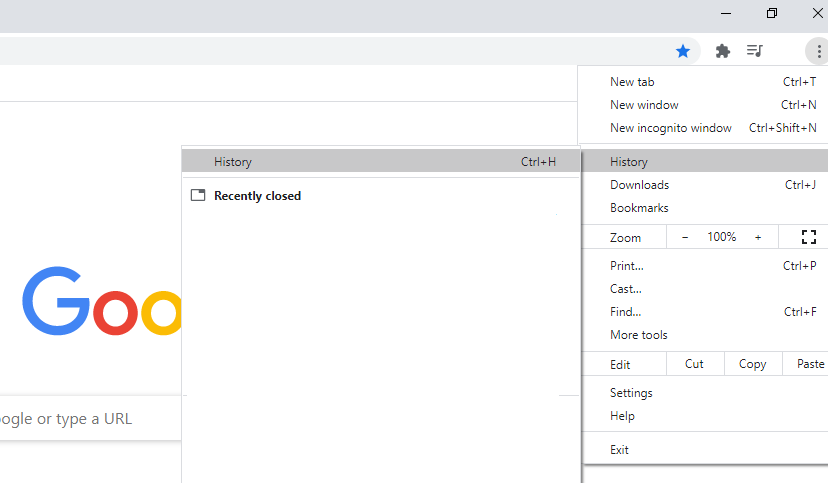
3.2 Clear browsing data through History

clear history

So, that’s how you clear the browsing data and pave for commenting on YouTube.

4. Clear your systems temp files

Another quick fix for the ‘youtube comments not showing’ issue is as simple as clearing the temporary files. 

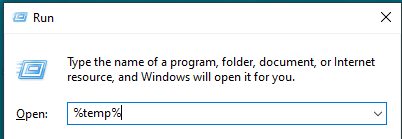
  1. Run 
  2. Type  %temp% 
cmd
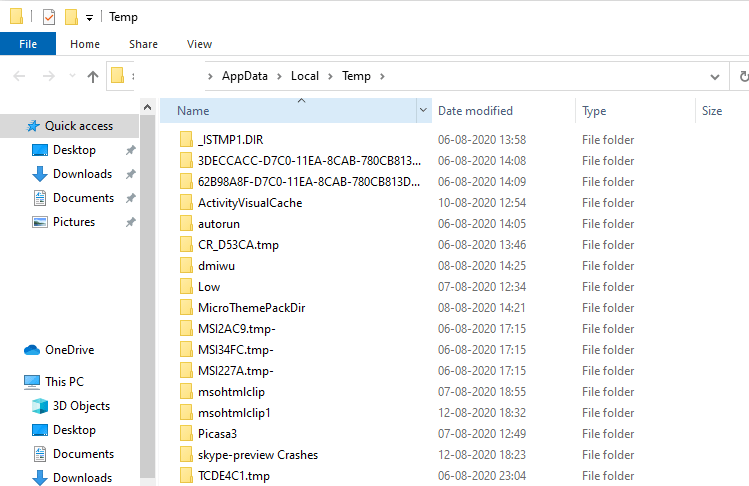
  1. Select all the files in the list and clear.
temp

Clearing temporary files is as simple as that. And it can help you solve your YouTube comments not showing errors. So try it.

5. Revert to the old YouTube layout

If all the above solutions to correct the ‘Why are my comments not showing on youtube?’ question, fail to work, then you can possibly try this one. 

Change the YouTube layout back to the older version. This might fix the issues that are cropping up due to some error in the new layout or some compatibility issues on your device.  According to Alexa Internet, YouTube ranked 2nd most popular site just behind Google, in August 2018. That explains the constant renovations and advancements the website would be undergoing to maintain the position. 

So, next time when you get stuck, with the error ‘YouTube comments not showing’, you can change the layout of YouTube in your system, to verify your compatibility and hence derive a solution for the problem.

             How can you change the YouTube layout?

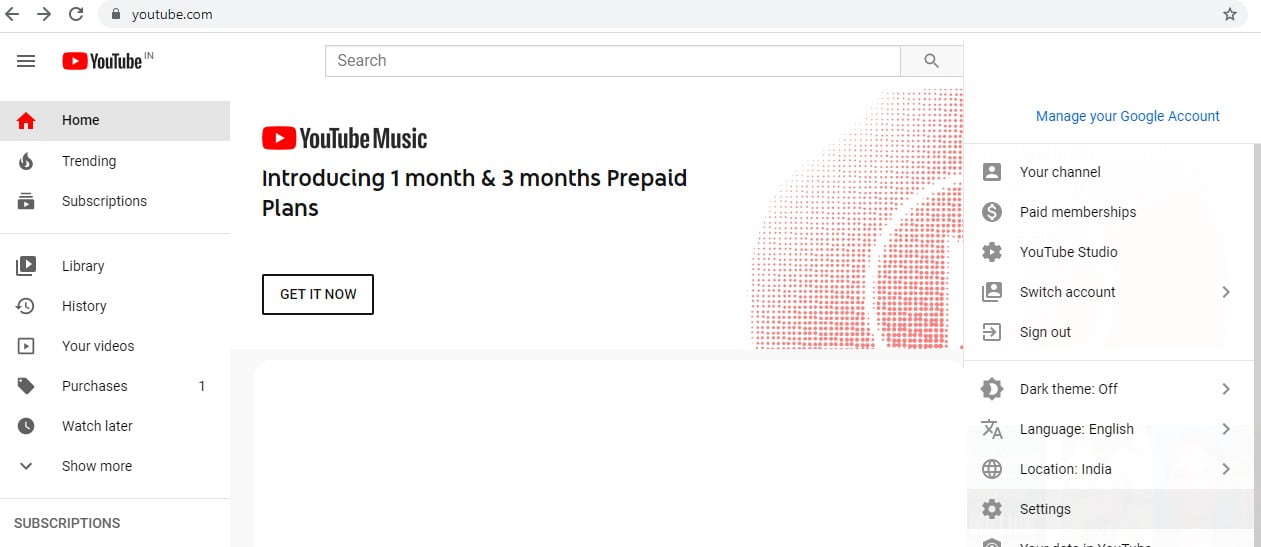
  1. Open YouTube and go to your profile and click to open Settings.
YouTube Music
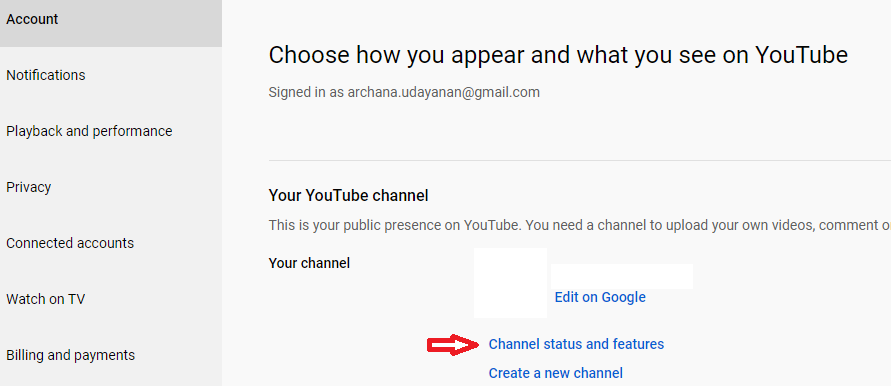
  1. In settings, go to Channel status and features.
YouTube Channel settings
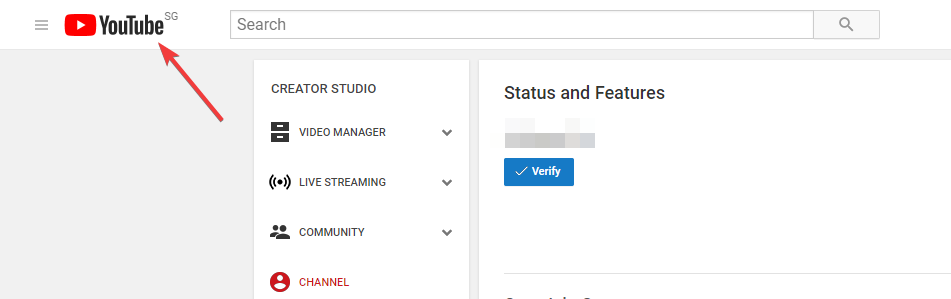
  1. Now click on the main YouTube logo
YouTube Status and Features

This should revert you to the older YouTube layout and resolve your YouTube won’t load issues. 

6. Disable proxy connections

YouTube, like several other applications, encounters errors when used via a proxy network. Therefore, any other proxy website on the VPN service of your device(if any) might be causing this ‘youtube comments not showing’ error.

So, you can disable all proxies and VPN apps when you are trying to access YouTube and try to comment. This should resolve the issue, or jump on to the final solution.

7. Disable misbehaving extensions

Sometimes you experience the ‘My YouTube comments not loading’ error after installing certain extensions. If you happen to encounter the same then this might be some broken extension issue. 

There is a simple fix to this issue then. Open the page from an incognito window in your browser. And Bingo! my youtube comments not loading, Chrome solves just like that.

8. Clear Youtube App Cache and App Data(For Android and iPhone)

If you discover my YouTube comments not loading error in your android phone then the best option is to clear the YouTube App Cache and App Data. This is the best-recommended fix for any technical problems pertaining to apps.

While if you happen to find the error on iOS, then you don’t get to use this option.  The best easy solution to this error would be to remove the app and reinstall YouTube app on your iPhone. It automatically clears the app data and fixes the ‘My YouTube comments not loading’ issue

Concluding Note:

Here, you have the 7 exquisite solutions to your query ”Why are my youtube comments not showing?” Fix your YouTube today and enjoy the latest videos and don’t forget to comment!

Try 7 Quick Simple Solutions to Fix Surface Pen Not Working

Is your surface pen not working? Sorry about that! But worry no more, we have come up with 7 ultimate solutions to fix suface pro pen not working.

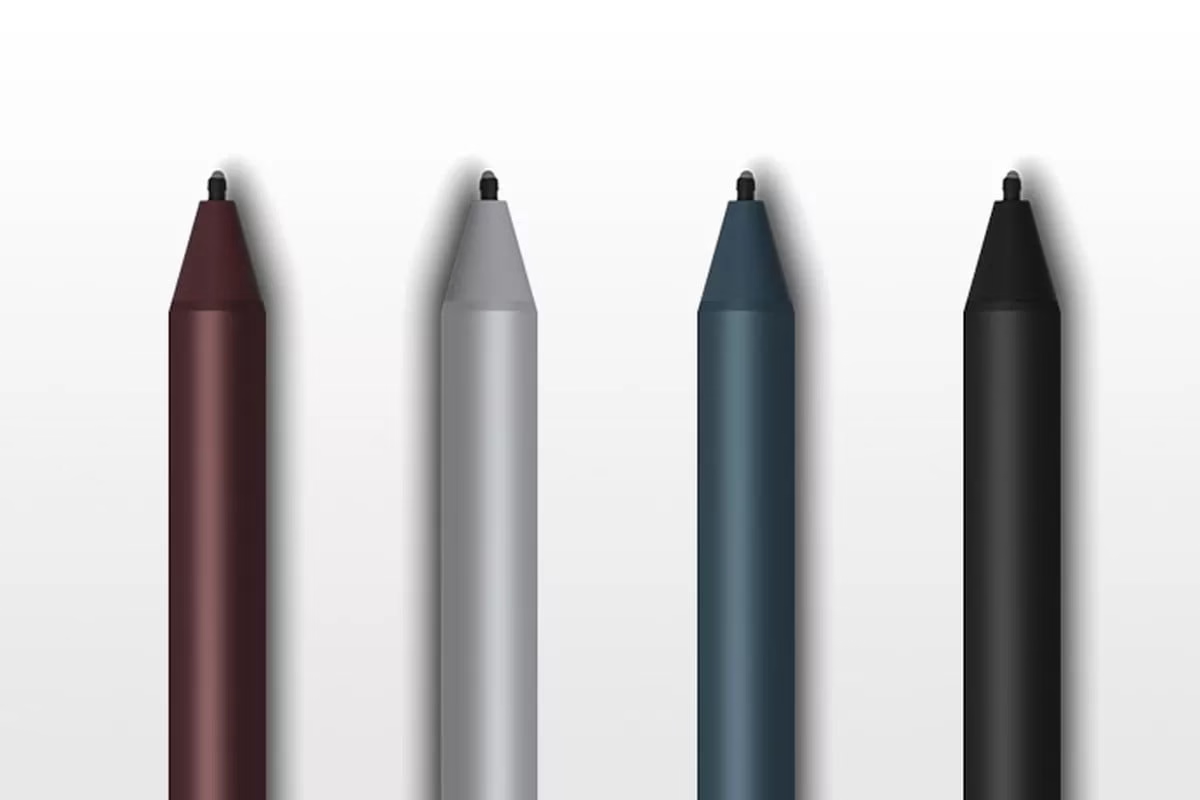
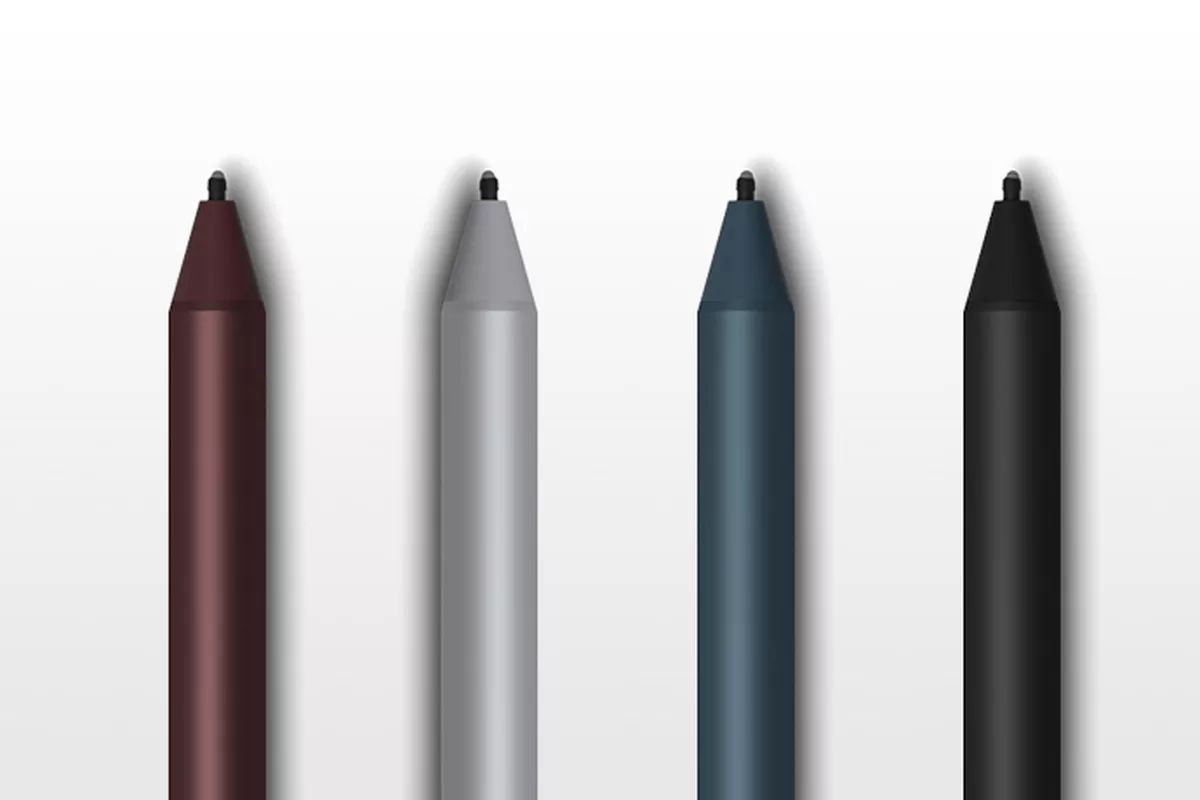
Surface Pen is a digital input device designed by Microsoft for its Surface computers. It is a digital pen that allows a user to directly write on the screen of your laptop or tablet. It is a very useful tool for artists who make digital artworks and is a really cool accessory to be used with your Surface Computer or any other device that allows using a Digital Pen.

surface pen

Surface Pen Not Working

Sometimes, due to several reasons, you may face the issue of Surface Pen not working. Sometimes, it misbehaves when used on certain apps. We are going to tell you all the possible solutions to get your Surface Pen back to work.

Disclaimer: These are the solutions we researched, tried and found successful. Some solutions are for software problems and some for hardware problems. Please follow these methods at your own risk.

Ways to Fix Your Surface Pen not writing

Most of the time, your Surface pro pen not working issue may be because of simple reasons like old batteries or your Bluetooth being disconnected. Other times, there might be some software problem. Let’s see all the ways to bring your Surface Pen back to life:

1. Update your system

The root of most problems in Windows can very often be traced to the system not being up to date. A simple update may fix the problem of your Surface Pen not working. Here’s how you update Windows:

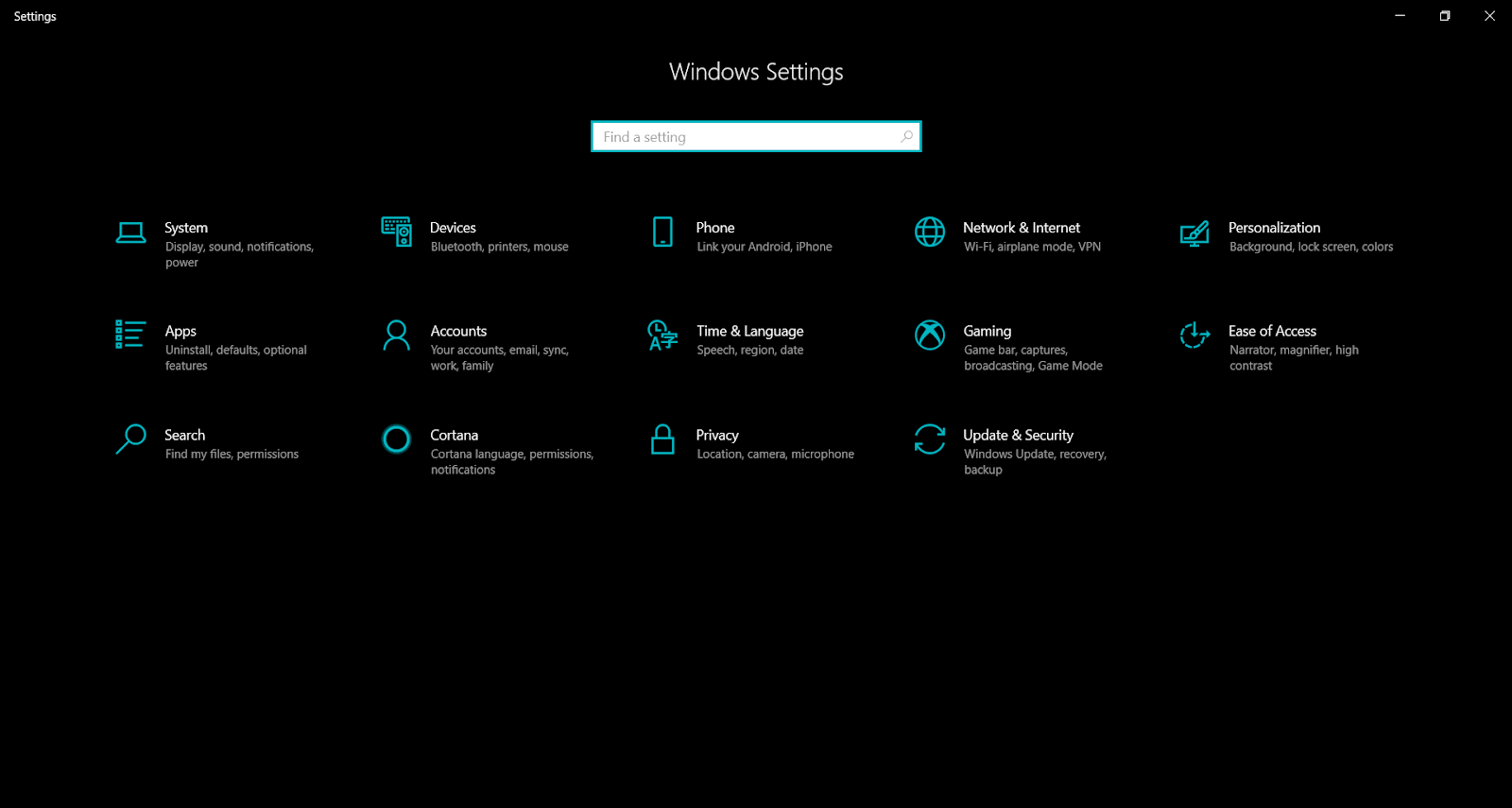
Step 1: Press Windows Key + I.

windows settings

Step 2: Click on Update and Security.

update & Security

Step 3: Choose Check for Updates and make sure you have a proper internet connection.

Step 4: Once all updates are installed, reboot your device.

This may have solved your problem of the surface pro pen not working. For more, refer to the below provided solutions.

2. Unpair and pair with your device to fix surface pen not writing

Sometimes, a glitch in the Bluetooth might stop your pen from functioning properly. Unpairing and pairing your pen with your device may get the job done. If surface pen not writing do the following steps.

Step 1: Press Windows Key+I.

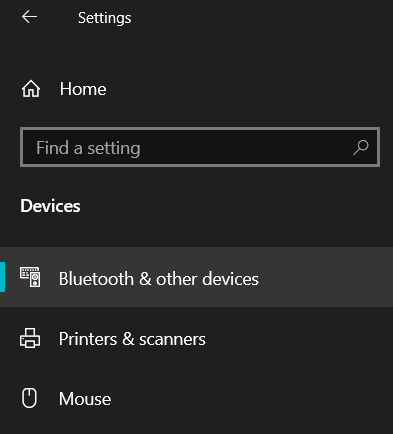
Step 2: Click on Devices.

devices

Step 3: Select Bluetooth and other Devices from the left panel.

settings

Step 4: Find your pen’s name in the paired devices. Remove it to fix surface pro pen not working.

Step 5: Pair it again by searching for new devices.

This can bring your pen working again if surface pen not writing. If this method works, whenever your pen disconnects, you can follow the steps above.

3. Check the battery of your pen

battery

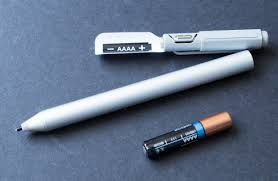
The Surface pen uses two batteries. One powers the pen and the other is for the buttons. There is a possibility that your battery might not be working properly and because of it, you are facing a surface pro pen not working issue. Just replace it. After that, check if the pen is working. If yes, then your Surface Pen will become as good as new.

If the problem of the Surface pen not working still persists, you may check the app or program that you are using is correct or not. You can fix surface pro pen not working by using the following method.

4.  Check if you are using correct App or Program

Not every app available on your Surface device can support the Surface Pen. Make sure that the app you are using supports the pen or not to fix surface pro pen not working. There is a simple way to find out:

Step 1: Tap on the pen icon on the taskbar to open Windows Ink Workspace.

Step 2: Choose a Screen sketch, then try and draw with your pen.

If it works, then the app is not compatible with the Surface Pen. Your pen, on the other hand, works fine.

5. Reboot your Surface Pen

reboot surface pen

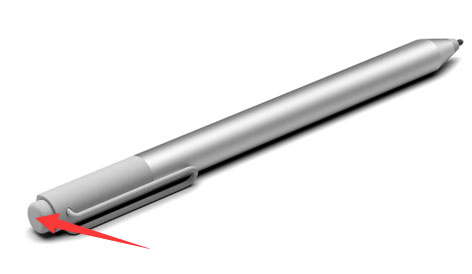
The classic maneuver that often ends up solving the mightiest of technical problems- Restarting your device. Rebooting your Surface Pen is very easy. Just press and hold the button of your pen for 10 seconds. The problem of “Surface Pen Not Working” should be fixed.

6. Troubleshooting for surface pen not working

The issue of your surface pen not writing or surface pro pen not working can be solved by running the Windows in-built troubleshooter.

To do so, follow these steps:

Step 1: Go to settings by pressing Windows Key+I.

Step 2: Go to Updates & Security.

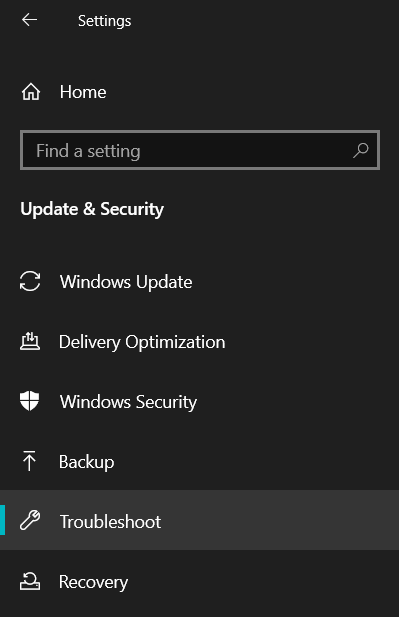
troubleshoot

Step 3: In the left panel, choose Troubleshoot to fix surface pen not working.

settings for troubleshooting

Step 4: Choose Hardware and Devices.

Step 5: Click Run the Troubleshooter.

If the problem is simple and glitch related, your pen will start working properly. You can also try and troubleshoot Bluetooth.

7. Replace your Surface Pen

There may be a chance that your surface pen is damaged beyond repair. In this case, you will have to change it. Go to Microsoft Support on either the online portal or if possible, your nearest Microsoft Store to get help.

Conclusion

Microsoft’s Surface Pen is an extremely useful device. It makes taking notes and scribbling on your screen very easily. Artists can doodle and make some awesome artworks using this incredible device. So, naturally, when your pen stops working, it causes a lot of trouble. We have tried to solve this issue of the Surface Pen not working by providing the easiest of solutions. By performing the steps above, your pen will be back to work.

10 Solutions To Fix Err_network_changed Error?

How to Fix ERR_NETWORK_CHANGED Error?

The ERR_NETWORK_CHANGED error in Chrome signals a network connection interruption. To fix it, restart your router, flush DNS by typing “ipconfig /flushdns” in Command Prompt, or disable VPN/extensions. Check for IP conflicts or update network drivers to restore stable browsing.

Are you always getting an err_network_changed error when you are trying to open any website? Don’t worry! This article can help you eliminate the stubborn  err_network_changed error and give you all details required to resolve this issue. You might have noticed that on the browser there are three sentences displayed, 

  • Your connection was interrupted(This is the impact of the error.)
  • A network change was detected(This is the reason for the error.)
  • ERR_NETWROK_CHANGED(This is the error code.)
err_network_changed

In this article, we will discuss in detail the possible causes and give tested solutions to fix this error permanently.

What is err_network_changed error?

You cannot access any website from your browser once you get the “Your Connection Was Interrupted, a Network Change Was Detected, err_network_changed” error. Changes in your internet network connection or browser settings stop websites from getting loaded on your system. Err_network_changed error inhibits you from accessing the internet completely.

Possible reasons for the err_network_changed error. 

Before directly jumping to the solutions, it is essential to know the reasons for the err_network_changed error. The following might be the possible reason for this error:

  1. Malware running on your system might be hindering you from accessing the internet regularly.
  2. Change in modem and computer configuration might be the reason for the error.
  3. Changes in DNS and TCP/IP settings might be the culprit.
  4. Network drivers might not be updated, resulting in network error while browsing.
  5. Faulty internet settings might be the culprit.
  6. VPN software running on your system might be causing the issue.
  7. Google Chrome settings are not as required to access the internet normally.
  8. Use of both Ethernet and Wi-Fi simultaneously.

Possible solutions to fix the err_network_changed error.

Most of the users have experienced this error in Google Chrome. Before troubleshooting, please check if you can access any websites through browsers other than Google Chrome. 

Solutions if the err_network_changed error persists only in Google Chrome.

Suppose you can access websites without any problem with other browsers. In that case, the good news is you don’t have to deal with network settings’ intricacies and, few changes in chrome settings might help to resolve the issue permanently. Check the following solutions one-by-one to resolve network change issue:

  1. Clear history in Chrome.

Most of the time errors are resolved but chrome opens the cached page in response to the request to open any web page. Clearing cache by deleting browsing data might be the simple trick required to resolve the error.

1. Open Google Chrome and press Control Key + H to open the history window.

2. Select the Clear browsing data option from the left panel.

3. Click on the Advanced tab and select all the options as displayed in the below figure.

4. Press on the Clear data button.

5. Restart your PC and check if you can now open websites easily.

clear browsing data
  1. Disable any extension if it is controlling proxy settings.

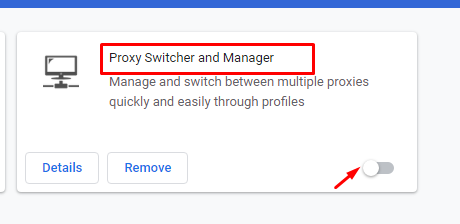
There are extensions like Proxy switcher and manager available in Chrome to control proxy settings. Please check if you have added any such extension, if yes then please disable it for the timing and check if err_network_changed error still reflects on your browser. Steps to remove the extension are as follows:

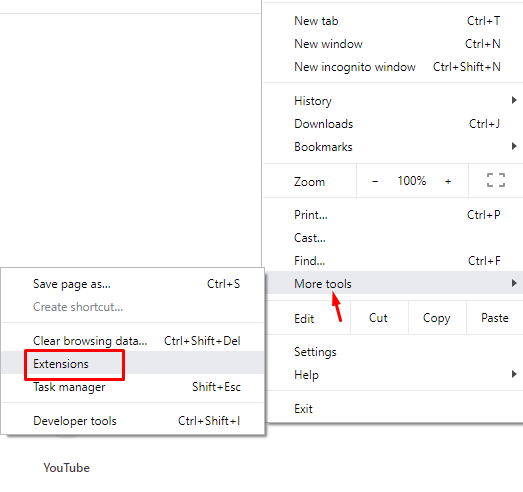
  1. Click on three dots present at the right-upper corner.
  2. Hover on More Tools and choose Extensions from the pop-up menu.
more tools
  1. If you find any extension controlling Proxy then toggle it to disable.
proxy toggle
  1. Restart your system and check if this solution worked for you. Move to the last solution if the above two methods didn’t help you.
  1. Reinstall Chrome.

Uninstalling and reinstalling chrome can help to fix most of the problems related to pop-ups, plugins, error codes, or Chrome updates. Please follow the steps given on Google support to accurately reinstall chrome. Restart your system and check if the network change issue still exists.

Solutions if the err_network_changed error persists in all browsers.

If you cannot access websites from any browser, there might be an issue with the internet settings, and the following solutions may help you to fix this error. Please try all the methods given below carefully, depending on the scenario in your system.

  1. Remove and reinstall VPN software.

VPN software helps you to access the internet without disclosing your identity and location by hiding the IP address. But it sometimes interferes with the functionality of your browser and leads to the err_network_changed error. If you have recently started using any VPN software then you can try to remove it and check if the network change issue is resolved. You can reinstall it again and check if the error appears again.

  1. Scan your PC using any antivirus to remove malware. 

Malware can affect network settings and browsers on your PC. It can open multiple instances of browsers in the background slowing down the overall speed of your system. You can completely scan your pc by using any robust antivirus and try to get back regular browser functionality. Try the next method if this method does not work for you.

  1. Modem/dongle restart.

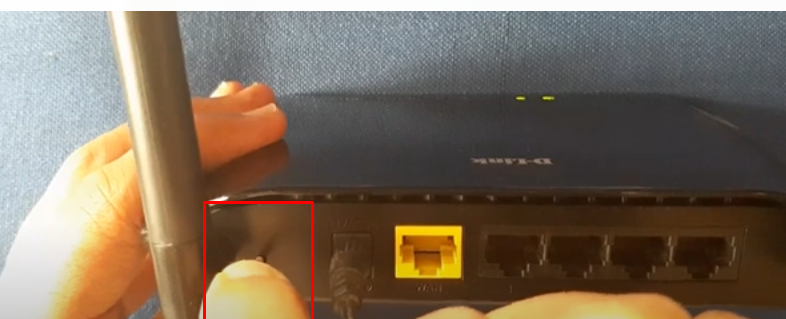
Resetting modem configuration might be the simple thing you require to overcome network change error. There are different ways to do it depending on your modem model. For resetting the D-link modem you need to insert the pin in the whole present below the reset text at the back of your modem.

modem restart
  1. Flush the DNS settings.

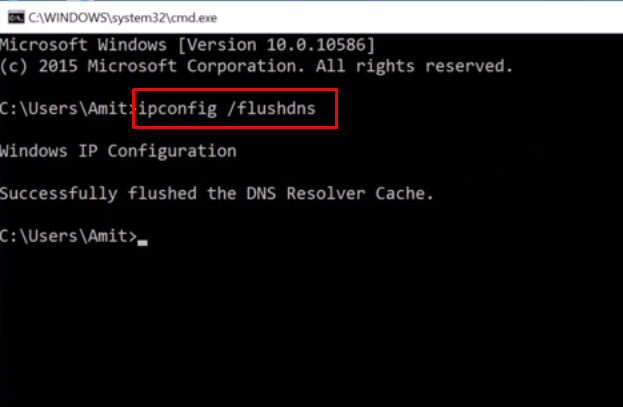
Flushing DNS eliminates all the cached entries of the IP addresses and their corresponding websites. It will also help to remove any faulty entry and might resolve network change errors. Steps to flush DNS settings in Windows10 are as follows:

  1. Press Windows Key + R to open the run dialogue box.
  2. Type CMD to open the command prompt.
  3. Press Control + Shift + Enter key to run the command prompt as the administrator.
  4. Type ipconfig /flushdns and press the Enter key.
cmd.exe
  1. Reboot to apply the changes.
  2. Reset TCP/IP settings.

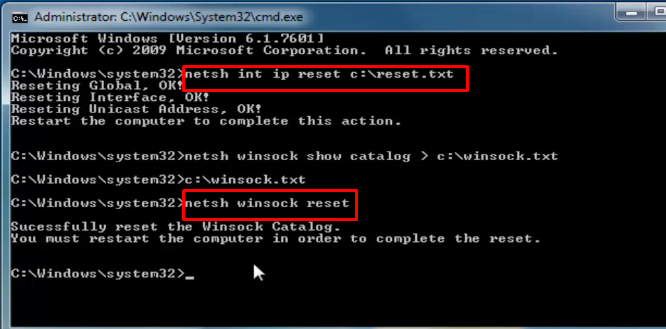
Setting TCP/IP to default fixes many browsing errors. Steps to reset settings are as follows:

  1. Press Windows Key + R to open the run dialogue box.
  2. Type CMD to open the command prompt.
  3. Press Control + Shift + Enter key to run the command prompt as the administrator.
  4. Type the following commands and press the Enter key after typing each command.
  • ipconfig /flushdns.
  • netsh int ip reset c:\reset.txt.
  • netsh winsock reset.
cmd
  1. Use Google’s public DNS.

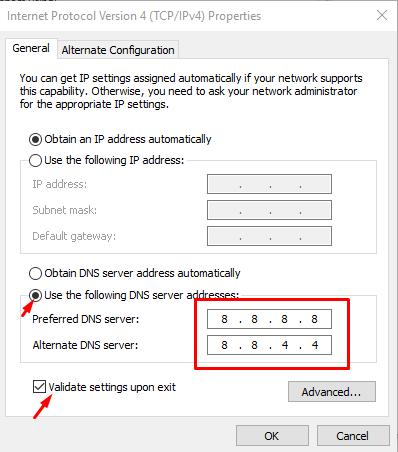
To access the web faster and securely you can switch from the current DNS provider on your system to Google’s public DNS. It uses IP addresses 8.8.8.8 and 8.8.4.4. It may also help to fix the err_network_changed error. Steps to change network settings in Windows10 to use Google’s public DNS are as follows:

  1. Type Control panel in the Cortana search bar and open Control Panel.
  2. Click on the Network and Internet option.
  3. Click on Network and Sharing Center option.
  4. Choose to Change the Adapter Settings from the left panel.
  5. Right-click on Wi-Fi and select Properties.

Note: Choose Ethernet or Wi-Fi depending on how you are connected to the internet.

  1. Select Internet Protocol Version 4(TCP/IPv4) and click on Properties.
Wi-Fi Properties 1
  1. Switch from Obtain DNS server address automatically to Use the following DNS server addresses.
  2. Insert following values 

Preferred DNS server: 8.8.8.8

Alternate DNS server: 8.8.4.4.

  1. Check-in Validate settings upon exit.
IPV4
  1. Restart your system and now check if you can open websites regularly on the browser.
  1. Disable save power feature.

This feature tends to save power on your system at times by setting a network connection to sleep. This feature helps with workstations or when you take a long coffee break, but it may also lead to err_network_changed error. Try disabling it for your network connection to stop receiving the error message ‘A network change was detected’. Steps to disable it on Windows10 are as follows:

  1. Type Control panel in the Cortana search bar and open Control Panel.
  2. Click on the Network and Internet option.
  3. Click on Network and Sharing Center option.
  4. Choose to Change the Adapter Settings from the left panel.
  5. Right-click on Wi-Fi and select Properties.

Note: Choose Ethernet or Wi-Fi depending on how you are connected to the internet.

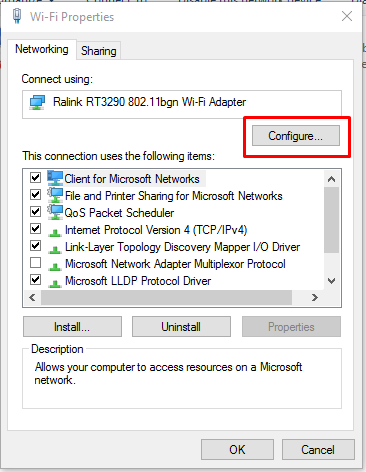
  1. Click on the Configure button.
Wi-Fi Properties
  1. Select the Power Management tab.
  2. Uncheck the option ‘Allow the computer to turn off this device to save power’.
Power management
  1. Press “OK” to save changes and restart your system to apply changes.

If still, err_network_changed error appears on your browser then try the next method.

  1. Don’t use ethernet and Wi-Fi on a single device.

If your system is connected to the internet via ethernet and Wi-Fi both simultaneously then the Operating system of your PC may get confused about the network to be chosen and lead to err_network_changed error. Please ensure that you use only one type of connection either ethernet or Wi-Fi to connect your system to the internet.

  1. Troubleshoot network problem in Windows10

Microsoft has given some guidelines to fix all network-related issues. Some solutions enlisted there are like reinstalling the network adapters, changing Wi-Fi profile settings, etc. You can check the detailed steps given on this site. This might help to fix the err_network_changed issue. If none of the above methods worked for you then you can try the last solution given below.

  1. Contact your ISP.

Last but not least you can contact your internet service provider to fix the ‘your connection was interrupted a network change was detected. err_network_changed’ error.

Wrapping up

 In the above article, we have tried to discuss all possible reasons and solutions to solve the err_network_changed error. To solve this error permanently you have to make changes either in the Google Chrome settings or your system’s network settings. Try all the solutions and contact us if you find difficulty implementing any solutions given in the above list. Update us with your comments on which solution worked for you. You can also contribute to add any new solution that helps you to resolve the network change issue other than the one mentioned in this article.