Home Blog Page 203

Gionee A1 – A Selfie Phone with Brilliant Display (Most Comprehensive Review)

Gionee is one of the first Chinese smartphone manufacturer to enter the Indian market and I got to say they do a brilliant market research. The Marathon series, the Gionee Marathon M5 Plus with 5020mAh battery, focusing the customers who wants more power. The selfie series, Gionee S6 Pro with selfie flash, focusing the people who wants extra light to their selfies. Finally the flagship device Gionee A1, upping the game by releasing a powerful combination of Selfie and Battery device. The A1 is destined to carry super selfie camera and a lasting battery. I have been using Gionee A1 as my primary device for more than 1 week and I am ready with a comprehensive review. The Gionee A1 pros, the cons, whether it’s a value for money deal, how the battery ‘actually’ works and more.

gionee_a1_front

Gionee A1 Specs

Let me quickly walk you through the device specs first; Try to keep this in mind so that you can easily relate things with the text I have written.

  • 5 inch FULL HD AMOLED display
  • Mediatek MT6755(Octa Core 2.0GHz) processor
  • 4GB RAM
  • 64GB internal storage which is further expandable up to 256GB
  • 13MP Rear camera and 16MP front camera with flash.
  • 4010 mAh battery
  • Fingerprint sensor
  • Android 7.0 Nougat
  • 3mm thick and weights 183g

What is in the Box

  • Gionee A1, the device
  • Silicon case for the device
  • Ultrafast charger
  • USB cable
  • Earphones
  • SIM card ejection tool
  • Paperwork

First Impressions

If you keep the premium looks and the great built quality aside for a while, weighing at 183g, the device feels a bit heavy. There is a beautiful, but deceiving, mirror finished Gionee logo on the back side of the device the metal ring made me mistake it for the fingerprint scanner. There is a physical home button into which they have incorporated the scanner, a perfect amalgam of tradition and modern technology. Why emphasis on tradition? When most of the smartphone manufacturers these days make the home button touch sensitive or replacing it with on-screen navigation buttons, in Gionee A1 you are left only with a choice of actually pressing the button. Personally, I didn’t like it. I wish they at least had an option to turn on the on-screen navigation button under settings or they could have placed the fingerprint scanner along with the logo.

First Boot

Like any other android smartphone, the first boot started with selecting language, connecting to WiFi, logging into Google account, selecting the backup option and a little bit of Gionee stuff. There was an option to set up the Amigo Care account which basically take care of the phone warranty and stuff.

Did you know? The Gionne A1 comes with a 2 Year manufacturer warranty.

Design and Build quality

Though the Gionee A1 felt solid in hands, I was not that intrigued by the design as it is similar to most of the smartphones out there. The aircraft grade metal body reassures high build quality and accentuates the overall look and feel. This, at the same time, made the device extremely slippery.
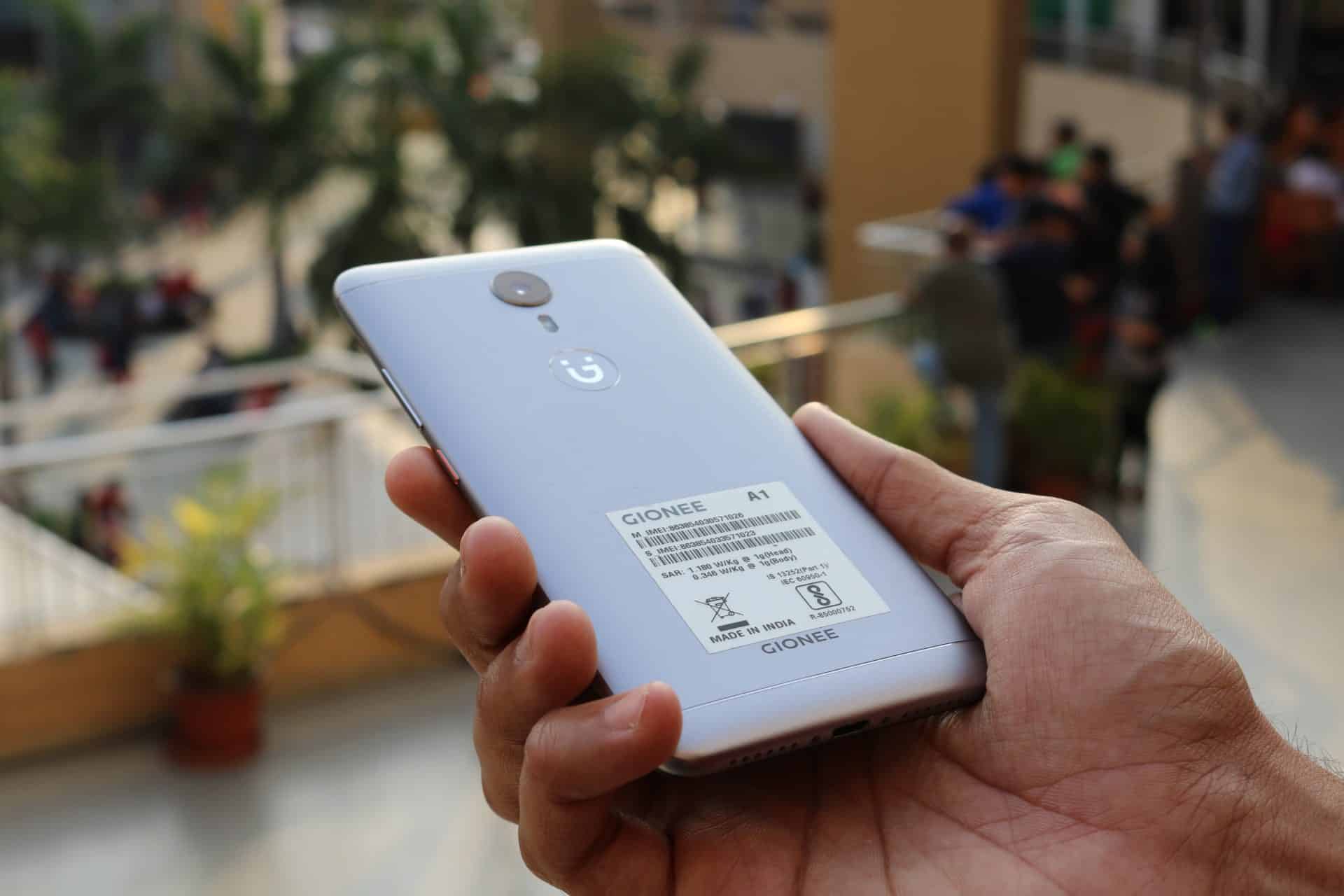
Gionee_A1_Back

Dimensions

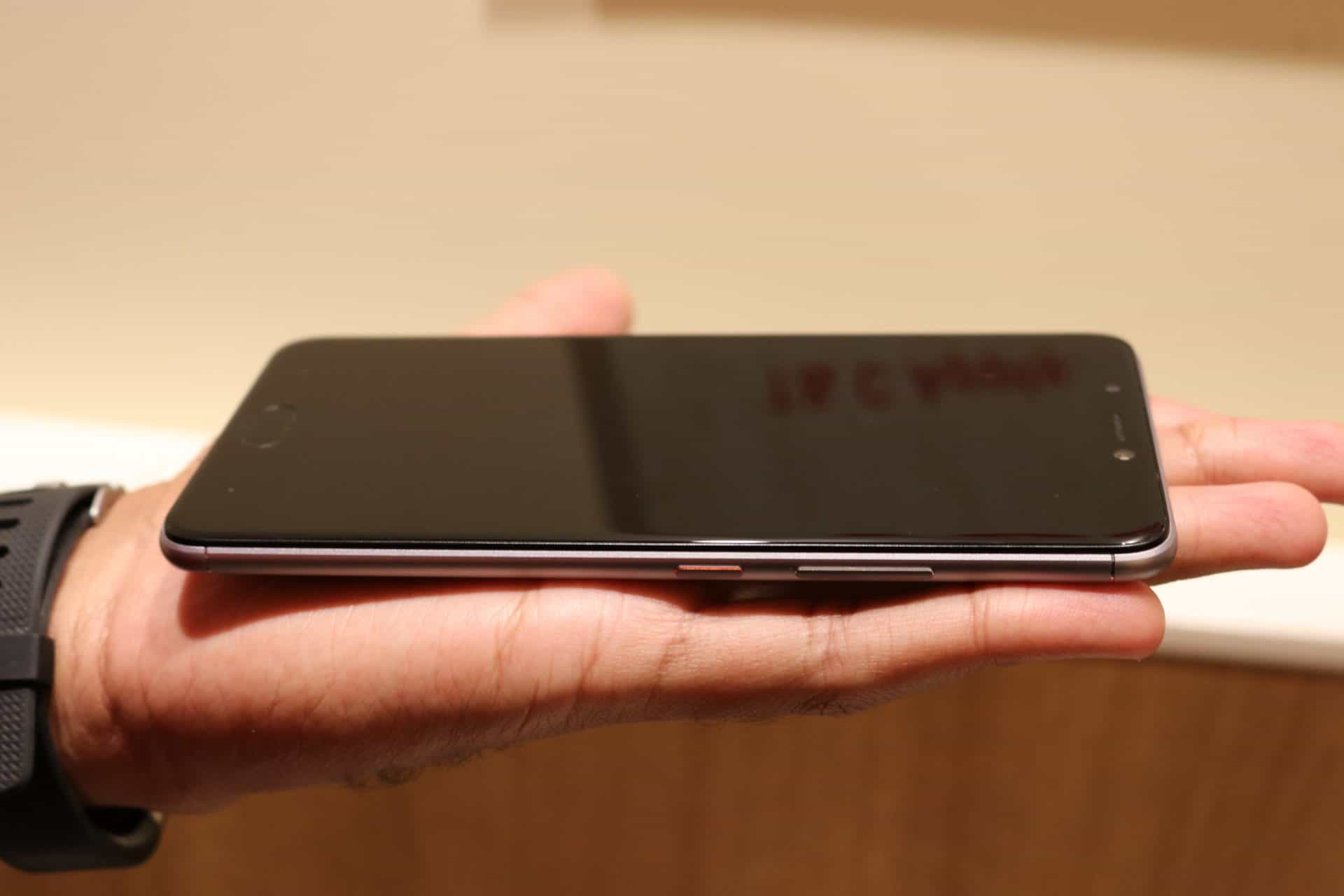
For those who are interested in numbers; Gionee A1 dimensions are 154.5*76.5*8.3mm, not a thin profile considering the latest trend in market. The colors available are Gray, Black and Gold.
Gionee A1

The edges of the device are contoured and the back is slightly cambered to give it a fluidic design. The single piece front glass panel may feel like curved on the edges but it’s not, it is resting on top of a chassis which is further outlined with a black metal piece to give it a perfect finish. Again, these are very minor things to note down and is only visible if you observe closely.

Buttons

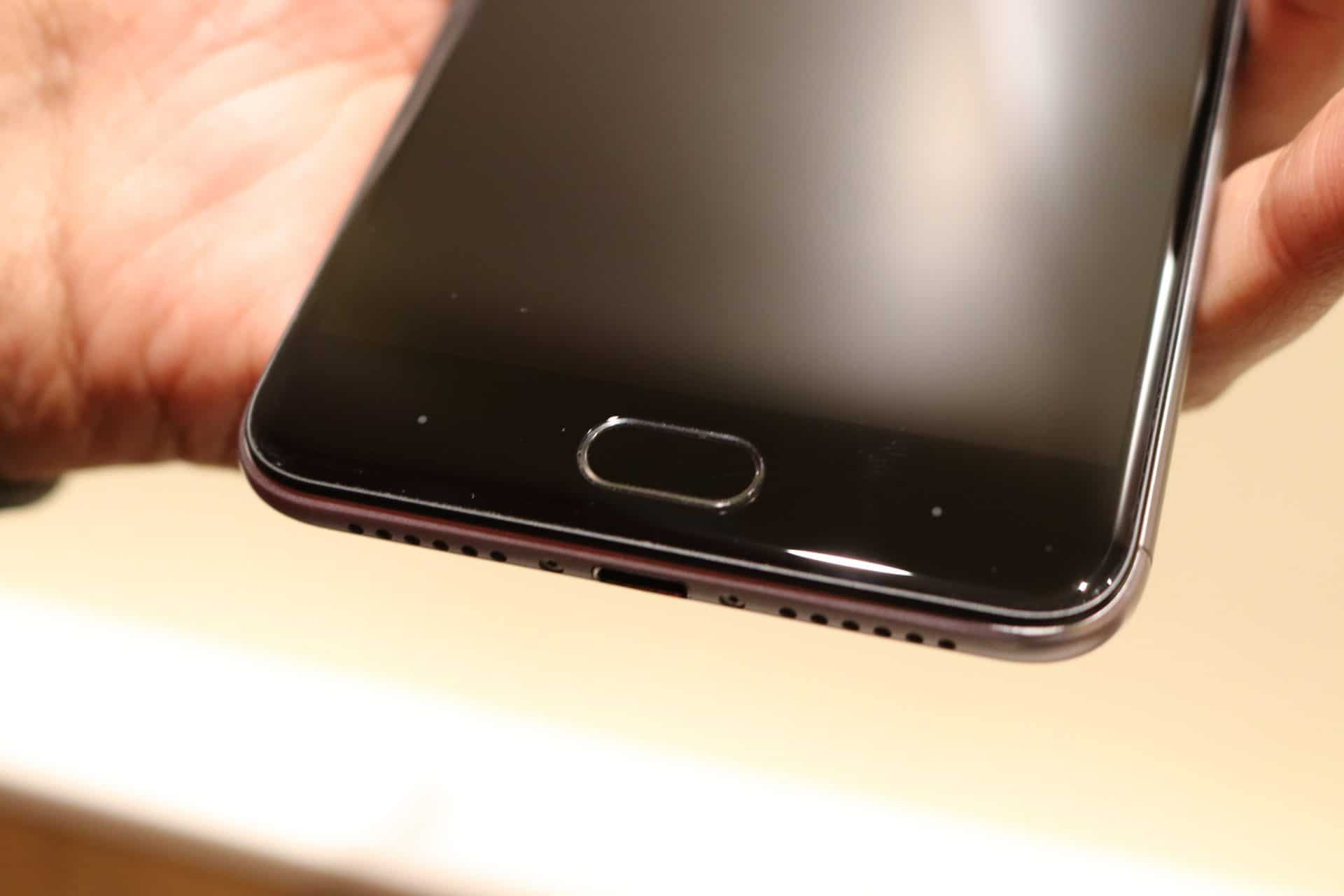
On the front, the fingerprint scanner and the physical home button. The non-illuminated capacitive touch buttons carry out the Back and Recent Apps functionalities. The functions of this can be configured in settings as per your convenience.
Gionee A1

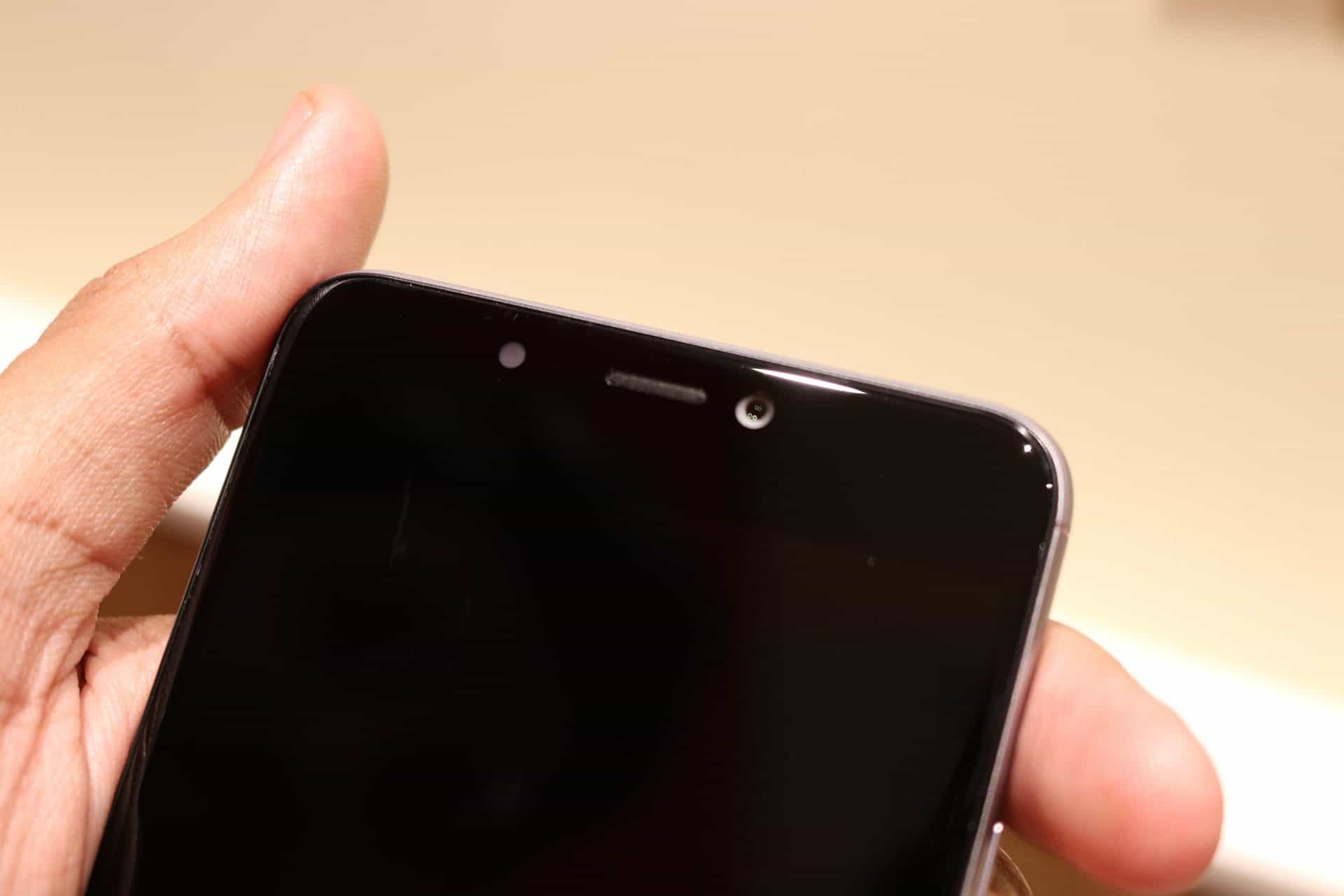
Left to the ear piece grill is the Selfie Flash, which automatically comes on detecting face during low light situations. Right to it is the Front Camera, 16MP Selfie Camera which delivers decent selfies. I will be covering more about camera features later in this article.
Gionee A1

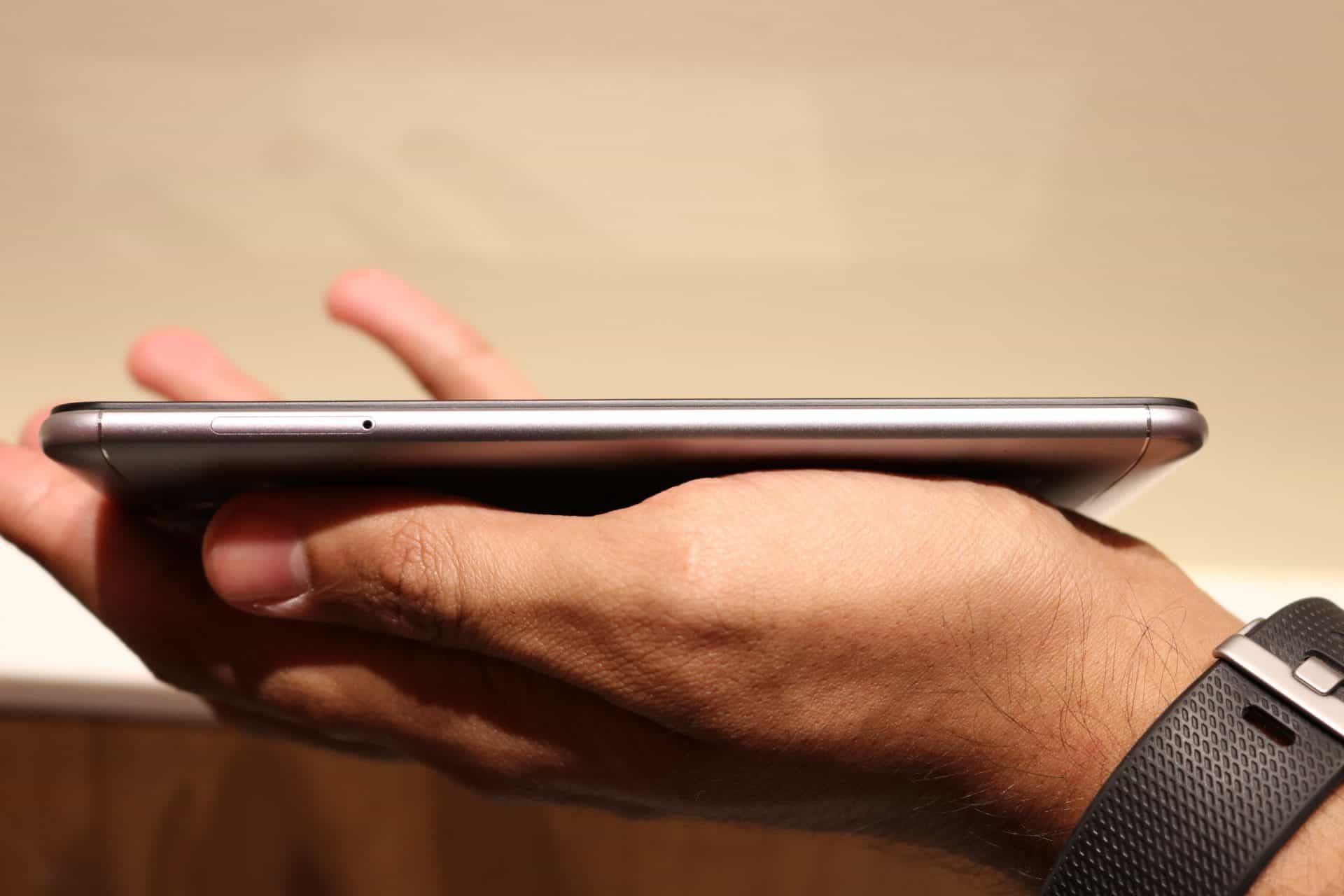
Left side is the SIM Card Slot, supports Nano and Micro SIM and microSD card, which can be accessed using the SIM card ejector tool comes along with the box. The 3.5mm headphone jack is on top of the device.
Gionee A1

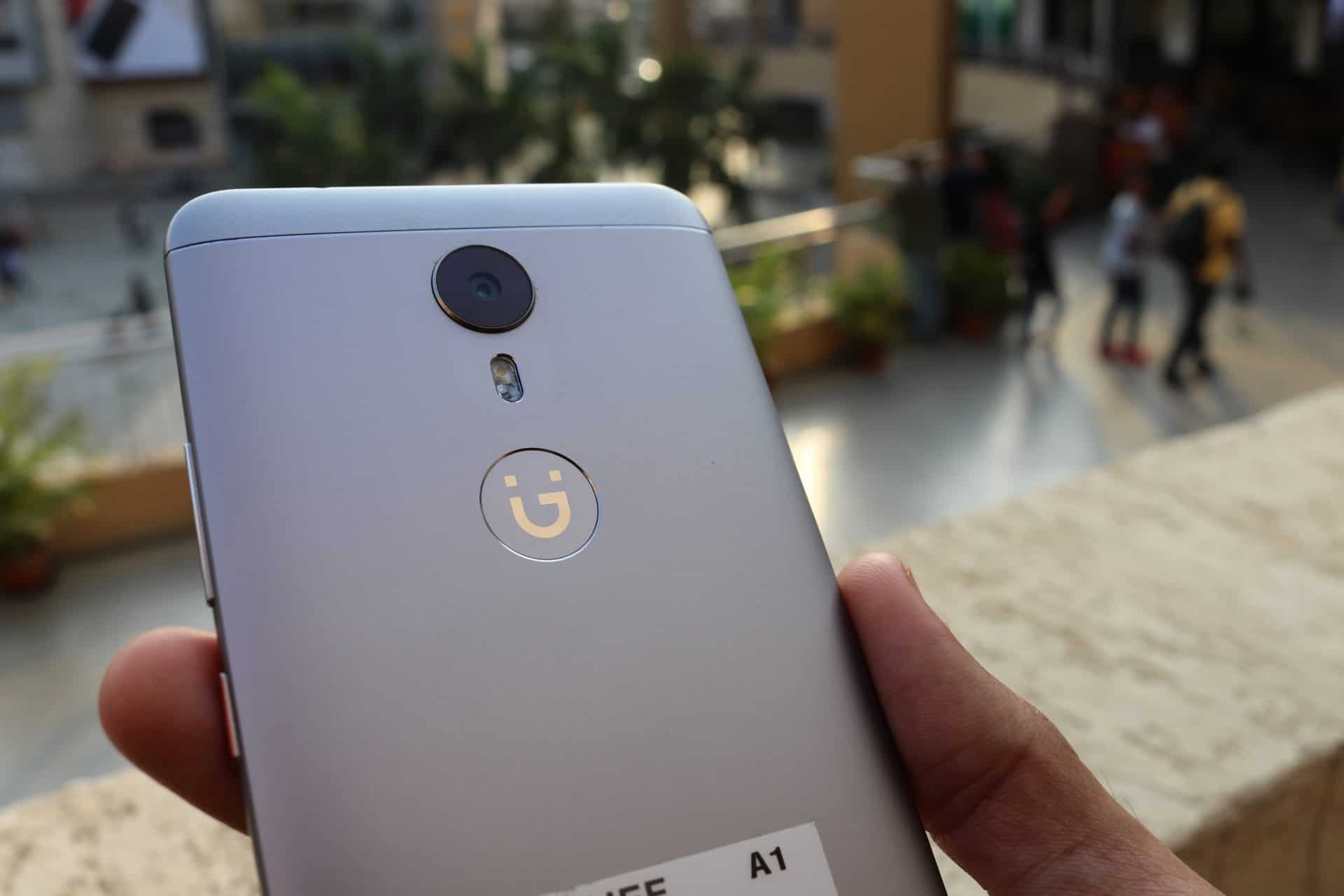
The speaker grill and the microUSB/Charging port is located on the bottom of the device. The speaker grill reminds me of the iPhones and it has a good audio quality. The back side of the device has a mirror finish Gionee logo, a metal ring around it.
Gionee A1

The 13MP Primary Camera has a slight bump, less conspicuous, and the phone won’t shake if you try to type something by keeping it on table. The exposed Antenna bars on top and bottom of the device adds a silver lining over the design.

The home button could have been made touch sensitive rather than going all way back to physical button.

Call me dull-witted, the invisible Back button and Recent Apps button always confuses me. I would prefer the on-screen navigation bar even though it compromises the screen area.

Display

The display looks brilliant and does a great job in reproducing the colors. The AMOLED display is of resolution 1920*1080p (Full HD) its output can be controlled using the LCD Effect option under settings. You get to choose between Neutral, Cool Color and Warm Color. I prefer the neutral color for normal usage and the Cool Color will go easy with your eyes especially when you are planning to read something in your bed.

Apparently, the front flash light acts as an LED notification light on top to notify you for new messages or calls (you can configure it). The disappointing thing about this is, the LED light will blink at once, at the time of notification arrive, and it will never alert us for the same notification again. Wish there was an option to change this. Also, you will find it bit annoying or inappropriately bright in some situations. My suggestion is to just turn it on for Notifications but not definitely for the calls. If you keep it near your bed side during night the LED blinks, even if you are in silent mode, distracting your intension to sleep.

Software – AMIGO 4.0 UL

The software in this device is brilliant, inspired a lot from iOS especially, the main launcher, the smart notification, the control center menu and more. The AMIGO 4.0 UL is built on Android 7 Nougat.

Features

In its latest OTA update, the Gionee A1 offers support for 11 regional languages.

Gionee A1_regional-languages

Smart Notifications is one of the best feature of the OS. It lets the app icons to show Unread notifications. This is useful as you don’t have to turn on the app to see the new notifications and the notification count will stay as such even if you swipe it off from the notification bar.

Gionee A1

Edge Bar, you can turn on edge bar feature under Settings->More Settings. Once it is configured, you have to place your finger on the home button and slide left or right. You can customize the list of apps/contacts that should be displayed on the bar. I tried adding apps, contacts and find it handy in many situations. In my testing, I could only add up to 6 apps/contacts.

Gionee A1

Multitasking and Clear Memory: the device supports multitasking by opening multiple windows in split screen mode. To do this you can touch on the Recent Apps button on the navigation bar. One thing I miss out here is, the Close All apps option is replaced by Clear Memory button which clears apps that are consuming more memory in the background. Best part, you can select which all apps can run in the background even if you select the clean up option.

AMIGO 4.0 – Other Observations

Control Center: Swipe up from bottom of the screen to launch Control Center, you can find the options which are usually located in the notification drawer. Amigo OS designed the Notification Drawer like a clean slate which only shows notification and everything else goes to the Control Center. It will take some time to getting used to it but, I find the normal one more convenient.

Gionee A1

The device also support smart gestures for easy access of Camera, Browser and Music. In my testing, I see that there are lot of bloatware which comes pre-loaded with the phone and most of them cannot be removed. I liked the Peel Remote, an app which turns your device into universal remote control for both TV and Digital Set top box. You can select your country, TV provider and you are ready to use your device as a remote.

      Gionee A1 Gionee A1

The default browser is UC Browser but I am a Google Chrome fan and I never cared to use it. You cannot remove the apps which comes pre-loaded instead you can disable them so that it will remain silent in the background. The apps like Theme Park, Mood Wallpaper etc are of no use to me as I rarely play around with my wallpaper.

Gionee A1

The Child Mode app can come handy if you want to hand your device to your children. You can set the apps that kids would like to access and that’s all. Unless you enter your passcode or draw the security pattern the kids won’t be able to go out of this mode. I bet this app will be very useful for parents who has stubborn babies who always cry for the phone.

 gionee a1 child modegionee a1 child modegionee a1 child mode gionee a1 child mode

Swift Keyboard comes pre-installed in fact, it is the default keyboard right from the beginning. I find the Google Keyboard much convenient and I changed to it in the initial days itself. You can always switch keyboards under the settings.

The fingerprint scanner is pretty quick and works almost every time. To unlock the phone DO NOT PRESS THE HOME BUTTON, just touch it. During my initial days with the phone I used to try press and unlock which failed every time. You can double touch an empty area of the screen to make the device go to sleep mode. Honestly, finding an empty area on the screen and double tapping is a lot of effort for me so, I prefer pressing the button to lock the screen. There is also a Glove Mode which lets you use the device while wearing a glove. As a biker, I find this feature useful as I can use my phone without removing the riding gloves.

Gionee has even added an app called AmiClone which lets you easily start using your new phone by transferring everything from your old device. Since I am a reviewer who needs to constantly switch between phones I find this app really useful and it worked really fast.

gionee a1 amiclone

The one thing which most of you might not like is the absence of Menu Drawer. Trust me! You will get used to it and find it easier than the traditional design.

Camera

Camera in Gionee A1 doesn’t require an introduction. As expected, the camera software packs a tone of features. The camera can operate in 5 different modes; Video, Face beauty, Photo, Panaroma and Smart scene. There is an option to add color filter to your camera output and it comes in 9 presets. The interface is simple and less cluttered. The camera modes can be switched back and forth by swiping across the screen, like iPhone.

camera_gionee a1

Video mode: The device is capable of recording 1080p videos at 30fps and there is no 4K support. Sad! You can create slow motion and time lapse videos by using the options under the Smart scene menu.

Face beauty: This option is made for doing touch up to your face. The options under this mode are; Smoother, Whitener, Face slimming and Eye enlarger. This is one of the biggest highlight about camera option in this phone. No more complain about the chubby cheeks or small eyes.

face beauty gionee a1

Photo and Photo Panorama is for taking the usual photos and panoramic photos.

Smart scene is something you should explore.

smart_mode gionee a1

  • Night – this mode is specially for night photography.
  • Professional – this mode lets you play with the Focus, Shutter Speed, White Balance and exposure.

professional camera gionee a1

  • Time-lapse – allows you to create Time-lapse videos with a delay of 600MS, 2S and 4S.
  • Slow motion – 2X slow motion vidoes
  • Text recognition is a good option to try and I loved it. I give it a try and the phone could decode almost 80% of the texts I have scanned. For this mode to work you should take perfect less blurry/shaky images.

 text recognition 1 gionee a1 text recognition gionee a1 2

  • GIF – I have never seen this option in any of the phone and I loved it. This option lets you create GIFs.

Gionee A1

  • PicNot – allows you to click a picture, and crop/edit later
  • Smart scan – allows you to scan barcodes, QR code etc.
  • Mood photo – allows you to click pictures, then make a series of filters and write a message and save.

pic note gionee a1

  • Card Scanner – works perfectly fine and directly help you save the information to contacts.
  • Translation – is useful. You can scan work or a whole paragraph and convert It to any languages. It worked perfect for me.

 Gionee A1Gionee A1

Front Camera

Let’s start with the front camera since this is a selfie centric smartphone. The Gionee A1 Features a 16MP front facing camera with flash for the selfie enthusiasts. Though the image quality was not the best considering the fact it has been tagged as Selfistaan Hamaara but, it does come with a lot of features that can be applied while clicking the picture.

When the flash light is set in Auto mode the device will automatically, during low light conditions, detect the face and turns on the flash. When OPPO and ViVo are already in the market with dual selfie camera I don’t think the A1 can deliver best shots in this segment. On the latest OTA update for Gionee A1, the device also got the Bokeh selfie option which will make the background of your selfie blurred creating DSLR like images.

Gionee A1_Bokeh Selfie

Main Camera

The main camera is 13MP AF F2.0 SONY IMX 258, offers good photos and it has lot of features. The shutter lag is almost negligible but you do feel it often. The biggest disadvantage I have found with the camera is that it won’t support continuous autofocus during video recording. I am person who like to take videos for my vlogs. To focus my subject during a video shoot I must manually touch the objects to get the focus right at them.

Performance

Powered by the MediaTek Helio P10 SoC, comparable with the Snapdragon 600series, paired with 4GB of RAM, Gionee A1 offers only mid-level performance. I have tried opening multiple apps at a time and switching back and forth, there is a lag in catching up. The performance is bit low considering the price point.

Gaming

The device comes pre-loaded with Games like Asphalt Nitro, Bubble Bash 3, Danger Dash and Real Football. Out of this only Asphalt Nitro is free and rest are all paid games. You will get 2 minutes of gameplay and after that you need pay for it.

Bubble Bash 3, Danger Dash and Real Football doesn’t even worth trying. There are a lot alternate free games available in place of this paid ones.

gameplay gionee a1 gameplay gionee a1

I loved the Asphalt Nitro and I played it for continuous 1 hour to test the performance, how the battery is holding up with full brightness and speaker sound is ON. More about that on the Battery review down below.

Gionee A1

There was a bit of a lag during game play but most of the time it was smooth. The performance of this device is mid-level. If you are planning for high end gaming, video recording for a long time then the device won’t hold up. The phone was heating up after a while of game play, this is obvious since it has got a metal body.

Battery Performance

I have tested the 4100mAh battery of Gionee A1 over all sorts of usage and the results are great. For a moderate user, the battery will easily hold up for 2.5 days and for heavy user, full time on 4G network and Wi-Fi overnight, it lasted me more than 24hrs straight before hitting the 15% battery mode.

Gionee A1

Charging Time

Charging time from 0% to 100% Charge

10:39 AM – Battery completely drained

10:40 AM – Connected using Ultrafast charger

11:05 AM – 30%

11:20 AM – 50% – (Took 40 minutes to reach 50% charge)

11:55 AM – 90% – (Took 1 hr 15 mins for 90% charge)

12:20 PM – 99%

12:35 PM – 100%

For some reason, charging the phone from 99% to 100% along takes more than 12mins.

Charging From 15% to 100% Charge

12:26PM – 15%

12:52% – 50%

13:06 – 70%

13:43 – 99%

14:09 – 100%

Battery Usage

Music Streaming on 4G

At 2:30 PM – 100% Charge

3:30 PM – 95%

4:30 PM – 91%

The hourly discharge rate is almost 4-4.5%. This is when the screen is turned off and was streaming music over 4G.

Game Test with full brightness and full speaker volume

At 12:10 PM – 35% Charge

12:50 PM – 15%

In 40 Minutes 20% of the battery is used. Remember, this was while playing high graphics game.

For a heavy user like me, I find the battery reliable and I would 100% recommend this phone if you are looking for a battery beast.

Battery modes

Normal, Power saving and Extreme mode.

In Extreme mode, only phone, contacts, messaging and clock can be accessed. I loved this mode and I believe this will be of great use when you are on a camping/trekking trip where charging the device is not easy.

battery modes gionee a1

Connectivity

The device supports all forms of connectivity options like;

  • TDD/FDD/WCDMA/GSM/VoLTE
  • Dual SIM dual standby ?Hybrid slot?
  • Wi-Fi 802.11 a/b/g/n?4G+5G?
  • Bluetooth 4.0
  • Micro USB (OTG support)
  • GPS

In my testing, I find the device facing some issues with Internet connectivity. I have heard the same mentioned by the digit review. Sometimes though the device is connected to Wi-Fi and shows speed on the task bar, the internet won’t work properly. I am not sure whether it is because of this handset or issue with any app.

Conclusion

The Chinese smartphone manufacturer with the launch of Gionee A1 is trying to find a new marketplace where OPPO and VIVO is already ruling the selfie industry. I would consider this phone as indented for a market study by the company so that they will be releasing an updated version learning from the mistakes and things they could have improved.

The price tag of 19,999 completely seems out of context for a mid-range performer. The AMOLED display is brilliant and I loved it. The performance I am not happy with. The camera is not top notch when compared to the dual selfie camera by VIVO V5 and OPPO F3. The design is great but its heavy, may be because of the larger battery. There is no heating issue even though it is a metal body device. The UI is wonderful but wish there was an option to turn on the on-screen navigation bar and enable the menu launcher. For Gionee A1 to be a value for money deal I would like the price tag to be placed well around 15000 and not a penny more than that. The camera modes are impressive and feature rich. At the end of the day, if you are looking for a great selfie camera with flash and enough battery power to compensate the selfie madness Gionee A1 is a perfect companion for you.

Pros:

  • Battery
  • 16MP selfie camera with flash
  • Brilliant display
  • Camera features

Cons

  • Average performance
  • UI is not for everyone
  • Heavy
  • Extremely slippery without phone case
  • Home button needs workaround
  • No continuous autofocus for video recording

How to Share Only Specific Sheet/Single Tab in Google Spreadsheet

Google Docs which had its initial release on March 9th 2006, almost 11 years ago, has now evolved into a great alternative for the Microsoft Office. The all-time advantage of Google Docs is the fact; it is a cloud based solution rather than the on-premise version of Office suite. Microsoft launched office 365, the latest offering from the Office series, support cloud capability but the pricing will burn a hole through your pocket. Taking a normal user into consideration, who wants to create light weight documents, quick presentations on the go and excel sheets to share with group members, Google Docs will come handy and above all, it is free!

Gionee A1

Though every Google Spreadsheet file can be shared among anyone using sharable link that automatically gets generated or share among specific group of people by entering their email id, what if you want to share only specific sheet/single tab in Google spreadsheet? Today we are going to have a look at the solution this question. There is no out of the box product capability offered by Google for doing this but, it is achievable using excel functions. This workaround will come helpful when you don’t want to share sensitive information which should be visible only to you and not among other people.

Share Only Specific Sheet/Single Tab in Google Spreadsheet

For this solution to implement you may need to create new excel documents, this we will share with other people.

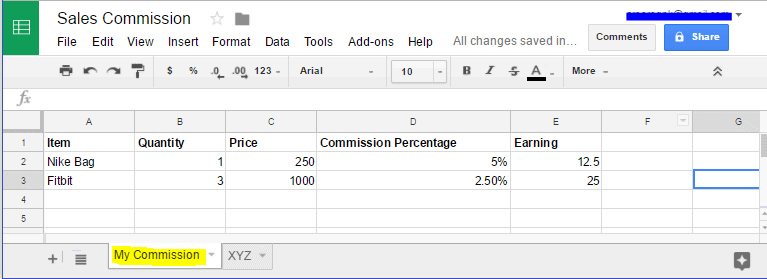
I am taking an example ‘Sales Commission’ document. This document has two sheets;

  1. My Commission – this will have information about my commission.
  2. XYZ – this will have information about the commission/sales made by my employee XYZ.

I want to share only the ‘XYZ’ sheet with my employee XYZ and not ‘My Commission’ sheet that has my sales information. By default, you can share the entire file with anyone but since I wanted to have my information protected from XYZ I need to do a workaround to protect my privacy.

Gionee A1

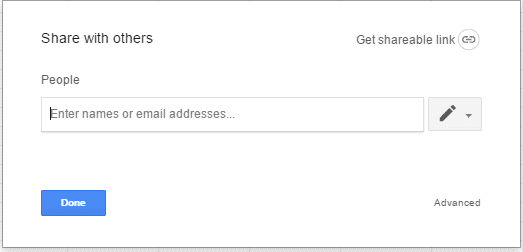
Open the main ‘Sales Commission’ document; Click on the Share button on the top right corner.

Gionee A1

Click on Advanced option on the bottom right corner.

Gionee A1

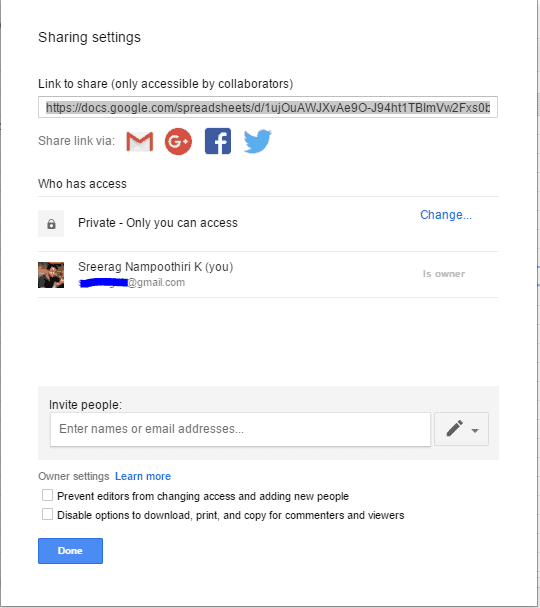
This will open a window which has the ‘Link to share’ and below that, under the ‘who has access’ click on the Change… option.

Gionee A1

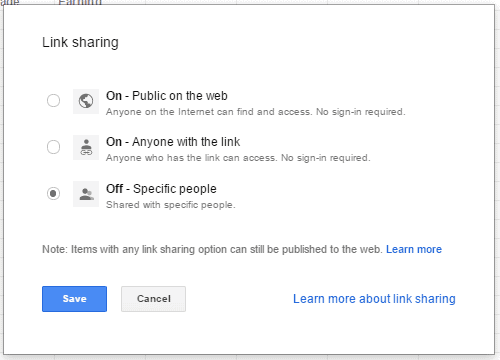
Select Off – Specific people option and click Save.

If you don’t want the person whom you share the sheet with to share it further, then this step is important. We will be exposing the spreadsheet link to my employee XYZ and I don’t want him to share it with anyone since it contains sales information and commission details.

Once you click the Save button, you will be presented with the old screen which has Link to share text box. Copy that link and save it somewhere as this link will be used in later stage of this tutorial. If you don’t want to do this step now then, you can always come back to this screen and get it copied later.

To get the Sharable link; You can either click on the Share button on the top right corner or go to  File Menu > Share > Advanced > Link to share.

Create a New Spreadsheet to Share and Import Data from Main Spreadsheet

Next step is to create new Google Spreadsheet; this spreadsheet file will be shared with XYZ. You don’t have to import any data from the main spreadsheet now. We will do this data import by typing in a spreadsheet command.

Gionee A1

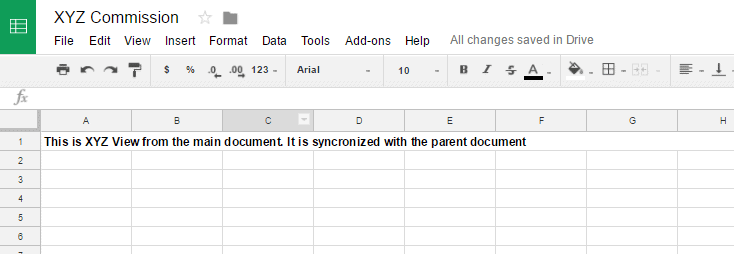
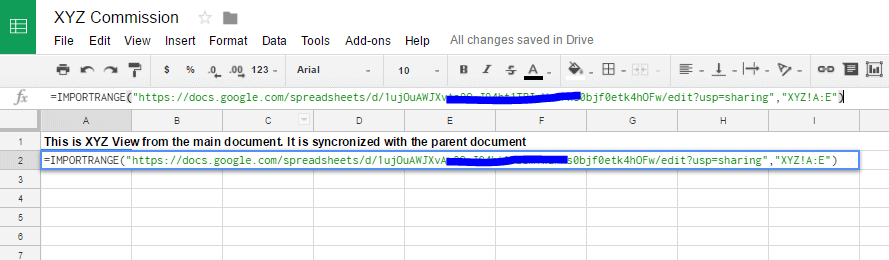
I have created a new Spreadsheet file and named it as ‘XYZ Commission’. First line I have written a message for my employee XYZ. Click on the second row first cell. Now type in the following command.

=IMPORTRANGE(spreadsheet_key, range_string)

Replace the spreadsheet key with sharable link of the main document you have copied earlier.

Replace range_string part with sheet name you want to import and the cell range.

The final command will look like;

=IMPORTRANGE(“https://docs.google.com/spreadsheets/d/1ujOuAWJXvAe9O-Vw2Fxs0bjf0etk4hOFw/edit?usp=sharing”,”XYZ!A:E”)

Here the XYZ is the sheet name, put an exclamation mark after that ‘!’ and specify the columns you have to import. In my case it is A to E so, we will write this as A:E.

Gionee A1

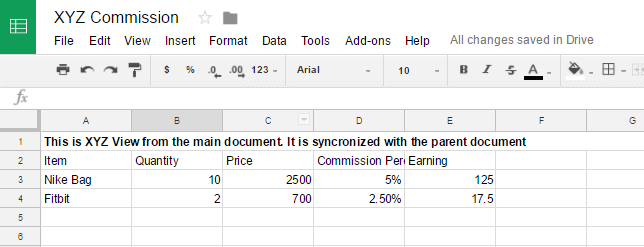
Hit enter key and within few seconds the data from the main spreadsheet (Sales Commission) sheet (XYZ) will get populated in the new spreadsheet document XYZ commission.

If you see #REF! value instead, then click on the cell and click on Allow Access option.

Gionee A1

Setting up limited Access before sharing

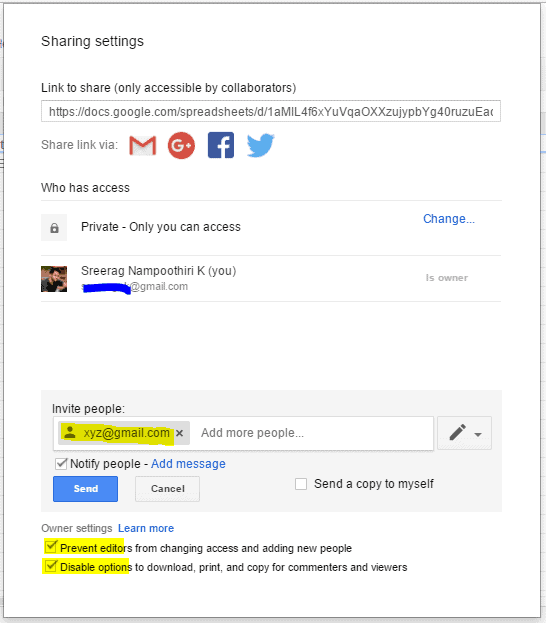
The XYZ Commission document is all set to share with my employee XYZ. To share, click on the Share button on the top right corner. Click Advanced and type the person’s email id under the Invite People text box. To set up limited access; you can check the options under the Owner Settings heading.

The two access settings you can put in are;

  1. Prevent editors from changing access and adding new people
  2. Disable options to download, print, and copy for commenters and viewers

Gionee A1

The best part about this workaround is the data is synchronized between the spreadsheets. That means, if you edit the data in your main sheet, the spreadsheet XYZ Commission that you have shared with your employee will also get updated. This is a great workaround you can do to share the individual sheets in a Google Spreadsheet. I hope the Google will release an update in near future as a solution to address this issue.

How to Reveal Hidden Passwords (Asterisks) In Web Browsers

It is a Universal Law that the password fields will always be kept hidden using Asterisks, the star symbol, to protect the privacy of the user and prevent the passersby from peeking. Thanks to the latest password managers, browser sync features that lets you organize your passwords in a neat and safe way. Doing this makes us not to remember the passwords and instead the autofill feature of the browser will take care of it when you visit a site. If you are trying to logging in using different device, then signing into the browser will simply sync all your saved passwords. It’s not the case always. Isn’t it?

Gionee A1

Case 1: What if you want to test something and you want to login to your account using a friend’s laptop? You don’t want to sync your saved passwords to your friend’s laptop in this case as you only need to use it one time. You don’t remember the password for the specific site you want to login and you have it in your computer auto filled by your browser in the form of asterisks. How can we see this Hidden Passwords in web browsers?

Case 2: You got access to one of your friend’s laptop and you see that his/her information is auto filled, including the password. But, in the form of asterisks. How can you convert the asterisks to readable text format and figure out the password?

Although I don’t support ‘case 2’ personally, these two cases are genuine example scenarios most of us might have faced at least once in our digital life.

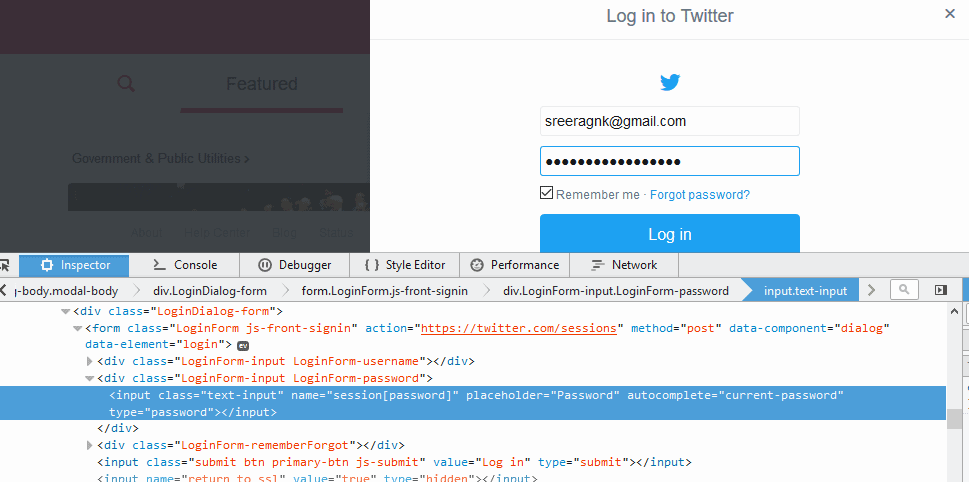
Today I am going to show you how to reveal Hidden Passwords in two most famous web browsers; the Google Chrome and Mozilla Firefox. For this demo, I am using my saved password of my Twitter login page.

Reveal Hidden Passwords in Google Chrome

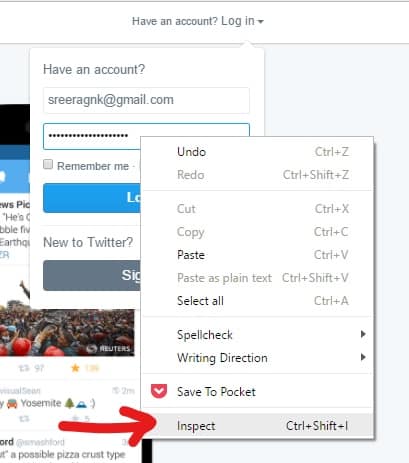
Place your mouse pointer at the Password field and Right Click. Select the last option in the list; Inspect.

Gionee A1

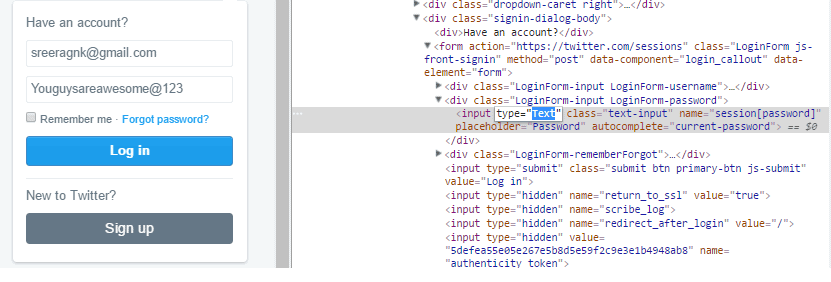
Now a code snipped will open on your window. The html code for the password field will be highlighted by grey color since you have selected the Inspect option by clicking the Password field.

Gionee A1

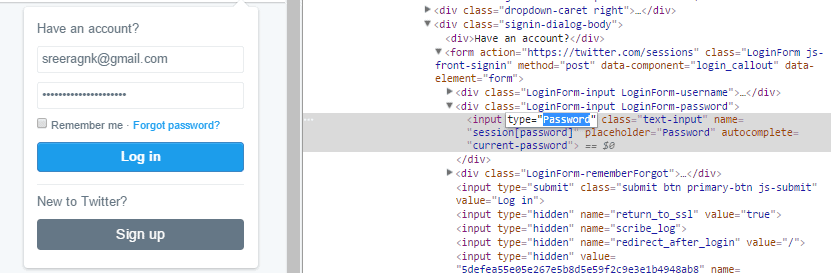
Locate the input type = “Password” in the code. Click on “Password” and change it to “Text”. After editing the code will look like input type = “Text”.

Gionee A1

The asterisks are not converted to readable text.

Reveal Hidden Passwords in Mozilla Firefox

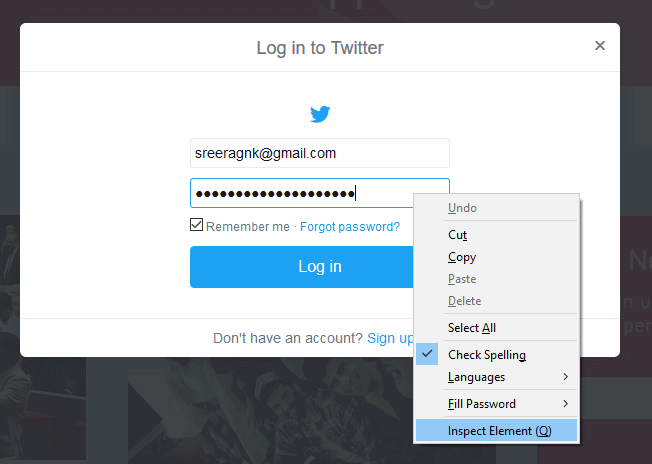
Place your mouse in the password field and right click. Select the option Inspect Element.

 Gionee A1

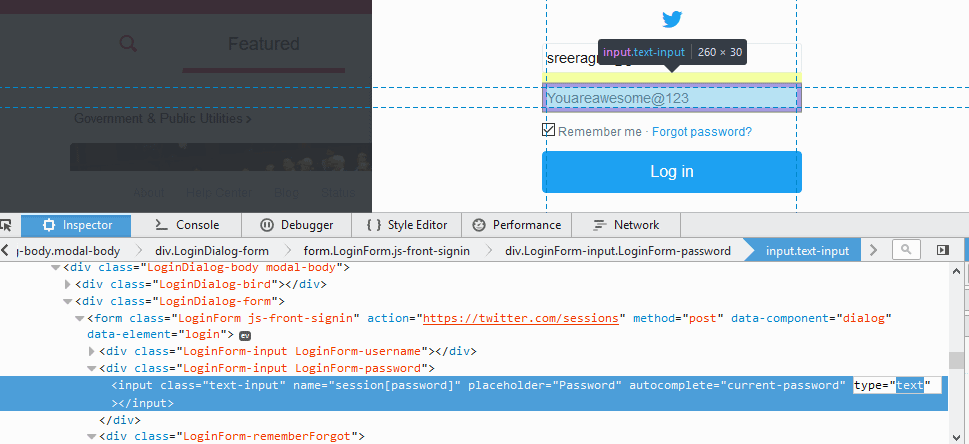
The code for the Password field will be highlighted in blue color. Locate type=”Password” and change it to type=”Text”

Gionee A1 

The asterisks are now converted to readable text format. This trick will work in almost all the web browsers.

Gionee A1

In Safari browser, you must enable the option “Show Developer Menu” by going to Preferences -> Advanced Tab. Now you can right click anywhere on the page to get the ‘Inspect Element’ option.

In case of Opera Browser, the developer tool is called Dragon Fly and this can be accessed by right clicking anywhere in the page and select ‘Inspect Element’ option.

In case of the Microsoft Edge, you can activate the options like ‘View Page Source’ and ‘Inspect Element’ by pressing F12 in the keyboard. This will activate the Developer Tools and will let you view the options when you right click anywhere on browser window.

Bengaluru Airport Creates PlayPort For Summer Travellers

When it’s an ordinary day for most of us who arrive at the Bangalore International Airport, the kids are going to have a lot of fun. With the arrival of Summer vacation, the Bangalore International Airport has once again turned into a playground for the kids. The Playport 2017 is all set to welcome the young passengers and to offer them a perfect start for their vacation right at the Airport. I was one among the bloggers who got invited to have a look at the Playport initiative by BIAL (Bangalore International Airport Limited). It was a fun filled day for us, the bloggers and the kids accompanied us.


The games are arranged along different parts of the Airport, this year’s Playport will run through until 15th May 2017. The best part is that; the games are organized both outside and inside of the Airport. Don’t hesitate to carry along your kids if you are here to drop/pick up someone. I bet they are going to have a great time.

Starting right at the arrival area of the terminal;

The Emoji Photo booth

A perfect opportunity for both kids and adults to take pictures with their favorite emojis.

playport bangalore

Emoji Pool

Jumping into a pool filled with Yellow Soft Emoji Balls is a dream come true for most of us. Unfortunately, this game is particularly for the young audience where they can climb a ladder and jump into the Emoji Pool.

Obstacle Course

For those kids who want to jump around, this is the perfect course they can attend. There are some colored tires, small hurdles and all they should do is jump across these obstacles to become the winner.

Surf Simulator

Wow! This one I enjoyed a lot. Designed for both adults/kids, the Surf Simulator offers you a simulated surfing experience. Stand on the surfing board and balance your body to compensate the movements of the board. Don’t be afraid to fall, you will land safely on the air filled bouncy surface.

bangalore airport playport

Reaching airport on time is one hard thing for most of us mostly due to the unpredictable Bangalore traffic. If you were in a hurry and couldn’t able to catch the Playport outside, there are a lot of other fun/exotic activities waiting for you once you pass the security gate.

The VR Experience

The Playport 2017 features one of the most interesting tech inventions of the century, Virtual Reality. The VR platform offers a wide variety of games which literally will be played by you! No more consoles. The entire motion is controlled by your movements.

Gionee A1

The Block Game

The player is asked to choose an image of the city and arrange the blocks in front of him to recreate the same. This is a big sized jig saw puzzle which involves blocks instead of the jigsaw.

Maze Game

This game test the flexibility of you. To be the winner, you must cross the maze without touching the threads.

The Snooker Football

This is what happens when the Snooker meets the Football game. The player will literally turn into ‘Cue’ stick and shoots a single ball at the remaining ones.

There are also magic shows, tattoo artists which will take you through a thrilling and exotic experience while you wait for your flight.

Based on the theme ‘Happy Experiences’, this year’s Playport is designed to enhance the experience of travelers and visitors through discovery, learning and fun. Kudos to the great team who are behind this initiative which turns the Airport atmosphere into a fun filled one. If you are travelling via the highway or to Nandi Hills take a turn to Airport to stop and enjoy this. I bet your kids are going to love this.

Are Robots At Work In Your Office?

0

The Industrial Revolution was a key evolutionary time for modern technology globally. The automation of human labor has been an ongoing process that has eventually led us the position that we are in today. Robotics can be found and even used in the office. There is not nearly one part of your daily life that automation of human jobs did not create. Especially at your office. Here are a few ways robotics has entered the current working scene.

robotics in your office

Robotic Process Automation

Robotic process automation is highly technical, and results in the automation of labor. It uses software robotics to actually automate human processes that are based on knowledge.  This helps to reduce business costs, improve the quality of work, and improve productivity.  Robotic process automation works in the office to automate several extremely time consuming aspects of business, like complaints analysis, claims management, policy administration, patient registration, and new customer recruitment.

The automation of human jobs through robotic process automation is something that many people argue will destroy the need for actual humans to have a real job. However, there is an argument that the automation of these jobs will actually just create new and different jobs for humans. The historical benefits of this process include the fact that this method allows workers to focus on more complex tasks that require true human judgment and the ability to connect with other humans. This points to a future where humans do not need to focus on mundane labour, allowing the majority of people to focus on more specialized work.

Robots Replacing Humans

Many companies are now replacing human jobs with robotic automation. This is an extremely controversial subject, however there are proven benefits for the companies. These companies are choosing to use robots for obvious cost and productivity reasons. Robots never tire in the same way that a human can become exhausted, and can even stack up intelligence-wise (for example, some robots can speak multitudes of languages).

Some examples of robots replacing humans are Quiet Logistics robots. These robots allow for quickly found, packaged, and shipped online orders in warehouses. This is ideal for online retailers who must process large quantities of orders quickly. These bots are able to find exactly where ordered products are located in a warehouse. This takes the physical task of finding products in a warehouse out of the hands of employees. Another example is of the internationally renowned Adidas that uses a robotic shoemaker. This, however, still uses humans for parts of the assembly process, thus integrating the two modes of work.

Telecommuting

The world of automation of human labor has become advanced even to the point that companies are now using robots to telecommute their workers to warehouses and other places of work. This means that employees can essentially use robots to stay home and also physically be in another place. This is an incredible advancement. This has become an extremely popular; as it has been growing in use since 1961, with China, the USA, Japan, and Germany the hosts of most of that interest.

An example of a telecommuting robot is the VGo unit, a robotic avatar that allows an employee to literally virtually move through the buildings of their workplace and attend meetings. It is equipped with a camera, microphones, and a video display. This is all packaged on a 4-foot tall-motorized platform. After this, all you need to do to virtually work is download the special software on your home computer, and log in. Telecommuting via robotics for work is ideal if your job requires you to be mobile, and regular teleconferencing applications do not meet your requirements.

While the automation of human work and jobs is an extremely controversial subject, there are many proven benefits. Moreover, it does seem to be the way of the future as it is an easy way for businesses to cut costs whilst increasing the productivity of their company. It is nearly impossible to avoid. The use of robotics instead of humans, or to aid in human work is visible everywhere, including in offices. Nowhere is immune to the help of robots in all parts of life.  

Free and Best Tools To Download Videos From any Website

Many people use to pass their time by watching online videos on websites like YouTube, DailyMotion, MegaVideo, MetaCafe etc. A decade ago, many people weren’t aware of online video websites. But after the revolution of best online video downloader sites, it has become the favourite time pass of many people. Moreover, these best online video downloader sites provide much other information apart from entertainment. It may be a hassle if you are watching videos online on a slow internet connection. In that situation, best online video downloader may be the best solution to let you watch videos offline without any buffering. Also check Online Learning Apps.

online-video-downloader

Like many popular websites like YouTube, DailyMotion does not come with the options to download videos directly. Due to this, mp4 best online video downloader are high in demand these days. These tools have made video downloading as easy as uploading a video to the video-sharing sites. There are many best online video downloader sites available on the internet, but the best tool to download videos will not trouble you while using it. So, before taking a look at best mp4 video downloaders, let’s discuss how it works.

How Video Downloader Software Works?

There are different kinds of best online video downloader tools that work on different principles. Some tools allow you to copy the Url of the video and paste it into the interface of the software. The program automatically scans the web page of the video and isolates the raw video file. The software downloads the video after analyzing all the necessary information. After downloading, if you wish to edit the videos, do check out list of best video editing softwares.

Also Check: Tools To Boost YouTube Videos

There are some other kinds of best online video downloader tools that install a browser plug-in like browser extension to allow you to download your favourite videos on your computer. When a video starts to play on any web page your surf, you can download the video by tapping Download button.

Best Online Video Downloader Services To Download Videos.

There some best online video downloader tools to download videos from any website. You need to put the Url of the video in the interface of the web services to download videos.

1. KeepVid

best online video downloader-download videos from any website

KeepVid is the free and best online video downloader which allows you to download videos very quickly and easily. As seen in the screenshot, users just need to put the Url of the video in the bar and click on Download button. You can download videos in various formats and different download links will be shown for different formats. This is a one-click online mp4 video downloader which allows you to download videos from popular video sharing sites like YouTube, DailyMotion, Vimeo and other sites. Visit KeepVid to download videos.

2. Instube App.

best online video downloader-download videos from any website

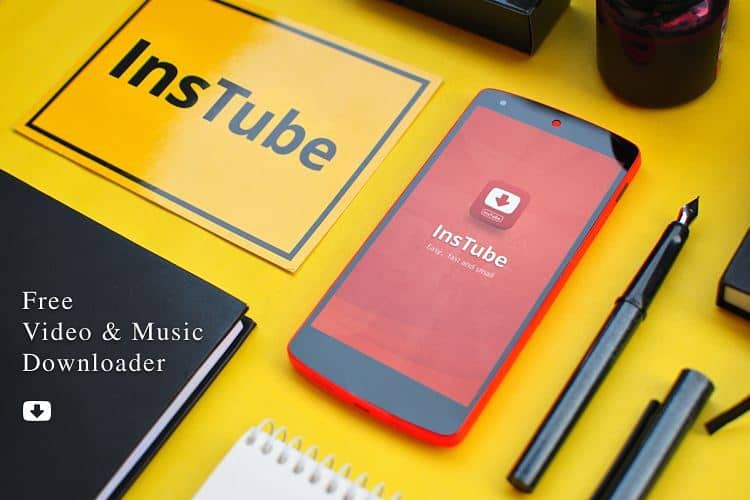
Instube lets you download videos and music for free like other apps. But best online video downloader app design is cool and intuitive. You can download multiple resolution videos according to your choice and also music. You can convert youtube music video into audio file. You can lock the video and protect the file with a password protection. Instube supports a whole lot of sites like, Youtube,  Facebook, Twitter, Whatsapp, Instagram, Soundcloud, Vimeo, Vine, Tune, Vevo, Sapo, Skymovies, VuclipVid, Funnyordie, 3gpmania, Dailymotion, Dailytube, MthaiPagalworld, PingudaLiveleak, Metacafe, MrpopatA, OL .
3. SaveFrom.net

best online video downloader-download videos from any website

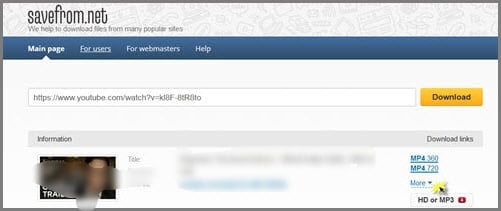
SaveFrom.net is another best online tool to download videos directly to your computer. It also has a browser extension which you use on your web browser. The extension is available for almost all web browsers like Safari, Chrome, Firefox, Opera etc. Like other best online video downloader, you need to copy the Url of the video, paste it into the box and press the download icon to start downloading. The only downside of this tool is that it supports limited to video sharing sites. You can download videos from only 25 video sharing sites. Visit SaveFrom to download videos now.

Also Read Best Video Editing Apps For Mac.

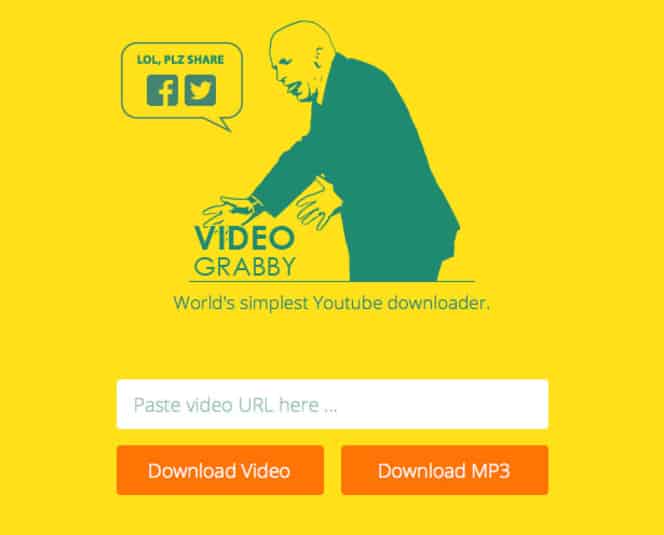
4. VideoGrabby

best online video downloader-download videos from any website

VideoGrabby is another best online video downloader to download videos fo your taste from video sharing websites. You can download videos from all the most popular video sharing websites like YouTube, DailyMotion, Soundcloud etc. by following the same steps that the above tools do. The upside of this mp4 video downloader is that you can search for videos by placing related keywords or by pasting Url of the video. You can also convert videos to other formats. Go to VideoGrabby to use it.

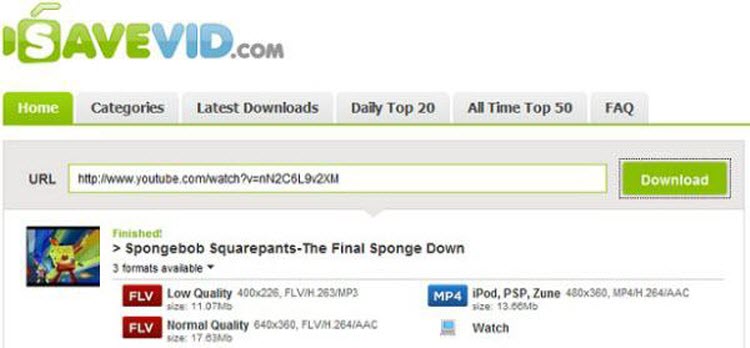
5. SaveVid

best online video downloader-download videos from any website

SaveVid is another best online mp4 best online video downloader which supports download video from any website. The process of downloading is as simple as other tools that we discussed above. You need to copy the Url of the video which you want to download, paste the Url in the bar and click on Download button. After pressing the Download button, the site will analyze the video information and will give you the list of different video formats to download. It supports all famous sites like YouTube, Facebook, Flickr, Instagram etc.


6. Deturl

best online video downloader-download videos from any website

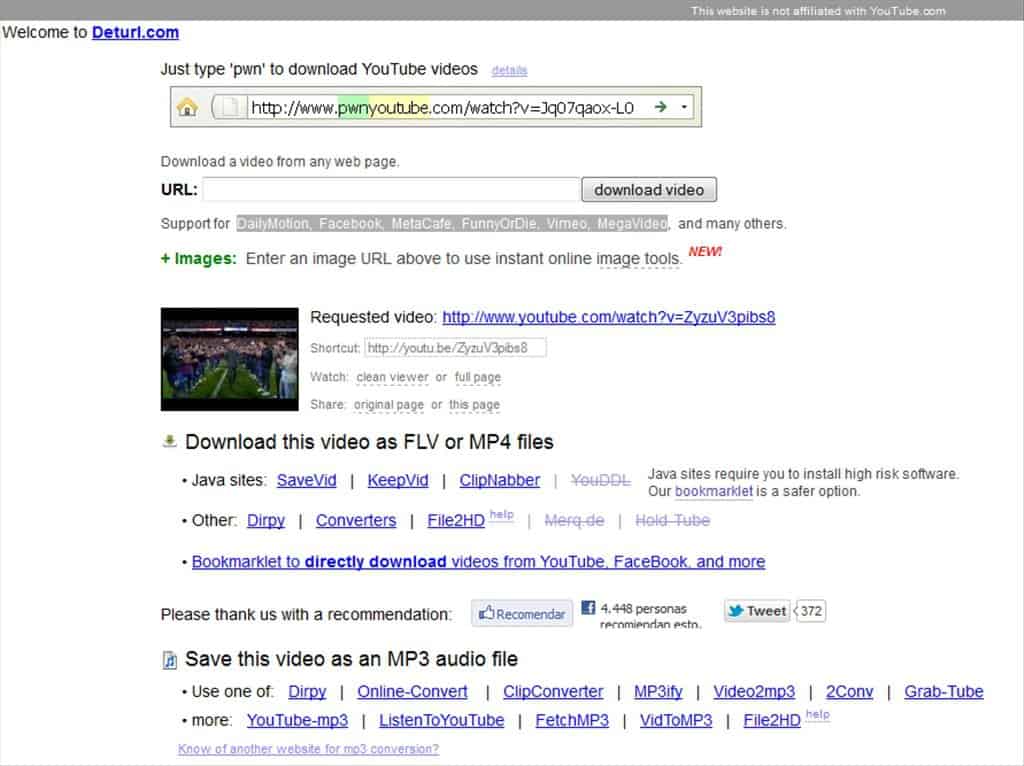
Deturl is an best online video downloader which allows you to download video from any website in different formats. Like any other online tool to download videos, it needs the same procedure to download videos. Get the link of the video, paste it into the bar and hit the Download button.

deturl-online-video-downloader

To quickly download the videos, just paste “pwn” in front the video Url in the address bar of the web browser.

7. ClipNabber

best online video downloader-download videos from any website

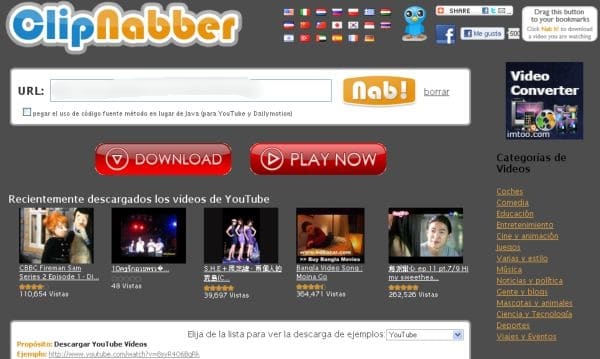
ClipNabber is another online tool to download videos from any website. It is available in various International languages. The procedure to download the videos is same as others. Copy and paste the Url of the video and click on Nab icon to download videos. Like other tools, it also offers to download videos in various formats.

You may also be interested to about Best Websites To Watch Live Indian TV Channels Online.

3 Best online video downloader Mp4 Web Browser Extensions

There are a lot of web browser plug-ins and extensions that can help you to download video from any website. The upside of using browsers plugins is that you don’t need to switch tabs or browsers to perform video downloading. Video Downloader plugins and extensions are available for all popular web browsers like Safari, Chrome, Opera, Firefox. So, here is the list of best Web Browser Plugins to Download Online Videos.
1. SaveFrom.net

We have already discussed above SaveFrom.net in the list of best online mp4 downloader above. Apart from providing web service to download online videos, it also offers a web browser extension. It can be installed on web browsers like Safari, Chrome, Firefox, Opera. To download videos, go the web page where video is available, click on the SaveFrom extension. A new page will open which will give you different options to download videos in various formats.
2. YouTube5

YouTube5 is a browser extension for Safari to download videos online from any website. It does not only let you to download videos, but it also enhances the video watching experience by providing extra features like switch resolutions within the player, volume control button, downloading video etc.

3. Easy YouTube Video Downloader

Easy YouTube Video Downloader is another best online video downloader browser extension which is currently available only for Firefox. You can download YouTube videos by installing it on your Firefox browser. Its icon automatically comes under the YouTube videos when you install it. The icon offers you the options to download videos in different formats.

2 Best Desktop Software To Download Online Videos

If you download videos online regularly or you like to download heavy videos then desktop software is the best option for you. You need to download the tool on your computer. After that, you can copy and paste the Url of the video and paste it into the interface of the software. So here is the list of best Online Video Downloader Desktop Software.

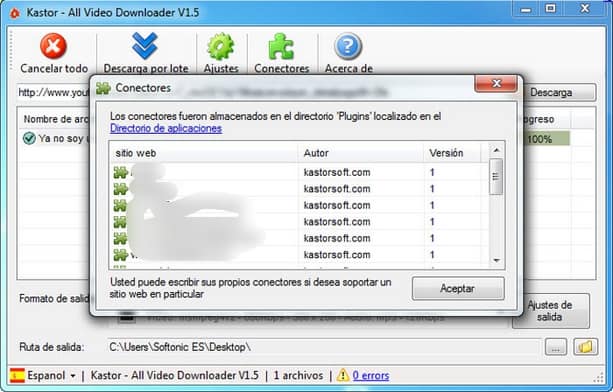
1. YTB Video Downloader

best online video downloader-download videos from any website

YTB Video Downloader is a desktop tool to download online videos directly to your computer. This tool supports more than video sharing sites to download videos. You just need to copy the link of the video, paste it into the input field of the tool and press the Download button. After that, you will see the options to choose the quality of video from which you have to choose and can download video from any website.

2. Aimersoft YouTube Downloader

best online video downloader-download videos from any website

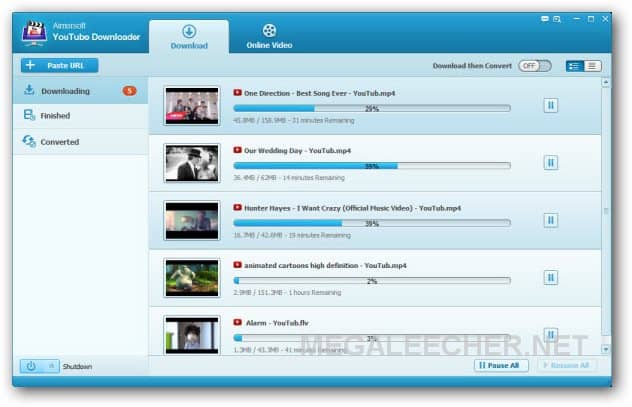
Aimersoft YouTube Downloader is another desktop tool to download online videos. This software is available for Windows and Mac. You can download videos from YouTube and other 1000+ websites. It also has an in-built HD media player to let you watch downloaded videos within the software. It also has a video convertor which allows you to convert videos to fit different players and devices.

Bonus Tools

There are thousands of videos on the Web that you want for your collection; comedy shorts, the latest news, instructional videos, live performances of your favorite band. you can do more than just download flash videos. For instance, if you want to grab the audio off of a video, you can download the video and convert the audio to MP3. You can even edit the video using the following tools.

Clipnabber

Clipnabber

Clipnabber is one of the tool to download instant videos from Youtube, facebook, Dailymotion, vimeo etc.. It is totally free to download and use, and also the Clipnabber is able to record MP3 audio from any site, and can convert videos to another formats like AVI. WMV, MPEG-4, MP3 etc..

iDownloader

iDownloader

iDownloader is a download accelerating tool offering you the fastest available download speed. Split your download into small segments and download them in parallel with iDownloader! Packed together with other rich features such as our Video Download Panel, Scheduler, Private Download, HTTPS support and much more.

RealPlayer’s video downloader

Realplayer

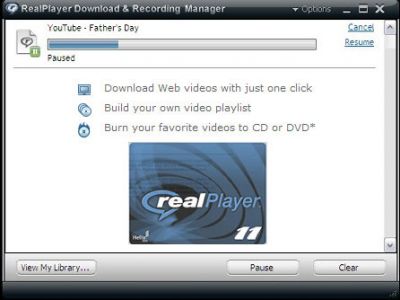
Using RealPlayer’s video downloader software, you can download your favorite free online videos from hundreds of Web sites, including StupidVideos.com, MySpace.com, DailyMotion.com, CollegeHumor.com, Atom.com FunnyOrDie.com MetaCafe.com and so many more.

Vixy Freecorder 6

Vixy

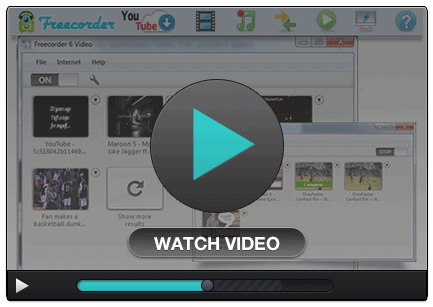
Vixy Freecorder 6 is an another tool to download videos from thousands of websites, like Youtube, facebook, Dailymotion, vimeo etc.. We can use this as Video down loader, media converter, youtube down loader, screen recorder, audio recorder etc…

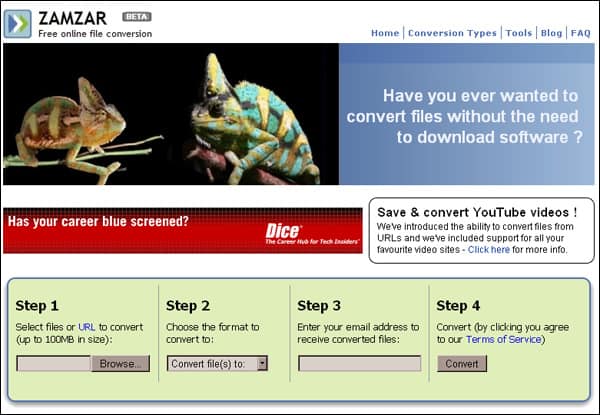
zamzar

Zamzar

Zamzar is free online file converter, We can use this also for  to Download videos and send files and manage files. We can paste any video URL and select the format if need to convert to any other format after that it will send to our mail.

Conclusion

We tired our best to cover all the possible ways to download online videos directly on your computer. With a few exceptions, all the ways that we listed are well effective. You can choose the way or the tool which suits you best. If you come across with any problem or if we missed any best online videos downloader, let us know in the comment section.

Download Torrents Without Software: 3 Easy Steps That Work for Everyone

Although peer to peer file sharing like torrent has been blocked by ISPs and network administrators, still there are possible ways to download torrent files directly without installing any torrent client. Torrent files are peer to peer sharing files which let you download video files, audio files, software, movies and other stuff from the internet for free. Torrent files are associated with downloading pirated and copyright-infringing files. Peer to peer file sharing services often blocked by offices, colleges, schools as these files consumes a huge amount of bandwidth. You can also check best uTorrent alternatives.

If you want to download torrent files, you need a torrent client. But there are some other ways also to download torrent files directly without any torrent client like BitTorrent or uTorrent. Either the torrent services are blocked in your area or you don’t have a torrent client, you can try other ways that we are going to discuss in this article. We will discuss Ways To Download Torrent Files Directly Without Any Software.

3 Ways To Download Torrent Files Directly Without Any Torrent Client.

With these ways, you can download torrent content directly like any other HTTP download. You don’t need to worry about any torrent software and even there are some services which allow you to send your downloads directly to the cloud and from there you can download your stuff to your computer. You can also check the best VoIP services for android.

1. Download Using Online Torrent Client.
seedr-download-torrent-files-without-torrent-client

This kind of service allows you to access torrent client online from your web browser. You don’t need to download torrent software. It bypasses peer to peer traffic shaping from an ISP and also keeps you safe and secure from anti-peer to peer organizations which monitor copyright infringing torrents.

seedr-download-torrent-files-directly

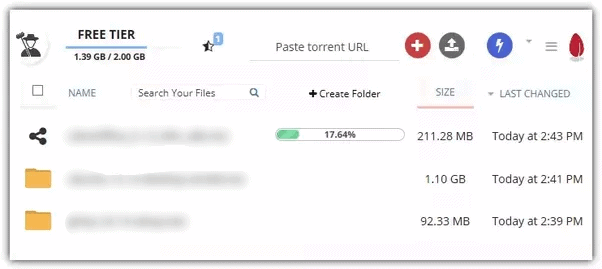
Seedr is one of the safest and generous free services. You can download the completed files from their servers and the downloading file size is limited to 2GB. The default storage is also limited to 2GB. You can increase the file limit to up to 6 GB by posting a review, inviting friends, or pinning Seedr image on your Pinterest account.

seedr-download-torrent-files-without-torrent-client

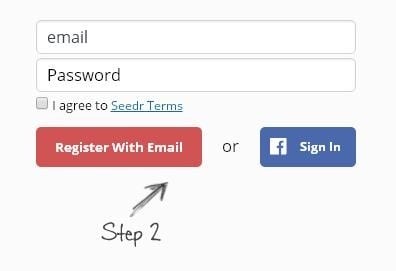
You can download multiple completed torrent files from Seedr at a time, but you can only transfer one torrent at a time. It supports local torrent files, magnet links or an URL of a remote torrent file.

Gionee A1

Also Read: 6 Free & Automatic Call Recorder Apps for Android

2. Using Torrent Downloader Browser Extension

It is one of the most popular and effective ways to download torrent content through your web browser. You can either use Mozilla Firefox or Google Chrome web browser. You need to install the extension of the torrent software on your web browser to get your job done. We will mention one for Google Chrome and one for Mozilla Firefox.

JSTorrent – For Google Chrome

jstorrent-download-torrent-files

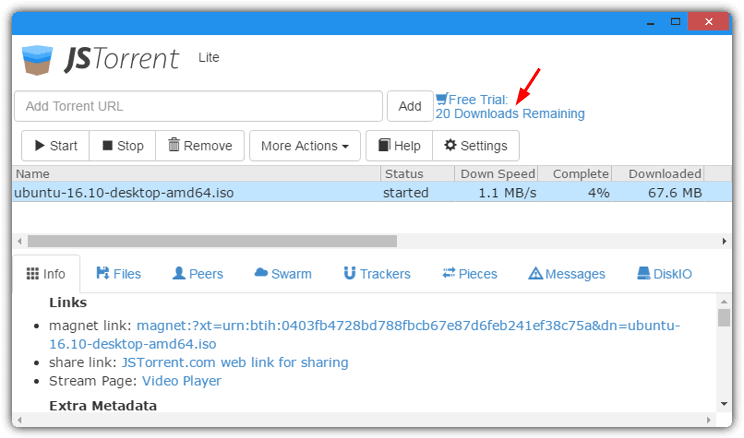
JSTorrent is a Google Chrome extension torrent client which allows you to download torrent files without any need of the torrent client. The free version is limited to some features, but the paid version is fully featured. But the downloads are restricted to only 20. You need to re-install the extension to get another 20 downloads. It accepts all the local/remote and magnet link torrent files. You can also stream videos while downloading by selecting the video file and going to Files tab > Stream. To download the extension for your web browser, press the Download button below.

Gionee A1

Torrent Tornado – For Mozilla Firefox

torrent_tornado-download-torrent-files

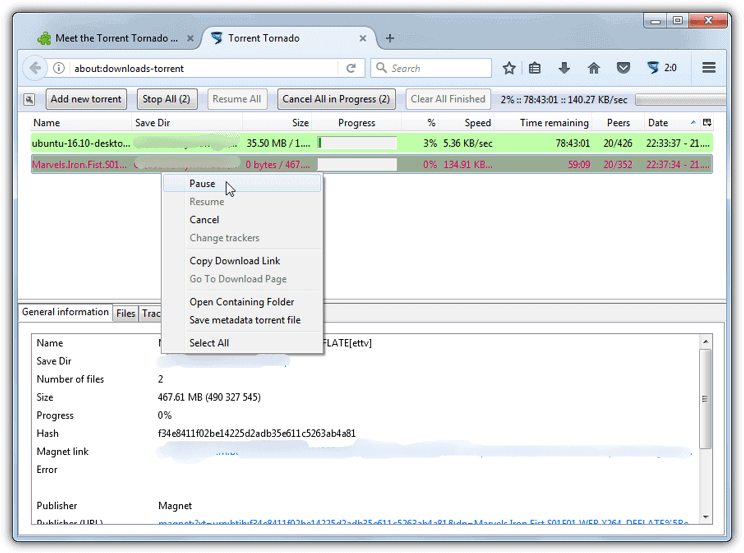
Torrent Tornado is another competent web browser extension to download torrent files. It is available for the Mozilla Firefox web browser and has enough functionalities for average users. It supports .torrent files, HTTP URLs, magnet links, FTP URLs or torrent hashes. To add the source of the torrent, you need to press Add new torrent button. It will offer the choice of which files to download and details for the download. Press the Download button to download the web browser extension.

Gionee A1

Also Read: Amazon Launches a Fire TV Stick With Voice Remote In Indian Market At Rs 3,999

3. Download Torrent Files Using File Download Manager

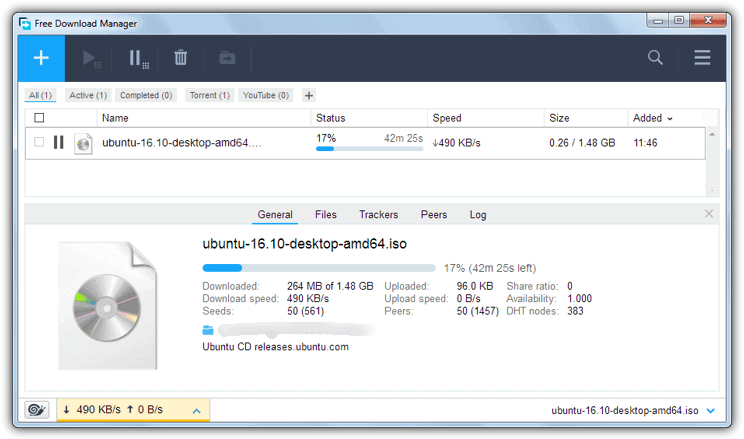
If you don’t want to download install torrent client, you can download File Download Manager to do your task. Apart from downloading and managing other files, it can also download torrent files. When you will install Free Download Manager, it will offer to associate itself with magnet links and .torrent files. To download torrent files directly to your computer, you can drop a .torrent file onto the FDM window to start it. To manually search for a torrent file, you can simply look over to the top right of the window for the Menu button. Press the Menu button or just paste the remote torrent or magnet URL by pressing the Add button to start button.

free_download_manager-1111

The File Download Manager also offers you to manage the downloading speed. You choose the speed limit from Low, Medium or High. You can concede bandwidth to other traffic by choosing Snail mode. In the Settings, you can control used ports, traffic limit speeds, port forwarding, DHT. To download FDM, click on the Download button.

Gionee A1

Also Check: Vivo V5 Plus IPL Limited Edition Matte Black Available on Flipkart

To sum up

All the above-mentioned ways are effective and safe. You can download torrent files without downloading any torrent client or software. If we missed something or if you have any query, let us know in the comments section below.