Home Blog Page 76

How IBM Technology Is Amplifying Chemical Research

0

The new automated technology-induced system adopted by IBM is revolutionizing the chemical industry and spreading a vogue in chemical synthesis performance. The overall process has dramatically reduced the discovery time, particularly for the Covid-19 treatment. 
ibm

The live demo session of this implication, that IBM termed as the Big Blue, was successfully surpassed by a group of journalists who visualized the complex technology in a virtual room. The live session encouraged one of the journalists to choose the molecule, in particular, the molecule in a potential Covid-19 treatment. The event provided a gist of the synthesis of the molecule and also provisioned a look at the generated results of the analysis in a properly documented PDF format.   

What makes the IBM technology stand out?

IBM’s technology-based complex system is the hard work and efficient outcome of the careful analysis and systematic approach delivered in the development, which was started around three years ago. 

Artificial Intelligence:

Above all, the smart Artificial Intelligence induced in the process tracks the predictions to the chemical reactions. Any composite sequence of chemicals submitted is first tracked down and translated into a language readable by the system, to synthesis the same. The huge data in the system is brilliantly traversed and the protocol for the process is administered by this AI.  

ibm,chemical industry,Chemical Synthesis

Cloud Computing:

IBM introduced this service in August 2018, via the Cloud. The complex system was named RXN for Chemistry. This way, anyone, anytime can access from anywhere, and efficiently utilize the services. IBM had anticipated all the strategy in advance and has confidently rendered the service world-wide with beautiful implications and attention to detail. 

ibm,chemical industry,Chemical Synthesis

Robotics: 

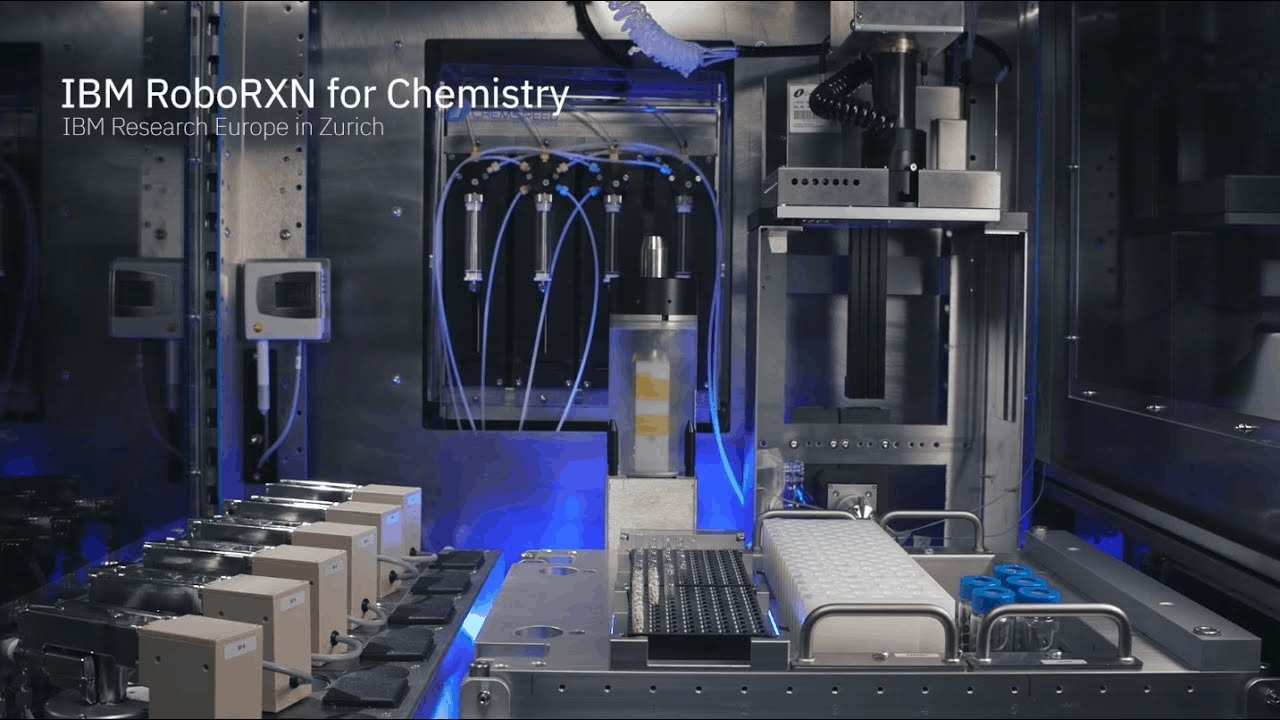
An element of further improvement was induced with Robotics. The Cloud-based AI could now automate all the processes without direct human intervention in the chemical processes. 

The new member added to the complex system revised the whole synthesis to a lot more automated and clever procedure. IBM rightly renamed it as RoboRXN for Chemistry.

ibm,chemical industry,Chemical Synthesis

 The 20 or so journalists watched dumbstruck, as the robot efficiently executed the entire synthesis process in about 8 steps. The robot is smartly programmed to understand and accomplish tasks like taking the solvent to the reagent and or moving the reactor to a small reagent, and related tasks.

Machine Learning:

Machine learning is the moral fiber of IBM’s renovative service. Machine learning lured into this technology persuades a translation method. It treats chemistry like language translation.

 The language of chemistry is translated by converting the reagents and the reactants to products. With the use of Statistical Machine Intelligence augmented with Learning Engine (SMILE) representation, the technology describes the chemical entities.

ibm,chemical industry,Chemical Synthesis

Data-driven Strategy

IBM’s technology-induced complex Cloud-based, AI active with machine learning robotic process brags augmented clever features with its data-driven strategy improvising the quality of its data.

Alessandra Toniato, a researcher at IBM Zurich explained the significance of their data-driven strategy and claimed to have used an adept “forgetting experiment” for revising its data. AI system chemistry in IBM’s model received the noise-free and clean data set, that eliminated the plausible bad models, altogether.  

ibm,chemical industry,Chemical Synthesis

How is the project envisioned by IBM?

This synthesis procedure can be conveniently inculcated in regular practice. The user can enter a consolidation of molecules, that need to be tested.  Artificial Intelligence in the system would come in and pick up the order. It will call the robot for action and hand the list of readable chemical combination to the robotic device, to take the synthesis further. The analysis and the results would be produced and delivered in a clear PDF format to the user. Isn’t that interesting enough, worth a trial. 

With this new technology under its collar, IBM is ushering into a resurgence in the chemical industry with two potential models. 

1. Canvas the entire premise of the company and deploy the service.

2. Offer licenses to private Cloud installations within the company premises.

A distinguished RSM, manager at IBM Research Europe,  Teodoro Laino proposed the technology and said that one can think from a business perspective and envisage having a similar system replicated in their company premise or research groups can avail the technology at their disposal,”

Laino added that IBM’s aim is primarily to provide chemical services across the world. It is visualizing a sort of Amazon of chemistry, wherein anyone can ask for any chemistry, instead of just using the one that is already in the market.

Overall the live demo event went on successfully and amplified the level of confidence that IBM was brimming with. Adding wings to its aspirations, IBM seems to be all set to run the robotic system 24/7 from anywhere in the World. 

Manica, a research staff member in Cognitive Health Care and Life Sciences at IBM Research Zürich positively stated that the demo demonstrated a synergistic between a human and AI and underlined the fact about how it will help up to speed up the whole process.”

Let’s witness the era of renaissance in chemicals with IBM and be a part of growth!

How To Add Friends On Steam

how to add friends on steam

Holla to the Steam Community!

If you’ve been searching for “How to add friends on Steam”, you are on the right page. It takes me back to the critical point where I found myself badly stuck in the peak of Counter-strike Global Offensive, one of the most popular games on Steam. Yes! That’s somewhere when you feel the need of your besties in the team to understand the game and move ahead with all speculations under steady control. So, how many Steam friends do you have?

So in this article, we’ve explained how to add your friends on steam in few easy steps. I hope you would be equally benefited with this.

ibm,chemical industry,Chemical Synthesis

Steam demands a minimum of 5 dollars’  worth of purchase or addition of 5 dollars to your account to grant permission to add friends. Hence, you get stuck and can’t find a direct way to add friends. But don’t worry, I have figured out the simplest solution to all the Steam user’s search for How to add friends on Steam?

I will be sharing 2 approaches. One for Mobile Users and another for Windows or Mac (laptop or PC). Choose which platform are you using for Steam and let’s get started and find an answer to – How to add people on Steam to pacify game?

Now, if you are using a System, you may directly leap to the explanation below in Approach 2. Or else continue reading.

Bonus Tip: Did you know you can also appear offline on Steam in just 3 simple steps.

1. How To Add Friends On Steam Mobile App.

Approach 1: For all mobile users pondering – How to add people on Steam?

Steam, The Ultimate Online Game Platform
how to add friends on steam?
  1. If you are not already logged into your steam account, then log in with your respective credentials, as in your username and password. After logging in, when you try to add friends, you would find the message asking you to add 5 dollars to your account or make a purchase for $5. At the login page, you would also receive a 5 digit number in your mail as an OTP to confirm your identity.
  2. Now, in the aforementioned email account, you might have initially received a mail from Steam support, which usually every player receives when the initial login setup is done. Just search in your email for a mail from Steam support.
  3. Once, you find it, just check the five-digit number that you might have received in that mail below the lines –

 “Here is the Steam Guard code you need to login to account [your account name]:”. 

  1. You need to check that number and put it in the space for authentication OTP that you just received.
  2.  Now tap the three lines on the extreme top left corner of your screen. That will open a drop-down for you. 
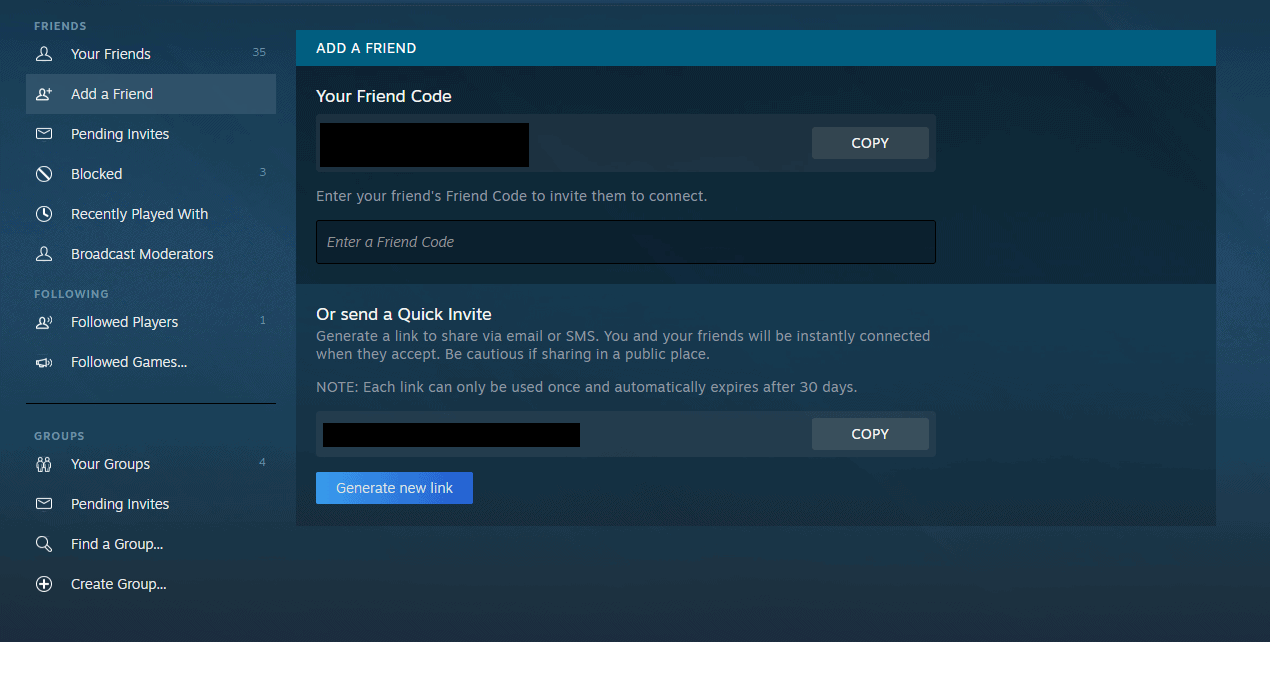
  3. Find the Friends tab there and click on it to find Steam friend code.
ibm,chemical industry,Chemical Synthesis
  1. If you have an android phone, then you will find a chat option in the drop-down list. Click that chat tab.
  2. Now, in the Steam friend search tab, enter the Steam friend code. Start typing the name of the friend or group, you are planning to add. As you type, a list of all the Steam users with similar initials will start popping up on the screen. Identify your friend and send them a friend request. Thus you find a solution to the common query- How to add people on Steam?

[Note:  Apple Users: Select the All Players tab that you may see below the search box.

Android Users: Select the Search All Players tab that you may see below the search box.]

  1. Add them by sending a friend request. But you have to wait for them to accept the request and add you back.

And that’s how you resolve your ‘can’t find a friend on Steam’ issue.

So, that was way too easy for mobile users on Steam, add friends to find a solution to the typical question – How to add people to Steam. So, everyone is in a Steam Friend search. Add your friend now!

2. Adding friends on Steam On Windows PC or Mac.

Approach 2: PC or Mac Users

Here's how to play your Steam library on your iPhone or iPad - CNET
How to add friends on Steam games on PC
  1.  On your web browser type http://store.steampowered.com/. This is the Steam website that is a standalone software client, a destination where you can create games, play unlimited games, and discuss them with your friends and playmates.
  2. Now, If you are in Steam user search, and when you try to add friends here, unfortunately, you will find the same error stating add 5 dollars to your account or make a purchase for $5. you can also get a Refund for Steam games easily if you are not interested to continue further.

So, how to add friends on Steam?

  1. If you are logged in to the Steam website using your account then you would find your name on the top of the page.
  2. Right-Click to view a drop-down list with multiple tabs. Choose the Friends tab. 
ibm,chemical industry,Chemical Synthesis
  1. You would now see a button on the right side corner +ADD FRIENDS
  2. Click it to find the Steam search tab.
  3. Enter the name of the Steam user, name that you like to befriend on Steam.
ibm,chemical industry,Chemical Synthesis
  1. Click the ADD AS A FRIEND tab and wait for your friend to respond.

That’s how you can easily add friends on Steam.

Conclusion

Steam is such a powerful platform where millions of people are connected just like that in the haste of playing games and discussions related to these games. No wonder, you are looking forward to getting connected to your steam friends. Just try and add the Steam friend code in the Steam friend search tab and add them from your end. Waiting is part of the excitement. So here ends your steam user search and now you know How to add people on Steam?

The best part of the Steam free account is that you can participate in the Steam community, wherever you go. So spread the word about How to add friends on Steam?

Stay connected and enjoy playing.

6 Best Malwarebyte Alternatives (Free + Paid)
0

Best Malwarebyte alternatives search has brought you here, right? Good to see you. In this article, I would like to share the best Malwarebytes alternatives that are better in performance and without slowing down your PC.

Let us first understand the product Malwarebytes that is featured with exuberant pros and so stands out in the range of anti-malware. Here is all that you wish to know about Malwarebytes. If you guys already know about this product then feel free to skip the Introduction and leap on to the Best Malwarebyte alternatives, directly.

Malwarebytes or formerly known Antimalware Malwarebytes is a software product released in January 2006, by Malwarebytes Corporations. The free-version of this anti-malware software scans for and removes malware when started manually. It is specially designed for Microsoft Windows, Chrome OS, Mac OS, Android, and iOS.

Malwarebytes is one of the best antimalware in the free antivirus range and like any other antivirus is quite efficient in scanning and removing malware. The advanced paid version of it periodically scans the system and provides real-time protection, with an additional flash memory scanner. This Antimalware results in Antimalware Service Executable issue which eventually leads to eating up all your CPU space.

Above all, we need to understand what malware is, and how the system gets infected with it?

Best Malwarebyte Alternatives
How Malware attacks?

Malware is any malevolent software like viruses, ransomware, or spyware that tries to enter your software and applications and create unlimited issues. The malware can attack in a plethora of ways like phishing emails, hacking attempts, and Trojans. 

So what happens if your system is infected with this malware?

Malware can create several nuisances like stealing your identity, installing unwanted programs, making your system painfully slow, etc. Malware can even make the system fail to function properly intermittendly.

So, stopping this malware activity by an effective anti malware is the only go for this issue.

Malwarebytes is one of the best in the range of premium anti-malware with its sophisticated antivirus protection complemented with augmented levels of customization.

Best Malwarebyte Alternatives

The advantages of Malwarebytes:

1.   Malwarebytes Premium protection stops any malware, adware, and other online threats with real-time protection. It warns about any fraudulent websites and protects the system from scams. With its efficient scanning process, any existing infections are identified and removed, thereby protecting the system. 

 2.   Malwarebyte uses artificial intelligence and protects you from advanced malicious infections. It claims to run in the background and avoid slowing down your system with minimal impact on performance.

 3.   Above all, its implementation is smooth and easy. Malwarebytes integrates well with the Active Directory.

 4.   It offers an easy interface that is quite a user-friendly one.

 5.   This antimalware catches several malware websites that other security programs fail to catch.

With the pros come cons, that compel us to look for the best Malwarebyte alternatives.

Cons of Malwarebytes:

1.   Malwarebytes is not a full-stack antivirus way out. Probably not built to be a complete antivirus program, this application lacks certain qualities that are usually exhibited by other anti-malware solutions in its range.

2.   Users have started complaining about its increased rates of the annual subscription and the constant remindings for the same, which start beeping up from quite ahead of time.

3.   It lacks a quick scan option. Although the complete scan process time has drastically come down through the years, the alternative of a quick scan is always a savior.

4.   Its resource consumption is a bit high, compared to other anti-malware options available in the market.

All these shortcomings compel one for some other antimalware alternatives. That doesn’t mean Malwarebytes is any less active or utilized. That’s completely personal choice and requirement based.

Let’s now talk about the best Malwarebyte alternatives. The market has a whole planet of the anti-malware application loaded with the best compelling features and benefits. I am bringing a  few for your reference, in no specific order. You can choose your best Malwarebytes alternative, as per your requirement. All these malware products are typically featured with parental controls, secured VPN, privacy managers, and cloud backup, with additional special features and customizations.

Best Malwarebyte Alternatives

1 McAfee Total Protection:  

Mcafee Best Malwarebyte alternatives

McAfee assures total protection for all your connecting devices with almost every internet safety feature, you would ever want and proves itself to be the best Malwarebyte alternatives. With supreme identity and privacy protection, this antivirus provides ultimate malware and firewall defense, complemented with a safe VPN support.

Pros of McAfee:

1.   It offers comprehensive protection to all your devices.

2.   With an extended anti-phishing browser, firewall, and social media protection, McAfee comes with an inclusive Security Management Console that allows complete safeguard to your devices.

3.   The add-on facilities include a PC tune-up tool and digital file shredder for better file and folder protection.

Cons of McAfee

1. McAfee is blamed to be using up a lot of memory that tends to limit your flexibility to use your PC when its services are running.

2. The application seems to be difficult to install if your system already has malware.

3. It gives genuine protection against all malware and the antivirus is relatively quick. But when it comes to updating the antivirus, the application had witnessed exploitation by Trojans.

2. Norton:

With most 5 star ratings for security, features, ease of use, support, and pricing on most of the reviews and blogs.

Norton Best Malwarebyte Alternatives

Norton is one of the best Malwarebyte alternatives that offer real-time threat protection with a password manager and smart firewall with 2 GB PC cloud backup. With supreme online privacy, this antivirus claims to be complete ransomware protection to your system.

Pros of Norton:

1.   Along with 100% Virus protection promise, Norton proposes confidence by a full refund policy.

2.   It is designed to bring in multiple layers of protection for your devices including real-time threat protection, firewall, and privacy protection.

3.   With a comparatively less annual subscription fee, this antivirus offers a more guaranteed and secure experience. It is a perfect cybersecurity package.

Cons of Norton:

1.   After acquiring a Lifelock, Norton users have experienced an increased sales pitch.

2.   Norton has demanding requirements and requires a bundle of memory.

3. Kaspersky Endpoint Security

Kaspersky Best Malwarebyte Alternatives

Recognized for their expertise in the fight against malware, viruses, and Cybercrime, Kaspersky’s Security technology is one of the most tested and most highly awarded. It is the best Malwarebytes alternative you can find for your online privacy and theft free transactions. Kaspersky provides very powerful ransomware protection across all of its plans.

Pros of Kaspersky:

1.   Kaspersky’s Safe Money feature helps risk-free shopping and banking.

2.   It is known for its 100% effectiveness in anti-malware tests.

3.   Best designed anti-virus protection that offers a much cleaner interface and fulfilling performance.

4.   Kaspersky is one of the antimalware solutions that doesn’t make your system comparatively slow.

Cons of Kaspersky:

While it protects the installation of any keylogger in the system, if you have a keylogger already installed in your system, then Kaspersky fails to detect it.

4. Avira

Avira Best Malwarebyte Alternatives

With a tagline- Unlimited access to everything – for all your devices, Avira is a lightweight anti-malware product that is best known for its ease of use. With all basic features and facilities that any antimalware provides, Avira is one of the best Malwarebyte alternatives that you can effortlessly keep using on your system. It is believed to be one of the most traditional ways of cybernetic security.

Pros of Avira:

1.   With excellent customer service and simplest, most consistent VPN’s Avira brings in the most reasonable subscription value for money products.

2.   Its real-time presence blocks malware, ransomware, and all online threats instantly and provides safe surfing, streaming, and downloading confidence.

3.   Its server is really easy to use and secure for transferring data.

Cons of Avira:

1.   Many users have blamed Avira for installing unknown software into their systems without asking for any permission and that appears annoying.

2.   Lack of proper customer service augments bad reviews on Avira products.

3.   Complaints of high usage of RAM.

4.   The ads that pop-up continuously are bothersome and sadly cannot be disabled.

5.   Avira is not very powerful when it comes to detecting the thefts from downloading. It has encountered claims of skipping detection of malicious files during downloads.

5. Avast

Avast offers the lightest and toughest defence against viruses, malware, and ransomware. With complete protection for all the devices, Avast can be termed as one of the best Malwarebyte alternatives. Avast claims to be using real-time intelligence from over 400 million users and preventing approximately 66 million threats every day. you can check our review on avast cleanup premium.         

Avast Best Malwarebyte Alternatives

Pros of Avast:

1.   With various features of checking like rapid and stream checks that are also comprehensive, Avast drastically reduces your system contamination and secures your documents and other data.

2.   It is one of the top free antiviruses that suits systems that are specifically used for playing games.

3.   It is best known for prevention against malware.

Cons of Avast:

1.   Lack of comprehensive protection

2.   It is in bad books due to its unethical sales policies and lacks good customer support.

3.   It poses numerous annoying ads.

6. Total AV

total AV Best Malwarebyte Alternatives

Total AV extends the promise of total security and protection for your digital world with the benefit of security tools that you will ever need. With complete hasslefree cybersecurity with safe site browser extensions and enhanced performances.

Pros of Total AV:

1.   Highly impressive clean and quick scanning.

2.   It deletes most of the duplicate folders without even many pop-ups.

3.   It smoothly runs in the background and makes enough room for you to focus on the tasks at hand.

4.   Supported with a whole-line of fancy extra features, it manages to defend your system from any ransomware, malware, and Trojans.

Cons of Total AV:

1.   Not very intuitive and causes system disability.

2.   Limited scanning options.

These are a few of the best Malwarebyte alternatives that I found efficient for all operating systems and digital devices. Check them out! 

How To Fix “Not Enough Memory to Open This Page” Error? [5 Detailed Solutions]

0

Google Chrome is one of the most used browsers all over the world because of so many reasons including its speed, the way it loads pages very quickly, tabs can be dragged to separate windows, convenient interface, and many more. But this doesn’t mean that it doesn’t have any problems.

not enough memory to open this page

Users report a lot of issues and one of them is the  “not enough memory to open this page” error. This error is displayed as shown in the image given below.

The error code states that it ran out of memory and you should try again by closing other tabs to free up memory.

not enough memory to open this page

Sometimes, the same error is also displayed as “Aw, Snap! Google Chrome ran out of memory while trying to display this page”. 

not enough memory to open this page

Why Does Chrome Take So Much Memory?

You might wonder why Chrome is using so much memory and how to resolve this issue. The error message itself says that it is because of the memory issue and the memory which it refers to is the Random Access Memory (RAM).

Google Chrome uses more RAM and CPU resources than other browsers. That’s why one of the many reasons for “Chrome not enough memory to open this page” issue is that there is not enough free RAM.

There are some other reasons also like unwanted extensions in the background, Cache not cleared, etc. In this article, we are going to show you some of the best fixes to solve this problem.

Method 1 – Update Your Chrome Browser 

If in your Google Chrome, not enough memory to open this page error is annoying you and you are not able to open a webpage then the first thing you should do is to check whether your browser is up to date or not. For doing so, use the following steps:

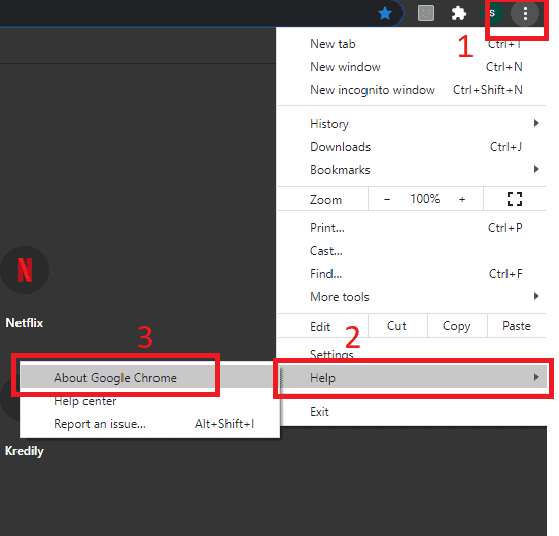
Step 1 – Open Google Chrome and then select the three dots in the top right corner.

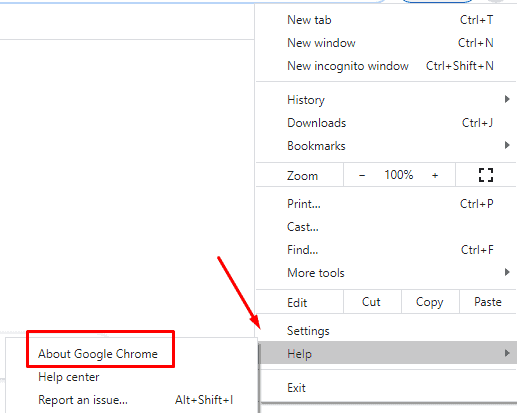
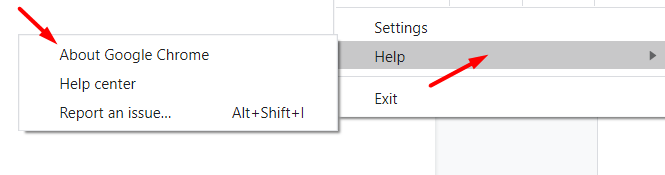
Step 2 – Click on “Help” and then select “About Google Chrome”.

not enough memory to open this page

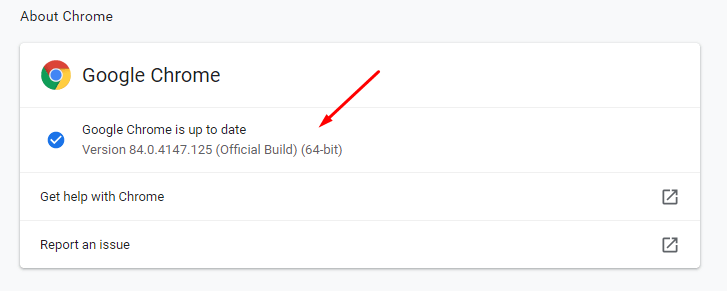
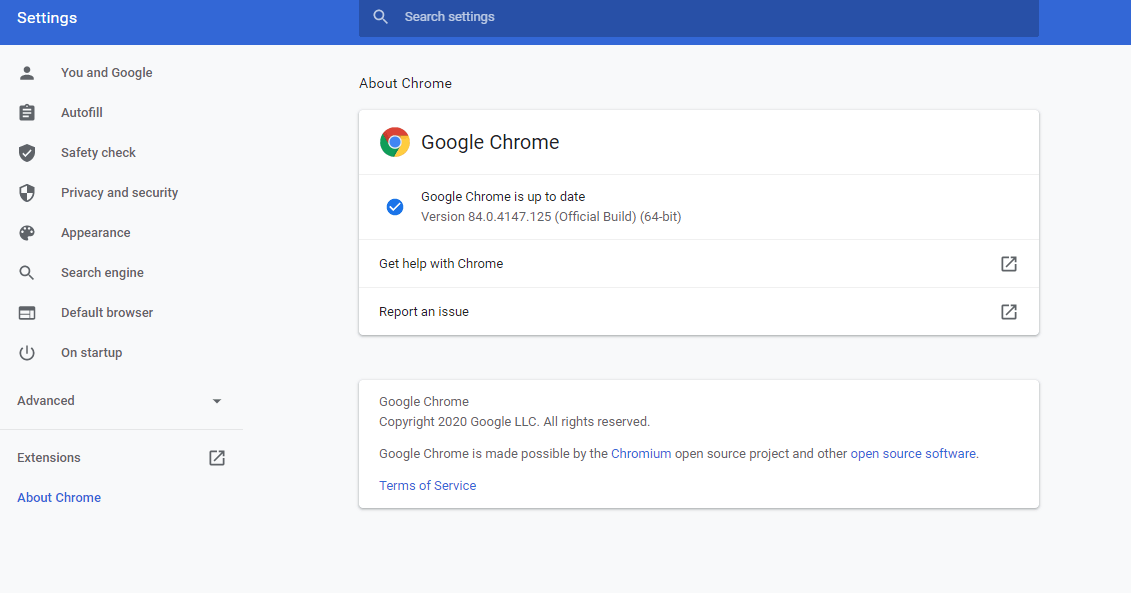
Step 3 – On the page that opens next, check if Google Chrome is up to date or not. If not, then select the “Update Google Chrome” option.

chrome not enough memory to open this page

In this way you can fix “Chrome not enough memory to open this page” error in just 3 steps. If the issue persists, try out the following methods.

Method 2 – Close all the tabs and disable browser extensions

Sometimes, it may happen that you are getting the “Chrome not enough memory to open this page” error because a lot of tabs are open on your browser. Firstly, close all the tabs and then disable browser extensions to resolve the error.

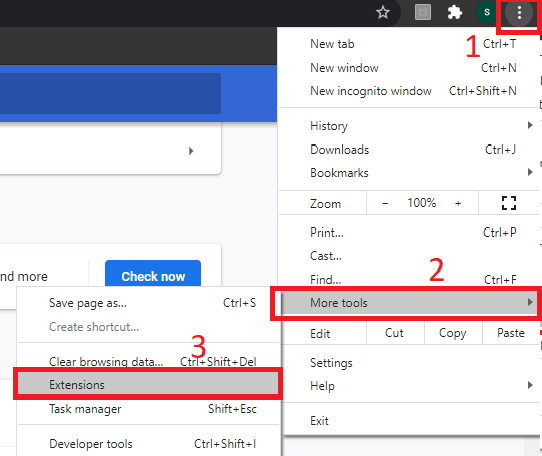
Step 1 – After closing all the tabs, open Google Chrome again and click on the three dots icon at the top-right corner.

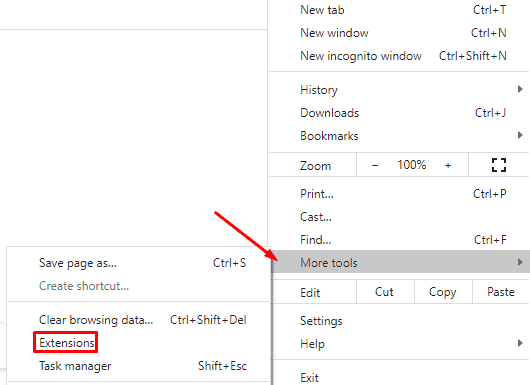
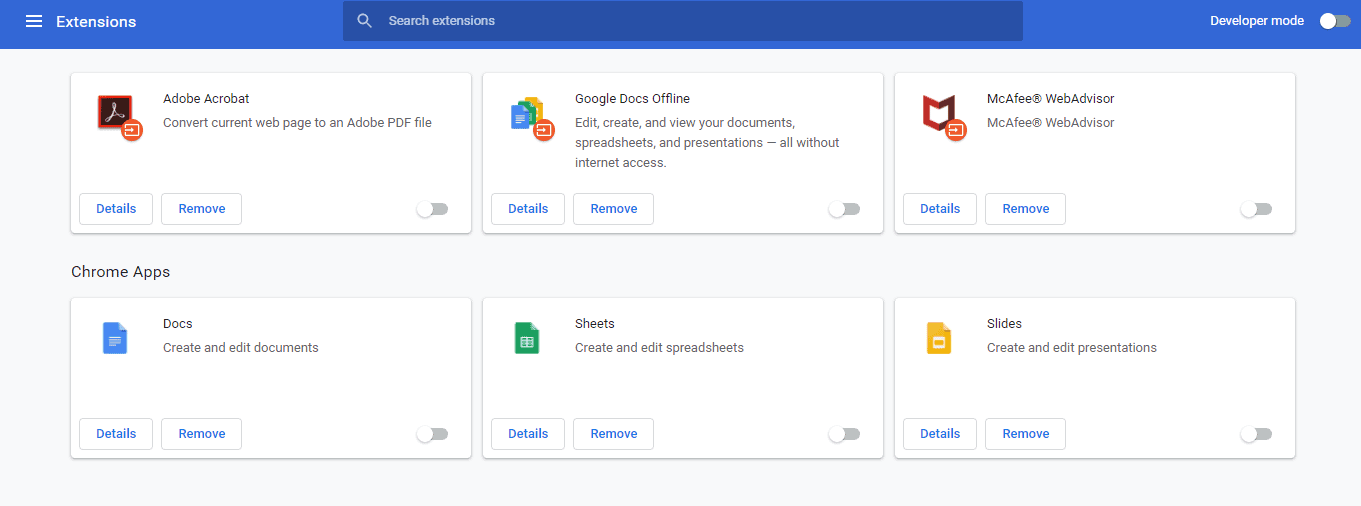
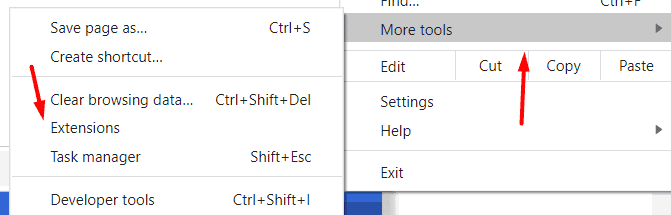
Step 2 – Now, click on “More Tools” and select “Extensions”. A tab will open which will show you all the extensions that you have installed on your browser.

why does chrome take so much memory

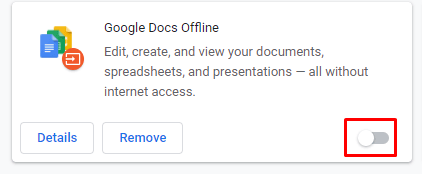
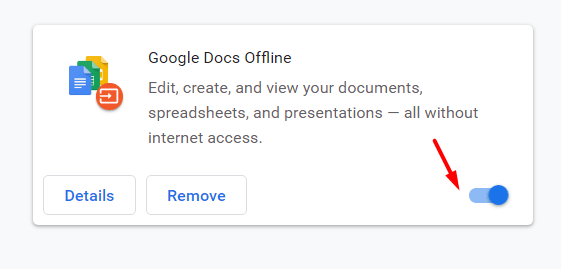
Step 3 – Now, disable all the extensions one by one. You can do this by using the toggle button as shown in the image given below.

why is chrome using so much memory

Step 4 – Now, check and try to load the page which was showing the error and see if the error is resolved or not. If it still shows “Chrome not enough memory to open this page” then you may try the below-given solutions.

Method 3 – Clear Cache To Fix Not Enough Memory To Open This Page Error

Are you still wondering “why is chrome using so much memory” and “how will I ever be able to use it” then don’t worry, we have got you covered with some more easy solutions. The first reason is not having enough memory, so let’s try by clearing out the cache files by following the given steps –

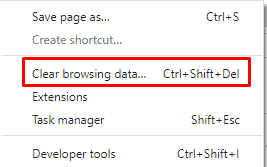
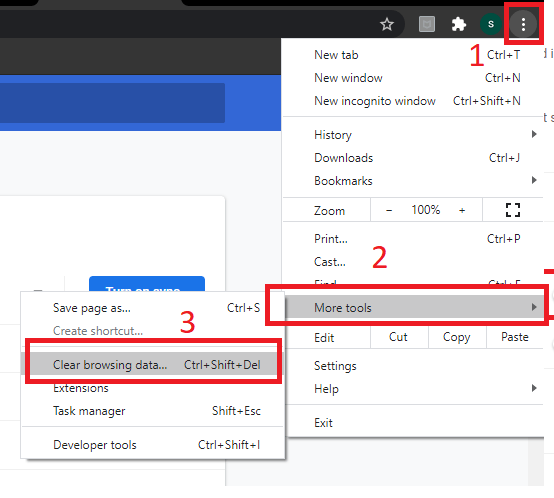
Step 1 – Open Google Chrome and click on the three dots at the top-right corner. Now, click on “More Tools”.

Step 2 – Choose the option for “Clear browsing data” as shown in the image.

why does google chrome use so much memory

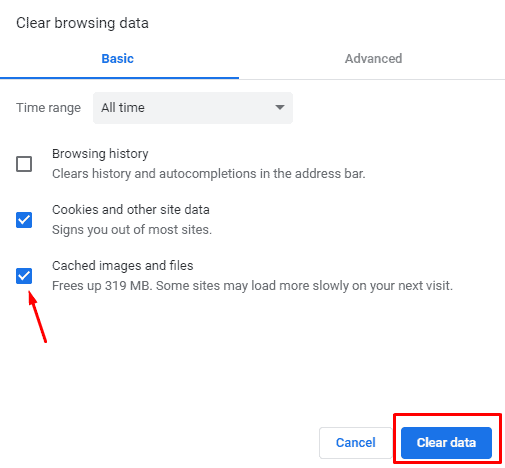
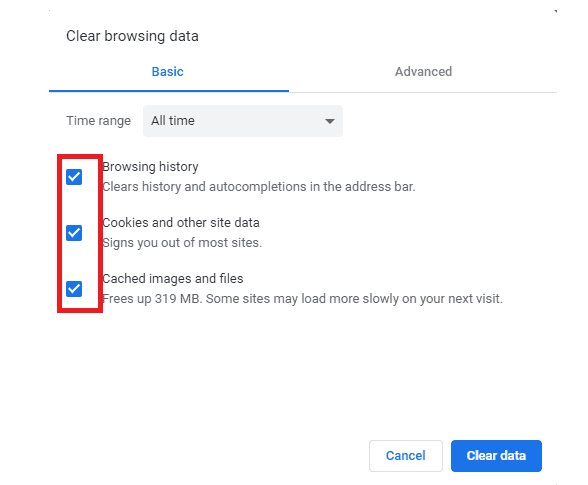
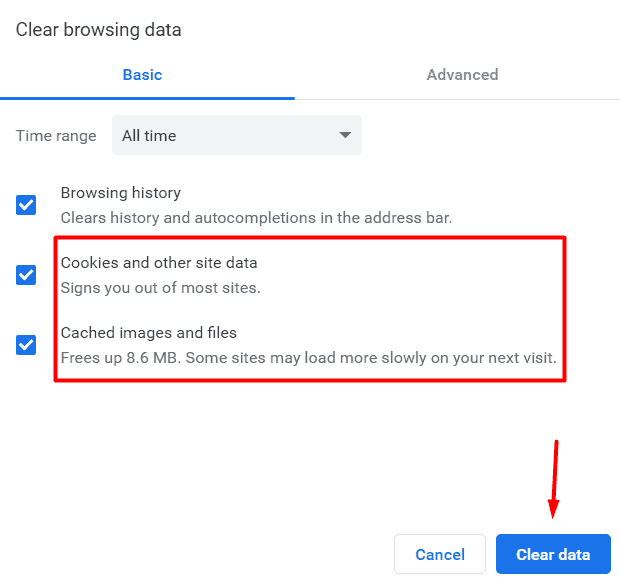
Step 3 – On the next window, ensure that the tick marks are present on both the options of “Cookies and other site data” and “Cached image and files”.

chrome not enough memory to open this page

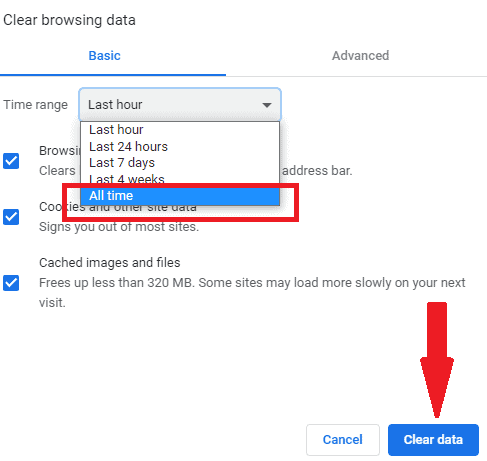
Step 4 – After ensuring the tick marks, click on “Clear data” and all the cached images, files, and the cookies from various websites will be cleared.

Now, check for the “chrome not enough memory to open this page” error and see whether you can open a page or not. After following these steps too, if the problem has not been resolved, then we have one more fix for you. Just read the following process!

Method 4 – Disable Hardware Acceleration in Google Chrome

Hardware Acceleration can be enabled or disabled according to the user’s requirements. Sometimes, it helps to speed up several processes, and sometimes, it just slows down the performance of Google Chrome.

You can disable it by using the following steps –

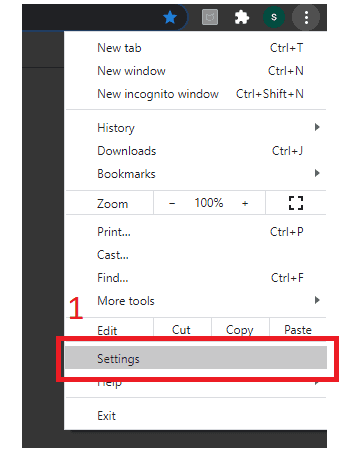
Step 1 – Open Google Chrome and select the menu by clicking on the three dots icon. After this, select “Settings” as shown in the image.

why does chrome take so much memory

Step 2 – Now, scroll to the bottom end of the page to find an option for “Advanced” settings.

why is chrome using so much memory

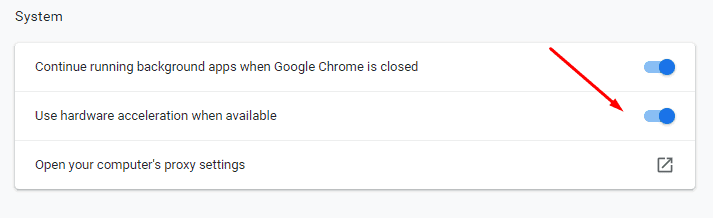
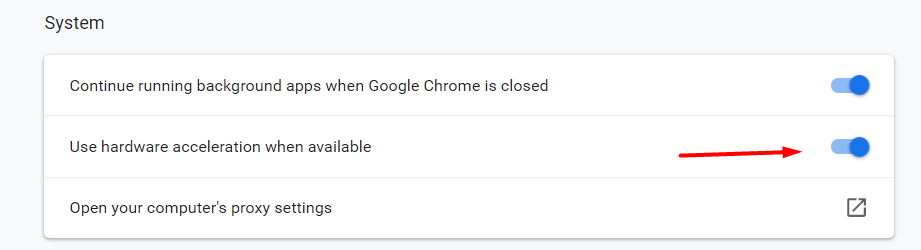
Step 3 – Check if the toggle bar for “Use hardware acceleration when available” is turned OFF or ON. If it is on, then toggle it back to disable the hardware acceleration in Chrome

why does google chrome use so much memory

Through this simple method, the “chrome not enough memory to open this page” is solved all the time and the users report that they are not getting this error anymore. But if you are not one of these and the problem has not been solved yet, then you don’t have to panic as one more solution is waiting for you!

Method 5 – Expand Page Filling

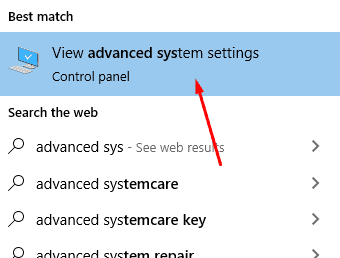
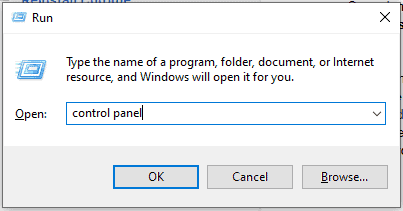
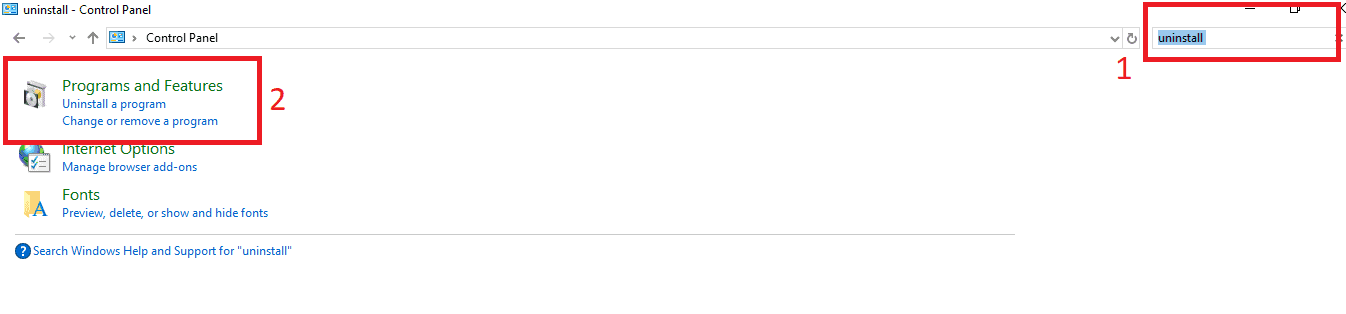
Step 1 – Type “Advanced System Settings” in the search bar of Windows 10 as shown in the image. Click on the first result “View advanced system settings”.

not enough memory to open this page

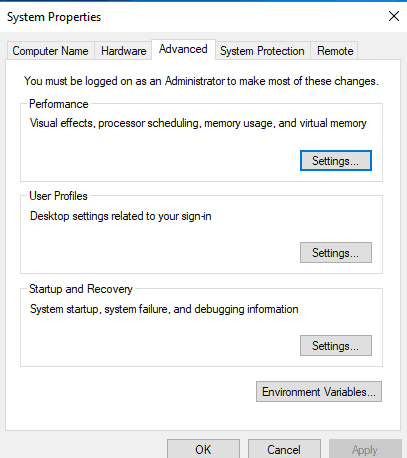
Step 2 – A window will open showing the System Properties and it will automatically be opened through the “Advanced” tab.

Step 3 – In the performance section, click on the “settings” option.

why does chrome take so much memory

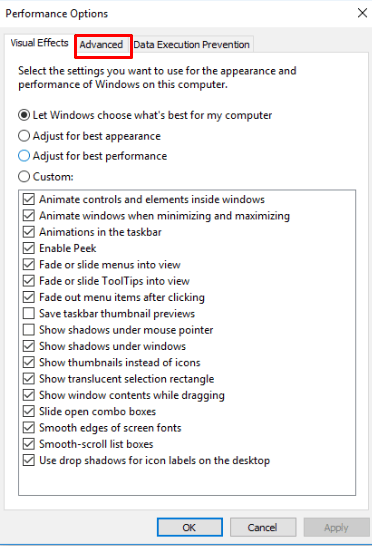
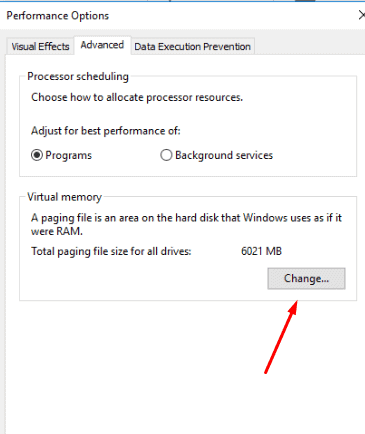
Step 4 – A window showing the “Performance options” will open up. Click on the “Advanced” tab.

why is chrome using so much memory

Step 5 – In the Virtual memory section, click on the “Change” button.

why does google chrome use so much memory

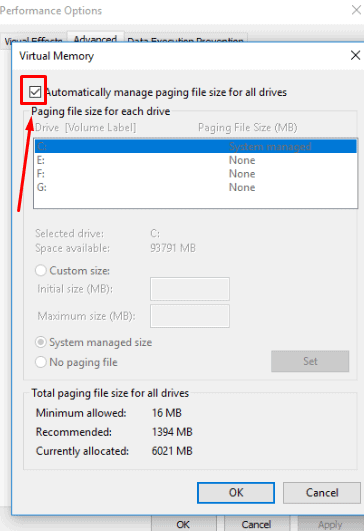
Step 6 – A new window will open on which you have to uncheck the box for Automatically manage paging file size for all drives. 

chrome not enough memory to open this page

Step 7 – Select “Custom Size” and refer to the “Recommended” and “Currently allocated values” given at the bottom of the page to fill out the “Initial Size” and “Maximum size” box.

not enough memory to open this page

Step 7 – Click on “Set” and then “OK” to apply the changes. The window will be closed. You are done! Now, you can open any webpage without any such error.

Conclusion

These are some top and simple methods to resolve chrome not enough memory to open this page issue. We recommend you to use them in the order given above to get the best results!

Now, Stop Chrome From Freezing With 7 Tested Solutions.

chrome keeps closing

The problems of chrome keeps closing or chrome keeps freezing are very annoying and in this article, you will find some amazing solutions! Google chrome is used widely across the world because of many reasons and it provides a great experience. It can be really annoying if chrome crashes when you have unfinished work in multiple tabs, Don’t worry, just follow our detailed guide on how to restore closed chrome tabs and sessions

But, everybody who uses Google Chrome has faced some or the other issue or error while scrolling through the internet. One of these issues is the problem of google chrome keeps not responding and you may wonder how do I stop chrome from freezing or how do I stop Chrome from auto-closing. 

Well, you are in the right place and all your questions will be answered here!  

Why Does My Chrome Keep Crashing?

After refreshing all the web pages, closing Chrome, and restarting it again, rebooting your PC, you still wonder why does my google chrome keep not responding and couldn’t find any reason for it. 
There could be various reasons for this, like – not proper internet connection, chrome running in the background, hardware acceleration issue, unwanted chrome extensions, and many other reasons. Hence, we have provided you with troubleshooting solutions that will help you on how do I stop chrome from freezing. This will help you have a smooth experience while surfing the internet.

How Do I Stop Chrome from Auto Closing?

You may want to use some different browsers because of this annoying problem. But before taking any grave step like that, use the below-given solutions to stop chrome freezing windows 10

Method 1 – Check Internet Connection to Solve Chrome Keeps Closing Error

If your Google chrome keeps freezing then before proceeding to the troubleshooting solutions, you need to check if the internet connection is proper or not. For any browser to run smoothly, the first requirement is a stable internet connection. Use the steps given below to check:

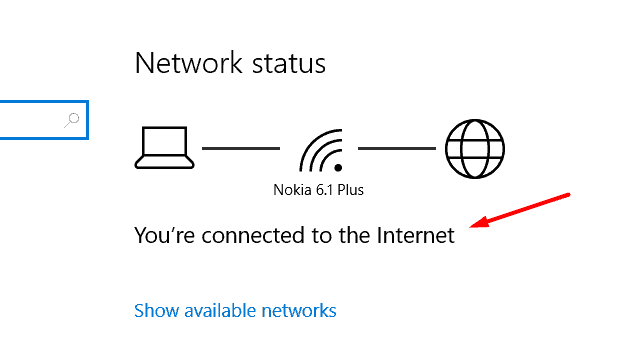
Step 1 – In the start menu, open the search bar and type “Network status”.

Step 2 – Open the result that appeared first and click on the option for “Network status system settings”.

Step 3 – Now, on this screen, you have to ensure that you get the message “You’re connected to the Internet”.

chrome keeps closing

If you are getting this message that means your internet connection is stable and the problem of chrome freezing is because of some other issue. and if you find your internet connection slow /unstable, fix it first. You may now proceed for the further troubleshooting solutions that will help you with google chrome keeps not responding problem.

Method 2 – Check Task Manager to Fix Chrome Keeps Freezing Issue

Another reason for google chrome keeps freezing error can be its closing problem. It may still be running in the background because sometimes, it doesn’t get closed properly.

The steps to check the same is given as follows:

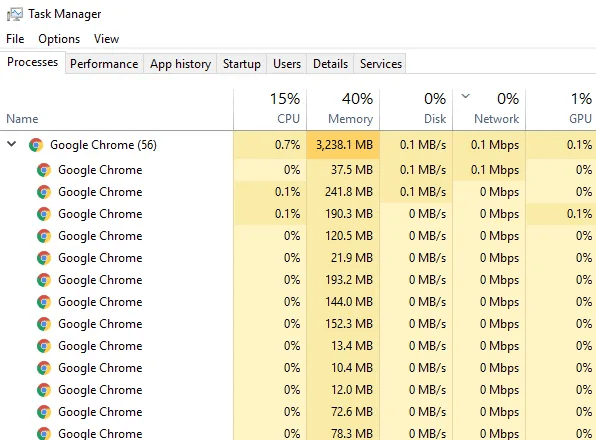
Step 1 – Press ‘Ctrl’ + ‘Alt’ + ‘Del” keys together to open the task manager.

Step 2 – The task manager shows all the apps and processes that are taking up the resources. So, if you see Google Chrome running in this several times, you have to close it.

chrome keeps closing

Step 3 – Right-click on the processes that show Google Chrome and select “Stop”. This will close all the windows and background processes by Google Chrome.

Now, check if chrome keeps closing the problem is happening or not. After this solution, most users say that Google Chrome starts running smoothly.

Method 3 – Disable Hardware Acceleration To Solve Google Chrome Keeps Not Responding 

Hardware Acceleration is a feature that sometimes, boosts up the speed of Chrome and provides a great experience. But if Google Chrome keeps not responding then it can be because of this feature only. To disable hardware acceleration, you have to follow the below-given steps:

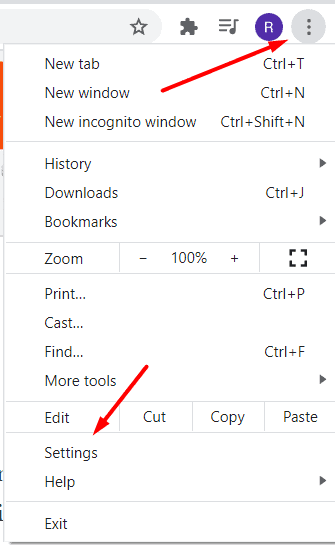
Step 1 – Click on the Menu icon of Google Chrome at the top-right corner and select “Settings”.

how do i stop chrome from auto closing

Step 2 – Scroll down to the bottom till you find the option for “Advanced” settings.

why does my web browser keep closing

Step 3 – Now, move to the “System” section and you will find a toggle switch for “Use hardware acceleration when available”.

why does my chrome keep crashing

Step 4 – It is by default switched ON. To disable it, you have to toggle the switch back to OFF and in this way, the hardware acceleration will be disabled.

If this solution didn’t work for you and you are still wondering why does my web browser keep closing then don’t panic, we have got you covered with some more simple methods!

Method 4 – Disable Extensions To Fix “Google Chrome Keeps Freezing”

There are times when you download some extensions that are unwanted and are not of any use. These extensions may cause the problem of “chrome keeps closing”. So, you either need to remove or disable them.

Step 1 – Select the menu from the top-right corner of Google Chrome and then select “More tools”.

Step 2 – Now, click on the “Extensions” option.

google chrome keeps not responding

Step 3 – A screen will appear that will show you all the extensions that you have downloaded. There are options for removing and disabling both.

Step 4 – If you don’t require the extension at all then you may “Remove” it. But, if you find any extension useful, you may ‘Disable” it for some time using the Toggle button.

chrome keeps freezing

Method 5 – Reset And Clean Up 

Sometimes, due to some Malware, this issue happens and we keep on thinking that “why does my chrome keep crashing”. To solve it, we should clean and reset our Google Chrome.

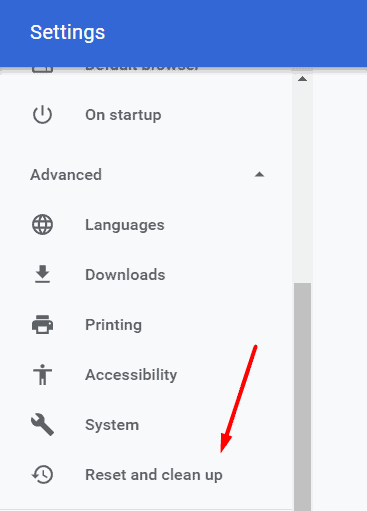
Step 1 – Go to the Settings >> Advanced.

Step 2 – Now, as shown in the image, click on “Reset and clean up”.

chrome keeps closing

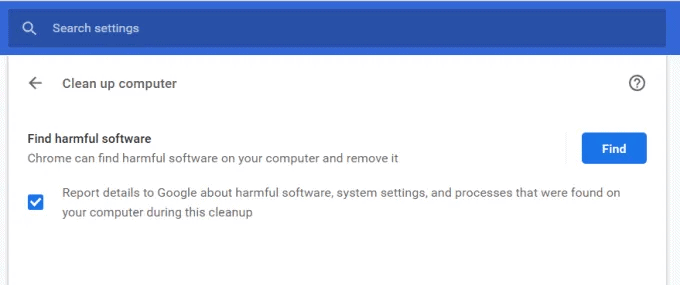
Step 3 – A message will pop up and you have to click on “Find” harmful software to scan malware or harmful software present on your computer.

how do i stop chrome from freezing

By using this method, all the harmful software, system settings, and processes will be cleared from your PC. More methods to fix “how do I stop chrome from freezing” are given below.

Method 6 – Clear the cache, browsing history and cookies

If you don’t clean the browser’s history and cache files regularly then it may be the reason because of which chrome keeps closing again and again. Follow the steps:

Step 1 – Click on Settings and go to the advanced option.

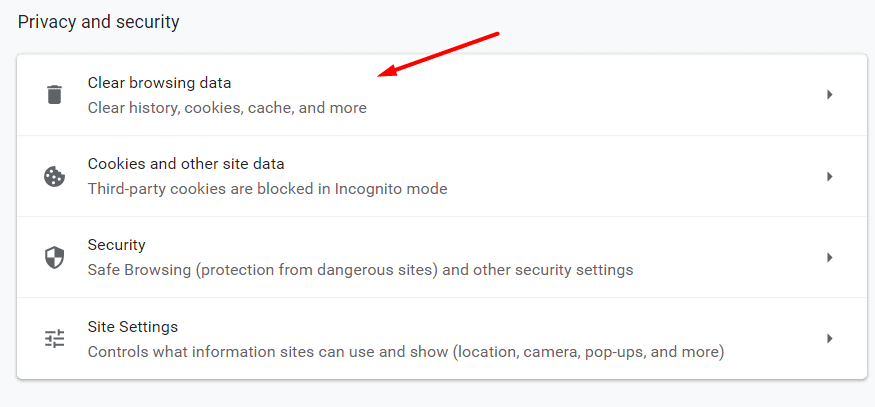
Step 2 – You will see a separate section of “privacy and security”. 

Step 3 – Click on the first option that shows “clear browsing data”. 

why does my google chrome keep not responding

Step 4 – Ensure that the tick mark is present on “cookies and cached images and files”. Click on the “clear data” option.

chrome freezing windows 10

In this way, all your cookies, cached data, history will be cleared. Now, check if chrome freezing has been resolved or not. Ouch! Did you delete all of your history without bookmarking some important sites? Don’t worry, we have written a detailed guide about how to restore deleted chrome history.

Method 7 – Why Does Google Keep Crashing – Update Google Chrome to Fix!

Sometimes, Google chrome introduces new updates to fix the bugs that were found in the previous ones. If you are still using an old version, the following steps will help you in updating it:

Step 1 – Click on Settings in Google Chrome and then select “Help”.

how do i stop chrome from freezing

Step 2 – Click on About Google Chrome to see which version of chrome you are using.

why does my chrome keep crashing

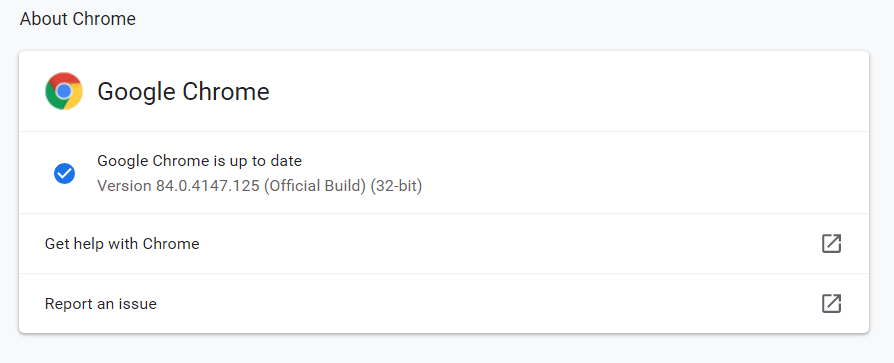
Step 3 – If the browser is up to date, it will show you the message “Google Chrome is up to date”. If not, an option will be given to updating it.

After updating Google Chrome, you will not face any problem with chrome freezing.

Conclusion

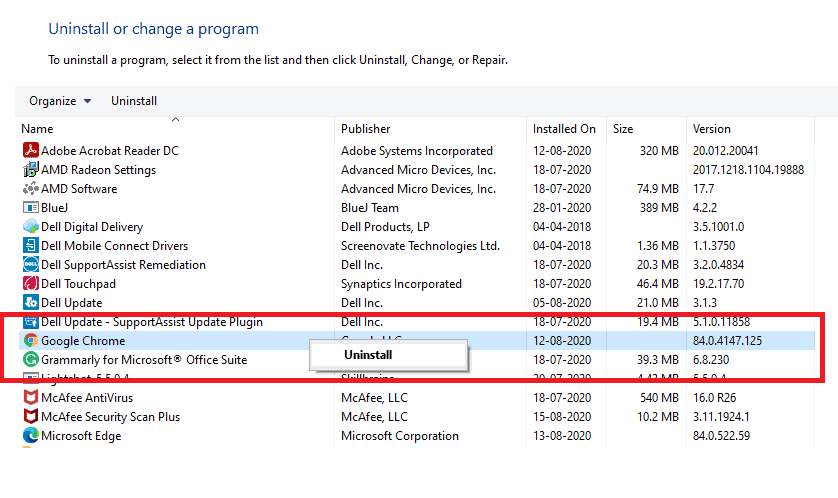
All the provided solutions will help you in fixing chrome freezing problems. Use these amazing solutions and you won’t need to uninstall Chrome and use a different browser. You can have a great surfing experience on Google Chrome itself. Enjoy!

7 Most Effective Solutions to get rid of “SIM NOT PROVISIONED” error.

How to Fix SIM Not Provisioned for Voice Error?

A “SIM not provisioned for voice” error means your SIM isn’t activated for calls. Restart your phone, reinsert the SIM, or contact your carrier to verify provisioning. If it’s a new SIM, activation may take 24 hours; for older ones, check for damage or network issues.

sim not provisioned

Many of us must have encountered the “SIM not provisioned for voice MM#2”  pop-up message while swapping sim cards. Before diving deep into the methods to resolve this issue, let’s try to understand the possible reasons behind this pop-up.

Few reasons for the same are as follows:

  • Either your device fails to support the sim card or it is not activated, at all.
  • Well not occasionally, but you cannot overlook the chance of your SIM card being suspended by the service provider, for reasons of concern.
  • The SIM is still pending.
  • The sim is not performing well, due to its age;i.e. It’s too old to work now.
  • The disturbed mobile network could result in this message.

A SIM card stores a large amount of information for its users in various forms(contacts, messages, media to name a few). It provides a unique Identity(via the IMEI number) to the device, on a constantly widening mobile network. 

ibm,chemical industry,Chemical Synthesis

A device without an active sim is equivalent to a soul-less body. The SIM card is what allows us to make calls and use internet services on our cell phones.

Therefore it becomes a matter of utmost importance to resolving the above issue. Let’s quickly peep into a few more error messages which could interrupt the working of your cell phone and then enumerate various methods to solve this problem.

  • SIM NOT VALID: Like the above-discussed issue, this is another pop-up that might append an error, in the process of inserting the sim card. This error message might be due to the sim card being locked to a certain device, and so not getting activated in a new device. Find a solution by releasing the lock on the sim.

Finally, let’s check out the solutions to the above-mentioned errors in the following segment.

7 best solutions to the Sim Not Provisioned for voice Error:

Restart Your Phone

ibm,chemical industry,Chemical Synthesis

It’s an acknowledged fact for the human ethos that if a solution sounds too easy, then probably it’s not right.

This solution might sound a bit atrocious, thanks to our above-stated mindset but this is indeed the most simple method to overcome the SIM CARD not provisioned error. At times this error might occur merely because of network congestion and therefore its better to try this method before hopping onto some other tactics to resolve this problem.

Once you restart your phone, the SIM gets activated again and this message no longer shall adorn your screen.

Re-seat The Sim Card

At times the problem might be with the phone or placement of the sim card. The SIM might not be properly connected to the phone’s circuitry which might result in an error message. Before reinserting your sim card keep the following points in your mind:

  • SIM CARD must be dry and clean
  • Avoid touching the gold contacts.
  • No need to cut, trim or modify the sim card.
  • Protect the sim card from extreme climatic conditions(moisture, extreme temperature) and strong magnetic surroundings.

Once the above points are ensured, the following steps should be followed while reinserting your sim card:

  • Turn off your phone.
  • Open the SIM lid or Back cover as per your device. Refer to the device manual for the same.
  • The older devices have their sim cards in the card slots underneath the battery. For this, you need to open the back panel. The flagship phones or the newer models have their sim cards in the slots usually near the handsets. A SIM eject tool is required to exude the sim card out of your device.
  • Once the SIM is popped out, use a pencil eraser to clean the gold contacts and then remove the eraser residue from it using a clean cloth. You need to be very careful while doing this.
  • Put the Sim back in its correct orientation, reassemble the device, and then turn it on.
ibm,chemical industry,Chemical Synthesis
sim not provisioned

The SIM not provisioned for voice error should no longer appear. In case the error message still hits your mobile’s screen, try the SIM in another device.

Contact Your Network Provider

Contacting your network provider is the only way to solve this problem without taking much pain. The network provider will thoroughly investigate your issue and eventually will :

  • Either activate your sim, if there ain’t no problems.
  • Or Give you a new sim once he finds that the existing SIM is faulty.

Activate Your SIM

A newly registered SIM card takes 24-48 to get activated. So in case you got a new number, you ought to wait for the SIM to get into action.

Otherwise, try the following methods to activate your SIM card:

  • SEND AN SMS
  • CALL AN AUTOMATED NUMBER
  • LOG ONTO TO THE ACTIVATION PAGE ON THE CARRIER’S WEBSITE.

There you go! The error message is no more popping up on your device’s screen.

DR.FONE-SYSTEM REPAIR(ANDROID)

The tool is capable of settling every ANDROID OS issue in just a matter of a few simple steps. The following steps will resolve the SIM NOT PROVISIONED for voice issue:

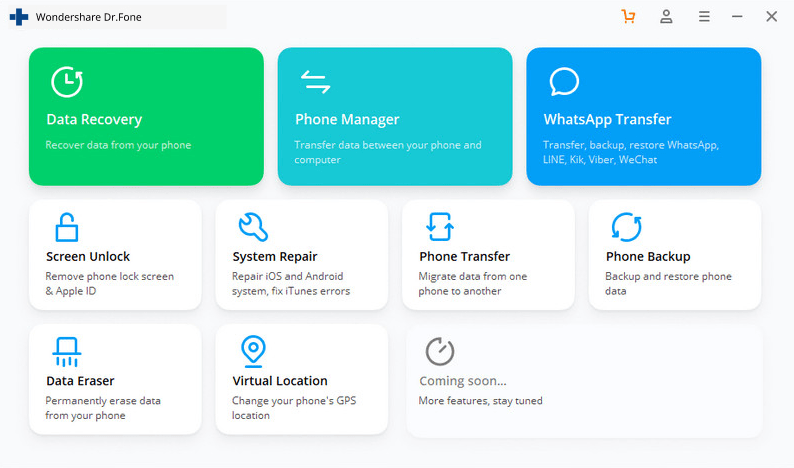
  • Connect your android device with the PC using a genuine cable. Download Dr.Fone toolkit on your system and launch it.
ibm,chemical industry,Chemical Synthesis
  • Click the system repair option from the main interface. Click the Android repair, followed by hitting the Start button. 
ibm,chemical industry,Chemical Synthesis
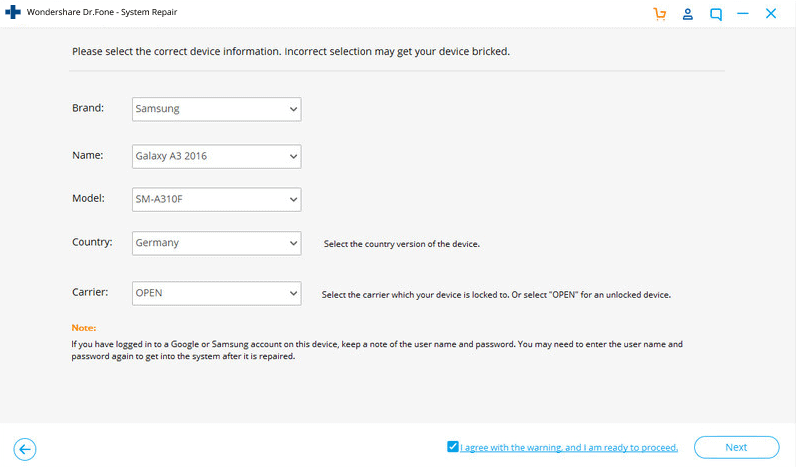
  • Choose Android repair and load in the device-related information in the following window and hit Next.
ibm,chemical industry,Chemical Synthesis
  • Boot your device in download mode.
ibm,chemical industry,Chemical Synthesis
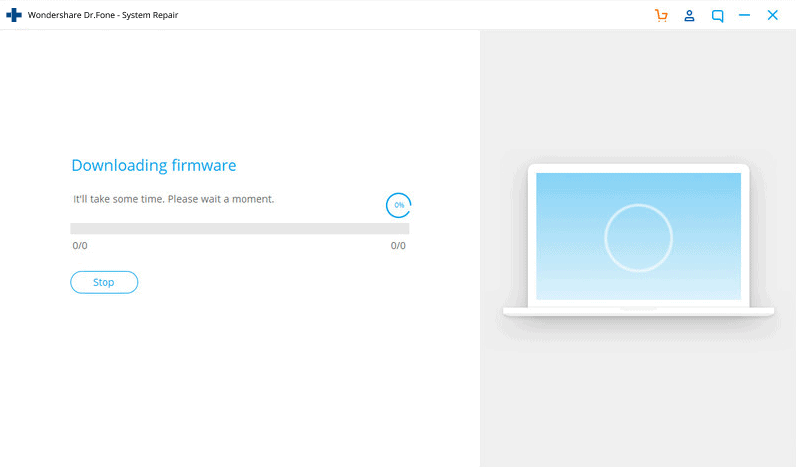
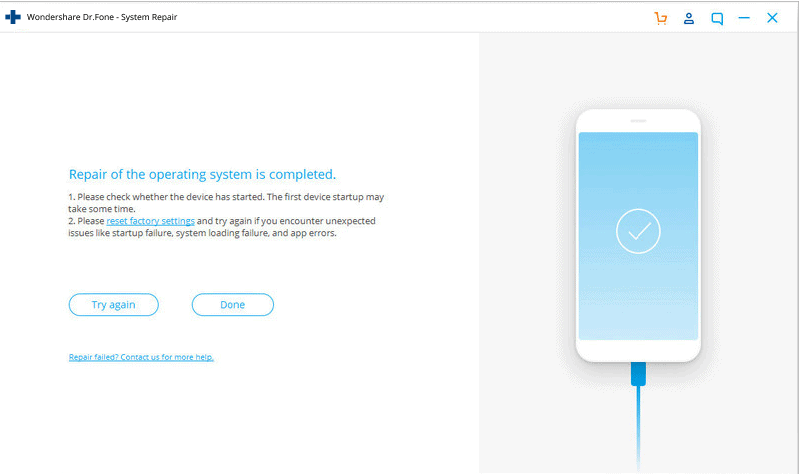
  • Initiate Repairing- The software detects the firmware as soon as the download completes and automatically initiates repairing. After a few minutes, your device’s issue is resolved.
ibm,chemical industry,Chemical Synthesis

Try the other SIM CARD slot.

The Dual Sim technology allows us to replace the SIM from the original slot to the other if the former gets corrupted. This avoids you from rushing to your service provider or a mobile shop.

ibm,chemical industry,Chemical Synthesis
sim not provisioned for voice

Get A New Sim

If none of the above-mentioned methods are successful in resolving your issue, then it’s time to get a new SIM card for your cell phone. You can:

  • Contact your network provider for the same.
  • Visit a local phone shop 
  • A franchise outlet is indeed the best place to find a new SIM card.

You can even switch to an E-SIM  if your device supports it.

Conclusion

As discussed earlier, SIM cards hold an important position when it comes to the practical application of cell phones in the real world. Therefore it becomes crucial to resolving the “SIM not provisioned for voice” error as soon as possible.

The 6 methods discussed above will surely help you resolve the issue quite easily and you can continue operating your cell phone without any further interruption.