Home Blog Page 77

7 Tips on How to Transfer All the Data Between iOS and Windows in One Click

0

When you purchase a new computer, phone, or any gadget, you will want to transfer all your files over to the new device. Whether you choose to transfer all the data or only the essentials, there are easy and quick ways to transfer files from one operating system to another.  
Transfer All the Data Between iOS and Windows

Depending on what you are working with, some methods are better than others. It’s easier to use techniques that use secure physical connections like transferring over LAN or swapping hard drives as opposed to other methods like transferring over Wi-Fi and USB, especially if you are transferring large volume data. If its media files and files saved on word documents and the like, they are easy and simple ways to do that. Let us look at the various methods in detail.  

Convert all your media files to universal formats before transferring to a new gadget 

If you want to transfer your videos, movies, or music files from one device to another, you can use a USB cable or your Google account. Before transferring the media files from one device to another, make sure that you have converted them to the universal format so that it will be easy to access them on the new device. They are software you can use for conversion.  

If your PC is connected to a wireless network, one of the easiest ways to transfer your media files to your mobile device is to set up a wireless network. These services make data transfer from a computer to mobile phone easier, and once set up, they are simple, quick, and reliable. You can also use the USB cable to move media files from android phone to PC and vice versa.  

Transfer all your passwords, browser history, and bookmarks on chrome  

Bookmarks on your chrome browser are stored in your browser settings and can be moved to your new device. Your browser setting and browser history can also be transferred with little effort. To ensure that your chrome settings, passwords, and bookmarks are secure, consider backing them up if you use chrome with your Google account. Once you log in to your account on the new device, everything like passwords and settings will be imported into the new device. 

For all your online accounts, you don’t need to remember passwords for all of them when trying to access them on the new device, and if you are using password keepers, then the process is made easy. The password keeper will keep your online data safe from hackers. The only password you should know is one that unlocks the password manager. 

Saving your media files or data on DVDs 

Some of your media files can be saved on DVDs then transferred to the new computer. To ensure that the videos downloaded from the old PC to the new computer are in the right format and maintain video quality, digitize the DVD. Rip a DVD to your new windows computer by using the Freemake software.  

To digitize your DVDs to use the data on your new computer, you need to install Freemake to your new computer, and then insert the disk you want to copy. Next is add the DVD to Freemake and then select an output format then copy the DVD to your windows computer. It’s that easy. 

Use Cloud storage or web transfers. 

You can use several cloud storage providers like Google Drive, Dropbox, or One Drive. They all work well to get the job done. Cloud drives are an excellent option since the files’ size is unlimited, so long as you have enough storage. If the two devices you are transferring data back and forth are syncing folders locally, then as one of the devices uploads, the other will download.  

Use a transfer cable. 

For PC-to-PC transfer, you can use some simple cables. It’s faster than using drives since the data is copied and pasted simultaneously from computer to computer. If you choose an external drive, you transfer the data on three drives, and cables reduce that to two drives. 

Share over LAN or WIFI 

If you want to transfer data from computers that are close together, you can set up a Local Area Network (LAN) and then use one computer to browse the other computer’s hard drives. Most computers have a built-in option you can use to set up a home network. This sets devices on the same router to recognize each other. Each time you need to transfer data between the two devices, the connection is permanent once its set so long as both computers are on. 

If your computers are connected to the same Wi-Fi, you can share files or data using software. It’s an easier way to transfer files without setting up a LAN network. If you are sharing large files, use an app like Send Anywhere. It has an app that can work as a chrome extension, on windows or Mac. 

Use external storage media. 

If you want to move data from one computer to another, you can use a USB flash drive. You copy the data, then save it on the USB, then stick it to the new computer and paste all the data. You can also use an external hard drive if you have a large volume data that can’t fit on the flash drive. If both computers have USB ports, you need to invest in a good flash drive because when you have lots of data to move speed is crucial.  

There’s also another way you can transfer data using the hard drive. Check if the computer you intend to transfer data to has a SATA slot or eSATA slot. Suppose it does then disconnect the hard drive from the original computer and connect it to the new computer. The hard drive will be detected as another drive on the new PC. Transferring data over SATA is faster than using a flash drive.  

All these methods work well to ensure transferring data between devices is easy, fast, and reliable.

[Solved] How to Unblock Avast League Of Legends

Wonder how to deal with the Avast League of Legends Problem? Let’s get started. Online gaming has undoubtedly played an important role in bringing together people across the globe. The world is full of gamers and the online gaming platforms not only allow these people to play but at the same time provides an exceptional and intense social environment where people from different nooks of the world, irrespective of the country they belong to, could interact and evaluate the game.

avast blocking league_of_legends

When it comes to online gaming, the game which has indeed left quite a significant mark in this world of playing over a computer network, particularly over the Internet is the LEAGUE OF LEGENDS.

The League of Legends is an online, multiplayer action-based video game where players are supposed to make real-time strategies to survive the extensive action on the battlefield.

It’s one of the most famous PC video games ever, having an enormous player count of nearly 100 million players every month.

Wow!! That’s a huge number.

We’re living in a generation where there are a plethora of options when it comes to online gaming. However, the League player numbers discussed in the previous segment of this article are evident enough to prove that this game is still running in the race of the best online games to date. The game was launched in 2009, and since then the number of online games in the market has risen exponentially. Despite being old, the game still holds a significant position in the online gaming market.

 Few reasons which back this game’s popularity are:

  • The game is regularly updated.
  • Offers quite a competitive environment to all the players from across the world.
  • It’s a multiplayer game, which definitely is more fun.
  • The visuals are attractive, vivid, and enticing enough to engage the players.

The Avast League of Legends Problem!

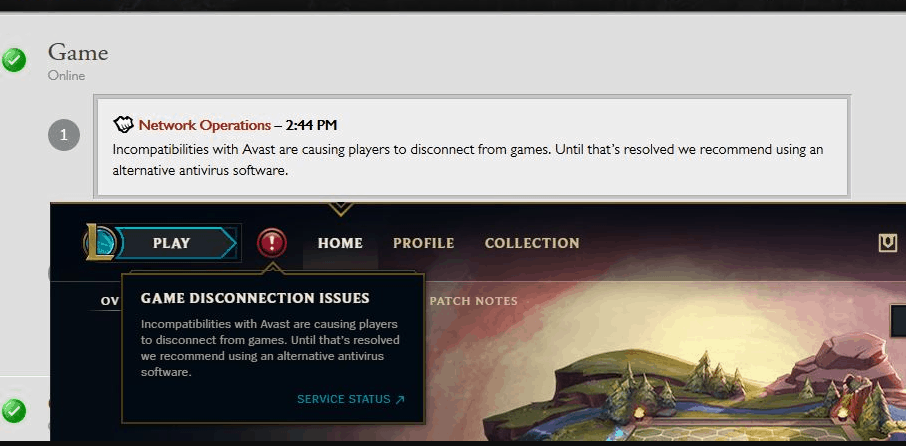
Lately, many players have reported that Avast, which is one of the most popular antivirus software has choked the running of League of Legends on their systems. The users got pop-ups which suggested the game’s Incompatibilities with avast are causing the players to disconnect from games. The users were suffering from the Avast blocking league of legends launcher, which abandoned them from enjoying the game anymore.

avast league of legends,how to bypass avast site blocking,league of legends avast problem,avast blocking league of legends launcher
league of legends avast problem

It seems that the game was inharmonious with the Avast software, which eventually led to the messages suggesting the users change their antivirus software in order to continue with the League of Legends.

The problem is considerable enough owing to the number of common users of the game and the antivirus software respectively and hence requires a quick solution. But before checking out the solutions, let’s look into the possible reasons leading to the Avast League of Legends problem:

  • The anti-cheat solution in the League of Legends is detecting the Avast anti-exploit as a cheating tool and hence lashing itself.
  • The Avast antivirus protects the system from any possible malware or malicious files. This feature thereby detects the executable files of  League of Legends as TROJANS and hence blocks the game.

How to bypass Avast Site Blocking?

Now that we know the possible causes for the error, let’s directly jump to the solutions to resolve the Avast League of Legends issue.

Update Avast

  1. Updating the Avast Client software might sound like the most unconventional or straightforward solution for a far more complex incompatibility issue, but might solve the “how to bypass avast site blocking’ problem in one shot.
  2. Updating the current version will result in the Beta version of the Avast software which serves 2 major purposes for both Avast 19.6.2383 and AVG 19.6.3098:
  • Better compatibility with anti-debug/anti-cheat measures.
  • High memory fixation (Avast Shield)

This will automatically solve the Avast incompatibility issues with the League of Legends.

Add Exceptions to Avast

  1. As discussed earlier, Avast wrongly recognizes The League of Legends game as a Trojan, therefore it’s important to reinstate the files from the virus chest and add them to exceptions.
  2. Open Avast Antivirus on PC
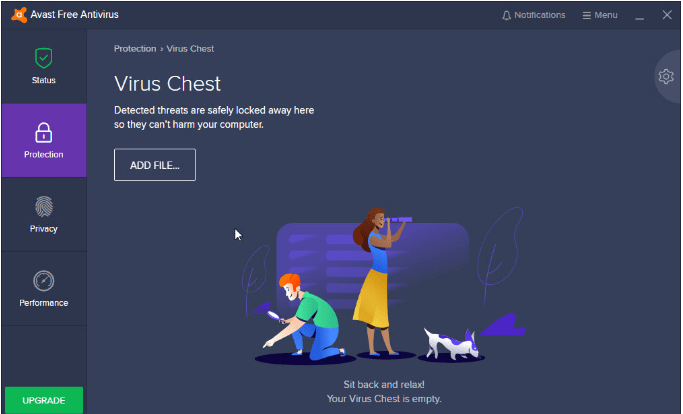
  3. Look for Virus Chest, under Protection
avast league of legends,how to bypass avast site blocking,league of legends avast problem,avast blocking league of legends launcher
avast league of legends
  1. Look for the League of Legends and select all the files related to it in the collection of files which have been identified as malicious and harmful by Avast.
  2. Select Restore and add to exclusions, from the context menu

This would restore the files related to the League of Legends and add them to exceptions which otherwise were deleted on being falsely detected as malware by the Avast. This indeed is an easy and quick way to bypass the Avast League of Legends problem, when the first method fails.

CHECK FOR EXCLUSIONS.

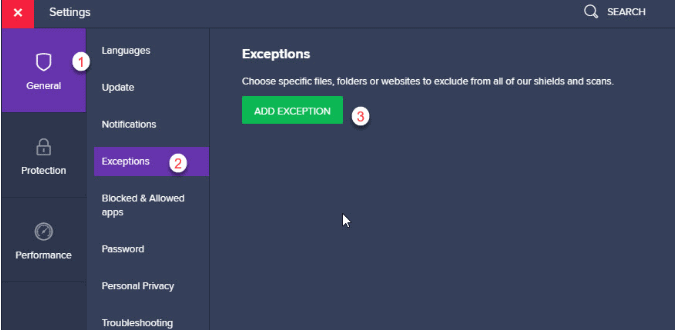
  • Open Menu<Settings
  • Click Exceptions under the General Tab
  • Click Add Exception

avast league of legendsavast league of legends,how to bypass avast site blocking,league of legends avast problem,avast blocking league of legends launcher

  • Add the following files from the game installation folder in the exception list.

LeagueClient.exe

LeagueClientUx.exe

LeagueClientUxRender.exe

League of Legends.exe

  • Restart your PC to see the changes.
  • This would add the game files to the Avast Exception list, and you can now enjoy the League of legends .

CONCLUSION

You can resolve the Avast League of Legends problem by directly installing the beta version of the Avast rather than updating the current version on your system.

avast league of legends

There you are!!

Now, you can secure your system with Avast and enjoy the League of Legends simultaneously without any compatibility issues between the two. 

Unlocking Monitor Performance: Overclocking Guide

How to Overclock a Monitor?

To overclock a monitor, access your GPU control panel (e.g., NVIDIA Control Panel or AMD Radeon Software), go to Display settings, and create a custom resolution with a higher refresh rate (e.g., 75Hz from 60Hz). Test incrementally, ensure stability, and confirm your monitor supports overclocking to avoid damage.

A video editing geek or a top-notch real-world computer game player could surely relate to the term Overclock Monitor. Although many of us would be somehow familiar with the motherboard and a graphic card overclocking, the term overclocking monitor is seldom used. An Overclock monitor delivers the same advantage of performance enhancement complemented with a visual treat.

That said, the idea of overclocking is crafted beautifully for branding purposes in marketing. You might have come across top computer product brands like Intel, MSI, etc. claiming their motherboards, or graphic cards to overclock ready, thereby guaranteeing higher performances. Similarly, overclocking monitors augments the performance and enhances the graphic features.

 For all the novices, who find themselves alien to the term overclock monitor, I will just take you through some ‘Wh’ questions that would clarify all your uncertainties Thereby giving you an idea on how to overclock monitor. 

avast league of legends,how to bypass avast site blocking,league of legends avast problem,avast blocking league of legends launcher

 Why would you want to overclock the monitor?

avast league of legends,how to bypass avast site blocking,league of legends avast problem,avast blocking league of legends launcher

Standard speed to execute each task or instruction is assigned to every microprocessor. This rate at which the components perform their tasks in a given cycle is called the clock rate. The clock rate is measured in Hertz. Hence, 1 tick is typically 1 Hertz per second. When you try to overclock your system, you tend to make it work faster than the assigned standard time.

 So, when I say to overclock your monitor, it implies changing the stock refresh rates.

avast league of legends,how to bypass avast site blocking,league of legends avast problem,avast blocking league of legends launcher

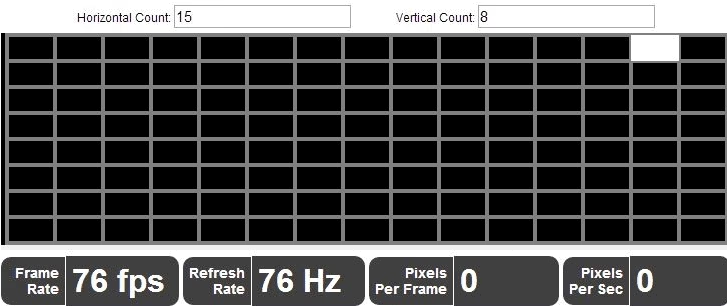
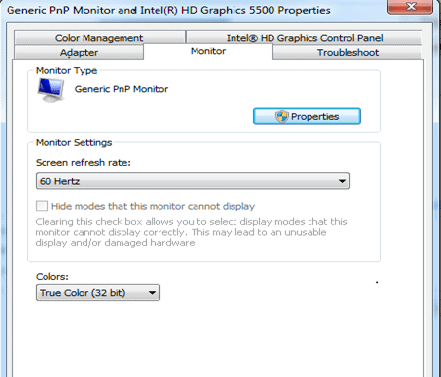
Now, the refresh rate is the number of times the frames need to refresh on the screen for a better graphic transition. Here, the image represents the monitor type and its standard refresh rate. 60 Hertz refresh rate implies that a single frame on the screen refreshes 60 times per second.

Overclock monitor

 Hence, an overclocked monitor would supposedly provide a better screen with a faster refresh rate. Well, this process can be a smooth transition as long as your system can support this change.

When would you want to overclock your monitor?

avast league of legends,how to bypass avast site blocking,league of legends avast problem,avast blocking league of legends launcher

When the motion on your monitor appears shaken or irregular, sometimes jarred, you tend to search – How to overclock monitor?

Yes, one would try to overclock a monitor to optimize the graphics experience by increasing the refresh rates, to make the screen sharper.

Well, another issue that might need your monitors to be overclocked is screen tearing. At times your screen tends to display several frames in a single draw of the screen, making it appear torn. 

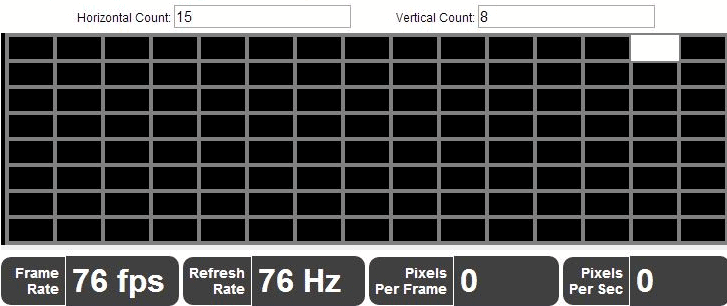
By boosting the performance of your monitor, you can sync your video feed with the screen’s refresh rates.

The planet of gamers completely welcomes the idea of overclocking monitors. The screen tearing occurrences or the visual artifacts compel the gamers to overclock their monitors to avoid the visualizing glitches.

 What cost do you have to pay to overclock your monitor?

Before jumping on to understand how to overclock monitor, I would recommend you to take the below points as a word of caution. 

As you know by now that overclocking a monitor corresponds to meddling with the standard refresh rates and clock rates of the system. You may experience an array of problems associated with this.

  1. Not all the monitors are truly compatible with overclocking and might end up into a broken display or damaged monitor.
  2. There can be delay or frame bouncing issues incorporated with this meddling.
  3. It induces many risk factors and hence your warranty is rendered invalid.

Apart from all these risks, if the process of overclocking monitors turns out to be well performed, it’s a heaven for the screens. Your monitor visualizing effect would attain entirely higher levels and benefit you with a smooth and optimized graphic experience.

That brings me, to point out to you that it is very important before taking any major step, do take a thorough panel check, and find out, whether your monitor is already being overclocked by the company.  In that case, it would be harmful to the panel to push the limits, any more.

How to Overclock Monitor?

NOTE: Well, overclocking your monitor is simpe and easy with the methods we listed below. Although the process complies with simple steps, the utmost precision and careful implementation is a mandate. Any mistake may be an exorbitant affair that might cost you your monitor. If these easy steps are performed correctly, then nothing can stop you from achieving an exclusive visual delight. 

There are two ways you can try to overclock the monitor.

  • Using a third-party tools (Not recommended).
  • Using Bundled Software.

Let’s find out how?

Using a third-party tool. 

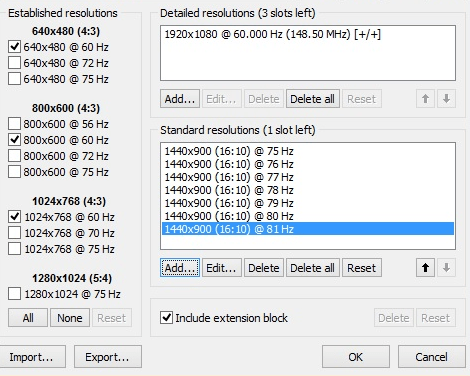
One of the oldest and most impervious methods to overclock a monitor is using the CRU. Custom Resolution Utility tool may not be compatible with all the graphics, but it works well with AMD graphics.

  • You may proceed to download the tool here.
  • Once your installation is done, then open the CRU, to see 2 boxes. One of them reads detailed resolution and the other option is standard resolutions.
avast league of legends,how to bypass avast site blocking,league of legends avast problem,avast blocking league of legends launcher
  • Go to detailed resolutions and then click on add option.
  • Then check the timing and make it LCD standard.
avast league of legends,how to bypass avast site blocking,league of legends avast problem,avast blocking league of legends launcher
  • Now is the time to check the performance one step at a time by incrementing the refresh rate by 5Hz.
  • Click ok and reboot your system.

The steps that follow are the common steps that you would need to implement in all the alternative methods. This is to set the changes on Windows 10.

Common steps to implement changes on Windows 10 to overclock monitor:

  • Select display settings on the screen that emerges on a Right-click on the desktop.
  • Select the advanced setting options.
  • You will see a display adapter properties option on scrolling down. Click it.
  • You will view a drop-down box. Set the desired refresh rate on the monitor.

Now, wait for the changes. If the monitor does not go black then it works. Otherwise, the screen will not produce any display and would revert to the old setting after 15 seconds.

Well, if this helps out then no need for looking any further. That is it!

But, if it doesn’t work out then you need to move onto the next option to overclock monitor.

Method 2 – Overclock Monitor Using Bundled Software.

You can use software to overclock monitor. I am bringing the top 3 majorly used software.

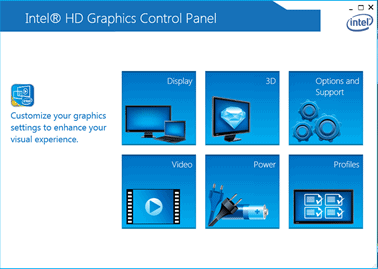
How to Overclock monitor using Intel’s Graphic Control Panel?

Never knew you can overclock monitor with Intel’s graphic card panel. Try it now.

Follow these simple steps:

avast league of legends,how to bypass avast site blocking,league of legends avast problem,avast blocking league of legends launcher

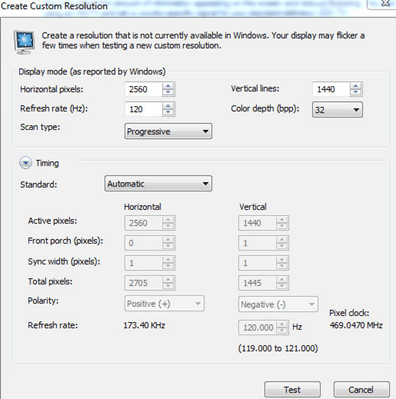
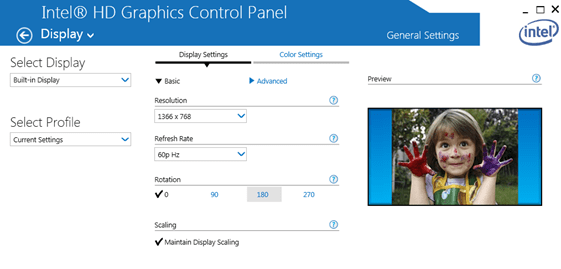
1.  In Intel’s HD graphics control panel, choose Display.

avast league of legends,how to bypass avast site blocking,league of legends avast problem,avast blocking league of legends launcher

2.  When you left-click on custom resolutions, it will prompt for width, height, and refresh rate.

3.  Add the credentials and wait.

4.  Save the settings and reboot.

5.  If the refresh rate cannot go any, quit or try again to be sure.

This should answer your question as to how to overclock monitor using Intel graphic control panel.

How to Overclock your monitor using the NVIDIA Control Panel

NVIDIA is a pioneer in graphic designing units that is a well-known creator of interactive graphics on laptops, mobile devices, etc. You may get the NVIDIA driver from here. Install the driver and get started.

It’s an easy 3 step process-

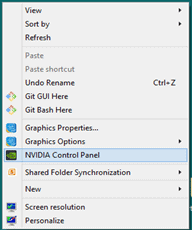
  • Go to Desktop. Right-click and find the NVIDIA Control Panel.
avast league of legends,how to bypass avast site blocking,league of legends avast problem,avast blocking league of legends launcher
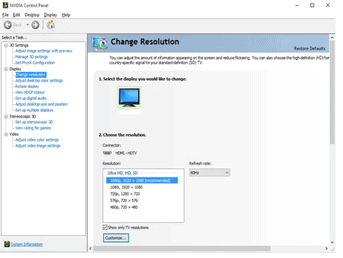
  • On the left taskbar, you would locate Display. Click to open the drop-down list and check the very first change resolution tab. 
avast league of legends,how to bypass avast site blocking,league of legends avast problem,avast blocking league of legends launcher
  • And create your custom resolution.

The best thing about the NVIDIA control panel is that you have an option to check the resolution and apply test it before applying the same. Don’t forget to reboot the system to apply the changes. And that’s how to overclock your monitor using the NVIDIA control panel.

How to Overclock your monitor using AMD Radeon Settings?

For AMD Graphics users, AMD Radeon Settings can suffice the overclocking process.

Follow these simple steps

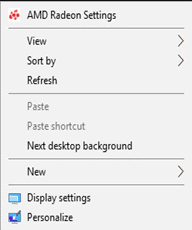
1.  Go to Desktop and open the Right-click menu. Select AMD Radeon Settings.

avast league of legends,how to bypass avast site blocking,league of legends avast problem,avast blocking league of legends launcher

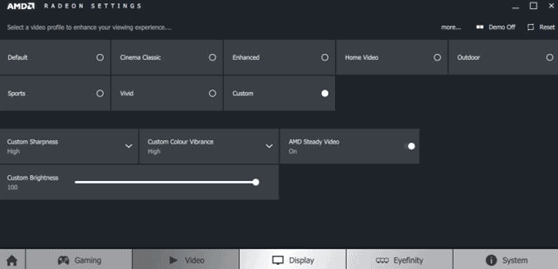
2.  Like the above process for NVIDIA, open the display tab.

avast league of legends,how to bypass avast site blocking,league of legends avast problem,avast blocking league of legends launcher

3.  Check the custom resolution selection,

4.  Edit your custom refresh rate, small bits at a time, and check.

5.  Don’t forget to save and reboot the system.

That explains how to overclock monitor using AMD Radeon settings.

Well, above all, I would like to mention that to overclocking monitor is not quintessential to everyone. But if you like to do it anyhow, this guide is all set for you!

[Solved] Quick Fix For Avast Advanced Web Shield Is Off Error

0

Avast antivirus offers robust security to your system from all possible threats and viruses using its impactful set of shields. This article will help you to understand the perplexity of Avast behavior shield, launched for the first time in Avast 2017. If you have ever experienced issues related to the enabling and disabling of behavior shield while using Avast antivirus or the avast web shield turns itself off automatically, then you have landed on the correct page. This article can be a stop-point for all your searches to solve these errors. In this article, we will discuss possible reasons for the behavior shield’s uncertainty and suggest a few solutions to overcome it. Before jumping to the solutions lets us know about what is avast behavior shield, is avast behavior shield necessary, what is advanced web shield and the possible causes of disabled behavior shield of Avast Antivirus below.

What is Avast Behavior Shield?

Avast Behavior shield is an added feature in Avast Antivirus for protection. It basically examines any suspicious behavior going on in the PC which can be some poisonous code present in the computer. Based on the similarity to other known threats, Avast Behavior shield detects and blocks dubious files before they are added to the virus definitions database.

What is Advanced Web Shield?

An advanced web shield is an additional layer of Avast Antivirus also known as Avast Advanced Web Shield. The main purpose of this is to protect the integrity of the user. It works as a HTTP scanner. The Advanced web shield is mainly used for spyware and malware. Antivirus applications eliminates most of the viruses when it reaches the hard drive but these malicious software does the harm without even reaching to the hard drive and some antivirus are unable to detect them.

What are the possible causes of disabled behavior shield?

Depending on different scenarios while enabling behavior shield, we can divide causes into two broad categories.
1. If you can easily enable a behavior shield once you notice that it is turned off, then the following factor might be the reason for the error.
– Sufficient time was not given to Avast to initialize its processes and services when your system was switched on.
2. If the behavior shield is not enabled even after you manually turn it on, then the following factors might be the reason for the error.
-Avast antivirus might be corrupted, disabling its core functionalities, and needs repair.
-Avast antivirus needs an update.
-Incompetent hardware fails to collect behavior shield responses so Avast may disable it.
-Changes in the aswbIDSAgent service might disable the behavior shield.
-Other safety programs running on your system might have obstructed the functionality of Avast antivirus.

Possible solutions to fix the ‘Avast behavior shield disabled’ error.

Avast behavior shield probes all the programs running on your PC for suspicious behavior. It is enabled by default, but many users have experienced that avast behavior shield keeps turning off automatically. Based on the Avast forum discussion, we have summed up and enlisted six possible methods to resolve the ‘avast behavior shield disabled’ flaws.

1. Wait for Avast to initialize all its services.

Avast takes time to initialize and start its services. It is important to keep patience and allow Avast to take its time to start all its processes. If we act hastily, then some features of Avast fail to start and avast behavior shield keeps turning off automatically. 

2. Repair Avast to resume Avast behavior shield’s standard functionality.

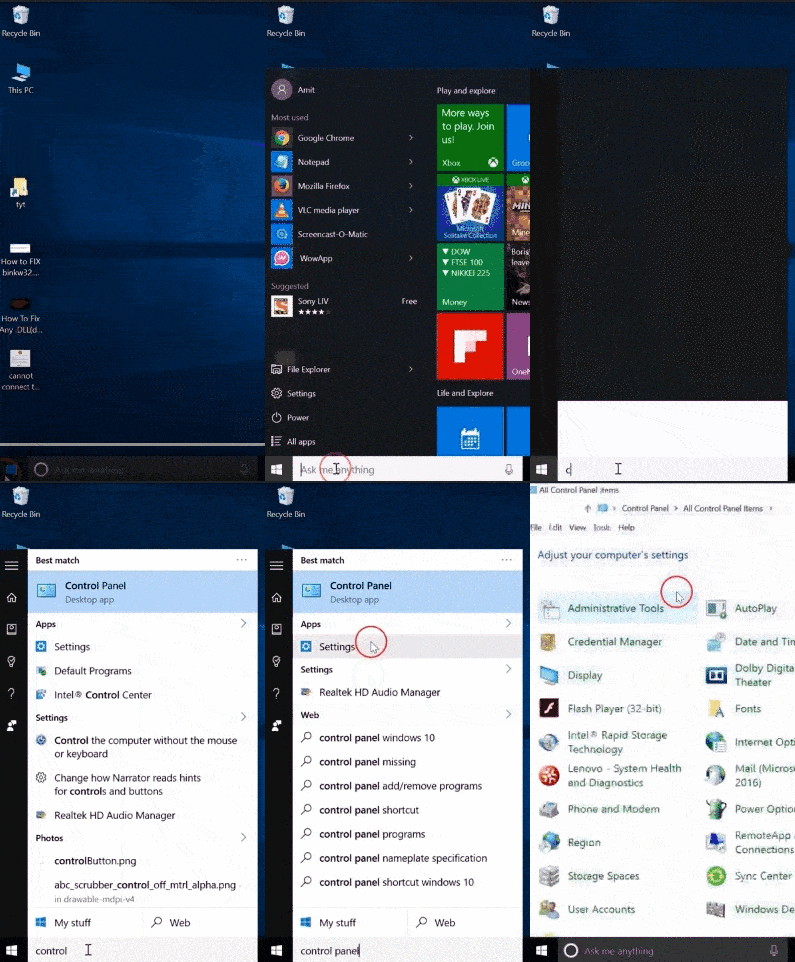
Avast can be repaired using Control Panel in Windows. Carefully follow the below-given steps to repair it.

  1. Search for Control Panel in the quick-access menu and open it.
steps to open control panel.

2.       Click on Programs and Features.

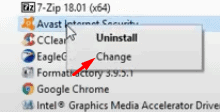
3.       Search Avast and right-click on it, choose the Change option from the pop-up menu.

Avast properties.

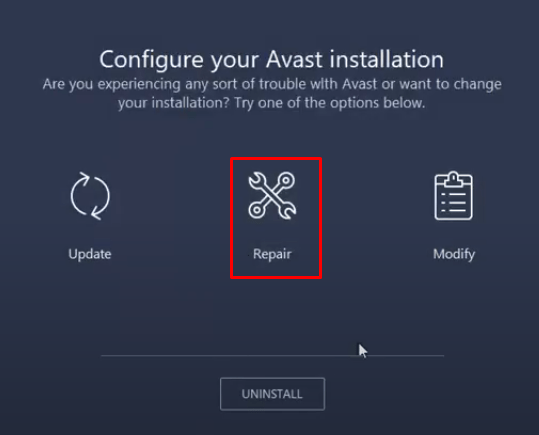
4.       Choose the repair option.

avast repair
Avast Behavior shield

5.      Be patient! It will take a couple of minutes to complete the repair procedure. Reboot your system after the repair is done. Open Avast and check if the avast advanced web shield is off. Try the next solution if still the avast web shield is off.

3. Update to get the patch of Avast behavior shield. 

Many users faced problems related to avast advanced web shield in the Avast 2017. Avast programmers took a step and diagnosed flaws in behavior shield and released an updated version of Avast fixing all bugs related to behavior shield. There is a possibility that your system runs an old version of Avast, and a simple update can fix all issues such as avast behavior shield disabled or avast behavior shield keeps turning off. Steps to update Avast in Windows 10 is as follows:

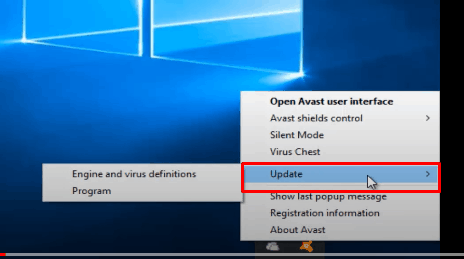
  1. Right-click on the Avast icon from the system tray present on the right side of the Windows taskbar.
  2. Hover on Update. The pop-up menu will show you two updating options:

a.) Update for engine and virus.

b.) Update program.

avast update.
Avast Behavior shield
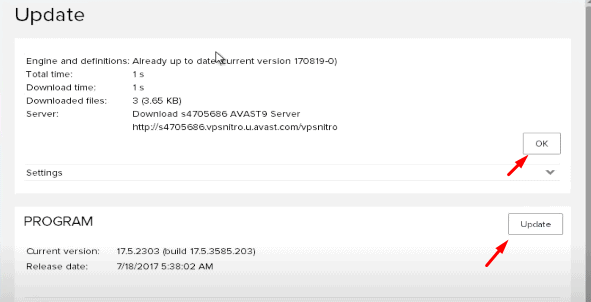
  1. For the best result, update both.
avast program update.
  1. Most of the users experienced that updating antivirus helped to fix the bug. Check if the behavior shield has turned on. If still, is disabled or the avast behavior shield keeps turning off then you have to reinstall Avast in your system.

4. Reinstall Avast to resolve behavior shield issues.

There is a possibility that other programs running on your system are influencing Avast and hampering its functionality and the avast behavior shield keeps turning off automatically. To recover a corrupted Avast version on your system, you must first uninstall it entirely and then perform a clean re-installation to enable all shields of Avast antivirus. 

Please follow all the below-given steps carefully to reinstall Avast in Windows10 successfully.

Follow the below-given steps to uninstall Avast antivirus entirely from your system.

  1. Control Panel-> Programs and features -> Avast Free Antivirus -> Uninstall.
  2. Download the executable file of the Avast uninstall utility tool from this link and follow the steps given to uninstall Avast from your system entirely.

Steps to install Avast on Windows 10

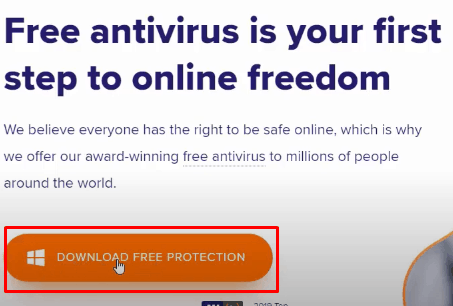
  1. Download free Avast antivirus setup files from Avast official website.
download avast.
  1. Run the Avast installer and follow the steps to install it.
avast setup wizard.
  1. Restart your system after successful installation to check if the behavior shield is enabled and works appropriately.

5. Check if Aswidsagenta.exe is running.

Aswidsagenta.exe is the component of the Avast behavior shield. It is the service that continuously checks for malware, trojans, and viruses on your system by probing all the programs running on your PC. If for some reason, this service is stopped, the behavior shield will also be disabled and you will get avast behavior shield disabled error. Find out how you can check and change the status of the aswbIDSAgent Service.

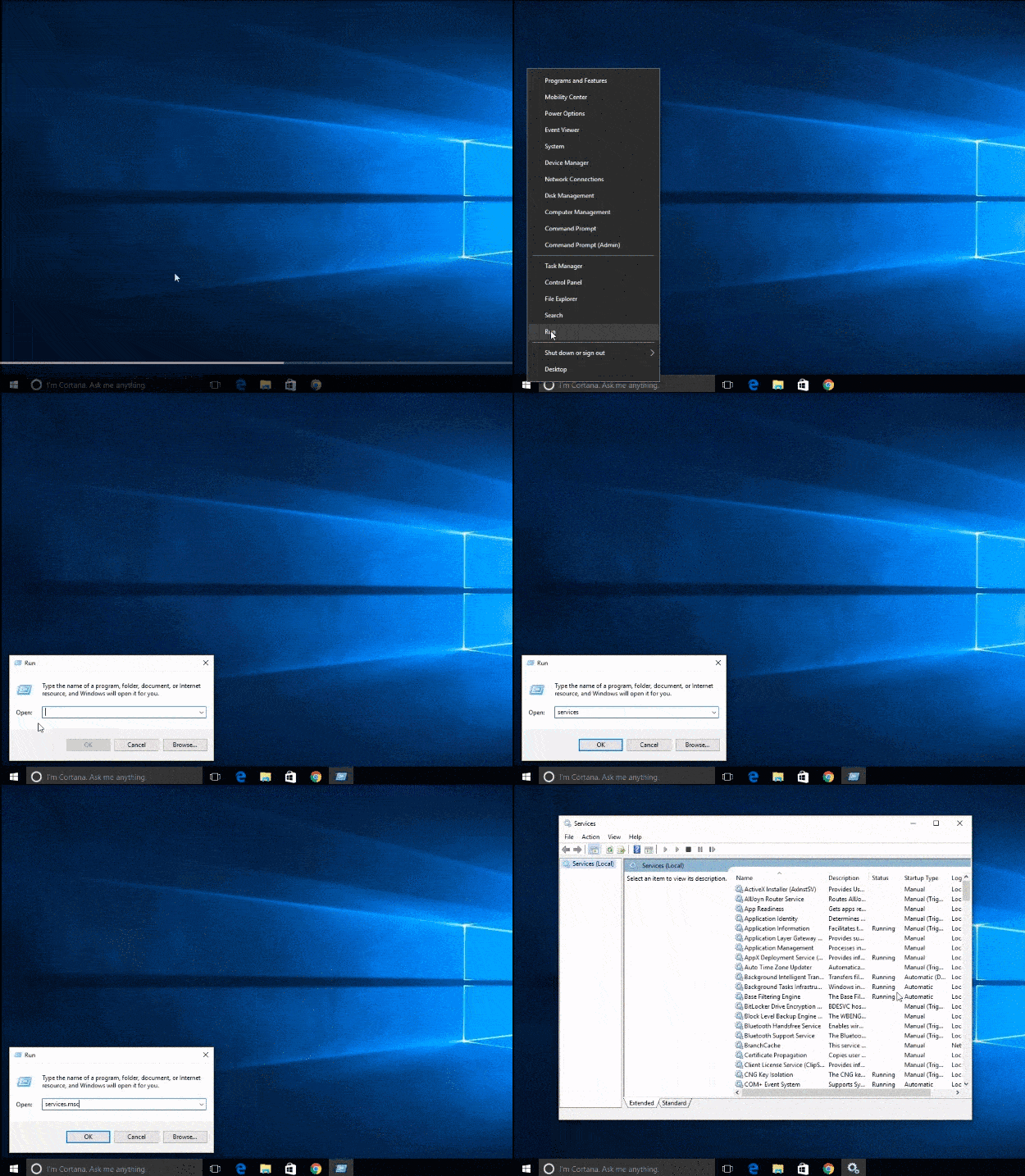
  1. Press Windows + R key to open the run dialogue box and type services.msc command.
Services window.
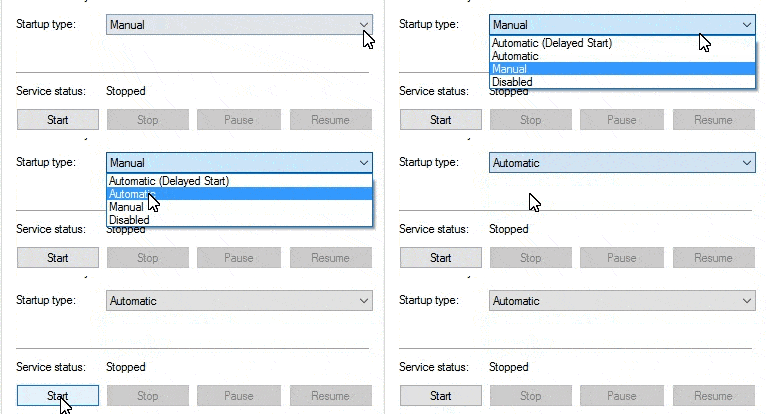
  1. Search aswbIDSAgent Service and right-click on it and choose properties.
  2. In the start-up type section, select the automatic option and click on the start button if it has already stopped.

Note: Before updating properties of service, make sure that service is stopped. 

aswbIDSAgent service properties.
  1. Now check if you can enable the behavior shield of Avast.

6. Competent hardware can resolve the error of the Avast behavior shield.

CPU utilization of Avast is high because of processes running in the background to secure your system from threats. Your PC should also be competent to enjoy all benefits of Avast. If your hard disk drive read/write functionality is working slow, it will fail to collect the responses of the behavior shield. Avast may disable the behavior shield due to no response from it. In such cases changing HDD to SSD will resolve the issue.

Wrapping Up

Avast tried to resolve behavior shield error by providing patches in the updated version. Most of the time, updating Avast software can bring a behavior shield to its standard functionality. If it still doesn’t resolve your problem, you can try the other five methods described in this article. Remember, once turned off, the avast behavior shield wont turn on automatically. Hope this article provided you with the solution of advanced web shield is off error and also don’t forget to apprise us if these solutions worked for you to fix the Avast behavior shield bug.

7 Incredible Alternatives to GarageBand for PC.

0

Looking for Garageband for pc? Are there any GarageBand alternatives for Windows? We are here to provide you with some of the best alternatives to GarageBand for PC. Would you believe if I say that even you could create music quite similar to the one produced by some spectacular American musicians and singers, Steve Lacy, Rihanna, and T Pain to name a few of those?

Well, GarageBand allows you to create your own music and podcasts. Developed by Apple, this music and podcast create allows its users to create multiple tracks with surplus pre-made features,a few of which are as follows:

  • MIDI keyboards
  • Pre-made Loops
  • Instrumental effects
  • Voice recordings.
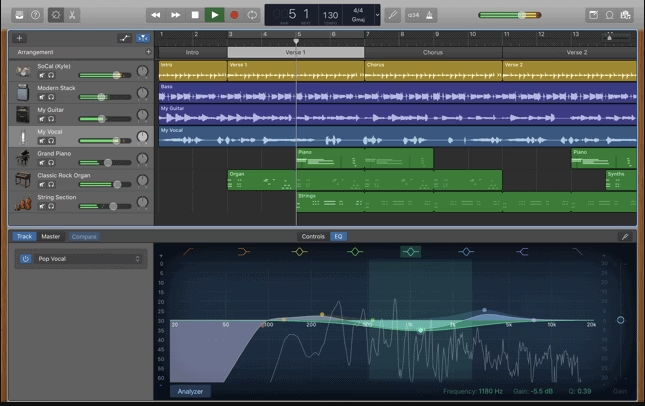
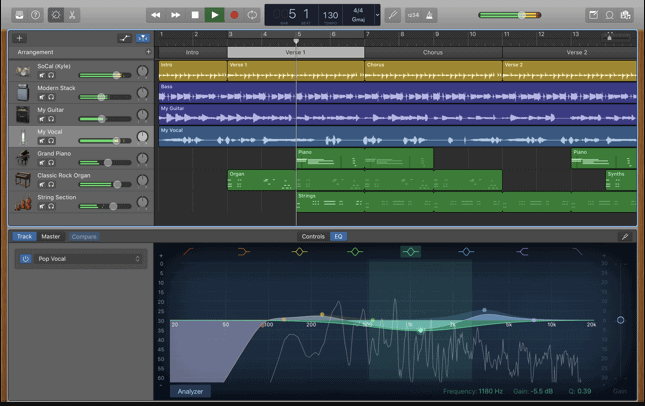
garageband alternatives for pc

It’s a beginner-friendly,  powerful audio recording and editing software for MAC users. It’s easy to use, however, you might find yourself in dire straits during the initial stages of using this software in case you lack perfect guidance.

Let’s enlist a few reasons why GB could be the perfect software for your music production requirements:

  • Recordings can be done using your PC’s microphone.
  • Allows you to create your own Ringtones.
  • Allows you to plugin your electric Guitar/bass, keyboard etc.
  • Enables sharing on iTunes.
  • Auto alignment of rhythms.
  • Sound quality is equivalent to that of a CD.
  • Burn songs onto CDs
  • Built-in metronome
  • Provides an automated mixer
  • Loop tracks

In nutshell, it’s an all in one composing team where instead of 10 people playing different instruments to create music, all we need is this software to create great music. 

But what if despite being a music enthusiast and GB enticing you to experiment with your music skills, you really can’t explore this software because you’re working on WINDOWS

Hang on music lovers!

Here are the best Garageband for PC alternatives.

If you are having question like is there a garageband for pc which works on windows, then the answer will be no. But we do have some similar garageband apks which are best garageband alternatives for windows. Put your minds at ease, because I’ll be sharing with you some of the best GarageBand alternatives for Windows.

This article covers 7 best DAWs (DIGITAL AUDIO WORKSTATIONS) for WINDOWS along with the pros and cons associated with each of them. The reviews and ratings of these have also been enunciated so as to give a clear idea as to which one is best for you.

Let’s get started and take a look at alternatives for garageband windows apks.

ABLETON LIVE

The software is all about creating music from song writing,remixing,live performance to recording . It’s famous among the live performers, thanks to its powerful features which include real time editing, live non-linear and flexible performance options.

Pros of using ABLETON LIVE:

  • Advanced editing options which allow you to chop the sample by beat divisions.
  • The Color Customization from tracks,color clips, and pads to simplify the live performances, is just amazing.
  • Audio routing enables recording directly from PUSH without any interference to the flow.
  • Visual Feedback provides the entire information( including newer one)  from beginning to the very end of a recording, provides a stronger recording
  • Revamped layout allows you to program and play more progressive beats.
  • Popular live effects-grain delay, beat repeat,saturator,erosion,chorus and vinyl distortion.

Cons of ABLETON LIVE:

  • Unavailability of track comping
  • No notation view 
  • Pitch can’t be fixed
  • Requires a large amount of prep work to be done if you’re performing live with this software.

Ableton has become the best bet for musicians and artists across the globe and the frequency at which its popularity rose in recent years led to the launching of Ableton Live 10 with great anticipation. This is indeed a great option to redefine your music.

Rating: 9/10

Mixcraft 8 HOME

The diverse library of Loops in GB allows the user to probe the field of digital music production. Likewise, the Mixcraft software allows you to choose and combine various loops using simple drag and drop features. This makes it one of the best competitors to GB.

Pros of using Mixcraft 8 HOME:

  • Allows layering of multiple loops.
  • Provides a comparably brad loop selection in an indistinct environment, allowing the user to get up to speed quickly
  • Allows Live recording
  • Multiple plugins, sound effects and musical instrument effects to boost up your music are available..
  • User friendly; even a novice can get used to it.
  • Allows video editing

Cons of using Mixcraft 8 HOME:

  • The home edition is limited to 16 tracks
  • Reduced set of instruments and samples
  • Less robust record,rip and burn features.

Mixcraft is indeed a great substitute to GarageBand for PC and can definitely enhance your music.

Rating: 9/10

LMMS

LMMS is one of the great alternative for GarageBand apk which can be used on Linux. It’s a free, open-source, cross-platform music production suite. A powerful tool which is flexible enough to allow you experiment with your music in a number of ways.

Pros of using LMMS:

  • Available for LINUX too
  • Free of cost
  • Allows you to sequence and compose music, mix and automate songs.
  • Simple interface
  • Piano Roll editor allows you to fine tune the chords, melodies and patterns.
  • Customizable Interface allowing you to import,edit and sequence both audio and MIDI.
  • Built-in audio samples, virtual instruments, and effects

Cons of using LMMS:

  • No VST support for mac OS
  • Limited mixer setup
  • No audio recording

Undoubtedly this software is too good to be free and can definitely be an option for the music lovers who’re having a tight budget.

Rating: 9.5/10

Music Maker JAM

This software is for those who are more interested in playing with music for sort of fun and are not too serious about full-on music production.

Unlike other software’s which we have read about  in this article till now, this one is available  on the Windows App store and can be easily downloaded from there. It is also available for Android and IOS.

Pros of using Music Maker JAM:

  • Reasonable price, easy to use/learn/customize
  • Perfect option for beginners
  • Drag and Drop Functionality
  • Compatible with MIDI keyboards and drum pads
  • Includes Lots of Sounds/Loops – Drums/Bass/Leads/Melodies/Etc
  • Allows export to WAV/MP3
  • Expandable Sounds/Effects/Loops packs
  • Records vocal tracks over quickly built loops.

Cons of using Music Maker JAM:

  • Limited features as compared to other DAWs(Digital Audio workstations)
  • Only the PREMIUM edition contains ALL functionality (other editions limited)

This is a good alternative compared to GarageBand for PC as it works on Android as well as IOS.

Rating : 9.7/10

REAPER

The software is designed for the experts and professionals who want to create some really good music using DAW. A certain level of knowledge is required when you are using this complex software.

Pros of using REAPER:

  • Reasonable Price-Unlike its competitors like Ableton and Cubase which are having a cost of hundreds of dollars, this software is available with a license worth just $60 for personal use.
  • Impressive library for VST effects
  • Customizable UI skins for DAW
  • Lightweight and stable
  • Low CPU usage
  • Editing audio can be done on track
  • Can dit during recording
  • Easy to Read GUI

Cons of using REAPER:

  • Boring layout
  • Difficult to us for beginners
  • Weaker plugins and effects as compared to other DAWs 
  • Clumsy MIDI editor,MIDI  latency is an issue
  • Closed source

This is a professional LEVEL tool which can help you create some real good work.

Rating: 9/10

FL STUDIO

This is the most widely used DAW which is undoubtedly an excellent alternative to GarageBand for PC. It’s having a broad Functionality, with quite straightforward workflow. The fun associated with using this software is indeed its USP.

Pros of using FL STUDIO:

  • Light memory footprint
  • Attractive interface which is based on vector, and supports 4K, multi-color and multi-touch configurations.
  • Excellent Loop tools
  • Pattern based MIDI COMPOSITION TOOLS
  • Easy to manipulate visual automation clips
  • Free updates for lifetime

Cons of using FL STUDIO:

  • Inflexible audio recording
  • Built-in sound library could use some updating
  • Notation editor is lacking music. It raises your creativity to the next level.

This software is best suited to create some exceptional electronic dance music.

Rating: 8.5/10

Cubase

This software has acquired considerable buzz among the professionals owing to its track recording,creating and mixing applications. It offers exceptional results of professional level which can attract all the music lovers from the very starting of your track.

Pros of using Cubase:

  • Offers digital audio editing tools,music sequencer and MIDI.
  • Allows you to work on different genres of music
  • Robust plugin bundle.
  • Powerful mixer

Cons of using Cubase:

  • High price
  • Dongle based hardware copy protection is old-fashioned.

Rating: 9/10

These are a few alternatives to GarageBand for PC which could allow the budding musicians to create their own music on Windows.

[Solved] How to Fix Steam Not Connecting Issue.

0

People who have used Steam must have seen the “could not connect to steam network” error as it is a very common error reported by many of its users. The simplest solution is to uninstall and reinstall Steam but we have got you some more troubleshooting solutions that are way easier than this one!

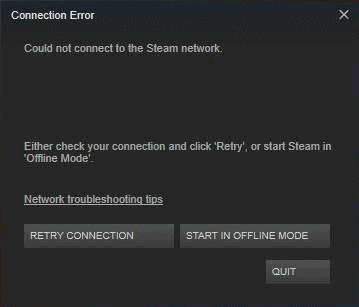
The error is displayed on the screen as shown in the following image:

steam not connecting

Before knowing the solutions, let us tell you the possible causes of steam not connecting issues.

If you are also getting the steam connection error, then one of the causes can be a network issue. If the internet connection is not stable, this might happen. Another reason can be a software issue. It might not be updated or you may need to install it again.

This error doesn’t occur while using Steam and occurs while users are trying to login to their account. If you are also annoyed by the steam connection issues, then this article is for you!

Solutions to Resolve Steam Not Connecting Error

Method 1 – Change Internet Protocol to Solve Steam Connection Error

The first and foremost thing to do, when you get a “could not connect to steam network” issue, is to change the internet protocol which Steam uses. It usually uses UDP for the transmission of data. You can change it to TCP to fix steam connection issues.

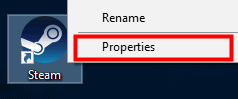
Step 1 – Right-click on the Steam icon and select “Properties”.

steam not connecting

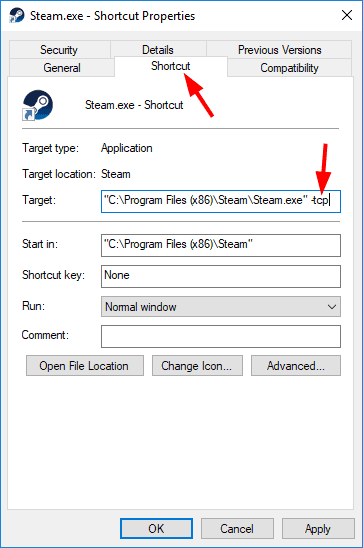
Step 2 – A window as shown in the image will open. Click on “Shortcut” and then move your cursor to the “Target” option.

steam not connecting

Step 3 – At the end of the text written in the “target” box, you have to write “-tcp” and then click on the “OK” button.

Now, launch the Steam application again on your system and see if the “steam not connecting” problem has been resolved or not. If you log in and the issue still persists, you can try the below-given methods.

Method 2 – Troubleshoot The Network To Fix Steam Connection Issues

After using the above method, if you still can’t connect to steam then you can troubleshoot your network. Your network connection may not be proper or there can be a problem with the Wi-Fi router you use which may cause steam not connecting error.

Firstly, open the browser you use and check if the internet is working properly or not. Next, see if the network adapter you use is working properly or not. You can check this by using the following process:

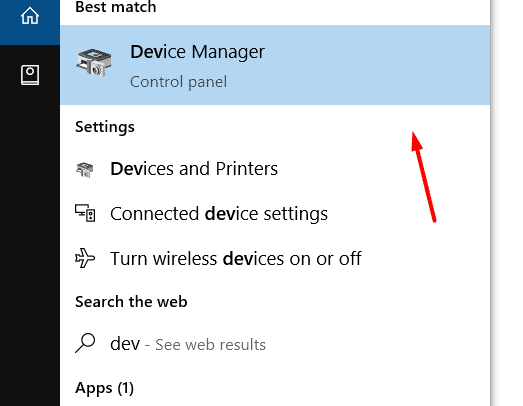
Step 1 – Search for “Device Manager” on your PC.

could not connect to steam network

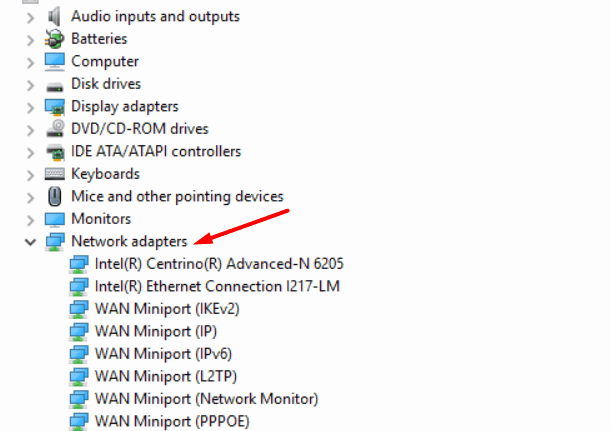
Step 2 – After opening the device manager, click on “network adapters” and see the names of the network adapters available on your system.

could not connect to steam network

Step 3 – Now, right-click on the network adapter that you want to check and click on “Properties”.

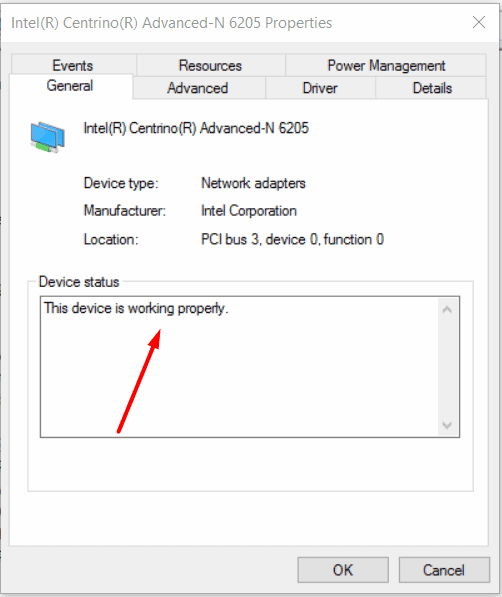
Step 4 – A window showing the specifications of the network adapter will open. In a box given below, check if the message shows: “The device is working properly”.

steam connection error
steam not connecting

By using this method, we checked that the working of the network adapter is proper or not. If it is proper and you still cannot connect to steam, it means that the problem is somewhere else for example, in the network driver.

To check if the steam connection error is due to the network driver, check out the below-given method.

Method 3 – Update Network Driver to Solve Steam Not Connecting Problem

Network drivers can be called as the main source of communication between the operating system and the network hardware. Hence, not having the proper update may give you steam can’t connect problem. 

Outdated, corrupted, or non-compliant versions should be removed and the network driver with the latest configuration should be installed. You can update the driver by using the following steps-

Step 1 – Search for “Device Manager” on your PC and open the first search result.

Step 2 – Select the category of Network Devices to see the names of the drivers installed.

Step 3 – Now, right-click on the name of the driver you want to update. 

Step 4 – You have to choose “Search automatically for updated driver software”.

Step 5 – Now, click on the “Update Driver” option.

In this way, your network driver will be updated and now,  you can see if can’t connect to the steam network has been fixed or not.

Method 4 – Uninstall Steam To Solve Steam Connection Issues

Important: Before using this method, you should know that all your games will also be uninstalled. Once you reinstall Steam, you will have to download the games again.

This can be one of the reasons that there are faulty files present in the Steam files and because of that, you are having the Steam not connecting problem. The steps to uninstall Steam from your system are given below:

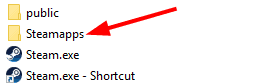
Step 1 – Go through the folder in which you have downloaded Steam. You will see a folder named “Steamapps”.

steam connection error

Step 2 – Now, right-click on this folder and cut it from this folder and move it to a safe place. Now, the process of uninstallation will start from the next step.

Step 3 – Open “Programs and Features” by searching it in the search bar of your PC. You can also access this by going through the control panel.

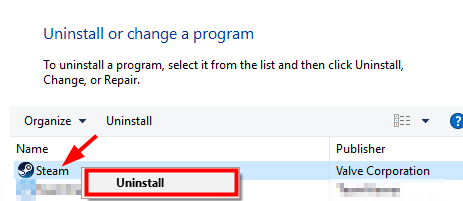
Step 4 – In the list of programs, you will find “steam”. Right-click and select the “Uninstall” option.

steam not connecting

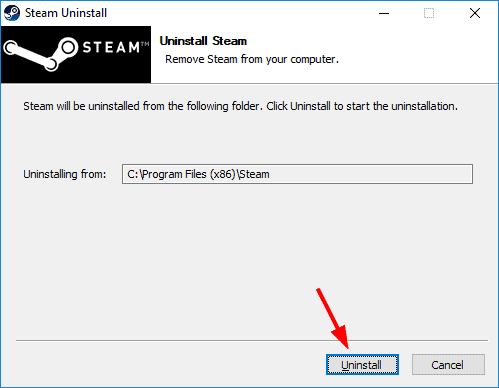
Step 5 – On the next window, click on “Uninstall”.

could not connect to steam network
steam not connecting

Step 6 – Download Steam again and install it on your PC. Try to login and see whether the could not connect to the steam network has been solved or not.

Note: The folder that we moved in step 2 of this process can help you in getting back the apps that you had on steam before uninstalling it. You can do this by moving the Steamapps folder back to the Steam directory.

Conclusion

The above-given methods are found as the best fixes to solve could not connect to the steam network issue and your problem will be solved in very little time. After using the above methods, if steam not connecting persists, it can be a problem by the end of Steam. You can connect to the Steam official Customer Care to let them know about your issue.

What Is the Rempl Folder in Windows 10. Why would you want to delete it?

Windows 10 is quite a complex Operating system having numerous processes running at the back-end making its working appear conventional to its users. A new component store, a file formatting system, and a lot more things were introduced with Windows 10. 

What Is the Rempl Folder and Can I Delete It?

We often come across various folders that we’ve never noticed while cleaning up our system before installing a new hard drive. One such folder is Rempl called as the rempl sedlauncher. Most of us might remove this folder mistaking it as a malware or virus. But do we need to do that? Is this folder a threat to our system?

Well, before we get deep into the topic I would like to assure you that the Rempl selauncher is not intimidation for your system. Instead, it provides reliable and authentic refinements to Windows Update Service components in previous versions of Windows 10.

What is REMPL?

Windows 10 Updates wield certain Files and Folders to guarantee that any updates launched by Microsoft as future/feature updates are not subject to any issues or problems while you install them on your system.

REMPL sedlauncher/disktoast.exe happens to be one such folder!

  • The folder encompasses various files required for the normal functioning of  Windows, and to perform all the Update Activities without any error messages.
  • It allows other applications to run on your system without any permission from the user.
  • The folder automatically wakes up the PC.
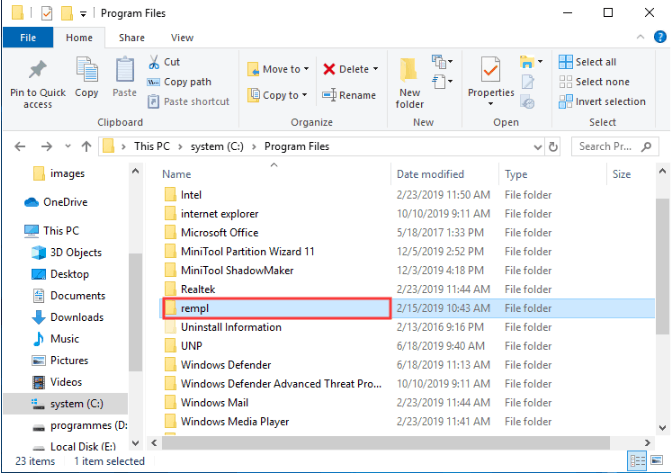
rempl

This folder takes a space of nearly 21MB on your system which might increase depending on the contents of the Logs folder.

The folder can be found under  C:\Program Files\rempl and contains various executable files, a few of which are listed below:

  • Remsh.exe– Often accused of being responsible for waking certain systems from hibernation, this file is a reliability add-on by Windows Update KB44023057 .
  • Rempl Sedlauncher.exe – This is an important component of the WINDOWS REMEDIATION SERVICE which secures and enhances the speed of windows 10 update procedure.
  • Sedsvc.exe– Running as service sedvc, this file is having a technical security of 19% danger.
  • Disktoast.exe
  • Rempl.exe

The above files are digitally signed by Microsoft affirming their originality as Windows Update Files. This is a clear indication that these files do not fall in the category of Malware.

However, the  Blocking of sedsvc.exe and Rempl sedlauncher.exe is quite often because these files are generally detected by the system’s firewall whenever they tend to connect to the Internet. This notifies the user, and the files are blocked to ensure system security.

Of all the above-mentioned files, the Remsh.exe executable is a special Windows Update that comprises reliability upgrades and augmentations to Windows Update Service Components in older versions of Windows 10.

Available on only a few Windows 10 systems, the folder is also an UPDATE TROUBLESHOOTING TOOL.

  • This special package is spontaneously uploaded by Windows 10 on the systems facing issues while updating to the lattermost version of this OS.
  • It investigates the possible reasons for failure and then tries to rectify those.
  • Windows setup Remediation is an important Servicing Stack Update which makes sure that the Windows Update process occurs successfully.  

Can We Delete the REMPL Sedlauncher folder?

Human Beings are prone to the habit of experimenting. Despite knowing that the folder does no harm to our system, and rather serves as an UPDATE TROUBLESHOOTER, let’s answer the above question which must be jogging in the minds of many experimenters.

Removing the Rempl program files won’t cause any damage to your system, and therefore YES you can delete this folder from your system. However the task to delete the Rempl sedlauncher might seem tedious if you got no prior knowledge.

Now that you know deleting the rempl program files won’t cause any harm to your system, let’s check out the steps involved in deleting this folder.

How to Delete the Rempl Program files ?

In this segment we’ll going through the step by step procedure to delete the Rempl program files.

Following are the steps to delete the Rempl program filles.

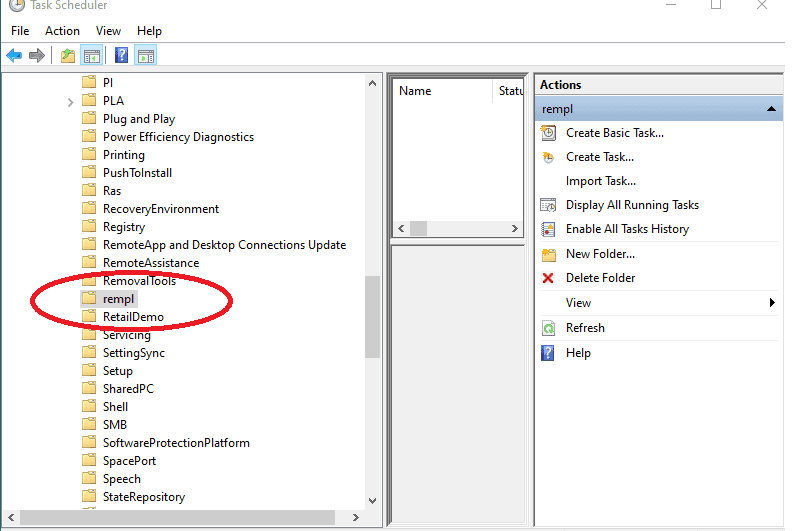
  • Open Task Scheduler by typing Task Scheduler in the Windows search box. 
  • To open the folder click Microsoft > Windows > rempl selauncher.
avast league of legends,how to bypass avast site blocking,league of legends avast problem,avast blocking league of legends launcher
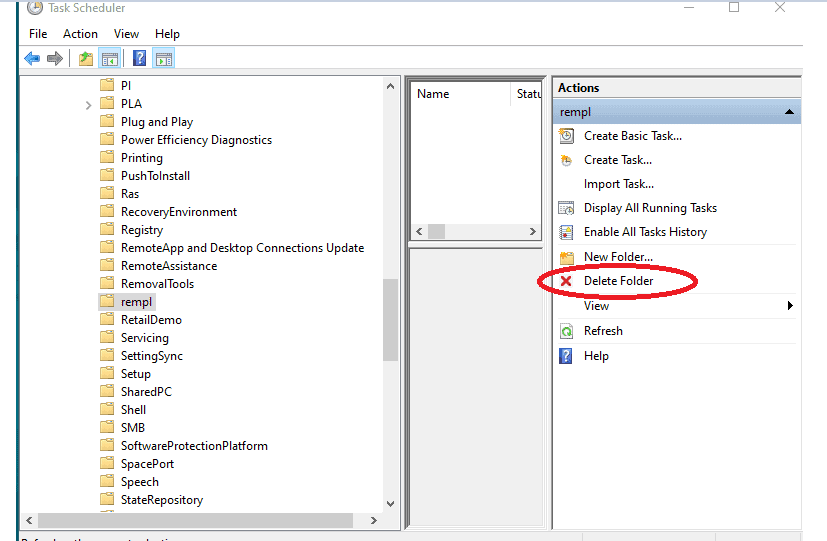
  • Click the Delete Folder button on the right side of the pane.
avast league of legends,how to bypass avast site blocking,league of legends avast problem,avast blocking league of legends launcher

OR

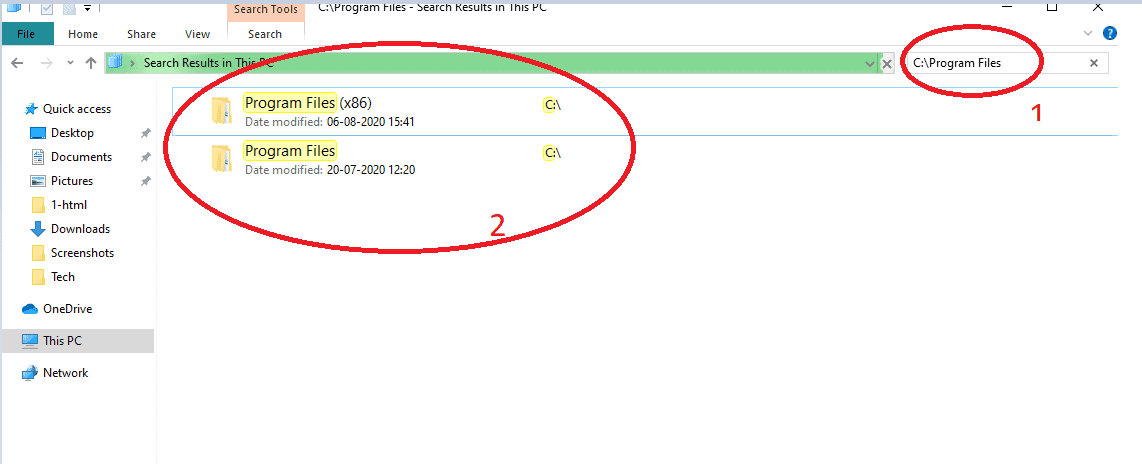
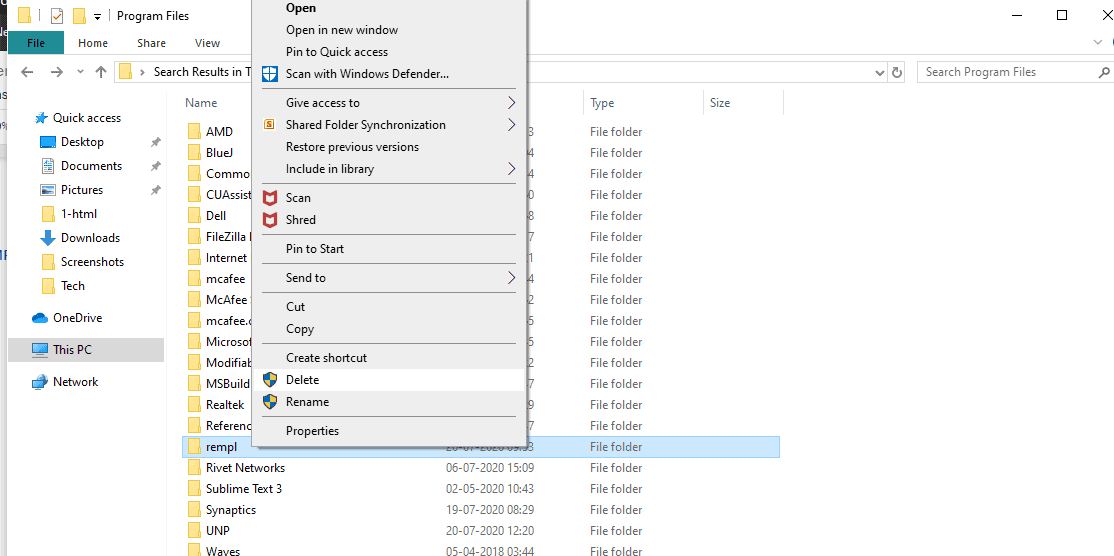
  • Go to C:\Program Files by typing the same in the search bar as shown below.
avast league of legends,how to bypass avast site blocking,league of legends avast problem,avast blocking league of legends launcher
  • Search for the program files REMPL program files
  • Right-click the folder and select Delete from the menu.
avast league of legends,how to bypass avast site blocking,league of legends avast problem,avast blocking league of legends launcher

There you go!!

The folder is deleted from your system.

NOTE-You can even rename the REMPL program files under C:\Program Files\. This way Windows will fail to locate the files and eventually, the executable files won’t launch. However, for this, you may require the complete ownership of this folder.

Conclusion

Finally we know that, the REMPL program files are neither a harmful virus nor its deletion will affect your system.

But at the same time what we need to keep in your mind is that the folder takes only 21MB space on your system, so you can better wait for its removal if you are aware of a feature update coming your way. This would ensure a smooth System Update without any error or intervention.