
Home Blog Page 78

How To Appear Offline On Steam In Just 3 Simple Steps?

0
how to appear offline on steam

If you are new to Steam or don’t know much about it then before starting on how to appear offline on steam, let’s give you a brief description of Steam and it’s developers and then a detail analysis of how to appear offline on steam.

Steam, a video game digital distribution service, is used for playing, discussing, and creating games. It is used by both gamers and game developers. Developed by Valve in 2003, it is now available in over 28 languages. Steam has many other features also like you can review games, chat and play with friends, avail discounts on original games, get refunds for games you didn’t like, and many more. Hence, it is one of the biggest video game distribution services available that is used by gamers all over the world.

What Are The Reasons To Appear Offline On Steam?

how to appear offline on steam

We have all been there when we do not want any interference from other people and just want to relax and have some ‘Me’ time. Sometimes, this happens because we had a long day or a busy day and that’s why we want to play alone and enjoy it. Thanks to the ‘Offline’ feature on Steam that you can play without being noticed by your friends. In this way, you won’t be getting any annoying invites or chats and you can enjoy your privacy.

This option can be activated by just following some simple steps given in this article. So, if you are also struggling with how to appear offline on steam while playing, this is all you need!

How to Appear Offline on Steam While Playing?

You can choose any of these methods and have fun on your own. While you are offline, you can still chat with your friends as only your appearance changes and you can do all the things you do while you are online. The two easy solutions which will help you to appear offline on steam are as follows –

1. How To Appear Offline On Steam While Playing – Using Friends and Chat Tab

Step 1 – Open Steam and then click on ‘Friends & Chat Tab’.
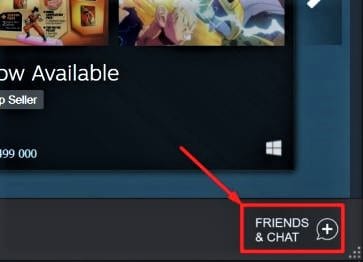
how to appear offline on steam

Step 2 – Your friend list will appear and you have to click on your Profile icon and Name. A drop-down menu will be shown which consists of various options like – Online, away, invisible, offline, and do not disturb. These are the appearance options that steam provides and by default, the selected option remains ‘Online’ unless you change it.
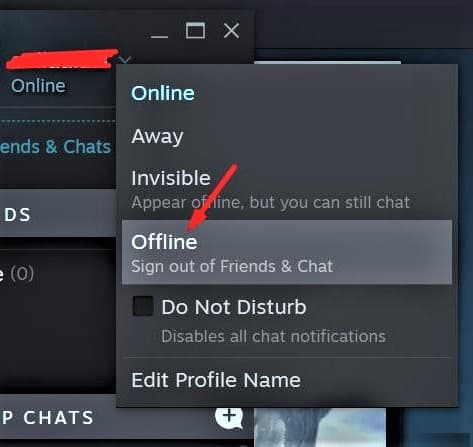
Step 3 – After you click on ‘Offline’ and change your appearance status, the changes will be applied. In this way, you can appear offline on steam while playing.

2. How To Appear Offline On Steam While Playing – Using Friends Tab

Step 1 – Open Steam and from the Menu, click on the ‘Friends’ option.
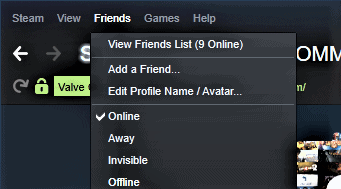
how to appear offline on steam while playing

Step 2 – Here, you will find the options for an appearance on your Steam account. Choose ‘Offline’ and your changes will be saved. This is the easiest method on how to appear offline on steam while playing! Now, you can play games without being annoyed by your friends or other gamers.

Tips And Tricks For Getting The Most Out Of Steam

  1. Use Beta Program – By doing so, you can avail features that are still in the testing phase. Go to ‘Steam > Settings > Account‘ and click on the drop-down menu in the ‘Beta Participation Status’. You can now use all the new features that have not been released yet.
  1. Shelf – Go to ‘Add Shelf > Choose a Shelf‘ and you can view your library in a different way. This looks like a horizontally scrolling shelf. and it has various other options, like Recent Friend Activity, too.
  1. Add Non-Steam Game To Library – It is not necessary that the games you like are always from Steam. So, you can add non-steam games to your library also. Click on ‘Add A Game’ then select ‘Add a Non-Steam Game‘ to add the game of your choice.
  1. Use Steam Cloud To Continue Game Anywhere – By doing this, you can synchronize the progress of your game across several devices. Go to ‘Steam > Settings > Cloud > Enable Steam Could Synchronization‘ and by enabling this, your games will be saved on Valve’s servers and you can continue it anywhere.
  1. Hide Games – Sometimes, you don’t want to show your friends which game you are playing so, Steam provides this feature of hiding games. Right-click on the title of the game and go to ‘Manage > Hide This Game‘ to hide the game. You can remove it from the hidden games by searching it in the search bar and then again clicking right on it. Select ‘Manage > Remove From Hidden‘ and your game will show up again.

Conclusion

By following these simple methods and using these tips and tricks, you can get the most out of Steam. You can now play and have fun without being bothered, have the latest test versions, hidden games, use the steam cloud to continue your game anywhere, add a non-steam game to your library, and many more options.

Complete Guide To Recover Deleted Chrome History

0

Chrome maintains the history of the website visited by the user to ease up the browsing experience and save the user’s time by suggesting sites previously visited. But what if your chrome history is deleted accidentally or you deleted it intentionally? Well, you can relax, as the data does not get removed completely from your system and there are ways to recover it. In this article, we will discuss some solutions to recover deleted chrome history by using Google account, cache files, and restore method.

recover deleted chrome history

Scan Recycle Bin.

You can check in Recycle Bin as it temporarily stores deleted files before it gets permanently removed. If files are present there, then you can restore them to undo deleted chrome history, and if it is not present, then you can try the second method. 

Restore Google Chrome.

Windows automatically stores the user settings and configuration of the previous versions of the apps before modifying as part of the restore point. Whenever you modify settings in chrome, its previous version is stored by default. You can restore this earlier version of chrome to undo deleted chrome history.

 Limitations:

Before reading further please check the limitations of this method.

This method will not show you the browsing history between the current date and the date on which you last modified chrome.

If the above limitation is all right to you then please carry out the below-given steps to restore Google Chrome on Windows 10:

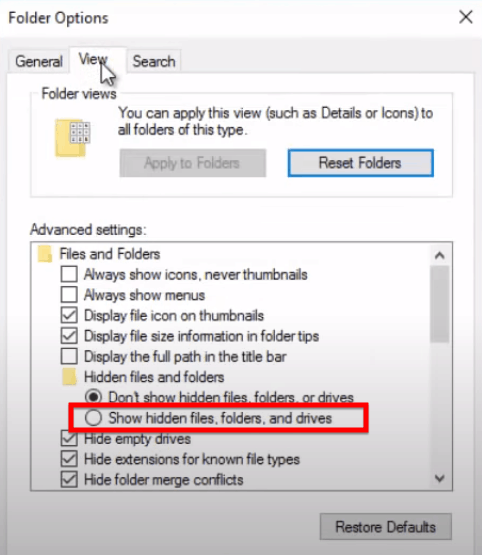
1.) Enable hidden files in Windows 10 by

Search File Explorer -> View ->  Show hidden files, folders, and drives -> ok

recover deleted chrome history

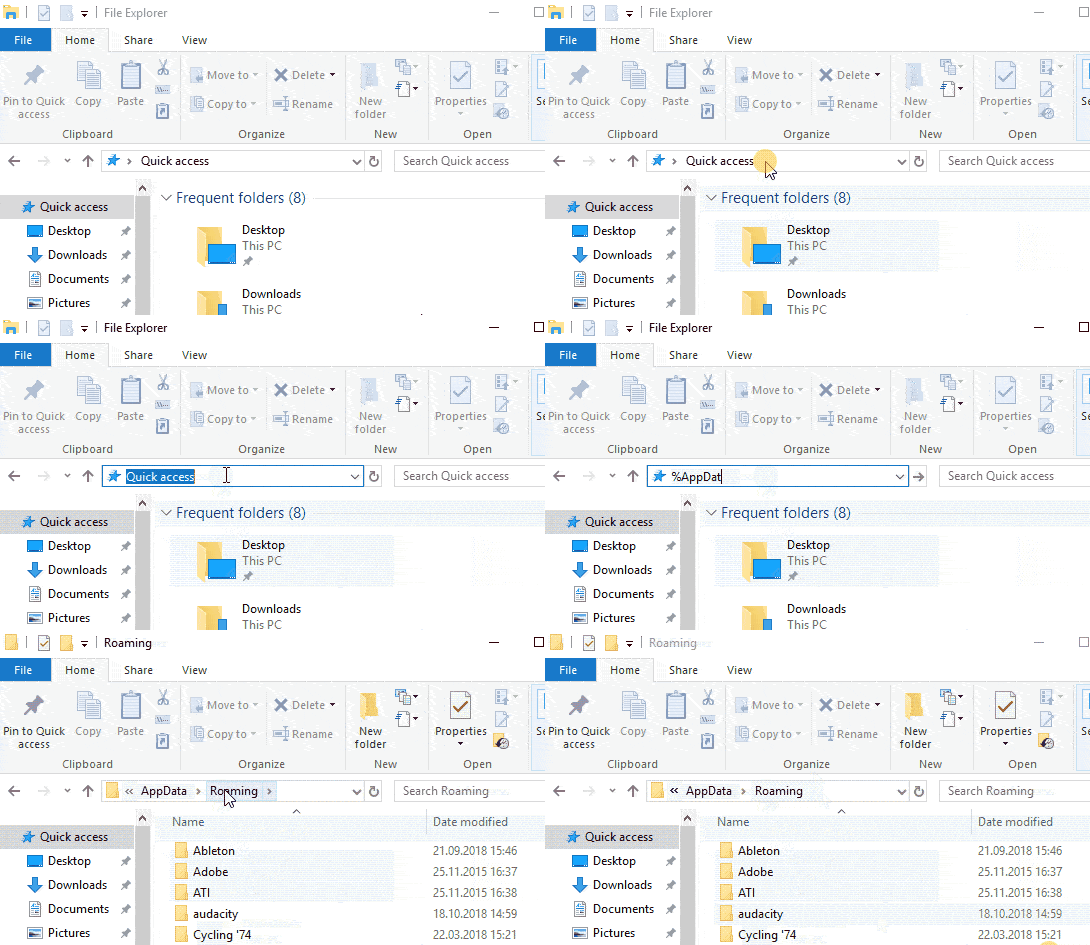
2.) Open AppData folder like this:

Open File Explorer -> Type %AppData%.

appdata.gif
recover deleted chrome history

3.) Navigate to the Local folder.

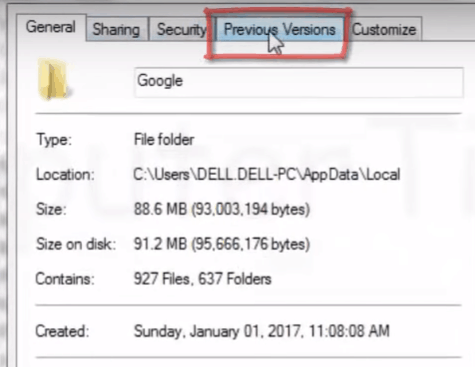
4.) Search for Google folder and right-click on it to open the Properties window.

5.) Click on the Previous Version tab.

3.png

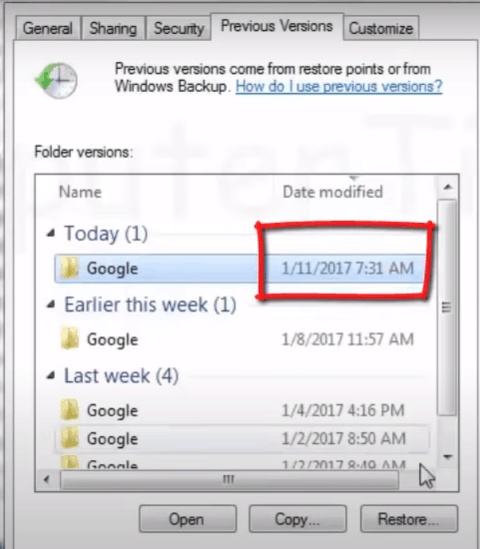
6.) It will enlist Google Chrome instances recently modified. Choose the latest one to ensure that all the latest settings of chrome get reset.

4.png

7.) Click on the Restore button to start the extraction process. Wait for a couple of minutes to finish this process.

8.) Once restored successfully, go back to open your Chrome browser.

9.) Click on three dots present on the upper right corner of the browser.

10.) Click on history from the pop-up menu.

You will notice that your web history is populated with sites you recently visited.

Use DNS cache to recover deleted chrome history.

DNS cache temporarily stores the information about the previous Domain Name Server lookups done on the web browsers. When you clear chrome history, the DNS cache is not altered.  You can view cached website history in this DNS cache.

Limitation: This method works if you have not shut down or restart your PC after deleting browser history. You cannot recover deleted chrome history done a few days back. 

If the above limitation doesn’t bother you then type the following command in the command prompt to view DNS cache.

Note: Ensure that your device is connected to the internet before carrying the below-given steps.

  1. Open the Run Dialogue by pressing Windows Key + R.
  2. Type cmd into the text box to open the command prompt. 
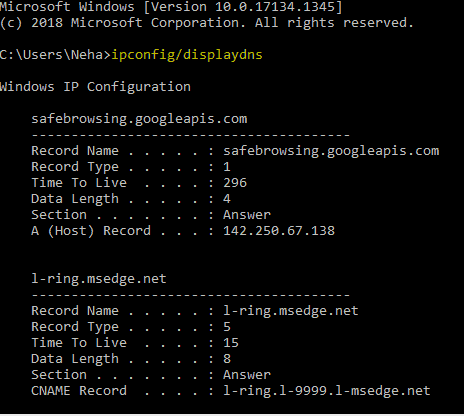
  3. Type command ipconfig/display DNS and press Enter Key.
DNS cache
  1. All the recently viewed website names will be displayed.

Take the help of Cookies to recover the deleted history of chrome.

Cookies store all the information of users and websites you visit in the form of text files. Hence, cookies can be a workaround to view the website’s name you recently visited after you delete chrome history. Find out the steps to check cookies:

  1. Open Google Chrome.
  2. Click on three dots present at the upper right corner.
  3. Click on the Settings option.
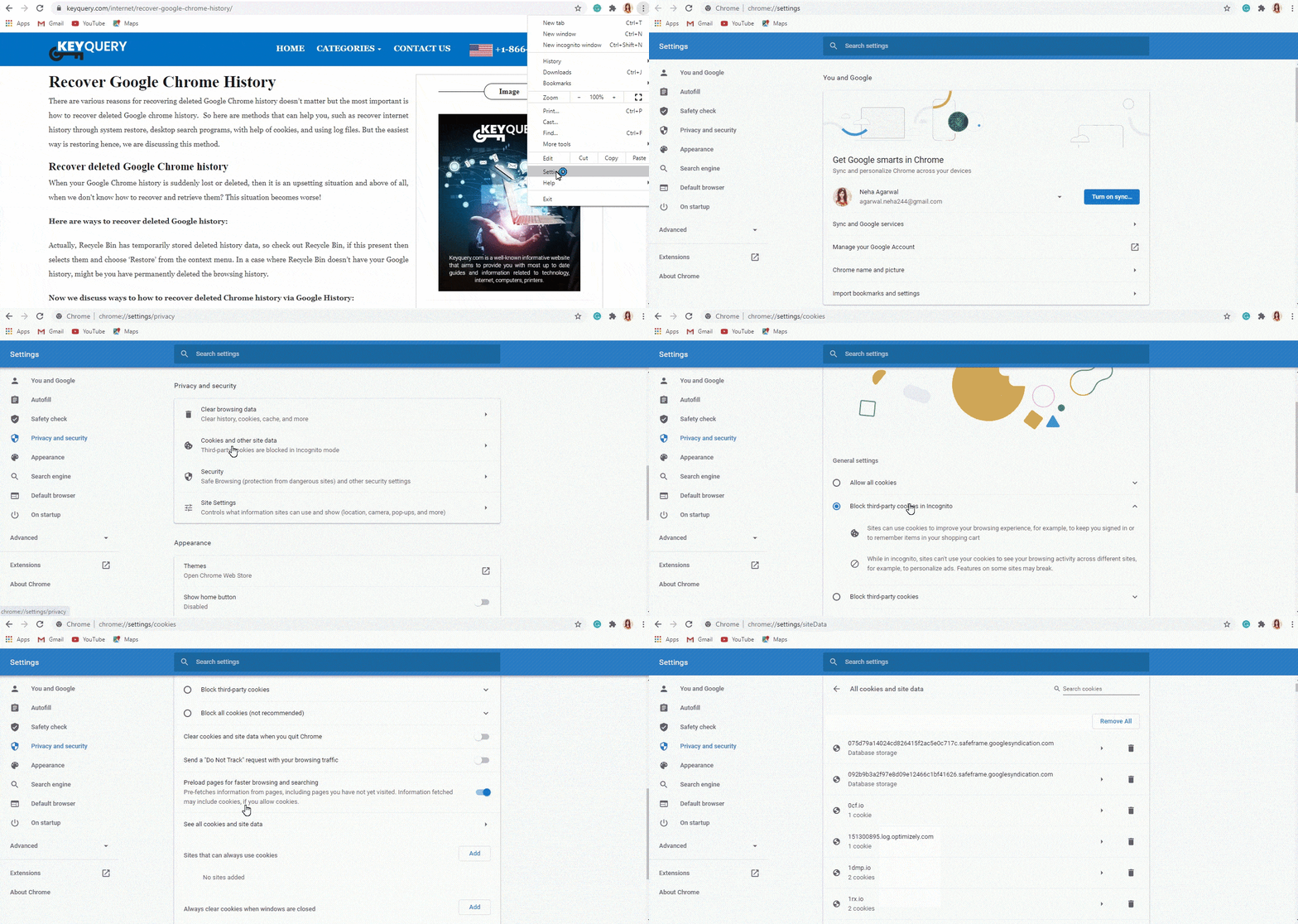
  4. Click on the Privacy and Security tab to choose Cookies and other site Data options.
  5. Click on See all cookies and site data to view the required information.
cooki.gif
recover deleted chrome history

Recover deleted chrome history using My Activity tool of Google account.

Google keeps track of your activity to make the service more useful to you. It keeps records of data you searched, watched, or read. By accessing My Activity in your Google account, you can get the information about the websites you visited.

Limitation: This method fails if you are not logged in your Google Account while surfing, as no data syncs from chrome to your Google Account. 

But if you are continuously logged in your Google account while surfing then follow the below-given  steps to open My Activity:

  1. Type myactivity.google.com and press Enter key. You will be directed to Google My Activity website.
  2. Sign in with your Google Account(Skip this step if you are already logged in)
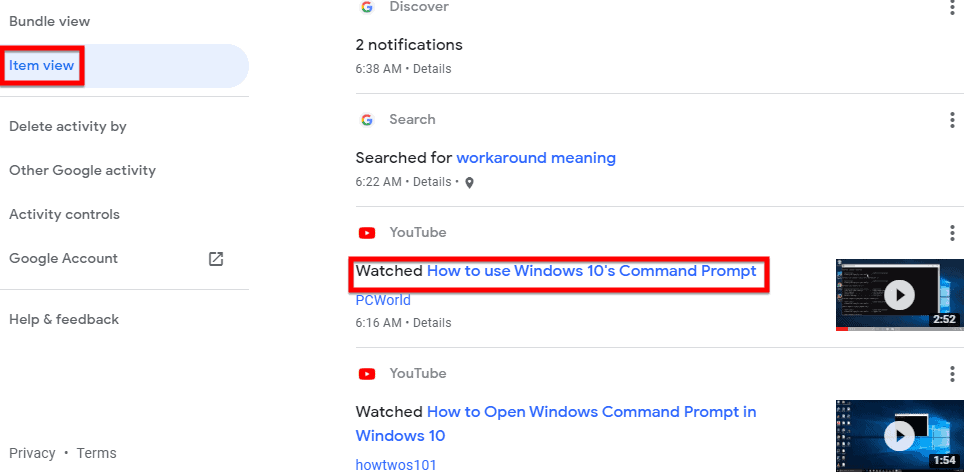
  3. You will be able to see the list of websites you visited with the exact time and date. You can check the details of any desired website.
MyActivity tool of Google account.
recover deleted chrome history

Use external Data recovery tools to undo deleted chrome history.

You can use external Data recovery tools if you can’t afford to lose your browsing history. These recovery tools try to recover history deleted from the browser by accessing history files in the default folder of the chrome. Few tools which can help you to regain history files of chrome are:

  1. MiniTool Power Data Recovery.
  2. iBeesoft Data Recovery.

Limitations: You have to pay and upgrade this software to retrieve deleted Google Chrome history completely. 

Recover data using Google Chrome cache.

For loading the website, fast chrome stores information like videos, images, and layout of the websites visited in the cache. One more way to recover the deleted history of chrome is by extracting data from this cache. You just need to know where this cache is stored on your system. Chrome stores its cache at the following path in Windows.

AppData->Local->Google->Chrome->User Data->Default->Cache.

Note: You have to enable Show hidden files in the file explorer of Windows to access AppData.

You can use external recovery software to read this cache file and get acquainted with all the websites visited from your system.

Limitation: For the Chrome Version below 6.6 by typing chrome://cache/  in the browser cache details were readily available on the browser. But now external software is required to read it.

Understand how to recover deleted history of Chrome in Android:

You can restore browsing history in Android by these simple tricks:

Access MY Activity in Google settings:

As introduced above, you can use the My Activity tool of Google on Android to recover the deleted history of the browser. Carry out the following steps:

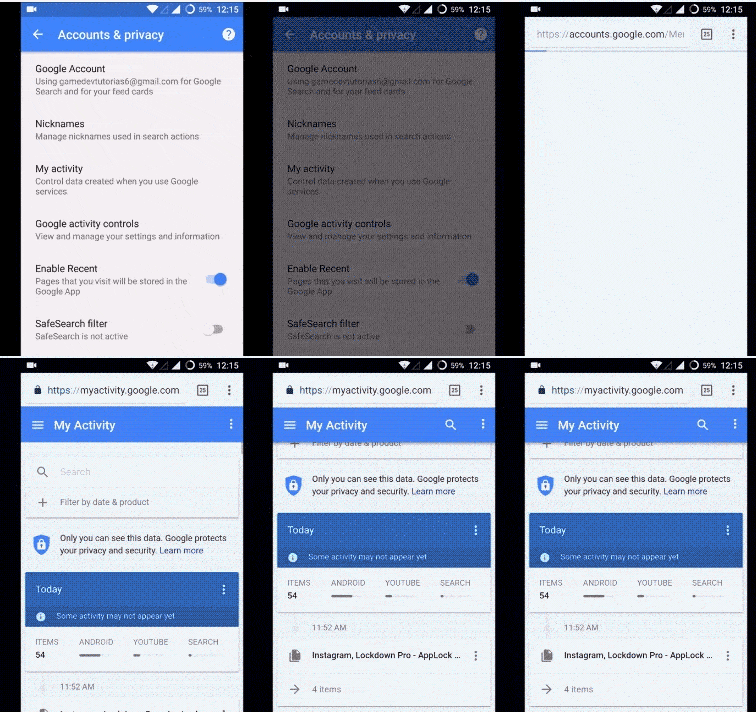
  1. Open Google settings->Account & Privacy->My Activity.
myact android.gif

 Use the Android data recovery tool. 

You can use a free and efficient data recovery tool EaseUS MobiSaver.

Follow the steps given on the website of EaseUs to recover deleted chrome history.

Wrapping up

We have enlisted seven different ways to recover deleted chrome history on Windows and two tricks to recover data on Android. Each method has a limitation. You have to carefully study them and check which solution works best for you. You have to keep in mind that clearing history does not affect Google’s server in any way. All user records are still intact there, and they keep it safe prioritizing user’s privacy.

How to Quickly Restore Last Chrome Session or Closed Tabs

0

The Internet has patently become the most essential tool in today’s generation. It’s a perfect medium to fetch the most accurate and elaborate information about literally everything from the past, the subsisting present, and the developments in the coming future. 

restore-chrome-session-or-tabs

As quoted by Dave Barry-” The Internet is the most important single development in the history of human communication since the invention of call waiting.”

Nearly every person across the Globe knows how to use this exceptional medium. All you need to do is to open the browser on your system, type what you’re looking for in the search tab of the browser, and Enter.

Chrome Tabs!

Chrome has risen into the most popular and dominant browser over time, which is quite evident from the following figure which shows the recent stats on Chrome’s share growth. It’s the most famous browser out of the 11 major Web Browsers.

restore chrome tabs
SOURCE- STATCOUNTER.COM

Though the prevalence of a web Browser in our daily lives has somewhat made us overlook its importance. Let’s check out the importance of Chrome.

Few features which back the Chrome browser for dominating the browser market are:

  • The browser is simple to use, has an all-purpose Omnibox and opens up the tabs quickly. The browser allows the user to work on multiple tabs in the most lucid way.
  • Scans your system for any malware, thereby ensuring the system’s security.
  • Offers excellent compatibility and synchronization features.

Despite such spectacular features, most of the Chrome users complain about losing the important web pages while working.

Imagine yourself working on your final year graduation project. Finally, after trawling through a dozen webpages, you bear fruit. You got no idea about how you reached that webpage which would help you add the most precise data to your project, but as they say, All’s Well That Ends Well!

You’re on cloud nine until a hurricane hits you and turns you upside down.

Alas! You lost the Web-page, maybe because either you accidentally closed the tab or Chrome hit you for no clear reason.

RELAX, because it’s not just you but millions like you face the same problem while surfing the Internet. 

Chrome is here at your rescue. The Browser got a great memory and remembers all the webpages you’d been surfing so far.

restore chrome tabs,restore last session chrome,reopen closed tab,chrome restore last session

So let’s discuss various ways using which you can easily restore chrome tabs.

Use Built-In Feature of Chrome to Reopen Tabs Automatically

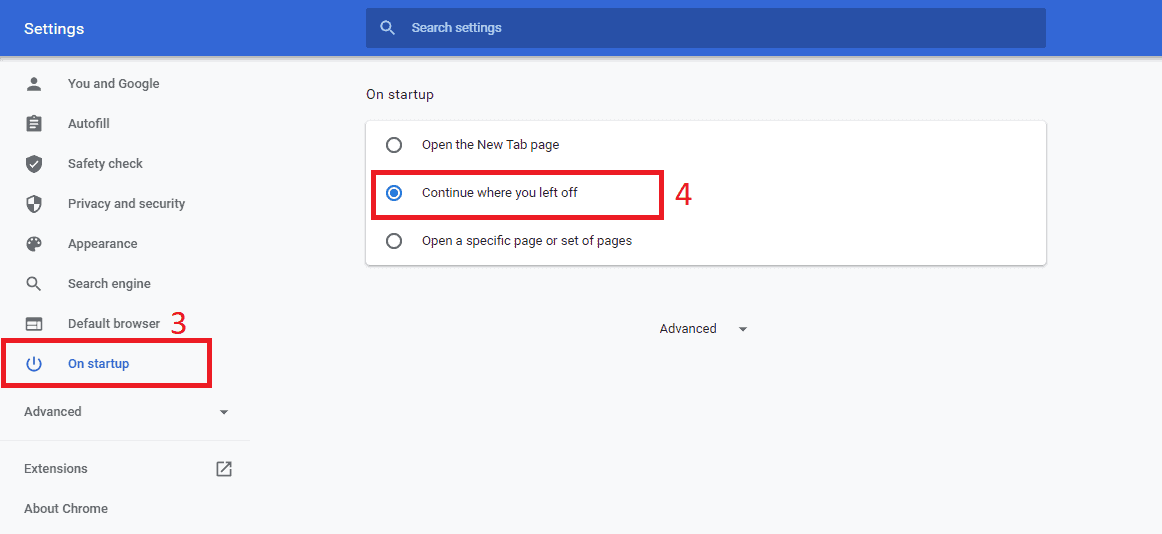
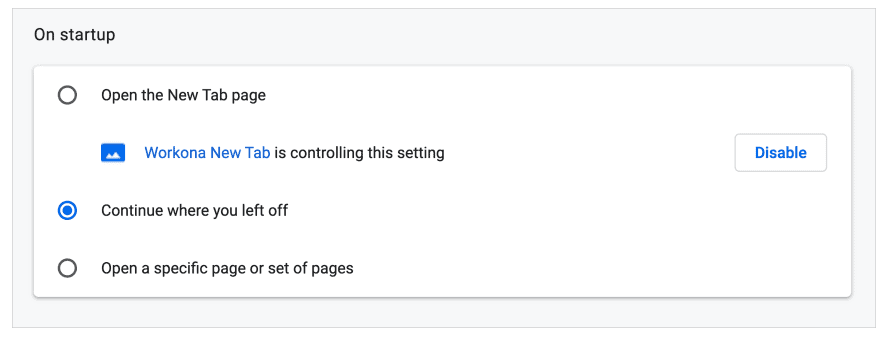
This feature requires the user to enable Continue where you left off’ setting under the Settings tab. However this method is successful only for the first time when you reopen Chrome on your system. Therefore you need to keep this enabled to avoid losing your tabs.

Followings steps will help you restore chrome tabs using this method:

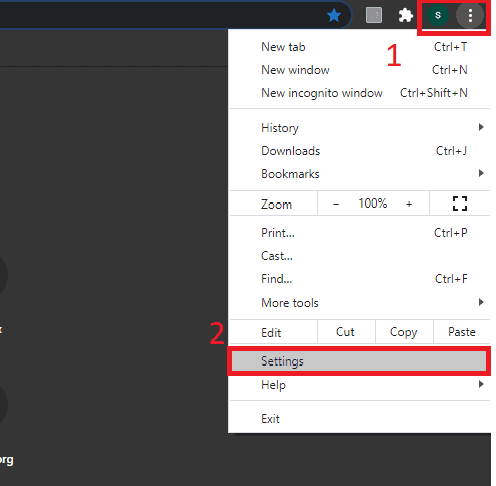
  1. Click the three-dot icon at the top right corner of the Chrome window.
  2. Select Settings. Scroll down the settings to the On Startup section
restore chrome tabs,restore last session chrome,reopen closed tab,chrome restore last session
  1. Check the Continue where you left off’ setting box as shown below.
restore chrome tabs,restore last session chrome,reopen closed tab,chrome restore last session

There you go! By following the above steps you can restore chrome tabs easily.

Now your last chrome tabs will open automatically whenever you reopen chrome on your system. 

Open the accidentally closed Chrome tab with a shortcut

It’s very easy to restore the Chrome tab you didn’t want to but accidentally closed it by clicking the wrong pixel. A keyboard shortcut is all you require to reopen closed tabs:

Windows shortcut to restore chrome tabs:

restore chrome tabs,restore last session chrome,reopen closed tab,chrome restore last session

Mac shortcut to restore chrome tabs:

restore chrome tabs,restore last session chrome,reopen closed tab,chrome restore last session

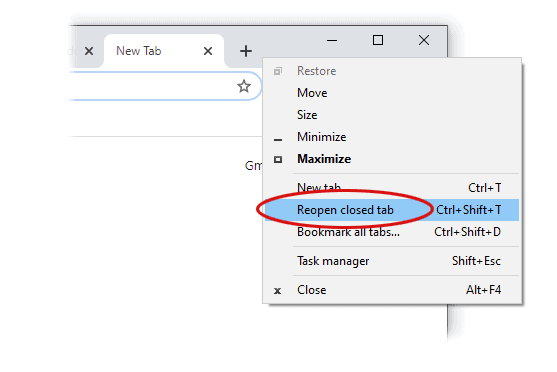
You can even right-click the space in the tab-bar section and choose Reopen Closed Tab.

restore chrome tabs,restore last session chrome,reopen closed tab,chrome restore last session
  • Restore Chrome Tabs from a List

You can now restore chrome tabs and avoid losing your previous search.

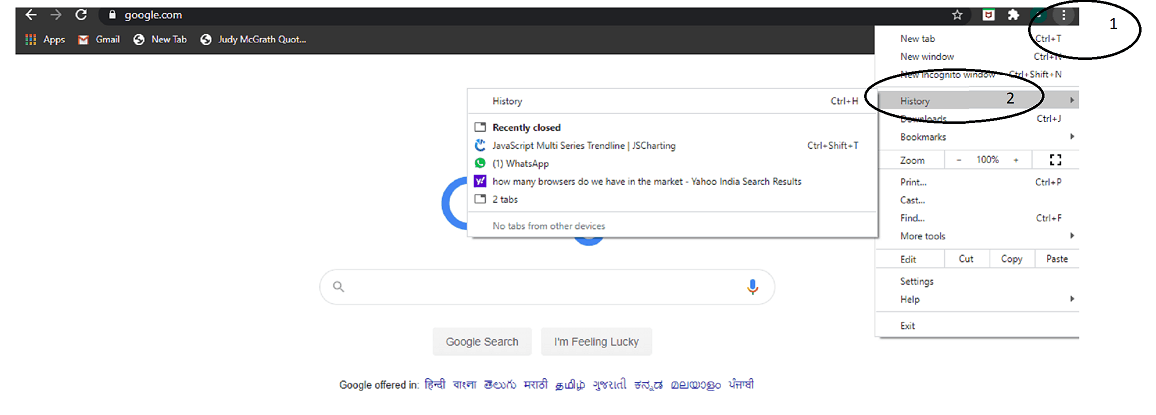
The following steps will allow you to reopen the recently closed google chrome tabs from a list:

  1. Open Google Chrome on your system.
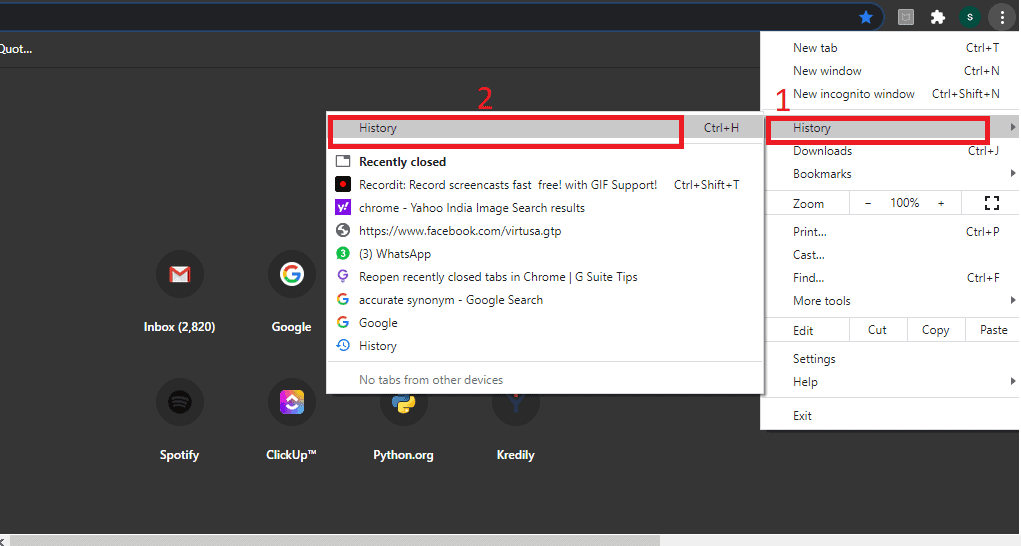
  2. Click the 3 vertical dots on the top right corner of the window.
  3. Click History on the following menu.
  4. You can see the list of all the tabs you’ve recently opened on every device which is associated with your account.
restore chrome tabs,restore last session chrome,reopen closed tab,chrome restore last session
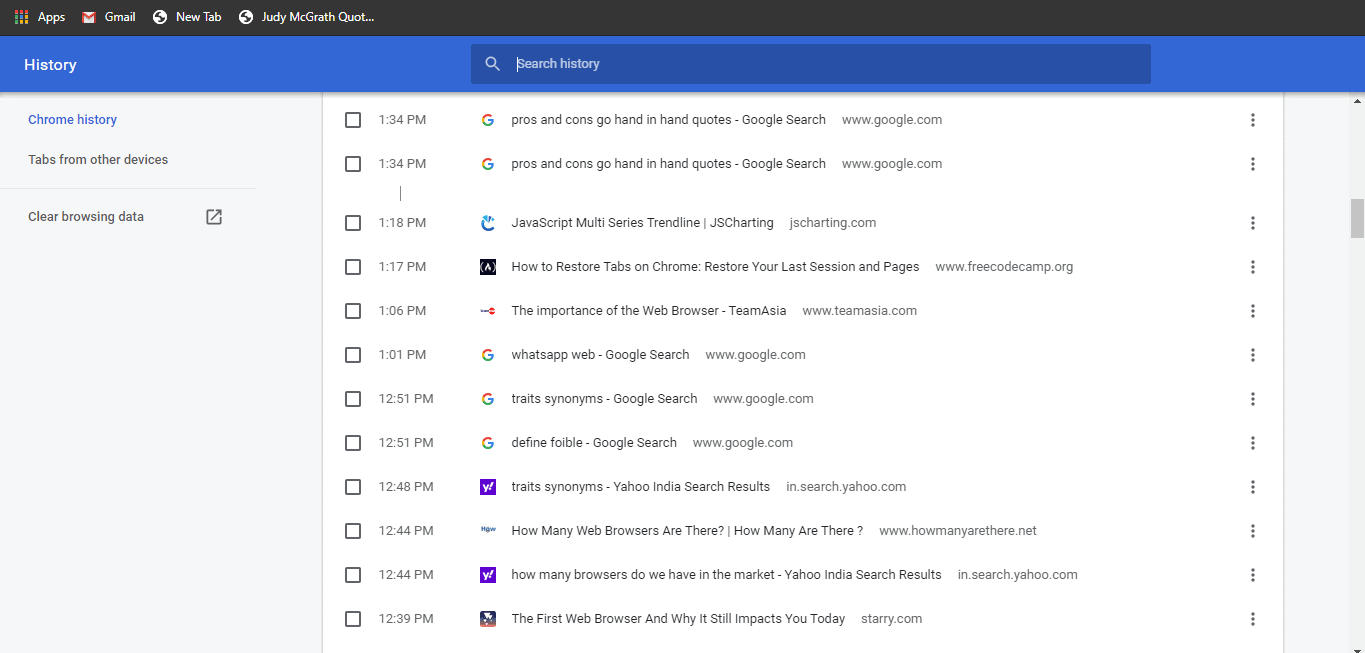
  • Open the closed tabs from the entire search history

In case you’re not able to find the lost Chrome Tab from the previously discussed method, the following steps can help you fetch the required result:

  • Tap 3 vertical dots at the top right corner on the Google Chrome Window.
  • Click History on the following menu.
restore chrome tabs,restore last session chrome,reopen closed tab,chrome restore last session
  • Click History on the following menu.
  • You can now scroll down the history window and get the required chrome tab.
restore chrome tabs,restore last session chrome,reopen closed tab,chrome restore last session
  • Enable settings to restore Google Chrome

Follow these steps to avoid losing your chrome tab once you restart your system.

  1. Open the Chrome window on your system
  2. Click Settings
  3. Scroll down to On StartUp section
  4. Click Continue where you left off.
restore chrome tabs,restore last session chrome,reopen closed tab,chrome restore last session

Now whenever you restart your system after closing, the previously opened tabs will automatically be generated for you.

Conclusion 

We can easily restore the lost webpages on Chrome using the above methods. However, you can always avoid these issues by bookmarking your frequently visited websites. 

How To Fix “Audio Renderer Error Please Restart your Computer Error” [2020]

0

If you are a Windows 10 user and while playing YouTube videos, you are also facing the “Audio Renderer Error youtube” then don’t worry, you are not the only one facing this problem.

Windows 10 is not completely free of bugs/problems and it’s users face issues a lot of the time.  This time we have some easy solutions for you to solve the YouTube audio renderer error. This issue doesn’t occur on a particular browser and is reported by various users using different browsers including Chrome, Opera, Edge, and Mozilla Firefox. 

Why Do You Get This Error?

This issue doesn’t occur because of a specific problem. This may occur due to any of the following reasons –
Audio driver – If the audio driver installed on your PC doesn’t work properly then the “Audio renderer error youtube” message may occur while you watch YouTube videos. It may require an update or a reset.
Windows Audio drivers and ASIO driver – ASIO is a sound card driver for digital audio in computers. When the users use both the drivers, Windows driver and ASIO driver with different sample rates then this error may occur.

Solutions To Fix The Audio Renderer Error youtube On Windows 10

So how do i fix the audio renderer error on youtube. Just follow the solutions below.

1. Disconnect And Reconnect Your Audio Device 

The most easy solution for the youtube Audio Renderer Error Message is to disconnect and then again reconnect the audio device. It is a very simple solution and it may be a temporary one. Although many people who face  this issue report that this solution works for them.

But after disconnecting also, if you still see the youtube audio renderer error message, you can apply any of the following solutions.

2. Audio renderer error please restart Your computer

audio renderer error

Before using the next methods, you have to restart your computer. As the error message itself says that “Audio Renderer Error, Please restart your computer”. So, you should restart your computer before using any of the below methods.

If the problem still persists, don’t worry, we have some more easy solutions for you! 

3. Use Audio Troubleshooter for youtube audio renderer error

The solution may sound difficult and you may think that if you are from a non technical background, it’s hard for you. But it’s not difficult at all. Troubleshooting is a feature that Microsoft  provides so that the system can deal with various errors by itself.

Follow the simple steps mentioned below to fix the “Youtube audio renderer error”.

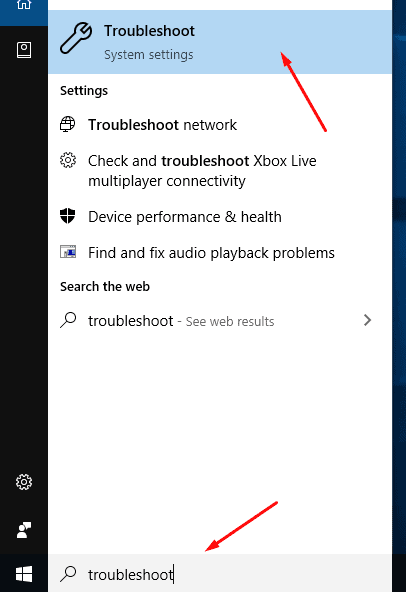
Step 1 – Type “Troubleshoot” in the Windows 10 search bar and click on the first search result.

audio renderer error

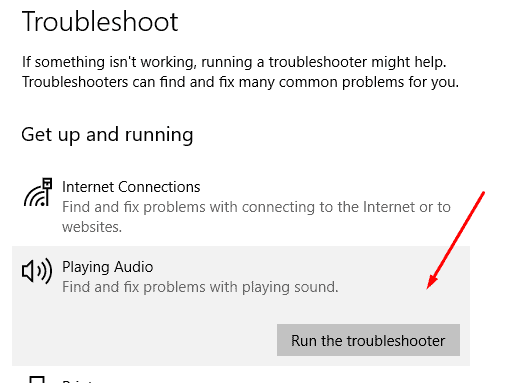
Step 2 – The Troubleshoot window will open and you have to click on “Playing Audio”. An option for “Run the troubleshooter” will appear and you have to click on that.

audio renderer error

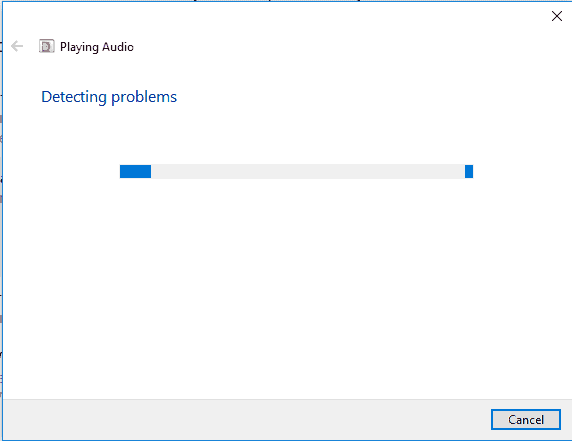
Step 3 – Now, you have to wait for a few minutes so that the troubleshooter can resolve the “youtube audio renderer error” issue.

audio renderer error youtube

4. Reset/Update Your Audio Driver

If the Troubleshooter doesn’t help and the problem of “youtube audio renderer error” still persists while you play any youtube video, then you have to update or reset the audio driver settings.

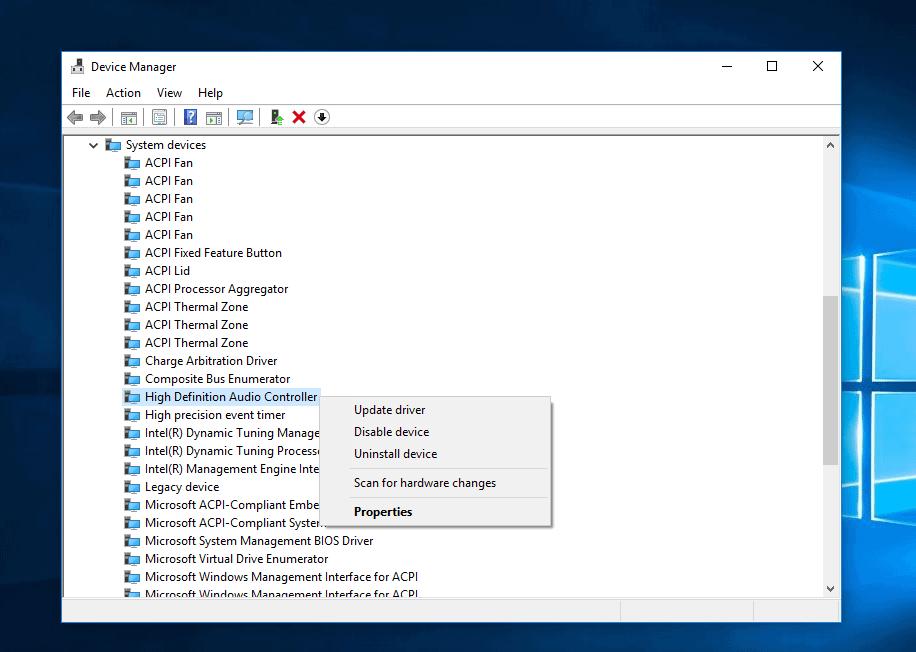
Step 1 – Search for “Device Manager” in the search bar of Windows 10. After it gets opened, select “System Devices”.

Step 2 – Choose the audio driver which is installed on your PC and right click. It will show you options for “Update, disable, uninstall and properties”.

audio renderer error youtube

Step 3 – 

  1. For resetting the audio driver for youtube audio renderer error –
  • Click on the “Disable device” option.
  • Wait for a few seconds and then right click again on the audio driver. This time you have to select the “Enable Device” option. In this way, your audio driver will reset.
  1. For Updating your Audio Driver
  • Click on the “Update driver” option.
  • A window will open showing the options and you have to click on “Search automatically for updated driver software”

5. Change The Audio Format for audio renderer error youtube

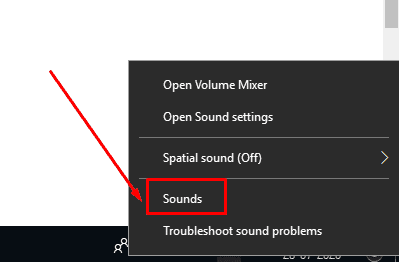
Step 1 – Right click on the Speaker Icon shown at the bottom right corner of your Windows 10 screen and choose the option for “Sounds”. 

audio renderer error youtube

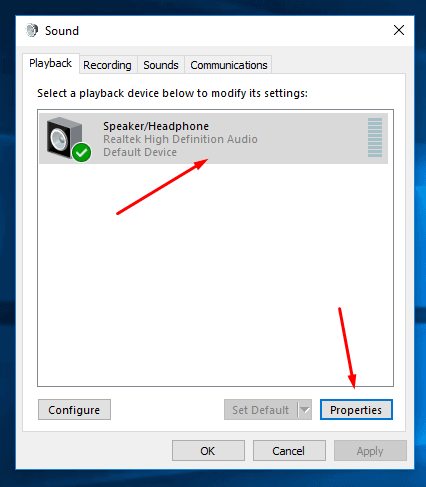
Step 2 – Click on the active Audio Device and then select “Properties”.

youtube audio renderer error

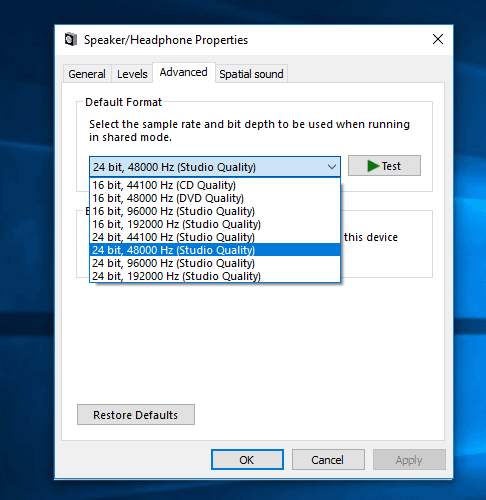
Step 3 – Click on “Advanced” and various audio formats will be shown. You can try them one by one and see that if the youtube Audio renderer error is solved or not. We recommend you “16bit, 44100 HZ (CD Quality)” but you can try any of them.

youtube audio renderer error

6. Specific fix for ASIO driver for audio renderer error youtube

Sometimes, it becomes essential to synchronize the sample rates of your device audio driver and ASIO driver. SO to do that, you have to follow the above method and select a particular sample rate. And after that you have to follow the below steps –

Step 1 – Open your ASIO driver settings and go to the Audio tab.

Step 2 – Under Sample rate, set the exact same sample rate that you chose for the Audio Device Driver in the above method.

Step 3 – Restart your PC and check if the Audio renderer error youtube has been resolved or not.

Conclusion

The issue of “Audio Renderer Error youtube” is a common one and has been reported by a lot of Windows 10 users. If you are also one of them then follow the above given easy solutions and then you can watch YouTube videos without any such errors.

How to Fax From Your Computer – Try These Apps

0

The development of Wi-Fi technology in modern computers has made communication much easier than in the past. There is no need to use phone tables or traditional heavy faxing machines to send or receive the documents or share sensitive information. The Internet has revolutionized communication as well as faxing. Now you must be thinking that can Wi-Fi connections be used for faxing? The answer is yes. Dive into the article to learn “how”?

sending fax from computer.jpg

If you have a laptop or a computer and a secured internet connection, all you need is to get a fax number to start faxing. Multiple apps allow you to send a Fax for free or after buying a subscription plan. Here we are listing three top apps and brief details on “how to send a FAX from a pc?” 

These apps include CocoFax, eFax, and ring central fax & if you rank them in order, CocoFax tops the list with its incredible features. It is fast, secure, reliable, recognized, & easy to operate, while both other apps lack these features. 

restore chrome tabs,restore last session chrome,reopen closed tab,chrome restore last session

How to send a Fax from your computer with CocoFax?

CocoFax is an online Fax service provider that allows you to send or receive the fax from your computer through the internet. As long as an internet connection is working and you are registered with CocoFax, you can turn your computer into a high-end fax machine. 

restore chrome tabs,restore last session chrome,reopen closed tab,chrome restore last session

It uses internet signals to send or receive the fax. When you submit a Fax through it intercepts the signals and translates time into the one that the fax machine can read. Similarly, when you receive a Fax, it uses the same technique to read the signals and convert time into information.

  1. First of all, sign up for the CocoFax account. This is done by visiting the official CocoFax website. Once you click on the signup, a window opens on the screen where you need to fill the necessary information, such as your email address or your password.
restore chrome tabs,restore last session chrome,reopen closed tab,chrome restore last session
  1. The next step is to choose your fax number, for this purpose, you have to select your country or area, and the number type either you want a local or international number and enter your area code. If you are using the free account, you will be provided with a number automatically by the CocoFax, but if you have a subscription plan, you can choose any number of your choice.
  2. Now when you have signed up and obtained your fax number, you will be taken to the dashboard. On the dashboard, various options appear on the  screen comprising new fax, inbox, outbox, starred, sent, trash, contacts, and profile information.
  3. To send the fax, click on the “new fax,” a new fax window will open. 
  4. You can create your fax here by filling the information in all the required fields. In the “To” section, enter the fax number of the receiver. In the “subject, “write a keyword or phrase that will appear on the top of the document.
  5. Now attach the documents. CocoFax allows you to attach as many documents as you want and merge them into a single document before sending. It does not matter; your document is in which format because CocoFax supports most of the formats. 
  6. You can also create a cover page to attach to your document, but it is not mandatory unless you have some necessary information to share. 
  7. Once you have filled all the fields and attached the documents, click on the “send” button. As soon as you hit the send button, CocoFax will receive your information and translate it into signals to send it to the receiver. 
  8. Once the fax has been received successfully on the other side, a confirmation message will appear in the inbox. Or, if it fails due to some reason, you will be notified about the unsent message as well. 
  9. There is no need to worry if your fax is unsuccessful because sometimes when the fax machine is busy or turned off your faxes are returned to you.

How to send a Fax from your computer with eFax?

  1. Go to the official website of eFax and sign up. You are required to provide your name, email address, and other information for this purpose.
  2. Once you have signed up, go to the homepage and click on “send a fax now” and a window will open on the screen. 
  3. Write down your name, email address, the message you want to send, attach the files, and enter the reception name along with the fax number.
  4. Follow the instructions on the page if any further information is required, such as the confirmation codes or the area codes.
  5. And click on the send button.
  6. Note that eFax does not have a user-friendly interface; in fact, it is much more complicated. If you are a beginner or new to faxing, you will find it tough to send or read the received faxes through eFax. 
  7. Moreover, it may come with ads, limits of pages you can fax as well as the daily charges.

Ring Central Fax

  1. Ring central fax allows you to create an account for free and use it for a few days as well. 
  2. You can use your email or even download the RingCentral fax mobile app to use this service. Whenever you are supposed to fax the document, open the RingCentral fax, and click on to create a fax.
  3. Enter the fax number of the receiver and attach files you want to convert in sent as a Fax. Ring central fax is portable and easy to use, but it still comes with specific fields and depressions that a layperson will be unable to carry out.

Which service is better & why?

If you compare the features and the user interface, CocoFax outshines. As it allows you to send or receive the fax in an end to end encrypted environment, 30-day free trial, permanent storage of your information, and fastest faxing over the internet.

Forgot Your Wifi Password? Here’s How To Check Wifi Password On Windows And Mac

0

Whenever you connect your device to wifi there is no need to enter a password every time. You might have noticed that you entered a password for any particular new wifi connection only for the first time, the rest of the time you don’t need to check wifi password and your device remembers it and automatically connects you to the wifi. Commonly, you tend to forget wifi passwords and rack your brain to recall it. The good news is we can apparently extract passwords for all the wifi connections used by your device. This article will walk you through simple methods to check the wifi password in your Windows or Mac machines.

restore chrome tabs,restore last session chrome,reopen closed tab,chrome restore last session

Check WiFi password directly from the router.

Generally, equipment vendors provide a router for setting Wi-Fi connection. Each router, by default, has a unique combination of user id and password. If you have not changed this password and user id while setting up a Wi-Fi connection, you can get this password from the sticker behind the router.

Check wifi password on the Windows platform by following these steps.

There are two ways for knowing password on Windows

  1. By checking Wi-Fi network properties.
  2. By using the command prompt.

Given below are the detailed steps to get a Wi-Fi password by checking network properties.

Method 1: Check WiFi password in network properties. 

If you are accessing your Wi-Fi through a laptop or PC running on the Windows platform, you can easily retrieve your current Wi-Fi password. You can even recover passwords that were used earlier with other Wi-Fi connections because Windows 10 /8 stores all the connection details every time you connect to the Wi-Fi. To get the password for the Wi-Fi connection in question, follow below given quick steps.

  1. Right-click on the wifi-connection icon on the taskbar.
  2. Choose ‘Open Network & Internet settings option’.
  3. Then search for ‘Network and Sharing Center’ and click on it.
  4. Click on the name of the current Wi-Fi connection. It will show you the necessary connection details. 

In the below figure, it is showing details about wifi-connection named “go green” when clicked.

General details of wifi connection.
  1. Click on the “wireless properties” button.
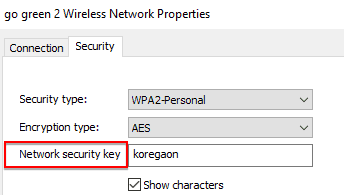
  2. Click on the Security tab from the “Wireless Network Properties” window.
  3. Check the checkbox of “Show character.” There it is! The Network Security Key displays the password in the readable format.

In the below case, the password for the “go green 2” wireless connection is displayed.

Network properties.

As discussed earlier, another way of getting a password is through the command prompt, find out detailed steps given below.

Method 2: Check WiFi password using command prompt on Windows 10/8/7

  1. Right-click on the Start button and choose “Run.”
  2. Type “cmd” in the Run window. The command prompt will be opened.
  3. Type the command “netsh wlan show profiles”  in the command prompt: This command will give you the list of user-profiles of all the Wi-Fi networks to which your computer has connected up till now.
  4. Now type the command “netsh wlan show profile name=profilename key=clear”: here replace profile name with the user profile name whose password you want to retrieve, and execute it. 
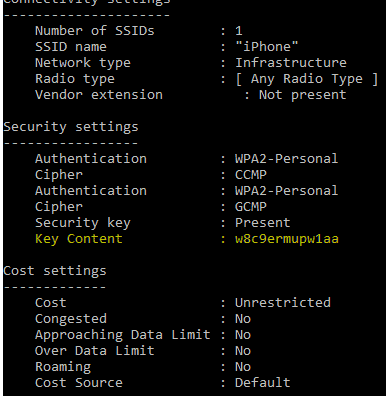
  5. Check for Key Content in Security Settings to get the password of the Wi-Fi connection in question.

In the below figure, after typing command “netsh wlan show profile name=iPhone key=clear,” all the essential details of the connection are retrieved, and key content highlights the password of the “iPhone” connection.

check wifi password using command prompt in windows.
C

The drawback of this method:

No authentication process carried out before displaying a password.

  1. If someone tricks you, and you accidentally connect to your Wi-Fi from another’s Laptop or PC, that person can hack your password through command prompt very easily. As those details are readily available, anyone can get your password just by typing one command.
  2. To avoid such a threat, you must keep changing the password of your Wi-Fi over a while. 

Here’s how to check the wifi password on Mac

There are two ways to retrieve the Wi-Fi password on Mac. By using the Keychain Access app and another one by using Terminal. Find out detailed steps given below for both the methods.

Method 1: Using Keychain Access app to check WiFi password on Mac:

“Keychain Access app” in Mac stores all the passwords for different applications running on Mac. You must have the System Administrator’s password to access all other passwords. 

Steps to check Wi-Fi password by using Keychain:

  1. Use Spotlight Search to open Keychain Access.
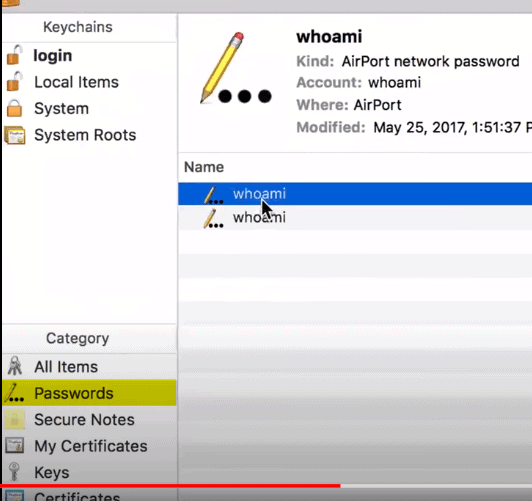
  2. Click on the System link and then choose the Password option under the Category column.
4.png
  1. Then look for the Wi-Fi connection name in question and click it.

In the above figure, I want to check the password for Wi-Fi connection “whoami”.

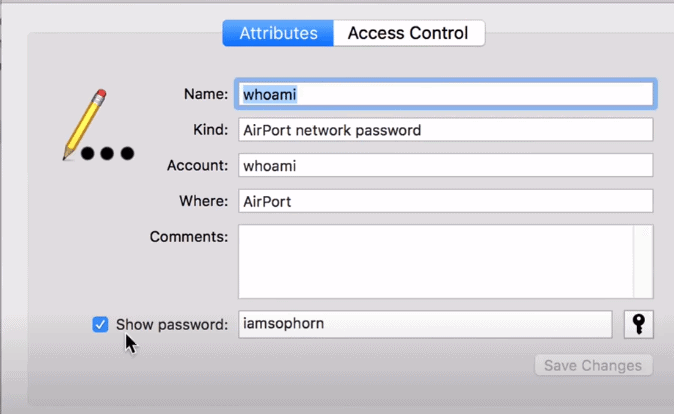
  1. Once that connection details open, then click on the “show password” button.
  2. The system will ask for the admin’s username and password before showing a password as the authentication process. 
  3. Enter your credentials and press “ok.”
  4. That’s it! Now password for your network is displayed in a readable format in the box labelled ‘Show password.’ In the below figure password for connection “whoami” is “Imsophorn.”
5.png

Method 2: Use Terminal in Mac to check WiFi password:

The Terminal is the built-in app in your Mac, where the command prompt is used to control operations in your Mac.

Steps to get Wi-Fi password using Terminal:

  1. Launch Terminal using spotlight search.
  2. Type command security find-generic-password -ga WIFI NAME | grep “password:”

Note: Replace WIFI NAME by connection’s name in question.

  1. Once the command is entered properly, then you will be prompted for authentication.
  2. Enter your credentials.
  3. After authentication, the password for the Wi-Fi connection will be displayed right under the command you entered previously.

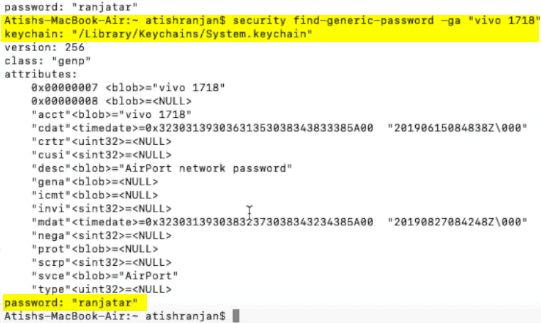
In the below figure :

The Wi-Fi name is “vivo 1718”.

Command to get the password is security find-generic-password –ga “vivo 1718”.

The above command displays all details of Wi-Fi connection, and in front of the password, you can see the password for vivo 1718 i.e “ranjatar”.

6.png

Closing note:

We enlisted two methods for each Windows and Mac to regain your wi-fi password. You no longer have to brood over forgotten passwords of Wi-Fi connection or really have to be tech-savvy to implement these solutions. You can easily carry out the steps introduced in this article to check WiFi passwords. Let us know by your comments if this article helped you.

15 Cool Free Games on Steam You Shouldn’t Miss

0

Playing video games on PC is relishing for many who are bored by their sluggish, monotonous way of living. It adds thrill and charges you up enormously. It stimulates your brain and acts as a stress buster.  Rightly said, “Getting addicted to anything is too dangerous.” The same applies to game addiction. Once you start loving it, you want to get more and more out of it at the cost of shedding away your pockets. We can resolve this dilemma, by enlisting fifteen mind-shattering best free games on Steam and that too all free of charge. You can play these games non-stop and for hours together. These games can pique your interest to peak by their fantastic graphic designs, spectacular options for customization, etc.

Best free games on Steam

Steam is created by Valve as a center to distribute games and video games digitally. Steam is famous worldwide. Three things you must learn about Steam is:

  1. It has a wide variety of free, engaging video games.
  2. It installs and automatically updates games on users PC or another console
  3. It has exciting community features like in-game chat, voice functionality, cloud storage, friend lists, and groups.

Here’s the list of highly rated best free games on Steam, 11th game is unbelievable.

Counter-Strike: Global Offensive(CS: GO):

Counter Strike:GO
best free games on steam

This is the 1st game in the list of 15 best free games on Steam. Valve’s Classic counter-strike was the first game ever played on PC by most of us. It was the most popular game that ruled the gaming world for almost 19 years. CS: GO is the updated version that reveals a new collection of characters armed with spectacular weapons. You can spend hours together exploring different jaw-dropping gaming modes, all having a unique experience.  

Dota 2 :

Dota 2
best free games on steam

It is a mind-blowing constantly evolving MOBA game. An eclectic roster of dynamic heroes is alluring for players worldwide. It gives the flexibility to design your hero and empower them with a variety of powers available. It hones your talent to decide the strategy for battle with players all around the globe on the battlefield.

Destiny 2:

Destiny 2
best free games on steam

This fun-filled audacious game empowers you to act as a foremost gunman in the battle. You can use thrilling solar and natural element’s power to defeat your enemy, which makes this game very captivating.

You can choose exotic weapons and vary your looks. The unique feature is an engaging, cinematic storyline that engages users for hours together. You can enjoy playing it in PvP mode with your friends as the guardian or PvE mode alone.

Warframe

Warframe
best free games on steam

It is a thrilling game where you can create your war-field, get equipped with flamethrowers, katanas, crossbows, and other weapons to sabotage your enemies. It gives you a perfect virtual platform where you act as militant, making your strategies and initiating gun blazing and underwater torpedo fights.

Brawlhalla:

Brawlhalla
best free games on steam

Make your get-togethers enthusiastic and energetic by this Blue Mammoth’s weird brawling game. In this, you are the part of a slugfest, armed with powerful weapons and equipment all set for the vigorous fight. You can get trained by various practice combos and sharpen your skills to brawl against players worldwide.

War Thunder

War Thunder

Gajjin thunder’s War Thunder is an action-packed adventurous game that challenges your strategy skills. You can design exclusive and rigorous aerial attacks against your enemies. It is the fantastic MMO military game devoted to an armored vehicle, aviation, and naval craft used in Cold War and World War ||.

Path of Exile

Path of Exile in the top free games on the Steam.

Grinding Gear’s Path of Exile touches your visceral aspect, making you experience the struggles and powers of an Exile. You can kill some time with this hilarious manipulative game where you can act as a Witch, Duelist, Marauder, Ranger, and Shadow to earn power and take revenge. You can customize your character immensely for deadly missions.

World of Tanks Blitz

World of Tank Blitz.

It is War Gaming Group’s stunning MMO game specifically to play on mobile. Multiplayers with all their attacking and defending skills make this game truly exhilarating. You can choose your vehicle from the huge rooster of 300 distinctive vehicles, battle arenas, and customize them in countless ways. An eye-catching graphics and intuitive touch features make this game quite appealing.

VRChat

VR Chat

Imagination is boundless, and VRChat transmogrifies your imaginative world into real by its adorable features. You can design a custom avatar with a full range of motions, and add an iconic audio element using the Unity SDK. You can create a custom world, and there are endless astounding activities you can perform there like a campfire, bowling with robots. The most eye-catching part is that you can have a glimpse of other player’s imaginative worlds, meet, and chat with new avatars daily.

Unturned

Unturned

Unturned is a single-player, PvP, brain-teasing game. This game gives you a terrific experience by leaving you in the world of Zombies. The major challenge is to safeguard yourself from zombies by sneaking around and distracting enemies. It offers you the charismatic feature of creating your massive world where you can grow food and travel to explore more.

SCP: Secret Laboratory

SCP: Secret laboratory.

It is a multiplayer terrifying game based on the SCP foundation containment breach. You can either be Mobile Task Force units(MTF), which works for re-containment, malicious D-class anomalous entities, terrifying SCP Entities, or foundation security.

Fallout Shelter

Fallout Shelter among the best free games on the Steam.

It is easy and moreish to play Fallout Shelter. You act as a controller to give perfect shelter to dwellers and ensure their happiness and protect them. You train them to enhance their skills and decide their outfit and groom them.

Deceit

Deceit

 Get ready to try-out your instincts at betrayal and trust with Deceit. It is a multiplayer game that challenges your decision-making and strategizing skills. This game unveils you in a bizarre situation where five players surround you, and a deadly virus infects one of them. You need to save yourself from being infected and travel across zones and escape from the dangerous hatch.

Crush Crush

Crush Crush

If you are looking forward to some hot entertainment, then you can play this tantalizing game. It is a fun-filled flirting game where you build your strong profile to attract lovely ladies. You can enjoy all perks of enthusiastic relationships like enjoying dates, buying gifts, and many more virtually.

Heroes and Generals

Heroes and Generals

 This is an intriguing MMO game by RETO MOTO widely played across the web. You can closely experience real wars. You can pick distinct weapons and eliminate all your opponents on your radar. The one who conquers 15 cities first takes the glory.

Found interesting?

We think that you will have a great time enjoying these best free games on Steam and it is an undeniable fact that they are almost at the same level as any other paid games. Keep following our blogs to get more updates on trending free games.