Home Blog Page 105

Top 10 Best VPN for Android; Free and Paid VPN Apps

0

We are living in a time where cyber-attacks are of real nightmares to most of the big corporations, even for normal users. The recent malware attacks that went around the affected millions of users prove security is something which you cannot compromise. Since the internet is something that connects everyone it is inevitable to completely prevent a cyber attack unless you are a millionaire with high-end security measures in place. For the normal crowd, people like you and me, there are some basic things we could do as part of security measures. Do you know, the public Wi-Fi you use can be a bugbear sometimes? It’s very easy for hackers to hack into your computer/smartphone if you are using public wi-fi. Securing your network access by setting up a VPN would be a great way to start guarding up. Today we are going to talk about the top 10 best VPN for android.

best vpn for android
PIC:Best VPN for android

The VPN (Virtual Private Network) is a private network, established over a public network. What’s the benefit? These private networks offer a secure, encrypted connection for the end-users. Another great thing is, since it is a private network, you could easily put in rules, exceptions thereby better management and control over the data. VPN also allows secure access to the corporate intranet from any network. Enough with the intro and let me share with you my list of top 10 best VPN for android.

Best VPN for Android

Express VPN

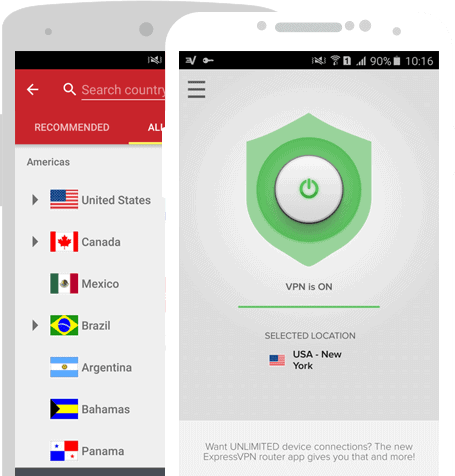
Express VPN tops the list both in terms of features and with high standards of security. This is one of the most trusted and reliable premium VPN you could find for all your devices. Once signed in, you can select from more than 100 server locations around the world. The connection speed is great and your private data is secure, even from the folks at ExpressVPN. The pricing is bit on the steeper side; its $12.95 for one month, $9.99/month for 6 months’ subscription and $6.67 for 12 months’ subscription. This is hands down one of the best VPN for android especially, if you want industrial standard security.
best vpn for android,best free vpn pc,express vpn google play,best vpn for android tv
PIC:Best VPN for android

F-Secure Freedome VPN

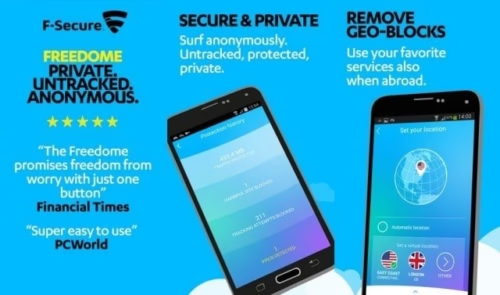
Second on the list, Freedome VPN from F-Secure is also a highly reliable VPN service which offers un compromised security across your devices. The software is free for use for the first 5 days and after that you must pick your subscription, starting at %5.99/month. The app also features a built-in virus scanner for keeping your phone even safer.
best vpn for android,best free vpn pc,express vpn google play,best vpn for android tv

FinchVPN

The FinchVPN is also a great choice but comes with a confusing subscription package and pricing. For those who of you doesn’t want the unlimited bandwidth then you can opt for the Pro package. You will get 25GB of data if you are on pro package whereas the Premium package get unlimited bandwidth. There is also option to access to paid servers. The FinchVPN also comes for free with no data restrictions and for that reason it’s a great choice. Pricing, $1.61/month for Pro and $3.21/month for Premiere.
best vpn for android,best free vpn pc,express vpn google play,best vpn for android tv

Fast Secure VPN

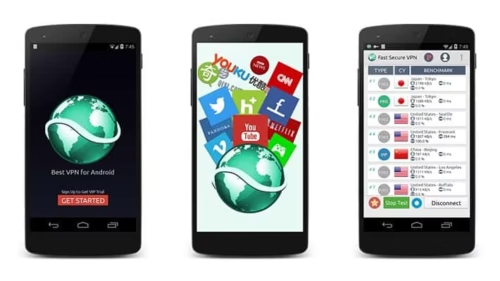
The Fast-Secure VPN is a simple VPN with outdated user interface. The app also comes with free version but with lot of limitations. Trust me! You don’t want to go through that. In my opinion this VPN is one of the best VPN for android and a great companion for getting your hands-on the contents which is locked region wise.

FlashVPN

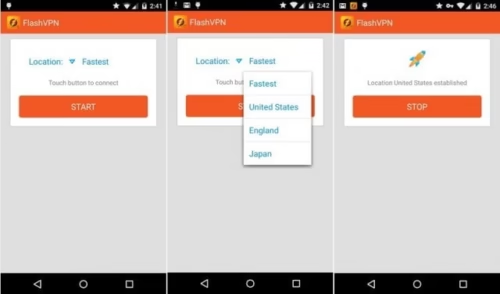
FlashVPN, as the name says it’s VPN access in a flash. There is no set up or login required. You open the app, select the Location from the list of Fastest, United States, England and Japan. Then you touch on Start button to start the VPN. Simple, easy and free of charge.
best vpn for android,best free vpn pc,express vpn google play,best vpn for android tv

Hideman VPN

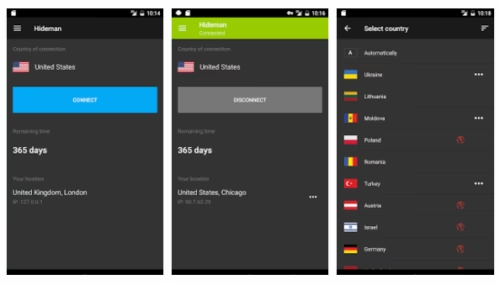
Hideman VPN sounds great but comes with a complex subscription package. You get to pay per hour, or month or year. It’s just $1 for 10 hours use, $2.90 for one month and $24.90 for yearly subscription. I love the fact that you get to pay per hour which narrows down things to one single point of concentration. The app UI is great and there are lot of features.
best vpn for android,best free vpn pc,express vpn google play,best vpn for android tv

SurfEasy Secure Android VPN

SurfEasy VPN has a great dashboard which, when connected to VPN, shows all your connection details along with your new IP address in a neat fashion. The pricing for 5 device support goes like; $4.99/month, $49.99 per year. If you just want one device to support, then $2.99/month or $29.99 per year. The free accounts get 500MB of usage for a month while the paid account gets unlimited bandwidth. If wanted, you may choose to opt out of the ads showing up in the UI.
best vpn for android,best free vpn pc,express vpn google play,best vpn for android tv

OpenVPN Connect

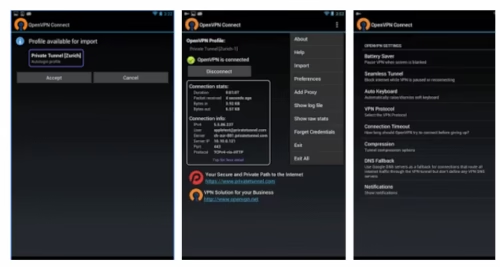
OpenVPN, like you may have guessed, is an opensource free VPN providing app. When most of the VPN apps give you one touch service, OpenVPN needs to be configured before you start working. To lighten this up, you will get to import .ovpn config files. OpenVPN uses PolarSSL, which is notably one of the best encryption standard. Since there are some initial set up required, the UI looks bit cluttered. If you can pass through the learning curve I have stated above, this is one of the best option to consider and it comes for free.

Opera Free VPN

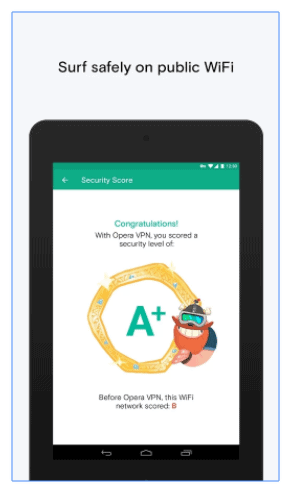
Opera Free VPN is the result of Opera stepping into the VPN field. Like other opera products, this service is also free. You get to surf unlimited without any subscriptions or entering your credit card information. Thought this app touch to connect options there is bit of a downside to it! You cannot download torrents over this app. If you are looking for a clean and simple VPN app then this one is a great choice.
best vpn for android,best free vpn pc,express vpn google play,best vpn for android tv

SpeedVPN

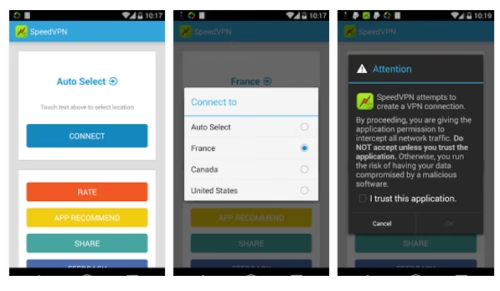
Like FlashVPN, SpeedVPN also one of the best vpn for android and comes with a very simple UI. You get to autoconnect to best available country or you could select from a list of three. The only difference here is, there is a timer of 60 mins. Once this timer hits 0, you will get automatically disconnected. Under the policies of this app, it is explicitly says, you are not allowed to download torrents and if find doing so, you will be banned from using this app. For simple browsing and other legal things, SpeedVPN is a definitely one you could consider.
best vpn for android,best free vpn pc,express vpn google play,best vpn for android tv

How to Electronically Sign a PDF using Preview on Mac

0

Preview app for Mac users is a great tool to view and edit Portable Document Files (PDFs) and image files. It also let you annotate and combine files and share them afterwards. Today we are going to have a look at one of the greatest features of Preview; Electronically Sign PDF using Preview.

best vpn for android,best free vpn pc,express vpn google play,best vpn for android tv

It all starts when you receive a document, via email/download it from a site, which we must fill and most importantly, sign before email/upload online. What we all usually do in this scenario? We first take a print out of the document, then we sign it and then scan it and then upload it. Don’t you think it’s a monotonous job to perform? You will also end up wasting the paper once it is done scanning.

Lucky for all Mac OS users out there, on OS X Lion or later, the Preview app comes preinstalled in computers which can help you with electronically sign PDFs with ease.

Electronically Sign PDF using Preview on Mac

There are two ways to do this;

Electronically Sign PDF Using Trackpad

  • Open the PDF file which you want to electronically sign using the Preview app
  • Access the editing toolbar by clicking the Edit button in the Preview window
  • Select the Signature icon
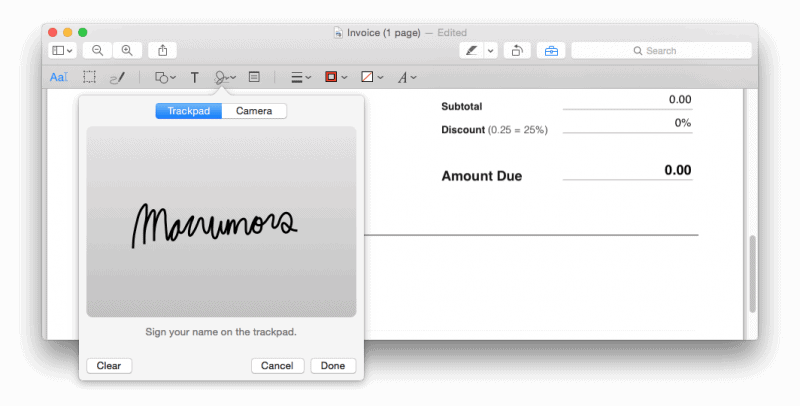
  • Click on Create Signature -> Click here to begin. The window will open with the track pad selected. Draw the signature using the track pad attached.
  • Once done, click and drag the Signature image to the required position. Since it is an image, you can resize and moved anywhere in the document.
best vpn for android,best free vpn pc,express vpn google play,best vpn for android tv

Tip: Though you can use any type of stylus to perform this action but, it is recommended that you use a pointy one to get best results. Also, draw slowly by looking at the monitor so you can see how it is coming on the screen.

Electronically Sign PDF using Camera

  • Open the PDF file which you want to electronically sign using the Preview app
  • Access the editing toolbar by clicking the Edit button in the Preview window
  • Select the Signature icon
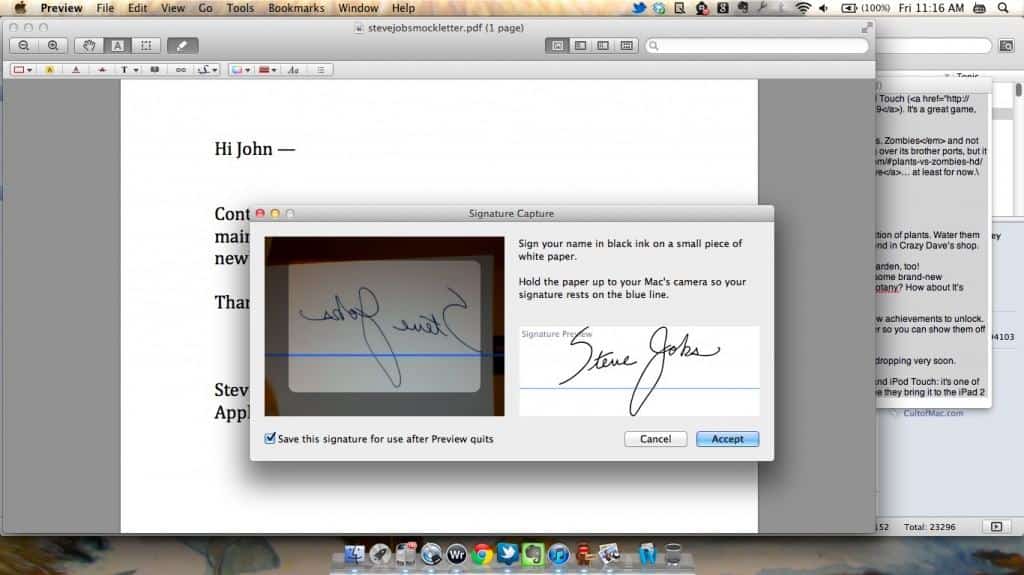
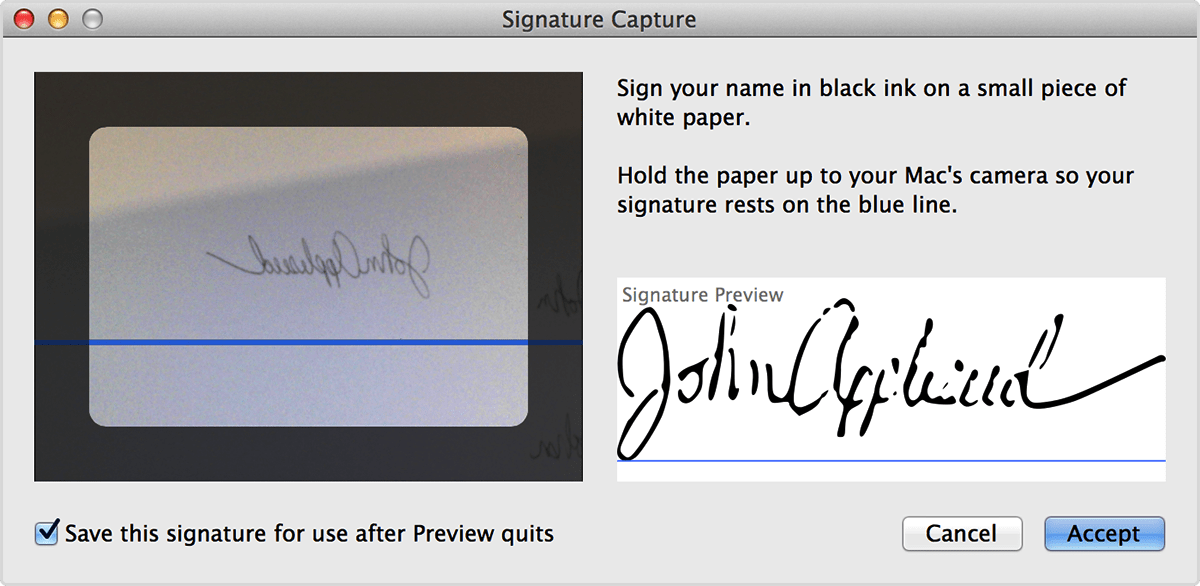
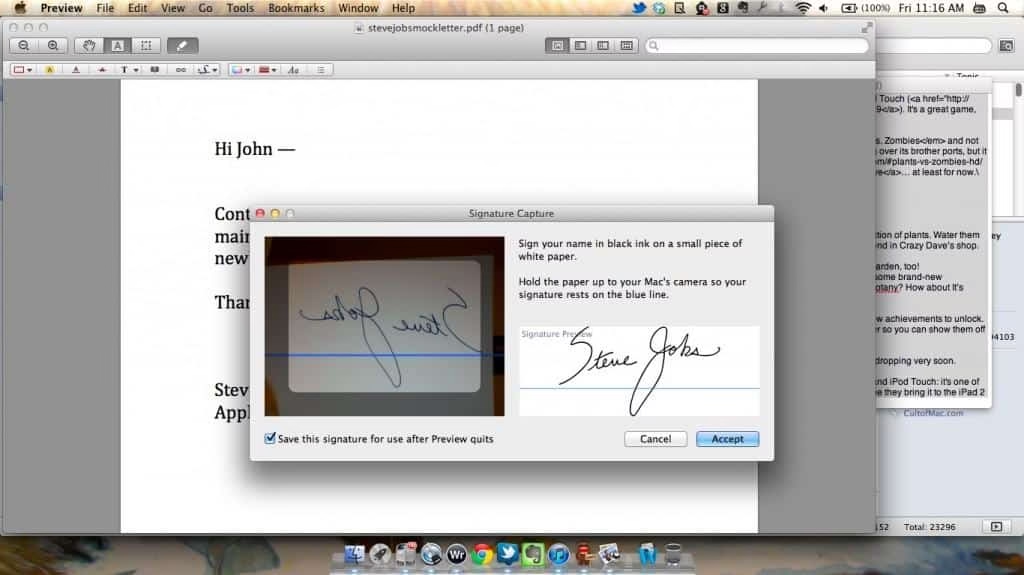
  • Click on Create Signature -> Camera. This will turn on the camera on your computer.
  • Sign on a piece of paper and hold it up to the camera.
  • Move the paper slowly and the signature will draw along the line on the screen.
  • Click Accept to save the image.
best vpn for android,best free vpn pc,express vpn google play,best vpn for android tv

Tip: The signature will appear from right to left while scanning but, the Preview will make it from left to right once done scanning. You can check the option Save this signature for use after Preview quits for future use.

How to Add or Change Invoice Logo in PayPal

0

For any sort of business, whether it’s small or big, a catchy name and Logo is of great importance. No matter how simple your business logo is, take the famous ‘tick’ by Nike, it is important that you create a visual impression of it on your customer on each transaction you make with them. Creating and adding a logo in every customer invoices is a good practice to implement. PayPal is one of the biggest online payments system in the world and many of the merchants use it for doing transactions with their customers. Creating an invoice logo in PayPal makes your invoices look genuine and attractive.

The age of printing paper and money orders for sharing invoices with customers is long gone, as a business owner has a lot of flexibility when it comes to design a proper invoice.

invoice logo in paypal

Like I said, a Logo of your business is a visual impression for the customer. Today I will tell you how to add or change invoice logo in PayPal.

Prerequisites;

  • PayPal account, whom am I kidding to!
  • Image file of your Business Logo

Steps to Add or Change Invoice Logo in PayPal

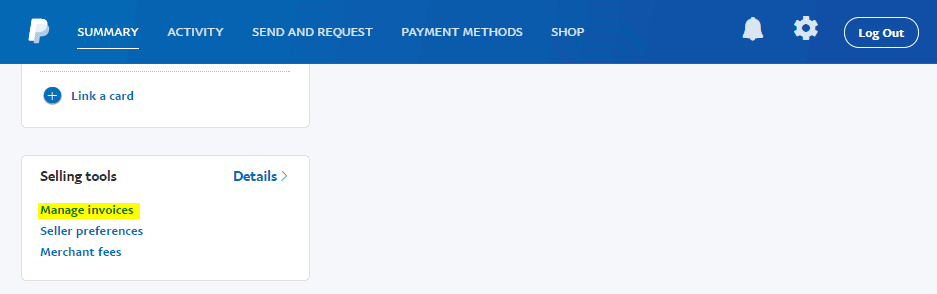
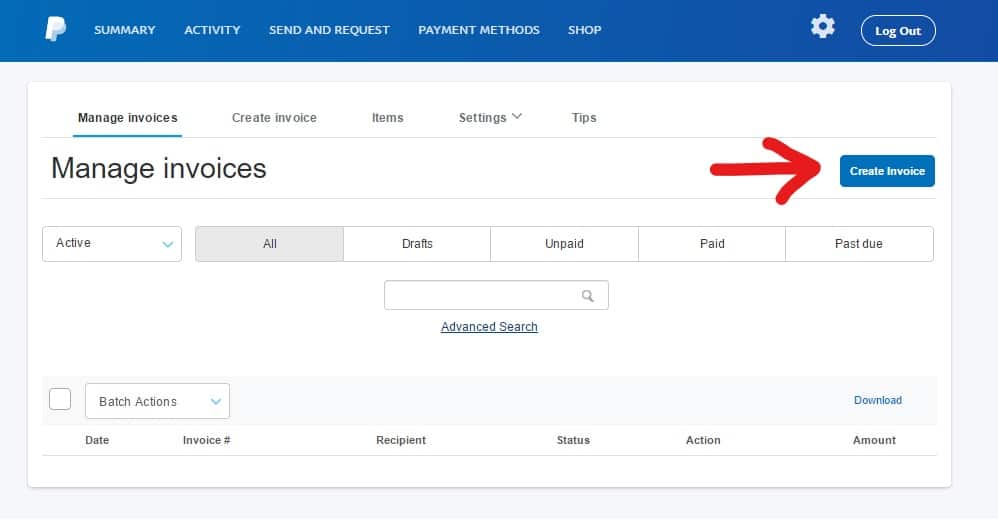
Login to your PayPal account. In the home screen, scroll down and locate the option Manage Invoices under the Selling Tools widget on the left navigation panel.

paypal_homepage_manage_invoices

Click on the Create Invoice Button

best vpn for android,best free vpn pc,express vpn google play,best vpn for android tv

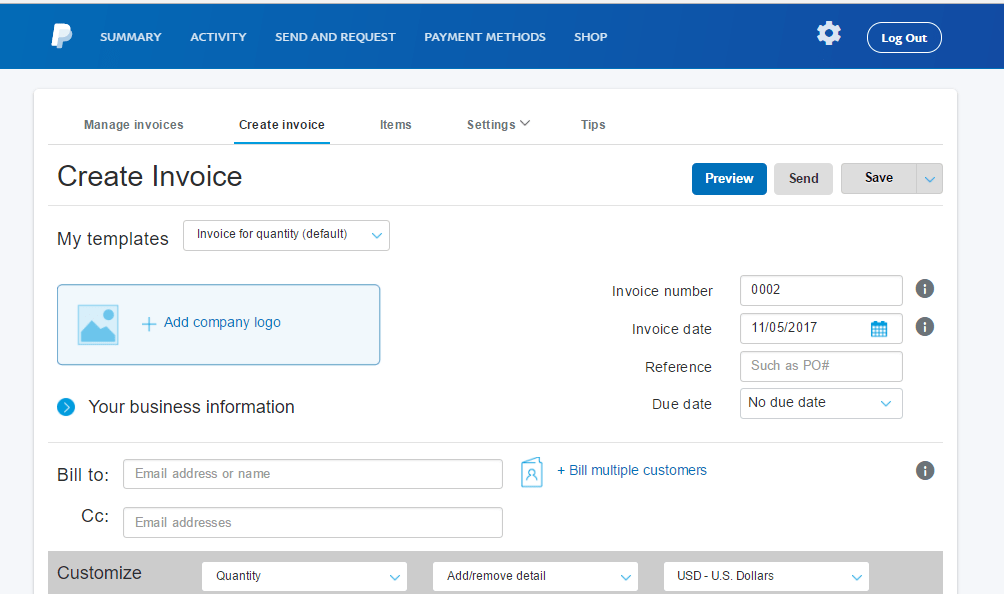
Now you will be presented with the PayPal default invoice template. Enter your invoice number, date and billing information.

create_invoice_paypal

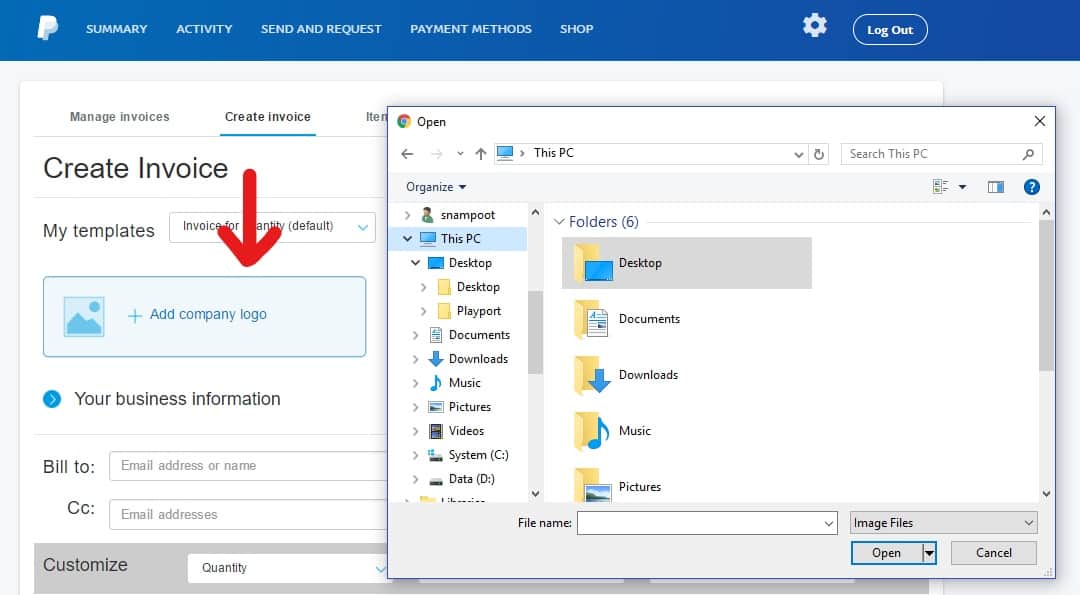
Once you are done entering the billing info, click on the ‘Add Company Logo’ button. Locate the image file of your company logo and open the same.

best vpn for android,best free vpn pc,express vpn google play,best vpn for android tv

There you go! You have successfully added your business logo in your invoice.

How To Type Upside Down In Android

0

Are you a chatting geek and want to try some new tricks to do chatting? Do you want to surprise your friends with crazy Upside down text? Here we came with some tricks to type upside down in the Android phone. There are some online sources, android apps which you can use to get a flipped text. These tricks will work on Android, iPhone, Windows etc. You can type upside down text and use it on your social media platforms like Facebook, Snapchat, Instagram, Twitter or wherever you desire. You can check our article on Cool Google Chrome Tricks.

type upside down
PIC: upside text

How Do Upside Down Text Works?

Basically, the flipped or upside down text uses special Unicode characters which look like the same letters as you type but flipped. We are going to list them online as well as the offline source to type flipped text on Android, iPhone or Windows phone. Also, check Awesome WhatsApp Tricks.

How To Type Upside Down Text Messages On Your Android Device?

Typing and sending the upside down text is as fun as it sounds. You just need to type the text in the text field and you will get the flipped text easily. The application is available for iPhone, Windows also. Also, check Photo Editing Tricks.

1. Upside Down Text Android App

upside-down-text-android-app

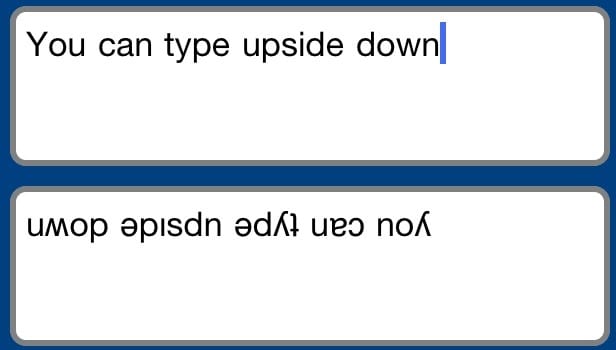
This is an Android app which you can install and get inverted text easily with some clicks.

  • First of all, install this app on your Android phone.
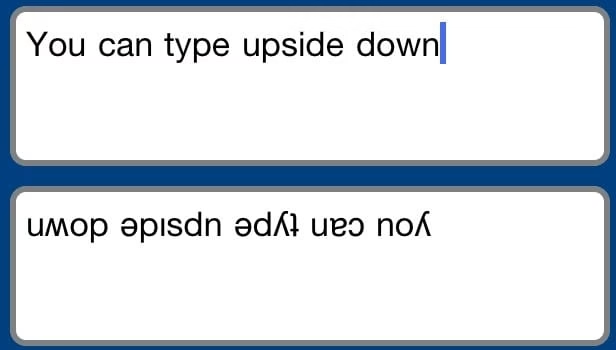
  • Now open the app, you will see a text box on the upper side and the result box on the downside.
  • Type what you want to flip in the text box. The result box will show the flipped text automatically.
  • Copy the upside down text and paste it wherever you want to send.
best vpn for android,best free vpn pc,express vpn google play,best vpn for android tv

Here is how you can type upside down text with this Android app. You can use the inverted text to send your friends on social networks like WhatsApp, Facebook, create stories with funny flipped text on Snapchat, Instagram and much more. In this way, you can use your Android phone as an upside down text generator.

2. Upside Down Online

upside-down-online-tool

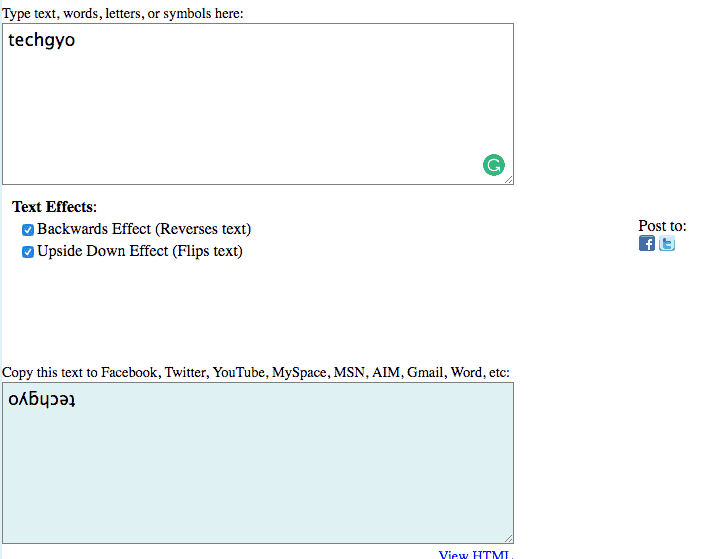
Upside Down is an online tool to convert your normal text into a flipped one. It allows you to make the selection to make your text either upside down or reverse or both. You can open the website from your phone or PC. We have an awesome article on computer repair tricks.

  • First of all, open the website on your computer or phone.
  • You will see a text box and a result box on the website.
  • Just type what you want to flip or reverse or both.
  • You will get the resulted text in the second box as shown in the screenshot above.
  • Copy the text and use it wherever you want to.
best vpn for android,best free vpn pc,express vpn google play,best vpn for android tv

You can make the selection if you want to reverse or flip or both the text. Select only “Backwards Effect (Reverses text)” option if you want to reverse the text. Or select only “Upside Down Effect (Flips text)” option if you want to flip the text. Or select both the options if you want to give both effects to the text.

How to Attach a PS4 Controller to PC in Four Different Ways

0

How to Connect a PS4 Controller to a PC?

To connect a PS4 controller to a PC, plug it in via USB for instant recognition, or use Bluetooth by holding the Share and PS buttons until the light flashes, then pair it in Windows Settings > Devices > Bluetooth. Install DS4Windows software for full compatibility with games.

Playing PC video games using a PlayStation 4 (PS4) controller like a Dualshock 4 will bring a whole new experience to the user as its precision handling and force feedback capabilities are second to none in situations where every split-second lag in response makes or breaks your winning potential.  

best vpn for android,best free vpn pc,express vpn google play,best vpn for android tv
Setting up PS4 controller for PC (Image Credit: PlayStation)

Connecting a PS4 controller to any computer is a walk in the park, thanks to its seamless plug-and-play capability across multiple platforms. We bring you a simple yet comprehensive guide that explains the basics of setting up your PS4 controller on a PC. This tutorial helps you to choose any of the four methods, depending on your style of gameplay.

Here are the four different ways that you can connect your PS4 controller to PC:

  1. How to set up a PS4 controller via
    Steam
  2. How to connect PS4 controller to PC
  3. How to pair PS4 controller to PC
    (Wired)
  4. How to hook up PS4 controller on PC (Bluetooth)

Close-quarter combat (aka CQC) and simulation games are likely to benefit most with the use of a console controller on PC as opposed to the keyboard and mouse combo. This is due to the fact that these games often demand both precision and timing along with faster input-response time.

Method 1: How to Setup a PS4 Controller via Steam

What You Need

  • Dual Shock 4 PS4 Controller
  • Micro-USB charging cable
  • The latest version of Steam

Please note that this method enables you to use your PlayStation 4 controller within the confines of the Steam platform and its associated titles (those listed in the Steam library only).

In order to use your controller outside the Steam for playing non-steam titles, you will have to employ the second method – How to get a PS4 controller to work on PC.

Without further ado, here are the steps to configure your PS4 controller in Steam:

Step 1: Launch the Steam app and log in with your username and password credentials. NOTE: Do not plug-in your PS4 controller to your PC yet.

Step 2: Install the latest version of Steam on your PC by navigating to Steam > Check for Steam Client Updates. Once you login, Steam should auto-update to the latest version by default.

Step 3: Now, enter the Big Picture mode by clicking on the Square icon beside your Steam username (see image below).

best vpn for android,best free vpn pc,express vpn google play,best vpn for android tv

Step 4: Click the gear icon in the top-right corner of the screen to the left of the power icon.

best vpn for android,best free vpn pc,express vpn google play,best vpn for android tv

Step 5: In the ensuing screen, hit Controller Settings in the Controller sub-section as seen in the image (below).

best vpn for android,best free vpn pc,express vpn google play,best vpn for android tv

Step 6: Then tick the box for PlayStation Configuration Support as seen in the image (below). Users with Xbox controller may tick or enable Xbox Configuration Support while Generic Gamepad Configuration Support option can be used for a Universal controller.

best vpn for android,best free vpn pc,express vpn google play,best vpn for android tv

Step 7: You can now connect your PS4 controller to your computer with a micro USB cable that shipped with your console. A “bloop” sound can be heard if your device is configured properly and recognised successfully. Alternately, you may hear a Rumble sound, if that option is set.

That’s it. Just hit the PS button and your PS4 controller is all set to play wired or wirelessly depending on your choice.

How to Customise PS4 Controller in Steam

Apart from configuring your controller in Steam, you can also customise it to your personal taste and preferences.

In Big Picture mode, Go to Controller Settings > Hit Preferences button on the right after selecting the freshly-detected controller in the Settings. Here’s what you can do:

  • Assign a meaningful identity to your controller
  • Switch on/off the Rumble sound feature
  • Colour of controller light can be tweaked as per your taste 

Method 2: Configure a PS4 Controller to Work on PC

It is a bit more challenging to get your PS4 controller to work on your PC than the straight-forward approach with Steam.

You need to download and install the DS4Windows software to make minor tweaks to your Windows PC to simulate the functionality of Xbox 360 controller.

What You Need

  • DualShock
    4
  • Bluetooth
    USB Dongle
  • A
    Micro USB cable
  • Download
    DS4Windows app.zip file here

NOTE: You will need either WinZip or WinRAR software for Windows to access the content of the zip files.

Method 3: How to Pair PS4 Controller to PC (Wired)

Step 1: Extract the DS4Windows.zip file to get the DS4Windows.exe file. You will be prompted (first installation) to choose the location for saving your profile and settings. You may choose to install the files into either Program Folder or Appdata directory. We recommend installing into Program Folder as the necessary system files are always stored there.

best vpn for android,best free vpn pc,express vpn google play,best vpn for android tv

Step 2: Start the PS4 driver installation for your localised Windows version by clicking on “Step 1: Install the DS4 Driver” button (for Windows 8.1 and above). Alternately, if you are running Windows 7 or older versions then click on “Step 2: If on Windows 7 or below, install 360 driver” and this will ensure that the compatible PS4 drivers are installed correctly.

Step 3: Hit the Finish button once the driver installation completes and then plug-in your PS4 controller to your PC using a micro USB cable.

NOTE: The controller tab should now indicate that an Xbox 360 controller has been detected in the DS4Windows screen. If not, just hit the Stop button in the lower right-hand corner of the screen, exit the DS4Windows app and then relaunch it. Alternately, just unplug the controller and reconnect it. Try using a new USB cable if the controller fails to get detected.

That’s it. Your DS4 controller is now setup and it will get synced automatically whenever you launch the DS4Windows application with your controller plugged-in to your PC.

Those who prefer the mobility advantage of a wireless setup may proceed with the Bluetooth method of setting up the PlayStation Controller on PC.

Method 4: How to Setup PS4 Controller on PC via Bluetooth

Step 1: Launch the DS4Windows app.

Step 2: Go to the System tray and right-click on Bluetooth Devices. Then click on Add Bluetooth or other device (if using Windows 10) and then click Bluetooth to search for all connected devices including your PS4 controller. Alternately, just click Add a Bluetooth Device on older versions of Windows.

Step 3: To complete the pairing process, press and hold Share and Playstation buttons for 3 seconds or until the light bar on the controller blinks twice repeatedly in a sequence.

Step 4: Now, click on Wireless controller to complete the pairing process with your wireless USB dongle or an integrated Bluetooth device on your laptop. NOTE: For Windows 7 and earlier systems, just enter “0000” as the code when prompted.

Step 5: Hit Done, once the pairing completes. If the light bar on the controller blinks repeatedly then it confirms that the PS4 controller is successfully connected. Also, the controller will be shown in the Controllers tab of the DS4Windows screen if pairing is successful.

Finally, you can customise or personalise your PS4 controller based on your personal taste and preferences by navigating to the Profiles tab in the DS4Windows application.

The DS4Windows app brings superior customisation options for your PS4 controller as opposed to a limited set of options with Steam:

  • A
    meaningful identity to your controller
  • Configure
    and tweak the controller light colour
  • Enable
    or Disable the Rumble sound and vibration level feature
  • Low-battery
    flash feature to alert you when your PS4 controller’s battery levels are
    critical
  • Customise
    Macros and assign them
  • Configure
    personalised key mapping

That’s it. You are all set to exploit the hidden potential of your PS4 controller on PC as you plan to go one up against your rivals.

Where does obs recording Saves?

where does OBS save recording

OBS (Open Broadcaster Software) is free software for live streaming videos and is also called “OBS studio”. It is used to stream previously obs recording or live videos on social media. It is most popular among price attentive live streamers. This highly personalized software has many advantages. It helps you link and stream your content from your PC to BandLab. It has the ability to stream your previously recorded videos as live and it let you demonstrate scenes and modify them during live streaming. With the help of OBS a scene can be an image, text, screen recording, pre obs recording videos or all of these can be done on a single screen. 

OBS is feature packed software. Technically, OBS offers real-time source, broadcasting, device capture, recording, and encoding and scene composition. In this software, communication of data is done through Real Time Messaging Protocol (RTMP). This data can be sent to any platform that supports RTMP (Facebook and YouTube). OBS is an open source streaming and obs recording service delivered by the OBS project. This software is compatible with Windows 7, Linux, Mac and all the latest versions. 

Another valuable feature of OBS is it is capable to save recordings. If you have a basic recording of your stream, with the help of OBS software you can make all types of edits in that obs recording. Even your live stream platform (clip feature of Twitch) editing software does not allow you to do such type of alterations or edits. When you have the approach to your live stream’s untreated files, the world is your shellfish. OBS does not save your live stream Obs recordings automatically. You need to click “start streaming and then click “start recording” to allow the OBS to save the videos of your stream. 

Considerable Features Of OBS (Latest Version):

Hotkeys: hotkeys allow the broadcasters to reestablish video production assignments swiftly. This feature concedes easy progression between scenes. 

OBS MultiViewer’: it allows you to achieve multiple views of video production sources at a peek. With this new trait you can display a complete screen including all scenes of a video (up to 8) in a stylish layout.

xBox Camera control: it allows you to work with up to 4 cameras. xBox camera controller offers zoom, incline and full pan performance with up to 4 camera switching option. 

NDI plug-in: NDI plug-in feature of OBS provides prompt input and output NDI proficiency. Users can import and export NDI audio and video sources.

Studio mode with double click scene switching: Studio mode in OBS serves enormous increase in productivity of innovative live streaming. With the help of double click scene switching you can switch camera scenes immediately with a double click. 

Image mask: by using image mask method users can construct mask around live video feeds to show the video online inside a custom outline only.

How To Record With OBS:

If you are not aware of how to record your streaming videos with OBS, I am here to help you. You just need to go to the “settings” option. Then click “broadcast settings”. Just above the “file path” option, you can see “save to file” option. Mark the box next to “save to file” and it’s done. 

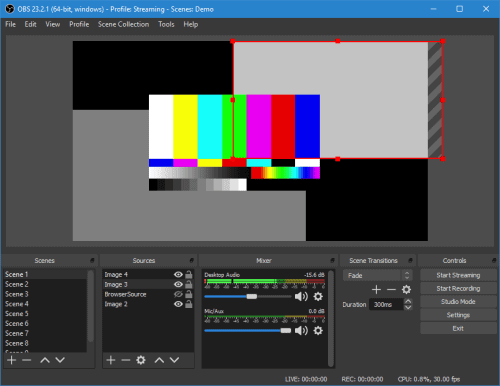
Where does OBS save recordings 1

If you are a regular streamer or your streams go for hours and hours, in that case your Obs recordings are going to be immense because OBS recordings consume a high amount of space on your hard drive. You can also change (where you want to save) the recording path by making some changes in settings. 

Now Coming To, Where Does OBS Save Recordings? 

If you have not made any settings for the storage of obs recordings, then by default OBS will save your recordings to the place where OBS is installed on your PC.  You can see your obs recordings there and if you want to save in a separate folder or place then you can change the location.

Go to the settings.

Where does OBS save recordings 2

Then click “broadcast settings” option.

Where does OBS save recordings 3

Under the “broadcast settings” option, you can see “file path” column. Here you can see and set the location for saved obs recordings. 

C:\Users\rads\Desktop\set the file path.PNG

This software is most recommended for people who stream usually and upload videos on social media and YouTube or other similar platforms. You can use the saved obs recordings to create video clips which you can transform into various kinds of promotional videos. These kind of promotional videos are helpful to encourage the people to watch your channel. You can create a complete promotional trailer from these clips and post it on your YouTube channel. You can design other marketing stuff like twitter headers, phone wallpapers and screenshots. You can produce profoundly shareable clips by modifying these videos. 

Advantages Of Using OBS Software:

It is free of cost.

It is compatible with Windows, Linux and Mac.

It is remarkably customizable

Very trustworthy having very little bugs

It consumes light CPU usage.

Disadvantages Of Using OBS Software:

There is no associated support available (only community support)

Do not have multi streaming feature

Newcomers may find it difficult to set up.

Conclusion: 

If you are looking for software where you want additional granulated control and a top quality screen recorder for free just go with OBS. It can stream direct to YouTube, Twitch, Facebook and Mixer and much more similar kind of platforms. 

Here Are the Top Software Trends In 2020 You Might Have Missed

0
Software Trends

Software trends in 2019 have been used to offer value to the investor and business owner. Plus, these software trends make companies more profitable, help employees remain productive, and protect data. The trends listed below can be used in the future to make a company more efficient. You can deploy any of these trends at any time, but you should reach out to a developer who can help you as you decide what to do.

AI

Software development can be used to help any business grow. Using AI to manage certain parts of your website, store, or business will make the experience better for everyone. AI can be used to offer information in a live chat window. AI can be used to offer recommendations to customers as they shop on your website, and AI can be used to offer options to employees in your office.

The AI could be the guide for accounting staff, or the AI could be used to automate processes that happen in your office every day.

Robotic Process Automation

Robotic process automation allows you to set up a system that does nothing but automate what your company does. These automation programs can turn off machines when they are overheating, send information from vendor payments to your accounting software, or send messages to customers. You can cut down on your daily workload if the RPA program is doing so many things for you. All you need to do is review your transactions and processes for the day.

Cybersecurity Protection

Cybersecurity protection can be set up to protect your computer network, your wifi network, and your mobile devices. You can et up security software that will automatically detect viruses, and you can use these programs to quarantine machines in your office. You might use cybersecurity protection to safeguard your website. You can order a program for your mobile devices, and you can use these programs to protect your servers or the cloud.

You must layer security protection for your company to ensure you are not hacked or lose data.

Machine Learning

Machine learning is a small part of what an AI can do. You can set up an AI to learn what your business does. This means that the AI is learning what your staff does on each computer. Your AI can learn the address for all your vendors, learn where accounting information should go, and which apps your employees use the most. Plus, machine learning can be used to change the settings on machines in your factory, or you can use machine learning to teach the network when it is most vulnerable to attacks.

The Blockchain

Blockchain has been used to help with cryptocurrencies, but it is nothing more than a block of information that no one controls. You can only add to the chain, and you cannot take away from it. The blockchain can be used to share ideas among your team, or the blockchain can be used to track transactions within your company’s systems.

The increased security that you get from the blockchain makes it very attractive, and this might be a simple way for you to work with long-distance employees.

Edge Computing

Edge computing can be used to store data far away from the main servers. If you have little or no connectivity to the main server, you can access time-sensitive data. Plus, this information can remain on the edge until it can be stored on the main server. Edge computing helps extend the functionality of the cloud.

Conclusion

You might want to use virtual reality and augmented reality to make your games better, or you could use this type of programming to test your products. Virtual reality is a good way for you to see what it looks like when people are using your services or products. Plus, VR is the most popular form of gaming on the market today. You can use all the computing trends listed above to make your business better. You might start using one of these platforms to improve your business, and you can continue to add to what your business does. These processes and software programs will make your company more efficient, more profitable, and offer value to your investors.