Home Blog Page 50

Are your Facebook pictures not loading? Scroll down to know the solution!

We all love social media because sitting at our homes getting to see the world seems fun. Who is doing what and sharing our beautiful memories with others is a sharing of our happiness with our extended family on Social Media? But do you feel at times it just becomes irritating because of a few glitches? Did you just find Facebook pictures not loading error? Or maybe you’re seeing black boxes, empty boxes, or broken images instead, don’t worry we are here to help you sort out this issue. You would be wondering why is facebook not loading pictures? Just sit back and relax and get on reading this article and follow the precise steps to load pictures on Facebook.  

Ever wondered why your facebook pictures not loading suddenly?

Users from all over the world have experienced this glitch with Facebook where images refused to load or boxes appear abruptly. It can be either on Android devices or on web browsers as well. In this article, we would delve into all the possible solutions for facebook not loading pictures problem. We will definitely try to fix the facebook not loading images problem because we understand how important it is to stay connected to people worldwide.

Most of the technical glitches happen due to bad connectivity and Internet issues, so first step to solve that is to try switching to AIRPLANE MODE and then try connecting to your Internet again.
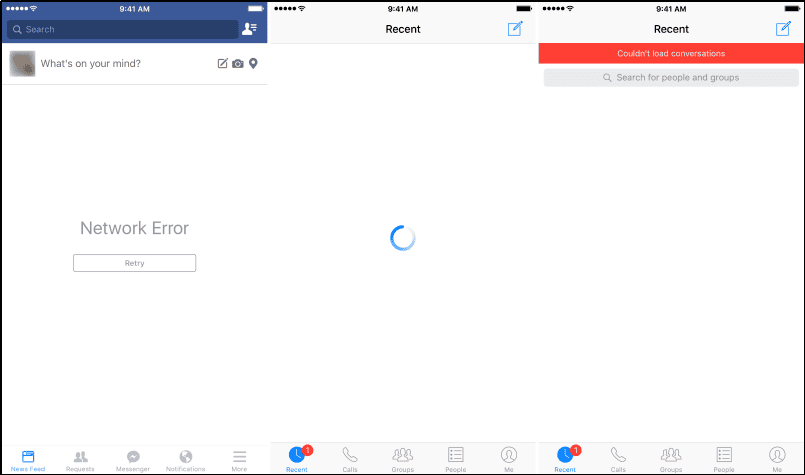
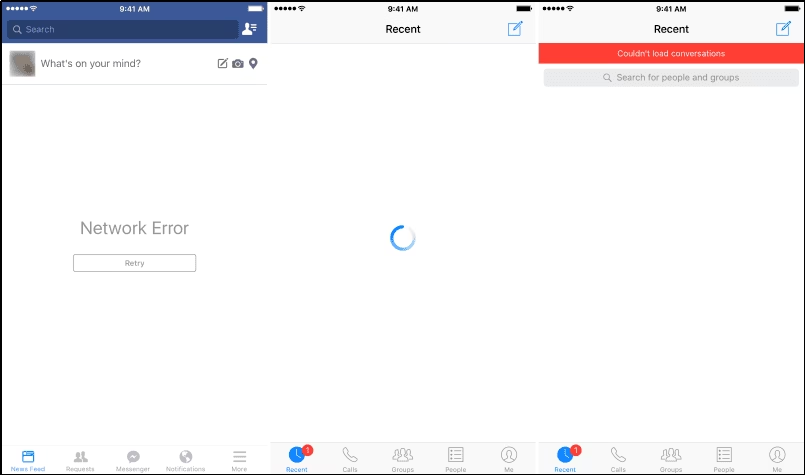
Facebook pictures not loading and showing network error.

Please follow the next given steps to get to the appropriate solution connecting to why is facebook not loading pictures question.

Your problem may vary so read and try all solutions so that you understand the issue and come a step closer to solve your issue.

Let’s dive into the problem theory and check out which problem resembles for you

There are several user cases which looked the same and with a background research there is a crucial conclusion that the issue occurred due to several different reasons but most of them related to the network on your computer. You may be facing the Facebook pictures not loading error because of the following reasons:-

· Bad DNS:-

DNS servers perform a very crucial role in resolving the hostnames of different requests and can be one of the reason for facebook pictures not loading properly. Typically, DNS errors are caused by problems on the user end, whether that’s with a network or internet connection, misconfigured DNS settings, or an outdated browser. So you can change your DNS server or reset your router by simply restarting your router or modem may help you to fix this problem easily.

· Bad internet connection:

This cause doesn’t need much explanation because we all have dealt with this issue somehow and know how it affects everything in general especially when we are stuck in a very crucial situation.

PRO TIP– Try putting in airplane mode and then switch ‘ON’ again. If you have a bad internet connection on your computer or mobile the images will appear as black boxes in an infinite loop.

· Network cache: 

Like all other modules in other devices, working on your device maybe laptop or phone. If your network cache is somehow corrupt or has bad data, it might create problems with the new upcoming data from Facebook, and thus you would be facing issue of facebook not loading images on your computer or mobile.

Once a browser cache is cleared, every web page that loads will load afresh on that page. If something loaded incorrectly the first time and was cached, clearing the cache can allow it to load correctly.

· Hosts file: 

The host’s file handles the host locally on your computer. If your host file doesn’t contain proper entries for Facebook, the images will fail to load indefinitely. Entries in the hosts’ file may be used to block online advertising, or the domains of known malicious resources and servers that contain spyware, adware, and other malware.blockers,speed,

· Free Facebook: 

In some networks, Facebook provides itself free without consuming any data from your plan provided that you are not downloading images. If the free mode is activated, the images will not be loaded. It is free but comes with a bad quality which may create loading problems for the pictures. 

· Disabled images:

Try going to settings and see if you have blocked the image setting. Some browsers disable images of particular sites, this can be a major reason for this problem of loading pictures. Try changing your browser or try going to settings and then changing it to images allowed.

· Ad-blockers: 

Ad-blockers work tirelessly on your browser to make sure that all the Ads get blocked. However, in some cases, during this process, the application may have blocked Facebook pictures too and you would be getting facebook not loading images error. So try changing the setting and it shall be sorted out.

The above-listed problems can be one of the reasons for Facebook pictures not loading in your browser since we now have dwelled into the problems, finding solutions is our next step.

 So the next step is very crucial for you to understand and solve the issue which matches your problem. Keep trying all the solutions because you never know which solution can be the perfect hack for you.

NOTE- Make sure that you are not logged in as an administrator and have saved all your work as we will be restarting your computer a lot so make sure you remember or have your credentials safe.

We are a step closer to understanding and solving the problem of why is facebook not loading pictures. So let’s dive into the solutions one by one.

SOLUTION 1- Checked your internet speed yet? Because that can be the first reason!

Internet Speed

Steps to check the speed of your internet:-

Check your Internet speed in under 30 seconds. Click on this to the your internet speed. The speed test usually transfers less than 40 MB of data but may transfer more data on fast connections.

If these tips don’t work and still your Facebook pictures not loading, you should consider resetting your router but do so after performing the other solutions. Below is the method on how to do so but you should come back to it after performing all the other solutions.

Recheck if you have disabled images on your browser which may lead to facebook not loading pictures error on your computer.

Another thing to check before we proceed is making sure that images are not disabled on your web browser as we mentioned earlier. If they are, not only will you get facebook not loading images error, you will not be able to see any images if that’s the special case try using some other browser for an initial check. If you are experiencing this behavior, you should check with your computer’s documentation and see which options you can tweak to disable the option. For example, in Google Chrome, you can search for Images and when the option comes forward, make sure Show all is enabled. Restart your computer after doing so and see if this fixes the facebook not loading images problem.

Still not working 🙁 Don’t worry we’re gonna sort this out soon!

If none of the above methods work and you still figuring out why is Facebook not loading pictures, we can try changing your DNS server, this is the BIGGEST HACK OF ALL TIMES. Domain Name Servers are used sparingly when you are browsing the platform but if the computer cannot connect to them, you will be facing bizarre issues including the facebook pictures not loading or connectivity issues.

When you change your DNS server to Google’s public DNS, the changes will reflect all the other applications on your computer but don’t worry, this DNS server usually works all the time.

1. Press Windows + R, type “control panel” in the dialogue box, and press Enter.

2. Once in the control panel, click on the sub-heading “Network and Internet”.

3. Select “Network and Sharing Center” from the next window.

4. All the networks to which your computer is currently connected will be listed here. Click on the current connection which you are using to open Facebook.
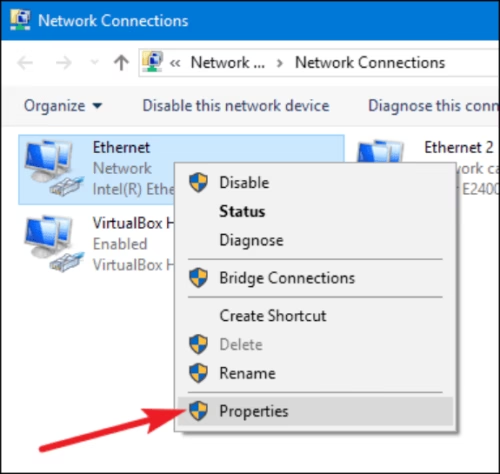
Network properties

SOLUTION 2- Disabling Adblockers-

Adblockers somehow improve your browsing experience by removing all the ads which you see on your computer while you are using different sites or accepting cookies at times. They have an inbuilt mechanism that intercepts all the traffic and then passes on the filtered version with ads removed from the system. Even though extensions like these might improve your experience, there are instances where they cause issues like Facebook not loading images so either you can block ads from that specific site rather than ad blocking in general.
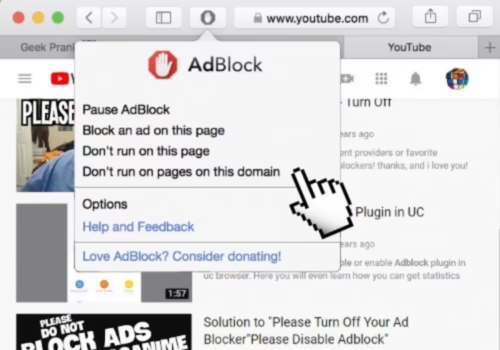
Ad blockers on the website
Conclusion:-

Hope we helped you to sort the entire issue of facebook pictures not loading. If you still feel any troubles attaching a few links which you can further refer to sort out the problem.

https://www.facebook.com/help/396404120401278/?ref=u2u

https://www.facebook.com/help/181495968648557/?ref=u2u

Thank you and happy scrolling 🙂

What Is Network Security Key? The Ultimate Guide!

Is the Wi-Fi password the same as the network security key?

Well, this is the most frequently asked query. Often users find themselves confused with the terms- a network security key and the password. 

network security key

What is a network security key?

If you don’t know what is a network security key, it is nothing but the technical term that is usually attached to the routers, switches, and modems. For every network SSID or username, there is a unique security key called a WPA key or WPA2 key. This key is a combination of alphanumeric characters.

While the above terms are used in association with routers and systems, when the network settings are accessed from an android phone, the security key will be mentioned as the password. Thus both the interchangeable terminologies are used depending on the device make, device type, and network environment that it carries.

Say you decide to stay at your friend’s place for a week or so. To gain access to the wireless network of the place(Wi-Fi being so invariably necessary in our daily life,), you need the security key or the password. A password in the form of biometric data or digital signature is used to provide authorization and access to the wifi.

Router

Each router has a preset network security key. This key is usually auto-generated and difficult to remember but it can be easily changed on the settings page of the device. 

Why is network security key important?

The network security key prevents intruders and protects your network. Without the security key, nobody can connect to the wireless network. If the key is strong enough then your network remains safe. So, having a really strong wifi password is important.

Different Types of network security keys

There are different types of network security keys that can be set to keep your network safe. 

WEP and WPA/WPA2 are the most commonly used types of network security keys. These passcodes or passphrases allow devices on a network to exchange encrypted messages while blocking the same from being easily decoded and read by intruders.

Difference Between WEP and WPA2

WEP (Wired Equivalent Privacy)

The WEP security key is comparatively a primitive one that uses a 40-bit key for encrypting the exchanged data. It is a sequence of characters that can range from numbers (0 to 9) and letters. The WEP key could be anything like E403AF100C. The length of a WEP key depends on the WEP version that you have on your PC, and it could be 10, 26, or 58 characters long. 

As WEP keys are easy to crack, they gradually lost the public interest and the application of WEP started getting replaced with WAP keys, on the basis of network security concerns. The current routers and network systems don’t usually support WEP anymore.

WPA/WPA2 (Wi-Fi Protected Access)

WPA and WPA2 are more widely used these days and are believed to be more secure network keys than WEP. The WPA protocol has slightly modified statistics and uses a temporary key (TKIP). This key is regenerated with every packet. So, keys encrypted with WPA2 tend to be more secure and are relatively hard to crack. A WPA2 key can be obtained from the network’s owner. 

WPA/WPA2 protocols allow the owners of the network to reset the key to suit their convenience.  WPA2 uses the AES algorithm, which is a newer, faster, and more advanced algorithm and hence is considered to be more secure as compared to WPA. WPA2 is further followed by WPA3 protocol, soon. 

WPA2 is recommended to be used in all the network modules as they tend to increase the security measures on your network with the only criteria being supportive hardware that has higher processing power, 

How to find Network Security Key on Windows and Mac:

Once set and functional, devices usually don’t always ask to enter these network security keys, until we decide to change the network or make some changes that demand the same. But, in case, if you have question what is my network security key and hot to find network security key, then please read on to explore the ways to get it. 

network security key in router

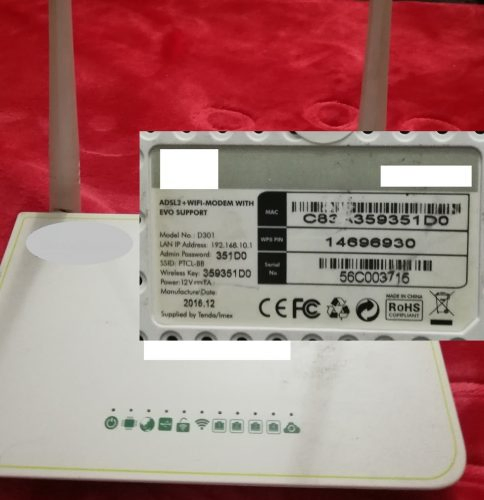
If you look closely, you will observe that your router might be carrying a sticker that mentions its SSID or the Wireless Network Name and the Wireless Security Key, which is your network security key. But if you want to find the key from your system please follow the below steps. 

Note that the below-mentioned ways can only get you your network security key, provided that you are connected to the same network. 

Here’s how to find network security key on Windows:

On a Windows 10 device easily find the network security key as follows

Step 1: Right-click on the Start Menu

Step 2: Click on Network Connections

Step 3: Find Network and Sharing Center and click on it.

Step 4: Click on your Wireless network 

Step 5: Click on the Wireless Properties tab

Step 6: Go to the Security Tab. A pop up with security type, encryption type, and network security key will appear. 

Step 7: The security key will be masked on your screen. You can check the checkbox below labeled as “Show characters” to reveal your network security key. 

How To Find Your Wi-Fi Network Password on Windows | TechVine Tech Support  Blog

Here’s how to find network security key on Mac:

Now, if you have Mac, then follow these steps 

Step 1: Search for Keychain Access

network security key in Mac

Step 2: On your Keychain Access page, search for WiFi network in the search tab.

Step 3: Double click on your network

Step 4: Select the Show Password checkbox

network security key 2

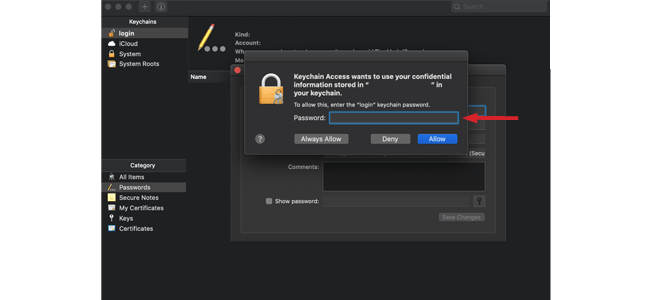
You might be asked for your administrator password. Upon entering the same, you will find your Network Security Key on screen. These were the solutions for the question what is my network security key and hope you were able to find it.

What is a Network Security Key Mismatch? How to fix it? 

Very rarely sometimes, when you try to connect to your network, you might see an error saying Network Security Key mismatch. This mismatch issue can be triggered due to a couple of common reasons like

  • Wrong password – Well, the error could be as simple as a wrong password. There could be a silly typing error! Just recheck the password especially for case-sensitive letters.
  • Incompatible device – if by some chance you are having an older device that doesn’t support the new WPA2 network then you might encounter this error. The network would be visible but your device won’t be able to connect to it.
  • Router or access points hang – Although this is not a common cause, in some rare cases, the router or access points hang. This can be resolved by a simple restart of the router.

Perhaps, a mere restart of the wifi network or the router solves the issue.

How can I better protect my network?

Creating a strong network security key is the key to protect your network. Users with weak passwords easily fall prey to hackers. A WPA/WPA2 key that can be self-selected could be optimized and strengthened, protecting the infrastructure.

As the simplest code of action, limit down the jotting of your passwords. By writing a password you yourself open the door leaving you susceptible to hackers. 

Consider changing the network security key occasionally, to keep it more secure. Long and complex passwords, especially passphrases make secure network keys. 

Wrapping up

This is an ultimate guide to network security keys, wherein we have explained its types, answered questions like what is network security key, what is my network security key and how to find them on PC and Mac, Password mismatch issues, and their fixes. 

Hope you got a clear picture of the network security key.  

What is Software Outsourcing? How To Do It Effectively?

Outsourcing software project work is one of the best options preferred by multinational companies to promote their work progress from far-off places. The importance of outsourcing during the covid season is really remarkable. The introduction of the best outsourcing software services to perform the work progress can provide a high return on investment value to the companies. Small-medium and large-sized companies are investing their funds to meet their work demands as per the requirements of clients across the world.

what is software outsourcing

What is the importance of outsourcing in promoting the work progress and what are the factors to check while in a plan to do outsourcing to meet the business goals? These questions are common among people in search of the best outsourcing services to fulfill their business goals. At present, there are several comparison sites to help all in search of the best outsourcing services that can meet the demands of clients across the world. Outsourcing software project networks can save the time of employees of the companies so that they can meet the demands of clients before the time limit. Meeting the travel demands during the covid-19 season may not be an easy task for all people in far-off places. Hence it is suggested to do outsourcing to promote the work progress of a company in a hassle-free manner.

Software outsourcing to get guidance from professional experts

Trained candidates for meeting the demands of clients play an important role in improving the business profits to heights. The best software outsourcing company generally owns a wide range of experienced candidates to trigger the work progress of companies to heights within the time limit. The selection of the best outsourcing software company to promote the work progress can minimize the risk of financial losses by helping the employees to meet the business goals on time. The efficiency of the experienced candidates can help the new workers to complete their work without any error.

Low accuracy in work results is found to be the main cause that triggers the risk of financial losses of multinational companies. It can not only reduce the number of new customers but can also minimize the number of existing customers from the directory list. Hence the provision of the best outsourcing software company can ensure high accuracy in the work results. Lack of proper training options provided to the employees can result in a low accuracy level of the work result. You can minimize the above situation by giving the work projects to experienced candidates. Here, the new employers can get sufficient guidance from professionals of the concerned department so that the customers can complete the work projects on time.

Outsourcing to improve the work productivity with high accuracy

Better communication between employees and customers can help to make business goals to heights. It can reduce the risk of errors and can promote work progress within a short period of time. At present, outsourcing software services with the help of enhanced communication services like social media options can reduce the risk of time delay for work completion. It can minimize the occurrence of financial losses and can improve the work progress to meet the business goals within the time limit.

When you do a search online, you can find that several multinational companies have chosen to outsource their work strategies to promote business work. A wide range of advantages is one of the important features that make outsourcing the most selected procedure in the marketing platform. The inclusion of innovative technologies to create apps can save the time of the user so that the employees can meet the client’s demands within a short period of time. The selection of the right outsourcing can enhance the productivity of the employees and can ensure business profits without investing additional funds in business progress.

The selection of the best outsourcing company holds an important place in obtaining a prominent position in the search page results. It is generally suggested to read reviews before selecting an outsourcing software company from the directory list. In case of need, never hesitate to get guidance from experienced candidates that can help you in providing guidance in doing the selection of an outsourcing company. A wide range of experiences of professional candidates in the outsourcing team can help you in completing the project task within the time limit.

Software outsourcing services to achieve business goals at a faster rate

The result due to the selection of an outsourcing company generally varies from one service to another. The main factors that decide the business profits include the service experience of the employees and the efficiency of candidates in meeting the demands of the clients. Meeting the demands of clients by a software company may not be an easy task in all cases. The inclusion of sufficient software options for the work progress can help the employees to fulfill the customer requirements in a hassle-free manner. Lack of insufficient data sources about the new project works is found to be the main reason behind the delay in the work completion.

The selection of the best outsourcing software service can help employers to get guidance from professionals as per the need. For the best result, make sure to choose a certified outsourcing company with a wide range of experiences. Travel difficulty during the covid-19 season can create a delay in the progress of works. It can minimize productivity in businesses and can give rise to risk factors like financial losses as the result. These conditions can be alleviated by making use of the best outsourcing software services for the completion of the project works.

Proper analysis of the business works with competing companies holds a prominent place in obtaining the best results in the marketing platform. Outsourcing of project works ensures the enhanced analysis of the work result so that it can win a leading position in the specific marketing strategies. Those people who plan to start a new business can choose to outsource to save their time and money so that the business goals can be achieved quickly with great accuracy.

What Makes A Good Website?

Websites that ensure the online presence of businesses are one of its most important assets. But having a quality, reliable, attractive, and engaging site requires time, work, and investment. You need a good and professional platform because you need to stand out from the crowd of millions of sites. When creating a website, you’d better pay attention to the following aspects:

  • clean code
  • attractive design
  • unique, plagiarism-free content 
  • optimization for the Internet
  • uncomplicated and effortless navigation

Let’s deep dive into these aspects one by one. 

1. Clean Code

Good website

A good website begins with a clean code. If your code is complicated, incorrect, or outdated, it won’t be visible for search engines and won’t appear in search results. Moreover, a messy code can slow down your site because of creating browser-rendering issues.

By writing a clean code that complies with all standards, you make the site visible for search engines automatically increasing the likelihood of reaching a high rank in result pages. Clean code doesn’t generate any browser-related issues and displays the entire website content correctly. It improves the site speed and ensures a smooth customer experience. So, before hiring a web development company, make sure they know how to write simple and clean code. 

2. Attractive Design 

Design is one of the key factors of quality sites. Beautiful and modern design attracts people, makes them check out the information on the page, and provides a smooth customer experience. People tend to remember visually appealing sites. So, make certain that your website works fast, has bright colors, big format images, website animation, and easily readable body text. Once you make a favorable first impression, the visitors will spend much time on your site and return later. 

3. Unique, Plagiarism-Free Content 

website content

Google hates plagiarism and penalizes platforms with stolen or duplicate text. So, if you want to appear among the top results on SERP, make certain to create exceptional, plagiarism-free texts that answer your clients’ queries and address issues. Original web content comes in many different ways. For example, some companies publish blog posts about their products and services, while others create FAQ articles. 

Google encourages focusing on clients and generating engaging and useful content. However, don’t forget to adjust your texts for the Internet as well by writing SEO-optimized titles, met descriptions, etc. 

4. Optimization for the Internet

No matter how engaging your site looks, it’s invisible if it doesn’t have traffic. After optimizing it for the Internet and search engine, your website will receive more traffic. But a general audience is no better than no audience. You should attract people who find the information you provide engaging, helpful, and valuable. 

The adjustment of your text for search engines starts with technical configurations to ensure that Google’s spiders can access all your pages. Then conduct keyword research, include them in your body text, and build powerful backlinks. Once your website complies with optimization criteria, you’ll be one step closer to having a good website. 

5. Uncomplicated and Effortless Navigation

High-quality and successful websites should have simple navigation. Users should find all sections, pages, and buttons effortlessly. If they are struggling with finding what they need, they will leave bounce from your website with an unpleasant impression.

The first step of having user-friendly and feasible navigation is creating an intuitive menu. Most designers prefer hamburger menus since they allow organizing all the pages of a website under one button.

Final Thoughts

So, it’s impossible to have a quality website by buying a domain, hosting it somewhere random, choosing a topic, and filling it with duplicate content from the Internet. Designing a high-quality website takes effort and work. You should make sure it has clean code, attractive design, original and SEO-optimized content, and simple navigation. Several other aspects should also be considered, but these five are the essential ones. 

Text box in google docs are the reason why you will never get a demotion, read to find out!

Introduction

How to insert text box in Google docs can be your life saviour! Do you know what’s amazing about Google docs? At a certain time, a lot of editors can use the same document while all the changes get saved automatically so it saves us from losing any data which usually happens with other platforms plus in Google docs you can download your file in different formats making it super tech-savvy for students and working people.

One of the coolest features is you can use voice typing which means that while you’re giving a speech or a lecture at college for students you can simultaneously use google docs to keep typing the dialogue and lecture that you’re giving to your team or your fellow students. And after your lecture or the meet is done you can simply do small edits to the document and share with your team for future uses, isn’t it amazing? 

Why do we add Text box in Google Docs?

It helps you to attract the reader to a specific subject and make the entire document more attractive with figures and pictures because a beautiful and well-drafted document helps the reader to connect with the content and remember the article for a longer period of time. Insert Text box in google docs to create flow charts using rectangles, circles, squares, etc.

What is a drawing tool?

So on the left-hand corner, you see the Insert tab. When you click on it these options appear where you can see drawing, table, chart, image. Google docs have a standalone feature of the drawing application. This version has many options if you do not want to draw you can use the Documents Drawing app, which includes the ability to upload your own images as part of the drawing.

About the drawing tool
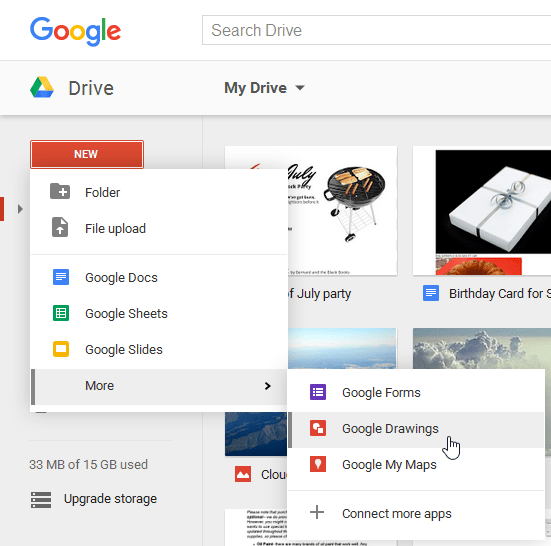
How to select Google drawings

Next, when you click on the drawing icon you see a lot of options

1- Draw and create a new one.

2- Upload a drawing from the drive.

When you click on create a new drawing a page like this appears on your screen:-

The drawing window.

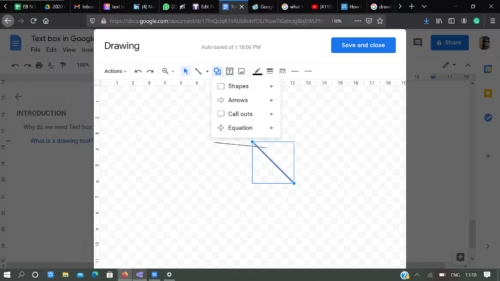
You can now clearly draw shapes, sketch lines, arrows, callouts, and equations according to your project and the flowchart you want. 

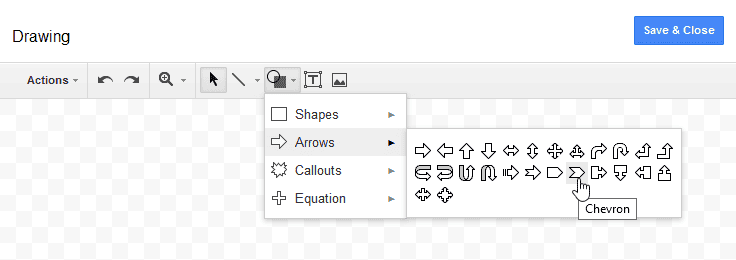
You can insert a variety of boxes, select any desired shape and size you want the drawing to be like.

List of arrows
  • Click on the drawing and drag it through your mouse and the shape would appear.
  • You can add as many figures as you want and attach them to your document.
  • Click on save and continue and it can be added to the document hereafter.
  • If you want to resize the shape or size you just need to click and drag and resize the drawing.
  • To simply delete it from your document, select it and press either a backspace or the delete button.
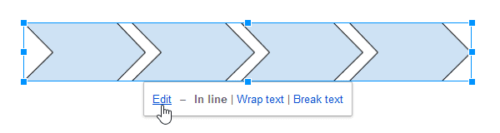
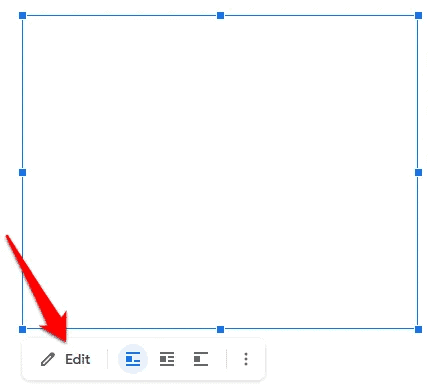
  • To reopen the drawing tool to edit the shape, select the desired shape, and click on Edit from the options that appear below the drawing.
Pointed on Edit

How to add text box in google docs?

Here are some simple steps on how to add text box in google docs:-

  • Click on the drawing icon to know how to insert text box in google docs.
  • Go to new if you want to make a new flowchart and to know how to insert text box in google docs.
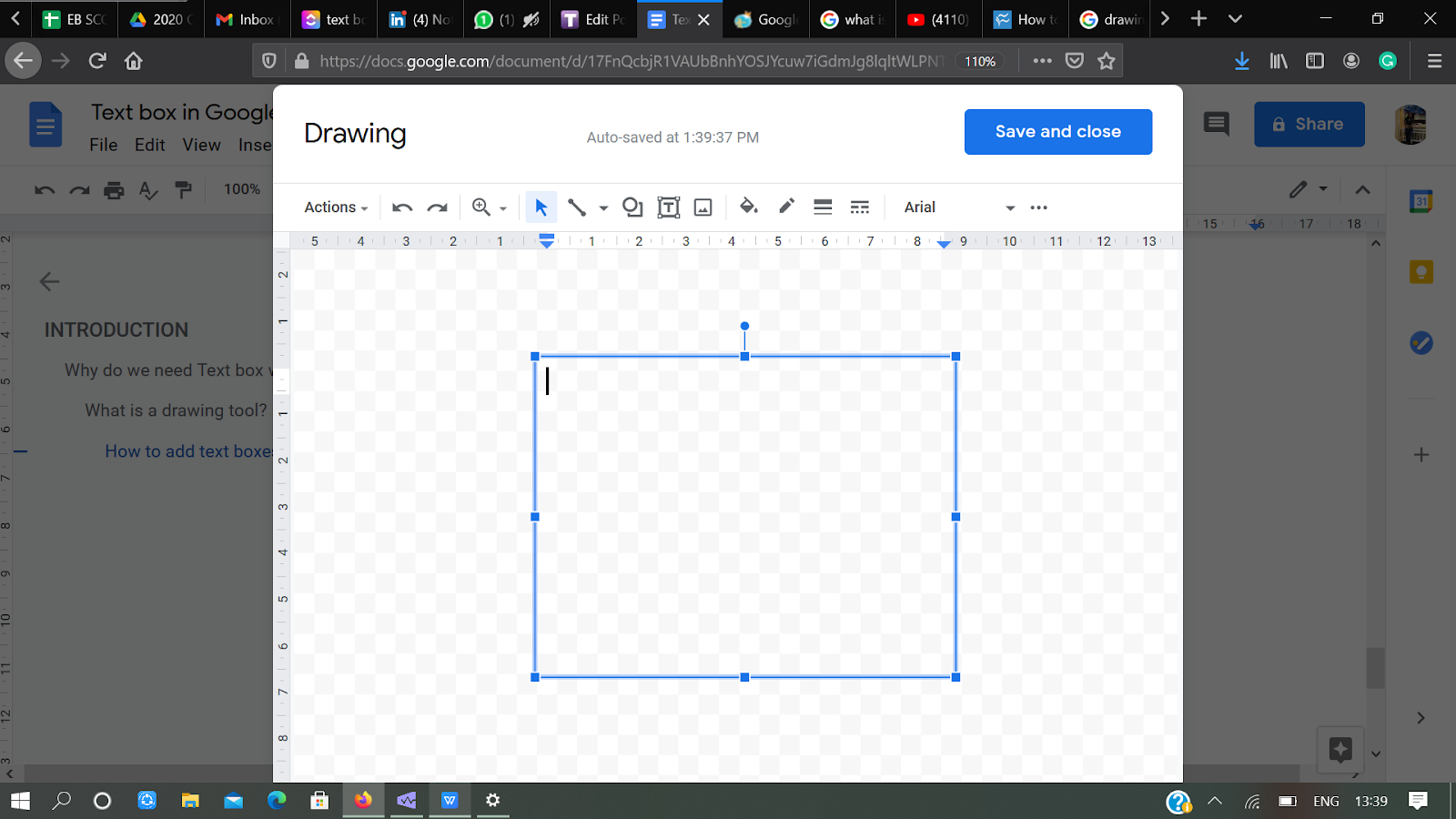
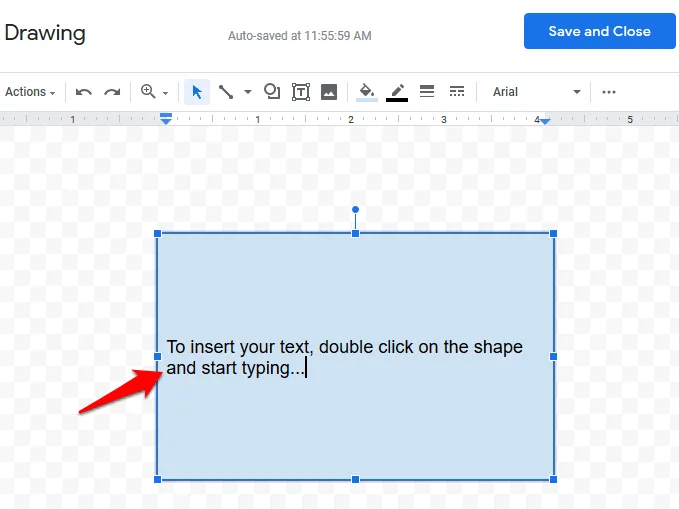
  • The drawing box appears which looks like this:-
adding the text boxes.
  • Click on the T box which you see in the actions line to know how to insert text box in google docs.
  • To know how to add text box in google docs click and drag the box according to the shape using your mouse.
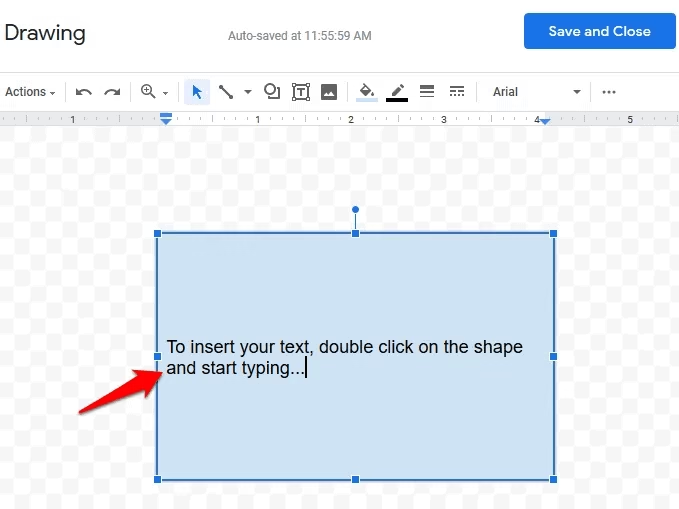
  • To add or edit the text inside of a text box or shape, double-click it to open the text editing box.
Text Box added in google docs

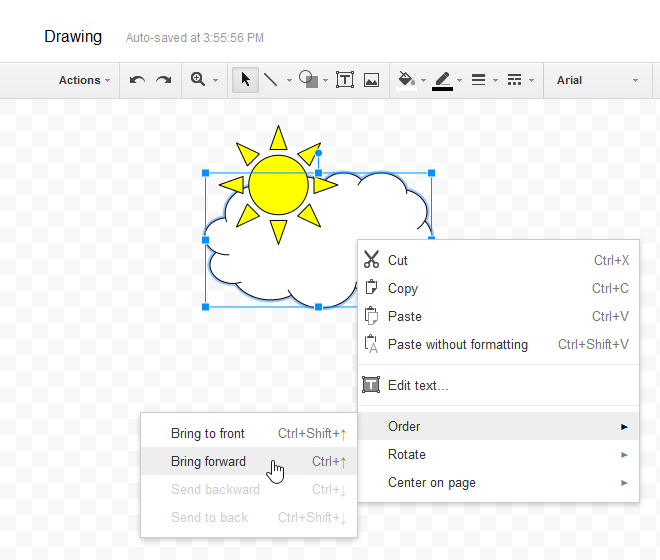
How to change the order, shape, size, and colour of the text box in Google docs

  • Now you got to know how to add text box in google docs, now if you want to change the order, right-click to the desired text box or shape. Hover the mouse over Order, then select an ordering option to know how to insert text box in google docs.
The technique of drawing.
  • Now you can change the order and merge the shapes.
  • You can also add colors to the image and make it a colorful and interesting flowchart.

How To Insert Text Box In Google Docs Using a Single Cell Table

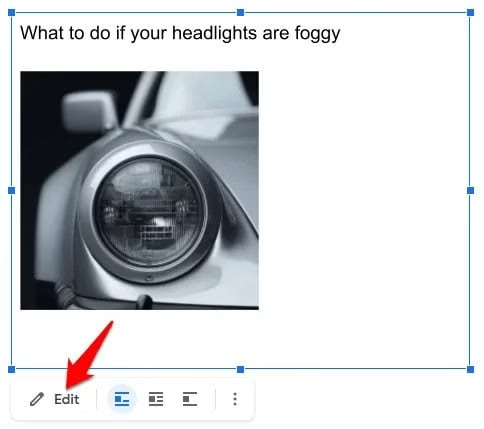
One can customize or can know how to insert text box in Google Docs by adding an image, or if you want, you can overlay the image with text.

To insert an image into your shape or text box in google docs:

  1. Click on the shape or text box in google docs , and then click Edit to open the Drawing tool.
Pointing to edit Menu.
  • Click on the image icon and now you can insert an image on your created drawing toknow how to insert text box in google docs.
  • Insert an image by uploading it from your computer, or you can add it from a URL, your albums, Google Drive, or search for it from Google search. Click Select to insert the image.
A textbox with a picture of a cars headlight.
  • You can now colour, add or layer your images according to your choice and layer the image and text box by dragging them to the desired position.

These are super easy hacks that can help you make your document super fun by knowing how to add text box in google docs to read and eye-catching in front of your teammates and your batchmates in a team project. You can always flaunt your editing skills and create amazing documents instead of the boring old school style.

It is always seen that your document resembles a part of your personality so definitely try making it your best one every time.

Blank
Blank

How to convert WebP to PNG? Ultimate guide!

0

A new image format for the Web. Webp is a present day image format which provides exceptional lossless and lossy compression for images which exist on the web. WebP is 26% smaller in size compared to PNG and 25-34% smaller if compared to JPEG images at equivalent SSIM quality index. Converting webp to png is simple and this article has mentioned some of the simple steps for the same.

How can you save Google’s WEBP Images as JPEG OR PNG? OR how can you convert webp to png?

The Webp image format is unique: its unique compression systems can display images at approximately two thirds the size of the same image rendered in JPEG or PNG format.

The main problem is that many browsers still don’t support WebP, so if a website uses .webp files, it has to serve the JPG OR PNG format of those exact same images to Safari or Internet Explorer.

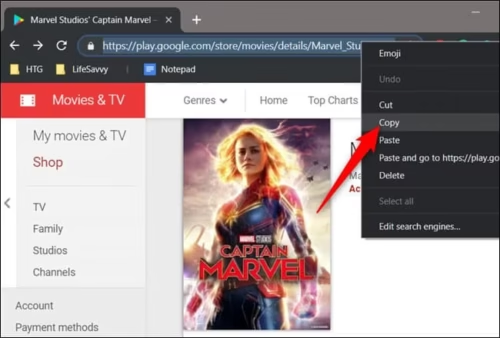
From a webpage that contains a WebP image, first step is to highlight the URL then right click on it and simply copy.

Copy the image

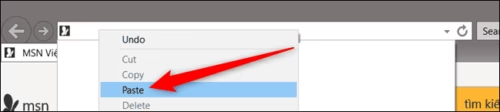
Go to browsers like Microsoft Internet Explorer and Apple Safari they do not support WebP format right-click on the address bar then paste and click Enter.

Paste the image

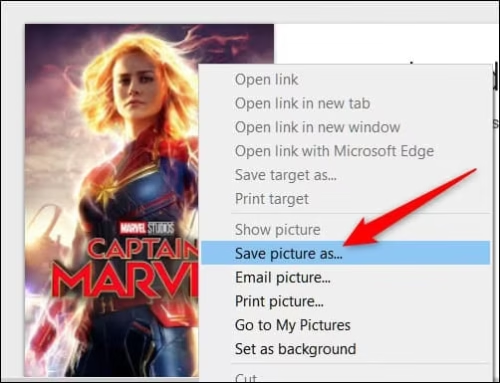
Now the image is converted into JPEG or PNG format. Now to save webp as jpg or png simply right click and select the Save picture as.. option.

Select save picture as option

Now simply navigate this picture where you want to save this picture and you have successfully converted webp file to png image!

Using online conversion tools

There are tons of webp to png converter websites which can actually simulate your WebP image to PNG format in second!

Let’s explore a few of these websites to know more about them.

These online simulators handle everything server-side, which means you don’t have to worry about downloading and installing big apps to convert webp to png images or learning command line tools.

NOTE: Never upload any sensitive or confidential file in these online simulators.

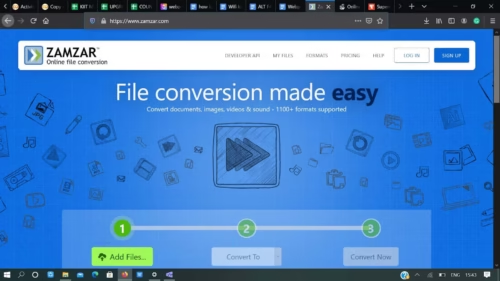
Let’s look at one of the webp to png converter simulators named Zamzar

Link to the website:- https://www.zamzar.com/

Zamzar webp to png converter tool

As you read it’s File conversion made easy. This is one of the popular webp to png converter website. You can also save webp as jpg or any other format you require.

STEPS TO FOLLOW:-

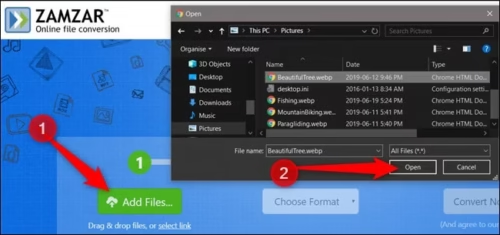
  • Click on Add files and select the file you want to convert.
Zamzar converter
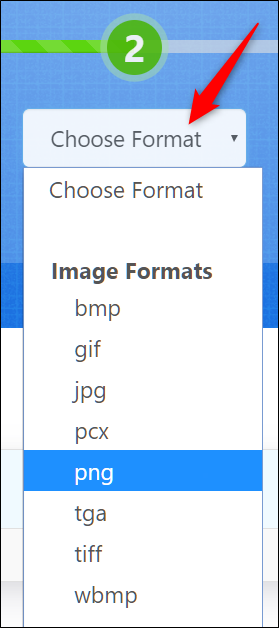
  • Next,\ step click Choose Format, and from the drop-down menu, choose a supported format to convert into. For example, you have convert webp file to png, then select png as shown in the figure.
Choosing format in Zamzar tool
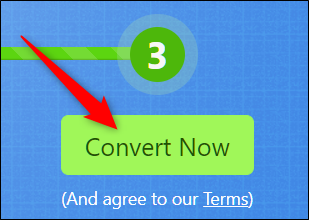
  • Click on convert now.
Convert now option
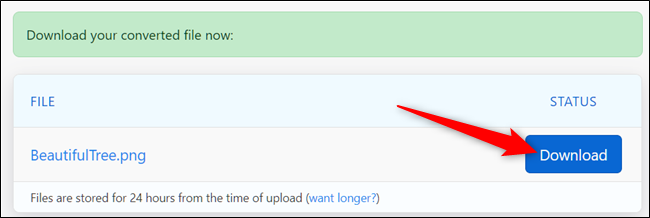
  • You will soon be redirected to the download page and click on DOWNLOAD button to start the download.
Download option

Save the final file to your desired destination and click OK.

Another special trick to convert Webp to PNG

This neat trick can save you a lot of time with just a slight tweak in the URL. Open Chrome, Firefox, Microsoft Edge, or Opera or basically any browser that supports WEBP image display. Head to a site that uses WEBP images for bandwidth saving, like any of the app listings on play.google.com.

Netflix App

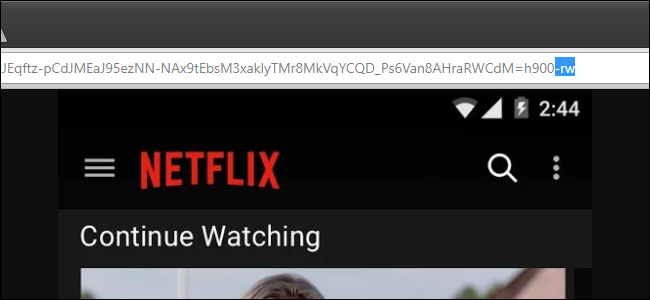
Right click or long press one of images then the image gets its own tab. Then click on “open image in new tab” and the URL which you get is a unique URL of that particular image.

Netflix website

Click the URL bar, delete the last three characters in the address (the “-rw”) in this case and then press “Enter.” The same image will be displayed again, but this time it’s rendered in its original format, usually JPEG or PNG.

Netflix

Now simply click on the save image as option and it gets saved in JPEG OR PNG format.

Some more online simulators which are super easy to use which converts webp file to png.

Check them out!

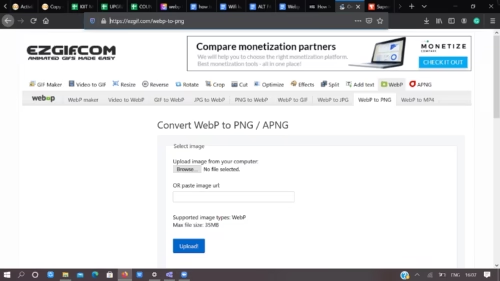
https://ezgif.com/webp-to-png

Ezgif homepage

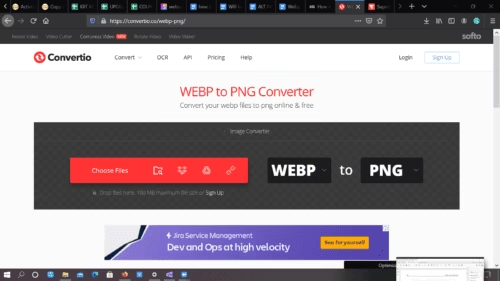
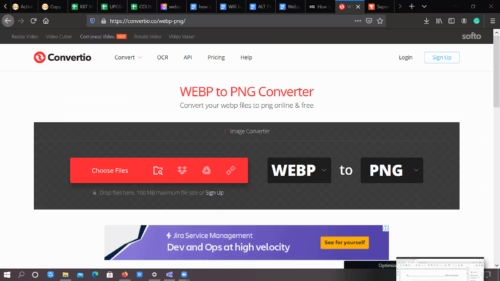
Another webp to png converter website which you can use to convert WebP to PNG https://convertio.co/webp-png/

Convertio Homepage

https://themeisle.com/blog/what-is-webp/

https://www.hostinger.in/tutorials/what-is-webp

Read these to know more!

These were some of the ways to convert the webp file to png. Hope you got the solution and do checkout the links if you want to know more about it.

Facing issues in switching off your Google Assistant on your phone? Check this out!

0

What is Google Assistant ???

Google Assistant is a two-way conversation assistant which is a result of Artificial Intelligence which can be used on mobile and smart devices. The Assistant can understand your voice as a command and can schedule meetings, call people, adjust hardware settings only on your device, and search anything you want. Google CEO Sundar Pichai elucidated that the Assistant was designed to be a conversational and two-way experience, and “an ambient experience that extends across devices”. 

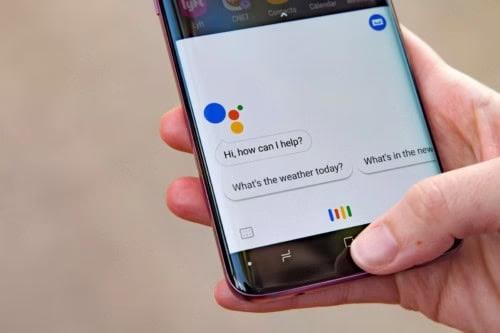
Google assistant on phone

This entire experience is possible using Google’s natural language processing algorithm which helps the software to detect and analyze the human voice. Google Assistant App supports both text or voice entry and it will follow the conversation in whichever means you feel comfortable. There are many other tasks which the assistant manages and some are listed below:

Google Assistant will:

  • Control your devices and your smart devices,
  • Can have access to your mails,calendars, call logs.
  • Find information online, from restaurant bookings to directions, weather and news
  • Control your music and thus your mood.
  • Play content on your Chromecast or other compatible devices
  • Run timers and reminders
  • Make appointments and send messages
  • Open apps which you command and read all notifications from there.

How will you know if Google Assistant App exists on your phone?

To check if your device supports the feature of Google Assistant, say “OK Google” or press-and-hold the home button for some time. That will activate the assistant after which you can schedule your meetings, call someone, put calendar reminders simply with the help of your Google Assistant Settings. Usually, during the set-up of an Android itself, you’ll be prompted to configure the Assistant.

Google Assistant

It’s fun how you have your own manager who can schedule and help you with all your errands, but what if you want to do things by yourself? You want to take control of your own life and want to become self dependent? Sometimes you get irritated by the Assistant and wish to turn off google assistant and do the tasks of your own manually. We have listed some other reasons why you should disable the Assistant below.

Do you know why you should disable Google Assistant App?

  • It can make you careless and irresponsible.
  • This can make you procrastinate your daily errands and make you restless.
  • Some people like to be organized while maintaining diaries and calendars. This Assistant takes away that opportunity from you.
  • Giving up all your private data? Do you want to take that chance?
  • At the end organizing your own stuff helps you remember your tasks and responsibilities.

Now, this were some of the reasons we thought you should disable Google Assistant and do the tasks manually as it is good to remember and you don’t become dependent on the Google Assistant App. If you think disabling the Assistant is a better option, move to the next section of the article.

But how to Turn off Google Assistant?

FOLLOW THIS STEPS TO DISABLE GOOGLE ASSISTANT:

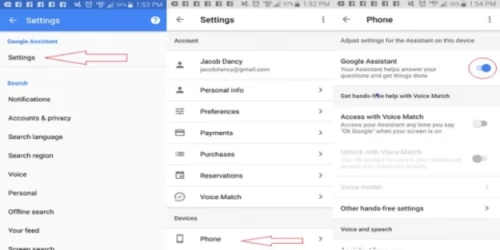
  • On your Android phone or tablet, say or type “ Hey Google, open GOOGLE SETTINGS” or go to Google Assistant settings.
  • Under “All settings,” tap General.
  • Turn off Google Assistant.
Settings

Now your Assistant is turned off and if you wish to change the google assistant settings, then tap on general and then you can enable or disable Google Assistant as per your need.

Phone settings

Google Assistant can help and make your daily work super easy but at times can bug your phone or make it work a little slower than the usual speed so if at all you need to turn off google assistant, the steps mentioned here are super easy to follow.