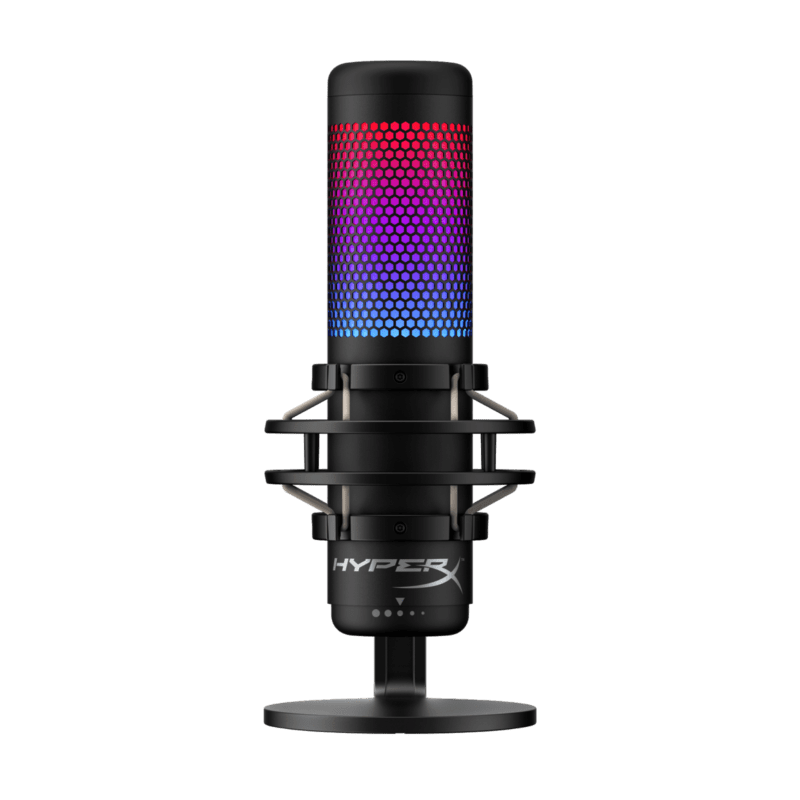
If you are a gamer, streamer or content writer, here’s big news for you. HyperX, the gaming department of the Kingston Technology Company, Inc. has recently released Dynamic Quadcast enriched with all the features. They have extended their microphone portfolio with the launch of the brand-new Dynamic Quadcast certified by Discord and TeamSpeak. This HyperX microphone can best support popular streaming platforms like OBS Studio, XSplit, Streamlabs and others. In addition to that, it provides exceptional sound quality when it is connected to Mac, Ps4, PC or PS5.
Some Coolest Features of HyperX:
This amazing microphone Dynamic Quadcast S comes up with very cool and spectacular RGB lighting effects. This HyperX microphone Quadcast S has the USB-C connector which was not available in the previous version of HyperX Quadcast. If you want to customize the setup like adding more style and elegance, you can easily do that with the GENUITY software. Along with the USB-C port, there is also available 3/ 8 inch and 5/8 inch jack for audio out and for headphones as well. There is also the presence of an internal pop filter for filtering out the noises and providing the clarity of voice to the user. This is well-equipped with a built-in anti-vibration shock mount.
This shock mount does various functions like it helps in squashing down the bumps and the additional noises, along with this it also helps in isolation of the mic and you can smoothly place it over the boom arm. All these cool features are highly appreciated by renowned YouTubers, bloggers, streamers etc.
Speaking on the momentous occasion, HyperX, said, “HyperX Quadcast S will be a perfect choice for those podcasters and streamers who require a USB condenser mic that looks great and comes with the best quality sound in the market. Loaded with best-in-class features, HyperX Quadcast S promises to top the charts for its performance, style, and reliability”
The most incredible update in HyperX Quadcast S is the tap to unmute the sensor with the LED status indicator which is present on the top of the microphone. This sensor provides the user with a very persistent flow of sound while streaming or conference calls.
Other than that, HyperX Quadcast allows the users four patterns such as bidirectional, cardioid, stereo and omnidirectional. The users are allowed to refine the broadcast setup of their own choice. With the feature of a dial present at the bottom of the HyperX microphone, one can efficiently control the sensitivity of the microphone.
HyperX is one of the most popular and branded companies which is in constant grind in providing the gamers with the ultimate solution for upgrading their needs. It is well recognized for its best product service and delivering constant satisfaction for its gaming keyboards, headsets, USB microphones, mic and other accessories to the customers of different categories like tech enthusiasts, professional gamers, celebrity ambassadors. It is capable of providing an upgraded experience and can boost up your performance both at the same instant.
The other competitive alternative for HyperX Quadcast is worth mentioning. In the list present below, there are three highly-rated devices which you must have seen:
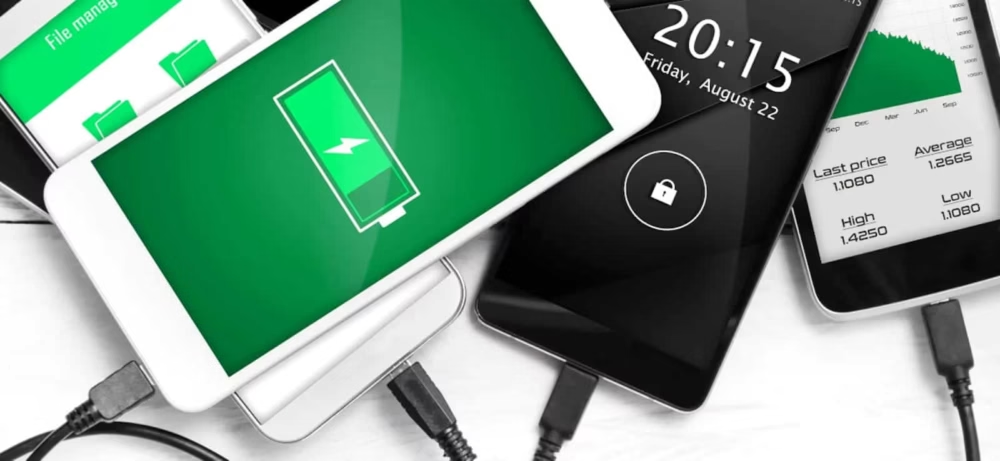
Not long ago, there was a trend going around on TikTok where you can plug in your iPhone and make Siri say whatever you want. In this how-to article, we’ll be going over a step-by-step guide on how to make your phone say something when you plug it in for charging, This trick works for both iOS and Android smartphones if you want to change the charging sound of your phone.
How to Make Siri Speak When an iPhone Is Plugged in?
iOS 14 is definitely one of the coolest operating systems that Apple users have encountered so far. The newest update sees many cool features where users can customize the settings according to their suitability and comfort, including app icons, home screen and even charging sound. You can not only change the charging sound but also make Siri speak anything when your iPhone is plugged in, you can, in fact, also play a song! This is one of the most dope features that caught the user’s attention. So, let’s see how it can be done.
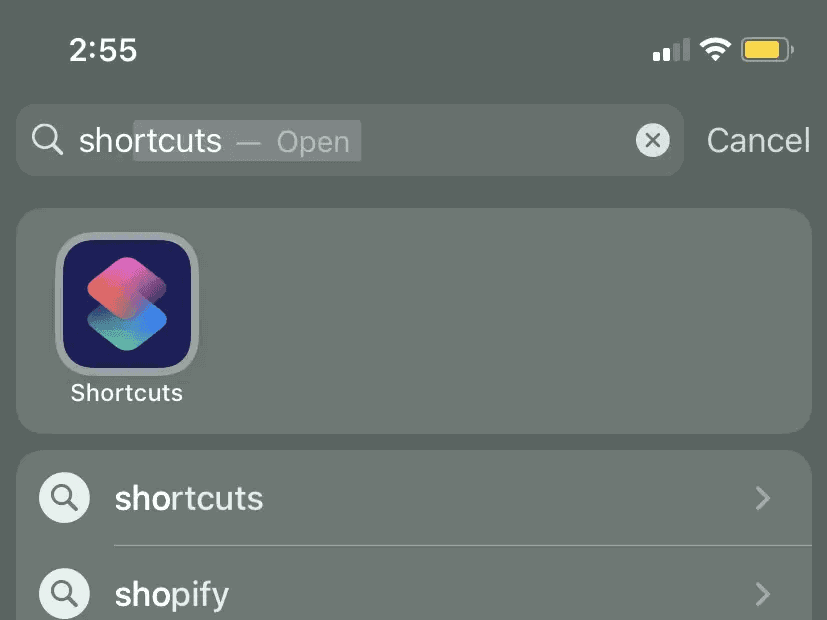
Step 1: Open the ‘Shortcuts’ app on your phone, if you don’t have it you can install it from the App Store here: ?Shortcuts on the App Store
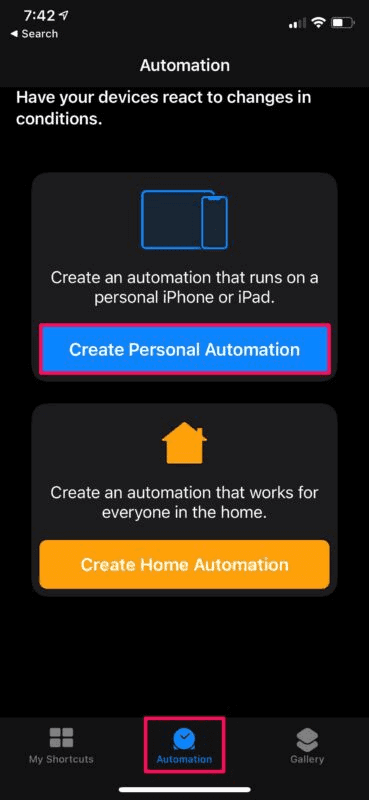
Step 2: Next go to the ‘Automations’ tab and you’ll come across a button called ‘Create Personal Automation’- tap on it.
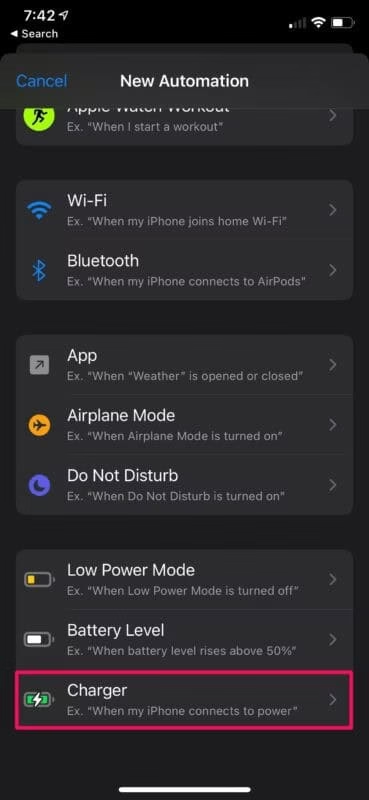
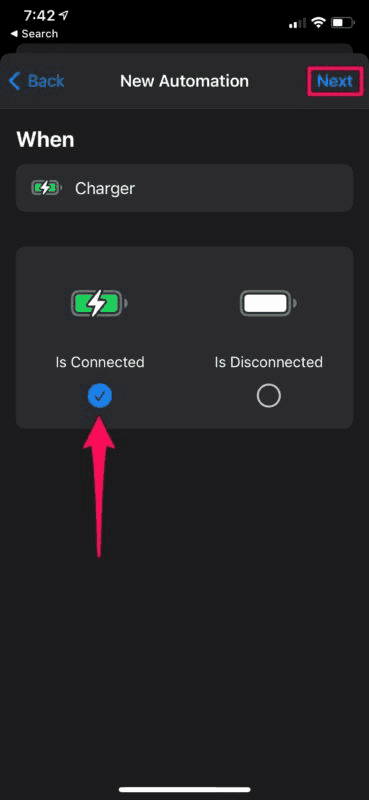
Step 3: Next, scroll all the way and tap on ‘Charger’ and you’ll see two of the following options: ‘Is Connected’ and ‘Is Disconnected’ make sure you choose ‘Is Connected’.
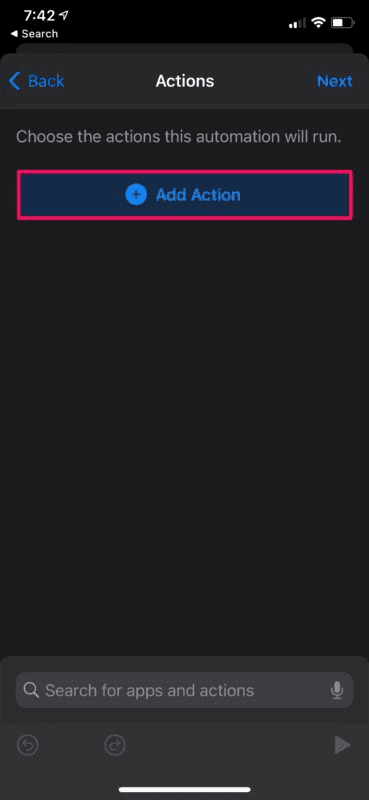
Step 4: Click on ‘Next’ and then ‘Add Action’
Step 5: In the new window you will see a search bar for apps and actions. Search for volume and set it as loud as possible.
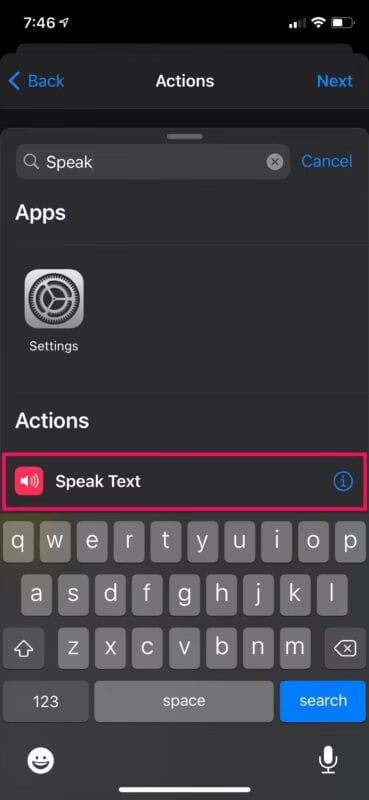
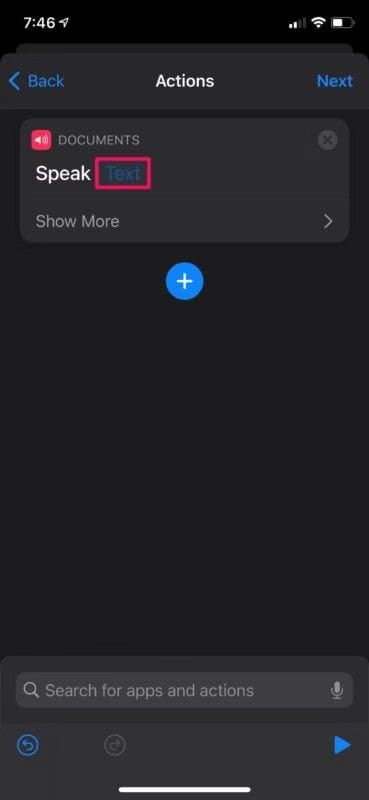
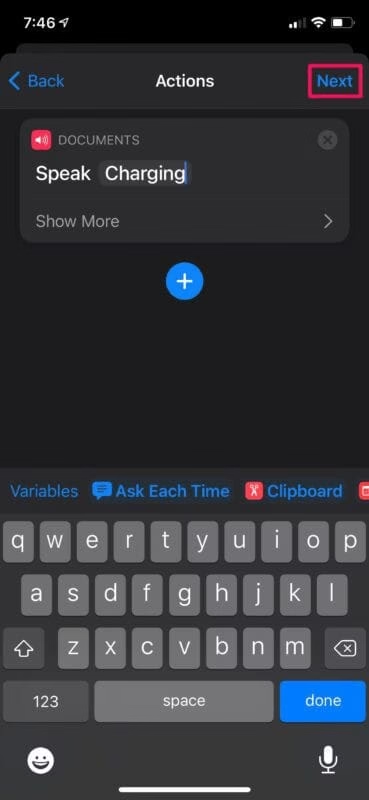
Step 6: To add more actions click on the + symbol and search for ‘Speak Text’, in the ‘Text’ section add the text or speech that you want Siri to speak when your iPhone is plugged-in.
Step 7: Tap on ‘Show More’ to adjust the settings accordingly. You can adjust how fast she says it by simply sliding the ‘Rate’ button and you can also set the ’Pitch’ of the voice. Additionally, you can also change the language by tapping on the ‘Language’ button and also change the ‘Voice’ to Alex if you want a male voice.
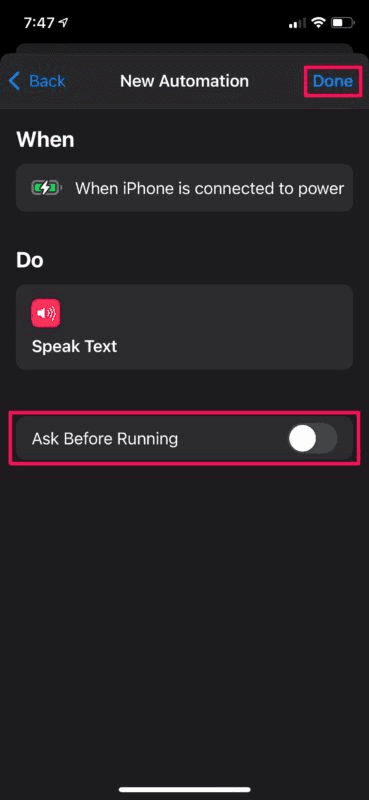
Step 8: Click on ‘Next’ and in the new window make sure ‘Ask Before Running’ is turned on and finally tap on ‘Done’.
When you plug in your charger Siri will make the sound or speak the text that you have added, how cool!
How To Customize The Charging Sound On An Android Phone
Requirements:
Android OS version: Android 9.0 and above
Supported models: Most Android Phones
Internet access
There’s a way to customize the sound of your device when you plug it in for charging even on an android phone. Let’s see how it’s done.
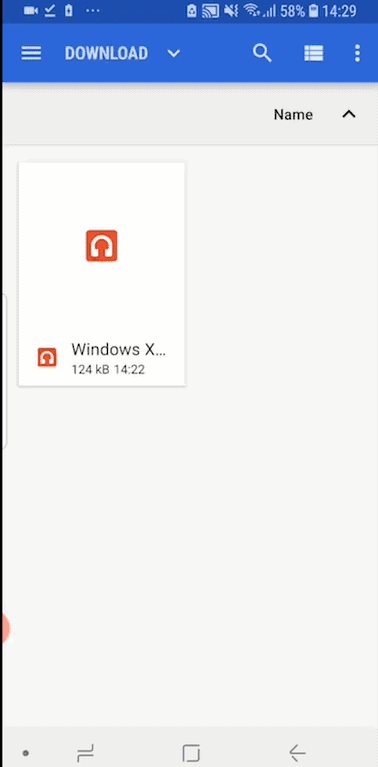
Step 2: Download the sound effect of your choice from anywhere you’d like to. You can download it from YouTube or any other free platform of your choice.
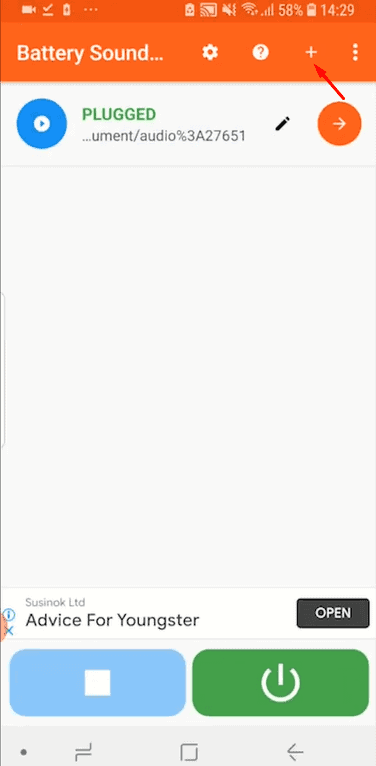
Step 3: Open the Battery Sound Notification app.
Step 4: Click on the + button in the top right corner of the screen.
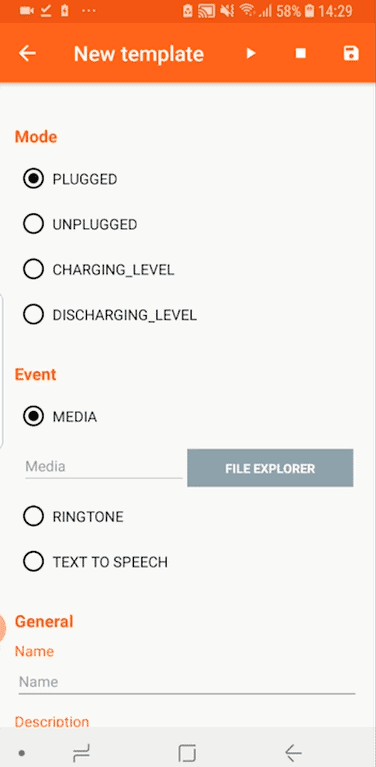
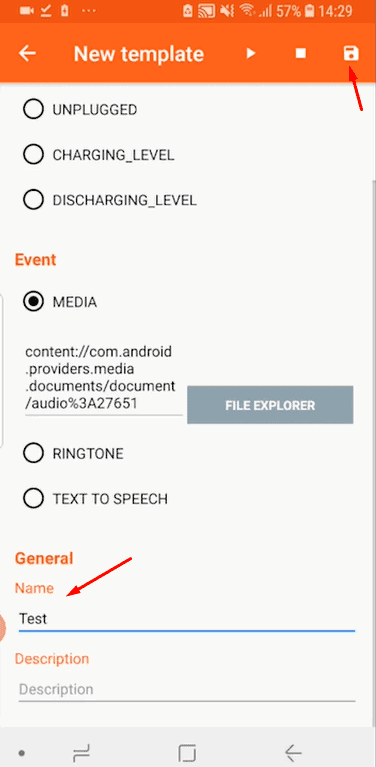
Step 5: Next, you’ll see the following options: ‘Plugged’, ‘Unplugged’, ‘Charging_level’, ‘Discharging_Level’.
Step 6: Choose the ‘Plugged’ option.
Step 7: Under ‘Event’ make sure ‘Media’ is selected.
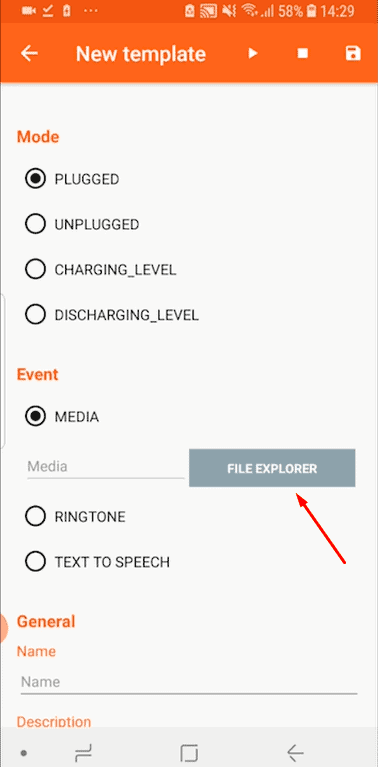
Step 8: Click on ‘File Explorer’ and add the sound file you have downloaded. You can give it a name under the ‘Name’ bar.
Step 9: Click on the save icon on the top right-hand corner of your screen.
And that’s about it, when you plug in your charger you’ll be able to hear the sound that you have added, it’s really that simple.
Android and iOS phones are customizable these days, so go on and have fun by tweaking the settings a little. You can add any text or music that you like and customize the sound of your device every time you plug it in.
If you’re running an online business then you know how important email marketing is to boost your business, email marketing can truly do wonders for your business. Focusing on a strong email marketing strategy for lead generation helps you reach out to your target audience and increase sales. It gives your business the ability to reach customers in an easy and efficient way.
Let’s get started with the Boost.link review. A simple and nimble email marketing software that uses social login API to grow your email list. This article aims to help to decide if this email marketing tool is right for you or not, its features, pricing, and much more. If you’re running an online business, lead generation becomes very significant for email marketing and to do all forms of lead generation in your business. The main commodity that reduces a lot of conversions when it comes to lead generation is the friction associated with your lead capture page, most of the users don’t bother filling the lead capture form because they have to type in their name and email ID.
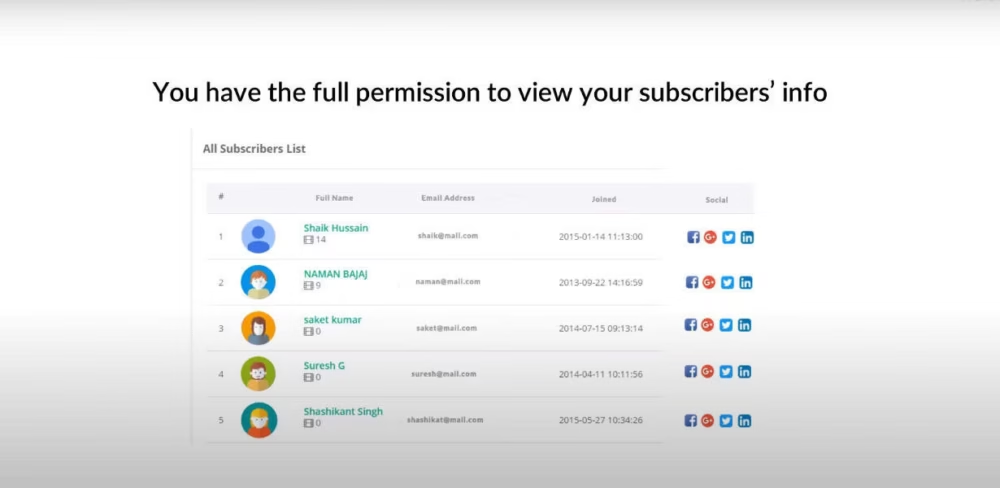
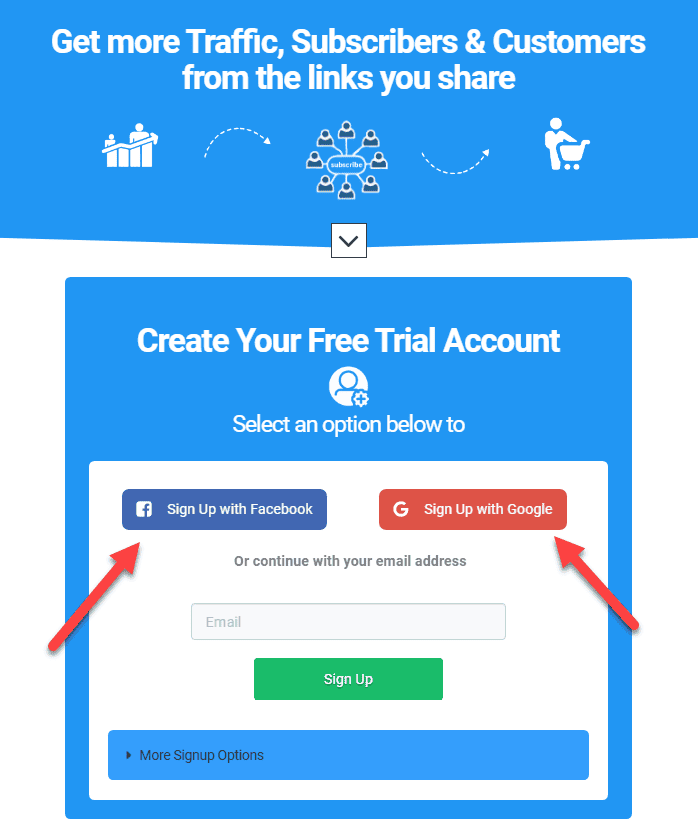
Simplifying this plays an important part to improve the conversion rate of your lead generation page. This is where the Boost app comes into the picture, this tool helps you implement social opt-in on your lead capture pages. To put it simply, it becomes much easier for people to opt-in with their Google, Facebook, or Twitter accounts. This tool gets your visitor’s email addresses by asking for their permission to collect the information from their social accounts. It can even collect information about real buyers from Amazon.
Let’s get started and have a look at the features of our comprehensive Boost.link review.
Boost.link Features:
Accumulate real and verified email addresses instantly: Every time a user creates an account, Boost lets you confirm their email address on social media accounts such as Facebook, Google, Twitter & LinkedIn. Boost also provides access to over 200 million active and engaged Amazon consumers. If you are a startup or a business, these are the most valid email addresses that you can get as these are genuine users who spend money online to buy and sell items.
Add a retargeting pixel to each opt-in link: Build a custom audience on an ad platform and transform your marketing strategies. With Boost, you can increase your campaign CTR and reduce your CPC.
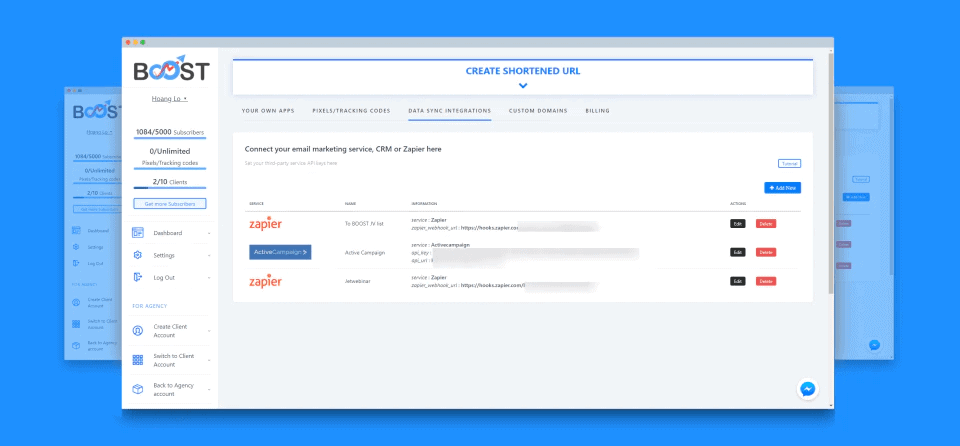
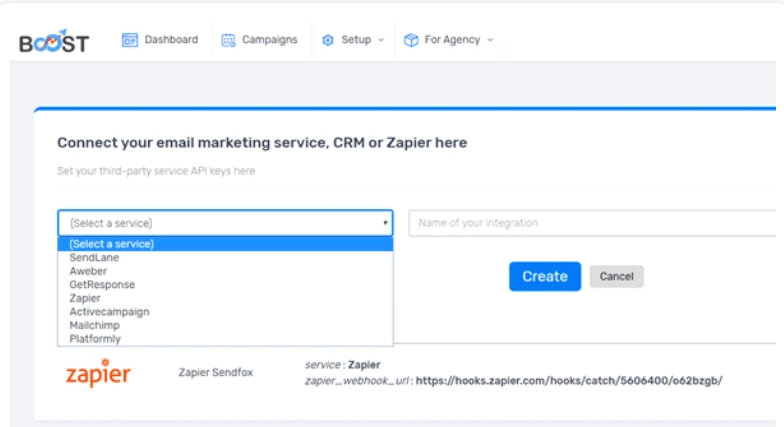
Subscriber data can be easily exported and synced: Famous email marketing services are integrated with Boost. Also, with Zapier integration you can sync data from Boost to a wide range of applications, including CRMs and webinar platforms.
Send opt-in links using QR codes anyplace online and offline.
In addition to these features, Boost comes with the following benefits:
Getting leads from clicks – permission-based – no typing needed.
No more fake emails – Get real verified email addresses.
Create URLs to grab visitors’ email addresses from their social accounts with permissions.
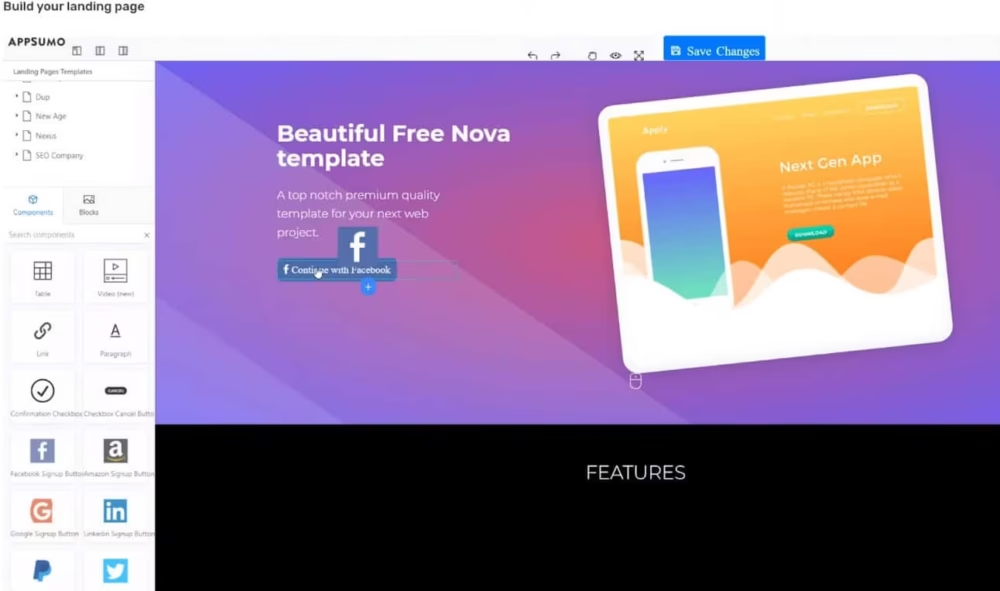
Boost.link also features a landing page builder and helps you create social buttons for your opt-in forms to boost conversions. Choose from the in-built templates and create smooth landing pages with your opt-in links.
Great email marketing tool for little businesses who know the facility of Social Logins.
Fantastic customer support.
A great app to stay organized.
Easy to use and comes with a lot of tutorials.
The bugs are easy to sort and get over.
No coding or developer required which saves a lot of money.
Automatic SSLs for domains
Boost.link Cons:
The offline lead generation doesn’t work at times.
Outdated SOP’s.
Some parts of the UX are a little sloppy.
The software can slow down sometimes.
Boost.linkUnique Selling Point:
SEO Automation.
Link Detox
Link Monitoring
Competitive Research
Unique SEO & Link Metrics
Use Cases:
Easily improve sign-up conversions- Boost provides more options for visitors to sign up without any hassle. In addition to email sign-up forms, Boost can be used to add social sign-up options.
Build your email list faster- This tool can help you get more email subscribers. You can easily add social opt-in options to give your visitors more ways to opt-in. It takes away technical challenges that marketers have to face.
Build your email list without opt-in forms- it allows you to build an email list anywhere and you can share the link without having to have landing pages and opt-in forms. Here’s an example of an opt-in link: Boost optin link
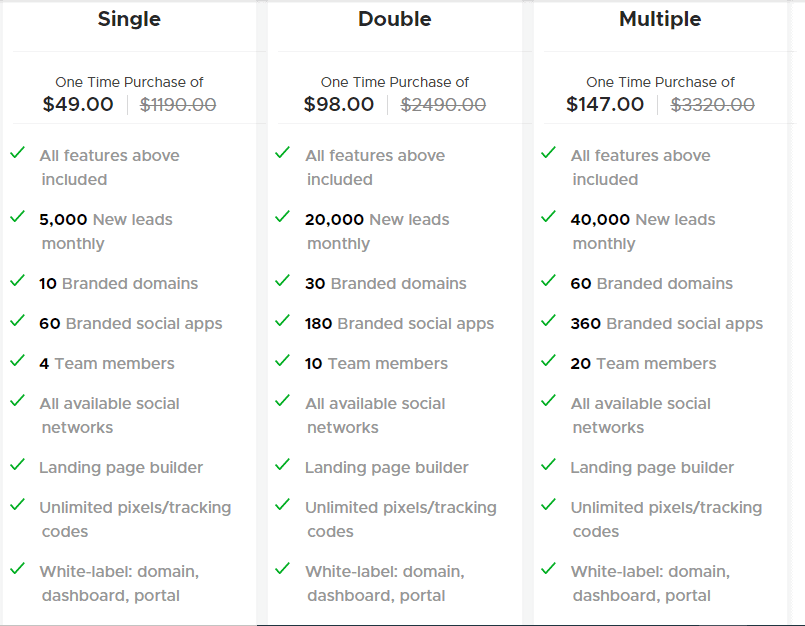
The codes have to be redeemed within 60 days of purchase.
All future plan updates.
Stack up to 10 codes.
GDPR Compliant.
60-day money-back guarantee, no matter the reason.
How Does Boost Work?
Step 1: Your email marketing service has to be integrated with Boost
Step 2: Create an opt-in link to your lead magnet or any special information that you want to discuss just with your subscribers.
Step 3: To collect email subscribers, send traffic directly to the opt-in form or add social signup buttons to your email opt-in forms. These potential customers can now sign up or subscribe to your email list without having to type their long email address, which increases conversion rate and visitor experience.
Alternatives:
800response:
This tool enables seamless SaaS call tracking, call routing, and call monitoring platforms where businesses can access valuable customer and business insights to leverage when making tough strategic decisions.
Features:
Ad hoc Reporting
Archiving and Retention
Caller ID
CRM
Call Tracking Metrics
Contact Database
Pricing:
The pricing starts from $250/month and has no free version.
For more information visit their official website: 800response
Katra
Kartra is an all-in-one marketing platform to run your online business, it cuts out hours of daily work, while earning you effortless money around the clock with advanced automations.
Features:
AB Testing
Auto-Responders
Credit Card processing
Campaign Management
CRM
Pricing:
Their plans start from $79/month, and it doesn’t include any free trial version.
For more information visit their official website: Kartra
Smith.Ai
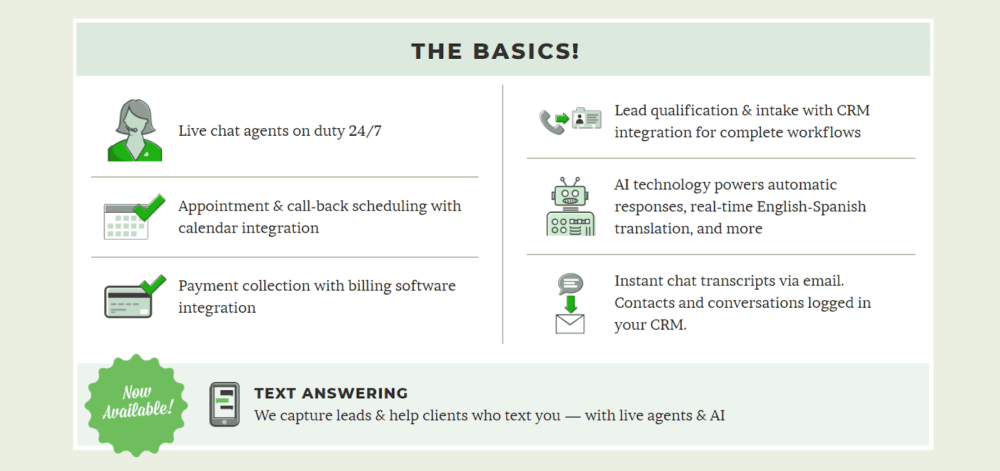
Smith.ai: This is a Live Website Chat and is the fastest & friendliest way to capture, screen & convert online leads with 24/7 live agents. They also offer SMS Text & Facebook Messenger Answering.
Features:
2-way messaging
Canned responses
Contextual Guidance
AI/Machine Learning
Chat/Messaging
Chatbot
Pricing:
Comes with a free trial version, the paid plans start from $140/month.
With boost you can attract more subscribers in just 2 steps:
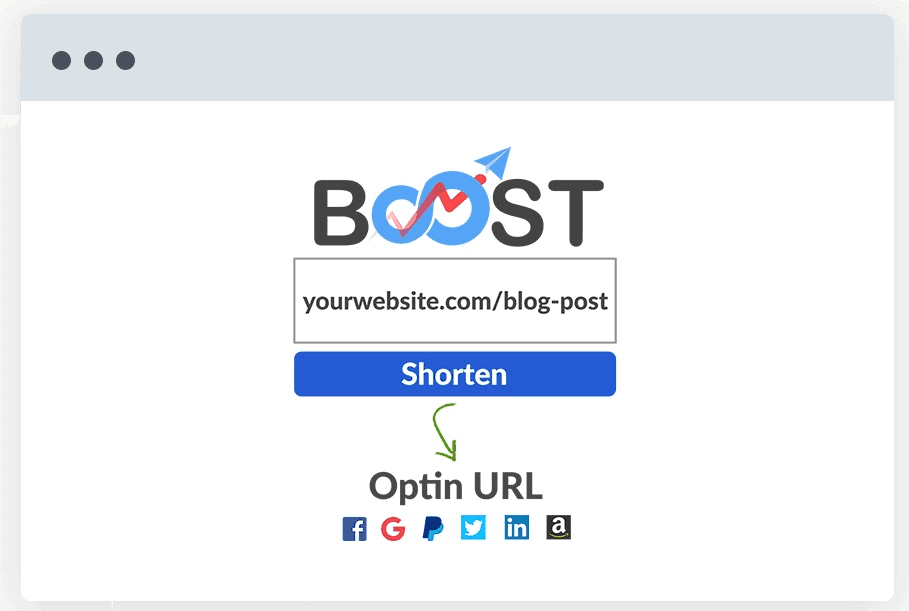
Boost may be used to shorten the URL of any online page. It might be your lead magnet, thank you page, blog postings, or any other page on your website. The shortened URL can also contain retargeting pixels or tracking tags.
You may either direct visitors to the shortened URL and collect subscribers without using an opt-in form, or you can design buttons to add social opt-in alternatives to your opt-in form. To improve your opt-in form conversion rates, you can also add buttons to your current opt-in forms and connect to the shortened URLs.
Boost.link Review – Final Verdict:
UI Rating:4.5/5
Features rating: 5/5
Value For Money: 5/5
Boost also allows its users to take advantage of the social opt-in feature which is an underutilized method in terms of building an email list. It is proven and tested that social sign-up can improve conversion rates on the registration forms, websites and applications.
With Boost, the opt-in rates increase significantly and some users have reported 5 to 10x growth in their email opt-in campaign
If you think Boost is missing out on any particular feature that holding you back from making a decision, you can send your feature request on this page
With the era of the internet upon us, streaming, in this day and age is climbing to be one of the world’s fastest-growing industries today. It’s no surprise that you’ve opted to pursue the lucrative streaming business!
What is Streaming?
Streaming may include a variety of activities like gaming, talking, and cooking, among many others. Modern streaming services like the ones Twitch, YouTube and the like offer individuals the ability to Livestream themselves playing games, vlogging, cooking and performing other daily activities live to their viewers.
It has also become a really straightforward task, as long as you have the necessary gear and the know-how. Streaming is a lucrative business for many individuals, with some of the greatest stars, such as Ninja and Shroud, Dr DisRespect, Pokimane and others making millions of dollars each year.
But How Do I Start?
There are several variables to look at and ponder if you would want to start streaming yourself. This includes things like which platform you should broadcast on, whether you’d like a singular or a multiple PC builds (one for streaming and one for whatever it is that you’re doing), what additional tools and equipment you’ll require, etc.
However, This articles main focus will be helping you get started on a streaming PC build and whether it is advantageous to get a dedicated streaming PC.
One or Two, Which One Should I Choose?
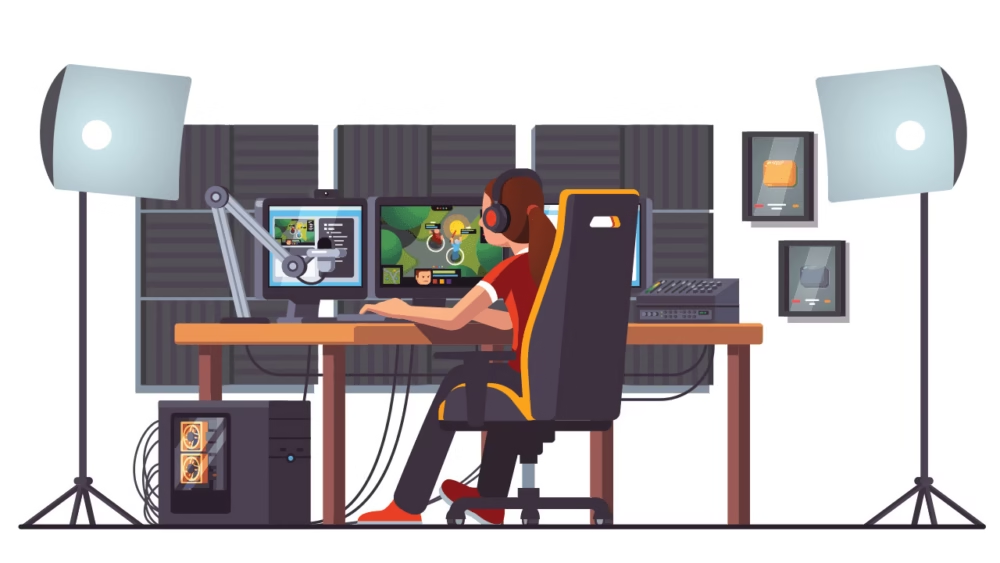
The very first issue you would want to tackle is what you’re planning to use your pc for. Is it just for streaming or do you want to multitask on it and use to stream and play games? The current generation of hardware and software is sufficiently advanced to stream and play games on the same machine.
Although there are instances when you can just broadcast and play on one PC, if you are running demanding applications such as AAA titles, Graphic/rendering tools or other software that put a lot of strain on your equipment, your streaming may be affected or it may cause your applications to become sluggish and truth be told no one likes that.
Before you read further and make your choice, check out this video on how to assemble a PC
One Mad Machine: The Single PC Build
live Streaming with one single Computer is certainly doable since it will generally only need a tiny portion of your Computers capacity to Livestream with the right specifications. Although to do this without running into serious issues, you need a pretty strong Machine.
It is the more budget-friendly option as it is far affordable to use a solitary Computer rather than operate a dual Computer system. Building a dedicated Streaming PC costs an arm and a leg as you’re buying effectively double the equipment.
All you need to broadcast is located on a single Computer, everything is easier and this is why it’s usually recommended for novice streamers. Moreover, it also requires a lot less room.
Sadly, streaming with a singular computer has real challenges and therefore most pros don’t use it. For instance, one might struggle with FPS dips and stutters, and this becomes a huge problem particularly in competitive games like CSGO, R6 Siege, Valorant and League of Legends etc plus, no one enjoys watching gameplay that looks like someone animated it using paper drawings.
Besides that, there is also a chance that your stream will go offline if your PC decides to randomly turn off or restart or even crash due to the heavy load. In contrast, the second option which we’ll talk about later, lets you stream as long as the devoted streaming Computer has power.
For every high-intensity setup, having a multi-core CPU is necessary. It helps reduce the charge and helps to improve your machines overall performance. Here are some general components that you may use as a reference to create a multitasking streaming PC.
This setup is an inexpensive one that may be good for start-up streamers. It’s a Computer that is robust enough to run most applications and games with excellent fps. It is also strong enough that applications like e-sports titles, independent games and demanding applications may run easily.
This construction is quite powerful and should operate at excellent frames per second almost every game. It includes a 6-core 12-thread CPU, which should make streams while running applications much easier. It is also equipped with enough of memory to save the gaming records you want.
This mean machine will destroy almost anything you throw at it. Equipped with the strongest hardware in the market, it may cost you an arm and a leg but it’s more than well worth it if you’re looking for a bang for your buck.
Note: do keep in mind these setup components we recommend are mere references that let you choose your own pieces. You are free to choose and assemble different hardware that best suits your requirements.
Pre-Built Setups
However, if you consider building a PC from scratch too much of a hassle, you can go for a pre-built computer.
A dual-PC setup is what the veterans who know they have to remain top of the line use. Most prominent streamers are using a specialized streaming computer alongside their dedicated gaming machine.
This not only guarantees that you have sufficient juice for the game or application you’re running but also ensures that your broadcast keeps on going and the show doesn’t stop which provides a pleasurable viewing experience.
The main reason popular streamers use this high-end setup is to avoid stutters and fps drops as the main PC doesn’t have to worry about handling the streaming load. This, as stated before is Especially important in the gaming industry where these updated parameters may increase your frames and will not mess with your flow.
It also guarantees you do not terminate the broadcast unexpectedly if you experience any issues with your Machine.
The major reason preventing individuals from buying a specific streaming PC, however, is undoubtedly the expenses. Building one super-computer is expensive enough, but building two…. you can imagine.
Although you can always purchase an inexpensive streaming PC since its only purpose would be to stream. Another con is that It also consumes a lot of room because the gear is essentially doubled.
But fear not, it’s ideal for a devoted streaming PC to broadcast because a secondary PC handles all the difficult work, so you won’t have a performance impact in your work. In this regard, a specially designed PC is usually cheaper for streaming than your regular PC because it requires no more power than to stream.
It’s a pretty inexpensive rig, good for those who may not want to invest much and get started small. This configuration is possible since it is a specialised Streaming PC and requires less energy when streaming with lower settings.
No doubt, this rig has the power to decimate every task without problems and offer higher resolutions for streaming (1080p 60FPS). The wonderful thing about this setup is that, if you want to upload clips of your gameplay and other such stuff, you can indeed use it as an editor setup too.
It is also adequately excellent to utilise a Computer in case of technical issues as a secondary streaming and gaming device.
Regardless of which option you opt for, provide you have reasonably modern gear and a strong Broadband connection, you ought to be able to stream. Due to the strong hardware and technological capabilities that we possess today, a specialised streaming PC is not necessary. A devoted streaming PC, however, always produces better results and will never make you trail behind the competition. With a specialized streaming PC, even a moderate one, your streaming and viewer experience will also be considerably improved, thus it is frequently a smart idea to buy in one if you take it seriously.
FAQs
How do Streamers make money?
Answer: Streamers make money using a variety of methods. The most common is donations from their chats. Individuals donate streamers to watch them play or do go
Of tasks. Other methods include running ads during streams or company sponsorships.
How does Streaming work?
Answer: Streaming may include a variety of activities like gaming, talking, and cooking, among many others. Modern streaming services like the ones Twitch, YouTube and the like offer individuals the ability to Livestream themselves playing games, vlogging, cooking and performing other daily activities live to their viewers.
Streaming where to start?
Answer: There are several variables to look at and ponder if you would want to start streaming yourself. This includes things like which platform you should broadcast on, whether you’d like a singular or a multiple PC builds (one for streaming and one for whatever it is that you’re doing), what additional tools and equipment you’ll require, etc
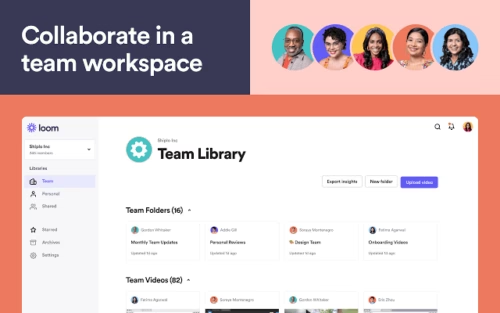
Loom is considered to be one of the best tools for screen recording and sharing the media over different platforms. It helps in recording video messages on the user’s screen as well as a camera or even both. It is available for Mac, Windows, iOS, Android. With the help of loom communication with the partners becomes more effective, efficient, and expressive all at a time.
With the help of loom extensions available for different devices, one can create their own videos and can share faster than email.
Features:
The key features of the loom are:
Capturing Audio or making audio calls.
Real-time chatting options are also available.
Can I use the loom offline?
No, if you are offline then you’ll not be allowed to access the Loom for creating videos or using features.
Does Loom have a time limit?
Yes, loom users have a time limit. For loom starter users the time limit is 5 minutes and that of education users is 45 minutes.
Why do we need Alternatives for loom?
With advantages, there come some disadvantages also, so there are certain features that can be taken into account for the selection of some other alternatives for loom. Some disadvantages of loom which can be overcome by other alternatives to loom are mentioned below:
The free version of the loom allows approximately 198 videos to record.
There are no other ways available to restrict the information like names, email addresses, or phone numbers.
Loom does not allow you to add comments to the videos
To avail more features one has to pay more for that.
10 Best alternatives to loom
In this article, you will be able to get detailed information about the best loom alternatives. The top 10 alternatives to loom are listed below:
CamStudio
CloudApp
Snagit
Camtasia
Clip by Clickup
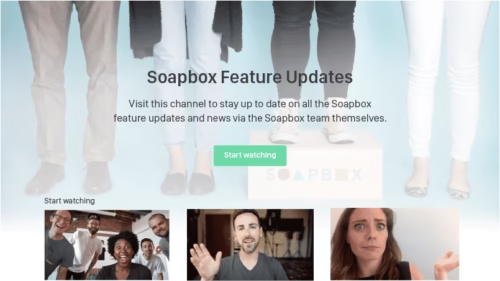
Wistia Soapbox
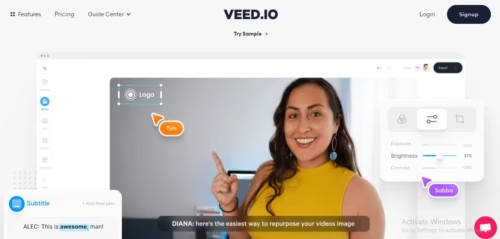
VEED
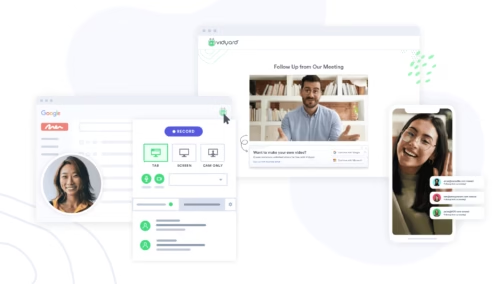
Vidyard
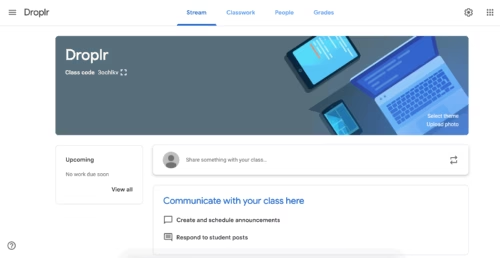
Droplr
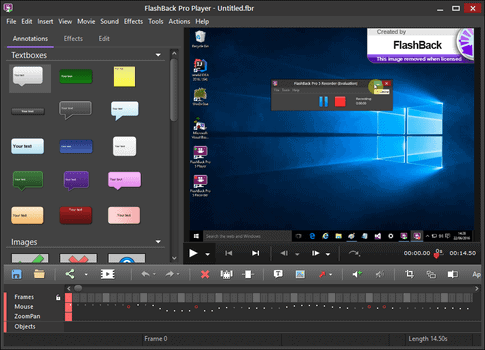
Flashback
Now, Let’s explore the features, pros, cons, and pricing of these best loom alternatives.
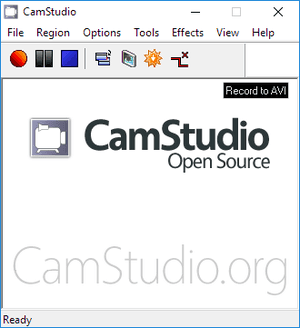
CamStudio is a free screen recording software available for Windows and browsers. It is regarded as one of the best tools to create quick demos or short video clips as well as helps in screencasting on the user’s computer in AVI.
Features:
It records the screen and audio to AVI files.
It helps in the conversion of AVI into Flash
It provides you the feature of adding text or comments in your videos
It highlights the cursor path for clarity
It provides the customization of the watermark.
Pros:
Video effects can be used for designing your videos.
It is free of cost
There is no limitation in time for recording your video
Cons:
It is free of cost but CPU resources cost more here.
The resulting video file size is quite large
The output files are available only in AVI & SWF format.
CloudApp allows recording and sharing quick demo clips as well as adding screenshot annotations all in one platform. The supporting platforms are Windows, Chrome, Mac, and iOS.
Features:
Capturing screen as well as videos
Provides image editor
Customization of thumbnails
Annotations feature available
Customer support
Text extraction
Scrolling capture
Pros :
Allows automatic hosting of the images so that they can be previewed
Great integrations with Slack-like tools can help in previewing the screenshots.
It is simple and intuitive to use.
Cons:
The output file sizes are quite large.
The workflow of images and gifs should be more simplified
Basic image filters like brightness or grayscale are not available
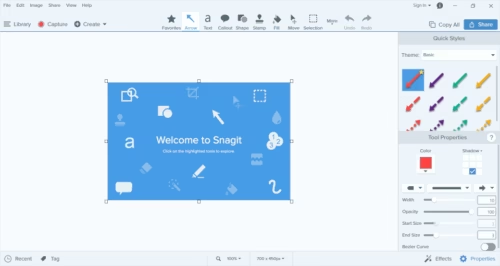
It is a powerful tool for capturing images and videos. It can easily and quickly add the annotation while creating demos for an explanation. It supports Microsoft Windows and Mac Os
Features:
The annotation feature is available here
Can capture a process
File sharing and platform search is the additional functionality of the platform
Scrolling Capture
Create GIFs instantly
The file can be saved in GIF, PSD, BMP, PDF, MHTML
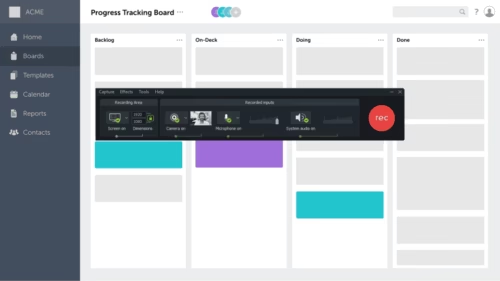
Flashback is considered as the best alternative for loom too. It supports a wide range of platforms like Windows, Linux, Android, iOS, macOS
Features:
Multiple Screens
Scheduling
Recording annotations
Quick export
Direct upload to youtube
Editing Timeline
Recording video and capturing audio.
Pros:
Easy to install and simple interface
No watermark in the free version
Unlimited recording in free version
Cons:
It seems like the software is a bit outdated
Video editing tools are very basic
Very simple screen recorder
Pricing Plans:
1 PC: $49
2 PC: $74
Can loom videos be uploaded to YouTube?
In case if you want to upload the video on YouTube, Google Drive or others, all you have to do is firstly download the Loom video in MP4 format in your computer. After that you can easily upload it on any platform.
I hope this article helped provide all the essential alternative tools for the loom. The overall opinion of mine is that I consider Clip by ClickUp as one of the best alternatives for the loom. Let us know which are your favourite loom alternatives and if you know another tool that is worth mentioning, please feel free to contact us with the link to the tool.
From the worldwide epidemic of Coronavirus to the threat of global catastrophe. 2021 is proving to be very tough. With all of us trapped at home, The days blend together and quite honestly, we’re all bored.
We don’t know when these sad times may end and Although no one can foresee the future, there are some individuals who attempted to envision what things could look like. We’re here to tell you about these imaginative future Tech Web Series that mix and reinvent tech in the wackiest manner imaginable. Or are just goofy, if that’s your thing.
Here are some of the finest geeky TV shows streaming right now.
Netflix newest series is an interesting sci-fi thriller with a mystery at its heart. The protagonists of Biohackers are confronted with such ambiguity in circumstances that are bigger than something they could anticipate, that they rule The world in their own path of fabricated research.
This six-episode German Netflix show is all but whatever you would anticipate of a Euro sci-fi thriller. Instead of going from planet to planet in an implausible cyberpunk frenzy, Biohackers is a speedy mystery that touches on love and youthful connections, as well as sorrow and grief, and it’s the finer for it.
As stories become apparent the tension becomes more acute. The narrative takes an entertaining and intriguing turn into vengeance terrain, coupled with the last period of intrigue and a climax that should leave fans eager for a second season. The charisma of the main actors is worth watching the program for alone. Seriously, you need this on your radar.
Halt and Catch Fire, a techno series set completely from the first version of Microsoft Office in 1983 and Windows 95, maintained its emphasis firmly on the mists of a developing industry, with none of the clenching moments that could have come from a program about the development of Google or Facebook.
The protagonists never attained permanent success or change, constantly thwarted by the big players in a young and clattering business. Rather, individuals confronted an unending, unpleasant sequence of difficult workplace choices regarding honesty, quality of products and company operations.
Halt and Catch Fire is a wonderful TV drama about the need for compassion
The show, set in the computing industry of the ’1990s, has the tough positivity these times need.
Altered Carbon, based on Richard K. Morgan’s 2002 book of the same title, is a bright, and at moments bewildering slide into sci-fi extravagance. The series revolves on a 22nd-century merc who is recruited to find the killer of a powerful noble and the following power battle.
What’s the grab? The rich cannot die in this utopian vision; rather, their minds are saved in the database and restored to different hosts.
The following action is breathtaking in a realm sans mortality. Though it has flaws, it is also entertaining, which makes it worth watching.
IT Crowd, a precious gem amongst shows, isn’t a demonstration of future technology, but rather a glimpse at the antics of the misfit crowd of the IT division of the fictitious Denholm Industries.
The brilliantly created personalities bounce off one other charmingly in the cramped basement of a high skyscraper office building. Moss (Richard Ayoade), renowned for his stunning red herrings, Roy (Chris O’Dowd), the scathingly caustic Irish, and Jen, the ego beacon of hope and respectable head of the IT department, who frequently succumbs to the same societal transgression as her colleagues.
The show is hugely quotable, bizarre at moments, and elevates what might have been a basic comedy about an office IT department to a cult classic. You will undoubtedly laugh out loud, at times uncontrollably.
Silicon Valley draws as much humour as this can form a rich pit: the tiny, wealthy, ego cocoon of Silicon Valley. Mike Judge, John Altschuler, and Dave Krinsky bring to the bizarre place of the valley the kind of perceptive and graphic joke comedy paralleling to the office.
The program begins by following the usual meteoric growth of the tiny company Pied Piper, headed by the talented T. J. Miller as Erlich Bachman.
The comedy can be found in all aspects of Silicon Valley daily existence, from the insane sums of money and prestige bestowed upon lesser clubs of tech geeks to the emotionally immature money men and tech creators detected at the highest level. It’s a show full of gags and a fun watch for any age!
Silicon Valley is available to watch on Prime Video!
‘Chuck,’ an even more famous online series for nerds, has arrived! The story revolves on Chuck Bartowski, a desktop whiz who gets an encrypted e-mail with US spy secrets.
To add to the intrigue, all of that knowledge is eventually transferred into Chuck’s head. And now, CIA and NSA operatives are guarding him and using him for top-secret operations. The series’ intelligently written material, improved script, and commendable individual portrayals are among its highlights.
This American spy drama with a heavy dose of technology is unquestionably entertaining.
The vast majority of our greatest happy memories include theme parks. Touring the amusement park from Westworld, on the other hand, maybe frightening, particularly if you don’t like to be accompanied by machines and artificial “hosts.”
Set in 2058, the plot centres on a highly sophisticated theme park that is popular among the wealthy, where they may indulge in their craziest desires without fear of being attacked by android “hosts,” who are essentially human-looking robots.
This recreation of the cult original contains mind-boggling surprises and is unquestionably one of the greatest science-fiction programs to watch.
‘Black Mirror’ would be another program that makes this ranking. The series is suggested for people who wish to see the bad repercussions of technological advances and inventions in humanity.
While each instalment of this show introduces a fresh narrative and cast of people, the overarching subject stays consistent throughout all occasions: the ugly side of technological advances with potential ramifications.
The program is subtly influenced by The Twilight Zone, and one of the greatest aspects of that is the style it is structured, how cleverly it is produced by the studio, as well as the great acting and directing of the individuals in the different episodes. Truly the best Netflix has to offer.
Enthusiasts who like viewing the combination of suspense and tech material should check out ‘Mr. Robot,’ as it is unquestionably worthwhile for everyone.
The plot revolves around Elliot Alderson, who works as a cybersecurity expert during the day and as rogue hacker nightfall. Following that, he joins a hackers organization named ‘fsociety’ in order to destroy all debts and accounting transactions of E Corp, the world’s biggest corporation. Also, Elliot’s mental disorder and social phobia problem add to the story’s intensity and interest.
The series focuses on the application of various innovations to infiltrate the system with a higher level of reality, and a novel, as well as many video games, have been published based on it.
This mingling of gloomy and hilarious components is what occurs when the greatest artist (David Fincher) meets the maestro of visual effects (Tim Miller)
The deepest of the deep. Love, Death, and Robots is the result of an unknown, deepest subcategory of dark genre movies/series that I’ve ever discovered.
The lifelike CG graphics utilized in this show are so good and frighteningly near to perfection that the careers of several live-action performers are jeopardized. The series comprises 18 psychotropic episodes ranging in length from 5 to 17 mins.
Any Binge Biker looking for some truly wicked deadly things should Absolutely check out this Netflix show laced with Hallucinogens, which will open the secret neural pathways. I dare suggest it will transport your brain to a state of total awe and leave you in a dazed psychedelic trance.
Answer: All series on this list are great to binge! I would highly recommend Love Death and Robots as it’s nothing like you’ve ever seen before. Mr Robot and Westworld are amazing shows as well!
How do shows get on Netflix?
Answer: Netflix collaborates with producers, companies, organisations, and creators to obtain licensing for Films and tv shows that will be available on their platform. Sometimes, some popular TV shows and series don’t make it on Netflix and that is because of factors such as popularity, cost, seasonal or other localised factors, or allocation etc.
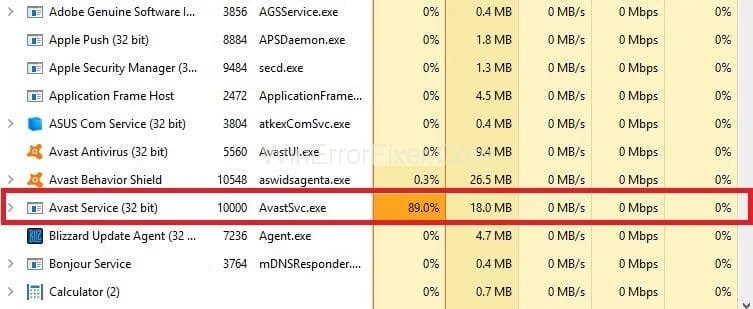
Recently it has been reported by Avast users that this software has high CPU usage. If you are also an Avast user facing the same issue then this article is perfect solution for you. Here we are going to list down all the reasons behind the error as well as explain all the possible solutions for fixing the high CPU storage issue.
Let’s get straight to the question: Why is there such high CPU usage ?
There are plenty of reasons behind the high data usage by this software. Some of them are listed below:
In order to run the real time functions like scanning for backgrounds as well as virus and boosting up the system can use high CPU usage.
The data traffic and storage hogging apps are also responsible for intense data usage.
Due to inaccurate settings of the configured system the usage if CPU can rise
Does Avast antivirus slow down computer?
If your Avast software is not updated in your system then Avast antivirus can slow down the computer. So, make sure to keep the Avast on updated version for smooth performance.
So how can we fix this issue? Well, you don’t have to search for the different ways possible for fixing this because in this article we will be listing down all the possible solutions. Let’s start discussing it one by one
How to fix Avast Service High CPU usage issue?
There are several ways you can fix this problem.
How to fix Avast Service High CPU usage issue?
1. Removal of Avast Cleanup Tool 2. Disabling the Avast Screensaver Scanning 3. Installing the Latest Avast Version 4. Altering Command Prompt 5. Repairing Via Control Panel
First Solution: Removal of Avast Cleanup Tool:
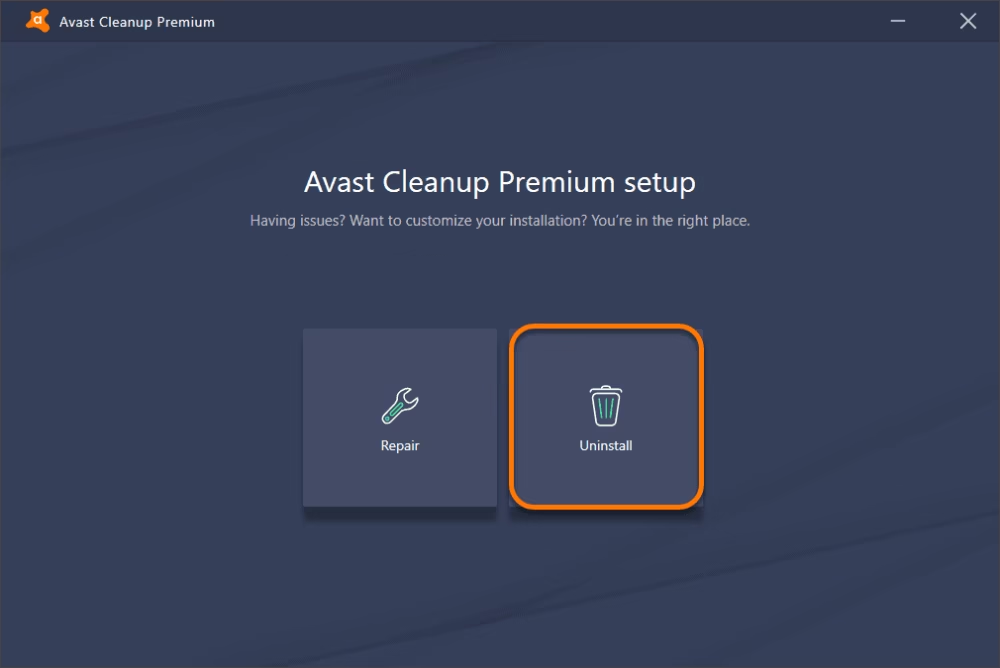
This tool is one of the essential elements which does the task of real time scanning. It also helps the user to vacant the space by clearing out the background applications. But if the Avast Cleanup tool is not running properly then most probably you should reinstall it
Lets see how to reinstall it in the following steps:
Firstly, double tap on the Avast icon to open it.
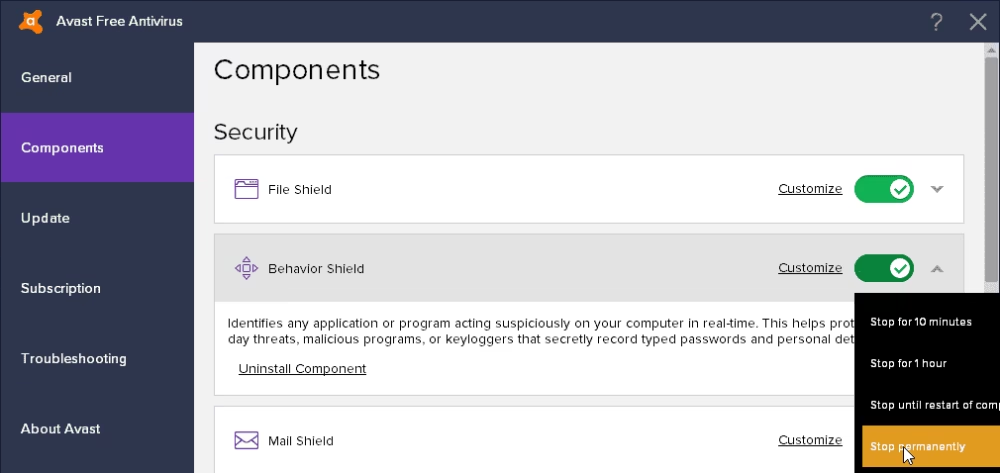
Now on the left side of the page you have to click on the component tab. After that an option to uninstall the tool will be visible to you.
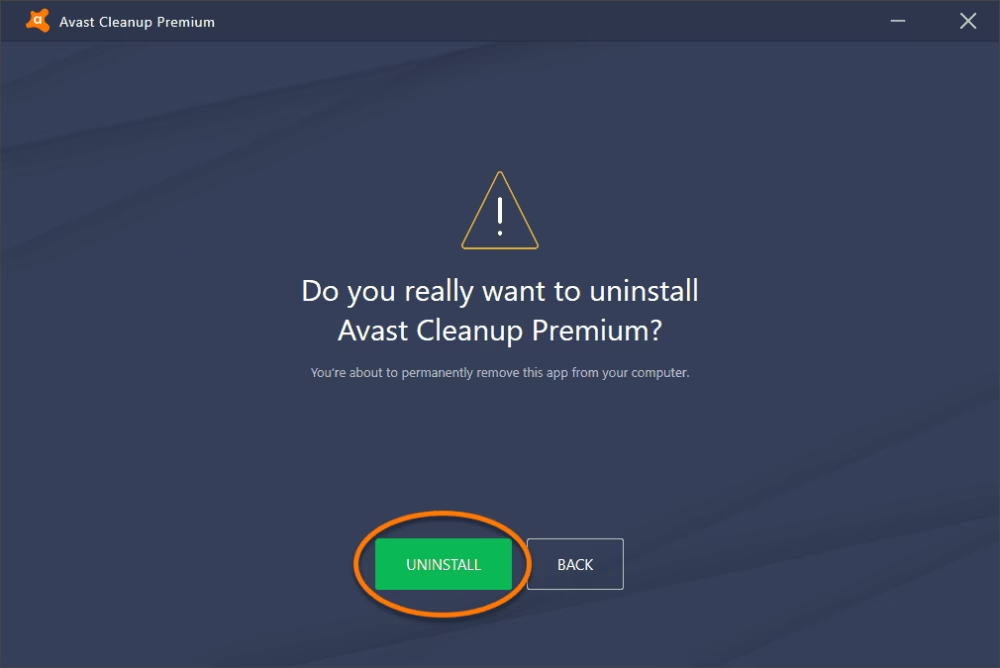
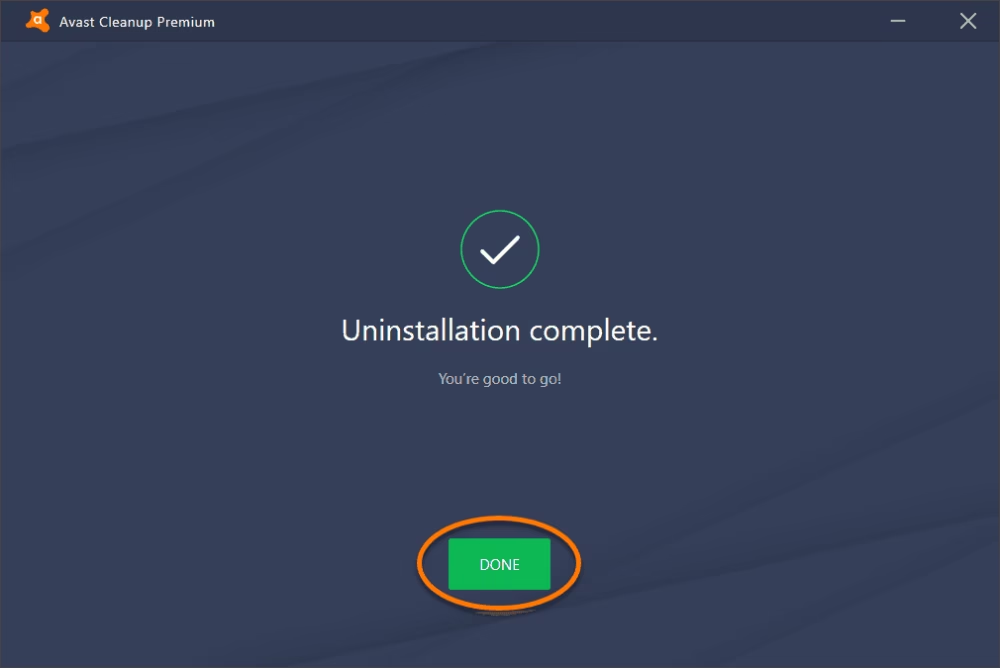
So, as soon as you tap the Uninstall button and confirm the uninstallation program, it will respectively get removed.
After restarting the system you can check out if the high CPU usage has ceased or not.
Additional:
In case you have doubt if the Behavior shield of Avast is consuming high CPU usage then you can repeat the same process as mentioned above. After completing the procedure you will be noticing that the data usage has somewhat decreased.
Second Solution: Disabling the Avast Screensaver Scanning:
It happens quite often that even though there is no need of scanning the screen saver, it still remains running which results in high CPU usage and you cannot find the record of it on their platform. To fix this issue, all you have to do is:
Make a right click on any arbitrary file of your system and select to scan the file with Avast software
After that scan result screen will turn up where you can watch all the lists of the currently running scans
Now you have to find out the Avast Screensaver Scan and turn it off.
Finally, checkout whether the high data usage issue has been fixed or not
Third Solution: Latest Version of Avast:
Running your own version of this software is also considered quite problematic for the CPU.For resolving this matter, you should make sure that you have updated both the antivirus definitions and virus definitions database. You can update the software with the help of these steps:
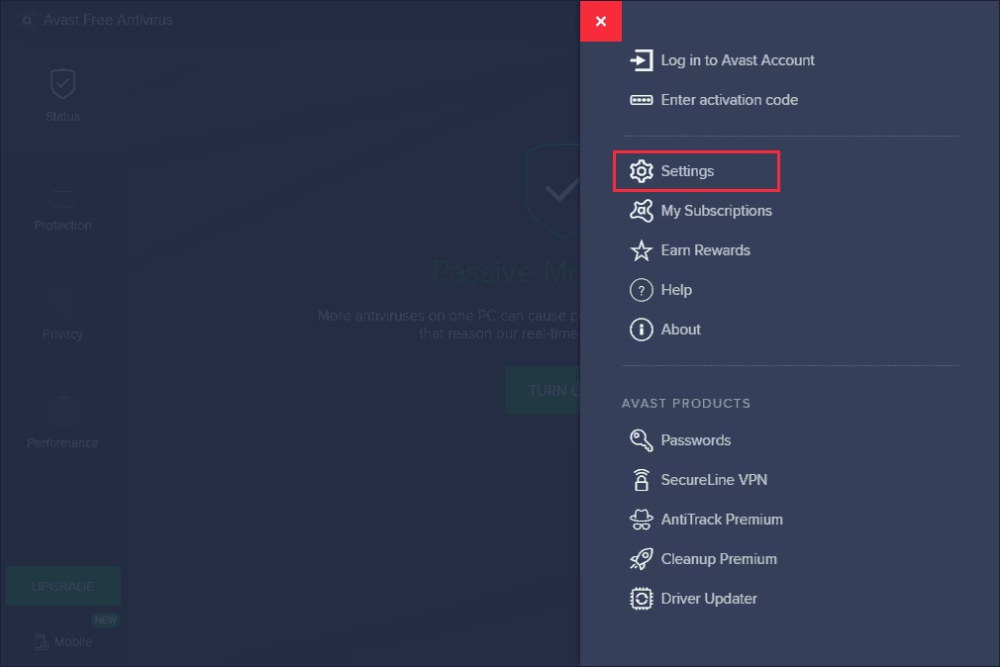
Opening the Avast software by clicking the icon
Now, In the Settings option you have to select the Menu option.
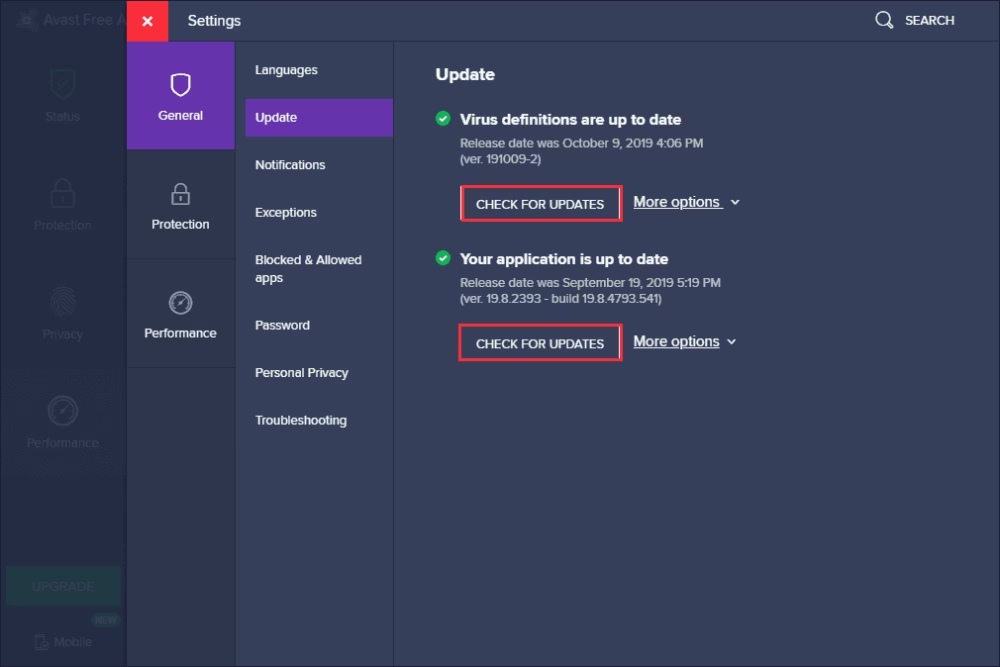
Then click on the General tab and tap on the update option.
Now here you can see that there are two update options available for you. One is to update the database of virus definitions while the other one is to update the application.
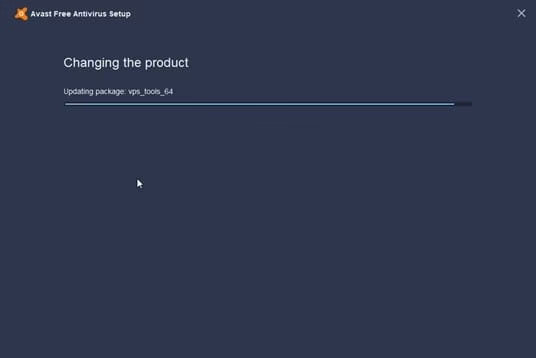
You can update both of them and it is noteworthy that you should have patience as it consumes some time because avast checks all the available online updates.
Lastly after the completion of the following steps make sure that the high CPU storage has been fixed.
Fourth Solution: Altering Command Prompt:
The background scanning conducted by Avast causes load on the CPU sometimes. So by altering the scan frequency one can terminate the excessive load damage on RAM. Let’s see how can one achieve the goal to alter the scan frequency from the command prompt:
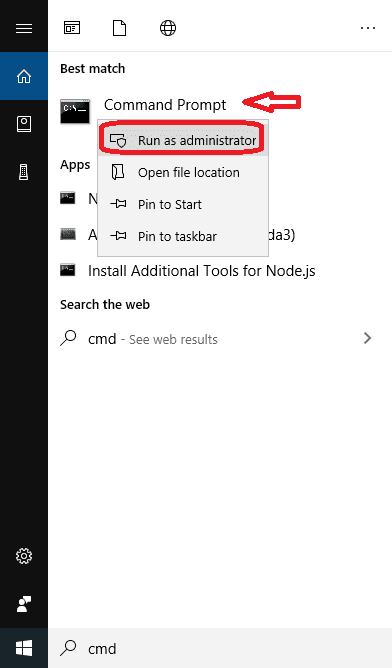
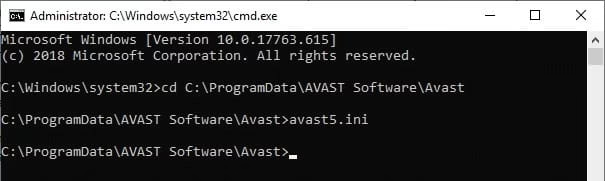
All you have to do is open the following command prompt, and then press Win+ R for viewing the Run dialogue. After that type cmd and tap on Ctrl + Shift + Enter for starting the command prompt window
Then you can select the folder of Avast and type down the command followed by the Enter button in the end.
Command -> C:\ProgramData\AVASTSoftware\Avast
Soon after this command will redirect you to the folder named avast5.ini where you have to again insert one command
Command: [GrimeFighter]: Scan Frequency=999
Ultimately save it and restart your system.
Final Solution:Repairing Via Control Panel:
In case if none of the mentioned solutions has resolved your issue then you should try to repair avast This procedure has been reported as the positive resolution to their problem regarding the fixing of the high CPU usage.
The first thing you need to do is that you have to log in yourself as administrator.
Now, press the Win+ R keys and type control panel followed by the enter key. For Windows 10 users, you have to tap on the setting icon for opening the settings window.
After opening the Control Panel option, select the option of Uninstall a Program under the Program zone.
For Windows 10 users you have to click on the Apps tab and a list of installed programs will be presented to you on your system.
Then find out the Avast from the Control Panel or in Settings and then click Uninstall or Repair.
Wizards for uninstalling will pop up with two choices, either Repair or Remove. You have to select the Repairoption and then select the Next option for fixing the installation.
After confirmation of the procedure, Avast will get restarted with its default settings
Now click Finish and restart your PC. You will find that out now that your problem has been fixed.
I hope that all these detailed and descriptive explanations have been able to help you in resolving your issue of high CPU usage by Avast services. If you have some other updated alternative solution for this problem, then you can comment down below.

![How To Change Charging Sound Of Your Phone When Plugged-In [Android + iOS]](https://techgyo.com/wp-content/uploads/2021/06/The-Ultimate-How-To-Guide-On-How-To-Change-The-Charging-Sound-Of-Your-Phone-When-Plugged-In.avif "How To Change Charging Sound Of Your Phone When Plugged-In [Android + iOS]")





















![Command: [GrimeFighter]: Scan Frequency=999](https://techgyo.com/wp-content/uploads/2021/06/image-130.avif "How To Fix The Avast High CPU Usage Issue in Just 5 Minutes?")