Home Blog Page 356

Widget Logic Lets You Show or Hide Widgets from Posts and Pages.

1

So you have a nice theme for your blog, but not sure about how to adjust widgets of your choice in the pages you wish? Looking for a solution to display widgets like adsense ads, related post widget, Facebook like box, recent comments or any such widget only in home page, or particular article, or in a category post? Then you have come to a right place to get an ideal solution without any major knowledge to change the theme’s source code. In this article I’m going to share some information about Widget Logic, a plugin which i use to adjust my widgets to appear in pages that I wish. this plugin works basically on WordPress conditional tags, and its very simply to manipulate. Not only that Widget Logic lets you control on which pages widgets appear using WP’s conditional tags. It also adds a ‘widget_content’ filter, by this you can tweak standard widgets to suit your theme standards without editing plugins and theme’s code.

If you are curious about WordPress conditional tags which I’ve been referring. You can check the detail explanation on Conditional Tags in WordPress support page.

What widget logic lets you do is basically gives you a text field to add WP’s conditional tags or any PHP code which can control your widgets as you wish.

Some basic conditional tags which you might have to use are:

  • is_single() – This will restrict widgets to appear only in post page like the one you are reading right now. You can also configure it with particular post id. for ex: is_single('17')". . This is restrict the widget to display only in post number 17. (If you are not sure about a particular post ID, then just go to edit post and click on “Get Shortlink” button next to the permalink field and you will get something like this: https://techgyo.com/?p=2916 .) If you are still confused, just drop your comments below.
  • is_home() –      Use this conditional tag if you want to display a widget only in home page.
  • is_front_page() – this has the same funtionality as the is_home tag, But it actually returns true when the main blog page is being displayed and the ‘Settings > Reading ->Front page displays’ is set to “Your latest posts”, or when ‘Settings > Reading ->Front page displays’ is set to “A static page”.
  • is_single(‘Post Title’) – I hope you got the logic, this conditional tag returns true for a particular page with the post title as post title.
  • is_category(‘category name’) – Returns true for all the articles in a particular category.

Other than these , you can also enter codes in a array combination or like below:

is_single() && in_category('cheese')
Example:

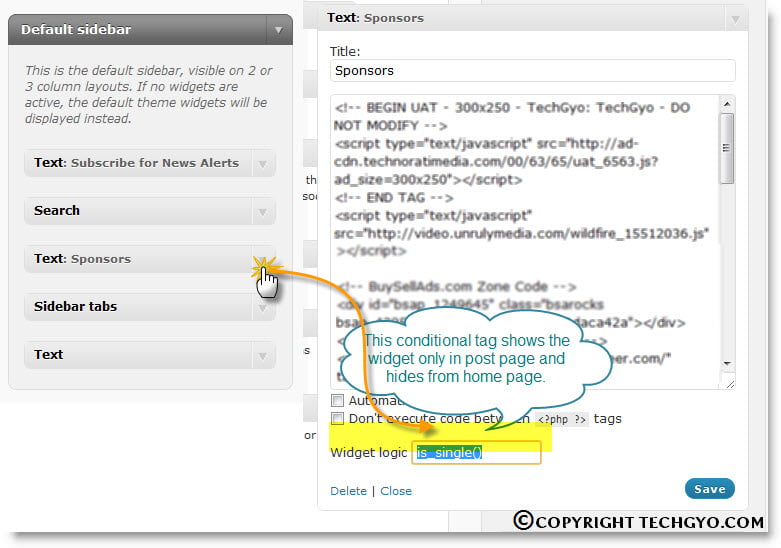
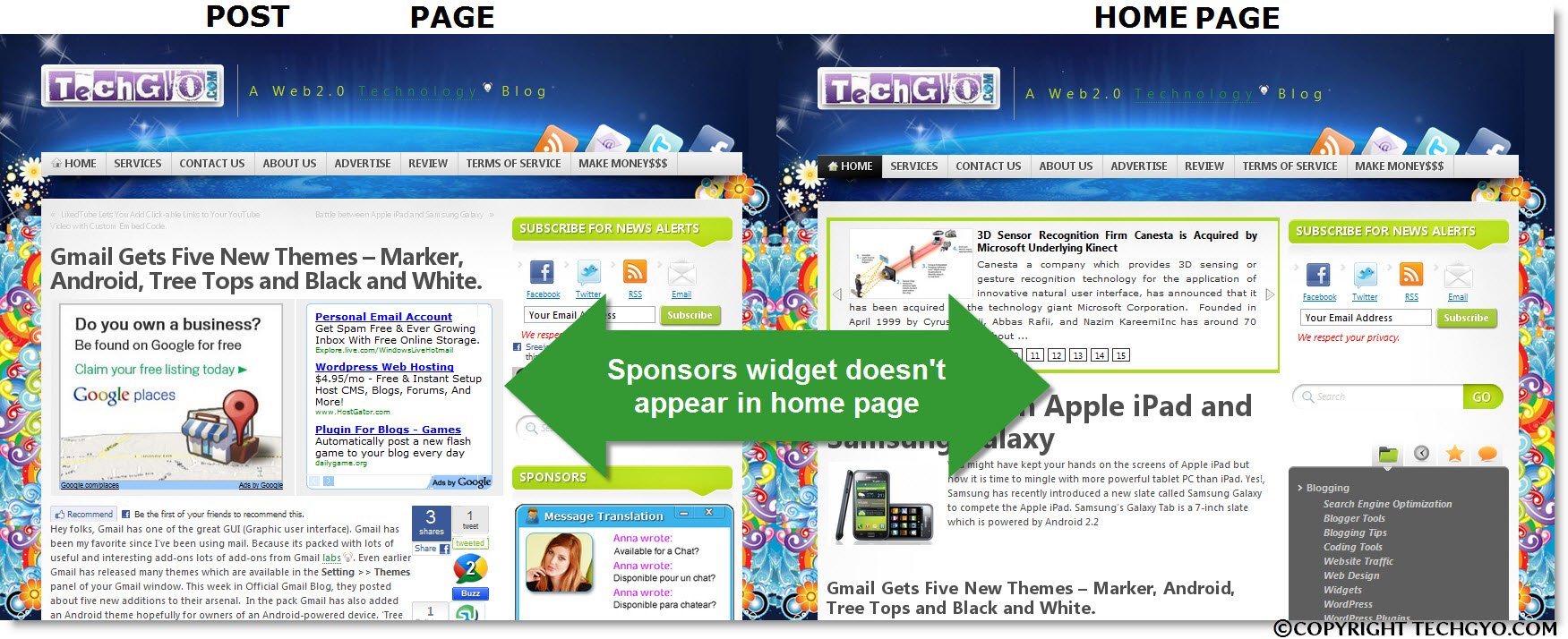
Here in the below example, I’ve added a conditional code is_single() for a sponsors widget. And the result of this is shown the nest image.

widget logic wordpress conditional tag.
CONFIGURING WIDGET WITH CONDITIONAL TAGS.
Result:
HOME PAGE widget & POST PAGE widget OMARISON
The sponsors widget is not appearing in the home page

So that your widget will appear in single post page and additionally in posts under a particular category.

There is also an option to add a wordpress ‘widget_content’ filter — this lets you tweak standard widgets to suit your theme without editing plugins and core code.

Update: I just noticed that this is my 100th post in this blog!

We’ve also discussed about some other plugins like:

Info:

Type: WordPress plugin.
Compatible up to: 3.0.1
Author:Alanft

Download from official WordPress page.

Gmail Gets Five New Themes – Marker, Android, Tree Tops and Black and White.

1

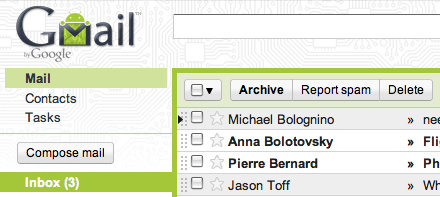
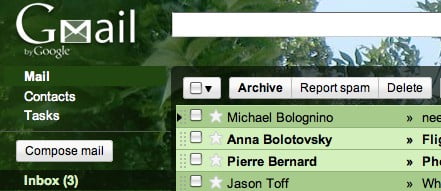
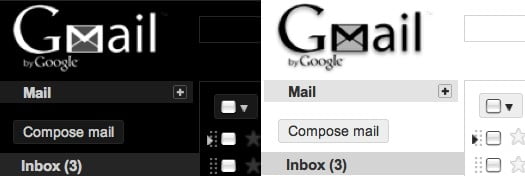
Hey folks, Gmail has one of the great GUI (Graphic user interface). Gmail has been my favorite since I’ve been using mail. Because its packed with lots of useful and interesting add-ons lots of add-ons from Gmail labs. Even earlier Gmail has released many themes which are available in the Setting >> Themes panel of your Gmail window. This week in Official Gmail Blog, they posted about five new additions to their arsenal.  In the pack Gmail has also added an Android theme hopefully for owners of an Android-powered device. ‘Tree Tops’ Marker, and a basic black and white are the other themes in the pack. Google explains their inspiration for the new themes in a back and forth conversation between two Googlers. You can read the Official Gmail blog post here. The basic black & white themes symbolizes simplicity, Android theme specially dedicated for android lovers. Tree Tops theme is those who like greenery and gives a relaxed feeling and finally Marker theme suits best for those who like handmade and childish designs. You can switch between different themes to check which suits you the best.

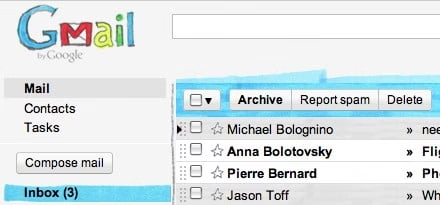
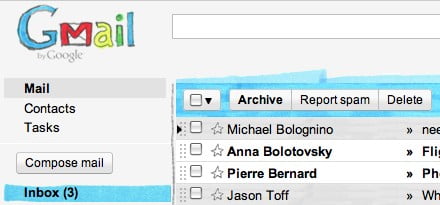
gmail theme  marker
Marker Theme
gmail theme  android
Gmail Android Theme
gmail theme  tree_tops
Tree Tops Theme
gmail theme black&white
Black & White Theme

LikedTube Lets You Add Click-able Links to Your YouTube Video with Custom Embed Code.

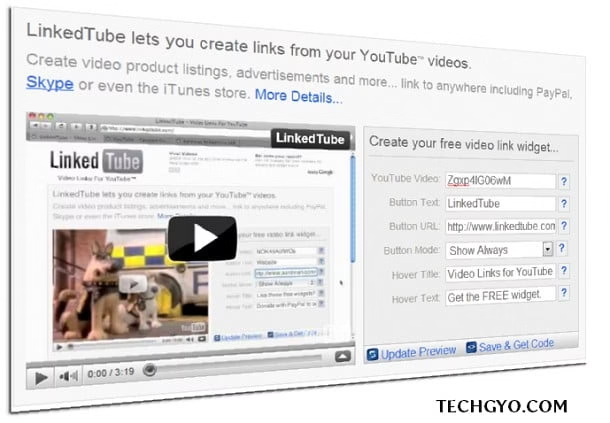
Video blogging is a great way to get exposure for your blog. And video takes less time when compared to time spent for writing an article. Google’s Matt says video drives much better traffic than an article on the same topic. In this article I will be showing you how to add link to a YouTube video. I use Linked-Tube to do this and it not only lets me link the video to my page it also has sharing options. Linked-Tube is basically a flash based widget. You may use it as a viral promotional tool for your YouTube video. Unlike standard YouTube players it links directly back to your URL, for example you can create video product listings linking direct to your shopping cart, music video links to the iTunes store or just link back to your website or blog. The cool thing is that when viewers share your video they all link back to your own URL.

Linked Tube is very easy to setup.

Instead of writing down the steps, I would prefer to leave you with a video with shows you steps.

New Feature To Preview Search Results In Google Instant

0

The world’s immense search engine Google has added a new tool called “Instant Screenshot Previews” to its search results which allows the users to see screen-shot previews of web pages directly from the search results. Instant Screenshot Preview is depicted by a small magnifying glass icon beside every search result and displays the preview popup when clicked.

This feature saves the time of the surfer which gives clear screenshot of the website before visiting it. Microsoft’s Bing search engine already offers web page previews on its search results by hovering over the arrow button which is limited to some preview but Google’s “Instant Screenshot” shows almost full website as a preview. The company says that it will cache popular pages from popular websites for the previews, and for other websites, it will generate the screenshot on the fly. According to the Google the speed of loading preview is very quick, officials says that “Once you click the magnifying glass, we load previews for the other results in the background so you can flip through them without waiting“.
This step works as part of a broader strategy to make search more seamless for users to find information quicker and easier. Currently Google has not placed ads on these previews but has the plan of the same in the future according to the web geeks. Webmasters can also prevent their websites from this instant preview by just placing <meta content=”nosnippet”> tag in the <HEAD> section of the webpage.

How To: Choose A Good Online Document Manager

Online Document ManagerMost of us who has been in the field of business, which is also maintained online would surely know about the importance of a good online document manager. Basically an online document manager is online software which basically keeps all your chosen business documents online for 24×7 access, for your co-workers and members. The fact of introducing an online document manager to your business, could give it a moral high and boost your business in many ways.

Why To Go For An Online Document Manager?

There are various reasons why these days most of the companies and firms are moving a step towards the online document management systems. But let’s be practical and see for the common causes below:

Security

Storing data of business in hard copy (In Paper) means, it should be stored onsite. This leaves a chance of it being accessed by persons from inside or outside the company. And even if the data is stored in digitized form in the computers of the company, it would be accessible to persons having authority in those computers. And even if that does not happen, it could be accessed or hacked from outside or rival companies. To make sure this does not happens, the company would need to take extraordinary precautions to see that their network is not hacked. This would cost the company a fortune, and the cumulative price would be much greater, when taken to the fees of the storage company.

Accessibility

In case you are storing the data of your business in hard format, it can be understood  from common sense you can only have access to it, when you are in the office. And even if you are storing it in your local server, then too there are chances you will not be able to access it anywhere, since most of the webmasters, won’t take the risk of getting it online from the intranet due to the fear of abuse by external party. However, in case it is stored in the servers of large companies who specializes in this field, it would be available to you at anytime anywhere.

Safety

In cases when a firm stores their clients documents, in hard format onsite. There are various risks involved. You might never know there could be a fire or any other similar natural calamities. In case documents of clients are destroyed, the company might get entangled in costly lawsuits at times. However if the same documents are scanned and stored online, it is made sure that these are protected as most of the companies take full backups at regular intervals.

Must Have Features Of A Good Online Document Manager

There are several features that an good online document manager should posses, however today we will see the features you must definitely look for before purchasing one for your business.

  • Online File Storage In A Server Having Closest To 100% Uptime
  • The Server MUST be on a Https Secured connection. So that your business secrets are not in close reach of your rivals.
  • There should be an elaborate Admin Control panel, for the ease of sharing and it should be easy to use. So that your valuable time is not wasted.
  • There should be in-depth search option so that files can be easily found when accessible. Please be aware all search tools are not same and yields different results. It depends on the algorithm working behind it.
  • Easy multiple upload option, or drag and drop option to store the files easily.
  • Should provide additional data backup, so even if you mistakenly delete a data, you can  get it back in no time.
  • Should be quick in setting up and deploying in the field, without any fuss.

A Few Good Online Document Managers

There are several document managers out there on the internet. I suggest you to choose the one for your business carefully, since it will be the arteries of your business once you transform. Read the terms and conditions carefully and analyze them before making a commitment. And check out several reviews and know all details about them both online and offline if possible. I have found a few of the companies who have the above features and provide Free storage for Trial purposes. You can have a check below:

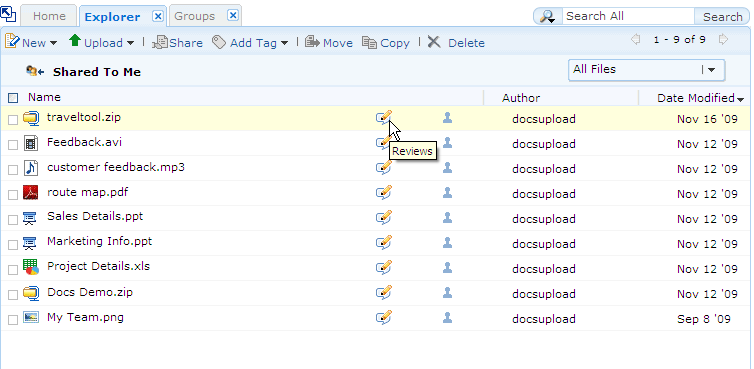
Zoho Docs

This online company provides a trial feature of 1 Gb, which just requires a registration and no payment. And has most of the essential features discussed above. Additional feature is that you can access it even via you web enabled mobile.

docs-review-1

docs-review-1

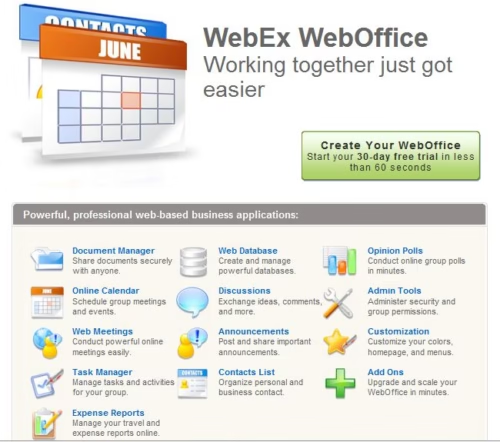
Web Office

This company provides a trial period of 30 days and has almost all the above features mentioned. Its also a part of Cisco. Provides connectivity to Palm and Outlook. University of Dublin and various other big companies are their client base.Webex

Note: Before choosing for a storage, make sure you are 100% assured other than anyone.

Master Your PC! 18 Genius Keyboard Shortcuts & Tricks You Must Try!

10

Are you a basic computer user? Don’t just be a basic user. Explore the 18 impressive windows tricks or you can say computer shortcuts below. Be an advance computer user. Here are some simple tricks and pranks which are good enough to impress someone.

18 impressive computer tricks

Also read:

Impressive Computer Shortcuts and tricks you should try!!1

1. Set Processes Priority

Follow this tip to increase the priority of active processes, this will result in prioritization of processes using the CPU.

CTRL-SHIFT-ESC1.Go to the second tab called Processes, right-click on one of the active processes, you will see the Set Priority option

2.For example, your Run your CD writer program, set the priority higher, and guess what, no crashed CD’s

2. Shutdown Trick!

Immediate rapid shut down the window while shutting down window. open task manager(Ctr+Alt+Del),

Select shut down tab. and press ‘ Ctrl ‘ key while select Turn Off from dis tab.

Count 5 4 3 2 1 Voila!!! U r window will rapidly shut down.

Speed Up Ur Shut down !!

Start Regedit.

Navigate to HKEY_LOCAL_MACHINE/SYSTEM/CurrentControlSet/Control.

Click on the “Control” Folder.

Select “WaitToKillServiceTimeout”

Right-click on it and select Modify.

Set it a value lower than 2000 (Mine is set to 200).

Like previous versions of windows, it takes a long time to restart or shutdown windows XP when the “Exit Windows” sound is enabled. to solve this problem you

must disable this useless sound. Click the start button then go to settings -> control panel -> Sound, Speech and Audio devices -> Sounds and Audio Devices -> Sounds, then under program events and windows menu click on “Exit Windows” sub-menu and highlight it.now from sounds you can select, choose “none” and then click apply and ok. now you can see some improvements when shutting down your system.

3. Hide your folders.. never known trick! Disguise them to “Recycle Bin”

Rename any folder with extension {645FF040-5081-101B-9F08-00AA002F954E}

eg,

if you have a folder games

press F2,

then type, “games.{645FF040-5081-101B-9F08-00AA002F954E}”

c the magic….

then 2 get to original form,

remove the extension using

“ren games.{645FF040-5081-101B-9F08-00AA002F954E} games” in dos or as a bat file

Now you are ready to roll!

4. System information: computer shortcuts

system uptime only for XP professional edition. It boasts how long it can stay up. Whereas previous

versions of Windows were coy about how long they went

between boots, XP is positively proud of its stamina.

Go to the Command Prompt in the Accessories menu from

the All Programs start button option and then type

‘systeminfo’. The computer will produce a lot of

useful info, including the uptime. If you want to keep

these, type ‘systeminfo > info.txt’. This creates a

file called info.txt you can look at later with

Notepad. (Professional Edition only).

5. lock PC just by double-clicking mouse: computer shortcuts

You can lock your XP workstation with two clicks of

the mouse. Create a new shortcut on your desktop using

a right mouse click, and enter ‘rundll32.exe

user32.dll, ‘LockWorkStation’ in the location field.

Give the shortcut a name you like. That’s it — just

double click on it and your computer will be locked.

And if that’s not easy enough, Windows key + L will do

the same.

6. SPEED UP UR ACROBAT READER (ALMOST LIKE NOTEPAD): computer shortcuts

Do u get irritated when acrobat reader takes 5/10 seconds to load when you want to open a pdf document? There is a way to speed up the loading.

1. Go to the installation folder of acrobat reader

(C:\program files\adobe\acrobat\reader\.. whatever)

2. Move all the files and folders from the “plugins” directory to the “Optional” directory. (I repeat.. cut and paste the files NOT copy & paste).

Also, make sure that acrobat reader is not open else it will lock the files and not allow you to move the files).

Now your acrobat reader will load very fast

and almost as good as notepad.

7. Remove Stored username and Passwords! : computer shortcuts

To remove the Stored User Names and Passwords from your system, try this:

Click Start, Run and type Control keymgr.dll

Remove the entries from the list.

The other ways to access this dialog are:

Type Control Userpasswords2 in RUN box, click Advanced, Manage Passwords

-or-

From Control Panel, select your User Account, click Manage your network passwords

It Works!!!!

Also read:

8. Remove the Username and pictures from Windows XP New Start Menu

The User account picture can be removed by turning off the Welcome Screen. Or, by switching to the Windows Classic theme. Follow the method described in this article if you want to remove the username and picture from the Start Menu, without disabling the Welcome Screen and Windows XP Theme.

For those who want to remove the user name and user account picture from Start Menu, in order to have a blank blue panel at the top, try this:

Start Windows Explorer and go to this folder:

C:\Documents and Settings\All Users\Application Data\Microsoft\User Account Pictures

From that folder, rename the BMP file which corresponds to your user account.

( For example, if your username is Robert, rename Robert.bmp to old_Robert.bmp )

Next, rename the following folder:

C:\Documents and Settings\All Users\Application Data\Microsoft\User Account Pictures\Default Pictures

to something else, say…

C:\Documents and Settings\All Users\Application Data\Microsoft\User Account Pictures\No_Default Pictures

To remove the user name, follow these steps

Start regedit.exe and navigate to this key:

HKEY_CURRENT_USER \ Software \ Microsoft\ Windows \ CurrentVersion \ Policies \ Explorer

In the right-pane, set NoUserNameInStartMenu value-data to 1

Close Regedit.exe and restart Windows.

You’ll end up with a blue space at the top of the Start Menu.

9. To get back the username and the picture, reverse the above procedure.

For the New Start Menu, Windows XP looks for the <username>.bmp file in the folder

C:\Documents and Settings\All Users\Application Data\Microsoft\User Account Pictures

If the file is not found, it takes a picture from the “Default Pictures” sub-folder. By renaming the <username>.bmp and the “Default Pictures” folder, you’re giving no chance for Windows to fetch an image for the Start Menu

10. Notepad Tricks: computer shortcuts

Well quite old but here is d complete collection

Step 1: Open Notepad

Step 2: Write the following line in the notepad.

this app can break

Step 3: Save this file as xxx.txt

Step 4: Close the notepad.

Step 5: Open the file again.

or

1> Open Notepad

2> Enter four words separated by spaces, wherein the first word has 4 letters, the next two have three letters, and the last word has five letters

3> DON’T hit enter at the end of the line.

4> Save the file.

5> Close Notepad.

6> Reopen Notepad.

7> Open the file you just saved.

or

Open a note pad

type Bush hid the facts

save that file,

close it

again open and see…

11. NOTEPAD “world trade centre trick”..: Rahul

Did you know that the flight number of the plane that had hit WTC …on

9/11 was Q33N ….Open your Notepad in ur computer and type the flight

number i.e Q33N… Increase the Font Size to 72, Change the Font to

Wingdings. U will be amazed by the findings.

12. log trick !! make ur Notepad a diary !!

Sometimes we want to insert current date and time, whenever we open the file in the notepad. If you are a lazy person like me, who don’t like to press F5 whenever you open a notepad. Then here is a trick to avoid this. Just add a .LOG in the first line of your text file and close it.

Whenever you open the file with that text in the first line in the notepad, it will insert the current date and time at the end of the file. You can start entering your text after that.

WHY?

The reason this happens:

In notepad, any other 4-3-3-5 letter word combo will have the same results.

It is all to do with a limitation in Windows. Text files containing Unicode UTF-16-encoded Unicode are supposed to start with a “Byte-Order Mark” (BOM), which is a two-byte flag that tells a reader how the following UTF-16 data is encoded.

1) You are saving to 8-bit Extended ASCII (Look at the Save As / Encoding format)

2) You are reading from 16-bit UNICODE (You guessed it, look at the Save As / Encoding format)

This is why the 18 8-bit characters are being displayed as 9 (obviously not supported by your codepage) 16-bit UNICODE characters

13. SPEED UP MENU DISPLAY.!! : computer shortcuts

When using the start menu you will notice a delay between different tiers of the menu hierarchy. For the fastest computer experience possible I recommend changing this value to zero. This will allow the different tiers to appear instantly.

Start Regedit. If you are unfamiliar with regedit please refer to our FAQ on how to get started.

Navigate to HKEY_CURRENT_USER\Control Panel\Desktop

Select MenuShowDelay from the list on the right.

Right on it and select Modify.

Change the value to 0.

Reboot your computer.

14. CLICKING * .AVI FILES ON EXPLORER CAUSING 100% CPU USAGE.!!

Well, windows seem to have a REALLY big problem when it comes to reading AVI files. It seems that when you click on an AVI file in explorer, it’ll try to read the entire AVI file to determine the width, height, etc. of the AVI file (this is displayed in the Properties window). Now the problem with Windows is that if you have a broken/not fully downloaded AVI file that doesn’t contain this info, Windows will scan the entire AVI file trying to figure out all these properties which in the process will probably cause 100% CPU usage and heavy memory usage. To solve this problem all you have to do is the following:

1. Open up Regedit

2. Goto HKEY_CLASSES_ROOT\SystemFileAssociations\.avi\shellex\PropertyHandler

3. Delete the “Default” value which should be “{87D62D94-71B3-4b9a-9489-5FE6850DC73E}”

Voila! Please note that this will no longer provide you with the windows properties displaying the AVI file information such as width, height, bitrate etc. But it’s a small price to pay for saving you resources.

NOTE: Please use caution when using Regedit. Improper usage may cause windows to behave incorrectly. Also, I cannot be held responsible. Backup your registry first.

CD ROM STOPS AUTOPLAYING/AUTORUN.!!

And the AutoPlay Tab has disappeared in My Computer, Devices With Removable Storage, Right Click on CDROM, Properties.

Solution: The service: “Shell Hardware Detection” has been set to Manual or Disabled. Go to Control Panel, Administrative Tools, Services. Return this service to “Automatic”.

15. How to make your Desktop Icons Transparent: computer shortcuts

Go to Control Panel > System, > Advanced > Performance area > Settings button Visual Effects tab “Use drop shadows for icon labels on the Desktop”

16. DISPLAY MESSAGE ON STARTUP.

Start Regedit, if you are unfamiliar with regedit please see our FAQ.

Navigate to HKEY_LOCAL_MACHINE\SOFTWARE\Microsoft\Windows NT\CurrentVersion\Winlogon

Modify the key legalnoticecaption with what you want to name the window.

Modify the key legalnoticetext with what you want the window to say. Restart

Worth reading:


17. AUTO DELETE TEMPORARY FOLDER.!!

ll, what I prefer is %temp% ” without quotes.. at Start -> Run..

this opens ur temp folder n den u cal erase it neatly// still try dis one too..

First, go into gpedit.msc

Next select -> Computer Configuration/Administrative Templates/Windows Components/Terminal Services/Temporary Folder

Then right-click “Do Not Delete Temp Folder Upon Exit”

Go to properties and hit disable. Now next time Windows puts a temp file in that folder it will automatically delete it when it is done! Note from Forum Admin: Remember, GPEDIT (Group Policy Editor) is only available in XP Pro.

18. Make your PDF files to speak (Auto prompt)

make ur pdf files to speak

here r the shortcuts for hearing pdf files in adobe reader 6.0 or higherctrl+shift+b —->to hear the whole topic

ctrl+shift+v —->to hear the page

Have fun!

Create & send Picture Message yourself with ease!

I know that today it is the MMS (Multimedia Message Service) era in the mobile world but many people still like the classic picture messages and send them to their beloved ones to express their feelings.

Everyone are curious and eager to create thier own picture messages as it looks attractive than normal text messages. Symot PictureSMS is an easiest way to send your own picture messages, it is a small symbian software which is able to send bmp, jpg, gif and png file formats as a picture message. Symot PictureSMS is a client to send picture message but you have to create the picture to be sent yourself in photoshop or in any other image processing software such as Microsoft Paint or GIMP etc.

Steps to create and send Picture messages:

  1. Download and install the Symot PictureSMS software in your mobile device (s60)
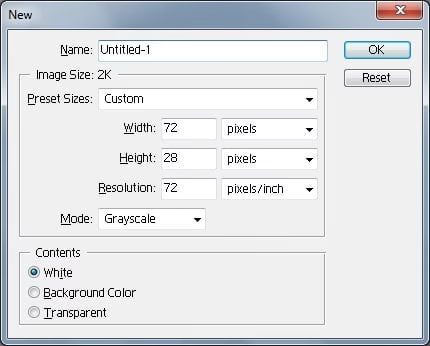
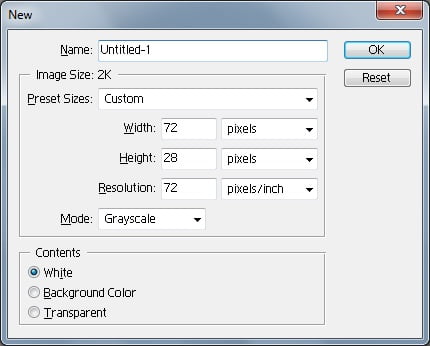
  2. Open the photoshop software, set the width and height to 72 and 28 respectively and set the mode to grayscale.
  3. Draw the picture you like with the brush tool or write with the text tool.
  4. Now save it as JPG file format and copy the same to mobile device (C:/Nokia/Images/)
  5. Open the Symot PictureSMS software from the mobile and you’ll get the created picture their. Finally just choose “Forward” from “Options” menu. Thats it!