Home Blog Page 313

2 Gadgets that Bloggers Cannot Live Without

2

How do you read your own blog? This is a question that I recently started asking consulting clients. Most of them get confused, as though this is a trick question. But it’s not. I’m honestly curious as to how people read their own blog content. For the most part, I get a straight forward answer:

On my computer. Why, should I be doing something else?

Yes, you should be doing something else. While you always have to check on your content from your computer — from multiple browsers if possible — that’s not enough these days. Modern trends signal a shift in how readers consume blog content. If you’re not reading your blog how they read your blog, how do you expect to satisfy their needs?

The Mobile Revolution

Before you even read on, go check your blog’s stats for the last year. If you use a comprehensive analytics tool such as Google Analytics, you can break down your traffic in many ways. Check your traffic coming from mobile devices. If you’re like almost every other blog out there, you’ve seen a huge increase in mobile traffic in the last year. In the last two years the growth will be astronomical.

Just as an example, on one of my sites we were getting roughly 2,000 visits per day from mobile devices in August, 2010. By August, 2011, that had grown to over 6,000 per day. Yesterday we received 9,300 visits from mobile readers. That’s an amazing 450 percent growth over two years, and even in the last year we saw 155 percent growth. We plan to grow by triple-digit points again in the coming year, but we know that’s not possible without extensive research.

Reading Like A Reader

You design your blog to give your readers the best overall experience, right? You want everything to function just right, so when they click on a link of yours or type your address into their browser, there’s nothing that turns them away. Unfortunately, what works on a desktop browser might not work as well on a mobile browser.

If you’re not checking your site on a mobile device, you could be missing out. You won’t know what your readers see, so you can’t help make their experience as good as possible. In this day of high competition around the web, one little mistake might mean losing a reader for good.

How can you read like a mobile reader and make sure your blog is well suited to them?

  • Create a narrow main column. Blogs that are about 800 pixels wide tend to render best on mobile browsers. Keep the main column to 500 pixels and the sidebar to 300, and you should have a nice-looking mobile website.
  • Experiment with mobile plugins. There are tons of mobile plugins, and they each have ups and downs. Experiment with many of them to see if they create a better experience for your readers.
  • Make commenting easy. Your commenters can be your most valuable readers. Make sure that if they’re coming from their mobile devices that they can still create and reply to comments.

Smartphones AND Tablets

To repeat, after every time you publish a post you should check your site from your mobile phone. That will let you know what an increasing number of your readers will see. But that shouldn’t be the only way you check your mobile site. It is important to check from multiple devices. That means checking from an Android device (or five) if you have an iPhone, or borrowing someone’s iPhone if you have an Android device.

Not only that, but you also have to check from tablet devices. In the last month one of my blogs has seen 65,000 visits from the Apple iPad, against 117,000 from iPhone devices. Yet we’re also seeing a number of other tablets in our analytics. I’ve been checking not only on my own iPad, but on a friend’s Android tablets (both 7 and 10 inch) to make sure we look good on both iPad and Android.

We’ve seen plenty of changes in blogging over the past few years. Google has changed the game considerably with its Penguin and Panda updates. Bloggers had to react to that, and they’re still making changes based on Google’s new rules. But the mobile revolution has an even greater impact. The very way people experience our blogs is changing. If we don’t keep up, we’ll fall even further behind. It’s time to take advantage of two rapidly growing gadgets to make sure our blogs keep up with the present.

Top 5 Remote Access Tools For Your Computer

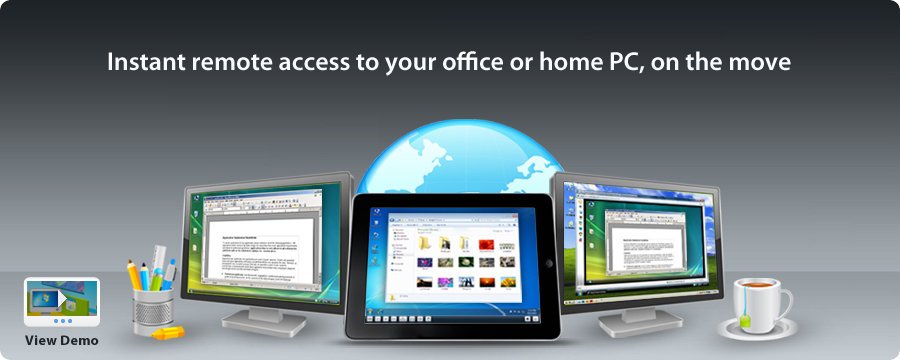
Remote Access tools are highly productive tools which allow you to control your desktop remotely from anywhere. Being present at two different places may not be physically possible but when it comes to remote access and sharing of a desktop you can virtually be at two places and carry out your work. Most of the popular Remote Access tools available in market have a very good user interface and provide excellent service. Basic functions of remote access tools include remote control, sharing, file transfer etc. Let us take a look at some popular remote access tools, their features and other functions.

TeamViewer Web

TeamViewer Screenshot

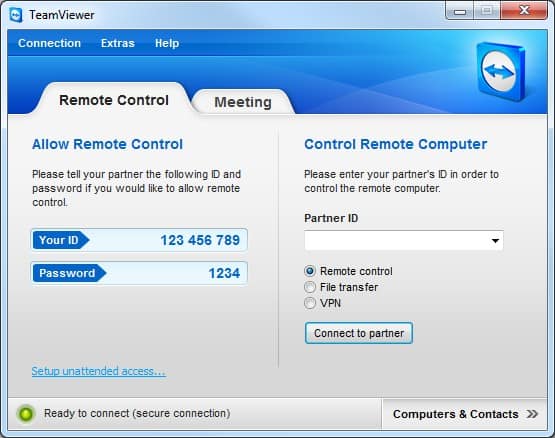
TeamViewer  is an excellent remote access tool which provides it users with functions like remote access for desktops, audio/video calling, conference calls, file transfer etc. It has a very simple, self-explanatory user interface which can be understood and used by anybody. One can perform online presentations and online meetings. Online meetings with TeamViewer support up to 25 partakers. Scheduling meetings for purposes like presentations and meetings online is also possible with TeamViewer. On the go you can use your Android, iPhone or iPad to connect to your clients to carry on with your work. Quality of the service provided is excellent with TeamViewer.

Try it here

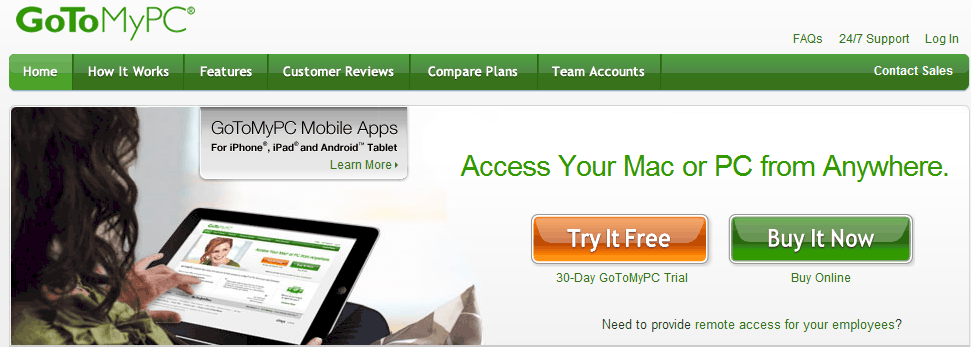
GoToMyPC

GoToMyPC Screenshot
GoToMyPC Website Screenshot

With GoToMyPC you can work on your system from anywhere using remote access function. GoToMyPC allows its users to transfer files across remote computers. It supports functions like cut, copy and paste between remotely accessed systems. Also you can print documents on the computer being remotely accessed or the other way around. Most importantly the data transferred is encrypted with 128 bit AES encryption technique. During sharing computers remotely both the end users need to authenticate the connection by using password codes. GoToMyPC can be used from Android, iPhone or iPad while on the go. Also you can prevent other users from viewing your monitor or disable mouse and keyboard controls when online.

Try it here

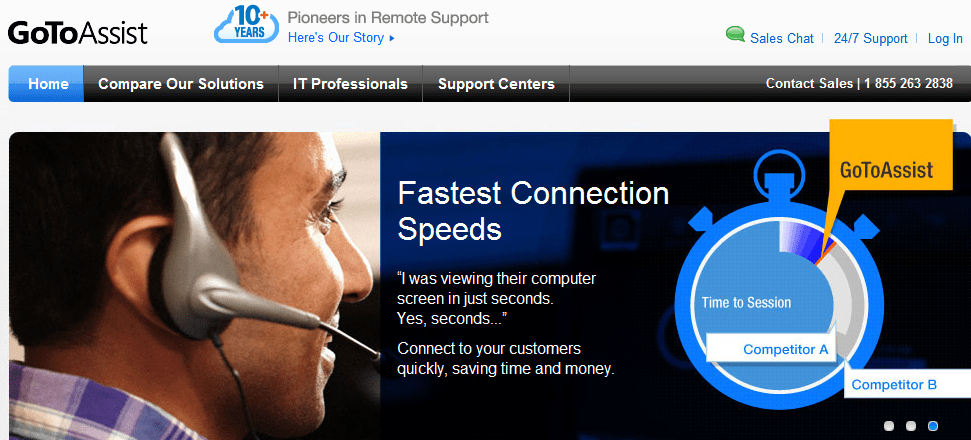
GoToAssist

GoToAssist Screenshot
GoToAssist Website Screenshot

This remote access tool is best suited for providing assistance and support services. GoToAssist helps you deliver assistance to your clients online. It allows you to help clients by remotely accessing their system. Both the end users can share each other’s desktop. On the move one can use iPad, iPhone or Android to use GoToAssist remote access tool. One can provide assistance to a group of up to 8 clients at a time. GoToAssist supports file transfer along with session transfer functions.  Another interesting feature supported by GoToAssist is the Session Recording. With session recording one can record a session for future use and also can download them.

Try it here

RemotePC

 RemotePC Screenshot

It is another great remote access tool available for use. One can connect to their office desktop from their home desktop or vice versa. Data transfer done using RemotePC is 128-bit RC4/SSL encrypted for user safety. One can transfer documents, files and folders to a remotely accessed PC or the other way around. Also one can listen to audio and audio files from remote computer to host computer. Also one can mute and unmute audio from either of host and remote computer. You can use RemotePC to print documents on a printer associated with remote computer from your computer. On the move one can use RemotePC on iPhone and iPad to reach to your remote computer.

Try it here

ShowMyPC

Show My PC allows its users to remotely access computers from anywhere. Controlling unattended systems and rebooting them whenever required is very easy with this remote access tool. Show My PC remote access tool can be used to conduct online presentations and meeting. Show My PC provides other features like desktop sharing and screen sharing.

Try it here

Top 5 Online CSS Code Generators

CSS (Cascading Style Sheet) is a one and only way to apply styles to multiple webpages simultaneously. It saves your valuable time and energy and at the same time helps you keep the webpage smaller in size. Possibilities with the CSS are just endless, you can add text effects including shadow, letterpress, add radius, add gradient effect to div, animate and transit the objects etc..  But writing CSS codes to do all this is a lengthy process which takes much time so here we have listed top 5 CSS code generators that helps you get your work done faster.

List of Top 5 CSS Code Generators

CSS3 Maker

cssmaker

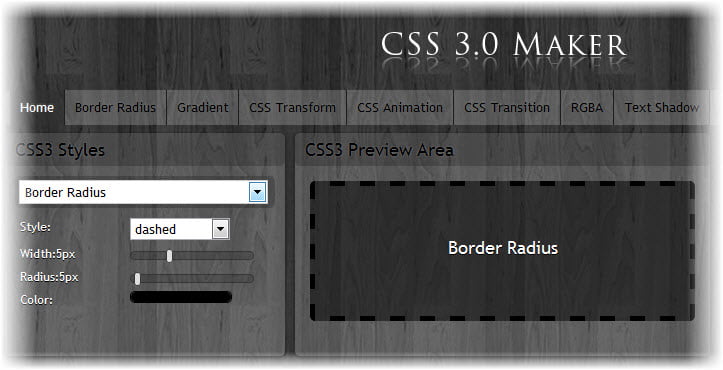
CSS3maker is one of the most useful CSS code generators where you can generate CSS code to make border radius, gradient, transform, animate, transit, RGBA, text shadow, box shadow, text rotation and @font face effects. Using CSS3maker is easy, just select the effect from combo box or from navigation menu, change settings of selected effect as per your needs and finally copy generated code or download it right to your hard disc. It also displays browser icons such as Chrome and Firefox that depict whether selected effect is compatible with respective browsers or not. You can also know whether generated CSS effect is compatible with mobile or not.

CSS3 Generator

CSS3 Generator

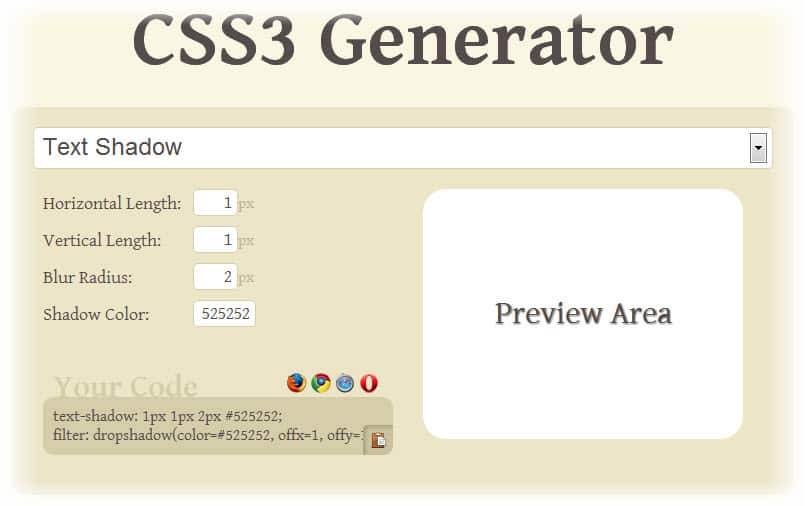
CSS3 Generator is a similar tool to CSS3maker by Randy Jensen but provides more options such as multiple column, box sizing, box resize and outline etc. it comes with clean and user friendly interface, getting CSS code is easy, fetch a effect from combo box, change the properties of effects by specifying values or moving slider and copy the generated CSS code. You can come to know the compatibility of the code by browser icons shown above the code. This is one of the easy yet robust CSS code generators.

CSS3, Please!

CSS3 Please

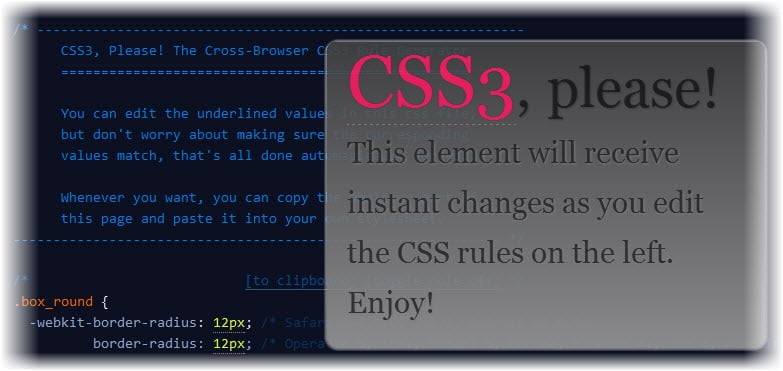
CSS3 Please! is a cross-browser CSS3 Rule generator for advanced CSS coders. It helps you minimize your typing while writing the code and comes up with live preview of applied effect. Updating a value in any property applies in all of its sub properties, so you can copy and paste the code when you are done with the first code, this helps you get your work done faster. This website looks like a CSS file and you just need to edit underlined values in this.

CSS3 Gradient Generator

CSS3 Gradient Generator

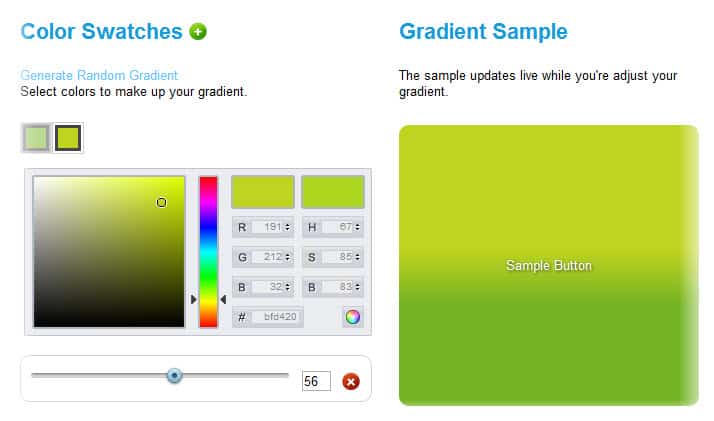
CSS3 Gradient Generator is a must use tool for creating gradients, you can see live preview of as a sample box updates live when you adjust the gradient. It generates cross-browser code as per the properties you set for gradient. Just select two colors from color picker for your gradient and get the CSS code. You can add more colors by pressing “+” sign to your gradient and of course you can generate random gradient.

CSStxt

csstxt

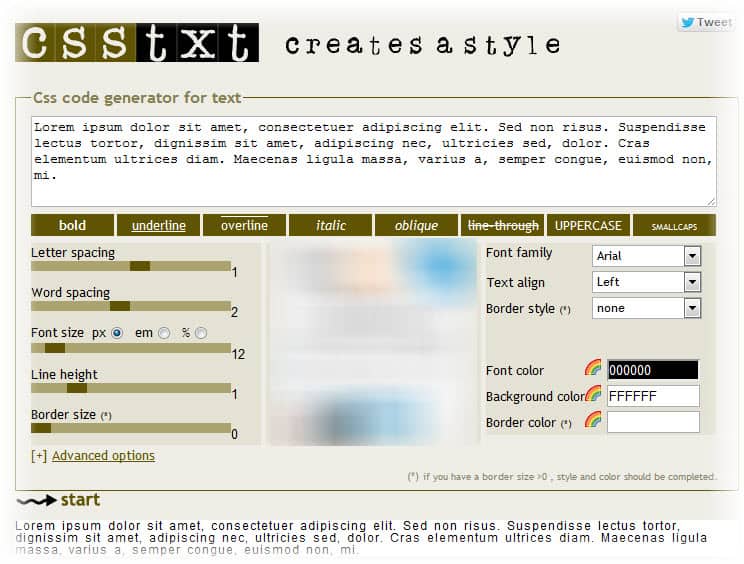
CSStxt is used to generate CSS effect for text, here you can generate the effects including letter spacing, word spacing, font size, line height, border size, font family, text alignment and border style. Along with this you can also choose font color, background color and border color.

Top 4 Apps to Convert Any Article Into Audio(Text to Speech)

0

Do you love to read articles on the blog? But don’t want to strain your eyes? Don’t worry here we have listed out 4 cool apps that converts article into sound so you can listen to the post instead of reading, now just relax and listen to the article you are about to read. Actually this feature is available in Microsoft Word 2010 and some PDF reader tools such as Adobe Acrobat Reader and Foxit reader but here we have come up with top 4 Chrome extensions that can read  articles for you from any blog which is normally called as text to speech.

text to speech

List of Chrome Extensions to Convert Article into Sound [Text to Speech]

SoundGecko

soundgeeko article to mp3 extension

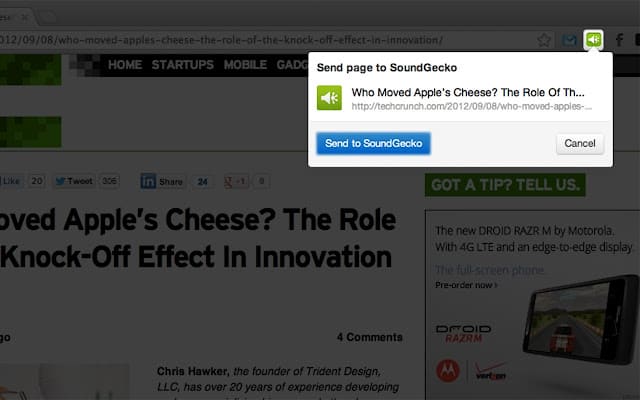
SoundGecko is a must have text to speech app. When you click on it to convert the article into an audio file, it simply processes and sends an email containing the link to listen the article. A player will be opened in a new tab when you click on the link inside your email which allows you to listen or pause audio, you can also manage audio with seek bar and increase/decrease the volume.

Highlight: One more interesting feature is that you can configure your Google Drive or DropBox account with SoundGecko to upload processed audio files to respective cloud services.

Download SoundGecko extension here.

SpeakIt!

ispeech text to speech chrome

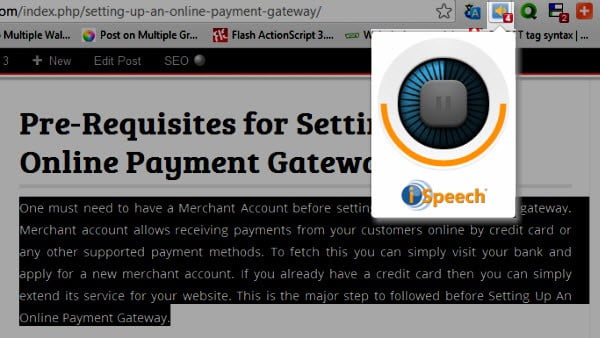
SpeakIt! Will help you if you are tired of reading from your whole day work, it converts text into speech of selected text on the current page in chrome browser therefore you need not read a single word on the page.  SoundGecko converts article to audio instead of what you select on the page and also you must click a link from your email but here just select the text you wish to read and you instantly get the audio.

Highlight: You can choose from available text to speech engine in options panel of SpeakIt! Along with this you can also set keyboard shortcut to it. Visually impaired can effectively use this tool to read the content of webpage.

Download SpeakIt! here.

Select and Speak

select and speak

Select and Speak is similar to SpeakIt! which comes up with 43 iSpeech text to speech voices. Here you can even set the speed of speech in options page which lacsks in SpeakIt!. Using Select and Speak is as same as SpeakIt!, just select the text you want it to read and click the icon located on the toolbar to listen. According to its developer it won’t work in Gmail.

Download Select and Speak here.

Chrome Speak

chrome speak

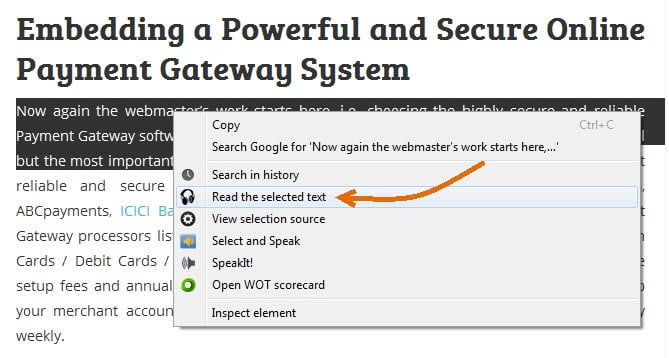
Chrome Speak is a fastest text to speech extension as it works with offline TTS engine. Using Chrome Speak is quite easy as it integrates in right click context menu, just select the text and click on “Read the selected text” from context menu. Click on “Stop reading” again from right click context menu to stop listening. It also offers some options such as volume level, rate, pitch, language and voice in its options panel.

Download Chrome Speak here.

Spectacular 4D Airbus Future Vision Berlin Light Show

0

The world’s most innovative Airline company Airbus recently launched a spectacular 4D projection light show that amazed all present at Berlin’s Humboldt-Box seeing it transform into a moving canvas. In the show, Airbus displayed the amazing future technology of Air travel and launched the campaign the Future by Airbus Smarter Skies vision of air travel in 2050 and beyond. The show was stunning and showed the perspective of  how smarter aircraft operations could cut travel times, reduce emissions and lead to fewer delays and a smarter life of future.

The five concepts of Smarter Skies could be implemented across all stages of an aircraft’s operation to reduce waste in time, waste in fuel, reduction of CO2 emissions. These five Smarter Skies concepts are “Eco-climb”, “Express Skyways”, “ Low Noise & Free-glide approaches and landings”, “Low emission ground operations” and the use of sustainable biofuels.

In last 40 years aircraft fuel burn and CO2 emissions have been cut by more than 70 per cent. Now  the Aircraft industry has already committed to cut aircraft emissions by 50 per cent by 2050, which Airbus already contributed a lot.

“Our light show unveils the significant benefits of combining smarter aircraft, smarter technology and smarter skies in 2050”, says Charles Champion, Executive Vice President Engineering at Airbus.


If you are viewing it on feed. Watch the light show here

The show begins with a paper plane launched from the Humboldt-Box and a map of the world with bright pulsing lines of light highlights the world’s air travel routes. then slowly takes us to the journey of the future air travel 205o to demonstrate a future world of flight where obstacles are removed, shortened travel time and enjoyable viewing experience, less noise and where fuel use and reduced emissions. The show closes with bird transformed a fleet of Airbus concept planes flying in formation.

More pictures of the Airbus future concept Airplane. Click on the thumbnail for full view.


This post has been sponsored by Airbus, and all opinions are mine.

Android Smart Phones: The Low Priced ones Compared to the High Specs Phones

0

Consider the recent Android smartphone announcements from mid-2012 and you will come to realize that there are several devices with a cost of $99 or less. The more important question that strikes my mind is that does this mean Android users are being fed with numerous devices having inferior hardware and lower specs? Not at all.

Android smart phones

It is again one of the consequences of the rise in technological advances, especially in this regard, as a basic entry level smartphone nowadays is at least a dual core processing 960 x 540 pixel display phone that is considered the lowest point where the bar is placed. Not very long ago the same resolution counted as a high-end device specification. Similarly the Droid Bionic, introduced last year, was costing $299 to the consumer while it had a 1 GHz dual core processor, 512MB RAM, and a 960×540 pixel display. At the time of its launch, it was widely deemed among the top of the line smartphones at the time, even though the hardware specs are similar to today’s low-priced entry level phones.

The distance covered in a year

In most of the average low-end Android phone bargains, dual-core 1 GHz CPUs are increasingly found in the market while the typical single core processor ones still exist too. In terms of the phone’s memory, the old 384MB RAM seems obsolete as most of the phones today are equipped with the 512MB and 1GB RAM. Internal storage has also sneaked up a but mostly started at 4gb while usually capable of external Micro SD storage. As it follows, screen technologies are also advancing and many Andriod phones are available with 800×480 or 960×540-pixel display resolutions on relatively larger screens. The display sizes have crept up from 3.2 to 3.5 inches and the rule is generally about 4 inches now. It is not common to come across a $50 phone including a 960×540 qHD display. The Pantech Flex is quintessential in this vein and clearly an affirmation of the same.

Since most of the new releases of smartphones come with 4G LTE or HSPA+ support, the 4G suffix should also be removed soon enough, except for the occasional ZTE Fury or Huawei made T- Mobile Prism, most of the Android handsets are capable of handling faster network speeds. Motorola Droid Razr M 4G LTE being the case in point.

But there has to be a difference, other than the clear one in terms of price

Nonetheless, these low-end devices, regardless of cost efficiency or glittery appearances, do not provide anywhere near the same experience as a stronger and race smart phone. That is the reason for employing the term “low-tier” for the description of handsets. The difference is like in terms of particle effects, realistic lighting, and real life physics. If that is not a preference than the newly announced Samsung Galaxy Stellar would do just fine, until you find your device exhausted and unable to support while trying the updates, apps and games released in a year’s time.

While choosing a smartphone, a simpleton like me is mostly confused looking at the specs and almost all of them look alike to me, but according to the experts there is a lot more to a smartphone than just the 3-4 main variables normally considered and printed on top of the handset boxes. If some smartphones are highly priced and others not even half the price there must be a reason. Whatever you choose, choose wisely according to your requirements and watch your online habits as the cell phone spy apps, Android Spyware and all other sorts of malware are, as they have always been, more widespread than we usually consider them to be.

7 Alternative Open Source Applications for Graphics Design

Industry-standard art and design applications like Adobe Photoshop are very powerful packages aimed at professional users. For hobbyist artists and designers or those just embarking on an exploration of their talent, the pro tools can be both expensive and dauntingly difficult to learn. Quite often they are also over-featured for those looking to make the occasional photo touch-up. Many Windows users have traditionally associated free software with shareware or limited functionality, but over the last decade the open source movement has made huge strides towards creating applications that meet or exceed the needs of all but the most stringent professionals.

Tip! Download teamviewer or Use Teamviewer without installing.

GIMP

gimp_logo photoshop alternativeGIMP is a fully featured image editing application. In spite of its slightly off-putting name, GIMP (GNU Image Manipulation Program) is one of the major success stories of open source software, well many call it as open source photoshop. It is intended to be a replacement for Adobe Photoshop, and for many use-cases achieves that aim admirably. The GIMP interface can take a bit of getting used to, and if you’re already comfortable with Photoshop or prefer a similar interface, check out Gimpshop.


Inkscape

inkscape photoshop alternative

Whereas GIMP is a general purpose image editing application based on raster graphics, Inkscape is a vector graphics editor akin to Adobe Illustrator or CorelDraw. Vector graphics are created using primitive shapes and paths that are mathematically modelled. One of the great strengths of vector graphics is that they are scalable without pixelation. Inkscape aims at full support of the SVG standard.


Scribus


Scribus_logo photoshop alternativeScribus is a professional-level desktop publishing package designed for page layout and typesetting. It is intended as a replacement for high-end DTP packages like Adobe PageMaker and QuarkXPress. While Scribus doesn’t support the proprietary file formats of those packages, it does support a huge range of standard file formats. If you are planning on creating brochures, leaflets, or posters, Scribus is the perfect choice.

Blender

Blender-workshop photoshop alternativeBlender is an extremely powerful 3D graphics package that can be used to create 3D images, animations, and games. It has a list of features comparable to very expensive professional 3D packages like Maya 3D. Check out the video below to see a movie that was made entirely in Blender. Blender is a complex and capable piece of software, and as such, it can be difficult to get to grips with; the interface is less than intuitive, but there is a large and friendly community and a huge number of tutorials available online.

Krita

krita photosho alternativeKrita is a digital art and illustration application. It’s part of the KDE collection of applications and was originally developed to offer an alternative to GIMP for those who were unsatisfied with GIMP’s interface. Krita is mainly intended for digital drawing and painting, rather than photo manipulation, and so does not function as a full replacement for proprietary applications like Photoshop; however, it is very capable and feature-rich for its intended purpose.

Seashore

seashore photoshop alternativeFor those who want an open source image editor that uses OS X’s native Cocoa framework, Seashore is a great choice. It is based on GIMP’s technology, but without some of GIMP’s more arcane features. Seashore is intended to be capable enough to meet the needs of most users, but likely won’t be suitable for professionals with greater demands. If you’re looing for a capable but simple image editor that blends in well on an OS X desktop, Seashore fits the bill.


Dia

dia photoshop alternativeDia is a bit different to the other applications we’ve looked at, in that it’s a diagramming application rather than a full-blown graphics package. Dia is capable of creating flowcharts, circuit diagrams, and many other diagrammatic formats. It was inspired by Microsoft’s Visio program and fills a similar niche.


The open source world has a multitude of applications for almost every purpose, and we’ve tried to pick the best available in each class. If there’s an application you love to use that we haven’t included, let us know in the comments.

About Robyn Warner:   Robyn works at Ink Technologies, and has been writing since she learned how to hold a pen.  Check out more of her posts on printing on Ink Technologies’ blog on ink and printing, or subscribe to her updates on Twitter (@InkTechnologies) and Facebook.