Home Blog Page 132

How to Password Protect a Folder in Windows 10

0

Screenshot_4.png

There can be many reasons to hide your files and folders in your computer, but they all begin with just one thing which is your privacy. To ensure that no one gets unauthorized access to your folders, the best option is to password protect them.

The only difficulty is that Windows doesn’t have a native password protection system specific files and folders. However, with the right know-how, this problem can be easily resolved.

In this post we will let you know how you can secure your folders with passwords in Windows 10 with some handy methods. Just follow these simple steps:

Using a Password Protection Software

In order to keep your files and folders hidden in your PC from the prying eyes of your family members that a simple password protection program will be perfect for you.

Wise Folder Hider is a simple-to-use tool to lock your sensitive documents from being accessed. You can use this tool to hide and lock your files, folders and USB drives. The program has a straightforward drag and drop functionality with an option to apply individual passwords for additional security. Moreover, unlike other similar programs, this tool can hide your USB drives.
Screenshot_15.png

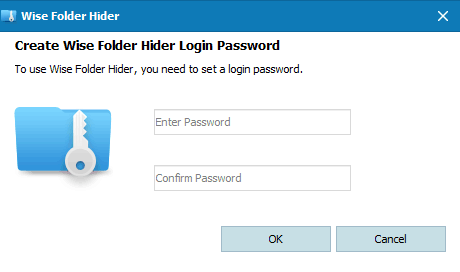
Once you install and launch Wise Folder Hider, you will need to create a password which will be required to get access to your locked files and folders.

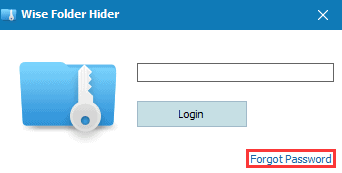
If you ever forget the password in future, then you can easily reset it with the “forget password” button. The password reset link will be sent to your registered email address.
Screenshot_16.png

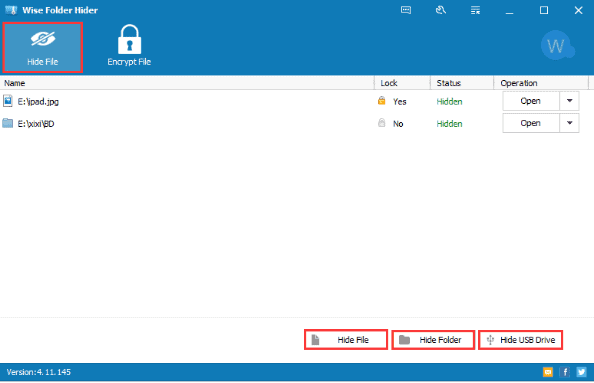
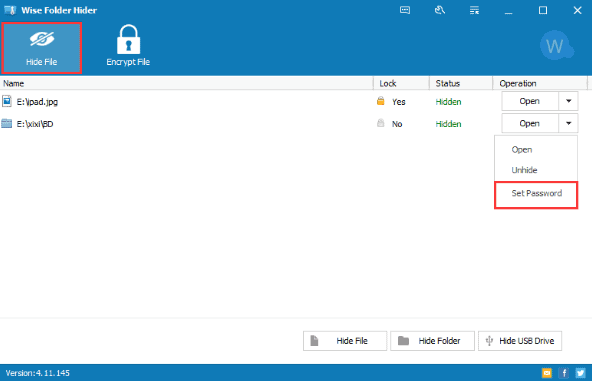
In the main interface, you can use the “Hide file” tab on top left hand side of the window to lock files, folders, and USB drives. Now, whenever you need to open a file, just click “Open” next to each item. To create an additional password for an item, just click on the upside arrow next to it and choose “Set password”
Screenshot_17.png
Screenshot_18.png

Please note that you cannot recover your password for free version as the program needs a sign up. Also, the free version comes with certain bloatware, so make sure you decline it while downloading the tool.

Using a File Archival Program: 7-Zip

7-Zip is one of the best archive software for Windows. It is a free open source software which can be used to password protect a file. Here is how you can use 7-Zip to encrypt files and folders in a Windows 10 PC:

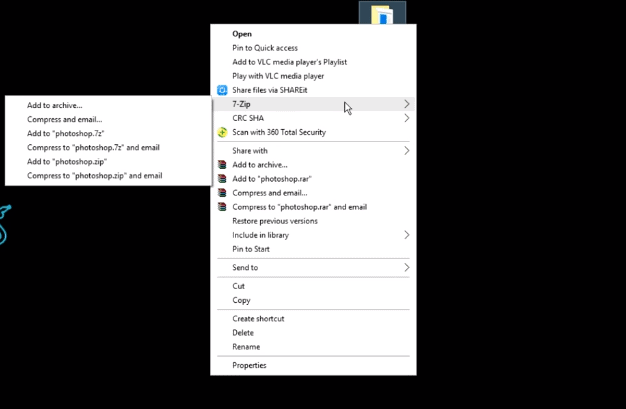
Screenshot_19.png
  • Click on “7-Zip” in the drop-down and then click on “Add to achieve”
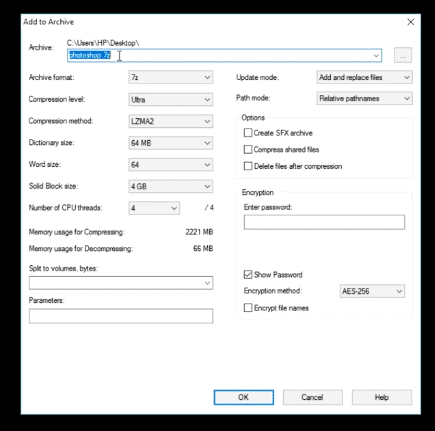
  • In the next dialog, enter the name of the encrypted file and choose the location to save it
Screenshot_20.png
  • Enter the password in Encryption” text box, and click OK”.

Depending on the size of the file and folder, 7-Zip may take a few minutes to complete the work.

Using the Built-in Encryption Feature in Windows

If you are reluctant in using a third-party program, then Windows 10 comes with a built-in encryption feature to protect a sensitive folder and its content over shared networks.

To encrypt a folder in Windows 10, follow these steps:

  • Chose the folder that you wish to encrypt and right-click on it.
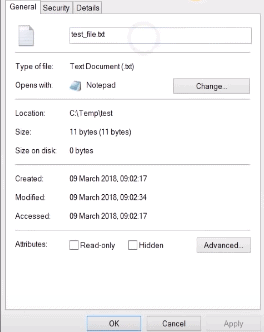
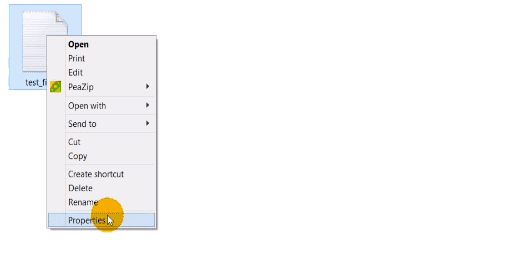
  • Go to “Properties” and navigate to “General”—“Advanced”
Screenshot_1.png
Screenshot_2.png
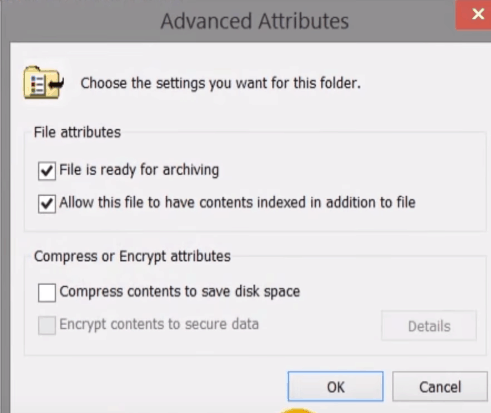
  • In the Compress or Encrypt attributessection look for “Encrypt contents to secure data” and check the checkbox next to it
Screenshot_3.png
  • Click “Ok” and confirm when a prompt pops-up.

Your folder will now be encrypted and will turn green. This folder can only be accessed by your account; however, anyone who has logged in to your PC can access it without a password.

Wrapping up:

We would recommend using a third-party software to protect your files and folders as it is the most convenient way to do the same and also offer more security than built-in Windows security features. Also if you are password protecting any folder, make sure that you create a backup of the non-password protected one in case if you ever forget the password.
How to Watch NFL Live on Kodi: Best Add-ons and Installation Guide

0

NFL on Kodi? Ever thought about it? Kodi is an open-source home theatre software program that works on multiple devices including macOS, Windows PC, Android, Linux, Amazon Fire Stick, Chromecast, and more. With Kodi, you can connect to video channels from hundreds of different sources. However, its real power lies in the unofficial third-party add-ons which enable live streaming. For those National Football League fans, Kodi has both official and unofficial add-ons to view the game live.

how to watch nfl on kodi

In order to get access to NFL on Kodi, you will need to install third-party add-ons. In this guide, we will take you through a very simple process to watch NFL on Kodi and what would be the right add-ons for the same.

How to Watch NFL on Kodi?

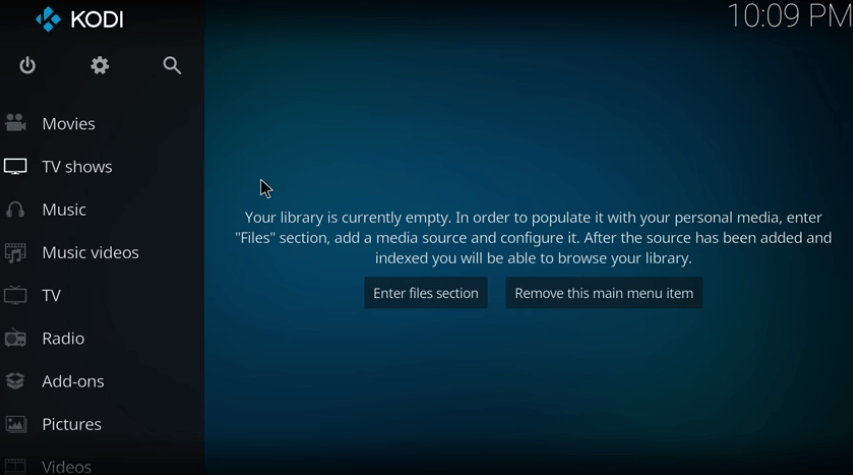
  • Open Kodi and navigate to “System Menu”
nfl kodi addon
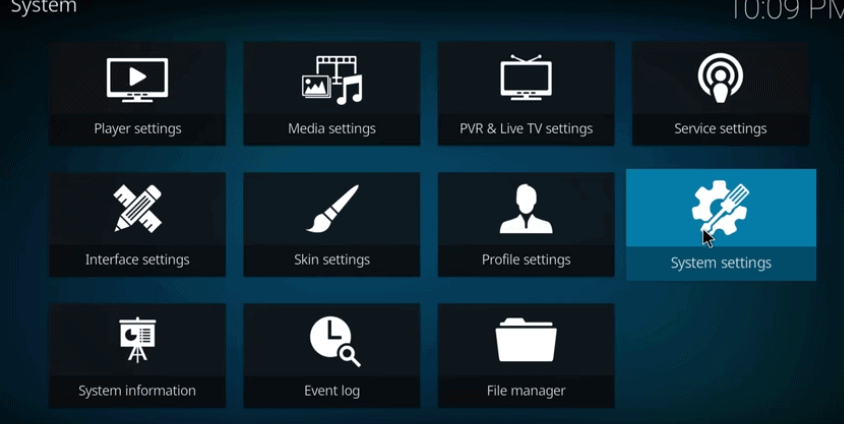
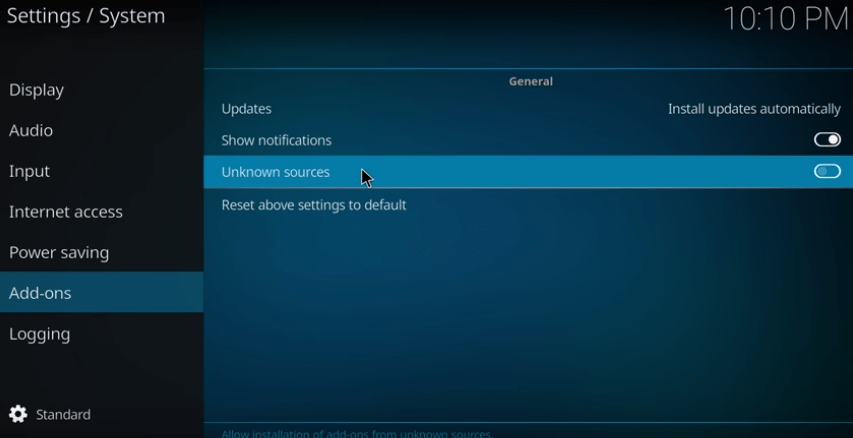
  • Go to “System Setting” and then to “Add-ons”
nfl kodi addon
  • Click on the option which will allow you to install from unknown sources.
nfl kodi addon
  • Now, you can install an add-on in Kodi- first you have to find a repository
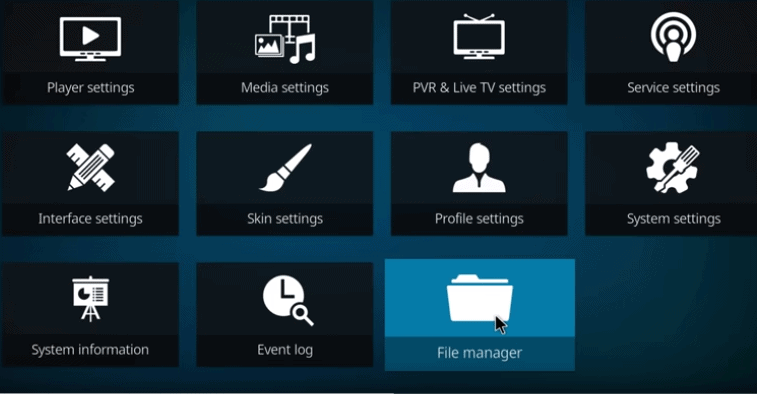
  • Go back to the System menu and then navigate to “File Manager”
nfl kodi addon
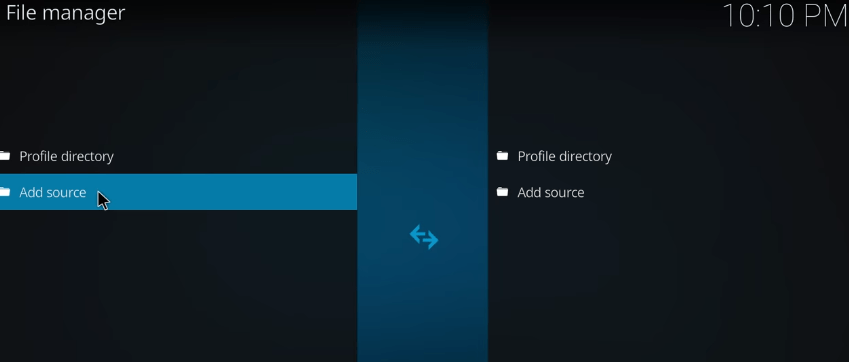
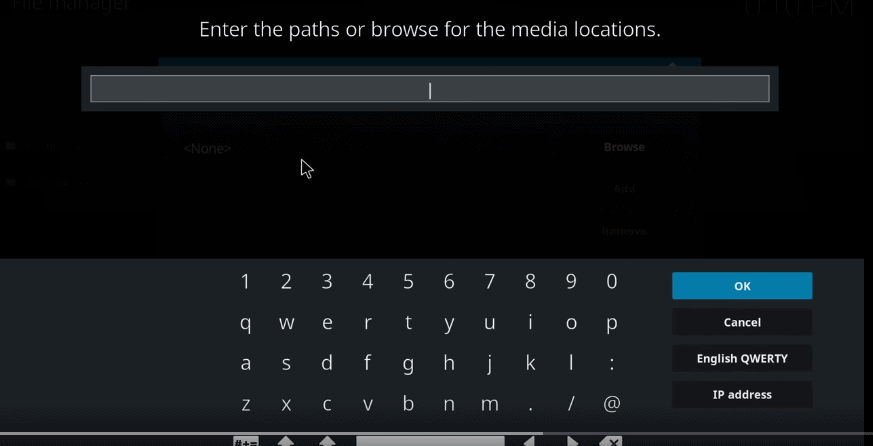
  • Select “Add Source” and double click
nfl kodi addon
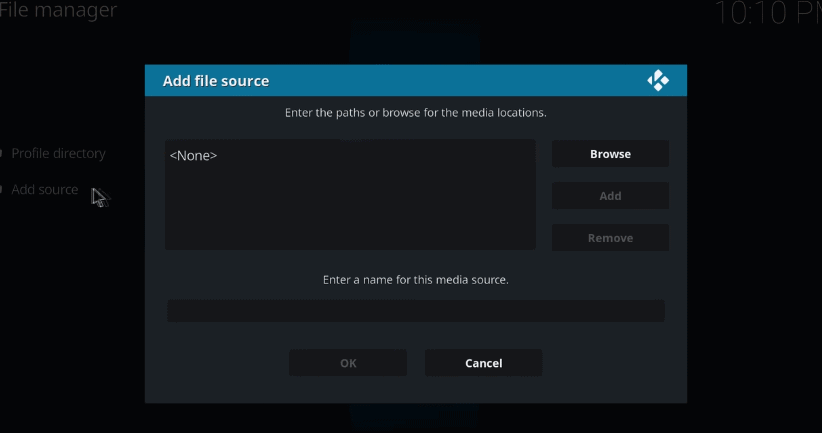
  • You will get a pop-up message which will read “None”
nfl kodi addon
  • Click on the same and enter the URL for the specific repository. Give it an appropriate name and save it
nfl kodi addon
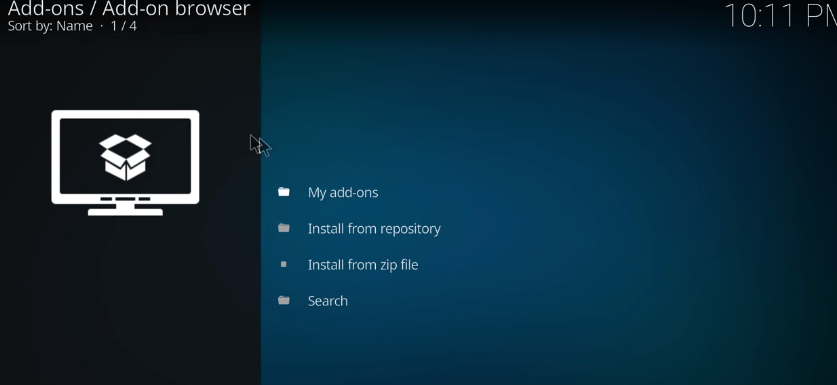
  • Go back to the home screen of Kodi and go to “Add-ons”
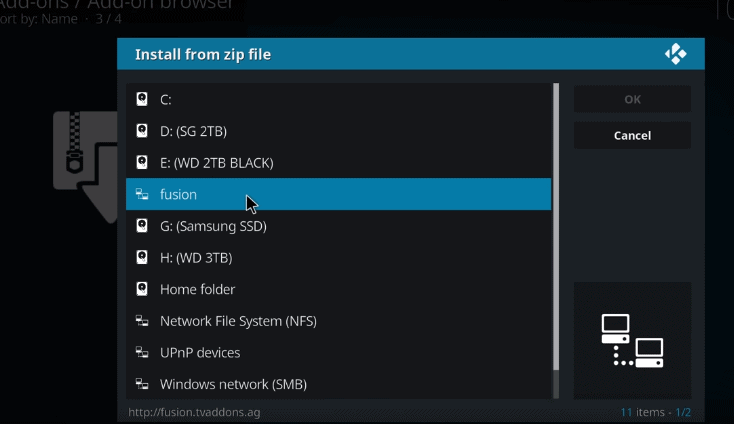
  • Select “install from zip file” and go to the same repository that you had named earlier
Screenshot_12.png
how to watch nfl on kodi
  • Double click on it and wait for it to get installed. Similarly, Go back to the previous screen and select “install from repository”. Select an add-on and double-click to install it.
** Watching Kodi NFL without VPN can make your internet service provider block the access to streams. This can cause errors in Kodi, so it would be advisable to use a VPN to keep your browsing activity secure.

Best NFL Kodi Addons

Official NFL Kodi addons to Stream NFL on Kodi:

  • NFL.com
how to watch nfl on kodi

This is the official NFL application which is included with the Kodi repository. You can watch video highlights with NFL.com from any device. It may not be useful in streaming NFL games, but fans would surely like the curated videos.

  • NFL Teams Videos
how to watch nfl on kodi

NFL Teams Videos addon does not offer live streaming, but you can watch videos from the NFL team’s official home pages, including interviews, highlights, and information on upcoming games. This add-on is perfect for those who follow more than one NFL team.

  • NFL Game Pass

nfl on kodi,kodi nfl,nfl kodi addon,watch nfl on kodi,how to watch nfl on kodi

NFL Game Pass add-on offers almost every NFL game from the current season. Even though it is a paid add-on but anyone who is a die-hard fan will undoubtedly like it. With this add-on you can get access to NFL games from Indonesia, Taiwan, Malaysia, Singapore, Hong Kong, etc.

You can get the NFL Game Pass Kodi addon through the Official Kodi Addon Repository. The add-on gets updated regularly to make it viable with the updated NFL Game Pass updated streaming partner.

Legal TV Streaming Kodi Addons to Watch NFL

  • USTVNow

nfl on kodi,kodi nfl,nfl kodi addon,watch nfl on kodi,how to watch nfl on kodi

USTV Now Kodi addon allows you to connect all NFL games of the season. It gives you access to the legal USTV Now service. The add-on is primarily designed for users who want to get access to US content from anywhere across the globe. Additionally, users get free access to 7 live TV channels including FOX and NBC which are the prime sources to stream NFL. To get access to 29 channels including ESPN and ESPN2 you can buy the service $19.99 per month.

  • NBC Sports Live Extra

nfl on kodi,kodi nfl,nfl kodi addon,watch nfl on kodi,how to watch nfl on kodi

With NBC Sports Live, you can get all the NBC Sports Live streams through different devices. You get to connect nfl on kodi addon with your NBC Sports Live account. NBC broadcasts various NFL games throughout the season which includes SuperBowl LII as well.

The NBC Sports Live account is available for $25 per month. You can get the add-on from the Official Kodi Addon Repository

Unofficial Kodi Addons to Stream NFL

The unofficial third-party Nfl Kodi add-ons extend the functionality of Kodi and make it an incredible piece of software. The only downside with these add-ons is that repositories keep changing the locations, disappear entirely and streams get blocked often. Here are three of the best unofficial Kodi add-ons for streaming NFL content.

  • SportsDevil
how to watch nfl on kodi

SportsDevil is a NFL Kodi addon which fetches content from pirate sites that stream live content through different channels. This includes content from legal and paid cable network channels such as NBC and ESPN. However, as this add-on resides in many different repositories, if you download a wrong one then there are chances of getting malware.

  • Project  Mayhem Sports
how to watch nfl on kodi

The Project Mayhem Sports add-on comes with various trust-worthy channels from across the globe including Bein Sports, Pac 12, and more. You can find various live content files with live sports.

NetStreams SportsHUB

how to watch nfl on kodi

NetStreams is a new Nfl Kodi addon whose interface is divided into various major sports with dedicated categories for NFL and NBA. You can get access to live streams with any of these sections. The interface may appear a little daunting but the available content compensates for it.

Wrapping up:

Kodi is a reliable source to stream live sports and you will find many add-ons to make the streaming process even more interesting. Some of these NFL on Kodi addons need paid subscriptions and some are free. We hope this guide will make it easy to watch your favourite NFL game on Kodi.

How to Install Showbox on Fire Stick: A Step-by-Step Guide

1

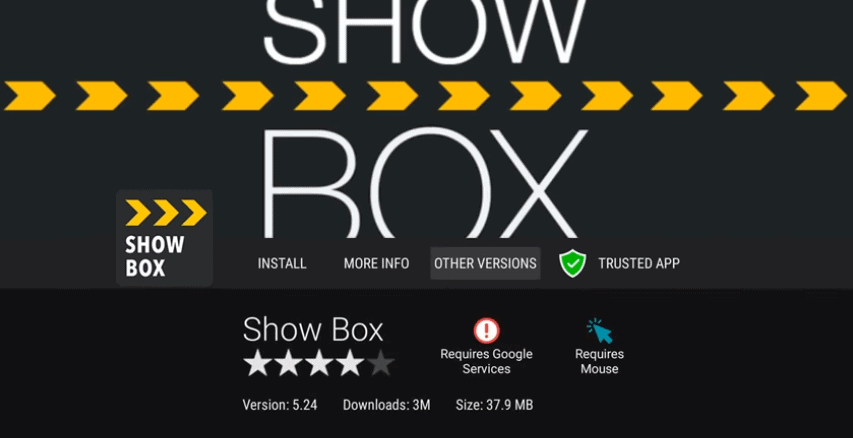
Showbox has widely used Android app which allows users to stream free TV series and movies to their smartphone, tablets and computers. Users can also download the videos for offline viewing to their devices. The application is designed to make it easy for you to watch pirated content. Therefore, Showbox can only be found via third-party sites.

It is quite obvious that Showbox will never be available on either Google or Amazon’s app stores. As the Showbox APK can be used install Showbox app on an Android device, it can also be used to run the app on the Fire Stick

Simple steps on how to install showbox on firestick:

Why You Might Need a Streaming VPN to Access the Showbox APK File

If you’re looking to download the Showbox APK file, you may find that access is restricted in your region. Here’s where a streaming VPN becomes essential:

  1. Geo-Restrictions: Certain countries block the download of specific APK files due to legal or licensing issues. A VPN can help you bypass these geo-restrictions by masking your IP address and making it appear as though you are browsing from a different location.
  2. Privacy and Security: Downloading files from the internet, especially those not available through official app stores, can pose risks to your personal data. A VPN encrypts your internet connection, safeguarding your information from potential hackers or prying eyes.
  3. Access to Blocked Content: Some internet service providers may restrict access to sites hosting APK files. Using a VPN allows you to access such content by rerouting your connection through servers that aren’t blocked.
  4. Anonymity: If you prefer to keep your online activity private, a VPN provides an additional layer of anonymity. This prevents your ISP from monitoring your downloads and streaming habits.

In summary, employing a streaming VPN can help you circumvent regional barriers, bolster your online security, and maintain your privacy while accessing the Showbox APK file.

Configuring your device to install Showbox app

To install Showbox in your fire stick, you first need to configure your device to enable it to install Showbox apps from outside sources which are not approved by Amazon.

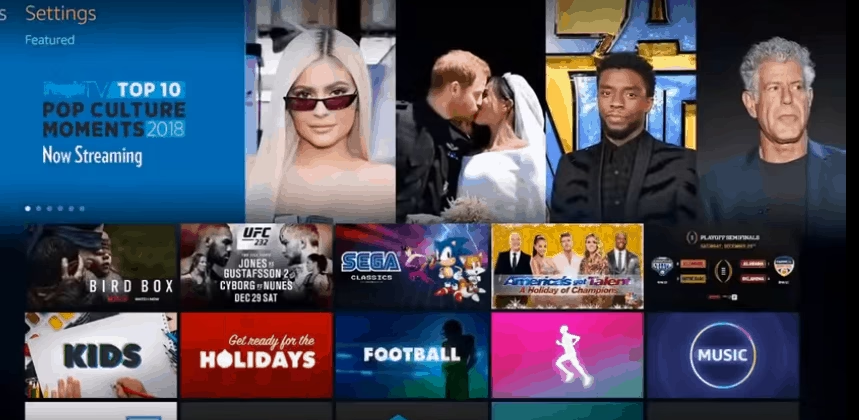
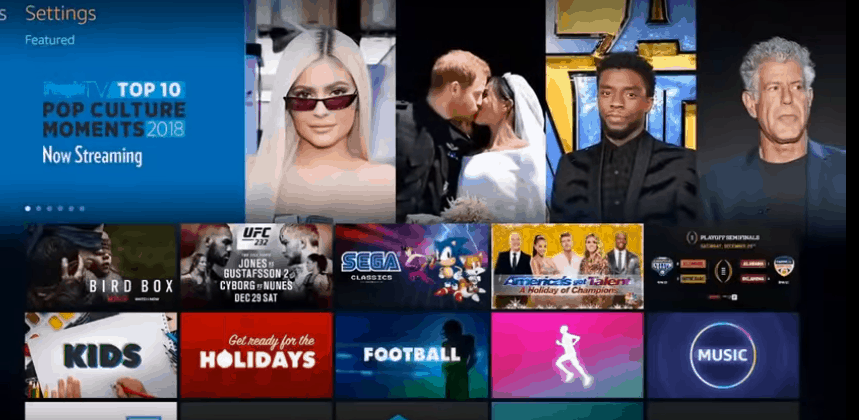
  • Start your device and hold the home button on your Fire TV remote to open the actions menu.
  • The menu will show you four different options- your list of apps, sleep mode, mirroring, and settings. Use your remote to select “Settings” to load the list of preferences.
how to download showbox on firestick
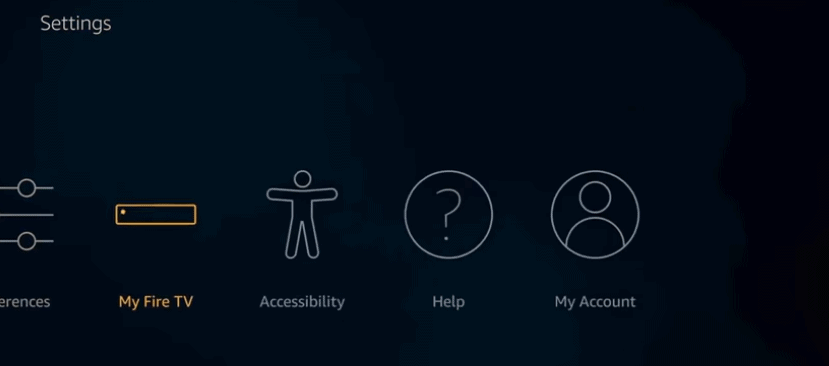
  • Press the down arrow on your remote and select “My Fire TV”
how to download showbox on firestick
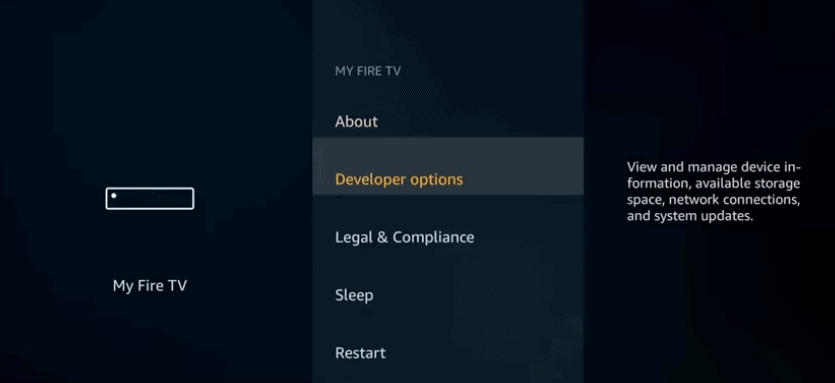
  • From the Device settings, select “Developer options”
how to download showbox on firestick
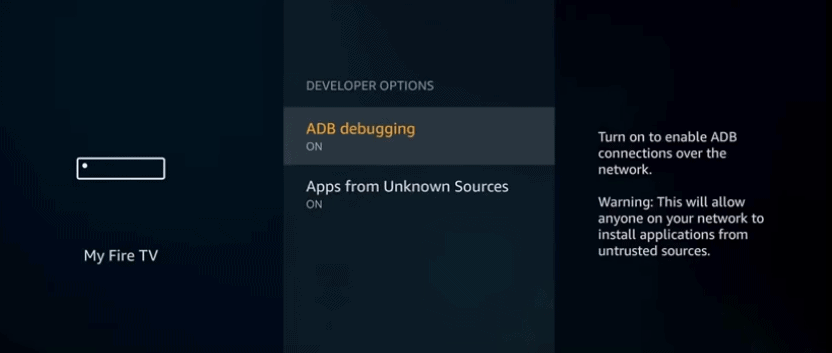
  • You will find two different options in Developer options- “ADB debugging and Apps from Unknown Sources”. Select and click on both to enable them. (ADB debugging will be required to install Showbox tool which will be needed later)
how to download showbox on firestick

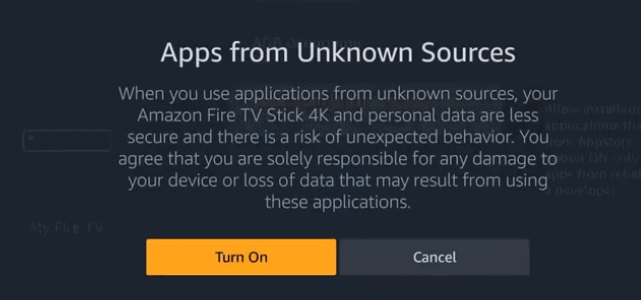
You will get a warning message showing that downloading apps from outside sources is dangerous. Don’t worry about the warning, Showbox is a safe application.

how to download showbox on firestick

Your device is now ready to install showbox apps from sources other than Amazon app store.

Before you can install Showbox on your Firestick, you need a downloader app. This tool is essential for downloading files directly from the internet onto your device, including Showbox.

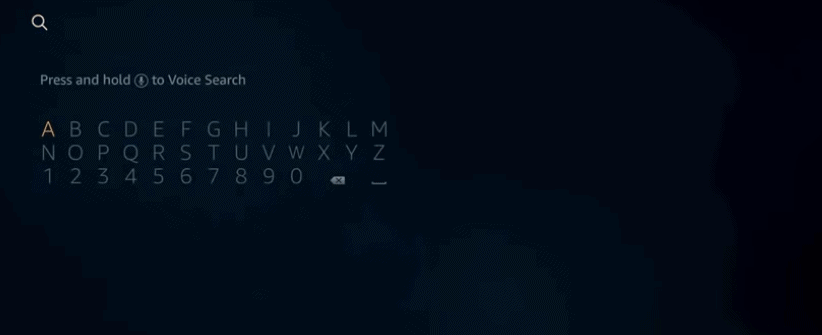
  • Go to the home screen and click on the search icon
how to download showbox on firestick
  • Type in “Download”
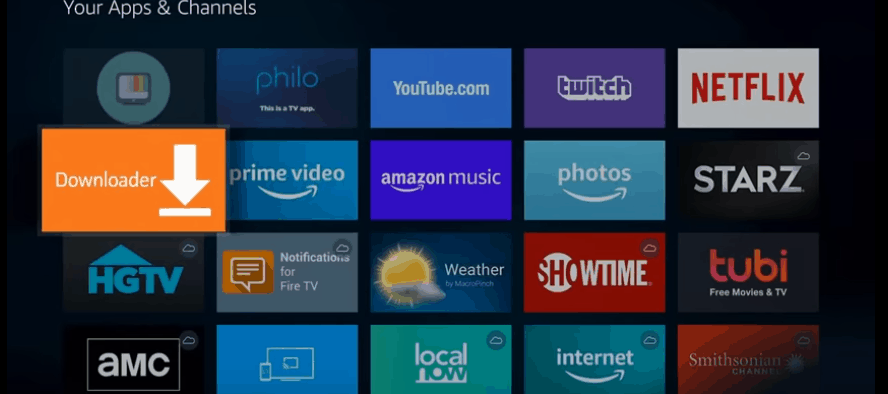
  • Click on the “Downloader app” and install showbox.
how to download showbox on firestick
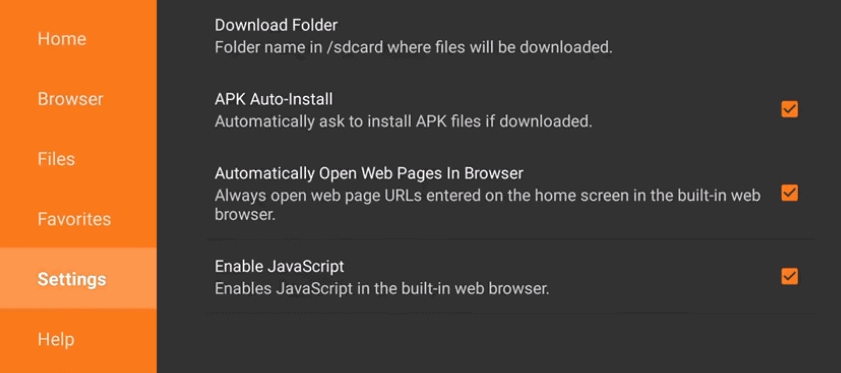
  • Open the Downloader app and go the “Settings” to enable JavaScript
how to download showbox on firestick
  • Click on “Download” to proceed.
how to download showbox on firestick
  • Now you will able to install showbox on Fire Stick
how to download showbox on firestick

You will get as App Installed notification once it is successfully installed. You can either click on “open” to start the app or click on “done” to run it later.

How to Control Showbox with Fire TV remote

As Showbox isn’t designed for Fire Stick, it is not remote-friendly. You would not be able to navigate inside the application as the Fire Stick remote only allows you to scroll up and down. Mouse Toggle is only one specific application which can allow to you to control Showbox for Fire Stick. The application works in conjunction with your remote to make you use a cursor on your TV.

To install Mouse Toggle in your Fire Stick, follow these simple steps:

  • Start your Fire Stick device and open “Settings”
  • Navigate to “Device” and then “Developer Options”
  • Make sure that ADB Debugging” is enabled.
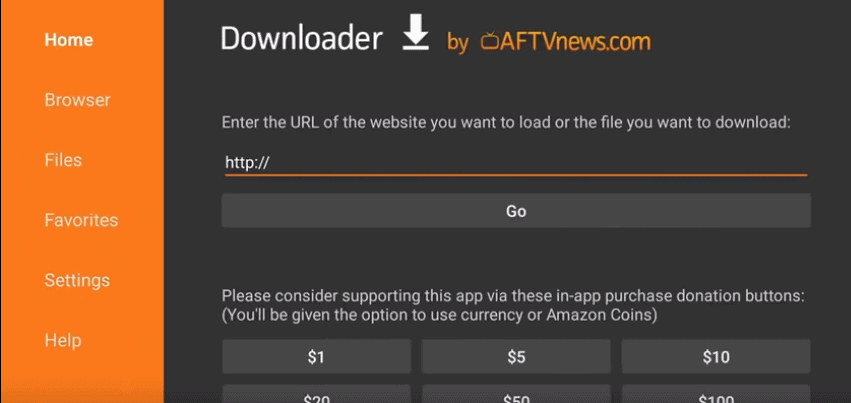
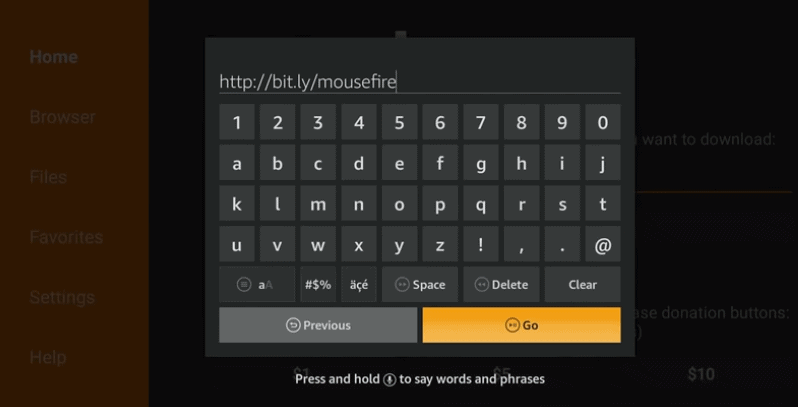
  • Open Downloader app and enter  https://www.firesticktricks.com/mouse in the URL field for Fire Stick Gen 1, Fire Stick Gen 2, Fire TV 1, Fire TV 2, Fire TV Cube and  if you have Fire TV 3 and Fire TV Edition, then enter http://bit.ly/mousefire
how to install showbox on firestick
  • Hit “Go”
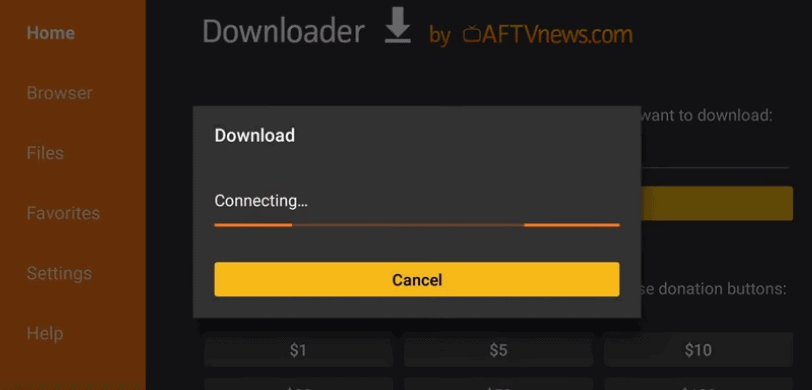
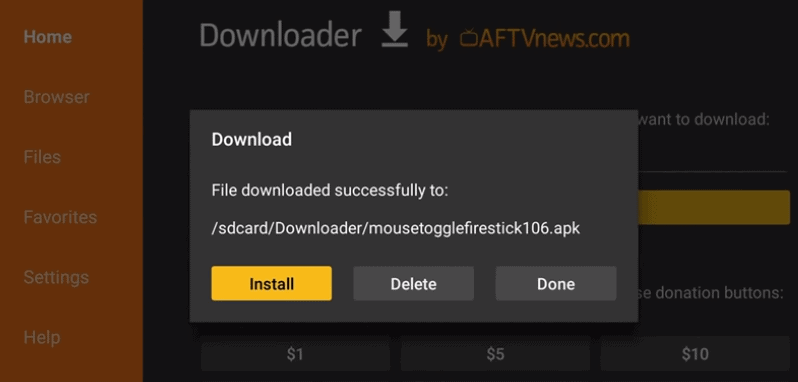
  • It may take a few minutes to download the Mouse Toggle Apk file
  • Once done, click on “Install”
how to install showbox on firestick
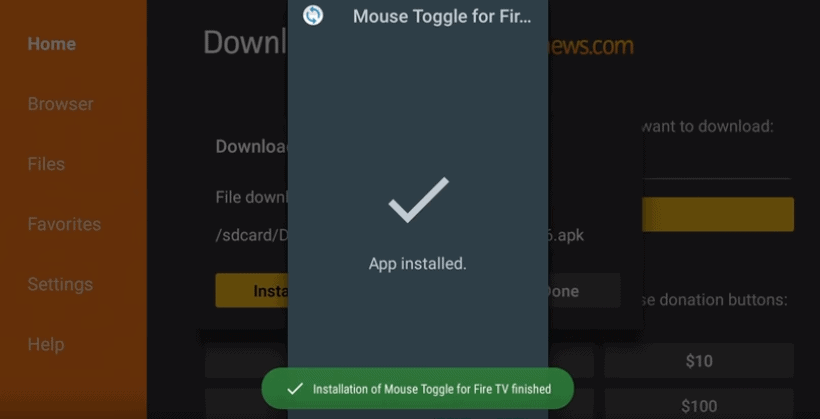
  • Post installation, you will get a prompt “App installed”
how to install showbox on firestick
  • Click on “Open” to launch the app
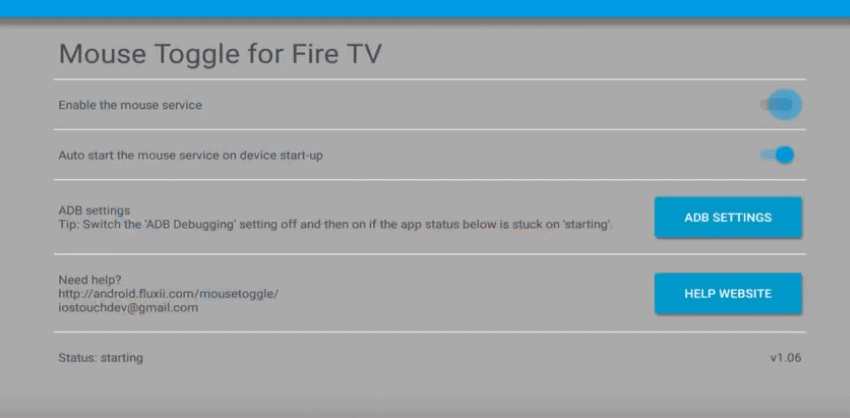
  • Open the application and turn on the Enable the mouse service” 
how to install showbox on firestick
  • Make sure that status that appears at the bottom of the screen shows “Started”

Once done, take your Fire Stick remote and double tap on the play button. Now your remote will be able to act like a mouse and you will be able to move the cursor up and down using the arrow buttons.

How to Watch Showbox on an Amazon Fire Stick from Any Country

Watching Showbox on your Amazon Fire Stick while traveling can be a challenge, especially when content is restricted based on location. However, you can bypass these hurdles with the right tools and steps. Let’s dive into how you can easily set this up.

Step-by-Step Guide to Install Showbox on Fire Stick

  1. Download the Showbox APK
    • First, ensure your Fire Stick settings allow installations from unknown sources. You can do this by navigating to Settings > My Fire TV > Developer Options, then enabling Apps from Unknown Sources.
    • Use a downloader app to acquire the Showbox APK directly onto your device.
  2. Install a Reliable VPN Service
    • Choose a reputable VPN provider that supports streaming. Look for features such as fast connection speeds and a wide array of global servers.
    • Install the VPN app on your Fire Stick through the Amazon Appstore.
  3. Set Up and Connect the VPN
    • Open the VPN app and sign in with your credentials.
    • Select a server in a country where Showbox content is accessible.
  4. Launch Showbox and Enjoy Streaming
    • Open the downloaded Showbox app.
    • Browse through the available content and start streaming from virtually anywhere in the world.

By using a VPN, you can effectively bypass regional restrictions, giving you access to a broader library of shows and movies while keeping your connection secure and private. Enjoy the wide array of entertainment that Showbox offers, no matter where you might be!

Wrapping Up:

Showbox doesn’t require you to have a login account and there are no annoying ads that you should be worried about. The app supports HD quality and you get to filter the videos by genre, rating and year. It is constantly being backed by a team of developers and new content gets added regularly. However, Showbox is considered piracy for most of its content and if you are downloading pirated content over the home network, you can get a notice from your ISP regarding the use of illicit material on your network. There are several other similar apps such as Kodi, TeaTV, OneBox HD, and more that you can consider too.

How to Resolve DRIVER IRQL_LESS_OR_NOT_EQUAL in Windows – Step-by-Step!

0

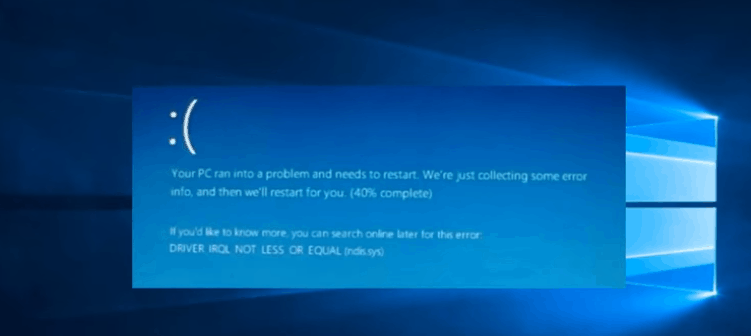
Facing Driver IRQL_LESS_OR_NOT_EQUAL windows 10 blue screen problem?. Don’t worry we are here to help you.

driver irql_less_or_not_equal

Blue Screen of Death is a stop screen which is displayed on a Windows PC post a fatal system error where the operating system can no longer operate safely on and has to stop immediately. There are many causes which can trigger this issue; however, the most common reasons for this error are hardware failures, corrupt drivers, recent software changes, corrupt.SYS files, poor RAM management and overlooking clock speed.

Different types of DRIVER IRQL_LESS_OR_NOT_EQUAL Windows 10 errors:

nfl on kodi,kodi nfl,nfl kodi addon,watch nfl on kodi,how to watch nfl on kodi

Driver irql_less_or_not_equal windows 10 blue screen: A blue screen will appear while your system will crash and start dumping files.

Driver_irql_not_less_or_equal ql2300.sys, epfwwfp.sys, e1c62x64.sys, rdbss.sys, rdyboost.sys, rtkhdaud.sys, rtwlane.sys, tcpip.sys, tap0901.sys, tdx.sys, usbport.sys, usbhub.sys, igdkmd64.sys, netio.sy: The names which you will see along with the error message. These are the corrupt files which are responsible for the error.

Driver_irql_not_less_or_equal on startup: This error will appear when you start your computer and it can lead to boot loop.

Driver_irql_not_less_or_equal McAfee, AVG, Avira, Kaspersk: This error is caused by various third-party software installations.

If your system is too showing DRIVER IRQL_LESS_OR_NOT_EQUAL Error on a blue screen, then keep reading. In this post we will discuss how you can deal with this issue in Windows 10 system.

We have listed a few methods to resolve this problem. Follow these simple steps to fix DRIVER IRQL_LESS_OR_NOT_EQUAL Error in your PC:

Method 1: Update all the Drivers and BIOS

One of the most common reasons for DRIVER IRQL_LESS_OR_NOT_EQUAL error is usually a corrupted or outdated driver. The drivers that get downloaded with Windows update can be incompatible or out of date. You should download these drivers from the manufacturer’s website according to your model. Also, your BIOS update is out, get it done too because often divers are written in compliance with a BIOS update.

Method 2: Reset your PC to Troubleshoot the Error

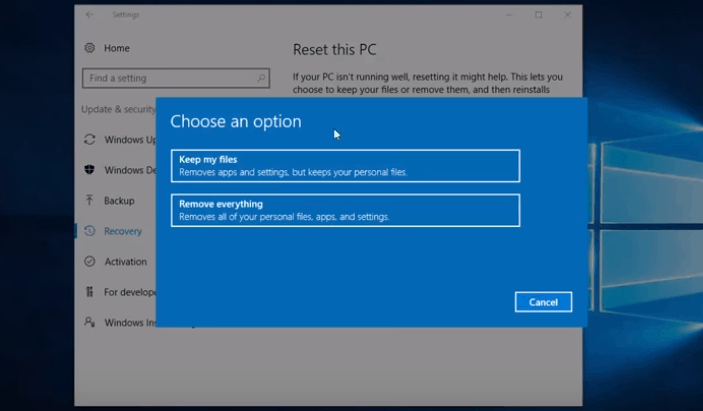
If the error is not caused due to driver problem, then you have to reset your computer to fix the issue. But note that this will delete all your files and installed programs from Windows 10. You need to back up your important data first so that you can restore it later. Once you have created the backup, follow these steps to reset your PC:

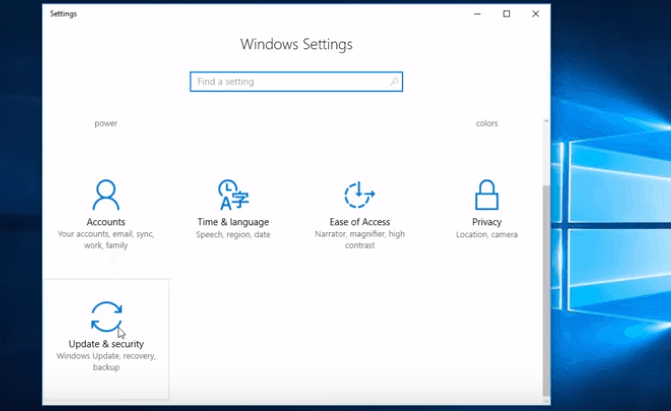
  • Press Windows + I. This will open the Windows settings.
  • Click on “Update and Security”
driver irql_less_or_not_equal
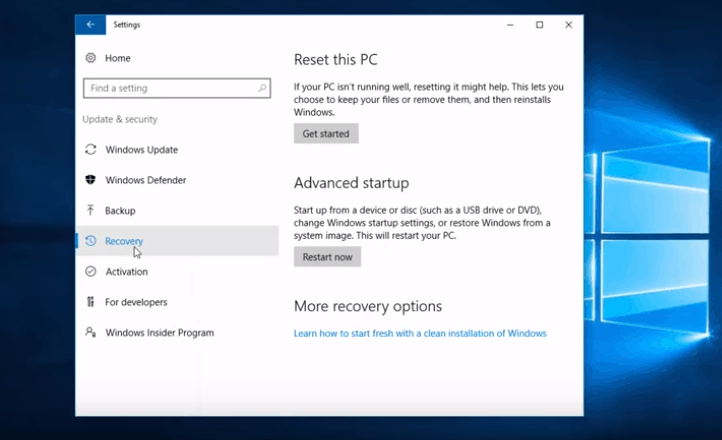
  • No, click on “Recovery” ad navigate to “Reset this PC”
driver irql_less_or_not_equal
  • Click on “Get started” tab
  • Select “Remove everything”.
driver irql_less_or_not_equal

This will reset your computer

Method 3: Check your Hardware

Faulty hardware can also be responsible for the DRIVER IRQL_LESS_OR_NOT_EQUAL error. You should check your hardware properly once.

It can be caused by a faulty sound card which needs replacement for instance. Also, sometimes the cooling system doesn’t perform properly and overheats your system. Any hardware component can cause this error in your PC, so you need a thorough hardware inspection to find out the faulty component. If you are not sure what to look for, then take professional help.

Method 4: Remove Overclocking Tool

Your computer’s processor is given a certain clock frequency range in which it can work to perform the tasks. Overclocking softwares are designed to increase your PC’s hardware’s performance. This can be problematic because these tools can trigger the DRIVER IRQL_LESS_OR_NOT_EQUAL error. You should remove all Overclocking tools and restore your hardware to default settings.

Method 5: Update the Network Driver

You can install the latest network drivers in order to fix the DRIVER IRQL_LESS_OR_NOT_EQUAL error. Here is how you can do it:

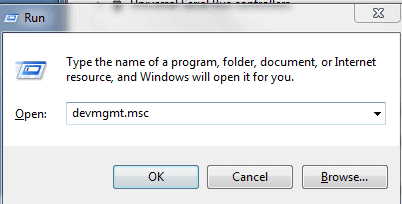
  • Press Windows+ R to launch Run app.
  • Type in “devmgmt.msc” and hit “OK”

nfl on kodi,kodi nfl,nfl kodi addon,watch nfl on kodi,how to watch nfl on kodi

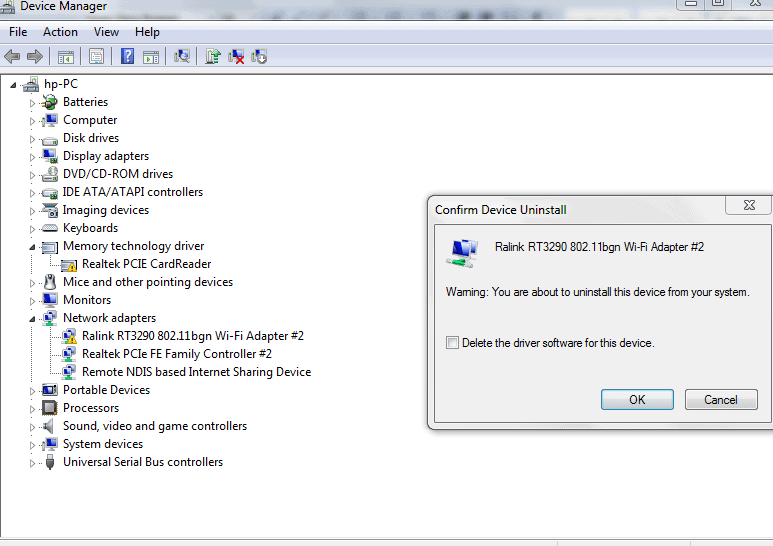
  • You will see a “Device Manager Window” now
  • Navigate to “Network adapters” and chose the desired network device by right-clicking on it.

nfl on kodi,kodi nfl,nfl kodi addon,watch nfl on kodi,how to watch nfl on kodi

  • Select “Uninstall” and hit “Ok”
  • Follow the same procedure forWireless Adapters” as well
  • Reboot your computer to install these drivers again.

That’s it! Many users have reported that this solution has resolved the DRIVER IRQL_LESS_OR_NOT_EQUAL error.

Method 6: Update the VPN software

VPN tools are commonly used by many users to protect their security and maintain anonymity online. However, the VPN software can also be responsible for this error to appear in your Windows 10 PC. You can update your VPN software to resolve DRIVER IRQL_LESS_OR_NOT_EQUAL error and even if updating doesn’t resolve the issue, then you should consider uninstalling the VPT software altogether.

Conclusion

These are the six solutions that can help you resolve the DRIVER IRQL_LESS_OR_NOT_EQUAL error in your Windows PC. We hope this guide helpful and you wouldn’t encounter the same problem again.

Which Version of the Samsung Galaxy S20 Should You Buy?

0

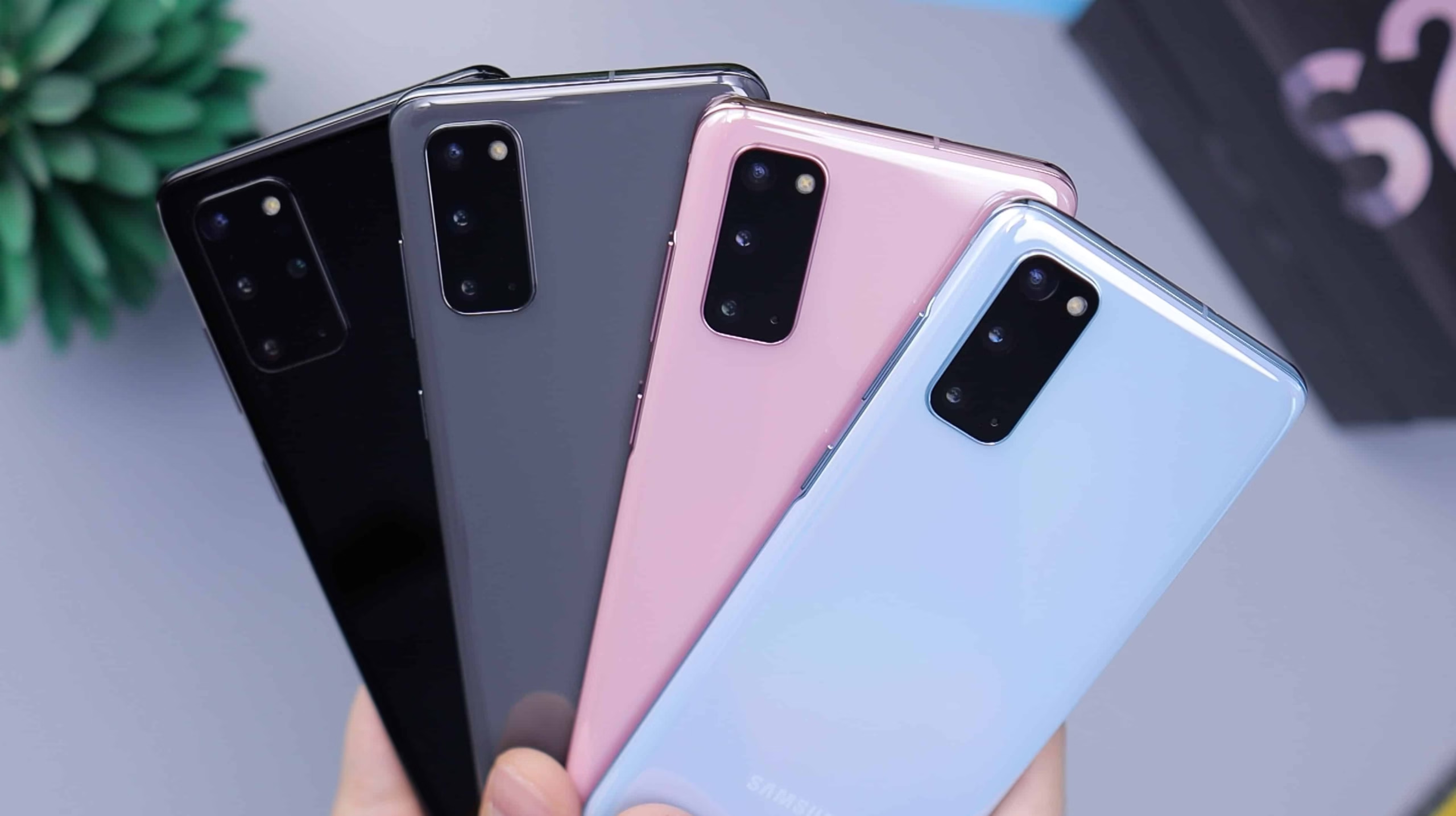
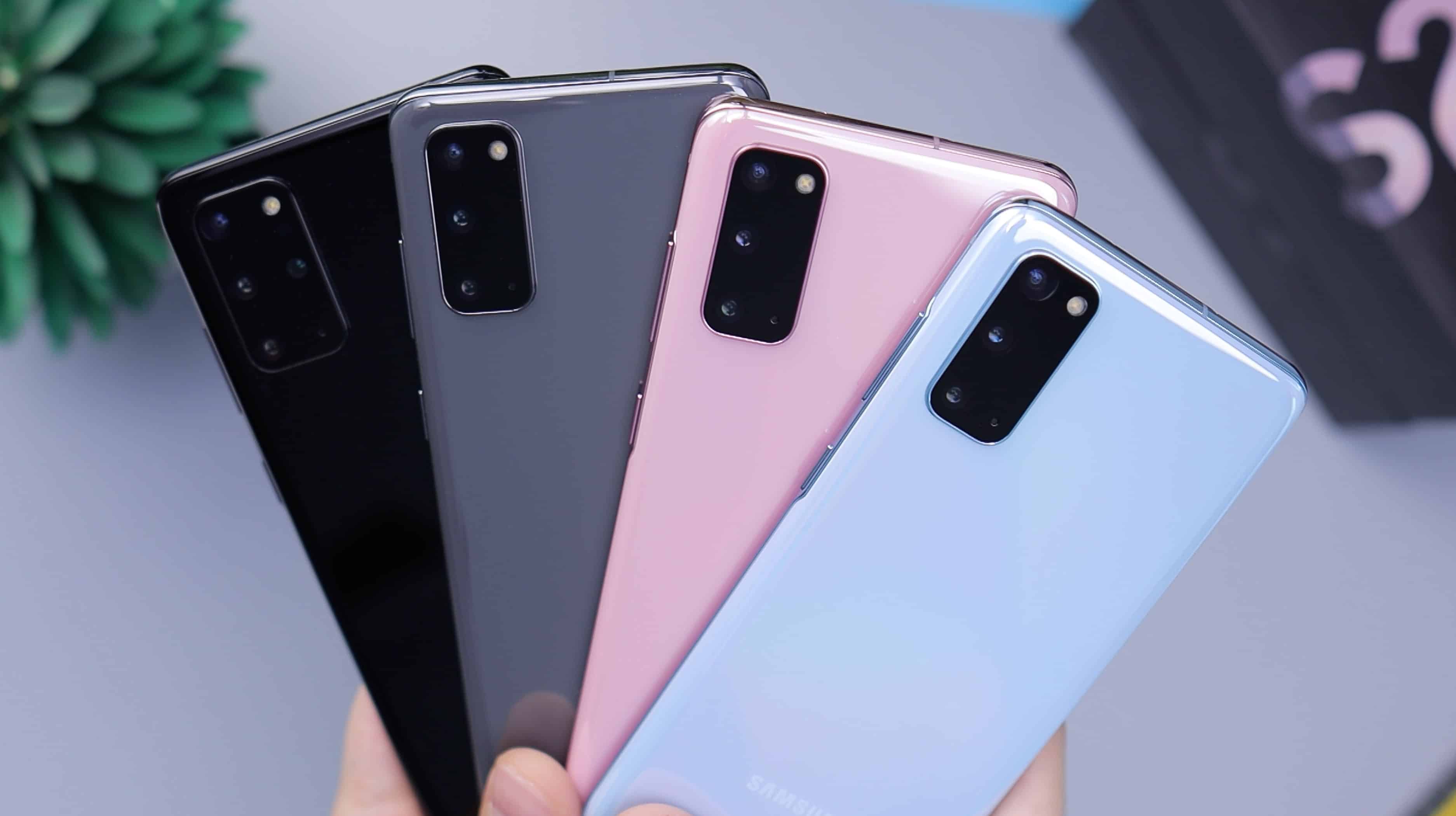
Samsung released its latest flagship smartphone earlier in the year, naming it the Galaxy S20, not the S11 as many had expected. It contained minor processor upgrades on the S10, with more memory and improvements to the cameras. 

person holding pink and black iphone case

Like with its previous models, Samsung released multiple versions of the S20, each with minor variances in spec and a significant difference in price. So if you want the S20, which model should you opt for? Here are some factors to consider.

Gaming

All of the models in the Galaxy S20 range will run the games currently available to download fine. Since the internals of all the models are mostly the same, there is little to gain from buying the S20 Ultra for performance alone. 

The additional 16 GB of memory available in the top S20 Ultra model will have little benefit for the current crop of games, but may be more useful if you plan to hold onto the phone for a few years. If you do, the S20 Ultra with 16 GB of RAM will be slightly more future-proof than the others.

You’ll have no trouble running any type of game, whether you enjoy playing classic card games like PokerStars, RPG games like Eternium, or FPS games like PlayerUnknown’s Battlegrounds. None of these games will even push the S20 to its limits. It’s likely not 

The S20 Ultra’s larger screen may be better for gaming if you’d like a slightly bigger image, or you find that the larger spacing out of the on-screen buttons will help. Otherwise, there’s little need for anything other than the base model.

The gaming experience on all devices will be comparable to a dedicated gaming phone like the ROG Phone 2

Battery Life

The S20, S20+ and S20 Ultra each have different battery sizes, the biggest being in the top range model. The S20 Ultra has a whole 1,000 mAh more than the base model. This means it’ll run for around an extra hour if you just leave it doing some lightweight work. Although the mid-range S20+ has a slightly smaller battery, it lasts almost as long as the S20 Ultra.

Photography

All of the phones in the S20 range have fantastic cameras. You’ll get sharp, vibrant images whether you take photos on the base model S20 or the top range S20 Ultra.

The S20 Ultra has some additional features that set it apart from almost any other device on the market. It has a 108 MP wide-angle lens, creating huge photos that will work just as well on its 4K screen as on a giant canvas. 

Instead of the 3x optical zoom that you find on the S20 and S20+ models, the Ultra had a 10x hybrid optical zoom for taking sharp, close-up photos.

If you like shooting videos, all phones work just as well. They can shoot in 8K, although only with 24 fps, and they handle 4K and 1080p with ease, reaching a maximum of 60 and 240 fps respectively. 

man in black crew neck shirt holding black iphone 5

Size

The higher up the range you go, the bigger the phone. The base model S20 has a 6.2-inch screen. The S20+ is slightly bigger at 6.7 inches, and the S20 Ultra bigger again at 6.9 inches.

The larger models sacrifice pixel density though. The S20 packs in 563 pixels per inch, while this drops to 525 and 511 for the S20+ and S20 Ultra respectively. Although the density is lower, it’s unlikely to be noticeable to the vast majority of users. 

The 0.7-inch difference between the base and top models is mostly a matter for personal preference. If you like bigger phones, you’ll like the S20 Ultra. If you don’t, the S20 is the one you want. 

Price

The biggest difference between the handsets is the price. None of these models are cheap, with the base model S20 starting at $999. The mid-range S20+ ranges between $1,199 and $1,299, while the S20 Ultra starts at $1,399 but will cost $1,499 if you want the version with more memory and storage. 

The S20 is not the cheapest flagship smartphone on the market in Spring 2020, but you get a lot for your money, especially in terms of performance and camera specification. Whether you choose the more expensive version will depend on whether you want to give your photos a little edge.

How to Replace Steam Profile Picture?

0

If you are new to the Steam platform, then you might be wondering how you can replace your Steam Profile Picture.

The Steam Profile Pictures of your account is your Avatar which is displayed on all the Steam games. This Avatar will be visible on reviews, discussion boards and all your friends can see it. If you want to change your Steam Profile Picture then it can be done either through the web portal or the desktop client. It is a really simple process which hardly takes any time.

Replace Steam Profile Picture

Replacing your Steam Profile Pictures from the Steam Client

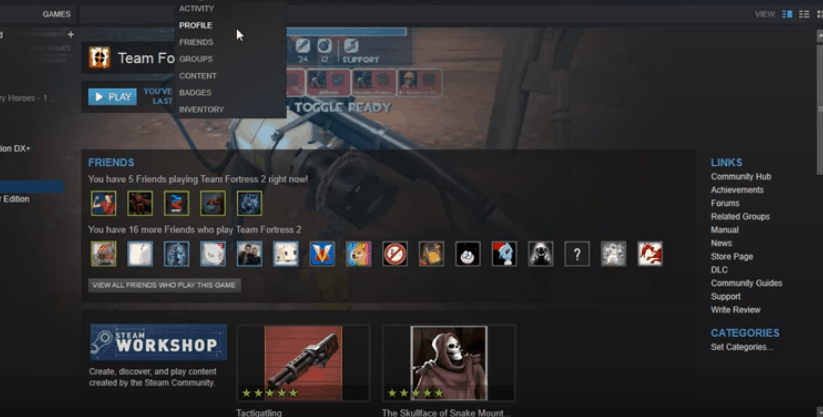
  • Go to your profile in the Steam client. In the navigation menu, just hover over your name and select the “Profile” option. You will be able to see your complete profile now.
adding Steam Profile Picture
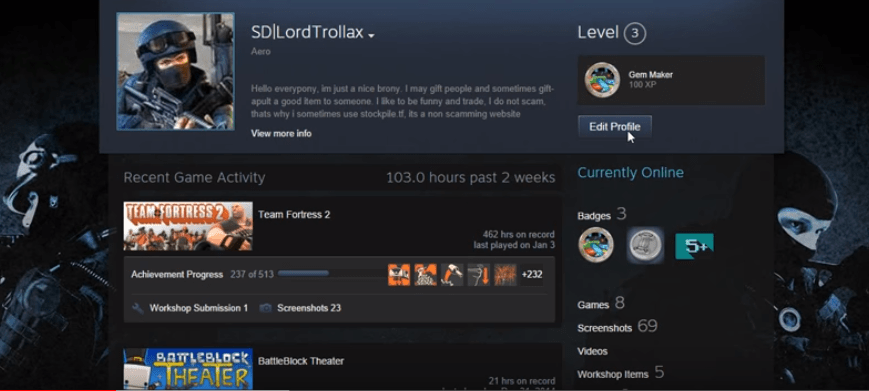
  • At the top of the screen, you will be able to see your Steam Profile Picture on the left with other details, and an “Edit profile” button.
uploading Steam Profile Picture
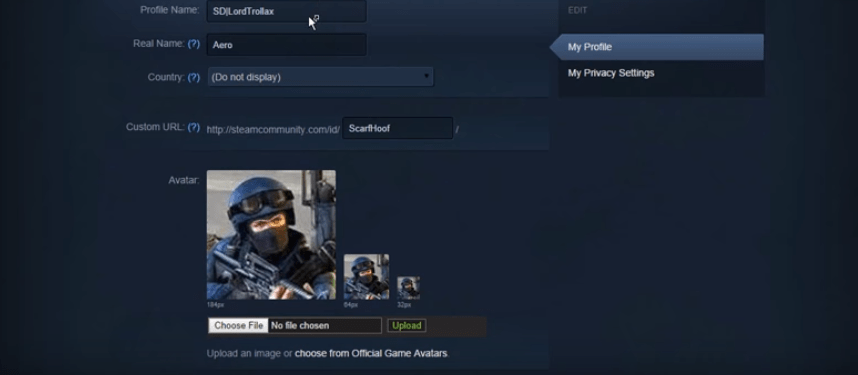
  • When you hit in the edit profile button, it will take you to a screen where you will be able to edit your username, country, and more.
  • Your Steam Profile Picture will be shown in three different sizes at 184px, 64px, and 32px.
Replacing Steam Profile Picture
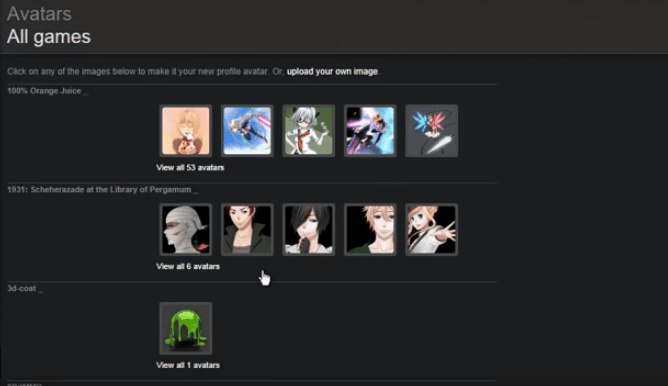
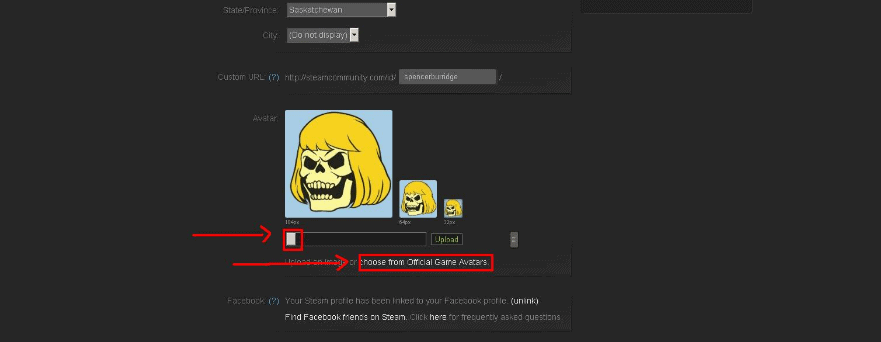
  • Select “Choose File” and upload an image from your PC. Alternatively, you can choose from theOfficial Game Avatarslink which is placed below the upload button.
change Steam Profile Picture
  • Once done, save the changes and return to your profile. You will now be able to your new Steam Profile Picture.

Replacing your Steam Profile Pictures in your Browser

  • Open steam in your browser and login using your ID.
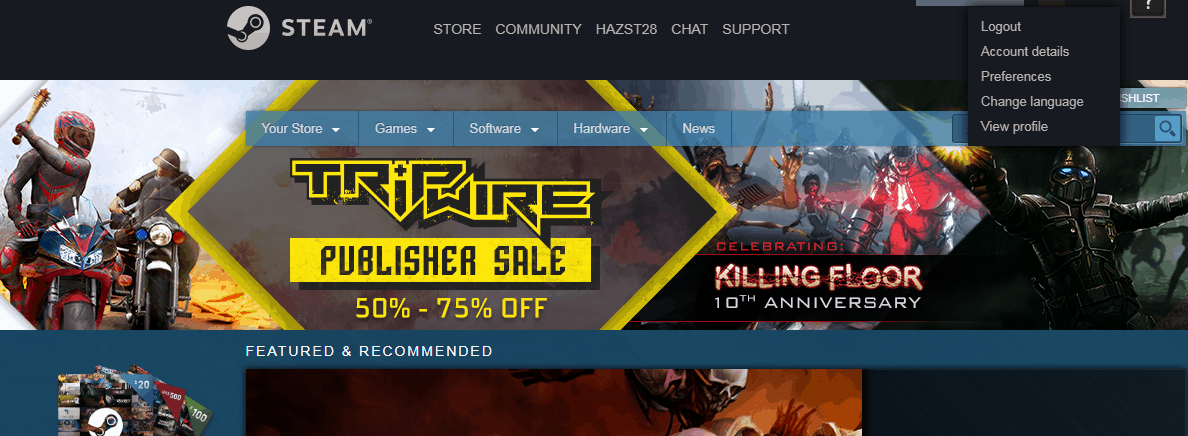
  • Click on your username at the top left hand side corner and select “View Profile” from the dropdown.
update Steam Profile Picture
  • Now click on “Edit Profile”
  • In the Avatar section, upload the image that you want or select one from the game avatars.
remove Steam Profile Picture
  • The uploaded image will be synced to your desktop client within a couple of seconds.

**When you upload an image, it will be automatically scaled down to a smaller size. So, it would be a better idea to select an image which will look good even if it is small. You can crop an image and resize it for better results.

That is it! Replacing your steam profile picture doesn’t take any time at all.

Stop Auto-Charges! How to Cancel Your Netflix Free Trial Easily

0
Screenshot_3.png
Netflix Free Trial

Netflix is a brilliant online streaming service that allows you to watch popular series, shows, documentaries and movies over the internet. With over 100 million active members, the demand for this platform is undeniable. You get to have a free trial of the platform for a month before Netflix charges you for further usage. However, even to start the free trial period, you have to provide your credit card or PayPal details. You are allowed to cancel your subscription anytime during this trial period, but as soon as the trial expires, you will be charged for the next month subscription. Even though will get constant reminders from Netflix when you are nearing the end of your free trial, but it would a safer option to set up a reminder in your phone as well.

You might have tried Netflix for free to check out the features and may not want to pay to continue streaming past the one-month free subscription or you may just want to get rid of the service altogether if you aren’t enjoying it. We understand that with the recent price hike, Netflix can dig a hole in your pocket. Well, cancelling the Netflix trial is pretty easy but it comes with some consequences, so it is advised to think first before making the decision.

Make sure to make a list of your watch list before you cancel Netflix so that you can catch the things left with another streaming service. This is totally up to you if you have plans to continue with your favourite shows and movies.

Here is a step-by-step guide to cancel your Netflix Free Trial:

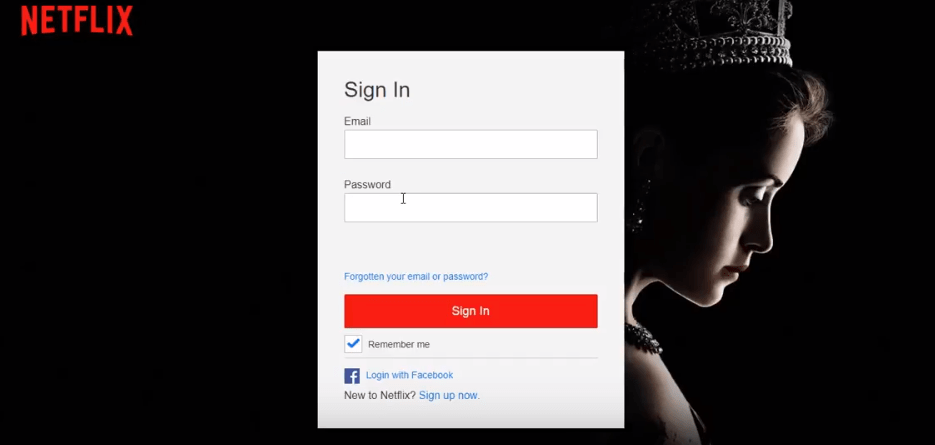
  • To cancel your Netflix Free Trial, start by logging in to your Account.
nfl on kodi,kodi nfl,nfl kodi addon,watch nfl on kodi,how to watch nfl on kodi
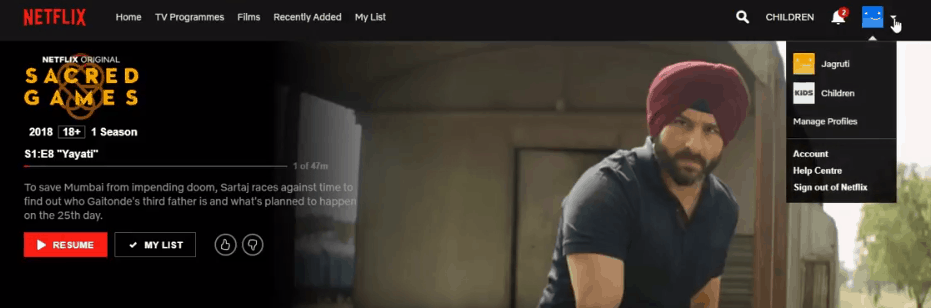
  • Go to the upper right-hand corner on the Netflix home page where you will be able to see a link to “Account “ Click on the link.
nfl on kodi,kodi nfl,nfl kodi addon,watch nfl on kodi,how to watch nfl on kodi
  • After clicking on the link, you will be taken to a new page with all your Account Information
how to cancel netflix trail

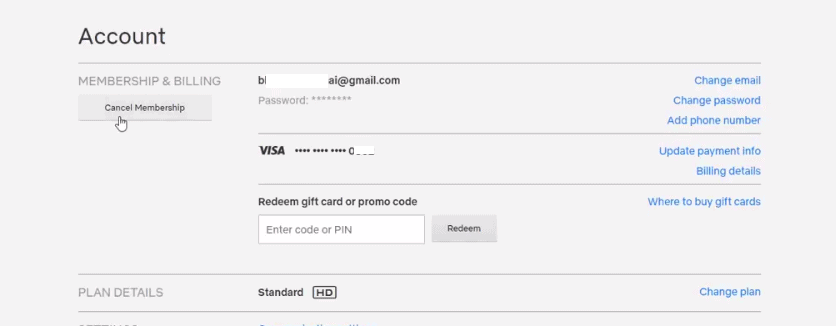
  • One this page, you will get the link for “ Cancel Membership
nfl on kodi,kodi nfl,nfl kodi addon,watch nfl on kodi,how to watch nfl on kodi
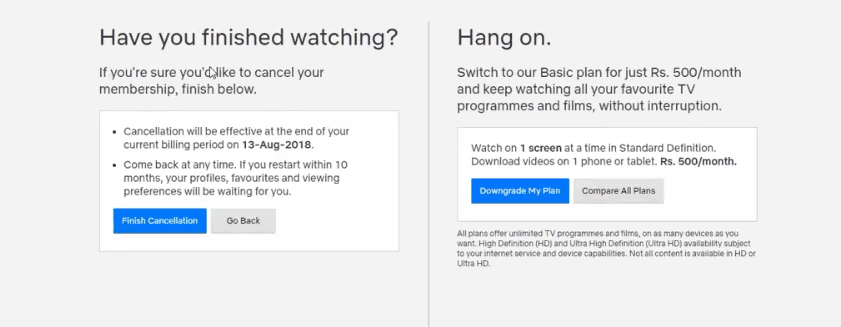
  • Once you click on this link, you will be directed to the terms of cancellation.
  • After going through the terms, tick the box which implies that you agree with the terms and conditions.
  • To complete the process, click on “ Complete Cancellation
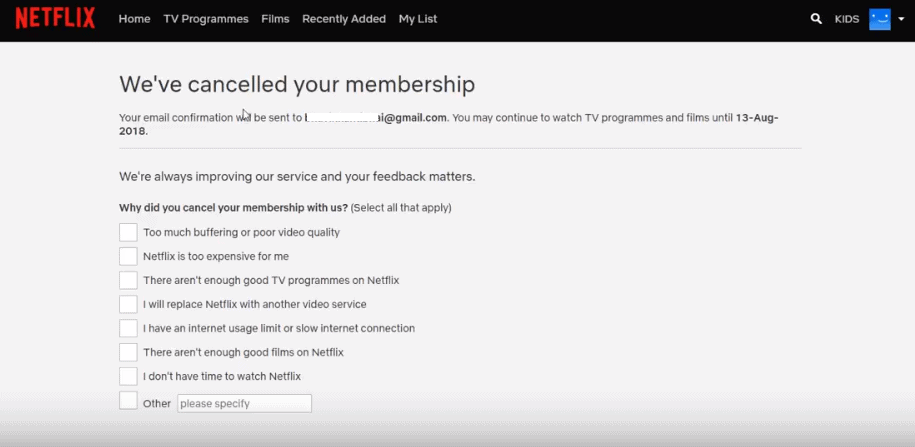
  • Post this you will get an email from Netflix to confirm that you have cancelled the subscription successfully.
nfl on kodi,kodi nfl,nfl kodi addon,watch nfl on kodi,how to watch nfl on kodi
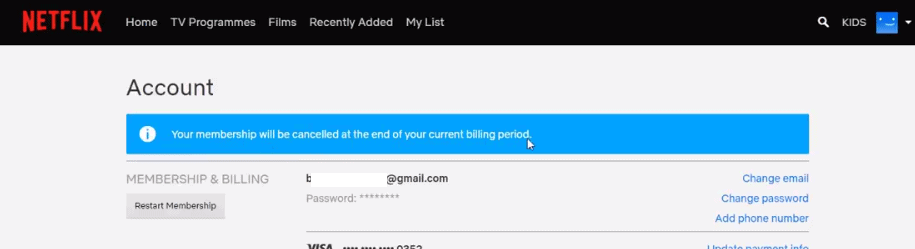
  • This will end your Netflix membership.
cancelling netflix subscription

Alternatively, you can also cancel the Netflix trial by contacting the Administrators. You just have to log in to your account and scroll down to the bottom of the page where you will find the “Contact Us” option. Once you click on the same, you will get the contact numbers for Netflix Customer support that can help you in cancelling your free trial. You can rectify the same problem for Spotify. Read: How to Cancel Spotify Subscription and Delete Spotify account.

If you want to delete your profile from Netflix; go to your account and select “Manage Profiles”. This will take you to your profile icon with a pencil symbol on the bottom left corner. Click on the symbol which will take you to the “Delete Profile” option. This will delete your profile and the viewing history. You should know that your cancelled account will be automatically deleted after 10 months by Netflix. However, if you want to delete your account immediately, then send an email to [email protected] from your registered email address by typing “Delete my account” in the subject line.

We hope this guide was helpful in Cancelling Netflix Free Trial. For any queries, please leave a comment in the section below.