Home Blog Page 320

How to find out website ranking in Google for Free?

Getting website ranking in SERP (search engine results page) is the first step of search engine optimization. It would be waste of time to make SEO unless you are not aware of your website’s SERP position and the keywords your competitors use. So how to get your website ranking and how to know the keywords used by your competitors? Of course you might have searched for tools in google to do this job but not satisfied as they come up with sophisticated user interface and bulky price. Don’t worry.. Here is the Google Chrome Extension that let you know your website ranking in search engine results page along with competitor’s ranking you choose.

SEO SERP Workbench is the Google Chrome Extension, that we are talking about which let you know the current position of your website in Google search results. It is the must use tool to compare your website ranking with your competitor websites. Top features of SEO SERP Workbench are-

  • It allows you to compare your SERP position with multiple competitor websites with a line graph
  • You can work with multiple projects that contain multiple keyword queries in it
  • You can keep an eye on your website ranking by the keywords you choose and get to know the changes in ranking.

Only one drawback of SEO SERP Workbench extension for now is, it won’t automatically update the website ranking and it must be done manually. But this feature is in “To-do” list of this extension and expected to launch in the next version.

How to check website ranking in Google with SEO SERP Workbench?

It is required to install SEO SERP Workbench chrome extension to check website ranking in Google, this extension could be download from this page. Once installed this extension, run it from chrome apps and just follow the steps below-

  1. On first launch it asks to enter the project name and select the Google search engine country
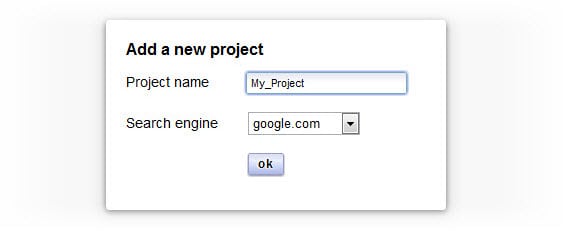
    website ranking
  2. Go to “Sites” tab and delete all the pre-defined website URLs by pressing “remove all” button
  3. Now add your website by clicking on “add new” button and specify your website
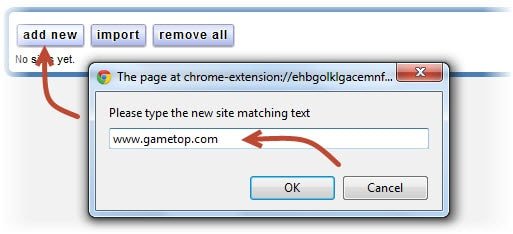
    serp ranking
  4. Now click the same button again and specify your competitor website(s)
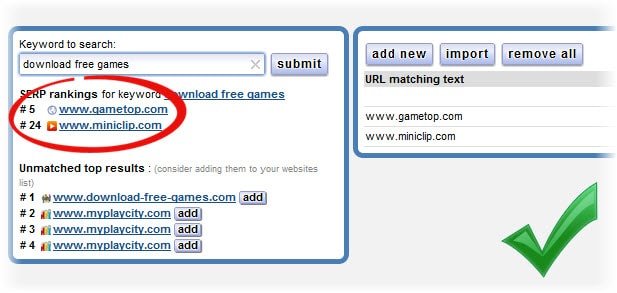
  5. Now we can compare SERP position between specified websites, specify a keyword in “Keyword to search” box and press “Submit” button
  6. Now just have a look at image below, we have searched for the keyword “download free games” and add two websites namely gametop and miniclip to compare. Gametop stands in 5th rank for “download free games” keyword and miniclip has acquired 24th ranking
    check keyword ranking

Further you can move to “queries” tab and click on “sites report” button in front of respective keyword every day to see the changes in SERP position in a line graph.

How to Know the Keywords Used By Competitor Website?

We have just learnt how to compare our position in Google with our competitors. Now here is a Chrome extension that displays keywords used in a website. You can adopt these keywords in your site to get top position in search engine results page. To know your competitor’s keywords-

  1. Install META SEO inspector Chrome extension
  2. Go to your competitor Website
  3. Click on META SEO inspector and choose “Toggle info. box”, you will able to see META information of website including keywords they have used.


YouView Internet TV – Television Over Broadband

YouView, a UK based group of ventures recently launched its internet TV service which broadcasts on-demand channels including free channels as well. YouView internet TV service works using IPTV (internet protocol television) that uses set-top box connected to internet. This project is initiated by the top broadcasters including BBC, Channel 4, Channel 5 and ITV. YouView also allows you to listen to radio stations and surf the internet.

internet TV

What are the top features of YouView internet TV?

Setting up the YouView box with television is as simple as ABC, just plug-in YouView box to an electric outlet and then one cable to TV aerial and another to modem. That’s it.. The top features of YouView internet TV include-

  1. YouView’s ScrollBack feature allows you to watch the programs of past 7 days, broadcasted by BBC, ITV, Channel 4 and Channel 5
  2. You can pause, rewind or record the live TV and watch when you become free.
  3. You can go for on-demand programs, series, films and radio if you missed that episode
  4. YouView comes up with search feature that helps you find your favorite programs or movies
  5. With YouView you will get HD experience which serves crystal clear sound and sharp picture.
  6. Along with these top features it has many useful features including reminder and parental control etc.
youview television

Requisites for YouView internet TV

First of all it is required to have a latest High Definition TV to experience the HD sound and video served by YouView. As YouView works on IPTV (internet protocol television), it is required to have an unlimited, high speed and uninterrupted internet connection. YouView recommends minimum 3MBps of broadband speed to watch the television with rich experience. It also requires decent digital coverage.

BT and TalkTalk have given the facilities to buy the YouView internet TV as part of broadband package.

[youtube]http://youtu.be/fqsNI8T2QvY[/youtube]

How to Send Fax Online With HelloFax?

We have discussed “Top 5 Free Online Fax Services” In our earlier post, that post even covers, how online faxing is  beneficial for corporate sectors to save money and time. Using the PC connected to Internet as a fax machine is being a modern trend that replaces traditional method of sending fax.  Online faxing is a new dimension to fax service gifted by internet. Now the question arrives “how to send fax online?”.

The concept of sending and receiving online fax is simple, the document you attach will be moved to recipient from phone line and further gets decoded by the fax machine and then gets printed. Not only PC or laptop but you can also send the the same using tablets and smart phones by following the same concept. Below we have elaborated how to send fax online for free using another great online faxing service provider.

Who Provides the Best Service to send fax online?

HelloFax is a renowned service to send fax online which is offered in three different types of pricings including a free plan. By using HelloFax you can either send your document (such as word documents and PDF) to a fax machine or receive the fax as a document or PDF directly to your email sent by others. With HelloFax you can send fax via email service in a secure way and of course HelloFax could be integrated with Google Drive.

How to Send Fax Online With HelloFax?

Here is how to send fax online for free using HelloFax website-

  1. first navigate your browser to https://www.hellofax.com
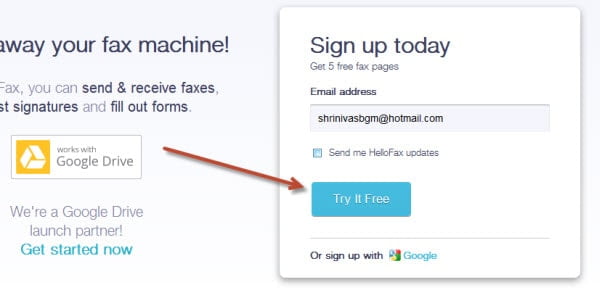
  2. Enter your email address and hit “Try it Free” button (You can also sign-n with google)
    how to send fax online
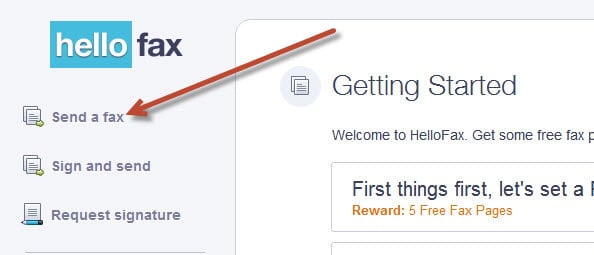
  3. Now click on “Send a fax” option located at the left panel
    how to send fax online
  4. Drag and drop the file (word document file) in “Drag files here” area
    how to send fax online
  5. Now enter fax number of the recipient
  6. Finally click “Send it now” button, that’s it, your online fax will be sent to recipient’s fax machine.

And thank you for reading my 100th post at TechGyo Tech Blog..

Chrome Remote Desktop BETA- Remotely access your computer with Chrome Browser

Ever wondered about how to access the computer remotely at your tips via a web browser? This can be done using the new chrome extension Chrome Remote Desktop BETA. You can share your computer with a friend/client provided the other party also has the Google chrome remote desktop beta extension installed. On the other hand you can allow others to share your desktop with them. One can control a remote computer using this extension. Also you can share more of your own computers and control them with Chrome Remote Desktop BETA. This extension can be a very useful online tool when you are stuck on a problem or need an expert’s help.

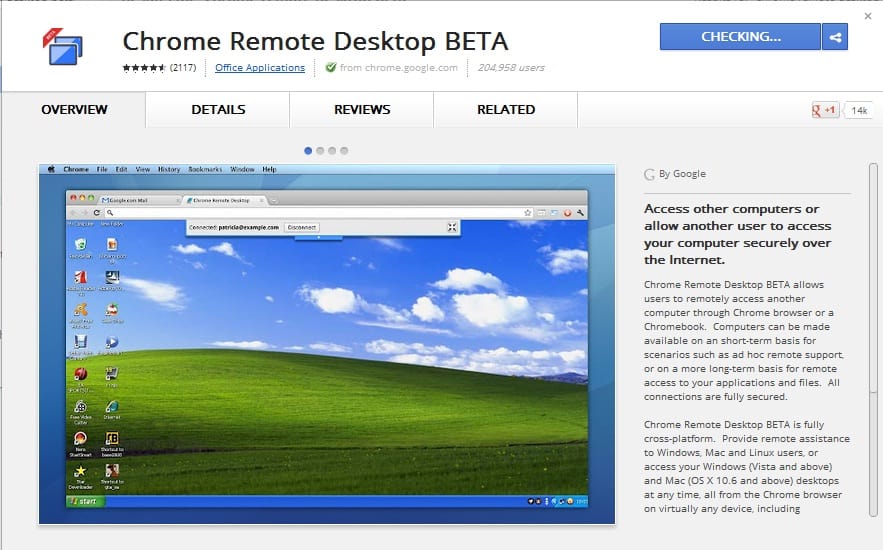
Chrome Remote Desktop BETA-Overview
From the Chrome Web Store

What exactly is Chrome Remote Desktop BETA?

Chrome Remote Desktop BETA is an online tool which allows you to remotely access your computer, share desktops as if you are right in front of it. Best use of such a tool would be to resolve problems on your pc or get help for some purpose or, instruct someone how to use certain programs, apps etc. on their PC.

Where do I Get this Extension?

Chrome Remote Desktop-ADD
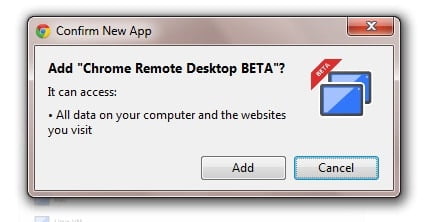
“ADD”ing the Extension

You can directly go to Chrome web store and search for Chrome Remote Desktop BETA and “ADD” it to your Chrome browser. It’s a file of around 25MB.

How do I use Chrome Remote Desktop BETA?

Chrome Remote Desktop-Access Code
Access Code

It’s simple. After adding the extension, select a remote computer you want to access, say your friend’s pc. All you have to do is

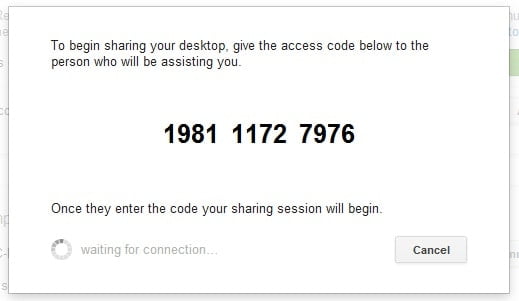
  • Get the “Access Code” from your friend, which the Chrome Remote Desktop BETA extension issues on your friends desktop.
  • Use it to gain access and say, help your friend with his problem.

It’s that simple.

Chrome Remote Desktop-PIN
My Computers PIN

If you are accessing your own computer

  • Add them to “My Computers” with each of them equipped with Chrome Remote Desktop BETA.
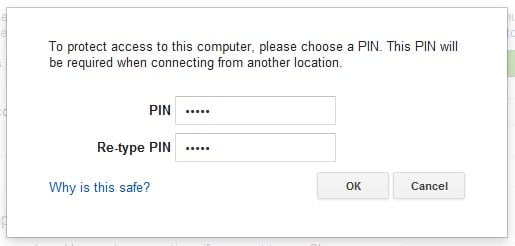
  • The extension prompts for a PIN, enter a PIN which you will be using later.
  • At the time of access enter the PIN you already saved to access your computer remotely.

Don’t forget to check; Start Graphing Your Gmail Using Graph your inbox Chrome Extension

Conclusion

Chrome Remote Desktop BETA is a remarkably good online remote access tool which can help you get through situations requiring online help from experts. Unlike the applications which require prior installation (which take much time to install) Chrome Remote Desktop BETA is a sufficiently fast, reliable and easier way to remotely access your computer.

How to Use Royalty-Free Music on YouTube Without Getting Strikes!

You might know that YouTube mutes the audio if you embed illegal music tracks in your videos.  Adding illegal music is nothing but infringement of copyright of that music track. Then how to add music to youtube video without breaking any laws? Are you thinking of any ways to embed the audio in your movie in a legal way? Don’t worry about this as YouTube itself has a solution for this. YouTube comes up with built-in music selector which provides royalty free music for youtube videos. You can add a soundtrack to your YouTube video even if you have uploaded your video to YouTube, this is 100% free and legal. Yes AudioSwap music library is a feature we are talking about that is the legal way of adding free audio tracks to your videos in seconds.

YouTube’s AudioSwap music library comes up with popular genres including Blues, Country, Electronic, Hip Hop, Jazz, Pop, Rock and Ska to choose from. These genres include hundreds of free music tracks of famous artists and albums that could be played with your YouTube video so you can add music to youtube video.

Also read:

How to add music to YouTube video using AudioSwap Library?

Adding audio to your YouTube video is simple and hardly takes some few seconds but you won’t revert back to your original audio once you saved the changes so be sure before adding or changing the audio to your stream, To add music to youtube video, you first uploaded the video just follow the steps given below.

  1. Login to YouTube, click on your username at the top right side
    how to add music to youtube video
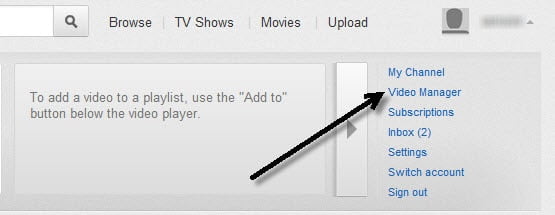
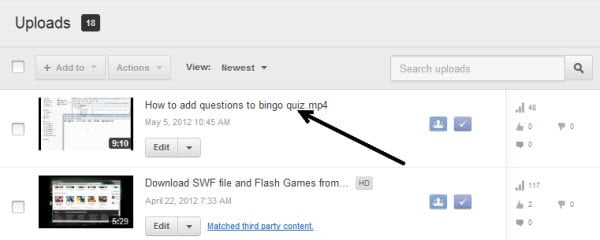
  2. Choose “Video Manager” and click on the video which you want to add music
    choose the video from list
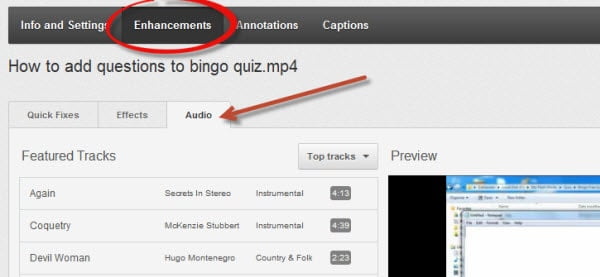
  3. Now click on “Enhancements” and go to “Audio” tab, now you will get more than 150,000 music tracks from AudioSwap
    how to send fax online
  4. You can also search the specific track using the search box provided below
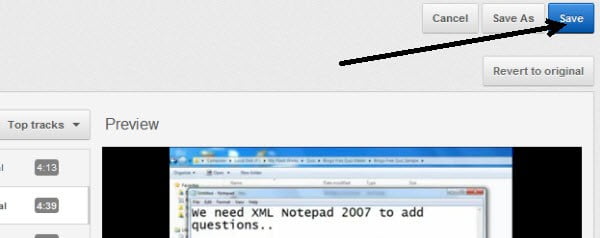
  5. Now click on any audio track to watch the preview with your video, audio will not be added to the video unless you click on “save” button.
  6. Finally click on the “Save” button to save the video with selected audio track
  7. You can click “Revert to original” button if you don’t wish to make changes to your video
    how to send fax online

Conclusion

You have just learnt How to add music to youtube video but YouTube gives the strict instruction on using these music for your videos i.e. videos generated using AudioSwap music tracks won’t be eligible for revenue sharing, this means you are not allowed to make money using your Google Adsense account on these videos. So if you have enabled Google Adsense in YouTube then better you should not use AudioSwap library music tracks for your videos as it is the violation of AudioSwap library and might be harming your Adsense account as well.

XOLO X900-Experience the Intel’s First Ever Smartphone

Intel enters the smart phone market with its latest release of XOLO X900. Equipped with its own 1.6GHz Intel Atom Processor it is the first mobile smart phone with Intel’s processor power. Along with this, XOLO comes with 1GB of ram to provide you a fast browsing experience and an awesome multitasking experience.  It’s loaded with an 8 Mega Pixel camera and 400MHz graphic engine for full HD experience. A combination of both of these gives you a full HD experience on games, videos, apps and movies. You can use XOLO for work, play, entertainment and it’s all like “Blink And It’s Done”.

XOLO X900
XOLO X900-Overview

XOLO X900 Features

Since XOLO is the first mobile smart phone to have a processor designed by Intel we can expect more than whatever technology the world’s got today. Let’s take a look on key features of XOLO X900.

Intel Atom Processor

This processor being the prime attraction in the phone’s features, provides you an amazingly fast web browsing and multitasking experience. With Intel Atom 1.6 GHz processor along with Hyper-Threading technology and 1GB Ram it’s an all new touch experience.

Graphic Engine

The 400 MHz graphic engine provides a high speed 3D gaming experience with a full HD display. With the high resolution of 1024X600 pixels display, videos, movies and images are more HD than ever on XOLO X900.

Android OS

This new smart phone comes loaded with Android ginger bread and can be upgraded to Android 4.0 Ice cream sandwich. This makes XOLO the first android phone released with Intel Atom Processor power.

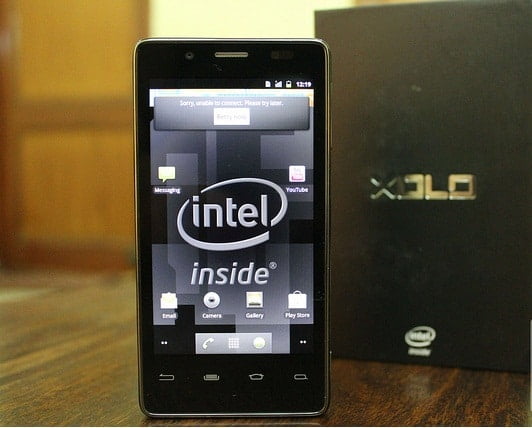
Intel XOLO X900-Snapshot
Newely Unboxed XOLO X900

XOLO X900 Specifications

XOLO X900 comes with Intel Atom Processor Z2460, 400 MHz Graphics Engine, 8MP rare camera with auto focus and flash and a front camera of 1.3 MP. XOLO X900 has a display of 4.03 inches and supports digital zoom and can click up to 10 photos in less than a second in one click in the burst mode. It comes with dual speakers and two inbuilt digital microphones. Above are some of the important specs of XOLO X900.

Price

Intel XOLO X900-Price
Online Purchase

The price of XOLO X900 in INR is RS.22,000. One can buy it either online or at the nearest retail outlet. There is a provision for COD and also a manufacturer’s warranty of 1 year.

How to Download Website and Surf Offline

Do you have limited internet usage plan? (such as BSNL 500 plan which comes up with night unlimited option) but want to surf websites without using your internet connection? Here is the great tool to surf offline. HTTrack is a freeware that downloads html pages, images and required files to your hard disk to surf website offline. In simple words it copy’s entire websites to your computer to make web page available offline. HTTrack is small in size that needs as low as 4 MB in your hard disk and of course very easy to use which comes up with wizard interface. You can download website when you have no restrictions on bandwidth usage and surf them when you are free.

Here are some awesome features of HTTrack website copier to surf offline

  • HTTrack website copier is a freeware that comes up with GNU license
  • You can exclude file types and links using wild cards
  • Downloads the website using multiple processes
  • And finally arranges all the downloaded websites in an index file, you can just pick any website from this index and start surfing offline.

How to surf offline with HTTrack website copier?

Just follow the steps below to copy websites to your computer

  1. Open HTTrack website copier software from start menu
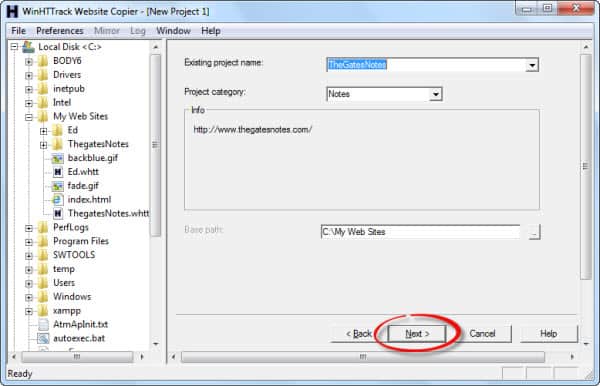
  2. Specify the project name and project category, for example if you are mirroring educational website then you can specify “Education” as category
    surf offline
  3. Choose the path to save captured website, default path is C:\My Web Sites
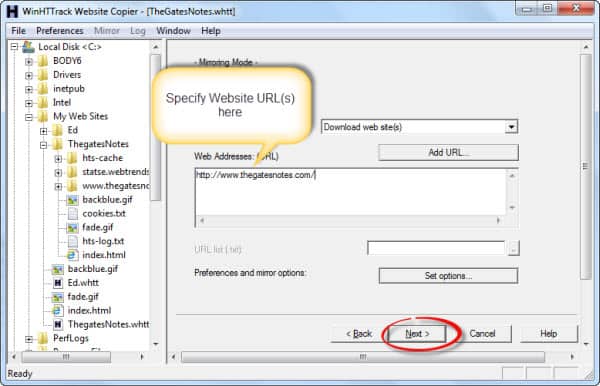
  4. Specify website URLs which you want to download, you can specify multiple website URLs
    how to send fax online
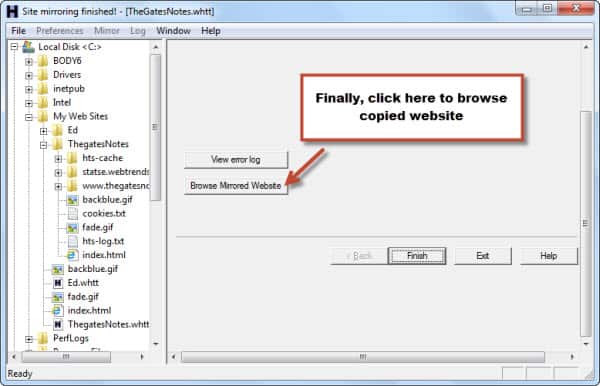
  5. Finally click “Finish” button to start copying website to your PC, to view copied website just click “View mirrored website” button.
    how to send fax online

Video Guide on surfing offline with HTTrack

[youtube]http://youtu.be/awyPpFplZZc[/youtube]

HTTrack is available for both windows and Linux operating systems and even you can download command-line version. Try HTTrack now!