Home Blog Page 111

How To Enable Youtube Dark Mode

Youtube Dark Mode is one of the new features of YouTube which is one of the most famous video hosting services in the world. Since its inception, YouTube has taken the world by storm and has become the world-leading service. It said to have 1,300,000,000 users every day and the average mobile user of this site is 1,000,000,000 and the total average visitors are over 30 million. The average time spent by a person on YouTube is around 40 minutes, this is also not a small-time period. 

youtube dark mode,how to make youtube dark mode,dark mode youtube,how to get youtube dark mode,enable dark mode youtube

YouTube is usually accessed by a computer, Tablets and Phones etc. and many research has proven that excessive use of these devices can lead to a strain on the eyes as well as can lead to a headache and in worse conditions can damage your eyesight. Most of these problems occur due to blue light emitted by the display of the device. Nowadays many display has a blue light shield but this technology is not available on all devices.

YouTube’s default interface is white, which not only puts pressure on the eyes but also drains the battery quickly. To counter this issue new generation phones have AMOLED displays which can save batteries using a dark background and dark themes using the YouTube Dark Mode. The decision to enable dark mode YouTube was taken when YouTube recognized the problem faced by users when dark mode YouTube hadn’t been introduced.

Let’s understand how you can enable this option on your device. 

1. How to get YouTube dark mode on Windows/mac –

There are different ways we can enable the dark mode in your window/mac operated systems. I will show you the simplest way to do it. 

• In this method first you have to open YouTube on your device. 
youtube dark mode,how to make youtube dark mode,dark mode youtube,how to get youtube dark mode,enable dark mode youtube

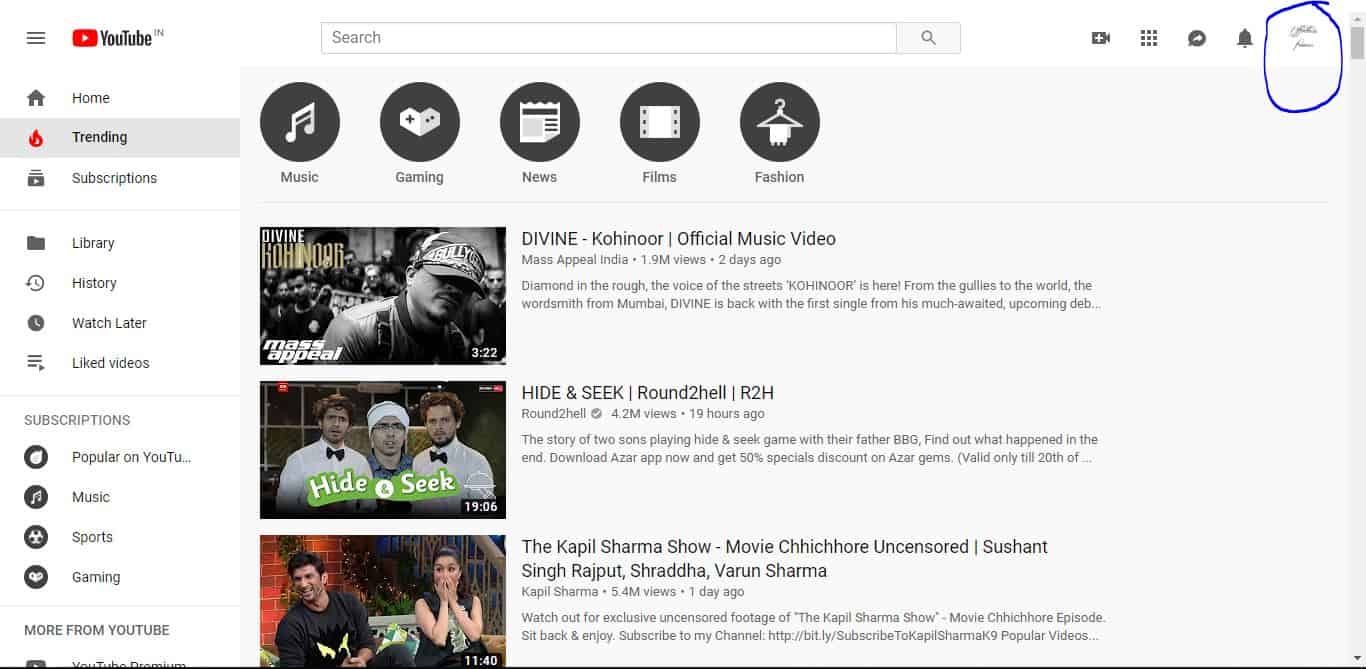
• After this click on the button (named with initial of your email ID or the image you kept) on top of the right hand side, beside the bell icon of the site. 
youtube dark mode,how to make youtube dark mode,dark mode youtube,how to get youtube dark mode,enable dark mode youtube

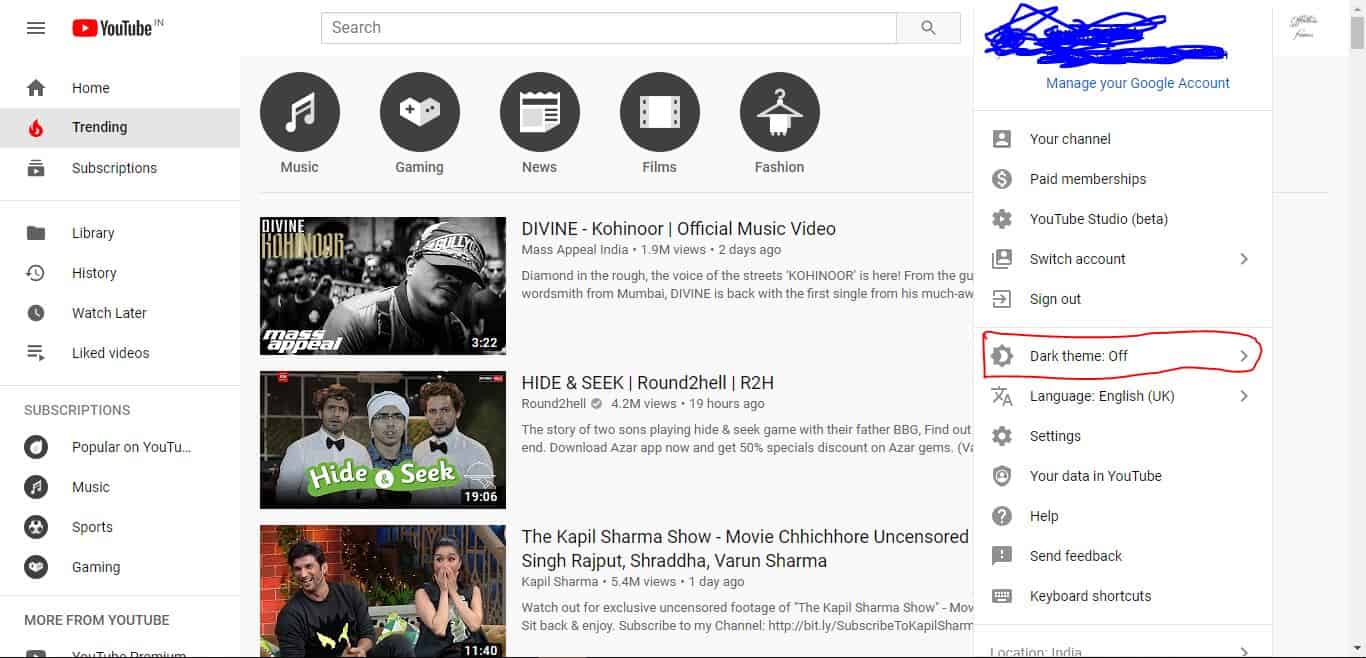
• It will pop-up the list and in that list there will be a button named ‘Dark theme’. 

• In default setting it will be written ‘Dark theme: off’
youtube dark mode,how to make youtube dark mode,dark mode youtube,how to get youtube dark mode,enable dark mode youtube

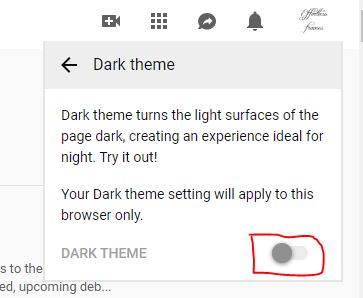
• After this a new small window will open with small information regarding dark mode and a button to enable the mode.

• Enable this button
youtube dark mode,how to make youtube dark mode,dark mode youtube,how to get youtube dark mode,enable dark mode youtube

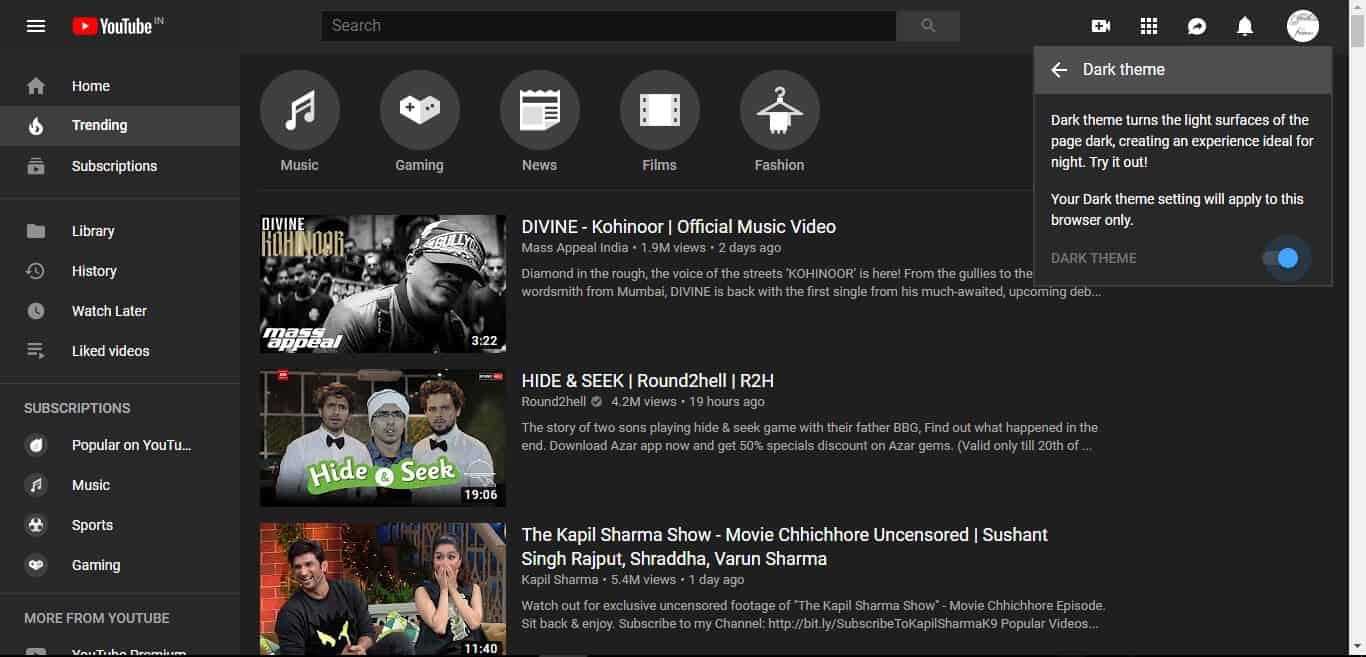
• Once you hit the button, YouTube will be shifted to dark mode. 
youtube dark mode,how to make youtube dark mode,dark mode youtube,how to get youtube dark mode,enable dark mode youtube
Youtube Dark Mode

Now as you can see the dark mode has been enabled, but we not only use the PC and laptops. We also use smartphones. It is the most common gadget. We often use smartphones more than our laptops and studies have found that many people use their smartphones at night time which puts extra pressure on their eyes. Thus we also have to make changes in the YouTube app on the smartphone.

Enable Youtube Dark Mode on Android and iPhone –

Smartphones are very common nowadays. The smartphone is one of the devices that we use the most in human history. Use of the smartphone has increased in the past few years. Most of these devices have come-up with the YouTube app pre-installed and default app interface is white in colour. Thus we have to change it to a dark theme to put less strain on our eyes. The steps involved in it are quite different but still very simple and anyone can do it. 

• To start this process, first we have opened the YouTube app on our smartphones. 

youtube dark mode,how to make youtube dark mode,dark mode youtube,how to get youtube dark mode,enable dark mode youtube
YouTube

• After opening click on the top right hand side of the app where your initial or photo have been situated. I have highlighted that particular area. 
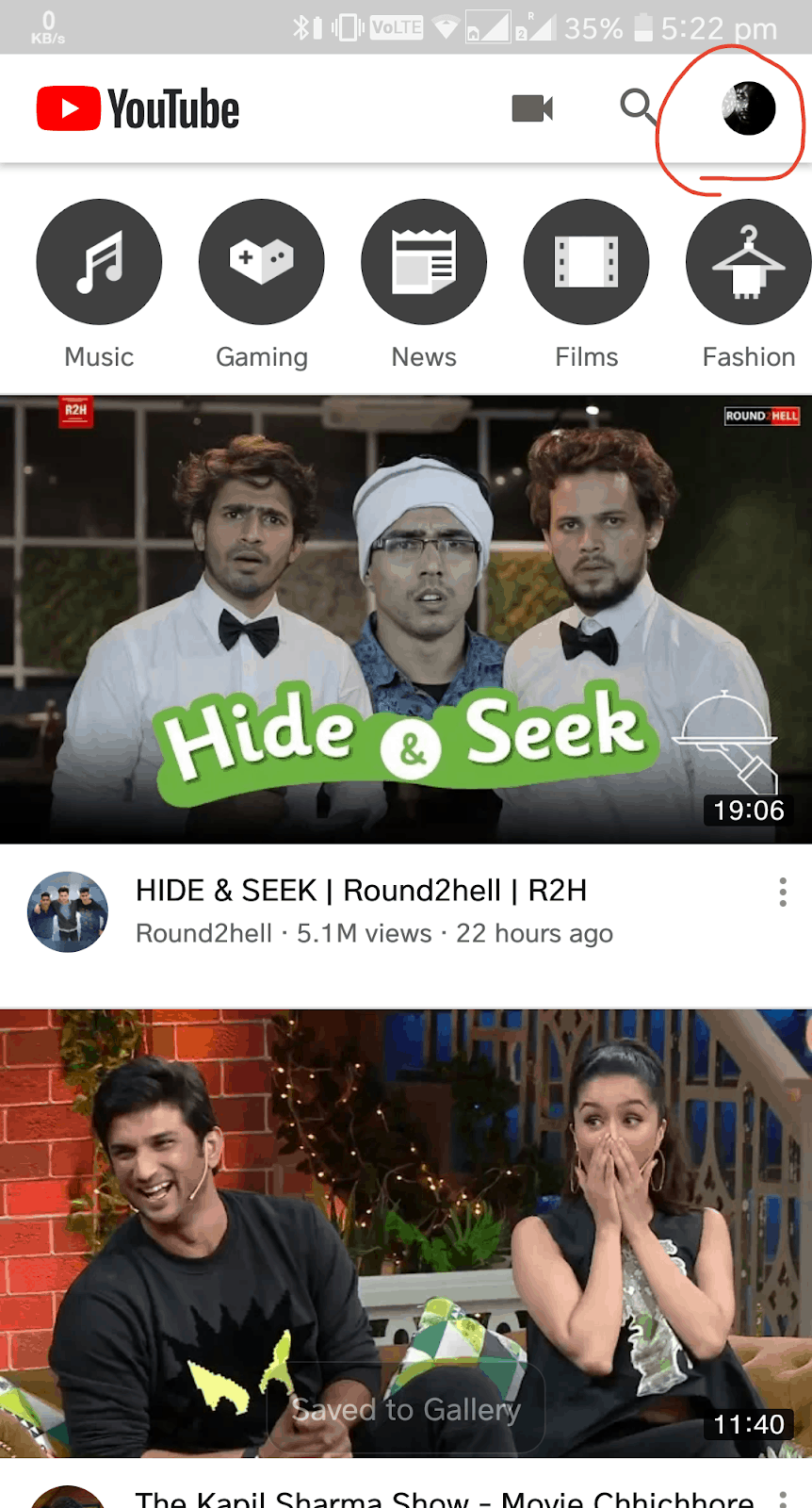
youtube dark mode,how to make youtube dark mode,dark mode youtube,how to get youtube dark mode,enable dark mode youtube
Your Account

• Once you tap on that icon one sub menu will pop-up with different options, after that you have to click on the settings option. 
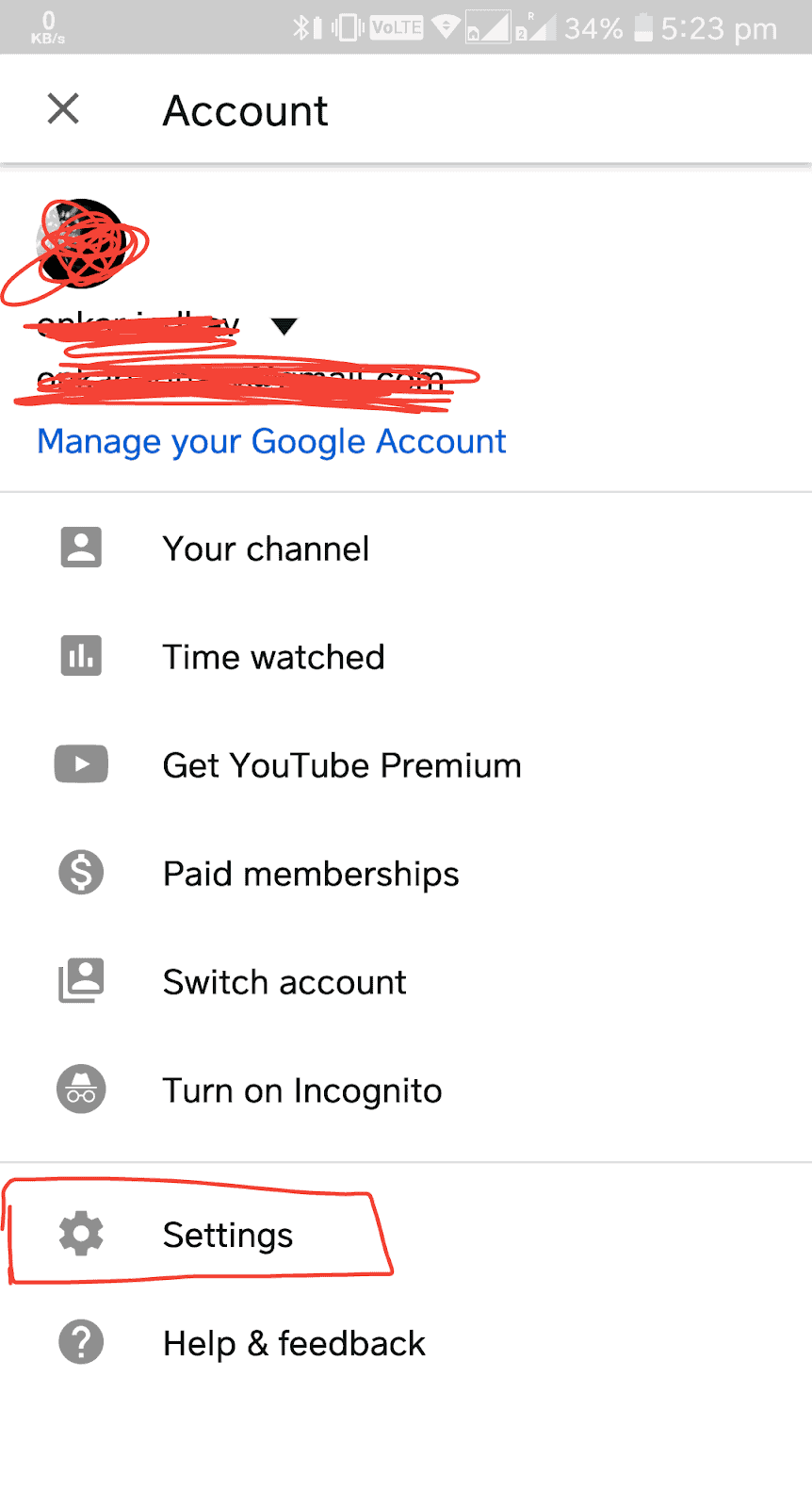
youtube dark mode,how to make youtube dark mode,dark mode youtube,how to get youtube dark mode,enable dark mode youtube
Settings

• After you click on the settings button it will open a new page with the different kinds of settings regarding your app.  In it you have to click on the very first setting from above will be named ‘General’. You have to click on that General option.
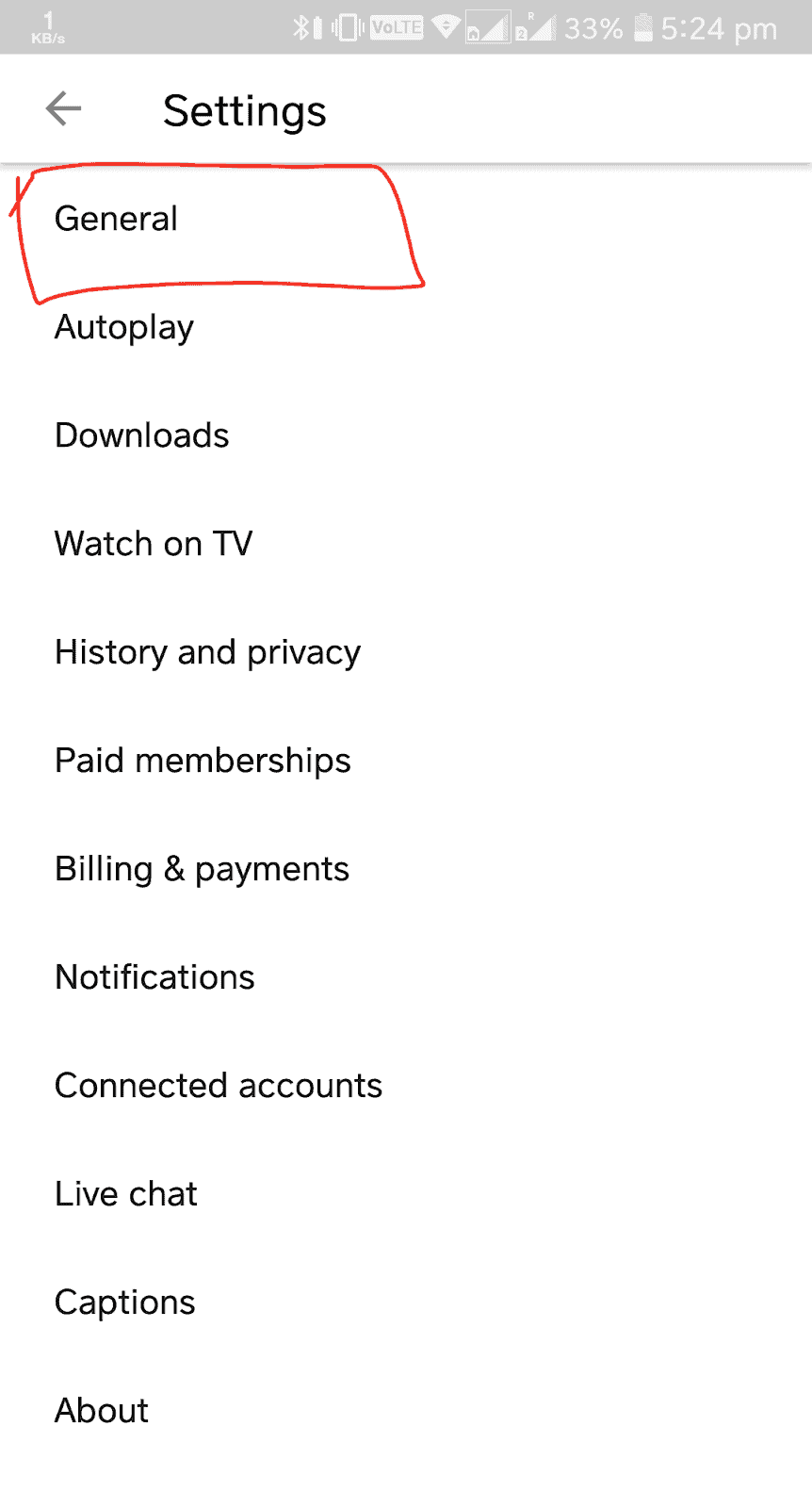
youtube dark mode,how to make youtube dark mode,dark mode youtube,how to get youtube dark mode,enable dark mode youtube
Dashboard

• After you select the General Button list of options will be opened on your screen. In these options very second option from above will be the option to enable the dark mode in your app. 
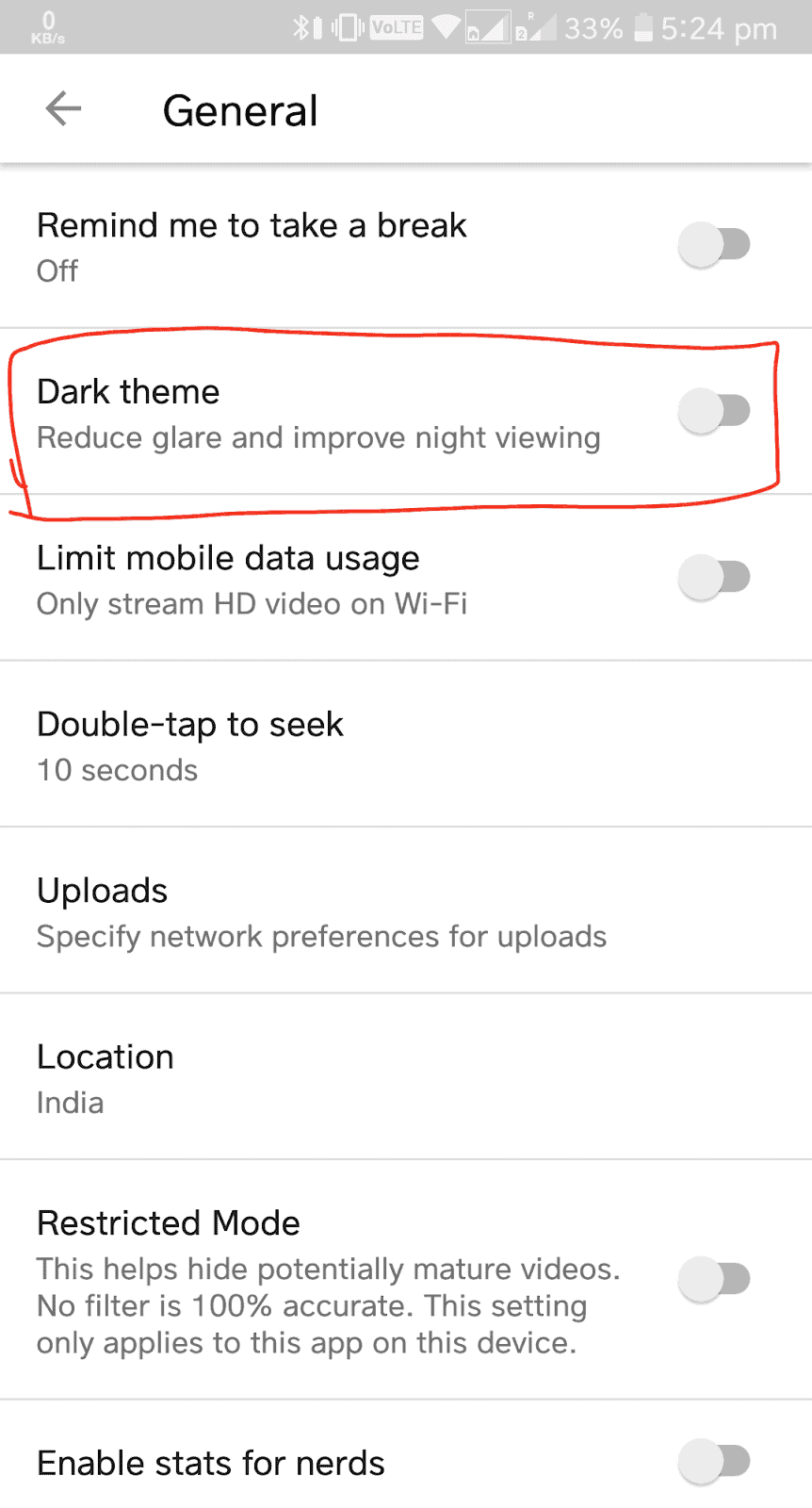
youtube dark mode,how to make youtube dark mode,dark mode youtube,how to get youtube dark mode,enable dark mode youtube

• One you click this button your app will be transformed into a dark app and all white background will be converted into black background.  Infact all the app will be transformed into dark mode. 

• That’s an example of how to make YouTube dark mode.

Nowadays using dark mode have become trending, many developers have adopted making their apps in dark mode, in fact, Android, as well as ios, have also integrated dark mode on to their regular application. This not only saves battery but also puts less strain on the eyes.

As the use of these devices rises in past years and the negative impact has also risen with it but as more and more people are getting aware of it more concrete steps are being taken by the developers.  
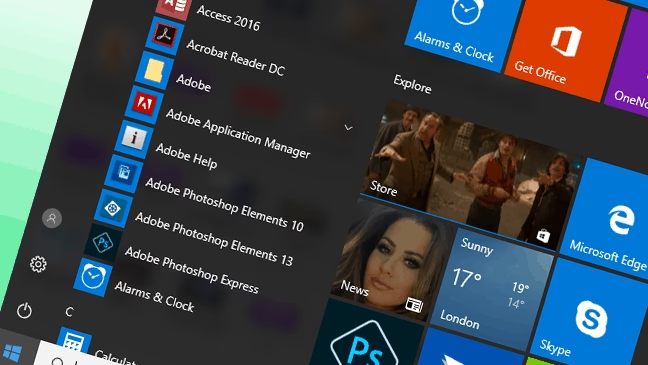
How to Fix Frozen Windows 10 Start Menu

0
Windows 10 Start Menu

Windows 10 is a widely used and the most dependable user operating system of Microsoft. There are few problems reported by the users about windows 10 experience. Frozen or crashed start menu is one of those common problems which are very annoying and irritating. These kinds of faults make your computer system just useless until you fix it.

If you are using windows 10 and suddenly you find that your taskbar is unable to work, you can’t see the icons, keyboard shortcuts are not working or there are no results found when you are clicking the taskbar that means your windows 10 start menu is frozen. This problem is reported by many users. This issue may arise due to variety of reasons.

Possible causes of frozen windows 10 start menu:

  • Unfinished update of operating system
  • Some update related glitch
  • Untrustworthy system files
  • Unethical user account files
  • Malfunctioning of application
  • Installation of corrupted window update

Most commonly the users who struggle with this problem are those who have installed the latest update and those who recently upgraded their computer system to windows 10. Fixing this issue is relatively uncomplicated. You just need a keyboard for this.

Few quick fixes to get rid of windows 10 start menu frozen:

  • If you have noticed that your start menu is not working just after the installation of latest update of windows 10 then turns back the update.
  • Run a clean boot. A clean boot can help you identify and analyze the exact cause of the problem.
  • Run the troubleshooter in windows store. It has been successful for most window 10 users. To run windows update troubleshooter simply go to the “settings” click “update and security” and then click “troubleshoot”
  • Remove all undesired files, applications and software.
  • Check and update the device drivers of your computer systems.
  • Scan your computer system with professional antivirus software.

Check out these solutions to fix the frozen Windows 10 start menu in Windows OS:

Restart the windows explorer:

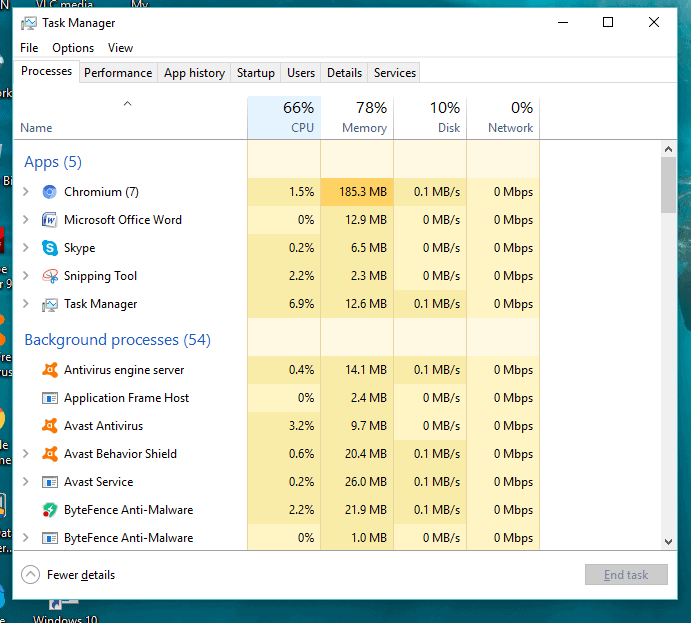
This is the solution for various issues associated with taskbar and start menu. So first of all try this. Restart the windows explorer through task manager.

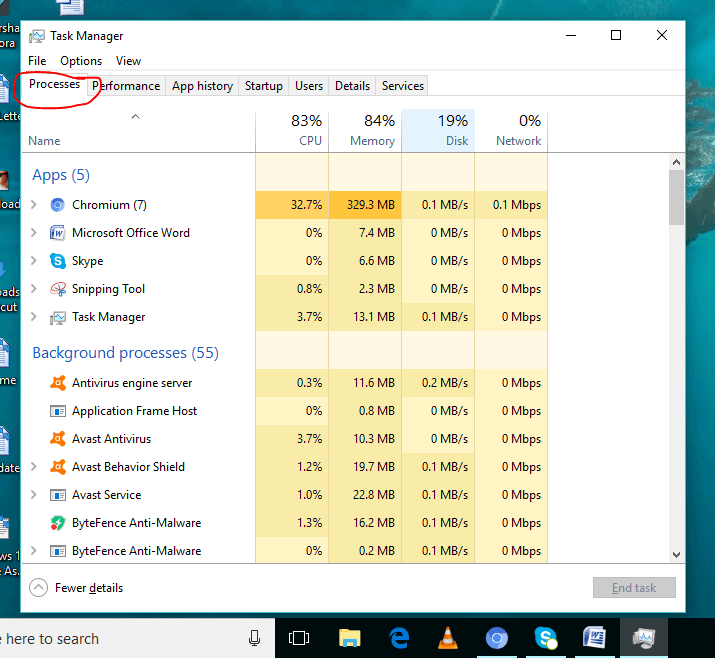
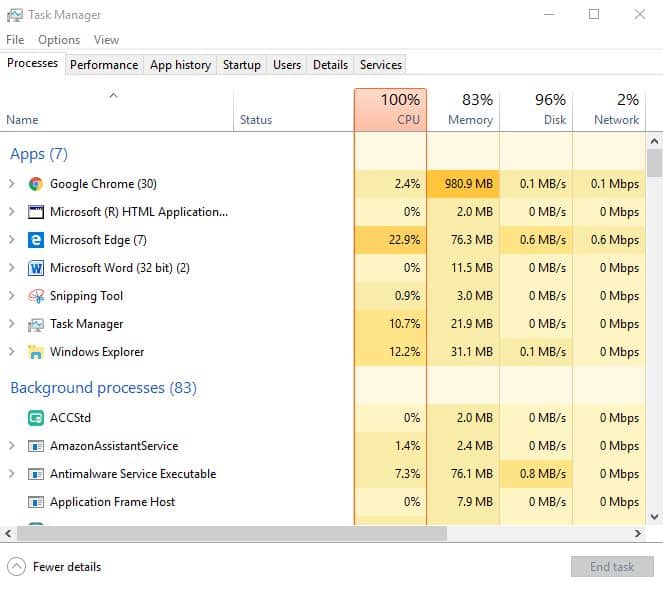
Step1: press the keys “ctrl+shift+esc” together to open the “task manager”. Click “process” panel and scroll down.

C:\Users\rads\Desktop\1.PNG

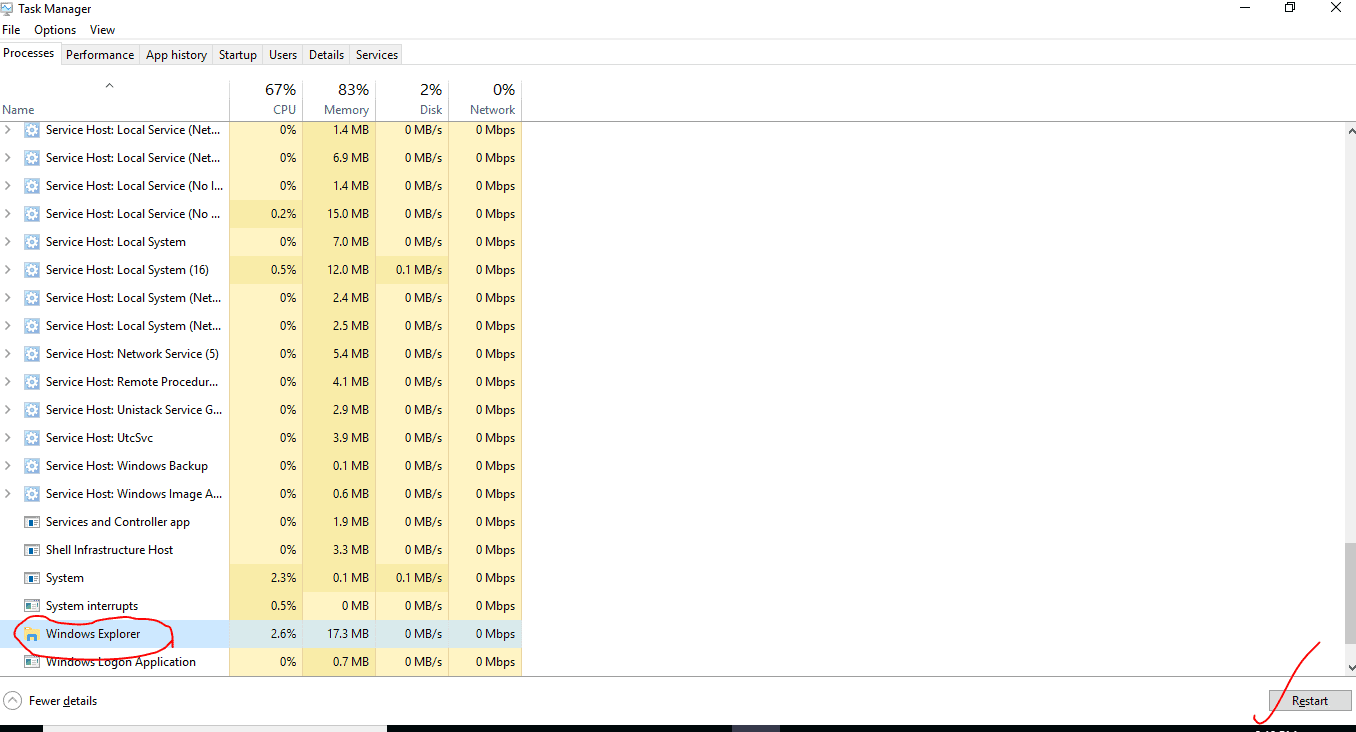
Step2: you can see “window explorer” highlight it and click “restart” at the bottom.

C:\Users\rads\Desktop\2.PNG

And there you go. Window explorer will restart and you can access the taskbar now.

Activate user manager: 

If the user manager of your computer is disabled then it may stop the working of start menu. So check the user manager and enable it.

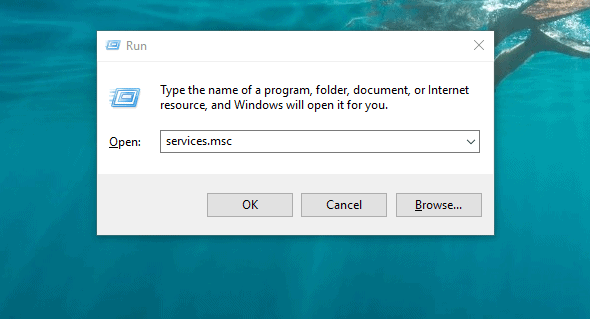
Step1: Press the keys “window+R”. When a box appears on your computer screen, type “services.msc” in that box and click “ok”.

C:\Users\rads\Desktop\1.PNG

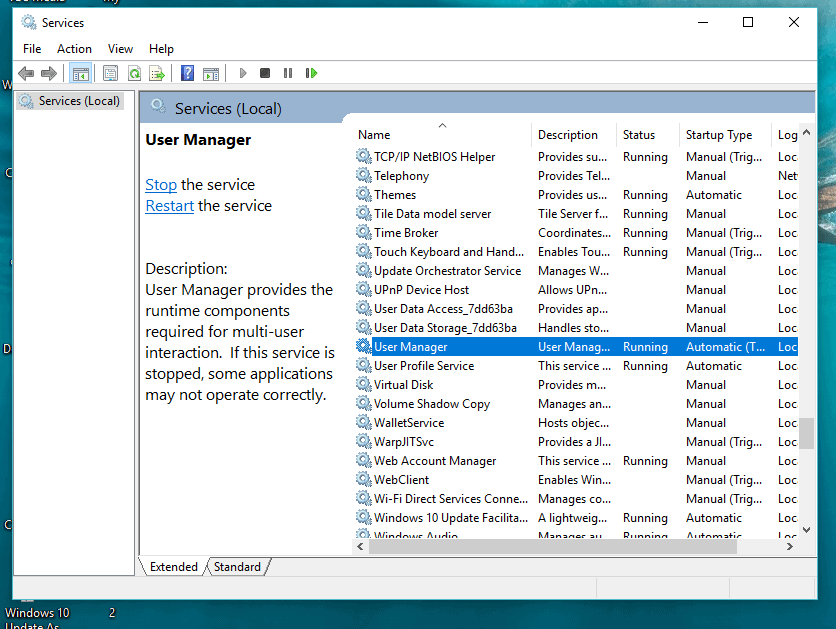
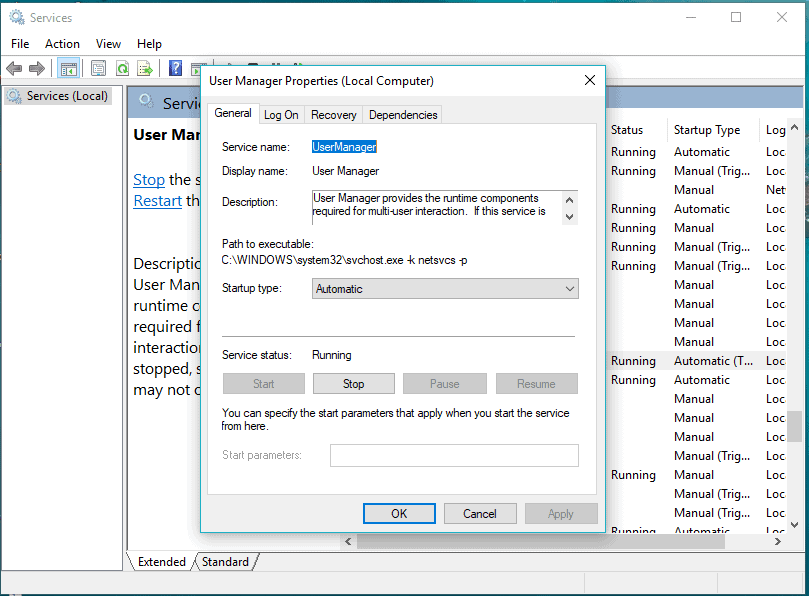
Step2: Now search the “user manager” and  double click on it. 

C:\Users\rads\Desktop\3.PNG

Step3: Select “automatic” for the box in front of “startup type”. Click “start” and then “ok”. Start your computer again and you can see that frozen windows 10 start menu is fixed. 

C:\Users\rads\Desktop\Capture.PNG

Uninstall suspected applications: 

Some users found that certain applications (classic shell and drop box) cause this start menu malfunctioning. If you believe that any application is causing this issue in your computer then you can uninstall that application to resolve the problem.

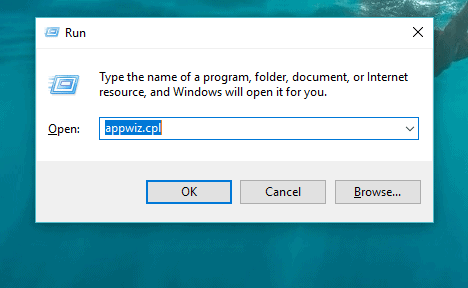
Step1: press the keys “window+R” to open the prompt command box. Write “appwiz.cpl” in the prompt box and then click “ok”.

C:\Users\rads\Desktop\1.PNG

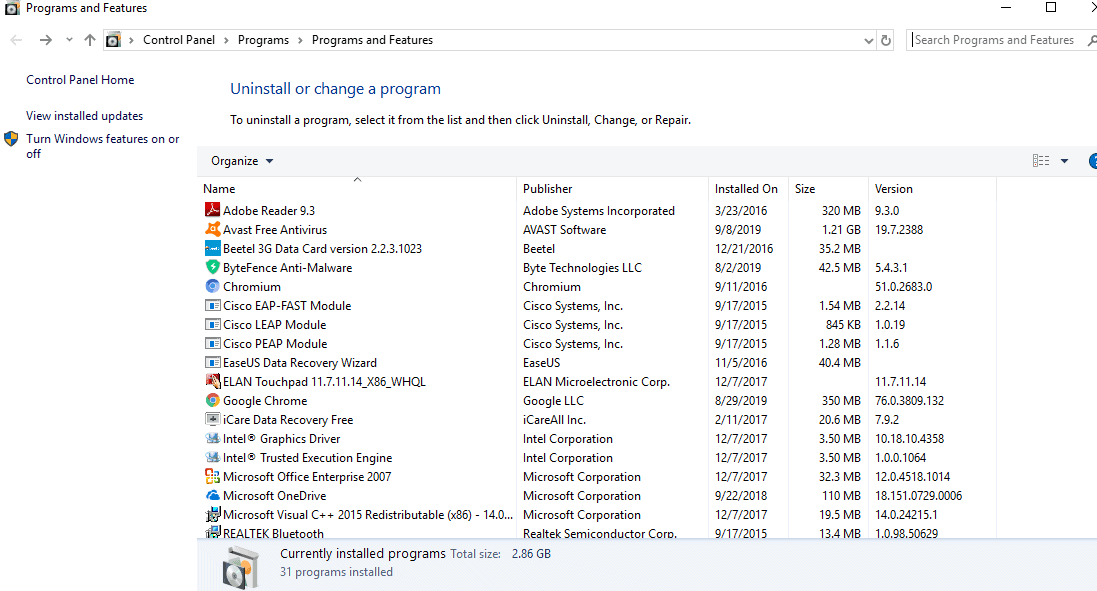
Step2: you can see the window showing all programs and features as shown in the image below. Find the problem causing applications in the list of installed applications and double click on them. Now you will get prompt commands to finish the process of uninstallation. Follow those commands and reboot your computer.

C:\Users\rads\Desktop\2.PNG

Run SFC (System File Checker) to fix windows files:

Step1: press the keys “ctrl+shift+esc” together to access the “task manager”. 

C:\Users\rads\Desktop\1.PNG

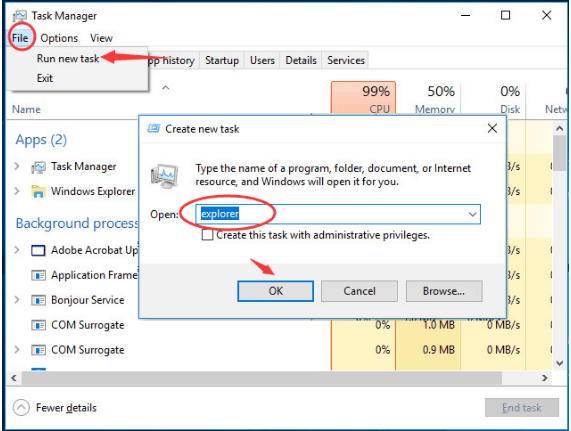
Step2: click “file” at the left side top. Then click “run a new task”. Now you have a small box on your screen. Type “explorer” in the box in front of “open” column and click “ok”.

C:\Users\rads\Desktop\2.PNG

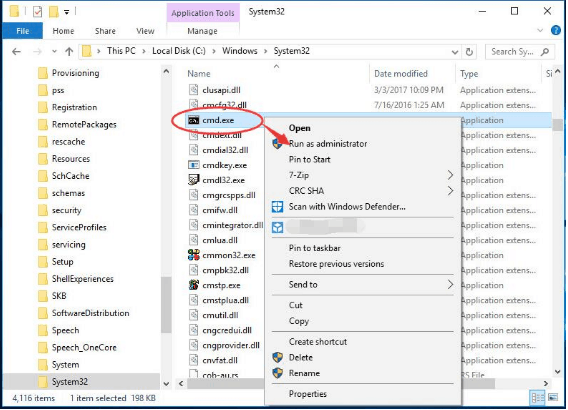
Step3: “file explorer” is open now. Go to “C: / Windows / System32”. Now scroll down to find “cmd.exe” and right click on it. Select “run as administrator” option. Now you will get a prompt notification from user account control, click “yes”.

C:\Users\rads\Desktop\3.PNG

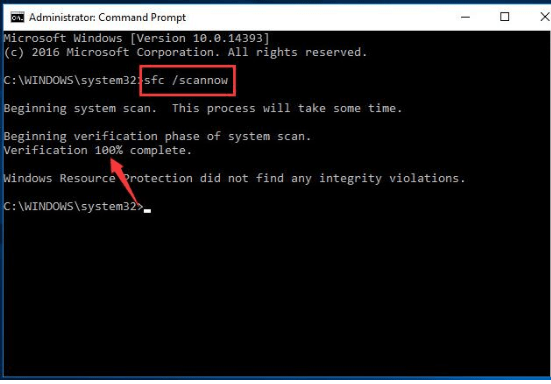
Step4: now you have prompt window on your computer screen. Type “sfc/scannow” in this command window and press “enter” to run SFC. After 100% complete verification you can resume the start menu. 

C:\Users\rads\Desktop\4.PNG

Run Powershell: 

Powershell command can help you defreeze the frozen start menu.

Step1: open the “task manager” by pressing the keys “ctrl+shift+esc” together.

C:\Users\rads\Desktop\1.PNG

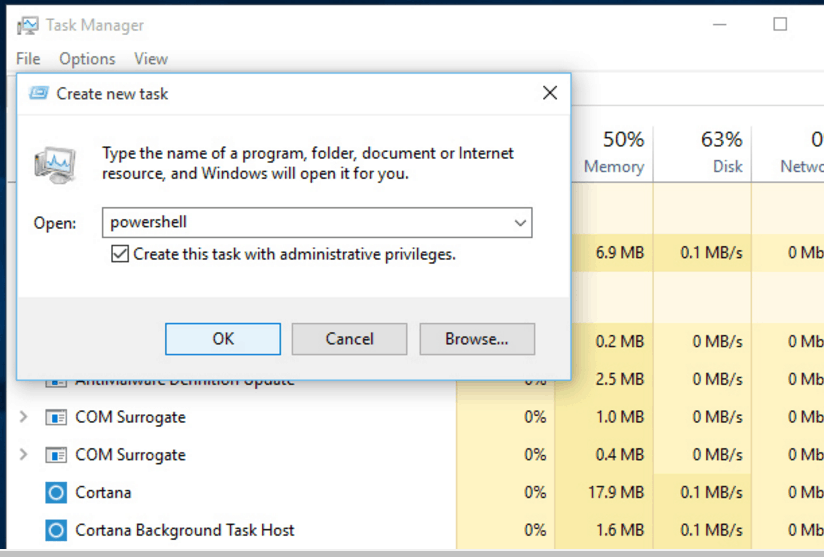
Step2: click “file” option in the left top and click “run a new task”. A “create new task” window appears on your screen. Type “powershell” in the box in front of “open” column. Mark the small box below and hit “ok”.  Follow the prompt commands. Now you can use your windows 10 start menu.

C:\Users\rads\Desktop\1.PNG

Disable currently opened things: 

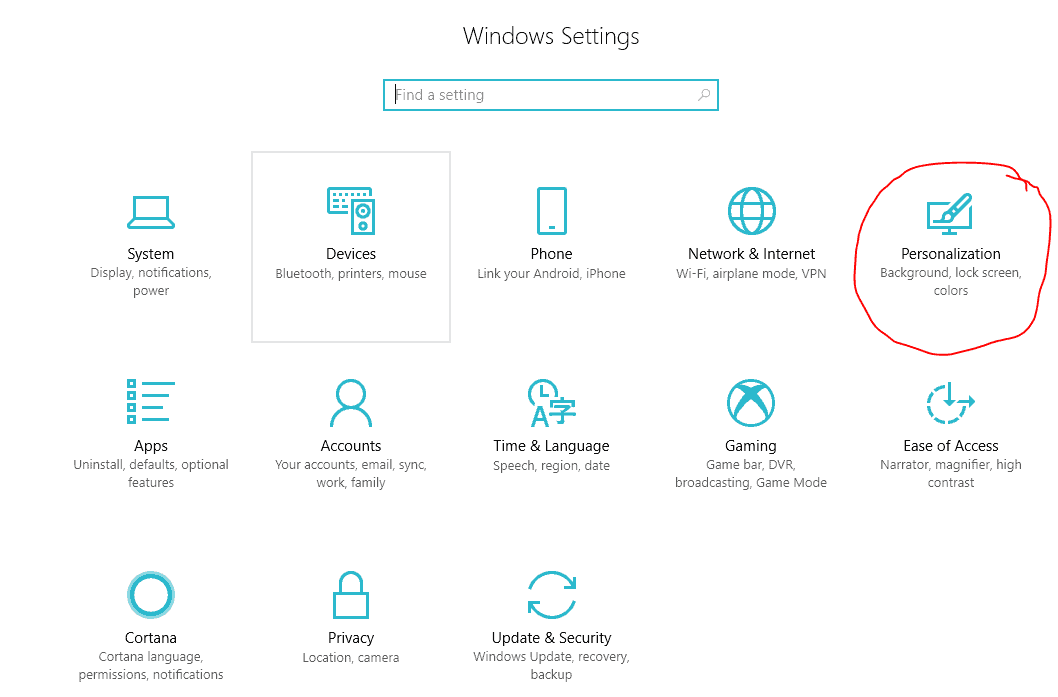
Step1: Open the settings by pressing the keys “window+I” together. Now select and click “personalization”.

C:\Users\rads\Desktop\1.PNG

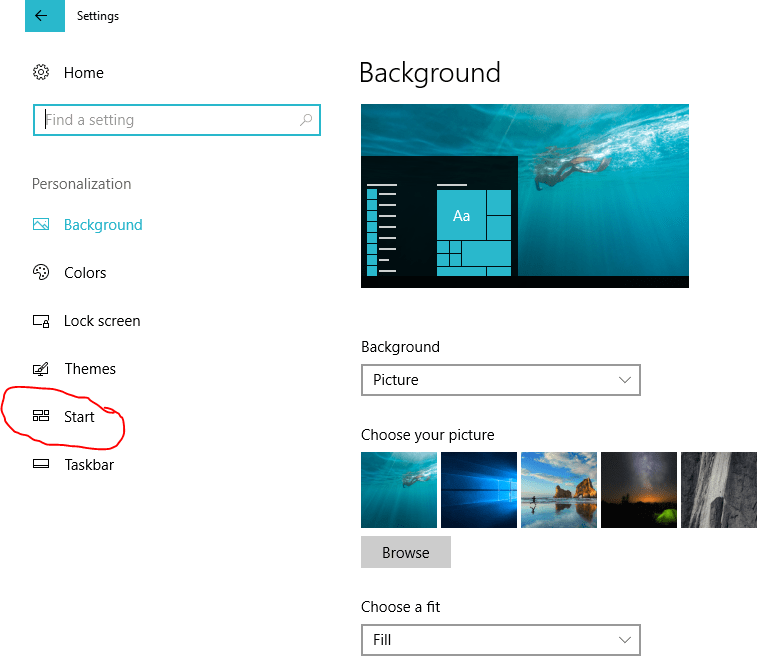
Step2: click “start” in the left side.

C:\Users\rads\Desktop\2.PNG

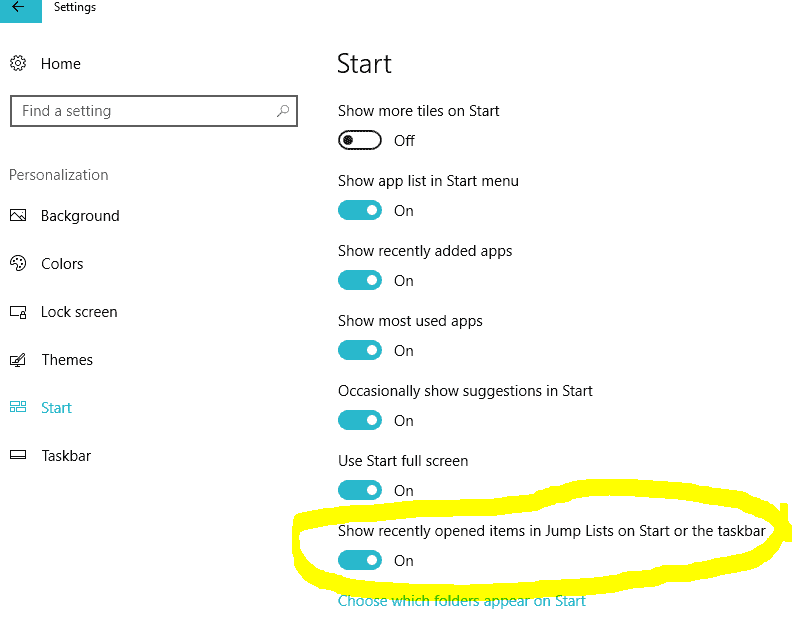
Step3: turn off the “show recently opened items in jump lists on start or the taskbar” column at the bottom.

C:\Users\rads\Desktop\3.PNG

Update windows 10:

Check for the windows 10 update. If it is up-to-date that’s very good otherwise update it following below given steps.

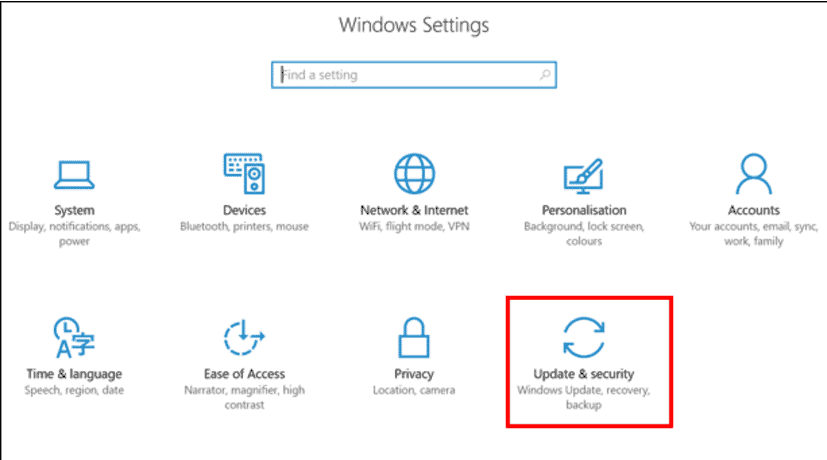
Step1: open the “settings” by pressing the keys “window+I” and click “update and security”.

C:\Users\rads\Desktop\1.PNG

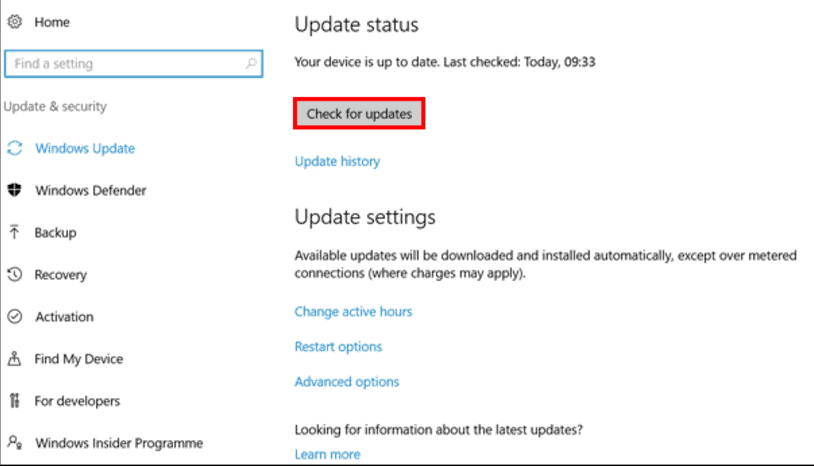
Step2: Now click “check for updates”.

C:\Users\rads\Desktop\2.PNG

Generate a new Google account:

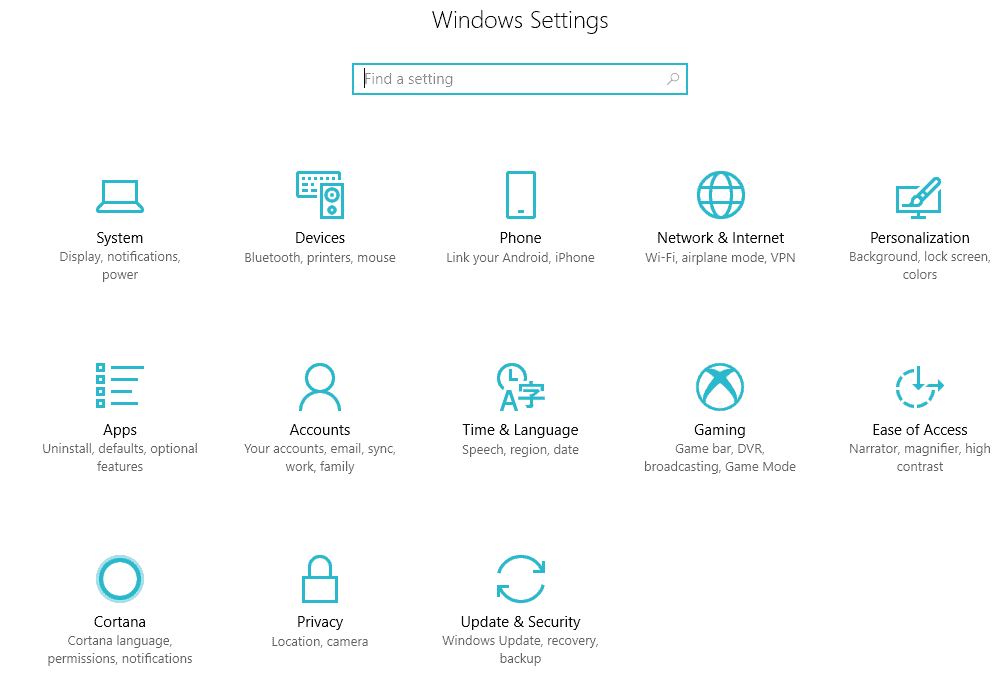
Step1: open the “settings” by pressing “window+I” keys.

C:\Users\rads\Desktop\1.PNG

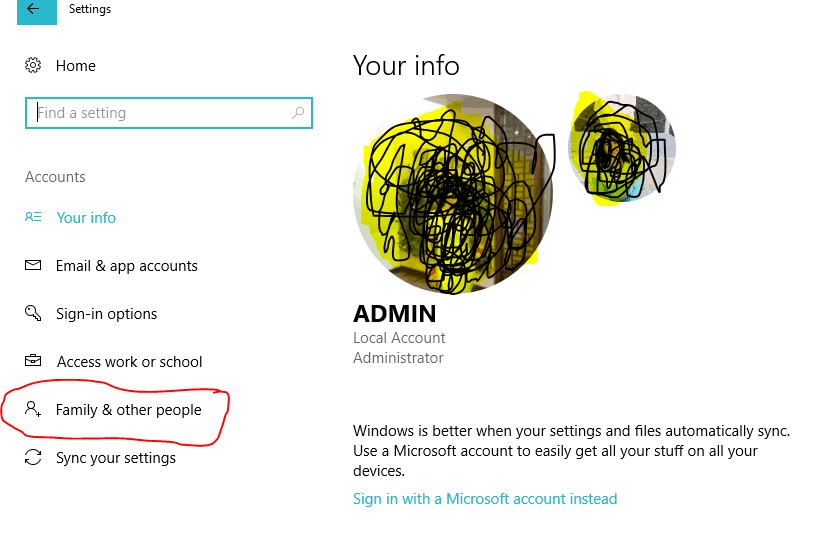
Step2: select “accounts” and then click “family and other people”.

C:\Users\rads\Desktop\2.PNG

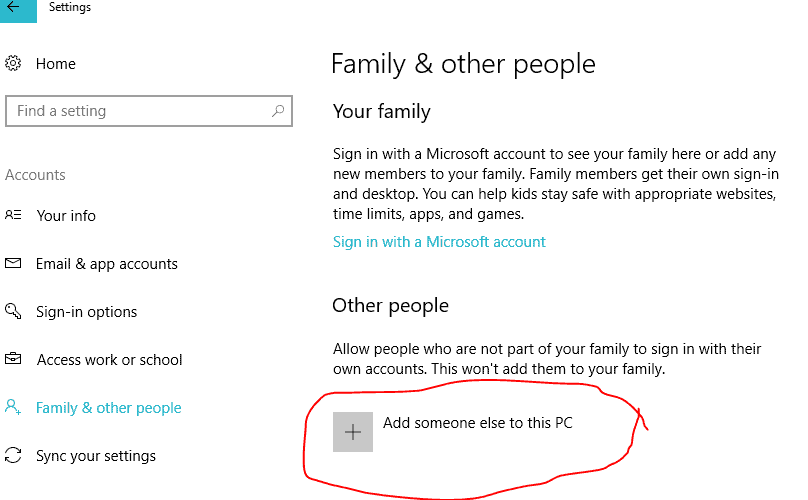
Step3: now select “add someone else to this PC”.

C:\Users\rads\Desktop\3.PNG

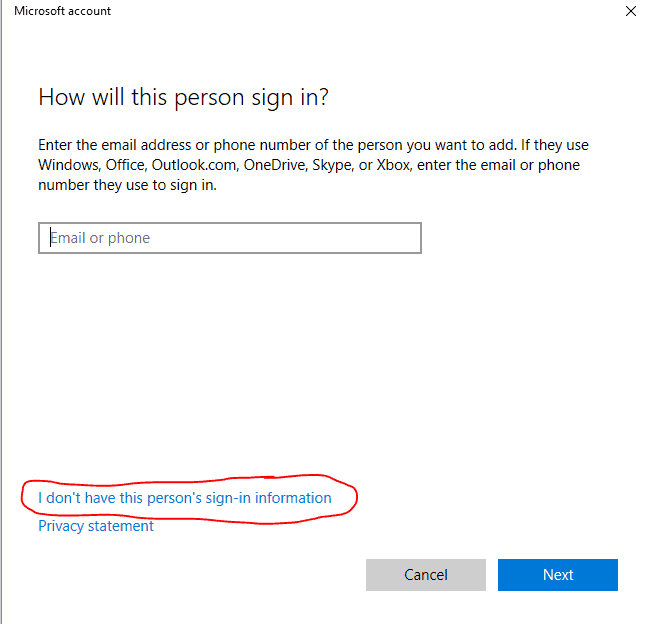
Step4: select “I don’t have this person’s sign in information” and click “next”.

C:\Users\rads\Desktop\1.PNG

Step5: then click “add a user without a Microsoft account” and click “next” and type your details in “username” and “password” columns. Click “next”. Now sign in to the new account. If the issue is resolved then transfer your data to new account and you can delete your old account.

Conclusion: 

I have explored the solutions which are proven and helped many users to fix windows 10 start menu frozen. Bring your start menu to normal again by implementing these methods and enjoy hassle free working experience on your computer system. Make sure you follow all the steps and type all the commands carefully. Typing a single wrong alphabet can make your efforts useless and lead to further issues.

What are Internet Cookies ? Are Computer Cookies Harmful

0
What are Internet Cookies

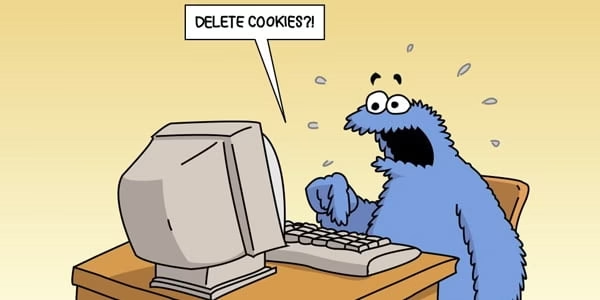
Have you ever opened a random website which lands you with a message popping on the screen asking permission to accept cookies? Did you ever wonder what are cookies on computer ? People who are well versed with computer knowledge might be knowing what are internet cookies. But what about the people who accept these cookies having no awareness about it? One should know what are cookies on the computer? And why is it used? To avoid the confusions of a cookie with a virus attack on your system, hence I have written this article.

 In this article, I have provided some detailed facts on the reasons why Cookies are used, their variants, and to clarify doubts like are they harmful? What kind of data does it store? etc. This is to educate the users with the basics of the internet so that you are aware of what happens when you click ‘Yes’ for cookies.  

What are computer cookies and how does it work?

Popularly known as an Internet Cookies or Web Cookies is a word used for small packets which stores data about the user and their browsing history. These cookies are not harmful unless a virus is embedded in it. It is a technical term for the phenomena where a browser sends a notification to the server with the gathered data. This helps to customise web pages or helps in saving information for logging in for certain webpages. For example: To save passwords for different accounts like Gmail, LinkedIn, Twitter, etc, the entire information gets saved in the server.

Next time you enter any website by utilising a cookie, you will be approached by the browser to enter your nonexclusive data like your name, email id and your types of interests. The data is then packaged into a cookie by your internet browser which is utilised further. This data is packaged as a cookie by your internet browser which is then sent to the server. Each time your program demands for a website page this cookie is sent to the server.

A cookie helps to track your website surfing habits which further helps the webpages to track your interest hence it helps you to customize the ads or websites accordingly. For example, when you surf through the products in Amazon.in, the very second, you’ll start seeing ads on YouTube with the products which you were searching for. This is nothing but cookies. It helps in customizing the content until such an extent that they can target you on your common website habits. This helps them to pinpoint your common interests. Hence, it is a very powerful tool for digital marketing as well.

Also Check: How the Internet of Things is Revolutionizing Smart Farming

What are the different types of Cookies ?

1. Transient Cookie

Transient Cookies are like short-term cookies. Meaning, these stop working as and when you exit from your web browser. They do not gather any permanent information from your browsing habits. It only stores on the basis of sessions that one has spent on the webpage.  Hence, it does not collect information on a personal level. 

2. Persistent Cookie

Persistent cookie is a permanent cookie, it stays in your system until it gets expired or unless one deletes it by themselves. Most of the time they always have a set expiry date. Since this is more on a personal level, it stores information on an individual level. Hence, it allows to track the user’s website habits, interests, etc.  

What kind of information does it store?

The cookies have a fixed number of parameters for which they can hold information. This information is about the user gathered from the browser. It doesn’t have to know every small detail about the user like where is he/she from, their age, or their gender, etc. However, some of them do collect more details about the user. But this can happen only if you have provided your personal information to your browser. 

The six parameters that can be used by the cookie are:  

  1. Name
  2. Value
  3. Expire date – this helps condition the cookie to a set time period to the cookie
  4. The path for a cookie – this is to determine which URL path the cookie is valid for
  5. The validity of a cookie for a particular domain  
  6. Secure connection –  a cookie can only be used for a secure server

As you know, cookies are just to gather information on the user. It cannot be harmful unless you execute a virus into the cookie. You need not worry about the cookies present in the browsers. After this article I believe that you might at least get some idea about what are cookies on a computer?

Desktop Cable Management- Best Desk Cable Organizers for Computers

0
Best cable management accessories

We thank technology for giving us the most ideal gadgets that enable us to do our work in a fast, convenient and easy way. Just imagine how it would feel like coming up with a hundred handwritten mails for your employer, clients or anyone you’re working with. While there’s nothing wrong about it because novelists in the past have even produced thick handwritten books, right now, it’s not a good option anymore. 

It’s not only tiresome, it looks not-so-professional as well. Of course, spare the love letters. Handwritten is the way to go. But for mails and forms intended for business purposes, typewritten is always mandatory since it’s more formal and professional-looking. Speaking of which, here is an article that provides useful suggestions on how to write more professional-looking emails. 

Now, why are we debating whether you should go for handwritten or typewritten works? It’s not really the issue we’re tackling right now since typewritten mails are mandatory in any kind of career path. And so, it is non-negotiable. 

What we wish to talk about is how to keep your desk neat and organized with all those gadgets laid on top of it to make our young adult professional life easier, not to mention also notepads, pens and other essential work knick-knacks. That desk is practically begging for clutter, but you should resist the urge to let the mess out of control. Having a nice desk with zero to very minimal clutter can keep your mind at peace and focused while you take on one task at a time on a typical workday. 

Using many gadgets though would mean having to manage multiple cables as well. And you know for sure that those cords are notorious for creating unsightly messy spaces especially when they get tangled up together. When this happens, sometimes, you don’t know which cable is for which gadget. Yes, folks, it’s confusing and annoying. 

youtube dark mode,how to make youtube dark mode,dark mode youtube,how to get youtube dark mode,enable dark mode youtube

Get the Right Cable Organizers for Your Computers and Other Gadgets

Now, that ‘tangled’ situation shouldn’t be the number one constant on your desk. It’s something you should rather resolve once and for all. The answer? Get the right cable organizers that would be useful for all your computers and other gadgets. Since there are many choices available in the market, how can you choose what’s the best one for you?

There are key questions you should ask yourself to help you determine which items would make your desktop cable management a breeze. 

What would you use it for? 

Define the purpose you’d want it to serve. Would you like a cable storage on top of your desk so that you’ll have a go-to place whenever you need one cord for charging or doing other tasks on your gadgets? Having one with several compartments will make your cords neat and properly organized. With it, you’ll never have to scour through the piles of mess on your table again just to find that USB connector! The key is to give everything a home. 

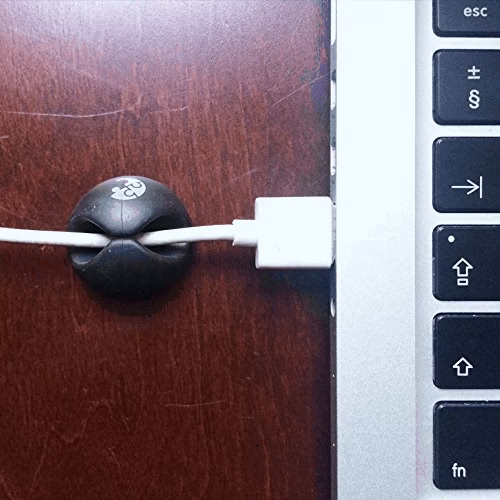
Perhaps, you’d also wish for a cable holder so that your cords wouldn’t fall behind your desk whenever they’re unplugged. If that’s what you like, you need to choose one that could stick anywhere or on any kind of material. Also, it should be sturdy enough so that it can properly hold the cables in place without being detached from the desk where it was installed. 

For how long do you think would you be able to use it?

We budget-savvy young adults, don’t like to waste our money on something that would bid goodbye earlier than it should be. Yes, even if that item is as simple as a small cable holder. We want something that would serve us long time because we don’t want to go to shop repeatedly and buy the same item over and over again.

Meanwhile, here’s how you can finally start spending less money: https://www.businessinsider.com/35-things-you-can-do-right-away-to-start-spending-less-money-2014-2

We’re not lazy. We just understand that buying anything we need should be within our ideal price range of products and commodities and it should be durable enough to serve us long time. 

Cable organizers for computers are a must-have for clutter-free desks. Choose one now. 

[Solved] Your connection is not private fix error

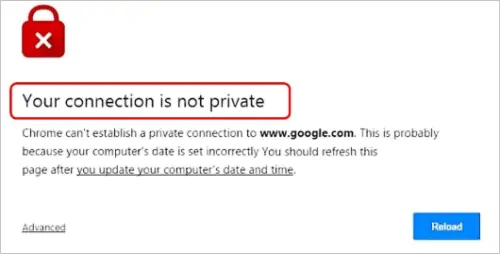
Google maintain some safety standards which secure you against distrustful websites. It responds whenever it discovers that you are making a wrong move. If you are figuring out why does chrome keep saying your connection is not private then you will get an answer in this article. So basically “your connection is not private windows 10” error is a cautionary sign. In this article I will help you learn about this issue and will tell you some effective and easy solutions to fix the connection not private error.

your connection is not private windows 10
PIC: Your connection is not private fix error 1000-1200

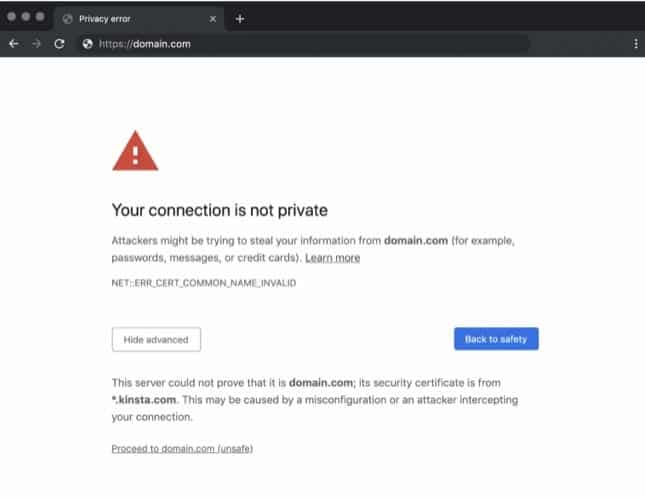
When users attempt to open a website, the browser makes some essentially required safety checks. It investigates installed digital certifications on website servers to ensure that everything is on right track. During this process if Google catches something doubtful, it holds back the loading of the site and “your connection is not private” error appears on your computer screen. In that case, you can neglect this alarming sign and manually enter the same site to open it. But it may leak your login details, your data and even your payment information if you continue without caution.

Typically this fault appears when there is some issue with SSL (Secure Sockets Layer) connection and your browser is unable to authenticate SSL connection. It is a protected way to encode the information from your computer and forward it to the server. It carries the data safely and privately during its transmission. If this error occurs that means your computer system is preventing Google chrome to open the requested website with a safe and private method. The “connection not private” error actually protects you. 

your connection is not private windows 10
PIC: Your connection is not private fix error 1000-1200

Main reasons which cause “your connection is not private” error:

  • SSL connection is not obtained within the computer and the server.
  • SSL certification of the website you are trying to open is expired.
  • SSL certification available on the webpage does not actually associate to the needed domain.
  • The SSL certification is not circulated by a trustworthy organization.

If you are irritated and figuring out why does chrome keep saying your connection is not private then, you can solve it easily by yourself following the below mentioned ways:

Refresh and restore the page: the very first thing you should do is simply refresh the page because the error may appear by mistake. Click “refresh” on your browser or press “F5” to refresh the webpage. If still you have “your connection is not private windows 10” error on your computer screen, just restart your browser and try restoring the web page again. It may resolve the “this connection is not private” error because there is a possibility that the owner of website is presently renewing the SSL certification of the website or something is not right with your browser.

There are some ways to resolve “your connection is not private windows 10” error:

Update the clock: 

Most familiar reason behind “your connection is not private” error is inaccurate date and time of your computer system. Browsers depend on the date and time of your computer to correctly validate the SSL certifications of all requested Web Pages. So check that and update the correct date and time if it is not up to mark.

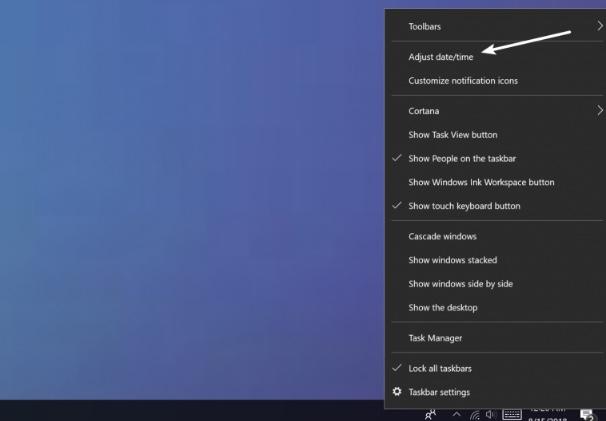
Method 1: You can see the time at the bottom in the right side of your computer screen. Right click on the time shown by your computer. Select “adjust date/time” in the list and update the right date and time.

your connection is not private windows 10

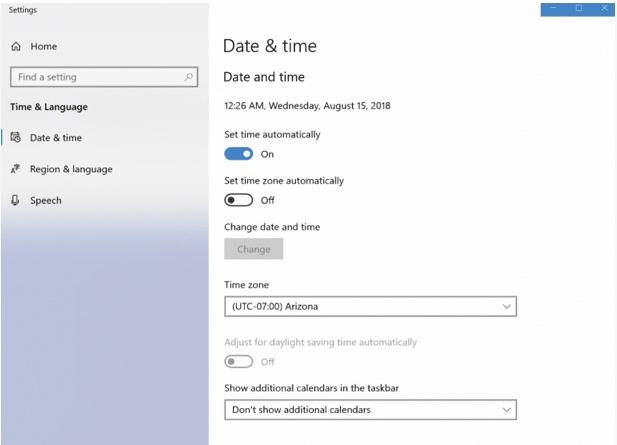
Method 2: Type “date and time setting” in the search bar. Click “change the date and time” and update the actual time and date.

your connection is not private windows 10

After updating the clock restart your browser and open the website again.

If the “this connection is not private” error is not solved by the above mentioned solution, below is the another way to tackle it.

Clear away the SSL state of chrome: 

Clearing the SSL in chrome browser can easily help resolve “your connection is not private” fault if the things are out of sync. 

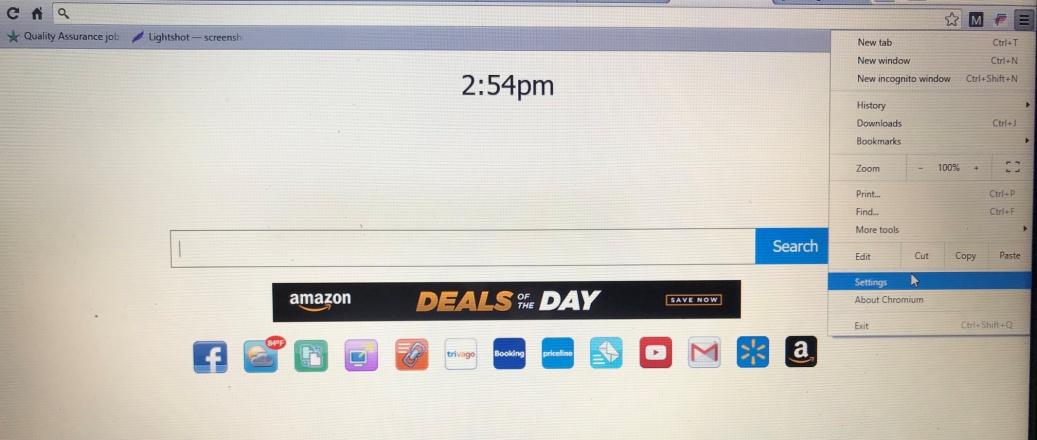
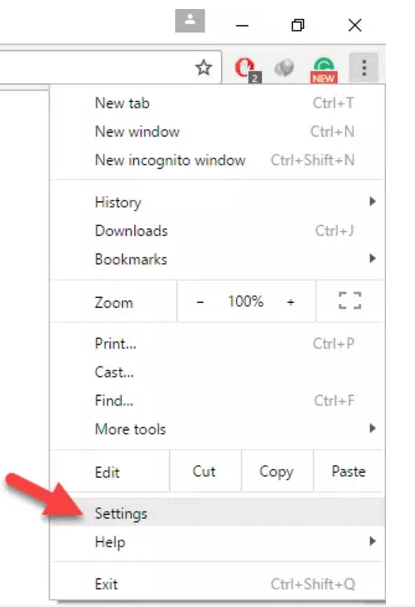
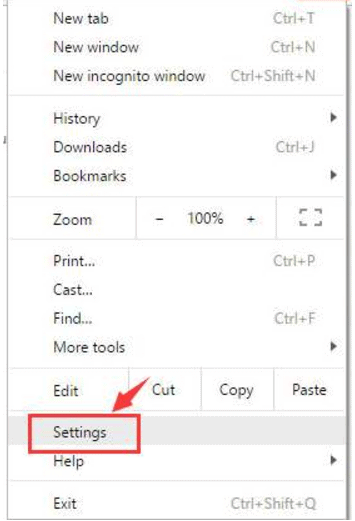
Step1: Open the Google chrome. In the right hand side corner on the top, you will see three lines or three dots, click on these lines to see the options list. Click “settings”

your connection is not private windows 10

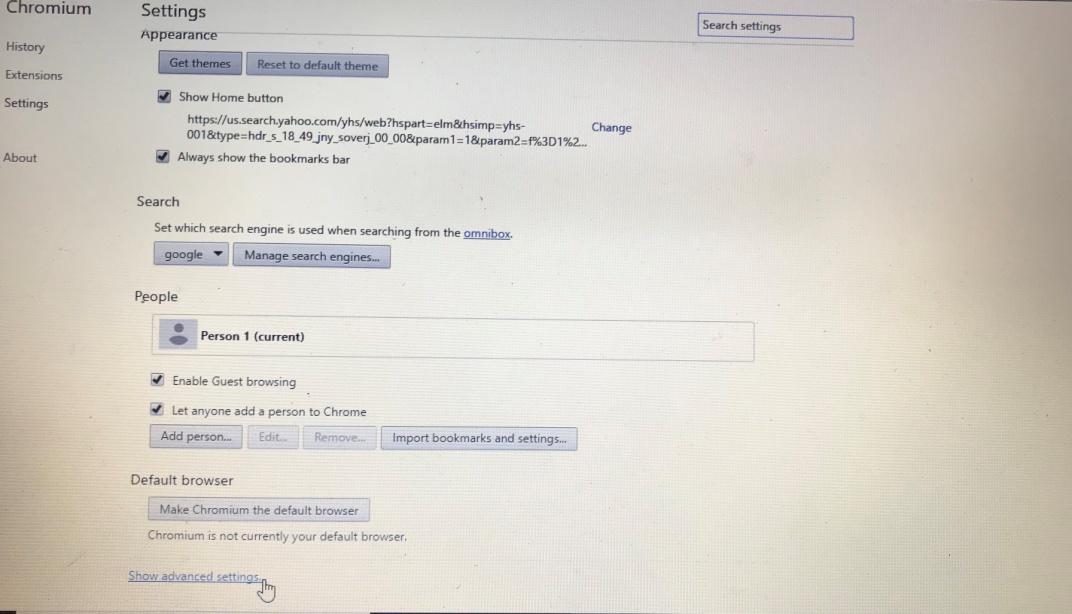
Step2: Now go to “show advanced settings” at bottom.

your connection is not private windows 10

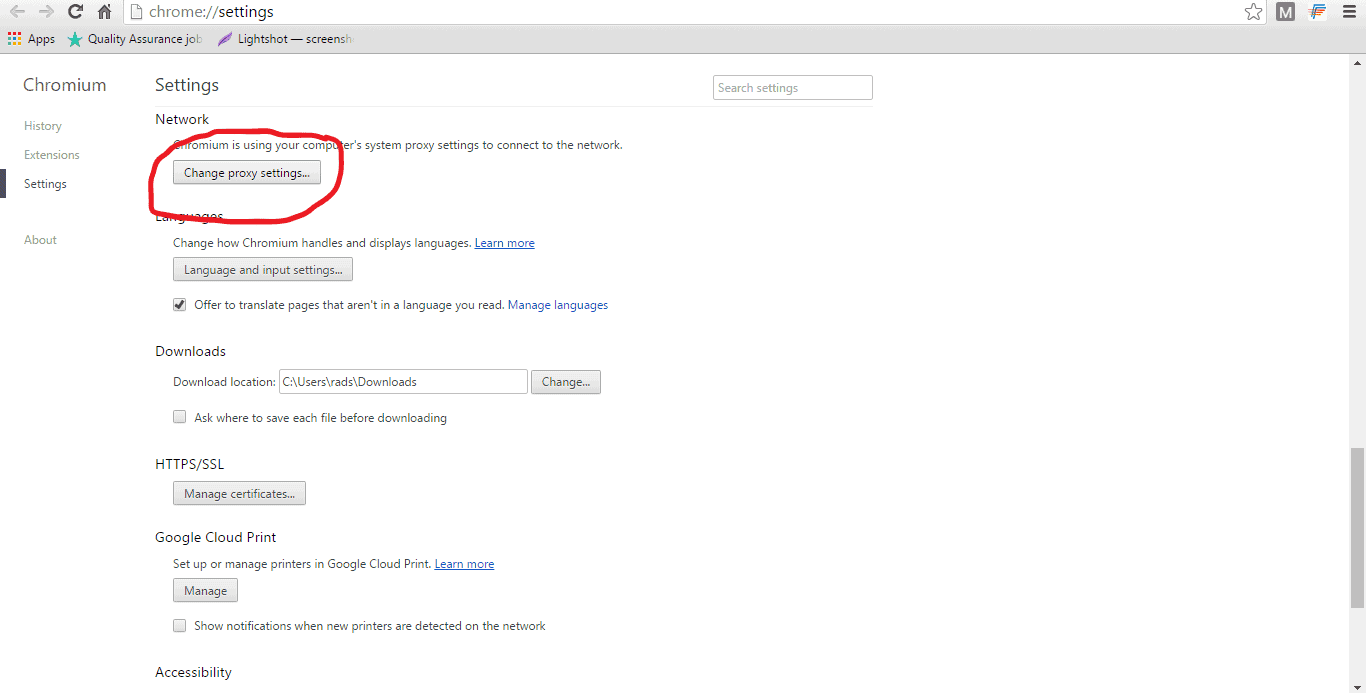
Step3: Click “change proxy setting”.

your connection is not private windows 10

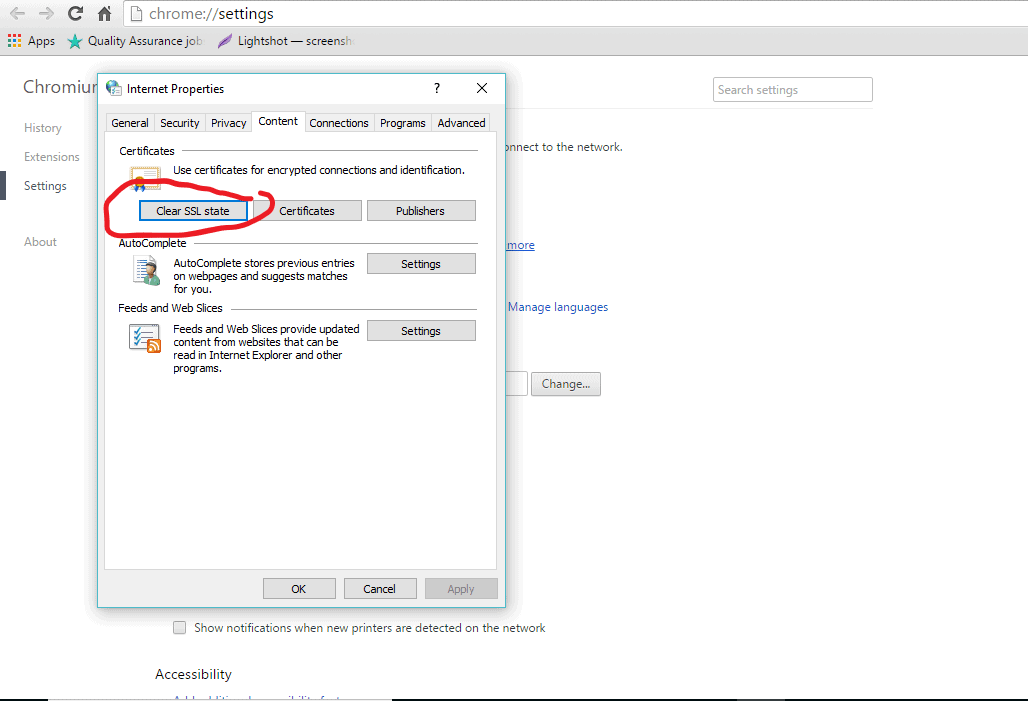
Step4: When you click “content” tab you can see “clear SSL state”. Select it and click “ok” and start your browser again.

your connection is not private windows 10

Another way to tackle “your connection is not private windows 10” error is mentioned below:

Erase caches and cookies of chrome: 

The connection not private error may be because of large amount of cache and cookies stored. Erasing the caches and cooking can fix “your connection is not private” error.

Step1: Go to the chrome browser. Open “settings” by clicking the three dots or lines at the right side top.

your connection is not private windows 10

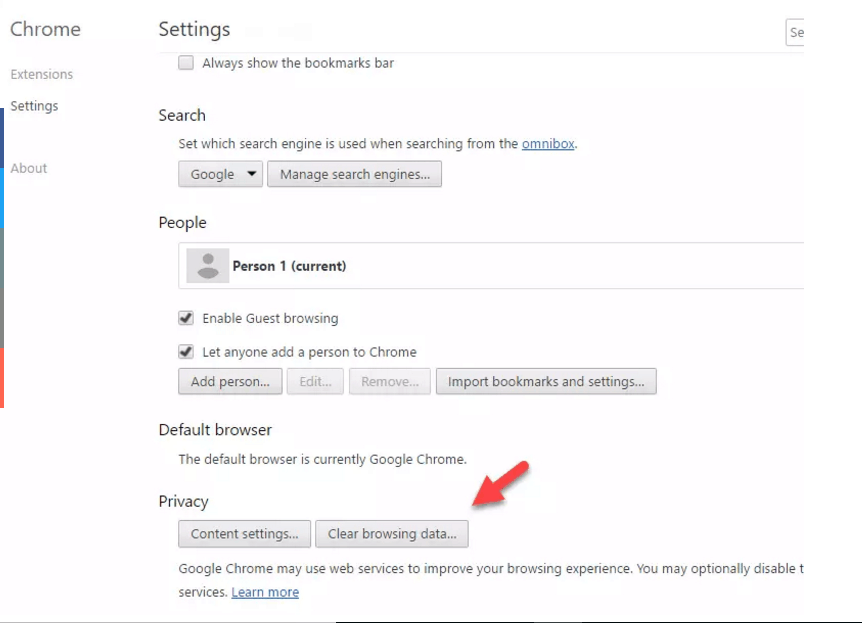
Step2: Scroll down and click “advanced settings”.  Click “clear browsing history”.

your connection is not private windows 10

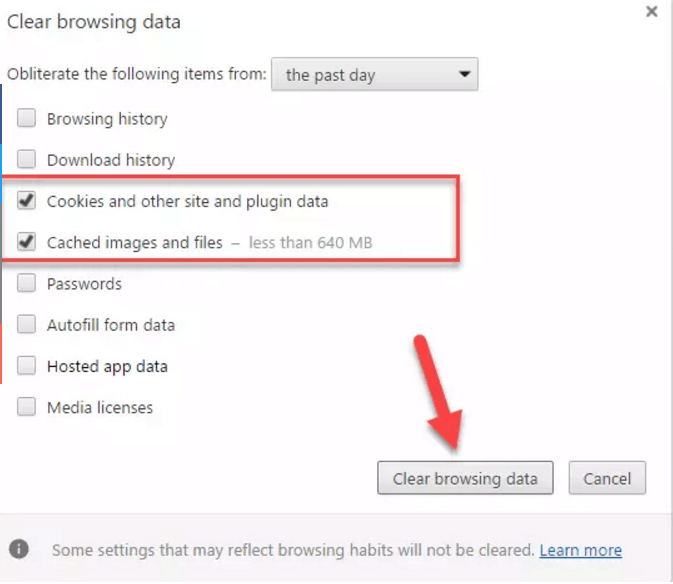
Step3: Mark the options “cookies and other site and plug-in data” and “cached images and files” as shown in the image below. Then click “clear browsing data”.

your connection is not private fix windows 10

Here’s another solution for “your connection is not private windows 10” problem:

Use Incognito mode: 

Press the keys “ctrl+shift+N” to open the incognito window in your Google chrome. Now enter the website you need to see. If the website opens in cognito window that’s great and that means everything is fine, the connection not private fault was because of some delay.

Step1: Open the chrome browser and click the three dots or three lines on the right side of the top. Click “settings”.

your connection is not private fix windows 10

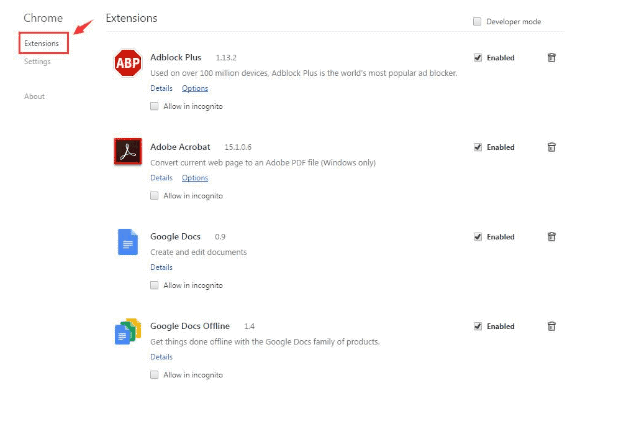
Step2: The window is opened now click “extensions” in the left side. You can see the extensions list on your computer screen.

your connection is not private fix windows 10

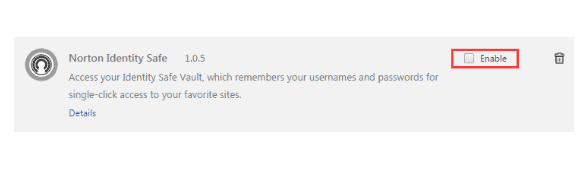
Step3: Check if any extensions are interrupting with SSL connection. If you get any, disable the extensions by uncheck the box in front of “enable”. I have mentioned an example in the following image.

your connection is not private fix windows 10

If the above solution didn’t work for you, and still you are confused why does chrome keep saying your connection is not private, then don’t worry we have got another solution for the problem.

Check your antivirus software settings: 

Occasionally the antivirus software you are using can block the safety certificates of website causing “your connection is not private” error. So you need to analyze the settings of the antivirus software you are using. Turn off the “scan SSL” and now restore the webpage. If you are not able to find such settings then just disable the antivirus program for some time. Now try to open the website to see if the “connection not private” problem is solved. If “this connection is not private” error disappears after disabling the antivirus program then you should change your internet security system or antivirus to prevent the problem in future.

Update the operating system: 

Older or outdated operating system can also interfere with the working of the browser. Check for the same and make sure that the operating system of your computer is updated. Set it to auto update to avoid related issues. This will surely solve “this connection is not private” error.

Conclusion:

You can fix “your connection is not private windows 10” error only if it is linked to your computer system or the device you are using to browse. If the error occurs due to unknown SSL certificate or expired certificate etc then you can’t resolve it. In that case only site administrators can fix it. I am sure that above listed information will help you understand about “your connection not private error” and solve it.

How to Fix for “api-ms-win-crt-runtime-l1-1-0.dll is missing” Error

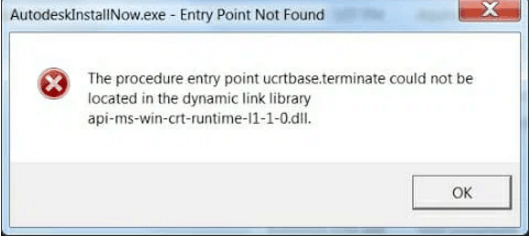
Today’s world is the world of technology. We all spend a lot of time on internet on our computers, laptops or other devices and we also find various errors while using these. Error “api-ms-win-crt-runtime-l1-1-0.dll download is missing” is one of those errors. Errors are very irritating because these can delay some important tasks.  This error appears on your screen when you are unable to open a file or program.

How to fix "Your connection is not private" error

This fault may occur when you try to open programs such as Microsoft office, coral draw, Autodesk, Skype, smart FTP software or adobe applications etc. Dll (Dynamic Link Libraries) are the external components of the applications running on windows or additional operating systems. This error may arise when installing windows or adobe software.

C:\Users\rads\Desktop\1.PNG

Errors are very common issues most of users see when working on the computer or internet. If you have not installed Microsoft package on your system ever, then the software that need that specific dll from library will not open and show this error. And if you have installed Microsoft package and that became corrupted or lost somehow, in that case also you can get this error.

There are so many applications which do not hold all their data inside them but store that in the form of codes in various files. Dll is a kind of extrinsic file that is used to store the components of software or applications. This Dynamic Link Libraries (DLL) allows the app or software run on the operating system of a computer.

If you have “api-ms-win-crt-runtime-l1-1-0.dll is missing” on your computer, it means a part of visual C++ redistributable (universal CRT) is not getting installed properly or api-ms-win-crt-runtime-l1-1-0.dll file is corrupted or lost. The whole computer network works on the visual studio. If you see this error on your computer, don’t panic. There are varieties of methods to fix this error. 

Quick fixes you should try just after you see the error “api-ms-win-crt-runtime-l1-1-0.dll is missing” on your screen:

  • If you have deleted dll file mistakenly then open the recycle bin and now in the search box type “api-ms-win-crt-runtime-l1-1-0.dll” in search box. If you find it in results then simply click on it and select the “restore” option to recover the dll file.
  • You should always have a professional antivirus in your computer. Run a complete antivirus scan. If the computer is showing this error mistakenly or not finding the dll file because of some other reason then antivirus scanning can fix it.
  • Check out which applications are not getting open. Uninstall all those apps and then install again from official websites. 

Now let’s talk about the fixed solution for “api-ms-win-crt-runtime-l1-1-0.dll is missing” Error: 

Download the windows update: 

You can download the software by the way of windows update.

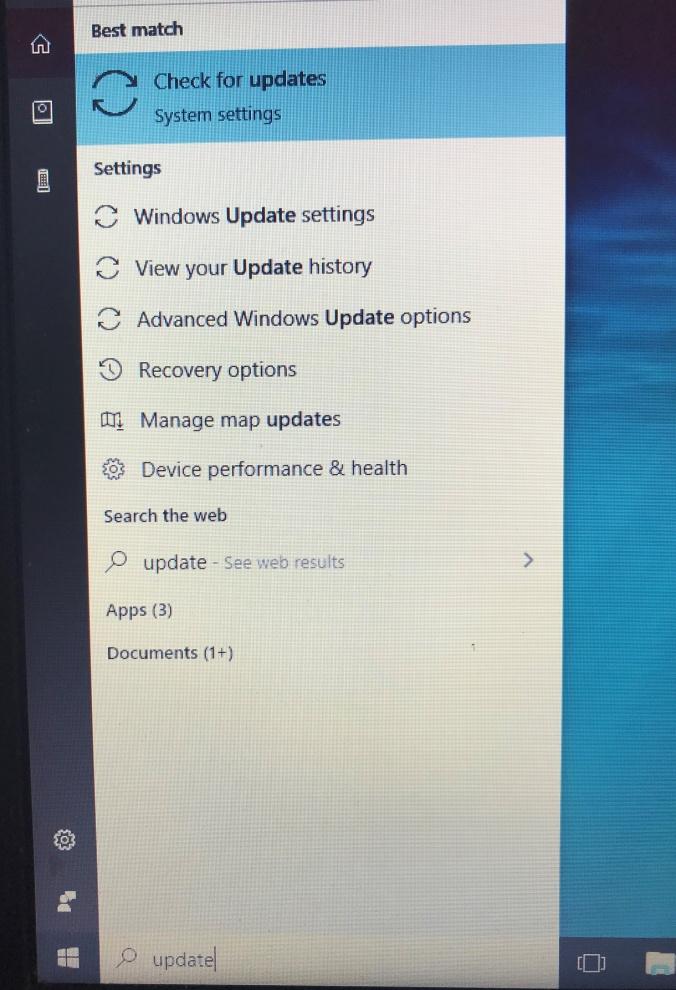
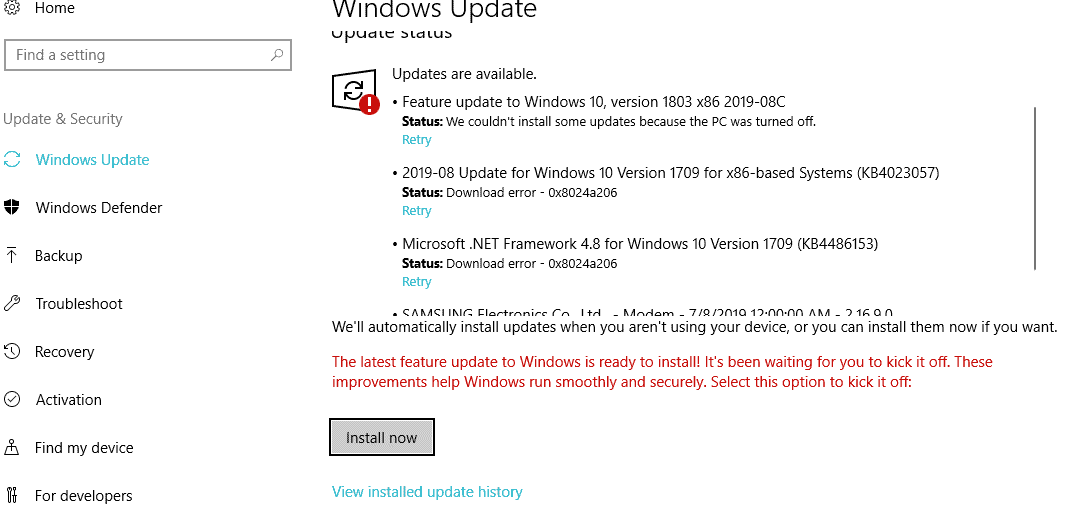
Step1: open the search box and type “update”. Now if you are using window 10 then click “check for updates” and if you are using window 7 then click “window update”.

C:\Users\rads\Desktop\IMG_5465.jpg

Step2: in window update page you will see “install now”, “install updates” or “check for updates” options depending on the window on your computer. Click any of these options.

C:\Users\rads\Desktop\2.PNG

Step3: reopen the computer system and repeat the same steps until there are no more available updates.  Then open the program or file to confirm if the problem is resolved or not. If the problem remains same then try out the next solution.

Download visual C++ redistributable directly through Microsoft:

You can visual C++ redistributable directly with Microsoft following these steps.

Step1: go to the “Microsoft download centre”

Step2: click “download”.

C:\Users\rads\Desktop\1.PNG

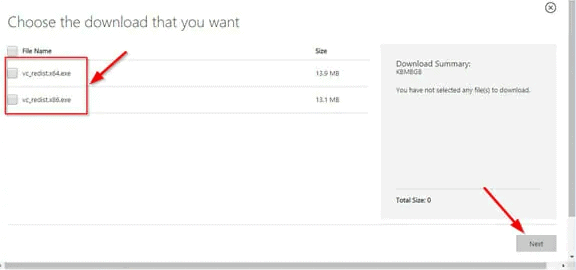
Step3: choose your system type i.e. x64 or x86 for 32 bites and then click on “next” tab. If you have no idea about your system type then type “system” in the search box of your computer and click “system information” now you can see all the details about your system.

C:\Users\rads\Desktop\2.PNG

Step4: make sure that the download gets start quickly. After the download finish click “.exe file”. Now you will see the commands on your screen. Follow these commands and check the error has gone or not.

Fix visual C++ redistributable for visual studio 2015:

If you are having visual C++ redistributable in your computer but still the error “api-ms-win-crt-runtime-l1-1-0.dll is missing” appears on your computer system then you can give a try to fix it yourself on your computer.

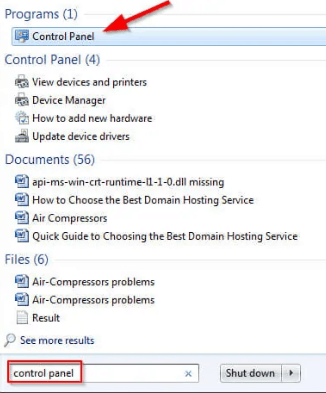
Step1: open the search box and type “control panel”

C:\Users\rads\Desktop\1.PNG

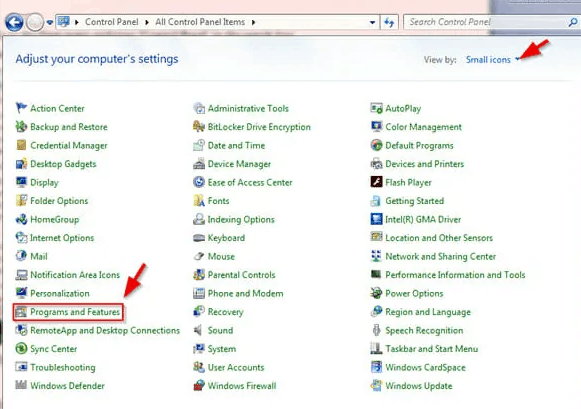
Step2: now click on “programs and features” to get the next page.

C:\Users\rads\Desktop\2.PNG

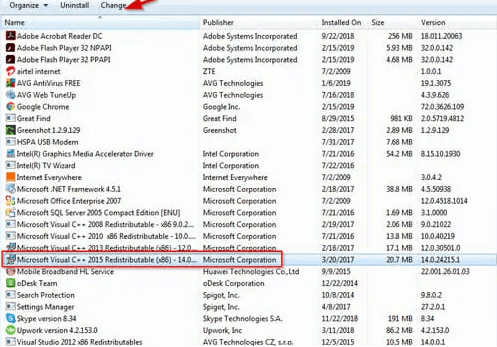
Step3: click the column “Microsoft visual C++ 2015 redistributable” and then click “change”.

C:\Users\rads\Desktop\3.PNG

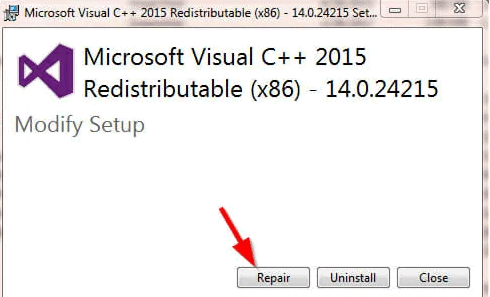
Step4: just click “repair” tab. After that you will get a prompt command from user account control. Click “yes” and follow the guidelines you will get on your computer screen to finish the restoration process. 

C:\Users\rads\Desktop\4.PNG

Take the “api-ms-win-crt-runtime-l1-1-0.dll” file from any other computer:

Yes, you can do that.  You can copy “api-ms-win-crt-runtime-l1-1-0.dll” file from some other computer (that computer should have similar operating system like your computer).

Step1: you need to get a computer having same type of window system you are having in your computer.

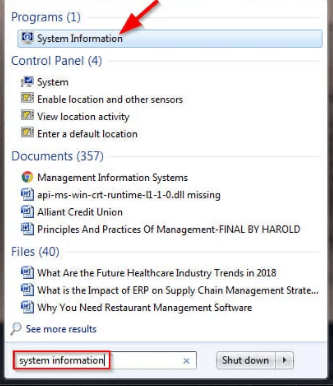
Open the search box and type “system information” and click it.

C:\Users\rads\Desktop\1.PNG

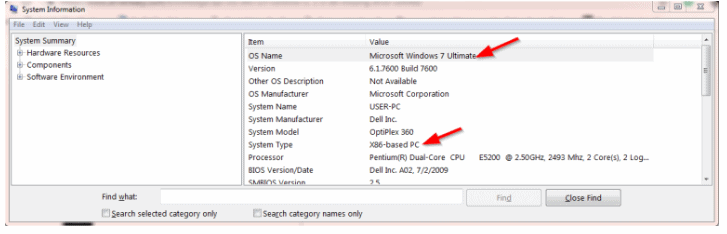
In next window you can see the information about your system. Copy “dll file” from there and follow the next step.

C:\Users\rads\Desktop\2.PNG

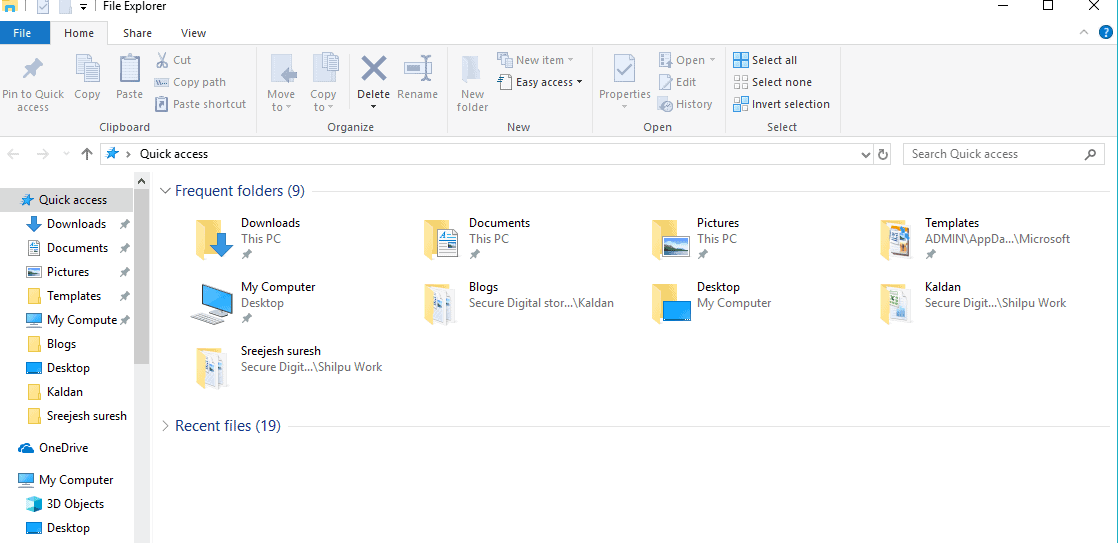
Step2: press both the keys “window+E” to open the “file explorer”.

C:\Users\rads\Desktop\3.PNG

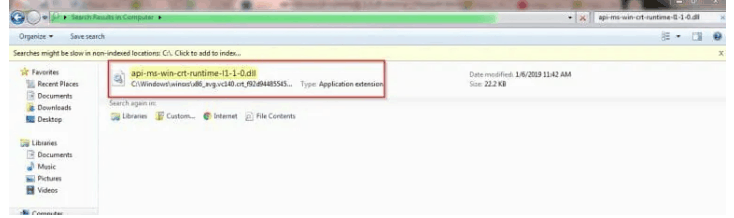
Click C:/Windows/System32. In right side at the top you can see a search box type “api-ms-win-crt-runtime-l1-1-0.dll” in that box and press “enter” key on your keyboard. After that if you can’t see any results then go to C:/Windows/Sys WOW64 and repeat the same procedure again. When you find the “dll file” you have to copy it and paste it at the same place where you found this file on other computer.

C:\Users\rads\Desktop\4.PNG

Update the universal C runtime (Universal CRT):

When it comes to window 10, universal CRT is an integral part of operating system. So you may not solve this error by skipping Universal C runtime. Open the Microsoft centre and download the update for universal CRT. Wait till the download process finish and after that install all of its components. Then restart your computer and you can see that the error is disappeared.

Conclusion:

If you have recently installed or updated the windows in your computer then there are more chances to get “api-ms-win-crt-runtime-l1-1-0.dll missing” error. I have shared some quick fixes and solutions to get rid of this error, which are very easy to follow. You don’t need to be a tech-smart person to use these solutions in order to resolve this error.

How to fix Service Host SuperFetch Error

Are you facing Service Host SuperFetch Error? Read this Article to resolve your query. We live in a modern world where everything is connected to the internet. Almost everything is now available on the internet. This has connected people worldwide. Nowadays we cannot live a day without the internet, to connect to the internet we need a reliable laptop or a desktop which can ease or communicate with the internet. Without a powerful laptop or PC, we cannot do things on time. Laptops and PC’s have become an integral part of our lives. We use our laptop or PC’s to work and if this machine faces some issues then it can cost us. If our laptop or PC are started slowing down then it can cause us more time than earlier, then it will directly affect our productivity. So to keep our work on track we have to maintain our laptop or PCs.

One of the most common things that happen with any laptop is that it started to slow down after some period of time. This can happen due to many reasons but the most common reason for this can be SuperFetch error. This is a common type of error in Windows devices which causes devices to slow down. If your device is also facing the same issue then do not worry, I am going to talk about this and if you don’t know what is this error and how to find it. I will explain everything in this article.

SuperFetch came after the PreFetch, which was launched along with the Windows Vista operating system. SuperFetch is a process which is connected with the RAM of the device. In this process, it evaluates computer and user behaviour and creates a profile consisting of the applications that a user uses more frequently. In short, the SuperFetch process detects the apps that the user uses the most and loads the elements of these apps into the RAM so that when the user opens these applications they will load much faster. The primary aim behind this system is to reduce the time for opening the app and provide the user quick and seamless transaction. This application is very useful for computers with an HDD rather than SSD. As this application does not load on the SSD and SSD are quite fast compared to the HDD.

The theory behind SuperFetch was good, but it had a more negative effect on the performance than positive. As SuperFetch is running in the background it imposes more pressure on the computer. CPU and RAM are the primary targets for this.

Solution for Service Host SuperFetch Error Fix

As the CPU and RAM start running these applications in the background it negatively affects the currently running application which led to hanging and crashing as well as a reboot of the system. This problem becomes huge with computers with RAM less than 4 GB.  Due to this problem, many people change their PC or change the hardware but that will partly solve this issue as this problem is more software-centric than hardware.

There are different ways to do it, but I am mentioning a few types from which you can try to solve this issue. I am mentioning a few of them below.

Disabling SuperFetch services:

This is the most simple and direct way to counter the SuperFetch problem. This way you just require a few clicks to tweak the settings. Just follow the steps.

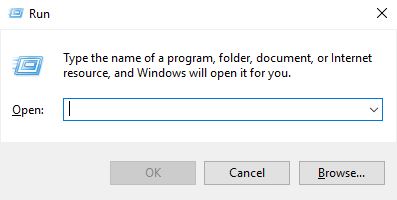
·         Open Run dialogue box (Press Windows key and R on keyboard)

Service Host SuperFetch Error fix
Type services.msc in the Run dialogue box and click OK.

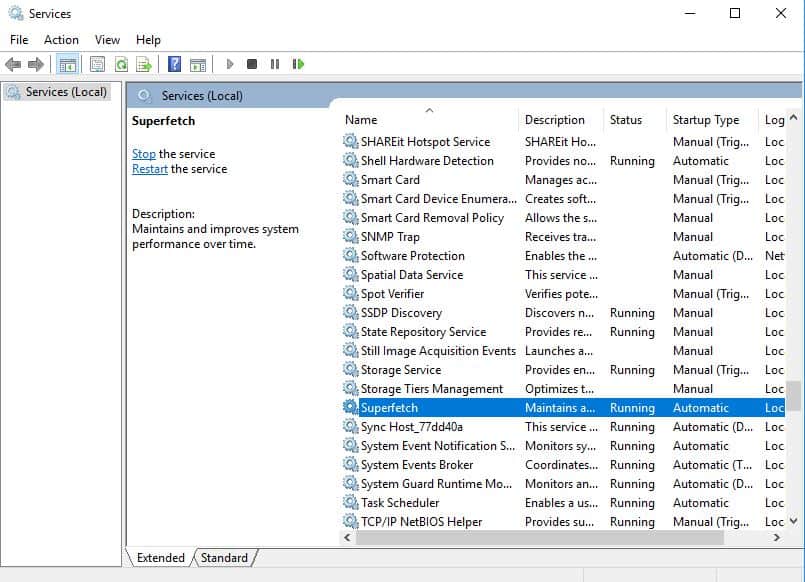
You will now guide towards a list. After that list pop-up search for the Superfetch

Service Host SuperFetch fix

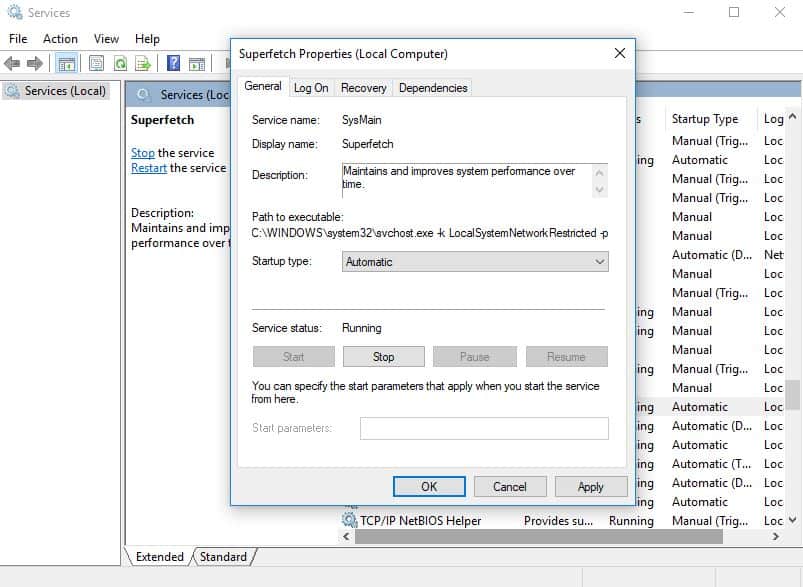
Right-click on the Superfetch and click on the properties

After clicking on the property, there will be a menu named as startup type on the first page

Service Host SuperFetch Error

If it came up with a pre-existing setting for Automatic. Click on it and a drop-down menu will pop-up

Select Disable from the given option and click apply and press OK.

Restart your computer.

Disabling SuperFetch by using command prompt –

                                                                                   This is also a step you can use to disable SuperFetch. It is less time consuming but you have to be precise while making the command.  Following are the steps for it.

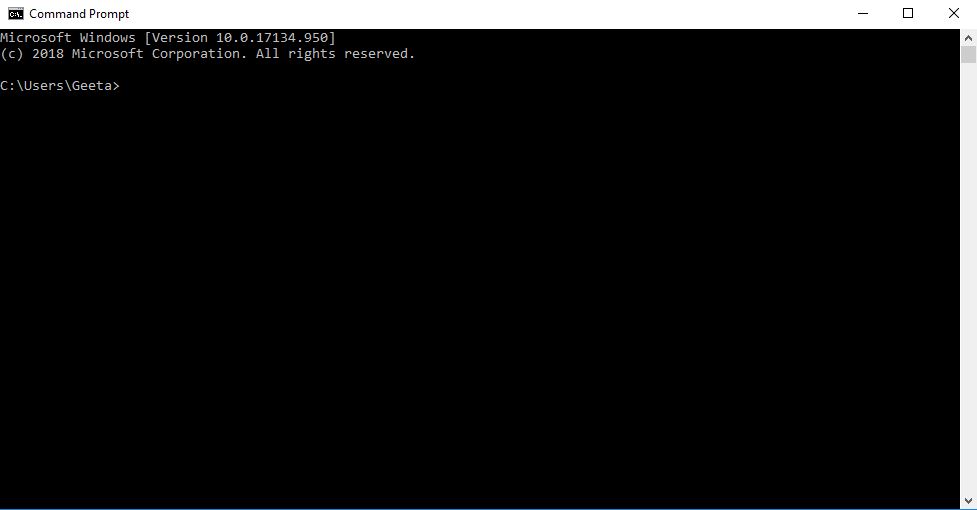
1.      Open a command prompt window on your computer

youtube dark mode,how to make youtube dark mode,dark mode youtube,how to get youtube dark mode,enable dark mode youtube

2. Type net.exe stop Superfetch in the opened window

3.Hit the enter button after this command

4.It will take some time to see the changes in your computer

This way you can disable the SuperFetch on your computer.

Above are some ways by which you can disable the SuperFetch and can counter the problem. Many people have misjudged this problem and taken the wrong steps to tackle the problem. Many people change their PC or hardware for the sake of speeding the device, but as I said earlier, this problem is mostly due to software and hardware which will only help solve your problem. Try the above steps and if problem resolved then it can save you a lot of money.