Home Blog Page 112

Terrarium TV Review

The world is changing and it is becoming more technology savvy. As more and more people are connecting to the internet, the entertainment industry is also shifting from multiplexes to on-demand streaming services. These services have recorded a boom in the past few years. Their popularity has skyrocketed and this has opened the door for many creators to create exclusive content on that particular streaming service, but these streaming services are mostly utilised to watch new movies.
Terrarium tv premium Review

Changing dimension of Entertainment:- 

The Hollywood industry is booming and it has produced many hit movies in the past decade. In today’s competitive world, it is highly possible that many people tend to miss those premieres due to busy schedule or many people just like their privacy more so they do not like to go to multiplexes. There are many people who are not able to find a suitable time and they miss the show. This entire problem can be solved with online streaming services but as every coin has two side many streaming services charge money for their services. So if you are also facing the same issue, this article will solve your problem. In this article, we are going to talk about a streaming service which not only will provide you with the latest and greatest movies but also it is free.

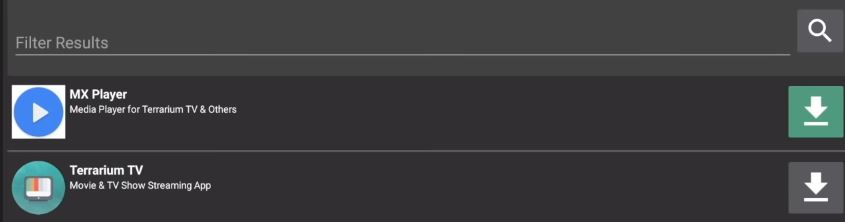
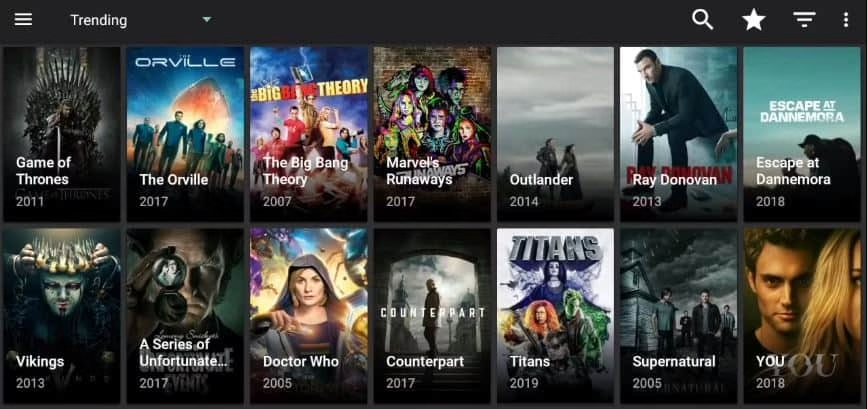
Terrarium TV is an application which lets you watch your favourite movie on any android base system seamlessly. Terrarium TV is a very useful application it has a very minimalistic design and is very easy to use. It also has a dark theme which not only saves you battery but also minimises the strain on your eyes. It has many different features packed in the software. Terrarium TV has a massive collection of movies in its database. It consists of Hollywood and many regional collections. It also has an exclusive series in its database which is usually chargeable.

Let now quickly move on to the Terrarium TV Review.

Quality content:- 

One of the biggest plus points for using Terrarium TV is quality. You will be enjoying the quality which is almost similar to the original one. Quality matters when you are watching a movie or show good quality content will be more eye-pleasing. Many of you will have questions in mind about the buffering but the Terrarium TV adjusts automatically its quality as per your device connection speed and the device. This is very good news for the people who face the issue of low internet speed.

Flexibility:-

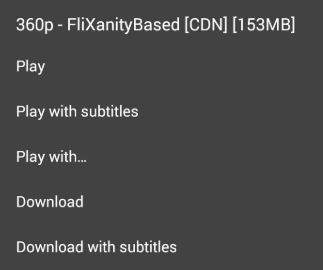
Terrarium TV also has the option to provide subtitles to currently viewing content. Which lets you enjoy the content in your desired language, thus you can practically enjoy most of the content available on this platform.

Easy navigation:-

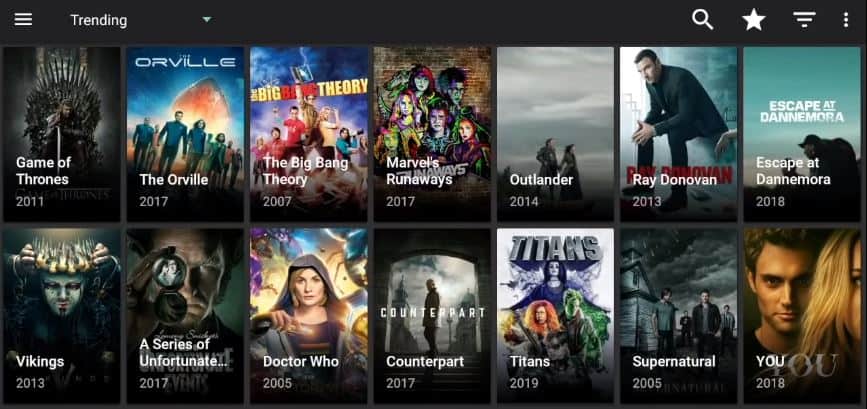
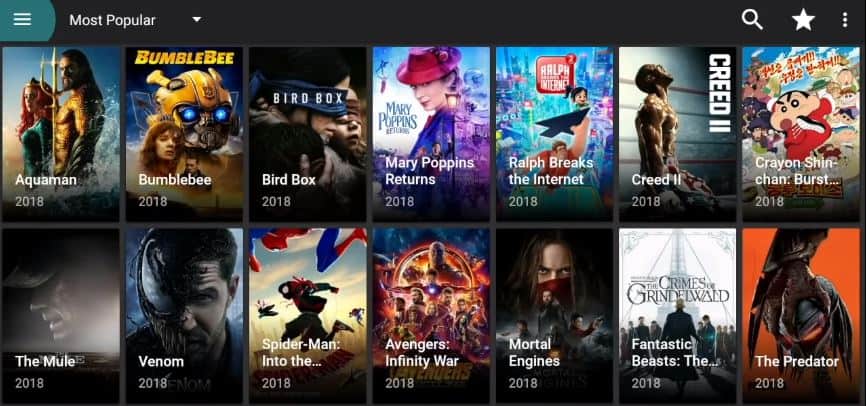
Searching for the content is also very easy on Terrarium TV you can directly search for regarding any content, keyword or name and this works seamlessly. The presentation in the app is also beautiful on the home screen of the app it provides you with popular movies on the platform (Which is mostly the recent movies).

Informative:-

Terrarium TV also provides you with a description of that particular content along with the average rating and the trailer for that particular show. As per me, this is a very handy tool which helps you to decide whether to watch or not. 

Some of the features of Terrarium TV

  • Terrarium TV 4k – More than 50 movies in 4K resolution and many in FULL HD as well as in HD.
  • It is free
Terrarium tv premium Review features

It supports most Android devices (TV and Smartphones)

Terrarium TV,Terrarium TV Review,terrarium tv 4k

Have a Simple and elegant TV

Terrarium TV,Terrarium TV Review,terrarium tv 4k

·         Supports Multi-language subtitles

Terrarium TV,Terrarium TV Review,terrarium tv 4k

Terrarium TV also has some negative side also.

·         It takes some time to load unknown as well as old contents.

·         It tends to go offline so you have to keep app update.

In the end, I would like to say that Terrarium TV is an amazing platform to watch the content. Yes, it has some issues but it provides good quality content and this is the biggest plus point.

This was all about Terrarium TV Review. I would personally give 4.5 out of 5 stars. Let me know your opinion in the comment section.
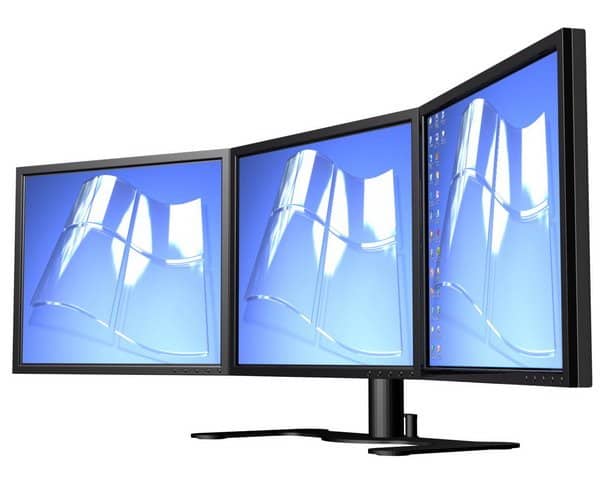
Best Websites for Stunning Dual Monitor Wallpapers and Backgrounds

0

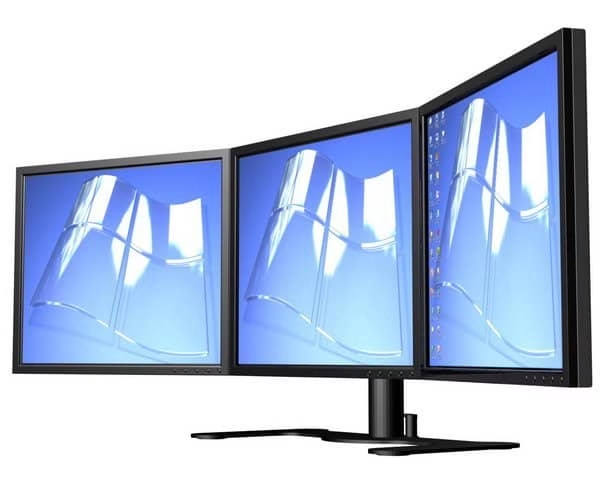
Multi monitor setup presents you all the time with good additional options and advantages than the single monitor. The setup provides you with lots of space to get the job done, to play the games which need a wide screen-space and much more. So, by bearing in mind all these added features, you can think of going in the direction of setting up the dual monitor wallpapers.

multi screen monitor wallpaper

The setup cannot be complete until you customize your dual monitor screen set up. The majority of the websites offers desktop wallpaper which gives you with single screen images. It would suit only if you intend for a different image on every screen. However, if you are looking for a rational theme across two monitors, then there are loads of websites that offer multiple display wallpapers.

Among those tons of website which offer free wallpapers, there are only a small number of websites that proposes with ultra-wide dual display backgrounds. So, you can look into some most excellent dual monitor wallpapers website that offers eye-catching multiple display backgrounds. Here we have ranked those websites according to their features.

1. Dual-Monitor Backgrounds or DMB

DMB, this site is exclusively devoted to dual monitor wallpapers, and it has an excellent and promising widest collection. You can pick from a large range of categories like movies, games, landscapes and much more. Filtering can be done in multiple ways like date, user-rating, popularity, and some other criteria too.
The layout of the website is good for viewing many images at one time and the quality of the image is a little bit compromised here since they are in a single resolution. You can see the name and the resolution of the image by just drifting over the picture and also can view many possible options.

There is an option to register and that provides you with a free. From this, you can set up your own choices, so that only certain type of images appears when you are searching for. If you need to set the image as a desktop background, then click the text link in the left bottom. You will need to select the left and the right text link in the bottom left to be able to use them for backgrounds.

Terrarium TV,Terrarium TV Review,terrarium tv 4k

2. Twelve south

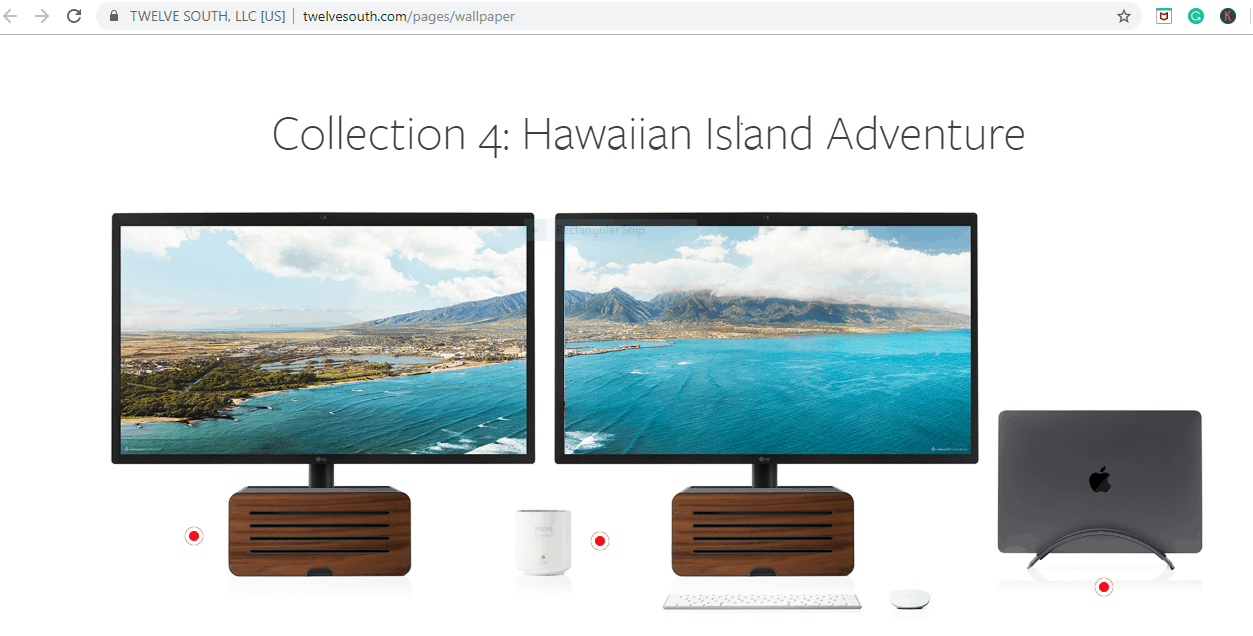
This site is dedicated to dual monitor backgrounds for the Mac operating system. It also offers free images with a Mac formatting feature which you can use across dual monitor to create some attractive designs.

The quality of the images is exceptional and the site is extremely user-friendly. It has great categories of wallpaper which are attractive but with some limited collection. Twelve-south arranges the images by size and the choices range from Mac-book of 11-inch to iMac of 27- inch.
The majority of the dual desktop wallpapers are exclusively intended for matching the screens which are unlike. If you have a Mac-Book and an iMac, the website’s list will permit you to pick a dual-screen background that is distinctive and that is within the limits of your arrangement of the system.

Terrarium TV,Terrarium TV Review,terrarium tv 4k

3. Wallpaper Fusion

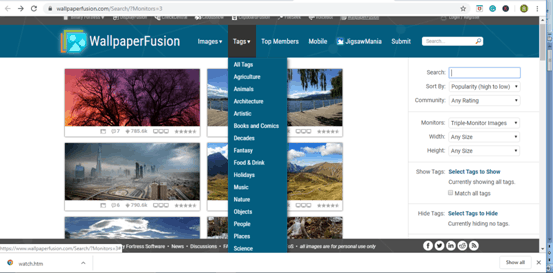
So, we have seen two websites that give good dual monitor backgrounds. Here we are going to see the website which offers professional images and some excellent added features. The Wallpaper Fusion is packed with valuable and concise data of images.

It presents with a good number of formatting selections and the resolution of the image is outstanding. When you drift over the images, it will furnish the name of the image. On the underside of the image, you can look at the size, user comments and ratings of the wallpaper too. It presents with different choices for downloading the desktop backgrounds like for downloading as the whole image which extends across both screens, for downloading a different image for both screens or for downloading the actual image.

The quality of dual monitor wallpapers is exceptional and in general, the images are varied which fits the necessity of various people. There are options to

Search for images by categories like age, rating, and popularity which use a tag system to search for particular images.

The auto-detect aspect provides you with the option of downloading the image based on the screen which you are using at present. The wallpapers can be downloaded as per your screen’s ratio and resolution by the tool named DisplayFusion.

Terrarium TV,Terrarium TV Review,terrarium tv 4k

4. Imgur dual monitor desktop backgrounds

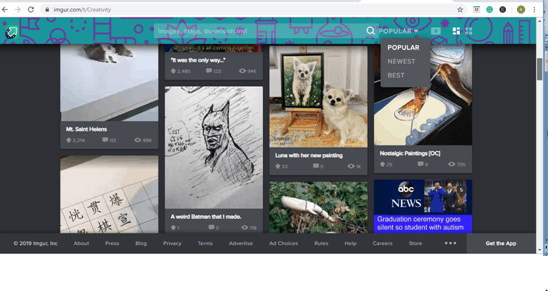
So, till now we have been seeing about the websites that had professional and excellent quality of images. But Imgur is a bit different from another website that offers the feature of sharing the images online. 

Imgur provides you with tons of dual display backgrounds with great quality and it also presents with a random collection of multiple monitor display backgrounds. It is a website for hosting the images which are uploaded by the users of the website. The site has a diverse category of dual background displays such as cars, landscapes, guns, movie characters, graffiti and to a larger extent of everything that whatever you think of. Imgur even offers loads of images about the pop culture trends, which another website seems to be lacking.

Imgur has the option of registering for a free account, once you are signed, can either you start uploading or downloading your wallpapers. You can search for the images which you are looking for either by typing in a category or exact thing you are looking for.

This is the most excellent site for multiple desktop backgrounds and it is the best option if you are in search of broader variety.

Terrarium TV,Terrarium TV Review,terrarium tv 4k

5. Deviantart dual monitor desktop backgrounds 

Terrarium TV,Terrarium TV Review,terrarium tv 4k

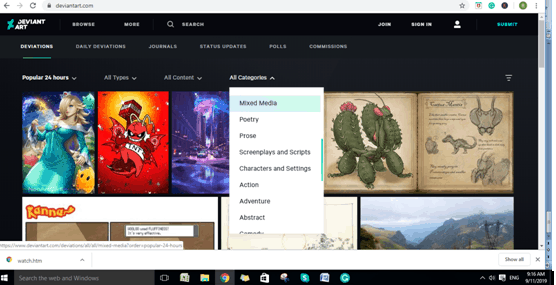
DeviantArt is a similar site to Imgur which is packed with a database full of wallpapers uploaded by the users. The site offers the widest range of collections that are diverse and suits the people from all walks of society. The images are of type visual art, video, literature types too and it belongs to categories such as horror, memes, prose and much more. You can search by popularity, the latest collections or the trending ones.

In addition to these websites, we have some websites like Digital Blasphemy, Wallpaper wide and Desktopography too which offers you with a nice collection of dual monitor backgrounds. You can hover over this website if you are in need of much more wider collection desktop backgrounds.

Shadowplay vs OBS Which is Better for Gameplay Recording

0

There is a number of software out there to record screen or stream live with excellent options. One such option is to record gameplay or to stream live that gameplay and share those recordings on multiple streaming platforms. 

So, if you are someone who is a gamer and uses capture cards to record games which you are playing and fond of sharing them on multiple streaming platforms, then shadowplay as well open broadcaster software(OBS) might be a wonderful choice. Now you might think which one will be an excellent option and has better features, this is still an arguable subject matter.

A lot of people are on the fence about which gameplay streaming is superior to the other one. Some basic differences are evident in both software that defines the uniqueness of each software. So with these differences, one can get a clear perspective about both the software and decide according to their requirements. 

If you are searching for which gameplay streaming software is better than this article will be helpful for you. We will do a comparison here of open broadcaster software and shadowplay software’s key features advantages and disadvantages. This will shed light on the circumstances to help several people in clearing the confusion. 

Now let’s deep dive in and talk about the OBS studio’s main features, advantages, and disadvantages. 

Open Broadcaster Software OBS For Gameplay Recording

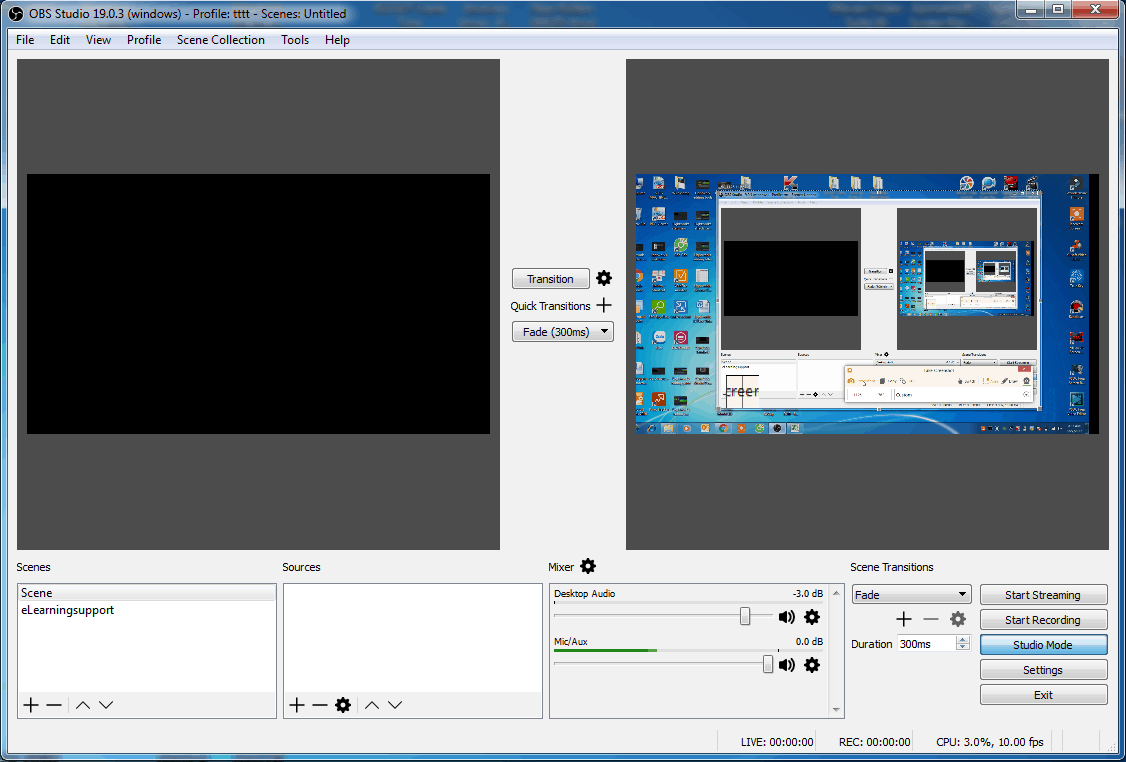
Open Broadcaster Software(OBS), is the streaming software which is free open- source and also a cross-platform tool that permits you to capture or stream audio(speakers) from your computer effortlessly with barely any clicks. This software is an excellent option if you are looking to record your screen or stream online. The tool can be used to record screencasts, capture your gameplay, directly stream to Facebook or Youtube live, and even much more. There are versions of Mac, Linux, as well as Windows. 

C:\Users\kali\Desktop\obs-studio-mode.png

Now let’s look into some of the key features, advantages, and disadvantages of the product,

Key features

  • Multi Screen option –  OBS offers the best multi screen setup where you can play a game on one screen and look into OBS studio simultaneously. 
  •  Editing Tools – OBS provides a group of editing tools such as chroma keying, image masking, automatic color improvement and further.
  • Powerful configuration – Configuring OBS is easy without thinking about ruining the streaming or recording.
  • Insightful audio mixer – Software offers features such as noise suppression and gain filters so that mixing is easy and has better quality too.

Advantages

  • OBS has little impact on frame rates and has control over the bit rate which we are using.
  • Videos can be recorded in formats such as Mp4, Flv, Mkv.
  • Offers high performance when compared with pricier software options.
  • It can use more than 20 Plug-ins which enhances the functionality.

Disadvantages

  • It doesn’t work on Windows XP.
  • We can’t link to an audio file as a source.

Shadowplay Gameplay Recording

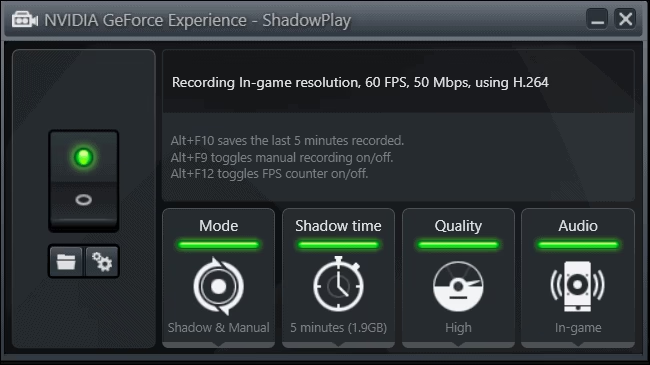
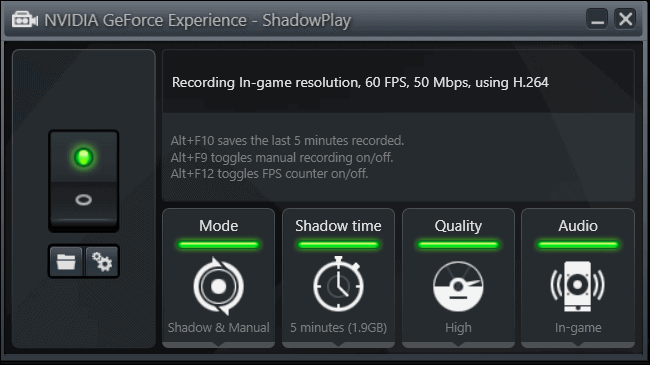
ShadowPlay by Nvidia is the easy way to record and share first-class gameplay videos, screenshots, and stream live. ShadowPlay is utility available in GeForce, one should have GeForce graphics card to use the tool. It offers good performance and advanced recording by using feature Instant Replay Mode. 

As OBS studio, Shadow play can also stream live to Facebook, Twitch, and Youtube. It can work up to 4K resolution and the software is available GeForce graphics card only, doesn’t work on other graphics cards.

Now let’s deep dive in and discuss the Shadowplay’s key features, advantages, and disadvantages,

Gameplay Recording

Key features

  • Instant Replay mode – Incredible tool if you want to record a nice move, but not the entire game. 
  • Custom graphic overlays –  Assists camera and custom graphic overlays which we can use to personalize the live stream.
  • Resolution – It can go up to 4K.
  • ShadowPlay HighlightIt records the best gaming highlights.

Advantages

  • You can manually record the gameplay by the click of Alt + F9 keys, which makes it so easy to record the gameplay.
  • We can view live FPS counter by pressing  Alt + F12 hotkeys.
  • It has a lower impact on the CPU performance even if it goes to the higher frame rates or resolution

Disadvantages

  • AMD graphics card doesn’t possess the ShadowPlay-like attribute, so you will need a third-party game-recording application to do the recording with graphics hardware which is AMD based. 
  • If we turn on the feature to save past gameplays, it records all the movements on the computer but doesn’t save it.

Comparison – OBS Vs Shadowplay

Here, we are going to do the comparison of both OBS and Shadowplay’s  some key gaming features,

Professional style:

OBS has added features such as plug-ins, multi screen option, and many more features. While Shadowplay is just to record gameplay and broadcast live to the websites with simple options and minimal resource use. So OBS wins the point here.

Resolution:

As discussed earlier, Shadowplay offers resolution up to 4K since it encodes in GPU without affecting much of CPU performance. While OBS offers also good resolution but by affecting CPU performance which uses software encode. So, Shadowplay wins the point here.

Customization:

There are a lot of customization options in the OBS studio by using a lot of plug-ins and sources and transitions too. But Shadowplay doesn’t offer that many options. So, another point goes to OBS.

Streaming:

With Shadowplay, one can broadcast the gameplay directly to Twitch, Facebook or Youtube. But both recording and streaming cannot be done at a single time. OBS offers excellent overlay options and to stream the gameplay easily. So, OBS wins another point here.

CPU performance:

Shadowplay has a lower impact on the CPU performance even if it goes to the higher frame rates or resolution. But OBS has a greater impact on CPU performance even though it uses limited frame rates. So, here goes another point to Shadowplay.
File Size:

OBS recordings utilize less space when compared to shadowplay. Here compression plays the role since OBS does them in advance but Shadowplay’s compression results in superior file size. So, OBS is the lead here.

Conclusion:

So in the end, with all the above-discussed points OBS wins the fight. But one can prefer OBS or Shadowplay according to their needs. 

So, if one is looking for great recording and streaming solutions with more customizable options then OBS would be suitable for them. On the other hand, if one is looking for simple recording and streaming with limited features then one can decide on shadowplay. 

Since OBS affects CPU performance one should keep in mind that when choosing OBS studio for gameplay that they need higher performance systems. OBS is the most loved streaming tool by gamers compared to Shadowplay.

To conclude, it all depends on the perspective of the person as what are their requirements and how does it fit in the OBS and Shadowplay tool.

How to Fix the Google Chrome DNS_PROBE_FINISHED_NXDOMAIN Error

We all see some kind of errors while using Google chrome and DNS_PROBE_FINISHED_NXDOMAIN is a very common error. It is very disappointing because all of a sudden you can’t access the internet and can’t browse a website. This error appears due to some issue in your DNS or incorrect settings of your internet. DNS means Domain Name System. DNS’s job is to connect actual web servers with domain names. When you type a URL in your web browser, DNS links that URL to the actual server’s IP address. When DNS decline to connect to the actual IP address then you may see DNS_PROBE_FINISHED_NXDOMAIN error on your screen. Here NXDOMAIN means Non Existent Domain.

Suggestions to deal with Google chrome DNS_PROBE_FINISHED_NXDOMAIN error:

Update Google chrome: if the Google chrome is not updated it may cause various troubles. So check for the updates to ensure that outdated chrome is not causing the issue.

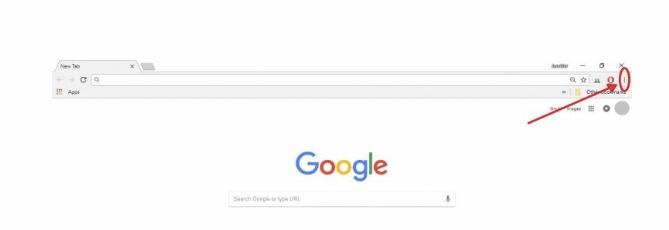
Step1: open the Google chrome. In the right side corner there are three dots, as shown in the image below. When you click on these dots, you can access the menu of Google chrome.

C:\Users\rads\Downloads\IMG_5423.jpg

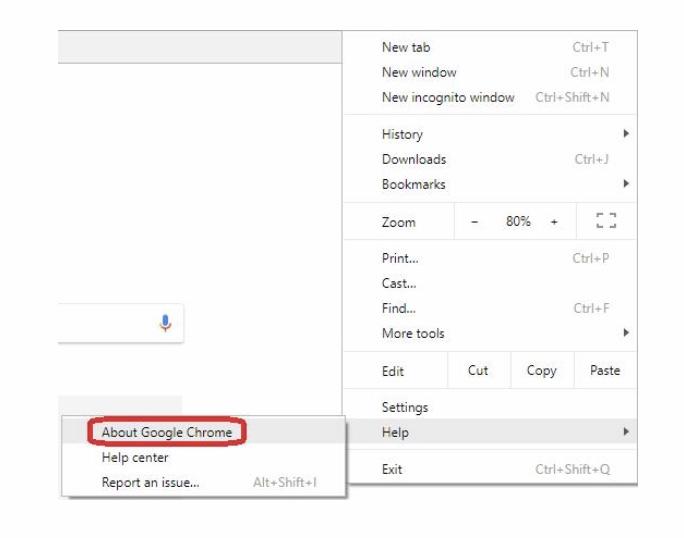
Step2: when you open the menu click “help” and then “about Google chrome”.

C:\Users\rads\Downloads\IMG_5424.jpg

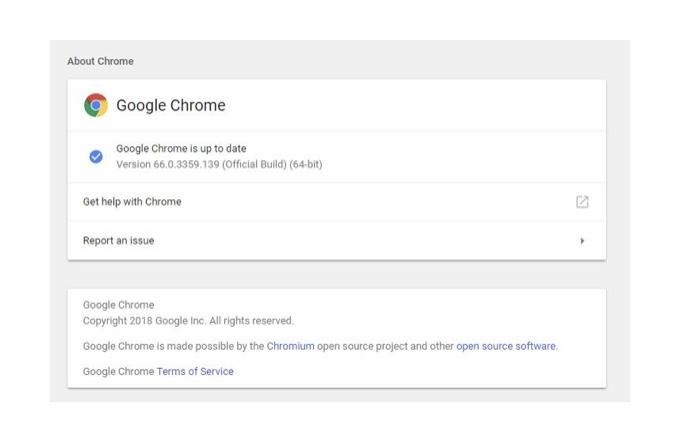
Step3: you can see that “chrome is checking for the updates” on your computer screen. If it is not updated then update it now and if it is updated then restart the chrome and check the error is resolved or not.

C:\Users\rads\Downloads\IMG_5425.jpg

Clear up chrome cache: DNS_PROBE_FINISHED_NXDOMAIN error can occur because your chrome cache data requires to be cleared. 

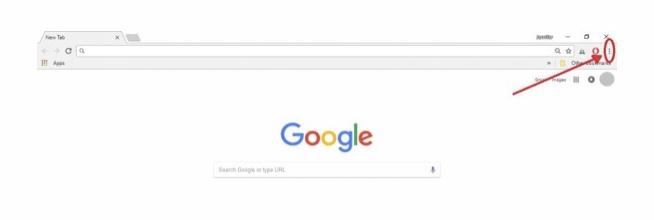
Step1: open the Google chrome and click three dots at right corner just like we did in previous method.

C:\Users\rads\Downloads\IMG_5426.jpg

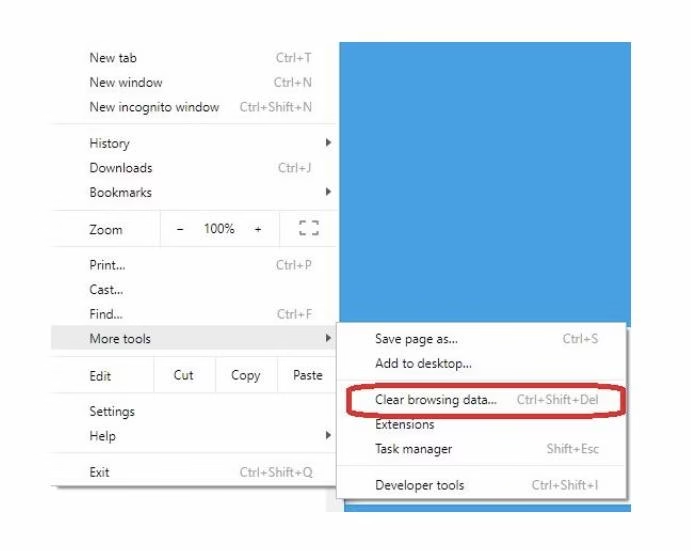
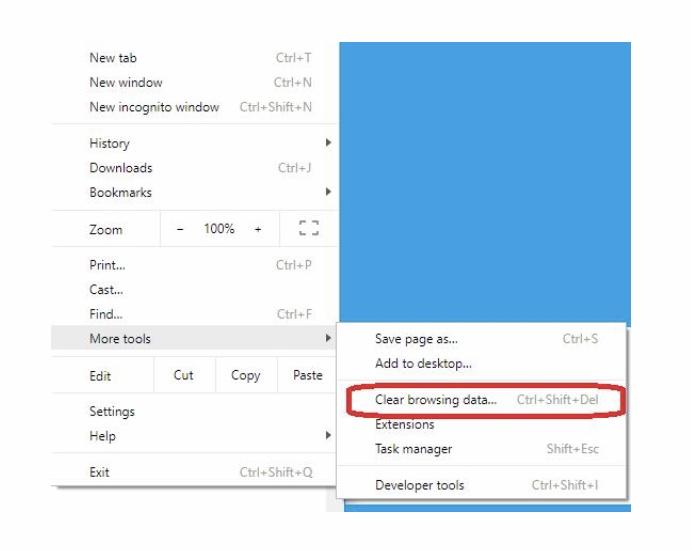
Step2: highlight the option “more tools”. Now click the option “clear browsing data” appeared on the side menu.

C:\Users\rads\Downloads\IMG_5427.jpg

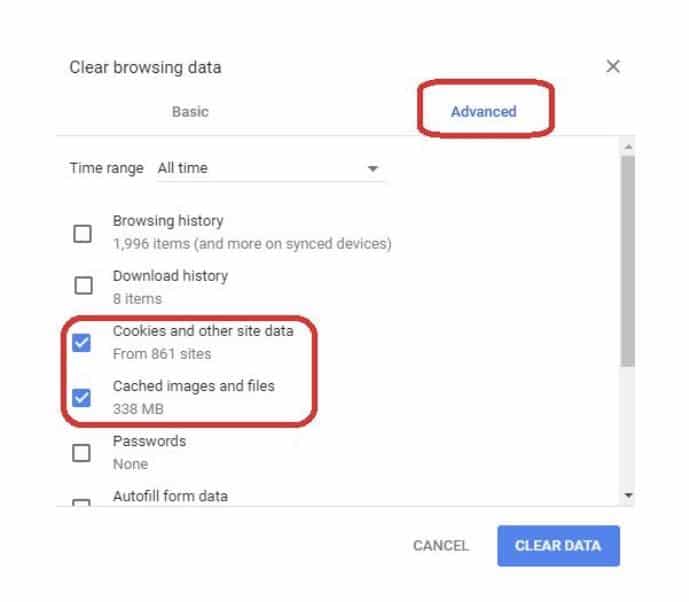
Step3: click the “advanced” option in right side of the window. Mark the options “cookies and other side data” and “cached images and files”. Now click “clear data” and cache data is cleaned up. Restart the chrome and restore the webpage showing error.

Terrarium TV,Terrarium TV Review,terrarium tv 4k

Change the DNS of chrome:

If your computer system is using a DNS which is not possessed by Google, it can be a reason for DNS_PROBE_FINISHED_NXDOMAIN error. Google may take too long to search other DNS resulting in the error.

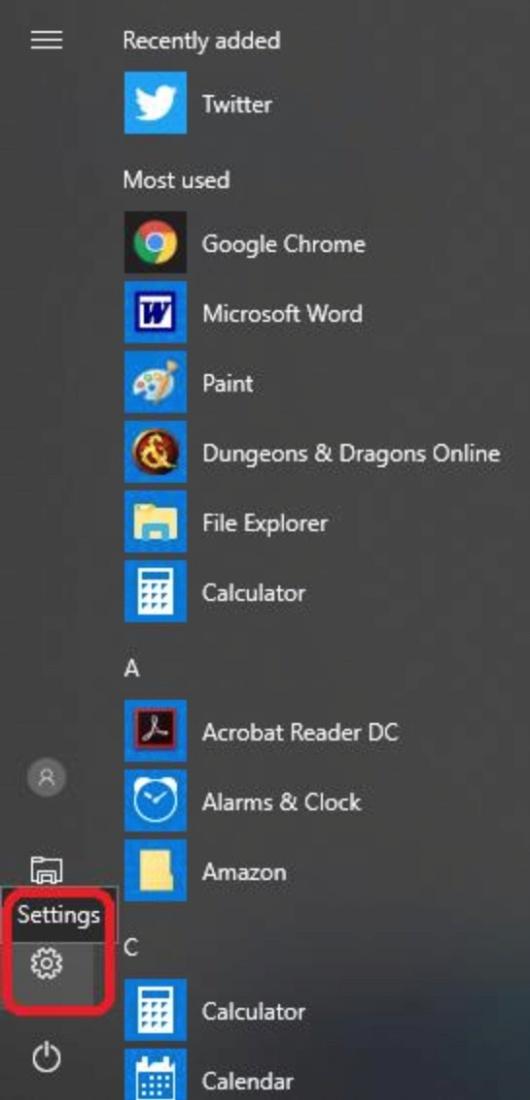
Step1: open the menu and click “settings”.

Terrarium TV,Terrarium TV Review,terrarium tv 4k

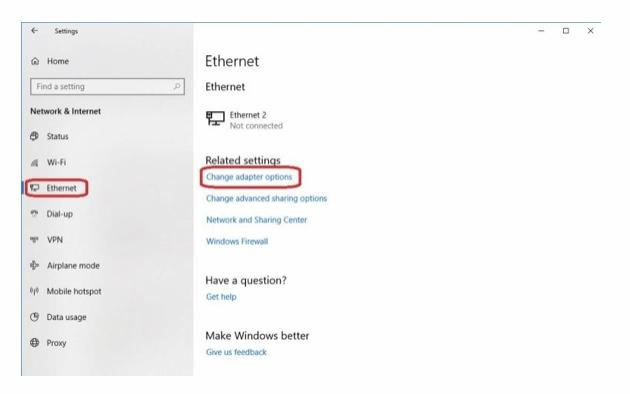
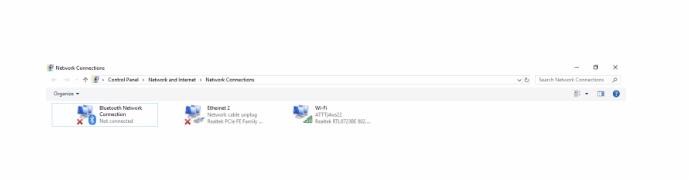
Step2: click “network and internet” option in setting menu.  Click “Ethernet” and then select “change adapter options” under the related settings option.

C:\Users\rads\Downloads\IMG_5430.jpg

Step3: choose the active network of your computer system and right click on that. Click the “properties” appeared in the menu.

C:\Users\rads\Downloads\IMG_5431.jpg

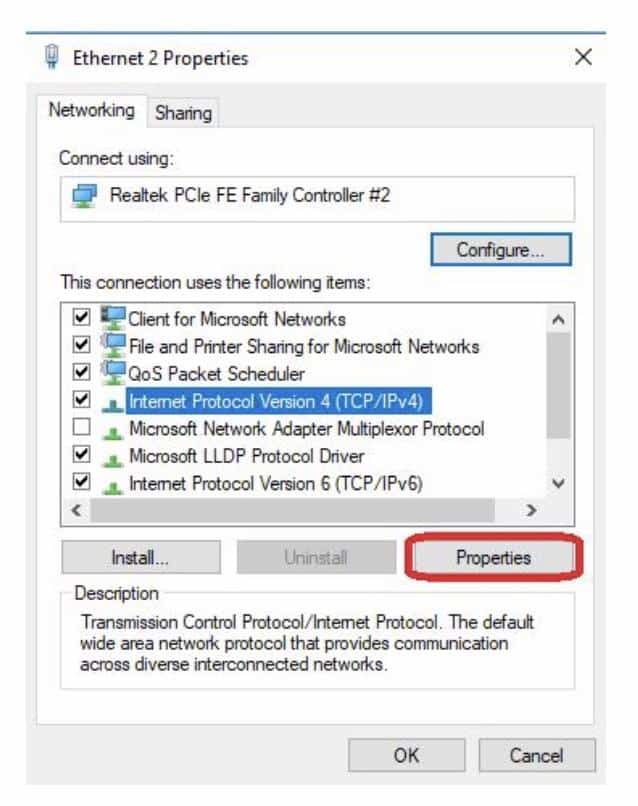
Step4: when you open the “properties” click the “internet protocol version 4 (TCP/lpv4)”. Click “properties”

C:\Users\rads\Downloads\IMG_5432.jpg

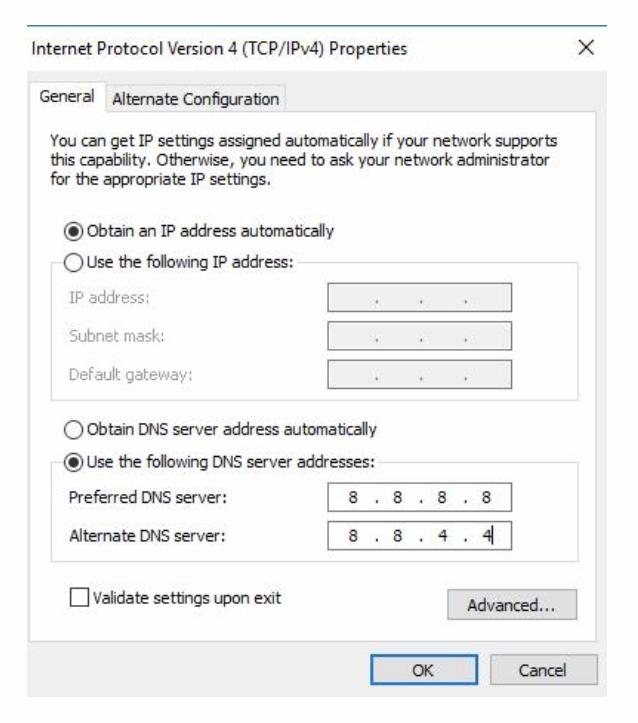
Step5: click the option “use the following DNS server address”. Now you can see 2 boxes below where you have to type “8.8.8.8” in “preferred DNS server” and “8.8.4.4” in “alternate DNS server” and click the “ok”.

C:\Users\rads\Downloads\IMG_5433.jpg

Reset the chrome flags:

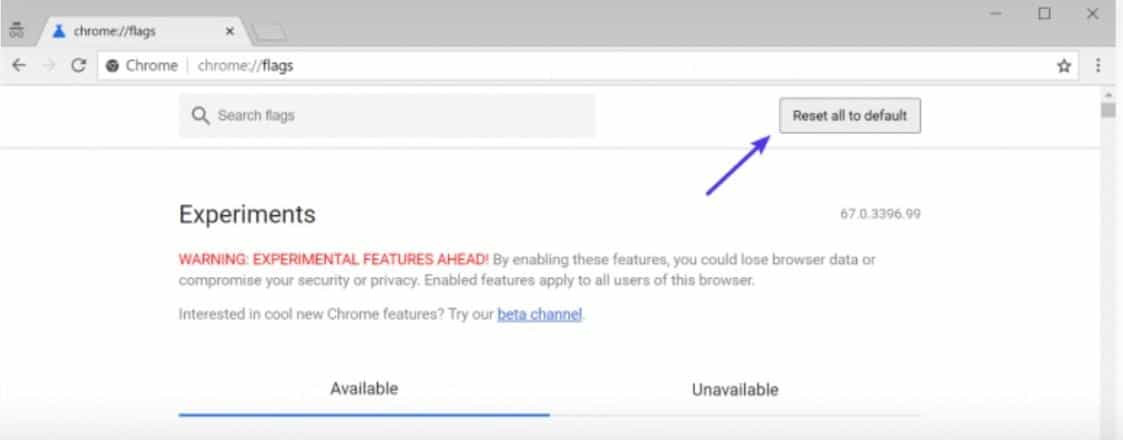
Sometimes experimental features or settings of chrome can get screwed up randomly. To reset these settings or features open the Google chrome. Type “chrome://flags” in your browser and click “reset all to default”. Now restart your chrome browser.

C:\Users\rads\Downloads\IMG_5435.jpg

Command prompt method:

By using command prompt method you can fix the Google chrome DNS_PROBE_FINISHED_NXDOMAIN error.

Step1: press the keys “window+R”. Type “cmd” in the run box and press the keys “ctrl+shift+enter”to get administrator command box.

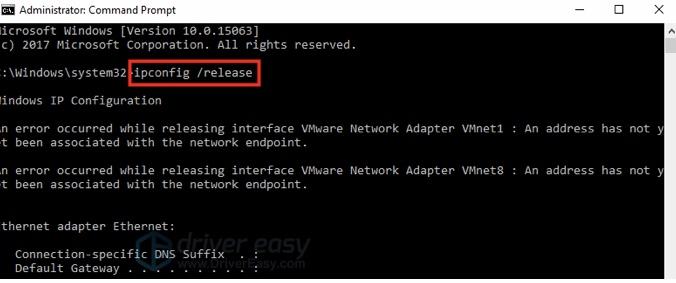
Step2: type “ipconfig/release” and click “enter” to release IP address.

C:\Users\rads\Downloads\IMG_5436.jpg

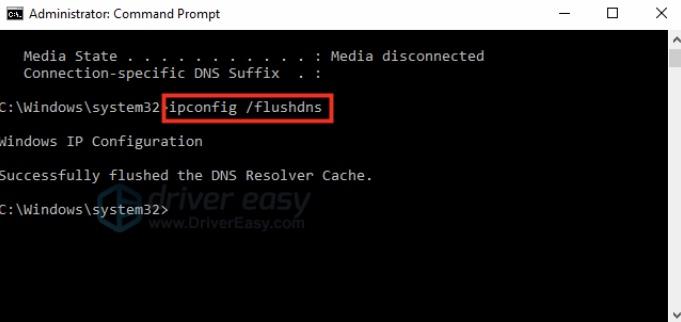
Step3: type “ipconfig/flushdns” and click “enter” to clean DNS cache.

C:\Users\rads\Downloads\IMG_5437.jpg

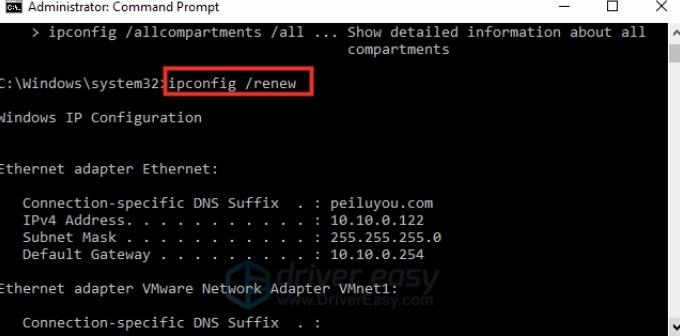
Step4: type “ipconfig/renew” and click “enter” to resume IP address.

C:\Users\rads\Downloads\IMG_5438.jpg

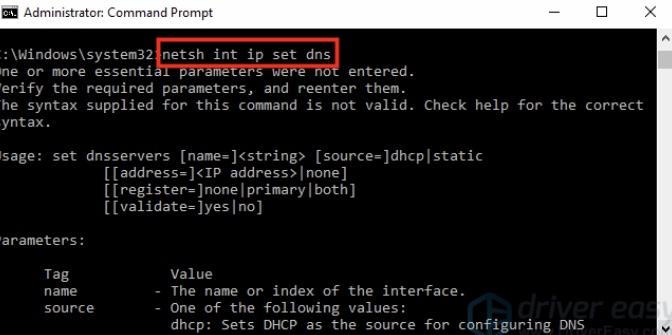
Step5: type “netsh int ip set dns” and click “enter” to rearrange the IP settings.

C:\Users\rads\Downloads\IMG_5439.jpg

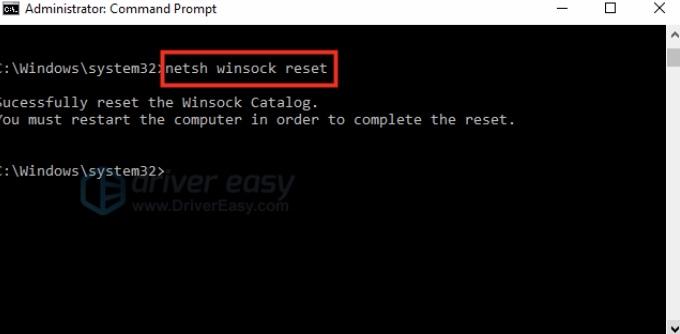
Step6: type “netsh winsock reset” and click “enter” to reset the Winsock catalog. Now restart your computer system.

C:\Users\rads\Downloads\IMG_5440.jpg

Deactivate antivirus and VPN: 

Sometimes antivirus and VPN can interfere your network settings or DNS servers. If there are any VPN or antivirus is running on your system, deactivate those for some time to check if it can fix the DNS_PROBE_FINISHED_NXDOMAIN error.

Restart your computer system: 

Sometimes, simply restarting your computer and router can resolve this error. When you restart your computer it can clear a huge amount of temporary cache data. So give it a try.

Conclusion:

DNS_PROBE_FINISHED_NXDOMAIN is a very common and complicated error faced by Google chrome users. I have shared some easy tricks to solve this issue. Try out these methods and enjoy an error free browsing.

How To Fix OBS Not Recording Audio Problem

If you are somebody who is fond of recording or streaming live to multiple websites, then you would have heard about Open Broadcaster Software (OBS) studio. This tool records the screen, captures your gameplays and streams them live to social networking websites.

Terrarium TV,Terrarium TV Review,terrarium tv 4k

Many people might find intimidating if they are using Open Broadcaster Software (OBS) studio for the first time. OBS software presents with the professional style of editing, excellent add-on options, and other sophisticated features. Even though it has many advanced features, most of them find difficulty in using them and customizing according to their needs. So they hit upon multiple issues which mostly revolve around recording the audio problems.

Recording the audio, it might seem easy by seeing the phrase, but there are many issues associated with it. Those can be like, multiple sources merging into track issue, software issue, plug-in problems and much more.

In this article, we are going to talk about a few frequently faced issues and solutions to it. So, it will be valuable for all the people out there who are using the OBS software for the first time or finding difficulty in using the software.

Issue 1 – Recorded audio can’t be heard

Problem

Audio gets recorded and it is showing the signal too and mixer also seems nothing problematic. But recorded audio can’t be played back.

Solution 1

In this case, you might be using the default Windows media player. It might be a problem since your recording seems nothing problematic and but it is not heard over the media player. You can try the option of changing media player to VLC media player.

Terrarium TV,Terrarium TV Review,terrarium tv 4k

Issue 2 – Audio output device problem

Problem

Microphone audio is being recorded properly but audio output can’t be selected and nothing is visible.

Solution

It might be because of several other causes. One of the causes is that maybe you are using MACOS operating system. It needs another program called iShowU to capture the audio.

Issue 3 – Gameplay audio not being recorded

Problem

Gameplay sound is not being recorded from headphones or speakers. 

Solution

  • OBS runs in 64-bit, one should try to install the 64-bit drivers. If you are using Realtek, then it might not be a problem.
  • In case there might be a problem that it didn’t capture desktop sound in OBS, trying the following workaround may be helpful. Set the default device as ‘SPEAKER’  in the audio settings instead of using the Headphone option
  • If this doesn’t work out and still desktop audio is not getting captured then you might want to remove the ‘Nahimic’ software. This might give a solution to the gameplay recording problem

Issue 4 – Desktop audio not being recorded

Problem

Desktop audio is not being recorded but the Microphone is being recorded.

Solution

If you are using Headset of Razer then you should use the OBS MP x64 version.

Issue 5 – Speaker audio not being recorded

Problem

The meter doesn’t even move in OBS studio when sound is being recorded.

Solution

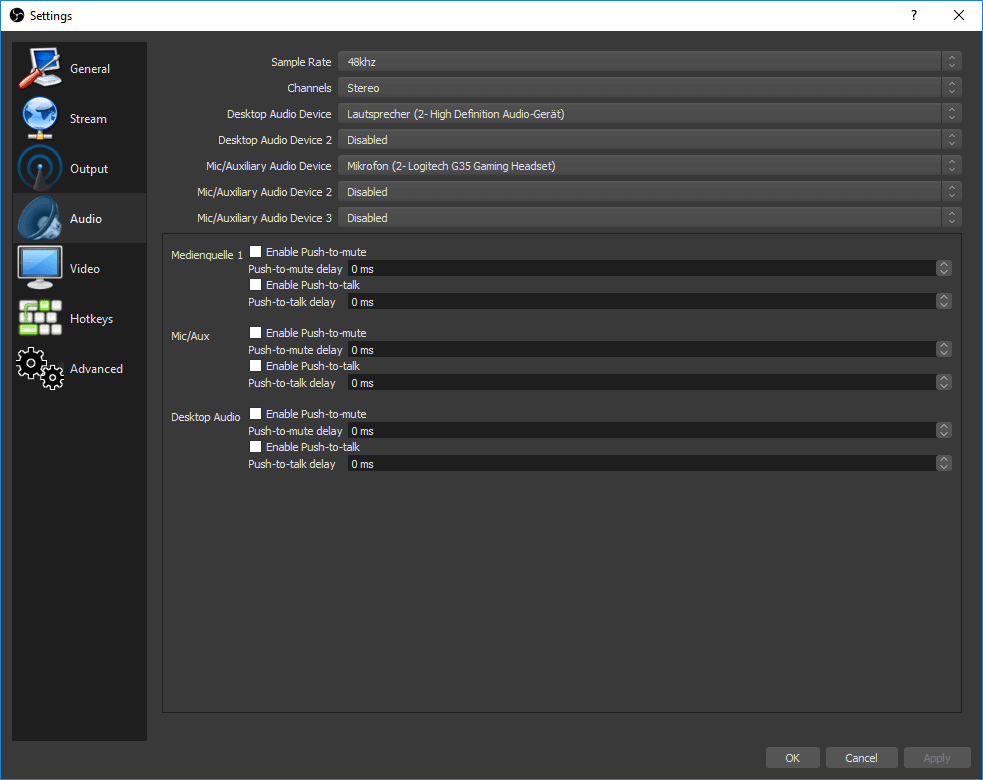
  • Select the audio device and set it to ‘Default’ to record the sound of the speaker
audio2.png
  • If you have separate headphone and Mic, then use the below settings,
audio1.png
  • Windows sound -> Default Playback ‘Headphones’ , Default Recording ‘Mic’.
  •  OBS Audio -> sample rate set should be per audio devices format rate
    1.Desktop audio -> ‘Headphones’
    2.Mic/Aux audio ->  ‘Mic’
  • OBS Advanced Audio Properties
    1. Mic/Aux -> ‘Track 1’ and ‘Monitor & Output’
    2. Desktop Audio -> ‘Track 2’ and ‘Monitor and Output’
  • OBS Advanced settings
    1. Audio Monitoring Device -> ‘Headphones’

Issue 6 – Headphone audio not being recorded with Microphone audio

Problem

Only Microphone audio is transferred to stream but not the headphone audio

Solution

Please follow the below steps carefully, if you need both audios to be recorded properly,

Step 1: Ensure all the inputs are plugged in properly.

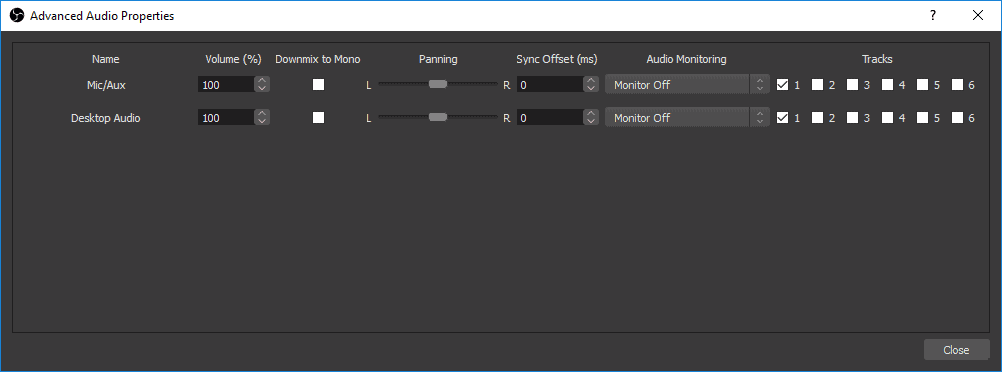
Step 2: Select proper output and input devices in “Settings” as “Audio”. For instance, If you select “Microphone” but the sound comes from the “Speakers”, then there would be nothing in the recording. So, you should be doing correct switching from Microphone to Speakers, so there is proper recording. See the snapshot below for a clear understanding.

https://obsproject.com/forum/attachments/advancedaudio-png.31076/

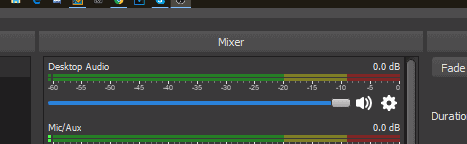
Step 3: In the below drop-down menu you have an option as “Monitor off“. The term “Monitor” is the sound that comes from a headphone or speaker. “Output” is the sound that you will be hearing in the stream or video. ”Monitor only” option means to mute output. So you tell the OBS studio software to what content it should capture and what should be heard in the recording.

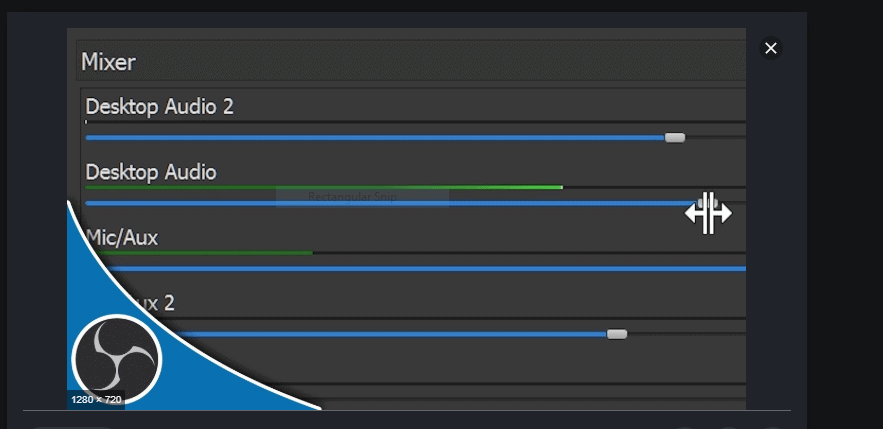
Step 4: You can try “Advanced Audio Properties” in the settings icon in the “Mixer” box which is another advanced way of mixing both Speaker and Microphone audio. You can see the image below for all these settings options.

https://obsproject.com/forum/attachments/audio-png.31077/

Step 5: Except “Track box option 1″, uncheck all the other track boxes of “Mic” and “Desktop Audio”. It is to make sure that all audio is combined in one track. If you select both “Mic” and “Desktop Audio” then both will be merged into one track. So it is advisable to use the proper file formats if you are using two different inputs.

These are the steps you have to follow if you need to add Speaker audio and Microphone audio to a single recording in OBS studio software. You can add other sources such as webcam or game too by following similar to create a flawless recording. The tool offers more than 20 Plug-ins so that more sources can be added to offer enhanced functionality. If you face any errors, difficulties or problems you can take a snapshot of all those error messages and settings as log files.

You can extract those log files with the correct date and time from the “Help” option. You can submit those log files in the OBS project forum and get your concerns addressed.
How to Set Google Docs Landscape or Portrait orientation

0
Terrarium TV,Terrarium TV Review,terrarium tv 4k

When it comes to Google-Docs people thinks it is modest to formats and style. Be that as it may, truly it’s extremely easy to make Google-Docs landscape data format. Most of the time, utilizing a-portrait orientation for the document folio bodes well. Sporadically, for example, when you have an enormous table that necessitates that additional piece of horizontal space, you may need to change to a landscape orientation. Here’s the manner by which to do that in Google Documents.

Fundamentally, there are 2 kinds of orientations. Landscape-orientation and Portrait-Orientation. In Landscape-mode, the pages has more breadth than the height and in Portrait-mode, the documents has more height than the breadth. Practically all editor programs of Word open an archive in portrait-mode except if you modify the settings. This is essentially in light of the fact that a great many users use portrait-mode much than the landscape as they make another document.

As Jeffrey Lam, a professional writer for various academic writing companiespoints out, “This is one of the major drawbacks in Google Docs. It’s one of the reasons my colleagues and I are still using Microsoft Word for some of our tasks while we’ve transferred the majority of work to Google Docs.”

For instance, while making school ventures, office works, making employment resumes, reports, the vast majority pick the portrait orientation. However, there are occasions where we have to switch the orientation. You can see the choice to change the page orientation straightforwardly in the toolbar when altering using MS office. However, no such immediate catches are accessible on Google Docs. Here are the step by step directions to change over a Portrait d to Landscape  orientation in Google Docs.

Making Google Docs Landscape Format

Simply realize that Google Docs just gives you a chance to change the page orientation of a whole document and not simply explicit pieces of it. In certain cases we will drop few tables in middle of long article, you will be frustrated. Rather, you’ll need to make another document explicitly for the table and after printing it out, add it to the remaining of the pages.

Microsoft Word is better along these lines, enabling you to situate various areas of a document in various ways. Google Docs is somewhat constrained thus you’ll need to become accustomed to it in the event that you intend to utilize it as your favored suite. In spite of the fact that not as valuable, Google Drive is as yet a free program and has its advantages.

Indeed, even as yet, having the option to swap the whole document into a landscape orientation is still extremely helpful for slide-show presentations and single page tasks making flyers and blurbs. 

In the event that you’d like to figure out how to set your Google Docs -> landscape mode from portrait, follow the steps below:

Step.1 

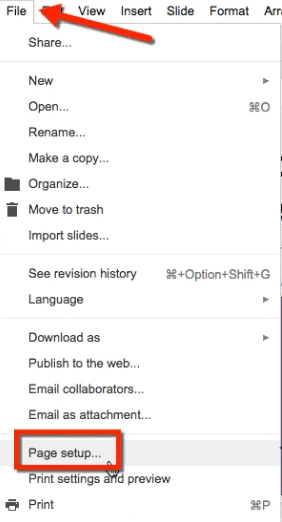
With your document file open in Google Docs, select File option from the menu-bar and select Page-setup. 

Terrarium TV,Terrarium TV Review,terrarium tv 4k

You can likewise make an altogether new Doc if that suits your needs better. 

Stage 2. 

How to set Google Docs Landscape Orientation

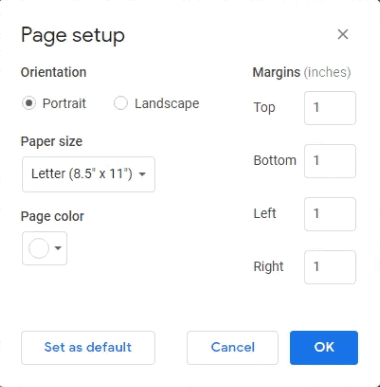
Open the “File ” option from menu-bar and after that click on the “Page Setup” to open the Page-Setup window.

Terrarium TV,Terrarium TV Review,terrarium tv 4k

At the topmost of this window, in the “Orientation” segment, we can switch your document among portrait-mode and landscape-mode. Settle on your decision and after that click “OK” to go for your selection. 

Note: While landscape-mode may make the greater part of our document looks extraordinary, it has a particular reaction of re-ordering and re-formatting pictures and some other media that may have appeared incredible in portrait-layout. Make sure everything is all together ahead sending it off to anybody for the endorsement.

Setting Landscape Format as Google Docs Default 

On the off chance that you need your documents in Google Docs to open automatically in Landscape-mode, you can set Landscape as the default format. 

You can do this in the progression above where you’re empowering Landscape-mode by choosing Set as default before clicking OK to save. 

The paper size of your document is another of these settings, supporting the accompanying sizes:

Letter (8.5? × 11?)

Tabloid (11? × 17?)

Legal (8.5? × 14?)

Statement (5.5? × 8.5?)

Executive (7.25? × 10.5?)

Folio (8.5? × 13?)

A3 (11.69? × 16.54?)

A4 (8.27? × 11.69?)

A5 (5.83? × 8.27?)

B4 (9.84? × 13.90?)

B5 (6.93? × 9.84?)

You can likewise set the size, in inches, of every one of your page’s edges and its background color. The background color can be set utilizing a predefined rundown of hues or by utilizing your very own custom hex color code.

Google Docs vs. Microsoft Word Orientation Drawback

Maybe the greatest contrast you will discover in managing landscape in Google Docs and Microsoft Word is the capacity for Word to give your  document a chance to have pages with various orientations. Shockingly Google Docs requires the whole document to have a similar orientation. 

On the off chance that you need to have one page with landscape orientation in Microsoft Word, you can do as such with the accompanying advances. We will be making two “Next Page” area breaks, one preceding the page we need to change to landscape, and one after it.

Open your document in Microsoft Word. 

Mouse-Click the Show/Hide button in the Paragraph segment of the ribbon. While not actually fundamental, this gives us a chance to see the breaks we are making. 

Go to the part of the arrangement directly before the one you wish to make landscape and Mouse-Click after the last letter. 

Step 1: Mouse-Click the Layout tab at the top-most of the window. 

Step 2: Mouse-Click the Breaks button, at that point click Next Page under Section Breaks. 

Step 3: Go to the start of the page after the one that you wish to make scene and Mouse-Click before the principal letter. 

Step 4: Mouse-Click the Layout tab at the top-most of the window once more. 

Step 5: Mouse-Click the Breaks button, at that point click Next Page under Section Breaks to include another break. 

Step 6: Mouse-Click any place on the page between the two segment breaks. 

Step 7: Mouse-Click the Layout tab at the top-most of the window. 

Step 8: Mouse-Click the Orientation button, at that point select the Landscape alternative.

Question:- Can I Create Multiple Orientation pages in Google Docs? 

Lamentably, you can’t make Multiple Orientation pages in Google Docs. That implies stirring up of Portrait and Landscape is beyond the realm of imagination. On the off chance that you pick a mode while making a page, that mode will apply to each page in that specific document. Likewise If you need to indicate distinctive layout pages, you ought to make two Google Doc document and show it independently.

Top 6 Superfast Download Managers for Windows You Should Try

0
Terrarium TV,Terrarium TV Review,terrarium tv 4k

In case you are one of the web users who uses the in-built download manager which comes alongside the browser then you truly need a time machine and you need to return to the present century. The issue with the browser’s download manager is either the downloading pace drops or the download stays deficient and crashes which is the reason it is significant for one to utilise a download manager. It is constantly recommended to use download manager for downloading documents, files, the content of your interest, as it helps you with better download speed and offers you with various features like planning your downloads, pause or resume your download, and so forth.  

When you use a download manager, you can always run multiple downloads side by side, pause or resume downloading and the download speed is also not affected. This is an ideal switch to make on the longer run even if you are a little skeptical of downloading it. To help you out in choosing the best download manager for your Windows, I have enlisted a bunch of download managers below:

1. JDownloader

Cost: Free :  http://jdownloader.org/knowledge/wiki/addons?first=5 

It is one of the best software for a Windows PC. JDownloader is absolutely free. Moreover, it is an open source. Apart from other paid download managers which provides you with a free version, these softwares always have ads poping up, however JDownloader doesn’t work like this. It is completely promotion free. The software offers the users with various features like start, stop, pausing or resuming the download, along with the additional features like automatically extract archives, setting bandwidth limits, etc. The most fascinating feature is it allows you to download multiple files and supports download from famous websites like YouTube, Vimeo and others. 

You also have the privilege to add plugins in this download manager to make it even more efficient and power packed. One such example for a plug in is the Scheduler Plugin which enables you to schedule your downloads. Who said only meetings can be scheduled? This is the best way of downloading heavy files when the internet speed is at its maximum bandwidth. The only feature that sets back is the user interface of the software is a little outdated. 

2. Internet Download Manager

Cost: 30 days trial available, INR 860/year : http://www.internetdownloadmanager.com/    

IDM (Internet Download Manager) is one of the most renowned downloading managers out there for Windows. The best feature it provides you with is, this software is compatible with almost all the well-known browsers. Moreover, it intercepts all the download links so accurately that it helps in reducing the one extra step of downloading my files. This doesn’t mean that the other download managers don’t do this, its just the fact that this software does it more efficiently. 

Internet Download Manager, also flaunts the basic features like pausing and resuming downloads, enabling multiple downloads simultaneously, downloading the files at a much faster rate, like no one else does. This software features a smart download logic accelerator  which allows file segmentation and multipart downloading safely hence, increasing the download speed. One of my favourite features is if your PC crashes in the middle of downloading a file, you can still resume the download from where it stopped instead of restarting the download. It also supports proxy servers, protocols, redirects, cookies, firewalls, etc. 

3. Ninja Download Manager

Cost: $19/PC : https://ninjadownloadmanager.com/ 

Since Ninja Download Manager is new in this segment, the developers have spent a good time on the look of this software. The user interface of this software is very elegant and fits perfectly with the Windows 10 design. It blends perfectly with the overall format of the Windows 10 version. 

The mechanism of it is a bit similar to that of the torrent downloaders. It divides the file into multiple bits and pieces and downloads the file from multiple connections using various servers. Hence, the speed of downloading the file is super fast, the downloading speed also depends on your connection. It also enables simple features like pause or resume the downloads, schedule your downloads, downloading multiple files parallely and many more. This software also allows to preview your downloads before the download is completed. This gives you the privilege to cross check the file’s quality which will help you to decide whether to download the file from the same source or not. NDM is a very handy download manager hence, I would recommend you to use this once. This software is available for Mac users as well. 

4. Free Download Manager

Cost: Free : https://www.freedownloadmanager.org/ 

Yet another power packed software available as open source. FDM is another download manager which is very useful for fast downloading as it splits the files into parts and then downloads the files at the same instant. It has the basic features of pausing and resuming the download. This feature functions even when the download gets interrupted or if the PC crashes. The best feature of FDM is it supports torrent files which is a unique feature and proves to be useful at times. Its bandwidth management allows me to surf the internet without any interruption in connected speed. FDM also has a modern look and its design fits perfectly with today’s Windows versions.

FDM also comes with a feature to organize your files and also scheduled downloading of files. When you download a link the possibilities are it is organized even before you start downloading it. All the videos, pictures, games and other files are directly redirected to their allocated folders. The best part is, even though it is free to use it shows no random ads on its screen. Also, this software is very efficient to use.

5. EagleGet

Cost: Free : http://www.eagleget.com/ 

Eagle get is probably the only software I would claim it to be an all-in-one download manager.  It supports various browsers like Firefox, Chrome, Internet Explorer, Opera, and enables support for FTP, MMS, RTSP, HTTP, HTTPS protocols. This software features multi-thread technology which enables you to speed up the downloads. It also features the pause and resume feature, multiple file downloads parallely, you can even adjust the priority of downloads, and more.  

One of the best features it sports is the malware detector which is in-built and file integrity verify. Hence, you can download your files without the tension of attracting any malwares or viruses into your pc. However, the software is free to use, you will have to bare with the ads that show up.  

6. Xtreme Download Manager:

Cost: Free : 

Xtreme Download Manager an age old download manager available on the internet for a Windows operating system. XDM is the best tool to download video content as it supports all the major video sharing websites like YouTube, Dailymotion, Vimeo, Facebook, Google Videos, it comes with a support to more than 1000 websites. This doesn’t make this software any biased to the other contents which you want to download. One can use this software to download all types of files. One of the magical feature that it sports is, it is capable of downloading the entire playlist of yours from YouTube. You don’t even have to input the links individually to download each and every song. Magical?! Isn’t it! 

It comes with a support to browsers like Mozilla Firefox Quantum, Google Chrome, Opera, other chrome and firefox based browser, Vivaldi, etc. It has various other features like, smart scheduler, pause and resume download feature, download files parallely, proxy servers support, speed limiter, by managing the allocation of bandwidth and many more features.   

Try out these amazing download managers and let me know which software you liked the most in the comment section below.