Home Blog Page 318

How to Optimize PC without using any Third Party Software?

There are many paid and free PC optimizers available in the web but it is not mandatory software, why should go for this as you can yourself optimize your PC without using any third party software. Before optimizing our PC let’s first list out the tasks what a PC optimizer does, normally a PC optimizer-

  • Deletes temporary files stored in TEMP folder
  • Removes unwanted startup entries
  • Clean ups unused or broken desktop shortcuts
  • Improves the performance and speed to optimize PC

Ok.. Now how to do these tasks yourself? Here is a step by step guide on how to optimize PC by accomplishing the tasks mentioned above.

Here are some tips to Optimize PC

Deletes Temporary Files Stored in TEMP Folder

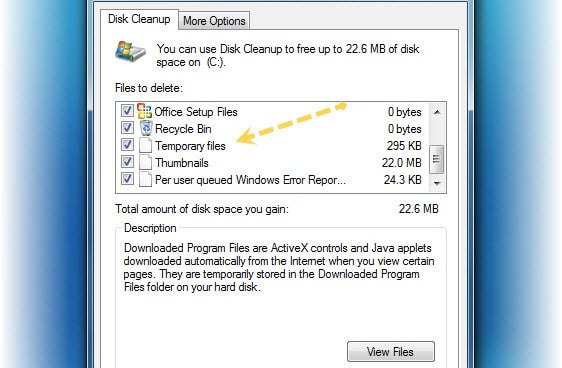
Deleting temporary files (temp files) frees up the hard disk and improves the overall performance of your PC, here is how to delete temporary files from your system.

  1. Go to My Computer, right click on C:/ drive
  2. Click on “Properties”, under “General” tab click on “Disk cleanup”
  3. Windows searches Temp files, temporary internet files, offline webpages and error reporting files.
  4. It allows you to select the files from the categories mentioned in point 3 including Recycle Bin
  5. Select the categories which you want to delete and click on “OK” button, it asks for confirmation, again click on “Delete Files”. That’s it.. Temporary files get deleted along with selected categories.
    remove temp files

Removes unwanted startup entries [Windows 7]

Removing unwanted startup helps to optimize PC faster and also decreases loading time. This is a must follow task to optimize PC. Here is how to delete unwanted software that launch at startup.

  1. Click on start >> control panel
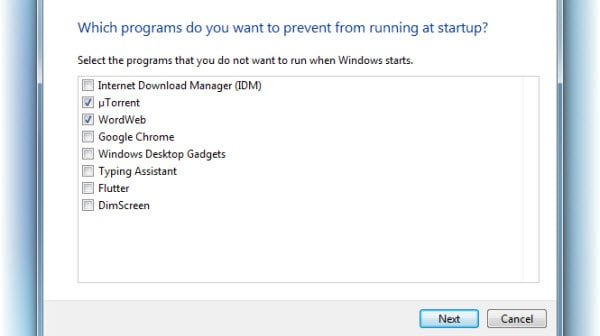
  2. Click on “Find and Fix Problem” then “Check for performance issues” under “System and Security”
  3. It analyzes your system and a list of software will be displayed
  4. Click the check box of respective software that you don’t want to run at startup
  5. Click on “Next”, the apps you selected will be removed from startup
    remove unwanted startup items

Clean up unused or broken desktop shortcuts

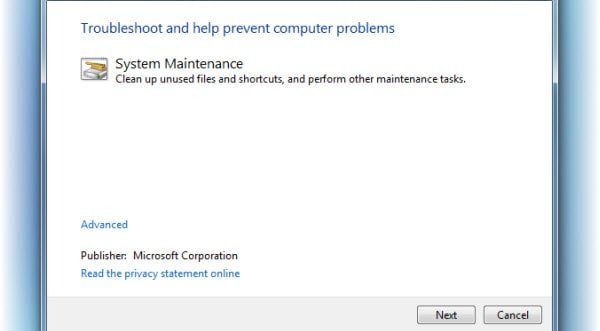
You can clean unused or broken desktop shortcuts by using System Maintenance Tasks which could be found under “System and Security” in control panel. To launch System Maintenance Tasks

  1. Click on start >> control panel
  2. Click on “System Maintenance Tasks” under “System and Security”
  3. Click on “Next” button, it searches for unused or broken desktop shortcuts, broken startup entries, repairs bad sectors and misplaced clusters, corrects system time etc.
  4. Click on “Next”, it will remove and repair all the error and problems mentioned above.
    remove broken shortcuts

Improve the performance and speed of your PC

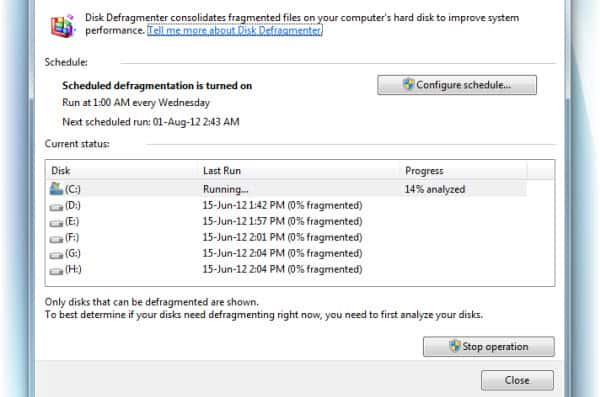
Disk defragmentation and Error checking helps to improve the overall performance and as well as optimize PC, to open Disk defragmentation-

  1. Click on start >> All programs >> Accessories >> Disk defragmenter
  2. Choose C:/ drive and click on defragment disk
  3. It takes some according to your drive size, files of C:/ drive will be defragmented
    error check

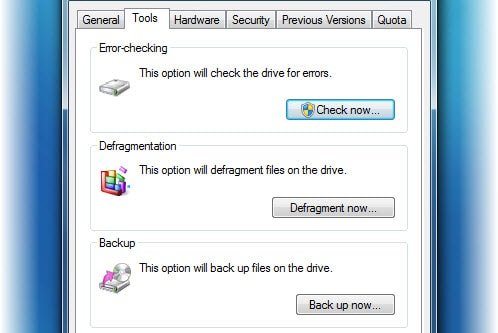
To open Error checking, to check the errors of C: drive

  1. Go to My Computer, right click on C:/ drive
  2. Click on “Properties”, under “Tools” tab click on “Check now”
  3. Now check “Automatically fix file system errors” check box
  4. It asks whether you want to check the error at the next boot, click on “Schedule Disk Check” button and restart your PC.
    how to defrag

Termsfeed: Free Online Tool to Generate Text Format for Privacy Policy and TOS Page

Terms of Service(TOS) agreement and Privacy Policy are two important agreements that must be included in a newly created website. Terms of Service agreement explains terms of use of an online service or tool which user has to abide in order to continue using the service. And Privacy Policy agreement explains use of personal data of user, collected by provider. It explains for what purposes the personal data collected would be used in future by data collector. There are various methods of creating these agreements. Easiest way is to generate them is using Termsfeed Online Service.

Termsfeed Overview

Getting Terms of Service Agreement using Termsfeed

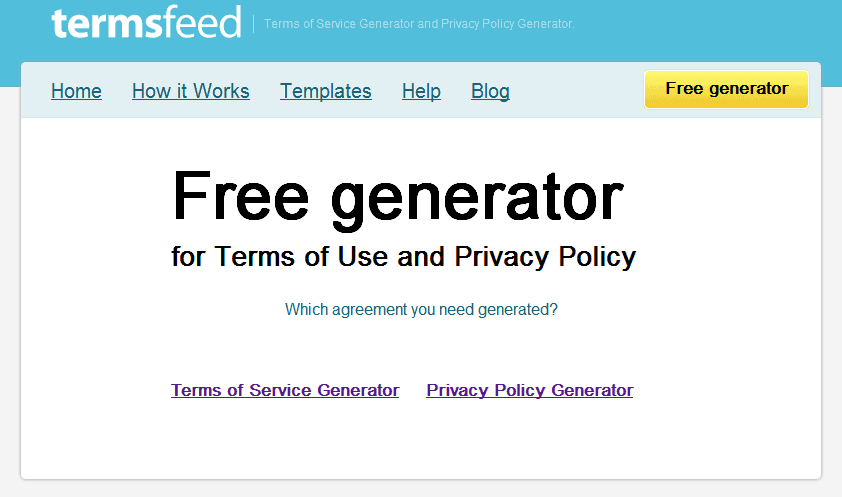
Termsfeed Generate Terms of Service

It’s very easy to get a Terms of Service agreement using Termsfeed. Here’s what you have to do to get it for your website,

  • Go to Termsfeed website.
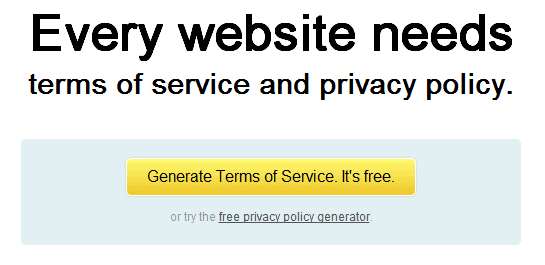
  • Click on “Generate Terms of Service. It’s free” button.
  • Enter the details.
  • Then click on “Generate the Terms of Service” button.

And Terms of Service agreement for your website is generated. To include the it in your website just copy the HTML code generated and add it in your website.

Getting Privacy Policy Agreement using Termsfeed

Generate Privacy Policy

This is similar to getting Terms of Service. To get Privacy Policy using Termsfeed,

  • Browse to Termsfeed website.
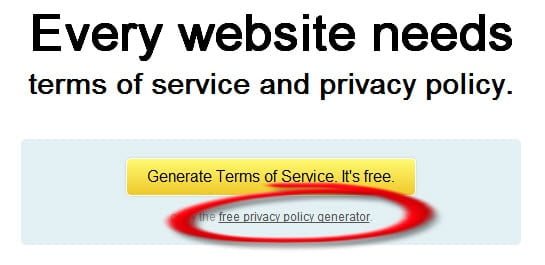
  • Click on “or try the free privacy policy generator” right below the “Generate Terms of Service. It’s free” button.
  • Enter the details.
  • Then click on “Generate the Privacy Policy” button.

Again to include Privacy Policy in your website copy the HTML code and add it in your website.

Terms of Service and Privacy Policy Format

Using Termsfeed service you can get Terms of Service and Privacy Policy in HTML and TXT formats. You can select suitable format. And for HTML format, Termsfeed provides tags which will be already included.

Need of Terms of Service and Privacy Policy for a Website

Terms of Service on your website dictates the limitations of use of your website content by user. It’s a kind of legal connection between website owner and user. By including it on your website, you are setting a limit to use of your website content by user. Similarly, Privacy Policy is also an agreement that dictates the use of user’s personal information by service provider. It explains how user’s personal data taken will be used and also to what extent it will be used by service provider. It’s very easy to get both of the above agreement formats for your new website using Termsfeed.

Play or Pause Music with Gesture in Laptop with Flutter!

0

Got a call while listening to music in your laptop? Don’t worry now you need not open your minimized media player and press pause button, instead just show your palm like “stop sign” to your laptop and the song you listening or the video you watching will be paused. Isn’t it interesting? Yes.. It is possible with Flutter. Flutter is a free gesture recognition app by Bot Square Inc. that recognizes your hand and play/ pause the music and videos. For now it supports iTunes, Spotify, VLC, WinAmp and Windows Media Player. Flutter is soon announcing its new feature “skip”.

How to use Flutter?

Playing and Pausing the media with Flutter is simple. Just go through the steps below to play or pause the music with hand gesture with Flutter-

  1. Download Flutter [for Windows] [for Mac]
  2. After downloading, Install it and just have a look at small tutor it brings. Flutter settles in your system tray
  3. Now open WinAmp or Windows Media Player [for windows] or open iTunes [for MAC] and play a song
  4. Now you can pause or play the song with Flutter. To pause the song, hold your hand up like “stop sign” in front of your laptop’s webcam
  5. To play the paused song, again make the same action i.e. making “stop sign” with your hand in front of webcam. Make sure that your hand is 1-6 feet away from your webcam.
    flutter

Flutter is getting tremendous responses from its users as it is delivering the new experience without need of any special device. As Flutter is in BETA version it is accepting feedbacks and feature suggestions from its users. It is the great way to show the magical power of your palm to your friends and relatives!.. So what are you waiting for? Just download Flutter and enjoy!

Flutter website: www.flutterapp.com

Online Faxing- Advantages of Sending Fax Online

It’s evident that traditional faxing methods consume more time, energy, resources and most importantly money. Another major drawback is that it harms trees hence nature which indirectly affects the living forms on our planet i.e. to say it is not Eco Friendly. Glimpses of above facts have been described in previous posts “Online Faxing-How Sending Online Fax Saves Time?” and “Online Fax-How does Online or Internet Fax Service work?”. Now, let us see how Online Faxing is advantageous over traditional faxing in various manners. Since traditional faxing requires lots and lots of paper considered one a global reference and can evidently be reduced by use of online faxing.

By analyzing different factors about how there is loss of resource and harm to nature, we shall conclude advantageous of Online Faxing over Traditional Fax.

Let us first confer the factors which account to enormous loss of resources due to traditional faxing unlike Online faxing,

Paper Used

Advantages of Sending Fax Online- Save Trees
Save Trees

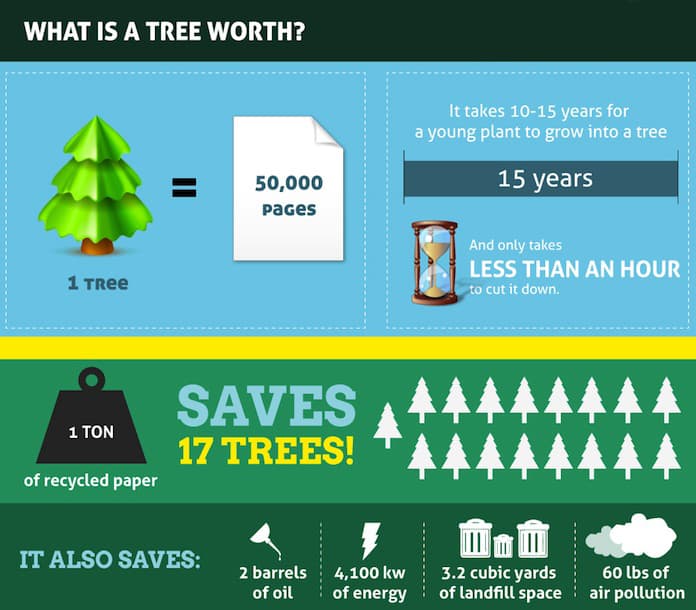
  • On an average around 50000 pages can be furnished by cutting down a single tree.
  • In United States alone approximately 15 million trees are cut down every year for manufacture of fax pages. Think of rest of the world!
  • This results in vast amount of deforestation which directly affects wildlife and is one of the major reasons of global warming.

Assuming that readers of the following discussion know what the proverb “For Want of a Nail” means; it is evident that even a single tree saved by less use of paper today may be a boon for generations to come.

Online Faxing reduces usage of paper by half the entire proportion if it is one sided. And if both the parties- sending and receiving use online method then use of paper in fax is entirely cut down!

Chemicals Used for Making Fax Pages

Online Faxing- Advantages of Sending Fax Online-Ink and Pages
Ink and Pages

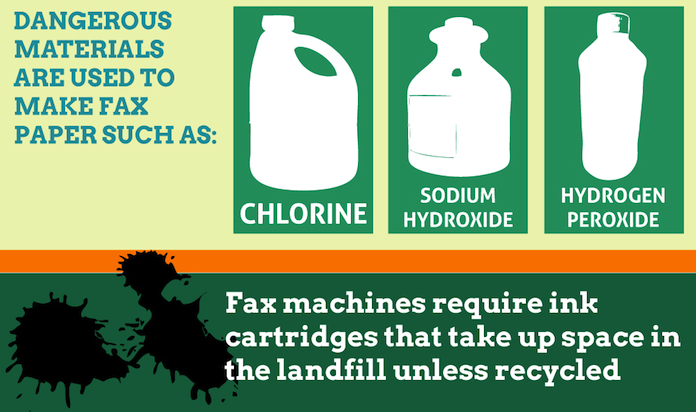
  • Chemical are used in preparation of Fax Pages.
  • After use of the faxed paper, occasionally it is rendered as waste. It is harmless only if it goes in dustbin and eventually recycled.
  • In the long run, the pages which are not properly disposed will be of enough harm to nature.
  • Also the empty ink cartridges should be properly recycled.

The Fax Machine

Online Fax- Advantages of Sending Fax Online- Recycle
Recycle

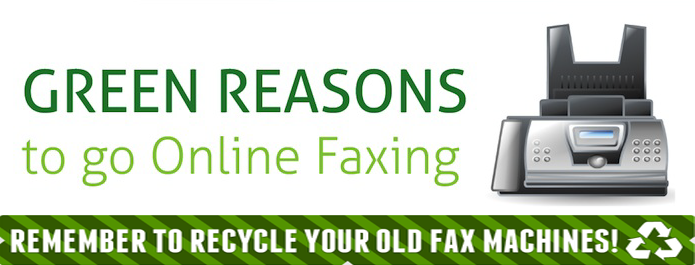
  • The fax machine is itself useless when it is not used! So no need to invest on it. And you can keep a nice flower vase or piece of art in place of your old fax machine…
  • Amount of power consumed by fax machines can cut down in your electricity bill.

Key Advantages of Online Faxing over Traditional Faxing

Online Fax- Advantages of Sending Fax Online
Advantages of Online over Traditional Fax

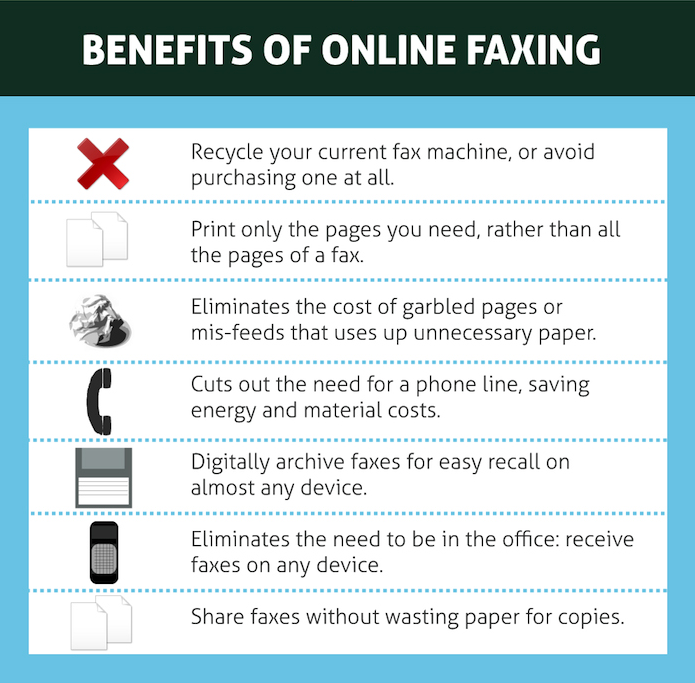
  • Online faxing obviously reduces all the expenses of a fax machine, its paper and the power consumed.
  • Since use of paper is reduced enormously with Online faxing, fewer trees will be cut down.
  • By use of Online faxing you need not be present around your fax machine since you can send and receive online fax on your smartphone or tablet computer.
  • Less space is required to store and manage your fax documents using Online faxing.
  • Need of a phone line associated with fax machine can be completely avoided using Online faxing.

At the end of the day, with the use of Online faxing you can cut down electricity bills, paper bills, ink cartridge bills, phone bills and also be ecofriendly. In general, with Online Faxing you save money, resources, energy and time and change into a responsible habitant of planet Earth.

Office 365 – The All New Version of Microsoft Office – 365 Review with video

Microsoft has recently unveiled its all new version of Microsoft Office i.e. Office 2013 which is also called as Office 365. Unlike older versions, Office 365 is not just a desktop solution to work on a single PC but it is rebuilt for collaborative work and of course it supports both PCs and tablets as well. So you can work both in PC and tablet such as Microsoft Surface. Office 365 is available in different packages to suite individual needs, available packages are- Office 365 Home Premium, Small Business Premium, ProPlus and Office 365 Enterprise. Here is Office 365 review with video.

What is New in Office 365?

The noted feature is that Office 365 supports cloud computing, so you can work in your home, office or on the go, by saving your work on SkyDrive or SharePoint, you can access your documents and settings anytime and anywhere. 

Talking of SharePoint, how can we not talk about other amazing features that it offers? It’s a full suite of experiences for organisations looking to centralise their data, facilitate internal communication and make collaboration simple and stress-free. To make all this happen for you, a Sharepoint consulting company can guide you through the technical labyrinth, so you are not left scratching your head.

Microsoft has used the same ribbon style menus in this version too. Let’s have a look at the new features each app brings in Office 365.

MS Word 2013

Microsoft has added comment system in this version of MS word which allows you to write or get comments for your collaborated documents. You can share your docs with your team and set permission to work with a file. Object zoom feature of new MS Word zooms particular image or video with a single click, MS Word 2013 saves the last read position and opens with that position in the next launch. Microsoft Word 2013 can now read PDF file format with tables as well as images. Most importantly you can embed photos and videos using built-in Bing search.

[youtube]http://youtu.be/povswk4cZaA[/youtube]

MS Excel 2013

This new MS Excel comes with some fresh as well as useful features. It let you accomplish difficult analyses quickly. Its Flash Fill feature identifies entered data in cells and auto-completes the remaining data, it also has various charts and diagrams to represent your data visually. You can share your workbook with your team and allow them to make changes or add additional data to your workbook.

[youtube]http://youtu.be/IMXh21_PsV4[/youtube]

MS Powerpoint 2013

The new Powerpoint comes up with more themes that could be modified with color variants, new transition effects and animations as well. It introduces many new tools such as union, combine, fragment, intersect, and subtract to mingle with shapes. Like MS Word 365, we can zoom to a particular object such as image or chart in Powerpoint 2013.

[youtube]http://youtu.be/nndC24LI1Jg[/youtube]

MS Outlook 2013

MS Outlook 2013 has brilliant features, with the improved Outlook now you can manage your contacts and emails seamlessly. You can get the update of Facebook and LinkedIn in Outlook 2013 by incorporating your account in it. It is also possible to share your calendar with your team to let them know your schedule.

[youtube]http://youtu.be/r7DQnj_89h4[/youtube]

Office 365 Compatibility

Office 365 is designed to run in the recent operating systems including Windows 8, Windows 7, Windows Server 2012 and Windows Server 2008 R2. It is not compatible with Windows XP and Vista.

System Requirements for Office 365

Minimal system requirements for Office 365 are- 1GHz processor, 1GB of RAM 32-bit version and 2GB for the 64-bit, 3.5 GB of free disk space to install office apps, minimum 1024 x 576 resolution with DirectX10 graphics card.

Top Android Apps Trending Right Now

0

If one is certain, it’s that smartphones ultimately dominate the lives of people across the globe. Whether they’re Android or Apple, smartphones are an integral feature of our existence, thanks to their convenient power supplies and the fact that we’re able to access absolutely anything at our fingertips. Whether it’s something to navigate where you’re going or to keep the kids entertained, smartphones are quickly becoming a necessity. One of the most important features of a smartphone is their apps, but with so many on the respective application stores, it can be difficult to know which are worth downloading. Listed below are the top android apps. 

1Weather

Gone are the days of hunting for the weather report in the newspaper, on the radio, or even the TV. In order to learn what the weather is likely to do, we consult the internet, and the most convenient mode of doing this is by picking up our phones. There are so many weather apps on the Google Play Store, and some are more reliable than others. As a result, it becomes almost impossible to know which weather app is worth downloading if you want the most accurate forecast. Well, 1Weather on Android is excellent, with a forecast of up to 12 weeks! 

Google Drive

Google Drive is a clous storage system for Android that enables you to sync all your files across a multitude of devices. The app can be downloaded for free, and users are given 15GB of storage. Despite this, it’s of course possible to purchase more gigabytes. Similarly, Google Drive is compatible with other Android apps, including Google Keep, Google Calendar, Gmail, Google Photos, Google Slides, Google Sheets, and Google Docs. By using Google Drive, you can ensure that all bases are covered and you’re not missing any important files for each of your devices. 

Google Maps

When it comes to quality navigation, the power of Google Maps can’t be underestimated. It dominates the navigation app scene and is without a doubt one of the best Android apps available on the Google Play Store. Not only can Google Maps get you from A to B smoothly, but it also has up-to-date traffic data, as well as stops of convenience and interest alike. Furthermore, you don’t need to rely on your internet connection if you know where you’re heading to, as you can download maps ahead of time. Similarly, Google Maps is more reliable than car navigation systems, making it the preferred choice. 

Google

Google is the most powerful search engine out there, making it one of the best apps on the Google Play Store. If Google doesn’t know something, then no one does. Whether you want to find out how to register to vote or how to tie a tie, Google will find the answer for you. You can add Google directly to your home screen to make it easier to access. With an Android smartphone, you’re able to find out absolutely anything in a matter of seconds. When relying on Google, you’re sure to do well.

LastPass

With the number of passwords that we need to function in our technologically driven society, a digital password storer is essential. Not only is the LastPass app perfect for keeping your existing passwords safe, but it’s great for generating passwords that are virtually impossible to crack. The software itself is protected by a master password, so you only have one password to remember, rather than 20. Furthermore, it can be used on smartphones, tablets, desktops, or any device you may be using.

Which apps will you be downloading?

Top Five Android Real Estate Apps

Finding a new house or a property can be one hell of an experience for the ones doing it for first time. Searching newspapers, advertisements, notice boards which usually ends up in disappointment. Another easier way to find property is through internet and manage it using a property management software. But, sticking to the chair while searching via internet and checking out the marked property outdoor cannot be done simultaneously. Android real estate apps give a wonderful solution for this problem. All you need is an Android device and android real estate app. You can search online while you’re on the go. And there won’t be any need of noting down addresses, routes etc. Android real estate app do it for you. Let’s take look at some most popular Real Estate finding Android Apps.

Movoto Android Real Estate App

This android real estate app helps you find you house or property at a lightning speed. As you search for your house, Movoto android real estate app lists the city, address, zip code as well as the prices and recent searches. You can get all of this in just a single tap with the Movoto App. Also you will have access to property photos and details, map view and surroundings. And you can get and share opinions via social networks like Facebook and Twitter and also through emails.

Zillow Real Estate and Rentals

The Zillow App allows you to get the estimate of almost any house for sale in the entire United States. Get price estimates, rent estimates, price cuts and also Zillow offers news with this app. To search, give in voice commands or type in the address or just allow the GPS locater to do the work. Even get driving directions to a reach and checkout a desired house for sale or rent with this android real estate app. Most importantly this android real estate app allows you to map, sort, compare houses and access the entire tax history on home detail pages.

HotPads Rentals and Real Estate

Another powerful app for real estate search is the HotPads Rentals and Real Estate App. This android real estate app features search for millions of houses for sale or rent, maps and listing, detailed listings. It supports Cross Platform Sync and also gives you location based directions. It is one of the most popularly downloaded Android Apps.

Internet Real Estate

The Internet Real Estate App provides you with all the information a property hunter needs. It provides you with information on sellers, tenants, buyers etc. Whether you are a buyer, seller, investor or a property manager, it gives you step by step information. It’s another most popular android real estate app.

eKEY Android Real Estate App

This android real estate app is specifically designed for Real Estate Professionals. It provides its users with searches, listings on map along with detailed information. Since it is specifically intended for professionals, users need to purchase the required eKEY Adapter from their association. You can create and manage profiles for each of your clients with eKEY.