
Home Blog Page 143

UK VPN Abroad Guide

0
UK VPN Abroad Guide


As British (or anyone for that matter), we love to travel. There are so many places in the world that are just waiting for us to discover. It can be a bit boring to just stay in one place and wait for the inevitable to claim us. Whether you are living good ole dreary London, foggy streets of Glasgow or anywhere across Britain, it is a nice idea to get of it once in a while. Checking out the other wonders of Europe, Asia or America makes us realize how people from other countries see our own.

However, wherever we are, there is still a part of us left in the UK. You may claim to hate living here with all of the irregularities with the weather. You might not also like how the government handles its policies and people. Whether you will sing praises or curses about the United Kingdom, there is always a part of you which craves to be back. If you are an expat, you may understand how this feels. Being in another country is a fun and exhilarating experience, but nothing compares to home. So, just to ease the ache, binge-watching shows from the UK seems like a great idea.

There are a lot of shows that you can watch these days, even the ones that are already finished. With the advent of the internet and these wonderful apps, you can access these shows whenever and wherever. Craving a little bit of sci-fi? Dr. Who has got you covered. Learn more about the latest series by clicking this link . Want some drama? EastEnders and Coronation Street are just on the side. Are reality TV shows your thing? Well, Love Island (with all the snogging and sexual tension) seems to be the new in these days. You can watch these and feel like you are back at home enjoying your afternoon tea. Sadly, it is not that simple if you are overseas.

The internet has given us many avenues for watching our favorite TV series. Some of these can be found on YouTube. However, these are just highlights; incomplete and sometimes fan made work. If there is a complete episode, it is probably posted illegally and to be taken down as soon as possible. Streaming platforms has also become very popular like Netflix and BBC iPlayer. The problem with this one is if you are overseas; you cannot access them even if you paid for membership. UK blocks access from other countries so that the services are not prone to abuse.

If you are living someplace else, then you are in tough luck. You can’t access these streaming sites even if you paid for an annual membership. However, there is a solution to this dilemma. You can try downloading a virtual private network. As you know, the internet on a physical level is just a collection of wires connecting servers from all around the world. If you connect your device to the internet, you can gain access to this network and be on the internet. Roughly each country has their own server, even multiple servers for larger countries. As each of the servers may have their own restrictions whether due to government regulations or something else, it can limit your access to the net. Accessing the internet can also track your location and the websites you access.

Virtual private networks essentially fool the system by replacing your devices location (or IP address) with another computer. It does mainly two things: it masks your location, and gives you access to that certain server. For example, you want to change your IP address to the UK to access your apps. Installing a VPN in your devices makes this possible and it can even help your internet speed as you are in a public network anymore. In this guide we are going to give you four VPN providers (two paid and two free with subscription) you may want to try to help you with your problem.
UK VPN Abroad Guide

ExpressVPN

Considered as one of the most secure private virtual private networks, Express VPN can give you access to sites like Netflix, BBC iPlayer and iTV Hub. There is little to no buffer within the app and you are assured of your privacy. To even add an extra layer of security, they have allowed payment by Bitcoin. It can be quite expensive compared to peers but you are assured of excellent quality. Learn more about Bitcoin by clicking here.

NordVPN

NordVPN can also give you access to your favorite TV apps at a lower cost. It also automatically convert your viewing experience into HD. NordVPN also boasts a layer of security; it even has its own antivirus system built into the application. However, you may need to have a fast internet connection as it can affect your streaming activities.

TunnelBear

As the previous two only has paid versions, you can experience a free VPN with TunnelBear. It also functions with the UK servers and you can access several sites. However, there is a data cap of 500MB per month, not really a great deal if you want to watch a TV series. You can increase it to 1GB though if you tweet the developers with a bear-related pun.

Windscribe

Unlike Tunnelbear, this one does not have a data cap. However, the location options are quite limited: it only has 11 locations in its free version. So if are trying to get other countries, it might be a bit difficult.


How to Monitor Your Online Reputation

0

Positive reviews equate to trust and a bigger percentage of users flock to online review platforms to get opinions of past users, friends, and acquaintances regarding a brand or businesses. Consequently, it is critical for any business out there to monitor some of the things that their customers say so that they can promote the positive comments and see how they can amend the negative ones.

Online Reputation tracking

According to a past TrustYou Survey, 95% of respondents confirmed that they read travel reviews before booking. This implies that potential customers may reject your business or brand if doesn’t have a positive or good online reputation—remember that there are a variety of options out there.

So, how can you monitor your online reputation?  Well, there several ways that you can leverage to track your company’s online mentions, but here are the top 6 recommended by Minneapolis Premier SEO Ninjas.

Monitor Your Social Media Handles

Regularly checking your social media accounts is one of the simplest ways of monitoring your online reputation. Even brands that don’t post on a daily basis need to check their accounts on a daily basis to keep tabs with engagements. Strive to respond to both positive and negative comments as well as any mentions of your brand.

Monitor Online Review Sites

Another simple way to monitor your online reputation is to check review sites such as Glassdoor, Yelp, and Epinions among others. Most of the top review sites allow any user to add a listing, so even if you didn’t list your brand, it may still be in several review sites, collecting reviews. What you need to do is monitor the sites frequently. If you come across a few negative reviews, don’t panic. Just known how to respond to them properly and you’ll be good to go.

Use Monitoring Tools

There are several tools that you can use to track online mentions. Minneapolis Premier SEO Ninjas recommends the following free options:   

  • Alerti: This powerful tool will help you scan the web, online press, microblogs, forums, social networks, and online videos based on keywords that you have chosen. Their free package allows you to create 2 alerts for 1 week.
  • Social Mention: Social Mention also has a free version and tracks social mentions of any type, including your competitors. Most importantly, this great tool will even show you the source of these mentions
  • Google Alerts: Google Alerts is free but can be very useful. While Alerti and Social Mention will give you a clear view of what’s happening online which might be related to your business, Google Alerts will help you uncover news articles and blog posts where your company is mentioned.

Know The Reputation Of Your Business Partners

Partnering with other businesses or providers is a good way to cut your operation costs, increase your exposure, or simply cross-promote. However, if you care about your brand’s reputation, it pays to do a quick check on the reputation of your partner-to-be. A negative review shouldn’t coerce you to find another partner—though you can if you deem it fit. The most important thing is to be aware of the mentions to be adequately prepared for any potential consequences of engaging with a partner with questionable online reputation. However, if your business is just recovering from a recent reputation setback, it’s more advisable to avoid associating with businesses that may be going through the same situation.

Take Advantage Of Customer Surveys/Polls  

Your current customers, close associates, and social media follows can also come in handy in your online reputation management. By using surveys and polls, for instance, you can get a sense of what people are saying about your brand. According to Premier SEO Ninjas, to get the most out of polls and surveys, make them short and infrequent.

Have A Good Response Plan

One of the most vital yet commonly overlooked aspects of online reputation monitoring is having an effective response plan. A good response plan is characterized by fast response time and ensuring that all mentions are attended to. So, how do you avoid missing your company’s mentions? Well, top SEO experts recommend the following:

  • Check the Accounts Regularly: The best way to ensure that you don’t miss anything is to check the accounts regularly. Log in to your social media pages and check them at scheduled times during the day—immediately you get to work, after or before lunch, before you retire to bed etc.
  • Email Notifications: Set all your social media accounts and other websites you’ve registered your business on to send you notifications every time a user leaves a comment or mention your brand.
  • Smartphone Notifications: You can use text alerts and Smartphone notifications as backup plan. For instance, you can add your business account to your Facebook or Twitter app.

Bottom-line

Monitoring your online reputation will help you stay ahead of any potential problems that you company may have online. Strive to be as professional as possible when it comes to reacting to any type of brand mention—always give your customers and followers a good impression of you and your business. Most importantly, remember that online reputation monitoring is a continual process, and it’s never enough to do it once and forget about it.

Elizabeth Engen is an Online Business Strategist and Founder of Premier SEO Ninjas Minneapolis – a digital marketing agency that has helped Doctors and Lawyers grow their practices and create massive revenue since 2009. She provides innovative and results-driven internet marketing solutions so that business owners become even more successful in their chosen fields of endeavor. Over the past fifteen years this Premier Google Partner and Double Agency Owner has been building compelling campaigns that get traffic, get noticed, and generate more clients for their businesses in ninteen countries around the world.

How to Use iMessage on PC – Quick Guide to Use iMessage Online on Windows

0

How to Use iMessage on a PC?

iMessage isn’t natively available for Windows PCs, but you can access it using workarounds. Option 1: Use a Mac with Remote Desktop software (e.g., Chrome Remote Desktop) to mirror iMessage from your Mac to your PC. Option 2: Sync your iPhone to a Windows PC via Dell Mobile Connect or Your Phone Companion, though this only supports basic messaging, not full iMessage features like group chats or effects. Apple restricts iMessage to its ecosystem, so no official app exists for Windows.

If you are wondering how to to use iMessage on Windows PC, and if there is a way to do so, then the answer is Yes!

One of most used features of iOS is definitely iMessage for windows 10 which has become even better with the latest updates. iMessage was first released by Apple back in 2012 and is completely free to use iMessage for windows 10. iPhone users prefer to access iMessage through their PCs to continue chatting with their family and friends on any kind of device whether it is at home or workplace.

Even though there are several messaging apps but for all those Apple users iMessage for windows still remains the favourite choice. It can be used in all iOS devices, including iMac. The application lets you pick up on any conversation that you had last left in your iPhone and iPad through your Mac computer.

For those who own Apple computers, accessing iMessage for windows 10 is pretty easy. However, for people who use Windows PC and would like to use iMessage on windows, it can get a bit complicated. Unfortunately, there is no official app to use iMessage on Windows 10.

iMessage on windows doesn’t have a dedicated online service and iMessage for windows 10 is designed with the sole purpose of keeping its services exclusively for Mac computers and other Apple Devices. Fortunately, there are a few alternative ways to get iMessage for Windows 10 PC. These methods can be a little tricky but they surely work. In this article, you can learn how to use iMessage on windows to text from a computer.

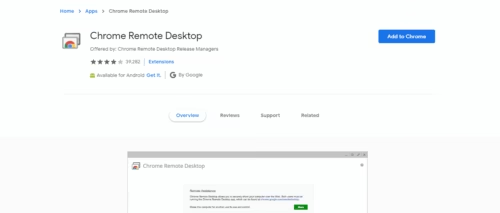
Use Chrome Remote Desktop to use iMessage for Windows 10 (PC)

One of the simplest work around to use iMessage on Windows is by using Chrome’s Remote Desktop.

For this method to work, you will need to set up things on your Mac first; make sure it has iMessage for windows 10 to start off with. The Chrome Remote Desktop extension will connect your Windows PC to Mac remotely and allow you access to iMessage on Windows as well.

iMessage on Windows

Follow these simple steps to get iMessage for windows 10 PC :

iMessage on Windows
  • When the installation is done, click on launch app.
  • Download Chrome Remote Desktop Host Installer on your Mac.
  • Once the download is completed, follow the instruction and finish the installation.
  • Chrome Remote Desktop lets you access another computer’s app remotely.
iMessage on Windows
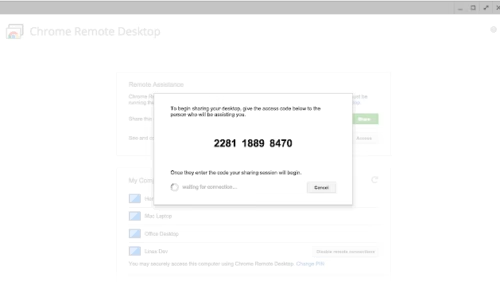
  • Connect the two computers through a security code and use iMessage on Windows PC through the remote connection as we normally do on your Mac.

Chrome Remote Desktop gives you a secure connection where there is no risk of losing private information. The only downside of this method is that iMessage on windows can only be accessed when Mac is turned on and you will require an Apple ID. Make sure that your Mac computer is always turned on, otherwise this method will not work.

Get an iOS Emulator to use iMessage on Windows PC

Well, if you do not have Mac and still want to use iMessage for Windows 10 computer, there is another way to get that done. You have an option to get an iOS emulator on the Windows PC.

iOS emulator is third party software which creates a virtual ecosystem on your Windows PC and allows you to use iOS applications. The most widely used iOS emulator for Windows computers is iPadian. This tool makes you feel like you are running an Apple device.

iMessage on pc

Here is how you can iMessage on Windows PC by using iPadian:

  • Go the iPadian official website https://ipadian.net/ and download the free emulator from there.
  • Install the file on your computer and run the emulator.
  • Go to the next step by accepting terms and conditions.
  • Post the installation, launch the iPadian emulator on your PC
  • In the search box, type iMessage for windows 10 and select it.
  • Download the iMessage app and launch it.

You can access iMessage on Windows PC now. There are some other emulators too such as APP.IO, Mobione Studio, SmartFace, etc. However, be careful while you are using emulators because these can be a little risky as they can bring some malware to your system as well.

*** Another way to access iMessage on Windows PC is by Jailbreaking your iPhone which means replacing your original iOS version with another operating system that will give you access to iMessage from anywhere through the internet.

Jailbreaking your iDevice will allow you to explore many applications and add-ons which aren’t available in the Apple Store. It will allow you to tweak and customize your iPhone similar to an Android device. And, one such benefit is the ability to access iMessage. However, we will not recommend you to jailbreak your Apple device as it can void the warranty and put you at high risk of personal data breaches, and malware.

Read more to know How to use Apple imessage on android.

Conclusion

iMessage has tremendously improved with the recent updates and the new features like Digital Touch, P2P money transfer, and more have enhanced the app further. However, if these workarounds are too much for you, then there are many iMessage alternatives such as Whatsapp, Facebook Messenger, Skype, etc that have crossed all platforms.

We hope this guide with the two easy methods was helpful in getting your favorite iMessage app on your Windows computer.

7 Raspberry Pi Alternatives you will definitely like!!!

0

Probably the most well-known single board computers out there, Raspberry Pi strikes a fine balance between usability and performance.In this article we will let you know some of the best Raspberry Pi Alternatives, that would be helpful for you.

The microcomputer has become the next huge thing among enthusiasts across the globe. The latest version of the Raspberry Pi model has 1.4GHz 64-bit quad-core processor, a display interface, 4 USB 2.0 ports, a micro SD card slot, Bluetooth, Wi-Fi, dual-band wireless LAN, faster Ethernet and a full HDMI port.

raspberry pi alternatives

Even though it is not the most compact and powerful option but with Raspberry Pi you can perform computer-based functions such as develop software, mine cryptocurrency, gaming, etc. at small price when compared to commercial equipment.

While Raspberry Pi does extremely well in the performance aspect, it still leaves a lot of room for other single boards to tweak the formula. There are plenty of Raspberry Pi alternatives which can offer you better features such as more power, better GPUs and more RAM. In this post, we will guide you through a raspberry pi alternatives that are available in the market now.

Asus Tinker Board

Screenshot_1.png

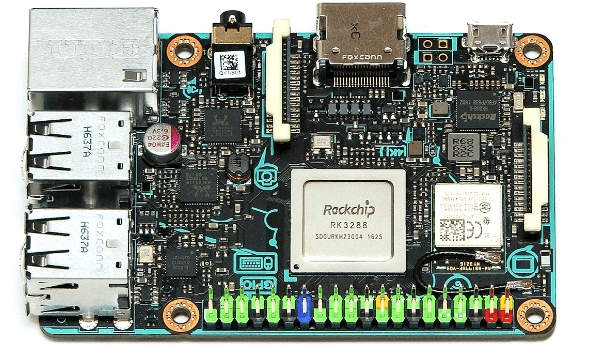
Asus Tinker Board is a robust, small yet powerful hardware. Asus is one of the largest computer manufacturing companies and the world and the name itself speaks a lot. Specification wise, Asus Tinker Board is almost similar to Raspberry Pi 3 Model B+ and hence makes it one of the best raspberry pi alternatives. The price, however, is a little on the higher end. However, it has a faster system-on-chip and doubles the RAM as compared to Raspberry Pi.

Specifications for Asus Tinker Boards:

  • 1.8GHz quad-core RockChip CPU 
  • 2GB LPDDR3 RAM
  • 4K Video
  • Mali T764 GPU
  • 192k/24bit audio playback
  • Four USB 2.0 Ports
  • Wi-Fi and Bluetooth 4
  • An HDMI output
  • Gigabit Ethernet

The Tinker Board is a better raspberry pi alternatives when it comes to features because it has a more powerful processor. Even though it consumes a bit more power than Raspberry Pi but that would be a huge issue This microcomputer is customisable too and would be a pretty good choice for its speed and performance.

Orange Pi Prime

Screenshot_2.png

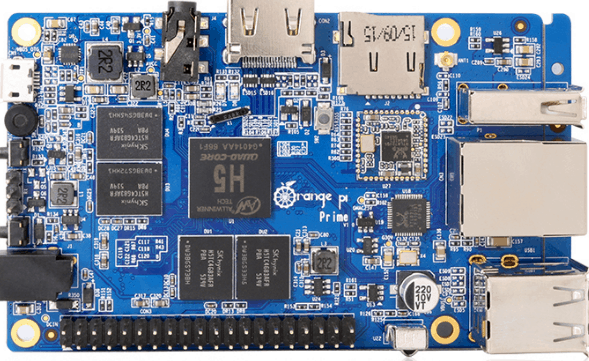
Orange Pi Prime is another raspberry pi alternatives almost identical to Raspberry Pi in terms of specifications and features. It runs on various operating systems which include Android and Linux both. This single-board PC is compact and affordable with impressive features and a vast range of applications.

Specifications for Orange Pi Prime:

  • H5 quad-core Cortex A53 CPU.
  • 1GbE LAN port.
  • 2 GB DDR3 RAM
  • 40-pin GPIO Header
  • Mali-450 GPU
  • 2K Video
  • Bluetooth 4
  • OpenGL ES 2.0
  • Micro SD card slot
  • HDMI output

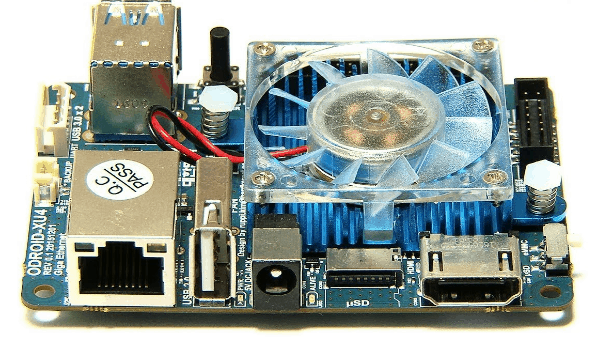
ODroid XU4

Screenshot_3.png

When compares to Raspberry Pi, the ODroid XU4 is smaller in size which makes it more compact. It has more dynamic and energy-efficient hardware. ODroid XU4 can run several favours of Android (such as Android 4.4 Kit Kat) and Linux (e.g. Ubuntu 16.04)

Specifications for ODroid XU4:

  • Samsung Exynos5422 Cortex-A15 at 2.0 GHz and Cortex-A7 Octa-core CPU
  • Mali-T628 MP6
  • 2GB LPDDR3 RAM
  • HDMI 1.4a
  • USB 3.0 support
  • Gigabit Ethernet
  • 5V/4A Power input

These amazing features give ODroid XU4 a lightning-fast data transfer speed which lets the users enjoy an upgrade in computing with rapid webs browsing, booting and 3D games & proves to be a raspberry pi alternatives.

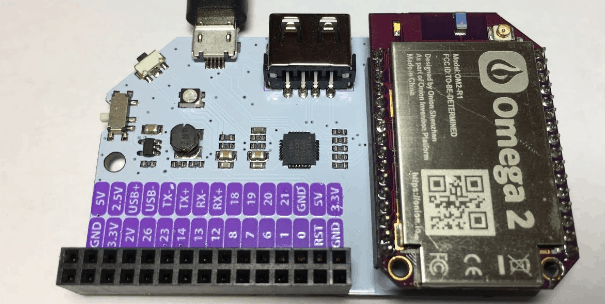
Onion Omega2 Plus

Screenshot_4.png

Onion Omega2 plus a good raspberry pi alternatives that run on the Linux Embedded Development Environment operating system, a distribution based on OpenWRT. This Wi-Fi development board is designed with the purpose to enable makers to build connected hardware applications. Omega2 Plus can boot the operating system immediately, thus reducing the time to get started.

Specifications for Omega 2 Plus:

  • 580 MHz MIPS CPU
  • 32 MB storage
  • 128 MB memory 
  • Micro SD Slot
  • 3.3V Operating Voltage
  • 2.4 GHz IEEE 802.11 b/g/n Wi-Fi 
  • USB 2.0
  • 18 GPIOs
  • 10M/100M wired Ethernet 

The price, outstanding features, small form, power efficiency, flexibility, processing and encryption capabilities make it perfect for Internet of Things Projects. You can create plenty of web applications and develop any programming language such as Python, GoLang, Rust, etc. with minimal effort and time with Omega2 Plus. To explants the functionality, you also have the option to buy various docks and add-ons. The only drawback with Omega2 Plus is that it does not have a mini HDMI port.

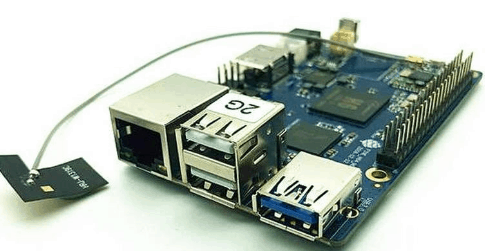
Pine H64 Model B: An outstanding raspberry pi alternatives

Screenshot_6.png

Pine H64 Model B has a similar price range as of the latest version of Raspberry Pi; however, it is more powerful and compact. It is an upgrade to the previous Pine H64 Model A, with lots of improvement such as support for Wi-Fi and Bluetooth. This version has double the memory of Raspberry Pi 3 Model B+ which is the main selling point for this single-board computer. It also features a mini PCIe connector, 4K video playback, a 3.5mm headphone and mic plug and huge memory.

Pine H64 Model B supports Armbian and Android 7.0 operating systems. It is perfect for use as a developer board for different software and hardware projects.

Specifications for Pine H64 Model B

  • Quad-core, Arm Cortex A53-based processor
  • Mali-T720 MP2
  • 128MB SPI Flash Memory
  • 2GB LPDDR3
  • HDMI 2.0a output
  • Micro SD Card
  • eMMC support
  • Wi-Fi 802.11n and Bluetooth 4.0
  • Gigabit Ethernet
  • 2*20 pin GPIO Connector

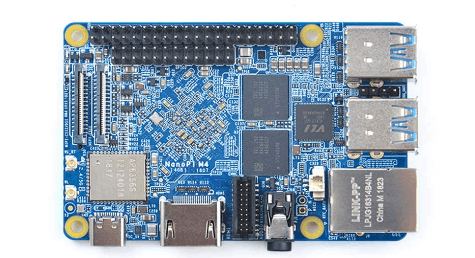
NanoPi  M4

Screenshot_7.png

NanoPi M4 is more expensive than Raspberry Pi alternatives but comes with outstanding features. It is a compact platform for fast product prototyping which includes both commercial and industrial applications. It supports Ubuntu 18.04 Desktop, Lubuntu 16.04, Android 7.1 and Lubuntu Desktop.

Specifications for NanoPi M4

  • 2GHz 64-bit dual-core Cortex-A72 Connector and 1.5GHz quad-core Cortex-A53
  • 4GB LPDDR3 and 2GB DDR3-1866
  • HDMI 2.0 Type-A port
  • Mali-T864
  • 3.5mm Audio Jack
  • RPI compatible 40-pin connector
  • eMMC socket
  • RTC port
  • 802.11a/b/g/n/ac Wi-Fi
  • Bluetooth 4.1
  • PCIe*2
  • USB 2.0

The RK3399 hardware provides a decent performance which is suitable for running apps, watching 4K videos and surfing the web. So, NanoPi M4 is suitable for you are going to use it as a mini PC.

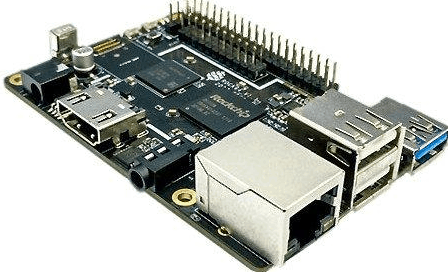
Rock64

Screenshot_8.png

The Rock64 beats Raspberry Pi with the amazing speed and attractive price. The Rockchip RK3328 is faster than Raspberry’s processor and also you get double the RAM at almost half the price with Rock64. Moreover, it is capable of handling 4K video at 60fps.

Specifications for Rock64

  • RK3328 1.5GHz 64-bit quad-core CPU
  • Mali-450 MP2 GPU 
  • USB3.0 host port
  • 128MB SPI Flash
  • eMMC socket
  • HDMI out capable of 4K at 60Hz
  • 3.5mm A/V Jack
  • 40 GPIO pins
  • Standard Pi2 GPIO header

The only downside is the lack of Bluetooth and Wi-Fi; otherwise, this single board computer is a solid competitor to the latest version of Raspberry Pi with a vibrant community and huge application support. Stremio on Raspberry pi is also an option.

Wrapping up

Raspberry Pi has been an undisputed champion when it comes to single-board computers and most of the credit goes to its huge community support. Many competitors are trying to roll out better Raspberry pi alternatives at a furious pace and cheaper price every year. You can find a lot more options in the market, such as Pocket Beagle, Le Potato, BBC micro: bit, PixiePro, etc. However, the ones that we have discussed fall in every price range and you will find one that suits your need. we hope this post was helpful in letting you make a decision.

Hibernate vs Sleep: What is the Difference?

0

What’s the Difference Between Sleep and Hibernate?

Sleep mode keeps your PC in a low-power state, storing active data in RAM for quick resume, ideal for short breaks. Hibernate saves your session to the hard drive and shuts down completely, using no power, perfect for longer pauses while conserving battery life.

Hibernate vs Sleep

Windows gives you different options to save power while you aren’t using your computer which are Hibernate and Sleep. You might be using these options frequently too when you don’t want to shut down your system all the time. But did you ever wonder what the difference between the Hibernate and Sleep is?

In this article, we will discuss the difference between Hibernate vs Sleep options.

Hibernate vs Sleep

SLEEP

  • On sleep mode, the computer goes into a low operating state where all the actions are stopped and all the active tasks and open documents are stored in the memory.
  • When the system is on sleep mode, power is supplied only to RAM and not to any other component.
  • This mode is useful if you want a short break from work.
  • The computer does not use a lot of power in sleep mode. But it uses the minimum amount of energy.
  • When you want to resume working, the computer boots quickly in full power state mostly within few seconds.
  • The system may appear like it is shut down but it is actually still on and you can start the computer again by either pressing any key or moving the mouse.

HIBERNATE

  • In Hibernate mode, your open documents and running applications are saved in the hard disk instead of RAM. This mode is designed primarily for laptops.
  • Your system shuts down completely in Hibernate mode, however, when you want to start it again, it restores all the previously open tasks.
  • As your system is shut down, it doesn’t consume any power at all.
  • When your system is on hibernate mode, you cannot run any programs.
  • You can use this mode when you would not use your laptop for a long period of time and you don’t want to close your documents.
  • The rebooting is slower as compared to Sleep mode but a lot faster than when you shut down your system

Pros and Cons of Hibernate vs Sleep

  • There is a high risk of losing data in sleep mode as it is stored in RAM which is volatile. If there is a power outage, you may lose the unsaved data. However, in hibernate mode, data gets stored in non-volatile memory before the system shuts down. It is the biggest pros and cons of Hibernate vs Sleep.
  • The second pros and cons of Hibernate vs Sleep are system consumes no power at all in hibernate mode while in sleep mode, it still utilizes power continuously.
  • Last pros and cons of Hibernate vs Sleep are that in sleep mode, your computer or laptop resumption is instantaneous while in hibernate mode it takes a while to boot the system as it needs time to read the data back from the hard disk.

Don’t Let Shipping Damage Sink Your Business

0

Shipping damage can be a huge financial drain on any company, but especially on a small business that needs to operate on a razor-thin margin. But shipping damage isn’t an expense you just have to resign yourself to eating. 

Shipping Damage Business

You can take action to isolate the factors that contribute to shipping damage in your organization and take steps to reduce or eliminate them. By using shipping damage indicators, like shock and impact recorders, you can find out where and how shipments are sustaining damage, and even pinpoint the processes, routes, procedures, and packaging that make shipping damage possible or even likely. Then, you can make changes to your shipping processes and even collect data to confirm that your changes are making a measurable difference to the damage your shipments sustain.

Understand What Causes Shipping Damage

It’s not hard to understand the causes of shipping damage. It can occur due to rough handling, insufficient packaging, bad weather conditions, temperature extremes en route, humidity, moisture, rough roughs, or even accidents in the supply chain. Much of shipping and logistics revolves around finding ways to mitigate or entirely prevent shipping damage. 

Using brand new corrugated cardboard packaging, combined with the right insulation and (if necessary) coolants or warmers, cushioning, and waterproofing can prevent most shipping damage. But to better understand what’s causing the damage your shipments sustain, you need greater visibility into how your packages pass through the supply chain. You need a level of visibility that only a tracking device like an impact recorder can give you. These devices will log any sustained vibrations, pitch and roll movements, accelerations and decelerations, and impacts or sudden shocks your packages sustain, so you can know what they’re going through and even pinpoint which of those events was severe enough to potentially cause damage to your shipment.

Identify When, Where, and How Shipping Damage Occurs

Any time a package experiences a jolt, that’s an impact that could potentially cause damage, especially when it comes to delicate items. And it doesn’t take much of an impact to damage some fragile items. A cell phone dropped from ear height can sustain impact forces of up to 1,000 Gs, for example. Items moving through the supply chain can sustain impact damage from sliding around on the truck, getting jostled during coupling and uncoupling of rail cars, or getting bounced around while traveling over a rough stretch of road. In other words, it’s not just careless delivery people causing shipping damage.

When you start using impact recorders, you’ll get all the data you need about what your packages are going through, and many impact recorders can also estimate which vibrations and shocks are severe enough to damage the contents of the package. As you collect data on how your packages are experiencing the supply chain, you’ll be better equipped to understand the causes of damage to your shipments, whether they be rough roads, stormy seas, a driver who likes to tailgate and slam on the brakes, or a carrier who is reliving his high school football glory days via the dubious art of package tossing.

Shipping damage

Take Action Against It

Once you know what circumstances are putting your package contents at risk of damage, you’ll be able to make changes to your shipping and logistics processes to reduce shipping damage. Maybe your packages need to be double-boxed or stabilised with more cushioning material. Maybe you should spring for the air-ride delivery trucks or upgrade to a shipping method that’s friendlier to fragile items, like air freight. Perhaps you should change your shipping routes so drivers aren’t bouncing over so many potholes, or change carriers to take advantage of more conscientious last-mile delivery. As you make these changes, you can continue to collect vibration and impact data from your shipments, so you can verify that your improvements actually are having the intended impact.

Shipping damage can really put a dent in your profits, and that’s why you need to take action to prevent it. With the help of impact recorders, you can get a detailed view of the stresses your packages experience in transit, and with that data, you can make changes that can significantly reduce your shipping damage — and boost your bottom line.

How To Disable Cortana In Windows 10

0
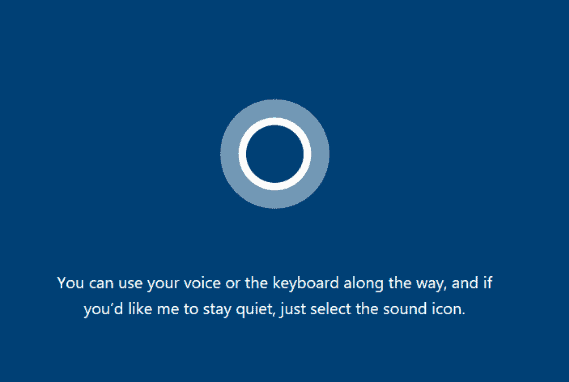
How to disable Cortana in Windows 10

Cortana is a new feature in Microsoft which acts as a digital personal assistant. Using your voice, it performs various tasks such as displaying notifications, searching your computer, setting reminders, sending emails. Many of the users may have a question how to disable cortana in windows 10 completely. This article will provide the solution for the question and permanently disable cortana in windows 10.

Windows 10 provides various fascinating applications but at times when you are not interested and these applications don’t shut down easily, it can become really annoying. Cortana can be one such problem for many of the users using it.

It is similar to Alexa for Amazon and Siri for Apple when it comes to functioning. You can perform the basic functions with your voice with the help of Cortana. However, Cortana has become quite restrictive; it now only allows you to use Bing as the search browser. One of the major reasons for people to dislike Cortana is because it consumes a lot of RAM and slacks the system’s performance. Also, it can misjudge the commands and collect your private information.

Many of you might not be interested in Cortana’s features or simply worried about the privacy. Now, Microsoft doesn’t let you shut off Cortana permanently. Previously, you could disable Cortana in Windows 10, but unfortunately with the new update, the option has been taken off. The good news is that you still have other ways to shut off Cortana permanently, which we will discuss in this post.

But before disabling Cortana, you should know that you may lose some of the Windows functionality such as reminders, news, etc. In such cases, it is advised you create a Windows Restore Point, here is the process:

  • Hit the Start Key, and type ‘System restore’ in the search box.
  • Click on ‘Create a restore point’
  • A pop-up box will appear, from there select ‘Create’
  • Provide a name and click on ‘Create’

Now if that is clear, then let’s see how to permanently disable Cortana in Windows 10 different versions.

How to disable Cortana in Windows 10 Pro

You can permanently disable Cortana in Windows 10 Pro by using Group policy in a couple of minutes. Just follow the following steps:

  • Click on the Start Key and type ‘Group Policy’ in the search box
  • Now, go to ‘Edit group policy’ and in the left panel, navigate to Computer.
  • From Computer navigate to ‘Configuration’, then ‘Administrative Templates’ and then to ‘Windows Components’.
  • Finally go to ‘Search’
  • Search for ‘Allow Cortana’ in the right pane.
  • Right click and select ‘Edit’
  • Click on ‘Disabled’ on the left and hit ‘Ok’
  • Select ‘Apply’ and the window will close.

If you want to enable Cortana, just follow the same process.

How to disable Cortana in Windows 10 Home

You don’t get Group Policy Editor in Windows 10 Home. The method here is a bit complicated and you need to use registry to make the changes. Follow these steps:

  • Hit the Start Key, and type ‘regedit’ in the search box.
  • After opening regedit, navigate to ‘HKEY_LOCAL_MACHINE’—‘SOFTWARE’—‘Policies’—‘Microsoft’—‘Windows Search’
  • In the right pane of regedit,  right click on an empty space
  • Select ‘New’, then ‘Dword(32-bit) Value
  • Type in ‘AllowCortana’ and select ‘OK’
  • Double click on ‘AllowCortana’ and give it a Value of 0.
  • Restart your computer.

This is one of the ways on how to disable Cortana in windows 10 completely, until and unless another Windows update enables it.

Wrapping Up

Microsoft added cortana feature in Windows 10 and many people found it annoying. Microsoft also tried to remove the easy toggle to disable cortana but here were some of the easy ways to permanently disable cortana in windows 10. Hope you found the solution for the problem how to disable cortana in windows 10 completely in this article. Also tell us if these solutions worked for you in disabling the cortana.