Home Blog Page 322

[Solved] Fatal Error While Updating Database WordPress 3.4 Update

Hey folks, WordPress rolled out new 3.4 update. And I know why you are here. You may have been shocked with this strange error ( Fatal error: Call to undefined method dbrc_wpdb::delete() in ) that you saw while updating your WordPress database. And you are in panic, and helplessly searching all over the internet for a solution.


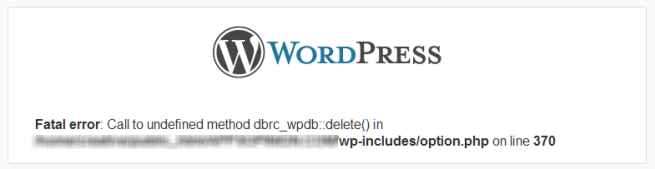
Fatal error Call to undefined method dbrc_wpdb delete()
Fatal error: Call to undefined method dbrc_wpdb::delete() in….wp-includes/option.php on line 370


Don’t panic, we’ve got a solution for you. It worked for me and hopefully it should work for you as-well.


You may get this get this fatal error if you have any plugin for database cache or something to do with WordPress database.


When this fatal error came up for me, I had DB Cache reloaded installed on my WordPress.


Solution to this Fatal Error:

Solution for this error is pretty simple.

  1. Open your Hosting Cpanel or use any FTP Client to browser wp-content of your WordPress installation.
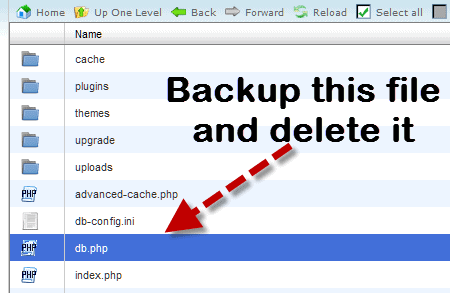
  2. Now, locate the DB.PHP file and download it to your hard drive as a backup.
  3. Once you have backup up DB.PHP, just delete it from wp-content.
wordpress 3.4 database error db.php location
  1. Now refresh the page where you found “Fatal error: Call to undefined method dbrc_wpdb::delete()” 
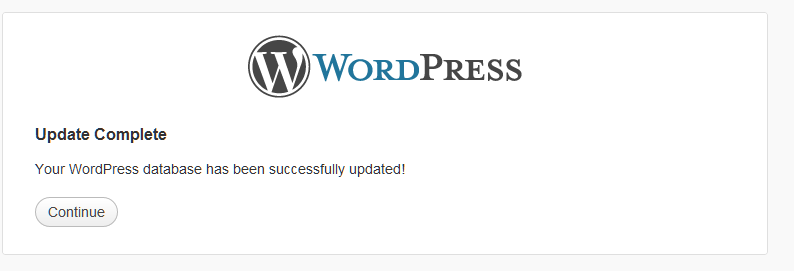
The page should now say “Update Complete”
wordpress 3.4 database update completed
  1. If you still get the same error, then, go to wp-content/plugins and backup DB-Cache plugin (compress it first) and delete it. And now it should work and you should be able to go to your dashboard and re-install Database cache plugin from your WordPress interface or restore the DB cache plugin folder which you backed up earlier.
Now you are good to go, take a deep breath enjoy WordPress 3.4 Update and keep blogging
NOTE: I take no responsibility if something goes wrong, try it on your own risk. I shared it because it worked for me.

How to Blur or Distort a Portion of an Image using Snagit

When you send some important information in image form to someone via mail or any means and you might want to hide some portion of it which may contain classified information, don’t want to share with others or don’t want to disclose any personal info like username, email addresses, passwords, contact information, etc in the image. In this case, you can blur image or portion of the sensitive information in the image using any image editing software like Snagit. Snagit is one such awesome tool, which can save you a lot of time and effort.

In this post we’re going to show you how to blur a text or image using Snagit Image Editing Software. Some also call this distorting, Obscure, smudge, smear, blot, blotch etc.  It has some simple interface and features which you can use to blur a section or part of the image where you have the important data .


You can follow the steps below to  get started.

Lets try to smudge the screenshot

For this tutorial, I have taken a screenshot of one of the mails from Gmail.

Go to File – Click on Save option – Save it to Snagit file format – Save into hard disk (Choose jpeg file format)


Step 1: Select the portion for blur in the Snagit


As you can see the below screenshot, I have now selected the portion of this image by clicking on “Selection” tool and dragging the canvas to select it.


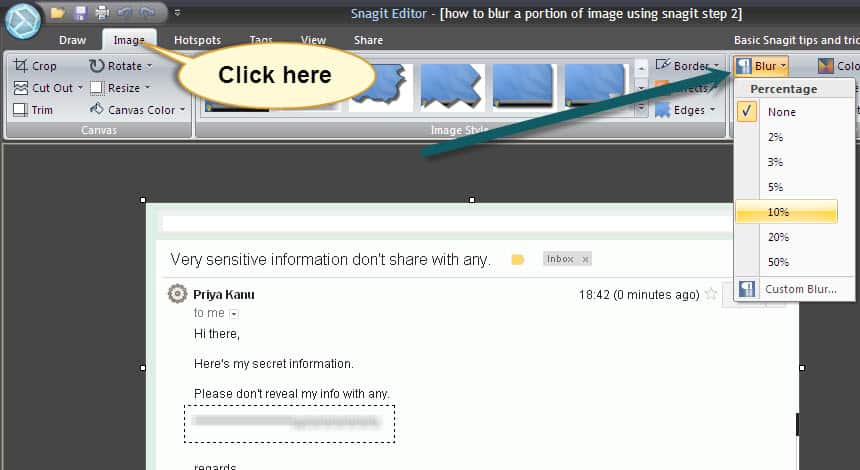
Step 2 : Now click the image tab and choose “Blur” option


Now once you have selected the part of the image using the “Selection” tool, and click on the “Image” tab on the top and you will see some options under it. Move your cursor to the right end and you should see a “Blur” tool. When you click on it, a drop down opens up showing you how much percentage you want to portion to be distorted. Here we selected 10% blur as it was enough to hide the portion we selected. You can choose it depending upon the image you want to blur.


blur image


You can save the image at desktop or hard drive after blurring the portion you wanted to hide. I hope tutorial helped you figure out how to distort part of the image using the “Blur” effect on Snagit. It helps you hide your personal information from those who don’t want to see it .

Follow this tutorial when you want to keep your information private or hide your info from other individuals. Blur image with the Snagit Editor.

How to Protect Your Computer from DNSChanger Malware?

dnschanger malwareThere is a hot news buzzing around the web these days and that is “Will Internet Shutdown On July 9?”. It is neither just a rumor to fetch the attention nor an idea to sell the antivirus products and make money of it, this is a true fact warned by FBI (Federal Bureau of Investigation) and approved by Google. The internet itself doesn’t shutdown on July 9 but it will surely infect your PC or Mac with malicious malware that is capable of changing your DNS settings and forwarding it to malicious Domain Name System data centers located in Estonia, New York, and Chicago. If you won’t take any pre-cautions then you might not get your internet back again!.

The DNS altering malwares named TDSS, Alureon, TidServ and TDL started infecting the internet from the last year through various techniques including swapping online advertising etc. under the company called “Rove Digital”. FBI has already arrested some cyber criminals who are known to be the part of this DNS changing malwares under “Operation Ghost Click”.

Also read my vipre antivirus review

This post covers all the important notes regarding DNSchanger malware including-

  • About DNSChanger Malware
  • Does Internet halt On July 9, 2012?
  • How to Know Whether Your PC or MAC Got Infected With DNSChanger Malware?
  • How to Protect Your PC or MAC from DNSChanger Malware?

About DNSChanger Malware

DNS stands for Domain Name System which is used by the computers to navigate to the specific website. Website addresses what we call URLs are the numerical values in the back end but not strings, the name of the website what we call domain, navigates your browser to specific DNS which is a sequence of numbers to open specified website. DNSChanger or DNS Changer Trojan modifies the DNS settings and forwards them to malicious Domain Name System which are located in various countries.

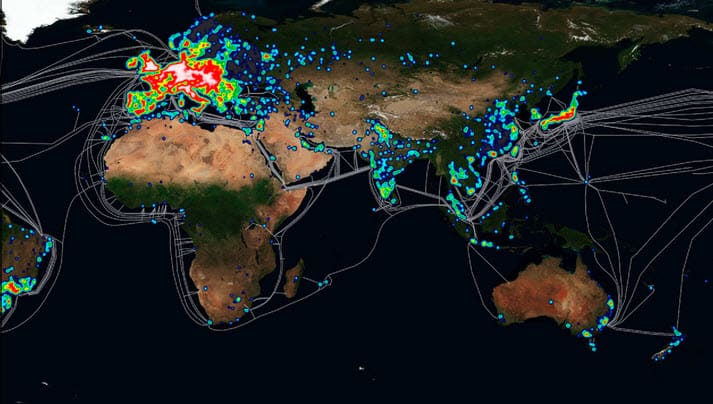
The infected DNS servers can recommend unsafe products and provide malicious answers for your search queries which again opens the door to welcome more malwares. DNSChanger malware is infected four million computers till now. To avoid further damage FBI is all set to replace these infected Domain Name Systems on July 9.

Heat map showing infected computers worldwide from dnschanger malware

Does Internet halt On July 9, 2012?

The answer for this question is obviously “Yes”. FBI already attained a court order to clean and maintain the DNS servers which are infected with the deadly malwares written above and as the result of this process your Internet might not work properly on July 9 or may turn off on that entire day. If your PC or Mac is infected with this malicious malware then you will be unable to get your Internet back.

Actually FBI was about to halt the Internet on July 9 but the date is postponed to July 9 as many users are not aware of this malware. So it is the duty of every internet user to spread this news around the world to keep the internet safe from wrong persons.

How to Know Whether Your PC or MAC Got Infected With DNSChanger Malware?

DCWG (DNS Changer Working Group) has developed a website that let you know whether your computer got infected with DNSChanger Malware. Just navigate your browser to www.dns-ok.us to scan your DNS settings. If the website comes up with the message “Your computer appears to be looking up IP addresses correctly!” with green background then you are safe else the website’s background turns to red depicting your PC or MAC is infected with DNSChanger Malware.

How to Protect Your PC or MAC from DNSChanger Malware?

You must take immediate action once you know that your computer has got infected with DNS Changer Trojan. There are some softwares and tools available to get rid of this malware and make you PC secure. Most useful dnschanger malware removal tools are-

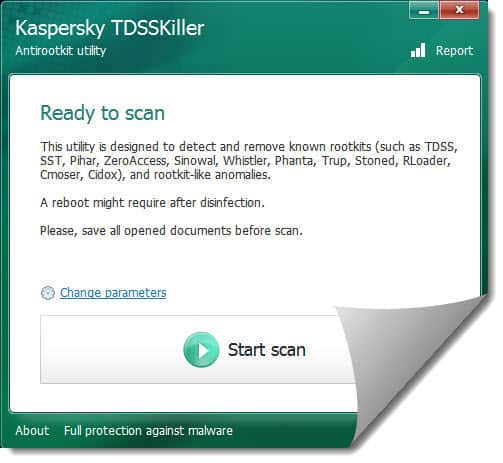
Kaspersky Labs TDSSKiller: Kaspersky’s TDSSKiller is a robust tool to heal the DNS Changer Trojan. It can detect and remove TDSS, Alureon, TidServ and TDL malwares. Kaspersky’s TDSSKiller is a free tool which can be downloaded from this link.

Kaspersky Labs TDSSKiller


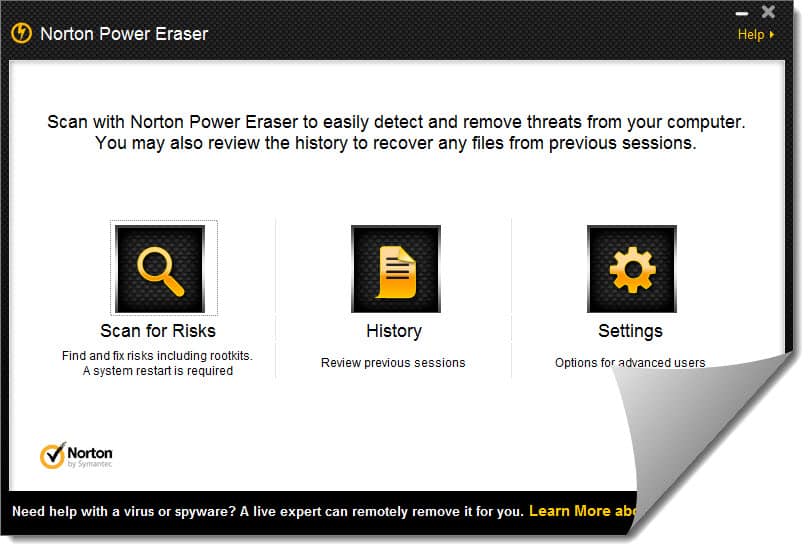
Norton Power Eraser: Power Eraser by Symantic uses advanced scan methods to detect TDSS family threats. 2.6 MB’s Norton Power Eraser can be downloaded from this link.

dnschanger malware
Norton Power Eraser

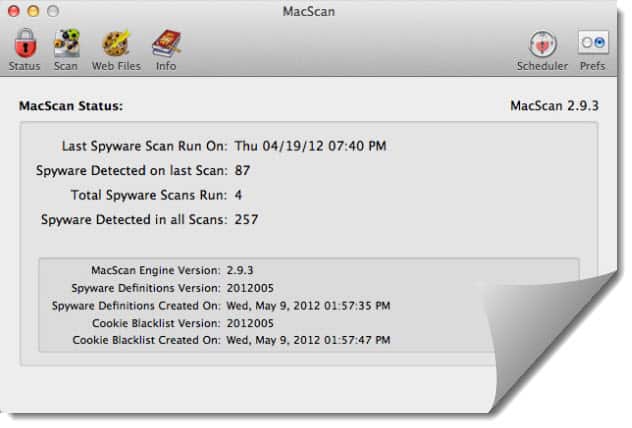
MacScan: MacScan is capable of eliminating DNSChanger Malwares from MACs. It can be download using this link.

Macscan Malware Removal Tool

How to Install YouTube TV on FireStick

0

With the continuous booming of streaming services worldwide, many companies have been trying to up their game to stand out. Just like any other big company, YouTube has also created its own version called YouTube TV, where people can watch live TV and on-demand content on a single device. However, many people are unfamiliar with YouTube TV and FireStick. That said, you might ask…

What is YouTube TV?

Google introduced YouTube TV in 2017 as a subscription-based Live TV streaming service. It offers over 70 channels, including ESPN, FOX, HGTV, ABC, and many more. Even expensive add-ons like Showtime and Starz are available as premium upgrades. If you like to test the waters, there is a 5-day free trial available. As a monthly subscription app, you have the option of continuing the subscription or canceling it. Even freezing it for six months is possible.

What is FireStick?

FireStick or Amazon Fire TV Stick is Amazon’s very own streaming video player that’s significantly similar to Roku Streaming Stick. This entry-level streaming device looks like a USB flash drive that you can directly plug into your TV’s HDMI port. Despite its small size, it is a great streaming player that can transform practically any television into a “smart” TV.

You can stream movies and television shows on popular streaming services like Netflix, Hulu, and YouTube with a FireStick. And if you have other Amazon smart devices, such as an Amazon Echo, you may link them to unlock additional functions.  There are three FireStick versions available right now, the most recent being released in 2018. The newest edition of the product features upgraded hardware, 4K HD video, and the famous virtual assistant, Alexa.

In 2018, YouTube TV was withdrawn from the Amazon App Store as Google and Amazon began to have conflicts. Since they’ve finally reached an agreement, YouTube TV is now officially available on Amazon, which makes us all pleased. YouTube TV features over 85 Live TV channels, including the NFL, NBA, and MLB, among others.

In this article, we’ve provided three ways how to install YouTube TV on FireStick for your maximum TV streaming experience. Let’s begin!

Method 1: Installing YouTube TV on FireStick via Amazon Store

Before you begin, we highly recommend using a VPN to have full access to the YouTube TV content.

Step 1: Launch the FireStick Home

Step 2: Type in YouTube TV on the Search bar, and click the first option.

Step 3: Keep swiping until you see the YouTube TV app, then click it once it appears on your screen.

Step 4: Click Download or Get to begin the download process.

Step 5: Once the download is finished, click Open.

YouTube TV has been set up successfully. You may now sign up for a free trial or log in to your current account to watch your preferred TV channels, movies, live sports, and more. Easy, right? But what if this method doesn’t work for you? There’s another way to install YouTube TV on FireStick. Here it is. 

Method 3: Installing YouTube TV on FireStick via Amazon Silk Browser

Have you removed the browser that comes preinstalled on Firestick devices? That was one method for accessing Youtube TV on the Fire TV Stick. Following these simple steps will allow you to reinstall the “Silk Browser” and start watching YouTube TV.

Step 1: Go to FireStick Home Screen and choose the Search button or the lens icon on the top left corner

Step 2: Type and enter Silk Browser

Step 3: Choose the Silk Browser in the results

Step 4: Click the Silk Browser icon

Step 5: Click Download to download and install the app

Step 6: Launch the Silk Browser 

Step 7: Access and enjoy YouTube TV anytime you want

Method 3: Installing YouTube TV on FireStick via APK 

Step 1: Open FireStick Home

Step 2: Click on the Settings icon, and choose My Fire TV.

Step 3: Click the Developer Options

Step 4: Click the Apps from Unknown Sources

Step 5: Choose Turn On

Step 6: Go back to the Home page and click the Find menu

Step 7: Click the Search option and type in Downloader

Step 8: Choose the Downloader from the results and select the Downloader icon

Step 9: Click the Download button and wait for the application to be installed

Step 10: Once the download is finished, click the Open button to launch the app. 

Step 11: Click Allow once the downloader opens.

Step 12: Once the prompt is displayed, click OK

Step 13: By default, the Home tab will have a text box on the right side

Step 14: Enter bit.ly/youtube-firetv on the text box and click GO

Step 15: The YouTube APK will begin downloading 

Step 16: Once it finishes downloading, click Install

Step 17: Click Done after the installation finishes

Step 18: Choose Delete when a prompt saying File downloaded successfully to: /sdcard/Downloader/Live YouTube 6.14.18.apk

Step 19: Click Delete again for confirmation

Step 20: Exit the Downloader app and go back to the Fire TV Stick Home page.

Step 21: Choose your Apps and Channels on the second row of the home screen

Step 22: Click See All on the left if there are more than 20 apps. Then, choose the Live YouTube TV app

Step 23: Select your preferred resolution on the screen

Step 24: Click the Allow button once the prompt is displayed

Step 25: Click the Sign-in option to log in to your YouTube TV account

Step 26: Enjoy your YouTube TV Live via Amazon FireStick

Other Streaming Services to Try

If you’re just plain tired of YouTube TV, you can try several apps that are somehow slightly better than this popular app. We recommend trying Netflix on FireStick, HBO Go, Sling TV, and Kodi. Most of these apps are usually available in the United States or offer the majority of the content in this region. 

Bottom Line

Here are three ways to install YouTube TV on FireStick for an ultimate streaming experience with your friends and loved ones. But, if you’re in a foreign country, it’s worth pointing out that YouTube TV is unavailable outside of the US, so even if you have Amazon FireStick, you’ll possibly need to use a third-party app to install YouTube TV.

Must Try Android Apps for Bloggers to Find Fresh Post Ideas

If you are interested in this topic I hope you’re obviously be a blogger. Finding the right topic idea that is relevant to your blogging niche is the first step of writing process. Although technology niche blogs are in the rise, but there are very least tech blogs with exclusive content which are not available elsewhere, and most important factor for technology related websites is that they need fresh topic ideas to attract readers and keep a blog active. So here we have provided the list of must have Android Applications for Bloggers to find fresh tech new topic ideas to elaborate in your tech niche blog. Lets call them Apps for post ideas .  Android apps from Google Play (Earlier Android market) mentioned here should surely help you keep your blog updated with recent reports buzzing around technology world.

If you don’t own an Android device, you can read this post to know : How to: Run Android Apps in Windows PC

These are some Apps for fresh topic ideas:

Appy Geek

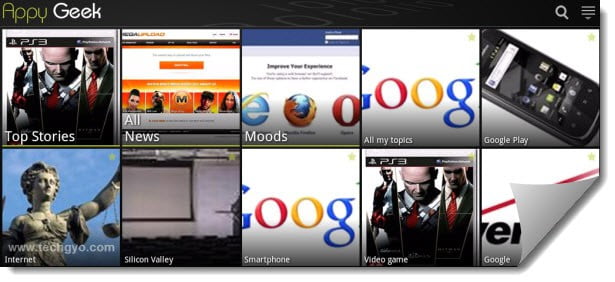
When it comes to technology news topics or post ideas, Appy Geek tops the list among other android app. Appy Geek compiles all exclusive breaking technology news from various tech related website including T3 Magazine, TechRadar, Gizmodo, TalkAndroid, TechWeekEurope and Pocket-lint etc all under one tag. Appy Geek also allows to create your own channels and have a look at the reports that grabs your attention. Most interesting feature in Appy Geek is TagNav (tag navigator)- a tag cloud, where you can choose an exact tag such as Android, Microsoft and Google and get information for specified tag.  Along with this you can also set custom alerts to avail essential tech news and share the topics with your friends that makes your day!. Appy Geek is one of the best post ideas app to get topics to blogging  on technology blog site.

topics to blog
Appy Geek Android App Screenshot

CNET News

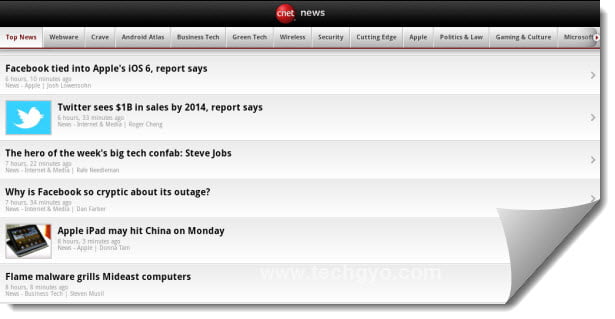
CNET News Android app has cool and user-friendly interface with tabbed navigation. It covers and frequently updates you with most buzzing tech news around including Apple, Microsoft, Android, Security, Wireless and Gaming etc which are always buzzing up with topics for new post ideas. Quite interesting topic in this app is “Health Tech” which provides news related to technology that influences health. You can share interested topics with your fellow authors and of course add them to “Favories”. Finding the topics to blog with CNET News app is fun!. With this Post ideas app, you can find topics related software gadgets and tech world and silicon valley.

android apps for bloggers
CNET News Andoird App Screenshot
  • Price: free
  • Download CNET News Android app from Google Play for mobile.

Bit-Tech

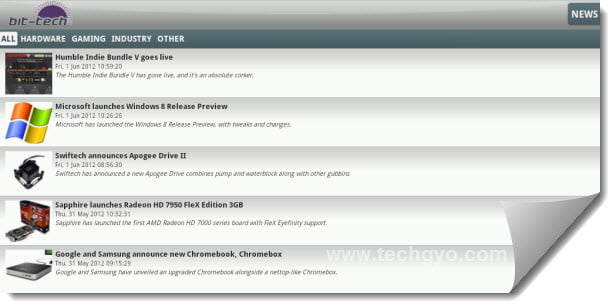
Bit-Tech is another great Android app for blog post ideas that covers various topics including software, hardware and gaming news. Bit-Tech app is available both as shareware and freeware, the freeware version of Bit-Tech is ad supported. At the end of each article, you will get a list of related news and articles which makes this  more interesting and helpful for as a post ideas app. Bit-Tech works perfectly with android mobiles than android tablets.

bit tech android app
Bit-Tech Andoird App Screenshot
  • Price: free
  • Download Bit-Tech application from Google Play.

Tech News

Tech News android app lists all tech niche websites in a single page which makes it easy to find out the topics or post ideas to cover on your tech niche website. Tech News app doesn’t provide any tech news but it just navigates you to those cool tech niche websites. Though it should help you get post ideas browsing through some most popular tech sites on the web.

Tech News Andoird App
Tech News Andoird App Screenshot
  • Price: free
  • Download Tech News from Google Play.

Conclusion

I hope these apps would help you find fresh topics and post ideas for blogging, especially for tech niche blogs. This is best is you are in writers block or confused to pick a topic that people love to read. Most interesting thing is that the android apps for bloggers we have discussed here can be used in your PC or Laptop, you can refer to our previous post “How to: Run Android Apps in Windows PC” to know how to install these apps in PC.

(Sponsored video) Samsung Smart TV – With Voice & Gesture Recognition

0

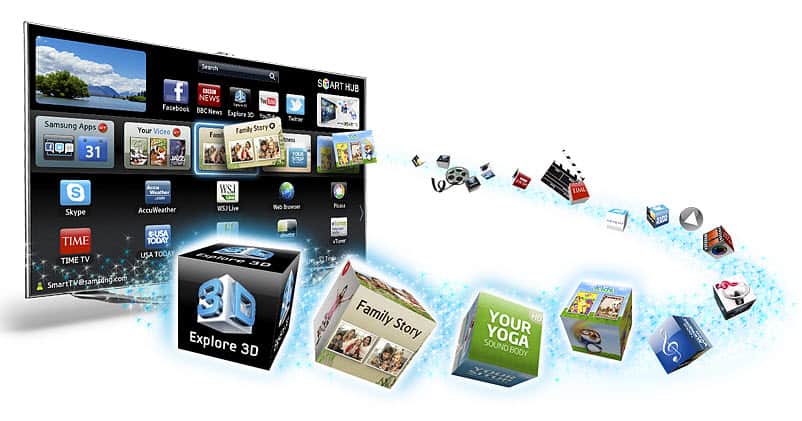
Since Television’s invention in 1884, it has got many upgrades. Now Television is the major part of the life and one can’t even imagine his or her life without it. Along with the entertainment and news the modern TVs are capable of providing the connectivity by accessing the internet. Now people can use Facebook, Twitter and Skype to get in touch with their friends and relatives right from their television. Samsung electronics is one of the renowned electronic brand which is creating a new era in the Televisions. Samsung’s new smart TV replaces remote control with the all new motion control technology which allows you to control your Television with “Seductive motion!”.

samsung smart TV

About Samsung smart TV

Samsung has unveiled its all new smart TV in January 2012 and brought it to market in the month of March. The innovative Samsung smart TV is enriched with the ultra-modern features including motion, voice control and face recognition. The greater picture quality and crystal clear sound makes you just addicted to Samsung smart TV. The Slim LED product of Samsung smart TV comes with 1920 x 1080 resolution, 3D Sound, Dolby Digital Plus and DNSe. Motion control and voice control allows you to control the television with your hand and your voice respectively to interact with the TV such as adjusting the volume and turn on/off etc. without using the remote control. Samsung smart TV also comes with many useful apps for complete home entertainment and education including kids and fitness apps and allows you to share your fun moments with your friends and family.

motion control and voice control television

About the Advertisement

The advertisement, Samsung electronics has made for the promotional purpose of Samsung smart TV is seductive indeed. In this advertisement a gorgeous model controls her Samsung smart TV with motion-control technology which creates the stampede among the men who fight between each other to meet her. Finally she comes to know that she is not only controlling her Samsung smart TV and makes herself busy in eating pizza!. The idea behind this advertisement is simply striking. This seductive advertisement video also remembers American Metropolis who controls his TV without messing with the remote control. The The 1.39 seconds video has got over 2.7 million views within a week of its upload in YouTube.

This post is sponsored by Samsung Smart TV. All opinions are 100% mine

How to Create Infographics with Infogr.am?

Infographics are nothing but the visual illustrations that helps us to understand sophisticated information, data or any other technical jargons clearly within seconds. These kinds of images are especially used by scientists, mathematicians and techies to introduce their work to common people to make it understand. A well-presented infographic not only simplifies the knowledge but also attracts the viewer so one must concentrate on the design of the infographic and then start adding the data to same.

It consumes much time and labor to create infographics in Adobe Photoshop or Adobe illustrators and of course everything should be done from the scratch so here is the website that simplifies the designing of infographic. Yes.. infogr.am is the website we are talking about which is an ultimate resource to create infographics.  infogr.am comes with many attractive templates, you can just pick one that suites your infographic and start adding your data in WYSIWYG (What You See Is What You Get) editor. infogr.am has the user-friendly and smooth interface with blackish background. The possibilities of infogr.am include-

  • You can add the charts in your infographic
  • You can incorporate the picture from your computer
  • For charts you can enter the data in an Excel sheet or load it directly from your computer
  • You can also add the quotes to your infographic design
  • You can publish the created infographic with a dedicated URL and share it via twitter, facebook, pinterest or embed in your website by using the HTML code

Lets create our own infographics wth infogr.am

You can create infographics by logging in to infogr.am website with either your facebook or twitter account. Once signed in-

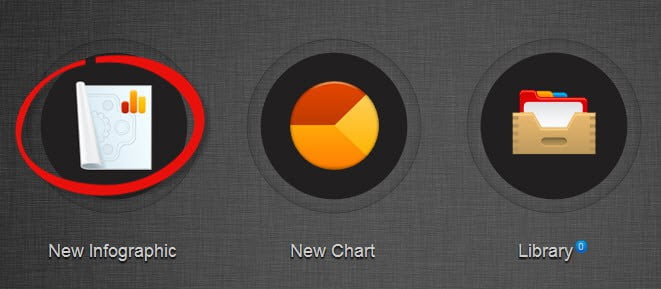
  1. Click on the “New Infographic” button
    create infographics
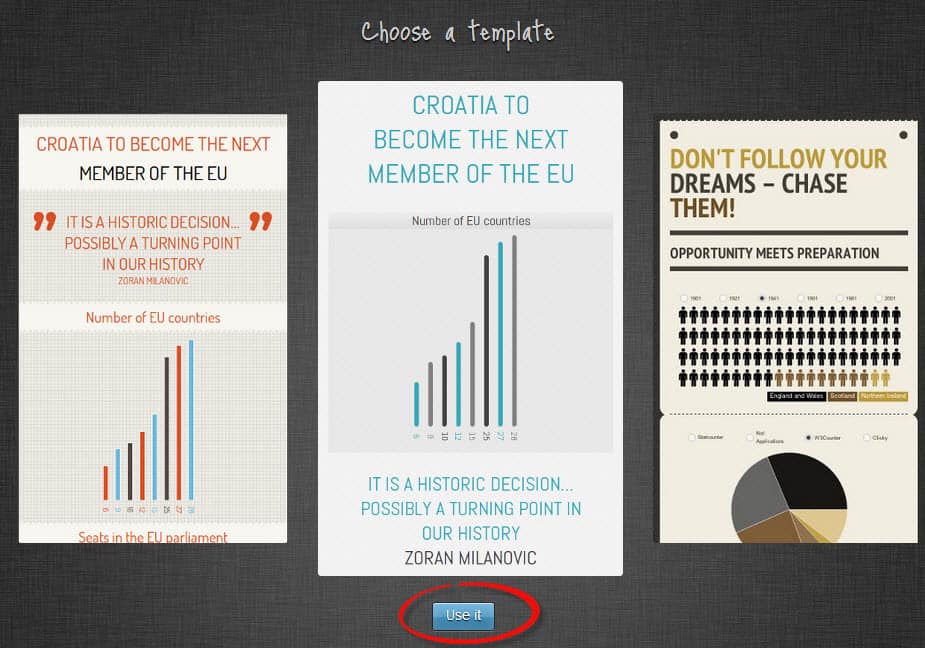
  2. Choose from the list of infographic templates and click on “Use it” button
    infographic template
  3. Add the text, quotes and chart, for chart you can fetch the data from MS Excel file located in your computer or you can specify the data manually
    infographics data
  4. Finally click on “Publish” button located at the top right corner to publish your infographic on the web.
So what are you waiting for? Create Infographics and share them at infogr.am now!