Home Blog Page 218

Why is “C” the default drive and not A or B?

All the different storage drives on Windows Operating System have been designated a particular letter. Generally, depending on the number of partitions you have created or have been originally made, the letter for the first logical drive is C and is followed by D, E & F. Those who do not make partitions have a single default storage drive containing the files of the Operating System named ‘Local Disk C’ or also known as the C Drive. But I guess even A and B are alphabets. Then why not start the names of logical drives with these letters and why keep them reserved for special purposes?
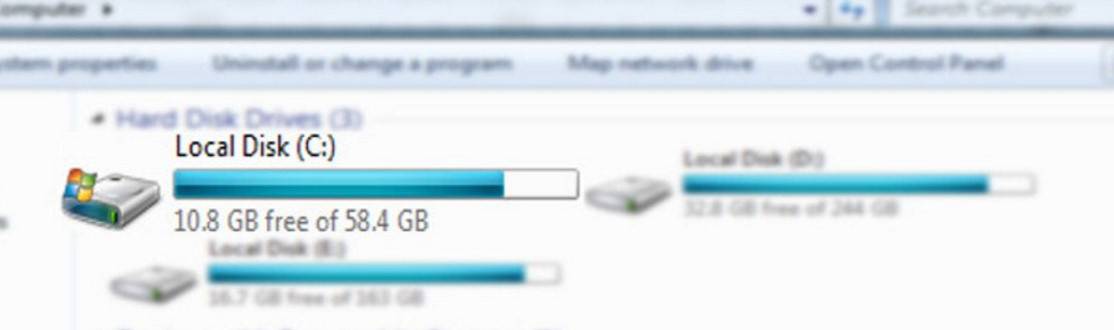
Why is "C" the default drive and not A or B?

C Drive storage, in the case of Windows or other operating systems, is basically a physical hard drive which is used to install the OS files and store the related data. For other files there are other storage drives. These partitions are formatted using the system file like NTFS, FAT32, etc. And all the partitions are known as “logical drives” which are accordingly assigned alphabets for naming.

It’s not the case that people who designated the drive letters didn’t know the existence of A, B or Z as alphabets. But the drive alphabets were actually designated according to a preference scheme for the different kinds of media attachments in the computer.

THE ERA OF FLOPPY DRIVES

And it all dates back to the time when IBM was ruling the computer market. You might be surprised to know that the hard drives installed on our computers were actually non-existent at that time. But these days they act as the basic storage. This went on till the late 1980s. Although hard disks were present since the 1950s, yet they weren’t much standard / essential for the computer systems due to high cost.

But using the floppy drives (or floppy readers) as primary storage in earlier computers were given a special preference while designating the drive alphabets. Floppy drives were rectangle / square shaped storage disks that consisted of a magnetic storage medium to store the data. These disks are now completely obsolete that finding one is a working condition would be no less than a miracle. Another fact of the floppy drives would be that now if you want to install the Windows 8.1 OS on your system, it would have taken no less than 3,711 floppy disks to do so!

Why is "C" the default drive and not A or B?

So returning to the point, floppy disks in the computers using MS-DOS or certain other OS were labeled as ‘A’ drives. Later, a few technological improvements were made to the hardware of the computers giving rise to new systems with two such floppy drives. This provided , even more, storage for running programs and storing data. Hence, the new and second drive was labeled as the ‘B’ drive. After this, no new drives were added, and the ‘A’ & ‘B’ labels got assigned to the floppy drives.

DAWN OF THE HARD DRIVES

Eventually, the times started to change and floppy drives were entirely removed from the computers. The existing hard drives were far too expensive to be added to every person’s computer but with the significant advancements in the hardware industry drives grew more affordable & became a standard component. Yet these drives came at a later stage which was around the late 1980s. And this new member was labeled as the alphabet ‘C’ which was the most logical thing to do.
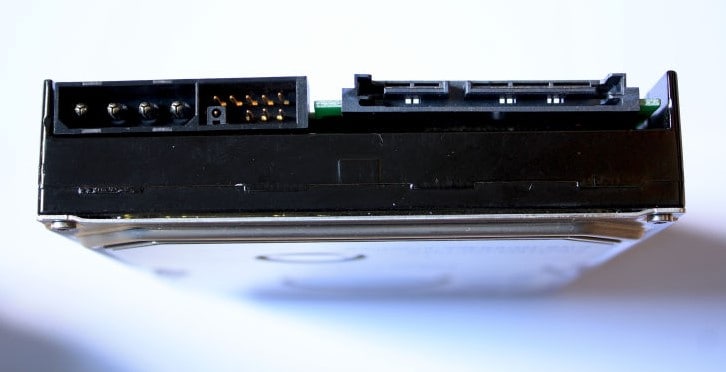
Why is "C" the default drive and not A or B?

Though the personal computers of this era do not have any room or practical application for the floppy drives. Yet, if you connect one to your machine, it will display the letters A and B for those drives. The letter C gets designated for the hard drives that we use today.

So, for this reason, most of the computers come with the first partition as C Drive. Though of course, these labels are not permanently fixed. You can easily modify them through certain configurations on your computer by using the Administrator account. For instance, you can install the OS files on D Drive and make it the primary drive. However, people usually do not bother to such changes as leave the things as they originally come.

5 Ways To Access Free Wi-Fi Anywhere in India

I completely understand that how it feels when you are traveling and you have an important email to send or receive and you also don’t have a working mobile data. Terrible! But what if you can access the “Wi-Fi” network anywhere and everywhere you go? This sounds interesting, right? There are other ways of accessing the internet apart from finding them at coffee shops, bookstores & libraries, fast food joints, hotels, local university campuses or gym & fitness centers. We make it sort of a dream come true thing and bring to rescue 5 simple ways to get an access to free Wi-fi networks anywhere & everywhere you go in India so you can browse as much as you want and in any situation!

Get Free Wi-Fi Access Anywhere and Everywhere

By following these methods you can access free Wi-Fi at all the times, whether you are traveling or at the office and send images, videos, any other huge files or documents, and save your mobile data or save yourself when the data isn’t working.

1. USING OPEN NETWORKS

The first and the easiest trick is to use the Open Networks. While you are outdoors, and if you turn on the Wi-Fi option on your device, you’ll be able to find the complete list of networks that are available around. Select the one with an “open network” from the displayed networks and simply connect to the same at anytime from anywhere in India.

Use open networks

But do keep in mind that some of such networks only work for a limited period of time. So do ensure that things function within the limitation.

2. CONNECTING TO GUEST NETWORKS

Guest Networks is basically creating a separate network for the guests. Mostly, it is a secured network providing the internet access to a guest’s wireless device. Just switch on the Wi-Fi option on your device and simply choose from the available guest networks around you.

Connect to guest network for free wi-fi

This doesn’t actually grant any guest the access to the main server of the provider but you get a separate network connection that is different from the main network. Simply connect and enjoy browsing.

3. BUILDING A WIRELESS MESH NETWORK

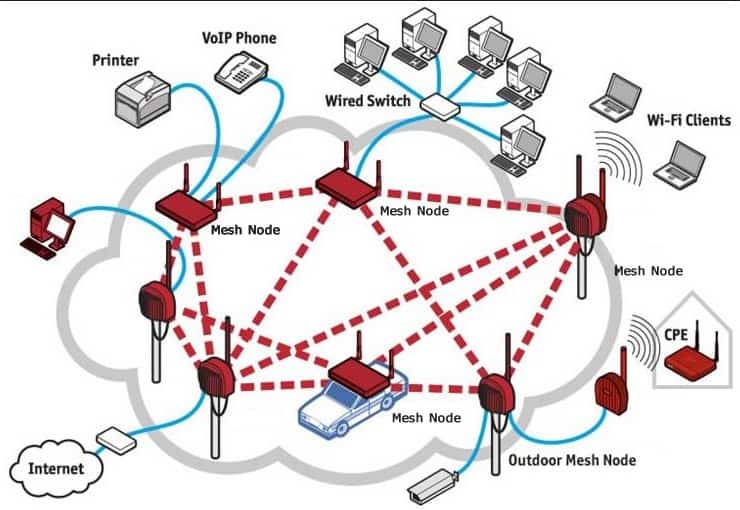
The wireless mesh networks seamlessly connect the devices using inexpensive and existing technologies. These work over a widespread area providing high-speed wireless connections. Mesh networks inexpensively allow linking all the hotspots together and cover the entire region. It delivers the user with much safer & secure connection. Mesh networks function unlike the open networks, which tend to harm the security of a user at times.

Mesh Networks for WiFi Access

This helps to save your mobile data and also benefit you in those situations when the mobile data isn’t sufficient enough to complete a particular task. This is when you would require a working Wi-Fi network. It does save your mobile data also provides you a better network along with making life easier and avoiding any wastage of money.

4. COMMERCIAL HOTSPOT CONNECTION

Sometimes it is time to turn to a hotspot database and avoid the smell of coffee. Hotspots are available to access at restaurants, airports, and hotels etc. There also are certain mobile applications which help you search for hotspots near you.

Connect to commercial hotspots for free wi-fi

This way you would never find yourself without internet connectivity. Simply connect to any of the commercial hotspots and start exchanging files through the internet.

5. ASK YOUR CABLE COMPANY FOR THEIR WI-FI

You might not realize the fact that if you subscribe to a cable internet at your home, they probably provide you with a free access to all of their Wi-Fi hotspots around the town. Sometimes, you even get hotspots from the other cable providers also. Just check your provider’s website for a map of their nearby hotspots. Or simply ask them if they have one. Or just download their mobile application and find them that way.

The Classic MS Paint Goes 3D on Windows 10

0

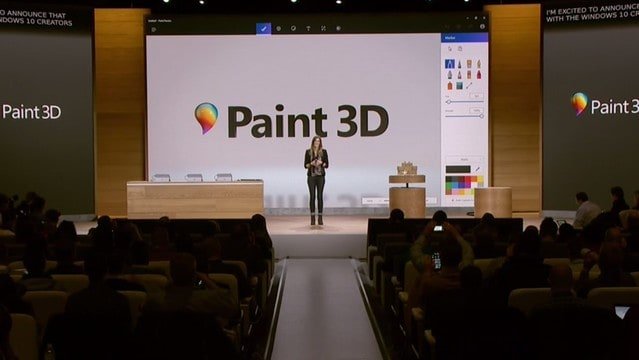
Microsoft has been on an update spree since July 2016. It has been trying to make the needed improvements and fixes rapidly. And recently, Microsoft improved rather updated one of its classic Windows applications – MS PAINT. This is one app that did not get a facelift since a very long time and is now one of the biggest updates from the side of Microsoft. Turning the rumors into reality, Microsoft unveils MS Paint with the ability of 3D technology. Yes, it’s all revamped and modernized “Paint 3D”. This upgradation is brought out for the Windows 10 users. And it is much more than just “mouse & imagination”. It is 3D!

MS Paint 3D

This Paint update is Microsoft’s next big innovation coming with 3-dimensional technology and a Modern UI. The app is blessed with new looks and better yet unnecessary features. Initially, the company plans to feature the app only on Windows 10 mobile devices but the iOS and Android devices may receive the same in future. The pencils, pens, and brushes will help this newer paint app to transform imagination into reality. And naturally, the HoloLens plays a big part here. So, let’s find out what has changed in the modernized MS Paint 3D app.

MS Paint – What has changed?

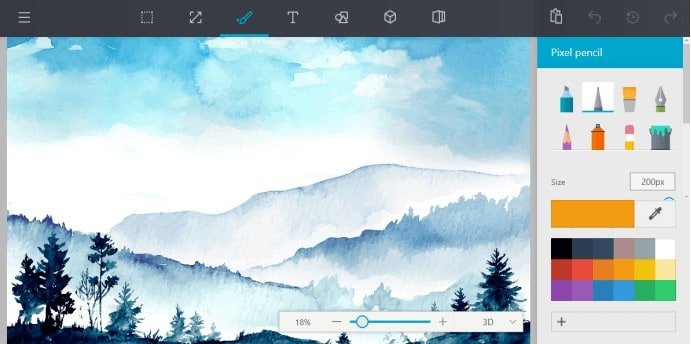
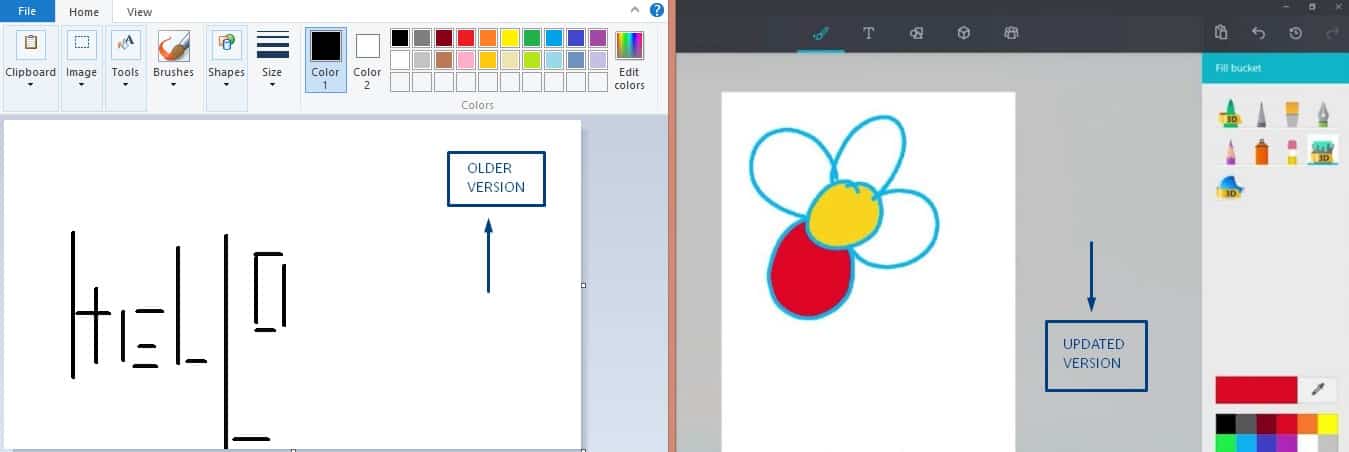
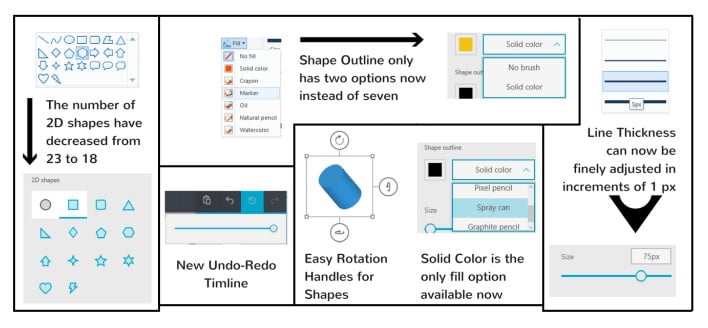
Microsoft has taken the Paint 3D to a next step enabling the users to experience a modern and flat design getting in line with the appearance of Windows 10. Several new features have been added and a few others have been trimmed. The old Ribbon-tool box at the top space is now reduced to seven buttons. Each of these buttons expands into a menu towards the left side. Updated version also enables the user to export their 3D creations onto a few online platforms like Facebook. The unique functionality of the Paint app also lets the users make custom emojis as well. And yes, it’s now an “app” and not our favorite, classic and timeless Windows “program”.

MS Paint - Old and New Major Features

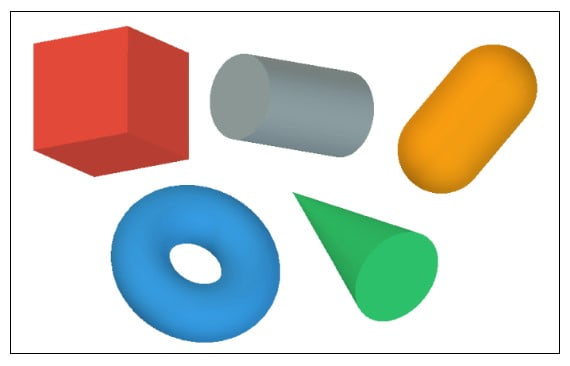
The major additions are seven 3D Shapes (as shown in the image below). These shapes can easily move, stretch and rotate even when you are working with some other tool. You also get the option of importing various 3D shapes that can be downloaded from the Paint “community” and be used in your artwork. Paint 3D also enables you to share and download masterpieces from the community.

Shapes on MS Paint

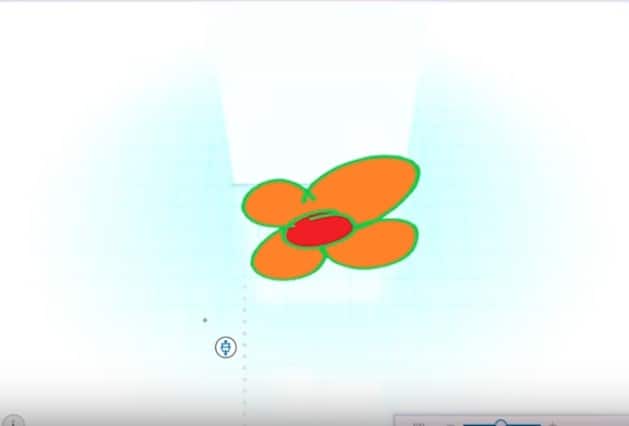
You can easily move your drawn objects out of the staging area (the main canvas area) and continue drawing further. It’s also easy to display both the 3D and the free view to ensure perfection in your work. You are empowered more to achieve more!

Moving objects outside the main canvas

The Text tool has been improved with modern font support yet it does not let you import your own fonts. This tool provides a better rendering of the text but unfortunately there is no free movement like that of the 3D objects.

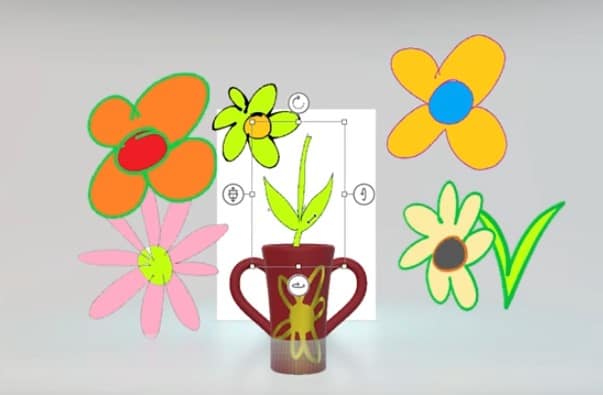
There’s a superb Magic Selection Tool that makes your Paint experience even better. Simply draw a 2D object for example a flower, select just the flower and press the Magic Select button. This turns your 2D object into 3D which can even be moved outside the canvas.

Magic Select Tool

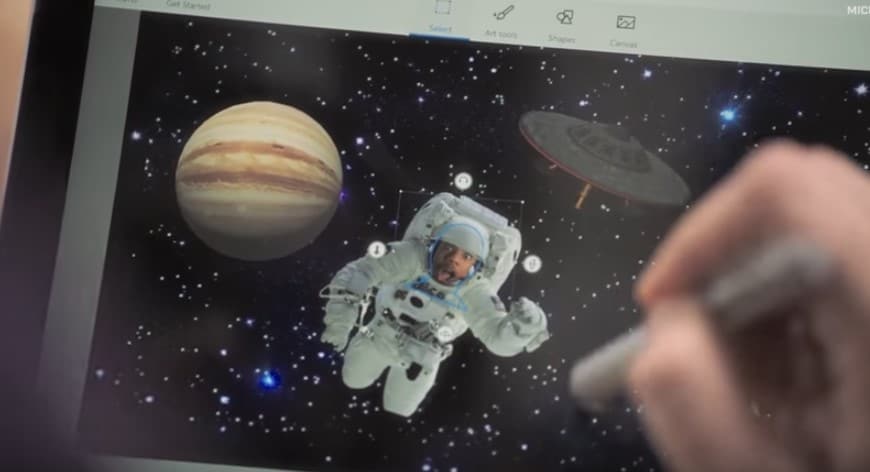
The Sticker Tool lets the users stamp their 2D images onto the 3D ones.

The ticker Tool

Certain other changes are displayed below –

Other Features of MS Paint

MS Paint 3D app is more about mashing up and collaborating and this is what MS Paint 3D app lets you do.

Get it Here

Currently, the Paint app for Windows 10 PC is available exclusively for the Insider Build Previewers. But do not worry, download the .appx file of the MS Paint app from here which is extracted from the Insider Build.

After installation of the files, double click on the app and follow this path: More Info > Run anyway on the Windows SmartScreen warning to download completely. After the installation is done, click on the Launch option to open.

And as it is quite evident that Windows and Troubleshooting go hand in hand hence it is mandatory to face some issues. Also, the MS Paint app is a work-in-progress thing along with being a Creators update so even that can be a cause to experiencing bugs. But MS Paint is surely a 3D art focused update!

 Unveiling MS Paint 3D Remix 3D

Microsoft is even further connecting the creator’s update with others via an online community – Remix 3D. It’s basically a hub for linking with the content and creators including over a million 3D models and objects. This would enable the painters to re-purpose their own creations. Remix 3D is planned for a release early in the year 2017. It will also enable the Minecraft players to share their 3D creations openly with the Remix 3D community.

13 Whatsapp tricks that every user should know

WhatsApp has swiftly grown from being a small startup to one of the most popular messaging application for smartphones in the world. It is by far the most utilized with over one billion users. So, while you may be using WhatsApp every day, you might still be unaware of some of the impressive tricks & features that are hidden in the application. Though you might already be using a couple of these, but are you sure you know all of them? Let me tell you all of these.

1. QUOTE A MESSAGE IN REPLY

It used to be a very confusing experience to know what a person is particularly replying you for or vice versa. You sent a message 3 days before to which you get the reply now (especially in group chats) would definitely leave you wondering about the actual conversation. Sometimes you literally have no clue to what a person is talking about. And it is only when you scroll upwards you get to realize was someone is talking about. But thankfully features are now improved a lot.

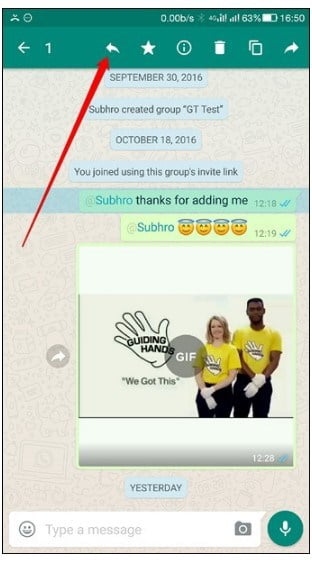
In the latest version of WhatsApp, you can simply “Quote The Text” if replying in context to a previous message. Just select the message by long press and tap on the Reply button (an arrow pointing towards the left appears on the top next to star).

Reply Button for particular conversations

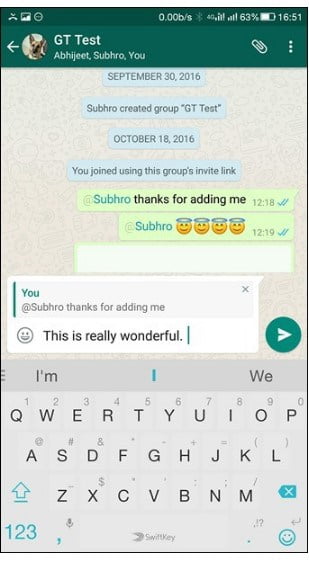
This displays a snippet of the previous chat and you can reply to that message making it easier for the other person to understand. Simply tap on the snippet to jump to the conversation history or the actual message.

Reply Snippet for Conversations

2. TAG FRIENDS INDIVIDUALLY IN GROUP CHATS

Let’s admit the fact that we do have groups that are always on mute. And even if someone is talking to you on the chat, you wouldn’t come know about it for days. So another useful feature is the option to “tag a friend” individually in the group chats. Typing the ‘@’ symbol along with the name of the friend in any group chat will notify him/ her even if the group is in mute mode.

Read more about the feature here.

3. MESSAGE DELIVERY REPORT IN GROUPS

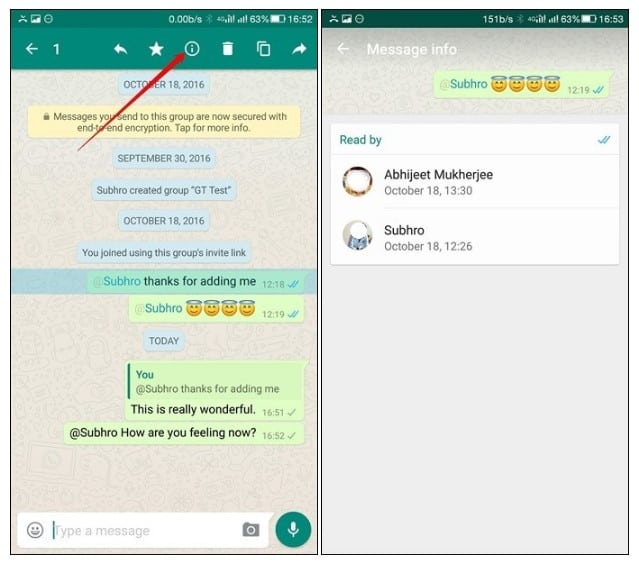
The read receipt option, of course, provides you the info about a message being read or if it’s disabled by either of the users in personal conversations but now you can get these updates in group chats too. Simply long-tap on the message you wish to get details on & tap on the Message Info icon (the icon reads “i”).

Message Delivery Report in a Group

Info screen will let you know about the Delivered & Read By status of that message.

4. PUBLIC LINK TO A GROUP

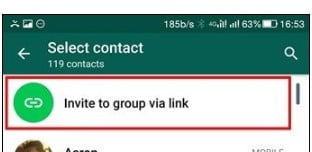
This is a recently added feature to WhatsApp that comes to a relief for all the group admins. Previously, it was mandatory to save a contact to the phone book so that he/ she
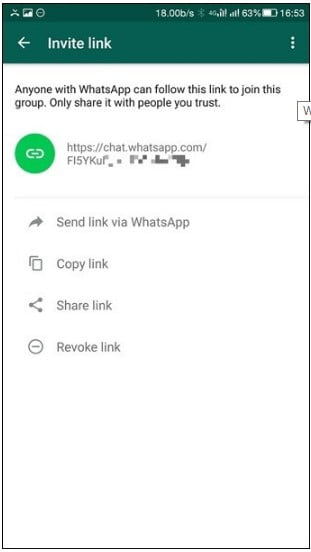
could be added to the group. But now, WhatsApp admins can generate a “public link for the particular group” to add people.

Get Public Link to a Group Chat

The link can simply be shared with the one who needs to join the group. This feature becomes useful if you are making a group for your society or office members, or for any other public discussions.

Get Public Link to a Group Chat

5. CUSTOMIZE FONT

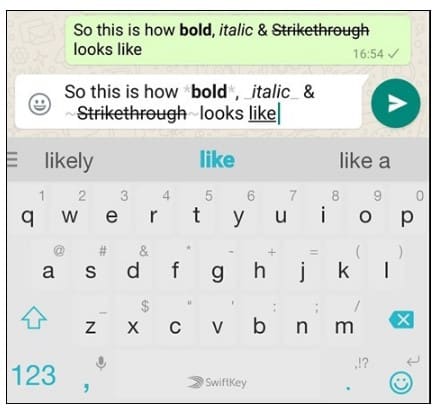
“Follow this procedure to BOLD YOUR TEXT.” And you did pay attention to the ‘bold your text’ part, right? What if I tell you that you can even play with the font on WhatsApp chats as well. Yes, there’s no direct way to do that but through certain special codes, you can definitely customize your font into different styles.

Add the ` symbol three times on either side of a word or sentence to use the Whatsapp Tricks - Typewriter Font (e.g. “`Typewriter“`)

Bold the text by adding * before and after a word or a sentence. (e.g. *bold*)

For italics add _  before and after a word or sentence. (e.g. _italics_ )

And for strikethrough add the ~ symbol. (e.g. ~strikethrough~)

CUSTOMIZE FONT on WHATSAPP

6. GIF OPTION ON WHATSAPP

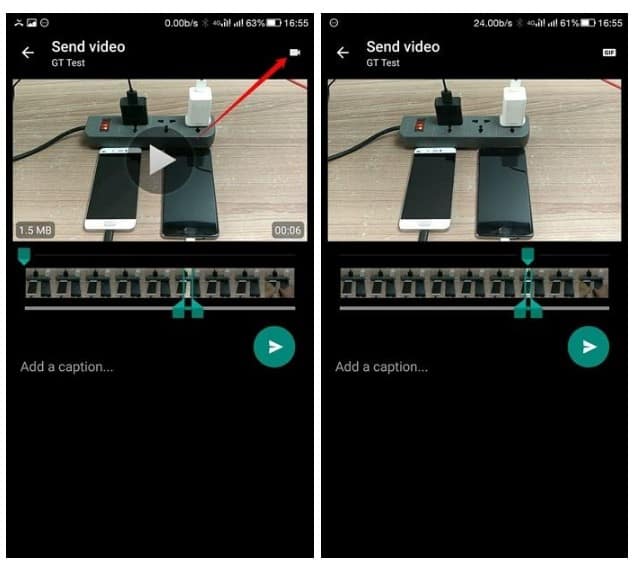
And the good news is that now you can even send GIF files on WhatsApp. This doesn’t only restrict to forwarding the existing ones but you can even create one yourself. You have the freedom to convert a video into GIF and send it instantly.

Create your own GIF

Using the internal cropping tool, trim down a video to 6 seconds or less. After this, a small video icon appears at the top right corner, so just simply tap on it and change it to GIF.

7. FORWARD MESSAGES TO MULTIPLE CONTACTS

Easily forward text messages & media files to multiple contacts at once. Select the particular message to forward & choose the contacts you would like to send it to. And the best thing is this happens without the knowledge of recipients, unlike broadcast messages.

Send the same message to multiple people without them knowing
Send the same message to multiple contacts without them knowing

8. HIDE YOUR STATUS, LAST SEEN, AND PROFILE PICTURE

Settings > Account > Privacy

Under the above-mentioned path, you can configure the options to disable your last seen time along with read receipts (the blue ticks when the message has been read). This hides the last seen time and read receipts of others too. Also, you can hide your status and the profile picture. This lets you control that what personal information the unknown users can see.

9. USE WHATSAPP WEB

WhatsApp web makes things effortless. Using this option through the Settings you can use a browser to interact with WhatsApp and chat hassle free.

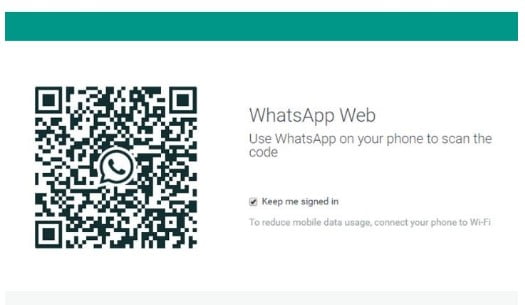
WhatsApp Web QR Code

Go to web.whatsapp.com on your computer and Settings > WhatsApp Web on your smartphone. Just scan the QR code displayed on your computer through your smartphone and that’s it.

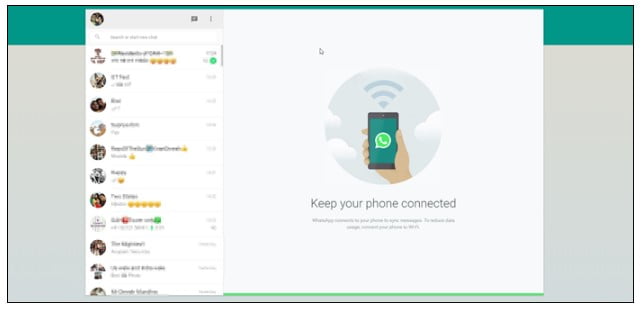
WhatsApp on Web

And remember that this works only if your phone remains switched on, connected to the Wi-Fi network, and near to your computer.

10. EMAIL CONVERSATIONS

Just open the particular conversation, tap on the three dot menu and select the More option to email the conversation. You can include or exclude media files and share the chat using email application installed on your Android device.

11. REDUCE DATA USAGE

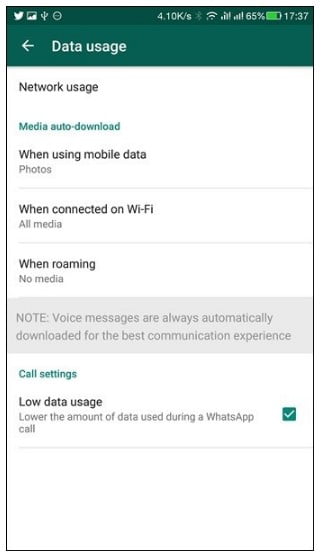
I prefer WhatsApp calls over regular calls as they are better offering great connection and hardly any lag. And the underlying feature here is the “reduction of data consumption on calls” without affecting the overall quality. Just go to WhatsApp Settings > Data Usage > Network Usage and enable Low Data Usage. The voice quality is compressed before transmitting it over VoIP and depending completely on your network.

Use Less Data for Calls and Media on WhatsApp

You can also limit the amount of data that WhatsApp uses by allowing it to auto-download the photographs, audios, videos, and documents when your phone is connected to the Wi-Fi network.

12. SHARE DOCUMENTS

You can also share important documents directly from your Google Drive and / or iCloud Drive into a WhatsApp chat.

Tap the upwards arrow that is to the left of the text window -> Share Document -> select where to share a document from, including Google Drive and iCloud Drive.

13. DOODLE

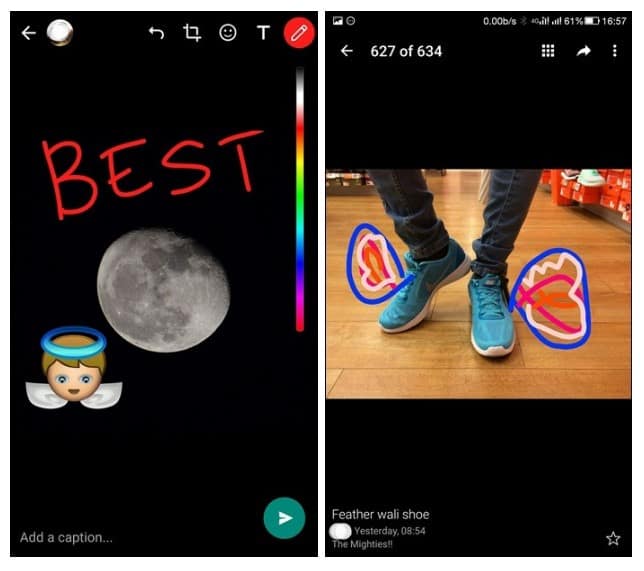
Apart from chats, you can also get creative with the app and your photographs. WhatsApp now allows you to scribble on your photos and also add stickers before sending.

Doodle on your photographs on WhatsApp

This option is available only when you select the photos using the camera icon next to the compose message option. Tap on the pen symbol on the top right-hand side corner & start doodling on the photos.

Please Note: These tricks are tried & tested for Android devices but should also work fine for Apple phones as well.

Ultraviolet light can improve the efficiency of cameras

0

Ultraviolet light can improve the efficiency of camerasThe devices and systems from smartphones to space stations use treating photodetectors with ultraviolet light. These ultraviolet rays used in cameras can actually improve efficiency, researchers say. Colleagues from China and Saudi Arabia, scientists from Moscow Institute of Physics and Technology together researched and said that if an ordinary low-bandwidth photodetector is treated with UV light has the ability to turn it into a high-bandwidth device.


The substance, which permits ultraviolet light, has the ability to be non-transparent to infrared radiations and vice versa hence, it is difficult to find the right materials. According to Vadim Agafonov, head of Molecular Electronics Centre at MIPT and a co-author of the paper said they have found a way to ‘expand’ the spectral response of photodetectors.

To prove these point researchers conducted an experiment wherein a polymer based photodetector integrating zinc oxide nanoparticles was exposed to UV light for 30 seconds. The result came out to be an expanded spectral response and maximum eternal quantum efficiency of 140,000 percent achieving a high-performance photodetector.

Agafonov further added, a polymer-based photodetector can be converted into a highly sensitive broadband device which itself is a quick, cheap and efficient process. It was also mentioned in the paper published in the journal Advanced Functional Material that it is sufficient to treat a photodetector during its manufacturing with UV light in order to achieve the expanded spectral response.

Physics has always been successful in giving possible solutions to a find a better solution for the existing process or method. One of them is the ultraviolet light, which can improve the efficiency of cameras just by placing the photodetector in the exposure of UV light for a few seconds of time.

This post has been contributed by Vidhi Puri. 

Rocket VPN – Unblock the Internet via Smartphones


Rocket VPN – Internet FreedomRocket VPN
is a very simple and less complicated Virtual Private Network app that protects your online identity in the present age of constant internet surveillance. This app is available for both the Android and iPhone users encrypting their private mobile data along with unblocking the geographically restricted content. Other important features that the app offers include faster & anonymous surfing, no monitoring by the third parties and utmost speed, security along with ensured privacy. You can easily avoid being tracked, even when on Wi-Fi networks as they aren’t secure. Rocket VPN also provides you with assured 250 MB free data usage after installation to surf securely, watch videos and stream music. Rocket VPN – Internet Freedom by Liquidum Limited helps you choose from worldwide servers and access the restricted content. You can browse the internet right from the Rocket VPN app with its new Rocket Browser. 
HIGHLIGHTS

What exactly can you do with the Rocket VPN app and in fact, what do you really do with any Virtual Private Network? Actively not much, but in the background, a lot more is happening.

Rocket VPN

  • Security and Privacy

Firstly, your data is encrypted which means that without any worry you can browse the Internet over unsecured Wi-Fi networks like that of Starbucks. Even your ISP is assured of safety and there’s no spying over your web activities.

  • Access to the Restricted Content

Secondly, you can without any trouble bypass the geo-restrictions. For instance, Indians users can access US-only services like Netflix. Not only will your location be untracked, but even the content data enabling you to browse the web anonymously.

  • Quick Launch Application Section

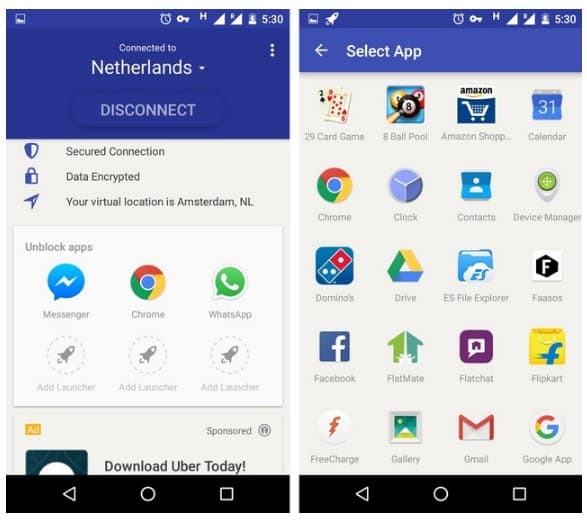
Third, Rocket VPN also features a Quick Launch app section where you can add applications that need to be run through a virtual location. Simply connect the VPN service and launch the app.

 Quick Launch Apps - Rocket VPN

  • Locations

Apart from all the above-mentioned features, Rocket VPN lets you choose from about “10 virtual locations” across the globe including locations from the US, UK, Germany, Singapore, Netherlands, Japan, and Sweden. And any location that’s near to your actual location brings the best speed. Wanted to explore more about VPN open this page for more details How to choose a VPN for your Windows PC

USER INTERFACE

Liquidum maintains a great user interface amongst all its application so Rocket VPN is nothing new. It incorporates material design principles of Google and looks prettier because of its uniformity. It’s really straightforward, uses good colours and also better transitions. And all the action lies on its homepage.

User Interface Options - Rocket VPN

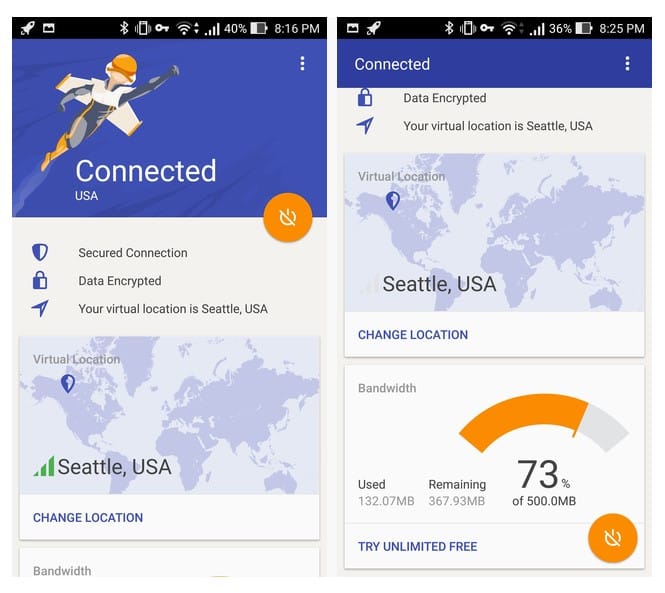
It features the Connect button along with Destination that lets you choose amongst the virtual locations. A section to Unblock & Launch the applications from your desired virtual location. Scroll down to find your Monthly Data Usage also the Current Location. Find below the default screen and three-dot Options button on the top right. An orange on/ off button flutters to the right displaying the available bandwidth, connection status, and virtual location.

SETTING UP 

1. First step is to download Rocket VPN from the Android Play Store or Apple Store. It is available for free to download.

2. Second step is the installation of Rocket VPN app. You’ll have to make the initial set up through a few simple steps.

3. This application asks for the required permissions, hence select Allow to grant permissions.
After this, choose the virtual location from the list of regions that you want to access the internet from. Typically choose the one that’s physically closest to you.

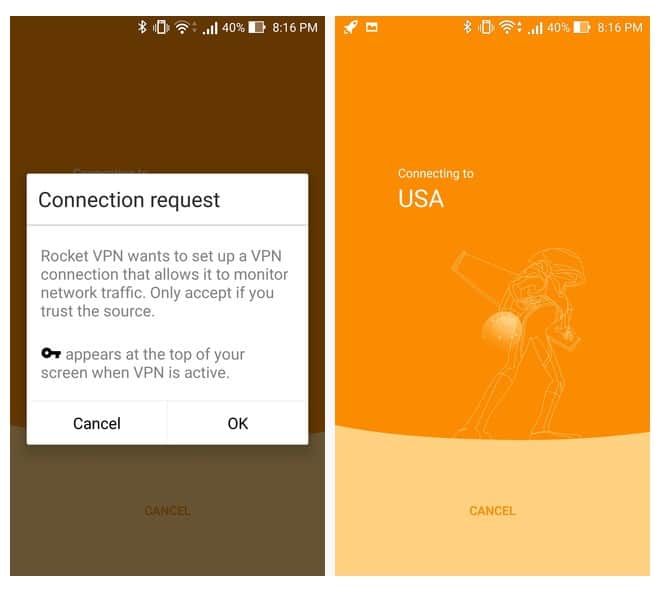
4. A dialogue box will appear to verify that you want to connect to a Virtual Private Network, therefore, Select OK to fulfil the connection request.

Connection Request - Rocket VPN

5. A key icon will be activated in the status bar. This will suggest that the Rocket VPN is functioning. Also, a little animation of a person with a jetpack plays. After a couple of seconds, you’re connected!

SPEED TEST

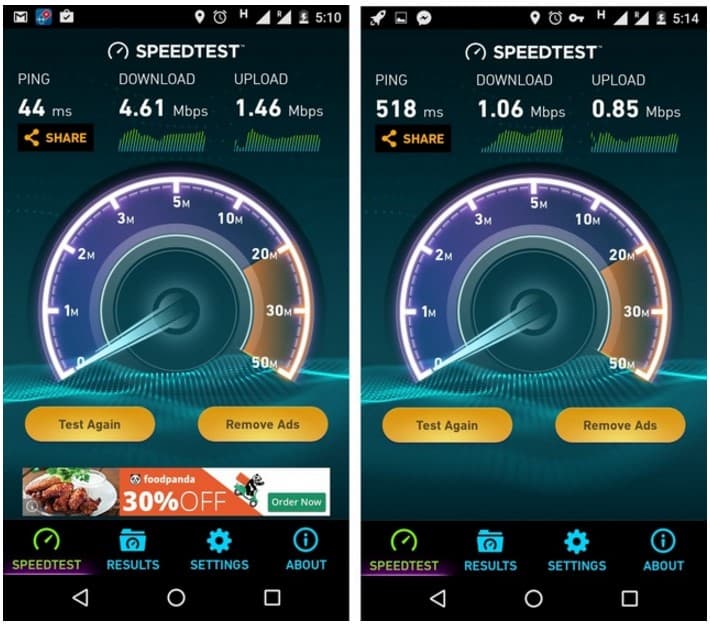
While most of the VPN apps bring in privacy and security, there also is a downside of slowing down your download & upload speeds. So just to check if the speed of Rocket VPN gets affected or not we tested the same by running the app on the wi-fi network and speedtest.net. And I noticed that Rocket VPN does slow down the internet speed but not too drastically. The screenshots below display the results with no VPN on the left and Rocket VPN on the right.

Speed Test - Rocket VPN

What may ever be the situation, you can still watch 1080 p YouTube videos and also browse through websites without any problems. Plus the slowdown happens only in the free version of the Rocket VPN app. The paid version offers the best results. So if you are okay with your internet speed going down there’s no harm in using the free version only.

PRICING

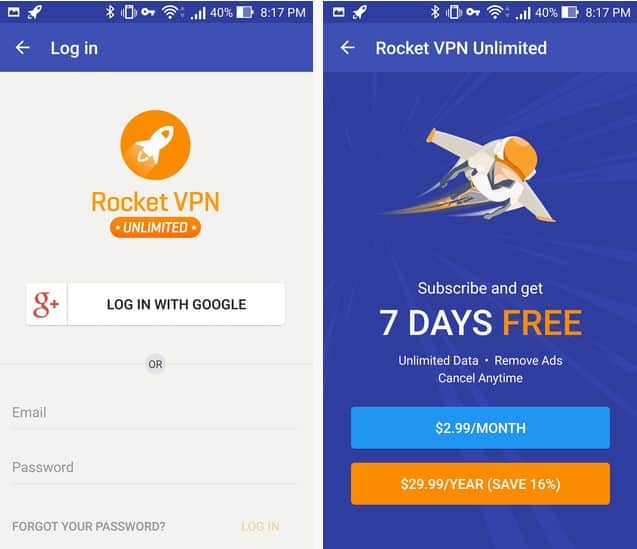
Rocket VPN is a free app that incorporates advertisements and also recommends other apps while running. Not only in-page intrusive ads, but they are non-intrusive and sometimes come up with full-page ads. Additionally, the free version allows 500 MB per month usage. And you can get the unlimited plan for $2.99 per month or $29.99 per year. It not only provides you with unlimited bandwidth but also better speeds removing advertisements.

Subscription Plans - Rocket VPN

FINAL VERDICT

There are many Virtual Private Network services available but if you’re looking out for something cheap, simple with a clean user interface, you’ve found it! Rocket VPN is for you, in fact, it is for everyone.

Download: Rocket VPN for Android | Rocket VPN for iPhone

Fully Autonomous Tesla Drives Itself with Zero Human Intervention

Fully Autonomous Tesla Drives Itself with Zero Human InterventionTesla has announced its latest vision of all its future cars. The CEO of Tesla, Elon Musk  was dropping hints on twitter about new fully autonomous self-driving Tesla cars.

As promised to soon share a video of upcoming Tesla cars with an incredible self-driving hardware, the video now available depicts the fact that we are nearing a driverless transportation era making human life easier and comfortable.

In this three minutes and 46 seconds video, we can see a Tesla model car starting from a garage making its way to the road amidst traffic, performing all the traffic activities and later joining a highway lane driving itself into a city.

Any car would do this right? But the video shows us an unbelievable part – the car is driven and makes its way on the road but without a driver, without any human intervention. Not only Tesla drives on its own but parks itself very efficiently.

Elon Musk tweeted after this video was out that the car is smart enough to skip the disabled spot. He also added that with this feature to skip disable spot by itself and bring the car back to you no matter where ever you are.

Tesla announced that Model S and Model X car with self-driving hardware are already in production. Further adding that the cars will have an additional feature “Level 5” autonomy which means they will be able to drive themselves in all the conditions.

Fully Autonomous Tesla Drives Itself with Zero Human Intervention

EXTRAORDINARY FEATURES OF THIS FUTURISTIC INVENTION

  1. These self-driving cars will be equipped with multiple cameras and sensors offering long range and 360-degree visibility.
  2. They will consist of superior navigating skills ensuring to give you smarter and faster access if in traffic, etc.
  3. They will function on your one call, you can summon the car by your phone to pick/drop wherever you want to.

This amazing innovation driving us straightforward to 2050 has got a lot of attraction and high expectations from people around the world.

Let’s wait to see what Tesla will actually come up with the newly added feature “Level 5” and how successful the model will be. So far seeing the video, it looks like Tesla has achieved what it had to in terms of delivering a standard and convenient self-driven car, which can drive by itself with zero percent human intervention.