Home Blog Page 129

Boot Windows 10 in Safe Mode

1

When you boot Windows 10 in Safe Mode, it allows you to diagnose problems with your operating system. If you want to analyze the common issues in your computer such as unwanted apps and malware which can damage your system and pose risk to your security, then starting your PC in Safe Mode is a convenient way. It starts the Windows in a basic state with only the most essential files and drivers to fix some glitches.

However, those who have been using Windows 10 might be aware that pressing the F8 key no longer works to enter the Safe Mode. This does not mean that your Windows 10 has no Safe Mode at all. Whether you are booting up or restarting your system, there are other methods that can be used to enter Safe Mode in Windows 10

How to boot Windows 10 in Safe Mode

Solution 1: Use the System Configuration Tool (msconfig)

You can Boot Windows 10 in Safe Mode using the System Configuration tool which allows to configure how you can start your computer, the startup items, and more.

You just need to follow these steps:

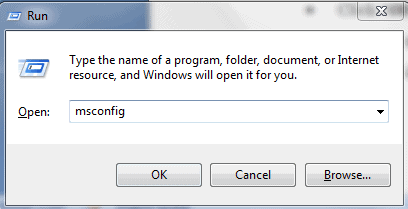
  • Press Windows + R to open the Run box
  • Type in msconfig” and click on OK”
Screenshot_1.png
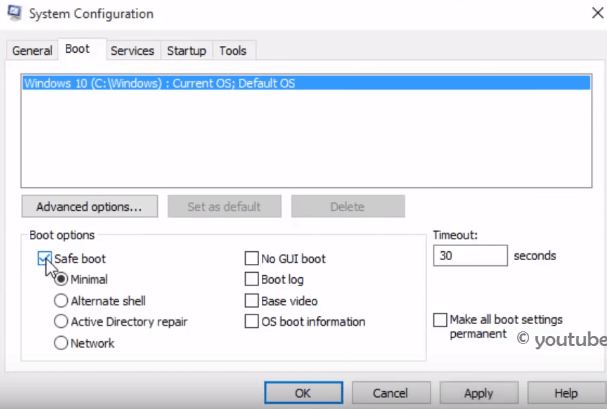
  • In the System Configuration window, click on the “Boot” tab
  • Navigate to Safe boot” and check the box next to it
Screenshot_3.png
  • Click OK and “Apply”
  • You will now be prompted to restart your computer to apply these changes. Click “Restart”

You device will automatically boot into Safe Mode now. If you want to start Windows 10 in Normal Mode, uncheck safe boot.

Solution 2: Use Shift+ Restart Combination

If your device loads in the sign-in screen then you would be able to boot Windows 10 in Safe Mode from the startup.

Follow these steps to start Safe Mode from the sign-in screen:

  • Restart your computer and select “Power” on the sign-in screen
  • Click on “Restart” while keeping the Shift key pressed.
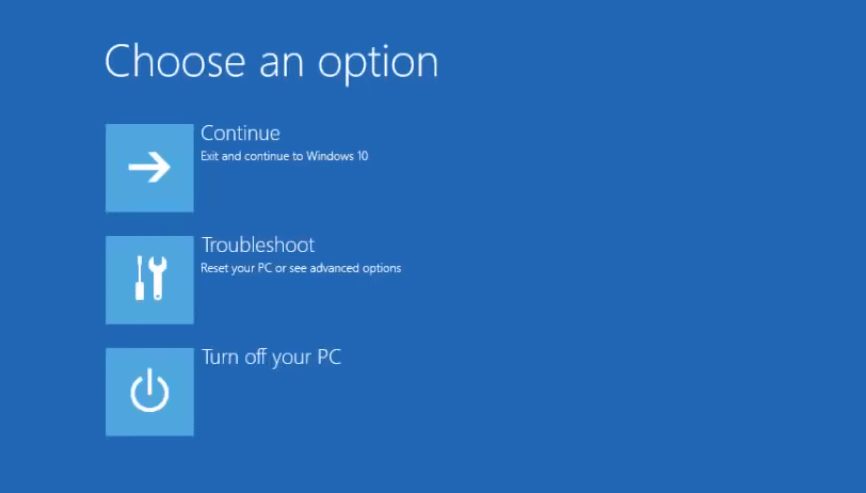
  • Windows 10 will ask you to select an option.  Choose “Troubleshoot”
Screenshot_5.png
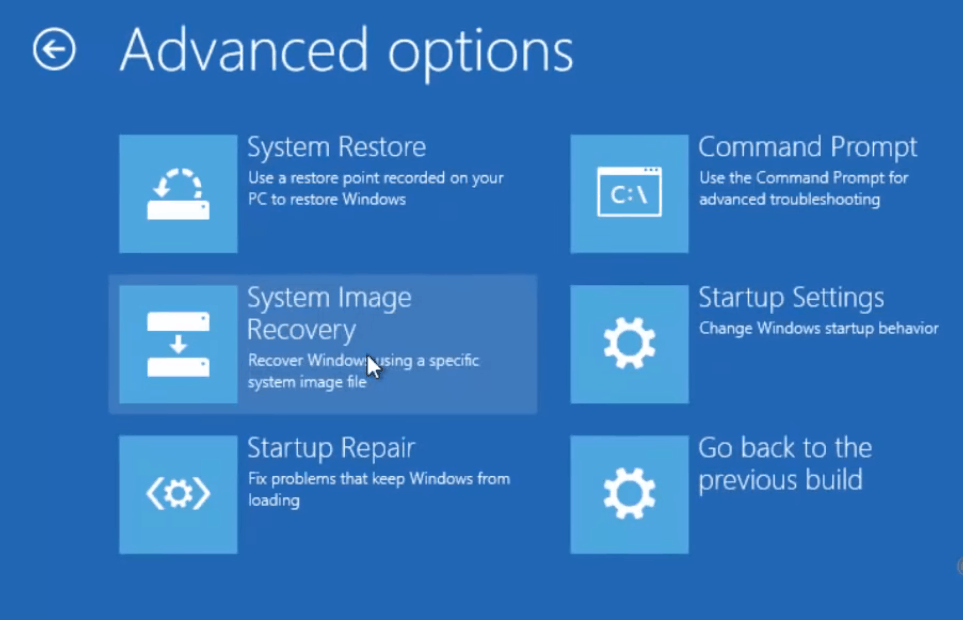
  • On the Troubleshoot screen, select “Advanced options”

Screenshot_6.png
  • Next, select “Startup Settings”
Screenshot_7.png
  • Windows will notify you to restart your device in order to change advanced boot options. Click on “Restart”
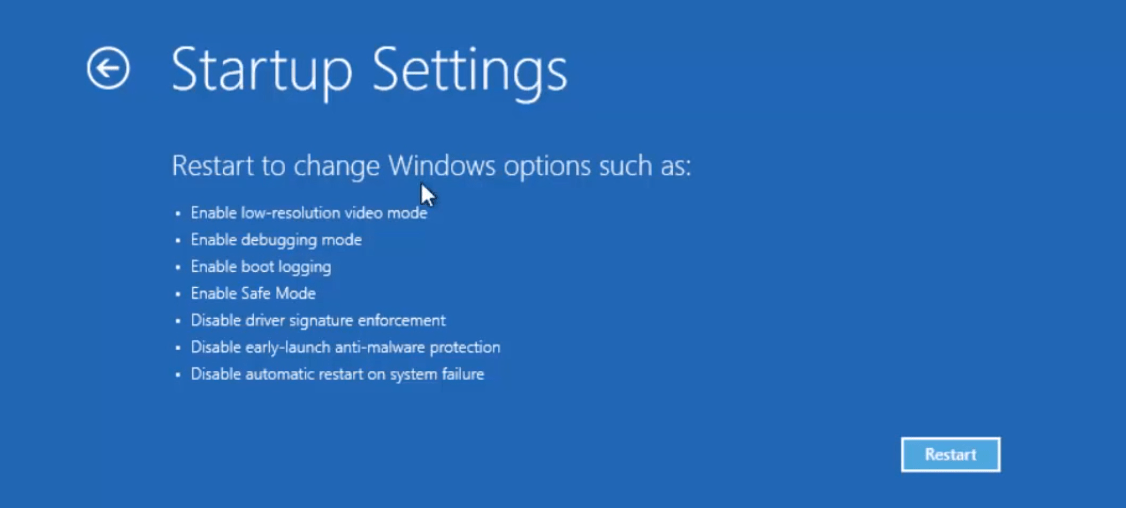
Screenshot_9.png
  • After your computer restarts, it will display another list of options to boot into Safe Mode
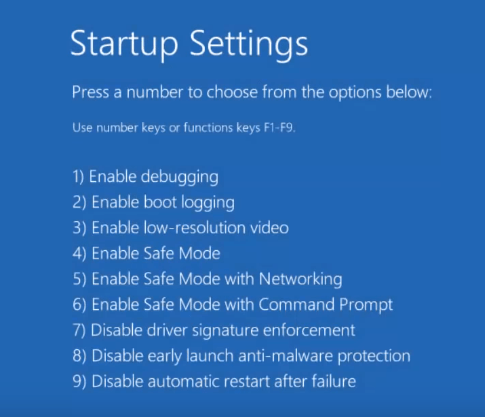
Screenshot_10.png

—Press F4 to boot in Safe Mode

—Press F5 to boot in Safe Mode with Networking

—Press F6 to boot in Safe Mode with Command Prompt

Solution 3: Enter Safe Mode when windows 10 won’t boot normally

When Windows 10 won’t boot normally over three times, in the fourth attempt it automatically enters Automatic Repair Mode by default. You can easily boot in Safe Mode using this method. Here is what you need to do:

  • Make sure your computer is turned off.
  • Press on the power button to turn on your PC for about 10 seconds and then hold the power button down until your PC shuts down.
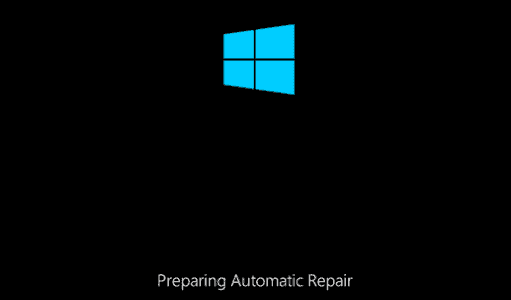
Screenshot_12.png
  • Repeat this process three consecutive times until you see the Preparing Automatic Repair on your screen
  • Choose an account to continue and wait for Windows to diagnose your PC. 
  • On the “Automatic Repair” screen, click on Advanced options”
  • System will bring forth the “Windows RE” screen. Click Troubleshoot”
  •  Click Advanced options
  • Go to Startup Settings” to continue
  • Click on “Restart” and then Windows will show a list of different startup options
  • Press F4 to boot into Safe Mode, F5 to boot into Safe Mode with Networking, and F6 to boot into Safe Mode with Command Prompt.

Wrapping up: How to Boot from USB Windows 10, Dual Boot Windows 10

Typically, you only need to boot into Safe Mode when you are looking to troubleshoot an issue with your PC. This can be particularly beneficial when you have exhausted other possible solutions to fix common Windows 10 problems. We hope the instructions in this guide help you to boot Windows 10 into Safe Mode easily. There are also other methods like Dual Boot Windows 10 and How to Boot from USB Windows 10 that we will be covering in our later articles.
Why You Need Antivirus Protection At Home

0

The coronavirus has changed the world, and most of us have been paying strict attention to the precautions we’ve got to take to protect ourselves and our loved ones from it. But maybe not as immediately obvious, and happily not as potentially fatal, are the computer viruses and other threats that can readily attack our families’ security. 

antivirus

According to the United Nations, cybercrime is experiencing a dramatic rise during this pandemic. A recent report to the Security Council warns that “growing digital dependency has increased the vulnerability to cyberattacks, and it is estimated that one such attack takes place every 39 seconds.”

No doubt the computer network and other devices at your office are protected by antivirus software because cybercrime is one of the most significant economic threats to businesses worldwide. But if you’re currently working from home, you need the most up-to-date antivirus security software there is. And so does your family, even if all they do is connect on social media, pay bills, do schoolwork, and play games.

You probably know, though, that even security software isn’t 100% positive protection against the cybercriminals who’d be all too happy to disrupt your finances and other aspects of your family’s life. That’s why everyone who plugs in, from the adults to the youngest kids, needs to know the precautions to take when they’re using their phones, laptops and all the other electronic gadgets and gizmos that connect to the Internet. 

The rules are really simple. And maybe that’s why we all tend to get lazy and let them slip. So here’s what you and your family members should refresh yourself on:

Use Bullet-Proof Passwords

It’s estimated that about 60% of people create their passwords using personal information like a family member’s birthday, a pet or relative’s name, or even their own street address. What’s worse, among the most common passwords for years have been “123456789”, “1111111”, “qwerty” and the word “password” itself. All of these are insanely easy to guess and are like handing your debit card to any stranger you see. You can peek at the rest of the worst 100 passwords, but only as a guide to what not to do. 

A password should employ a combination of upper and lower case letters, numbers, and special symbols and shouldn’t rely on words that are spelled the standard way. One suggestion is that you begin with a phrase that you can remember, and then change it up with numbers and symbols. (A ! instead of an I, for example.) Experts also recommend changing passwords routinely and using a different one for every account, which you probably won’t do. So make them really tough to begin with. 

Don’t Publicize Personal Information

Everything you put out there on social media, networking and game sites remains on the Internet forever, and ultimately almost anyone can find out almost everything about you. Especially when they combine what you post with what they can find in a simple online search of your name. This should be impressed on kids in particular since they don’t have the discretion to know that not everyone who “friends” them has friendship in mind.

Be cautious of taking social media quizzes and surveys that ask questions about your first car, your favorite musical group or movie, where you were born, or any of a number of other questions that, coincidence or not, are the same questions you might be asked when you want to re-set a security password. If you can use the answers to gain access to your accounts, so can a hacker.

Be Careful With Email

Most computer viruses and other malware invasions are caused by downloading attachments or activating links that appear in unsolicited communications. And with phishing ubiquitous, it’s important to take the extra minute to inspect the originating URL and “reply to” addresses for inconsistencies and irregular spellings. If you’ve got any reason to suspect correspondence even from your bank, for example, contact the source directly for verification. Hacked email can also be sent under the names of people you know, too, so beware of links that seem wonky even if you know the sender. 

All this isn’t to say you should live in fear of the Internet, but exercising a reasonable amount of caution will keep everyone in the family a whole lot more secure.

Best Ways to Learn SQL Online

Structured Query Language is a clear-cut programming language which is used to access and manipulate relational databases. A set of tables consisting of rows and columns of data make a relational system. In the table, each of the columns shows a category of data and each row has a data value for the converging column. Most of the businesses have databases in some form which is used to analyse marketing and business strategy decisions.

best way to learn sql online

Therefore, since 1970 SQL is being used by the top database management systems as the programming language in order to manage their data. There is a huge demand for programmers who have experience in SQL

You cannot build any serious application without SQL. It is a universal programming language which will advantageous while learning other programming languages such as Python and JavaScript.

Major functions of SQL:

  • Updating or retrieving data from database
  • Modifying database table
  • Setting up permissions on tables and procedures
  • Creating stored procedures in a database
  • Creating views in a database

For those who are aiming to become a database administrator, it is crucial to find the best ways to learn SQL online. As it doesn’t need any previous programming experience, SQL is an awesome coding language to learn if you are interested in programming so should know best way to learn sql online.

Often, you can learn to write SQL but you may miss some very important features and functionalities which can make a huge difference and save a lot of your time too. The best way to learn SQL depends on certain factors such as time, money and your learning style.

In this post, we are going to discuss some of the best way to learn SQL online.

Learn the basic concepts

To start learning SQL, you have to practice the concepts theoretically and practically. This includes practice of queries and commands. Starr from the basic ones and once you have mastered them, move on to more complicated ones.

Watch YouTube tutorials

There are plenty of videos on YouTube which will provide you free training for SQL. These interactive tutorials not only give you solution when you run into minor problems while programming but also let you build queries and manipulate data to test your knowledge.

Join SQL forums and blogs

The SQL forums are a great place for people who have just began to learn the programming language. You can interact with other programmers, ask questions and even help others with the best way to learn SQL. You can find many such forums and chat rooms with a simple internet search. There are many blogs as well, which will give you detailed information about SQL, but try to stick to only one blog as too many can confuse you with their varied methods of teaching.

Get a free SQL Database Management System

If you want to take SQL seriously, then the best way to learn sql is by practising it as much as possible. This is the most important step while learning SQL. Get an open-source database where you can begin writing and running basic queries by using your own data. Once, you have finished learning the basic SQL concepts, jump to more complex queries.

You can try MySQL which is a free database system to start writing.

Join Online courses

The best way to learn SQL online for most of the people is through an online course as they have various benefits and some of them are even free. Programming with SQL is done through a PC, so it is obviously better to get expertise through a practical course with additional help from textbooks and video tutorials. With online courses, you would not be wasting any time on unnecessary information. Also, you will be able to learn on your own pace without any need to hurry which normally happens with scheduled classes. Moreover, online classes are quite affordable as compared to regular ones.

While choosing the online course make sure that you check the past reviews and experiences of the previous students. It is also important that you go through the course module thoroughly to be sure that it fits with what you are aiming to learn.

At last, beware of the free courses, on one hand some of the courses which do not charge you any money can be pretty good but many other can be of poor quality. Also, some of the courses which claim to be free can convert into paid ones after the instructors reach their promotional targets. That is why it is important to check the rating of the course that you are going to join. Try and join a course with at least 90% positive reviews.

Conclusion

After you know about the best way to learn sql and have learnt the basic concepts, you will need to backup your knowledge with professional certifications. This is extremely important if you won’t stand out among others and move up within any organization.

Be The Change You Want To See – Call For Code 2020

With birth of Internet the way we think and solve our day to day issues has completely changed. We shop almost everything just in few clicks; we go ahead and get instant medical support by Doctors located far from us via Video Call or Chat. We love to browse solutions of our small issues on internet. We just love the world of internet, apps, and the Internet of Things (IoT). It’s these revolutionary ideas that have given birth to the digital age that’s changing societies across the globe forever.

The Call for Code Global Initiative, founded by IBM and David Clark Cause, is an annual challenge inciting technologists to use cutting-edge technologies to deal with natural disasters. Now in its second year, it asks for STEM-minded people around the world to participate in driving solutions to problems associated with natural disasters.

With aim to create radical technologies to solve some of the world hardest problems, Call for Code extend invites to all coders to come forward and join the Hackathon to “work on projects around Natural Disaster Preparedness and Relief during wildfires with a focus on community health and well-being.”

“In 2018 more than 100,000 people across the globe participated in the Call For Code challenge, with Project Owl winning the Call For Code Global Award for creating an offline emergency communication system. But even those who don’t walk away with the grand prize have the potential to illicit change”.

2017, The Year of Natural Disaster, from deadly earthquakes and record –breaking floods in California and few other parts of United States. A report suggested that the United States alone experienced 15 separate natural disasters that each cost at least $1 billion in damages.

In what seems like a constant string of natural disasters, information and the dissemination of information are key. Rapid technological advancements in a number of fields mean both emergency response crews and survivors are better equipped at tackling the immediate challenges faced during a natural disaster.

Use of social media, drones, satellite imagery through GIS, real-time disaster modelling, and widespread connectedness means more efficient and necessary information flow. Immediate information on the most damaged areas of a city or locations of where people remain stranded saves lives. Real-time data allows emergency management to develop more targeted response plans, a technological leap from search and rescue strategies decades ago.

In the words of Omkar Nimbalkar, Vice President, Client & Partner Developer Advocacy, IBM Cognitive Application, IBM is  hoping for solutions that not only inform people with real-time event updates impacting their region, but ones that help save lives ahead of and in the aftermath of disasters. Artificial intelligence, AI-powered chatbots and natural language processing (NLP) could be used to improve real time communications between first responders, victims, relief agencies and more.

So if you are someone who wish to come forward and bring the change that you wish to see ; Here are steps to follow :-

  • JOIN THE CALL FOR CODE 2019 COMMUNITY – Get an IBM Cloud account, learn about the competition scope, prizes, rules, and schedule. Click Here To Continue  https://ibm.co/2JTb3d6
  • BUILD WITH CODE PATTERNS AND RESOURCES – Use Code Patterns in six tech areas, six disaster areas, and health and mark your presence.
  • ENGAGE WITH EXPERTS AND BUILD YOUR TEAM – Introduce yourself , meet experts , do necessary research on your idea and keep an eye on updates.
  • SUBMIT YOUR SOLUTIONS – Submit Your Code with proper demo.  Don’t forget to accept the participation agreement.

Call for Code Prizes in 2019

  • A Global Award at Call To Code Award Event
  • A  cash prize of USD $2,00,000
  • Project Support from Linux Foundation
  • Meeting with Mentors and Potential Investors
  • Solutions Implementation through Code & Responses

“Put Your Hand On The Code And Explore The Technologies That Can Change The World”.

For More Information, Visit: https://developer.ibm.com/callforcode/

A Complete Guide How to Play PlayStation Games on PC

0

This article Solely based on How to play PlayStation games on PC. We will provide complete information about setting it and configuration in the simplest way possible.

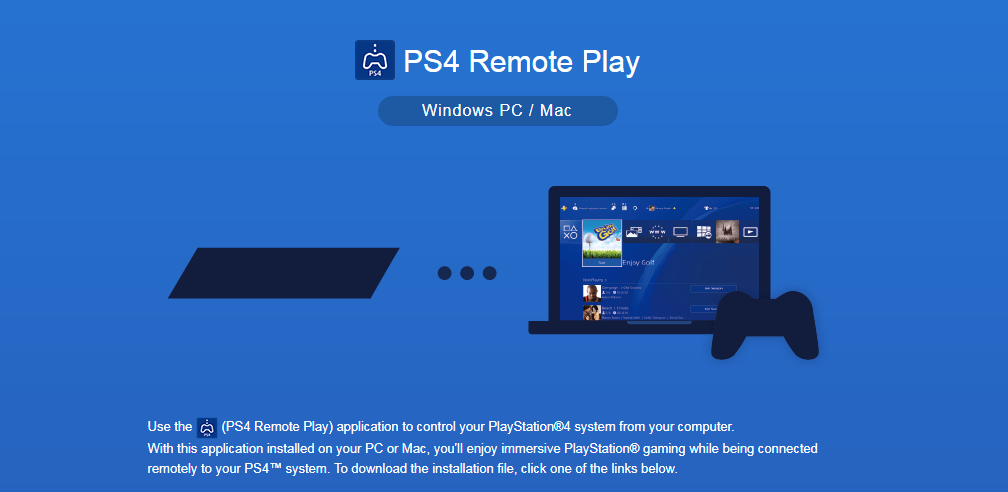
Right now, the PS4 is indeed one of the most popular gaming platforms available in the market. When it was announced that Xbox One games can be played via PC in Windows 10, Sony also introduced PS4 Remote Play and PlayStation Now.

how to play playstation games on pc

In this guide, we will explain in detail how you can install PS4 Remote Play in your PC and even can play PS4 games without having a PlayStation with PS Now.

Setting up PlayStation 4 Remote Play on your PC

how to play playstation games on pc
PIC: how to play playstation games on pc
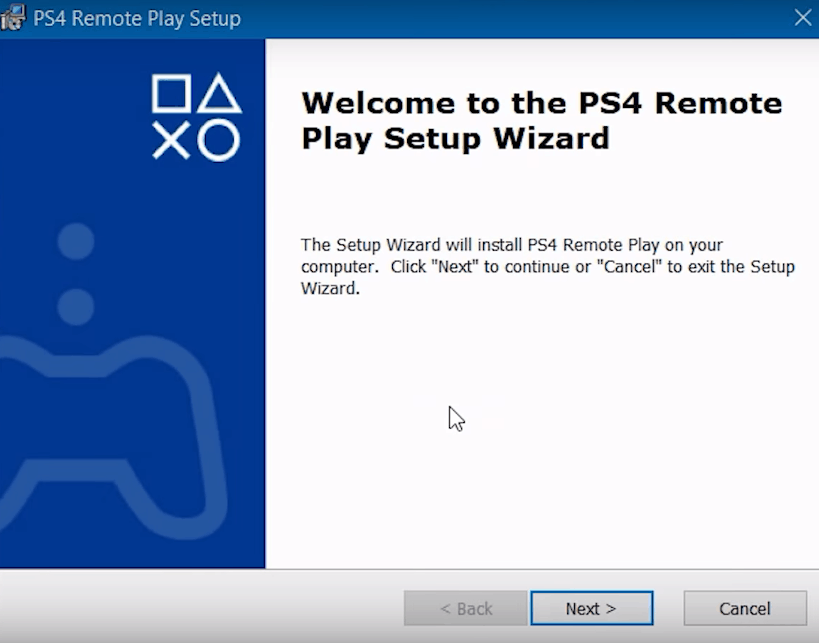
  • Follow the on-screen instructions to install Remote Play app
how to play playstation games on pc
  • Update your PS4 by going to “Settings”—-“System Software Update”
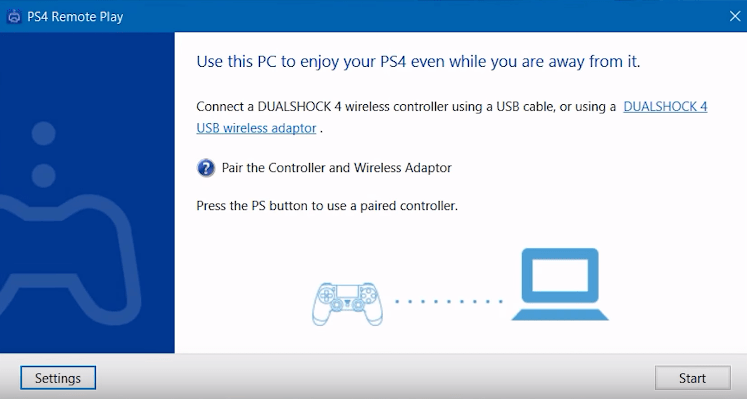
  • The Remote Play application can only work with wired connections which means that you will need to plug your a PlayStaion 4 controller into your PC using a USB cable
Screenshot_8.png
  • Once done, click “Start”
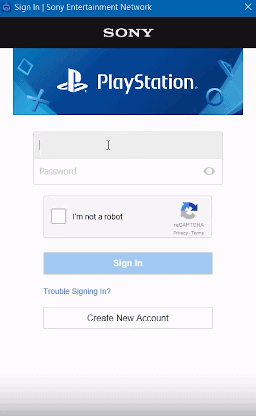
  • Now, log in to your PSN account
Screenshot_9.png
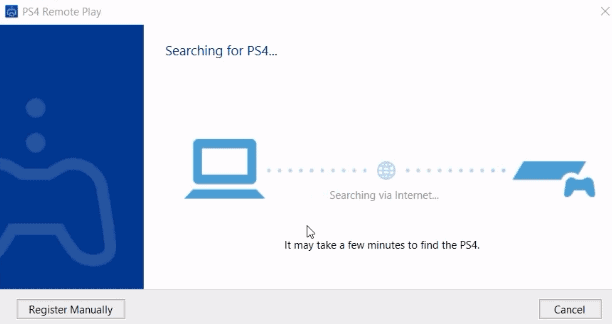
  • The Remote Play app will search for PS4 automatically. However, if it doesn’t happen after some time, then you have to do it manually.
Screenshot_11.png
  • To connect PS4 to your PC manually, go to “Settings”—- “Remote Play Connection Settings”—- “Add device”.  Enter the number given on the application

You can now connect your PS4 with your PC.

How to Play PlayStation Games on PC with PS Now:

Screenshot_13.png
PIC: How to play playstation games on pc

You have a chance to play your favourite PlayStation game on your PC even if you don’t have a PlayStation. When Sony introduced PlayStation Now to PC, users can play more than five hundred PS3 and PS4 games on their computers with new games being added almost every month so the collection never gets exhaustive. These games include classic like Uncharted series, The Last of Us, God of War III, and more.

There is a 7-day free trial for new gamers and the subscriptions costs $19.99 per month for unlimited access to all those amazing games.

Here is how to play playstation games on pc with PS Now:

  • Get a DualShock 4 controller and either a Mini-USB or USB Wireless Adapter to connect the DualShock 4 controller to your PC.
  • Sign-up for PSN account on Sony’s official PSN website.
  • To subscribe to PS Now, go to the PlayStation Now Website (https://www.playstation.com/en-gb/) and click on “Start your trialfor a 7-day free usage. The free trial can automatically turn into a subscription and if you want to stop it then go Account Settings—-Media—-  PS Now subscription—- Cancel automatic renewal
How to Play PlayStation Games on PC
  • Download and install the PS Now application (https://www.playstation.com/en-gb/explore/playstation-now/ps-now-on-pc/)
  • Post installation, log in to your PSN account and select your subscription.
  • Connect your  DualShock 4 controller to your PC
  • You can select your game from the PS3 games in Netflix-style layout that you would like to stream and click “Start” to play.

While streaming PS games from Sony’s servers, it is imperative that you have a fast enough internet connection to have smooth gaming experience. Sony itself recommends a broadband connection of a minimum 5Mbps and more to play the games without any hindrance. You can sync most of the PlayStation games between different Play stations and computers so that you can continue from wherever you had left them off without the need to transfer any saved data.

Conclusion:

With Playstation 5 is coming up as the successor to the PlayStation 4 in 2020 with New features and better configuration it will provide its user with a penultimate experience. Hope this crisp information is helpful in how to play PlayStation games on PC with a piece of information related to setting up and playing PlayStation. If you suffer any difficulty please lets us know.

How to Install Kodi on Xbox One and the 5 Best Kodi Addons

0

If you are searching for ways on how to install Kodi on Xbox one, then you have come to the right place. Finally, after a long wait, Kodi developers announced in December 2017 that it would be available for the Xbox one with a lot of add-ons. Kodi first started as an app which was designed to work with the original Xbox in 2002, when it was referred to as XBMC or Xbox Media Centre. For those who haven’t used Kodi until now, it is an open-source audio and video media player which allows you to play locally stored files.

Kodi on Xbox one is not only an awesome gaming system but also a great device to stream videos. Now as kodi is officially a Universal Windows App, it is easily available through the Microsoft Store.

Here in this post will let you know about a simple tutorial on how to install Kodi on Xbox one with easy steps.

How to install Kodi on Xbox One

Screenshot_14.png

The download procedure for how to install Kodi on Xbox one is pretty simple as compared to the complicated process of installing in on Firestick. Follow these steps to get it installed on your Kodi on Xbox one.

  • Switch on your Xbox one and connect it to the internet.
  • Sign in to your Xbox live account.
Screenshot_9.png
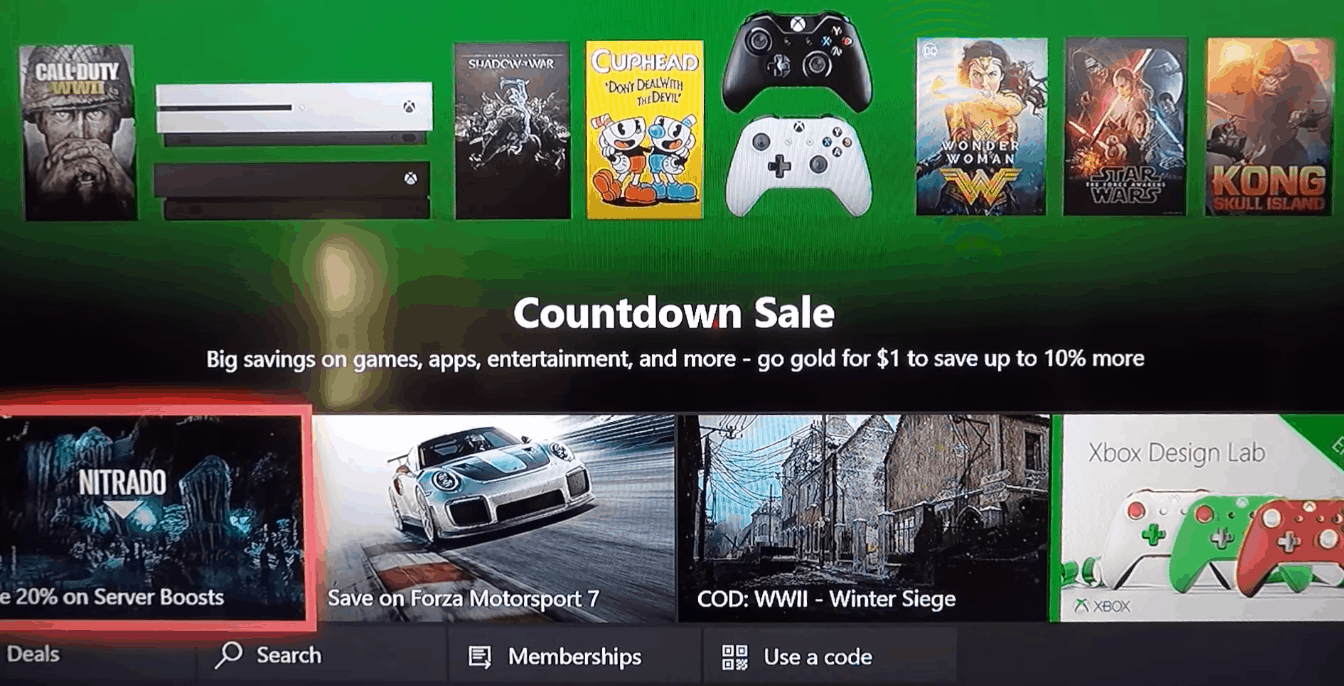
  • In the Xbox store, click on the ‘search’ button at the bottom of the page.
Screenshot_10.png
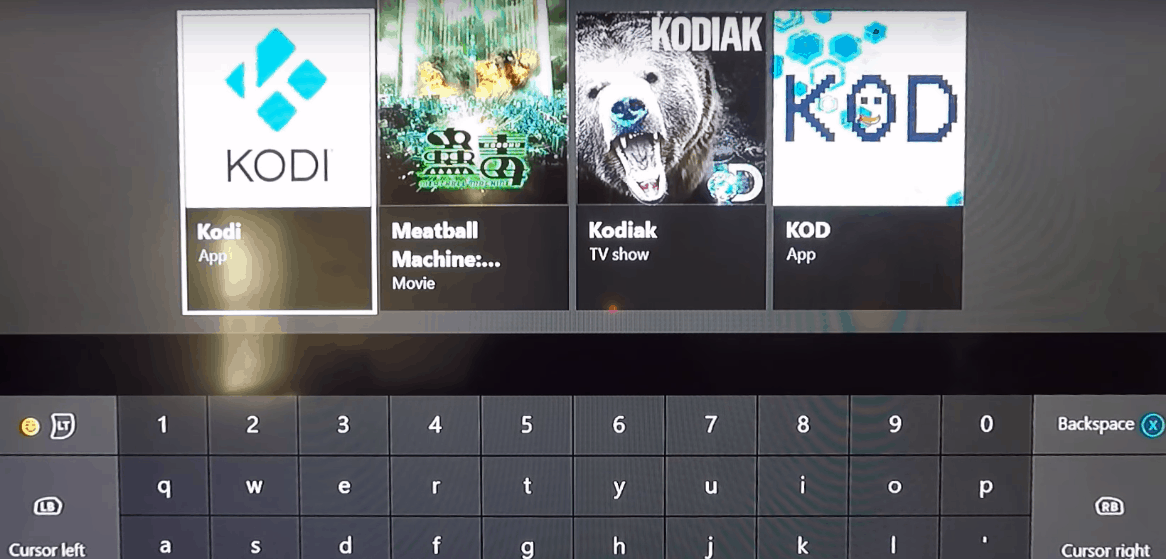
  • Type in ‘Kodi’ in the search menu and select the Kodi icon.
  • Click on the ‘Install’ option.
Screenshot_12.png
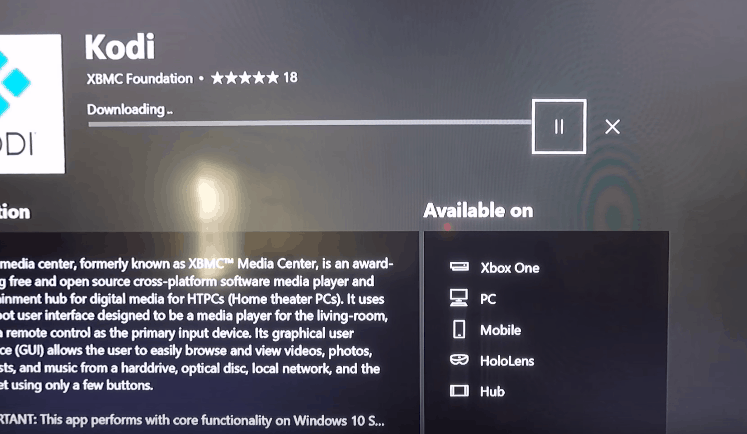
  • Now, Kodi will be downloaded
  • Once Kodi is downloaded and installed, , click on ‘Launch’
Screenshot_13.png
  • Kodi will now open on Xbox one.

You will be able to access Kodi on Xbox one in the Games and Apps menu. Pretty simple, isn’t it!

Limitations of Kodi on Xbox one

It is important for you to know that Kodi doesn’t work exactly in the same manner as it does in other devices. Even though Kodi is a Universal Windows App, it still has few restrictions on how it can be used on Microsoft’s console. There are a lot of bugs and some of the features do not operate properly.

  • The app does not have any access to Blu-ray drive. It doesn’t support USB sticks or external hard drives. This however, is not a huge issue as Kodi is mostly used to stream TV shows and movies. Also, developers are constantly working on these problems.
  • Most of the local network streaming methods do not work. As the file transfer protocol varies for Kodi and Windows/Mac, it gets difficult to transfer files between local networks. You cannot stream local media content with Kodi app.
  • Many of the popular Kodi add-ons do not function in Xbox one as they do in other devices.

Even though at times, these restrictions of using Kodi on Xbox can be inconvenient but are expected to be fixed with the newer updates.

Best Add-ons for Kodi on Xbox One

Once you have installed Kodi on Xbox one, it may appear quite empty. You will need to download add-ons to get the full experience, However, before you get any add-on for Kodi on Xbox one, you should know that the use of unofficial Kodi add-ons is illegal as they are developed by third-party developers. The unofficial add-ons do not possess the authority to republish the content.

If you use an illegal Kodi add-on to access the latest TV series, movies, music, and more content for free then your system activities will be monitored by your Internet Service Provider, which can make you fall in trouble. In order to avoid this trouble, you can have to use a VPN which rotates your IP address while you are streaming content on Kodi.

Alternatively, you can get official add-ons with paid subscriptions. Here, is a list of the most popular official and unofficial add-ons for kodi on Xbox one.

Cerebro ShowBox

For those who are the fans of live sports events, Cerebro is the perfect add-on. It works on the Mobdro servers and there is a variety of different sections that you can explore. Apart from the live TV content, the add-on also offers a section for movies.

Exodus Kodi Add-on

Exodus is considered one of the best add-ons for kodi on Xbox one, people who like watching anime, TV series, movies, sports, and Documentaries. Users can also filter the content based on various genres. The only issue with Exodus is that it doesn’t have any developer support and hence it never gets updated.

Genesis Reborn

With access to popular TV shows and movies, Genesis Reborn add-on will let you stream high-quality content and even supports 4k streams. The user interface is directory based with a lot of specific information about shows and movies. Users get ten categories to select content from and all the TV shows get updated as they are added while being organized in order from the latest addition.

Placenta

One of the newer add-ons that kodi on Xbox one have is Placenta not only offers to stream all the free content but also has a dedicated category for kids, an all-inclusive fitness guide, and more which is not available with other similar add-ons.

Castaway

Castaway is a brilliant Kodi add-on for users who love sports and assortment of games. The add-on kodi on Xbox one pulls live content from various popular gaming sites and even supports acestream. Users can watch the latest sports action, TV shows, and other content. Also, castaway add-on features the Video on Demand feature which is worth giving a shot to.

Wrapping up:

That is it! We have shared the simplest method to how to install kodi on xbox one. The list of the popular Kodi Add-ons doesn’t end here, there are many other add-ons that you can explore.

How to Reset Kodi in the Simplest Way Possible:

0

Are you facing problems with Kodi performance and wanted to know how to restart Kodi?

how to reset kodi

Kodi is undoubtedly one of the best multimedia entertainment centres out there. However, just like any other software, it can develop complications too. Maybe you are stuck with a dated version which doesn’t get updated or you might have downloaded too many add-ons. Whatever are the reasons, there is a possibility of a time when you may need to reset Kodi back to the factory settings and clear your system to give it a fresh start.

Even though Kodi is a highly customizable media player, but still it doesn’t have a reset or fresh start option. The good news is that there is a painless way to delete everything and reset Kodi to start back at step one. In this simple tutorial, we will show you the step-by-step method to quickly reset Kodi.

How to Reset Kodi with Ares Wizard:

Ares Wizard was once popular to give access to external add-ons for Kodi, but due to certain crackdowns, it had to be shut down. However, the latest version of Ares Wizard which just has the maintenance tools is good enough to keep Kodi clean of all the clutter and to back up the data. Also, by using Ares Wizard to reset Kodi, you can retain some specific data if you want. In order to use this Wizard, you have to first install the Ares repository and the Ares Wizard program which can be done as follows:

  • To allow Kodi to install content from the third-party sources, you first need to turn on your VPN.
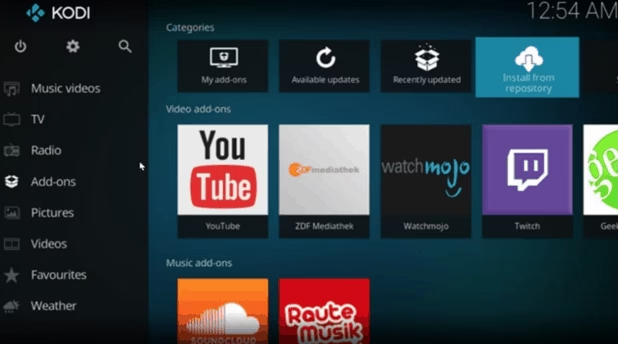
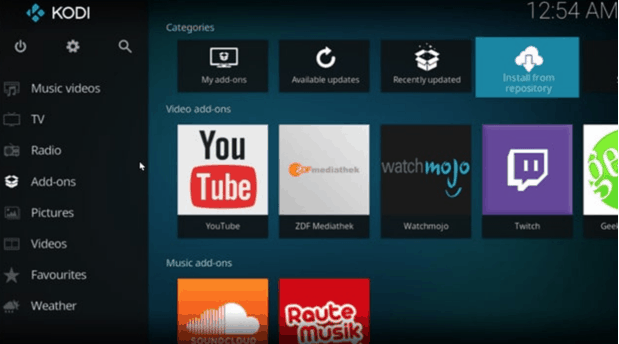
  • Now, start Kodi and click on “Add-ons” icon on the left hand side of the home screen.
  • On the top left hand side corner, click on “Settings”
  • Turn on the “Unknown sources” which appears under Add-ons
  • When you get a pop-up, click on “Yes”
  • Go to Kodi home screen and click on “Settings”
  • Now, go to “File Manager” and then navigate to “Add Source”
  • Enter- http://ares-repo.eu/ and click “Ok”
  • Go to the Kodi home screen again and select “Add-ons”
  • On the top left corner of the page, click on “Package Installer”
  • Navigate to “Install from Zip File”—“Ares”—repository.aresproject”— “repository.aresproject.zip”
  • You will now get a notification saying “Ares Wizard Enabled”
  • Go to “Install from Repo” and navigate to “ Program Addons”—“Ares Wizard”—“Install”
  • Now go to “My add-ons” and navigate to “Program add-ons”
  • Select “Ares Wizard” at last

Once you have successfully downloaded and installed Ares Wizard, there are a few more steps which you need to follow to reset Kodi.

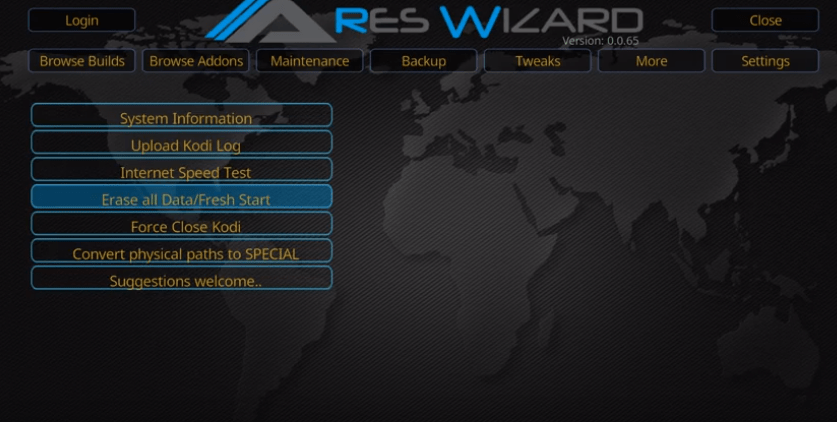
  • Open Ares Wizard add-on and click on “More” tab on the top right hand side of the screen.
Screenshot_16.png
  • Now, select the option “Erase All Data/Fresh Start” from the list.
Screenshot_17.png
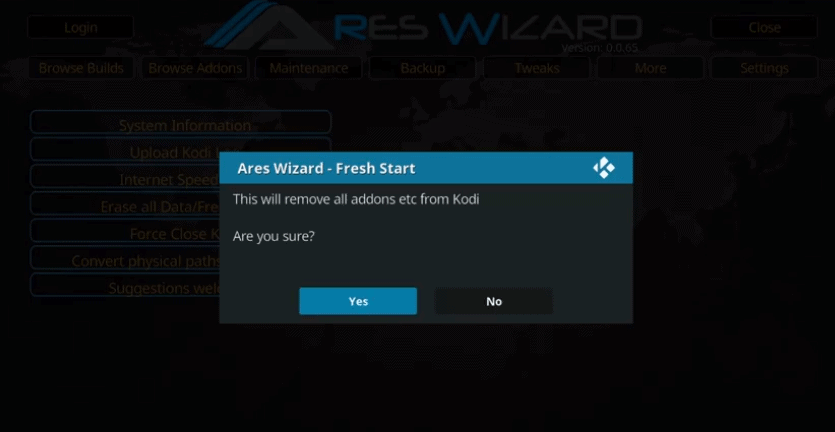
  • When you get a prompt with “This will erase all add-ons etc from Kodi. Just Click “Yes” and proceed.
Screenshot_18.png
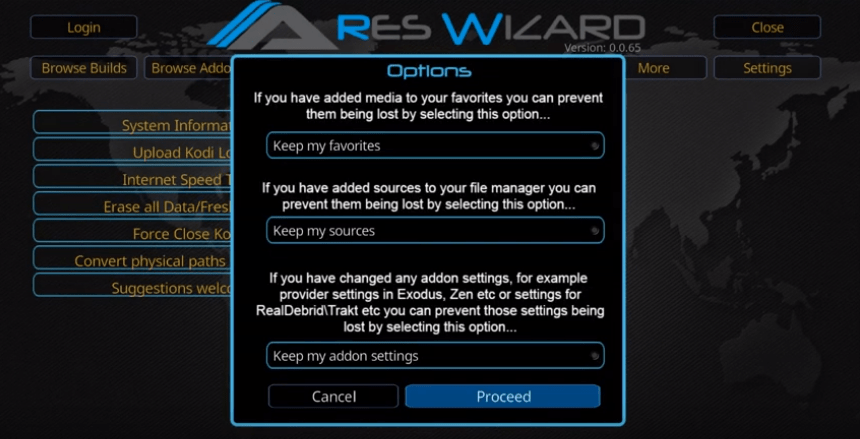
  • Here, you can select whatever specific data you want to delete. You can select Keep my favorites” if you don’t want all your add-ons to be erased.
  • Once you have selected the data, click “Proceed”
Screenshot_19.png
  • Ares Wizard will not start resetting your Kodi back to the factory settings.
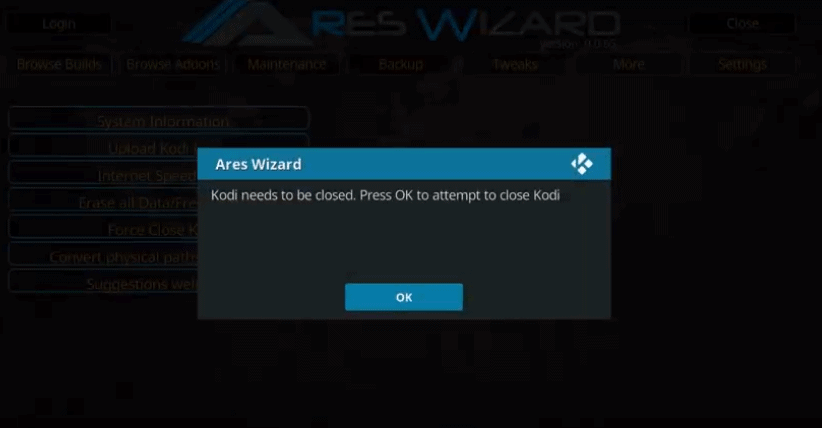
  • Once done, you will receive a prompt to close Kodi. Click “Ok” to proceed.
Screenshot_20.png

When you restart Kodi, it would have been restored to the factory settings and it would be back to its default theme. Now, you can customize the software however you want to meet your needs. This method can be used to reset Kodi on any device. Hopefully, this tutorial was helpful in showing you how to reset Kodi quickly.

Hope this article is useful in