Home Blog Page 360

Get protected from harmful websites with WOT

Everyday we visit hundreds of website for many purposes such as Online services, shopping, Job search, matrimonial etc. and get registered to them. We don’t think whether the website we are using is trustworthy or not and sometimes we get scammed due to lack of knowledge. We see many cases where people get cheated by fake websites which acts similarly to the original ones. Many people lost their money from their bank accounts by specifying the confidential data including user name as well as password in such websites. So it is vital to check the trustworthiness of the website before providing any kind of information.

How to know the website we are surfing is safe or not with WOT?

To get rid of this and for safe browsing we can use WOT (Web Of Trust) ad-on which is available for free to use to all the major browsers such as Firefox, Google Chrome, Internet Explorer, Safari and Opera.

WOT is the rating system where the people rate the website according to their experience with it. It uses a simple “Green” and “Red” colored circle on your toolbar to inform you about the trustworthiness of the website you visit. Here green color depicts the safe and trust and red is the symbol of distrust. WOT comes up with 4 safety measures namely Trustworthiness, Vendor reliability, Privacy and Child safety that helps you know whether the website you are on is secure for surfing or not.

How can you secure the Internet with WOT?

Even you can help WOT to make web more secure, have you got cheated by a service? or not got an item ordered from a website? Just rate the respective website according to your experience on WOT plugin.

You can download WOT ad-on from the link http://www.mywot.com/en/download

The rise and fall of an internet empire

This is a post by Vishal Sanjay. Who is a very talented 14 year old blogger. if you would like to write for us, please click here

In the 1990s, during the Dot-com boom there were many companies which made millions of dollars with the help of the internet, this was the time when people barely knew about Google or Yahoo, but after the Dot-com burst none of these companies are even spoken about, one such company is AOL, it successfully survived the Dot-com burst, but the scars were hard to heal. Back then the company was popularly known as the backend of the internet revolution, it was the first to start a chatting service and the initial mastermind behind the email, but right now its struggling to get back and compete with others, the company also ran under a loss during the first quarter of 2010.

How To: Turn Your Mobile Into A Wireless Camera

Wireless camNow a days most of us own a mobile phone, which can run small java applications may it be a mobile game or a software. Today I will let you know about a fun but useful software, which can turn your bluetooth enabled mobile phone into wireless webcam. Isn’t its fun to have?
Great!! What I Need To Do ?

First of all you need to have a bluetooth and java enabled handset. ( I have tried it in Symbian 60, it worked perfectly)

Then download the required rar file from the link given below, and inside the file you will find two more folders. One of it contains a software which needs o be installed in the Pc and another needs to be installed in your mobile phone.

Now after you have installed it in your mobile phone you need to turn on the bluetooth of your mobile and also the bluetooth of your computer or your laptop. In Pc you can use a bluetooth dongle purchased separately.

Okay. What Next ?

After you are done with the installation part on your phone, the next thing you need to do is install the other part of the software on your Pc or Laptop, which will receive the video from the phone Live.

cam2

Just double click on the mention software and it will install it by itself. After the installation is complete follow the below instructions

  • Open the software from the programs menu and click on the “File” option.
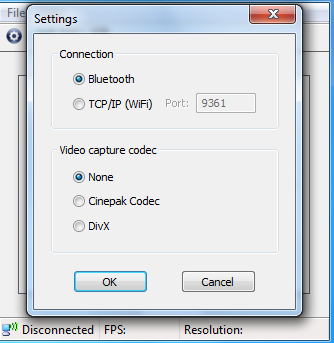
  • Next in connection Type select Bluetooth instead of Wifi.
  • Now again go to the application installed in your mobile and you will get a option to search for bluetooth devices.
  • Let the search complete. Once completed, select the connection that belongs to your computer and select connect.
  • That would establish the wireless webcam connection.

Now you can use this as a normal webcam. And if you want it for recording the images, that can also be done by selecting the record option from the software installed in the computer. And it is also Free.

Download The Software Here

How To: Easily Setup Dual Boot With Windows 7 And Linux.

0

I thought it would be a good idea to help out the new users, who are trying to configure dual boot of Windows 7 and Linux. Now many of you might not be aware of the fact that, Windows 7 no longer uses the boot.ini for booting purpose, like it was used in Windows XP. Instead it uses its own MBR. But the problem comes, when you try to install Linux first and then Windows 7. As the MBR of Windows 7 is not at all friendly with the GRUB of Linux. So what it does, is that it simply replaces the GRUB file.

So How Do I Make It Work?

There are many ways in which this issue could be fixed. But today I would like to inform you about the simplest of the technique, so if you are a starter. You don’t need to struggle much with it. I will consequently update the other combinations and ways to do the same job done.

What Needs To Be Done?

First you will need to make a separate partition for Windows and Linux and it would be better to make a small partion say of 1 Gb to have some space for the swap file. To create these partitions, you can use any partition manager. I uses Acronis for the purpose.  If you are using Acronis, just create a image file of the application and put in a USB drive and boot from it. Next steps are simple. You can follow the onscreen instructions to complete your job.

Now after you are done with it, here comes the simple trick what you need to do is first install the Windows 7 in the required partiton you created for it. Leave the other partition as it is during installation. Now after the installation of Windows 7 is completed, you can now reboot and start the installation with the Linux.

Done Till That What Now?

Now just simply install the Linux in its designated drive and also provide the swipe space you created during partitioning. Now in this case the boot selection screen will come with GRUB as it will happily accept the windows loader without any problem. And after the installation is completed, you are all set to go. If you want, to give the control of the boot selection to the Windows MBR, that can also be done, with a bit of tweaking. We will discuss about it in the next post of Linux Series.

How To: Prevent Your Computer’s Keystrokes From Getting Logged.

1

What we are going to discuss and cover in this article today mostly happens, without the knowledge of the user and behind the scene. However when the user comes to know about it, nothing much remains to be done.

So What Are We Talking About?

Yes, you are correct, we are talking about keystroke loggers. Key loggers are classified into two parts:

Hardware based and software based.

Hardware based key loggers are generally fixed in the keyboard or in between the keyboard to its input in PC, however these are rarely used for the purpose.

Software based key-loggers generally resides in your PC’s storage device itself. It can be removed using a good antivirus software.

So How Do They Work?

To know how to protect yourself from this malice and the ever-growing cancer of the Internet world, you should at-least have a basic idea about how these things work.

As I described above keyloggers can be classified into two types, ie; devices and softwares, however we are going to discuss about the software today as it is more prevalent than the other type.

The keylogging softwares consists of dedicated programs which are specifically designed to track and log keystrokes.

The most common method to construct these softwares are as given below:

  • Method 1: A system hook which intercepts signals that a key has been pressed (installed using WinAPI SetWindowsHook for messages sent by the window procedure. It is most often written in C);
  • Method 2: A cyclical information keyboard request from the keyboard (using WinAPI Get(Async)KeyState or GetKeyboardState – most often written in Visual Basic, sometimes in Borland Delphi);
  • Method 3: Using a filter driver or a modified keyboard driver (requires specialized knowledge and is written in C).

How Do I Protect Myself?

Now you have come to know a little how these things work, its time to know, how to protect yourself from these things.

  • Your first line of defense should always be a good a Internet security software, if it really good, most of them would be stopped even before entering your PC.(Might try Kaspersky) Always remember to keep them updated till date.
  • Never install or open any file in your PC which was sent from a completely unknown person.
  • Do not hesitate to check the files brought to you by even your closest friend with your Antivirus program, he might not infect it purposefully, but you never know if his PC is compromised. If its so, then the worm or Trojan will surely send a copy of itself with the files he copied.
  • You can use a onscreen keyboard, to type sensitive materials or password. Do not use the OSK provided with your OS. Even the dumbest of the Keyloggers can sense and log them. You can use other free OSK or the OSk provided by your Antivirus.( Some of them Provides)
  • You can use keystroke encryption softwares. What they actually do is that they encrypt the keystroke values when you type, hence even if it gets logged, the hacker would find some garbage value. I have included two such softwares such as Keyscrambler and BlueGem Kse. Both of them are free, you can download them from Here.
  • If you still feel that your keystrokes are being logged (from unnatural computer activity) its better to contact a good technician.

Start Graphing Your Gmail Using Graph your inbox Chrome Extension

0

You must have come across many tools to analyse our web searches, social media activity and website analytics, But have you ever wondered what is in our inboxes? Graph Your Inbox is a Google Chrome extension that allows you to graph Gmail activity. Having a clear idea about your inbox trends can help you more efficiently manage and process your e-mail and your time. This can be specially helpful for bloggers, business mens etc. Furthermore, looking at periods of extreme activity or inactivity around a certain address, phrase or label can be indicative of an overreaching trend in your inbox. You can use Graph your Inbox visualize your communication with friends, your Facebook activity, when you purchased items on Amazon or how often you use certain words or phrases. It uses almost the same functionality used by Gmail, but instead of a list of messages we show you a graph of your email trends over time. It then presents the data related to those queries as a bar graph that charts the number of messages month-by-month and day-by-day. Don’t worry about your privacy, your privacy is respected and your graph data is never leaked out. This is not just a fun application. It can be used to analyse your daily statistics.

have a look at how a graph created using Graph your Inbox of a email conversation related to Facebook look like?

With a graph on a month of a particular term show you a list of all the messages from that month and an additional daily breakdown so that you can look number of conversations took place each day of the month in containing that particular keyword.

You can also compare a conversation between two keyword. lets take Obama and McCain campaign for U.S elections. Just have a look at the below graph to get an overview of the analytics a graph it can offer.

So, How Do We Start?

You can start creating your graph by just installing this chrome extension in your favorite Google Chrome browser. and you can also use it in your custom Google apps account. Click here for details.

So start graphing your inbox and know how interesting and informative your inbox can be.

Awesome Delicious Bookmark Button With Counter for Blogspot and WordPress Plugin

3

All have been waiting for an official delicious button with counter, but there’s no response from Delicious guys about launching new button. All we have is the still old button. But don’t worry, bloggers, here comes awesome delicious buttons with counters, both for WordPress and Blogger (blogspot). Deepu Balan – a blogger from deepubalan.com came to rescue of delicious fans with an awesome delicious bookmark button with counter in the form of WordPress plugin. Well its his first WordPress plugin 🙂 This button counts real-time count of how many times your page has been bookmarked in delicious Don’t worry Blogspot bloggers, I’ve also included the tutorial for you guys.