Home Blog Page 316

How to Overcome “JDK Not Found” Error During Android SDK Installation?

In the recent years, Android Apps have become very popular and also giving a tough competition to other mobile and tablet app development fields. Well many people develop android apps as their hobby, profession or for other reasons. Well me personally wanted to build an android app as a hobby. To develop any app an SDK is needed. Since Android is an open source software platform and its Software Development Kit (SDK) can be obtained free of cost from Android Developers website.

Installation

Before installing Android SDK on your system you need to have a Java Development Kit, in short JDK. If you already have a JDK on your system its fine or you can download it from Oracle Website and then install Android SDK.

Problem

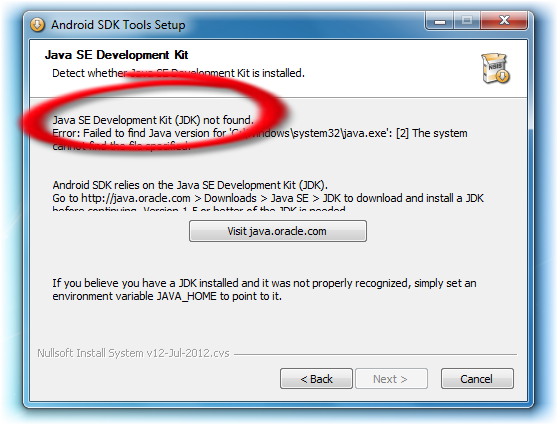
Now, install Android SDK and you’ll notice that the setup checks for a valid JDK on your system. The problem starts here. Setup displays an error saying “Java SE Development Kit (JDK) not found.

Error

It’s shocking to notice that the setup shows this error even when an appropriate JDK is installed on your system.

Even after uninstalling JDK and reinstalling it, the same error is displayed during android SDK installation.

Search Results

It was tedious experience for me searching a solution on internet to install the android SDK properly. The search ended with following solutions,

  • At first when the setup displays error message, try clicking back button and proceeding with the installation again. Well this according to many results on internet should have worked but it didn’t in my case.
  • Another result suggested that changing path variable would do it. Unfortunately this too didn’t work.
  • Changing few components in registry was stated as a sure solution but it turned out to be a bigger headache than developing android apps!

Note: This method is far too dangerous as it could disturb the normal working of certain softwares and you surely wouldn’t want to do it.

  • The Android SDK setup itself suggests setting the java home environment will work. Again didn’t work.
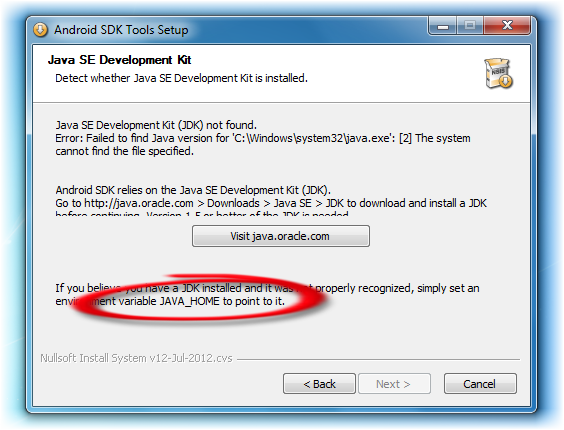
Java Home Environment

All the above results may have worked for many people but weren’t enough for me.

Actual Solution

During installation of Android SDK, the setup searches for “’C:\Windows\system32\java.exe’:[2]’”.
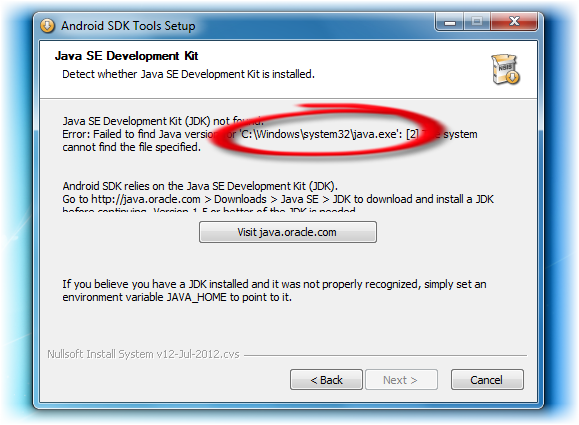
Path

It somewhat made me think that it searches for a 32 bit version of JDK. Well it doesn’t mean so. This triggered an idea to install the 32 bit version of JDK on my system. After installing it I tried to install android SDK and surprisingly it worked!

Conclusion

Lots of people around the world may have encountered this same problem. Reading this post before installing android SDK would save you around 90MB of your internet usage. And if you are using a 64bit Eclipse IDE then it is ideal that you also add the 64bit version of version of JDK. Hope the above solution saves you time and the annoyance involved.


Boost Up Your Business With mGinger Mobile Marketing

Have you started a new business?  Or do you want to boost up your existing business? Here is the website that helps you to increase your business potential with Mobile Marketing. mGinger is the  first of its kind website where you can easily introduce your business to the people by SMS, call or e-mail. The advertisements you promote via mGinger will be sent to the registered users of this service.  mGinger is a targeted advertising solution that serves the ads only for the intended audience in their interested topics such as sports, internet or job etc.

Mobile Marketing

Advantages of mGinger Mobile Marketing

  • mGinger is a first of its kind platform that introduces your business to its user by SMS, call or e-mail
  • You can make money with mGinger by registering to it and viewing the advertisements either by SMS or email
  • You can send free SMS to your friends using mGinger Messenger service
  • You can also find various deals on this website and buy the products that attracts you by few clicks
  • You can invite your friends and make money when they register to mGinger by your referral link

mGinger assigns medals to its registered users, a member with minimal mandatory details is treated as Silver Member and receives 10 paisa for each incoming SMS and 5 paisa for every SMS his referral receives. Member with complete details with verified mobile is treated as Gold Member and receives 20 paisa for each incoming SMS and 10 paisa for every SMS his referral receives. mGinger pays your earnings once you reach Rs.300/- by cheque directly to your doorstep. People having own blogs or websites can keep the referral banners on their website/ blogs and earn even more by referring their link to their visitors.

Checkout the best mobile marketing website www.mginger.com

How to Download All Photos From Facebook Album?

We use facebook each and every day to get in touch with friends and relatives, we also have a look at their recent snaps from their albums. But what would you do if you want to download all photos from facebook album to your computer? For 5-10 photos you can just right click and click “Save image as” option in Google Chrome but what if you have to mess with 100 or 150 photos? In this scenario you must get the help from plugin to download all photos from facebook album.

There is Google Chrome extension called Download FB album which can grab all the photos from facebook album. Download FB album is created by Bingo yan who is a web developer.

How to download all photos from facebook album using Download FB album plugin?

  1. First of all download “Download FB album” from Chrome extensions
  2. Navigate to facebook.com and go to the album page from where you want to download photos
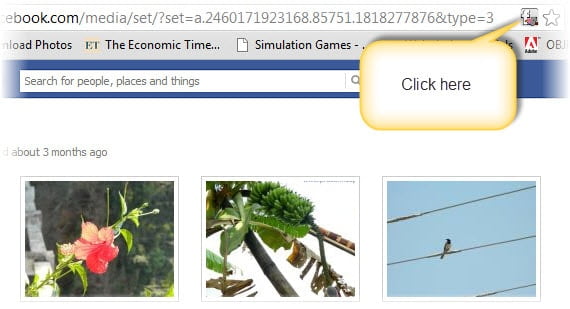
  3. Now click the FB icon on Google chrome browser (at the end of the address bar) download all photos from facebook album
  4. A new tab gets open containing all the photos of the album you are on (close the tab and click the FB icon button again from address bar if photos don’t get appear)
  5. Now press “Ctrl+S” keys simultaneously to save the webpage download facebook album
  6. “Save as” dialog box appears, specify the locations where you want to save the webpage
  7. Finally open the folder where you saved the webpage, you get another folder inside the parent folder containing all the photos of album you just downloaded.

Conclusion

We have just learnt how to download all photos from facebook album with few clicks using Download FB album plugin. Further you can create slideshows with background music and surprise your friend by sharing it on their wall.

Spice Up Your Email With Free Email Templates

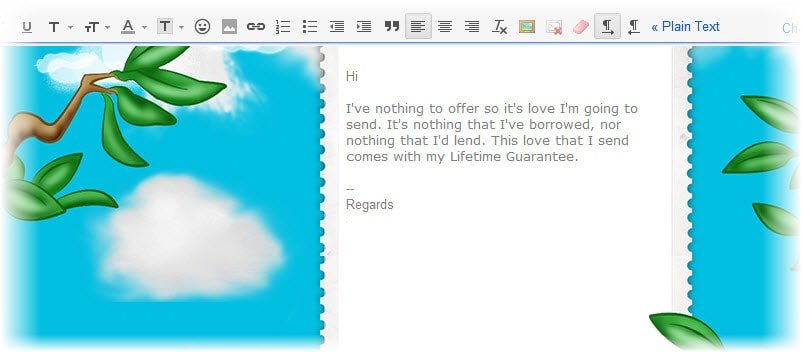
Normally we send the email with white background and black text on it but here is the nice service that can add the awesome appearance to the email you send. Now just say bye to boring black and white mails as Creatimail brings over thousand email templates to stylize your email. All the email themes provided by Creatimail are 100% free, choose trendy email templates while sending an email to your friend and go for a professional theme if sending an email for business purpose.

Creatimail seamlessly integrates with Gmail and Yahoo!, just download and install the Creatimail Google Chrome extension and surf through the awesome email templates. For now Creatimail email templates are available for Gmail and Yahoo mail, it will soon expand its service to Hotmail. Creatimail comes up with categorized themes including animated, anime, celebrities, fantasy, flowers, food and drinks, funny, games, girls, guys, music, nature, professional and summer etc.. The person to whom you send doesn’t require this extension to see the theme applied to your email.

How to apply a template to your email?

With Creatimail you can apply email templates in a single click, Here is how to use Creatimail to apply email templates-

  1. Download Creatimail Google Chrome extension with this link
  2. Install the extension and login to your Gmail account
  3. Click on compose button and type the email content
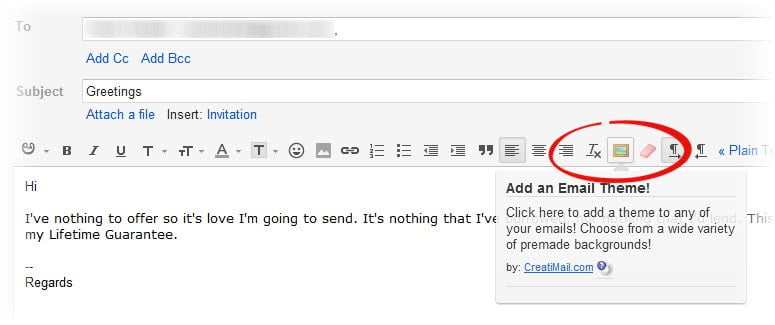
  4. Now click on Creatimail button located in the formatting options, it takes few seconds to load the templates
    email templates
  5. Choose the template category by drop down combo box located at the bottom left corner of window
    theme for email
  6. Now select the email template that it relevant to your email content by clicking on it, that’s it now click on “send” button.

Conclusion

Creatimail is the best way to customize your emails, it comes with a large number of email templates to match any occasion. Checkout the official website of creatimail to have a look at awesome and free email templates.

How to Schedule Email in Gmail?

Scheduling an email is an important feature that lacks in almost every email provider including Gmail. Of course you can save the email as draft but finally you have to press “Send” button as there is no such a feature available to send it automatically.  Scheduling an email helps for business purposes as well as greeting your friends on their birthday, you can create the email with nice templates whenever you are free and schedule them for specific date and time.

Here we have discussed about using Right Inbox and Boomerang services to schedule email, both of these services are compatible with Gmail and Google Apps email.

How to Schedule Email in Gmail with Right Inbox?

Right Inbox offer a feature to schedule email, your email will be sent to the recipient at the specified time. To schedule email

  • Download Right Inbox Google Chrome extension and install it, login to your Gmail again and grant access to Right Inbox
  • Click on “Compose” button and type the content
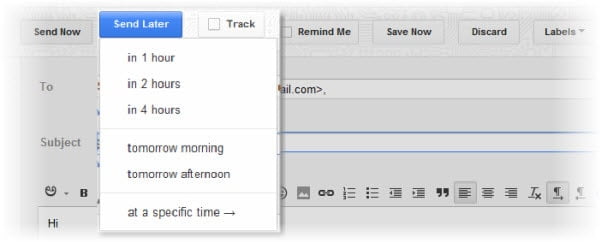
  • Now click on “Send Later” button, a list appears
  • Select “in 1 hour” or other options available in the list, you can also specify exact date and time
  • As soon as you schedule the email, it moves to your draft folder and will be sent automatically at the specified timings.schedule email

How to Schedule Email with Boomerang?

Boomerang is similar to Right Inbox which comes up as a Google Chrome extension, Boomerang is incorporated one more option called “Random time”. Let’s have a look at how to schedule email with Boomerang-

  • Download Boomerang Google Chrome extension and install it, It automatically incorporates with Gmail.
  • Click on “Compose” button and type the email content
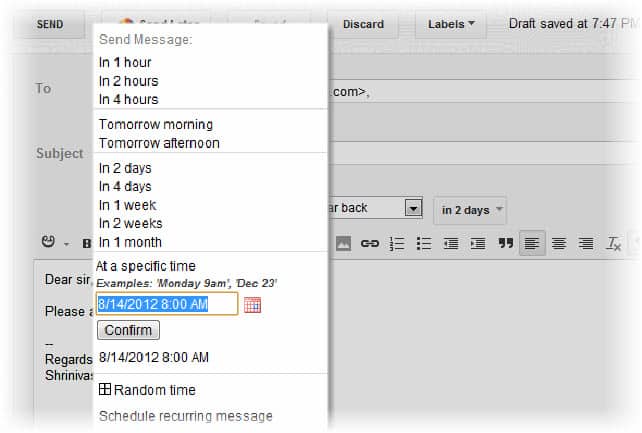
  • Now click on “Send Later” (with a boomerang icon) button, a list appears
  • You can choose when you want to send the email including in 1 hour, in 2 hour, in four hour or days. If you want to send your email on a particular date then you can select it from the calendar and click confirm button. That’s it.. Your email will be sent to the recipient on the specified date.

schedule email


5 ways bloggers can adapt for the mobile revolution

The state of blogging is about to change. In fact, it has already started to change. Just as advancing technology made blogs possible in the first place, new developments are changing the way we’re consuming these blogs. While the majority of your traffic is coming from traditional sources, chances are a rising percentage is coming from mobile phones. That’s going to change the blogging game, and quickly.

Thankfully, there is still time to prepare. Bloggers can take a few steps to make sure that they’re ready for the mobile revolution.

1. Make mobile-friendly sites

What’s the quickest way to lose a mobile reader? Have a poorly designed site. There is nothing more frustrating than clicking on what appears to be an interesting link and going to a site that does not load properly. In order to avoid this problem, bloggers must be careful to choose a mobile-friendly theme.

Thankfully, there are many WordPress plugins for mobile websites. Additionally, there are WordPress themes that render well on mobile devices. Play around and see which options work best for your readers.

2. Stay on top of ad trends

A few weeks ago my publishing partners and I were looking over revenue reports. We noticed that while our traffic increased, our revenues fell. It took us a while, but we finally figured out the reason. Since April our mobile readership grew by more than 200 percent. More and more people were reading our site on their smartphones, but we weren’t running good ads on our mobile site.

Ads that work on desktop might not work well on mobile. Our AdSense ads generated no revenue on mobile. Clearly we have to search out other mobile ad options. There are many companies working with more engaging ads, so there are opportunities.

3. Create mobile apps

While Google has made our lives easier in many ways, they have wreaked havoc on the publishing industry — this at a time when publishing is bigger than ever. Their simple blue search results turn web content into commodities. It’s tough to stand out when people can find the same information at numerous other outlets. Even if you offer something unique, if it doesn’t rank in Google many people won’t find it.

Mobile platforms provide solutions. Publishers can create unique apps that highlight their specific content. Readers will download these apps — people love downloading mobile apps — and it creates more engagement. After all, more than a year ago we learned that people spent more time on mobile apps than on the web.

4. Consider CPC advertising

If you rely on SEO and link building to rank highly for your top keywords, that might not be enough on the mobile platform. Screens are smaller, so those top results aren’t really the top results. What sit on top are PPC ads. Depending on the device, they can take up the entire screen of a Google search.

Aaron Wall at SEOBook shows us screen real estate issues. If you want to show up near the top, you might have to pay.

5. Become a mobile reader

We save the best for last. The easiest way to stay ahead of the mobile revolution is to become a mobile reader yourself. I have the Galaxy S III and use it to browse not only my own site, but sites of competitors. I can see what they do well that we do not, and then adjust. I can also see if they have mobile apps and what they’re doing to monetize them. Learning by doing is the best way to approach the issue.

Thankfully, becoming a mobile reader is fun, too. I have not only gained insights through the information found on my Galaxy S III, but have also had fun browsing new sites, clicking around the web, and finding out first hand what works and what does not.

The way people use the web is changing. Users who used to browse mostly through the desktop web now visit in multiple ways. People reading on smartphoens and tablets constitute a larger and larger portion of our readerships, so we must react. Thankfully, this creates opportunities for those who act quickly.

Turn Your Facebook to 3D with LG’s 3D Newsfeed

0

LG Electronics is an innovative company, it strives to make life even good by introducing latest and most advanced technology to the market. It has enriched the experience of watching Television with its range of 3D TVs. Now LG has come up with a project called “LG 3D Studios” to make new experiments with 3D technology. The project which LG has initiated mainly focuses on 3D technology and its applications, “3D Newsfeed for facebook” is a first output of this project that turns the normal Facebook’s newsfeed to 3D Newsfeed.

What is 3D Newsfeed?

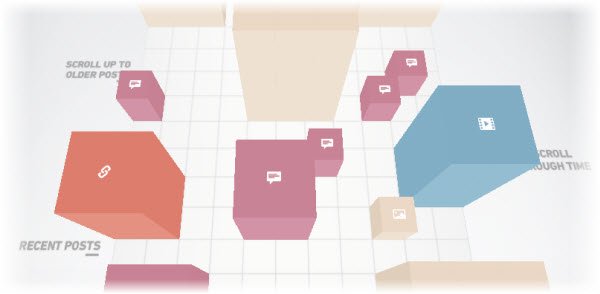
3D Newsfeed brings your normal Facebook newsfeed into attractive and dynamic 3D stacks. You can drag the stream to have a look at recent posts, click on a particular stack for detailed description and write the comments as well as like them. The stacks height and width depends upon the likes and comments it gets, more likes it gets more it grow. Turn on your LG 3D TV, wear 3D glass and dive into 3D Facebook. People who don’t have 3D TV can try it in 2D by toggling to 2D mode.

3d newsfeed

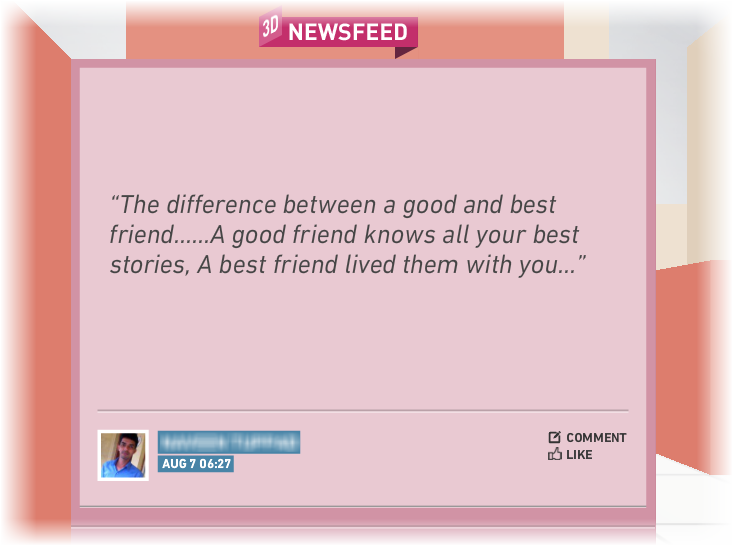
Along with this you can update your status or switch between 2D or 3D modes. When you click on a particular post you get 3 more buttons at the left side to navigate to next or previous post. You can come to know how many likes and comments the post has got by clicking the respective buttons located at the right side.

lg 3d newsfeed post

The idea of 3D Newsfeed is awesome which gives the fresh experience to Facebook users to surf in a 3D. A LG team of Netherlands is on its way to make life even better with 3D Newsfeed which brings the Facebook wall in 3D. LG is very curious to hear from you, you can send your feedbacks and suggestion by filling up the feedback form.

Final Thoughts

According to LG Electronics best things in life are even better in 3D and it is on its way to show this to the whole world. It has selected the most popular social network “Facebook” to unveil the power of 3D technology and it will surely succeed.

Try LG’s Facebook Newsfeed in 2D Here, become a fan of this project in Facebook.

Article sponsored by LG