
Home Blog Page 122

The 5 Best Keylogger Detectors for Windows 10

0

Screenshot_2.png

A keylogger is used to register each keystroke that is typed on the keyboard of a particular computer. Hackers use this precise surveillance tool often to rob you off your private and sensitive data which includes personal details, login credentials, PIN codes, account numbers, email addresses, and more. With access to all such confidential information, the hackers can jeopardize your personal data and make unauthorised transactions from your accounts. In the hands of potential cybercriminals, this spyware tool can be used to compromise a corporation’s data as well.

Keylogging has become more common that you might expect and is really easy for any hacker to perform. Anyone and everyone can become target of keylogging and you may not even realize that it is happening with you. Fortunately, to tackle this serious privacy threat, you have an effective solution-a keylogger detector or anti-keylogger software. These detectors are designed specifically to scan for a software based keylogger in a computer. The keylogger detector will compare the files in your PC with a class list of common keylogger attributes.

The best 5 Keylogger detectors for Windows 10

To make things easy for you, here is a list of 5 best Keylogger detectors that you can get for your Windows 10 PC:

SpyShelter Anti Keylogger
Screenshot_4.png

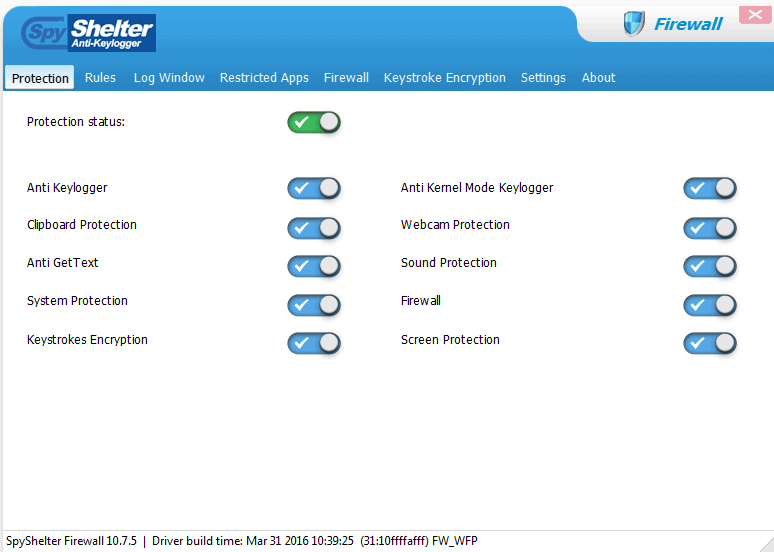
With a five start rating in Softpedia Editor’s review, SpyShelter Anti Keylogger gives you high-quality protection from both known and unknown keyloggers. It will even stop all precocious zero-day malware. The tool analyzes all in progress actions on your computer and renders any action from getting implemented by malware.

The program uses advanced technology to prevent both commercial and customized keyloggers, something which cannot be achieved with a standard anti-virus program. As soon as you install SpyShelter in your computer, all your applications and RAM will be protected from any kind of threats. It will continuously analyse the insecure areas of your system to make sure that your sensitive data is always being protected from potential threats.

What more? The tool even protects your microphone and webcam from getting hacked. Overall, the tool is quite handy and comes with secure processing algorithms that don’t slow down your computer.

Norton Power Eraser
Screenshot_6.png

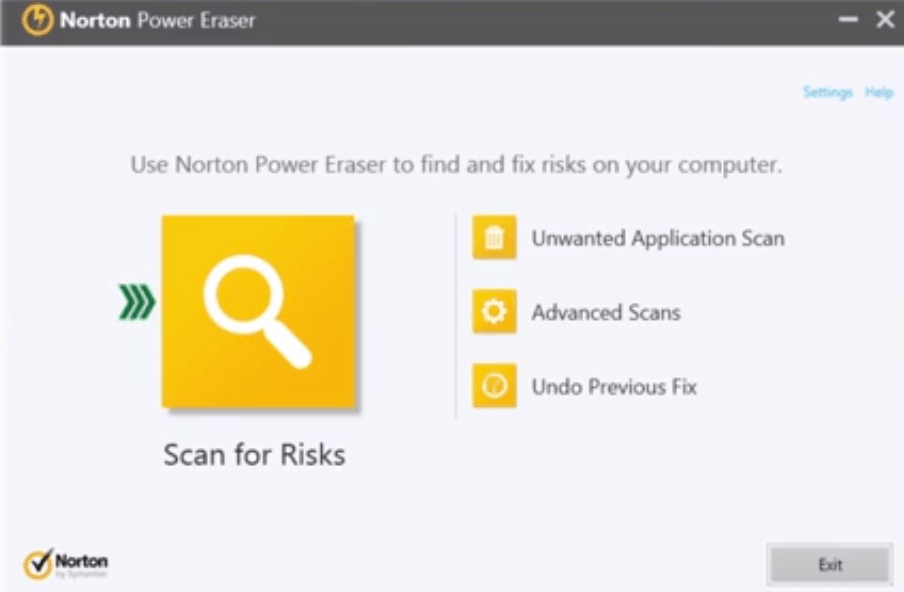
Known for using the most phenomenal scanning technology Norton Power Eraser, is definitely the best free anti-keylogger software available right now. It can analyse and remove threats that conventional antivirus software cannot identify. As the tool uses very advanced scanning technology, it is more suitable for those who perform a frequent malware troubleshooting. Also, there are chances that it can identify an authentic program for removal.

Norton Power Erase can perform three kinds of scans on your Windows 10 computer:

  • Reputation Scan: To perform a scan on a specific file or folder
  • System Scan: To perform a scan on the current Windows 10 operating system
  • Multi-Boot Scan: You can specify an operating system that you want to scan if you have a PC with multiple Windows operating systems.

Bitdefender Rootkit Remover
Screenshot_8.png

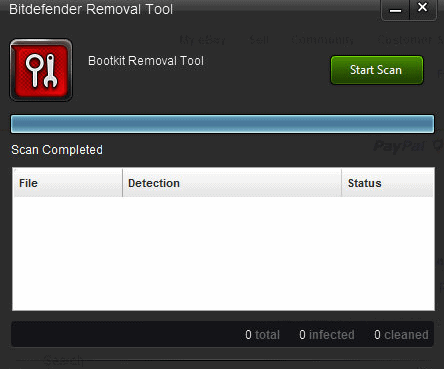
The Bitdefender Rootkit Remover has been considered as one of the best keylogger detectors for years now. Trusted by millions of worldwide users, the tool uses Bitdefender malware removal technology to identify and remove rootkits quickly and effectively. Once you download the software, all you need to do is click on Start Scan and watch it scanning every file on your computer. To launch the software, you don’t have to reboot your system into the safe mode which usually happens with other tools. But, once the scan and cleanup is performed, a reboot is needed to complete the procedure.

It is capable of removing literally every kind of keylogger including Mayachok, Whistler, Plite,  Cpd, Guntior, Ponreb, Mebratix, Zegost, Yoddos, and more.

Also, Bitdefender Rootkit Remover software’s database keeps getting updated to identify any new keyloggers. The best part is that it will not impact the speed of your system will getting upgraded. However, it is a bit pricey when compared to other anti-keylogger software that you can get for Windows 10.

Malwarebytes Anti-Rootkit BETA
Screenshot_5.png

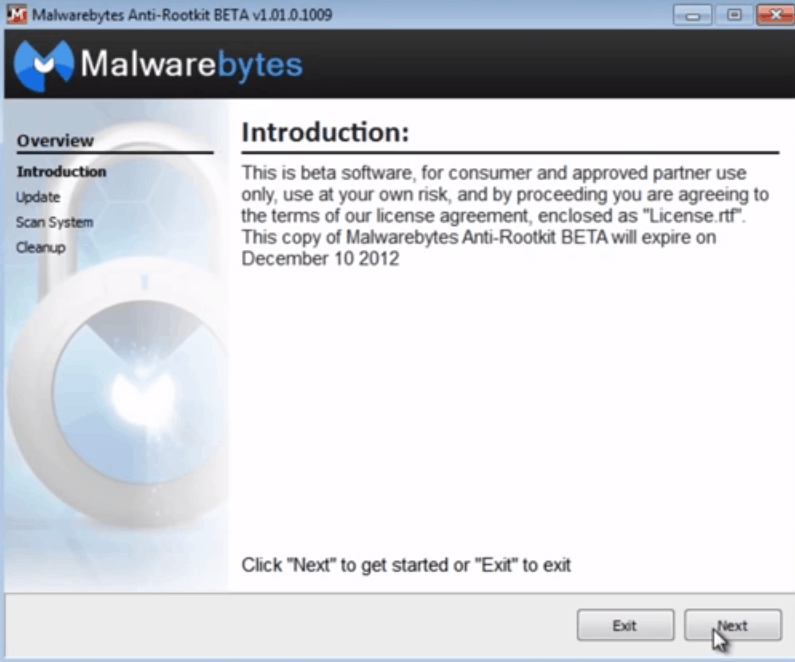
Malwarebytes Anti-Rootkit Beta is free anti-keylogger software which can remove the newest rootkits and also repair any damage caused by them. All you need to do is to download and install Malwarebytes Anti-Rootkit. And once it is installed, allow the tool to scan your computer for potential threats. You just have to click on the Cleanup tab to eliminate any threats and reboot your system. This anti-keylogger software is capable of removing the most deeply implanted rootkits from your computer.

Avast aswMBR Rootkit Scanner
Screenshot_3.png

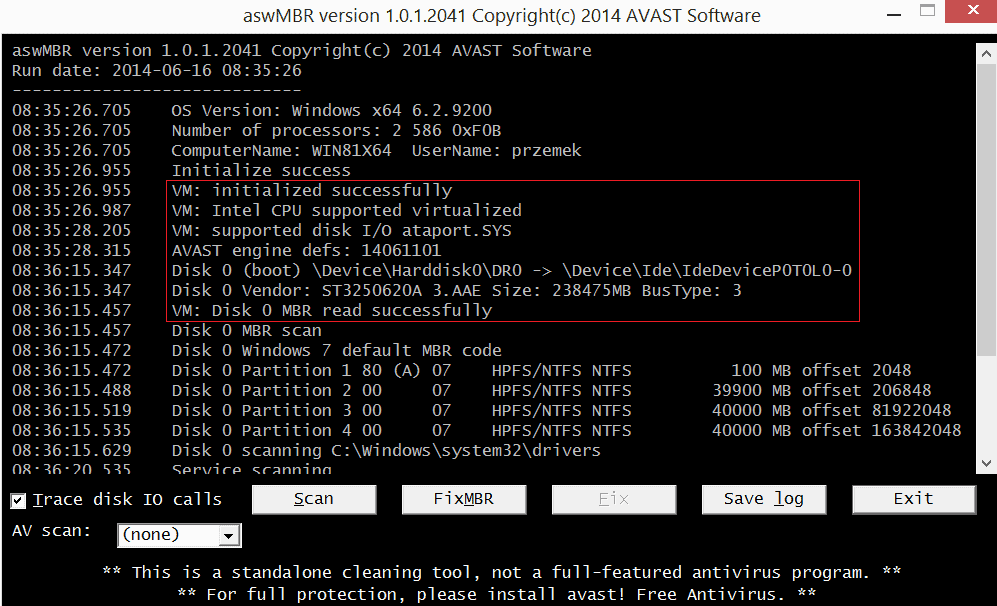
Another powerful anti-keylogger, the Avast aswMBR Rootkit Scanner uses the advanced Virtualization Technology in order to improve the detection of stealth malware.

Trusted by millions of users across the globe, aswMBR can scan for the most advanced and damaging keyloggers in Windows10- MBR, VBR and SRV rootkits. It can also identify TDL4/3, MBRoot, Pihar, SST, ZAccess, and other keyloggers

Please bear in mind that to use the Virtualization Technology and detect keyloggers, you Windows 10 system should support virtualization. 

Wrapping up:

Keyloggers are quite common in the world of cybercrime and are not going anywhere anytime soon. Weeding them out can get a bit difficult. That is why; we would highly recommend using an anti-keylogger software instead of any traditional security program as the later may simply identify the keylogger as the part of the system. A keylogger detector will be able to identify even the latest and modified keyloggers in your PC.

Aside from the unethical usage, such keyloggers are also used by employers and agencies to observe and analyze any authorised computer activities. However, whether it is appropriate to use keyloggers depends on varied elements. 
A Case Study: How Uber Has Solved Top 5 Unusual Mobile App Development Challenges?

Whether you are a developer or just a user, the way Uber’s taxi booking app works must have surprised you for at least once. But have you ever thought which deep-rooted problems Uber has puzzled out to deliver such a magical app? And more importantly, how they have doped out those problems? 

In this blog, I will exhibit 5 different mobile app development challenges or problems and will answer a much-anticipated question that how Uber has solved that problems like a piece of cake?      

Keeping the app alive all the time 

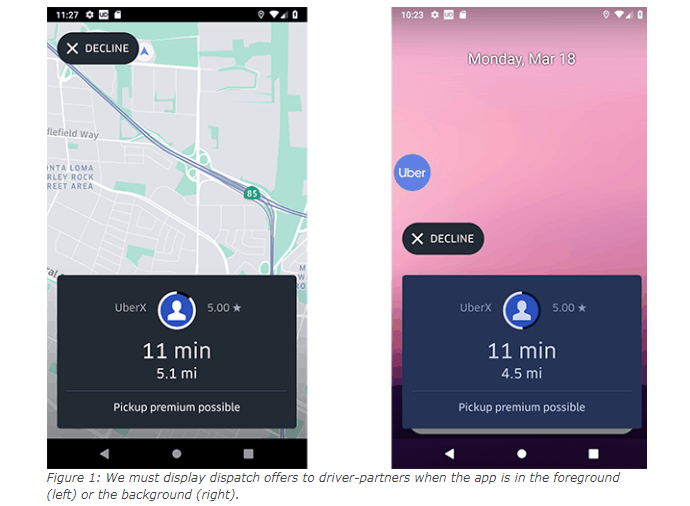
Generally, most of the apps are developed to satisfy interaction-based tasks, like sending a message or sharing a photo. As soon as the user closes the app and clears the memory, the app is no longer in the active state. But with the case of Uber, driver partners keep the app open for hours to get the ride request, check the earning details and to find the route. Most of these features are only accessible when the app is running. So, If a driver is online but closes the app and clears the memory, he cannot get the ride request. Uber wanted to fix this issue and so, they did it. They wrote a code in such a way that the app keeps running in the foreground even when there is no activity in the background. 

In the following image, you can clearly see that the driver gets the ride request when the app is running in the foreground (left image). He even gets the request when the app is running in the background (right image). 

Screenshot (1)

However, Uber has found that the approach they were using to keep the app live all the time was not the best in the class. As a result, the app became code-heavy and troubled drivers with its unexpected behavior and duplicate features. 

Following are a few more problems associated with Uber’s previous driver app. 

  • Rather than just in a small part of the application, feature classes of the app existed in the application scope. 
  • Code duplication was the standard issue. 
  • When the app was back-grounded, head-up notifications popped up every time. 

Solution: 

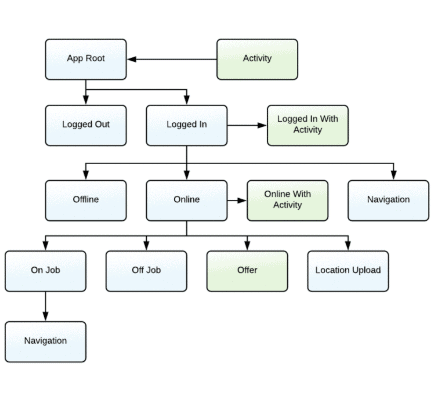
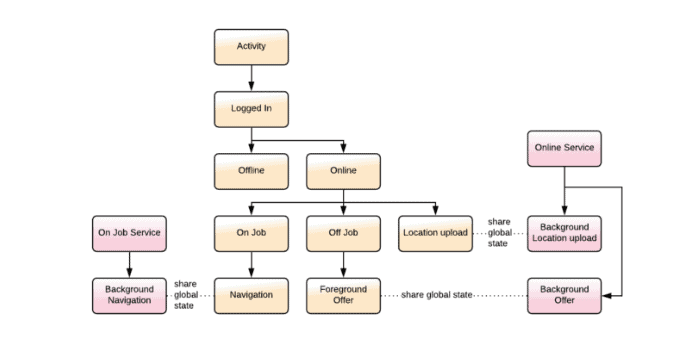
Uber opted out MVC architecture and introduced a more advanced architecture named RIB(Router Interactor Builder). It takes the decision within its scope and avoids unnecessary activities. 

Because of the RIB, Uber wrote an activity-independent code, which means, the driver gets the request regardless of whether the app is running in the background or not. Similarly, the navigation runs regardless of whether there is an activity related to visually displaying navigation direction or not.   

Screenshot (1)

(With RIB)  

Screenshot (1)

(Without RIB) 

Map accuracy 

Not only Uber but all other apps for on-demand services and e-scooter rental businesses are equipped with the in-built navigation for drivers and riders. But what matters the most is the accuracy of inbuilt navigation!

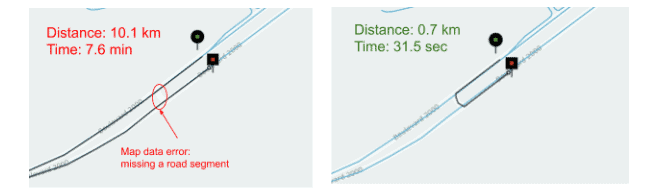
Talking about Uber, Uber openly accepts that navigation of its app isn’t 100% accurate. The inbuilt map often shows the wrong route or long route to the drivers. Following image belongs to official sources of Uber, depicting how errors in the map can impact the service.  

Screenshot (2)

Sensing the urgency, Uber has started working on map inconsistencies. But the approach they have chosen is remarkable. 

They have built CatchMapError system that keeps getting GPS signals from driver app and automatically identifies the errors in the map. How? Let’s find out. 

Solution:

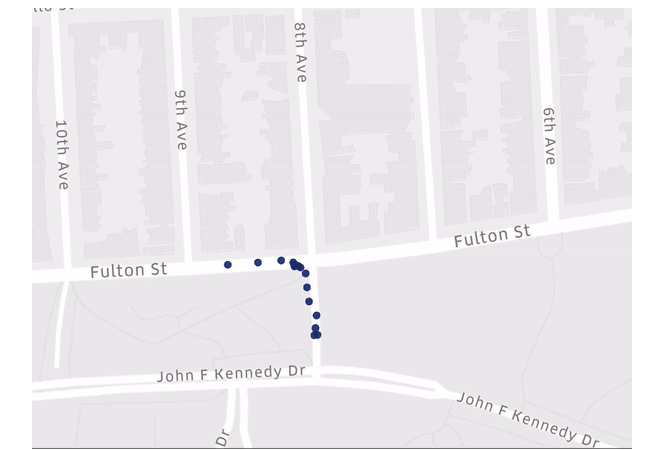
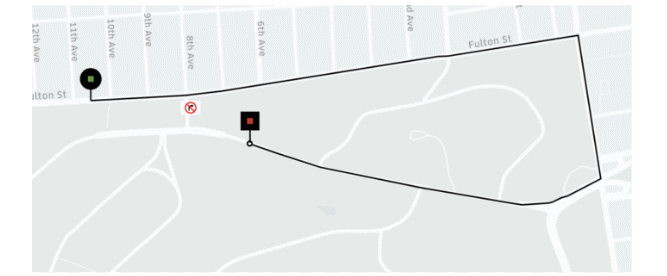
Refer the following images, image A and image B. Image A shows the suggested route driver has to follow and Image B shows the route which driver has preferred as there is ‘no right turn’ sign at the intersection of 8th ave and Fulton street. Uber’s CatchMapError system keeps the eagle-eye on this kind of disparities and updates the map.   

Screenshot (2)

(Image A – Uber’s suggested route)

Screenshot (2)

(Image B: What driver has preferred)

Lite app 

More than 70% of people consider app size before downloading it and the size of the Uber app is relatively high, around 60 MB because of so many services, languages, and payment methods. That app also demands higher network bandwidth and specific hardware performance. 

While Uber’s driver and rider apps were breaking all records, data revealed that many riders from Latin American countries and Asian countries don’t have sufficient network and devices with higher performance rate.

To address this challenge, Uber developed a Uber Lite app which works perfectly even on old phones and with lower network bandwidth. But how they developed the Uber Lite app which is sized under 5 MB? Let’s figure it out. 

Solutions:     

  • The map takes up lots of bandwidth. So, Uber added it as an option and riders can optionally see the map if desired. 
  • Instead of the address of the pick-up location, Uber Lite only allows riders to add a point of interest or current location.
  • The library is one of the reasons why the Uber app is sized 60 MB. So, they became very particular while building Uber Lite app. They tied up with many library owners and split those libraries into desired modules only. 
  • They used RIB to terminate unnecessary layers from the architecture. 
  • Instead of PNG resources check-ins, they used vector image formats. 

Big data challenge   

Users using mobile apps provoke a pile of data. Generally, this data is divided into queries and users data. All major companies prefer to have big data to analyze and improve their services. It also helps them to measure success before launching a new product. 

If we talk about Uber, then there is no other company which relies on data as much as Uber. Uber accommodates a dedicated data warehouse team to maintain massive data. But it is an uphill battle to maintain data that is sized in petabytes. What makes it even more challenging is the fact that storing data requires storage options which are costly. 

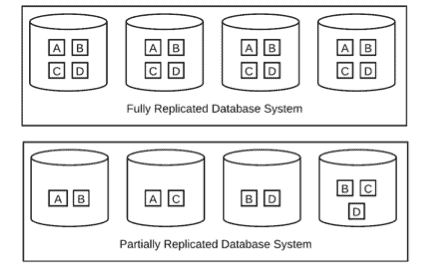
During Uber’s initial years, they adopted a fairly common approach and stored the data in different clusters according to the nature of the data. They also used to replicate all data to keep their business running when data of a cluster is somehow damaged. 

But as the size of data increased, they soon found out that fully replication approach – replicating each piece of data across every cluster, wasn’t efficient. Thus, they opted for the partially replicated database system. 

Screenshot (2)

However, due to thousands of queries and hundreds of tables, the storage requirement in the partially replicated database system is also high. So, how the data scientists of Uber has solved this problem? 

Solution: 

Thanks to empirical observation, data scientists of Uber have found out that only 10% of the data utilizes 90% of the disk. So, if they configure only that 10% of the data, they can easily achieve disk space efficiency. 

Moreover, they also have written a few algorithms which generate purposefully sub-optimal solutions and save disk space up to 5%. 

Customer service 

If a user comes across any trouble, the app allows him to contact the customer service executive on a chat or on a call through the mobile app itself. But for Uber, it isn’t as easy as other apps. 

Considering the way Uber app works, the driver is also the fundamental part of the customer service. So, Uber app lets rider text Uber driver if he is not moving toward the rider. But for the driver, it is dangerous to reply rider while driving the car. This is why Uber started thinking about a possible solution that allows drivers to drive and communicate with the riders at the same time. And soon, they came up with a smart reply feature or one-click chat. 

Solutions: 

The one -click chat makes the conversation between riders and drivers faster and more seamless. When a rider sends the message to the driver, the driver can reply to him by clicking on any one suggested reply. This magical thing happens because of machine learning and natural language processing.  

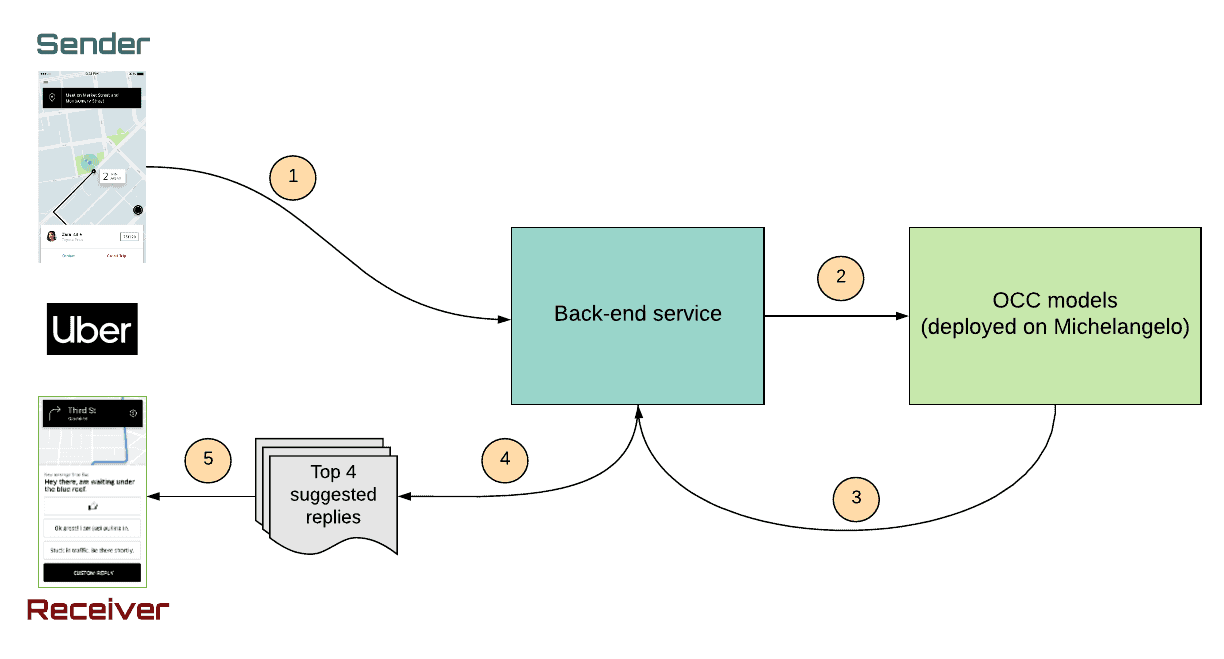
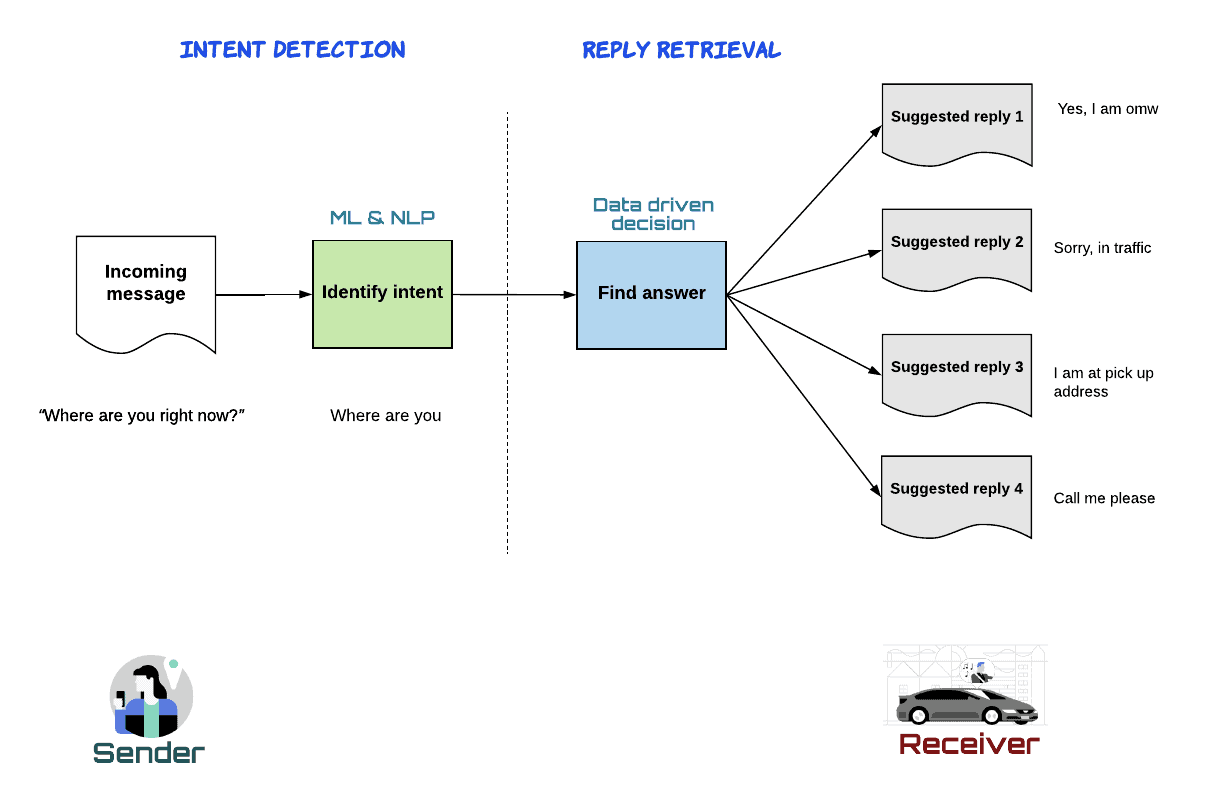
Consider the following image. It presents the working model of the one-click chat. Here, if you look closely, you will find out that the OCC model is very important. 

IMG_256

The OCC model is divided into two parts – intent detection and reply retrieval. Intent detection module receives the message and finds the intent in it with the help of machine learning algorithms and natural language processing. It then shares the intent with the reply retrieval module which finds the answer and shows 4 suggested replies. 

IMG_256

In the nutshell 

Uber is undoubtedly one of the most robust mobile apps. They have achieved it with constant app development practice and with the efficient use of machine learning, AI and natural language processing. But they are not done yet.  They are still powering up their app by employing many groundbreaking technologies. They solve all taxi app development related problems in the most possible ways. If you as a developer ever want to marry with inspiration, read Uber’s case studies. 

About the Guest Author 

Vishal Virani is a Founder and CEO of Coruscate Solutions, a leading taxi app development company. He enjoys writing about the vital role of mobile apps for different industries, custom web development, and the latest technology trends.

How The Fourth Industrial Revolution Can Impact The World

Fourth Industrial Revolution

The technological revolution is around the corner. We are standing on the brink of new industrial movements, and it’s real. Technological development has changed the way we live, communicate, and relate to each other.

We can’t imagine how much the fourth industrial revolution can impact the business. Such Technological development has never seen by humankind before, so it’s new for us. We can cover the specific business industries that are transformed and changed massively by technologies.

Real estate industry

Technologies such as the internet and computers changed the real estate industry. There are still people who are selling houses by outreaching potential customers via phone, but those old-fashioned businesses are already dying. 99% of real estate investors or sellers are already demonstrating their services in the World Wide Web.

We, as potential buyers, have various options. You can easily browse websites where people or companies are selling real estate. You can see photos and videos of real estate without even leaving the house. You don’t need to meet real estate owners in person – everything can be done through phone or computer.

Gaming industry

Technologies have changed the gaming industry entirely. People love traveling to places where they can play and relieve stress. Technology and the internet made gaming space more lovely and attractive to everyone. Without even leaving home, you can sit in front of a laptop screen and play as much as you would love. The best online casino makes it more comfortable – you can play not only from a laptop or computer but also from mobile devices. With the help of technology and coding, we have many games to focus on. Blackjack, slots, and roulette – this is just a small list of popular online games that you can play online and profit.

Investments industry

Investing in stocks is very popular among investors. Investing is not only about real estate or established business – it could be more attractive if you focus on stocks. We have seen many videos from the 90s where traders go crazy to buy stock in the New York Stock Exchange office. Thanks to technology, we have online platforms in the 21st century where you can invest money.

In front of the computer, you are stress-free that will make you more efficient while making a decision. Technologies ensure that you invest in safe stocks, and you can get ROI (Return on Investment) pretty soon.

The 21st century investors also love investing in Blockchain based platforms. Bitcoin is indeed the first target for every newbie investor, and without technological advancement, we would not reach this point.

How to Delete Your Tinder Account Permanently With Easy Steps

0
Screenshot_2.png
tinder account

Social media has somehow become the whole foundation of some of the relationships and dating apps especially have become as much a part of modern pursuit as anything else in the day-to-day life of a couple. There are thousands of stories about how people found their love on a dating app. But online dating can quickly become a nightmare when all your privacy is exposed. Tinder itself has a long history of exposing its user’s data to third parties.

You are feeling like you have had enough. With all the recent news on Tinder’s multiple security breaches, are you left wondering: Should I delete my dating app altogether?

Well, there are several reasons for you to be sceptical when your guards are down while using online dating applications such as Tinder. 

Also, if you are someone who has finally decided to put your smartphone away and wants to see what the real-life has in store for you, then maybe it’s time to delete Tinder account.

Also check: 3 Free Dating Apps you shouldn’t let your teen use!

Here, in this post we have shared everything you need to know about deleting your Tinder account permanently.

How to delete Tinder account permanently 

For collateral reasons, you are allowed to deactivate your Tinder account directly from the application only.

Here is what you need to do to delete your account on Tinder:

  • Launch the Tinder app in your device.
  • Now, on the top of the main screen, tap on your “Profile” icon
  • From your Profile, navigate to the “Settings”
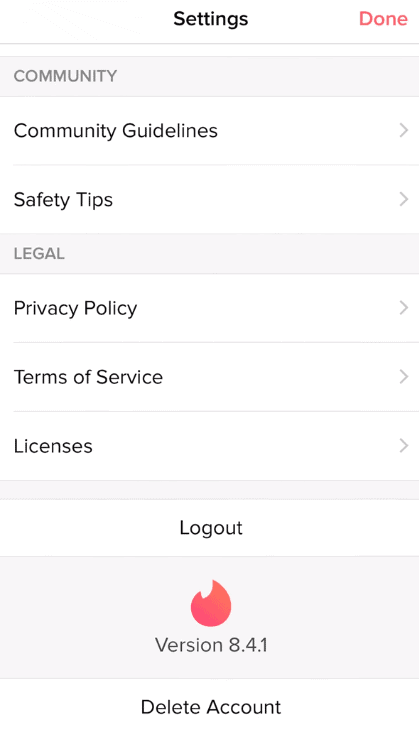
  • Scroll down to the bottom of the screen and tap on “Delete Account”
tinder account
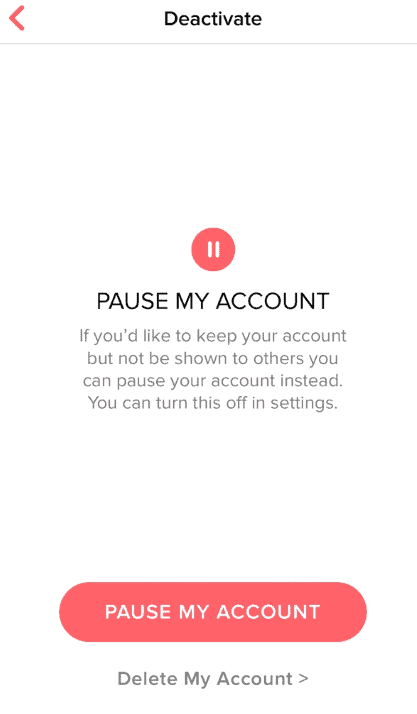
  • When prompted to confirm whether you want your account deleted or pause it instead. Tap on “Delete my Account”
Screenshot_2.png
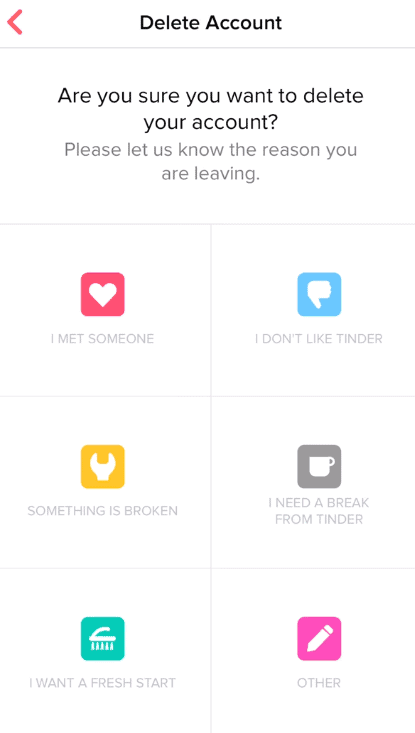
  • Specify a reason for deleting your account.
Screenshot_3.png
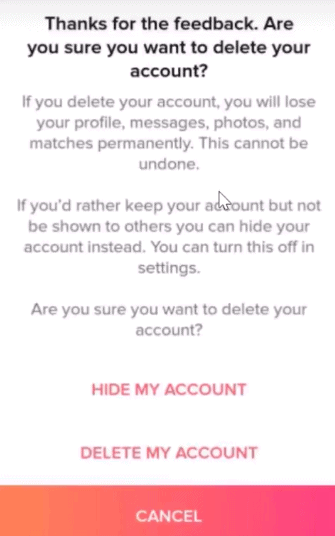
  • Conform again by tapping on “Delete My Account”
Screenshot_4.png
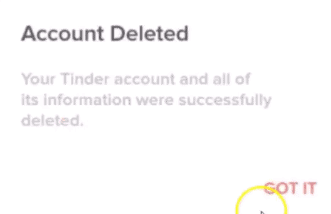
  • Once done, you will get a pop-up message stating- “Account Deleted.”
Screenshot_5.png

You should bear it in mind that once you delete your Tinder account, you will permanently lose all the messages, matches, and other data in your account. Also, if you want to log in to Tinder again after deleting your account, then Tinder will create a new account for you.

Also, the information that you had entered while registering with Tinder will still be available with the company. They can use the data for advertising and with third parties.

How to hide your Profile on Tinder temporarily

Want to take a break from Tinder instead of getting rid of it completely?

Then yes that is possible too. All you need to do is turn off Discovery so that no one will be able to see you active on the app.

What you need to do is:

  • Go the Tinder app, and tap on the Profile icon at the top
  • Then from Settings, go to Discovery tap and turn the toggle off.

Even when you have turned off Discovery, you will still be able to message your previous matches. Also, if you had like any profiles in the past, they can still see your profile. This implies that you can get new matches even with the Discovery feature disabled. 

What happens if you just delete the Tinder Application?

By just deleting your Tinder app, you cannot deactivate your account permanently.

What is Tinder’s Privacy Policy

This is something that you might not be aware of, but Tinder does collect a lot of your information. While using the app, Tinder collects different types of user information which includes:

  • Information that you provide to the company (name, email address, telephone number, date of birth, etc.)
  • Information that Tinder obtains from others (social media, other users, third parties, etc.)
  • Information that Tinder gets when you are using its services (device information, your location, etc.)

This information is used by Tinder for advertisement and the company has rights to do so. To get a clear picture, you can visit their page- https://www.gotinder.com/privacy

How to get your personal data on Tinder?

Tinder has the rights to retain your personal data for a period of 3 months. This data can be used for advertisement purposes. That is why it is important that you should know what kind of sensitive information the company has collected from you.

If you would like to get a copy of your data on Tinder, then you can visit their dedicated page for the same- https://account.gotinder.com/data.  You just have to log in with your account details and enter the email address where you would like to receive the link to download your data.

However, if you have already deleted your account, then this data would not be available for you.

What happens to the Tinder Plus and Tinder Gold Subscriptions once you delete your account?

When you delete your Tinder app or account, it will not cancel your subscriptions.

If you want to cancel your Tinder Plus and Tinder Gold subscriptions, then just head to Google Play Store/App store and unsubscribe. For a refund, you can place a request at https://getsupport.apple.com/ and [email protected] for iOS and Android users respectively.

But, if you have used your credit card to subscribe on Tinder.com or Android, then your subscription will be automatically cancelled, once you delete your account.

Wrapping up:

Even though you may navigate the online dating world effectively to find a good match, but everything cannot be expected to sail how you would have preferred. Tinder has been constantly questioned about the spanning security and privacy concerns. And, if this is something that has been bothering you, then deleting the app was indeed a good step.

We hope you find this guide informative and helpful.

How to Unblock Someone on Facebook Easily

0

Screenshot_8.png

No social media platform is a safe haven. Being subjected to trolls, abuses, and deliberate attempts to provoke a reaction while being active on social media is not something new and Facebook is nothing different. You may find someone who is annoying you unnecessarily. Even though in the real world out there, it often gets a bit difficult to evade bullies. But fortunately, in the virtual world of social media platforms there is an efficacious solution to get rid of such people who are consciously troubling you, and that is blocking them. 

When you block someone on Facebook, they cannot see your profile nor have any kind of contact with you on the platform. And, blocking anyone on Facebook barely takes a few seconds. However, if you think that you have blocked someone by mistake or maybe someone deserves a second chance and you would like to unblock them, then that’s quite easy as well.

If you are finding it difficult to find the unblock option in your Facebook settings, then we have got it covered for you. In this post, we will take your through a step-by-step guide to show how you can unblock someone on Facebook easily.

How to unblock someone on Facebook through the Browser

If you are using your system browser, then follow these steps to find your blocked list and unblock them:

  • Launch your browser and go to facebook.com
  • Login with your username and password.
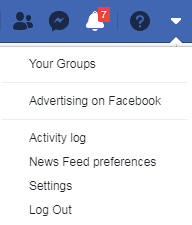
  • Now, on the top right hand corner of the screen, click on the drop-down arrow icon
  • Scroll down to “Settings”
Screenshot_3.png
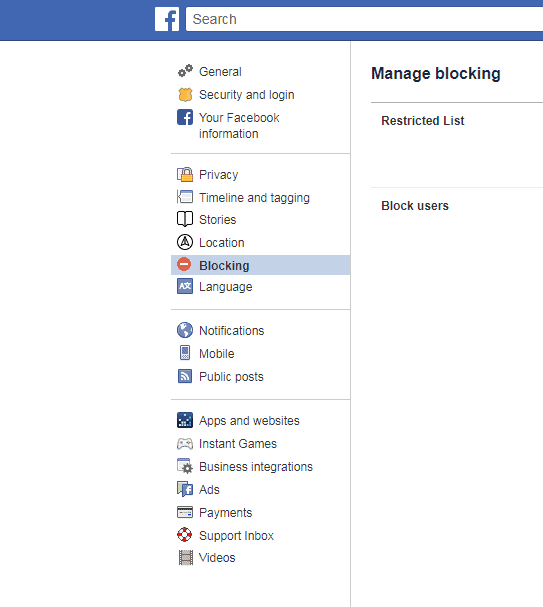
  • On the next page, you will be able to locate the tab “Blocking” on the left hand side of the Settings screen.
Screenshot_4.png
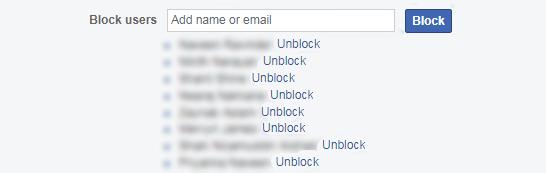
  • Scroll down and next to the “Block users” section, you will be able to see all the people that you have block on Facebook.
  • Find the person that you want to unblock from the list and click on the “Unblock” link next to it.
snskndsk.jpg
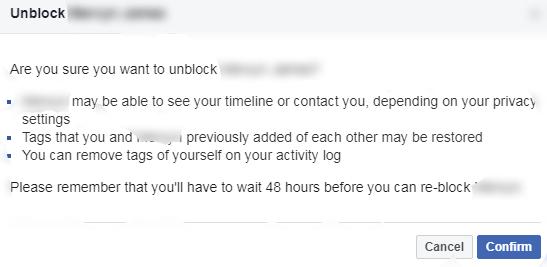
  • Facebook will then state all the parts of your profile that the person will be able to access. If you are fine with it, then click on “Confirm” in the pop-up.
Screenshot_6.jpg

How to unblock someone on Facebook through the Messenger

  • Launch your Messenger app in your device 
  • On the top left-hand corner, tap on your photo icon
  • Now. Scroll down and tap on “Account Settings”
  • Tap on “Blocking”
  • You will be able to see a list of people that you have blocked. 
  • Just tap on the “Unblock” link next to the name to unblock a specific person.

How to unblock someone on Facebook through the App

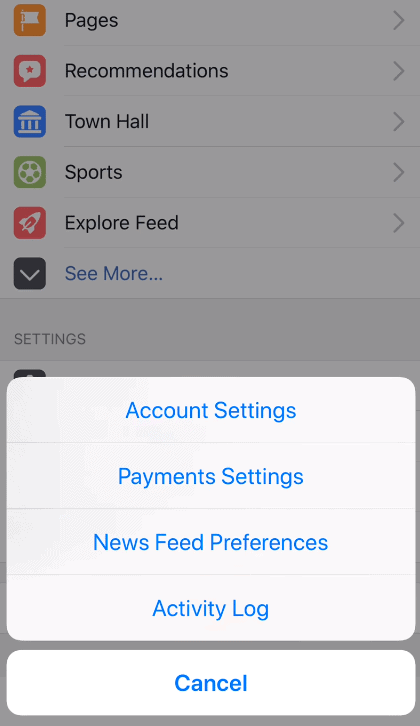
  • Open the Facebook app on your device and tap on the three-line icon on left hand side.
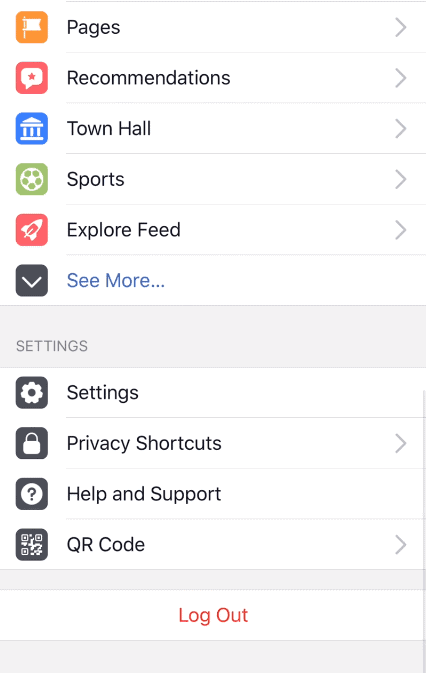
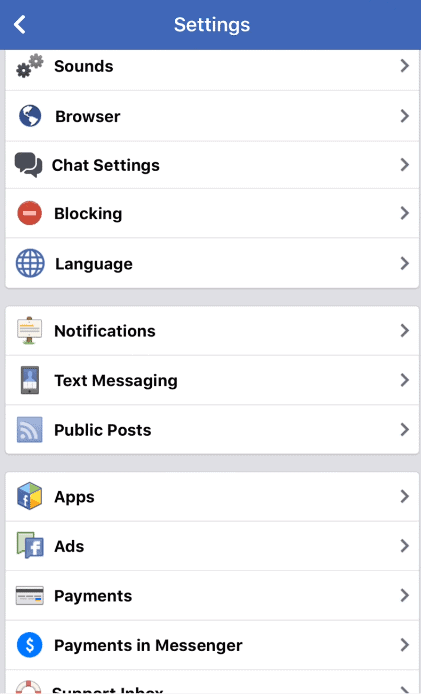
  • Tap on “Settings” and navigate to “Account Settings”
Screenshot_7.png
Screenshot_8.png
  • When you scroll down, tap on the “Blocking” option
Screenshot_9.png
  • Tap on “Unblock”, next to the name of the person that you wish to unblock from Facebook.
Screenshot_10.jpg
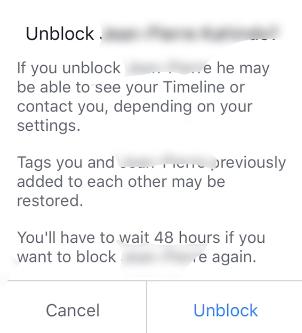
  • When prompted, tap on “Unblock” again to confirm.
Screenshot_11.jpg

As you unblock someone, that person will be able to see your profile, send messages, invite you for events, and add you as a friend. However, this also depends on your privacy settings. When you block someone on Facebook, they automatically get removed from your friend list. So, once you decide to unblock someone and wish to re-friend them on Facebook, then you have to send a separate friend request to them.

You should also bear in mind that once you unblock someone on Facebook, you cannot block them again for a period of 48 hours.

To block a person on Facebook all you need to do is, go to that persons’ profile, click on the three horizontal dots in the right corner of the cover picture. When you get a pop-up, click on Block and Confirm.

If you still have any issues in managing your account then you can visit Facebook’s dedicated page for the same- https://www.facebook.com/help/.

Wrapping up:

That is it. We have explained everything that you need to know about unblocking someone on Facebook. Once you know where to find the unblock option, it hardly takes anytime to unblock anyone.

How to Deactivate your Instagram Account- 2 Easy Methods

0

Screenshot_2.png

With more than 800 million users, Instagram is one of the most extensively used social media platforms. The love for social media has grown tremendously in the past one decade, but along with it has grown the obsession too.

If you are one of those who are losing their sleep and suffering from the unnecessary anxiety due to this enormously jammed social media platform and wish to just wish your hands off it completely, then keep reading.

Maybe you are concerened about the privacy threats with Instagram or just need a break from the strenuous world of social media. You have a reason to be here, reading this post.

Whatever is the pupose to walk away from Instagram, in this guide we will show you everything that you need to know about deleting your Instagram account.

How to disable your Instagram account Temporarily

If you want to get away from Instagram for awhile and don’t want to delete the account forever, then this is the option for you.

In order to disable your Instagram account temporarily, follow these steps.

  • Launch your browser(you cannot delete Instagram account within the application) and go to Instagram.com 
  • Login with your username and password.
  • Now, on the top right hand corner, click on the “Profile” button
  • Select “Edit Profile”
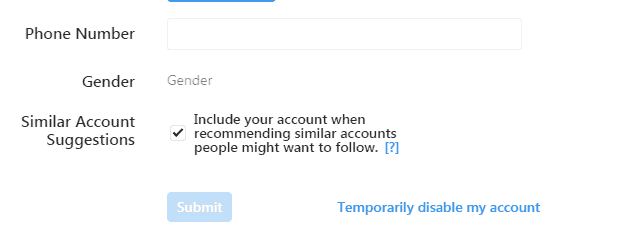
  • In the side screen, scroll down and click on “Temporarily disable my account”
Screenshot_4.png
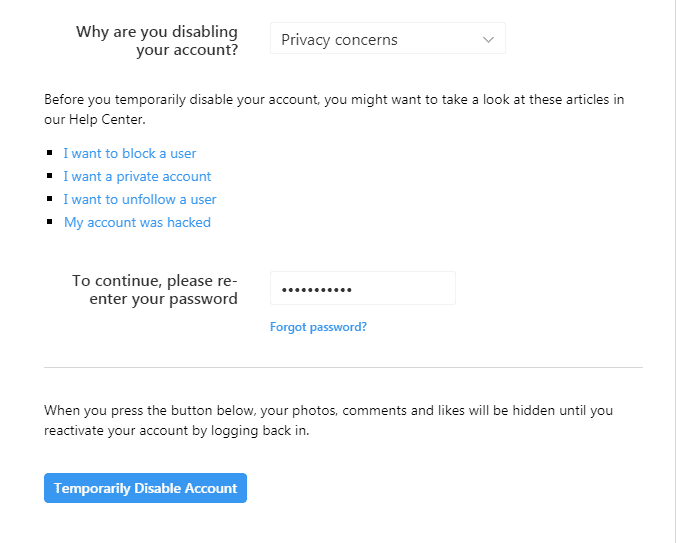
  • Specify a reason for deleting the account in the drop down menu of “Why are you disabling your account?”
  • You will be asked to enter your password again.
  • Once done, click on “Temporarily Disable Account” at the bottom of the page
Screenshot_12.png

When you disable your account in this way, your pictures, likes, comments, and profile will be stay hidden. You can reactivate you account by simply logging in with your username and password.

How to deactivate your Instagram account Permanently

Deleting an Instagram account permanently, is a irreversible step. But if you are sure about it, then here is what you need to do:

  • Launch your browser and go to Instagram’s delete your account page- https://www.instagram.com/accounts/remove/request/permanent/ 
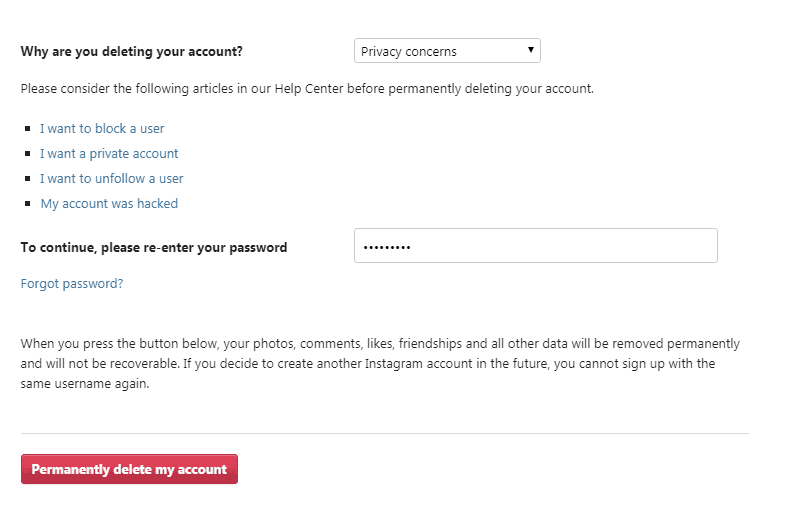
  • Select an option from the drop-down menu to specify your reason for deleting your account
  • When prompted, enter your password again.
  • Finally, click on “Permanently delete my account” at the bottom of the page.
Screenshot_13.png

Please note that once you decide to delete your Instagram permanently all your pictures, comments, videos, followers, and basically entire profile will be gone forever. You wouldn’t be able to sign up again with the old username. Also, the same account cannot be reactivated. 

Things to know before you deactivate your Instagram account

It is not too complicated to get rid of your Instagram account; however there are a certain things that to need to know before you decide to delete the account permanently.

What is Instagram’s Privacy Policy?

Following are a few of the types of information collected by Instagram from you:

  • Information that Instagram gets from you directly (username, password., and all the information that you have entered while using the platform)
  • Finding your friends on Instagram (Your device’s contact list)
  • Device Identifier (the type of device that you are using to access Instagram services)
  • User Content (pictures, videos, comments, and likes posted by you)

To get a clear picture of their Privacy Policy, you can visit their help centre.

How to save your Instagram data

Before you delete your Instagram account forever, you should consider saving your data including pictures, videos, profile info, etc. that you had uploaded on the platform. 

To download your Instagram data, follow these steps:

  • Login to your Instagram account.
  • Click on the Profile icon at the top of the page.
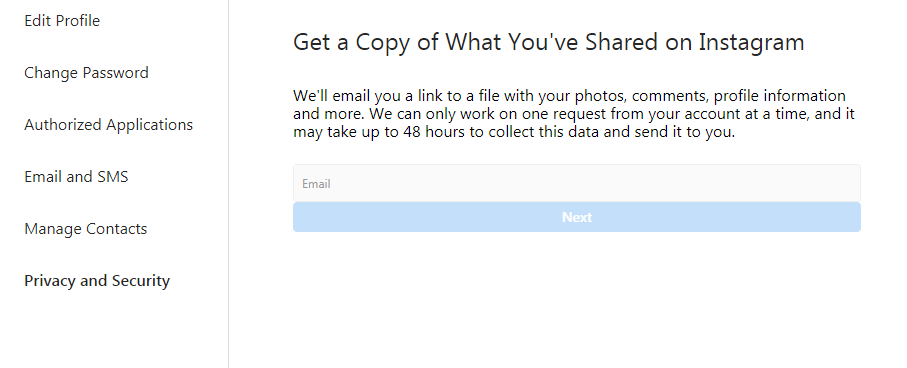
  • Scroll down and click on “Privacy and Security”.
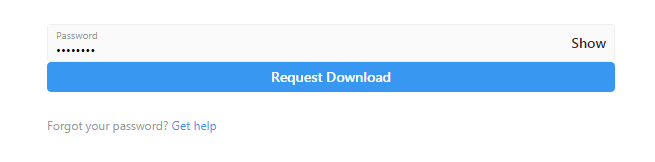
  • On the side of the screen, scroll further down and click on “Request Download” under the “Data Download” tab.
Screenshot_8.png
  • Enter the email id where  you would like to receive the link to download your data and click on “Next”
Screenshot_7.png
  • When prompted, enter your password.
Screenshot_10.png
  • Instagram will send you a download link for all your available data. 

Instagram can take up to 48 hours to collect your data and send it across to you. Once you have all you data, you can place a request for deleting your account. Also, any data that you had previously deleted might be stored in Instagram’s data base. However, it will not be available when you place a request to download data.

Wrapping up:

Almost 56% of people who use social media are suffering from FOMO-Fear of Missing Out Syndrome. But often having a social media detox, can actually turn out amazing.

Instagram as a photo-sharing network is an amazing way to connect with family and friends. However, it is also a fact that this application has attracted immense criticism over last couple of years.

If you feel that this social media platform is not for you, then deleting it is indeed a good idea. 

How to Delete Snapchat Account in 2023

0

Screenshot_4.png

Isn’t it indeed true that social media platforms are rather consuming your entire life instead of being handy?

What began as a harmless way to connect with family and friends, in the due course grew out into a kind of mania for most. There are a number of reasons why you would want to delete your social media app. Maybe you are constantly thinking of how much time you wasted on a social media application, get clogged into other’s lifestyle rather than yours or simply don’t feel like sharing every bit of your day-to-day life with the world. If you have any of such reasons, then maybe it is time for you reduce your social media usage. 

If you think that this never ending cycle of scroll, update, and repeat has taken over your life, and you are thinking of deleting Snapchat, then this is the post for you. Ever since its launch back in 2012, Snapchat gained immense popularity with the idea of pictures and videos that disappear within a few seconds. With all the goofy features, funky filters and real-time life updates, it is not a big surprise that people do get carried away with this application. However, if you have decided that enough is enough and want to get rid of Snapchat for good, then you can delete you account permanently. 

Whatever is your reason to get rid of this app, deleting or deactivating a Snapchat account is actually very easy and barely takes any time. In this guide, we will let you know how you can permanently deactivate your Snapchat account.

How to delete Snapchat Account through your Browser

You cannot delete the Snapchat account from the application. It has to be done through your browser. 

Follow these simple steps to deactivate your Snapchat account forever:

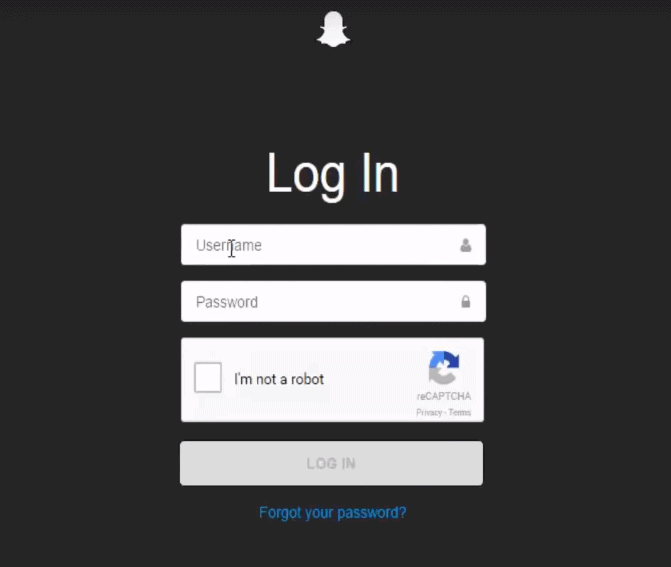
  • Launch your browser and go to Snapchat.com
  • Login with your username and password.
Screenshot_6.png
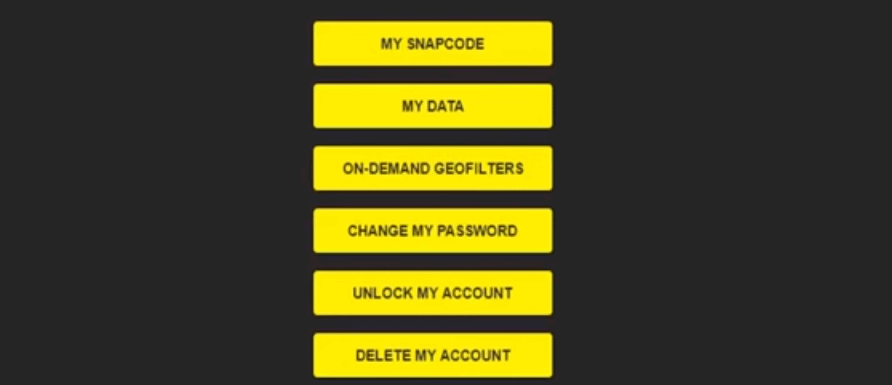
  • Click on “Delete my Account”
Screenshot_2.png
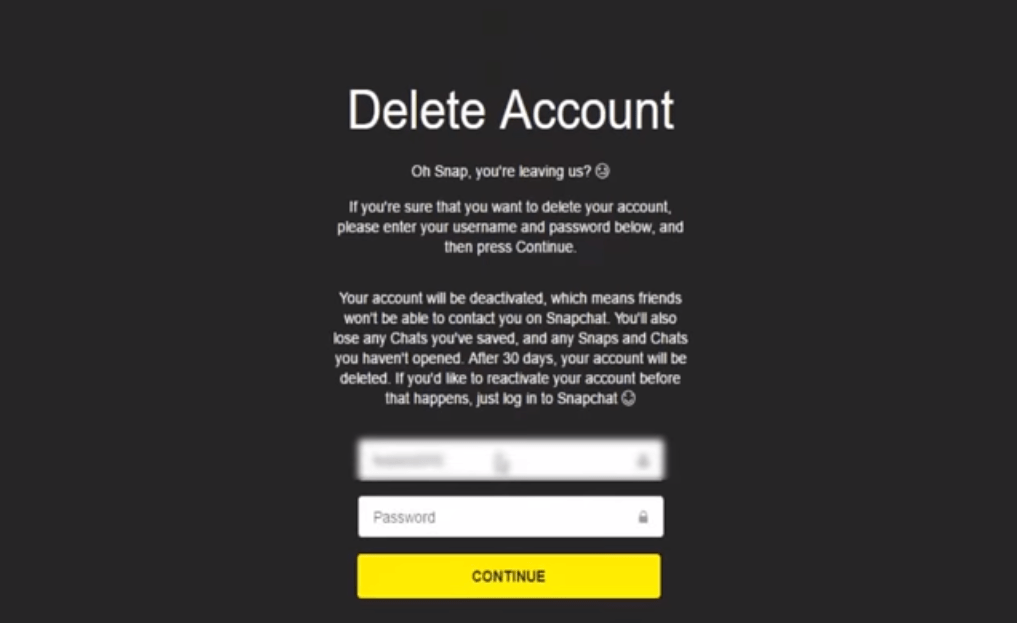
  • Type in the username and password of the account which has to be deactivated.
Screenshot_3.png
  • Hit on “Continue”
  • You will get a confirmation that you account is deactivated.
Screenshot_5.png

Snapchat claims that once you delete your account, it will take a period of 30 days to permanently deactivate it. Post 30 days, you account, settings, friends, device data, and location data will be erased from Snapchat’s user database.  This means that all you underlying Snapchat data will be erased and also, you wouldn’t be able to create a new account with the old username.

You have a 30 days’ time frame to reactivate your account, after you had placed a request for deletion. If you want your Snapchat account reactivated, just log in the same account with the username and password within those 30 days. You should also take care of your reactivated account so that hackers can’t hack Snapchat accounts.
We recommend that you should read Snapchat’s Privacy Policy before you go ahead and delete your account.

Snapchat stores three kinds of information in its user database:

  • The information that you chose to provide ( which includes the data who enter while using the app)
  • Information that Snapchat gets while you are using the service ( device info, call logs, location history, etc.)
  • Information that it gets from third parties (third-party applications, advertiser, etc.)

Also, you can download your Snapchat data before you deactivate your account forever. This data includes you account information, snap history, chat history, friends, purchase history, location history, subscriptions, in-app surveys, and more.

To download you Snapchat data, all you need to do is:

  • Login to your Snapchat account.
  • Click on “My data” and then “Submit request”

Snapchat will send you an email with a link to download your data to your registered email address. Please note that you should not delete your Snapchat account until you receive this email. If you delete the account before, then Snapchat wouldn’t be able to provide the data to you.

However, once you download the data, you can go ahead and delete the account.

Wrapping up:

Snapchat doesn’t use end-to-end encryption, so you can say that it is not a secure platform.

Additionally, it is completely relatable wanting to get away for a while from the chaos that social media is these days. Living through a screen can get absolutely monotonous at some point and the benefits of staying away from social platforms definitely outweigh anything else that you can get out of it. 

We hope this post was useful in letting you delete your Snapchat account successfully.