Home Blog Page 36

10 Incredible Bitcoin Facts That You Should Know

Nowadays, cryptocurrency is one of the trending topics globally. There is no doubt that among all the types of cryptocurrencies, Bitcoin is considered one of the best cryptocurrency platforms. But a lot of people don’t know the most interesting facts about it and I can assure you that after going through the infographic attached below, you’ll be fully amazed. Do you know that users choose to participate in the digital currency for a couple of reasons like ideologies such as commitment to anarchism, decentralization and libertarianism, convenience, using the currency as an investment, and pseudonymity of transactions? So let’s gain the unrevealed and secret knowledge about Bitcoin.

“We have elected to put our money and faith in a mathematical framework that is free of politics and human error.” – Tyler Winklevoss (Co-inventor of Facebook)

bitcoin facts

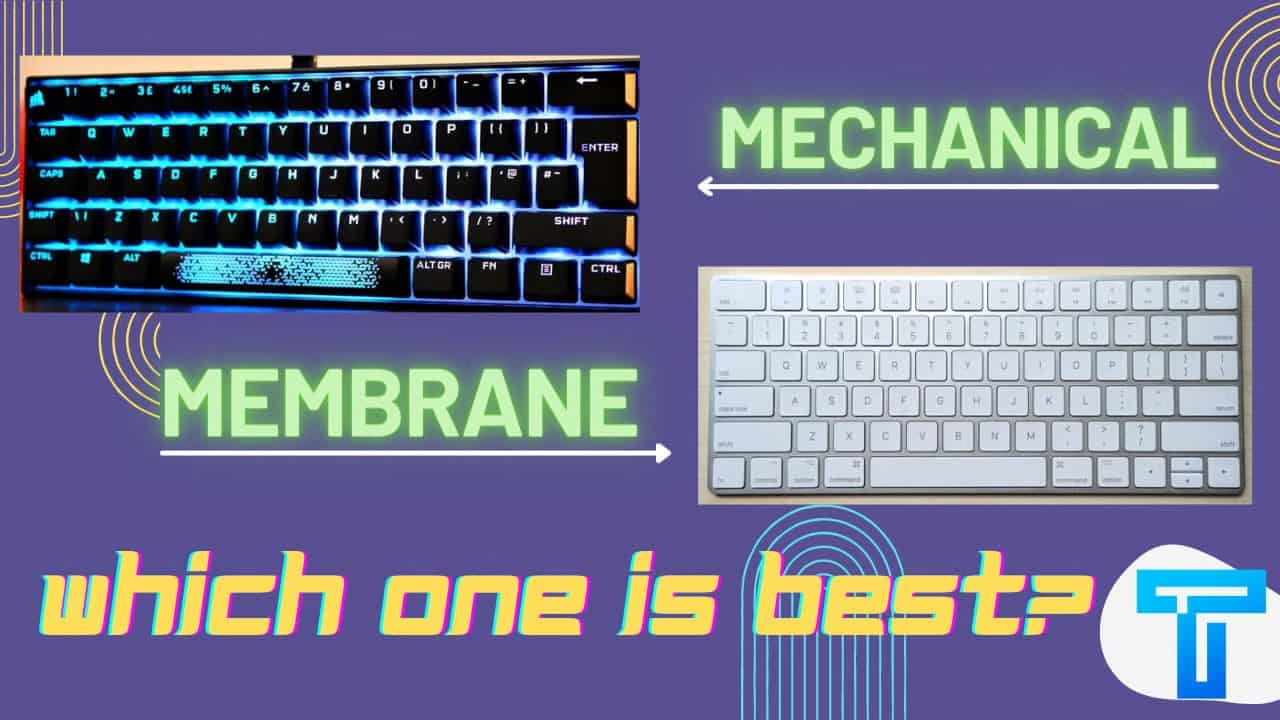
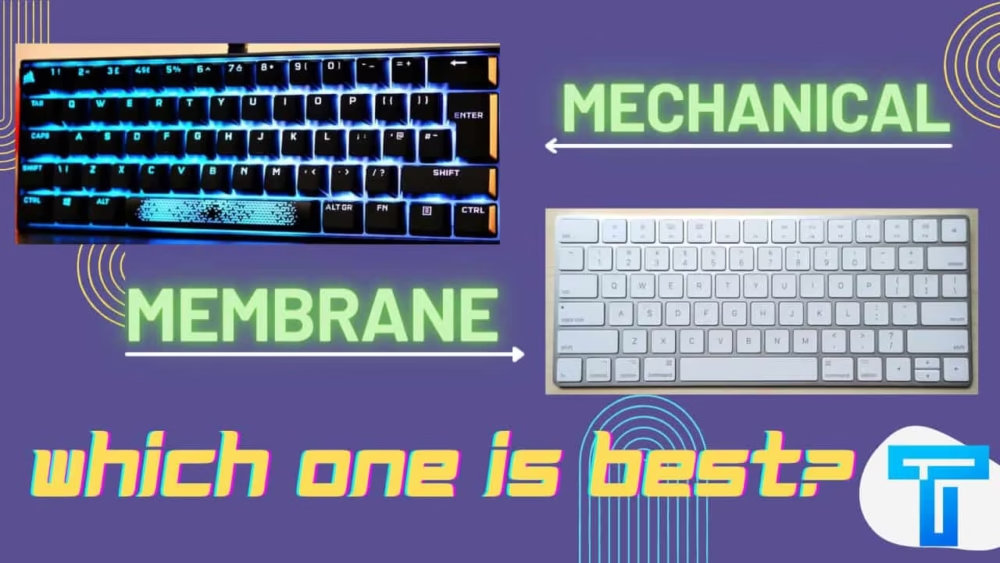
Mechanical Vs Membrane Keyboard: Find The Best One That You Should Buy

mechanical vs membrane keyboard

Are you tired of using your old computer keyboards and planning to buy a new one? You must be confused which one you should buy. Well, here is the team of TechGYO to explain all the benefits, features that you can get from the different kinds of keyboard. For the casual users it doesn’t make an impact but for the gamers it makes a huge difference.

Before starting off, let me tell you that there are wide range of computer keyboards available. Almost 10+ varieties are there, among which two are the most prominent. They are mechanical and membrane keyboards. According to the user and their purpose, keyboard technology have evolved a lot now. It is built on the users special field of interest like whether they want it for gaming purpose or for efficient typing. So, let’s get started by discussing the differences in their feature, pricing and benefits

Firstly, What is Mechanical Keyboard?

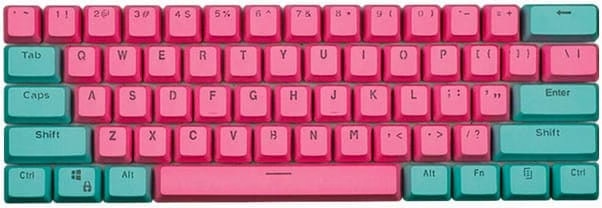
This hot-swappable keyboard is composed of high quality switches and it has even more durability than other one. The switches in the mechanical keyboard are made up of metal contact for the completion of circuit and also for signaling a key press. Also, for customizing the mechanical type you can get ample options on the internet. Recently a major update has been done in mechanical type and that is optical keyboard technology. The indicator lights present here makes it more captivating for the users.

mechanical keyboard

What is a Membrane Keyboard?

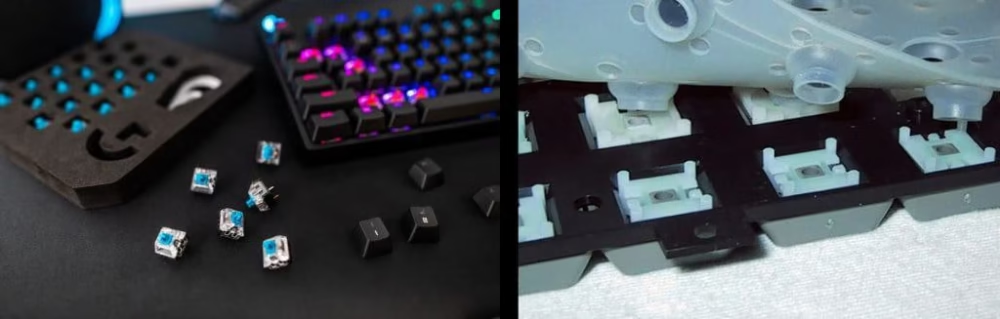
Now, you must have known from the above description of the Mechanical one that how distinguished it is. Do you know that this is based on switch technology? That’s totally true, unlike others, the keys are placed on a small rubber dome. This dome-switch keyboard was successful in gaining priority because of its distinct feature and affordable price. It has no separate keys and the body holding the dome switches are also quite different. Each key is recognized by the space present between them.

membrane keyboard

Major difference between the Mechanical and Membrane:

differences
               Mechanical Keyboard                      Membrane Keyboard
It has specific switch mechanism where the keys have buckling springIt has a layer of rubber
After clicking on the keys, it makes electrical contact and read by the circuit.After clicking the rubber layer connects with the circuit
The cost is highIt is affordable and economical
Clicking noise is high in this keyboardIt does not produces any noise
The applied pressure on the keys are almost nullIt acquires pressure on the keys for the desired output.
It allows the user to customize it by changing the key cap This doesn’t have any customization feature
It requires high actuation forceIt does not require high actuation force.

What are the key features that should look out while purchasing?

Various factors are there which you should consider before buying. Like the kind of personal computer(PC) or laptop that you’re using, also for what purpose you’re going to use it, whether you want wireless keyboards or not.

If you are a casual user of a computer or laptop, or you don’t play games or don’t do typing more often, then the best option for you is to buy the flat-panel membrane keyboards.

But, if you’re a hardcore gamer, or you’re looking for the same advanced one with special and unique feature then you must select mechanical switch keyboards. It also allows the user to customize the look of it and with the use of it, the player can experience enhanced sensory feedback. It takes the players to the next level in their games.

Here you can also get two varieties, like it is used for daily typing, data entry as well as games then you need full sized keyboard along with the numpad present on the right side. In case you only want it for gaming then you can opt for the option of TKL type where TKL stands for tenkeyless. In this type, you’ll receive it without the numpad. This also saves space. Moreover, the mechanical one is available in two sizes but the membrane one is only available in standard full sized form.

Final Verdict:

I hope this article has helped in gaining the information about the two distinct types of keyboard named Mechanical and Membrane. Now, you’ll be able to know what kind of quality, you were using previously and presently what kind of keyboard you desire. So, it’s very important for you to make the perfect purchase of this. You must know that even if the mechanical type is highly qualified, sometimes it is not much preferred by gamers, but it is great for typing purposes. If you have any queries related to this topic drop your problem by commenting down below, and we’ll be popping up with the best suitable answer for it.

How To Add Check Boxes In A Word Doc

0

Check boxes make a more viable option when you need to make question papers or online forms. But how do you insert them in a Word document? In this article we’re going to be talking about how you can insert check boxes in a word document using two methods- the first being a digital word document and the second is more appropriate if you’re planning to print out the document.

In Microsoft Word, you can create two kinds of checkboxes: ornamental ones for printed papers (that can be marked off with a pen or pencil in real life) and functional checkboxes that users may check with a mouse click if they’re reading the document on a computer.

METHOD 1: Checkbox Option using Word’s Developer Tools.

  • To build fillable forms with check boxes, you must first enable the “Developer” tab on the Ribbon.
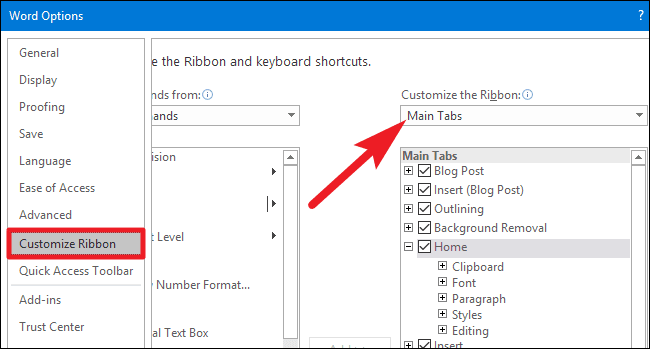
  • When you have a Word document open, select the “File” drop-down menu and then the “Options” command. Go to the “Customize Ribbon” tab in the “Word Options” box.
  • Select “Main Tabs” from the dropdown menu on the right-hand “Customize the Ribbon” list.
ms word checkbox in developer options
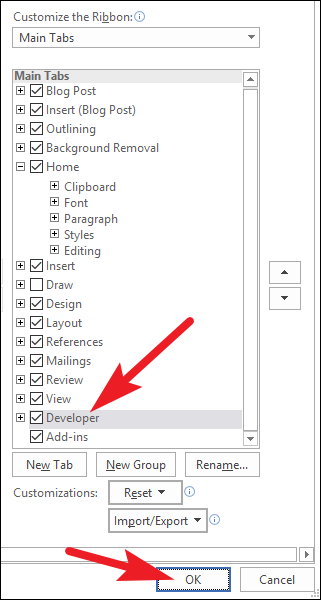
  • Choose the “Developer” check box from the list of possible primary tabs, and then click the “OK” button.
ms word main tabs
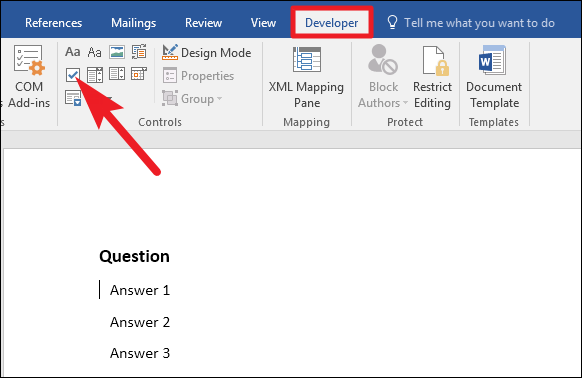
  • The “Developer” tab has now been added to your Ribbon.
  • Simply place your mouse where you want a check box in the document, go to the “Developer” tab, and then select the “Check Box Content Control” button.
ms word developer options
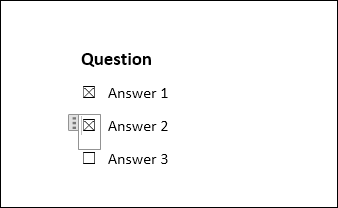
  • You should see a check box appear where your cursor was.  

To move the check box around, format it, and so on, click a box to mark it with an “X” or select the whole form box to move the check box around, format it, and so on.

ms word checkbox

METHOD 2: Replace bullets with check boxes.

If you’re going to print something like a to-do list or survey, and only want check boxes on it, you don’t have to worry about with adding Ribbon tabs and forms. Rather, make a basic bullet list and then replace the bullets with check boxes instead of the default symbol.

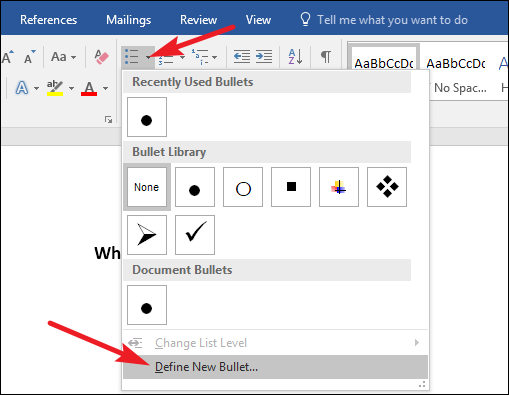
  • Under the “Home” tab of your Word document, click the little arrow to the right of the “Bullet List” icon.
  • Select the “Define new bullet” command from the dropdown menu.
ms word bullet check list
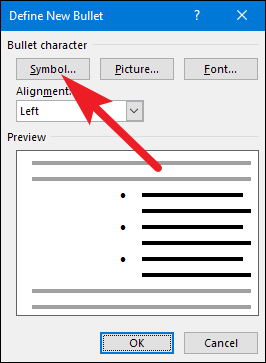
  • Click the “Symbol” button in the “Define New Bullet” window.
bullet symbol checklist on ms word
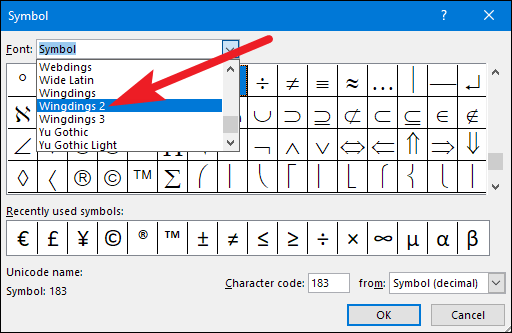
  • On the “Symbol” window, select the “Wingdings 2” option from the “Font” selection.
adding checkbox in ms word symbol

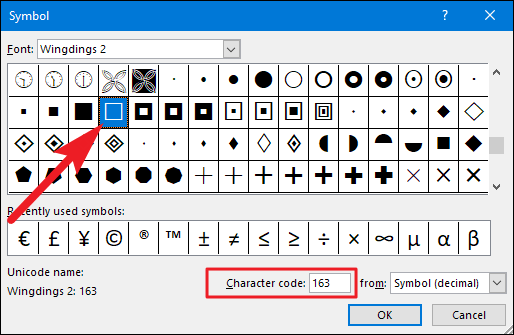
You may either scroll through the symbols until you locate the empty square symbol that looks like a check box, or you can simply input the number “163” into the “Character Code” field to pick it automatically. 

Of course, if you see a symbol you like, such as the open circle (symbol 153), feel free to use it instead.

  • After you’ve chosen your symbol, click the “OK” button to close the “Symbol” window, and then click the “OK” button to dismiss the “Define New Bullet” window as well.
symbols in ms word checkbox
  • You may now type your bullet list in your Word document. Instead of the standard bullet symbol, check boxes show.

So the next time you require a check box sign, you won’t have to go through all of those windows. Simply click the tiny arrow to the right of the “Bullet List” button once again, and the checkbox will appear under the “Recently Used Bullets” area.

However, this approach is basically just helpful for printing documents. Because the check box symbols are not interactive, they cannot be checked off within a Word document.

These were the basic two methods of inserting check boxes in a word document. Check boxes become necessary when you want to make a question paper containing Multiple Choice Questions (MCQs). We hope we’ve made it easier and much clearer on how you can insert check boxes into a Word document. 

Ideal CyberAttack Protection Techniques for Your Organization

0

With the growing emergence of working from remote locations, the risk of cyber threats is also at an all-time high. Make no mistake – a single cyber-attack has the potential to render the entire system completely useless and shut down your organization for good. It is crucial to establish preventive measures in order to avoid this grave danger.

cyber security
Photo by Petter Lagson on Unsplash.

The rapid advancement of technology has introduced us to newer dynamics in the digital world. Initiating regular upgrades in response to these developments in the field of tech security is inevitable if you want to protect your valuable data. Cybersecurity breaches are not limited to large corporations only. Even the smallest, less established companies are equally susceptible to these attacks due to their relatively weak security levels. This article provides a comprehensive guideline on various ways to prevent cybersecurity attacks. Below is a detailed list of procedures that we recommend you follow for maintaining a well-protected digital system for your business.

Encrypt Your Data

There are different ways to encrypt your data, based on your skills, efforts, and needs. It is important to store your business data in an encrypted format, and ensure that it is being transferred without eliminating the encryption. For online poachers, the task of stealing these coded data is mostly unrewarding, as taking the encryption off is a highly difficult task – even though it is not impossible. On the other hand, all you need to do is turn the encryption off to view the data in its raw format at your end. Virtual Private Networks (VPNs) are also viable options for data security and act similar to manually turn on the encryption.

Many companies provide data encryption services, along with other significant facilities for protection against cyberattacks. You can check out CloudEnv for the array of services they provide in this field, along with professional consultation regarding this serious issue.

Use Multi-factor Authentication

The introduction of multi-factor authentication (MFA) is relatively new in the field of digital data security. However, the added layer of protection it brings to systems is so effective and beneficial for businesses that using MFA is an established norm in most organizations. Generally, password-protected databases require a password to access. Implementing MFA adds another safety level on top of that and requires a randomly generated password that is accessible only by the user. While it does slow the process down, the increased security is invaluable and can save a lot of time and money down the line. Malicious entities have a hard time bypassing such protective layers and might get discouraged encountering these barriers in the first place.

Take Regular Data Backups

Do not store all your data in one place. It is highly recommended to back up your data into multiple storages, and this is not only for cybersecurity reasons. Anything ranging from physical damage to hard drives to mistakenly deleting crucial data is a possibility, and it is important to take preventive measures to safeguard that data. Many hackers steal portions of data from a company’s digital storage and use that to demand ransom. Having complete backups of your precious data makes you immune to such threats, and alerts you of underlying concerns in your existing data security system.

You can plan data backup procedures according to your needs. Some organizations might opt for weekly backups, while others prefer to do it monthly or yearly. Operational data used on a daily basis should have a backup at every stage, as these contain volatile information involving the day-to-day dealings of the company, and are highly prone to cyber-attacks. Make sure you occasionally check all the stored data in backup drives to ensure their authenticity and usability. It is common for data to get corrupted after a certain time for multiple reasons, and is an issue that should be carefully monitored at all times.

Update All the Software in Use

Make it a regular practice to always have your essential software updated to the latest version. Most hacking attempts or independent malware have some limitations of their impact on systems. A computer virus programmed and launched before the creation of a particular software will generally fail to have any effect on it, because of the unavailability of the necessary information about the software by the virus’s code. 

Furthermore, most of the latest software tends to come with its own protection against cyberattacks. Older versions of the same software might already have been cracked by the hackers, and can easily be accessed and corrupted by them. The introduction of newer versions means the entire process of a cyberattack on them has to be initiated from scratch due to the changes in the framework. Make sure you keep an eye out for the latest security patches or available version updates of all the software that you use.

Change All Existing Passwords

It is not a good practice to keep using the same password for any system – be it small or large. Make sure you change every single password associated with the systems your business uses. Any system protected by a password is sensitive information and is suggested to use complex strings when setting a new one.

Educating your employees plays a crucial role in this, as they are the ones to access delicate company information the most. Ensure the sharing of passwords for work purposes is only done as a last resort, and the password gets updated right afterward. Train them about the severe consequences of cyber-attacks!

Final Words

The incredible pace of technological advancement not only introduces more convenient methods of getting work done but also develops the skill sets of specialist hackers to unleash heinous activity. The importance of data security can never be overstated and with the digitalization of most known business platforms, it is a standard that is mandatory to be followed these days. Ensuring high levels of data protection can go a long way to bringing long-term success to your business.

6 Quick Fix To Solve Adobe Illustrator Error “An Unknown Error Has Occurred”

illustrator
adobe illustrator

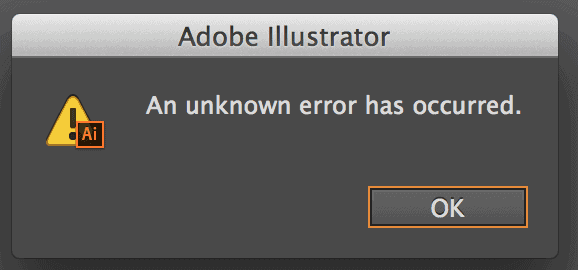
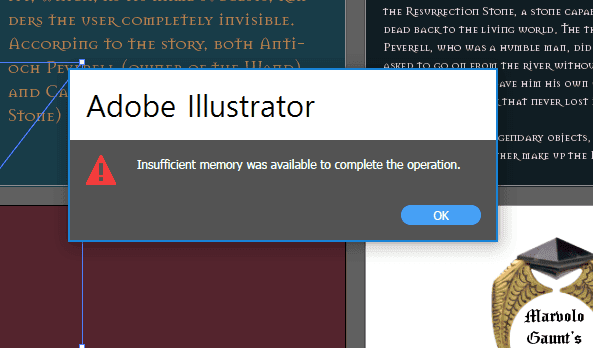
Have you been through this? After the full completion of your task in Adobe Illustrator, it shows your file is corrupted. It is quite a frustrating moment when this notification pops up. Even with the latest version, an error occurs with the message of “An Unknown Error Has Occurred”. But it’s okay to have such an error, all you need is a perfect resolution for this. In this article we’ll be discussing several solutions for fixing the saving error of files in adobe Illustrator.

How to fix file saving errors in Adobe Illustrator?

saving error

Here we will mention six methods via which you will be able to solve the saving time errors. So, let’s discuss all the methods one by one:

First Solution: Command Prompt:

  • Firstly, launch the Illustrator in your system.
command prompt
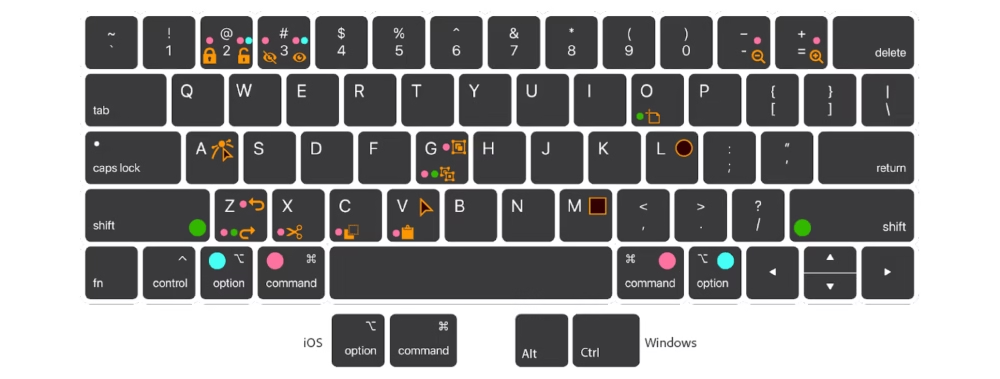
  • Now Click on Cmd + K for opening the preference
keyboard shortcut
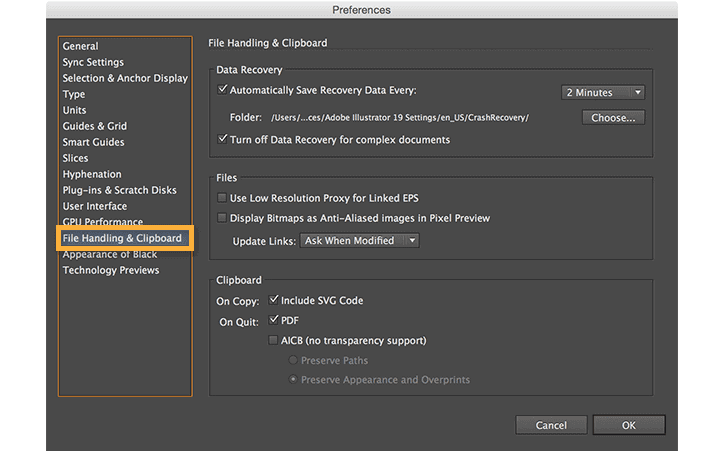
  • Navigate to File Handling & Clipboard
file handling
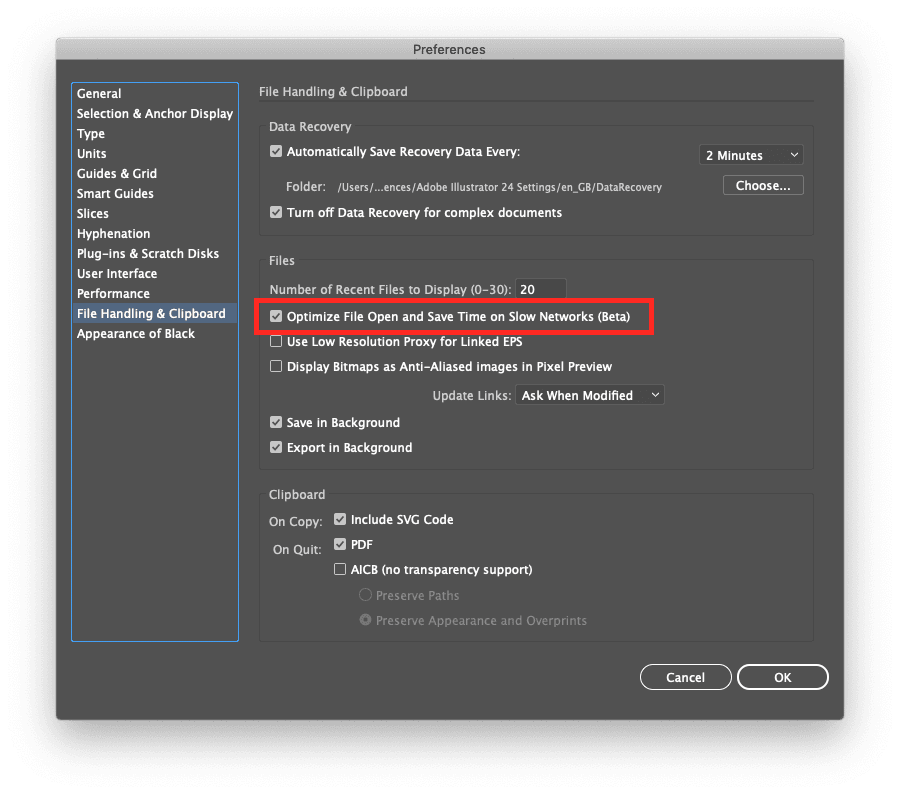
  • Here you have to uncheck the box named “Optimize file Open and Save Time on Slow Network”
optimize file open
  • Click OK and finally try to save your file

Second Solution: Save In Background

  • Launch the Illustrator like before.
  • Then after opening the preference by clicking Cmd+ K, navigate to File Handling & Clipboard
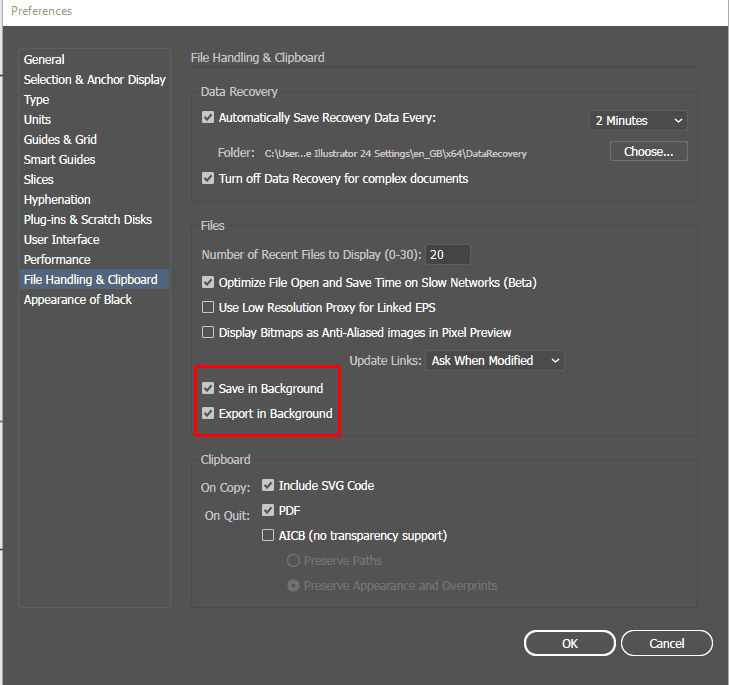
  • Finally uncheck the box named Save in background and click OK
preferences

Third Solution: Upgrading RAM:

As you all know that Adobe Illustrator is a memory consuming software, you might face the issue of your files not getting saved. In order to overcome that problem you have to enhance your RAM. Other than that check if the unnecessary programs are still running in your system or not. If it is on, then stop the process since it acquires a lot of memory.

memory

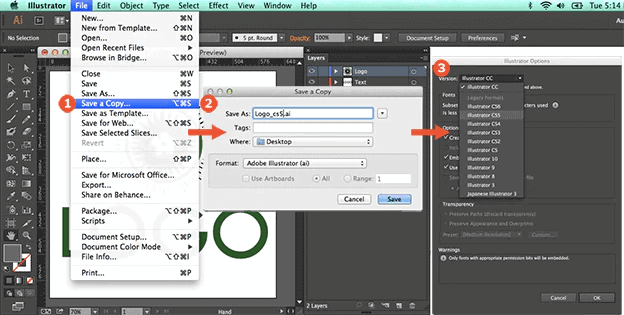
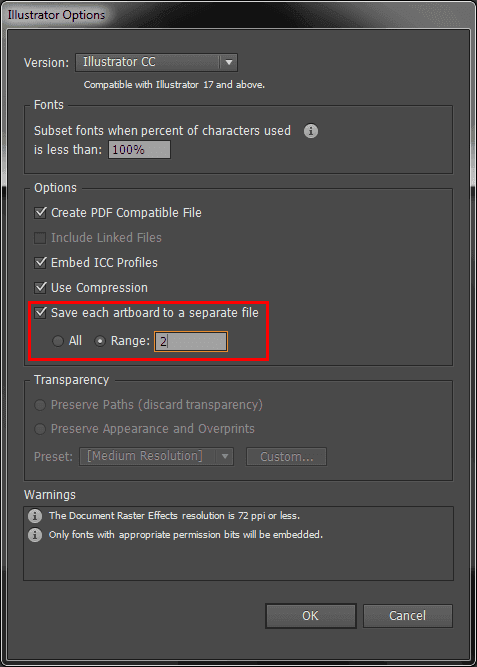
Fourth Solution: Saving File With New Name

This is another easy peasy solution for fixing your saving  issue in Illustrator. You can save the document with a fresh new name which will generate the same file with non-corrupted patterns, gradients and fonts. Using this process is the same as rebooting your system, you can try that also. Lastly, check out if that method helped you out or not. 

saving new file

Fifth Solution: Cleaning Up The File:

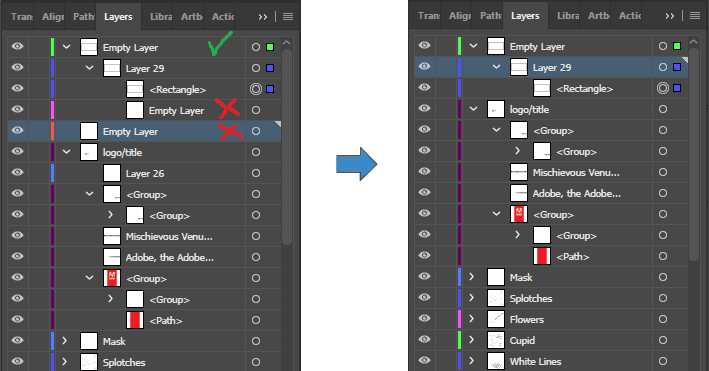
Since it is a memory depleting program, the unessential elements present in your document can increase the size, which in turn will lead to file corruption. What to do then? Well, you can try to delete all the trash matters like the duplicated elements, sketches, and many others.

clean up

There is also a hidden layer available where it might happen that you have stored some custom brushes or other elements too. You can save all these elements in another document by copy and pasting, in this way some space will be freed up and then you can easily save the file.

Sixth solution: Transferring it into fresh Document:

It’s so troublesome that after completing your project you are not allowed to save it because of the visibility of corrupted file notification. There is one way to conquer this issue and that is transferring it to a new document.

transferring

Initially you have to copy all the elements that you have inserted or used in your project, then paste them into a fresh new document. Now save the document and check if you can open and edit it again or not.

Conclusion:

This is all the best possible ways by which the users can get rid of the constant saving errors that they face while saving their projects in the Adobe Illustrator. We hope that you are able to sort out the problem. If you have any more successful solutions for this issue, then you can share with us by commenting down below which can be helpful to others.

5 Tried and Tested Solutions to Fix ‘No Route’ Error On Discord

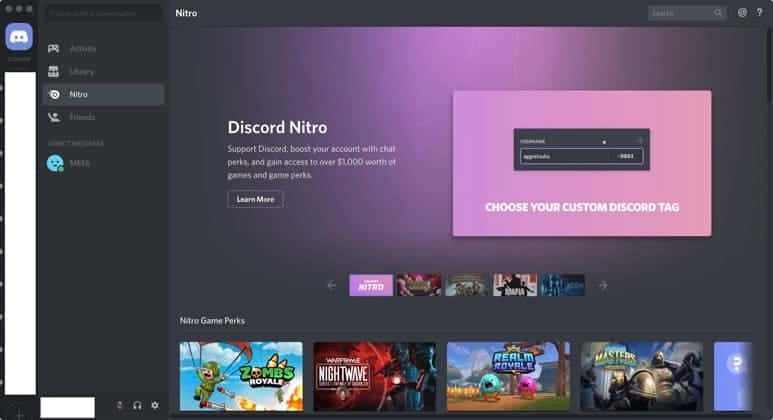
The gamer’s community knows how important discord is to communicate with your teammates while you’re playing a game along with them. Discord has been serving the gamer’s community for quite some time now and honestly, it’s difficult to imagine a life without discord now. But like all other good things, discord has its own flaws- one of them being the ‘No Route Error’ which restricts users from using the video service because the ISP server fails to connect.

When you try to connect to a voice channel on a Discord server, the ISP/Network on the user’s end is unable to connect. In other words, Discord is frequently prevented from connecting to a voice server due to a problem related to dropouts, VPNs, and firewall limitations.

5 Ways to Fix 'No Route' Error On Discord

While there’s no specific reason as to why this issue occurs- different users face this issue due to various reasons like:

  • If you have a third-party firewall or antivirus installed, Discord will be unable to connect to an external server.
  • The system resources might get stuck if the associated IP address has been changed.
  • Your network might be blocking discord from running.
  • Your region may not be compatible.
Fix 'No Route' Error On Discord

In this article, we have compiled a list of solutions that can be used to fix the discord no route error on your computer system, so let’s get started.

How To Fix The No Route Error On The Discord App?

METHOD 1: RESTART YOUR SYSTEM

This is probably the first thing anyone will tell you-Restart your system. It’s the simplest yet most effective method that can work wonders to fix any error in your system or in software. Along with your system, reboot your modem and router as well. This helps because discord starts acting up if you have a dynamic IP address, that is if your IP address is changing a lot then you are bound to face this error. Restarting your entire system can rectify this error if it’s just temporary.

Error On Discord

Quit discord and first restart your router only and wait for the connection to get established after switching on your router again, check if the issue is resolved. If not, then restart your system and check if the error is resolved or not, restarting your system can clear any bugs and also make your connection and IP address more stable.

METHOD 2: CHECK YOUR FIREWALL AND ANTIVIRUS

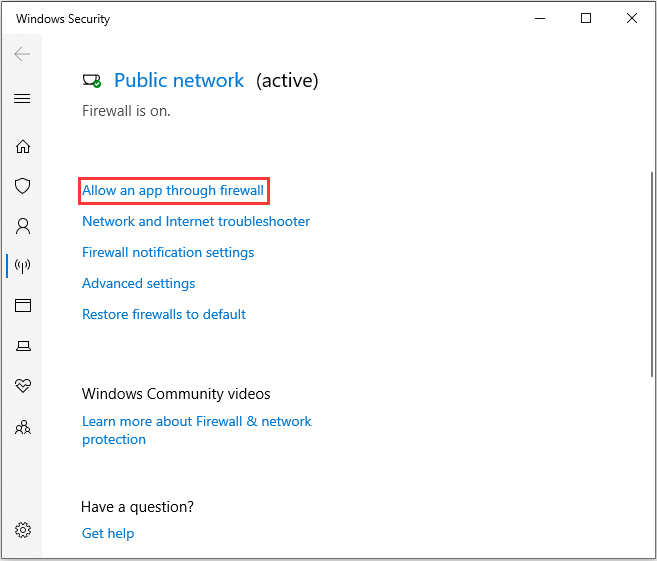
The firewall permits internet packets to pass through and return to your machine. However, if the setting is incorrect, your Discord packets will not be sent. This might result in the “No Route” error in your application.

If your firewall settings are wrong, Discord’s incoming voice data will be blocked. You may check your firewall manually and add an exception by doing the following:

  • Firstly, close your discord.
  • Open the windows settings menu.
  • Click on ‘update and security’ and then go to the ‘windows defender’ option.
  • Next, go to the ‘Firewall and network protection menu’ and go to the ‘select an app through firewall’ option.
  • Clicking on this option will show you the list of programs that are allowed or blocked by the firewall.
  • Under discord make sure the ‘private’ box is ticked.
  • Try connecting to your discord’s voice channel.
How to Access the Network in Your Firewall or Antivirus Settings

Some antivirus systems are more active than others in stopping applications from operating, and Discord may be flagged as a danger. Make sure to manually add the Discord executable to your antivirus list as an exception. Each antivirus is unique, but this method works for the vast majority of them.

METHOD 3: CHECK IF DISCORD IS BLOCKED BY YOUR NETWORK ADMIN

If you’re using discord outside your private VPN like office, school, or a library the chances are the network admin has blocked the access to discord. There’s a way to check if that’s the case but before doing that always let your network admin know what your requirements are otherwise you could get into trouble, and we wouldn’t really want that.

Here’s how you can resolve this error:

  • Open your control panel and go to the ‘Network and Internet ‘ option.
  • Select the ‘network and sharing’ option and go to the connections to select your desired connection.
Opening the network and sharing from control panel
  • Under the Networking tab select Internet Protocol version 4 and click the Properties button.
Network and sharing center screen
  • In your DNS settings, make sure to check the ‘Use the following DNS server addresses’ box. Type your preferred DNS server as 8.8.8.8 and the alternate server as 8.8.4.4.
Properties of internet protocol version 4

Reboot your system and check if the issue resolves or not. You will be able to connect to a voice channel if the issue is resolved. 

METHOD 4: UNINSTALLING YOUR VPN

VPNs may be quite useful, particularly if you wish to access information that is not available in your country. However, when combined with Discord, it can have significant adverse effects. A VPN, like our previous option, may modify your IP address, which may conflict with your Discord usage. Alternatively, utilizing a VPN that does not allow UDP (User Datagram Protocol) would result in the issue as Discord was not built to support it.

So, if you’ve changed your VPN service or altered any of its settings, you may wish to restart it. This will assist you in re-establishing your connection and avoiding the ‘No Route’ message. You may avoid this problem by using a VPN that supports UDP or by turning off your VPN to check if this resolves the no route error. If it does, but you still want the protection and anonymity that a VPN provides, test a few that utilize UDP and see which one works with Discord.

METHOD 5: USE DISCORD ON YOUR BROWSER

Discord’s desktop application is frequently the source of this issue as well. Typically, application developers create separate programs for each platform, such as Android, iOS, and Windows. This implies that each platform has its own app. Here’s the link to the discord browser: https://discord.com/

How to use discord in your browser - YouTube

If none of the previous methods have worked for you, you can try accessing Discord using your browser. This will allow you to circumvent the problem and gain access to your profile nearly instantly. Even if the UI is different, there isn’t much of a change in terms of features.

So these were some tried and tested methods to fix the no route error on discord, we hope at least one of these methods works out for you because being disconnected from your friends over discord can be quite frustrating, trust me I know! We tried our best to give you the best possible solutions but if none of them work out for you then try changing your gaming router or contact the discord help desk. 

6 Ways to Fix The Dev Error 6068 in Call of Duty Warzone

how to fix Dev Error 6068

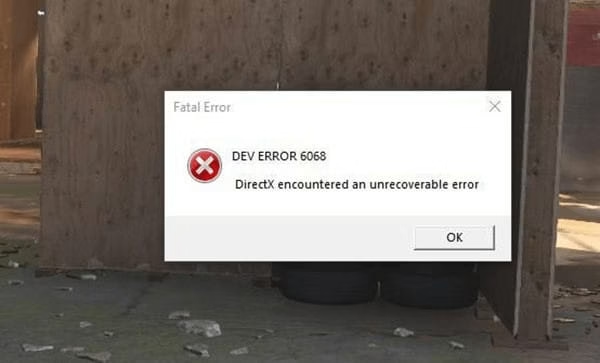
If you’re a frequent Call of Duty(COD) player then chances are you might have encountered the Dev Error 6068. There are many reasons for this error like unresolved bugs in the game or because of outdated gaming drivers or outdated Windows systems, but the most common reason why this error occurs is because of issues with DirectX 12 due to corrupted updated files or just insufficient hardware. But in any case, we’ve got you covered. This blog explains various troubleshooting methods as to how you can fix the Dev Error 6068 on your Windows 10 system.

warzone dev error 6068

How To Fix The Warzone Dev Error 6068?

Solution 1: Run As An Administrator

  • Right click on the “Call of Duty Modern Warfare” and click on ‘Properties’
Run As An Administrator
  • Then click on ‘Compatibility’< run this program as an administrator<Apply<OK.
Compatibility

Check if the issue resolves or not, if it doesn’t then follow the next solution.

Solution 2: Update Driver

  • Right click on the windows start button and go to ‘Device Manager’
Update Driver
  • In the device manager click on ‘Display adapters’ < VMware SVGA 3D < Update driver.
dev error 6068,cod warzone,warzone dev error 6068,call of duty error,windows 10,call of duty,DirectX 12
  • A new window pops up, click on ‘Search automatically for drivers and it will search for the best suitable driver on the system and it will give you a prompt that the best suitable drivers have already been installed. Click on close.
Search automatically

 Check if the issue is resolved, if it’s still not resolved you can try the next solution.

Solution 3: Reinstall Driver Software

  • Right click on VMware SVGA 3D < Uninstall device.
Reinstall Driver Software
  • Next, click on ‘Delete the driver software for this device. And by deleting the software you have to reinstall the NVIDIA GeForce experience on your system. Click in uninstall.
NVIDIA GeForce
  • After you uninstall it will install the normal drivers on your computer and you have to download the drivers and install them on your machine again. You can download the latest version of NVIDIA GeForce experience here: Download GeForce Experience | NVIDIA

Solution 4: Prioritize Battle.net.exe

  • Right click on the taskbar and select ‘Task Manager’.
Prioritize Battle.net.exe
  • In the task manager click on ‘Details’ < Battle.net.exe < Set priority < High.
dev error 6068,cod warzone,warzone dev error 6068,call of duty error,windows 10,call of duty,DirectX 12
  • A new window pops up, click on ‘Change priority’. Doing this will prioritize your Battle.net.exe to use more memory.
Change priority

Solution 5: Optimize Geforce Experience

  • In the Geforce experience select the ‘General’  tab and disable the ‘Ingame Overlay’ option.
 Optimize Geforce Experience
  • Go to the Games section, scroll down and under the Optimal playable settings, disable ‘Automatically optimize newly added games’.
Automatically optimize newly added games

Check if the issue resolves or not. 

Solution 6: Change The Graphics Setting

  • Right click on the windows start menu and go to settings.
Change The Graphics Setting
  • Go to system < display < graphic settings.
dev error 6068,cod warzone,warzone dev error 6068,call of duty error,windows 10,call of duty,DirectX 12

display graphic settings
  • In the graphics settings go to ‘Change default graphics settings’.
Change default graphics settings
  • Make sure the following feature is enabled:
how to Change default graphics settings

Despite following these steps if nothing works for you then you are left with one last option, which is to reset your Windows. Alternatively, you can try to contact the support team and explain your issue to them, don’t let an error keep you away from playing your favorite video game. Make sure your system is updated to the latest version of windows. These were the top & solutions to fix the Dev error 6068 in COD on your Windows 10 system. Let us know in the comments if any of these solutions were helpful.