Home Blog Page 366

Create and Add Chart in WordPress Blog Post

Pie charts or graphs are best way to define the dimension and statistics of data. And it is a must if you are posting an article about comparing statistics or comparing product features, data recovery, Browser rankings, Insurance plan details and much more in your article. Here I have one of the best WordPress plugin for creating a pie chart or graphs (2D , 3D) in a matter of  minutes and embed them in your blog post. However, you can use Google Docs through which you can do lot many things including Pie Chart and graph creation and then embed them, It doesn’t give you much options to access from your WordPress Dashboard. Easy Chart Builder for WordPress is a plugin which allows you create charts from the data you input and embed in blog post using just shortcodes like this: [easychart argument=”value” …]

This plugin lets you insert Flowchart in post pages, pages and widgets too.

Also read : Add flowcharts and basic drawings, floorplans, UML, ERD, UI mockups, to your WordPress Blog

The good thing about this plugin is that, for creating charts you need not be an expert, you can get your chart done at touch of a button.  Here’s a quick example of short code and chart which was made using Easy Chart plugin.

[easychart
type="horizbar" height="100" title="SYSMark 2007: AMD v.s. Intel" groupnames="AMD Phenom X4 9950, Intel Core i7 940" groupcolors="005599,229944" valuenames="Overall,E-Learning,Video Creation,Productivity,3D" group1values="157,132,208,150,148" group2values="229,202,259,226,232" ]

This will be the final chart made using the above short code

chart diagram

Settings

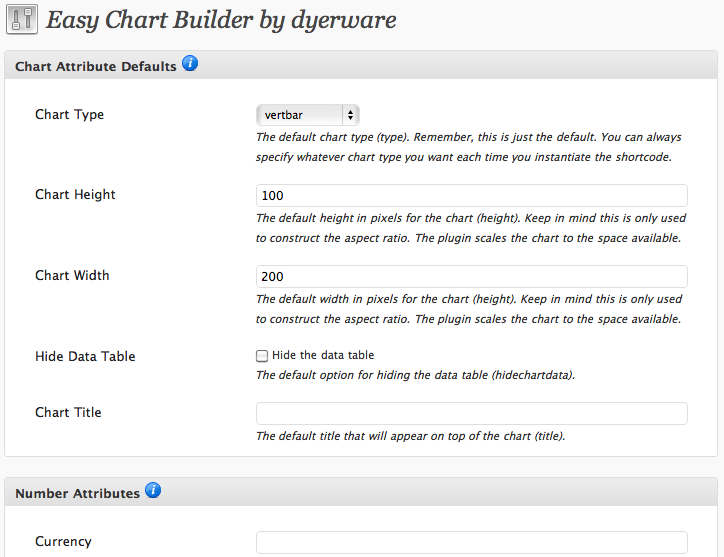
In admin settings can set default values for many settings. So that you an always override the defaults by specifying their shortcode counterparts directly in the shortcode. Allows you to change the default values simply makes using the shortcode easier by removing the need to enter customization parameters you repeatedly use.

easy chart bulder wordpress admin setting

You can read the complete step by step guide on how to use the chart builder plugin here.

[Link(s) : Download plugin | Author Page ]

Double Click: Interactive Tool to Increase Traffic and Making Money Online

Update : As of 2017,Quiqee has shut down their operation. Alternatively, read: 17 Top Adsense Alternatives for Making Money from Your Blog

double click

Success of a blog is when users like your web page in terms of navigation and content and design. Bloggers use a bunch of plugins and widgets to add new features to their blog to make it more interactive for the users. But they end up in having huge number of junk plugins which cost loading time and compatibility issues with other plugins and finally crash the whole site.

Quiqee is a wonderful tool integrated with all the cool features required for a website to make an interactive experience for readers to find meaning of a text, share it on social networking sites, or find related articles and more by just double clicking on a text without leaving the page. I have checked this tool in my here in TechGyo and made sure that it is stable and meets all the requirements and features offered in their website. So I strongly recommend any blogger or website developer to use Quiqee Double click tool for add your site a unique visual identity and to earn money.

Why I strongly recommend every blogger to use Queqee Double click tool:

quiqee double click plus earn money

Reduce Bounce rate

The bounce rate is the measure or number of people who arrive at your site, then leave your site after viewing just one page. The lower number of bounce rate means your site is very helpful and visitors get the information they are looking for. The best way to reduce bounce rate is to show related posts and attract user to read more posts from your page. Using Quiqee tool, you can reduce bounce rate enormously. As they are staying, they will start to explore more contents from your site.

Tidy and small JavaScript code

Since Quiqee is a small and tidy code, it makes it easy for you to add the code to your website without any programming knowledge. ust takes 30 seconds to install and easy to use. And there is no signup required to get your code.

No delay in Loading time

double click quiqee

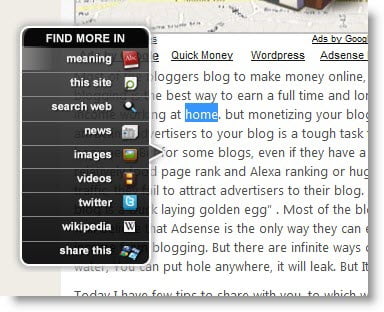
The Quiqee script starts loading only once your webpage is completely, so your page will load as it was loading before, and it has a cool floating icon which opens the dashboard.  When users double click on a word, a small menu appears with lots of search and share options for the users. You can try it here and check it yourself. It is unobtrusive, easy to use, clutter free and adds a bunch of cool user value-added services to your site all in one sexy dashboard.

Keep readers in your page

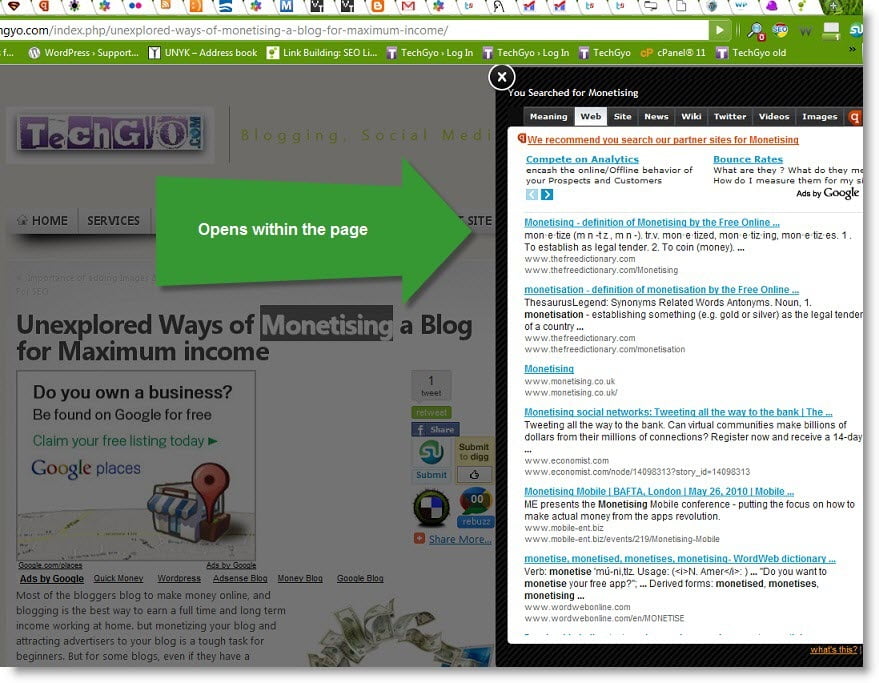
The main reason why users move out, is because they go in search of finding new things, and many go start to Google to find new thing which they didn’t find yet. Using Quiqee, users just don’t need to move out, because they just need to double click on a word to find the meaning or for definitions, news, images, videos and more for words on your site. And the side tab opens within your page, so that most probably they won’t move away from your page.

Absolutely free of charge.

The really interesting thing which makes this tool very attractive is that this service is absolutely free of charge and requires no maintenance fee or contracts. Quiqee is great for blogs, content sites, news sites, tech blogs, sports sites, movies/gossip sites… and more! Also fully compatible with blogger, wordpress, drupal, mambo, phpbb, vbulletin and all other CMS

Make money from Adsense

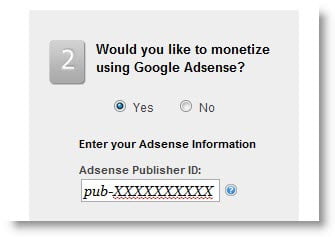
Not only that it makes interactive user experience, but also lets you earn some small income from ads shown in search results. You just need to enter the Adsense Publisher Id to monetize the search results page. And they take a decent 50% share of advertising impressions. Which is not bad at all in addition to many great features and services.

Increase traffic from Social Networking Sites

In addition to many cool features, this site lets users share your content on their favorite social networking sites. Which becomes and a good number of traffic to your site.

Find resources & get Feedback

This tool has built-in site search and web search option in addition to Image search, Video Search and even Twitter, Wiki, News Search and users can also give their feedback via this tool.

You don’t have to change anything on your site to accommodate quiqee. Quiqee sits in the background until the user calls it.

Unexplored Ways of Monetising a Blog for Maximum income

cash from laptop iconMost of the bloggers blog to make money online, and blogging is the best way to earn a full time and long term income working at home. but monetizing your blog and attracting advertisers to your blog is a tough task for beginners. But for some blogs, even if they have a relatively food page rank and Alexa ranking or huge traffic, they fail to attract advertisers to their blog.  “A blog is a Duck laying golden egg” . Most of the bloggers wtill believe that Adsense is the only way they can earn an income from blogging. But there are infinite ways of earning money from a blog. It is like a Bottle full of water, You can put hole anywhere, it will leak. But It is up to you, how you collect the leaking water.

Today I have few tips to share with you, to which will surely help you to collect all all source of income from your blog and to attract advertisers to your blog.

Ways of monetizing a blog which you know:
  1. PPC– Pay Per Click advertisements like Adsense, Bidvertiser, Chitika and others.
  2. In Text – Infolinks and Kontera
  3. CPM – Banner ads such as Adtegrity and others
  4. Private Ads
  5. Link Selling (Google really hates link selling- So I strongly recommend you “not” to use them)
  6. Sponsored Posts
Things you must have missed:
  1. Monetizing Images
  2. Adding advertisement in Feeds.
  3. Using Adsense for search.
  4. Using widgets and addons like “Quiqee Double click“.
  5. Offering services like WordPress services. (Or what ever you are expert at).
  6. Using affiliate programs.

Have you found any new way to monetize your blog and extra income from your blog? Do let us know.

Do You Need IT Support In Denver?

0

An IT support team can do so many things, and companies should give them due importance.

Denver is the largest city in Colorado. Its establishments vary from real estate, construction, and telecommunications. Moreover, they are abundant with IT support teams that you can choose from with a large population. However, to find the best, you have to dig deeper into the things that they are experts. You should be familiar with the IT services and let them guide you with it. 

You will never know the worst feeling in the world if you have not experienced being bogged down in a situation you do not have the power to solve. It could happen anywhere, especially in your workplace. One example is preparing for a meeting when suddenly your files were accidentally deleted on your computer. Another example is when your computer will not connect to the internet server in the middle of researching. 

But do you have to suffer all of those things? Of course not. You will never have to worry about these kinds of situations if you got the best IT support team. This article will discuss the services that they do, the reasons you need an IT support team, and the qualities you have to look for when finding one. 

Why Do You Need An IT Support Team In Denver?

Business establishments, big and small companies, depend on their business’ system. You will never know what could go wrong, and your IT support team will be your savior about your business needs. They are experts in computers, software, installation, connectivity, and more. Click here to know more about it. 

Let us go to the services that they offer.

What Services Can You Get From An IT Support Team?

There are many services that they can offer to you, and you will surely need them in your business. Below are few of the common services they offer:

  • Manage systems
  • Manage servers
  • Fix telephones and connections
  • Upgrade security service
  • Monitor security
  • Back up and Recover Data
  • Build collaboration service

Why You Should Get IT Support For Your Business

It contributes to your company’s work efficiency.

Your work is severely affected if there are problems regarding communication lines, computers, and the internet. Imagine yourself getting stuck in a job without knowing what to do. It affects your commitment to your clients too. Getting an IT support helps you get back to work by fixing the problems that need solutions immediately. 

It helps in maintaining a sound system. 

Whether you are a starting or established business, you will need your system organized. It makes working among departments or areas synchronized. It also clears it from viruses and other network obstructions. It prevents the system from failing.     

It saves you more money.

It is always the best idea to hire an IT support team for your business’ needs. You can immediately consult or call them. Aside from making you less worried, it will save you more money in the future. Whenever you need one, you will never have to get a new one. 

It helps in data recovery.

Lost files and unsaved files are not new, which is one of the things that they can offer. They are quick enough to figure out what needs a quick fix. They can recover the files in no time. You will never have to worry again about it. 

It designs the infrastructure. 

Sometimes your location and your equipment’s location affect the connectivity that you have inside your building. If you are using a wireless internet connection, your IT team must make it accessible to you. 

Qualities Of A Good IT Support Team

There is excellent mastery of the work.

Sometimes as an employer o employee, you have tons of things to accomplish in just one sitting. Choose IT members that have excellent critical skills. They will save your time, and getting things right in one snap is the better. Also, there is less chance that the same problem will arise if appropriately fixed. Check out websites like https://www.focusconnect.com/ for more information. The more you know, the better hiring decision you will make.

The members work professionally.

There are times that you and your IT support team need to work under pressure. When this happens, the team must be able to work with the right attitude amidst facing challenging problems. It would be best if you showed your concern to the group so that they will be encouraged to work harder. Working with professionalism leads to a harmonious relationship among co-workers.

There is dedication in doing the work.

Your team must have self-motivation in doing all tasks assigned to them. You must see their sincerity in doing the work. It is because being a hardworking team will go a long way. It is better than a team that you need to replace now and then. 

The team has excellent communication skills.

What else can you do if your team does not listen to you? Make sure that communication is a two-way process. It is essential in decision-making and taking up strategies. Be one with the team so that you can communicate your side well, especially crucial instructions.

They can work within a set schedule.

Sometimes as an employer o employee, you have tons of things to accomplish in just one sitting and getting things right in one snap is better than waiting for an awfully long time. It is much better if they can work fast and on time. It will lessen the delay or turnover of work. Also, it will prevent others from doing unnecessary activities during work time like chatting (read more here).

There are several things that an IT support team can do for your growing business. It is why you have to look for the best one to manage your computer systems, security systems, and more. You will surely benefit from it, and it will make work more accessible and more comfortable. It will contribute to the excellent reputation you are building to your clients. 

Importance of adding Images & Videos to Blog Posts For SEO

4

home with magnifying glassEvery successful blogger understands the importance of adding images and videos to blog posts to make it attractive. no matter if the blog post is about, blogging tips tutorials or any review article. As a professional blogger, I strongly recommend you to add images to your blog post because an Image in a post speaks thousand words.

Few reasons why I recommend you adding images and videos to your blog posts:
  • Makes a first impression
  • Presentation
  • Traffic from Image Search Engines and YouTube.
  • Make the post look lengthier and informative.
  • Better explanation

Recommended for reading:

Makes a first impression

As you know most of the readers don’t like to read long pages of article which is looking too odd, most of the readers will straight away close and leave the page when they see a long page. But when the article is colorful with images or videos which will define itself, it will make a first impression for the readers when they first open the page. So they curiously read it completely. And videos make it easy to understand for those who didn’t understand the article.
In my own experience, I felt that posts with beautiful images get more clicks and have reduced bounce rate.

Presentation:

Images and videos make it easier to reflect the topic which you are trying to express in words. And users get a clean and beautiful visual feel when they open your page. And if you are writing a tutorial, then screen shot is a must to make your readers understand the steps involved. Videos play an important role in your blog post and they bring you more traffic than writing in words. Videos will also save a lot of time. You can make a video for a tutorial and it will only cost you few minutes but writing takes a lot of time and it will not give much impression to your readers. There are so many screen-cast and video making software’s available for free online. you can make use of them.

Traffic from Image Search Engines and YouTube:

Image Search Engine traffic : Images bring you a lot of traffic from image search engines. But you need to configure the Alt text and description of the image which you add in your blog posts. Don’t add alt text irrelevant to the title of the image since it will not give you the expected results. I’ll show you how to add ALT text to the images

If you already have too many images with no ALT text, then don’t worry if you are in Word Press, there are plugins available to do that work automatically, But the image title still makes the difference names, but you will surely loose traffic from search engines if you set file name and title of images to something like picture342.jpeg, DSC023.Jpeg and so on. So try to save the file name as relevant to the image, for example: you can name the image with Word Press logo with word press_logo.jpg and add the same for title and ALT text.  Don’t think that it’s too late, so start optimizing the name and Alt text of images to drive in more traffic.

You can also use SEO friendly image Word Press plug-in to optimize your images for search engine.

Make the post look lengthier and informative.

If you were writing a quick post, then adding an image can make it better and lengthier. As you know, adding an image increases the impression of the post page. I suggest you to resize the image to the size which suites your page, in my case, I use image of 500X300/350 and it doesn’t mean that all images would be of this size, but when dealing with bigger images, you can keep this size in mind.

Better explanation

As you know we can remember graphical characters and images for a long time than words, we can apply the same principle of adding images and videos in post for a better user experience. If you are writing a tutorial post, adding few screen-shots for each steps and procedures will help your reader to understand the tutorial in easy in less time without scratching his head 🙂 You can check one of my post for example : Create An Image With Multiple Links using Image Map. You find more images which makes understanding very easy. I recommend that you add videos to post only if it is very necessary, since it may cost loading time. And it is always good to make a video and publish in YouTube, since it can give you continuous traffic. And if you are so lucky, it might even get featured on many sites, giving you millions of views.

Conclusion: Adding images and videos to your post will expose your site to outer world and your site will get huge traffic from Image search engines and YouTube, and it also makes a wonderful user experience and make it easier for them to understand. This makes them a permanent visitor to your site.

Best Sources to Find High Quality Stock Free Images For Blogging

drag-wordpress free stock images plugin dropImages in an article makes it a killer article and images should just not be an image for name sake, it should have a unique meaning and look pretty. Finding images that suites your choice is the hard job with Google image search, and I hope you know the images you get from Google image search are copyrighted and are not for free use. But I have a wonderful resource for bloggers who want to make their blog posts attractive with beautiful and meaningful images with copyright and free for use. With Pixabay WordPress plugin, you can spice up your article and make it a killer article.
As readers, they never want to read pages of your article. So always try to divide your article in parts so that your readers find it easy to scan the content of the article. So adding images are the best way to convey your message.  Adding images without leaving the page while writing an article is a very convenient thing about blogging isn’t it? Freebieimages.com WordPress plugin lets you do the same. It allows you to add wonderful images to your blog post without leaving your current page. You can search for millions of images while you are still writing the article.

This plugin has an amazingly simple Drag and Drop interface, adding images to blog post has never been this easy. Another interesting thing about this plugin is that, it is not only free but also wonderful collection of meaningful images which suites your page. These images were/are collected from talented photographers and illustrators around the world.

Features and highlights:
  • Built-in search interface inside your WordPress – You can search for and add images to your blog post at free of charge.
  • The images are perfectly sized for blogs – between 300px and 400px width.
  • Drag and Drop Interface.
  • Allows you to edit the images.
  • Advance image search option for file type, image type and more.
  • Free to use, share, copy, distribute and transmit the free images

Additionally, Crestock features design and stock photography forums as well as a popular design & photography blog with resources, expert advice, commentaries, tips & tricks.

How to use?

Once you’ve searched and selected the image of your choice from search results, simply drag & drop it into your blog post, in the position where you want the image, and that’s it. You can also make use of advanced search filtering options on Crestock.com with a single click, like ; Number of images per page, Image Orientation, File type, Pagination and more.

Download WordPress Plugin

This wonderful plugin for free stock images for blogging can be downloaded from here. The plugin can also be downloaded from FreebieImages.com home page.

How to install?:
  • Download free stock image plugin Zip file on your computer.
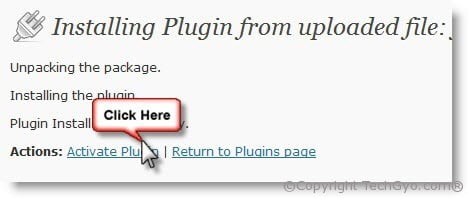
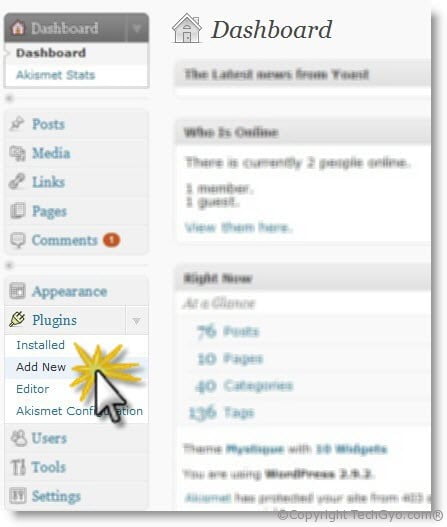
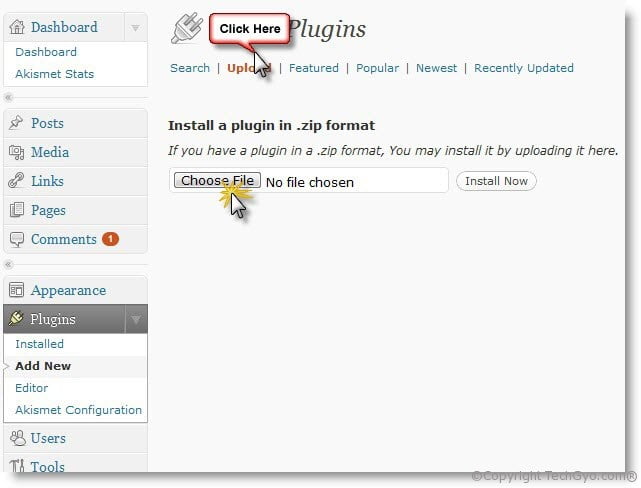
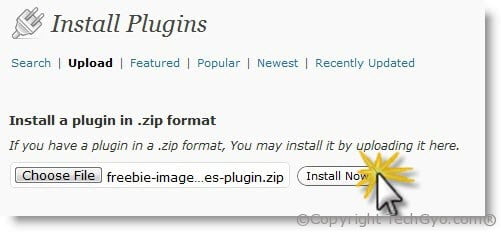
  • Sign-in to your WordPress Blog and Upload the plugin zip file to your WordPress from the admin interface.

Step 1:

wordpress free stock images plugin

Step 2:

wordpress free stock images plugin

Step 3:

wordpress free stock images plugin

Step 4:

wordpress free stock images plugin

Hope you liked the article. Please share on your social media if you find this useful

Tutorial – Image Mapping Lets You Add Many Links to One Picture

Image-map is pretty much similar to CSS Sprites. Image-mapping can be used to add multiple links to a single picture file. This will be useful in many areas of web designing.  You can just have a look at “FIND US” image on the right, as an example which we have in our page. Image-mapping is very easy to make and you need not be a tech savvy to make one for your own. There are excellent online tools available for creating the code for your custom Image mapped. Today, I’ll show you how to easily create an image with multiple links using one such image mapping tool online. In this tutorial I will be using maschek.hu for creating the code for the custom image with multiple links.

Step 1:

Firstly create or find an image which suites your needs. In this tutorial I’m using an image for social networking icons.
find us on

Step 2:

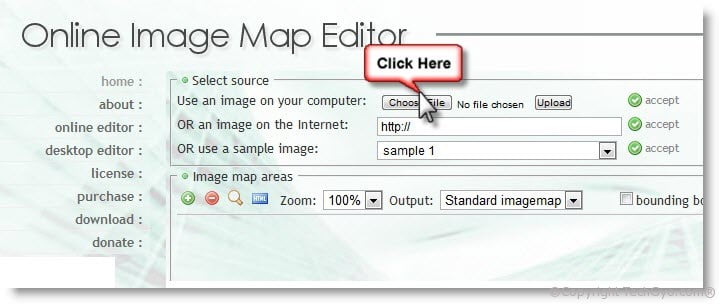
Open this link and upload your image, or enter the url of the image or you can also try a sample image available in their library and then click on “accept“.

image mapping tutorial

image mapping tutorial upload part

Step 3:

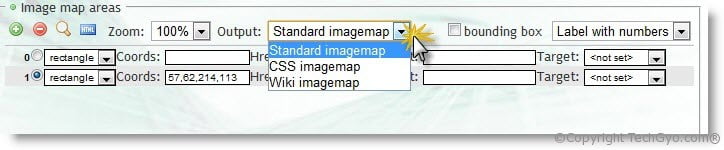
Now select output as “STANDARD IMAGEMAP” or CSS IMAGEMAP according to your choice. In this tutorial, I’m selecting Standard Imagemap. And you can select the mapping style as rectangle, since our image is in rectangle. You can simply ignore the other settings as it is not much necessary for our image type.
image mapping tutorial css sprites

Step 4:

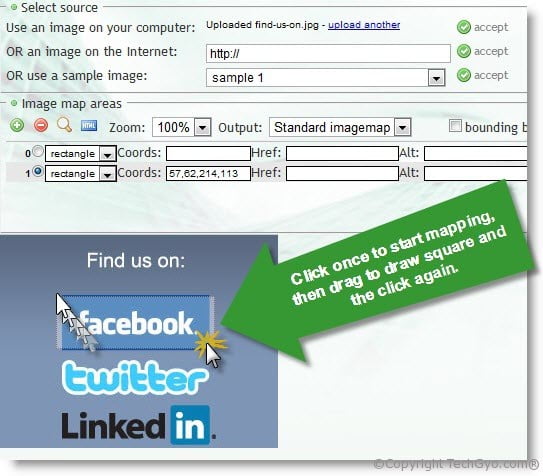
Now that we have done editing the appropriate settings for the output, we can now start mapping the image. Point your cursor on to the image/picture and then click once on the edge on the first icon (Facebook) to be mapped, and then draw a rectangle which covers the entire Facebook icon and then click again to complete mapping. I hope the below image helps.
mapping images

Step 5:

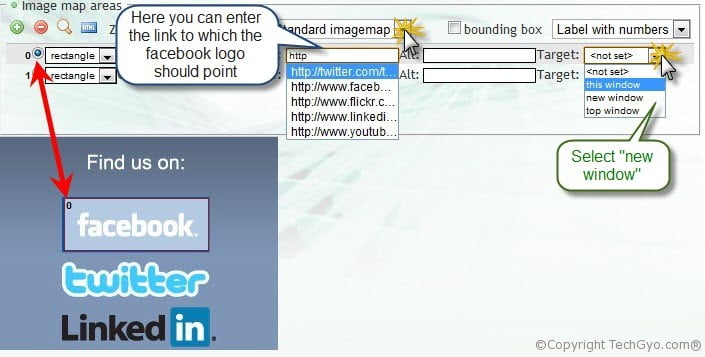
Now that we have mapped to the appropriate dimension, we can now insert link in that area and select appropriate link target properties.
image mapping tutorial linking

Step 6:

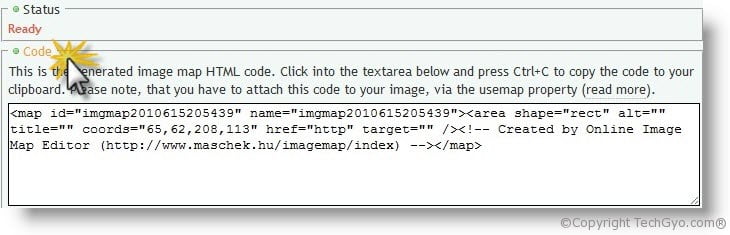
Repeat the same steps for the other 2 images and then click on CODE at the end, to get the entire code and then copy the code.image mapping tutorial final code

Step 7:

Now we have the image-mapped code and lets proceed to the final step in this tutorial. The only thing left to do here is to link the imagemap id with the image code.

The above code is the code which we created using online image mapping tool and it will be having a unique imagemap id. We can now link the map id with the image code.

The final picture is the one below, just have a check at the links.
Find us on Facebook, Twitter, Linkedin, Youtune and Flickr

Here’s the video tutorial

Test your code using this tool here

If you liked this tutorial, please leave your comments below.