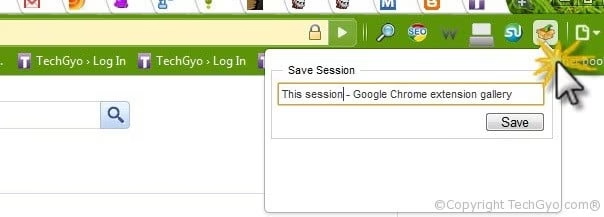
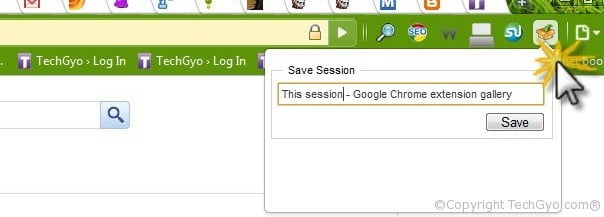
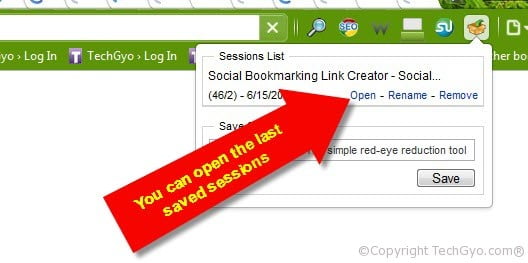
You know chrome is a wonderful web browser which allows you to open many number of tabs at lightning fast time which no other browser can offer. I have a habit of opening too many tabs in Chrome, and some might be related to my work and some others for reading later, even if I can bookmark them I don’t give any attention to my bookmarks because I have a huge number of additions to my bookmarks when I browse and important bookmarks will be moved to last when I add new ones. So I keep the tabs open, so that I will notice them when I open next time. But sometimes it will be a huge loss it you close the browser window by mistake. But with Session Manager you can quickly save your current browser state and reload it whenever necessary. You can manage multiple sessions, rename or remove them from the session library. This plugin is a lifesaver for me and it is very helpful in times when I need it. Each session remembers the state of the browser at its creation time, i.e the opened tabs and windows.
Scenarios where this plugin can be used:
Create sessions for daily routines: Pages you open on morning, noon and evening
Group pages of common interest such as News, Financial and Social Networks.
Save the pages found during a research session that you’d like to revisit later.
You can download the Chrome Session Manager plugin here
I can open the set of tabs which I saved using session manager.
Do let me know for what other purposes you can make use of this plugin.
Image speaks a lot and everyone like cool images and they always have some meaning and they page a page very attractive, how about these images be just like a video which plays? Yes you can convert a video into playable image. These high quality moving animated images are commonly in one image format called GIF (Graphic Image format). Using some online tools, you can easily create your own image which plays just like a video. We can convert a video into a GIF image which will give you a feel of playing a video for a short span of time. But there are some limitations, the video should be less than 10 seconds at the maximum.
Gifs.com and Makeagif.com are such a website which lets you create animated GIF from individual images or by uploading a video. Today I’ll guide you through the steps on how to create your own GIF image out of a video. I have got a cool GIF image created using a video when Google street car coming on the way of two guys.
Step 1:
Firstly, record your own video in your webcam or download a video of your choice from any websites like YouTube.
Step 2:
Now, use any video editing tool to cut edit your video in to a small size. You can use Windows Movie Maker software to edit the videos if you are on a Windows PC. You can do this by dragging and dropping the video file into Windows Movie Maker tray. You can also go to File > Import Into Collections. Then browse to find the file and you can select it to import the file.
Step 3:
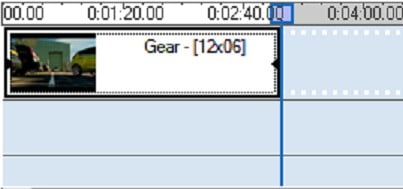
Once you have the video file imported in the Windows Movie Maker collection area, you need to place it into the timeline, area just below the collections area so that you can start trimming the video. Simpy drag-and-drop the file from the Collection area to the timeline at the bottom of the Windows Movie Maker window.
Step 4:
Now trim the video into small timeline of around 5 to 10 seconds. To start cropping the video click on the cursor when the cursor turn into a red double-sided arrow in the time line. Now go to the right side of the timeline and do the same thing, cropping the movie file until just after the part of the film you want to create GIF.
Step 5:
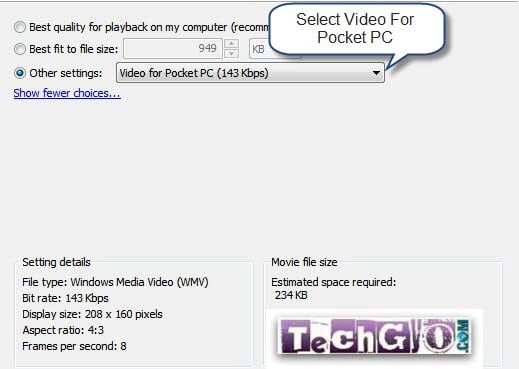
Once you have the trimmed the video into shorter length and size, save it on to a location on your computer and note that location for reference. To save the video just click on SAVE TO MY COMPUTER option Finish Movie section on the left side. Save the video with a name which you can use for reference. Now, before your video is saved, a pop-up window will appear for you to select the file format. In order to keep file size small, select ” Video for Pocket PC” option as shown in the below image. And then click on SAVE. So now the video file will be in size of 208 x 160 pixels, which is small enough to work as an animated .GIF.
Step 6:
Now, we are done with trimming the video to the desired part and saving it in a small size. The net step is to convert this video into a GIF image. Here’s where we need some help of Gifninja. Go to Gifninja and then select ” CONVERT VIDEO TO GIF” option and then upload your video and then wait for it to create your GIF image.
Still Confused? Watch the video.
I thought of making a video on this tutorial, but since there was a better one available on YouTube. I thought of using that one to show you how the entire thing work.
Do let us know your thoughts on greating GIF images using videos, by dropping your comments below
You must have very much involved in blog marketing online isn’t it? Have you ever thought of blog marketing offline? Today I’m going to tell you how blog marketing offline can help you promote your blog in branded style. You know, gifts are great way to promote your blog and you can make a contest online and give away gifts which promote you offline. T-Shirts printed with your blog logo is a great way of offline blog promotion, and you can also try many other ways of offline promotion like, Coffee Cups, Key chain, Greeting Cards, getting featured on Newspapers and TV and much more creative ideas. So I’m much more interesting in showing you how to sreenprint your blog logo to a T-Shirt with the help of a video. Just watch it below and let me know your thoughts. And you can read more about offline blog promotion here.
Do let us know your thoughts on offline blog marketing and any unexplored way of blog promotion.
Few days back I write an article about Futuremessage.org for scheduling messages for future. Today I’m going to tell you a site which is voted as the best online calendar for sending remainders as text and email messages. You can create a free account here and it just takes few minutes but it is worth for it. If you are a busy man , you can set reminders for birthdays to remember, anniversaries and yes Valentine’s Day too.
And this service is absolutely free of cost. You can set reminders for Birthdays, Bill Payments, Anniversaries, Medicine Reminders, Meetings, Due Dates, Appointments, TV Shows and much more according to your needs.
It is really easy to use and your phone number, email or your information will not be shared with anyone. Once you verify that you are the owner of the mobile number, you can start setting reminders to be sent as SMS message.
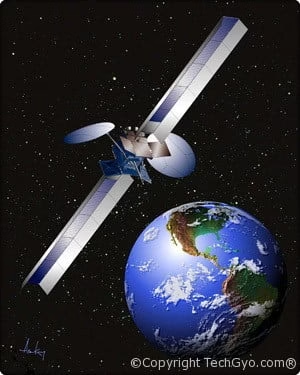
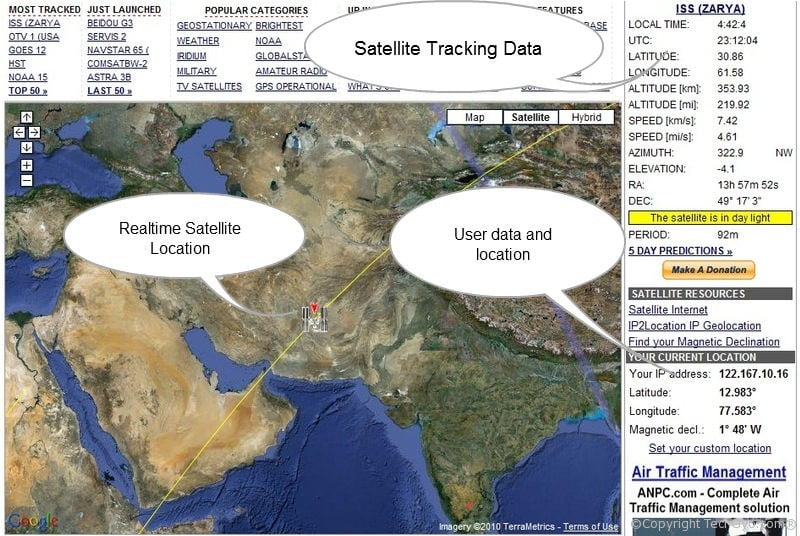
Are you a researcher or a student trying to learn more about satellite or track the movements or satellite? Then I have a good resource for you to track any satellite at real time and learn more abouts its launch mission, astronauts, launching location, Country and more. According to Wikipedia Currently there are approximately 2465 (outdated) artificial satellites orbiting the Earth. N2YO is such a such which lets you track any artificial satellite at real time. Although you can’t track the images from any of the satellites, you can view the current physical location of the satellite based on altitude. The top tracked satellites are: ISS (ZARYA), OTV 1 (USA 212), GOES 12, HST, NOAA 15, GOES 11, ASTRA 3B, GALAXY 15, HELIOS-2A, PROGRESS M-05M, and BEIDOU G3. And the latest launched are BEIDOU G3, SERVIS 2, NAVSTAR 65 (USA 213), COMSATBW-2, ASTRA 3B, PROGRESS M-05M, COSMOS 2463, SES 1, OTV 1 (USA 212), COSMOS 2462 and CRYOSAT 2.
They collect data from space surveillance software provided by Space Track, a partial catalog of observations collected by the US Space Surveillance Network, operated by US Air Force Space Command (AFSPC). Users can specify their own location in order to have a better tracking experience. Registration is required to customize locations. Otherwise default locations are assumed based on the user’s IP address.
Users can search their satellite database based on either by SPACE COMMAND ID, by SATELLITE NAME, by LAUNCH DATE or by INT’L DESIGNATOR.
(SPACE COMMAND ID – is a sequential 5-digit number assigned by USSPACECOM to all Earth orbiting satellites in order of identification.)
(INT’L DESIGNATOR – The International designator is an internationally agreed-upon naming convention for satellites.)
You can also find Satellites based on Categories here Currently they have tracking data of around 16181 Satellite and still more to come. Users can even track debris and rocket bodies. you can catch all the latest satellite related news in their home page.
Do let us know about your thoughts on tracking satellites by commenting below.
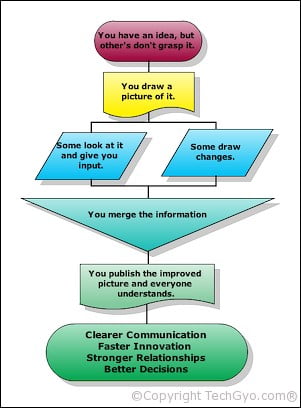
Ever wanted to add make a flowchart, diagram to your WordPress blog post? Gliffy is an online tool which can used for variety diagram drawing purposes. For WordPress users, Gliffy plugin allows to create diagrams and insert them into posts or pages. Draw all kinds of diagrams: flowcharts, UI mockups, UML, etc and embed it to your blog post in just a click. The Gliffy plugin for WordPress works with your Gliffy account. Gliffy is the world’s first net-native business graphics software. You can need not create an account to try the Gliffy editor.
Gliffy offers a lot of features other than Flowcharts:
Flow Charts
Network Diagrams
Wireframes / UI Mockups
Org Charts
Floor Plans
Technical Drawing
Business Process
SWOT Analysis
UML
You can checkout the complete features and uses of Gliffy here. In case, you are wondering how the flowchart made using Gliffy looks like, then just have a look at the below example of the flowchart.
Not only flowcharts, you can use Gliffy for variety of applications as listed above. Just have a look at the Floor Plan created using Gliffy.
You can try Gliffy for free trail over here (No signup required). However, if you want to save your creations, then you’ll have to signup.
We must all be wondering that what could be behind the biggest internet giant. Isn’t it cool to have a look at it than always hear or read about it. We’ve shared an interesting video about Google data centers. Watch it below. They have several like these in different countries. Have a look how it works.
Do let us know your thoughts about Google’s data center


 Step 6: