Home Blog Page 175

7 Best Android dialers that you should try out

There is no doubt that the stock dialers of Android devices are very much reliable. But what happens when you look for such a dialer that lets you customize the overall calling as well as android experience.  The default dialer applications of android look simple but awesome also, but a number of Android users do not like them!  So you should thank android as it lets you to replace the default dialer app with other third-party applications which contain a lot more innovative features. You will find a lot of applications on the play store which are meant to help you with your contacts and also in personalising the dialer of your phone. With some of the best android dialers, your calling experience will be smoother. So here are some of the best android dialers that you can opt for.

Tip: If you are a prolific gamer, checkout some runescape gold tips

  1. Ready Contact list

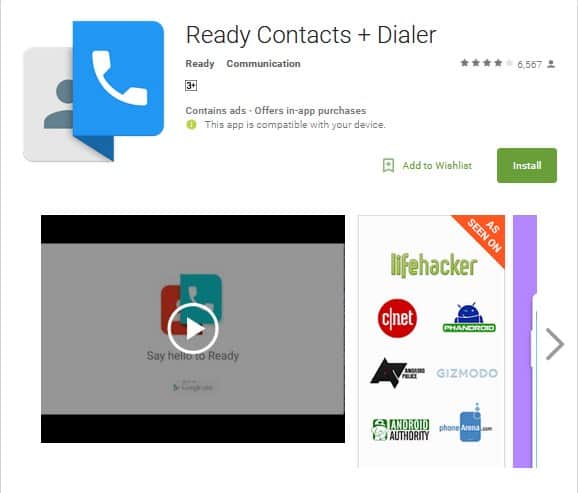
The ready Contact list is one of the best android dialer applications that you can go for.  This application provides you with a feature called ‘Call Bubble’. It integrates a number of other applications such as Gmail, Viber, WhatsApp and many others. It also keeps you updated when there is an incoming call.
best android dialers

Other smart features of Ready Contact list provides you a totally new and sophisticated way by which you can interact as well as manage your contacts. The interface of this application is beautiful as well as unique. You can get this application for free, but it does have a Pro version which contains a lot of other cool features like various other themes and predictive text. Another very interesting fact is that you can also unlock the Pro version for free after you have earned points with the help of referral codes.

  1. Truecaller

Undoubtedly, one of the most popular as well as powerful dialer applications is Truecaller. Even you can use it for messaging purposes also. All features consist of SMS, contacts, dialer as well as call blocking, SMS spam filter, and many others. The there user interface is very basic and simple. You can get the pro version also.

Also, you will get exclusive ringtones from this application. You will also get services of flash messaging in order to share status emoji and location.

  1. Contact+

This is another fantastic application which you can use in order to replace you basic dialer on your android phone. It is also integrated with Telegram, Viber, WhatsApp and many others. Spam filter, Caller ID, and SMS backup are some of its features. Last but not the least; the user interface is awesome in this application.

  1. ExDialer

ExDialer is another powerful android dialer application. It is user-friendly and also very smooth.  This app comes with a wide range of features like easy messaging, calling gestures, smart T9 algorithm and also customization to reboot. Managing contacts with its features is simply amazing.
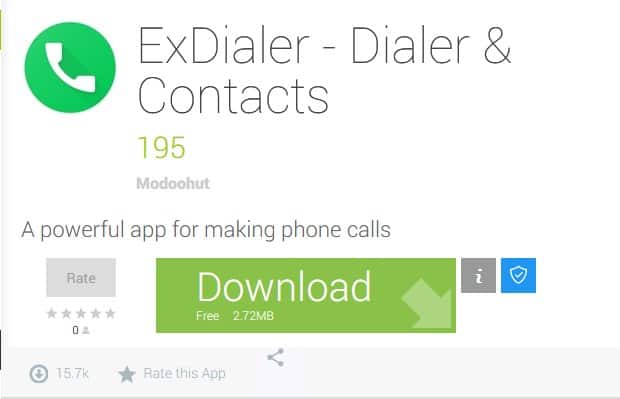
Also, more than 30 languages are supported by ExDialer and it is quite impressive! Adding themes and plug-ins is very easy which makes this particular application much more customizable and functional. No doubt that it is one of the best android dialer applications.

  1. Dialer+

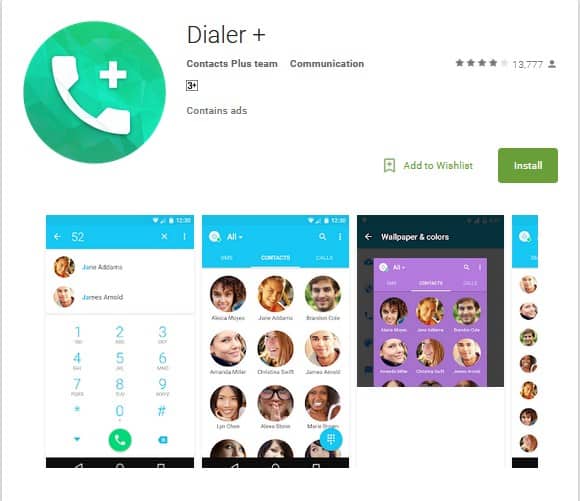
The Dialer+ app comes with a huge amount of functions and features and it does not ask you for any kind of permissions. In order to use it, you have to go to play store and install it first. This application also comes with SMS filtering module and spam calls. This helps you to block messages that you do not want and also to block private numbers. Even this application shows images of your contacts that are present in Google+ or Facebook.  Dialer+ is really easy to use with modern user interface features.
  1. Drupe: Contacts, Phone Dialer, and Caller ID

A drupe is such an excellent application that makes your dialer on your phone smarter than ever and you can control both dialer and contact with just this single application. Drupe also provides you with a number of additional features and various options for customization so that you can make the interface of your choice. A T-9 standard dialer is provided by this application along with speed searching.
Other features include smart caller ID, call blocker which helps you to identify numbers which are unknown and also to block calls that you do not want to receive.  The walkie-talkie is a new feature which helps you to send as well as receive audio recorded messages.

  1. Caller Screen Dialer Caller ID

This is another good dialer application which you will find easily in play store. It changes your dialer look completely with lots of features like HD themes, T9 photo search, quick bubble tools, manual and automatic call recording, and also multi-language themes. Bubble tools include Privacy hide caller ID, call blocker, incoming and outgoing caller ID.

There is the top 7 best android dialer applications that you can opt for in order to increase your calling experience. So why are you waiting? Just go for them!



How to change the default search engine in Chrome – Read and Learn!
Google’s own search engine, Chrome has made the access to the internet over various devices fast, secure and hassle-free. Whatever internet pages we have saved and want to open it later or any page we want to view on the internet will be open by Google Chrome only if we change the default search engine into Google Chrome.

This article will guide you on how to change the default search engine in Chrome. With Google Chrome being available on a number of platforms, it is better to sync the settings with an account on Google is that data like saved passwords, history and apps can be accessed from different devices signed in with the same account. The data are stored in chrome in their cloud making the access easy through cloud computing. Previously only accessible on the PC and Macbook, the Google Chrome can now be accessed in your smart android phone making you remember your password and history of the accessed internet searches throughout every devices you have signed in with your account.

First Method on how to change the default search engine in Chrome

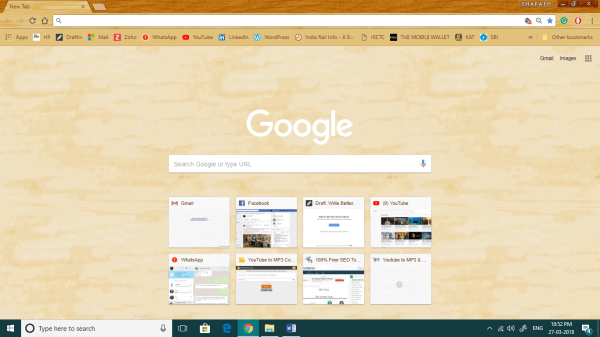
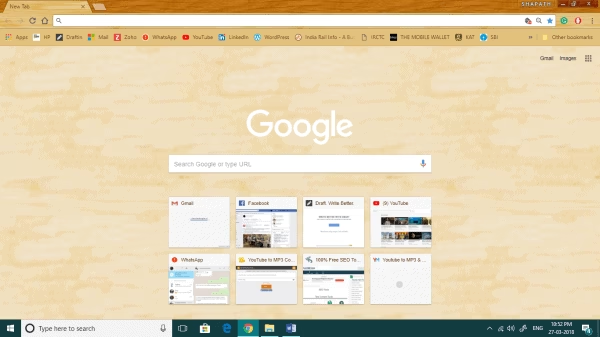
Step one: Launch your Google Chrome.

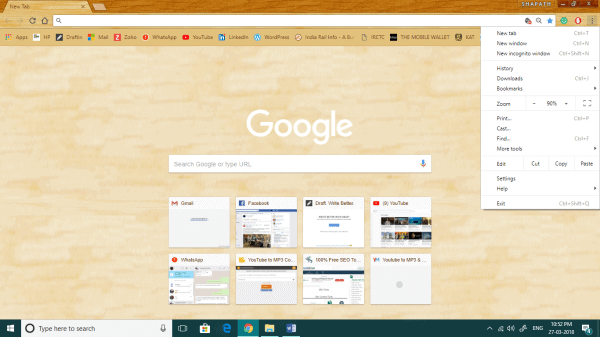
Step two: On the top-right of the screen, you will see a three dotted symbol. It is the icon for entering the properties of the Google Chrome browser. Click on it.

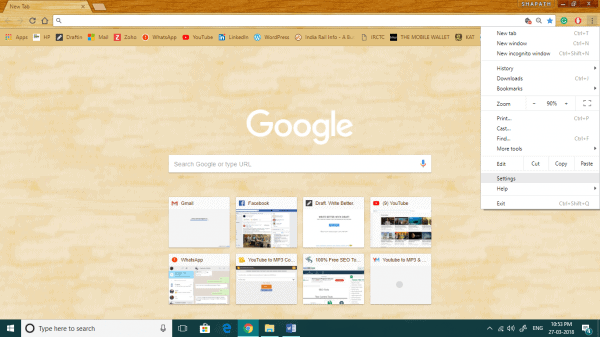
Step three: A drop-down box appears containing the menus for the various features of Google Chrome. The third option from the bottom, Settings. Select it.

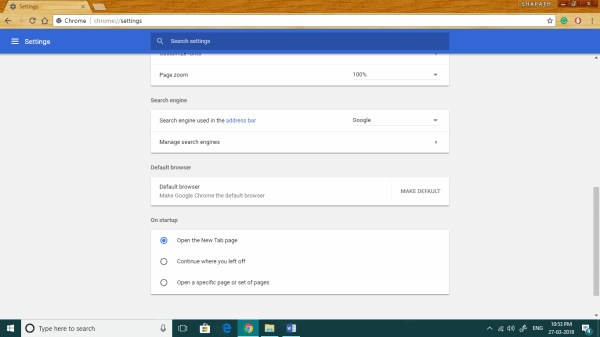
Step four: Now you will be taken inside the various settings of the Google Chrome. Scroll down till you find the Default Browser section.

Step five: Select the Default browser option.

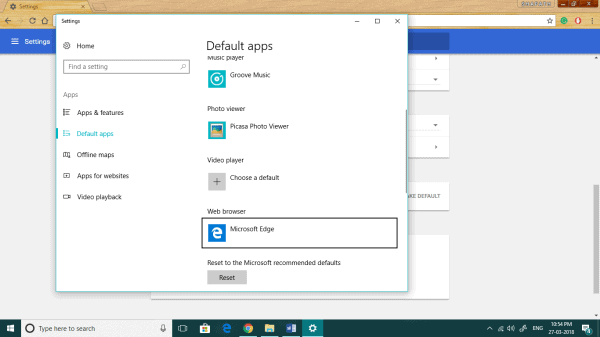
Step six: Now you will enter the default settings sections of your system. This section handles the default applications for different formats of data such as web browser, maps, photo viewer, video player etc. Under the default Web Browser option, select Google Chrome or Microsoft Edge or Mozilla Firefox.

That’s how you can select the default search engine in Chrome when you are using Chrome on a PC or Macbook.

Second Method on how to change the default search engine in Chrome

There is another way on how to change the default search engine in Chrome in your Windows 10 PC. The steps are:

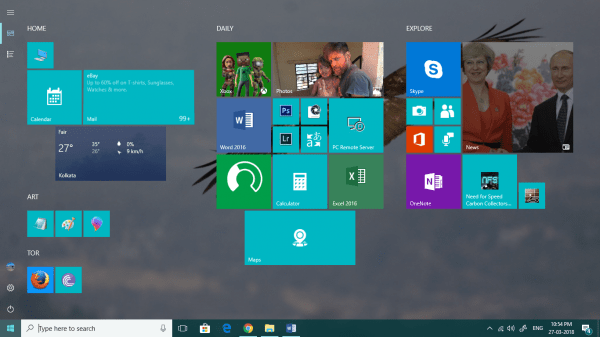
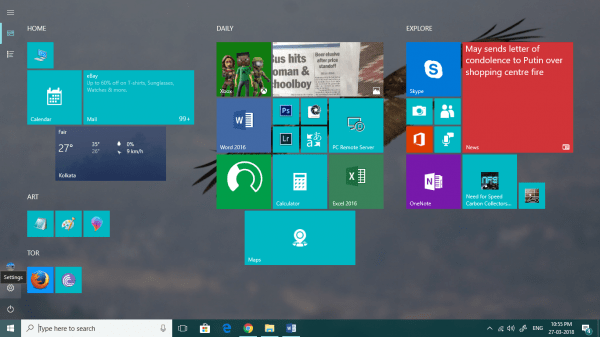
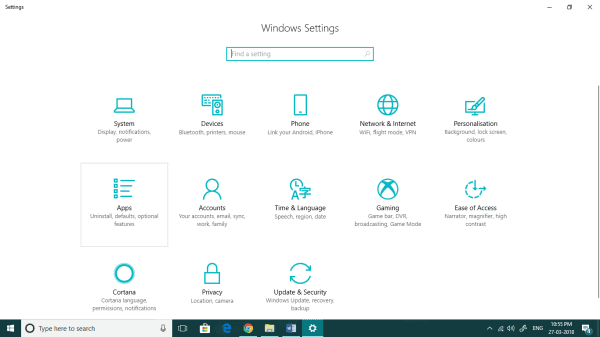
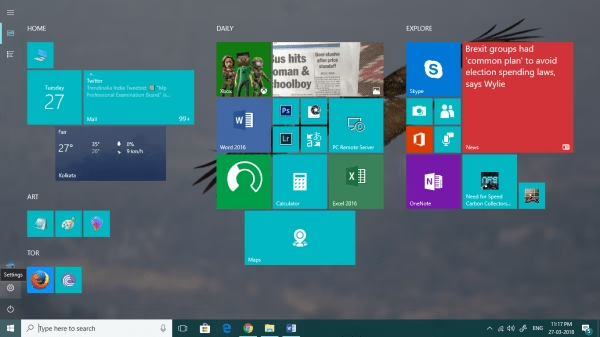
Step one: Select the Windows logo icon on your desktop.

Step two: On the bottom-left side of the screen you will find the settings option. Click on it.

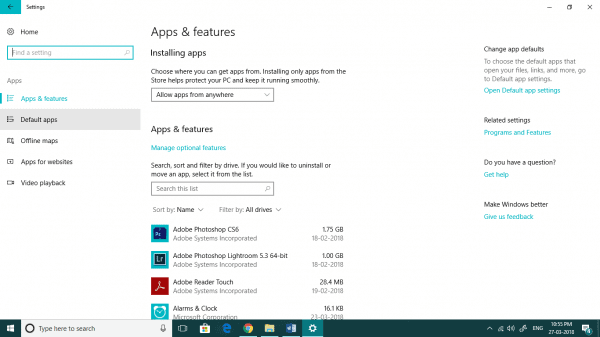
Step three: There you will find the Apps & Features option. Go there.

Step four: On the left-hand side of the taskbar you will find five options under the App section. the second option from the top is the option where you can select the default apps for various formats. Select Default Apps.

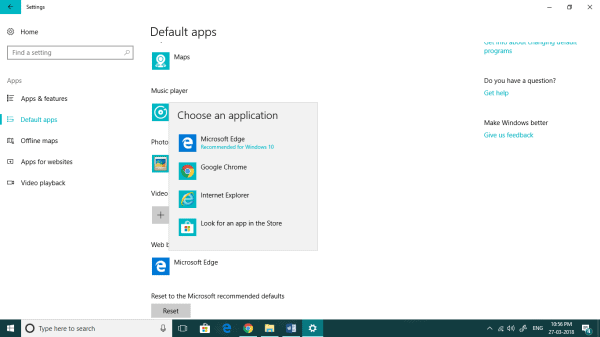
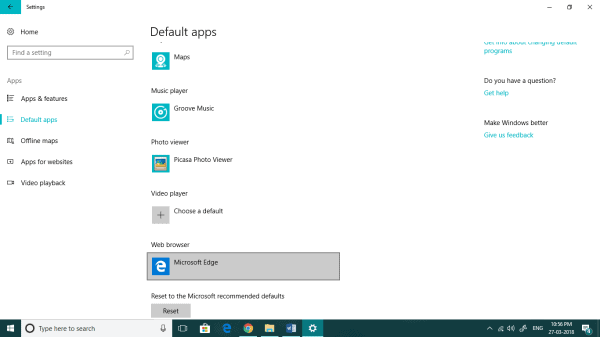
Step five: here you will be able to change the default apps for running various formats of data. here you can choose the default apps for launching maps, mail, music, photo, video and lastly, web browser. Click on it.

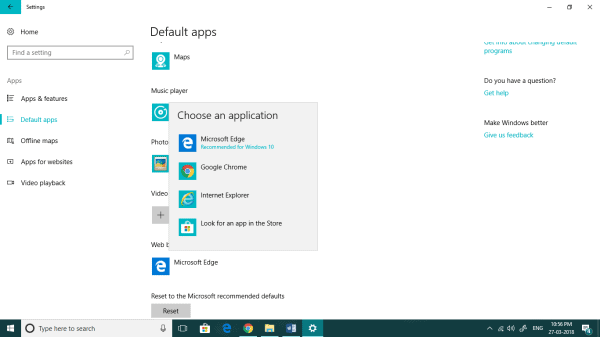
Step six: You will see a dropdown list of all the installed applications that can open a web page. Generally, a PC has firefox, opera and Microsoft Edge for Windows and Safari for Macbook. If you have installed the Google Chrome application before, you will see it in the list. Select it.

Above mentioned were the steps to change default search engine in Chrome. Remember, the use of Google Chrome is not limited only to PC or Macbooks. Nowadays all the Android smartphones are powered by Google. Hence the use of Google Chrome has been made easy in such devices too. When you are using Chrome on your Android smartphone the process of changing the default search engine in Chrome is slightly different.

Third Method on how to change the default search engine in Chrome

When you are using your Android smartphone or an iPhone this is how to change default search engine in Chrome:

Step one: Open Google Chrome on your Smartphone.

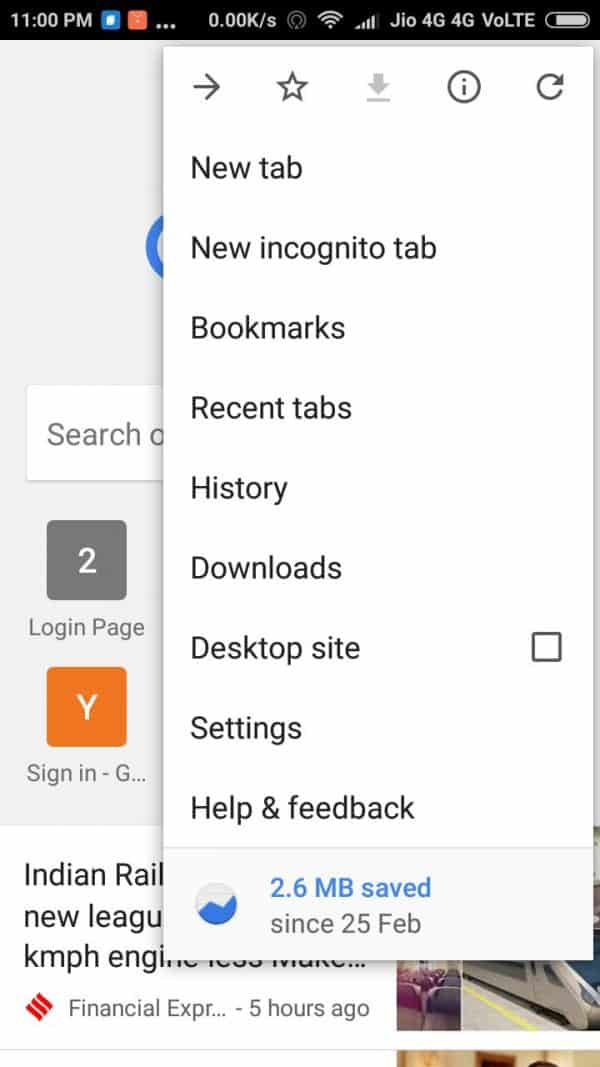
Step two: On the top-right, you will see three dotted like an icon. It denotes the settings of Google Chrome. Click on it.

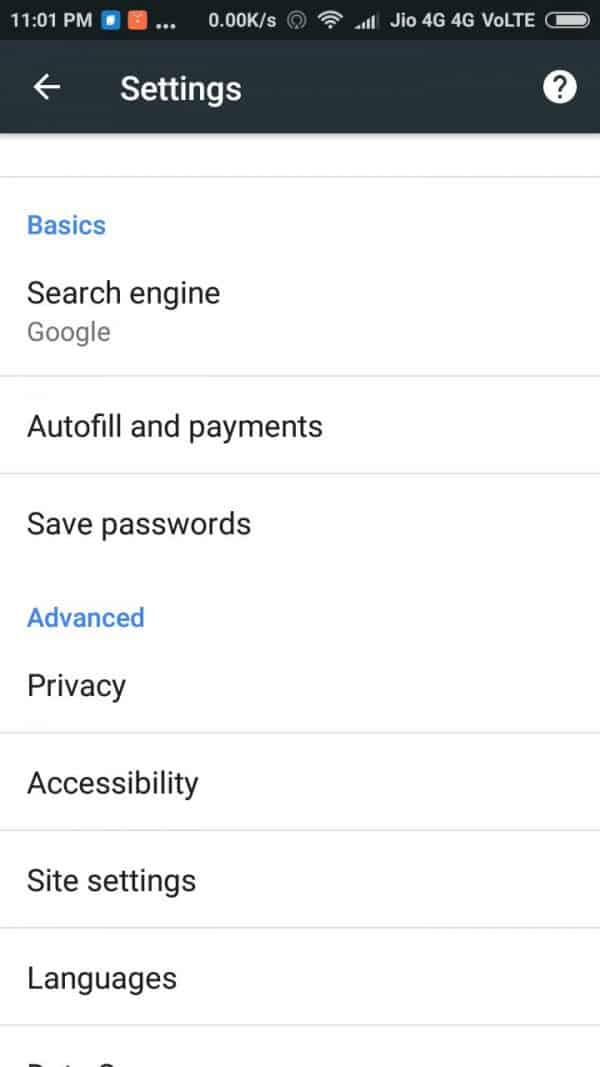
Step three: From the drop-down box that appears, second from the bottom, select the Settings option.

Step four: Below the sign in option, under the basics, the first option you will find is that of the Search engine. It is the option where you can change the default search engine for the internet of your device.

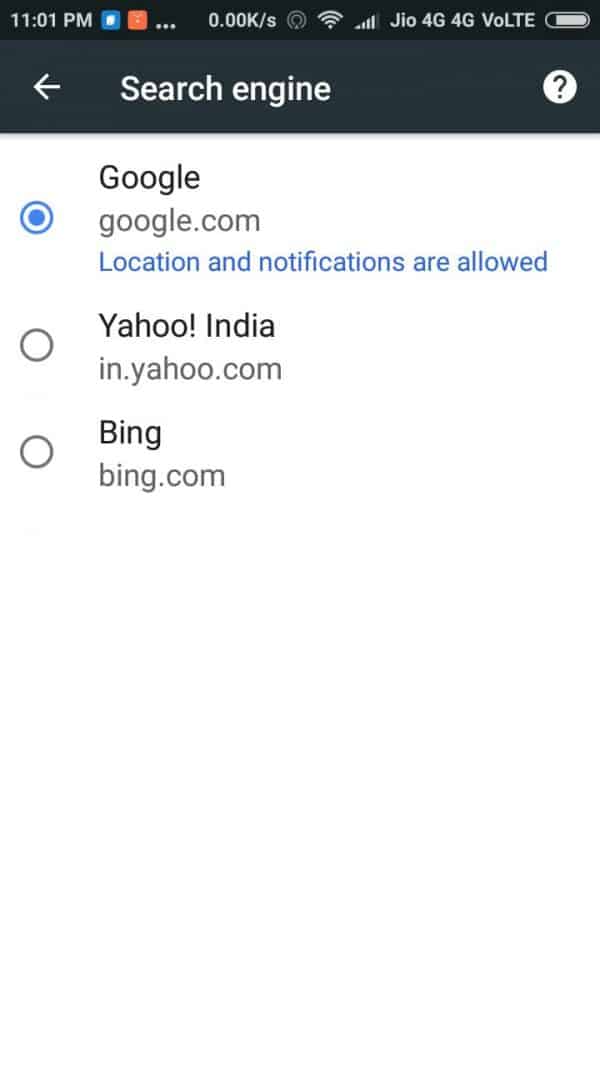
Step five: Select the first option i.e. Google or google.com. Note: Generally, if you haven’t installed any web browser, you will get to choose from Google, Yahoo, and Bing.

When you select the default search engine, it will ask from you to get the Location from your device and wants to handle the notifications. Accept it or you will not be able to experience the ease of accessing Google Chrome across devices. Make sure you have signed in to your Gmail account or other accounts when using Google Chrome. This will help you to synchronize your Chrome settings across devices and also to get you Chrome account as it was before the reset.

Wrapping Up

The three methods mentioned above are easy and will allow you to change default search engine in chrome and browse in your selected search engine. You can follow the steps and start searching the internet with your preferred search engine and also let us know which method worked for you.

Answered: How to find wifi password on Windows 10

The best among the Windows so far, Windows 10 has made computing easy and easily connecting to various other devices like wifi, amazon echo, smartphones, and holograms. Once you connect these devices to your PC, you never have to manually connect them. Every time you turn on your PC they will automatically be connected. You just have to power the devices. You just have to power the devices. Setting up your computer in a way that helps enable efficient working can change the way you go about your working day and how efficiently you do your work. Organizing your desktop so that it supports all the windows features, such as the windows 10 wifi, can help make your everyday tasks easier and less stressful. Some of these apps also allow you to get your hands on features that help you do basic tasks twice as fast, without having to navigate through many folders before finding what you need.

The various latest features of Windows 10 makes your access among the various devices a hassle-free task. The saved password can be accessed through multiple Windows devices. Also, your Microsoft account saves all the password, so the next time after resetting your system, when you log in with your account all the previous settings of the different apps that you own will be synchronized along with the saved passwords, wifi devices, and networks. So this leaves us forgetting our passwords every time we need them the most. Well, in Windows 10 you can easily get your password if you haven’t reset any device. So let’s get on with how to find wifi password on Windows 10 in a step-by-step procedure.

How to find wifi password on Windows 10 – Method 1

Step one

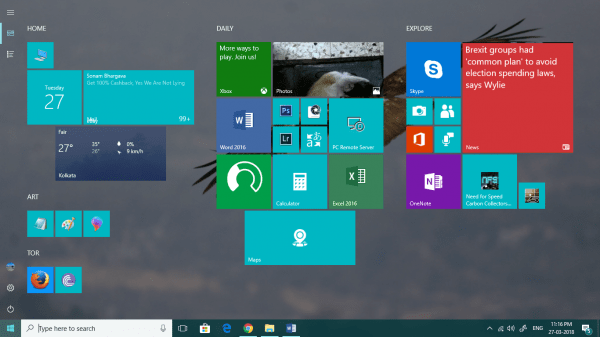
Click on the bottom-most Windows start menu icon at the left side of your screen.

Step two

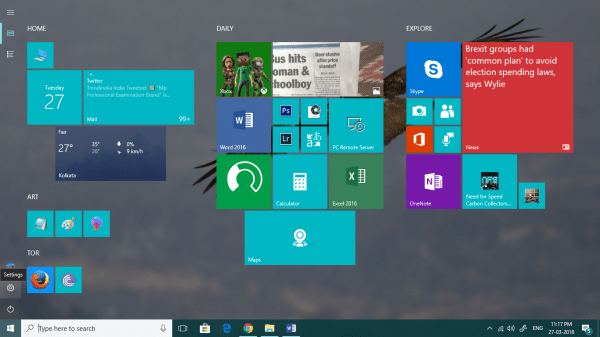
Click on the settings icon on the left side of the screen.

Step three

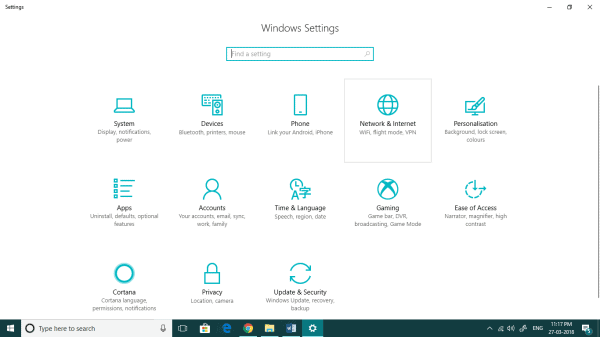
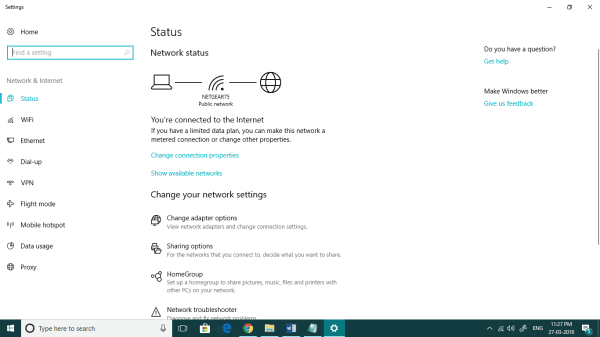
Click on the Network & Internet

Step four

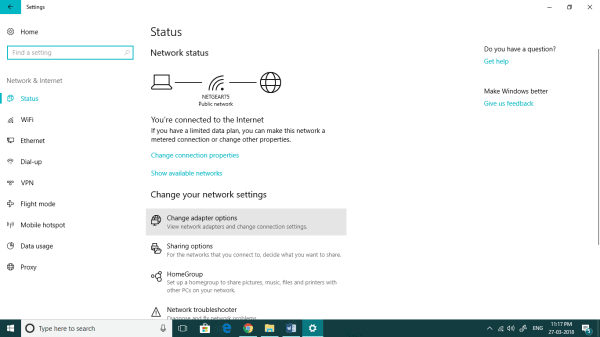
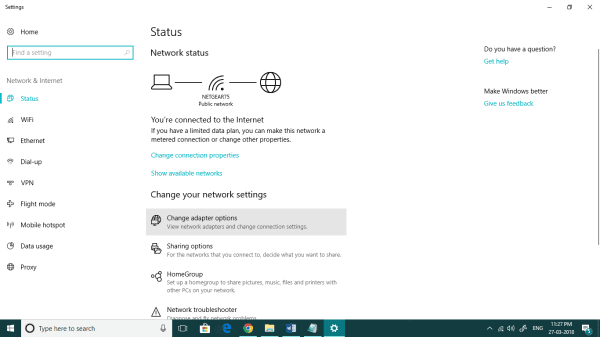
Under change your network settings, you will find Change Adapter Options. Click on it.

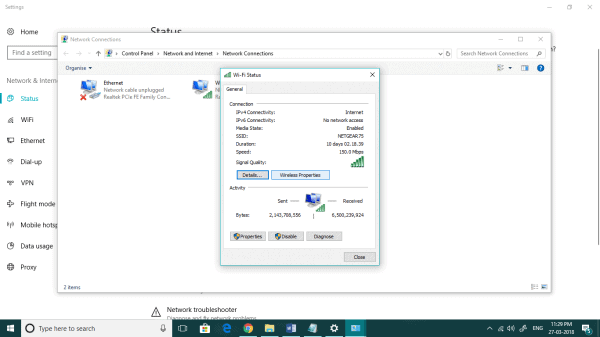
Make sure you are connected to your wifi. When the dialogue box appears it will show the status of your connection. Below it, you will see

Step five

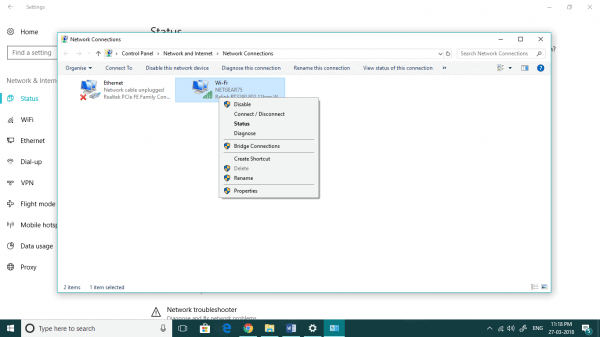
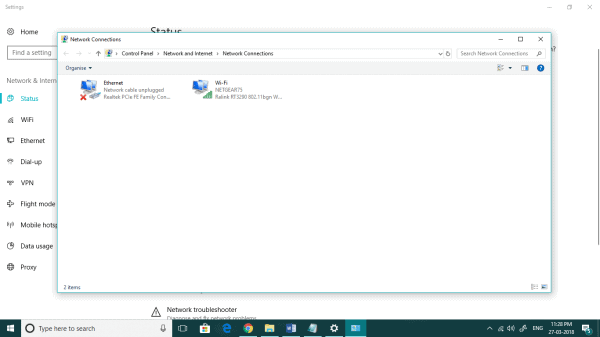
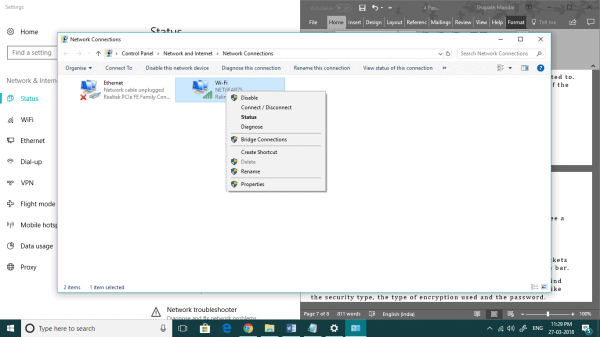
You will see your Wifi. Right-click on your wifi.

Normally you will see your wifi and your ethernet connection option. This shows the different types of network connections are existing in your PC.

Step six

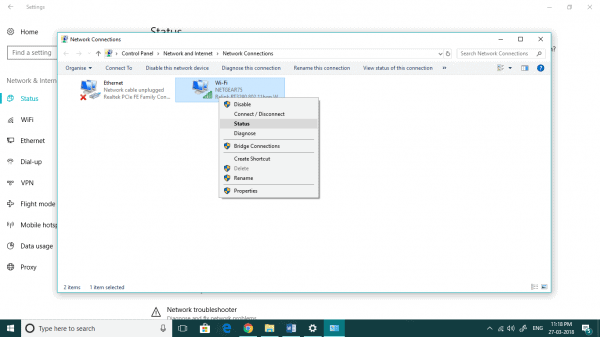
Go to the Status.

Step seven

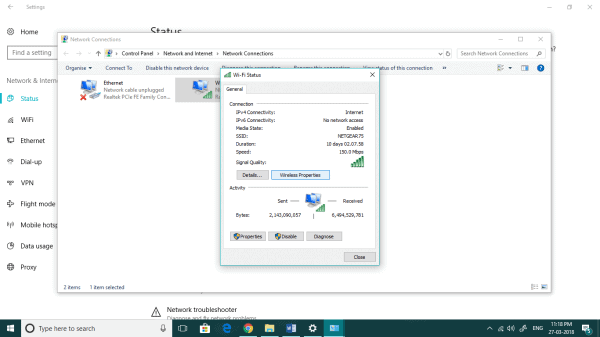
A dialogue box appears. There you can see an option Wireless Properties. Select that.

Step eight

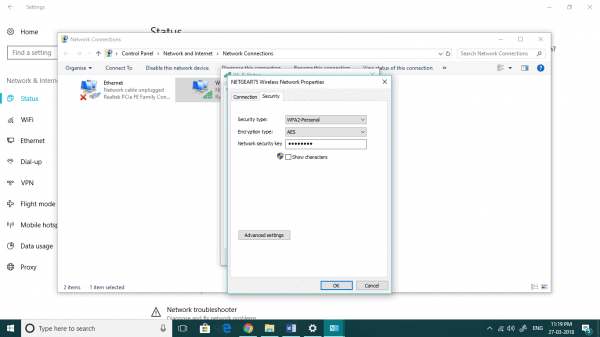
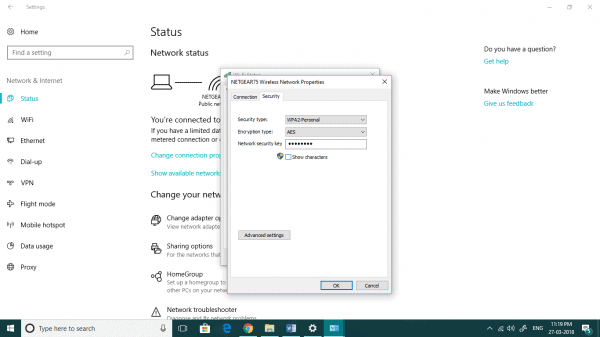
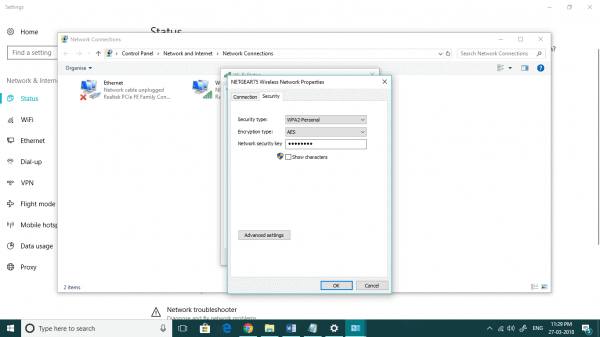
Another dialogue box appears. Select Security.

Step nine

Now you will find the type of security of the connected wifi device, the type of encryption used and the password. The password will be in dots. Below it, select the Show characters check-box. Now you will be able to see your password.

How to find wifi password on Windows 10 – Method 2

Or, there can is another way on how to find wifi password on Windows 10.

Step one

If you have opted for it, you will see a wifi menu icon on the quick launch section of the taskbar on the bottom-right side of the screen. Click on it.

Step two

Now you will see a taskbar appears with the name of your wifi, along with other connectable devices around you that are discoverable by your PC.

Step three

At the end of the list you will see an option saying Network & Internet settings. Click on it.

Step four

This time you will be directly taken into the Settings menu. You will see the status of your connected wifi device and below are the options of various network and internet settings.

Step five

Click on the Change Adapter settings under Change your Network settings.

Step six

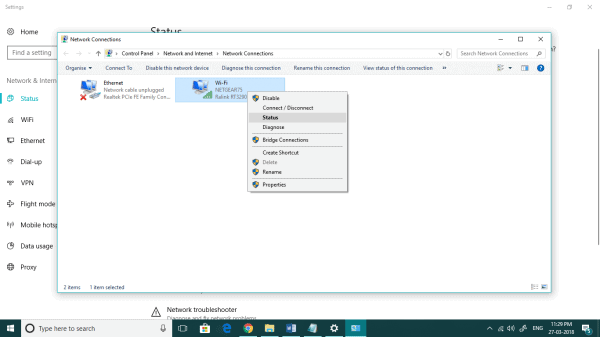
You will be viewing the wifi adapter that you are connected to. You may also see an ethernet connection and the different types of the network who have previously connected to.

Note: the list depends if you have not formatted or reset your PC.

Step seven

Right click on your wifi adapter option and you will see a dropdown list.

Step eight

Select the Status option.

Step nine

You will see a dialogue box showing the status of your connection along with the speed and the number of exchanged packets between the system and the server. Select the Wireless properties bar.

Step 10

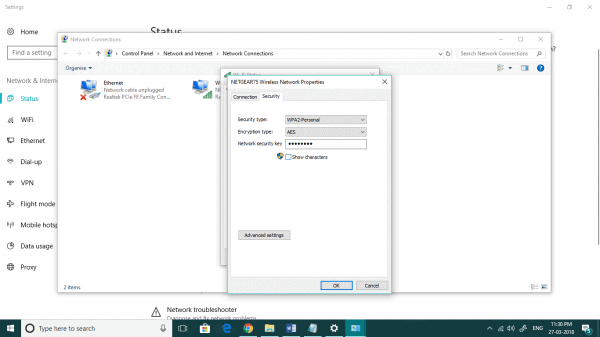
At the top of the dialogue box, Select Security. You will find the type of security the connected device is using for protection like the security type, the type of encryption used and the password.

Step 11

Select the box having the Show characters option. The password that was previously shown in dots, can now be seen as the password used. Write it down somewhere so that you do not forget it the next time.

Note: Both of these techniques are only applicable if you are connected to your wifi and haven’t reset either your PC or the wifi device.

Apart from Windows 10, the following steps are pretty much the same in almost all the Windows version. The process will only be different if the platform changes. With Windows 10 making our life quite easy, there are also some ill-effects on the usage of technology to rely on our everyday task. Make sure you change your wifi password once a month and never share your passwords with anyone. These wifi devices can easily be hacked and can be misused. So keep your passwords safe.

Top 5 Best Sleeping Headphones Which You can Get For Yourself

0

It is scientifically proven that relaxing music has the ability to induce sleep and ensure a deep and relaxing snooze. The biggest problem with human beings, in general, is timely sleeping cycles owing to hectic work schedules and haphazard lifestyle. But there are ways to address this problem and a good pair of sleeping headphones and some unwinding music could be our daily dose to a sound sleep.

Now there are things to keep in mind before ordering a pair as they need to be super comfortable along with added features like design and sound quality to make the process cosier. Here are the top 5 on the list that will tick your snooze button at the right place!
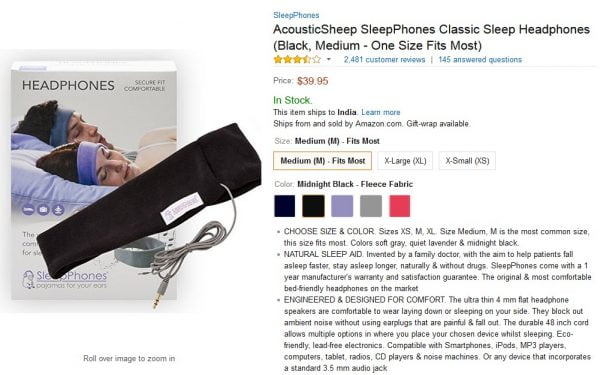
  1. AcousticSheep SleepPhones Classic

One of the most comfortable pairs of sleeping headphones comes in this family of AcousticSheep that are designed traditionally to fit different sizes. A badly made pair can result in health issues with prolonged use but with this, the ensured fit and comfort will take you into the dreamland faster than anything else. They come in both wired and wireless variants and have made the cut as one of the most comfortable wears for sleeping.

The material of the headband does not react with skin and is lightweight, the soft padding will never interfere with your sleep position. Wear it like a plain old headband or pull it down as a sleep mask, the comfort is never compromised.

Some models of the AcousticSheep come with Bluetooth settings and the practical nightmare of tangled wires can be avoided. The SleepPhones SB5Bm Wireless headsets are a bliss in other words.

With different size and colour options, AcousticSheep has nailed the game like a pro!

  1. CozyPhones

Another brand that offers comfort as their priority feature, their products are categorized and designed differently for different activities like running, sleeping or for kids.

The design of a typical CozyPhone is that of a headband that comes with accurately cushioned lightweight micro speakers for more comfort. The fabric of the headband, too, comes in materials like fleece or Lycra that makes long-time wear even snugger.

The speakers inside the headband are nestled strategically for comfortable wear and also come with a travel bag and various choice of colours of the headband.

The only downsizing factor of CozyPhones sleeping headphones is that no wireless option is available at the moment.

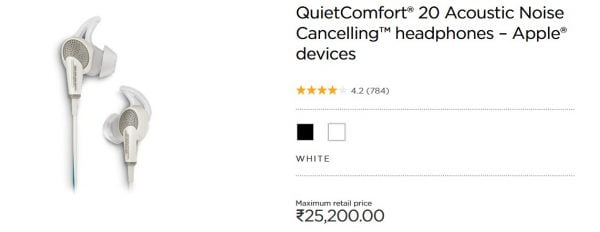
  1. Bose QuietComfort 20 Noise Cancelling Earbuds

If you have the budget for it, this is your best option for sleeping headphones. When it comes to sound and noise cancellation, Bose is the undefeated best for years now and this feature is effectively the most sought after in any headphone that is used to induce sleep.

Noise disturbances are one of the major reasons for sleep deprivation and this set will give the ultimate silence required for concentration.

They come like in-ear headsets with an ergonomic design especially suitable for all sleeping positions. Chose your comfortable size of the earbud tip and enjoy a sound sleep.

Scientifically calculated, this particular set is capable of reducing noise upto 45bd! The working mechanism follows a three step procedure that equates your physical dimensions with your required quality of noise.

The comfort factor is also spot on as the earphones will not interfere with your way of sleeping.

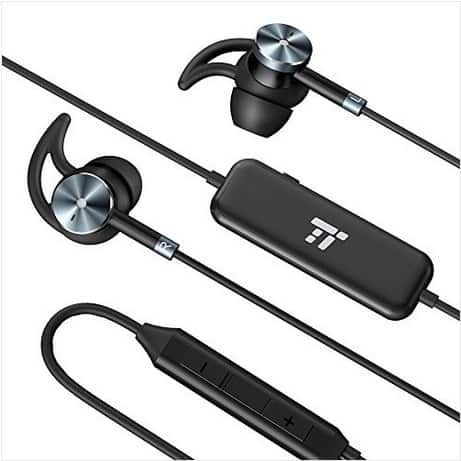
  1. Taotronics Active Noise Cancellation Earphones

Another underdog in the family of sleeping headphones, this model is an amazing product with the price level kept on the affordable side.

The batteries are best and provide uninterrupted 15 hours audio with considerable noise cancellation properties.

Comfort scores high on these earphones and a sound sleep is guaranteed even for the worst sleepers.

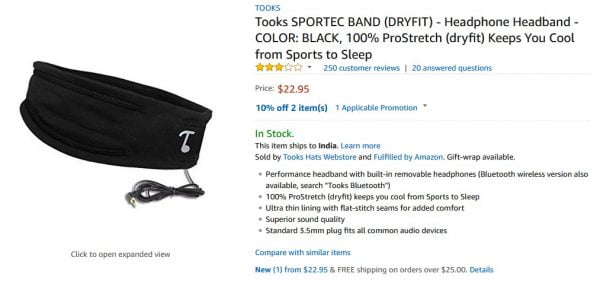
  1. Tooks Sportec Band

The Tooks Sportec Band strikes the right chord at versatility as it can be multi-used as a sleeping headphone or something you can use during other activities.

With micro-fleece fabrics and sweat resistant dryfit material, the comfort that comes with these sleeping headphones is also bang on!

The design is such that it is ideal for sleeping as well as for sports and offers ultimate comfort for any sleeping position as well.

The micro speakers are removable making it much more user friendly that sits right into the headband pockets tightly.

The controlling mechanism through an in-line remote lets you take care of the volume and other functionalities like pause and play, skip or call handling.

They have come up with Bluetooth versions also which makes it easier to use.

2018 is a year of innovation which has impacted the  sleeping headphones franchise as well. No longer will you have to worry about disturbed sleep and with a long-term investment, your biological cycle will stay intact. Chose the ideal model as per your requirements and lead a healthy rested lifestyle every day!

5 Best Ways to Spy on Husbands’ Text Messages Without His Phone

0

You about your husband, even supposing he once in a while drives you up the wall. Currently, although you’re courting him, he has modified. He spends less and much less time with you. He doesn’t speak to you like he used to and can be treating you in a different way. He’s at work all the time or striking out with pals extra often than before. He doesn’t let you know precisely what he’s as much as either. You watched he’s hiding something from you.

Is that this just a passing phase? Does he want time to sort things out? Or has he found someone else? May he want to be dishonest with you? You don’t know for sure. The handiest manner to verify is to check his text messages! In this newsletter, we talk about how you can secret agents on my husband’s cell smartphone textual content messages without his smartphone. The strategies we offer are very clean to enforce. You need no technical skills or a ton of cash to strive for them both.

1.    Spyic

Spyic provides reading my husband’s phone text messages without his phone and his cognizance? The simplest practical way is to apply a spy app. An undercover agent app is a specialized device that secret agent my husband’s textual content messages sports in mystery. Your husband will never recognize.

Spyic is an established name within the marketplace. It often makes a look on pinnacle structures online which include stressed, Mashable, Tech Crunch, and Mac global. Over one million other halves from everywhere in the global depend upon their apps to read their dishonest husband’s textual content messages.

The iOS shape of Spyic may be a web-based app. There are no software downloads or installs involved. The app works together with your husband’s iCloud reinforcement, and not his phone straightforwardly. Subsequently, visit Clickfree site for iOS is outlandish to distinguish. You’ll get customary overhauls of your husband’s content messages remotely. There’s no peril of him finding you out.

The way to secret agent on My Husband’s text messages without His phone?

Are you equipped to get started with an undercover agent ‘s textual content messages without his telephone? We’ll show you how to secret agent my husband’s Android cellphone here which includes his messages and area. If you want to tune my husband’s iOS phone. All you want to set up Spyic for Android is your cell phone or computer and a web connection.

Right here is how to install Spyic.

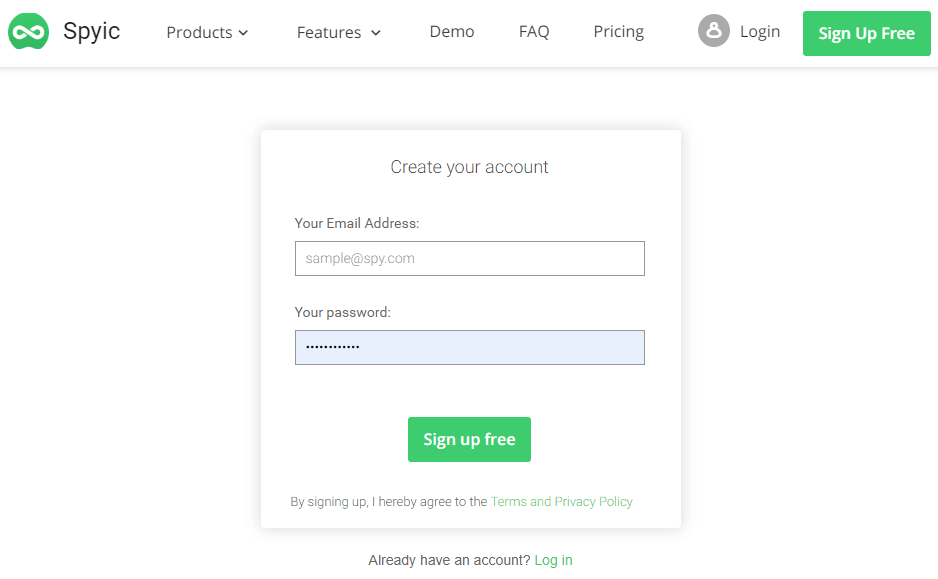
Step 1: Join up for an unfastened Spyic account. Use your email identification because the username.

Step 2: Select your month-to-month Spyic subscription. If your husband owns one telephone, you can select the primary or top class plan. Inside the case where your husband owns multiple phones, select the family choice.

Step 3: The set up commands might be dispatched on the e-mail you used to create your Spyic account. Basically, you need to download a 2MB app for your husband’s cell phone. Then you definitely hide it. It best takes 3 minutes. The instructions are smooth to observe.

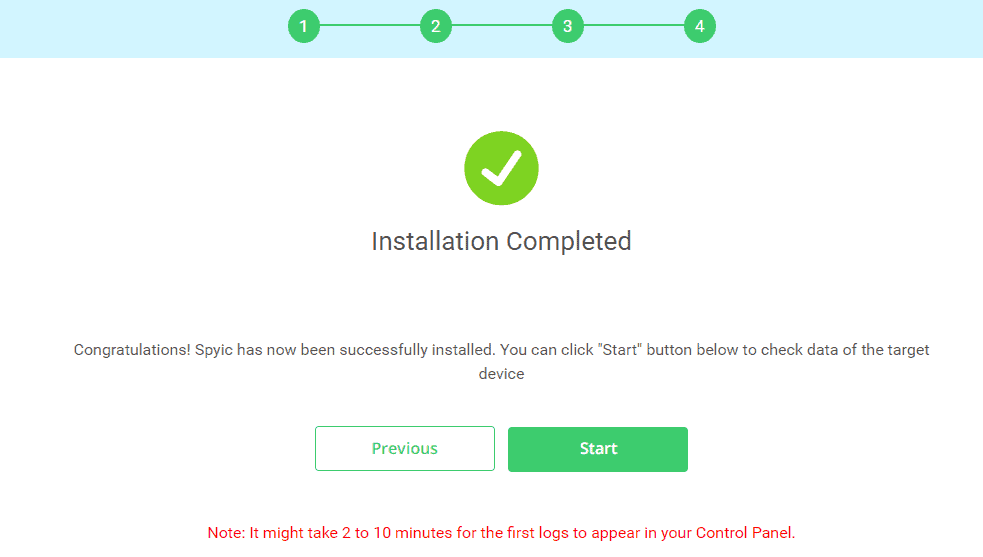
Step 4: That’s all there may be to it! Spyic will sync along with your husband’s tool in a couple of minutes. You can right away start monitoring your hubby’s cellphone via your laptop or cellphone browser. Just log in to the Spyic dashboard to get commenced.

2.    Cocospy

Do you need another method to examine your dishonest husband’s textual content messages? Cocospy makes for an exquisite opportunity to Spyic. You can study approximately Cocospy earlier than. The app is used worldwide with the aid of folks who suspect their partner is dishonest. You may haven’t any trouble keeping tabs in your husband’s telephone with this tool.

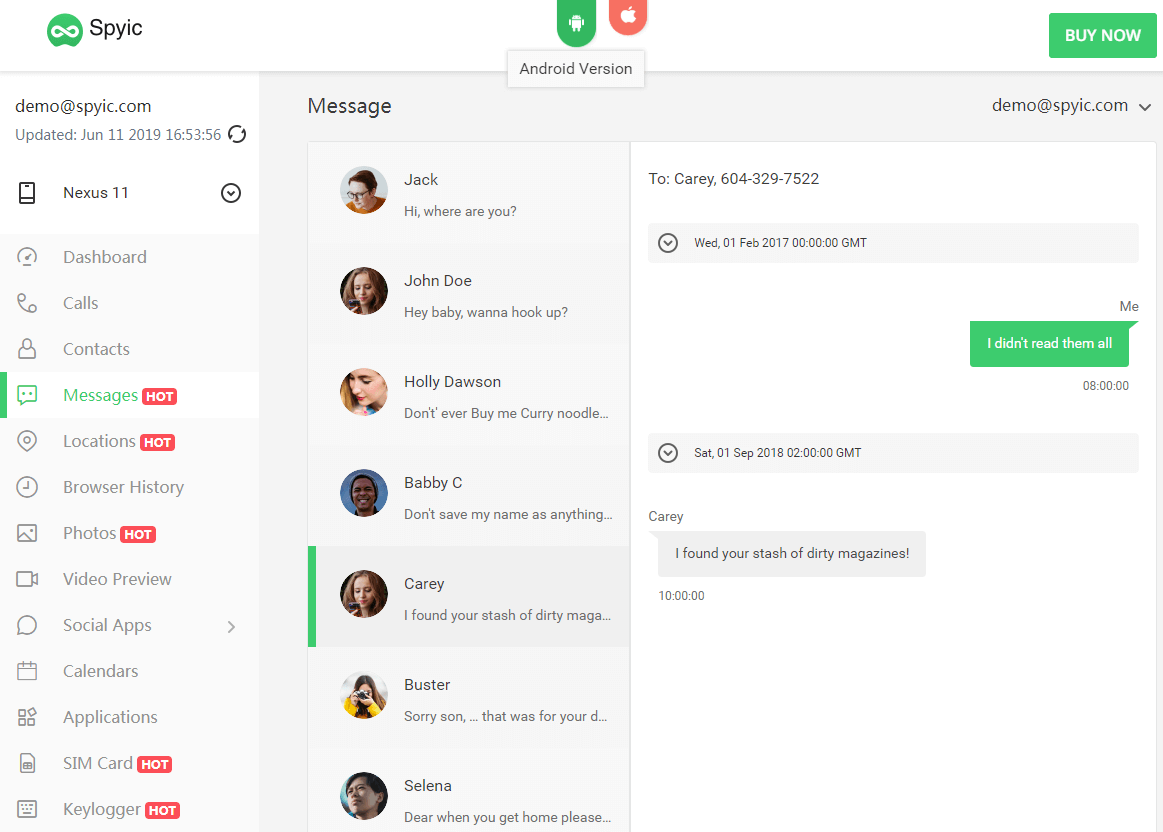
Cocospy gives multiple superior telephone tracking capabilities. You’ll have no problem preserving tabs to your husband’s telephone with this tool. You could view your husband’s messages, name logs, social media apps, calendar events, net browser history, and more. Cocospy offers more than one advanced telephone tracking capabilities.

3.    Spyier

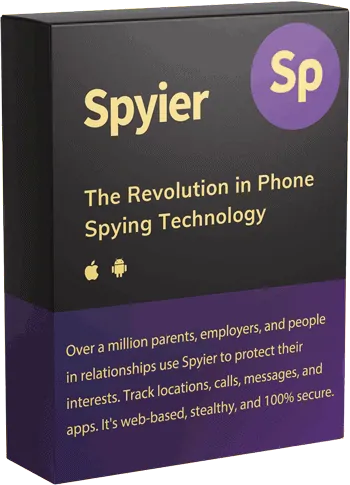
Spyier is a cell phone monitoring utility that has already helped infinite better halves seize their husbands cheating. No longer most effective that, in cases where the better halves suspected however their spouses weren’t cheating, Spyier made that clean as properly. It really works for both Android phones and iPhones. Consequently, irrespective of which cell phone your husband is using, Spyier looks after the trouble.

In case your husband is dishonest to you, they’ll make sure to find methods to find out by reading the messages on their smartphone. That is wherein Spyier’s message secret agent works into play. It is crucial to word that you may additionally see the messages that your husband has deleted cleverly.

4.    Minspy

In terms of your husband’s cell cellphone, you may examine his textual content messages, take a look at his location, and recognize all of the belongings you need to know with Minspy. There may be nothing that your husband gets to hide from you if you have Minspy. Data privacy goes to be your principal situation while you are considering monitoring your husband.

In any case, you don’t want prying eyes to look at your husband’s non-public messages. Minspy gives spying solutions for Android telephones in addition to iPhones. Further, you may use Minspy no matter which telephone version your husband is the usage of. Minspy helps each and every version as long because it has an Android or iOS operating gadget.

5.    Spyine

Now that you know a way to configure Spyine, you can study your husband’s textual content messages very well without problems using it. This is because of the 35+ functions which you get with Spyine. The only issue to recall is whether your husband is using an Android cellphone or an iPhone. Based totally on that, your requirements can be clear to you.

For Android phones, you can install the Spyine app in your husband’s cell phone to screen it. As formerly stated, the Spyine app will be absolutely hidden for your husband’s goal phone. For iPhones, you could study your husband’s text messages without the want for any app set up. You just want to confirm your husband’s iCloud statistics with Spyine.

Conclusion

You currently have a dependable solution to help you read your husband’s textual content messages. When you install it, you’ll get all of the data you need as sufficient evidence to confront him. You likely have an awesome draw close on how to secret agent your husband’s textual content messages, location, and get in touch with your preferred current. To sum it up, you can use Spyic, Spyier, Spyine, Cocospy or Minspy. Those apps are reliable, fast, and pressure-free solutions.

Six Best Duplicate File Finder With Fantastic Features to Save Your Time

Best Duplicate file Finder is not hard to find. There are numerous paid and unpaid softwares available on web. But before going into details let us know what a file finder is.

File Finder – Explained

The File Finder is just a Browser Extension that is pre-installed in your computer at time of purchasing it. Most often these pre-installed files bring in some free programs which start degrading your computer’s performance. According to experts these unwanted computer programs download files automatically and eat up hard disk space. They sneak in with other software and make your computer slow. Downloading a simple removal tool will ensure elimination of the file completely. Although you must take care that the important files or softwares does not get deleted in the process.

Duplicate File Finder – What is it?

Basically Duplicate File Finder operates in place of the pre-installed one. It saves hard disk space by eliminating unnecessary file and also keeps track so that similar files are not downloaded twice. This will keep the original file safe and avoid copies of it from getting downloaded. People often delete the important files in the process of eliminating unwanted ones. Downloading the best duplicate file finder will save your time and energy in the process.

Features of duplicate File Finder

  • Works on both permanent and secondary storage devices
  • Is user friendly and designed to work on different operating systems.
  • Ensure safety and reliability
  • Reduces searching time
  • Multipurpose software, eliminates duplicate and unwanted files.

No computers are error free. Most of them develop issues gradually. Thankfully these problems are looked after by users themselves. Due to these easily downloadable softwares and their user friendly nature, it has become so easy. Below is a list of 6 best duplicate file finders.

  1. XYplorer

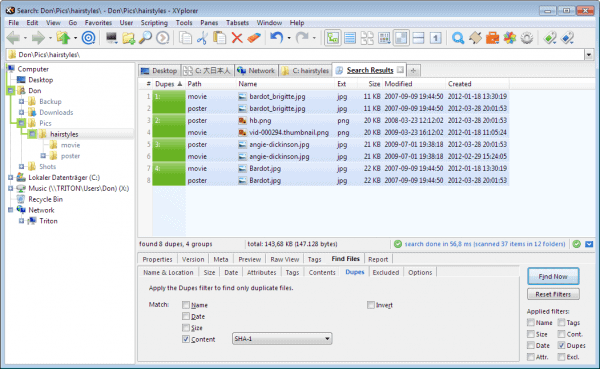
XYplorer is a file manager that consists of features that are found in both navigational and orthodox file managers. It can run on Operating systems like Windows XP, Vista, 7, 8, and 10. It comes with a Dupes detection feature. This file manager is highly recommended because of its effective way of presenting all the duplicate files by its name, date, type, size, content etc. This helps in cleaning the unwanted materials more easily. XYplorer is a paid software, that comes with a free trial for some months.

  1. Easy Duplicate Finder

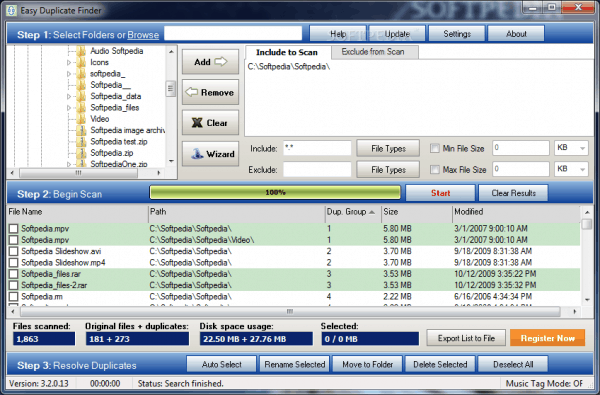
This one is also a paid software, that serves the purpose of diverse and one-click operation. Easy Duplicate Finder is targeted at users who are aiming to get rid of duplicate files from a number of sources, including duplicate tracks in iTunes, Google Drive, Dropbox, Photos, Windows Media Player etc. Keeping aside their traditional folder structure, it offers multiple scanning modes. Easy Duplicate Finder has a special wizard mode which offers you lots of options that makes it easier to specify what kind of clean up you want to do. The software works in windows operating system as well as in MAC.

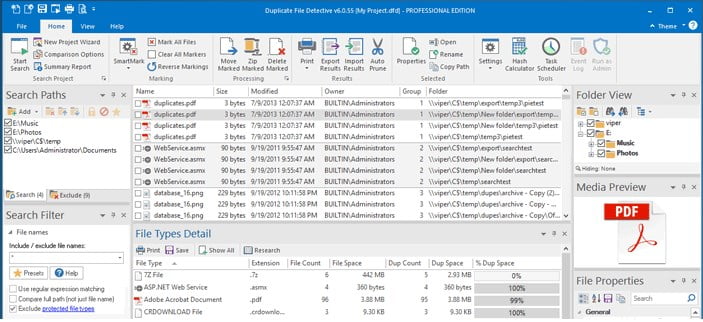
  1. Duplicate File Detective

Duplicate File Detective is also a paid software that comes with uncountable features. While there are traditional options to find out and delete duplicate files of course, the software wonderfully does the act of scanning network drive replacing deleted duplicates with links to the originals. This feature does not exist in the previous softwares. This feature is very essential for MS Word. This is one of the most expensive softwares available.

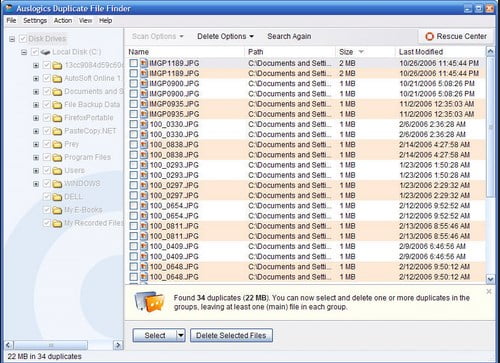
  1. Auslogics Duplicate File Finder

Auslogics Duplicate File Finder comes with the same set of features and tools that the other software would provide you except it comes for free. It scans the entire duplicate program and separates them from the original so that it becomes easier for the users to permanently eliminate them from the computer. The search parameters can be defined in various ways which includes file type, minimum/maximum file size, names, dates etc.

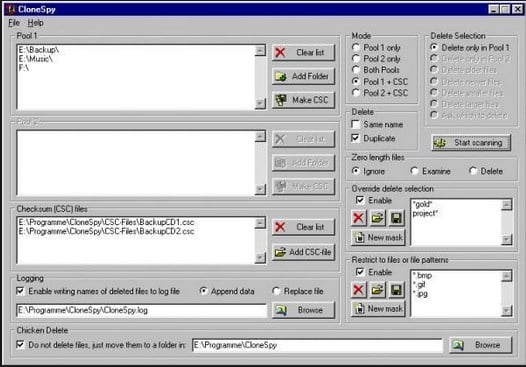
  1. CloneSpy

CloneSpy is  unpaid software that comes with a set of exclusive features. This software works in the same way just like many other paid softwares do. Moreover it offers a distinctive feature which is byte-by-byte comparison for finding duplicate files. It can even search through your local hard drive and network drives and finds the duplicates. This feature is also not available in most paid software.

  1. Doppleganger

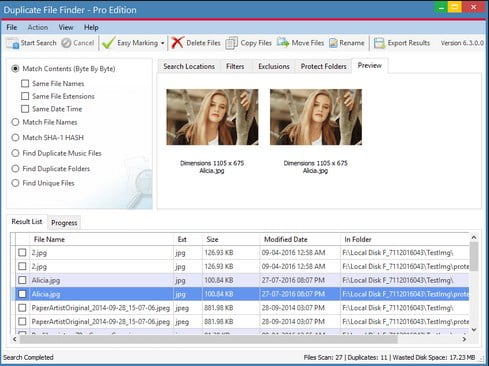
Doppleganger is another paid software that offers a clean and disturbance free interface which enables users to find and delete duplicate files from their system.  It not only comes with a number of exclusive features and tools, but also provides you with external drives and storage media like MP3 players, memory cards etc. There is a tool that aims in discovering and disposing of duplicates easier. It also has advanced options for cleaning up keeping only the required documents. Since removal of duplicate files can be risky, the software has default options which recognize the original folder from the duplicate. Scanning files is done on the basis of content as well as attributes. MD5 checksum is the protocol used to check the content.

These are the most popular best duplicate file finder which you will get in the market. If you have used any other duplicate file finder then do not forget to share with us.

A Complete Guide on How to download Youtube audio android

Long before Saavn, Jio music, Gaana, apps were thought, YouTube used to the platform for millions to search their favorite songs, best quality videos and with the least buffering time among those time. It has been a few years more to a decade still YouTube was launched on the internet and with each day passing the number of YouTube’s users are expanding. To this date, it is regarded as the best platform for uploading and searching videos with the best available video and sound quality for free. In the present era, with the growing number of smartphones users around the globe, YouTube has gone on smartphones through their own apps. What YouTube directly not provides is to download its videos. YouTube does not provide download options for its videos, but it does not even deny some other app to download from YouTube. If you want to know about Youtube audio android then you will get few simple techniques with which you can do this.

There are various methods by which you can download your favorite song or the high-quality video on your Android or iOS smartphone.


If you search the Google Playstore you will find that there are not many good apps that can help you with the conversion and the download. Most of them come with thousands of ads and a complete waste of time and phone memory. here are two methods by which you can you can download Youtube audio android from videos on your Android smartphones.


Method I of how to download Youtube audio android


This method is for the ones who do not want to download an app on their smartphone to download Youtube audio android.


Step one: Copy the URL of the Video or Audio from YouTube.

Copy the entire text from the address bar while you have open the desired file on the YouTube.

Step two: Open Google Chrome or any other Web Browser from your smartphone.


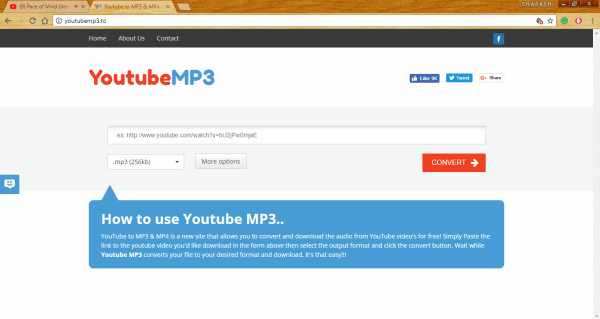
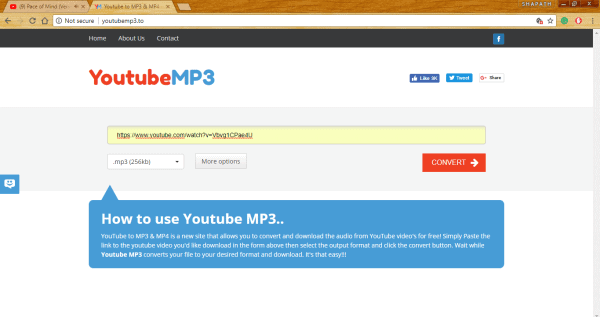
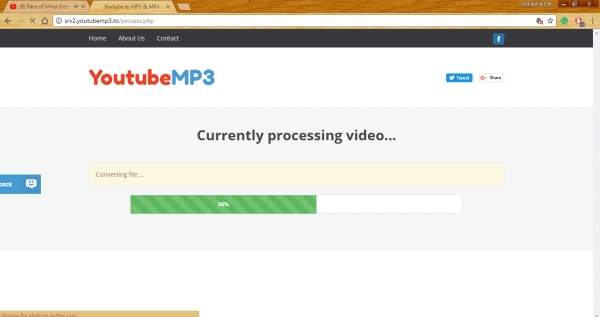
Step three: Go to the address bar and type- www.youtubemp3.to. Enter the website.

Step four: You will be taken to a page wherein a search bar there is this option- Paste Link Here. The link which you have previously copied (in Step one), paste it here.

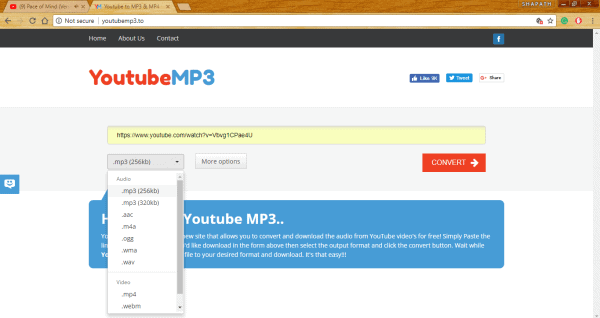
Step five: Below it is the option for the format of the converted YouTube file. Click on it and a dropdown list will appear. There are many formats for converted audio and video output. Select your desired.

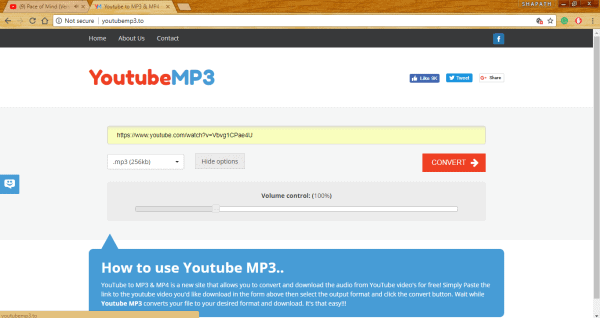
Step six: Click on Convert.

On the screen, you will be shown ‘Currently processing your video’. Let the page load. Wait.

Step seven: You will see your YouTube video converted into audio only. You will be provided with three options- Download, Edit File, and Start Over. Click on your desired.

When you press download, the converted audio file asks permission to get downloaded on your SD card or phone memory (depends on your phone’s settings).


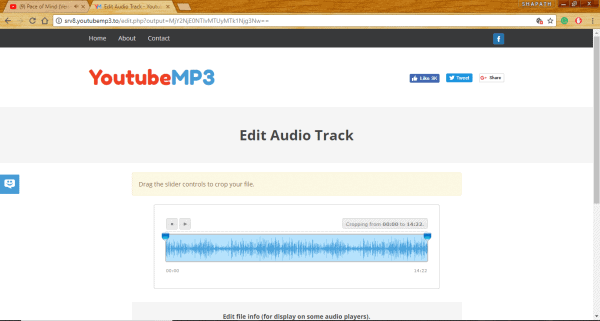
In Edit File you can trim the converted audio before downloading it.

The third option will take you to the homepage of the website.


If you surf through the thousands of app in the playstore offering you to download YouTube videos into mp3 formats, you will find that not much app will come in handy or useful to you. So the second method is to download an app from external source, apart from the Google Playstore and run on your Android smartphone to help you download YouTube video after converting them to Mp3.


Method II of how to download Youtube audio android


This method is for those who want to have a dedicated app to convert the YouTube videos into audios and download them in their phone memory.


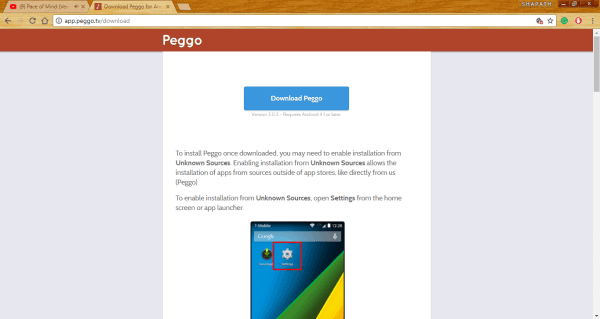
Peggo is not available in the Google Playstore. So download the .apk file of Peggo from www. app.peggo.tv/download.

First, you have to check the settings of your Android smartphone before installing the download .apk file on your smartphone.

Step one: Go to your phone’s Settings.


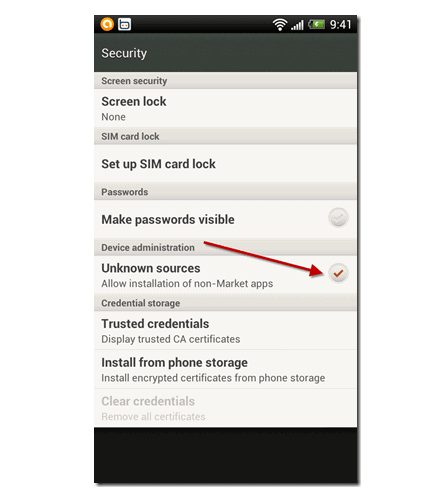
Step two: Scroll down and tap on Security.


Step three: Inside Security, make sure you select ‘Unknown sources’.

This will allow your smartphone to view and install apps apart from the Playstore.


Step four: You will get a warning dialog box saying this action will make your phone vulnerable to attack. Tap on OK.


Enabling the installation of Apps from Unknown sources on your smartphone lets you install the .apk file of Peggo in just one tap.

Now you have to install Peggo on your android smartphone.

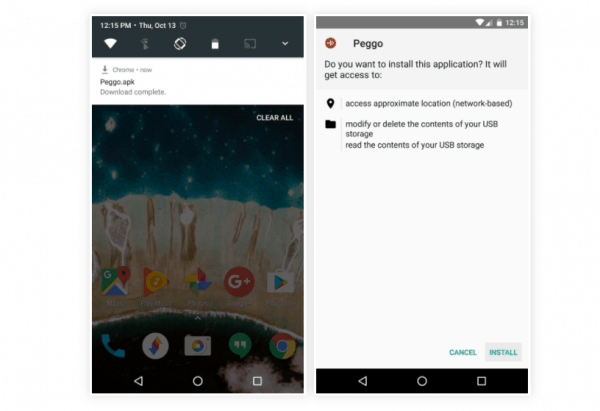
If you have downloaded the .apk file of Peggo on your desktop, copy it to your smartphone. If you have downloaded the file on your smartphone itself the simple go the download folder.

You will find your Peggo.apk file. Open it.

Wait until the app gets installed.

After install, you will find the Peggo icon on your phone.

Steps after Completion of Installation

Once complete installing, now you have to convert YouTube videos into audio format and download.

Step one: Open the Youtube app on your smartphone or you can also visit the site from your phone’s browser.

Step two: Search for the desired video.

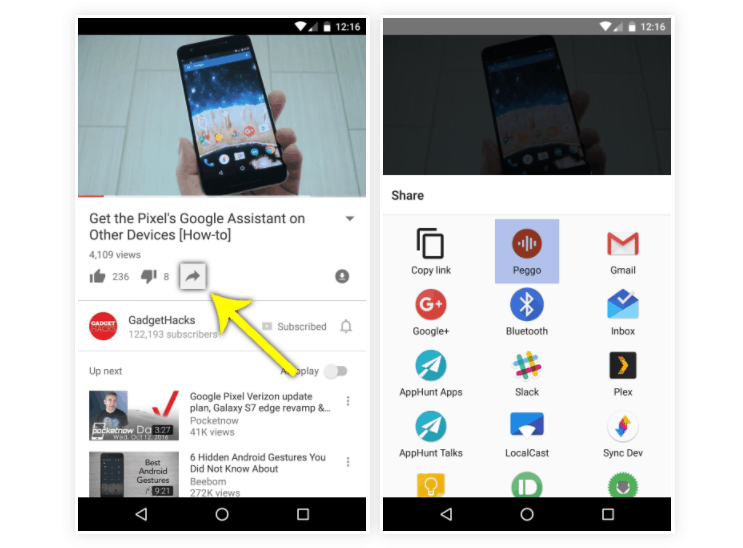
Step three: Below the video, on the third option from the left is Share. Tap on it.

Step four: You will be directed to the place where you can share the YouTube video on Gmail, Bluetooth, WhatsApp, Google+ and many more. One option there is sharing the video on Peggo. Tap on it.

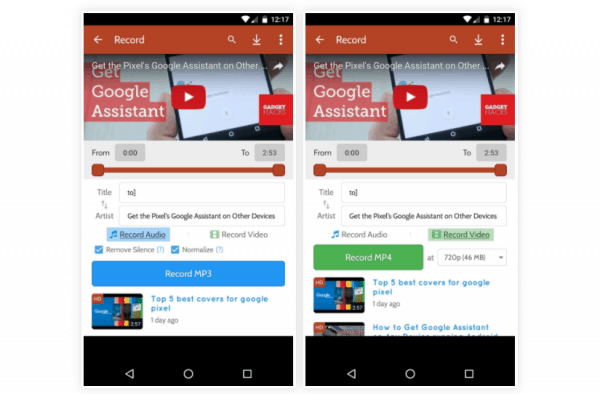
Step five: As soon as you choose to share the file on Peggo, you will be directed to the app where you can download both the audio and the video. Make sure you select the correct destination path and other settings for your audio.

Step six: Make sure you check the two boxes- Remove Silence and Normalize.

Step seven: Tap the ‘Record Mp3’ button.

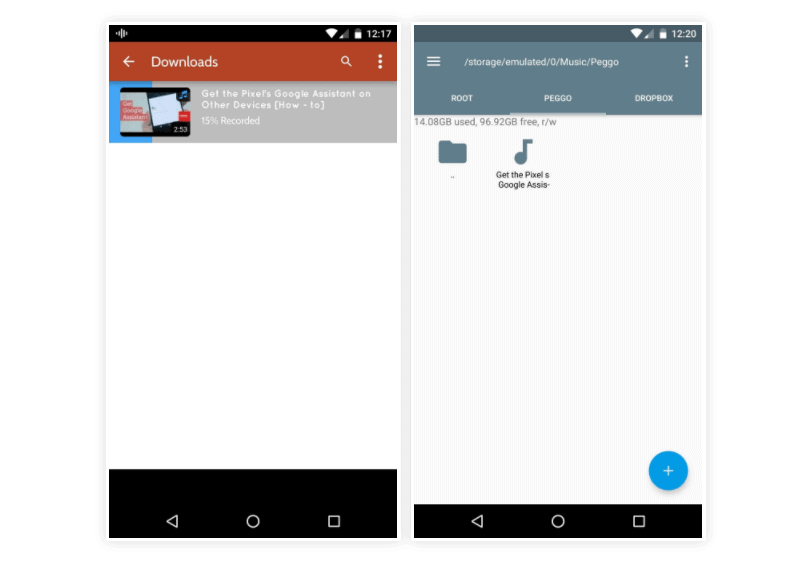
Step eight: Your desired video will start converting into audio format and download on the phone’s memory.

Wait for the download to get complete. Once done, open the mp3 file to check the quality.

If you want to get to the root directory of the stored converted mp3 on your phone, Go to- /storage/emulated/0/Music/Peggo.

These are the top two methods that you can follow to get the audio of YouTube video downloaded on your Android smartphone’s memory so can listen to your favorite songs anywhere, anytime you desire. Enjoy downloading for free.

Exit mobile version