Mac computers have been considered the most secure and reliable computers due to its closed source and advance featured security systems. Every Mac allows you to put a personal password to let you keep your computer safe and away from anyone else. In this competitive era, engineers are working hard to improve consumer’s user experience on computers. More efficient security system have made by computer engineers to keep them safe from attacks. With the evolution of smartphones, they have also involved making our life easier and better. If you own a Mac computer, you can use any smartphone or device Bluetooth connectivity to lock or unlock your computer. Yes, you heard it right! in this article, we will tell you how to unlock mac using Bluetooth.
We have also discussed in an article on how to unlock mac using android phone. With the help an app, you can unlock mac which uses Bluetooth connectivity to do this task. The app consumes very less energy as it uses Low Energy Bluetooth. You have to follow some steps to configure the app with your Mac. After that, it will start performing its task successfully.
The app will pair Mac with your smartphone or other device using Bluetooth connectivity. The app will run scripts for locking and unlocking and your Mac. Follow below steps to enable this feature.
First of all down the Proximity from the below link.
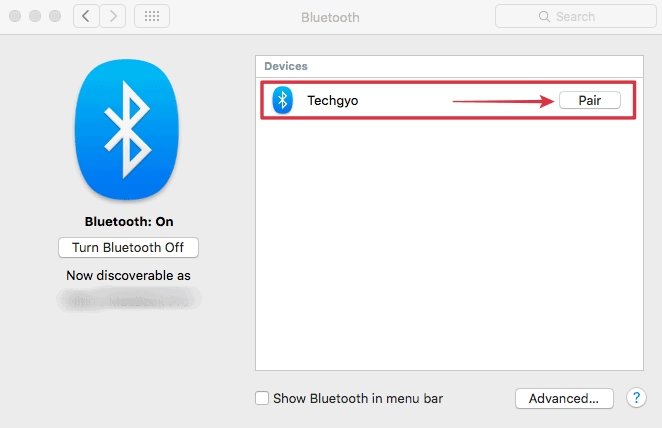
Now go to SystemPreferences > Bluetooth and pair your smartphone or Bluetooth device with Mac.
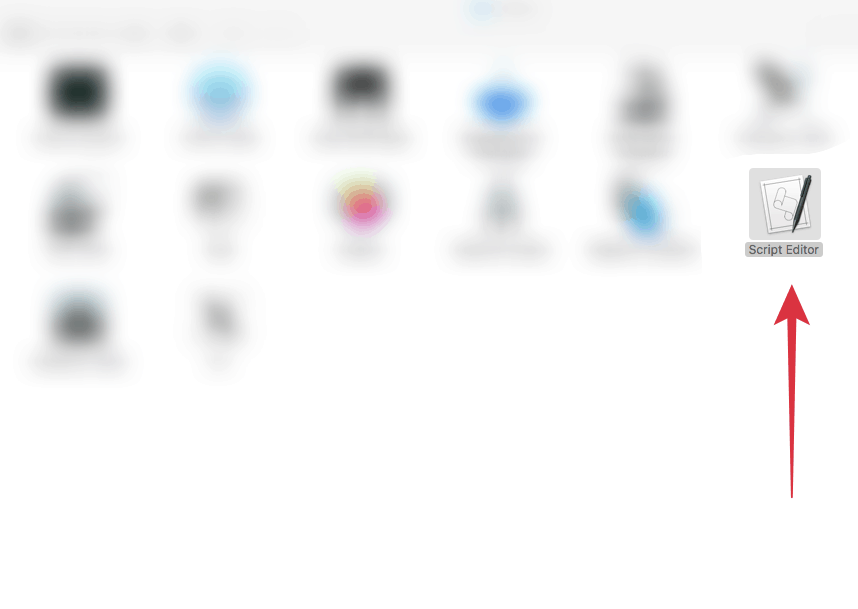
Now got to Applications > Utilities and open “ScriptEditor”.
Now create a new script by adding the following code. Save the script by the name “LockMac“
tell application “System Events”
set ss to screen saver “Random”
start ss
end tell
Create a new script and add the following code. Save it as “UnlockMac“.
tell application “System Events”
set ss to screen saver “Random”
start ss
end tell
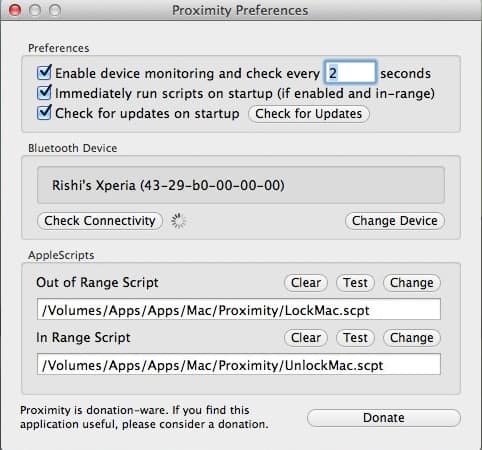
Now go to the “ProximityPreferences” of the app from the “Finder” bar icon on your Mac. Click on “ChangeDevice” and select the device that you want to use to perform Lock and Unlock task on your mac. In the following step, select the LockMac script in OutofRangeScript and UnlockMac in InRangeScript.
Your job is done. The Mac is almost ready to lock and unlock using Bluetooth device. If you have any doubt or query, let us know in the comments section below.
TeamViewer is one of the best software to make remote connections between two computers. When it comes to remote administration, remote support and online meetings, it is the best tool to choose. Over 220 million users are using TeamViewer online to connect through their computer screens. The tool is free for personal and non-commercial use. The home users don’t have to purchase the license to use this tool. You can download this software on your computer, to use it. The upside of this tool is that TeamViewer chromebook can also be used without installing it on your computer. With some simple steps, you can use TeamViewer online without installing to the computer.
If you don’t know how to use teamviewer online or you want to give it a try, you can use Teamviewer online without downloading to the computer. The developers of the tool designed an effective way of how to use teamviewer it so that users can use it without installing it. If you like the software after first-time use, you can install it.
Did you know you can remotely access your computer apps and data on any device(PC/Mac/android/iOS) using Citrix Vdi from CloudDesktopOnline with 24×7 support from Apps4Rent.
How To Use TeamViewer Online Without Installing To Computer?
You have to download TeamViewer chromebook on your computer from the official website of TeamViewer. After downloading, you have to follow some simple steps of how to use TeamViewer Online without installation.
First of all, download TeamViewer on your computer. The software is available for all major Computer and smartphone operating systems like Mac, Windows, Linux, iOS, Android and Windows phone.
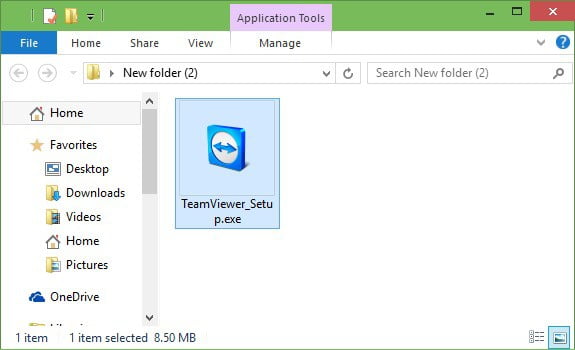
After downloading the software, go to the downloaded file and open it. ( Don’t worry, we are not going to install it ).
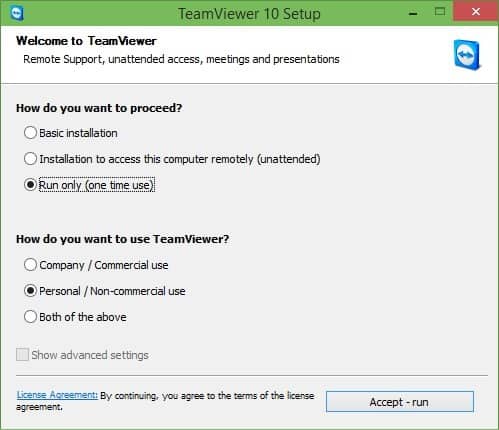
After opening the setup of how to use TeamViewer, you will see a window as seen in the screenshot below.
Now, under the “How do you want to proceed?” section, select the option “Run only (one time use).
From the “How to use TeamViewer?” section, select “Personal / Non-commercial use”.
After selecting the above two options, click on “Accept Run” button.
You are done! You will be able to use TeamViewer Online without installing it to your computer. If you want to continue to use it next time without installing it, you need to follow the same steps. But if you don’t want to download TeamViewer chromebook and want to use TeamViewer online without downloading to the computer, then the below option for you.
How To Use TeamViewer Online Without Downloading To Computer?
The TeamViwer also offers to use it online without downloading the software to your computer. You have to make an account to the TeamViewer website of you don’t have already. After that, you can connect to any device from your TeamViewer online account. The developers have developed this as a TeamViewer online use tool.
How does teamviewer work?
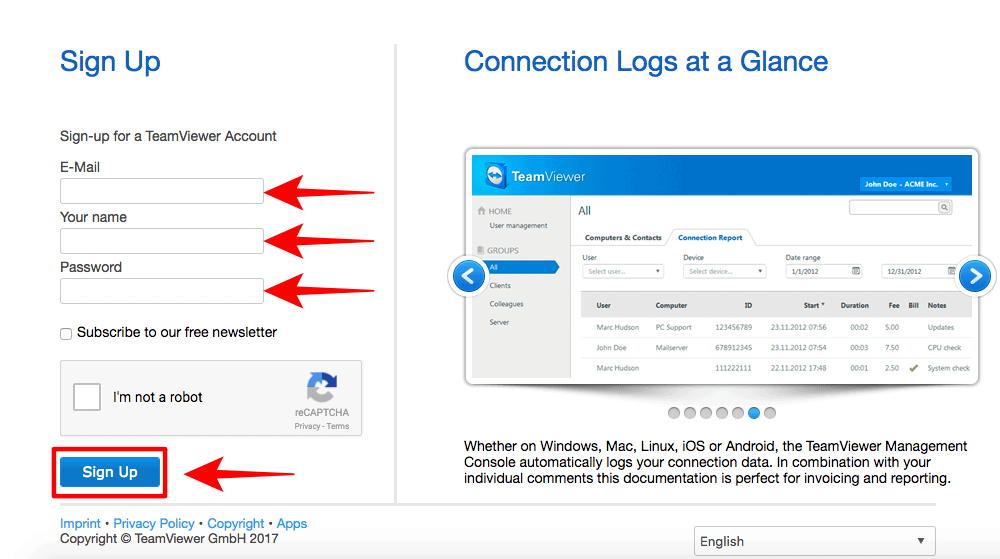
In the first step, go to TeamViewr Login site and Sign Up for an account if you don’t have. Fill the necessary details like Email, Name, and Password and click on SignUp button. If you already have an account, you can use it.
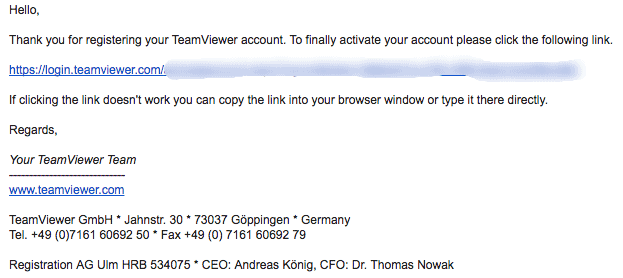
To know how to use teamviewer, step: After signing up, you will get a confirmation mail on your email id. Click on the link given in that email to activate your account.
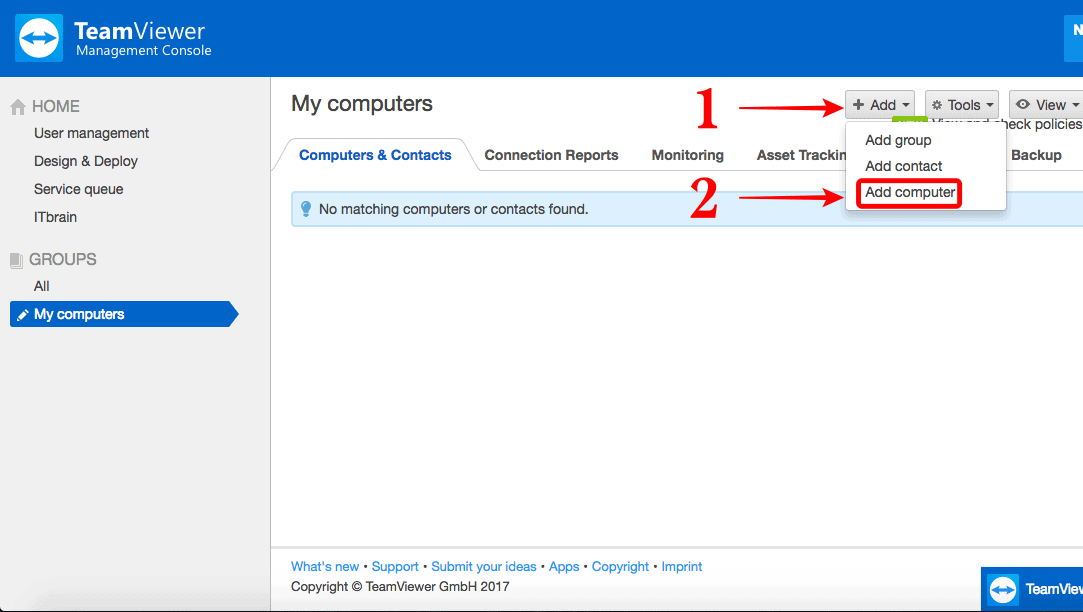
After that, you will get the web page as shown in the screenshot below. Now in this step, you have to add a computer which you want to access from your computer. Click on the Add button at the top and select Addcomputer option.
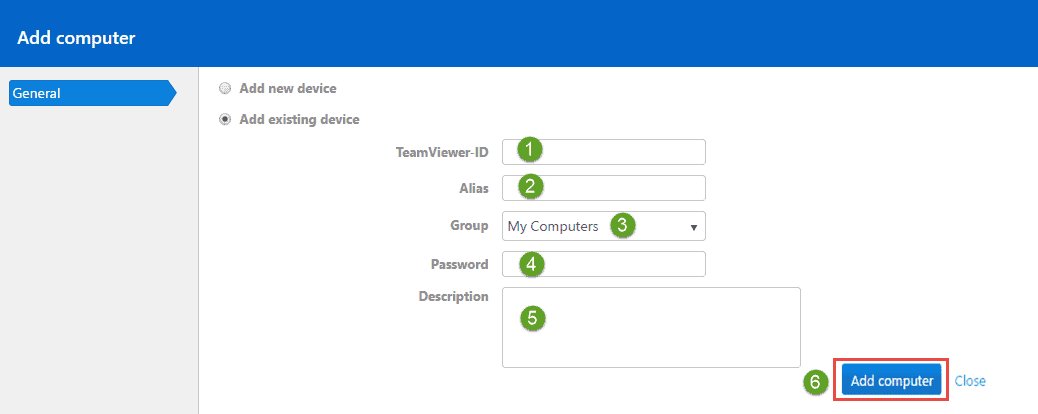
In the new screen, select Addexistingdevice option and fill the details like TeamViewer ID, Alias, Group, Password, Description and click on Addcomputer button.
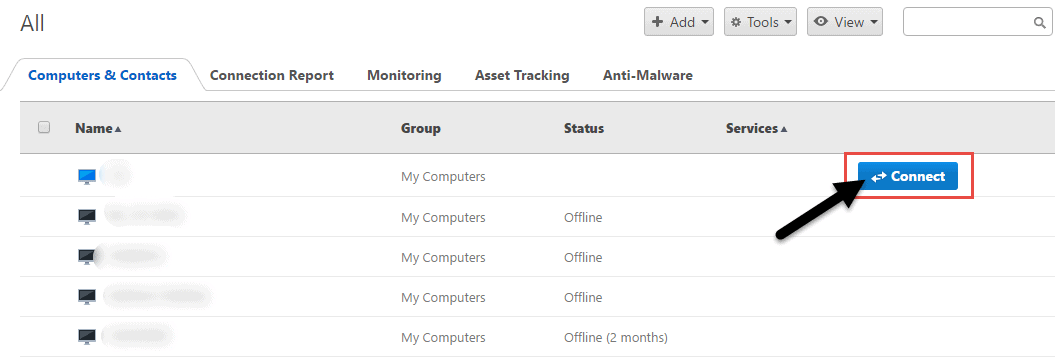
Now, you see the added devices and contacts in your account under Computers and Contacts section. If any of the contact or devices are online, the Status will active else it will show offline. Click on the Connect button to set connection with any device or contact.
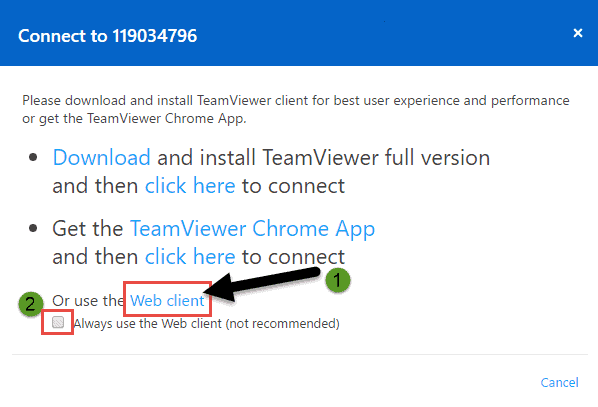
A new pop-up window will open as seen in the screenshot. Check the Always use the web client option and select Webclient.
You are done! A remote connection will start on your web browser. How to use Teamviewer is beneficial for those users who don’t want to download TeamViewer software on their computer. In this way, you can use TeamViewer Online without downloading it on your computer.
TeamViewer is the best choice for most of the users who want remote connections with other users. The team of developers has made it more easy to use. Either you want to test it or you don’t want to install the TeamViewer software, you can choose any method to use it.
A common buzzword among businesses these days is the ‘cloud’. The cloud is synonymous with cloud computing, something that offers all sorts of benefits to businesses. But what is cloud computing exactly? At its basic level, it is the practice of storing, managing and processing data on a network of remote servers instead of traditional methods such as utilizing a personal computer. From there, users have options between different types of cloud computing, such as public clouds, private clouds or hybrid clouds.
It is important to evaluate the different types of cloud computing to find the right fit for you, specifically depending on the data you are working with. Contingent on the security and management that is required for your business, this calls for a comparison between the different clouds. In this article we will explore the different types of cloud computing to help you understand your options and have the tools to make a well-informed cloud decision.
Types of Cloud Computing:
Public clouds
A public cloud enables service providers to make resources available to the general public via the Internet. Because of its public nature, public clouds are less expensive for users because the provider is the party responsible for the hardware and supportive costs. Users also have the liberty to choose exactly how much capacity they wish to use and only need to pay for what is used. Public clouds offer many advantages for users, but this does not mean that it is the best fit for every user and organization. For sensitive data and strict compliance regulations, public clouds may not always fit the criteria for security or configuration.
Private clouds
Private clouds offer a company the benefits of the cloud and also the peace of mind that your assets are protected in your own backyard. In this case, a data center infrastructure is dedicated specifically to one organization and can be on-premises or off-premises. Instead of offering resources to external customers, the focus for private cloud users is to the scaling, monitoring and provision of data center architectures. This does come at a cost, however, as private clouds can be quite expensive. As a result, it is generally the large enterprises that take advantage of this option.
Hybrid clouds
Hybrid clouds offer the best of both cloud worlds. It could be any combination of clouds, so long as the resources are shared amongst them. Companies can manage their own private cloud while utilizing the public cloud when the need arises. For example, Software as a Service (Saas) such as the Customer Relationship Management (CRM) Software could be available in a private cloud, while data resources are also available in a public cloud for when they are needed. As the resources are shared across two different cloud types, this is considered to be a hybrid cloud.
Cloud providers
The main cloud providers today include: Amazon Web Service (AWS), Microsoft Azure and Google Cloud Platform. There are also: Adobe, Oracle Cloud, SAP and IBM and other cloud hosting providers out there that you can choose from.
It is important to stay up to date with any new tools offered by these main providers. Thankfully, it is common for the providers to offer a free run with their offering. This means for us wanting to decide between cloud providers and those who want to gain a deeper understanding of cloud computing in general, we can take advantage of their offerings to see what we are more comfortable working with. There are many ways to develop a deeper understanding of the tools offered, such as online courses. There are platforms that also provide training tailored to specific providers. Cloud Academy, for example, offers AWS DevOps certification, which enables students to familiarize themselves with Amazon cloud.
In today’s data centric world, businesses across the world are coming up with different ways on how to work with, process, and store their data. There is no longer one clear answer, and instead we have different options that we can alter and change as we go and be sure our decisions continuously meet our business needs. Whether it be the public cloud to take advantage of resources that you specifically do not need to maintain, the private cloud to feel more secure in the whereabouts of data or a hybrid of the two, it is all about finding the right balance for where your business is at right now.
You can become a better writer. All it will take is time, dedication and the right tools to help you hone your skills to a sharp edge. I can’t give you the first two. Those you’ll need to find by yourself. The last one, however, that one I can help you with.
Here are some of the best tools that I have found to boost my writing skills.
Edubirdie
This web browser-based free grammar and spell checker is exceptionally fast and robust. EduBirdie has produced a well-rounded application that can attend to all your grammatical needs. When writing an essay, you can simply paste the text into the app and look at what corrections must be made. It outlines the errors clearly and provides solutions in just a single click. You can choose to either accept the changes or ignore them. The following are some of the main pros and cons of this application:
Pros
– Simple layout and interface
– A clear outline of the errors
– Suggested corrections are easy to access
– Quick process
Cons
– The pop-up box could be made a little clearer
The process to use the checker is clear-cut. It doesn’t take much time at all. Aside from the basic error checking, there is also a premium version that offers vocabulary improvements and a check for plagiarism. EduBirdie certainly seems to have produced a first-rate checking tool that students can really benefit from.
Hemingway App
This free-to-use app is one of my go-to resources for my content. Just copy and paste your content into it, to get an idea of how readable your texts are and where the problem areas are. For example, are you using too many adverbs? Have you used the passive voice too often? Are your sentences too long and too complicated?
From there you can take steps to make your text more accessible. Even better, within no time you’ll start internalizing the lessons there and your text will become clearer and easier to read.
Grammarly
Did you know that Grammarly actually picks up more mistakes than Word does? Yup, that’s right. And the best part is that it will do all that not just in a word document, but anywhere on the internet.
In that way not just your text documents, but your emails and even your comments will be grammatically correct – and that’s pretty damned important if you want to be taken seriously.
Note that the basic version is free, while the premium version will set you back 30 US if you pay per month, 20 US if you pay per quarter, or 12 if you pay the whole year in one go.
Australian Grammar Check
If you’re looking for a better alternative than Grammarly, do checkout this Australian grammar check tool
Sometimes the trick to writing better is not writing at all, but using another method. Dragon Dictate is such a method. This program is phenomenal at recognizing your speech after only a little bit of training and as most of us can speak a lot faster than we can type, that means it can significantly speed up our recording time.
Then afterward you can always sit down and edit what you’ve dictated, allowing you to bring the fluency of your speech and the exactness of the keyboard to bear on the texts you write. That can give you some surprisingly effective insights into how to write better.
Plus, you can dictate on the go! Though you might want to stay away from dictating a terrorist thriller plot while in the airport or a train station. Also, it might not work for dictating resumes. But then, you’ve got resumes.expert for that.
Evernote
Evernote allows you to create your own alternative internet, where you download whatever you want from the actual internet, add notes and cross reference from one place to the next. It is a great way to save vital information that’s interesting, will allow you to sync over multiple devices and is just really a great, all around researching tool, particularly if you want to work offline every so often and don’t yet again want to lose all a page.
With this tool, you’ll have everything together in one place for when you want to start writing so that you don’t have to waste all your time searching.
The basic version is free and allows you to download 60 MB per month, which might well be enough for you provided you space out your writing. Evernote plus will allow you go transfer 1 GB there per month and puts you back $4 per month or $35 per year, while the premium version goes for $8 a month and $70 a year.
Last words
So there you go! Four fantastic tools that will make you a better writer, guaranteed. They’ll point out mistakes, help you find solutions and also give you alternative views of how to write your words. In that way, you’ll constantly be trying new things and will be well supplied to try them. Now you just need the time and the dedication and you’re all set!
After the launch Facebook messenger app, now users can directly chat with their Facebook friends without seeing annoying News Feeds and stories. This app provided an instant messaging service to the users and has improved the chatting experience. It has become as popular as Facebook itself and is now used by around 1 billion users. Facebook messenger app is one of those famous apps which is used by users on a daily basis. This app doesn’t only allow you to chat with your friends, but it also includes Facebook Messenger Commands and Tricks which sometimes make your chatting experience more enjoyable. You can also check Google Chrome Tricks
Facebook Messenger is arguably the most versatile messaging application. It also has a web version, which can be used in the web browser. It has changed a lot in past years and has added cool stuff. To get the most out if it, we are going to share some cool and awesome Facebook Messenger Tricks.
Best Facebook Messenger Tips and Tricks.
There is a lot of cool stuff hidden in this messaging app. The most amazing thing is, you don’t need to have a Facebook account to use it. Facebook Messenger does much more than most of us realize. From sending GIF’s to requesting an Uber, you are missing some best Facebook Messenger commands if you are not using it. So, let us have a look at Best Facebook Messenger Tricks. Also Check Tips To Boost Windows 10 Performance.
1. Mute Notifications
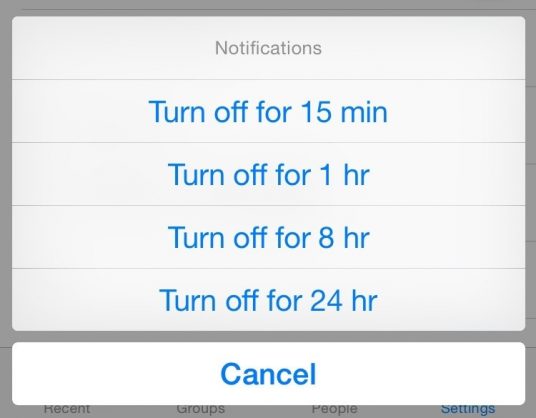
Facebook Messenger chat notifications can be so annoying and instructive when you don’t want to be disturbed. But you can mute chat notifications by following some simple steps. You can stop getting constant chat notifications for a specific time ( for 15 minutes – 24 hours ) or until you un-mute them manually. To stop notifications for any conversation, simple tap and hold on that conversation on the Android phone or swipe left on iOS, select the Mute option and select the time for which you want to mute the notifications.
2. Voice Call and Video Call For Free.
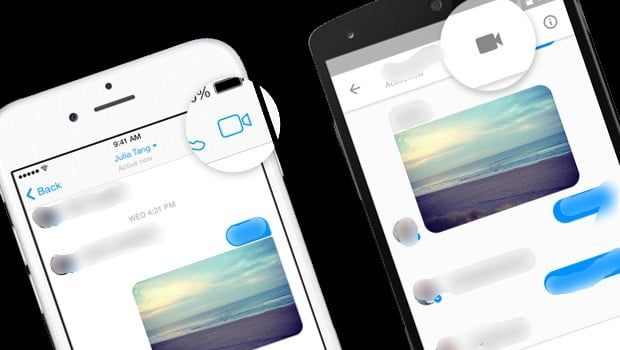
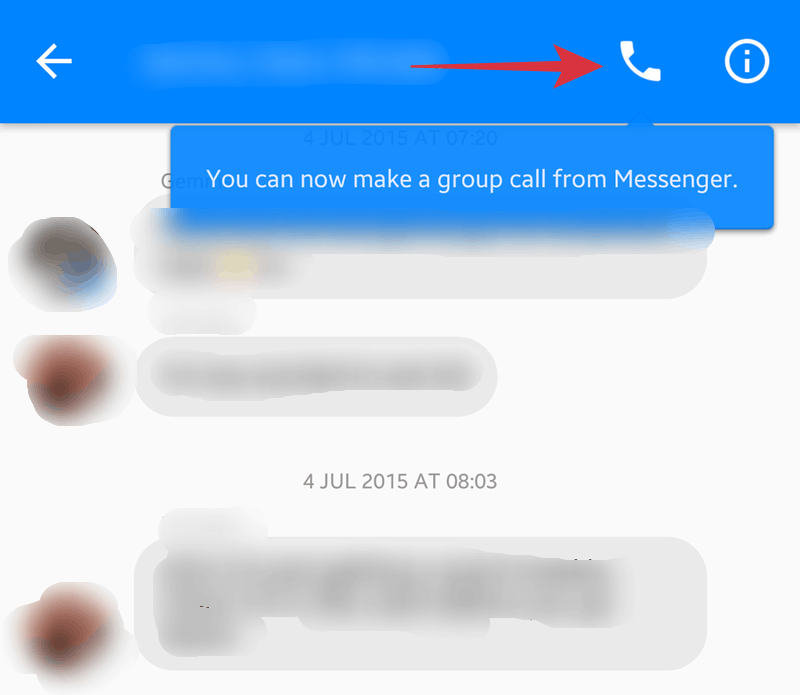
Voice and Video call is another Facebook messenger command which allows you to make free voice and video calls with your friends. If you are getting frustrated with typing long messages, you can simply make voice calls or send voice messages to do conversation. You can use your phone’s rear camera do to video call. Simply tap the video or phone icon on the top right corner of the Facebook Messenger.
3. Share Your Location.
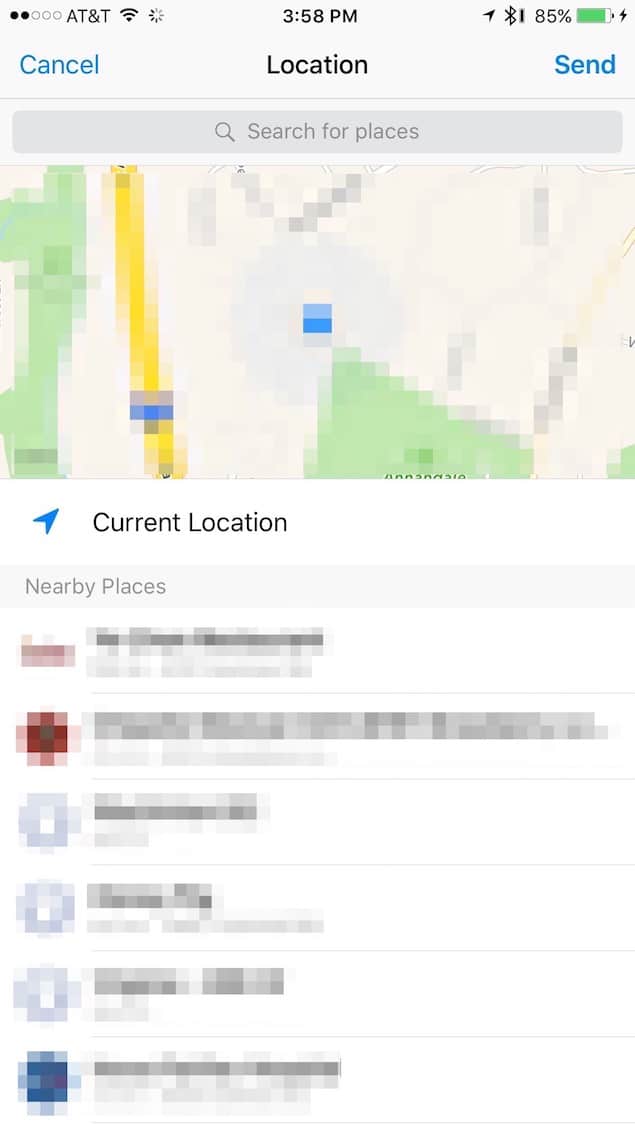
Sharing Location feature was firstly came on Whatsapp. With this Facebook Messenger tricks, you can send your current physical location to your friends. If you want to let your friends know your exact physical location, simply go the conversation and hit the location button ( three dots button ). Your friend will get a map showing your location.
4. Group Conversations
You can also do group conversation with more than one friend. Instead of relaying your conversations with your friends, you can organize group conversations and give any name to the group conversation. Apart from group messages, you can also make group video calls. You need to have the latest version of Android or iOS as Facebook is rolling out group video calls on the latest versions. To make a group video call, open the group conversation and tap on the phone icon.
5. Send And Recieve Money
Yes, you read it right! You can share and recieve money from your friends on Facebook Messenger. You need to add a debit/credit card and like Paypal, you can send or receive money from your friends, relatives, family members. Facebook does not charge anything from you for doing transactions. For securing your transactions, you can add PIN by going to Settings > Payment > Security.
6. Order Rides Uber With Facebook Messenger
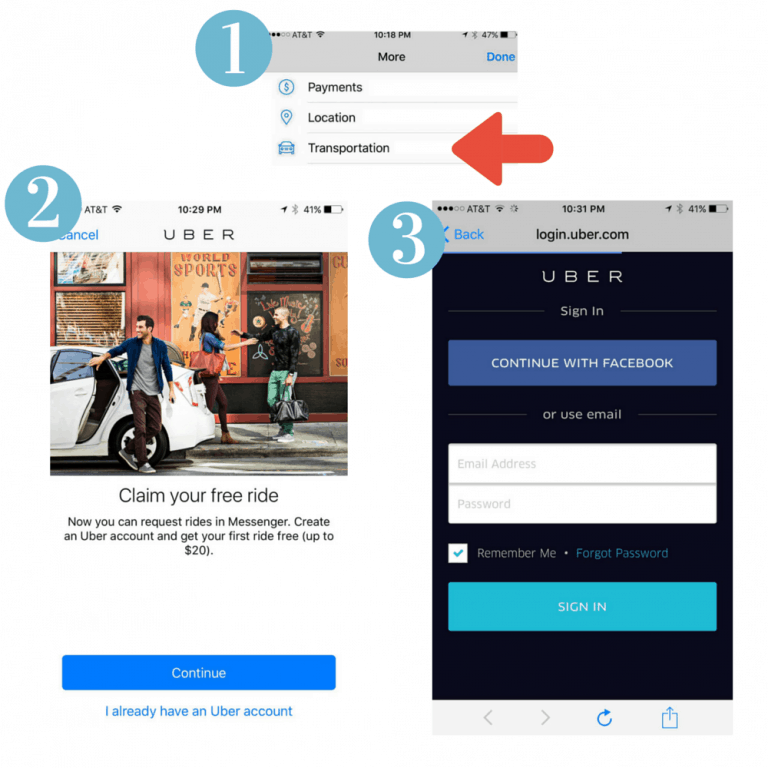
Order Uber Riders is another one of the best Facebook Messenger commands which allow you to order a taxi at your exact location. You don’t need to open the Uber app. Just go to Settings > Transportation and link your Uber account with your Facebook Messenger. To order an Uber, open a conversation, tap on threedots button and choose Transportation. This Facebook Messenger Trick can be very helpful if you and your friend are at different locations and want to share a ride.
7. Use Facebook Messenger Without Facebook Account
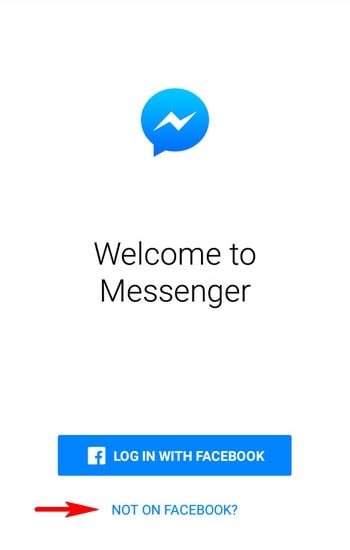
To use Facebook Messenger, you need not have a Facebook account. You can add friends from your contact list who have Facebook messenger. You can sign up with your phone number. To use this without Fb account, install the messenger and tap on “NOT ON FACEBOOK” on the first screen when you will open the messenger. After that, follow easy steps to integrate Facebook Messenger with your phone number.
8. Use Multiple Accounts With Facebook Messenger.
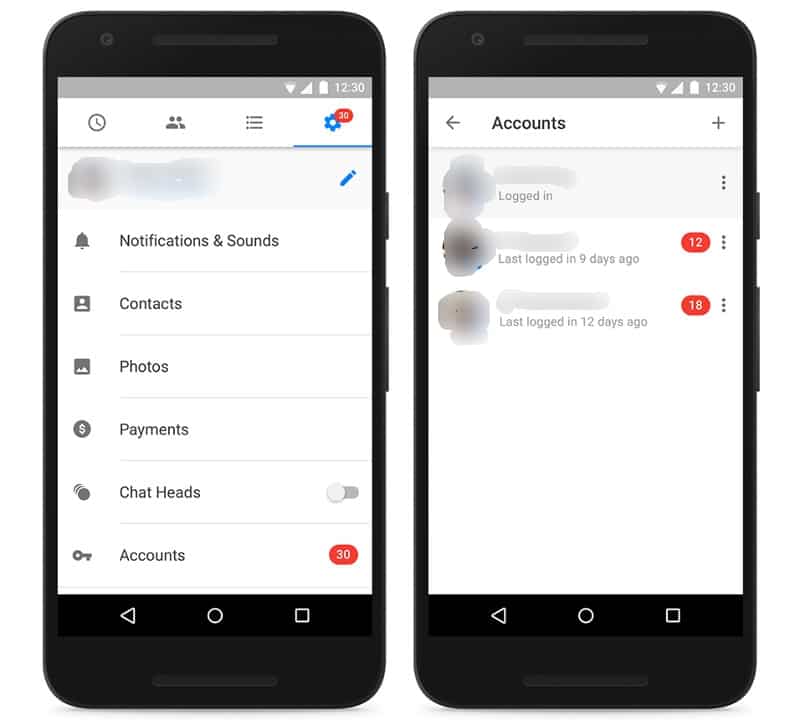
You can add multiple accounts to Facebook Messenger at the same time. To add multiple accounts, go to Settings > Accounts and tap on the “+” icon on the top right corner of the app. The Facebook Messenger automatically loads the contact list, chat etc. of the accounts that are already added in the messenger.
9. Play Chess With Your Friends
Apart from conversations, if you are getting bored and want to try something new, you can play games on Facebook Messenger. You can play chess with your friends without leaving the messenger. You can start playing chess with any of your friend by sending “@fbchess” as the message to your friend. You can make moves in the game by typing commands as a game is not touchable. To know more about commands, type “@fbchess help“.
10. Give Nicknames To Your Friends
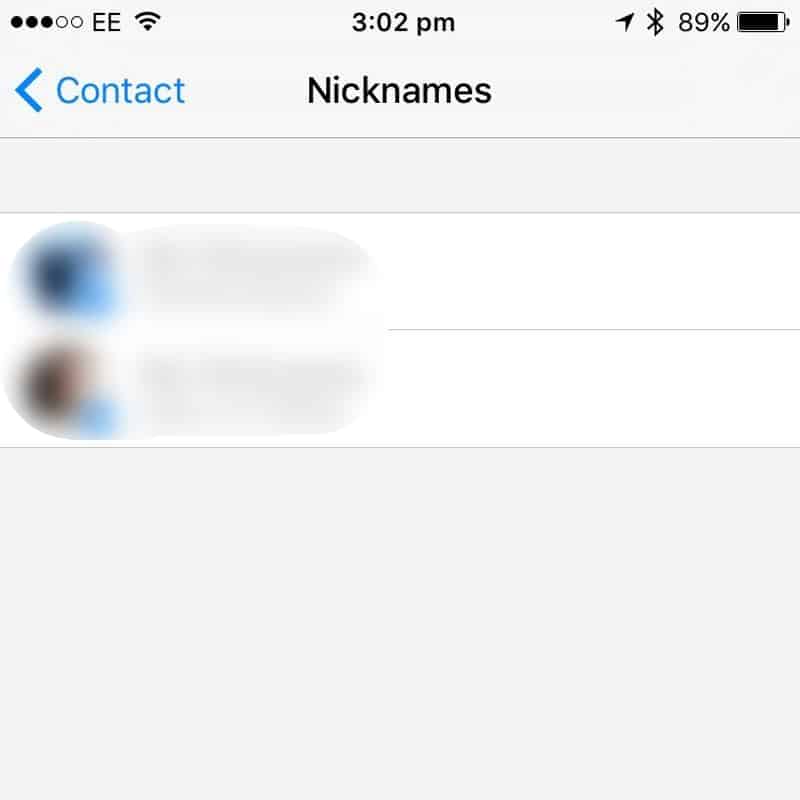
It is one the funiest Facebook Messenger Commands which allows to you to give nick names to have extra fun. Sometimes it creates confusion when you have multiple friends with the same name. It becomes difficult to recognize the friend to whom you want to send the message. In this situation, you can give the nickname to your friends. To give a nick name to any of your friend, go to the conversation, tap on your friend’s name, then tap “Nickname” and enter the name that you want to give.
Summing Up
So here are some best Facebook Messenger Commands. There is much more to do in Facebook messeger instead of doing conversations with your buddies. Facebook Messenger is evolving and adding great stuff to let its users stick to it. Facebook is now planning to add virtual assistant in Facebook Messenger and it would be a great move. All the above Facebook Messenger Tricks are end-to-end and are worth to try. If we missed any enjoyable tricks, let us know in the comment section.
Everyone likes the convenience of fingerprint sensor, and the new MacBook lineup comes with fingerprint unlock on the power button. However, there’s still a way around for those who own previous generation Macbook users to unlock more conveniently. One is using Apple Watch or iPhone, but you don’t have either these, here’s in this article we will explain in detail about how you can use your fingerprint enabled Android smart phone to unlock it. There are plenty of apps which let you unlock Mac using Android smart phone. You can also check ways to backup photos from the android phone.
As Mac OS is a closed source operating system, you must have an iPhone if you want to do any task that can be completed via a smartphone. There is an app called MacID for iPhone, which lets you unlock Mac using smartphone’s fingerprint sensor. Fortunately, there is also an app for Android smartphone called DroidID. You can use this app to surpass the hassle of typing Mac’s password again and again and add an extra layer of security to your Mac. You can also check tips for making smartphone more secure.
Once you install this app on your smartphone and set up it with your Mac, you can easily unlock Mac using Android’s fingerprint sensor. Whenever you open your Mac, you need to type the password. Just tap on the DroidID notification on your phone, scan the fingerprint sensor, Boom! Your job is done.
Requirements For Using DroidID
Before using this app, you must assure that your smartphone has Android’s Marshmallow version or above which has a fingerprint sensor. Also, your Mac should have El Capitan or above version of Mac OS running on it. Currently, this app is available only for Mac. The Windows version may soon release. So here are some steps that you can follow to setup DroidID on Android and Mac OS.
Before using this app, you have to follow some steps to install DroidID on your Mac and Android smartphone. After that, you have to integrate both of them with each other.
In the first step, download DroidID for your Mac and Android phone. You can follow the below links to download it for both the platforms.
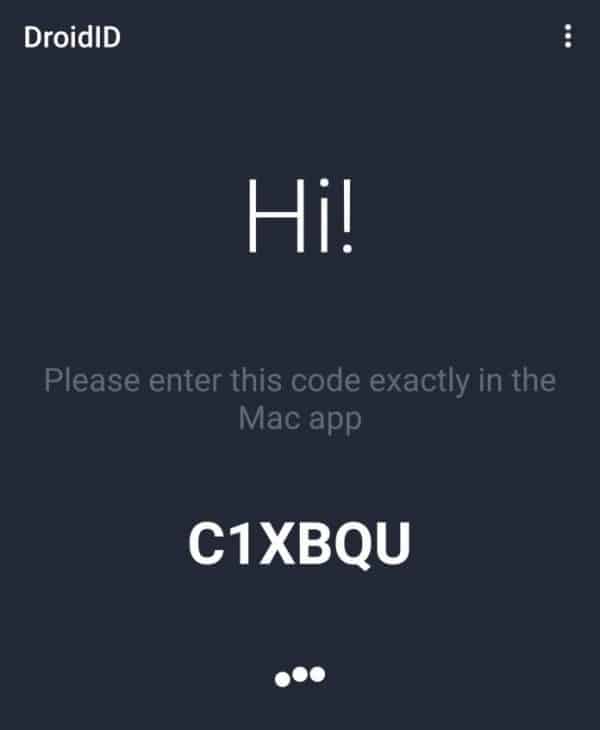
Install the app on your Android phone and open it. You will see a code on the app’s screen as shown in the screenshot below.
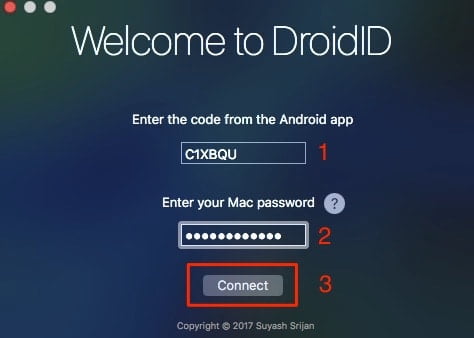
Now install the DroidID for Mac and open it. Enter the code in the first box, that you get from the android app. Enter your Mac password and then click on “Connect” button.
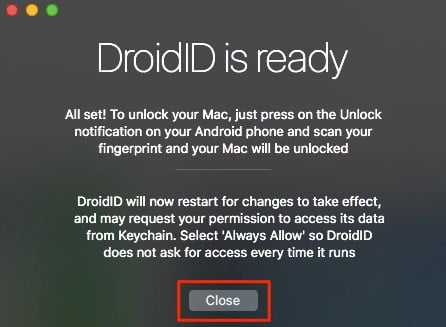
The configuration will be done and you should see “DroidID is ready” message on the Mac screen. Click on the “Close” button.
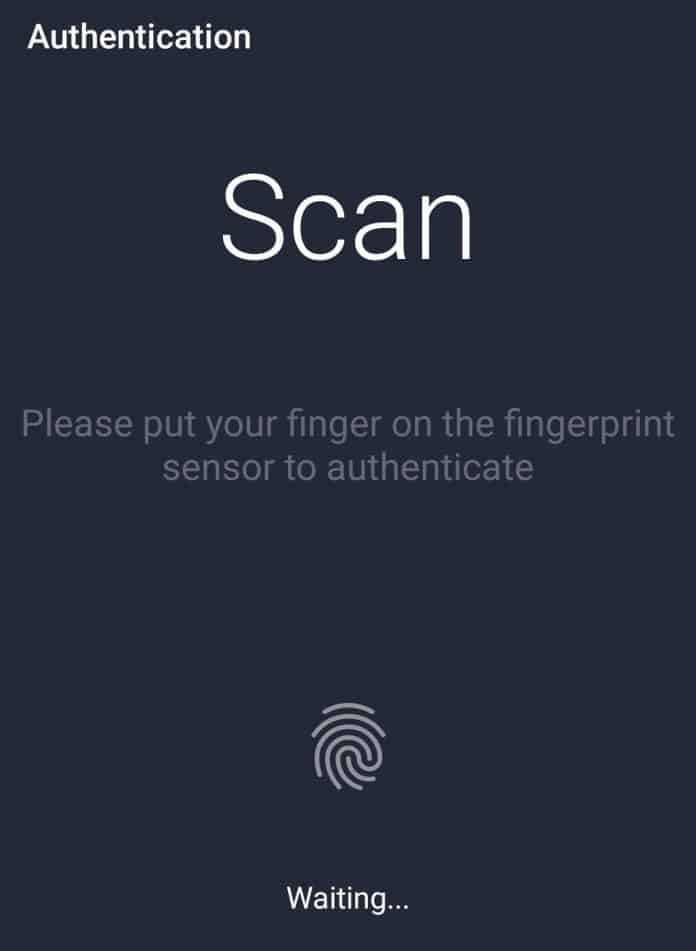
Simultaneously, you will see the screen like this on your Android phone. It will ask you to “authenticate your fingerprint”. That means you are done. You are ready to Unlock Mac Using Android Smartphone.
By following the above steps successfully, you can easily unlock MacBook with android phone. When the screensaver begins on the Mac or when the Mac goes to sleep automatically, just scan the fingerprint reader in the DroidID on your phone.
When you will manually lock your Mac, it may not work. And also, when you will start your Mac it may not work. To work it automatically, you have to follow some more steps to work it automatically. Also, check Lock Screen Widget On iOS 10.
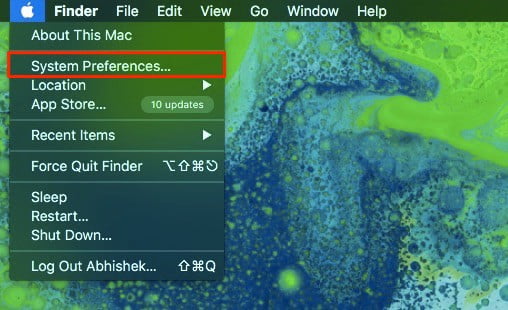
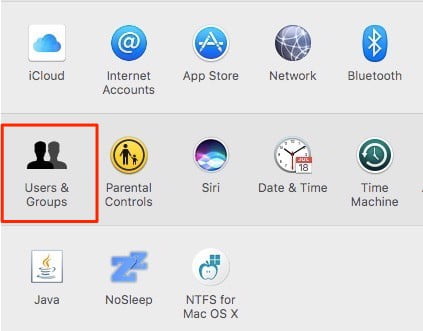
Click on “System Preferences” by clicking on the Apple logo just on the top left side of your Mac screen.
Go to “User and Groups”.
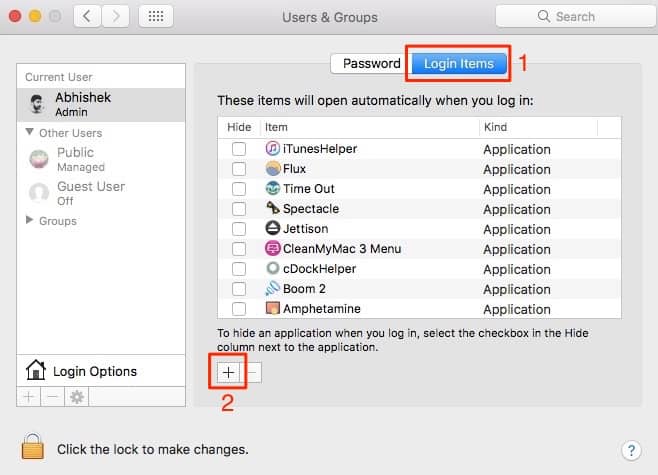
Go to “Login Items” and click on “+” at the bottom of the screen.
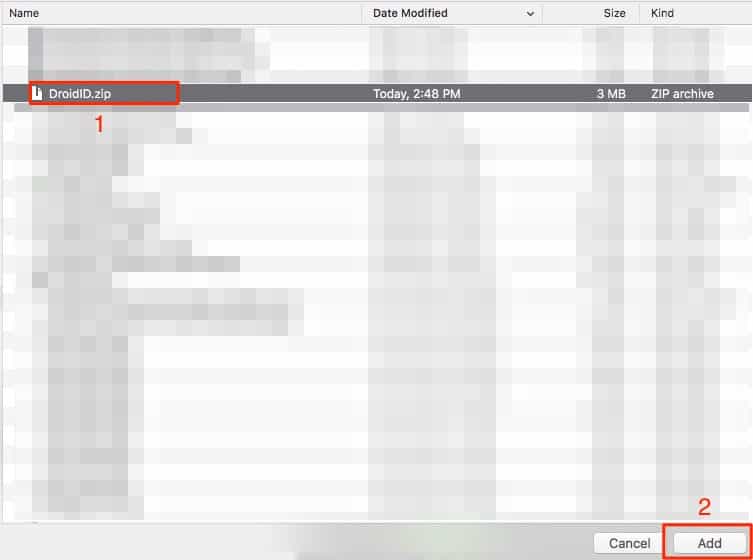
Navigate where you see the DroidID.zip and click on “Add”.
Now it will automatically start every time your Mac restarts. DroidID is a pretty good app that can make your Mac user experience even easier. It uses Bluetooth connectivity to unlock Mac using Android phone. Let us know in the comments if you have any query.
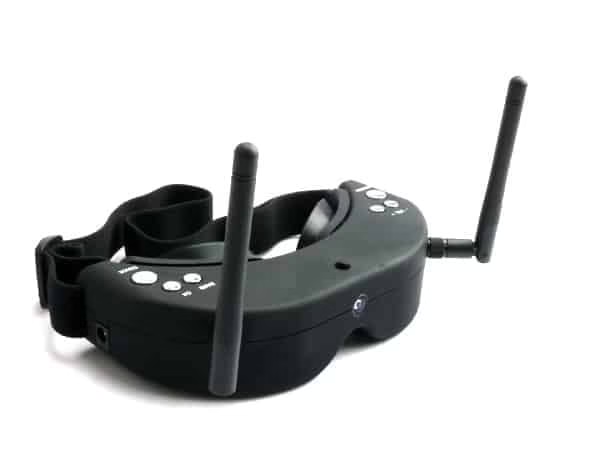
Drones are an amazing piece of technology that allows you to feel like a real pilot, and when you add FPV goggles into the equation, the experience is adrenaline raising. Now, for those of you who are not familiar with the term FPV, which stands for First Person View, meaning that you get to “sit” in the pilot’s cockpit and have that realistic piloting sensation.
The system behind all this is not that complicated, and it consists of an onboard camera and feed transmitter that are attached to the front end of the drone, and goggles that have an inbuilt receiver that sends the live feed to the display in the goggles. When we put it that way, it sounds quite simple, doesn’t it? But, it’s not as simple as might seem and there is quite a lot of science behind it. But we won’t get too much into science and focus more on what you need to keep an eye (or eyes in this case) when choosing FPV goggles for your aerial adventures, and reviews of some of the best models on the market. First, let’s start with the important features.
Important note: The models that we reviewed in our article are the crème de la crème of the FPV world and not suited for everyone’s pocket. Therefore, if your budget is limited, you can also check out the article that talks about cheap FPV goggles and find one that is within your budget.
IMPORTANT FEATURES
Like with any other product, before buying FPV goggles, you need to know what to pay attention to, or you might end up with a model that is not right for you. Here in this article, we have listed everything to help you in making your decision:
Resolution
Like with any other video display, the resolution the goggles offer is critical. The formula is simple – The higher the resolution, the better the experience. You need to watch for models that come with VGA, SVGA, or in case your budget is high, you can look for the Pro models that offer FWGA.
Now to explain it a bit more. The VGA offers 640×480 pixels, while the SVGA comes with 800×600 pixels. The last option, the FWGA goggles, offer 854×480 pixels. But, you should keep in mind that FWGA resolution is pretty much useless if your onboard camera is not HD.
FoV (Field of View)
The higher the value of FoV of your goggles is, the more realistic the experience you will have while flying your drone. It’s just like in the movie theatre, the bigger the screen, the more you will enjoy the film, right?
In most cases, FPV goggles offer a FoV range of 25 to 45 degrees, and the more you pay, the greater FoV you get.
There are FPV goggle models that come with an inbuilt flight recorder and use HD cards for recording the flights. Video recording is a great feature if you love watching your flights later, or sharing them on social media, or if you crash your drone, you can use the footage to locate it. You can also consider buying models that come with DVRs for video recording.
Head Tracking
Now, this is a cool feature that we would recommend to those who already have some FPV flying experience. Because it offers you a chance to control the camera movement with your head (the camera follows the movement of the goggles), but it takes some time to get used to, and that is why we recommend if you haven’t tried FPV flying before, to go with a fixed camera option. Once you get the hang of it, you will have a feeling that you are in the pilot’s cockpit and can even enjoy the scenery around the drone while flying it.
Top FPV Goggles On the Market
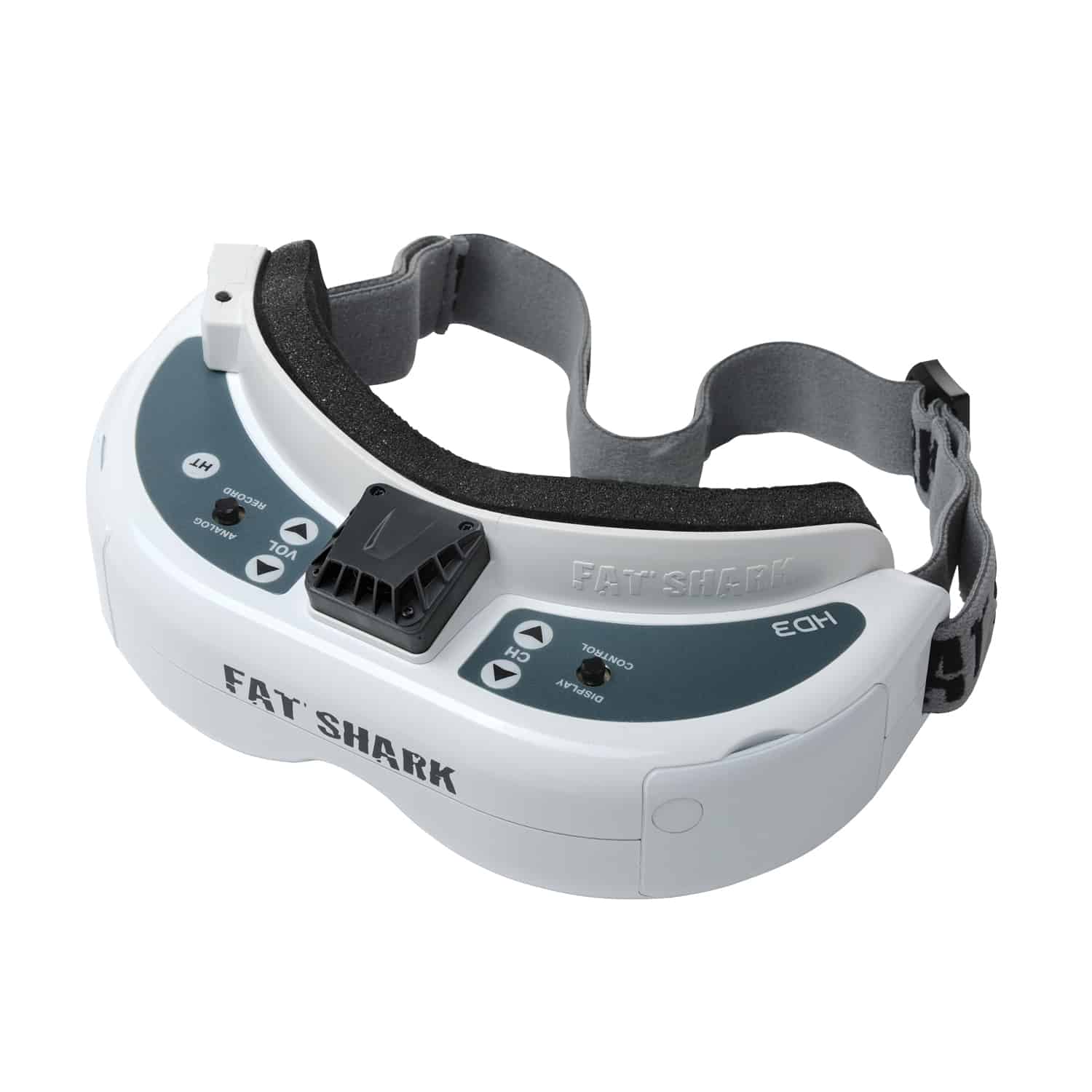
Fatshark Dominator HD V2
When it comes to FPV goggles, the Dominator HD2 is the full deal and the most wanted model among the Pro Drone Racers. They come with the highest resolution among the consumer models, the SVGA 800×600 pixels, the biggest FoV value on the market (50 degrees), and support the Head Tracking feature. Furthermore, the HD V2 goggles also include an HDMI input, meaning that you will still be able to use them when the next-gen racing link system, the so-called Amimom zero latency HD is released. Another feature worth mentioning is the built-in DVR for flight recording.
As for the battery, the goggles use an 1800mAh battery, located in a pocket on the head strap. The battery can be recharged with the RC battery charger that you probably already own.
The package includes the following:
Goggles
1800 mAh battery
Charge cable adapter
HDMI cable with mini to standard and mini to micro adapters
3m AV cable
DC DIY cable
Zipper carry case
If you are looking for the best FPV goggles on the market, you have found them.
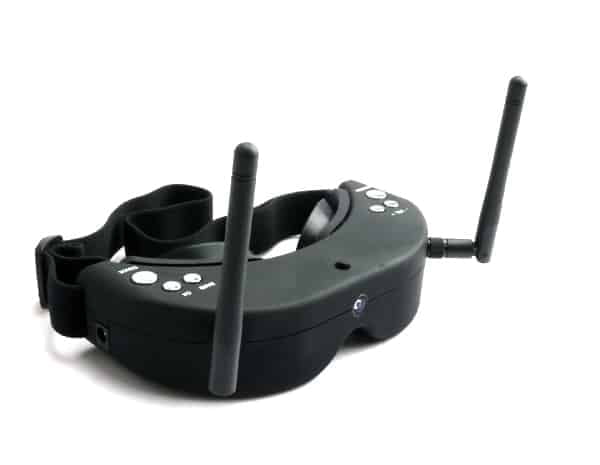
Arris Skyzone SKY-01S FPV
If you are no stranger to racing drones, then you know that the Arris brand is well known for making the best racing drones out there. But, they make some of the best FPV goggle models as well. Their flagship model is the one we reviewed today, namely the Skyzone SKY-01S. With a 40 channel receiver, and the WVGA resolution of 854×480 pixels, they offer the best picture quality on the market. However, their downside is that the FoV is only 30 degrees.
But, other features that these goggles offer still keep them on the top and the narrower FoV than the HD V2 model is not a real deal breaker actually. Those features include the contrast and brightness switch, which allows you to adjust the mentioned two with only long or short press of a button.
Another feature that you will probably like is the use of a diversity video system, which comes with a pair of different video receivers, as well as a pair of antennas, allowing you to have a clean signal and block out any interference.
Furthermore, like the Fatshark model, Head Tracking is available, but with such a narrow FoV, you would have to twist and turn your head, maybe even more than possible, so this feature is not that useful with this model.
So, in general, you will not make a mistake if you buy the Arris FPV goggles, but keep in mind that they are not as good as the Fatshark HD V2 model.
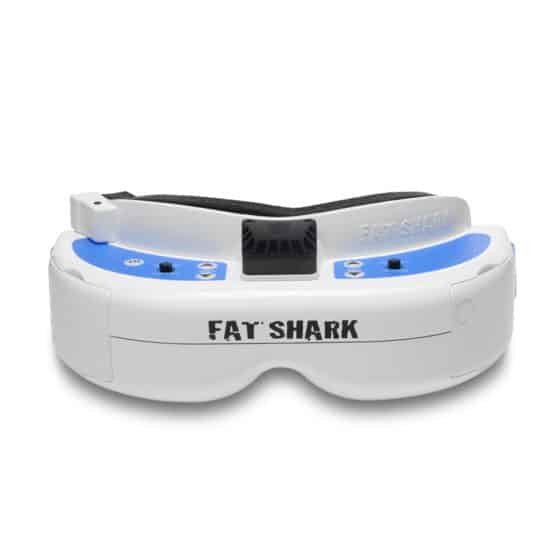
Fatshark Dominator V3
Another model from the Fatshark brand, only this time, we are talking about a cheaper model, meant for those who are not Pro Racers, but you can actually see many of them using this model because they are really among the best on the market, but cost some $200 less than the V2 model.
These goggles are built to allow you to upgrade them as you advance, thus the modular design that lets you expand their functionality, and the module bays that allow you to use a range of bands, going from 1.3GHz to 5GHz. They support 720p and use the HDMI connectivity.
As with the previous two models, Head Tracking is possible, but when it comes to racing, that is not a smart idea as you need to have a fixed “screen” to focus on fast flying and not looking around.
When it comes to the battery, like the V2 model, the Dominator V3 goggles come with an 1800mAh battery, and again, your RC charger will get the job done without a problem.
All in all, the V3 goggles are not as high-end as the V2 and the Arris model, but they are way above the rest of the models on the market and a exceptional choice for both FPV beginners and Pro Drone Racers.
WRAPPING IT UP
Okay, now you know the top 3 FPV goggle models and you only have to make a choice. Honestly, picking any of the mentioned will be a great choice, and it just comes down to personal taste and the size of your budget. If your pocket is deeper, go with the Fatshark HD V2 or the Arris model. But, if you want to save some money for some other drone parts or new batteries, the Fatshark Dominator V3 will be more than good for adrenaline raising flights.
We hope that our article gave you the needed inspiration, and that you will feel free to share it with your friends and social media. Happy flying!