
Home Blog Page 121

How to Play YouTube Videos on Repeat

0

YouTube finally decided to introduce the much sought after feature of looping the videos a couple of years back. You can watch YouTube videos on repeat which means you will be able to loop the same video over and over again.

If you are using your computer’s browser to loop a YouTube video, then it’s really straightforward to play a video on repeat. All that you need to do is:

  • Go to YouTube
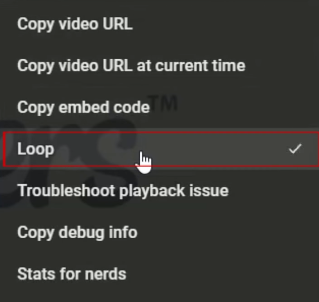
  • Choose a video that you want to play on repeat and right-click on it (if you have a touch screen then long press on it)
  • Now from the drop-down menu, click on the “Loop” button

Smooth! Isn’t it? Your selected video will play on repeat unceasingly until you decide to turn off the loop button. To do so, right-click on the video again and uncheck the loop feature.

However, there are a couple drawbacks to this feature. First, it is applicable for only a single video at a time. You can play one particular video on repeat by selecting the loop option, but if you want to play other videos on repeat as well, then you have to select loop for them individually every time. Also, if the precise video features a pre-roll advertisement, then you will probably listen to it along with the video whenever it restarts.

Additionally, there is no option to select a particular section of the video that you can loop. In this way, if the creator of the video has included any introduction, it will also play along with the rest of the video again and again. Well, that can be really irksome. 

If the basic serviceability of the YouTube loop button is not enough for you, and you don’t want to wreck the fun by listening to the unwanted prelude, then fortunately there are some good substitutes. There are many third-party services that allow you to repeat videos on YouTube where you can select and play specific part of the video.

In this post we will discuss the two other methods to play on favorite YouTube videos on repeat using such third-party tools.

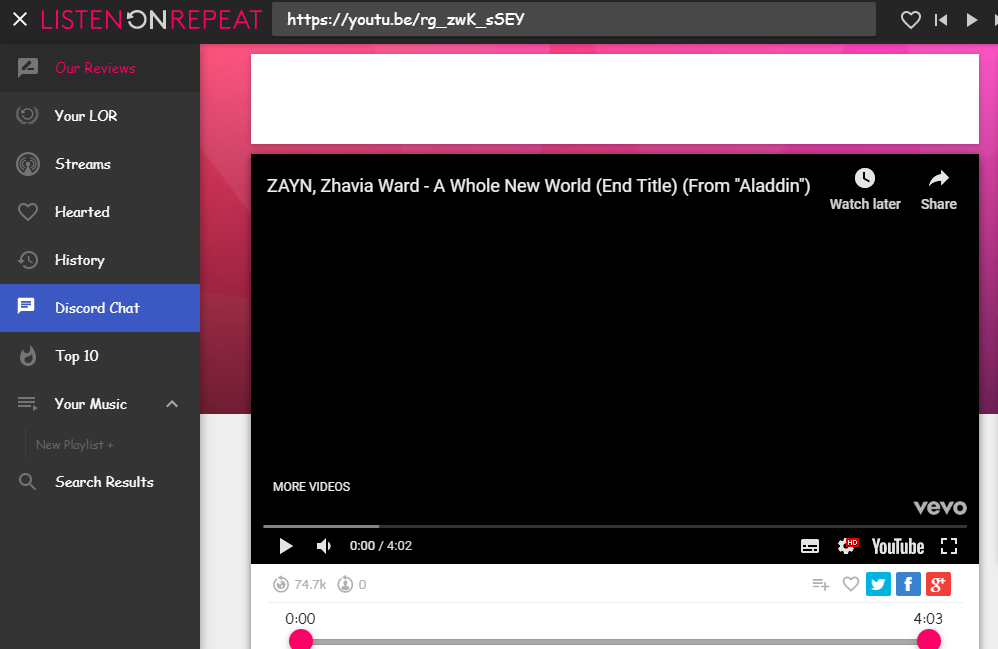
How to play YouTube videos on repeat with ListenOnRepeat

ListenOnRepeat has been designed just to loop videos. This is a great alternative if you trying to loop a video on a tablet or smartphone where you are not getting the loop option. 

With so much demand of the loop feature, ListenOnRepeat is quite a popular and trusted website among users.

Follow the below mentioned steps to put YouTube video on repeat using this website:

  • Go to YouTube and open the video that you wish to play
  • Click on the “Share “option below the video.
  • Click on “Copy” next to the video URL
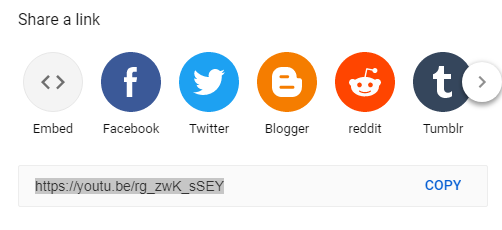
That is it. ListenOnRepeat will play your chosen video on loop. If the video doesn’t start playing automatically for any reason, then you can scroll down to the search results and select a video manually.

If you want, you can also select a section of a particular video to be played on loop or let the whole video to repeat continually as per the default settings. ListenOnRepeat also allows you to search for video from its own search engine. For a website which doesn’t charge you anything for playing YouTube videos on repeat infinitely, that too on any device, ListenOnRepeat is indeed a great option for YouTube lovers.

The creators of ListenOnRepeat have also developed a Chrome extension where in you will get a “repeat” button for your Chrome toolbar. 

With the extension, you just have to go to YouTube and click on the “repeat” button to play the video of choice on loop. Check it out here.

While you are at it, you may want to give a try to other similar websites like Youtubeloop.net and Infinitelooper.com. These websites too allow you to load multiple videos which can be looped infinite times.

How to play YouTube videos on repeat with an App

For an Android device, you can give a shot to Musepic which is available for free on Google Play Store. The application allows you to count your repeats too. If you prefer, the app offers in-app purchases to upgrade it for advanced features.

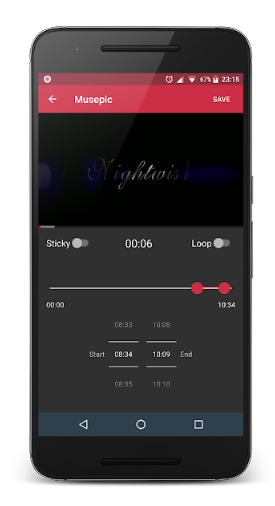
Once you download and install the app, just launch it and search for the video to play on repeat. Select your desired video from the search results and tap on the play button.

On the bottom right hand side of the screen, tap on “loop” and the video will play repeatedly. You can also loop only a part of the video using the drag bar.

Get the Musepic: Repeat YouTube Videos app from here.

If you are an iOS user, you can use these apps to repeat YouTube videos, both of which are available on App Store: 

That is all for now. Hopefully these methods work out for you and you are able to loop your favorite video without any hindrance.

9 Amazing things you didn’t know a VPN could do

0

VPN’s are becoming more and more popular amongst computer users, as people become more aware of the dangers of not using one. Still, many people are not aware of all the benefits of using a Virtual Private Network. Here are 9 amazing things that you might not know a VPN could do:

Increase internet speeds

It is not uncommon that an Internet Service Provider will throttle their users and when this happens it results in much slower speeds than what was originally advertised. This is even truer if you are performing high-bandwidth activities such as online gaming, streaming Netflix, Hulu or downloading songs.

Sometimes you’ll even notice that your shows do not stream in 1080p consistently or you keep lagging out of games or your download speeds are slower than you expect your traffic is more than likely being throttled.

With a VPN your ISP cannot read your traffic, which then means they are not able to split it between high and low speed tunnels and when this happens all of the traffic is routed to you. No more buffering, lagging or slow downloads!

Hacker prevention

If you have any online presence whatsoever, you’re susceptible to an attack from hackers. While your Internet Service Provider most probably has a firewall built into their service, it is not always 100% secure. This allows for a hacker to gather your data from credit cards, logins, and other sensitive info you put online.

One of the most important benefits of having a VPN is security. The military-grade encryption that comes with a VPN will completely protect you from hackers gathering your data because you are connected to an off-site server, which assigns you different IP addresses. They will have an extremely difficult time finding any information from you.

Distant online shopping

For those who love to travel, you may find yourself in a different country but would still like to shop on your favorite online retailers’ website. The problem is when you go to visit that site, it will be country-specific. If you are able to use a VPN in your home country however, you’ll be able to easily access your country’s website no matter where in the world you are.

Stream blocked content

There are some popular services that we all use that are sometimes blocked in other countries, like Netflix, Hulu, Spotify and sports streaming sites. When you use a VPN you can easily change your IP address to match the geographical location of the service you’re trying to access.

This is considered to be a gray area as in some countries this is legal and for other countries it is not.

Keep browsing history private

You may not have known but most ISPs not only have your web history but they can sometimes record it as well and even see what you have previously downloaded and this greatly compromises your privacy.

A good VPN has a very strong encryption which prevents your ISP from recording your browsing history, making your privacy well protected.

Eliminate targeted ads

Say you’ve visited your favorite online retailer, just to go to another site and see the product you were just looking at, is “following” you around. This happens because when you visit a specific page, your IP address could be targeted through third-party advertising platforms

When you are using a VPN, you have complete anonymity. This means companies are not able to accurately track an IP address to collect your information.

Save you money

When you have access to thousands of IP addresses with just the click of a button, things can get a little crazy (in a good way!). If you do any traveling you can save money. When booking flights the prices vary by your location, so being able to switch from state to state with a click of a button can have its benefits.

Also, if you have ever wanted to try out a service that has a free-trial, using a VPN is perfect. Once your initial free-trial is over you can easily sign up for another trial just by changing your IP address and your login information.

Anonymous downloads

It may not always be displayed, but there are some sites that take certain information from you when you download software. This is because these sites have access to your IP address, which holds certain data about your online habits. Examples are what type of sites you visit and even your browsing history in some cases.

Connection to your home network from a remote location

In most cases, computer users will have a main computer that they keep all of their important files on, but where the problem comes in is actually accessing that computer while you’re away from home.

With a VPN you are able to set up remote access to your home computer so you are able to access whatever you need with no hassle whatsoever.

So when it comes to versatility and features that do things like protecting your privacy, connecting from remote locations, streaming in blocked countries and increasing internet speed, the best way to go is to use a VPN. For a low monthly price you can have access to these features and much more, making sure you are always protected when online.

How YouTube Processes A Lot of Videos In Just A Short Span of Time?

0

It is actually a technical prodigy that YouTube can manage hundreds of thousands of viewers watching a lot of videos that have a significant number of real YouTube views at the same time. For this reason, more and more people were asking if how this social media platform process a lot of videos in just a short period of time. Fortunately, engineers at YouTube revealed how they handle excessive data without making an unsearchable and unwieldy website or getting bogged down. 

According to Rushabh Doshi, one of the software engineers at YouTube, YouTube obtains traffic at a level each day which would DDoS a big fraction of other websites. 

On the other hand, it is an extent of the feat of the YouTube platform that all video streams are served up without instabilities to the website. However, serving massive volumes of videos is just one of the many engineering challenges faced by YouTube. 

When Doshi joined this platform in 2007 he said that the website is obtaining six hours of video for every minute. But in the past few years, YouTube has noticed a ten-fold boost in volume. 

Data Overflow 

In the past couple of years, digital video has modified the web profoundly and in fact, no corporation has been more dominant to that development than YouTube. Even so, it popularized and at the same time democratized video sharing. It also offered opportunities for protest and expression for citizens. 

The website, on the other hand, has turned out to be identical with online videos that are it a lot easier to disregard what technical marvel it is. 

Furthermore, the website can directly ingest videos from any source such as computer webcams, connected cameras, tablets, and phones. And the engineers at YouTube have really worked hard to create some of the difficulties of digital videos such as resolution, codecs, and bit rate invisible to people conducting all transcoding as well as processing on the back-end. 

For example, the upload page of YouTube is embedded with software which uploads and transcodes several high-definition video files automatically in real time. In order to reduce the latency, usually, the uploaded videos are delivered to any Google data center is physically nearest to the person. 

Search & Discovery

This actually takes place in the background since a lot of people are uploading videos simultaneously. However, the website faces another problem aside from processing videos. YouTube wants such videos to be tagged with information as well as easily searchable the moment they have arrived. But the problem is people aren’t consistent with the data they provide with their content. 

If you have ever seen some videos that you’re searching for desperately, then you need to thank CristosGoodrow – the engineering director for search & discovery at YouTube. 

Goodrow revealed that being part of one of the biggest and the world’s most dominant search provider has its benefits. In fact, YouTube utilizes much of the search technology of YouTube. Though, Goodrow points out that there are lots of stuff that make video search diverse. 

How to Enable and View Google Maps History

0

Can’t remember the last eatery that you went to? Well, it is obviously not an easy to task to keep a track of every place that we have visited and all the events that we have attended in the past. But, here comes Google Maps history for the rescue.

Wherever you go, it is saved deftly in Google Maps history. So, you can certainly go back and look through all the places that you had been to previously with your phone in hand. Google Maps will show you prior visited places in the form of a personal timeline. 

Couple of years back, Google updated its location history tool and renamed it to “Your Timeline”. The timeline feature is designed to enhance user experience further. And, this data is only accessible by you and of course Google itself.

How to enable Google Maps History of location 

Viewing your search history in Google Maps is really uncomplicated and works almost in the same way for both iOS and Android devices. 

However, in order for this to work, you have to make sure that you have enabled this feature in your device. 

If you are not entirely sure whether the location history is enabled or not,  then here is what you need to do:

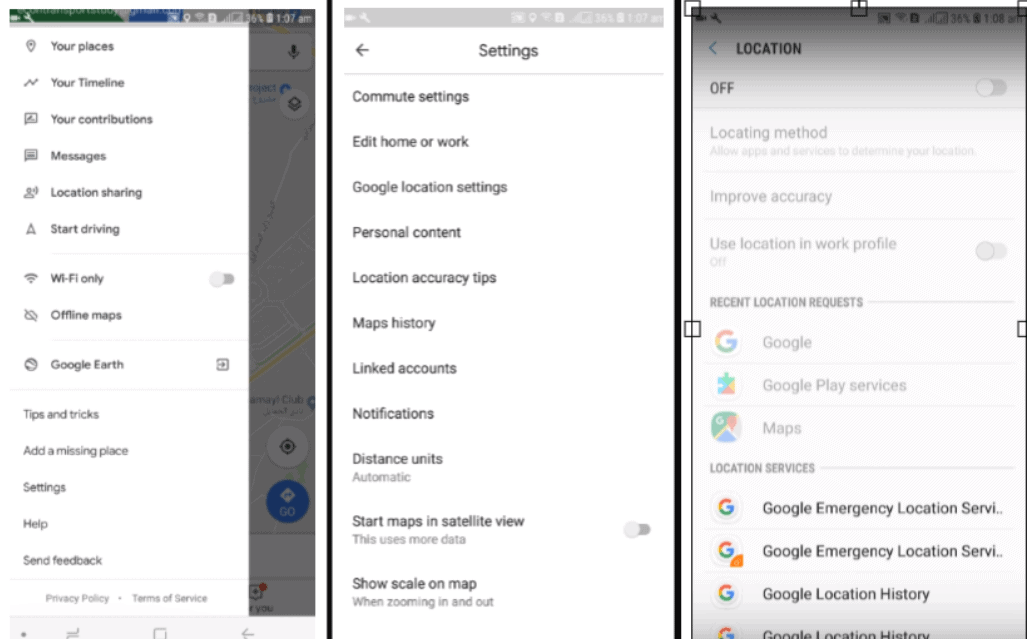
  • Launch the Google Maps application in your device.
  • On the top left-hand side, tap on the hamburger icon
  • Go to “Settings” and then “Google locations settings”
  • See if Location is on/off
  • If  it is off, then tap on, then turn the toggle On
  • Again, go to “Settings” and then to “Personal Content”
  • Scroll down to and see if Location history is turned on/off. Make sure that it is tuned on

How to View Google Maps History

The easiest way to see Google Map Search history is by going to your timeline. To do so, open Google maps in your device and tap on the hamburger icon.

Tap on “Your timeline”

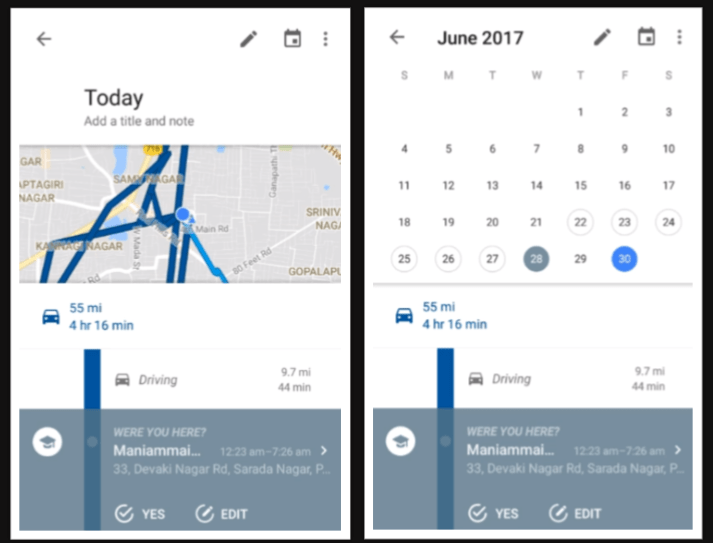
You can now view all the places that you had visited which are organised in an orderly fashion by date and time. Your timeline will display the location history of the current day. In order to see the previous days’ history, just swipe right on the screen.

Tap on the calendar icon on the upper right hand corner of the screen to get a detailed view of the location history of the current and past months. The days when Google maps history has stored your location history, will be marked in white and grey dots.

If you had visited only one place on a particular day, it will be marked by a grey dot, while if you had been to more than one place on a day, it will be displayed in white. The days with no history will not have any dots on them.

To get a detailed view of the exact places that you went to, just tap on the white/grey dot and you will find the specific time, location and even the pictures that you might have taken in that given location.

Also, if you think that Google Maps hasn’t recorded your location history accurately, then just tap on that particular location and scroll down to the bottom of the screen where you will find the option to “Edit”. Tap on it and Google maps history will show you all the nearby locations.

You can now select the correct location and save it. To remove any particular location from your timeline, just tap on the “X” icon on the right side of that location and tap on “Remove” when asked to confirm.

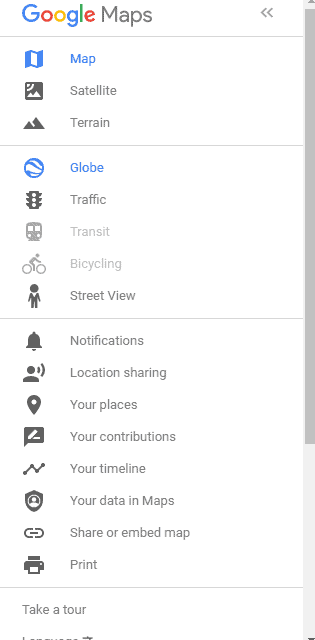
If you are using your browser to view the Google Maps search history then go to https://www.google.com/maps and click on the hamburger icon at the top.

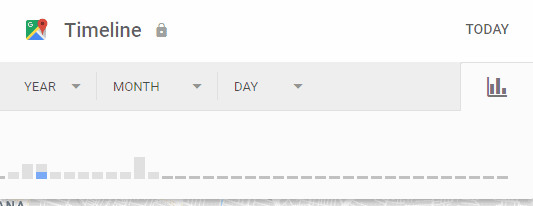
Scroll down the page and click on “Your Timeline” You will be able to access your locations and events based on day, month, and year.

Wrapping up

Google Maps history makes it extremely handy for you to remember all the places and events that you had been to, pretty much at any given time. Once you know where to find it, life certainly gets easier. And, surprisingly, Google is doing a precise job in showing the exact place visited by you. 

Is Buying Youtube Views Safe?

It’s absolutely fine to purchase YouTube views. Many individuals think that this activity is banned and dangerous, however these suspicions aren’t right, as YouTube’s TOS have no complaint to buying YouTube views etc. 

The fundamental reason individuals are purchasing these services is to progress their channel and their videos and however much as could reasonably be expected. Buying YouTube views have many advantages, so do you want to know what they are? 

Today, the competition on YouTube is very much high. There are nearly 300 hours of video content shared each moment! This limits your odds to get the significance you need.

Is it legal to buy YouTube views?

It is 100% legitimate and in accordance with YouTube’s exact guidelines and terms, so starting now and into the future, you do not need to worry. You don’t have any reason to feel uncertain – it’s totally fine with YouTube! Don’t hesitate to read the guidelines posted on YouTube and be much surer. 

In actual, nearly everybody buys it – from the best YouTubers on the planet to on-screen characters, effective specialists, gamers, etc. Long story short – everybody is doing it.

What are the advantages to buy YouTube views?

Purchasing YouTube subscribers, likes, comments or views influences your social appearance definitely. You need to be known on the YouTube stage. To get perceived on the stage, you should make your social appearance, which means you need to build up a group of people, increase high watch times and get a high positioning in search results. 

The most straightforward approach to do this is buying YouTube views. Individuals will in general be more pulled in to videos with a high number of views. If your channel is getting more views on a daily basis then there are higher chances of getting more people to your channel.

It is this thinking, that a video with more views is all the more fascinating or true, that attracts YouTube users to your channel and your videos. The bought YouTube services goes about as an establishment on which you can make the kind of activity that you want.

Aside from the social proof, in case that you purchase, for instance, YouTube views, your video might be positioned higher on the search page of YouTube. A high position on the search page means you will be getting a greater number of people to your videos. Along these lines, when you buy real views (remember that a quality source picks the general population that are related to your category), your videos’ watching time will increase, and as you most likely know, high watching time is one of the criteria utilized for positioning your YouTube video on the search page. Another benefit to purchasing YouTube services is that it also decreases your hard work to the way to progress. In case that you need to prevail in a 100% legit manner, you will need to work with great devotion to get more views, buying YouTube views is a good idea. 

How to Fix – “Windows Update Components Must Be Repaired” Error

0

The Windows Update is a critical element of Windows Operating System which keeps your system secure as these updates are created to fix the security violations and bugs created by third-party programs.

However, often you may get errors while updating Windows and it can indeed be very frustrating to constantly face this issue.

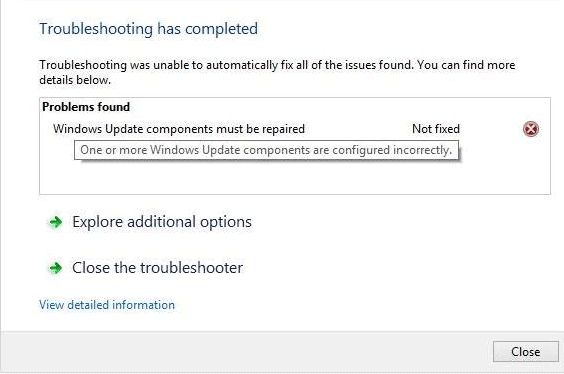
The reason why you might be getting this error in Windows 10 is because your Windows Update components are not configured correctly. 

You have to reset the Windows Update component to its default state in order to resolve the issue of stuck updates at once in your Windows 10 computer. 

In this guide, we will take you through the two methods of resting your Windows Update Components. 

How to reset Windows Update Component using Windows Update Troubleshooter Tool

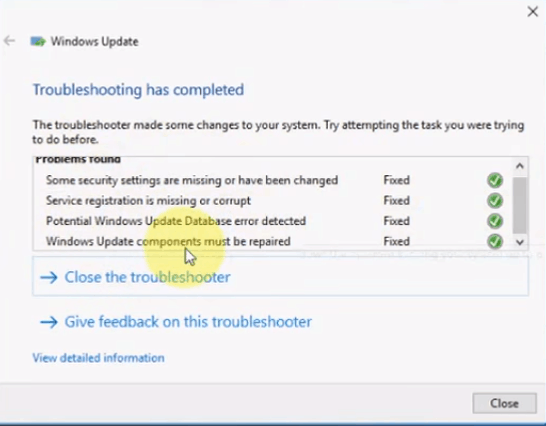
  • Download and install the Windows Update Troubleshooter Tool for your Windows 10 PC
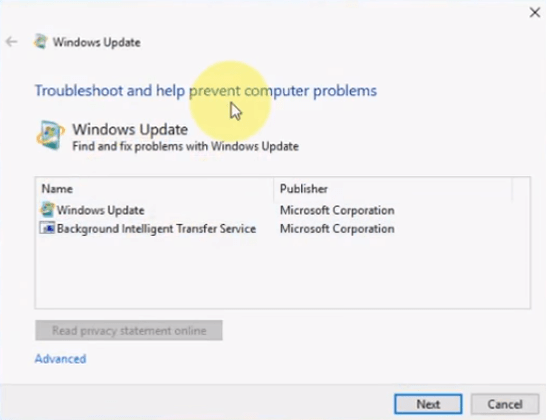
  • Double click on the file  to launch the troubleshooter and select “Windows update” and click on “next”
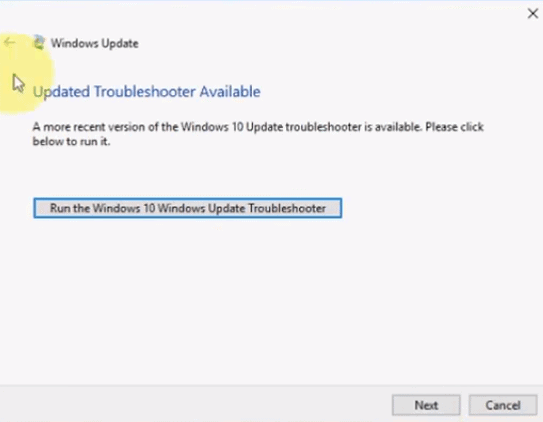
  • Click on “Run the Windows 10 Windows Update  Troubleshooter
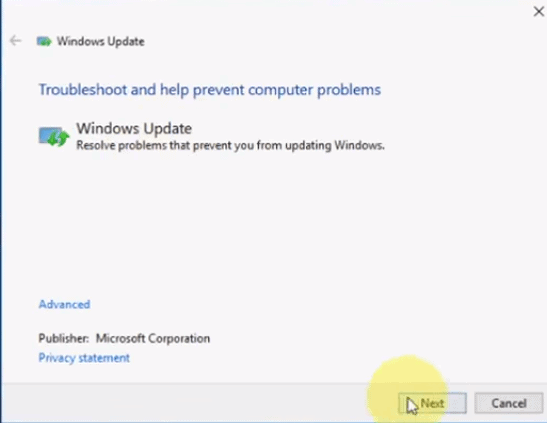
  • Click on “Next”
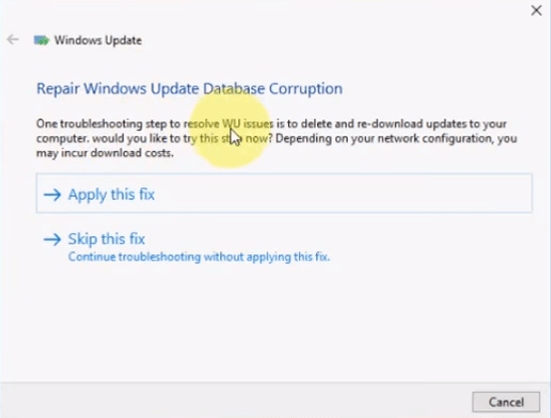
  • Click on “Apply this fix”
  • Finally, you can see all the fixed issues. 

If the error is not fixed with the troubleshooter, then you have to go for the second option which is resetting the Windows Update Component manually.

How to Reset the Windows Update Components Manually using Command Prompt

Resting Windows Update Components manually comprises of many steps. You just need to follow the instructions step-by-step.

Here is what you need to do:

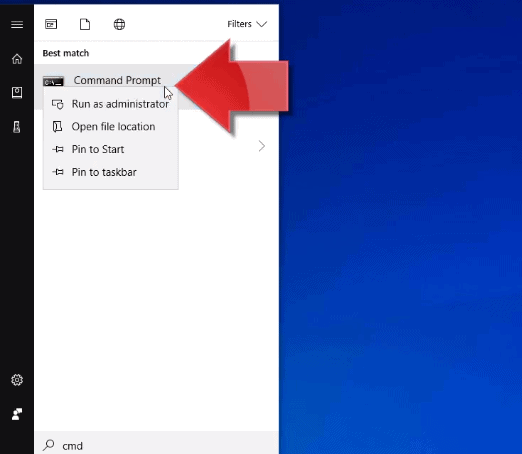
  • Click on the  “Start” button and type “CMD”
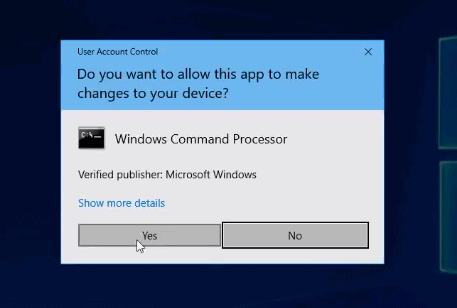
  • From the results, right-click on “Command Prompt” and select “Run as administrator”
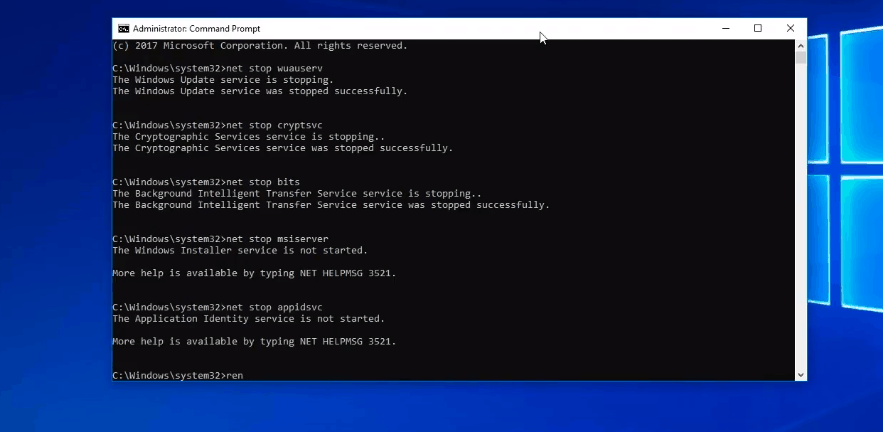
  • In the command prompt, type in the following commands one by one to stop all the services needs by Windows to install new updates. Press enter after each command

net stop bits

net stop wuauserv

net stop appidsvc

net stop cryptsvc

  • Type the following lines of command and hit enter again to delete the qmgr*.dat file.

Del “%ALLUSERSPROFILE%\Application Data\Microsoft\Network\Downloader\qmgr*.dat”

  • To rename the SoftwareDistribution and catroot2 folder, type in the following command and hit enter after each.

Ren %systemroot%\SoftwareDistribution SoftwareDistribution.old

Ren %systemroot%\system32\catroot2 catroot2.old

  • Now in order to reset the BITS service and Windows Update Service to the default security descriptor, type in the following command and hit enter after each.

exe sdset bits D:(A;;CCLCSWRPWPDTLOCRRC;;;SY (A;;CCDCLCSWRPWPDTLOCRSDRCWDWO;;;BA) (A;;CCLCSWLOCRRC;;;AU)(A;;CCLCSWRPWPDTLOCRRC;;;PU)

exe sdset wuauserv D:(A;;CCLCSWRPWPDTLOCRRC;;;SY)(A;;CCDCLCSWRPWPDTLOCRSDRCWDWO;;;BA) (A;;CCLCSWLOCRRC;;;AU)(A;;CCLCSWRPWPDTLOCRRC;;;PU)

  • Once done type in the following command and press enter.

cd /d %windir%\system32

  • To re-register BITS files and related DLL files, you have to type in the following commands and press enter after each one.

regsvr32.exe atl.dll

regsvr32.exe urlmon.dll

regsvr32.exe mshtml.dll

regsvr32.exe shdocvw.dll

regsvr32.exe browseui.dll

regsvr32.exe jscript.dll

regsvr32.exe vbscript.dll

regsvr32.exe scrrun.dll

regsvr32.exe msxml.dll

regsvr32.exe msxml3.dll

regsvr32.exe msxml6.dll

regsvr32.exe actxprxy.dll

regsvr32.exe softpub.dll

regsvr32.exe wintrust.dll

regsvr32.exe dssenh.dll

regsvr32.exe rsaenh.dll

regsvr32.exe gpkcsp.dll

regsvr32.exe sccbase.dll

regsvr32.exe slbcsp.dll

regsvr32.exe cryptdlg.dll

regsvr32.exe oleaut32.dll

regsvr32.exe ole32.dll

regsvr32.exe shell32.dll

regsvr32.exe initpki.dll

regsvr32.exe wuapi.dll

regsvr32.exe wuaueng.dll

regsvr32.exe wuaueng1.dll

regsvr32.exe wucltui.dll

regsvr32.exe wups.dll

regsvr32.exe wups2.dll

regsvr32.exe wuweb.dll

regsvr32.exe qmgr.dll

regsvr32.exe qmgrprxy.dll

regsvr32.exe wucltux.dll

regsvr32.exe muweb.dll

regsvr32.exe wuwebv.dll

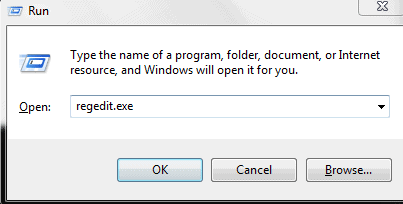
  • Press Windows Key+R and type in regedit.exe to open the Registry Editor
  • Navigate to “HKEY_LOCAL_MACHINE”—-“COMPONENTS”
  • Delete these there entries- PendingXmlIdentifier, PendingXmlIdentifier, and AdvancedInstallersNeedResolving
  • Now, restart your PC and open the command prompt again.
  • Type in the following command to reset the Winsock and hit enter- 

netshwinsockreset

  • To restart Windows update services (BITS, WUAUSERV, APPIDSVC AND CRYPTSVC) again which we had stopped manually before, type in the following commands one by one and press enter.

net start bits

net start wuauserv

net start appidsvc

net start cryptsvc

  • Finally, restart your system and check for windows update. 

To check for the Windows Updates navigate to

Settings—-Update and Security—-Windows updates—-Check updates

Hopefully, you will not get any errors this time for your Windows 10 device.

How to Find Wi-Fi Password on Android Device-3 Simple Methods

0

Forgot your Wi-Fi password but need to connect a new device? If you are struggling to find the saved Wi-Fi password in your Android device, then this is post for you.

You have possibly connected your Android device to many available Wi-Fi networks such as at a friend’s place, in a school, or maybe at a cafe. Android device saves your Wi-Fi passwords for easier access in the future. However, what gets vexing is that you cannot see those saved passwords. The passwords are not displayed for security reasons, but nevertheless it is a cause of inconvenience. 

Now, one doesn’t necessarily remember a particular password always. And, perhaps you wish to share the password with a friend. In that case, Android still doesn’t have a feature where you can see the stored password without root access to that particular device. You can probably ask the responsible person for the password, but there is an easy workaround to retrieve the stored password in your device manually.
In this post, we will take your through the exact process of finding the Wi-Fi password in your Android device.

How to find Wi-Fi password in your Android device using ES File Explorer

(Does not require root)

The ES File Explorer does not require root access to your device and gives you privileged access to the system files. Here is what you need to do:
  • Install the ES File Explorer app in your device.
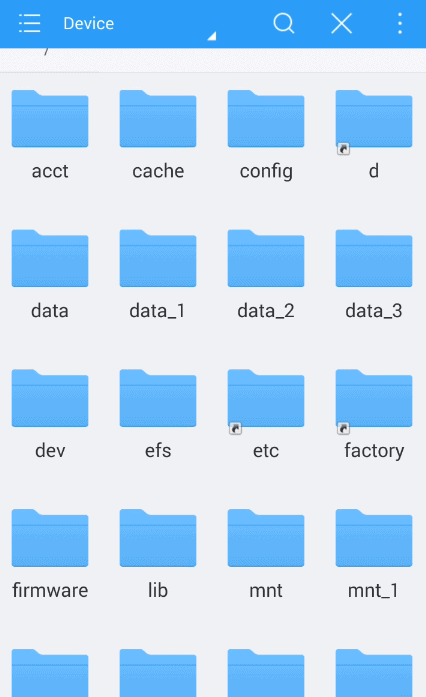
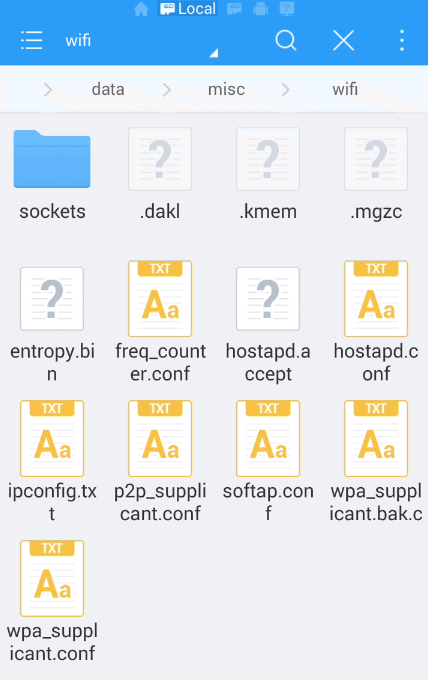
  • Go to the Root folder in the app
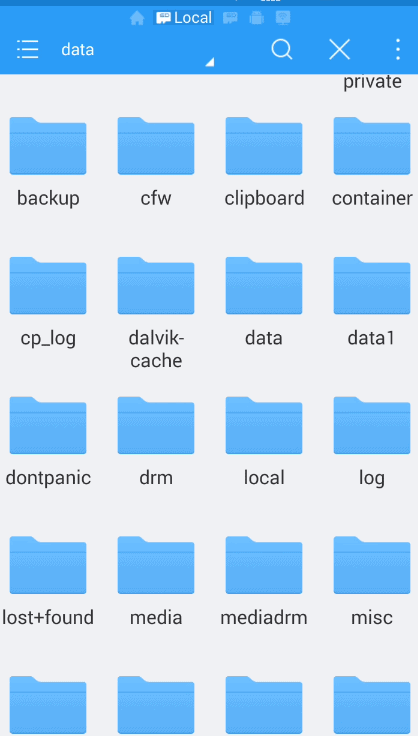
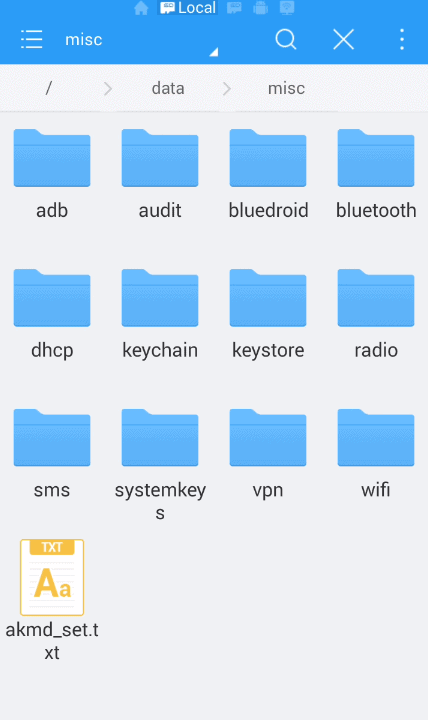
  • Navigate to Data—-Misc—-Wifi
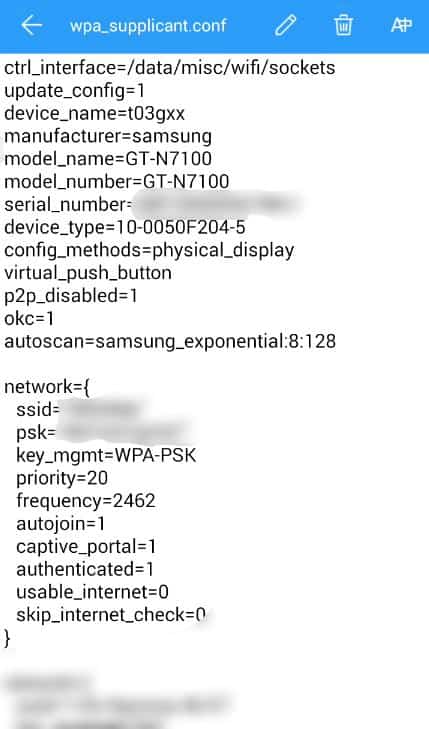
  • You will be able to locate “wpa_supplicant.conf” Tap on it.
  • On the next screen you will be able to see the network SSID and Password

How to find Wi-Fi password in your Android device using an App

If using ES File Explorer is too much of a complicated task for you, then you can use a password recovery application. With one such app, you can directly see the saved password in your Android device without having to navigate much.

Wifi Password Recovery is one such app that allows you to recover all the saved passwords of the Wi-Fi networks that you had connected to. Here is how you can use the app:

  • Download the app from Google Play Store and follow the on-screen instructions to install it
  • Once the installation is done, launch the app and grant permission to access your device. 
  • Wifi Password Recovery will then display all the Wi-Fi networks that had been connected to your Android device.
  • Just tap on the particular Wi-FI network to see the saved password.
  • You can then copy the password to the clipboard.

Another similar application that you can for your Android is WiFi Password Recovery which is also available for free on Google Play Store.

Please note that these applications will require root access to your device. So, you have to root your Android before downloading the app.

How to find Wi-Fi password in your Android device using ADB

If any of the above mentioned methods are not working for you in any case, then you can use an Android Debug Bridge (ADB) tool. For this method to work, you have to connect your Android device with a computer using a USB cord.

With this tool, you will be able to see the Wi-Fi configuration your computer’s screen. This method works for Windows, Linux, and MacOS. 

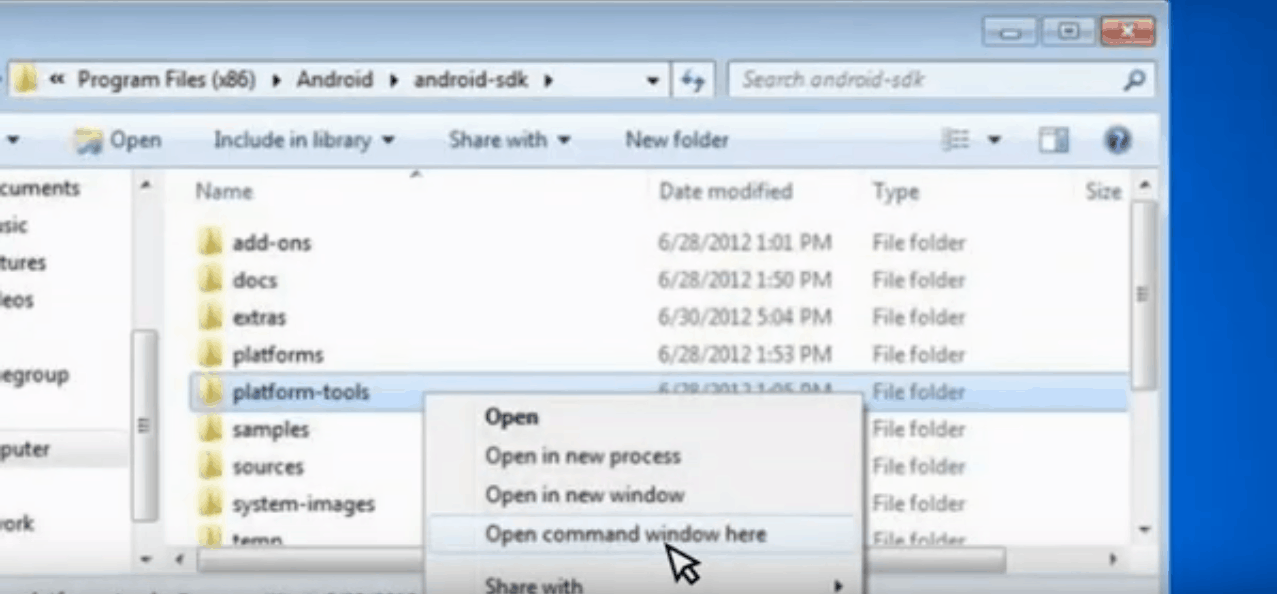
  • Start by downloading the ADB tool and extracting the files to a different folder on your desktop.
  • Right click on the folder and click on open command window here” from the menu.
  • Now, connect your Android device to your PC or laptop with a USB.
  • On your computer, enter this command into the terminal window-“adb services”
  • You will get a notification asking you to enable USB debugging.
  • Allow USB debugging and run the command “adb services” again.
  • Once the serial number of your Android device appears, run the following demand in the terminal window.

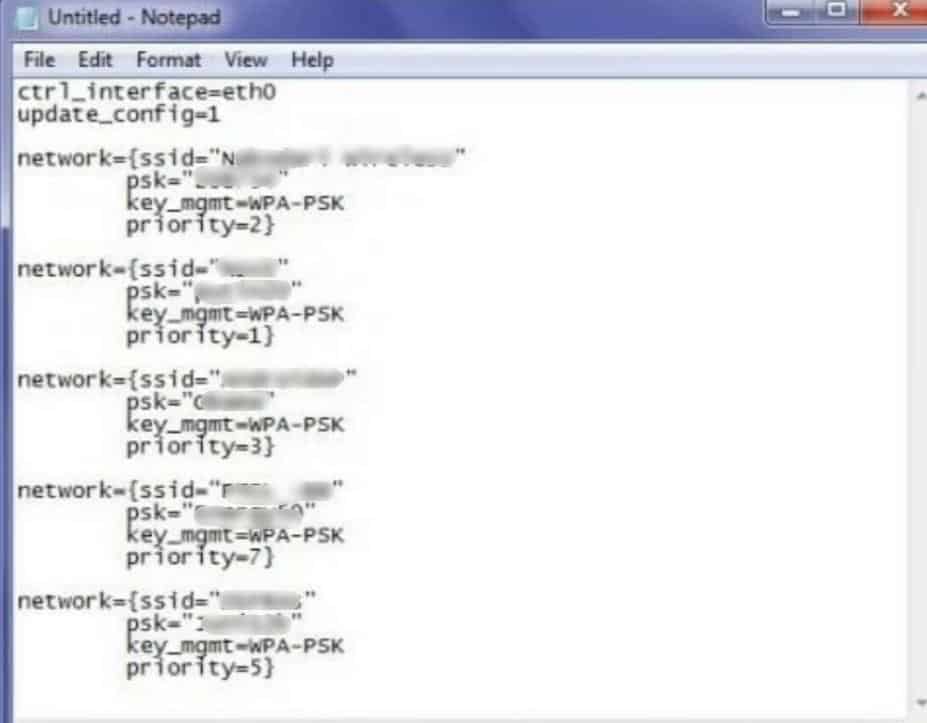
  • To open the files on your computer, enter the following command
  • You will now get all the Wi-Fi networks listed along with the passwords.

Wrapping up:

An Android device comes with a lot of features, but often lacks some of the most basic ones. One such is not able to display the saved password for Wi-Fi network.

The methods mentioned in this post will make it extremely easy for you to view the saved passwords in your device. We hope you find this guide informative.

Exit mobile version